Oops—did you forget to sign out of your Roku at the Airbnb again? Or maybe you’re having guests over and don’t want them making purchases on your account. Here’s everything you need to know about how to sign out of your Roku devices remotely or use Guest Mode to sign in to a different account.
Read More: How to Factory Reset Your Roku Device
How to Sign Out of Roku Remotely
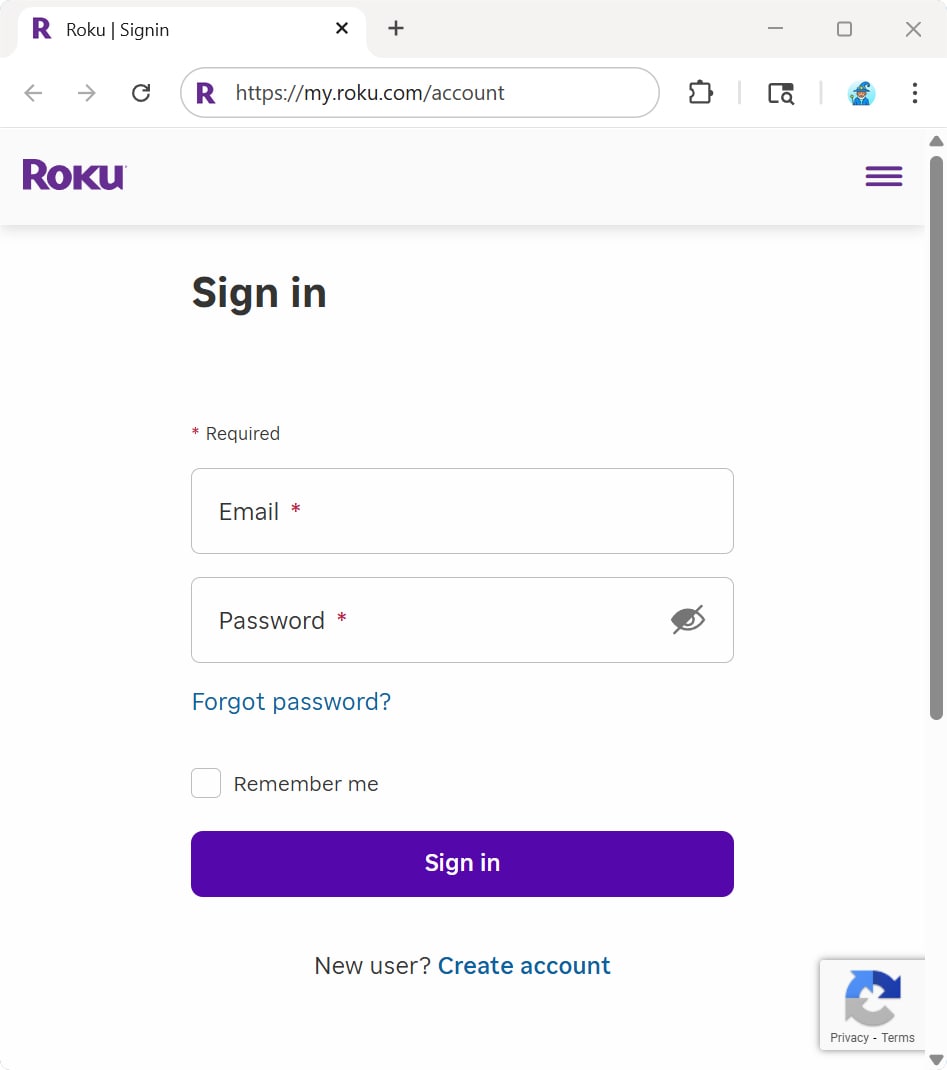
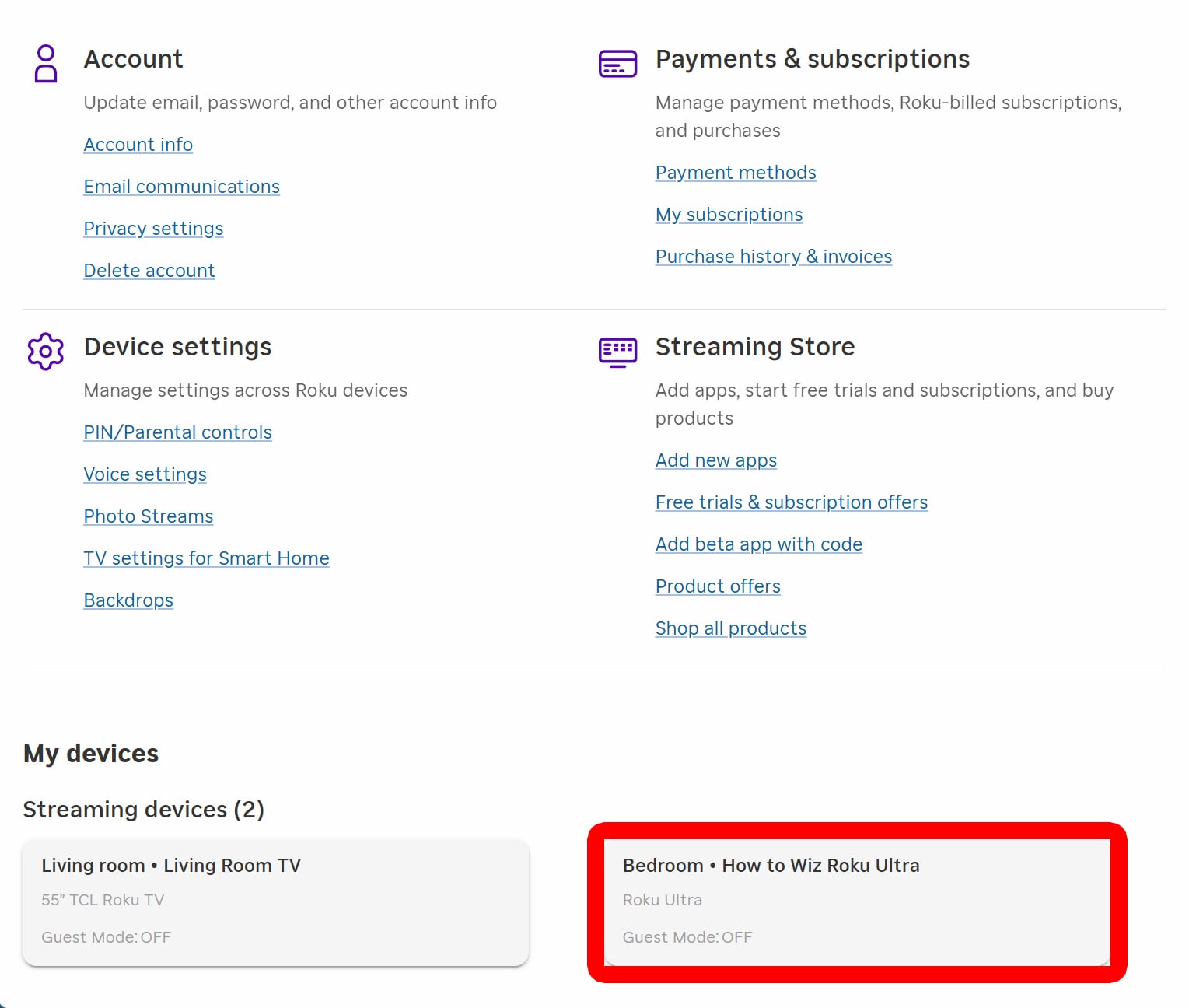
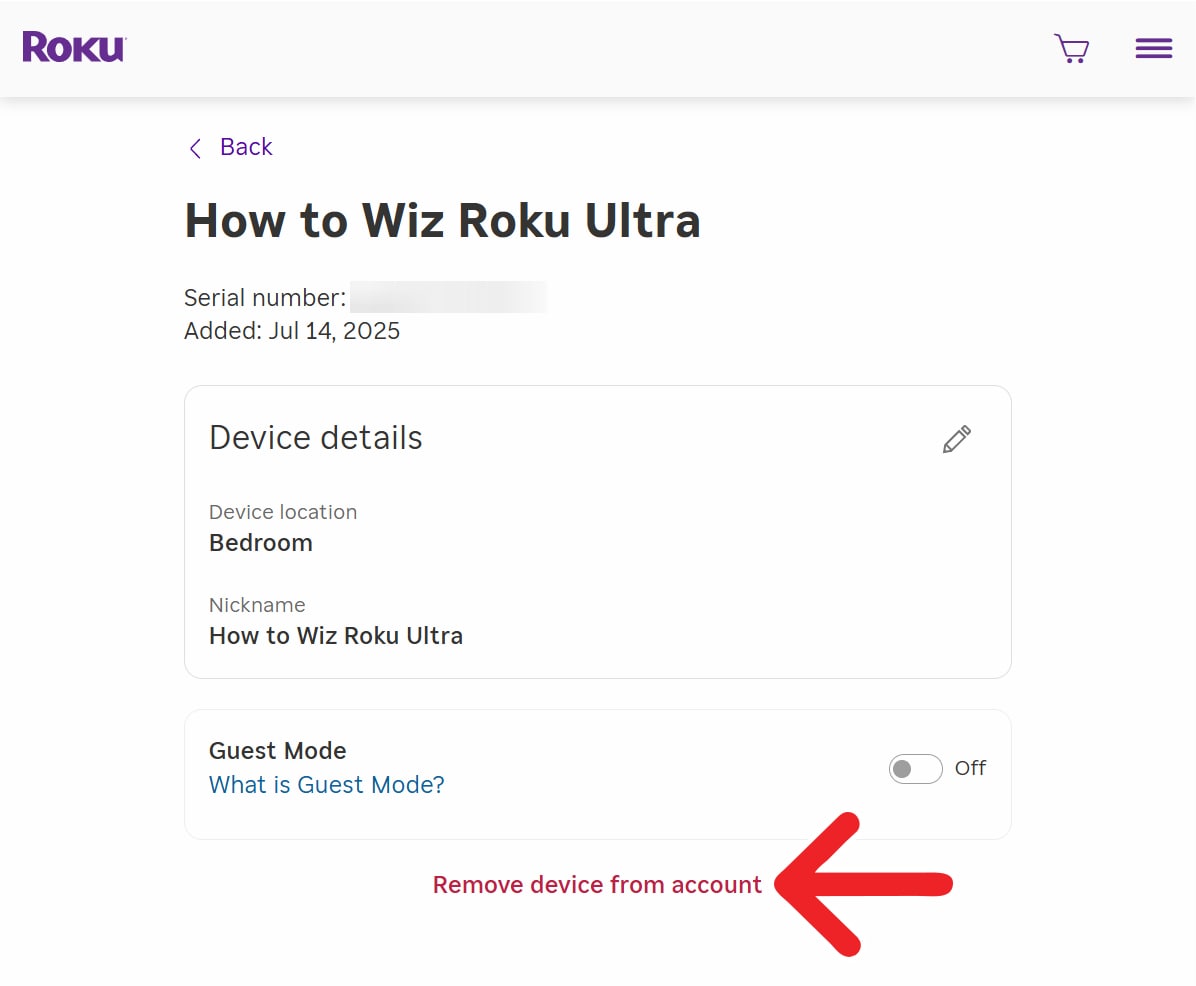
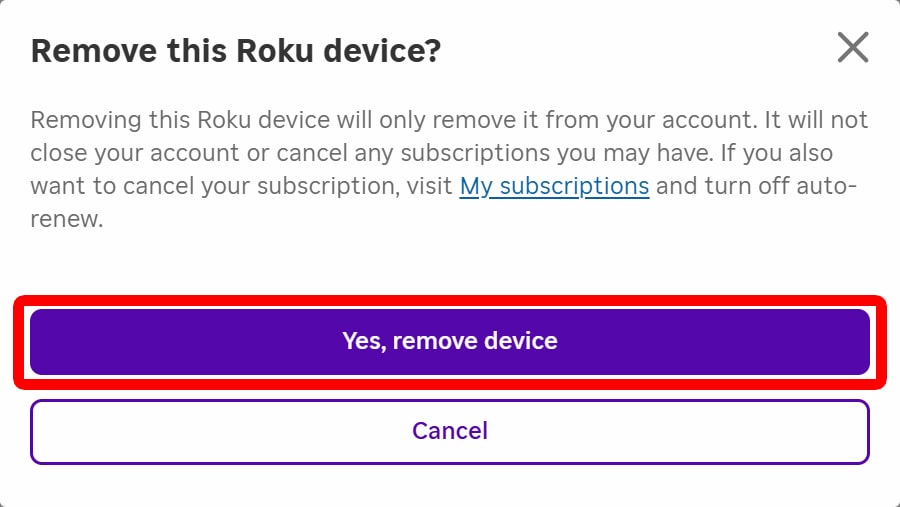
To sign out of any Roku device remotely, go to my.roku.com and sign in to your Roku account. Then, select your Roku device and click “Remove device from account.” Finally, select “Yes, remove device” and wait for your device to restart.
- Go to my.roku.com and sign in to your account. You can do this using any web browser on your computer, smartphone, or tablet.

- Select your Roku device. You’ll see all the Roku devices linked to your account.

- Click “Remove device from account.”

- Finally, click “Yes, remove device.”

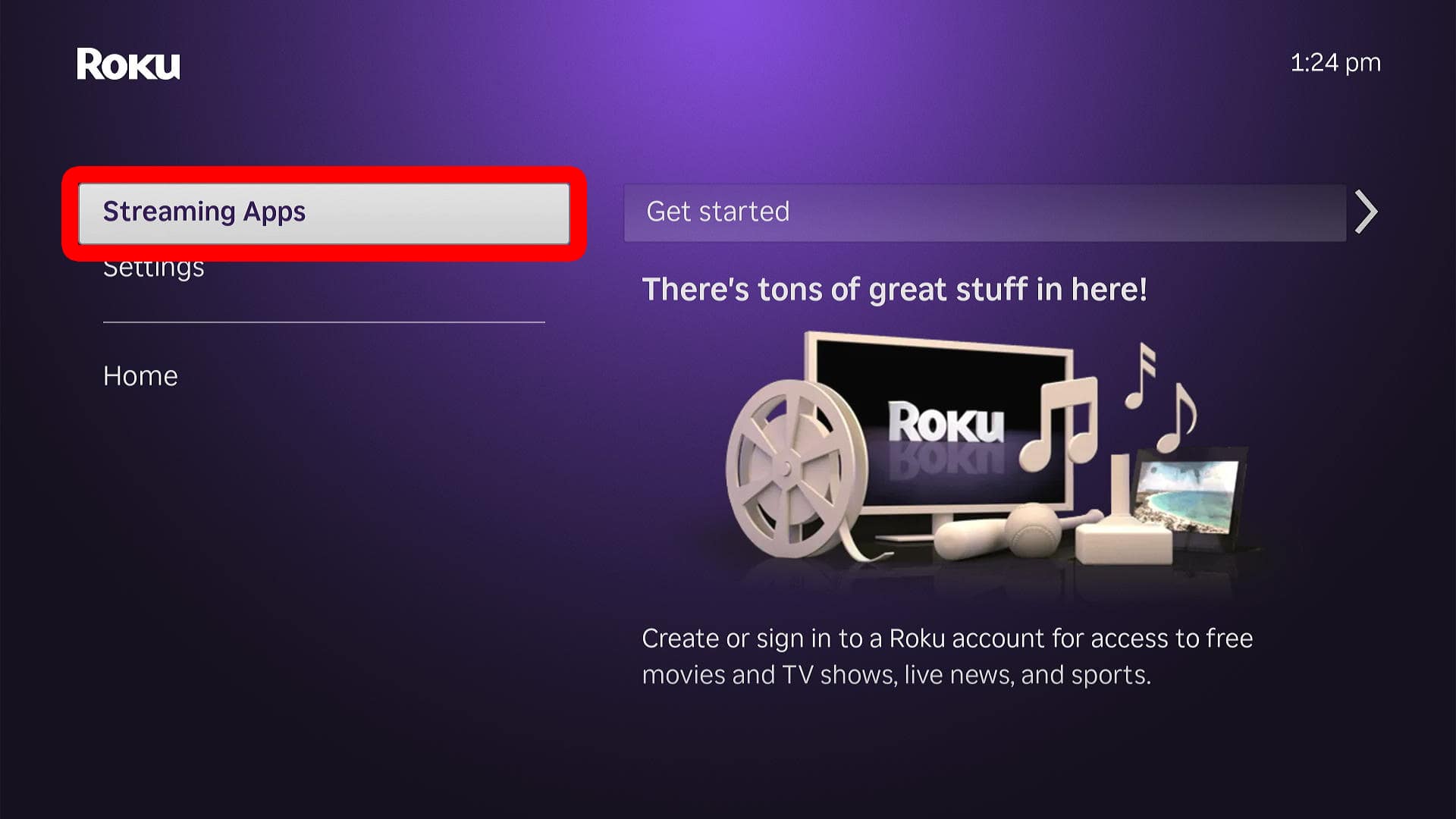
Once you have removed the device from your account, go to the Roku home screen, select “Streaming Apps” from the left-hand menu, and choose “Get Started” to begin the setup process and sign in with a different Roku account.
You’ll need to go through the setup process again—sign in using your email or QR code, name your device, choose which room it’s in, and answer a few setup questions.
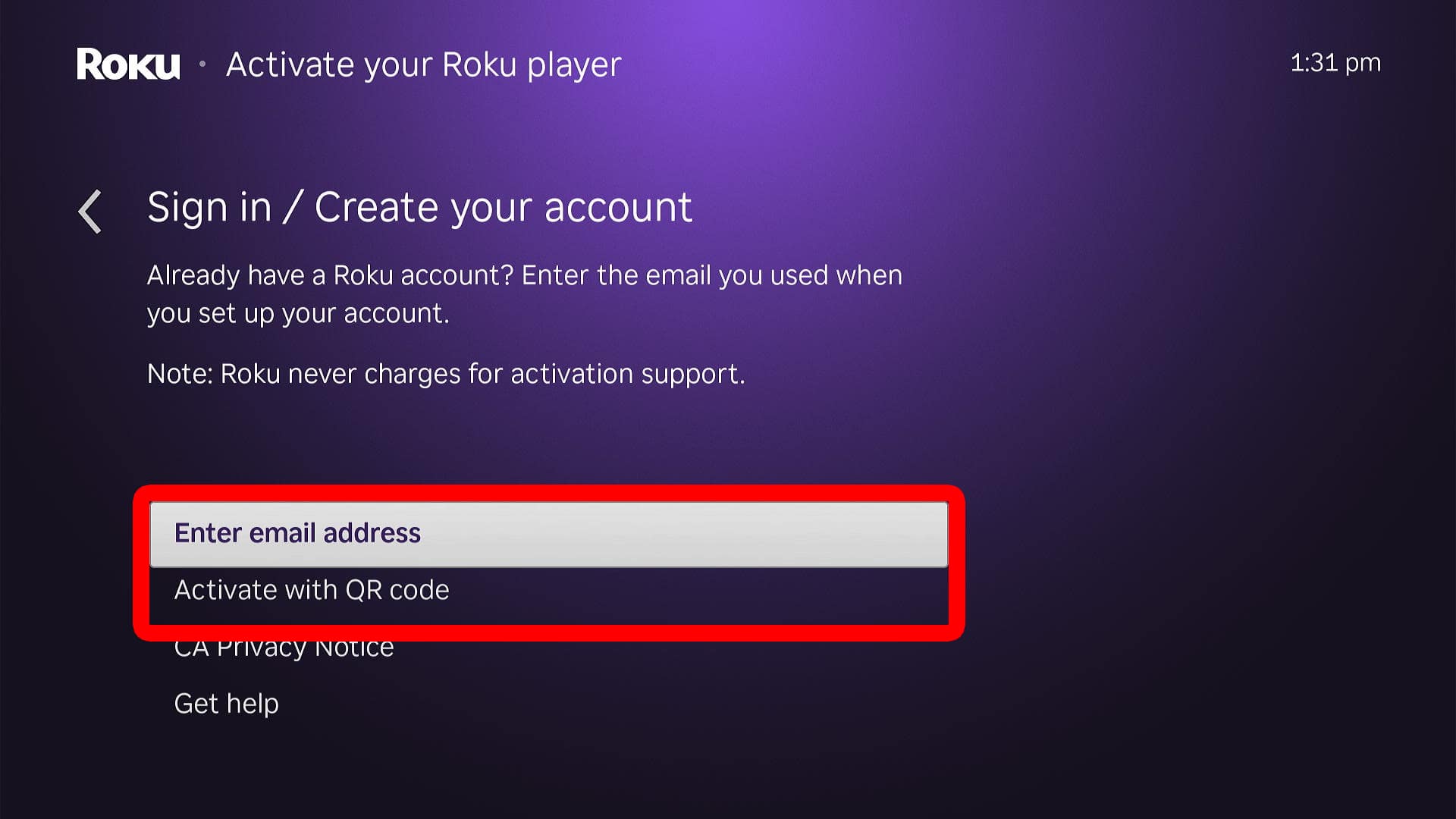
This will require you to go through the setup process again, name your device, choose which room it is in, and answer several other questions.
Read More: How to Sign Out of Netflix on Any Device
How to Enable Guest Mode on Roku
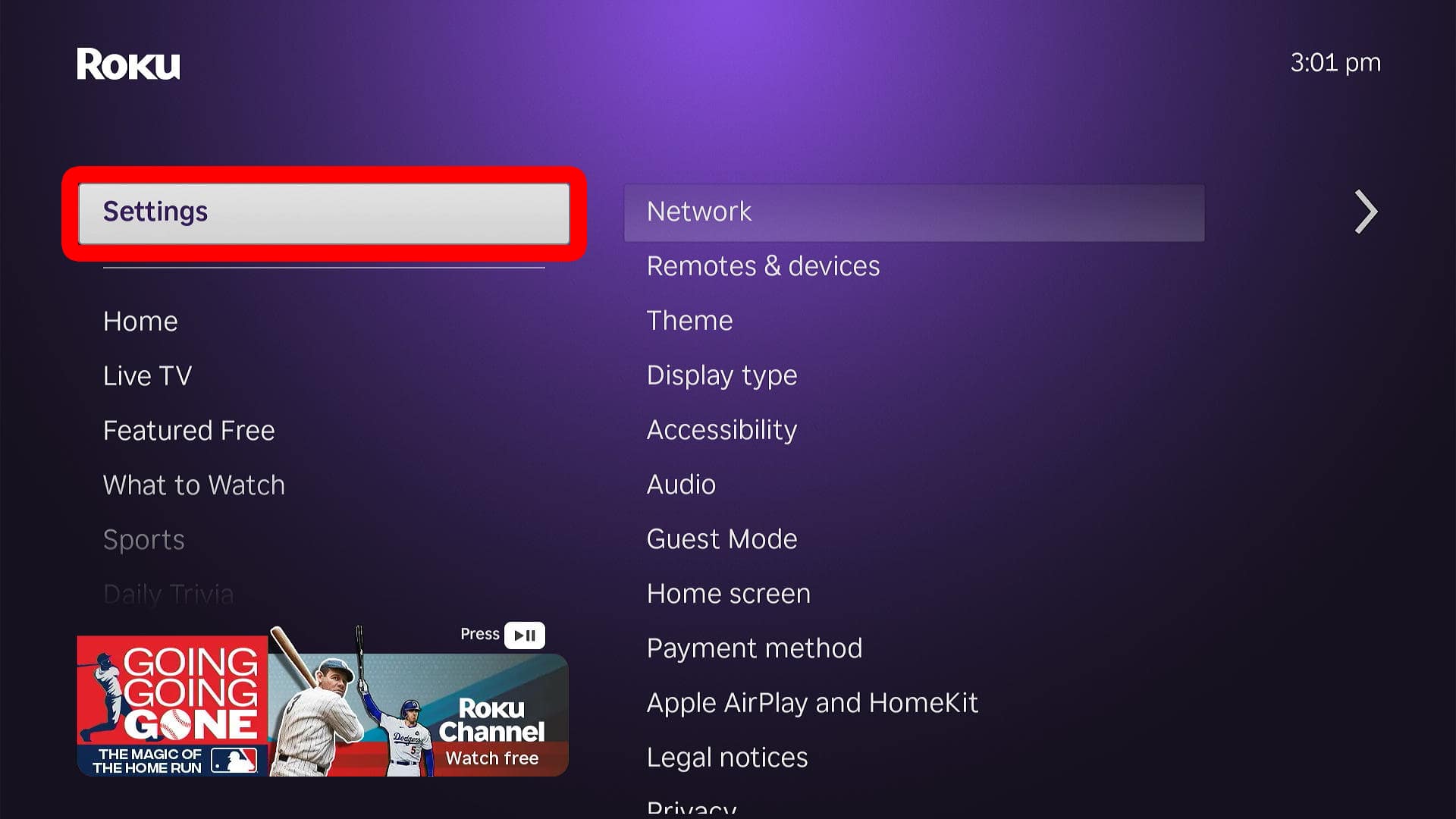
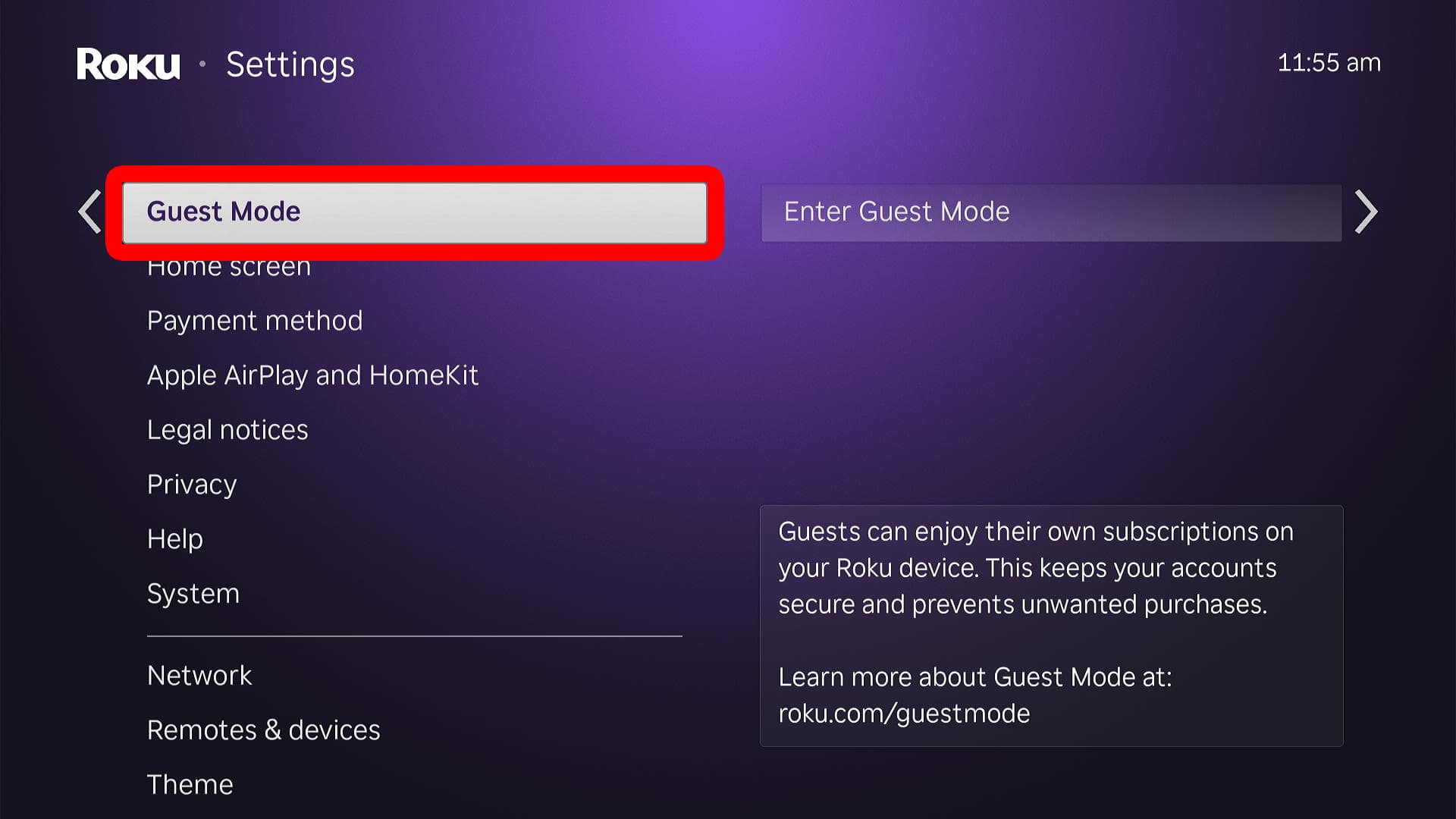
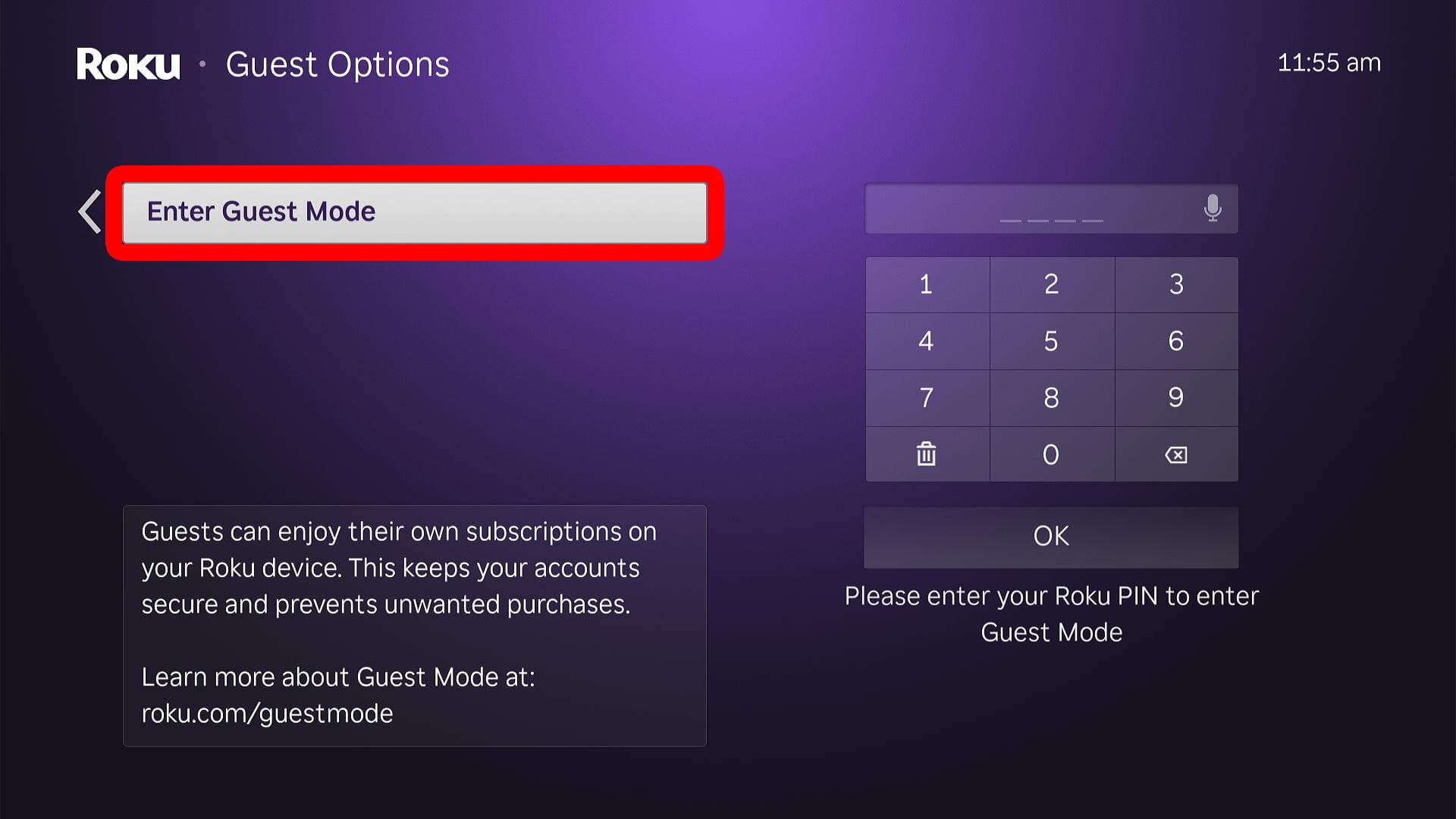
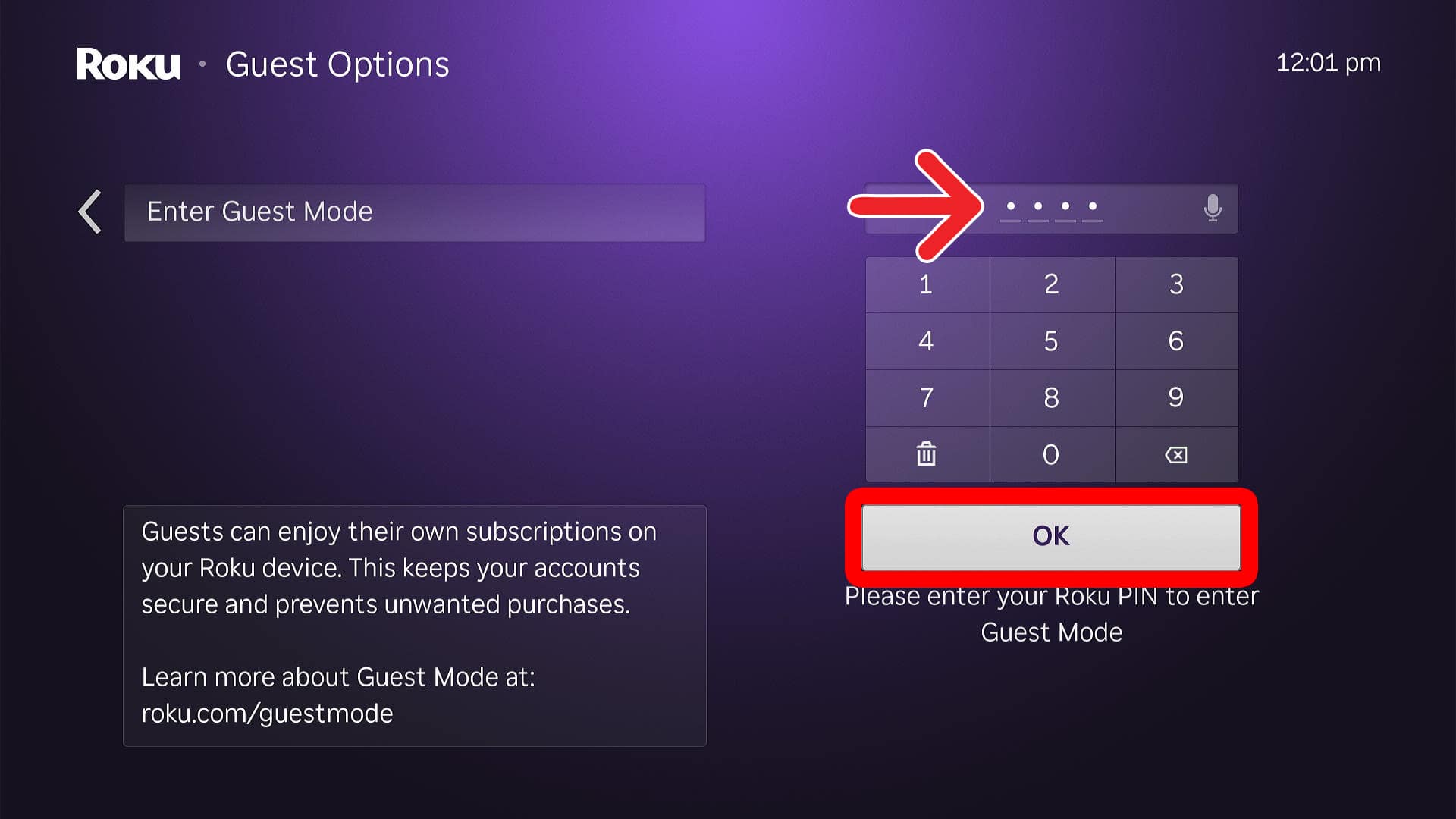
To sign out of your account on a Roku device, go to the home screen and select “Settings > Guest Mode > Enter Guest Mode.” Then, enter your Roku PIN and select “OK.” Next, select “Enter Guest Mode > Select checkout date.” Finally, choose an end date and select “Checkout.”
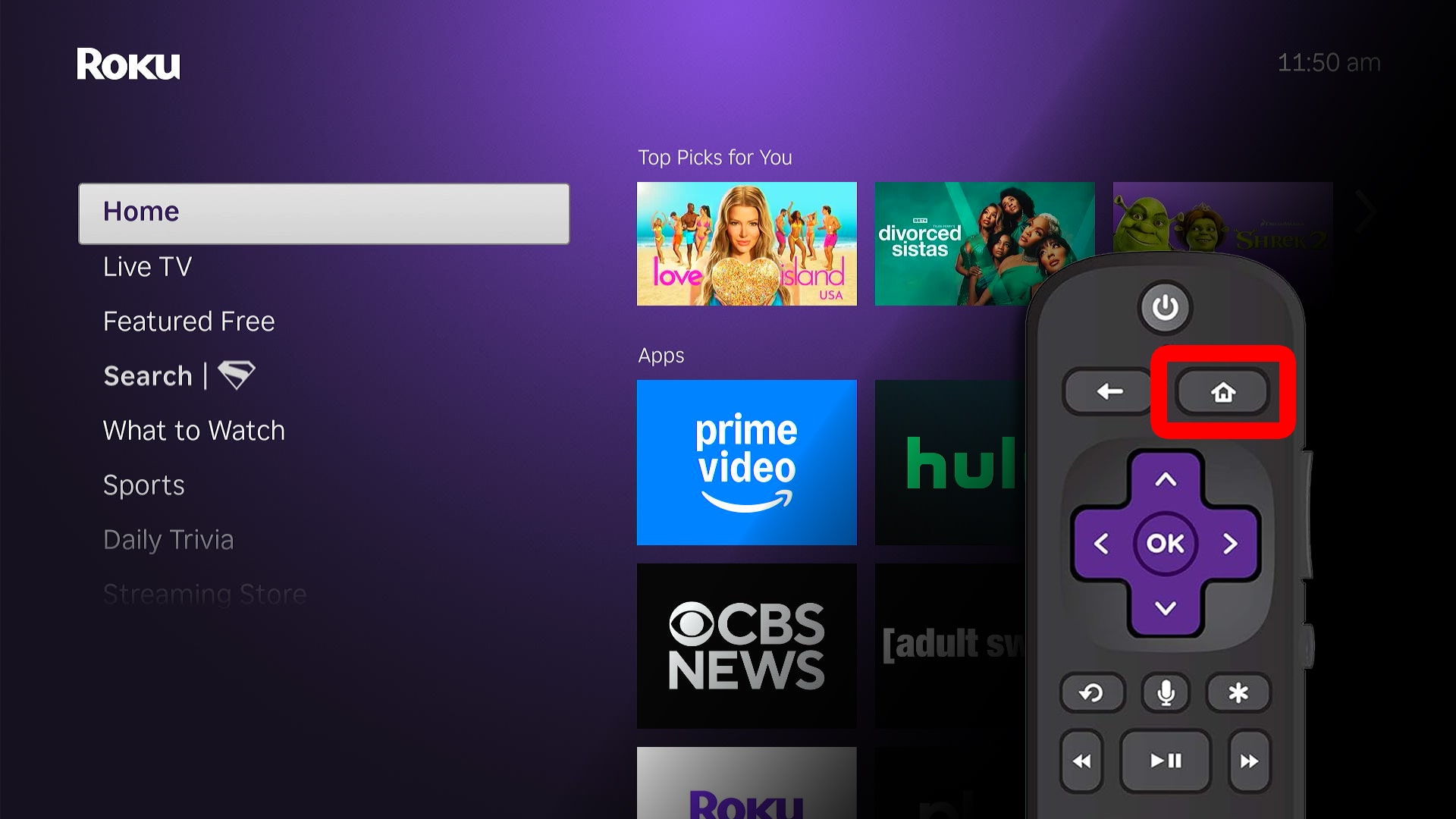
- Go to the Roku home screen. To do this, press the Home button on your Roku remote.

- Select “Settings.” You will see this in the left side menu. You can access this menu by pressing the left arrow on your Roku remote. Then, navigate to Settings using the up and down arrow buttons.
- Go to “Guest Mode.”
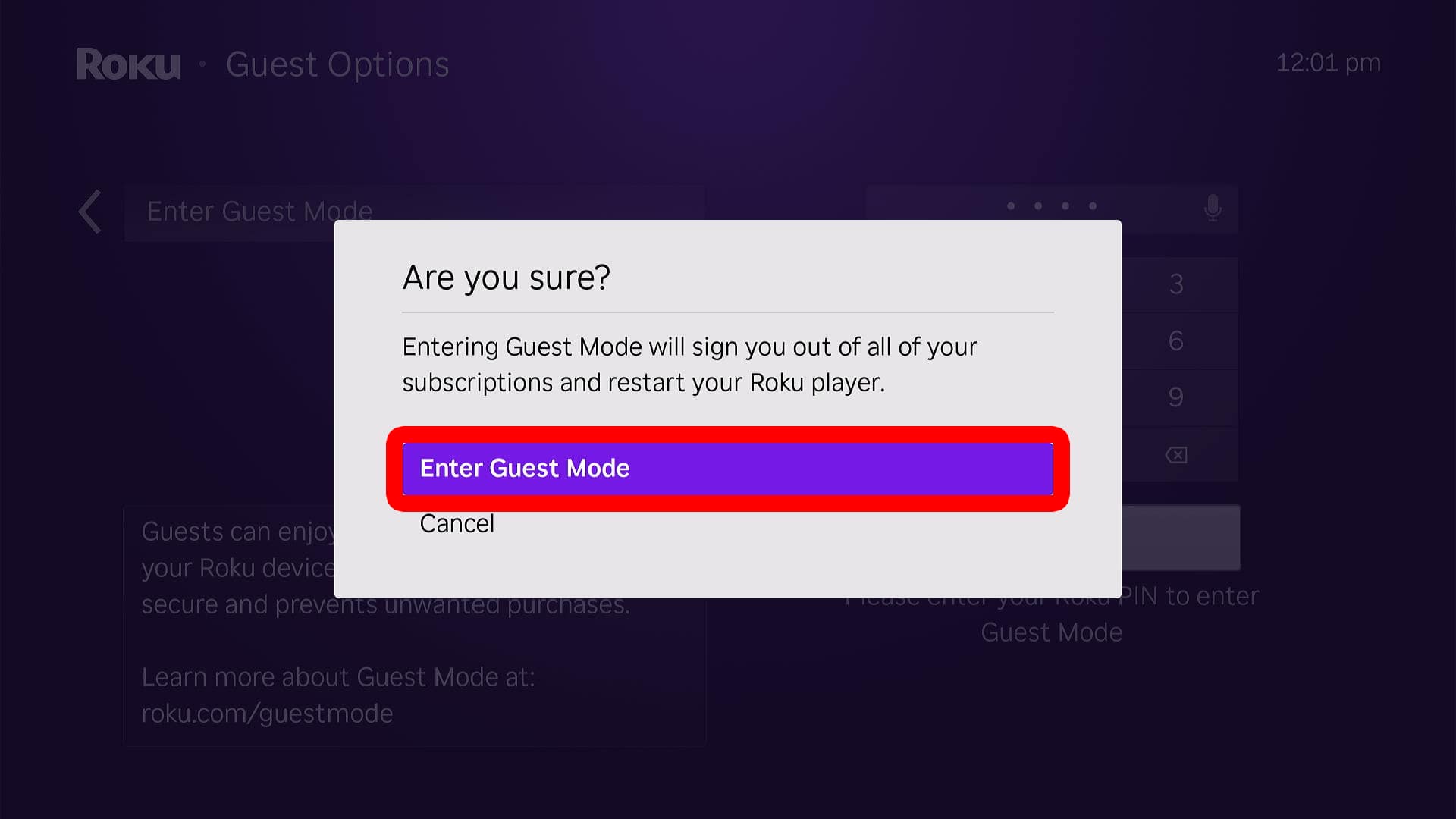
- Select “Enter Guest Mode.”
- Enter your Roku PIN and select “OK.” Use your remote to enter the PIN code with the number pad on the right side of your screen.
- Choose “Enter Guest Mode.” Once you choose this option, your Roku device will restart in Guest Mode.
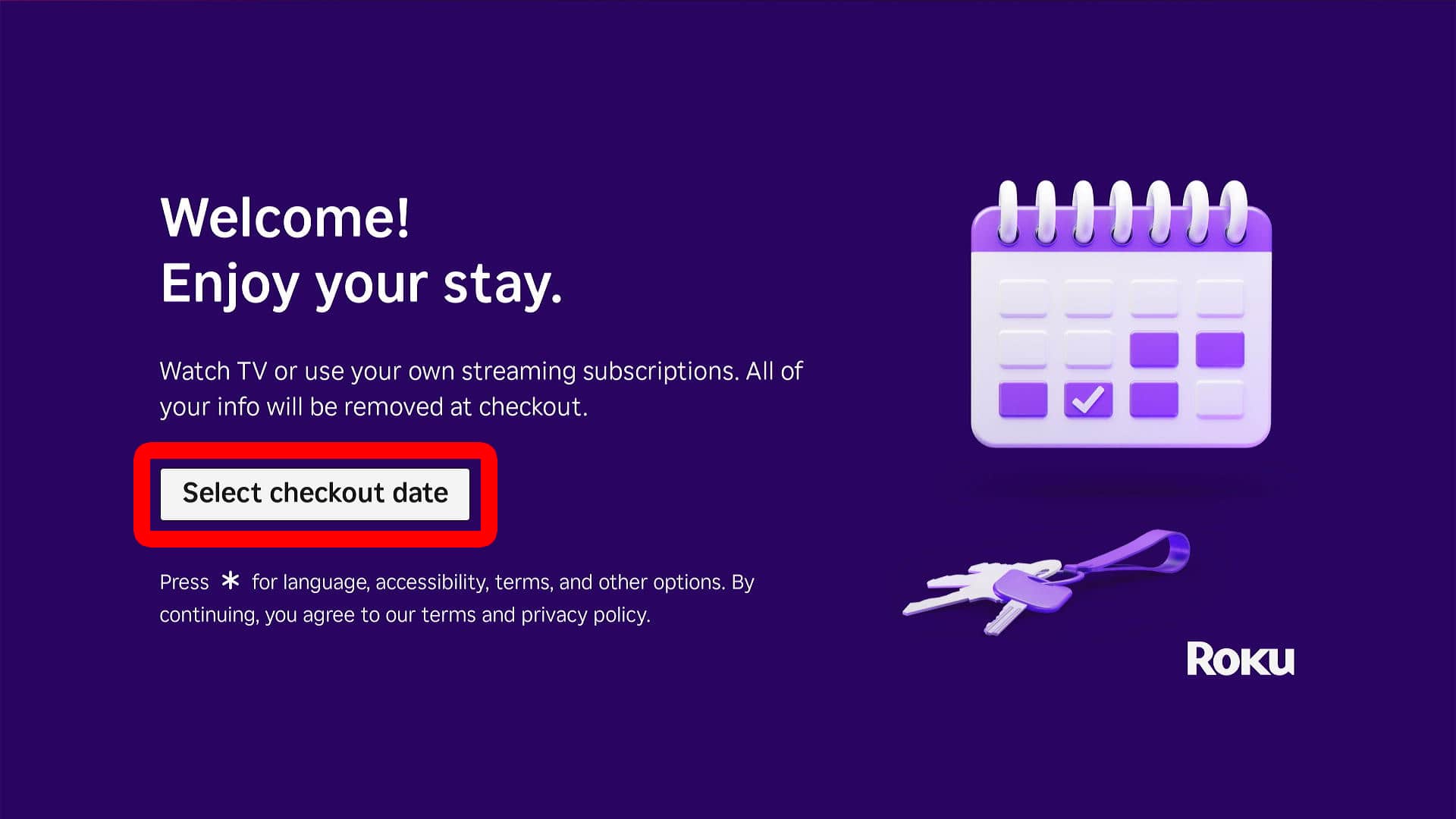
- Go to “Select checkout date.” From here, you can also change Guest Mode settings by pressing the Star (*) button on your Roku remote.
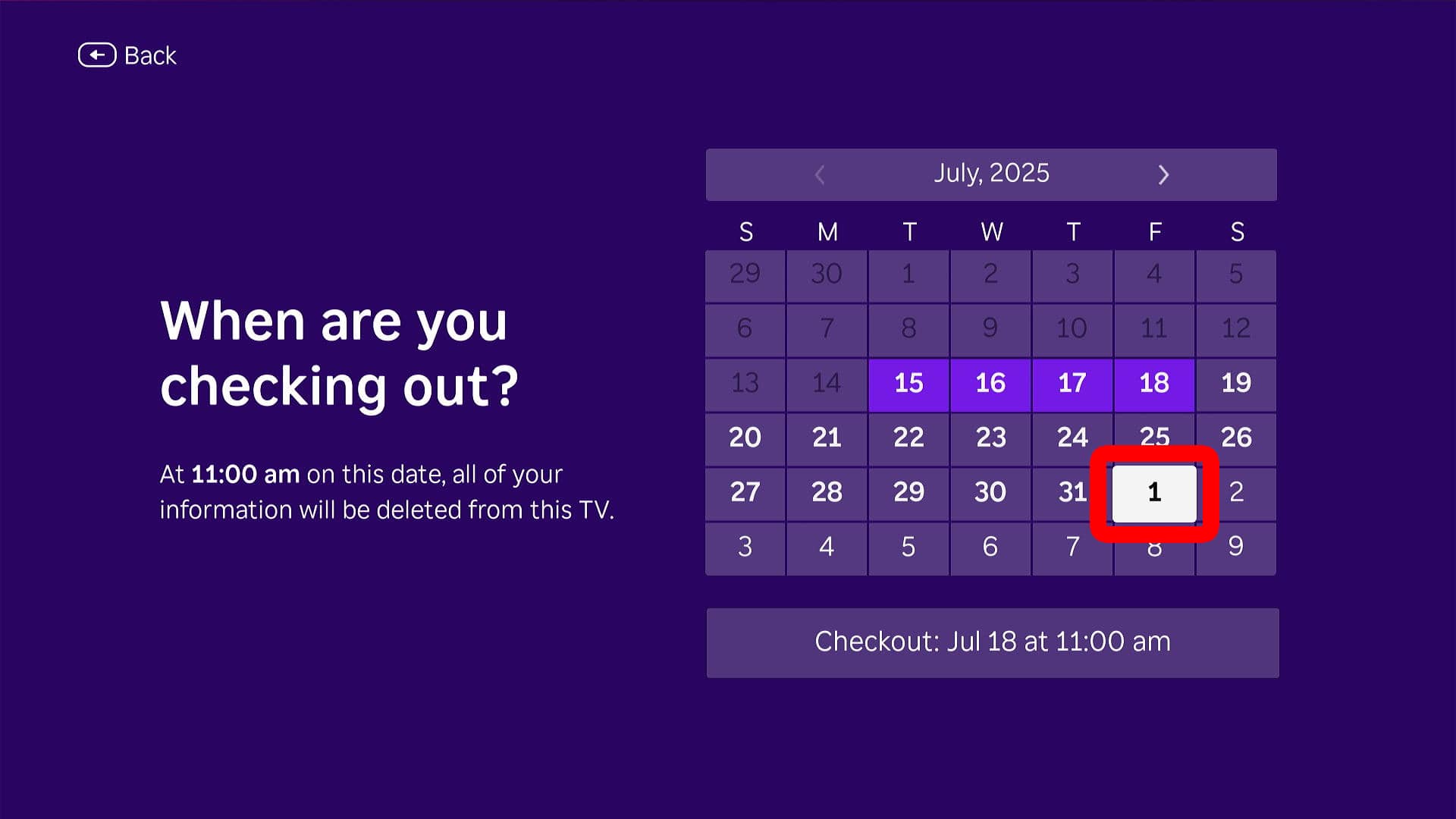
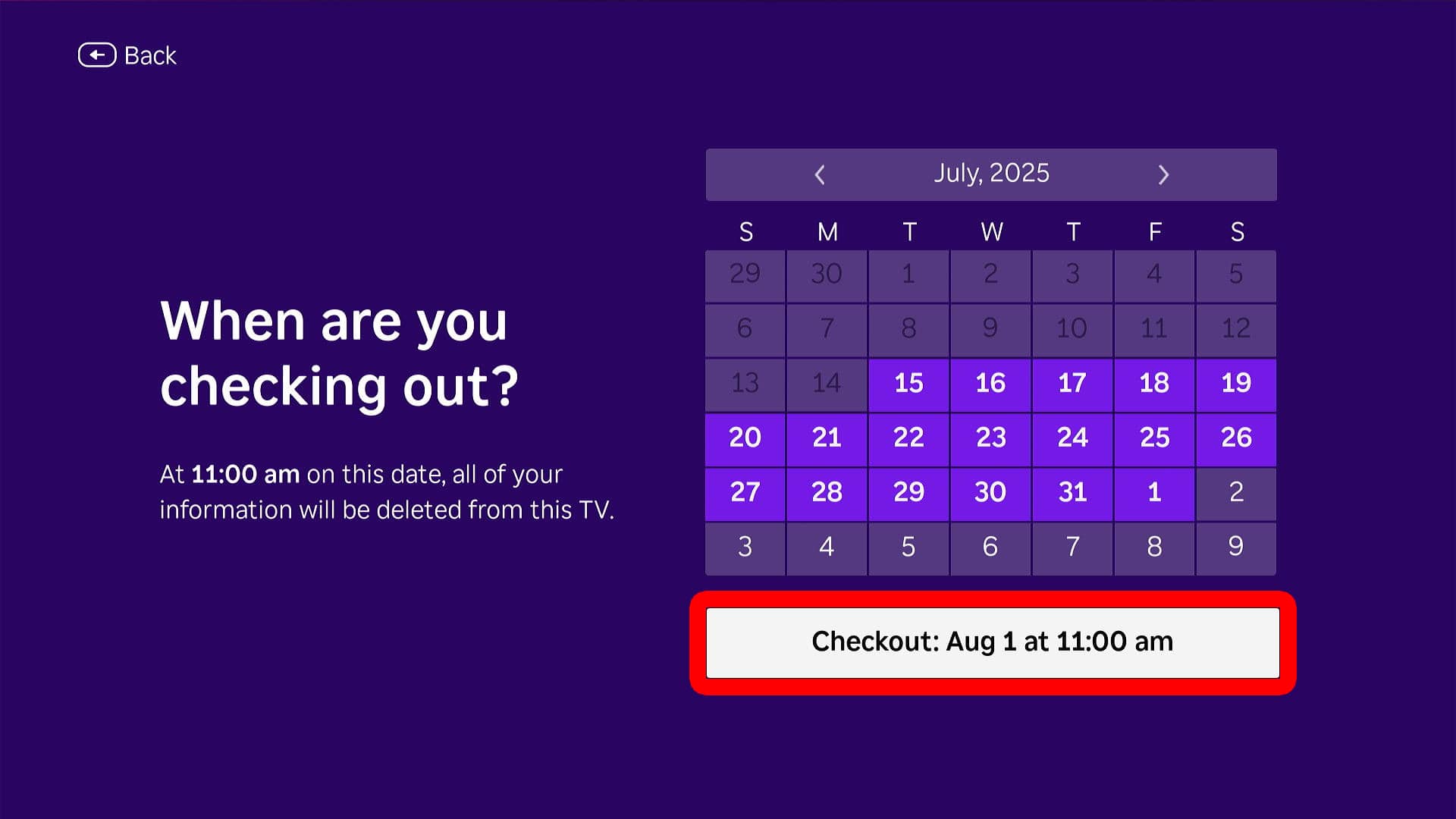
- Choose a checkout date. Use the on-screen calendar to choose when Guest Mode will be turned off. After this date, your Roku device will return to its original state and automatically exit Guest Mode.
- Finally, select “Checkout.” After Guest Mode loads, you’ll see the Roku home screen with a few default apps pre-installed.
From here, your guests can sign in to any apps, download new apps, change settings, and more. Once you exit Guest Mode, all your original apps, passwords, and settings will return—just as you left them, with no changes to your account.
How to Exit Guest Mode on Roku
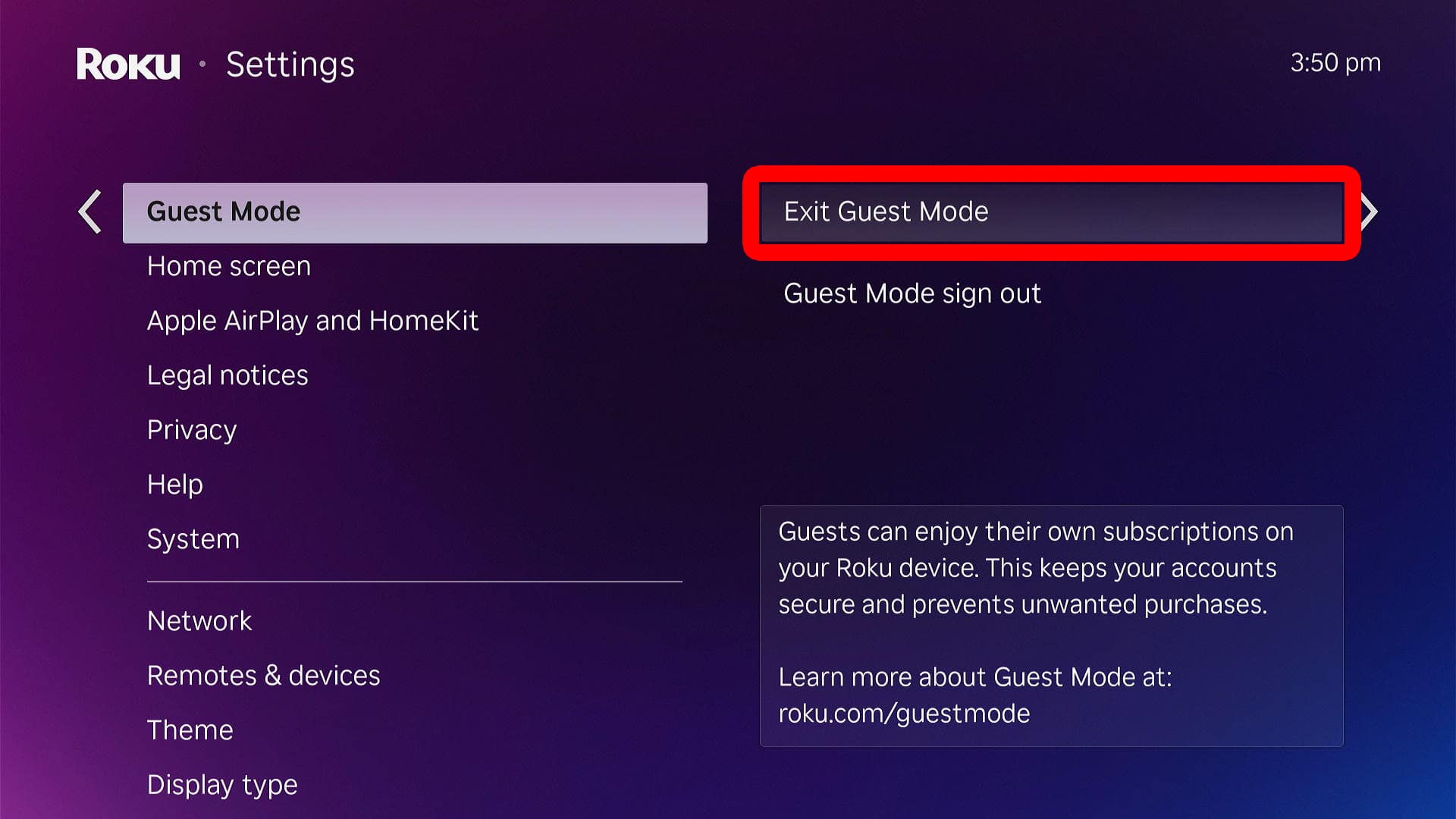
To sign out of Guest Mode on a Roku device, go to the home screen and select “Settings > Guest Mode > Exit Guest Mode.” Then enter your Roku PIN and select “OK.” Finally, select “Exit Guest Mode,” and your Roku device will restart.