Have more than one Roku device in the house? Giving each one a clear name makes it easier to control with voice commands or the Roku app. Here’s everything you need to know about how to change your Roku TV name and update it in the Alexa, Google Home, and Apple Home apps.
How to Change Your Roku Device Name Online
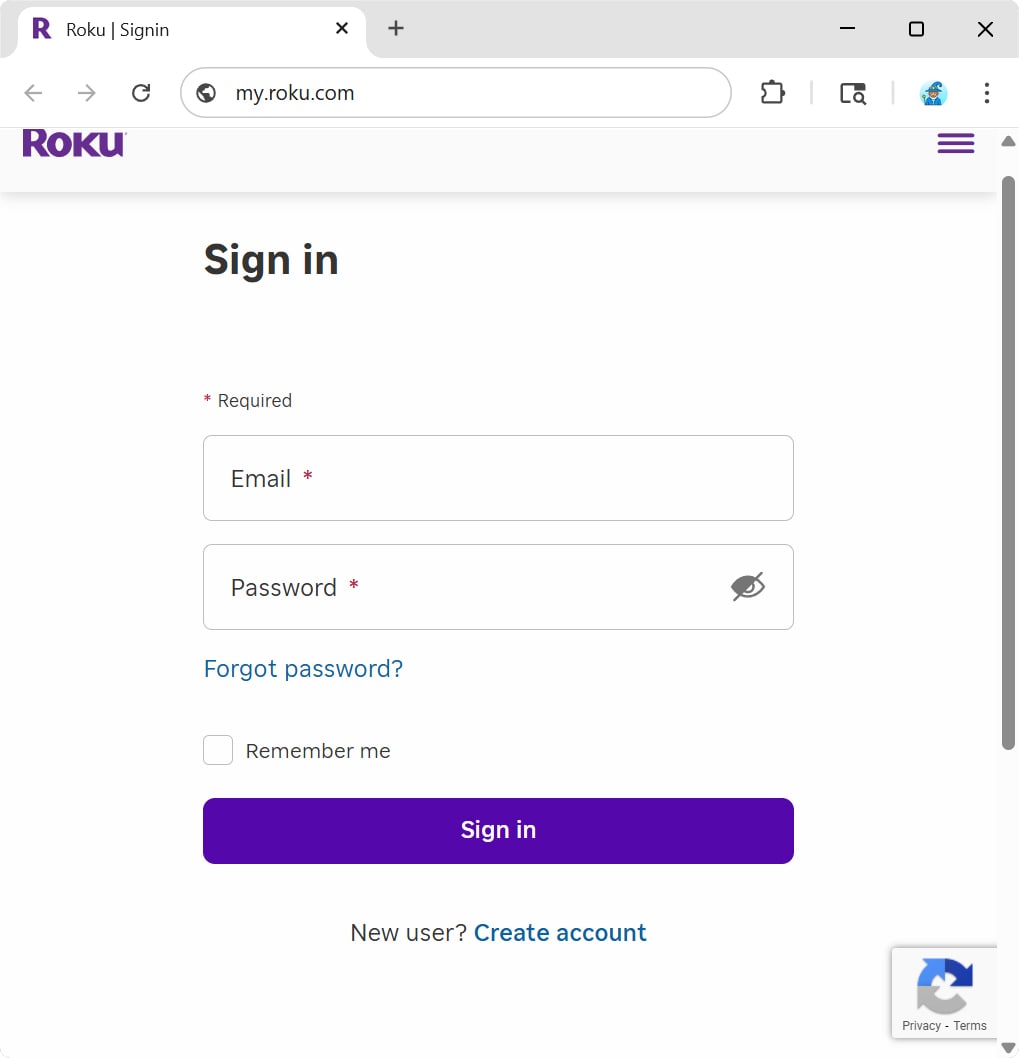
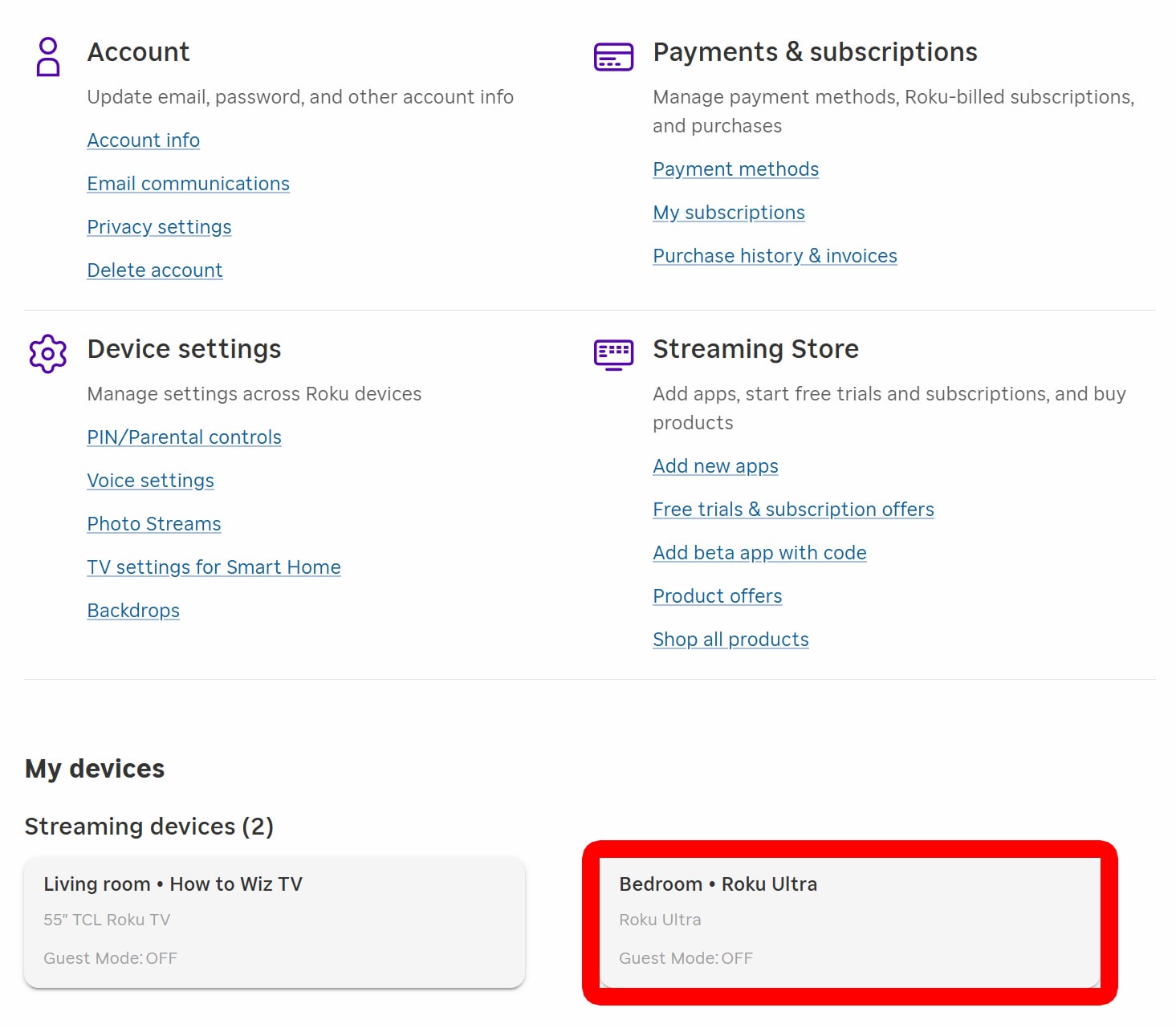
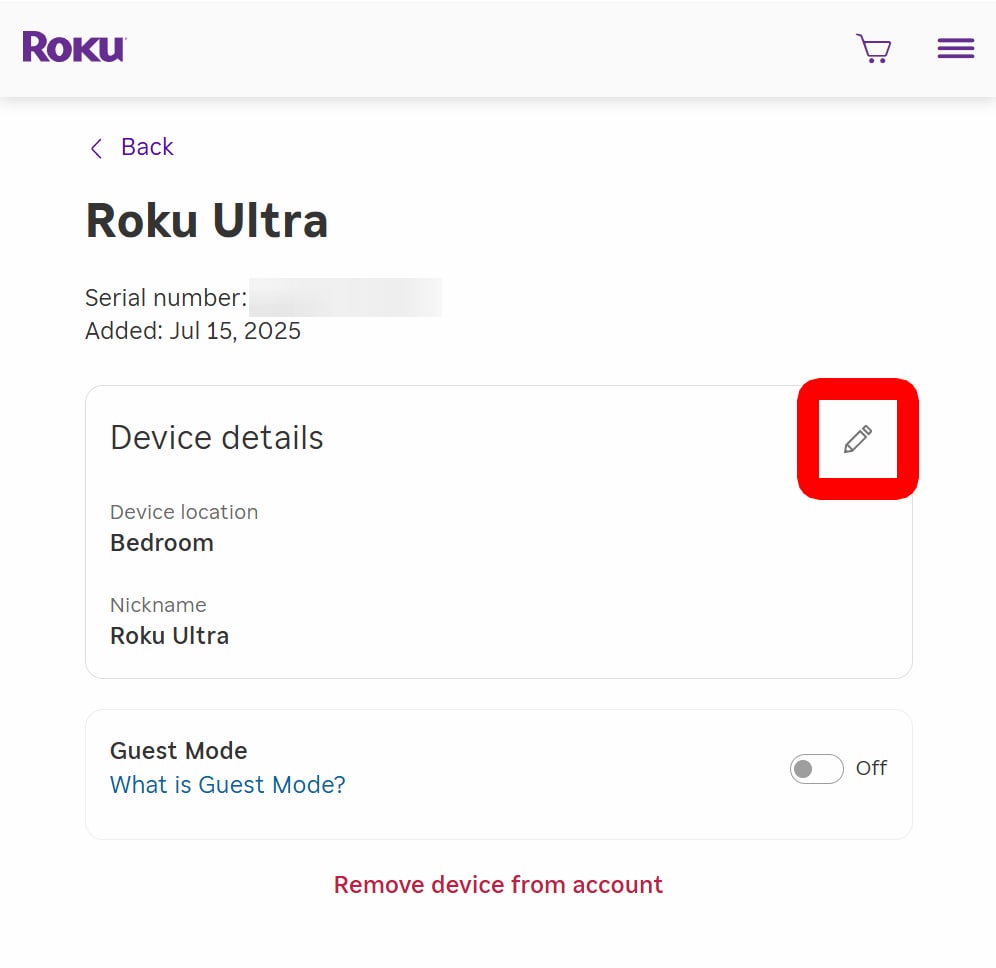
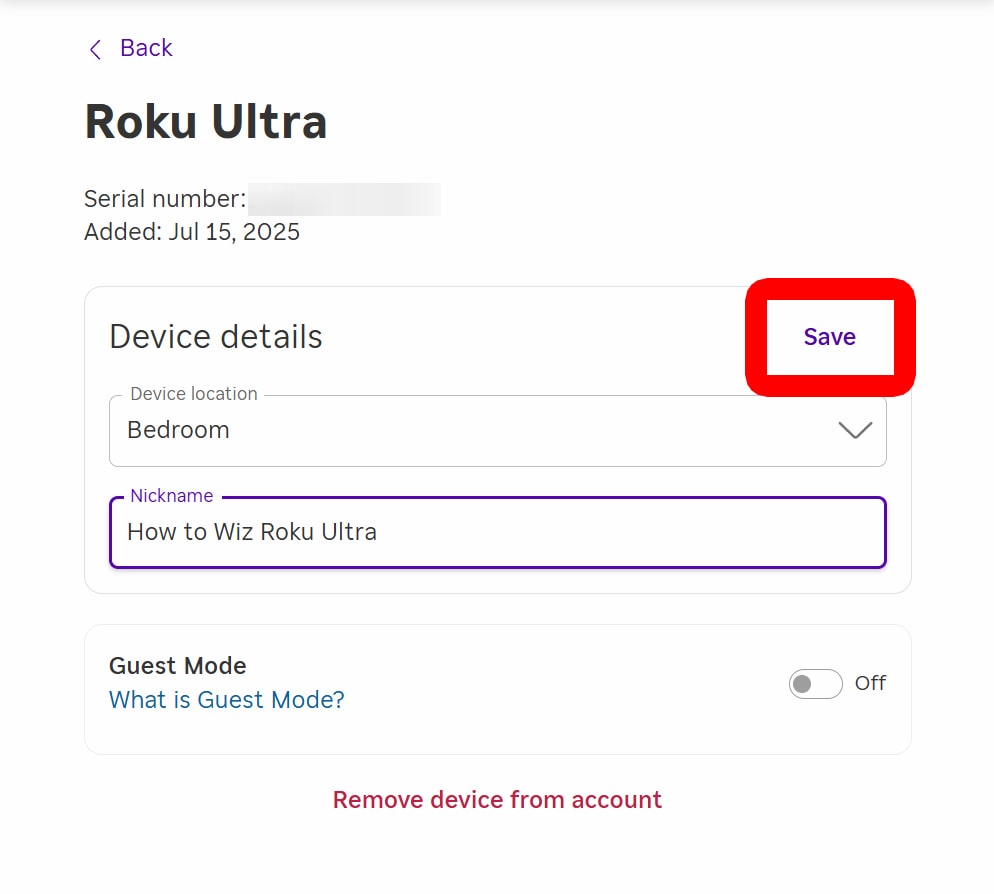
To change the name of your Roku device or TV, open a web browser on your computer or smartphone and go to my.roku.com. Then, sign in to your account and select your Roku device. Finally, tap the pencil icon, enter a new name for your TV, and click “Save.”
- Go to my.roku.com and sign in.

- Select your Roku device. You will see all your Roku devices listed near the bottom of the page.

- Click the pencil icon next to your Roku device’s name.

- Enter a new name for your Roku device under “Nickname.” From here, you can also change your Device location.
- Finally, click “Save.” Your device will be renamed across your account shortly after you click Save.

How to Change Your Roku Name in the Alexa App
- Open the Alexa app.
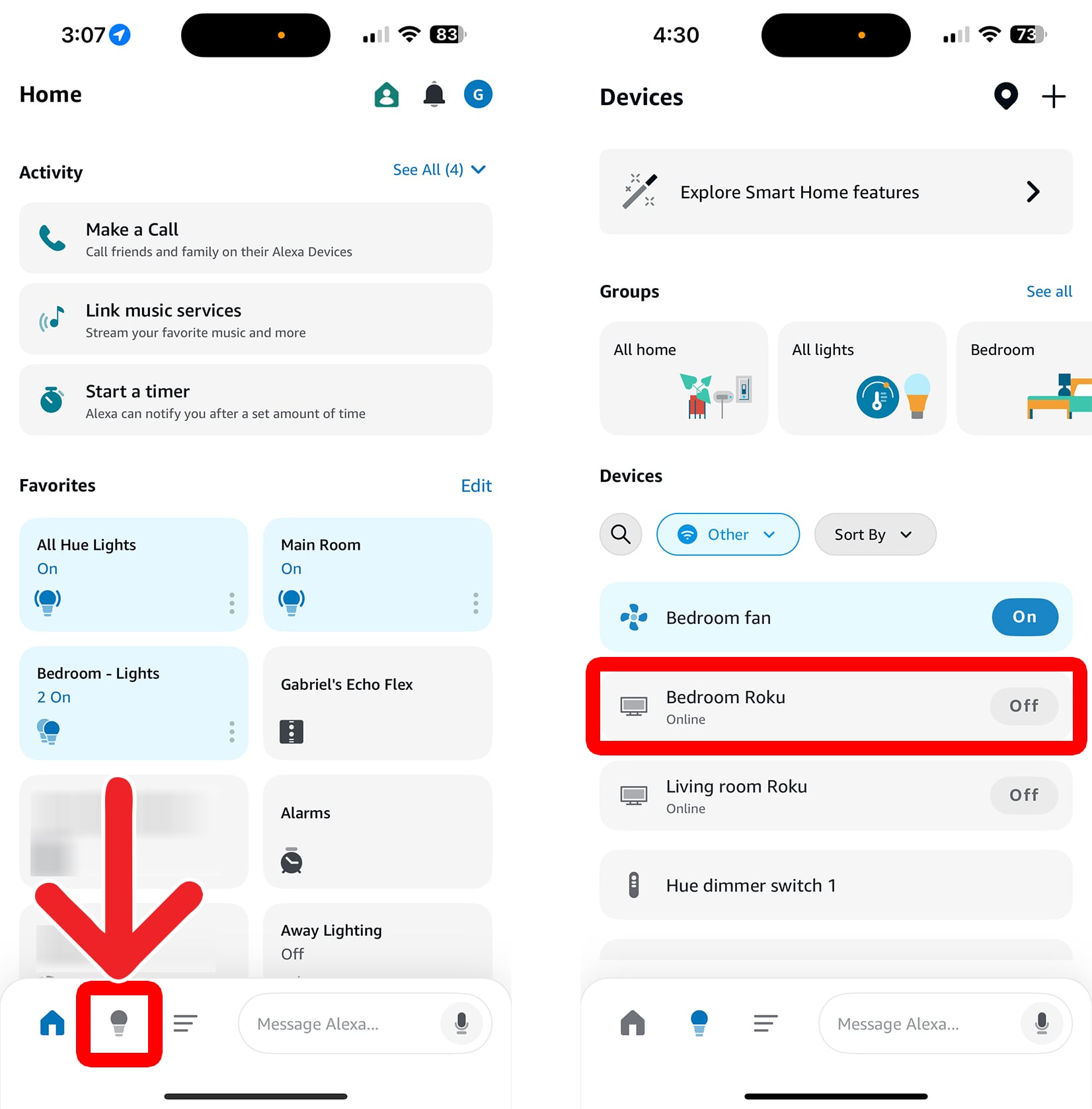
- Go to “Devices.” This is the light bulb icon at the bottom of your screen.
- Select your Roku device. If you don’t see your Roku device listed, tap “Device Type” and select “Other” to filter out smart speakers, lights, and other devices.

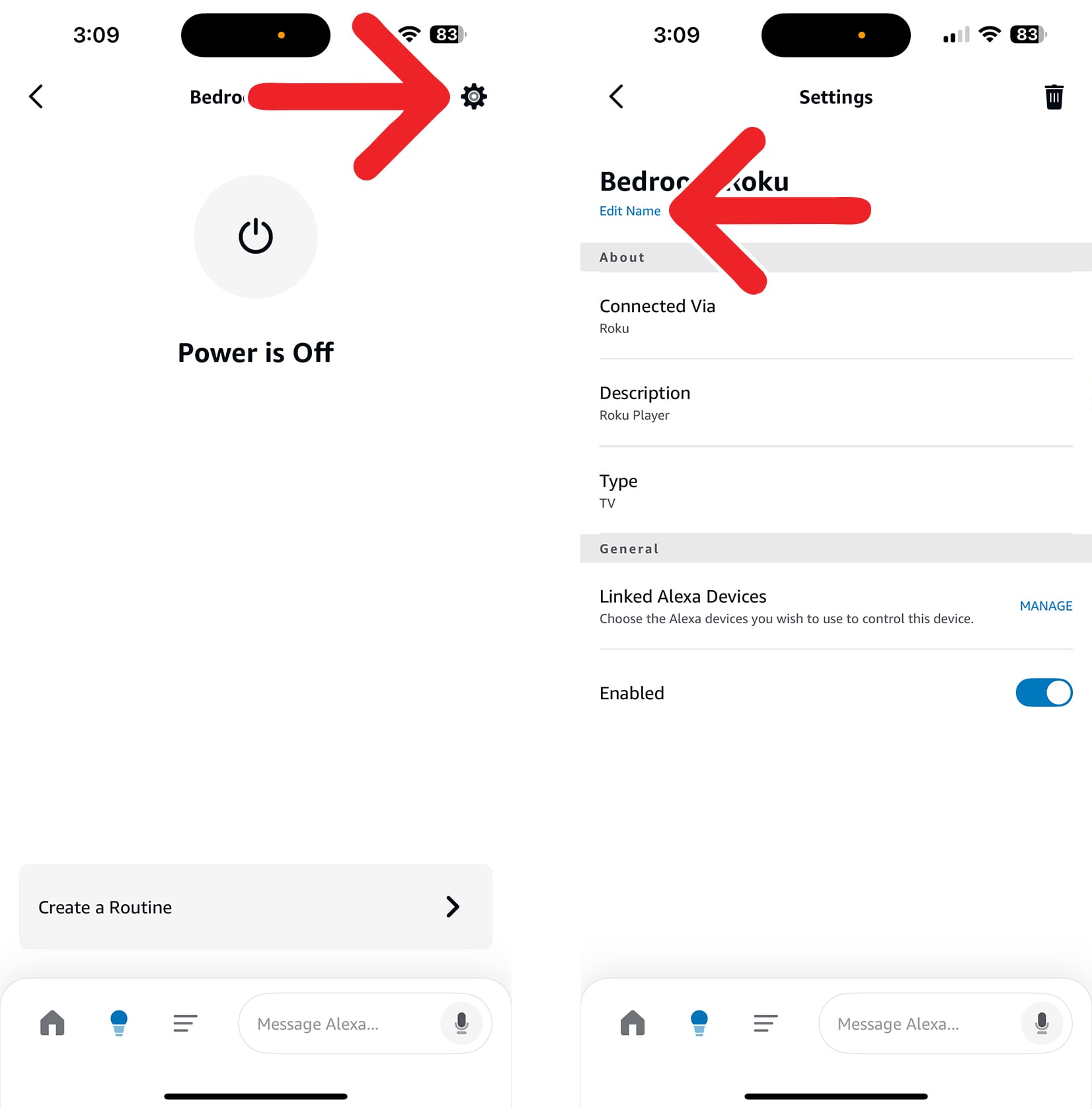
- Tap the gear icon. You will see this in the top-right corner of your screen.
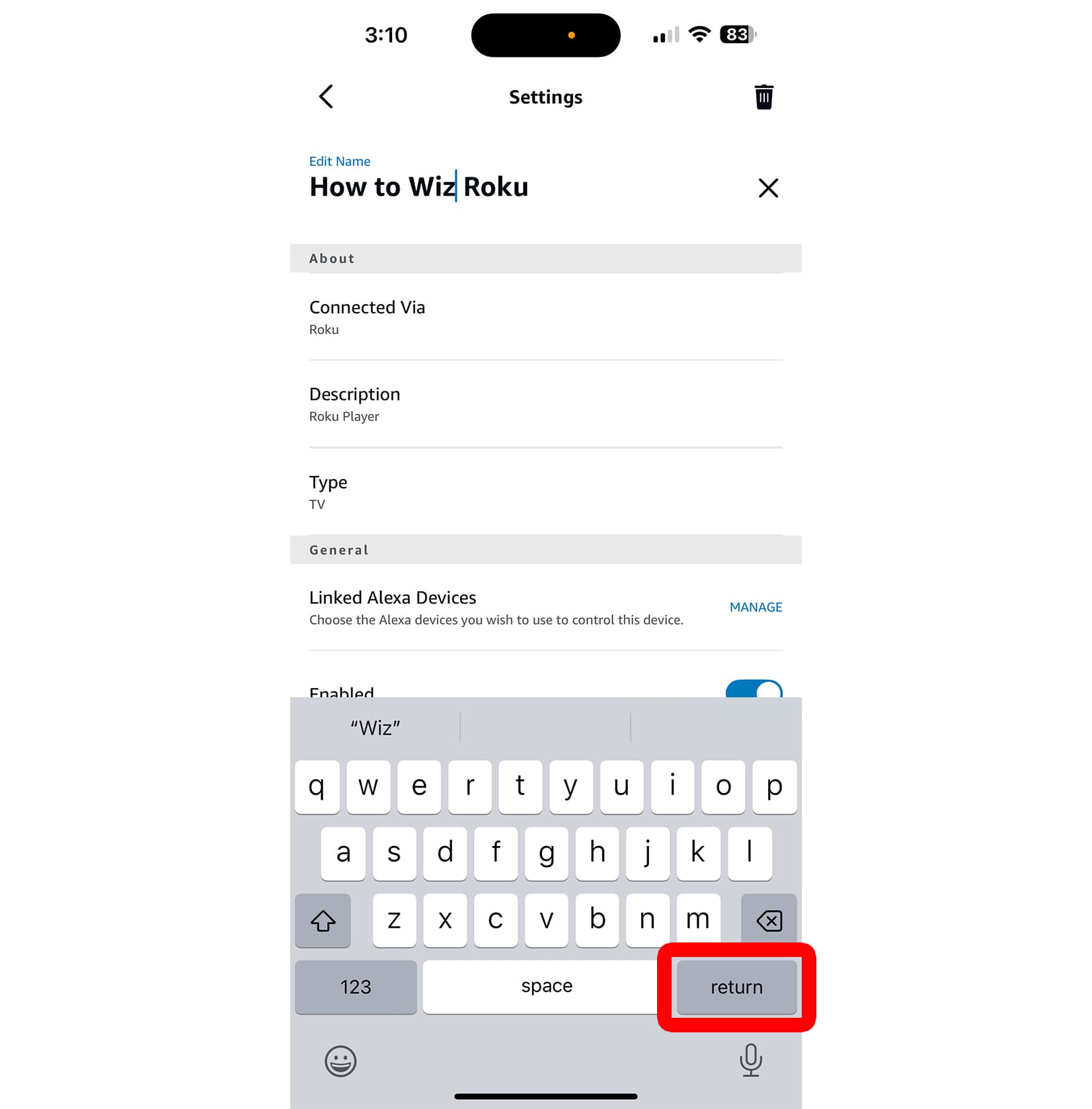
- Tap “Edit Name.” You will see this under your current Roku device name at the top of your screen.
- Finally, enter a new name and tap “Return.”
How to Change Your Roku Name in Google Home
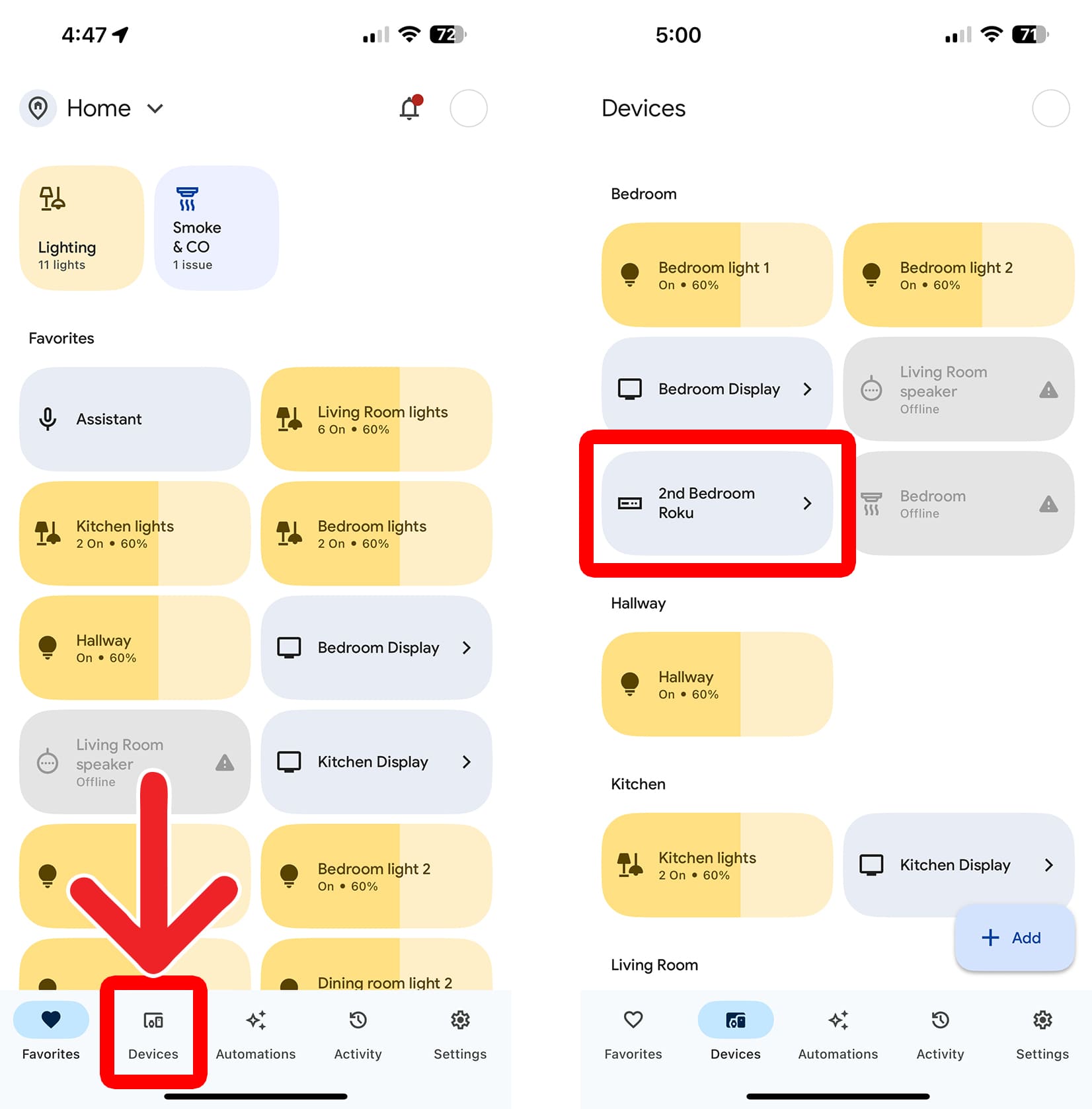
- Open the Google Home app.
- Tap “Devices.” You will see this at the bottom of your screen.
- Select your Roku device.
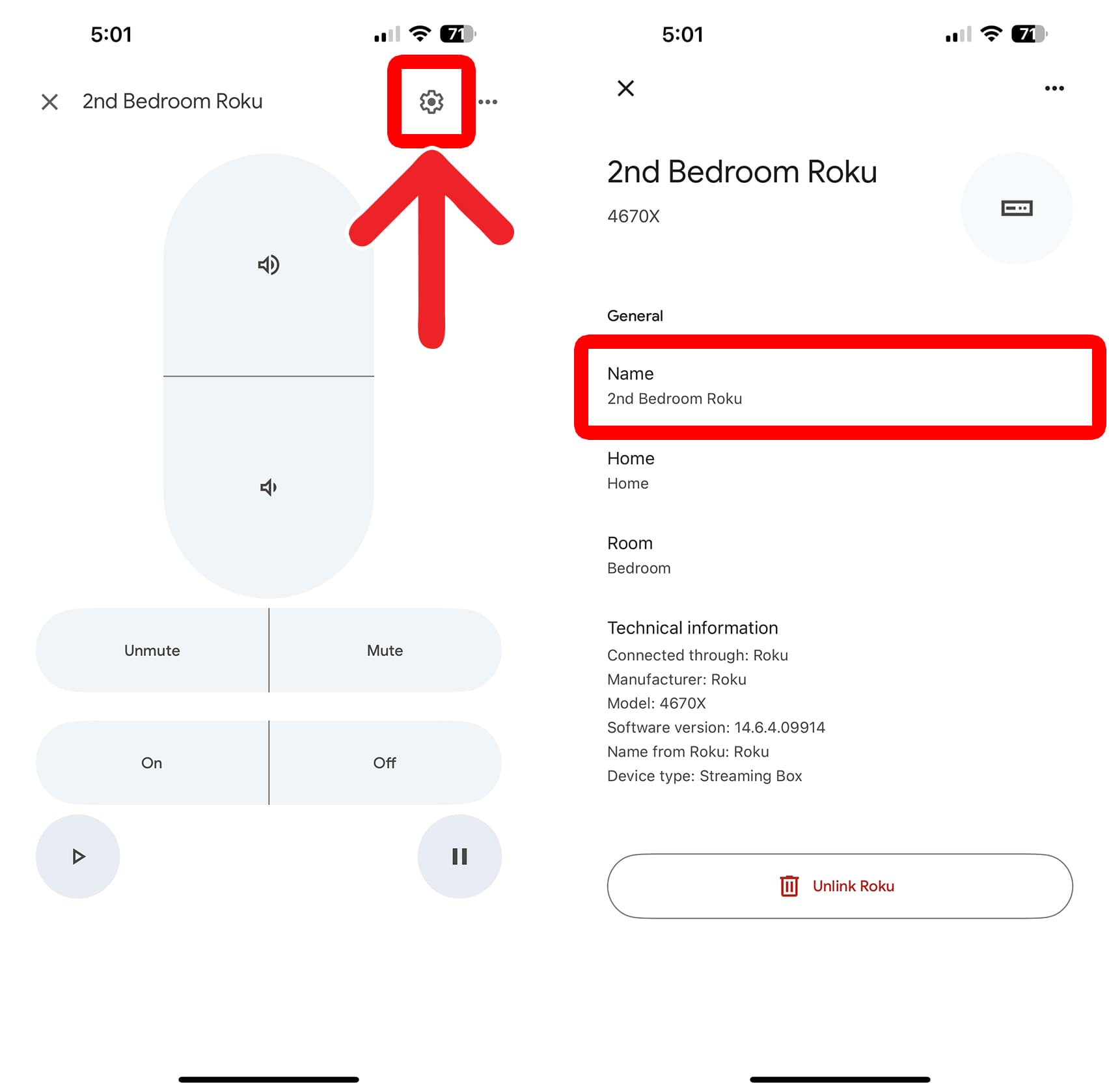
- Tap the gear icon. You will see this in the top-right corner of your screen.
- Tap your Roku Name. It might not look like a button, but tapping it will let you change it.
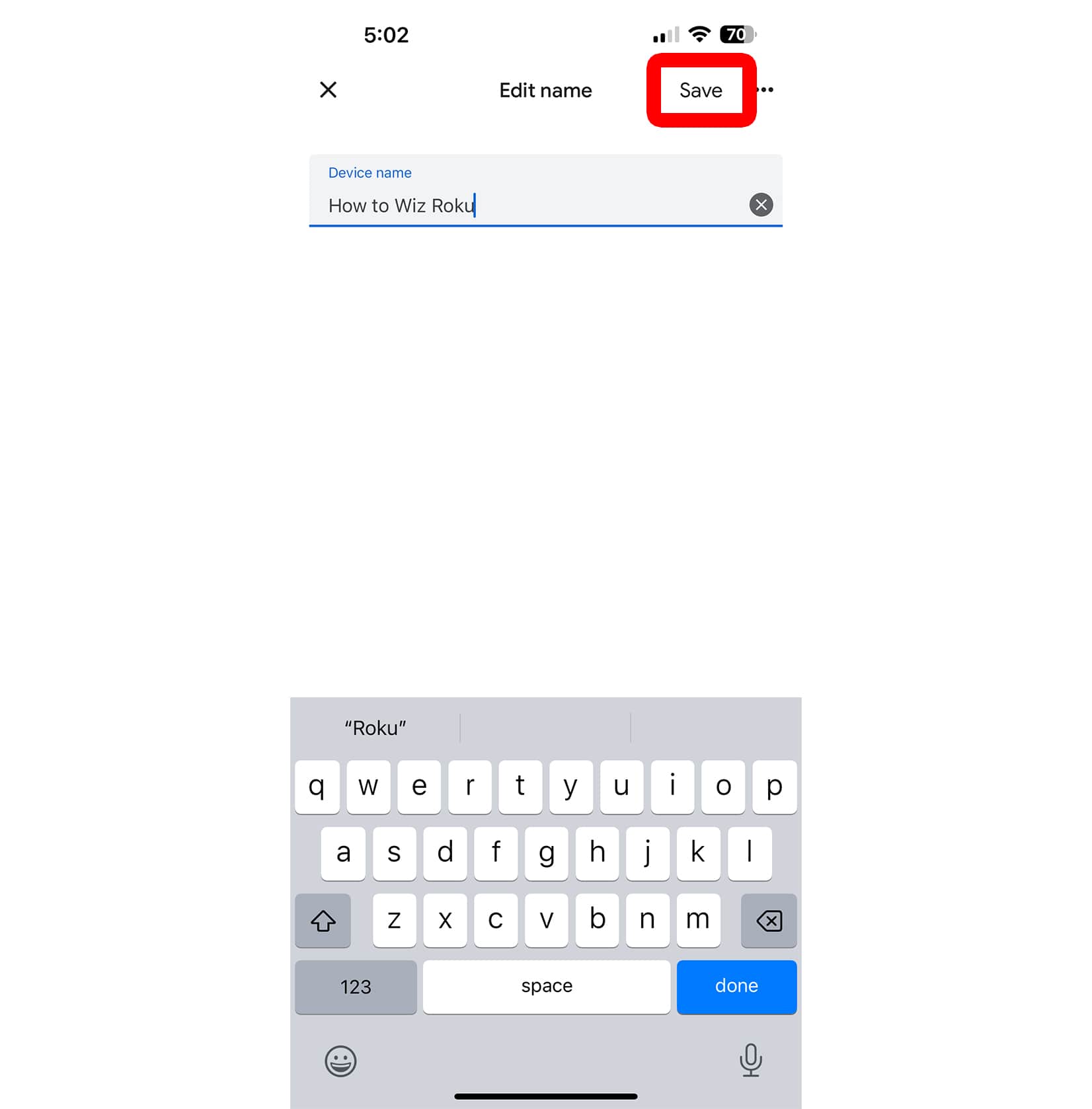
- Finally, enter a new name and tap “Save.”
How to Change Your Roku Name in Apple Home
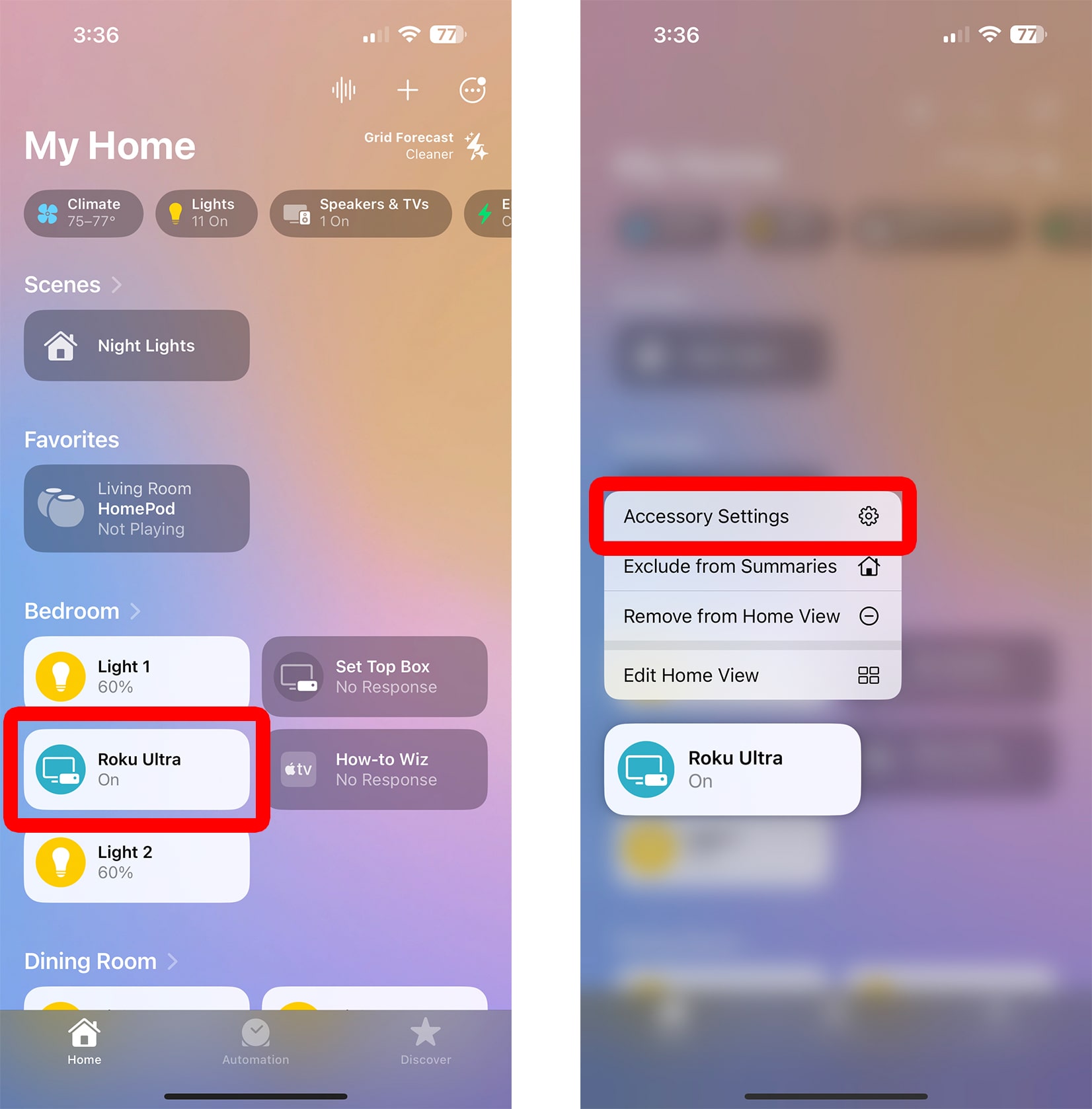
- Open the Apple Home app.
- Tap and hold your Roku device.
- Select “Accessory Settings.”
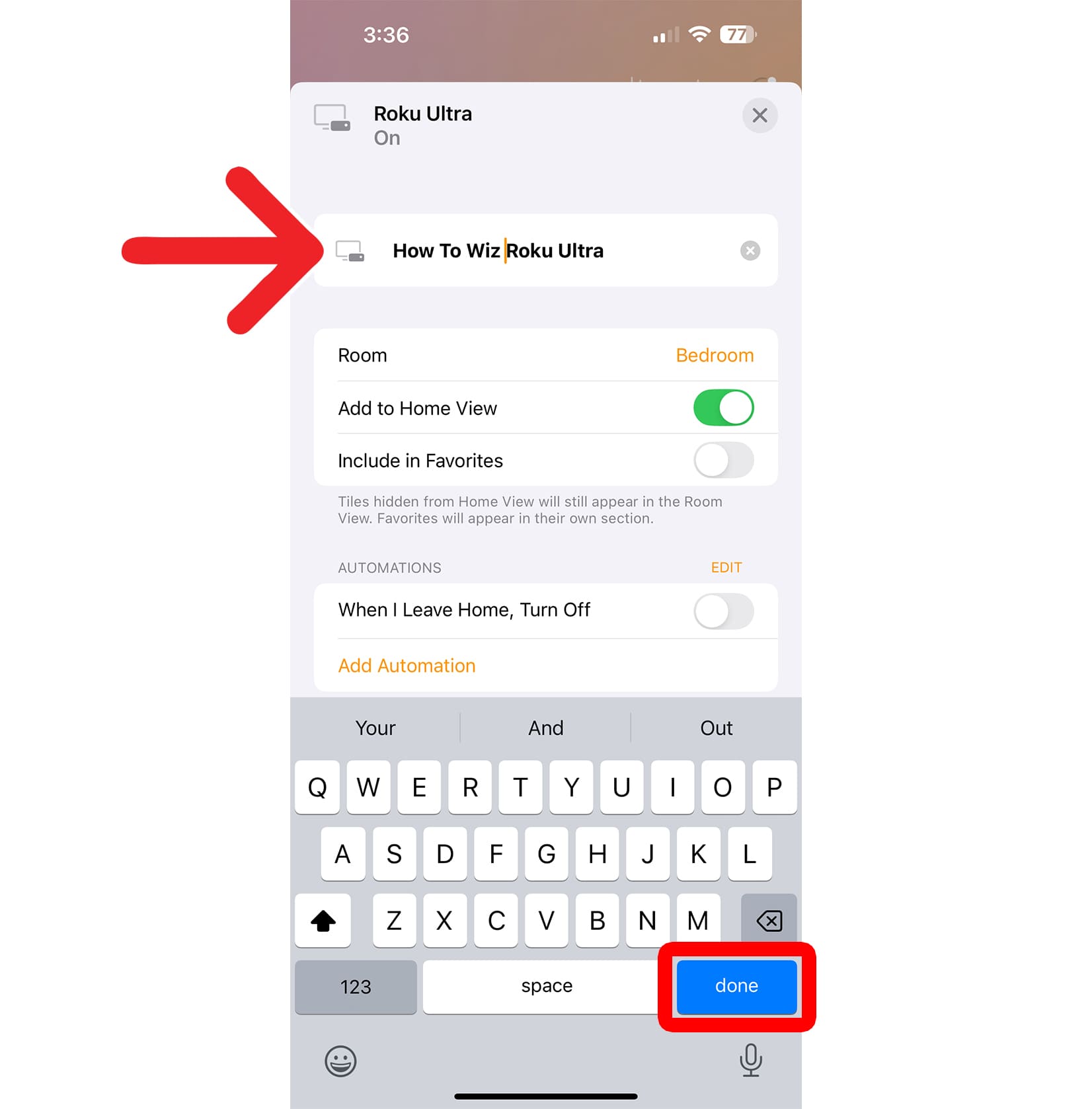
- Finally, enter a new name and tap “Done.”