Tired of hearing your iPhone ping all day long? Some notifications are useful—but too many can be distracting. Here’s everything you need to know about how to disable notifications from specific apps or turn them off entirely on your iPhone.
Read More: How to Turn Off Notifications on a Mac
How to Mute All Notifications
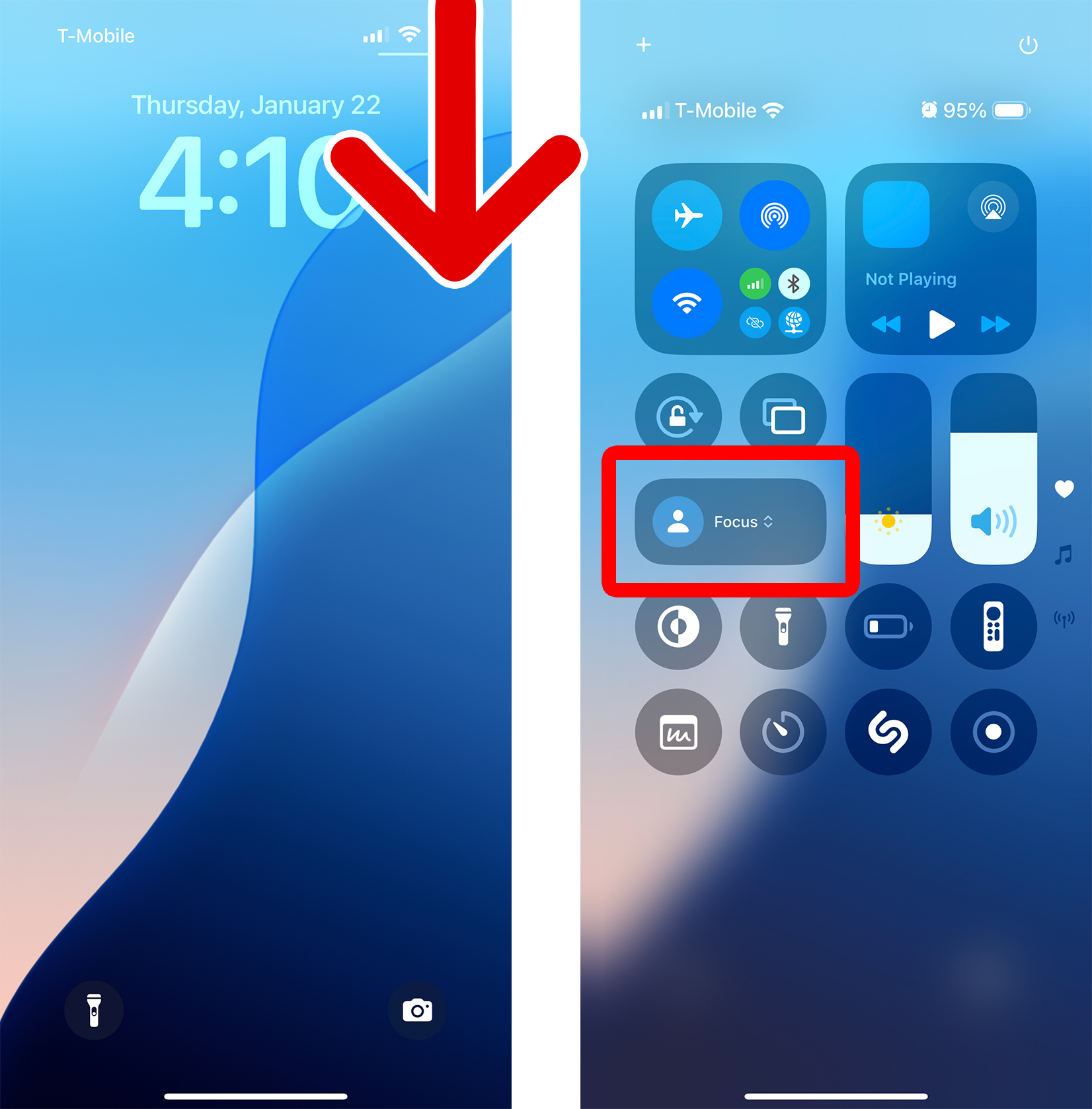
To instantly mute all notifications on your iPhone, swipe down from the top-right corner of your screen and select “Focus.” Then choose “Do Not Disturb” to mute all phone calls, alerts, and notifications until you turn it off again.
- Swipe down from the top-right corner of your screen. This opens the Control Center.
- Tap “Focus.” Make sure to tap the word, and not the icon.

- Finally, select “Do Not Disturb.” This instantly mutes all calls, alerts, and notifications until you manually turn it off.
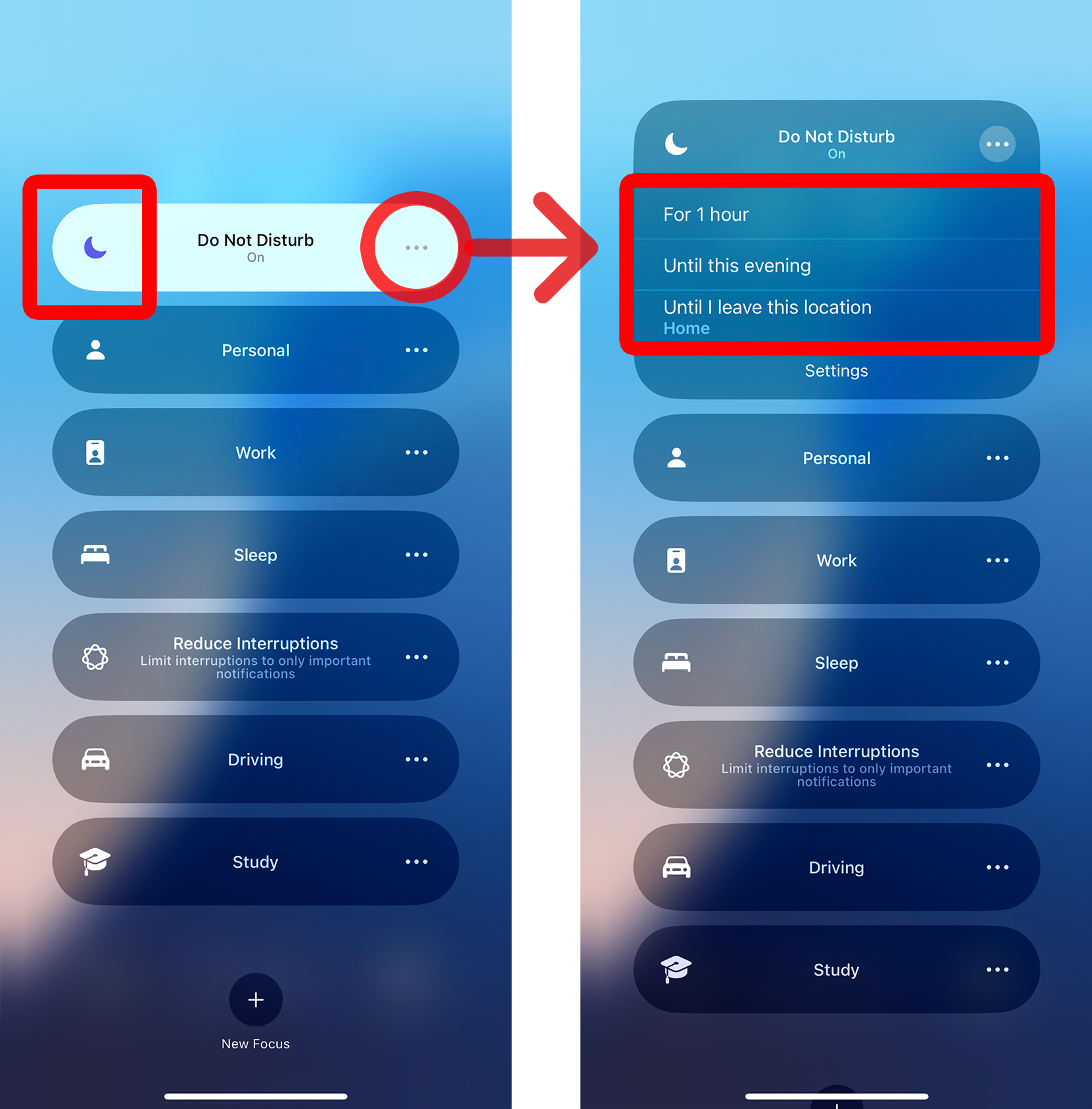
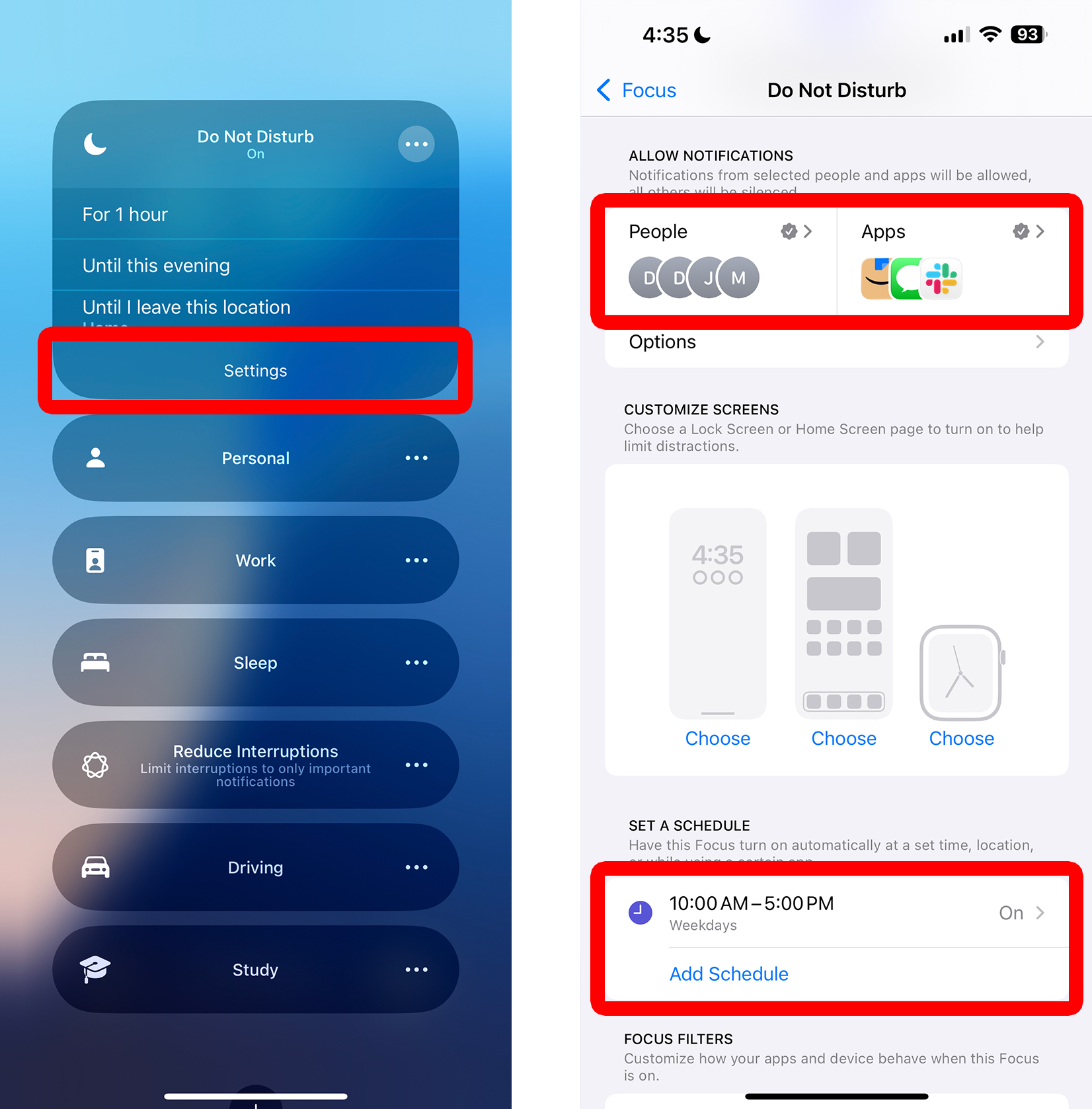
Tap “Settings” in the Focus menu to create custom schedules and filters:
- People: Choose who can still contact you.
- Apps: Allow notifications from specific apps.
- Add Schedule: Automatically turn on Do Not Disturb based on the time, your location, or which apps you are using.
How to Quickly Disable Recent Notifications
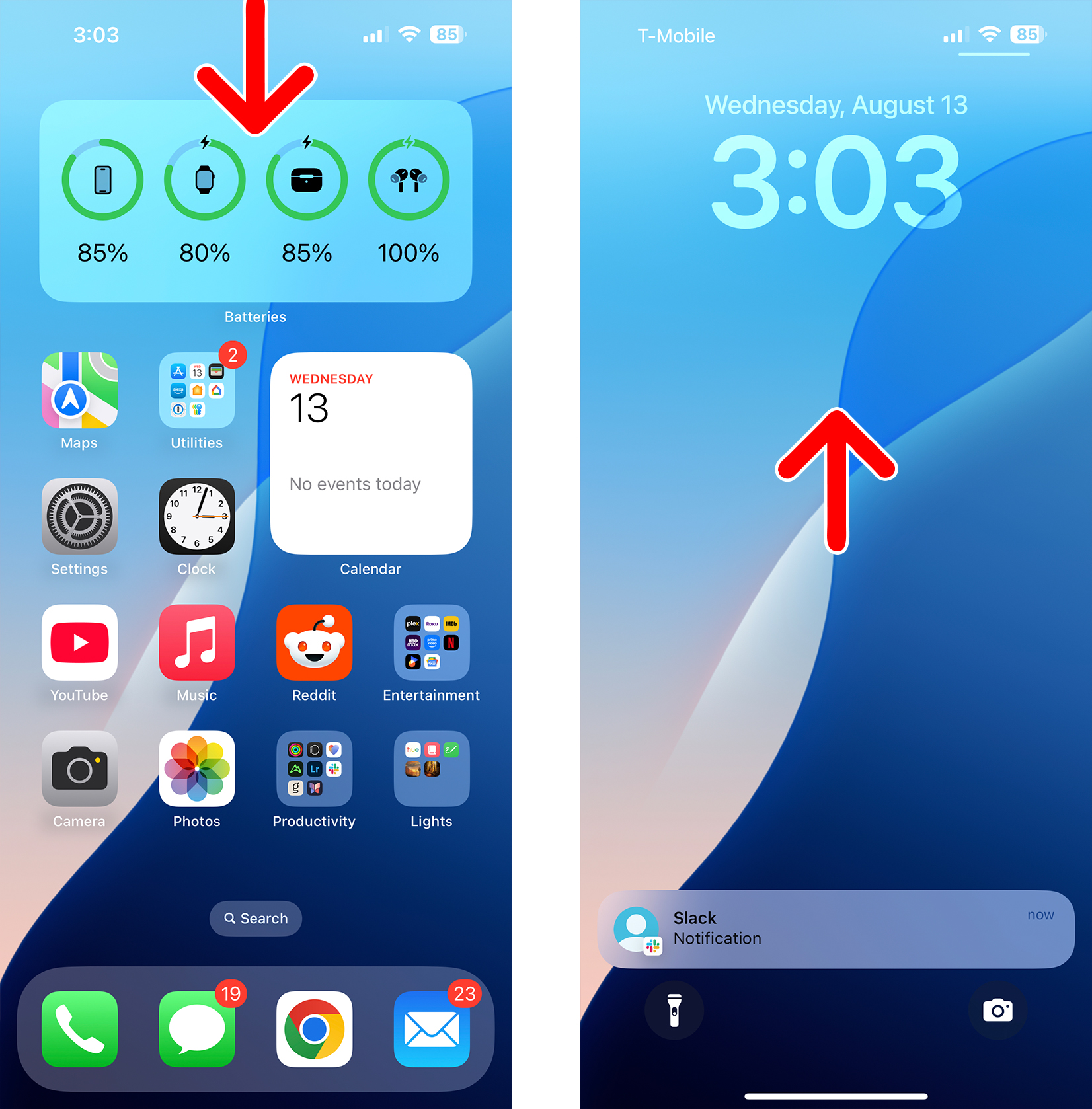
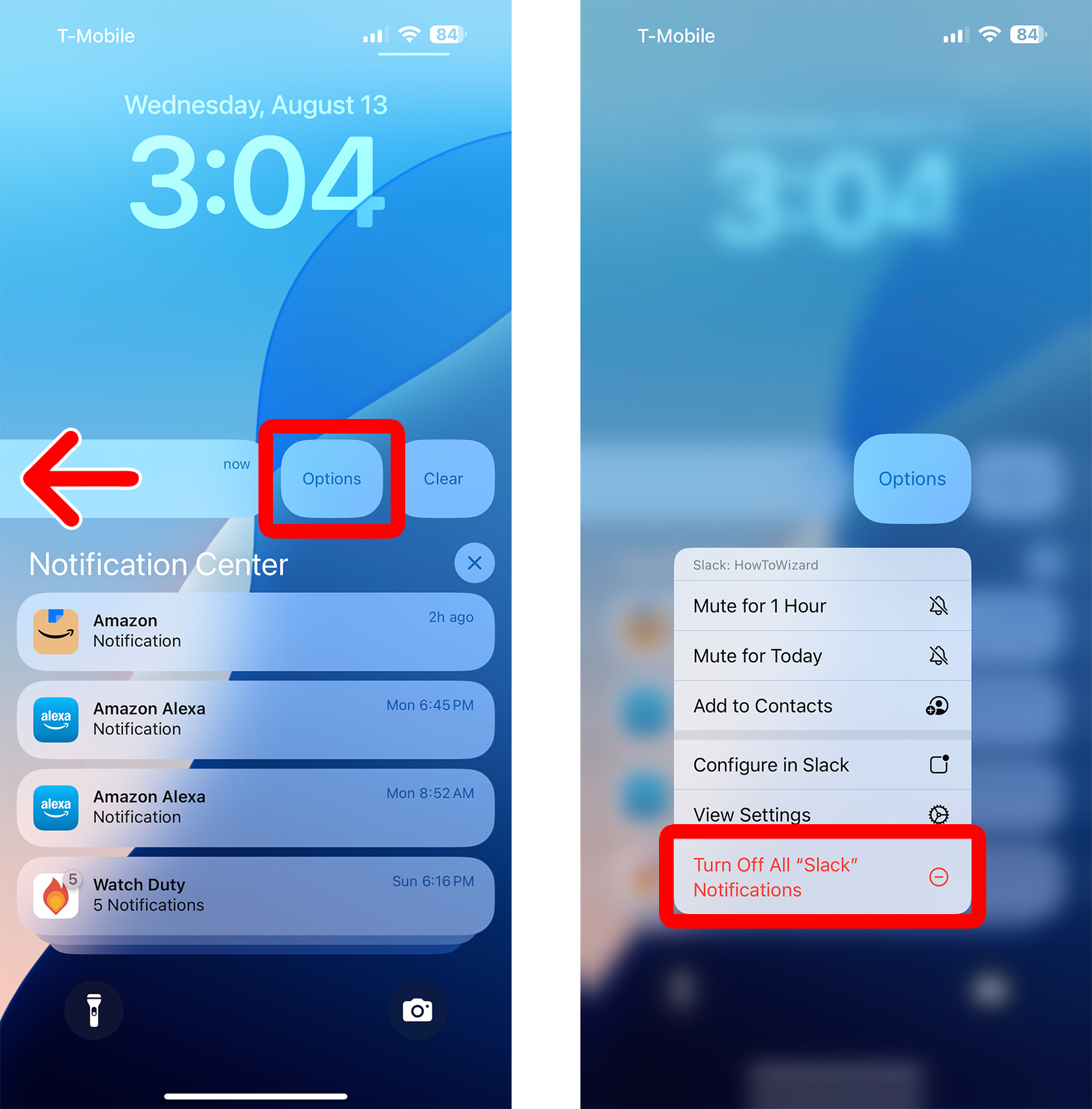
To disable notifications on your iPhone, swipe down from the top-center of your screen. Then swipe up from the middle of the screen to reveal the Notification Center. Next, swipe left on a notification and select “Options.” Finally, select “Turn Off All Notifications.”
- Swipe down from the top-center of your screen. This will reveal your most recent notifications.
- Then swipe up from the center of the screen. This will reveal the Notification Center, with all your unread notifications.
- Swipe to the left on a notification.
- Tap “Options.”
- Finally, select “Turn Off All Notifications.” You can also select “Mute” for an hour or a day. Some apps also have an option to “Configure,” which will open the app’s notification settings, so you can see additional settings.
How to Turn Off Any iPhone Notifications
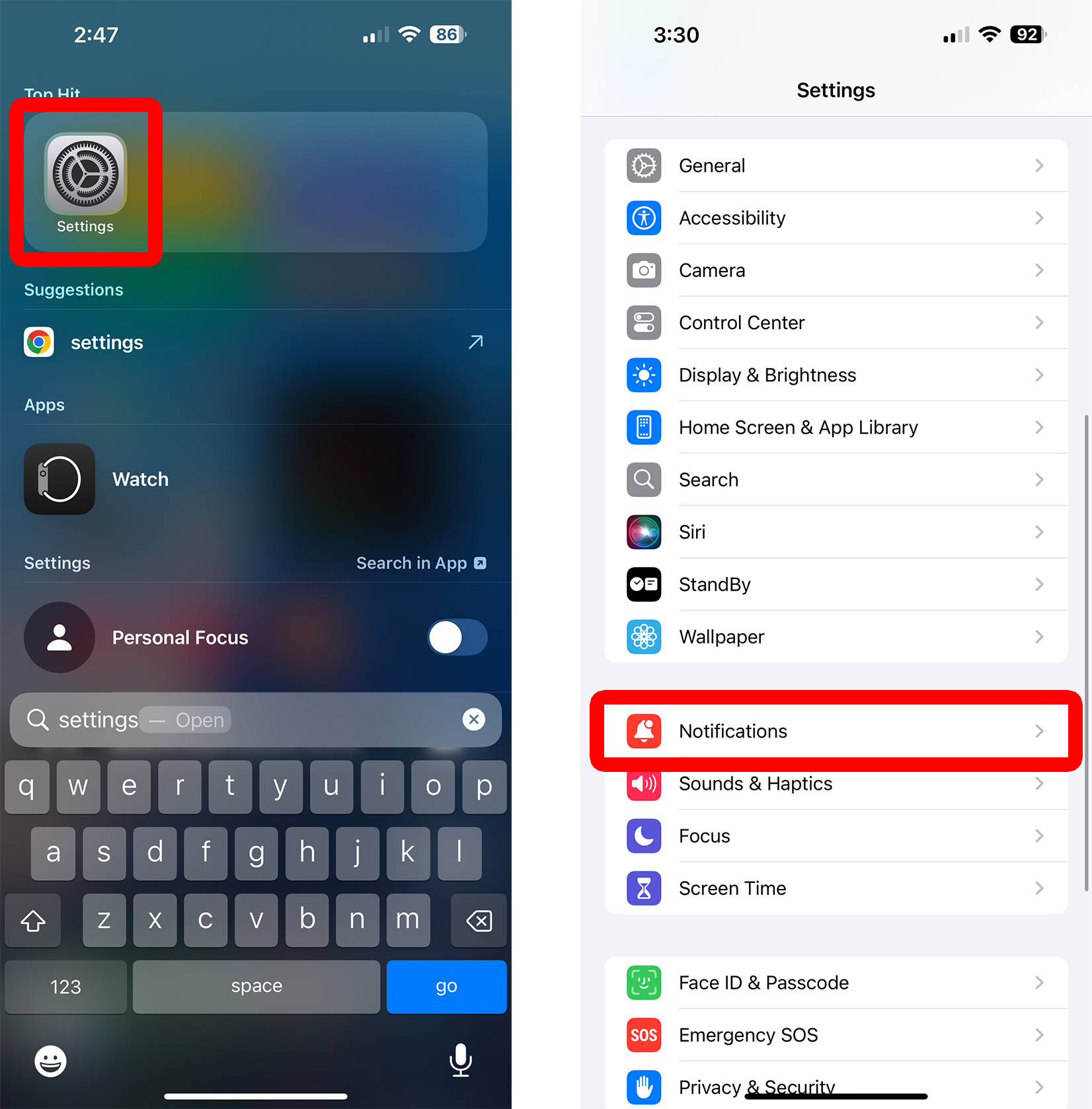
To disable notifications on your iPhone, open the “Settings” app and go to “Notifications.” Then scroll down and select an app under “Notification Style.” Finally, turn off the toggle next to “Allow Notifications.”
- Open the “Settings” app on your iPhone. If you can’t find it, go to the home screen and swipe down from the middle of the screen. Then type “Settings” into the search bar to reveal the app at the top of your screen.
- Go to “Notifications.” You will need to scroll down to see this option.
- Select an app under “Notification Style.”
- Finally, turn off “Allow Notifications.”
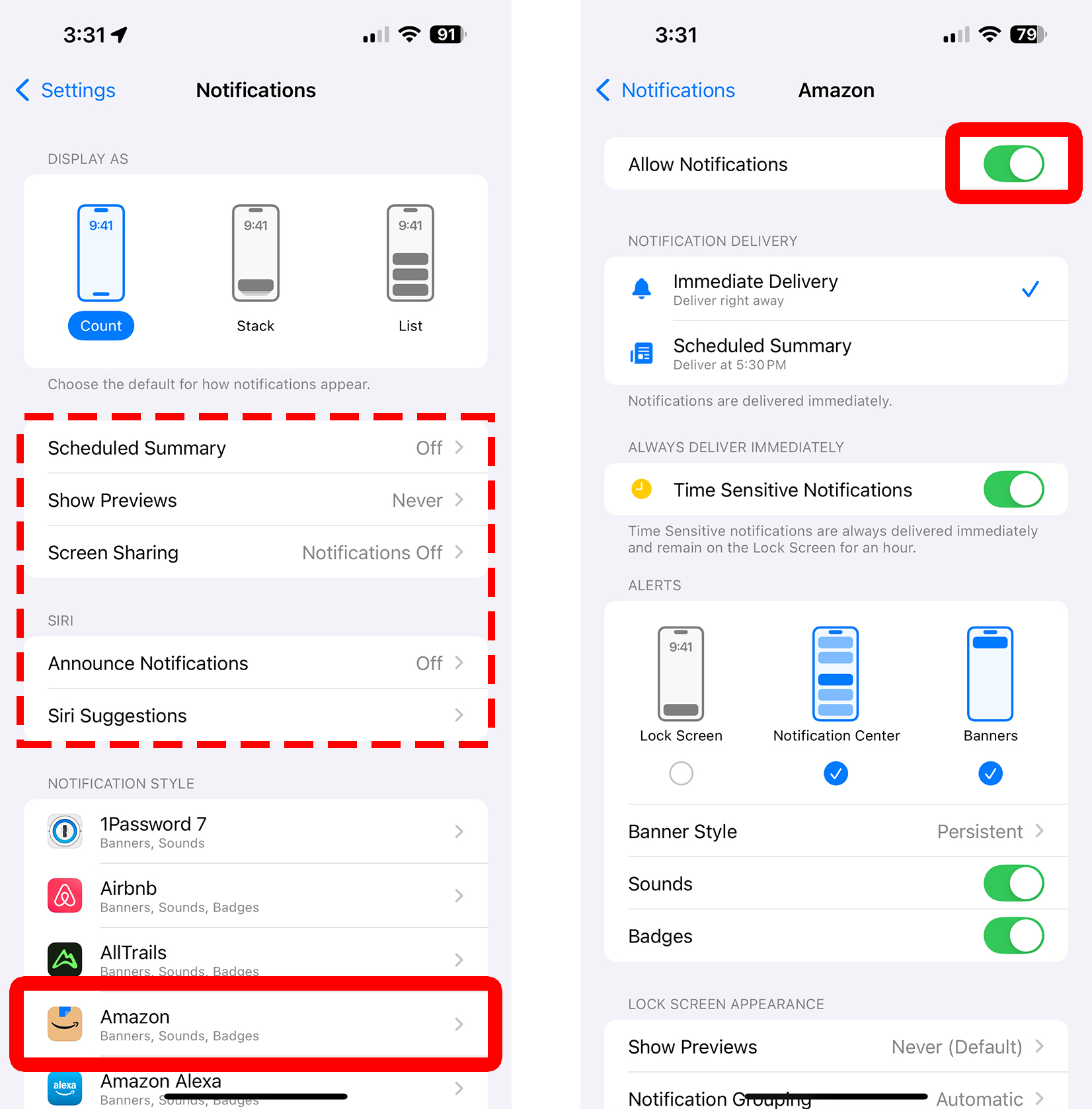
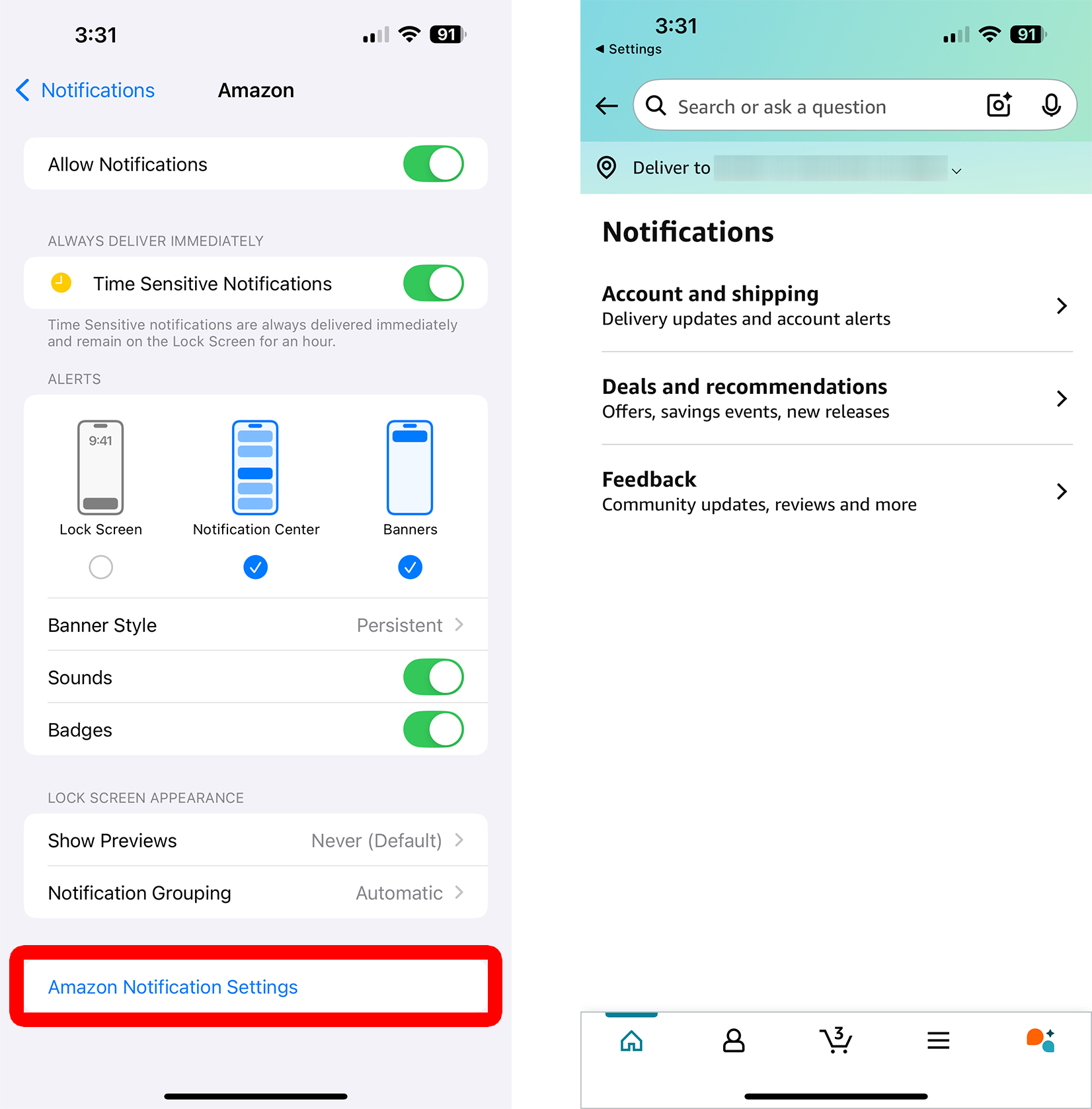
If you don’t want to totally disable notifications from an app, you can change other settings from this page:
- Notification Delivery: Choose “Immediate Delivery” to see notifications as they arrive. Choose “Scheduled Summary” to group them in the Notification Center (only if you have “Scheduled Summary” enabled).
- Time Sensitive Notifications: Enable this option if you want urgent notifications to be delivered immediately (even if you have Scheduled Summary enabled for the app).
- Alerts: Choose whether to display an app’s notifications on your “Lock Screen,” “Notification Center,” and/or “Banners.” You can disable all these options to completely hide the app’s notifications on your iPhone.
- Banner Style: You can choose “Persistent” to keep your banner notifications on screen until you open them—or choose “Temporary” to make them disappear automatically.
- Sounds: Disabling this option will silence all notifications from the app.
- Badges: Disabling this option will stop your iPhone from adding a small red badge on the app when you receive a new notification.
- Show Previews: Disabling this option will hide the text content of the notification.
- Notification Grouping: Choose whether to group the app notifications in the Notification Center automatically, by app, or turn off grouping entirely.
Finally, you might see an option to change more notification settings from the app at the bottom of this screen. If you select “[App name] Notification Settings,” you’ll be able to go into the app itself to change additional notification settings.
How to Turn Off Government Alerts
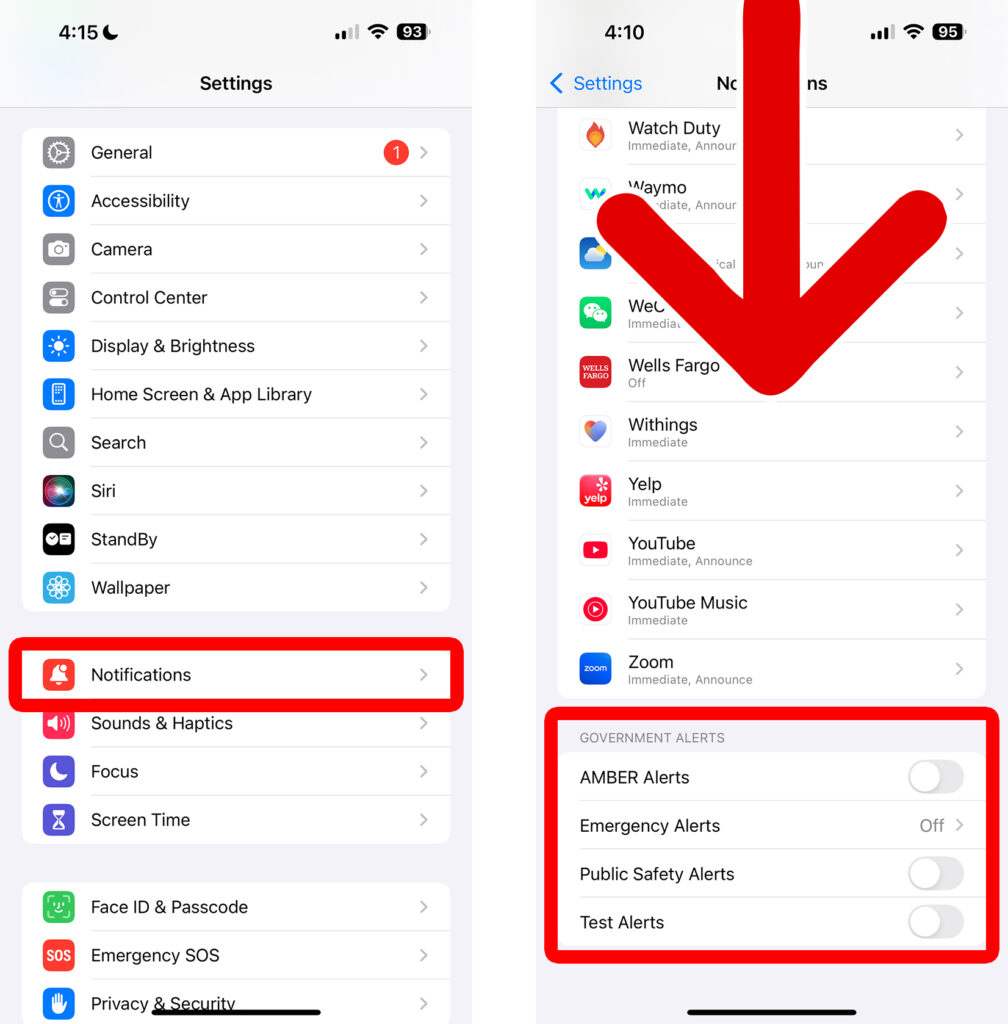
To turn off government alerts on your iPhone, go to “Settings > Notifications” and scroll all the way to the bottom of the page. From here, you can turn off “AMBER Alerts,” “Emergency Alerts,” “Public Safety Alerts,” and “Test Alerts.”