Tired of Safari opening when you click on a link? Wish you could stick with Chrome or Edge instead? Here’s everything you need to know about how to change your default web browser on a Mac to Google Chrome, Microsoft Edge, or back to Safari.
Download Google Chrome for Mac
Download Microsoft Edge for Mac
How to Change Your Default Browser
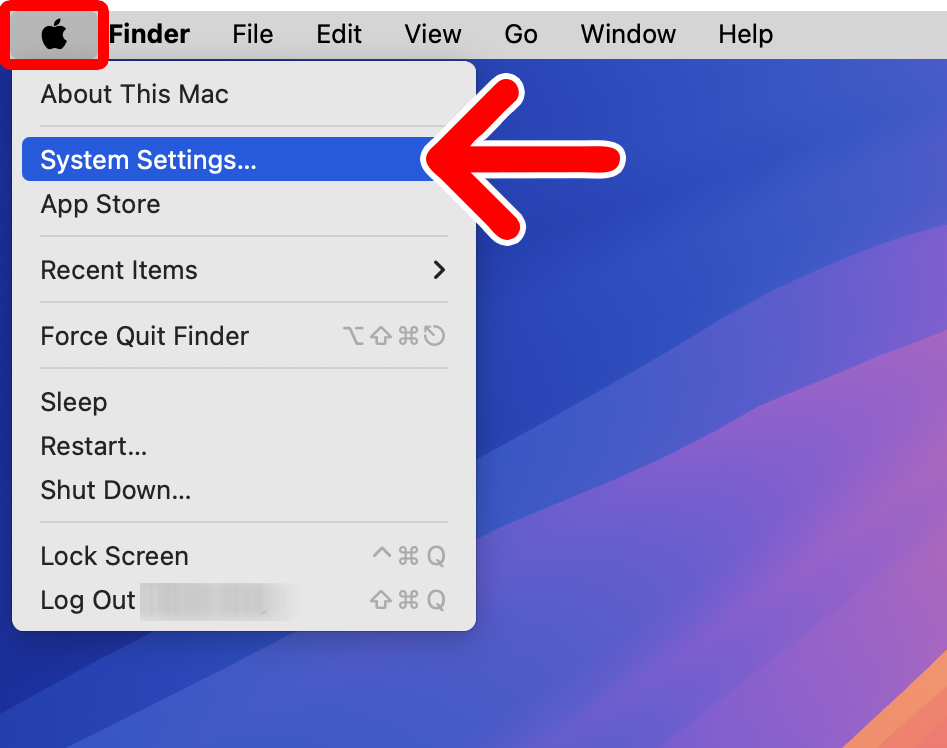
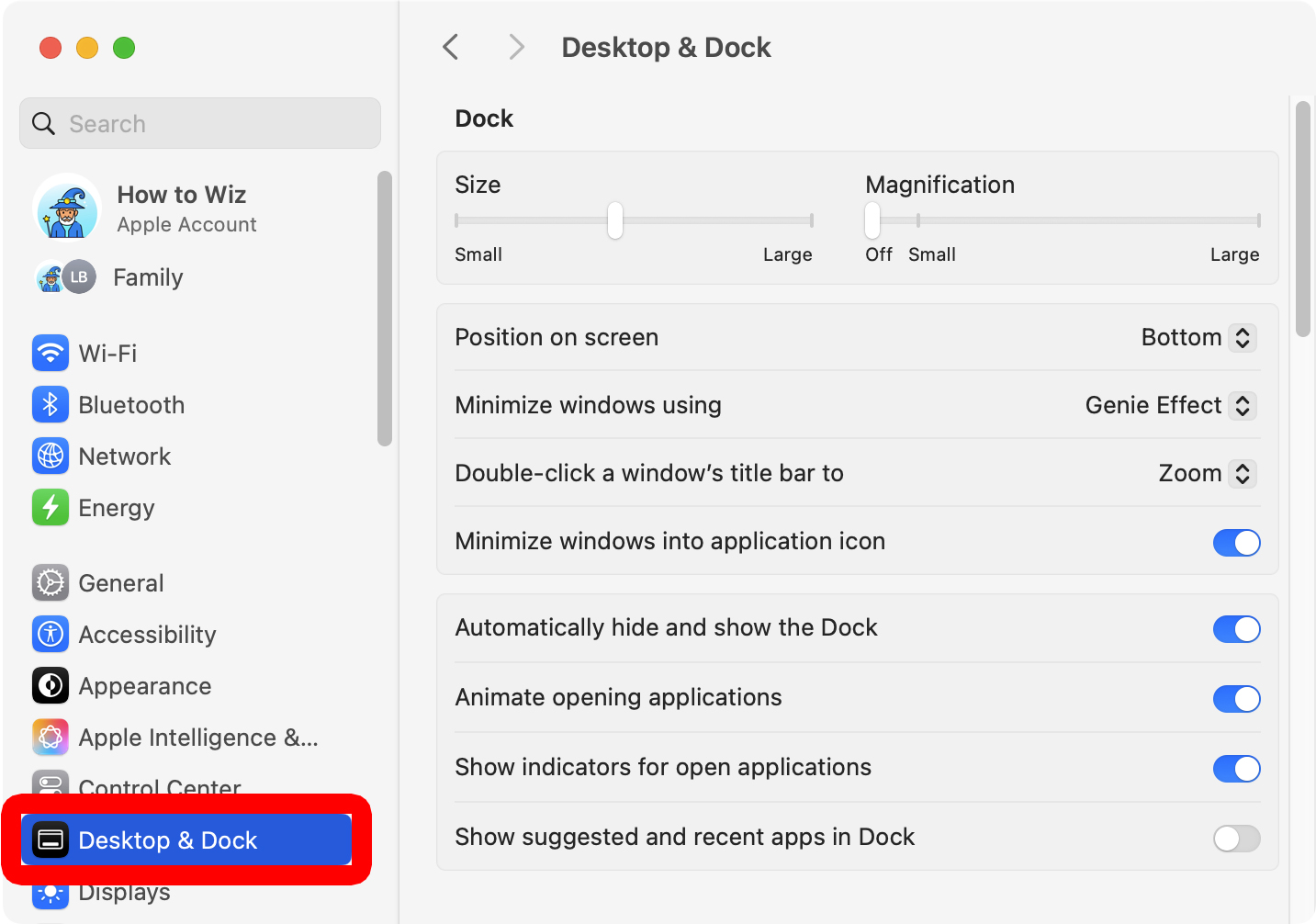
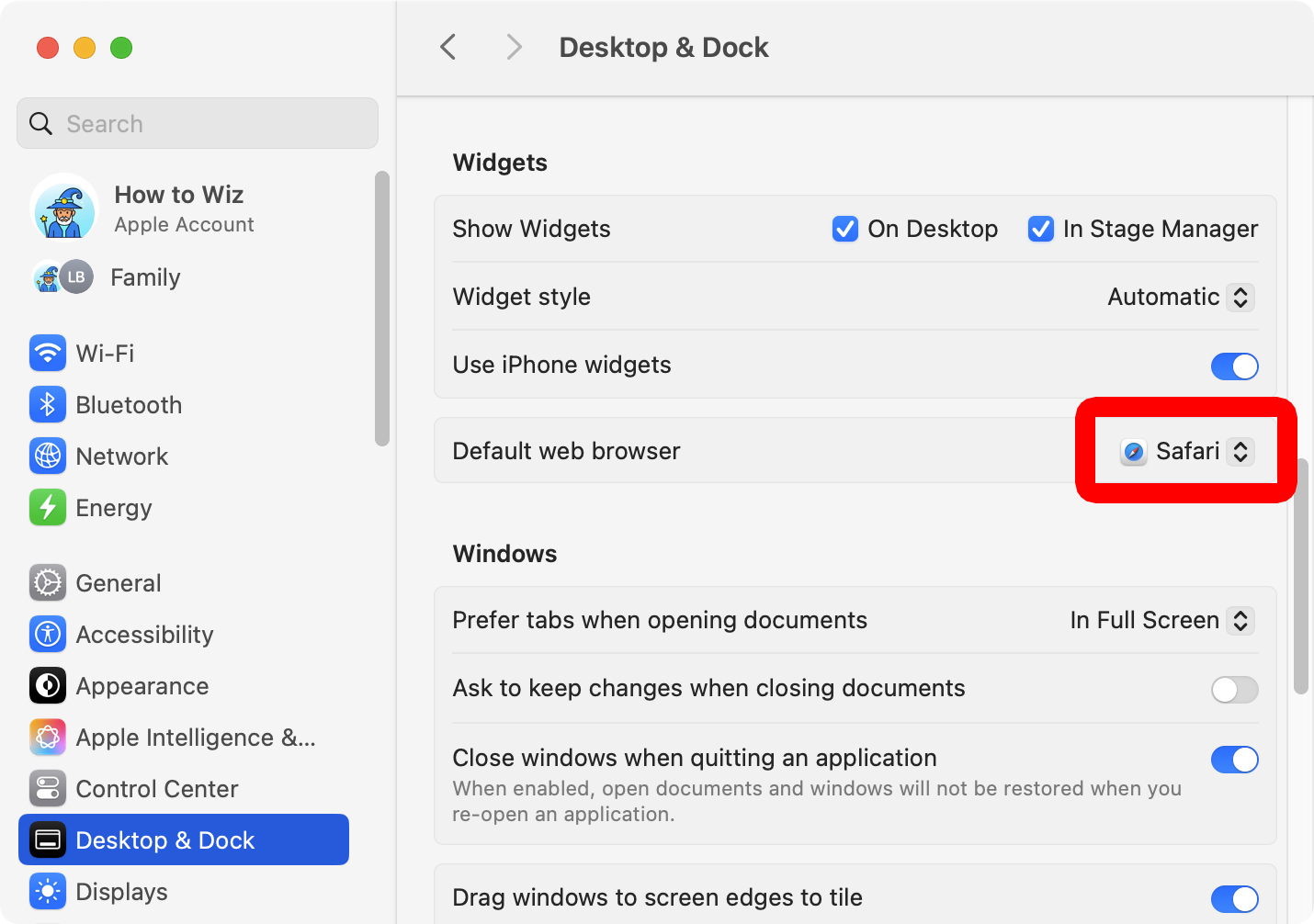
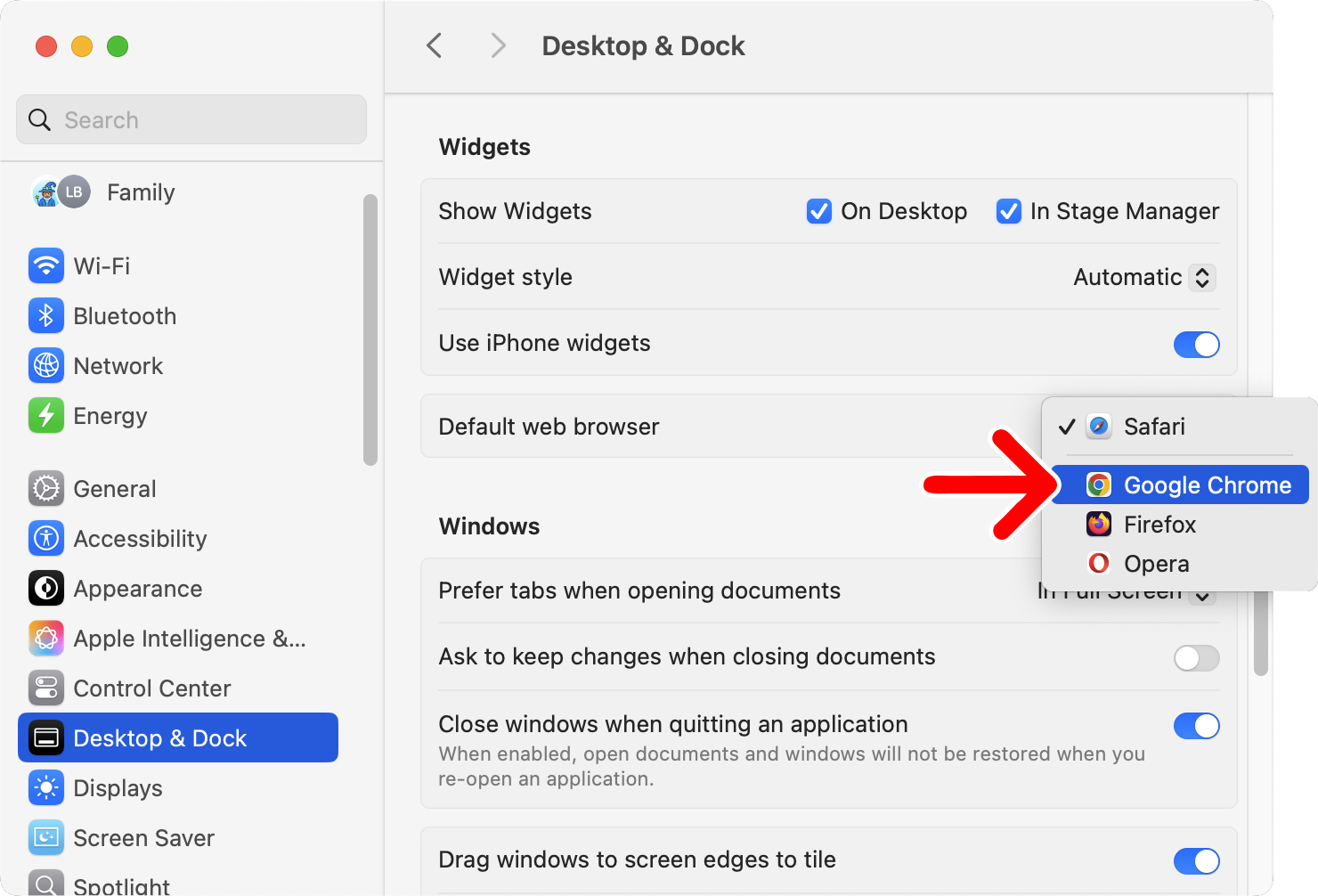
To change your default web browser on a Mac, click the Apple icon in the top-left corner of your screen and select “System Settings.” Then go to “Desktop & Dock” in the left sidebar. Finally, select the drop-down menu next to “Default web browser” and change to a new browser.
- Click the Apple logo in the top-left corner of your screen.
- Select “System Settings.”

- Go to “Desktop & Dock.” You will see this option in the left sidebar of the System Settings window.

- Select the drop-down menu next to “Default web browser.” You’ll need to scroll down to see this option.

- Finally, select a new default browser to change it. You should see all the web browsers you have downloaded to your Mac.

If you don’t see your preferred web browser listed in System Settings, you can also change it to your default through the browser’s settings. Here’s how:
How to Make Safari Your Default Browser
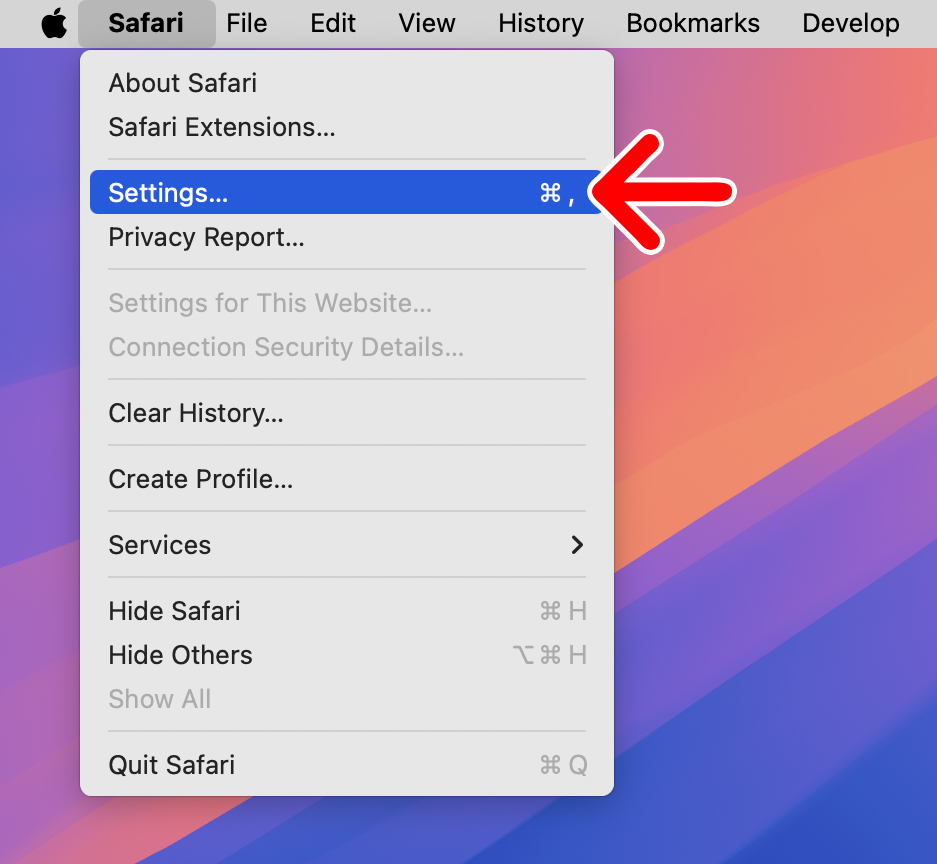
- Open Safari and click “Safari” in the top-left corner of your screen. You will see this in the Apple Menu Bar (just to the right of the Apple logo) when Safari is open.

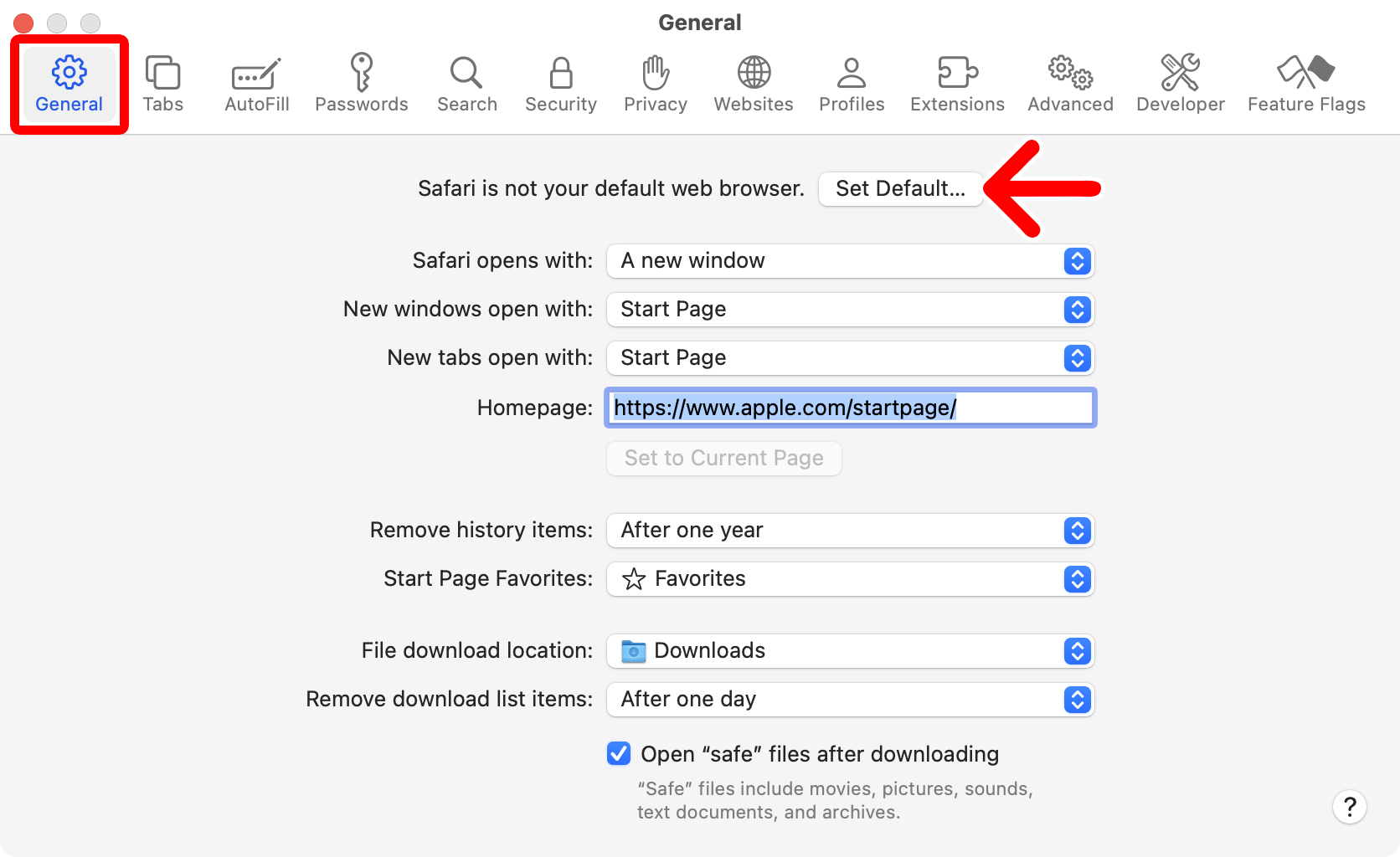
- Go to the “General” tab. You will see this at the top of the Safari Settings window.
- Click “Set Default…” next to “Safari is not your default web browser.” If you don’t see this option, it means that Safari is already your default web browser.
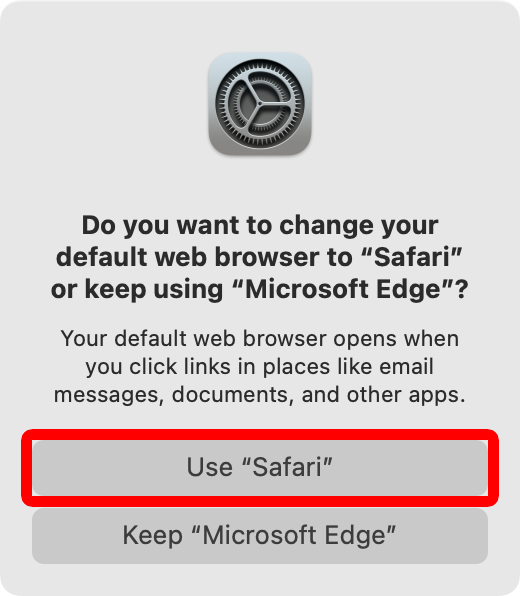
- Finally, select “Use Safari.”
How to Make Chrome Your Default Browser
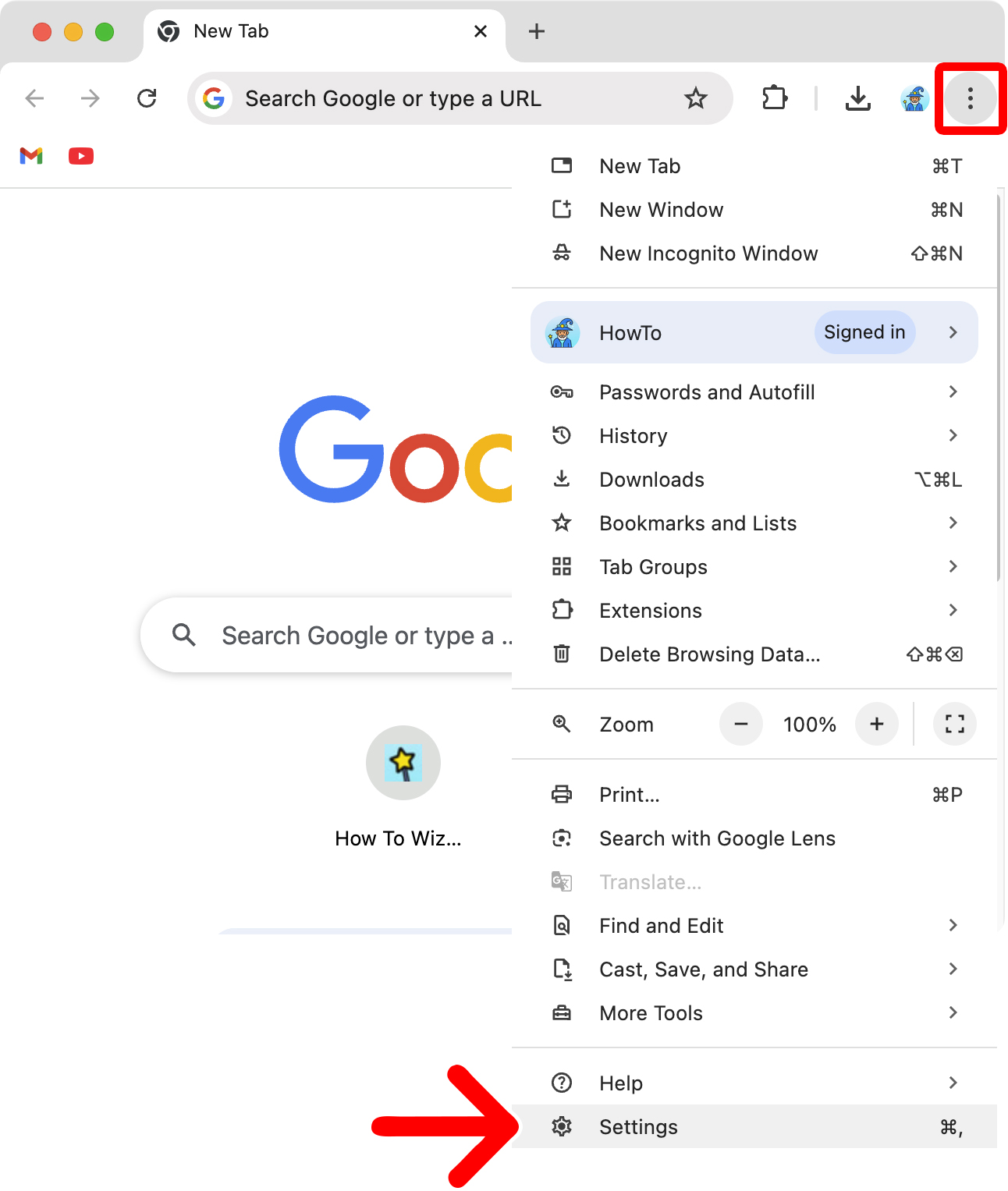
- Open Chrome and click the three-dot icon in the top-right corner of the window.
- Select “Settings.”
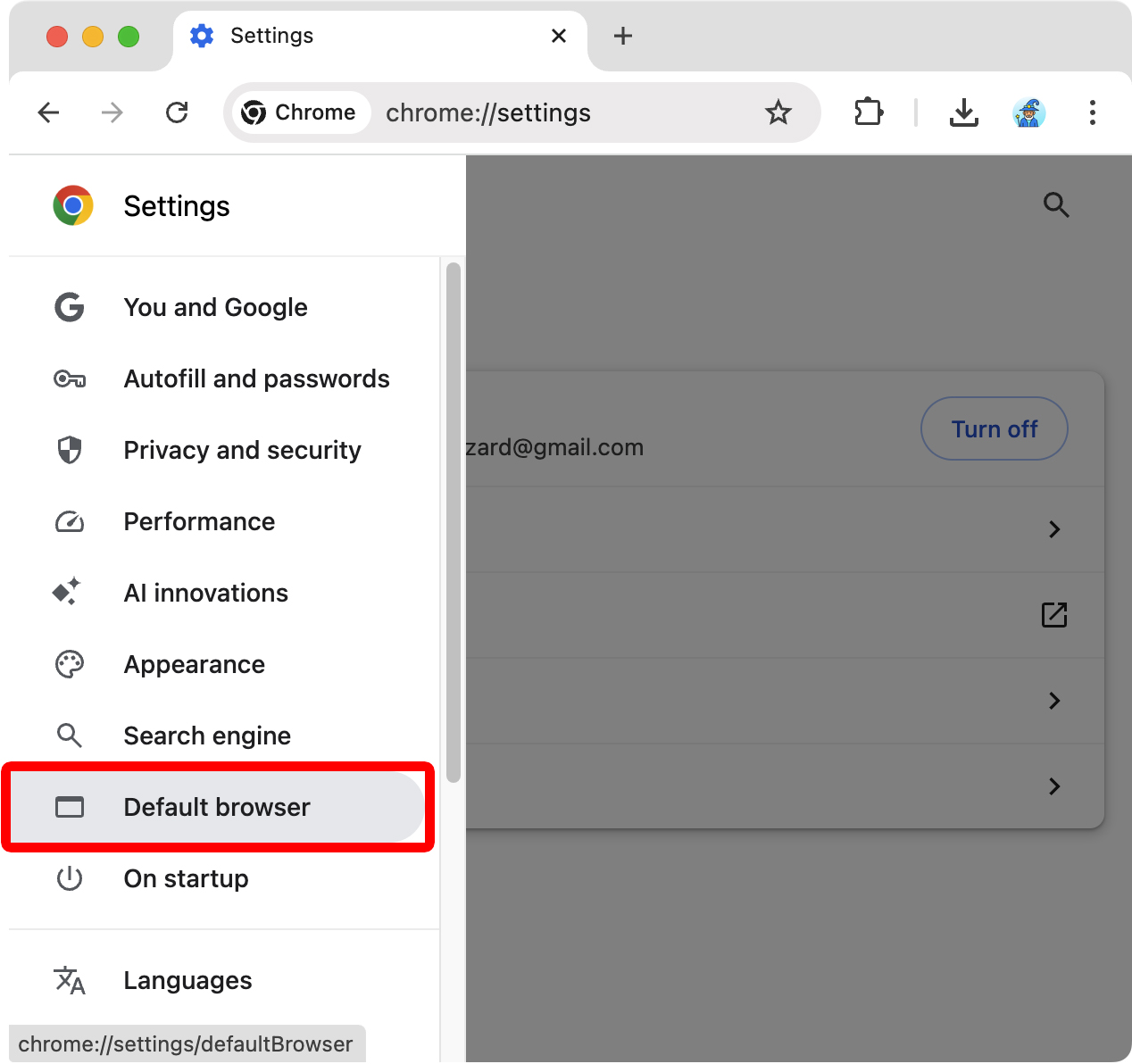
- Select “Default browser.” If you don’t see this option in the left sidebar, click the three-line icon in the top-left corner or expand the browser window.
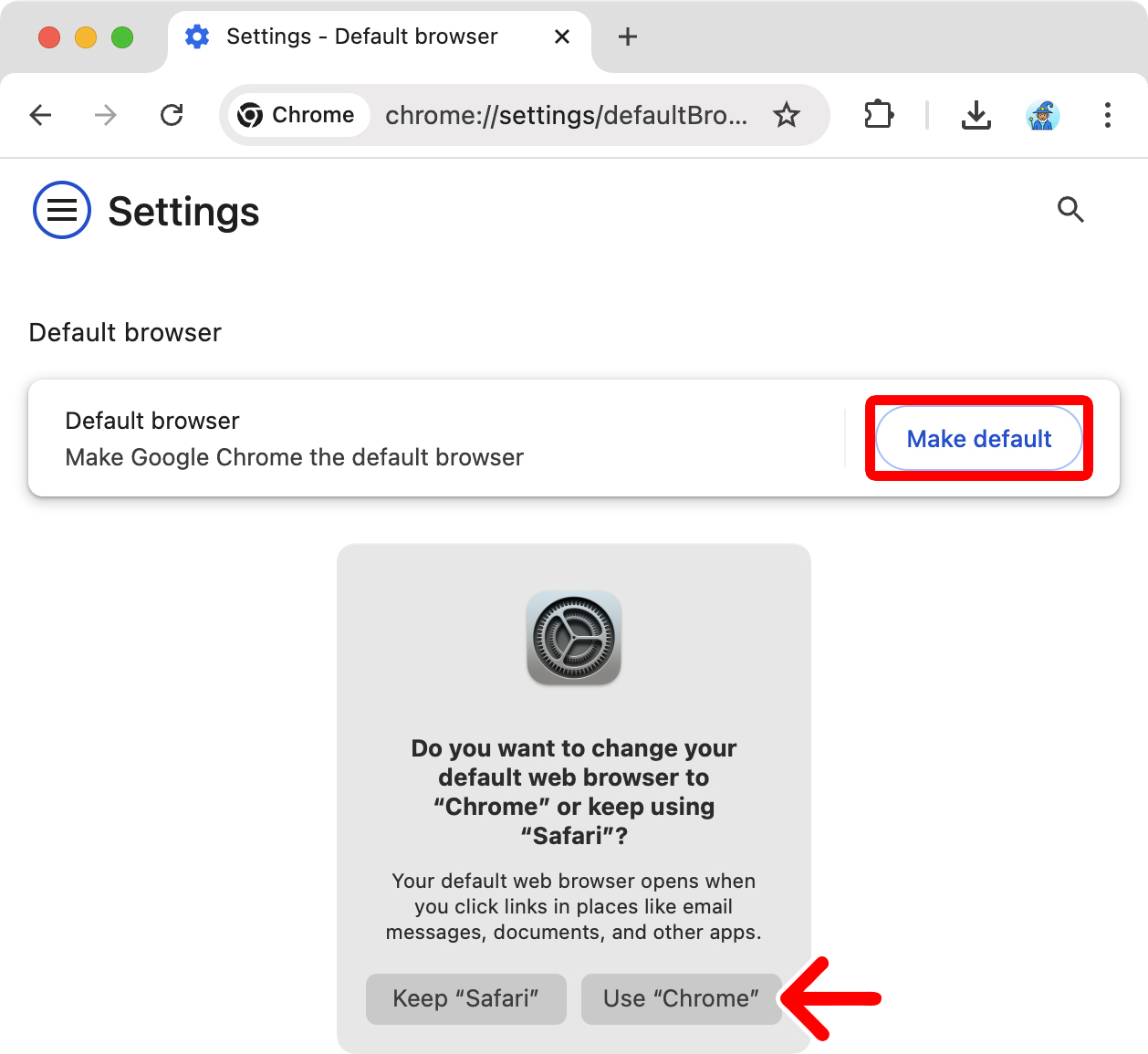
- Finally, select “Make default” and click “Use Chrome” to confirm.
How to Make Edge Your Default Browser on a Mac
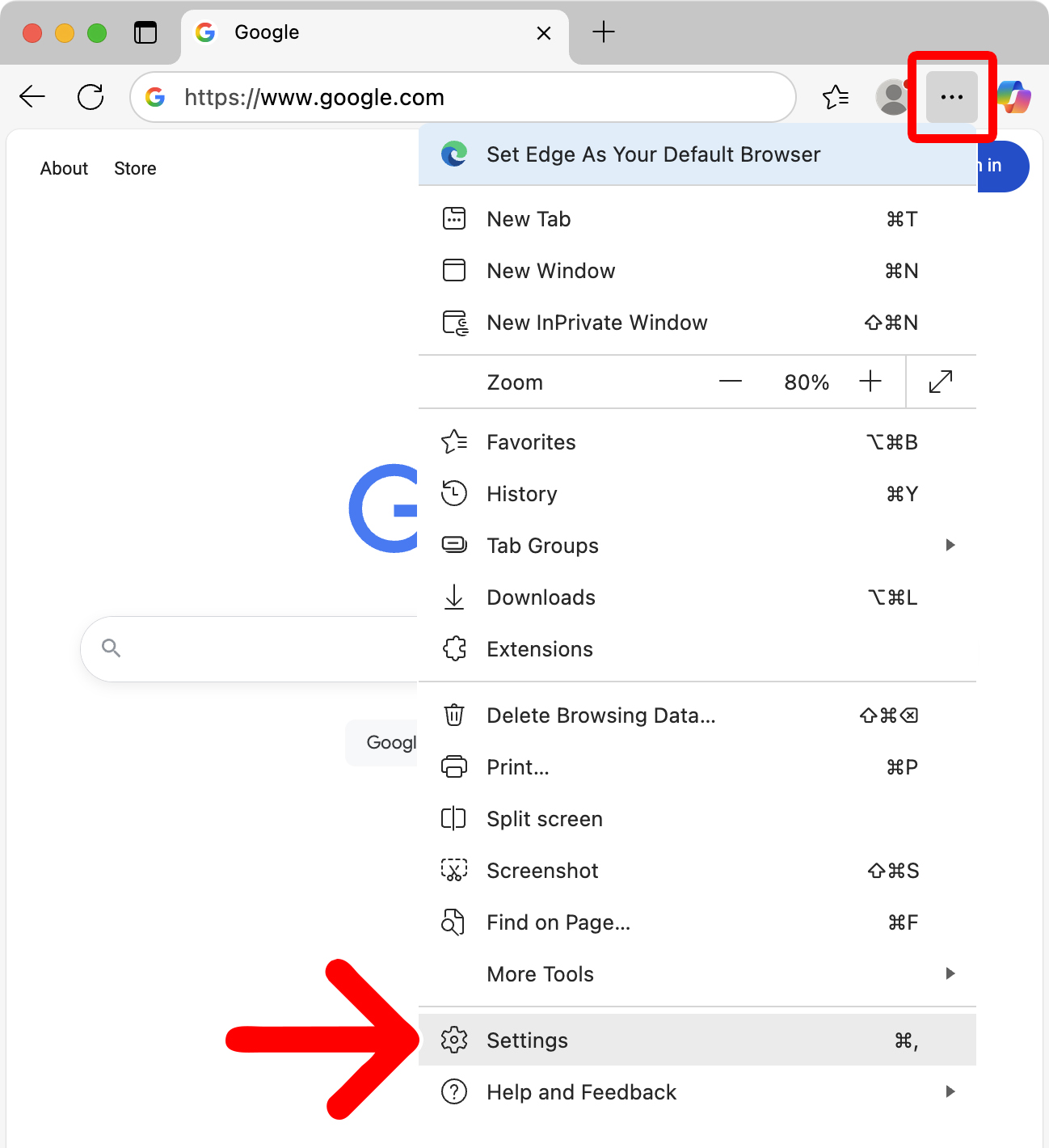
- Open Edge and click the three-dot icon in the top-right corner.
- Select “Settings.”
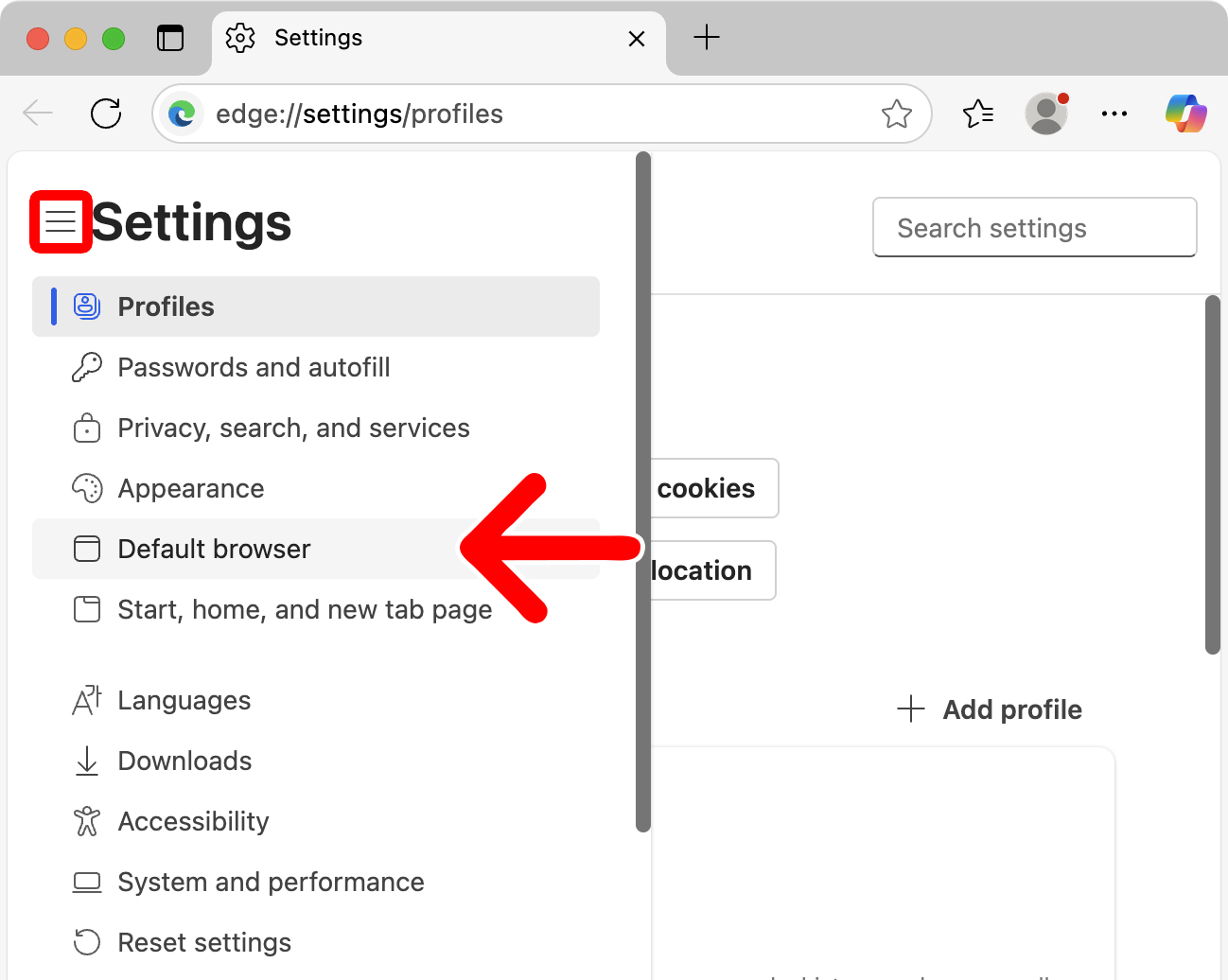
- Select “Default browser.” If you don’t see this option in the left sidebar, click the three-line icon in the top-left corner of the window.
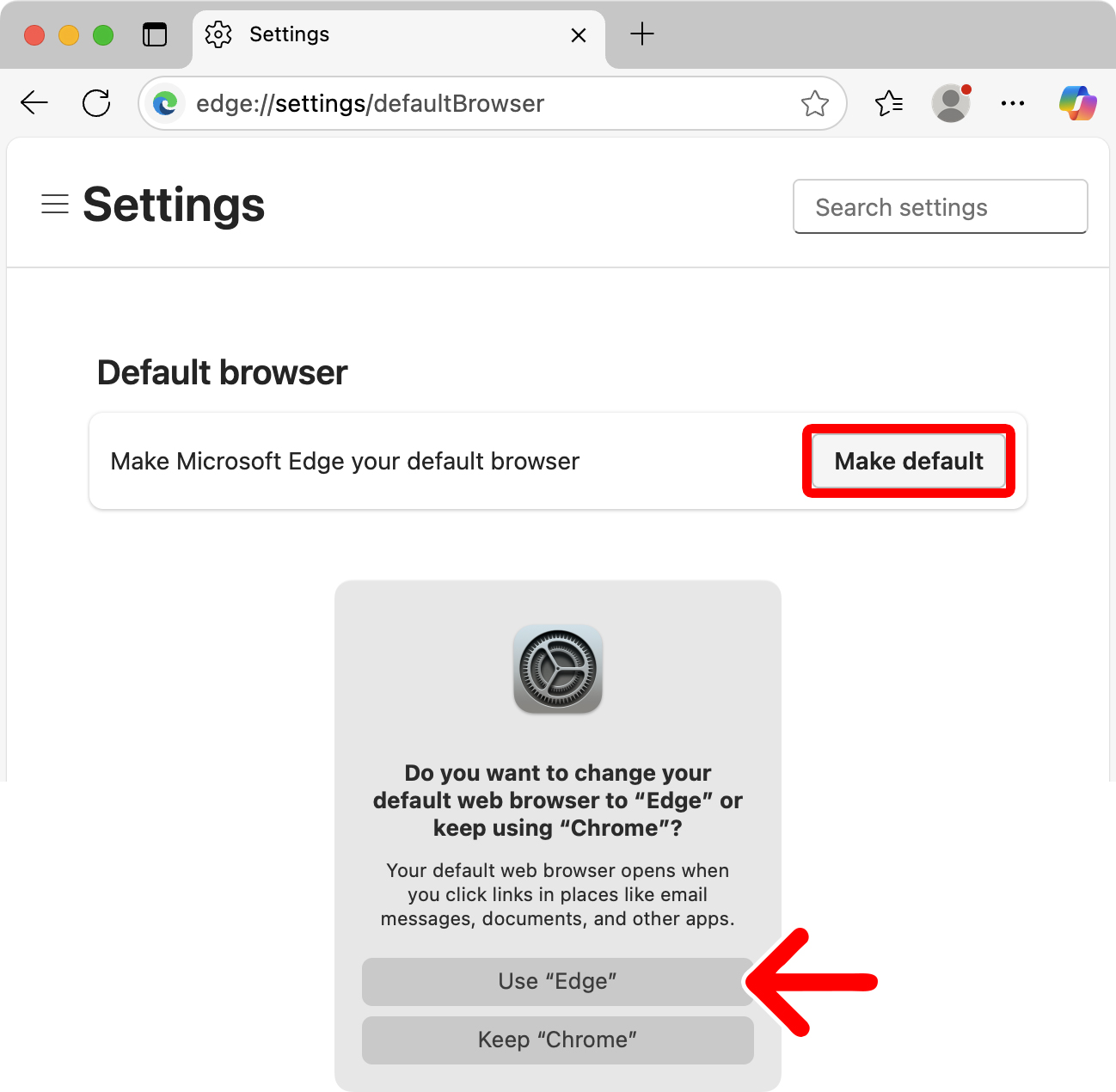
- Finally, select “Make default” and click “Use Edge” to confirm.