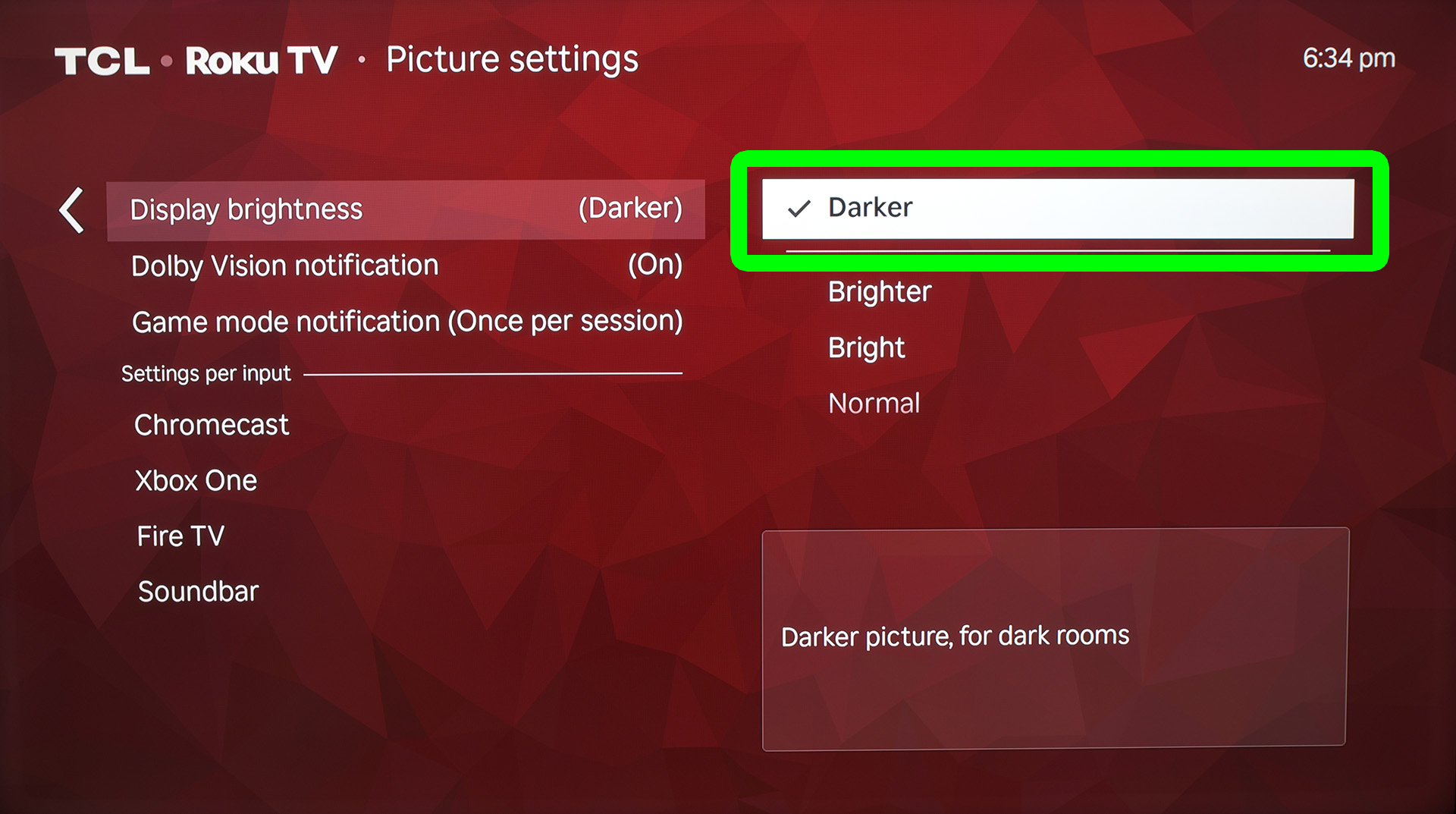
Having trouble seeing what’s on your TV during the day? Are things too bright at night? Here’s how to adjust the brightness on your Roku device — whether you want to change it while streaming or set it permanently.
Read More: How to Change Your Roku Background
How to Quickly Change the Brightness on Roku
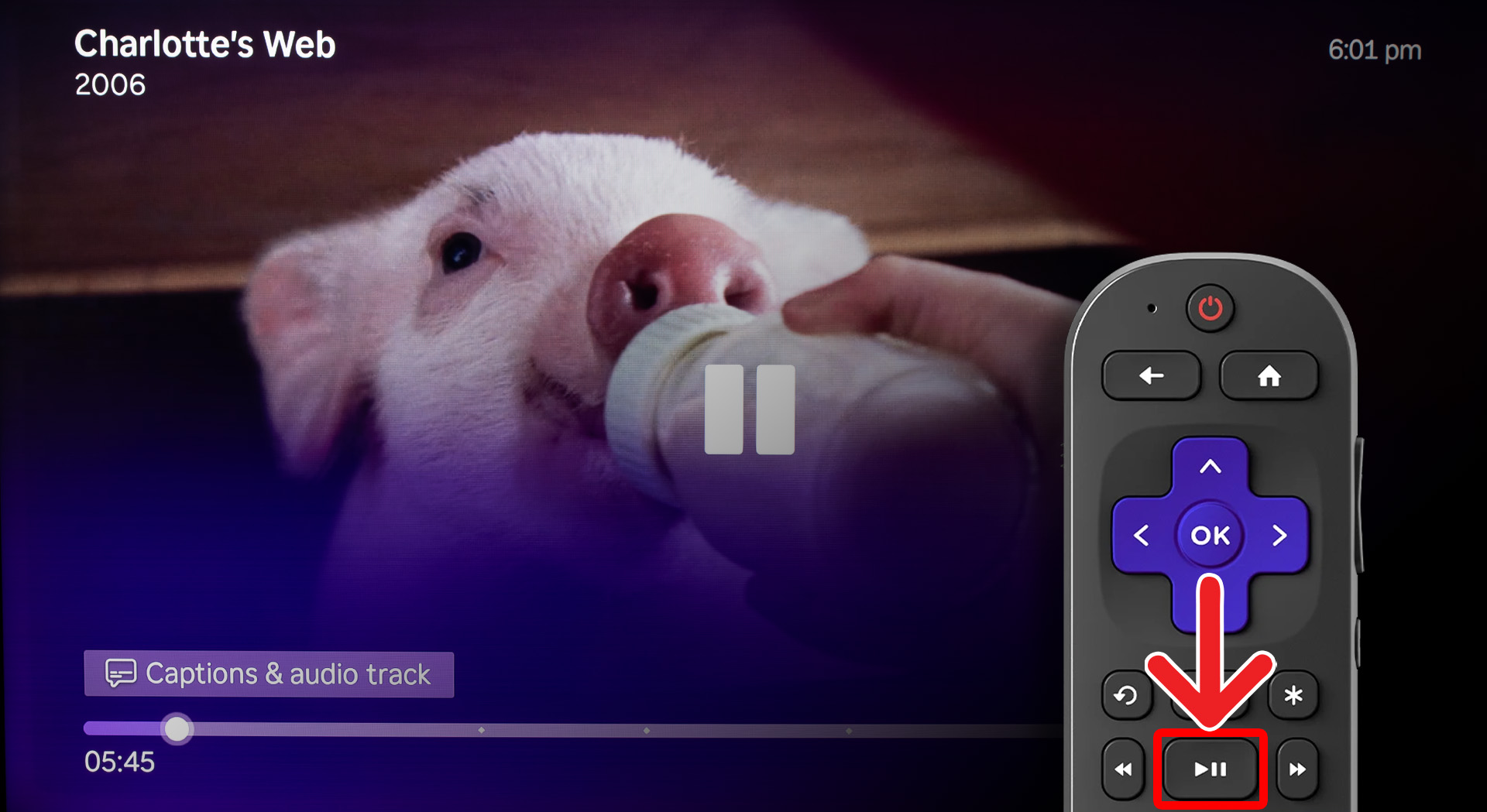
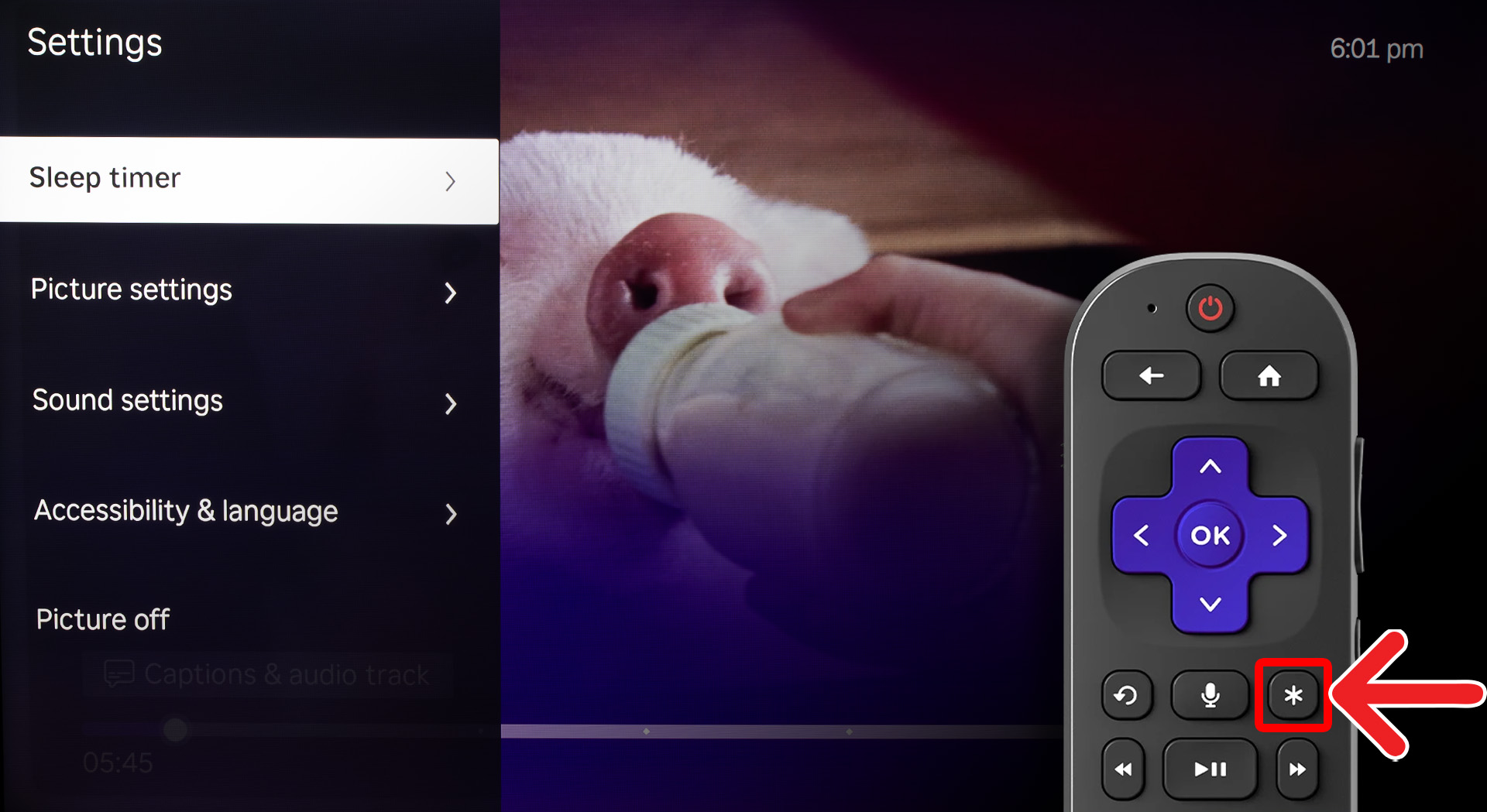
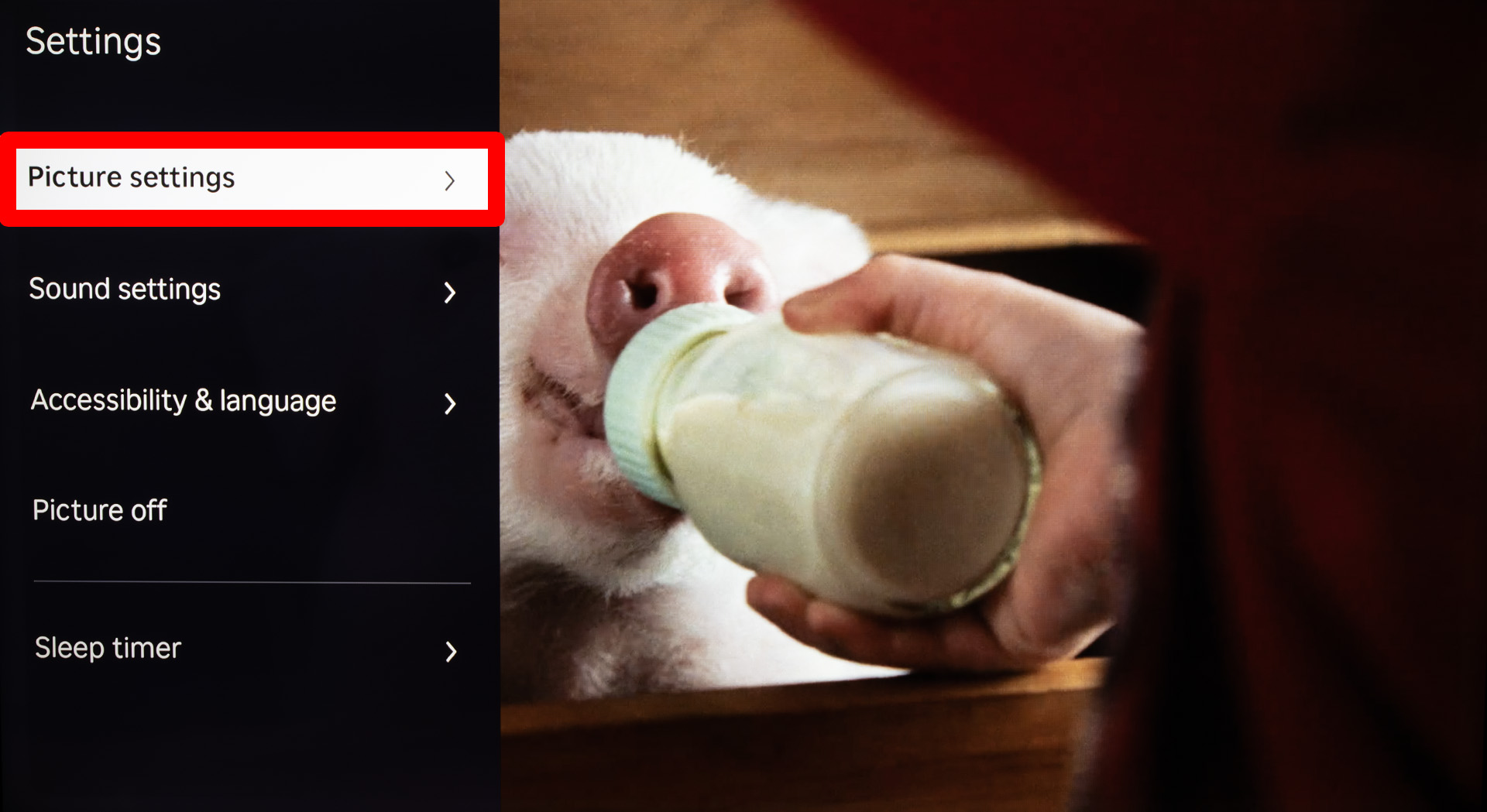
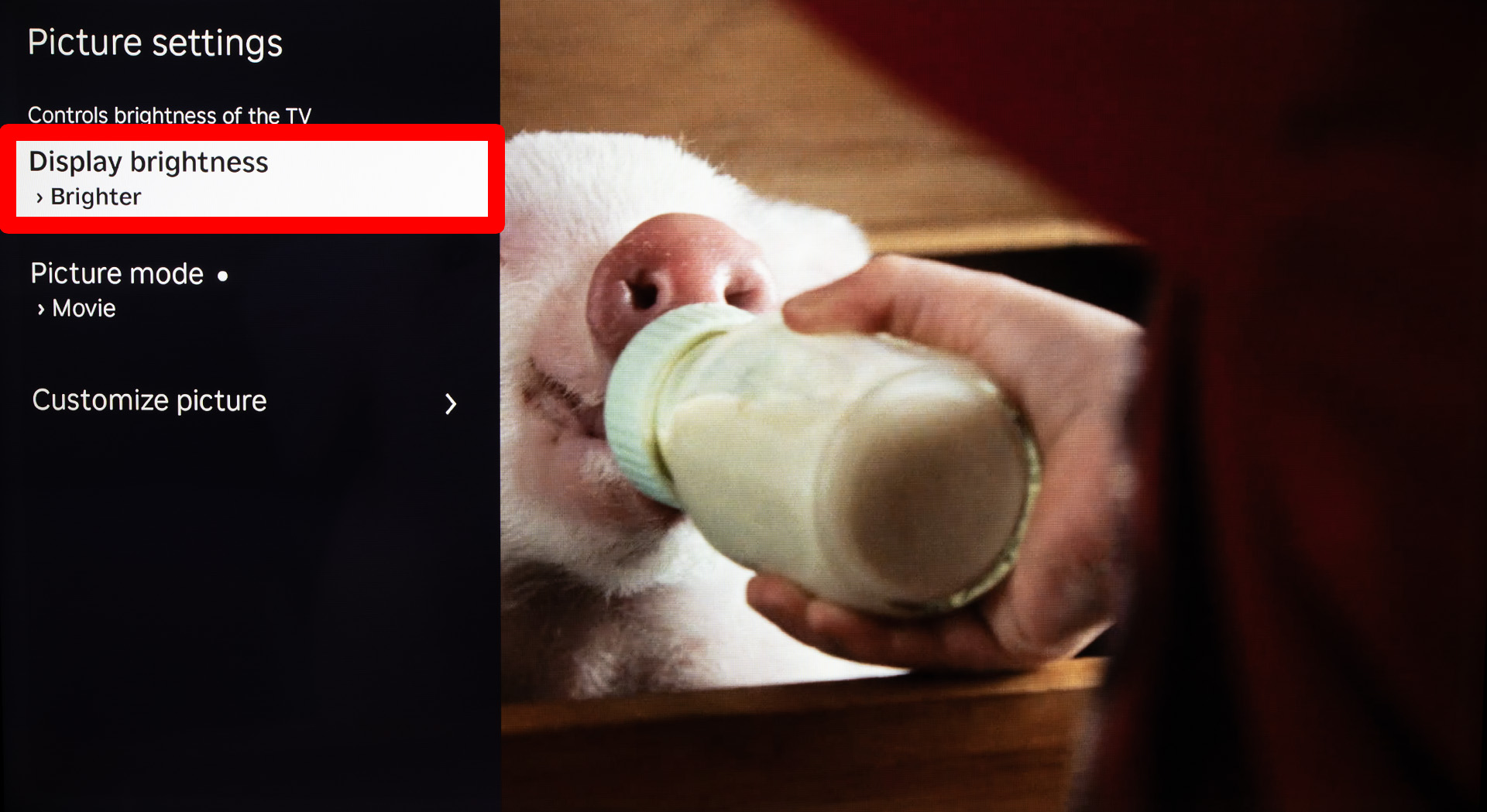
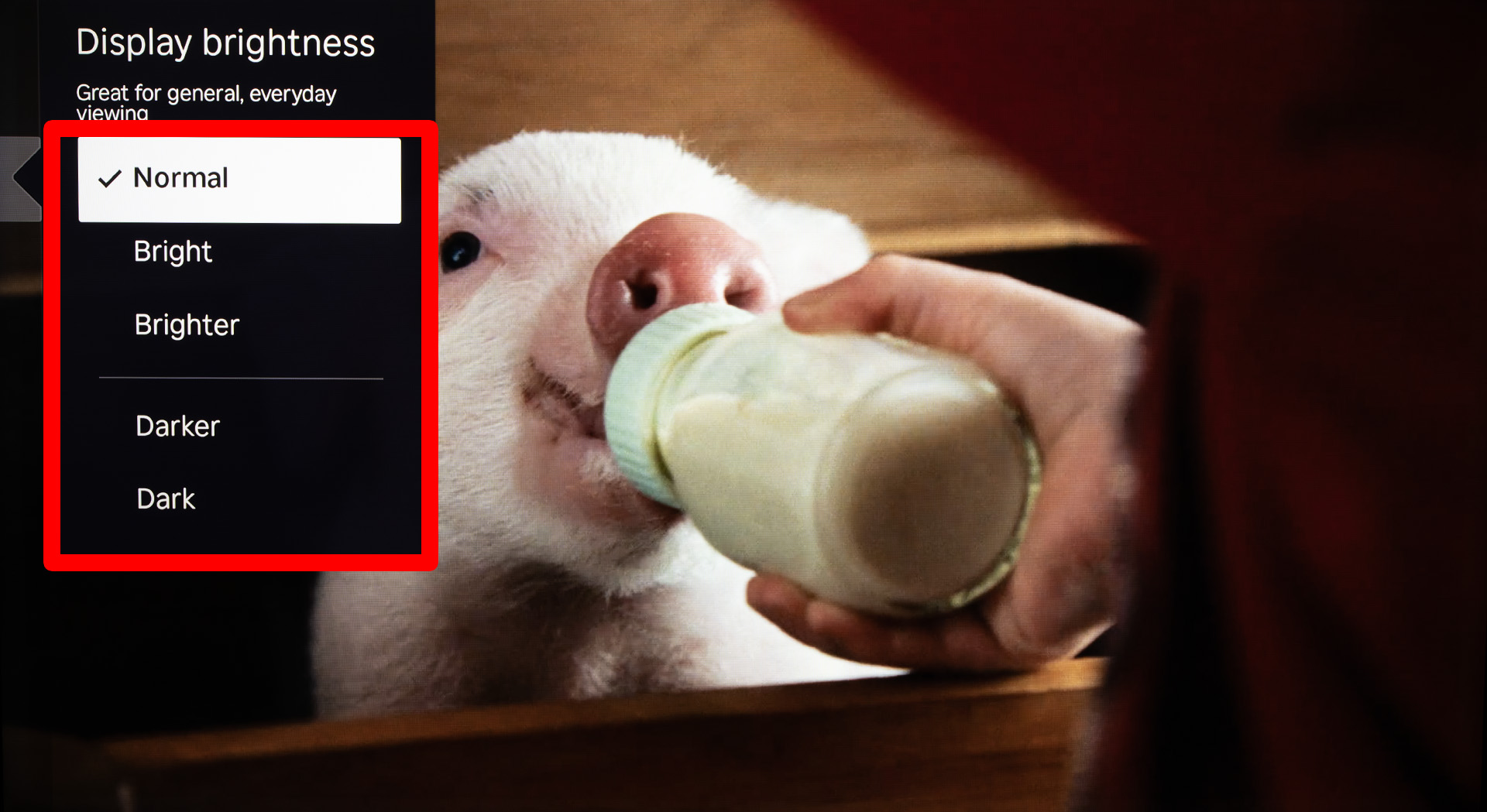
To quickly change the brightness on your Roku device or TV, start streaming something and press the “Pause” button on your Roku remote. Then press the “Star” button and go to “Picture settings > Display brightness.” Finally, choose a new brightness level to change it.
- Start streaming a movie or TV show. You need to be watching something first in order for these steps to work.
- Press the “Pause” button on your Roku remote.

- Press the “Star” button on your Roku remote. This will open a menu on the left side of your screen.
- Select “Picture settings.” You can navigate the left “Settings” menu by pressing the Up- and Down-directional buttons on your Roku remote.
- Go to “Display brightness.”
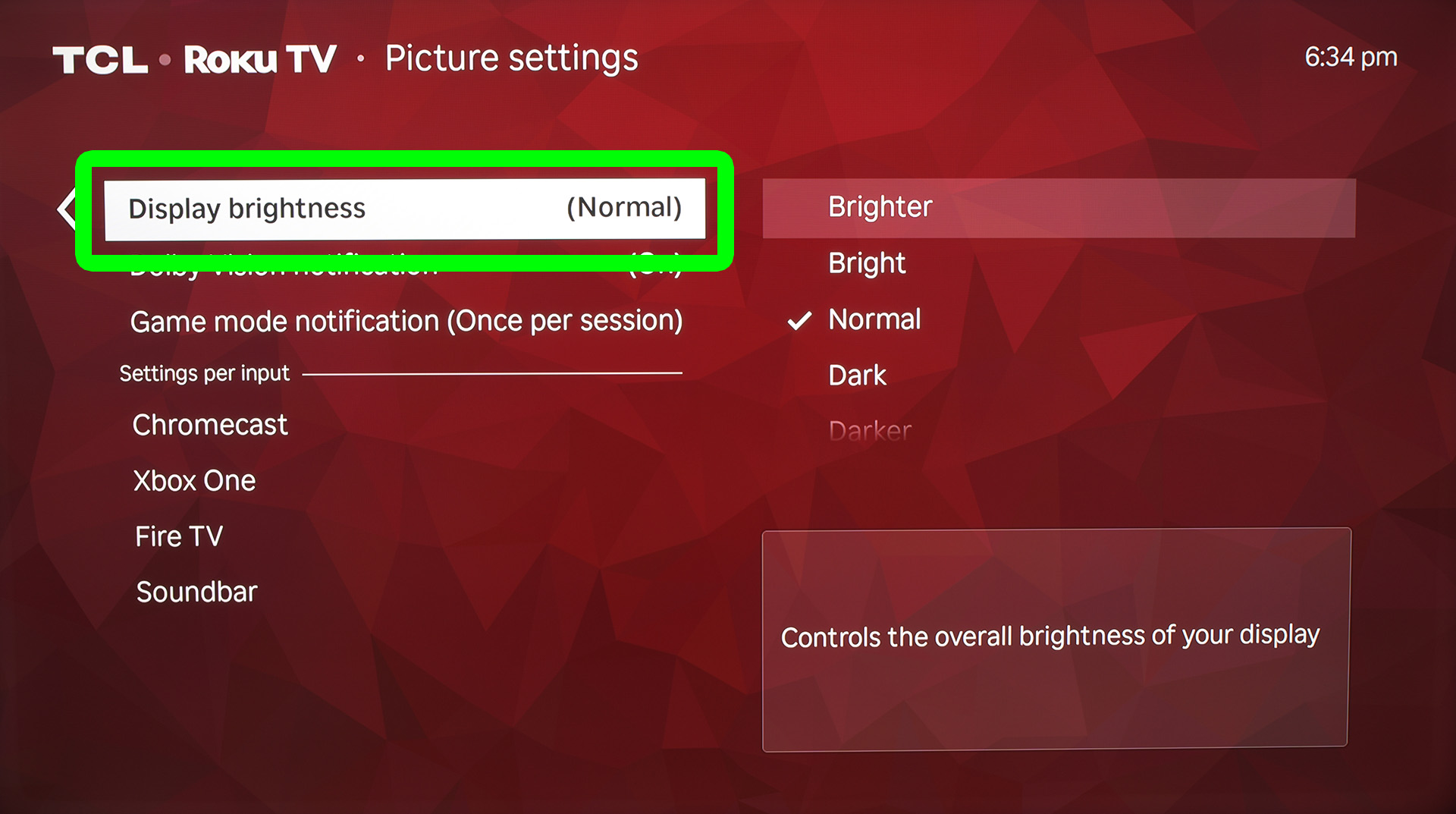
- Finally, select a brightness level. You can choose from “Darker,” “Dark,” “Normal,” “Bright,” and “Brighter.”
How to Permanently Change the Brightness Level on a Roku TV
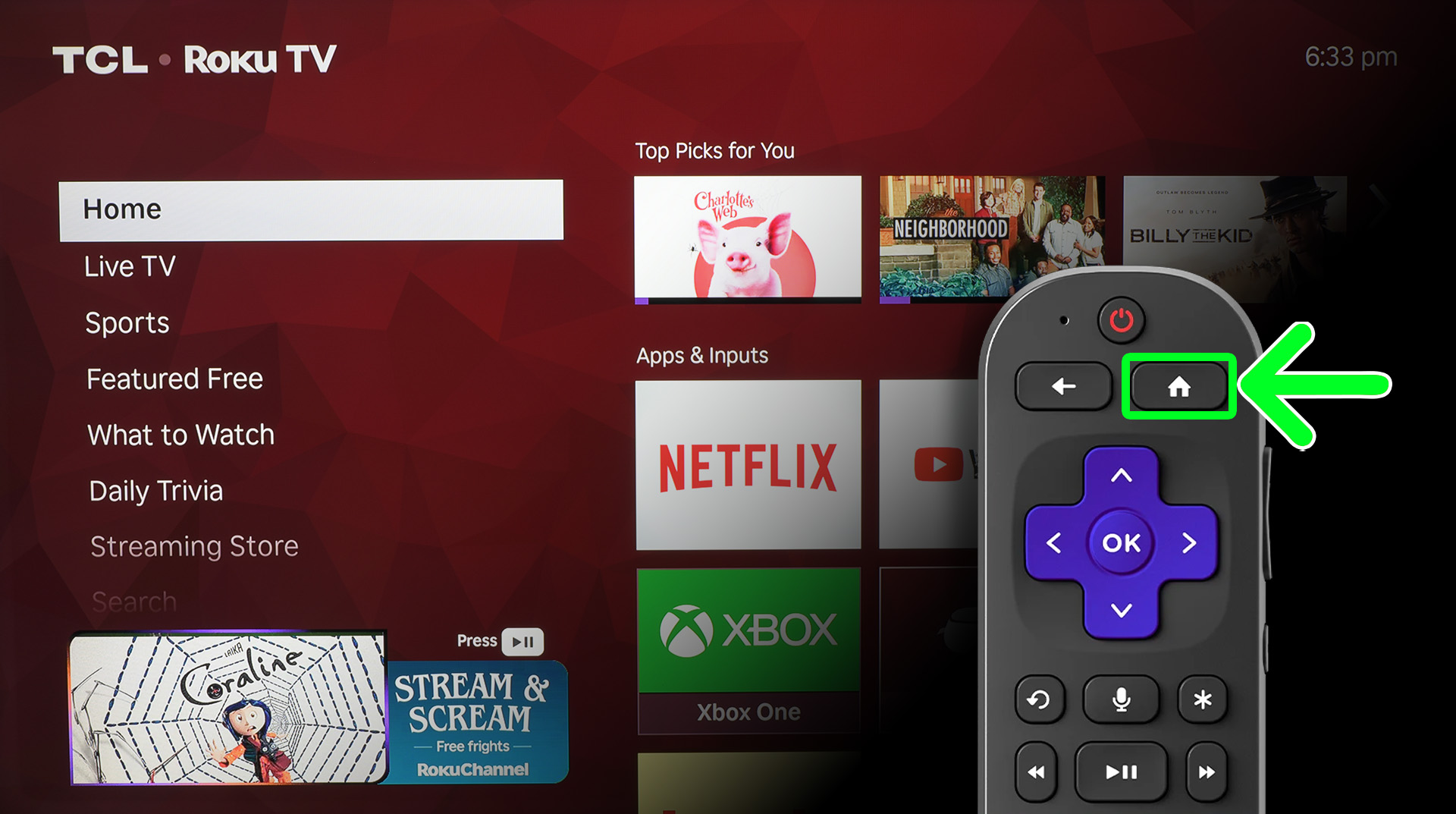
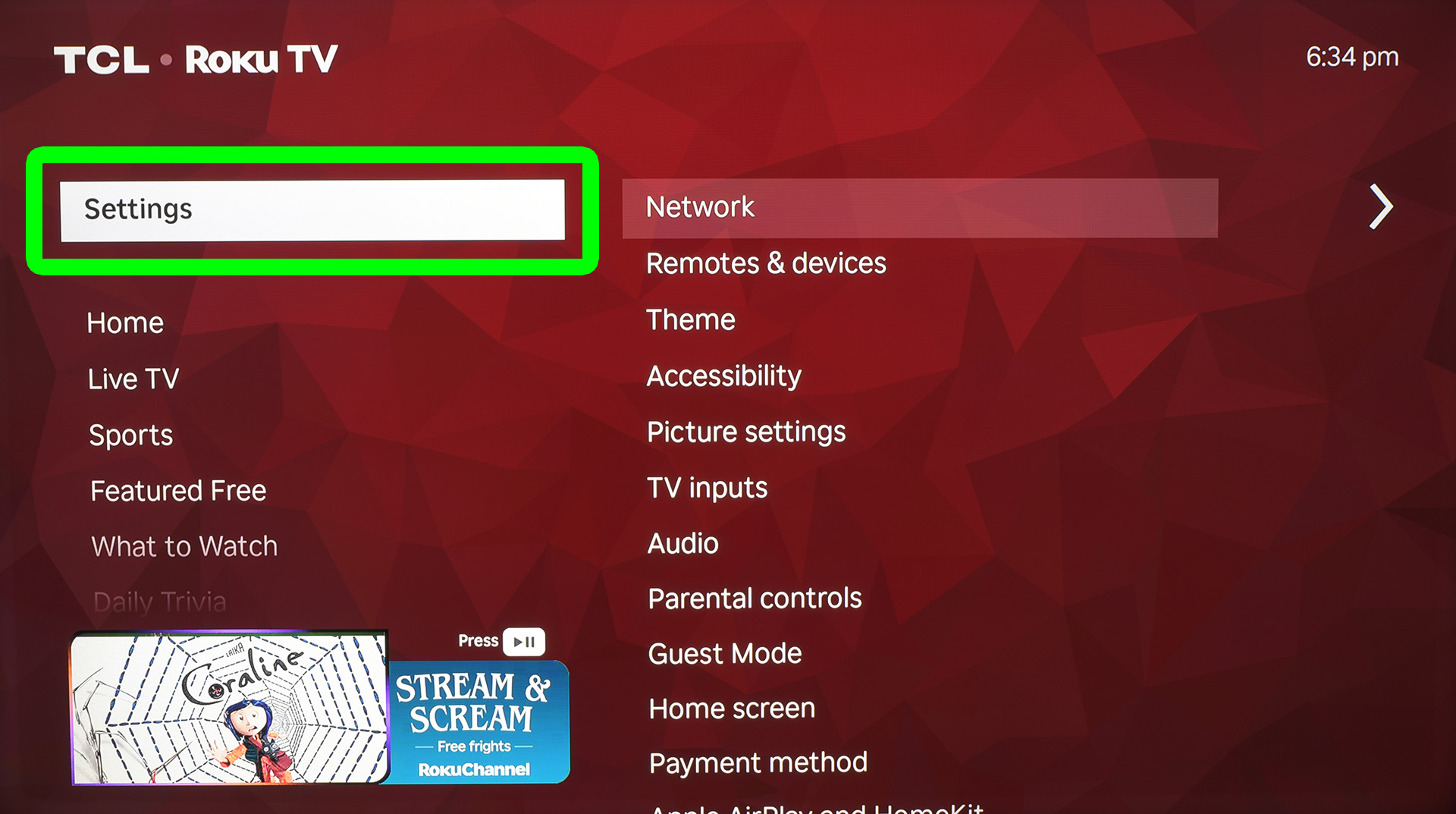
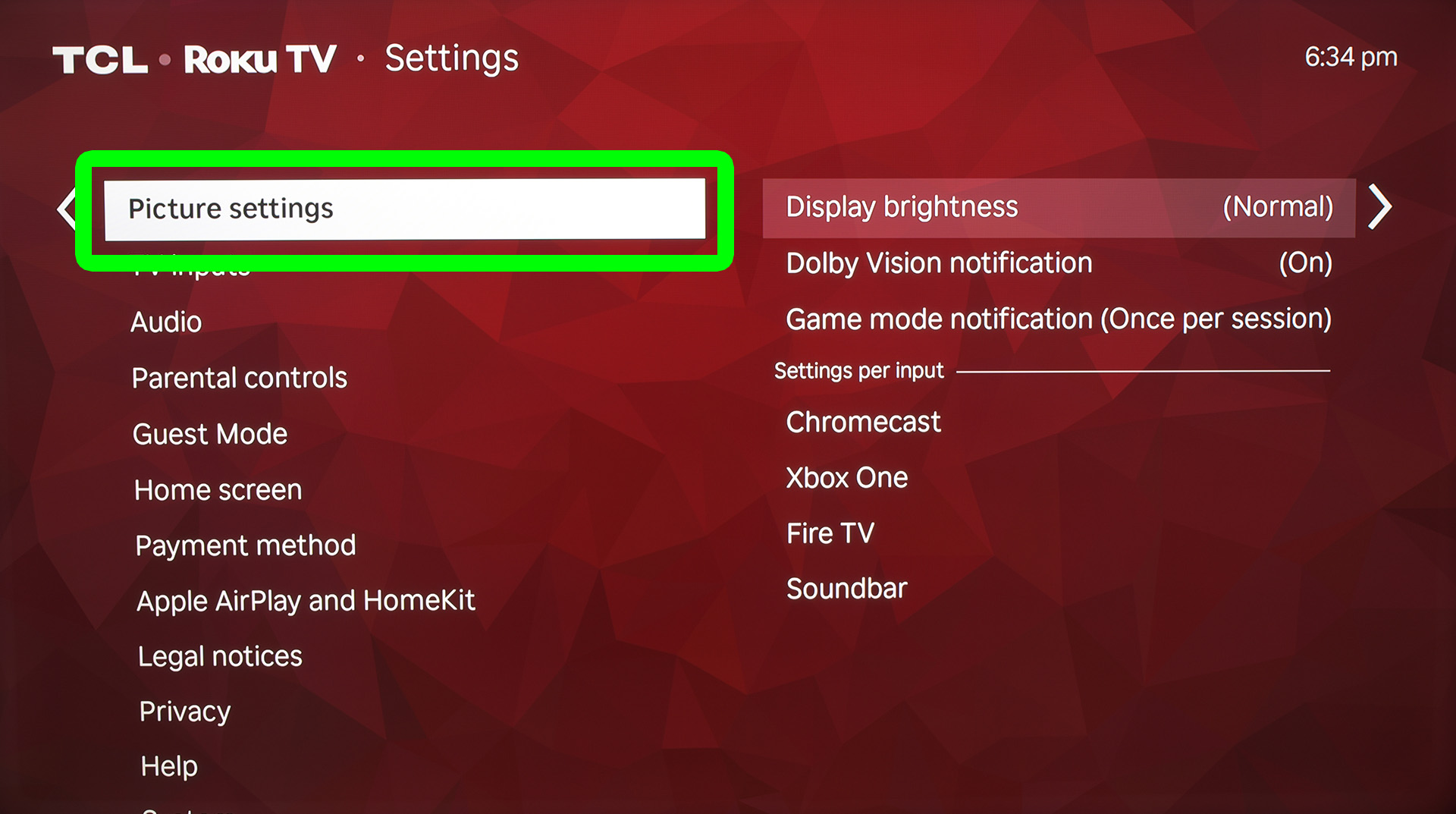
To permanently change the brightness level on a Roku TV, press the “Home” button on your Roku remote. Then go to “Settings > Picture settings > Display brightness.” Finally, choose a new brightness level to change it on your Roku TV.
- Press the “Home” button on your Roku remote.

- Go to “Settings.”

- Select “Picture Settings.”
- Choose “Display brightness.”
- Finally, select a new brightness level.