If your Apple TV is freezing, lagging, or misbehaving, a quick reset can fix it. This will restore the device to factory settings and will remove all your apps, passwords, and data. Here’s everything you need to know about how to reset your Apple TV and remote so you can get back to watching your favorite shows.
Read More: How to Sign Out of Apple TV on Any Device
How to Reset Apple TV in Settings
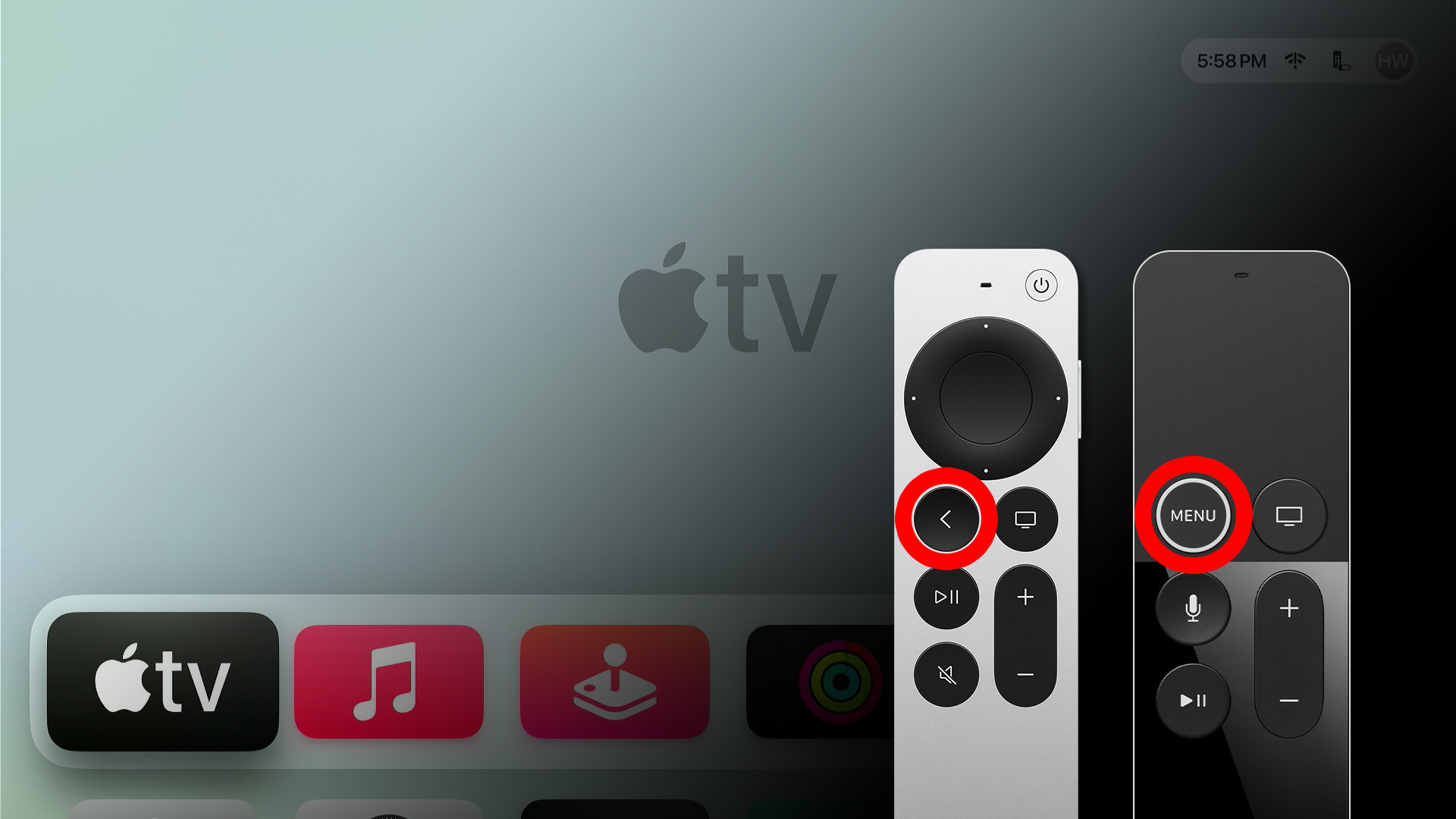
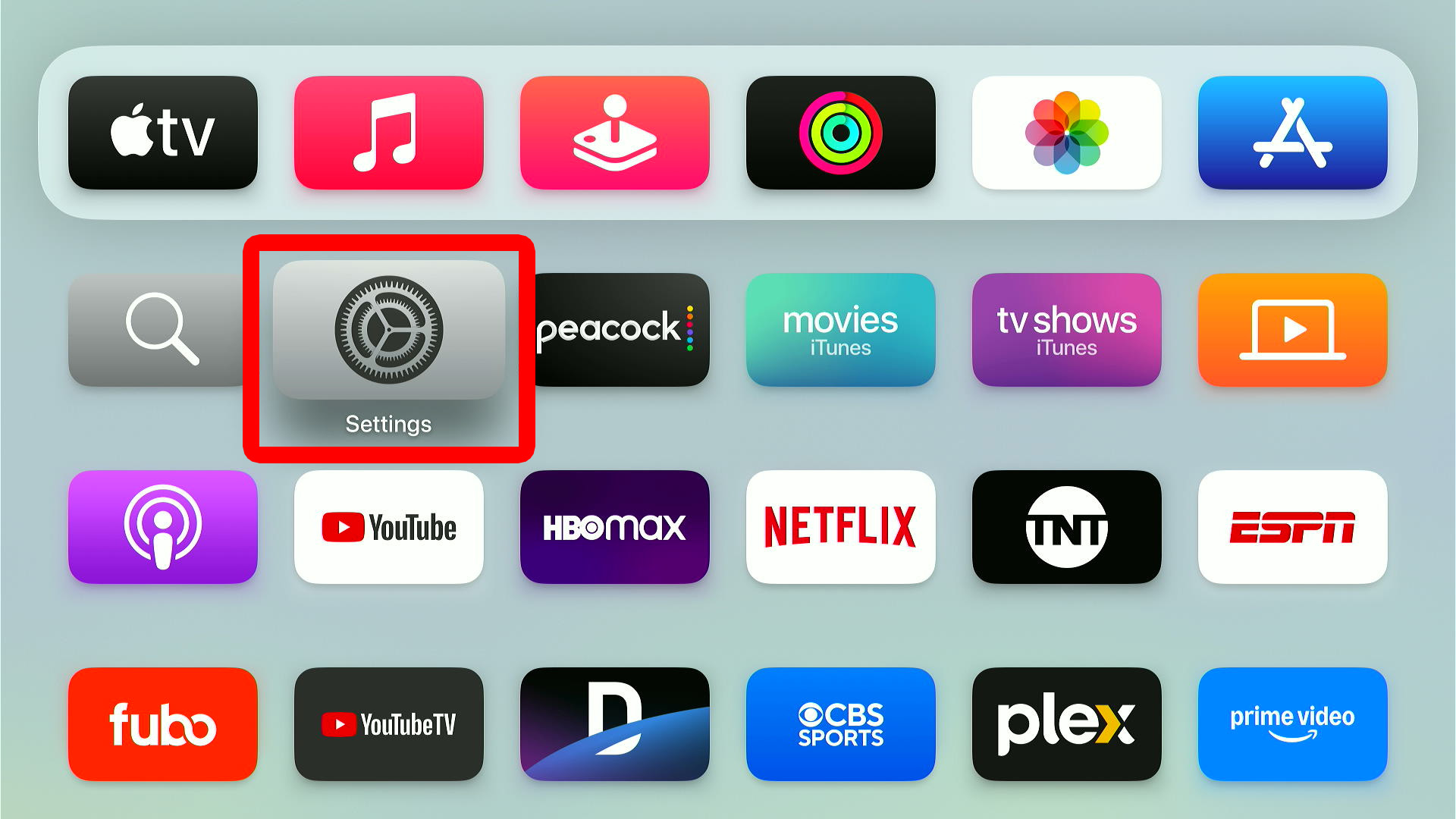
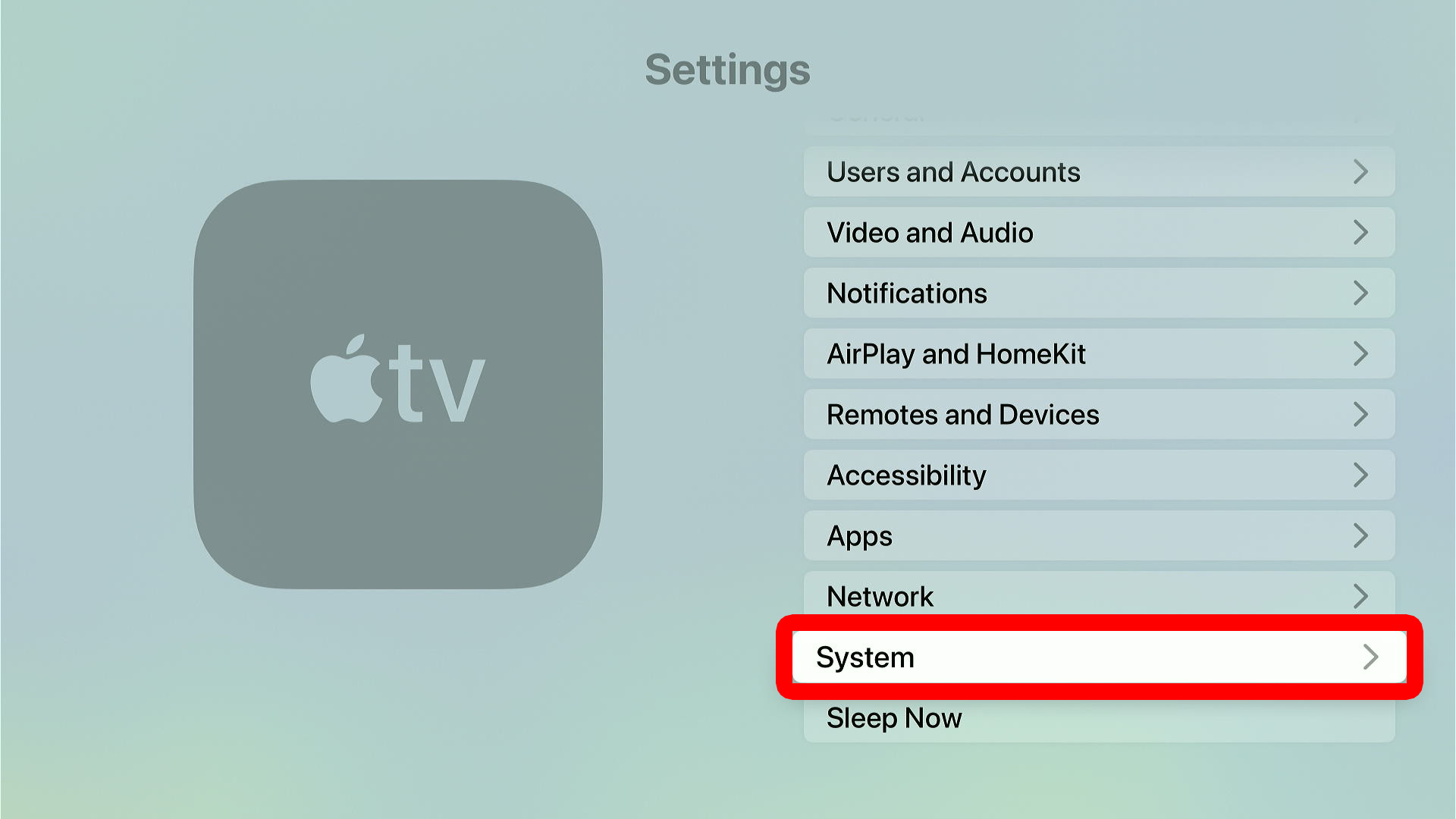
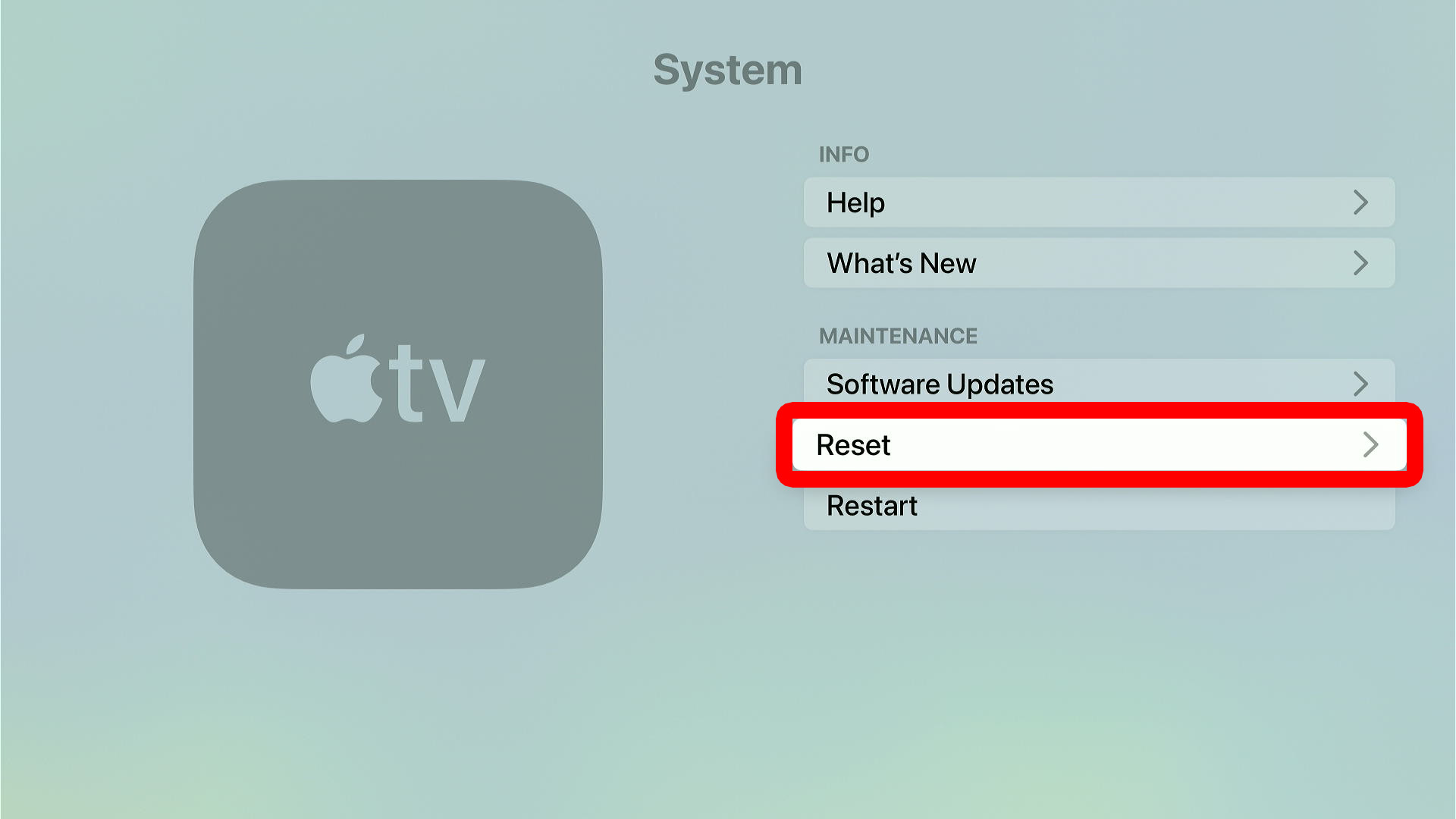
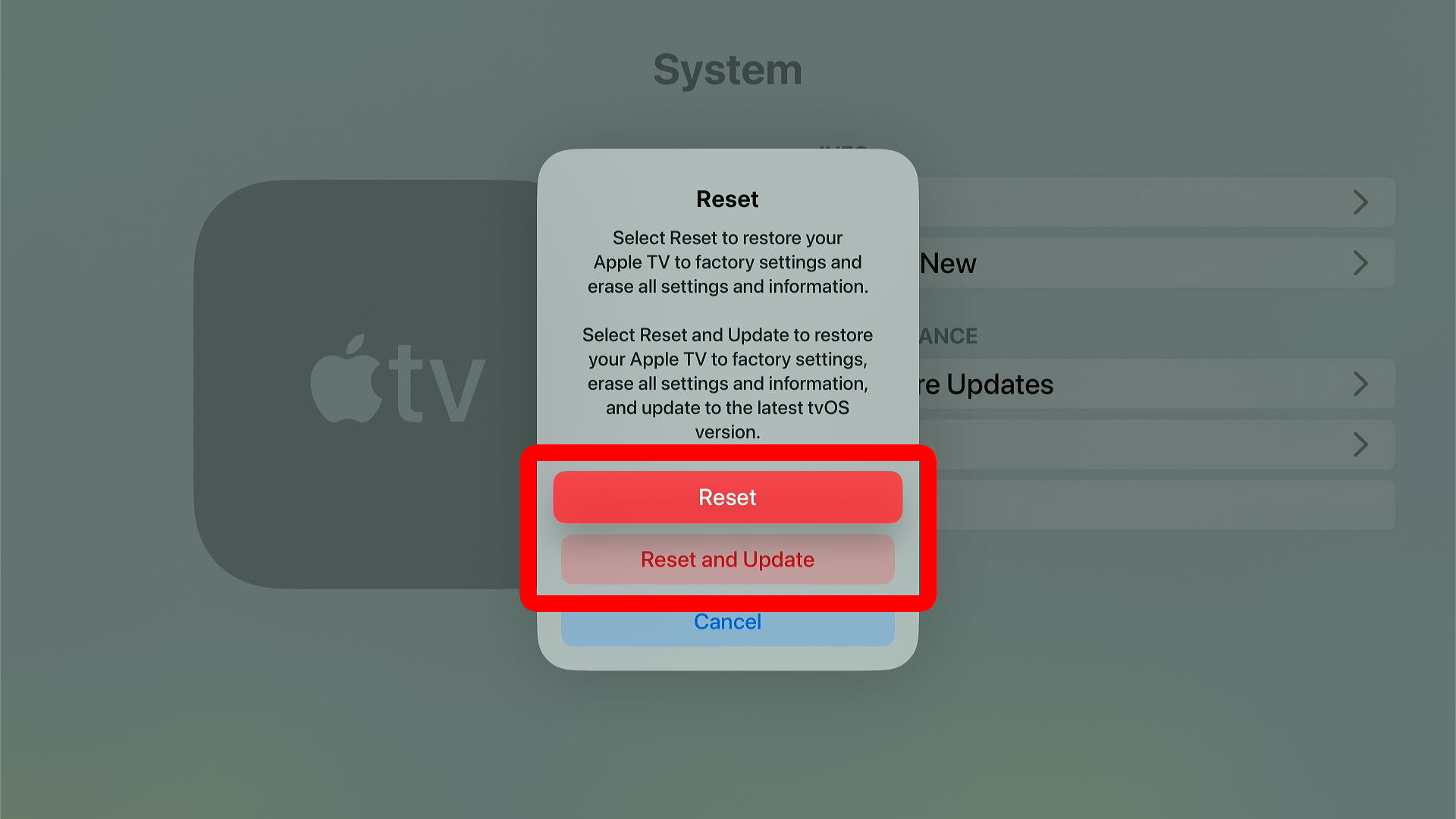
To reset an Apple TV device, press the “<” or “Menu” button on your remote (depending on which model you have). Then scroll down to “Settings” and go to “Settings > System > Reset” (or on older models, go to “Settings > General > Reset”).
- Press the “<” or “Menu” button on your Apple TV remote. Press this button until you see the Apple TV home screen.

- Scroll down and select “Settings.”
- Go to “System.”
- Select “Reset.”
- Finally, select “Reset” or “Reset and Update.”
How to Reset Apple TV Remote
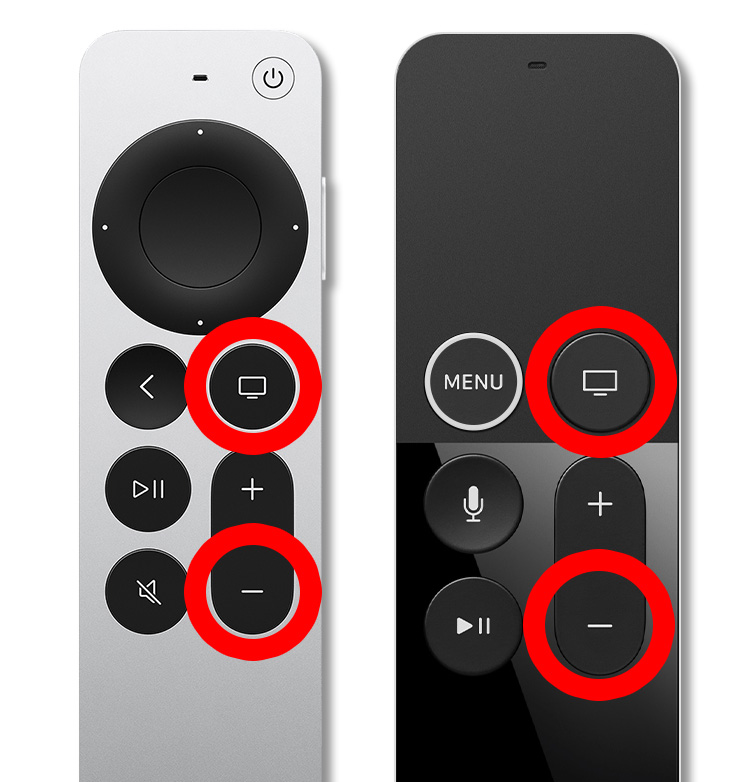
If your Apple TV remote isn’t working properly, you can reset it by pressing the “TV/Control Center” + “Volume Down” buttons for at least 5 seconds. Then wait 15 seconds for your remote to reset. Finally, press any button to reconnect the remote.
- Press the “TV/Control Center” + “Volume Down” buttons on your remote for 5 seconds. You should see the status light on your Apple TV device turn off and back on. When it turns back on, you can release the buttons.

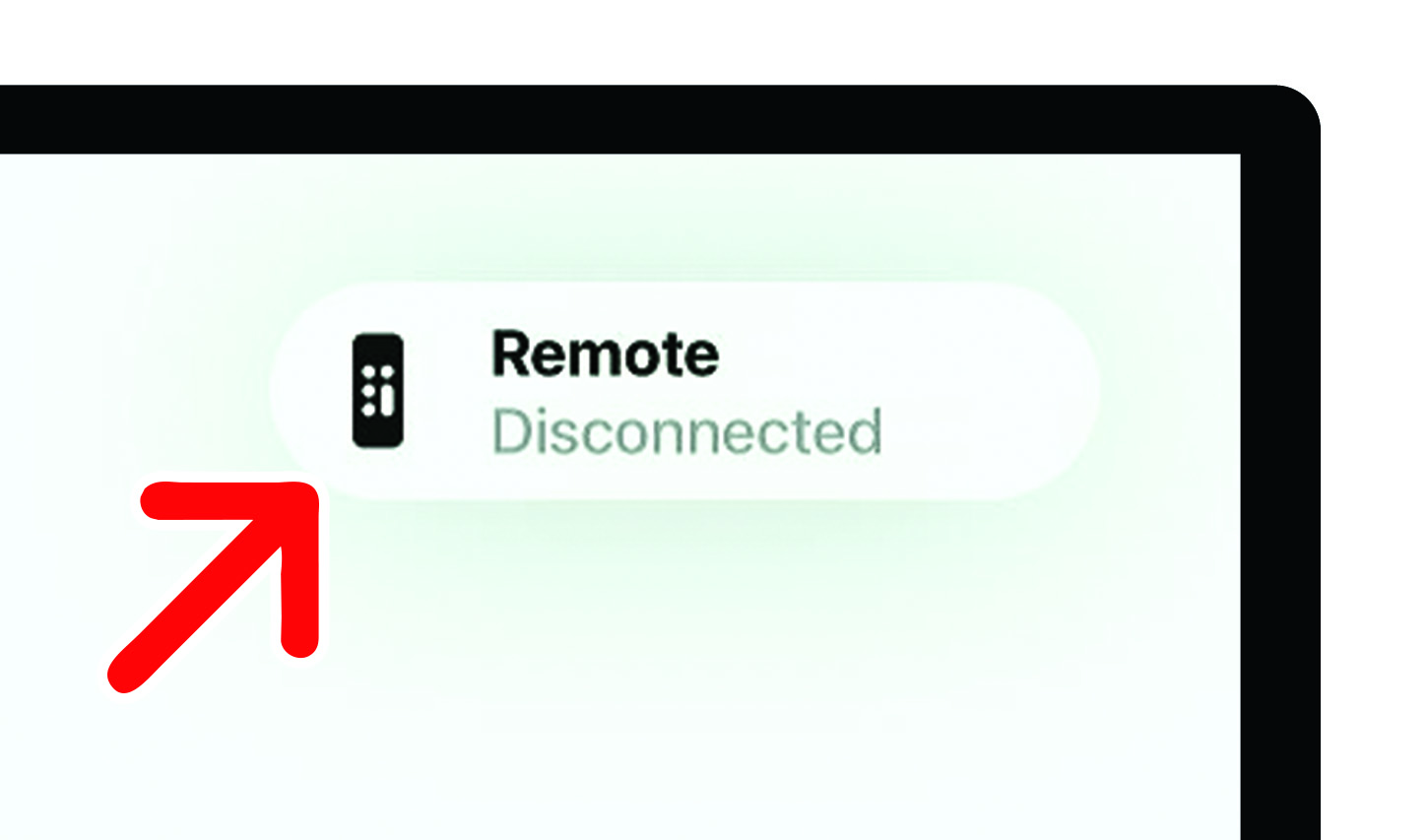
- Wait 15 seconds for your remote to disconnect. You’ll see a notification in the top-right corner of your TV when it resets.

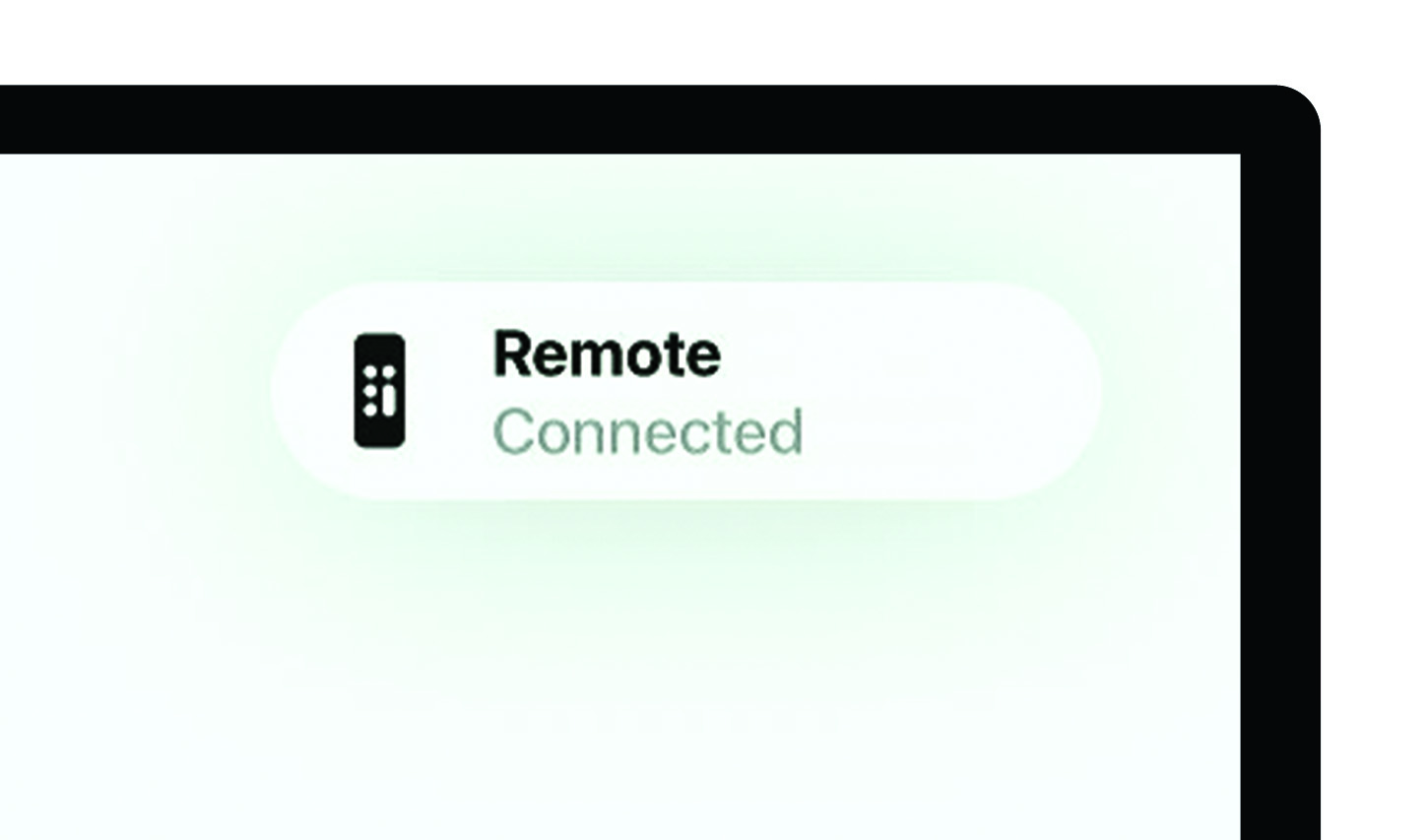
- Finally, press any button to reconnect. You will see a notification in the top-right corner of your TV when the Apple remote reconnects.
How to Reset Apple TV Without a Remote
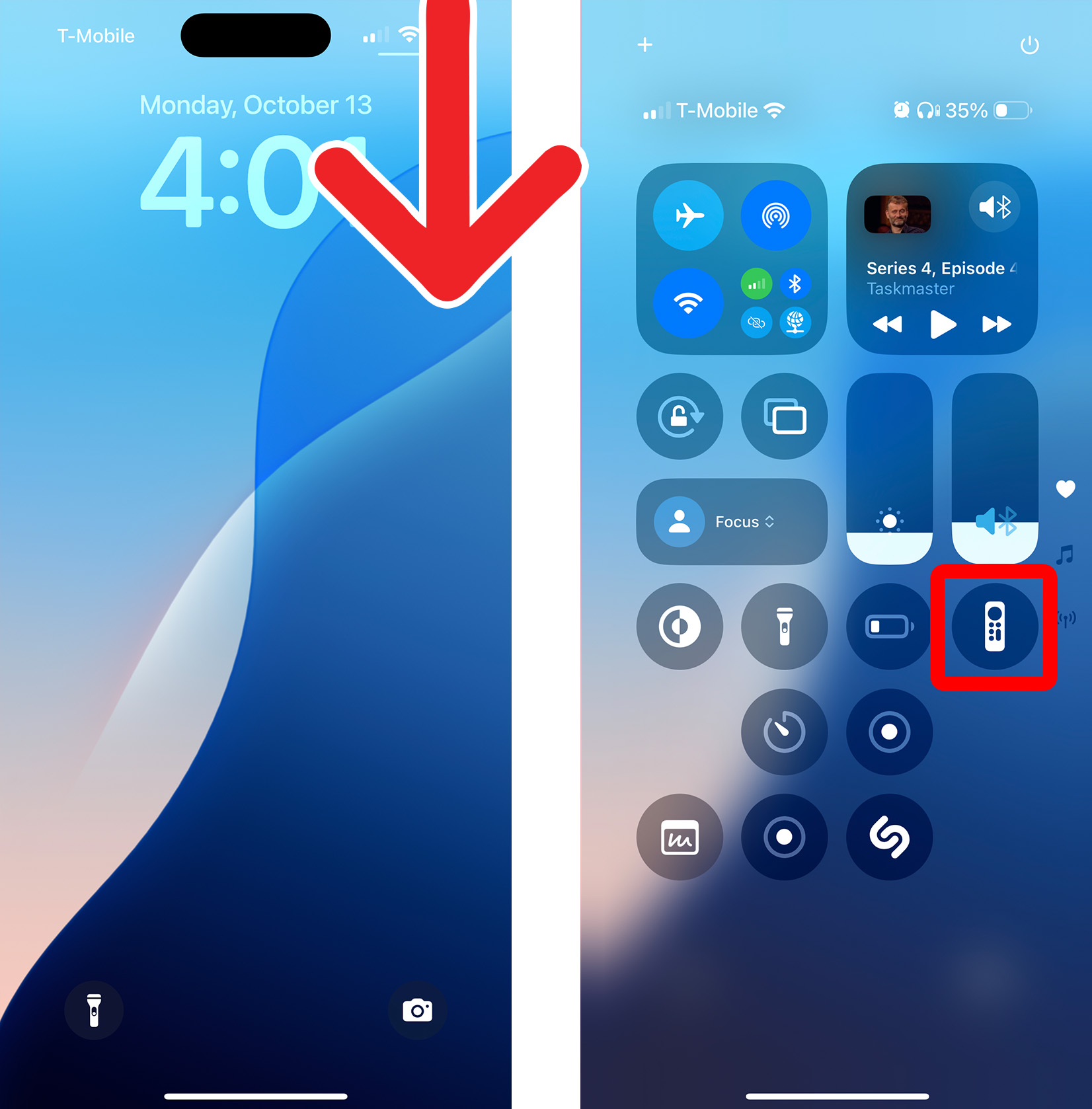
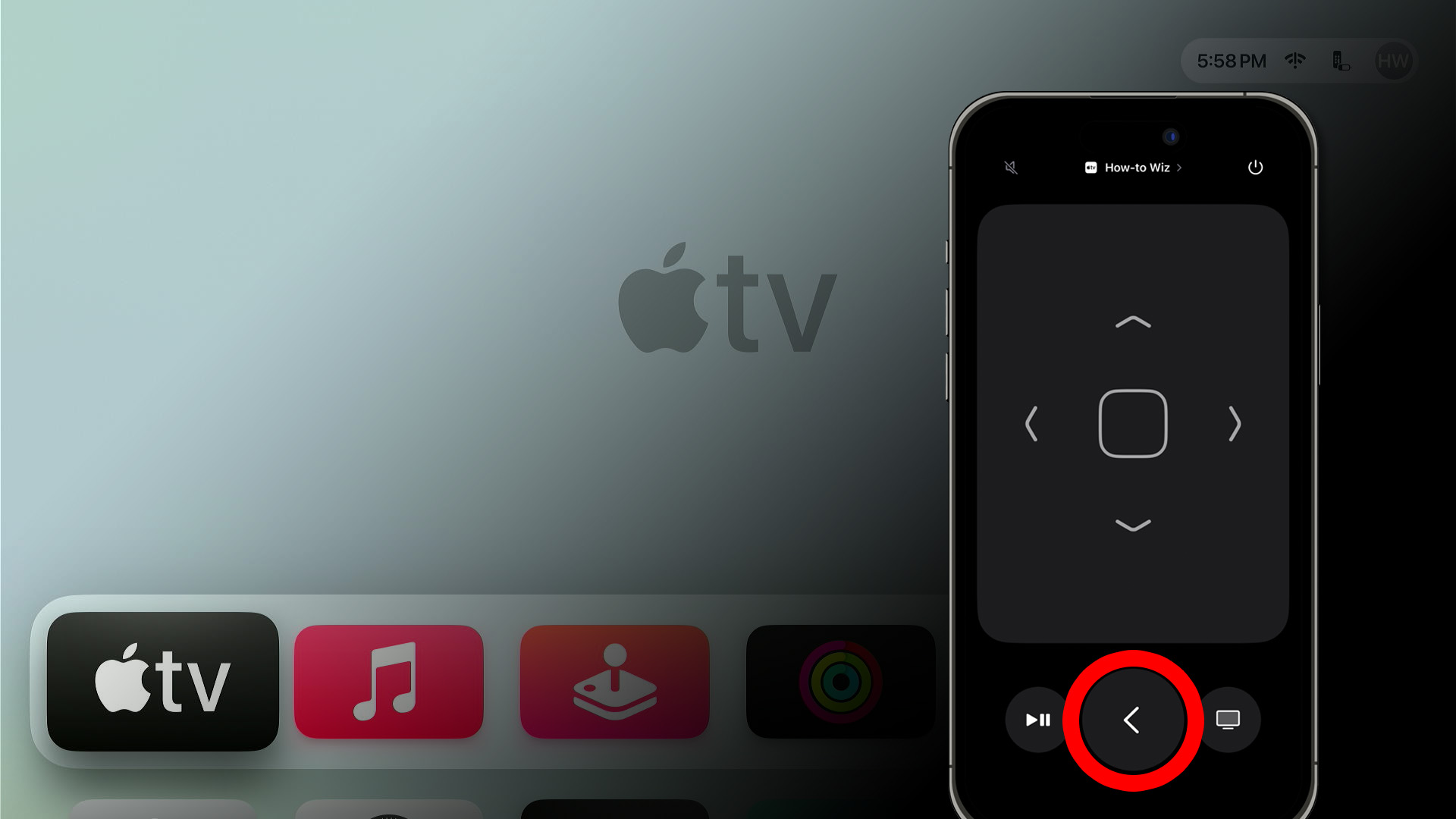
To reset an Apple TV without a remote, swipe down from the top-right corner of your iPhone and select the remote icon. Then press the “<” button on your iPhone remote and go to “Settings > System > Reset” (or on older models, go to “Settings > General > Reset”).
- Swipe down from the top-right corner of your iPhone. This will open the Control Center.
- Tap the “Remote” icon.
- Tap the “<” button on the iPhone remote.
- Finally, go to “Settings > System > Reset.” On older Apple TV models, select “Settings > General > Reset” instead.