If your Fire TV keeps freezing, lagging, or acting glitchy, a factory reset can fix most issues. It also erases all your data, making it safe to sell or give away. Here’s how to reset your Fire TV device to factory defaults using your remote, through the Settings menu, or even from another device.
Read More: How to Restart Your Amazon Fire TV Stick
How to Reset Fire TV Using the Remote
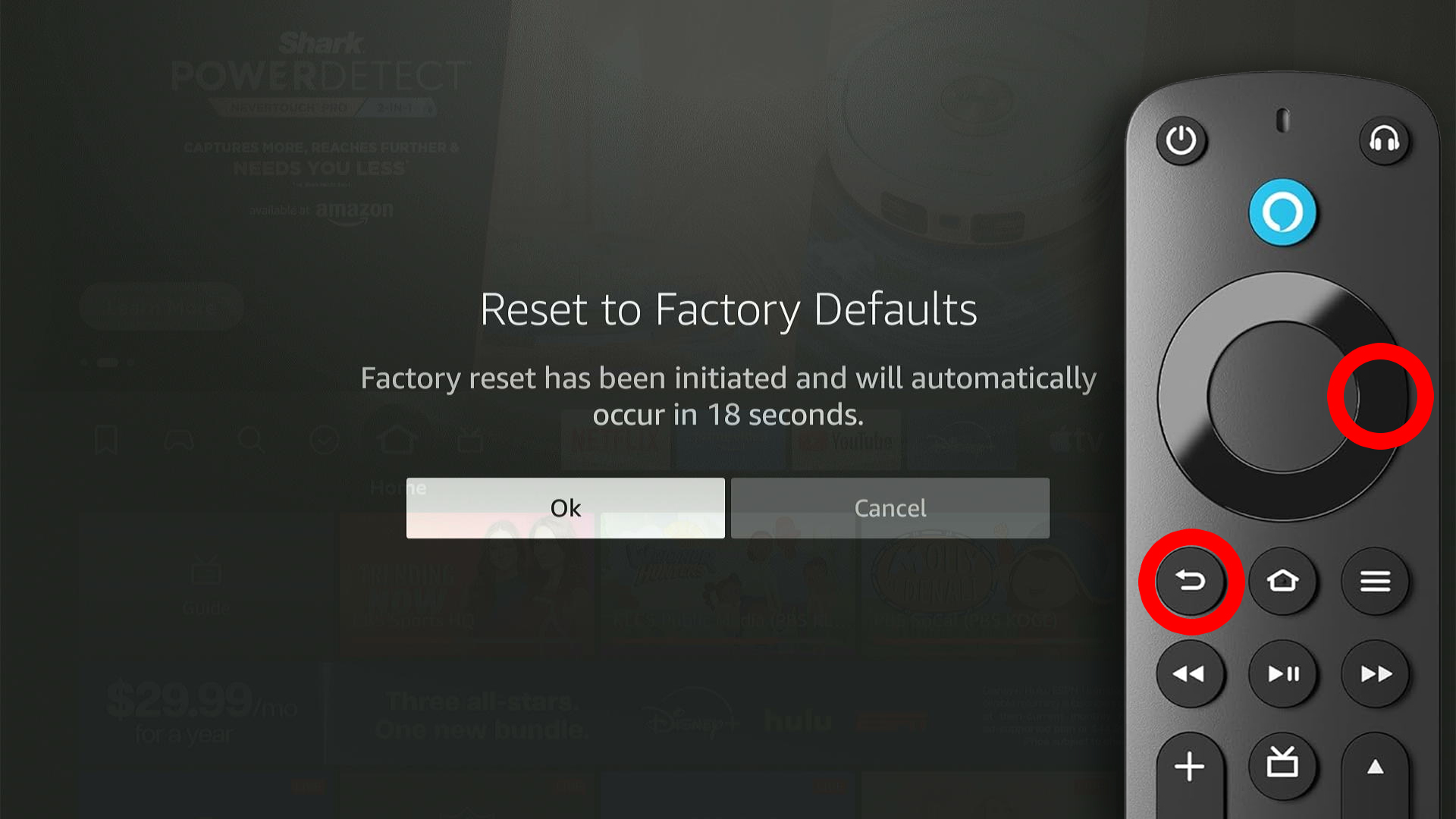
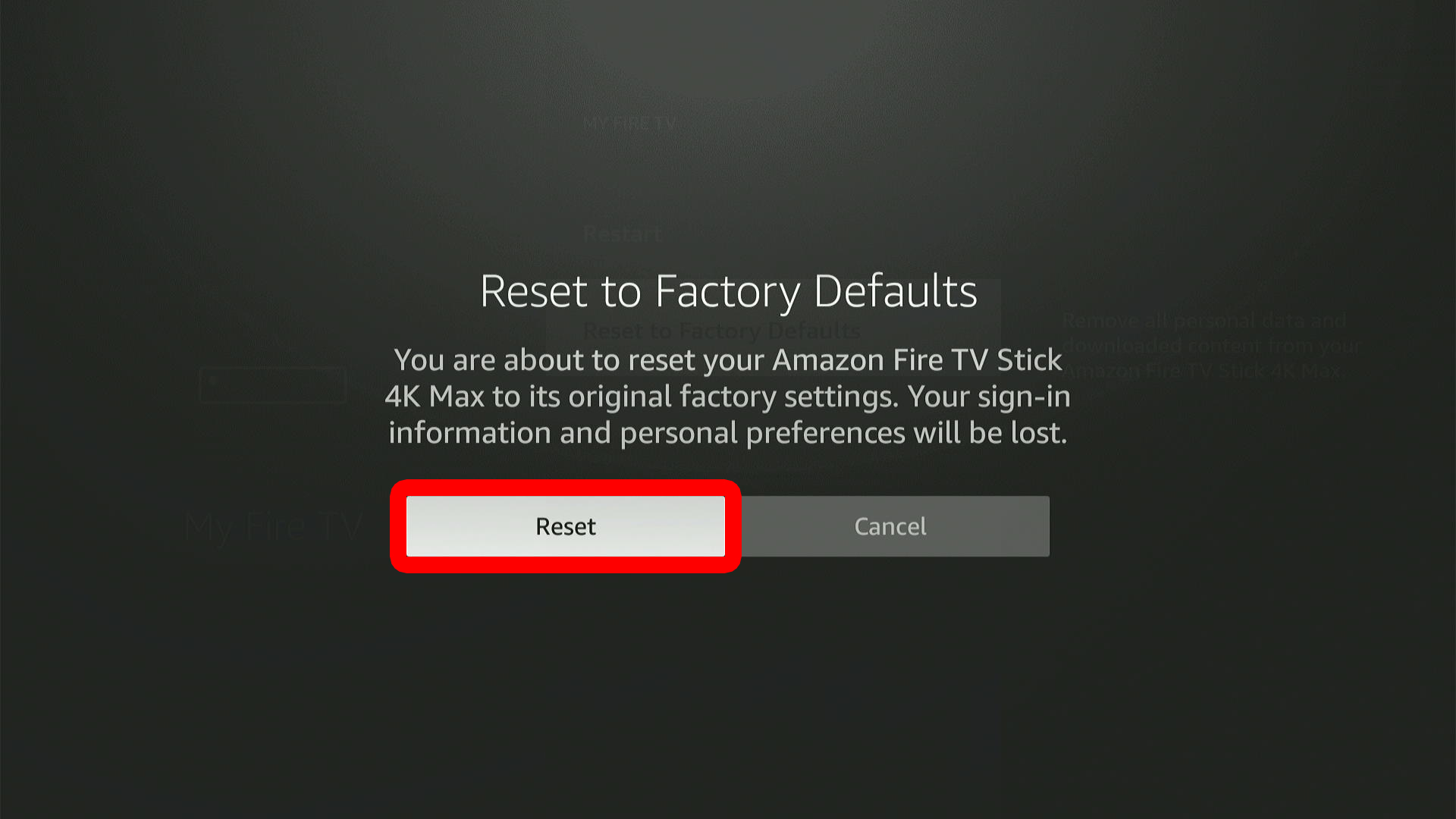
To factory reset your Fire TV device using the remote, press and hold the Back (curved arrow) and Right (right side of ring) buttons at the same time. Keep both buttons pressed for 10 seconds or until you see a pop-up message that says, “Reset to Factory Defaults.”
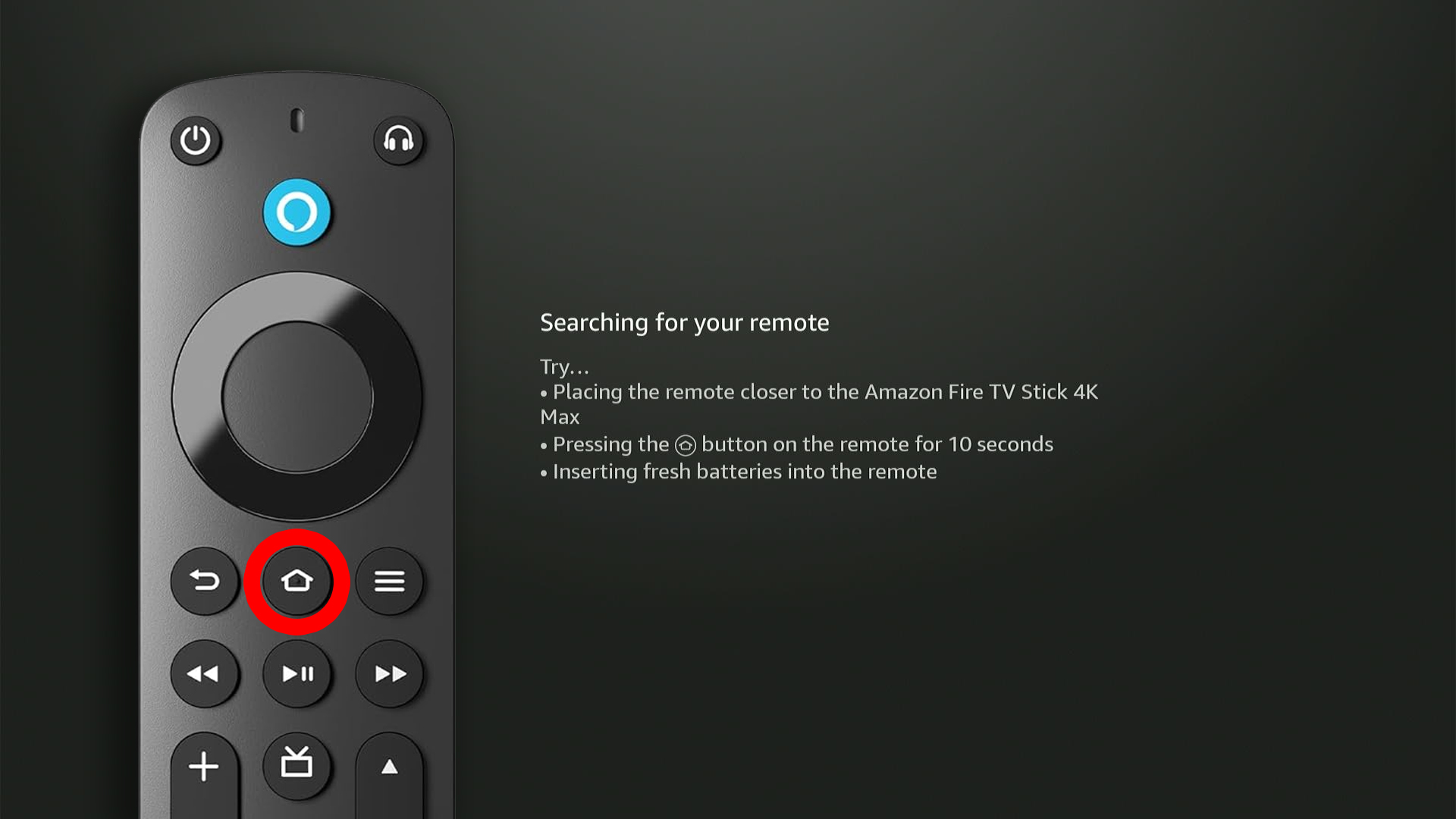
Once your Fire TV restarts, you will need to set it up from scratch. To do this, press and hold the Home button on your remote and follow the on-screen instructions.
Read More: How to Use Fire TV Without a Remote
How to Reset Fire TV Through Settings
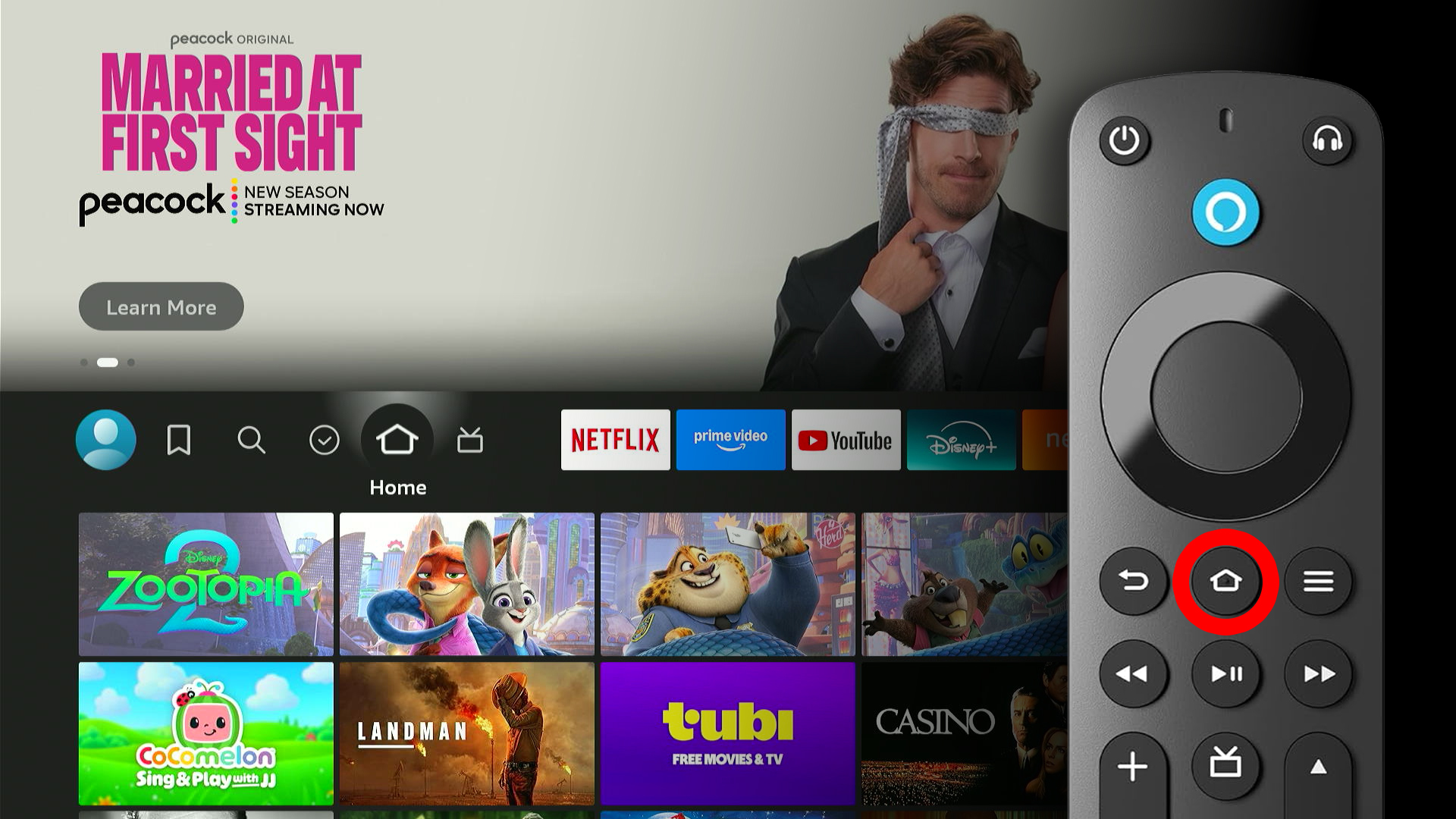
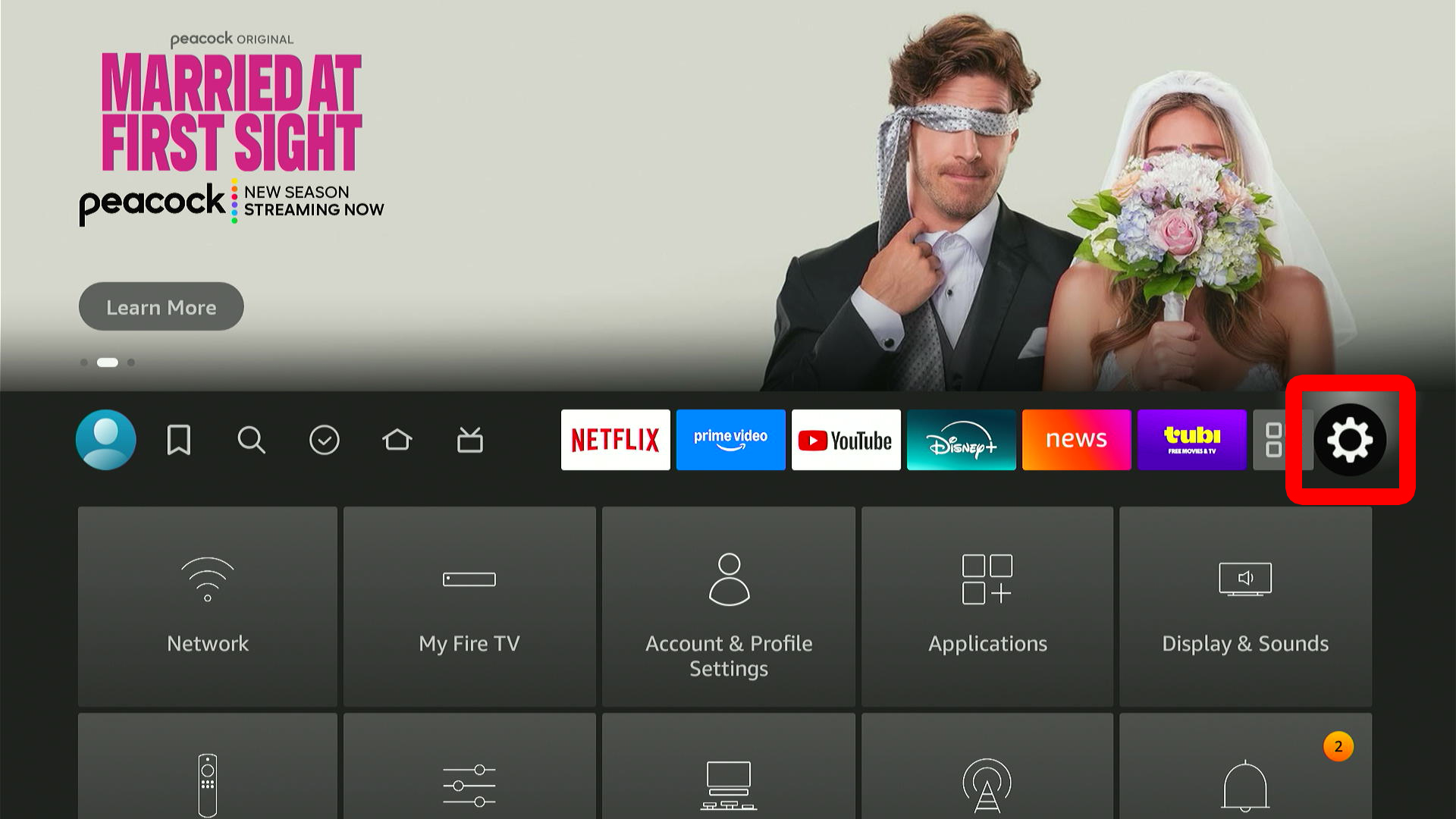
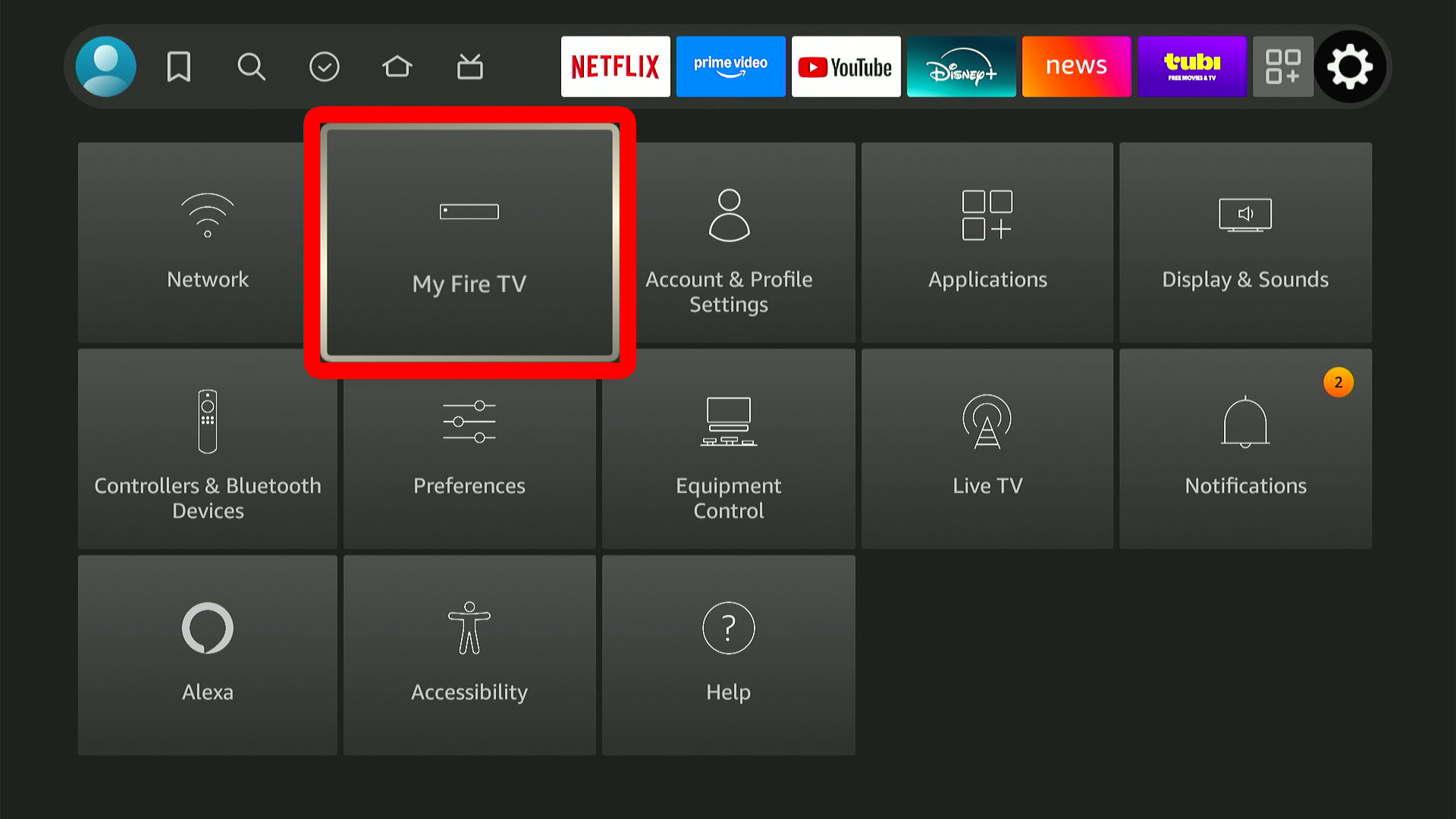
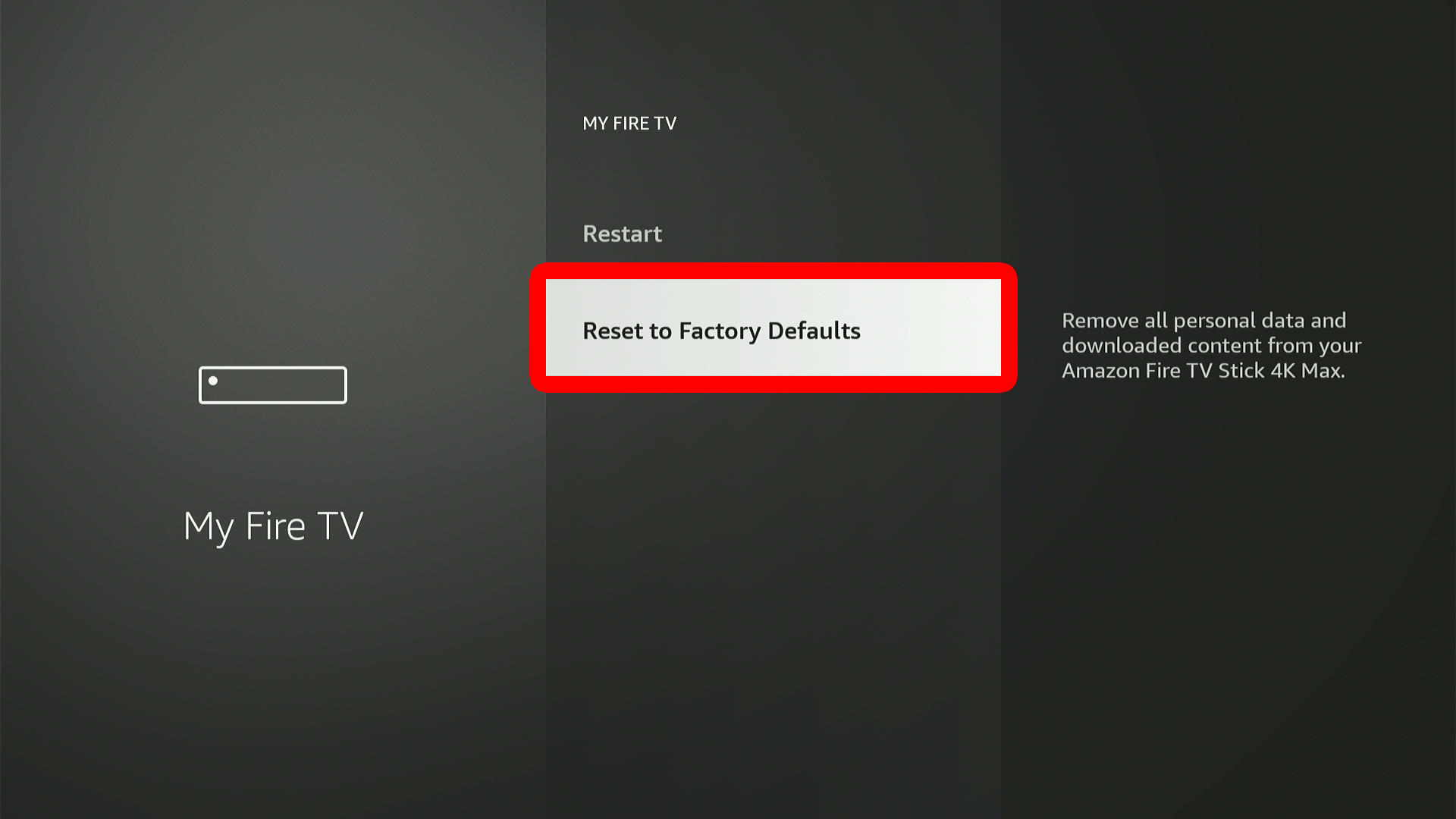
To reset a Fire TV device, press the Home button on your remote and go to “Settings > My Fire TV > Reset to Factory Defaults.” Finally, select “Reset” and wait for your device to restart. Then follow the on-screen instructions to set up your Fire TV device from scratch.
- Press the Home button on your Fire TV remote. This will take you to the Fire TV home screen.

- Go to “Settings.” You can access this by pressing the right-directional button on your Fire TV remote until you reach the gear icon. Then press the down-directional button to open Settings.
- Select “My Fire TV.”
- Go to “Reset to Factory Defaults.”

- Finally, select “Reset.” Once your Fire TV device restarts, follow the on-screen instructions to set it up from scratch.
If you don’t have access to your Fire TV device, or if you forgot to sign out of a Fire TV device in a hotel or Airbnb, you can always deregister a device remotely. Here’s how:
How to Deregister Fire TV Remotely
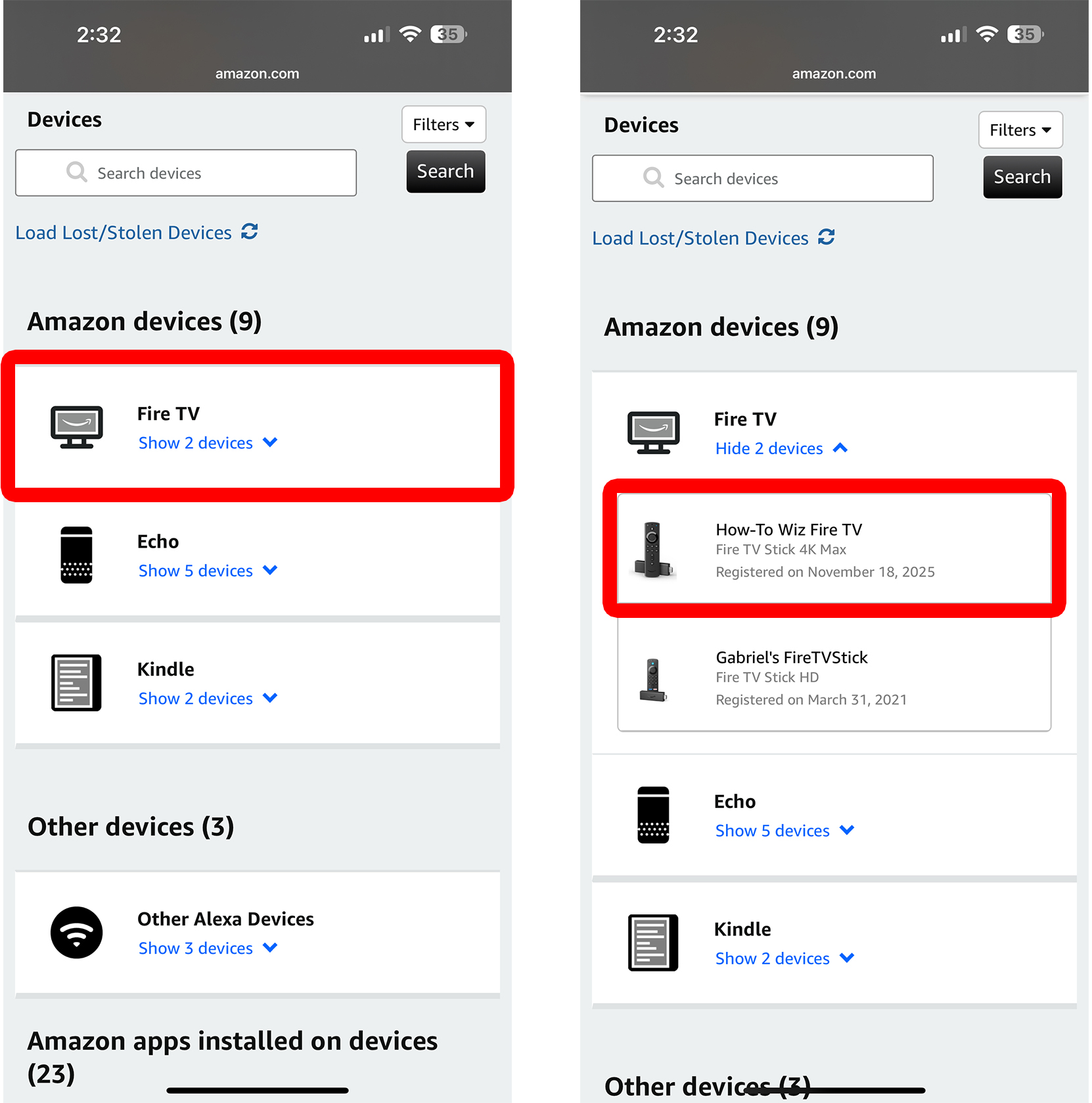
- Go to Amazon.com/mycd. You can visit this site on a smartphone or computer.
- Select “Fire TV.” You will see this option under “Amazon devices.”
- Choose your Fire TV device. You should see all the Fire TV devices linked to this Amazon account.
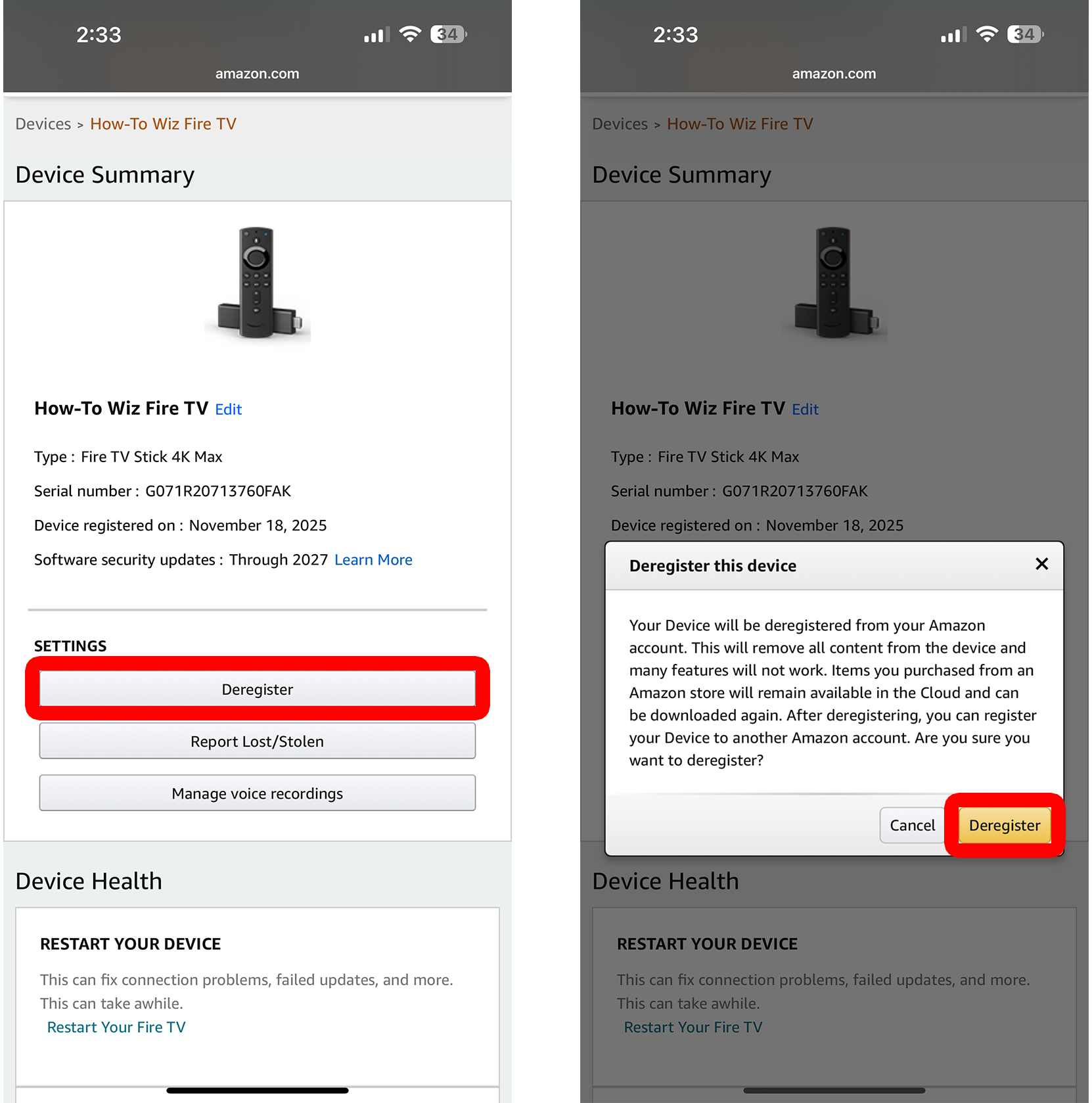
- Select “Deregister.” This unlinks your Fire TV device from your Amazon account and requires you to set the device up from scratch.
- Finally, select “Deregister” to confirm.