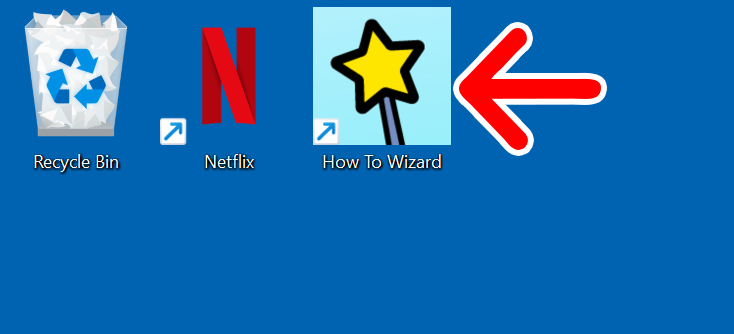
Can’t find your apps when you need them? Want to keep shortcuts right on your desktop? Here’s everything you need to know about how to add apps or website shortcuts to your Windows 11 desktop and customize their name and icon.
How to Add Apps from the Start Menu
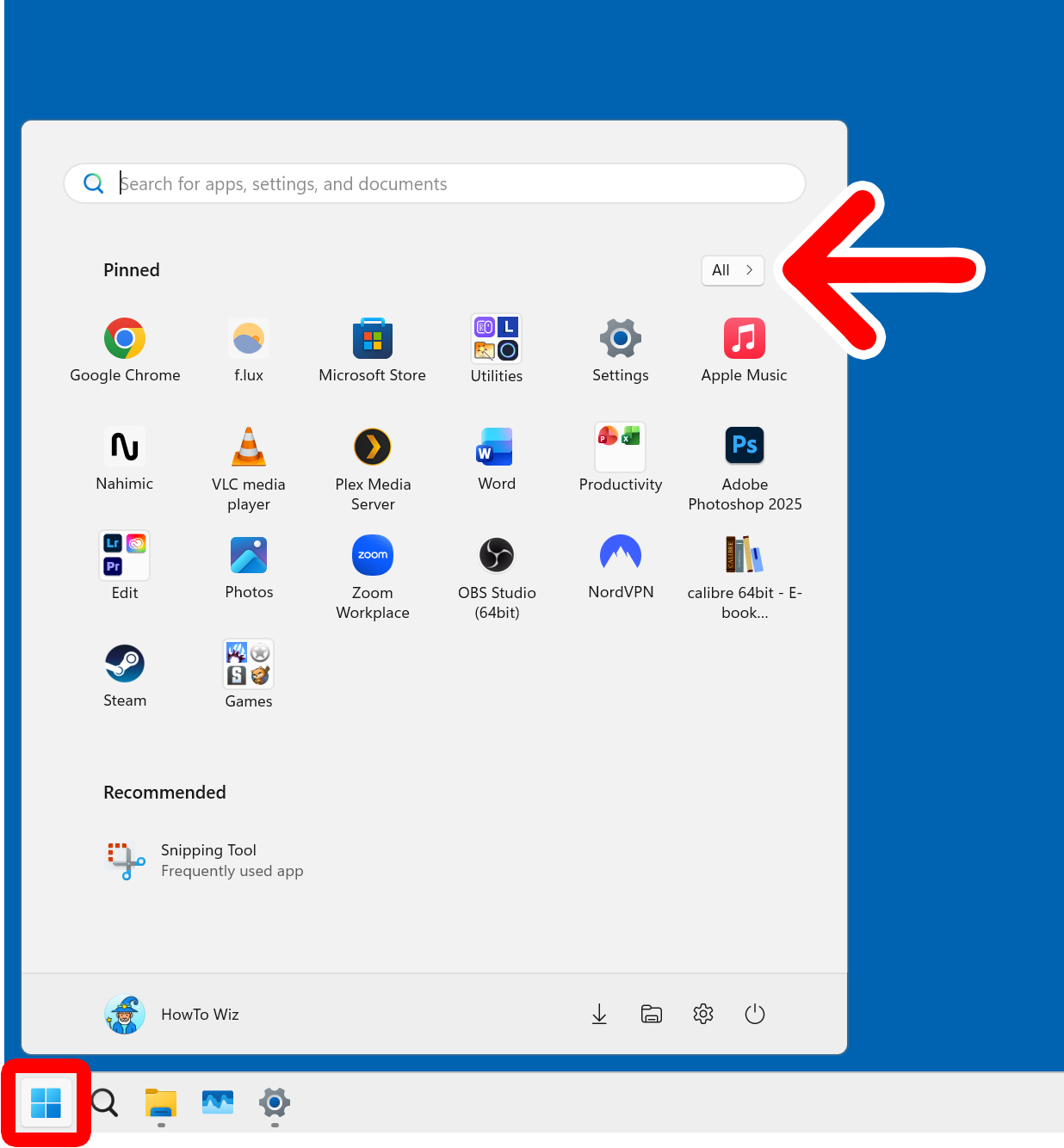
To add apps to your desktop in Windows 11, click the Windows logo at the bottom of your screen and click “All” in the top-right corner of the Windows Start Menu. Then scroll down and drag an app to your desktop to create a shortcut.
- Click the Windows logo at the bottom of your screen. This will open the Windows Start Menu.
- Click “All.” You will see this in the top-right corner of the Windows Start Menu.

- Scroll to the app you want to add to your desktop. Alternatively, you can use the search bar at the top of the Start Menu to find an app.
- Finally, drag and drop the app to your desktop. Click and hold the icon, drag your mouse to an empty area on your desktop, and release your mouse.

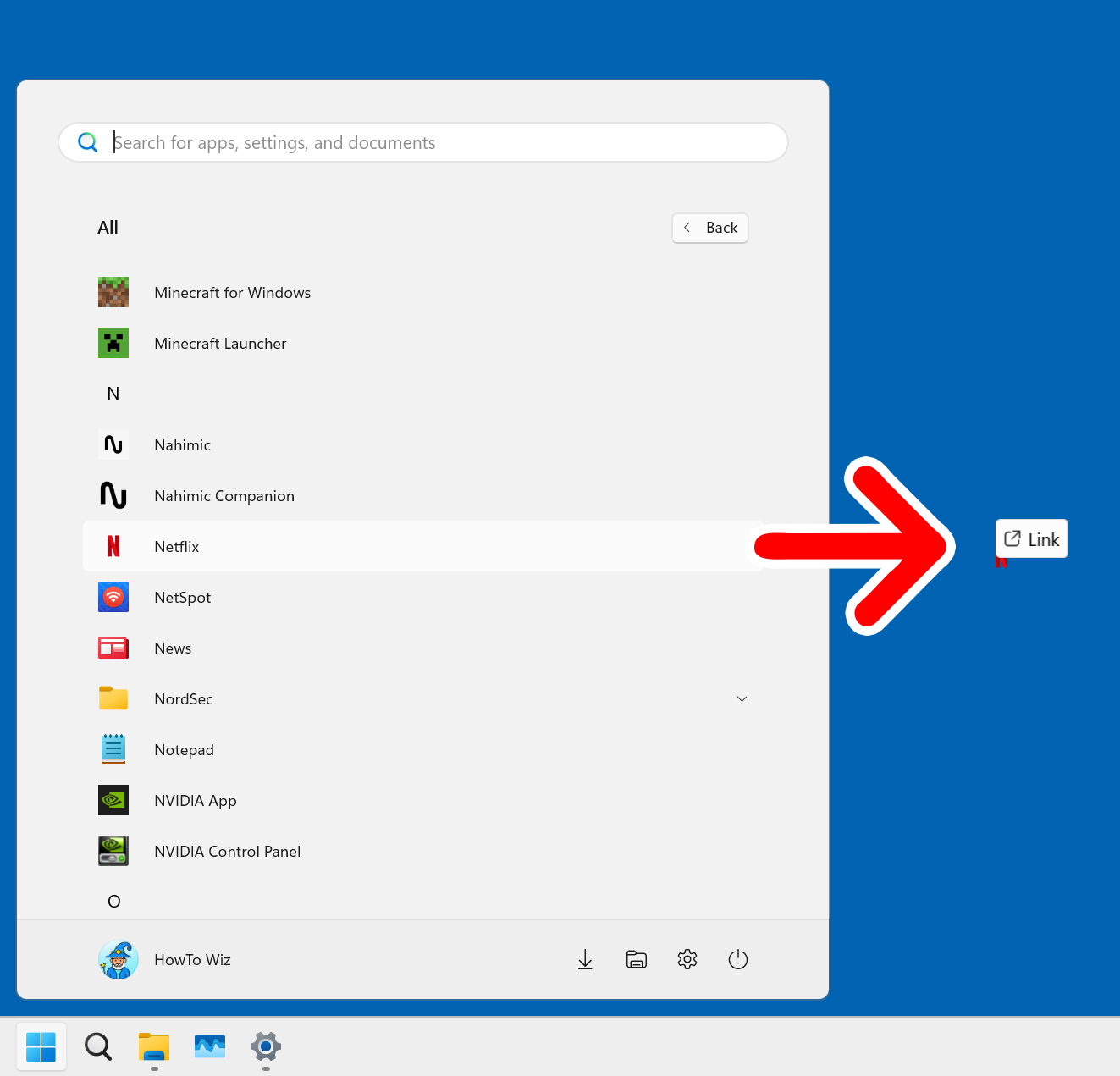
This will create an icon that you can double-click to open the app. You can also drag and drop it to rearrange the icons on your desktop.

How to Create Desktop Shortcuts for Websites
To create a desktop shortcut for a website, open a web browser and go to a web page. Then click and drag the icon to the left of the URL onto the desktop. This will create a shortcut that you can double-click to open the web page on your default web browser.
- Open a web browser.
- Go to the website you want to create a shortcut for.
- Click and hold the icon to the left of the URL. In many cases, this will be a padlock icon, but on Chrome it looks like two sliders on top of each other.
- Finally, drag the icon to your desktop.

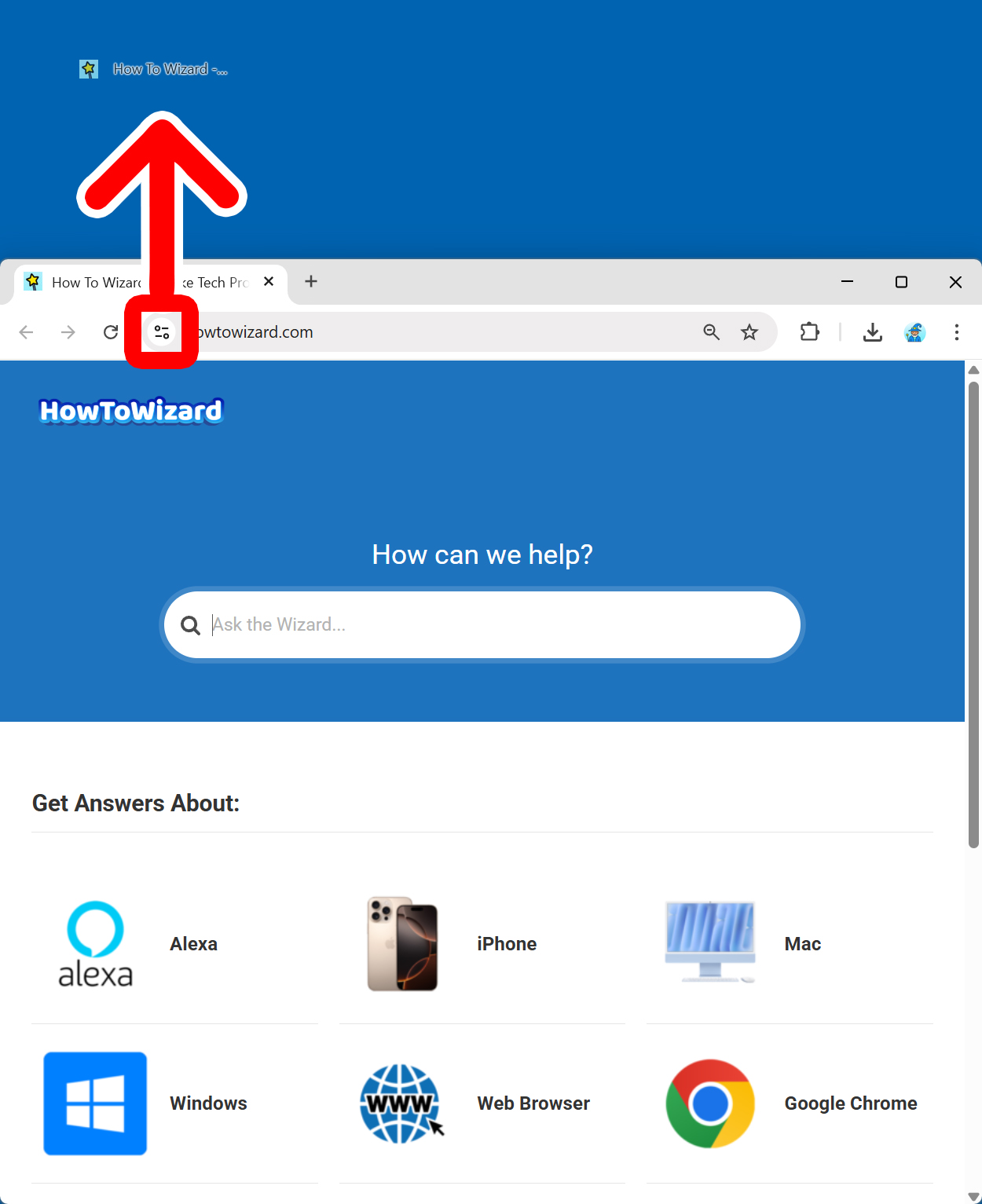
This will create a shortcut with a generic icon. You can double-click it to open your default web browser to that specific page.
Read More: How to Change the Default Browser in Windows 11
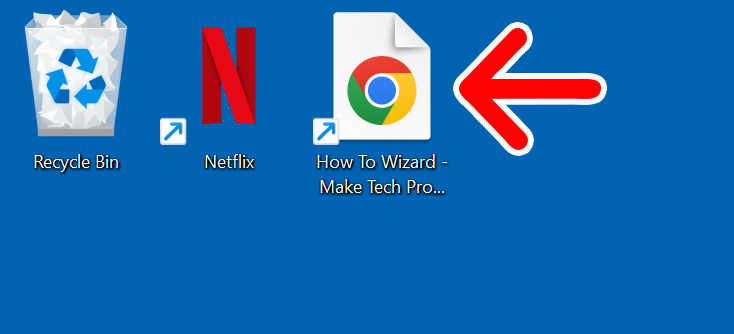
Once you create a desktop shortcut, you can change its name and icon. Here’s how.
How to Customize Desktop Apps in Windows 11
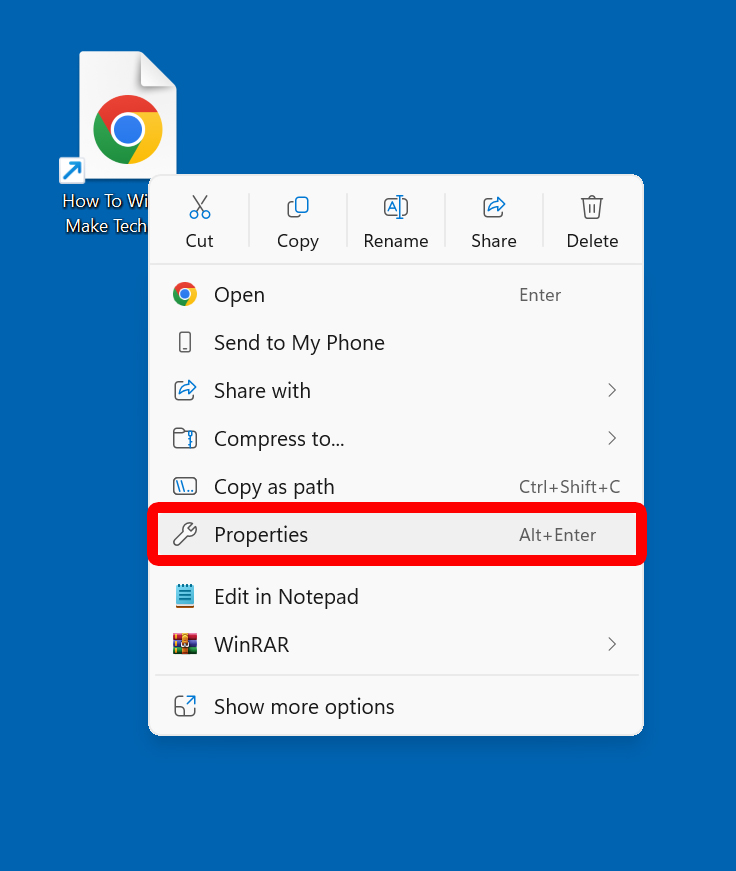
- Right-click an icon on your desktop.
- Select “Properties.”
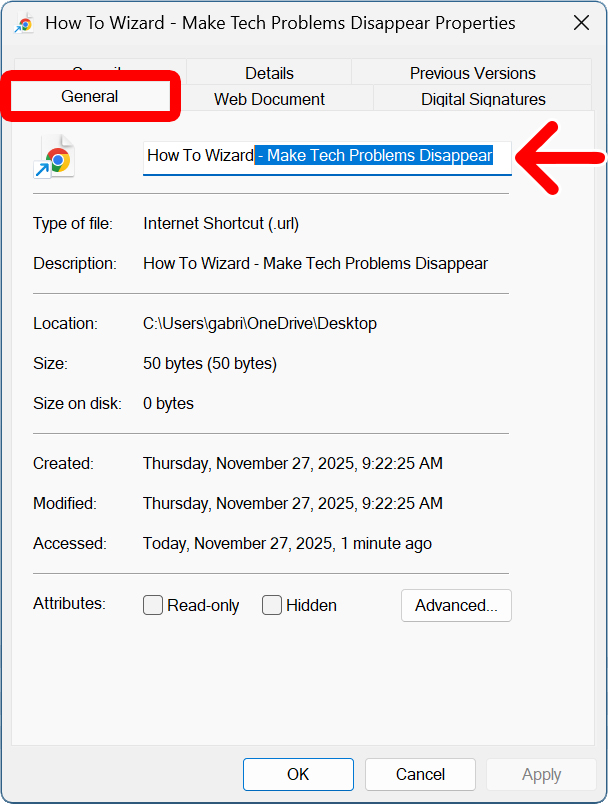
- Select the “General” tab to rename the shortcut. You can change the name of the shortcut using the text field at the top of the window.
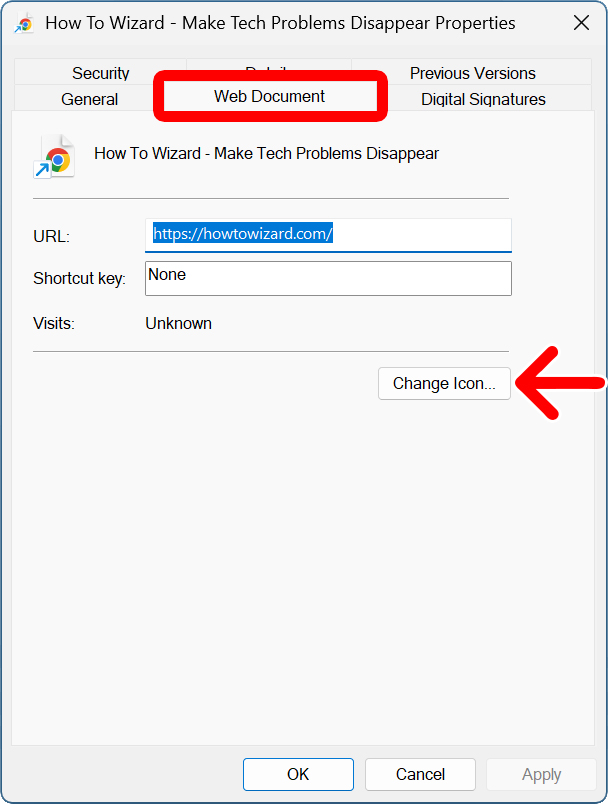
- Go to the “Web Document” or “Shortcut” tab to change the icon. You will see the “Web Document” tab if you are customizing a webpage shortcut, but you will see the “Shortcut” tab if you are changing the icon for an app shortcut.
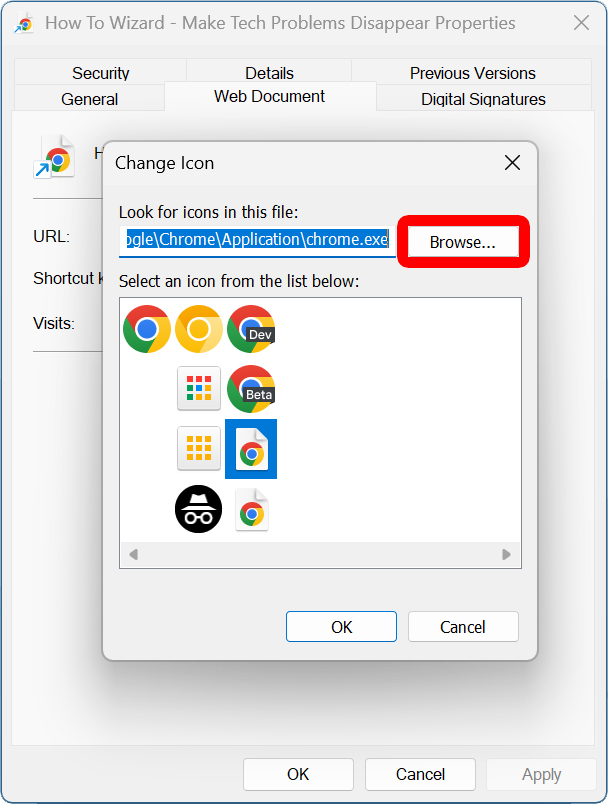
- Select “Change Icon.”
- Click “Browse.”
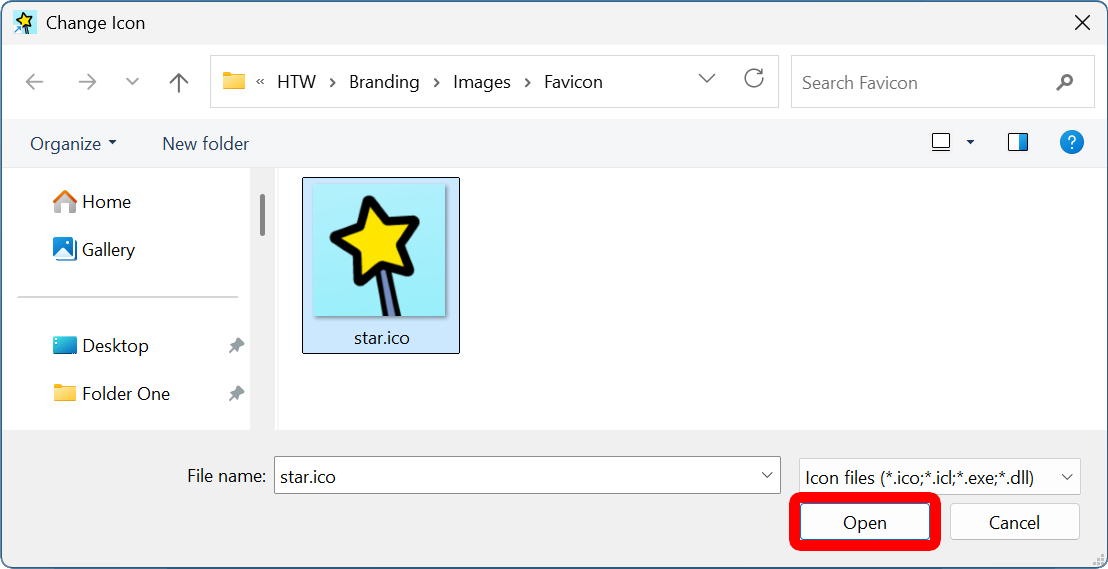
- Select a “.ICO” file and click “Open.” You can only choose images with an extension that ends in “.ico”. To convert an image to a “.ico” file, use a website like FreeConvert.
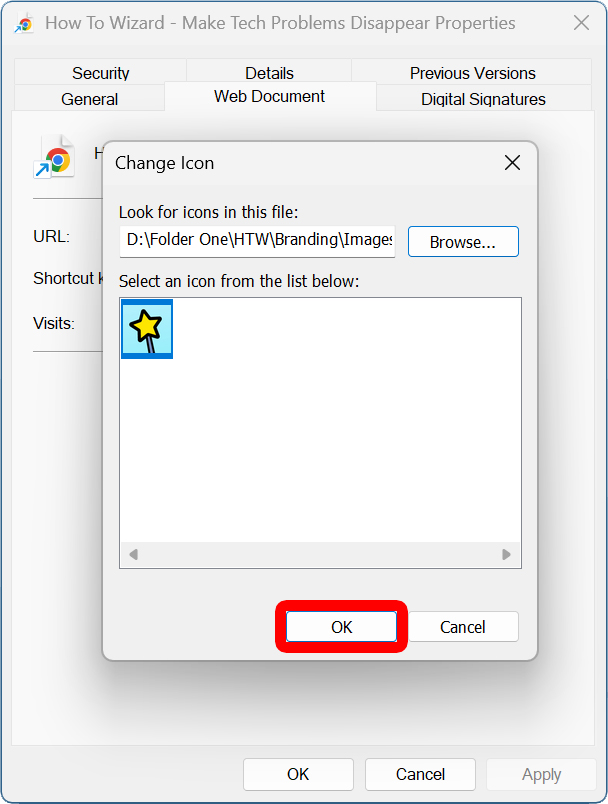
- Click “OK.”
- Finally, select “OK.”
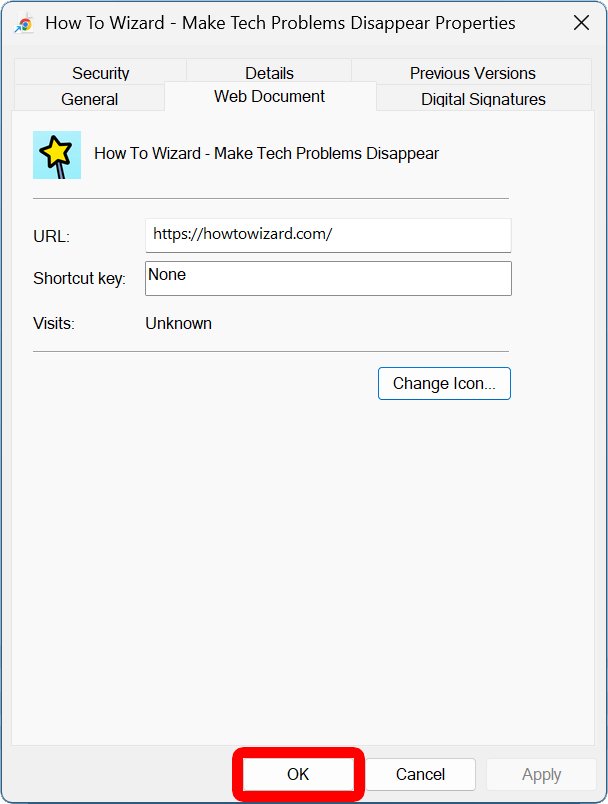
This will change the name and icon for your shortcut. You can double-click this icon to open your default web browser to the web page, or drag it to rearrange the icons on your desktop.