
Is your Fire TV device running slow or acting up? A quick update might be all it needs. Updating your Fire TV fixes bugs, adds new features, boosts performance, and improves security. Here’s everything you need to know about how to manually update your Fire TV device and any of your apps and channels.
How to Update Fire TV
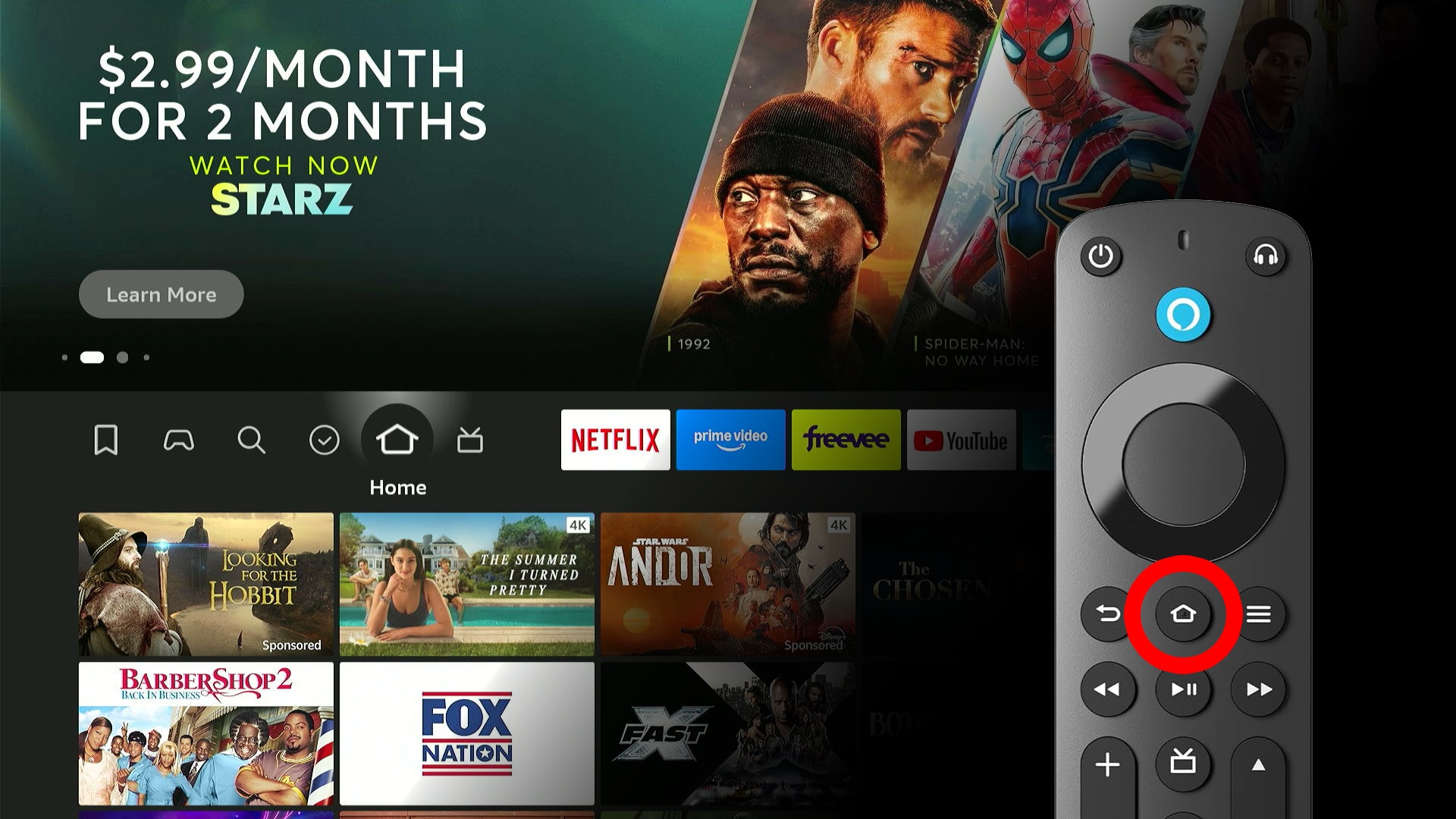
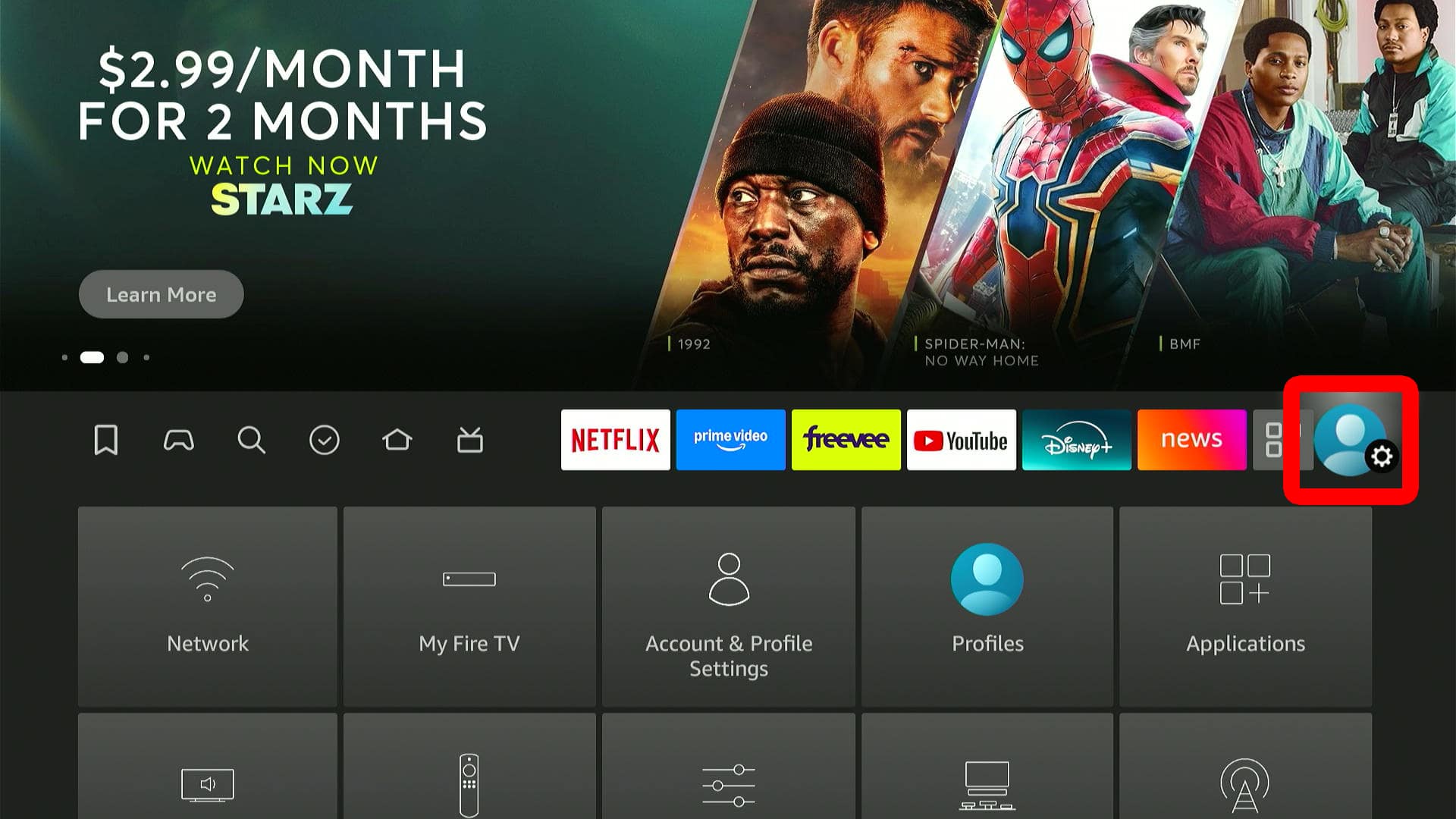
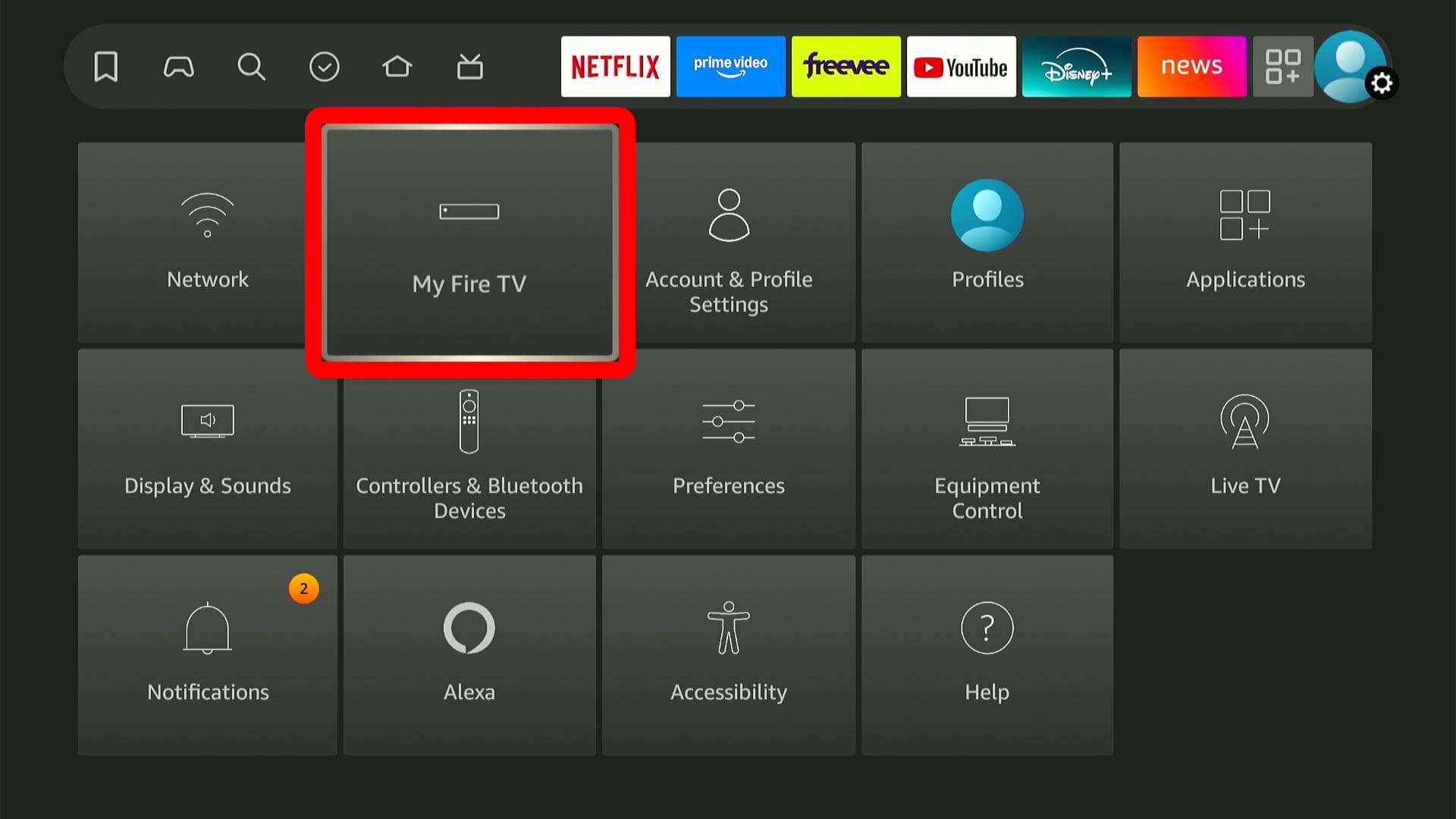
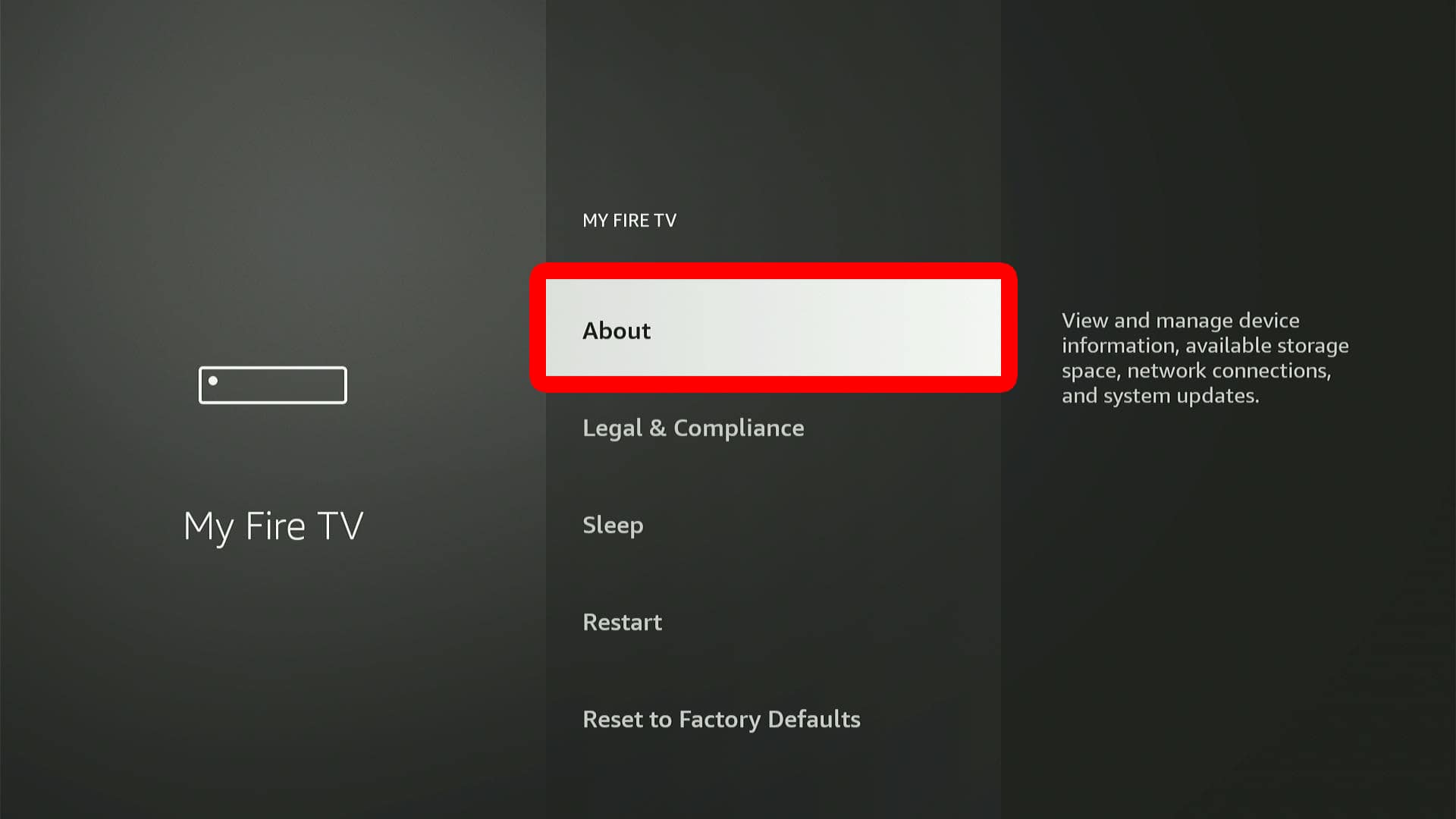
To update a Fire TV device, go to the home screen by pressing the Home button on your Fire TV remote. Then select “Settings” on the far-right side of the home screen Menu Bar. Next, go to “My Fire TV > About > Install Update.” Finally, wait for your Fire TV device to restart.
- Open the Fire TV home screen. You can do this by pressing the Home button on your Fire TV remote. For more information on how to navigate the Fire TV home screen, check out this guide from Amazon.

- Go to “Settings.” This is the button with your profile icon and a gear icon. You will see it on the far-right side of the Menu Bar. To select it, press the right-directional button on your Fire TV remote several times. When it is highlighted, press the down-directional button to access Settings.
- Select “My Fire TV.”
- Choose “About.”
- Finally, select “Install Update.”
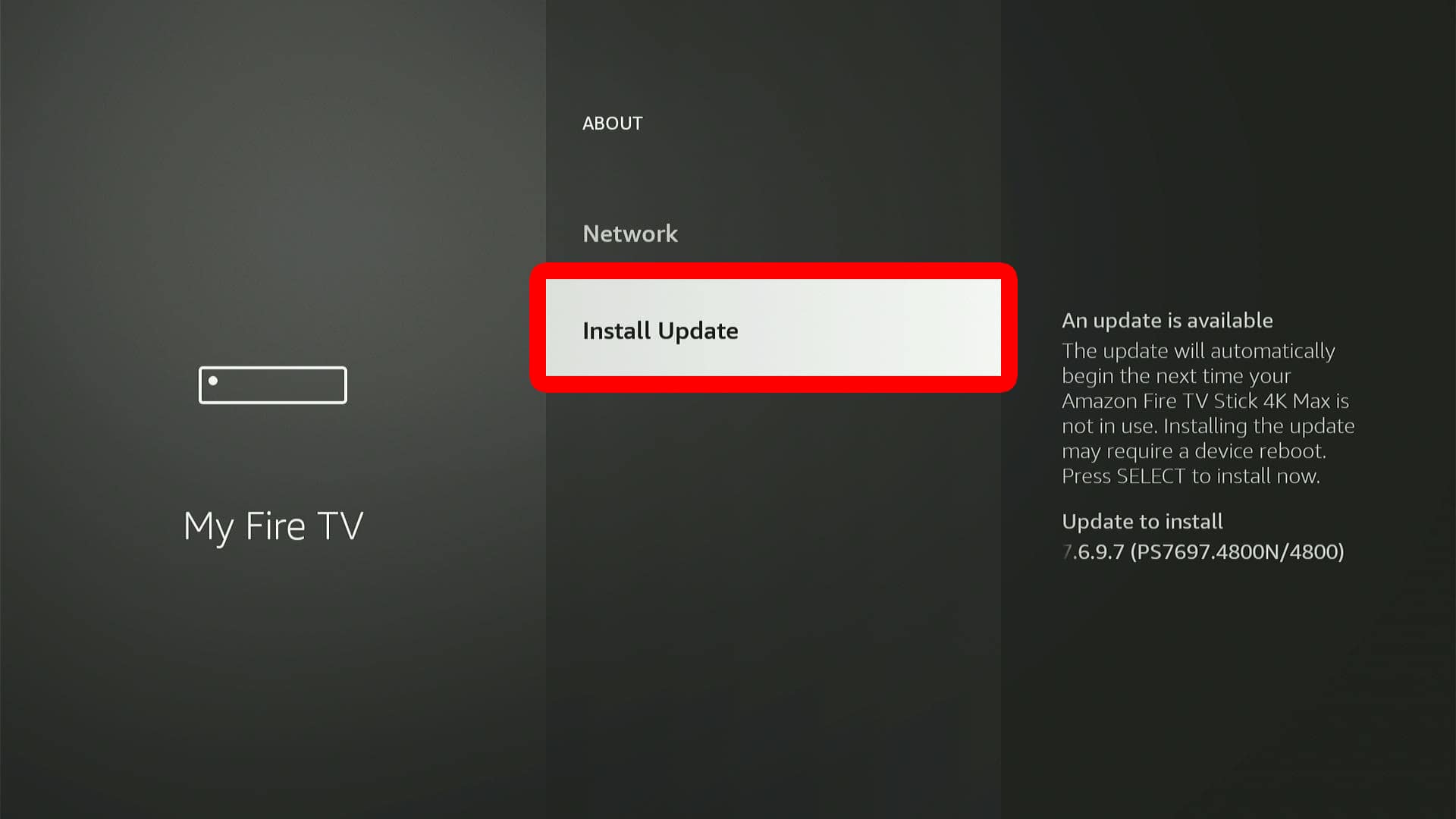
After you start the update, your Fire TV will restart. This can take a few minutes.

Read More: How to Cast Your iPhone to Fire TV
How to Update Fire TV Apps
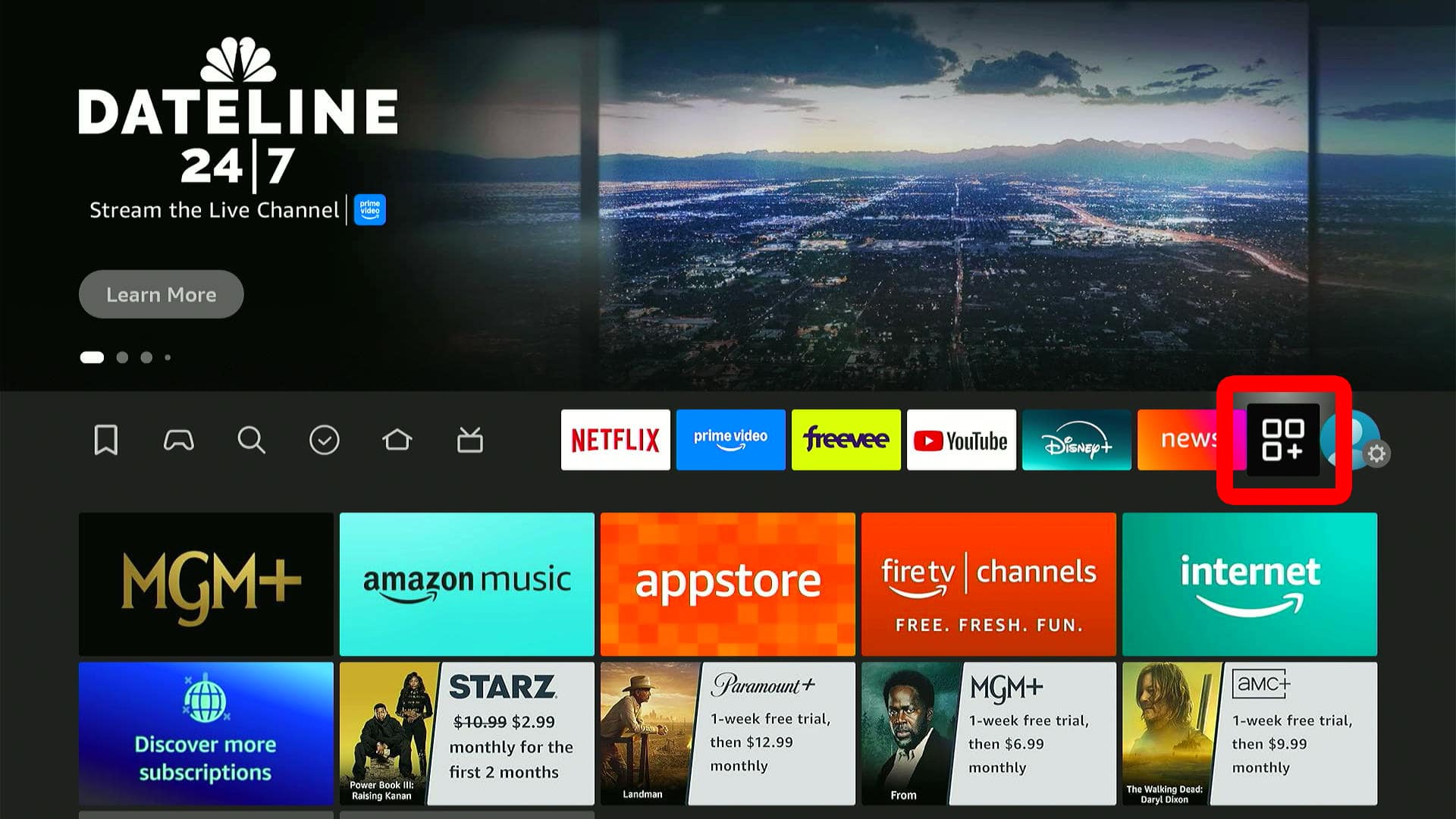
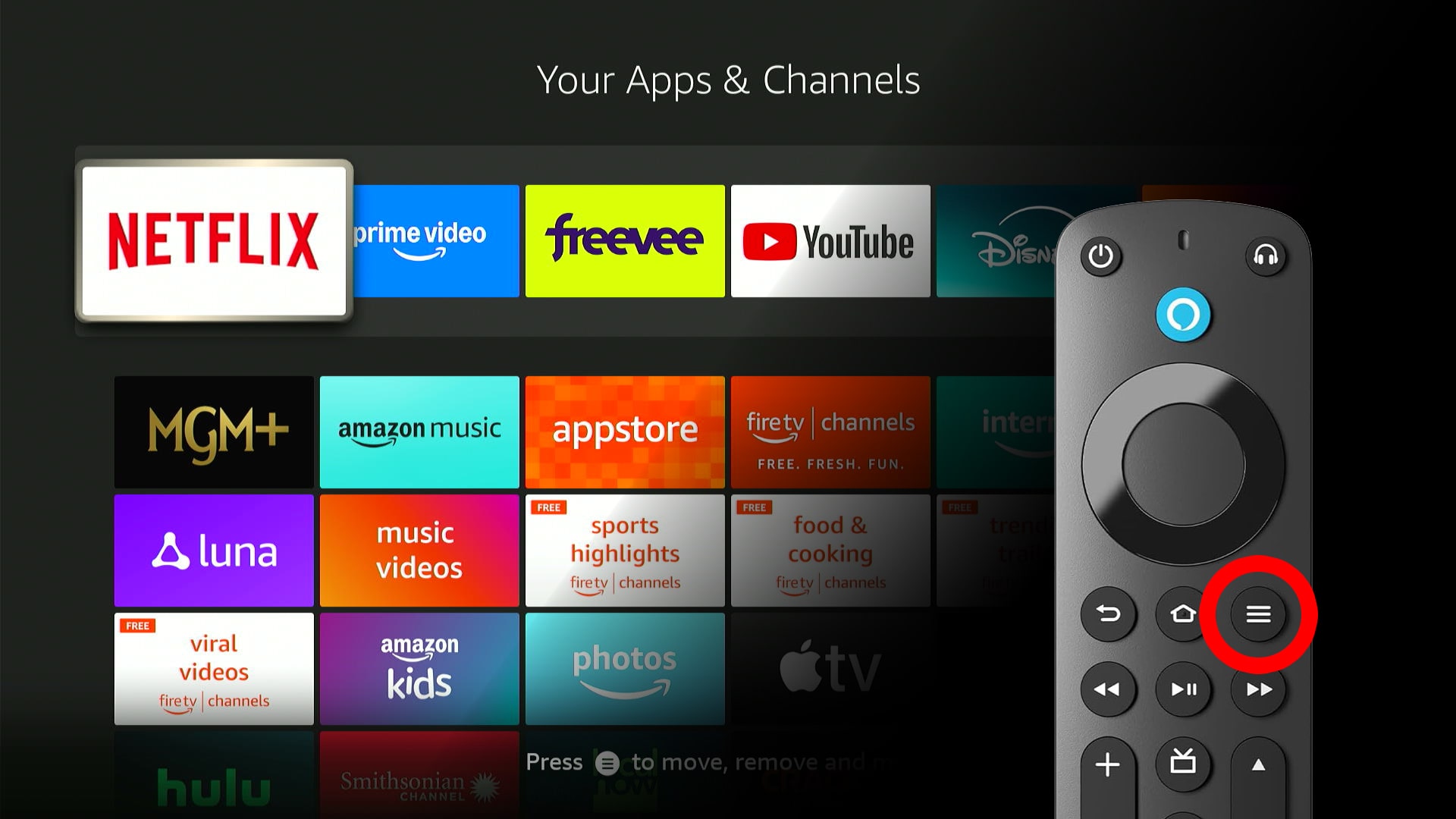
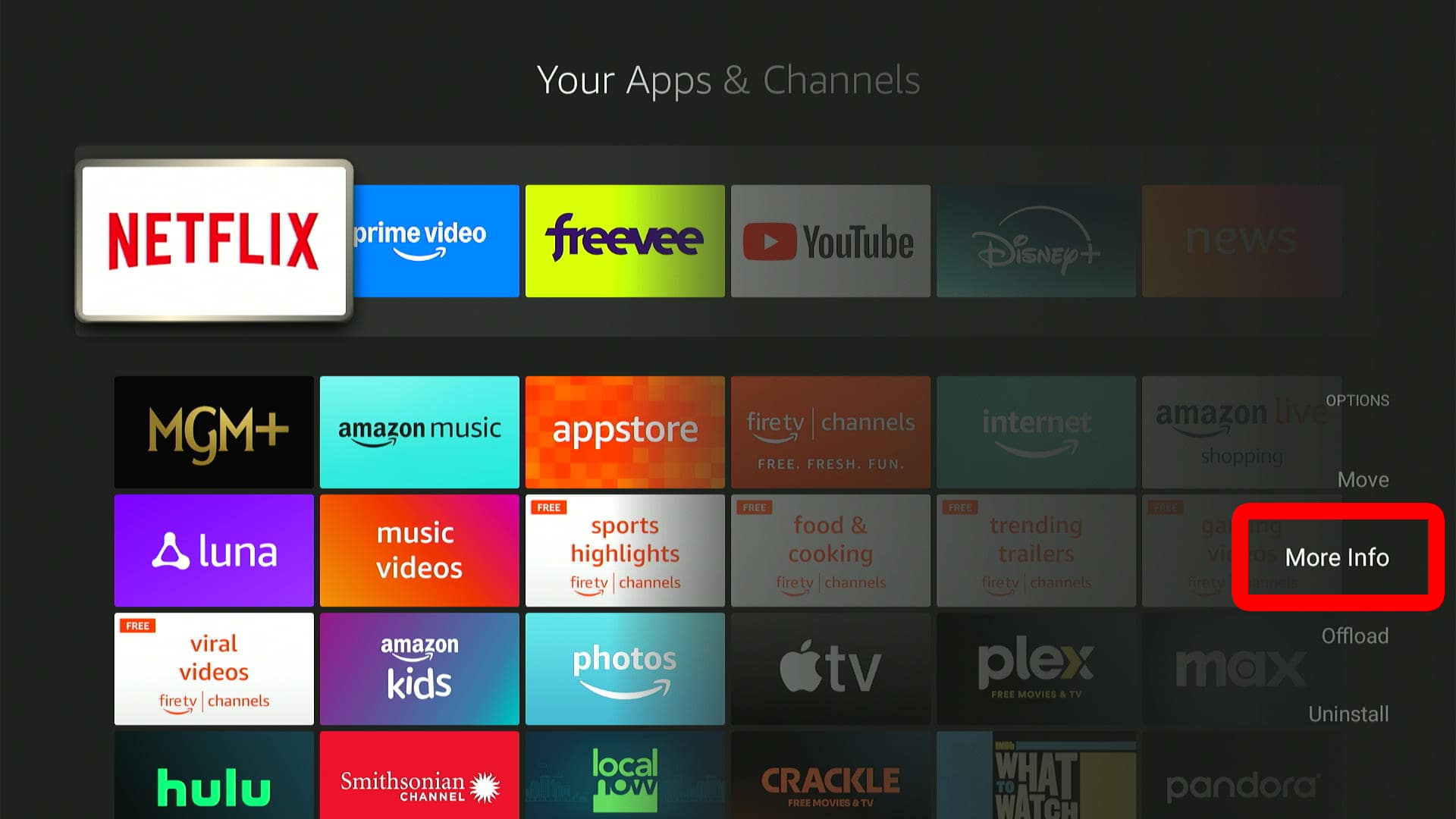
To update apps on your Fire TV device, go to the home screen and select the Applications button in the Menu Bar (with three squares and a plus sign icon). Next, highlight an app and press the three-line Menu button on your remote. Finally, select “More Info > Update.”
- Open the Fire TV home screen.
- Go to “Applications.” This is the button next to Settings that has three squares and a plus sign icon. Once this button is highlighted, press the Select button on your Fire TV remote (in the middle of the ring at the top of your remote).
- Highlight an app. Use the directional buttons on your Fire TV remote to highlight the app that you want to update.
- Press the Menu button on your Fire TV remote. This is the button with the three-line icon (just above the Fast-Forward button). Pressing this button will open a menu in the bottom-right corner of your screen.
- Select “More Info.” Once you press the Menu button on your remote, you will see this option in the bottom-right corner of your screen.
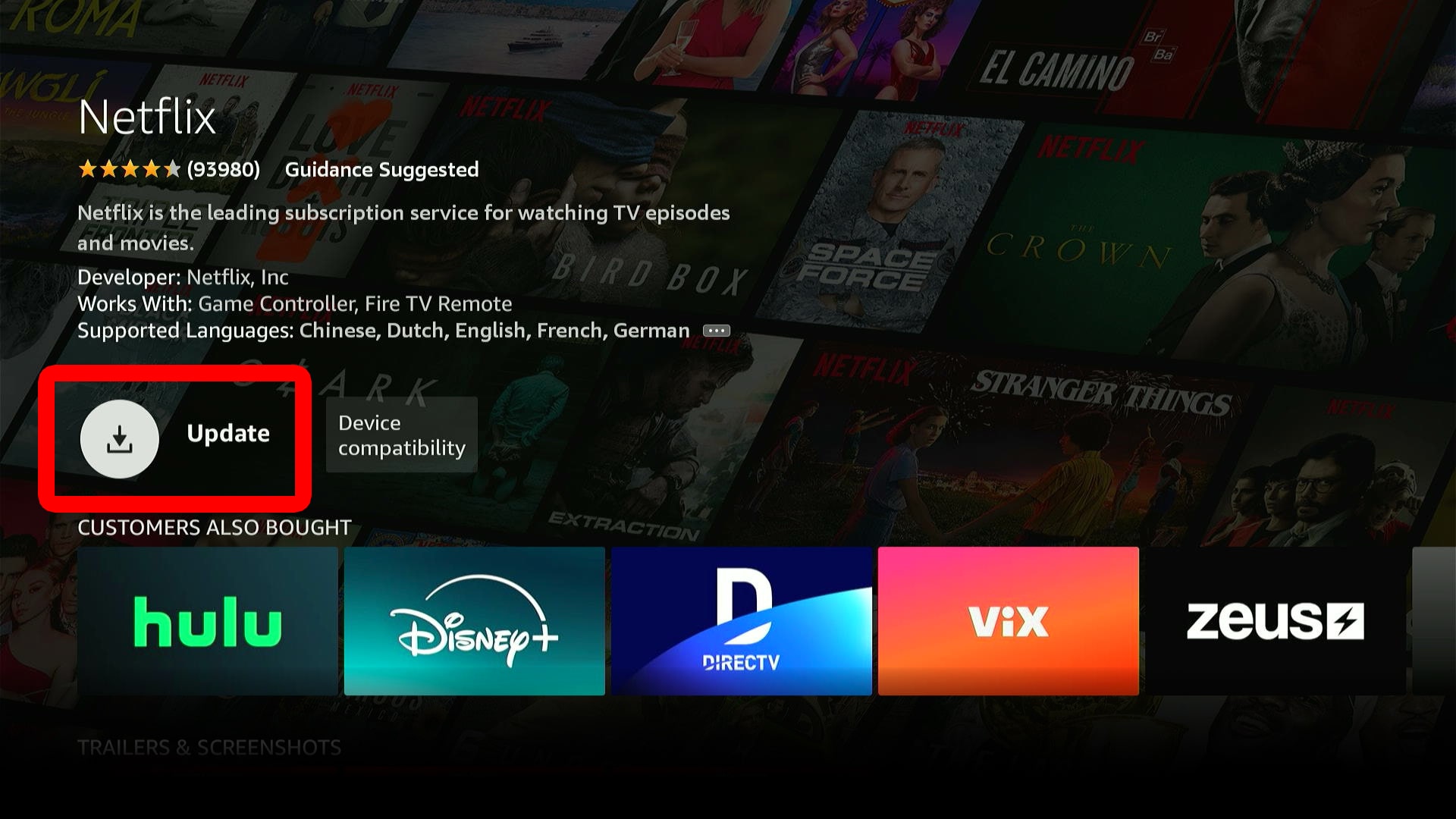
- Select “Update.” If you do not see this option, it means your app is already up to date.

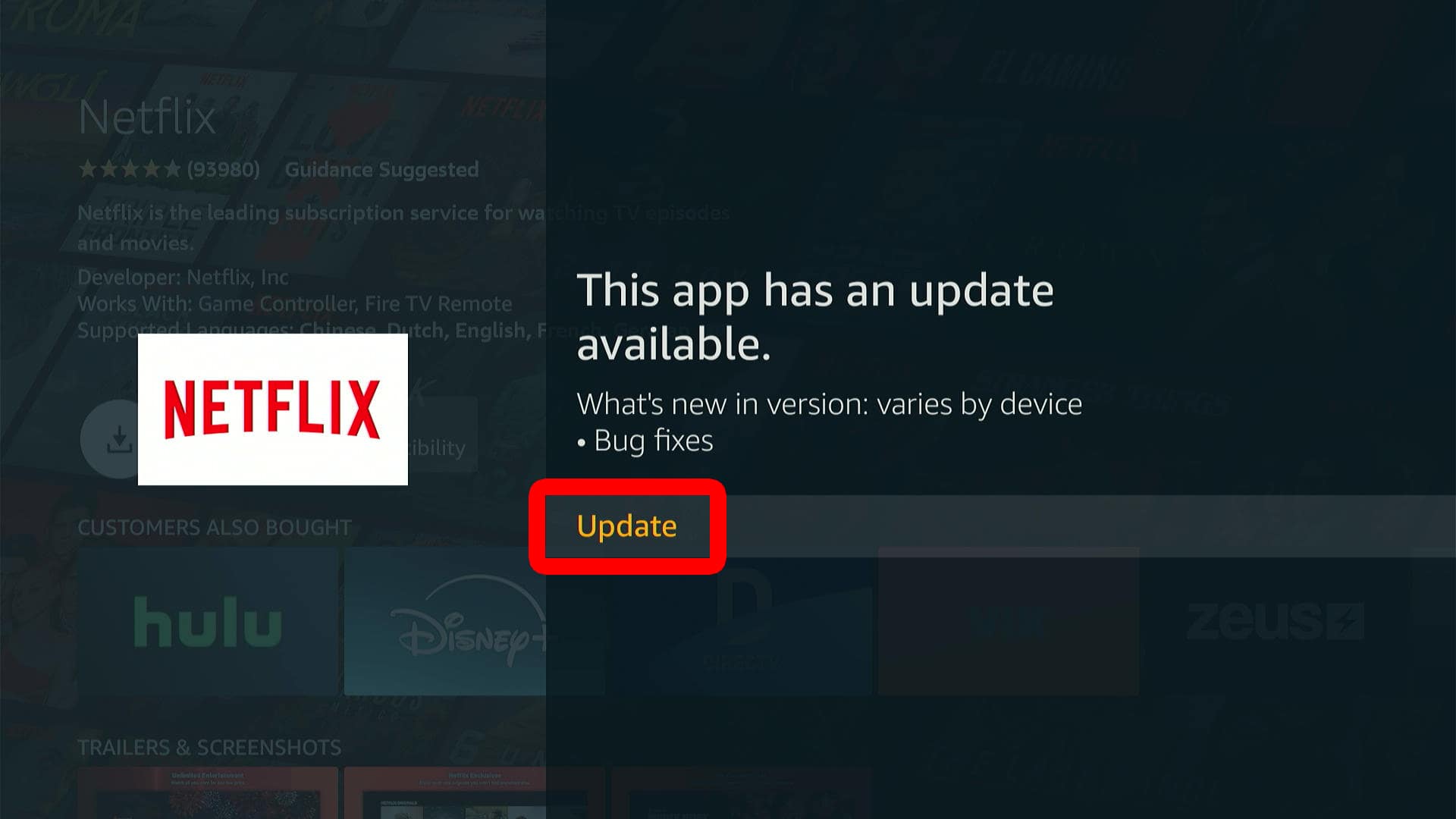
- Finally, select “Update” to confirm.
Read More: How to Factory Reset Fire TV