
According to The American Academy of Ophthalmology, blue light can affect your body’s circadian rhythm, making it harder to fall asleep at night. Thankfully, your Mac has a Night Shift mode that allows you to reduce the amount of blue light coming from your screen. Here’s how to turn Night Shift on in two different ways on a Mac, and how to keep it turned on permanently.
How to Quickly Enable Night Shift
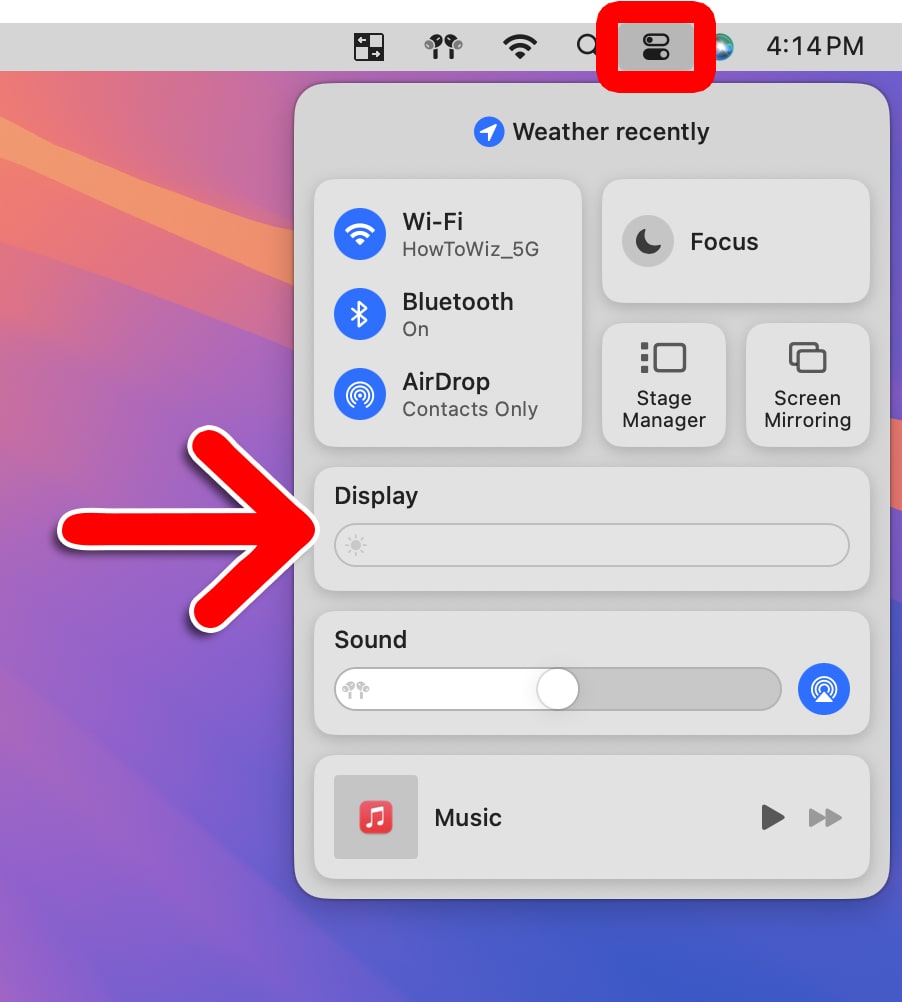
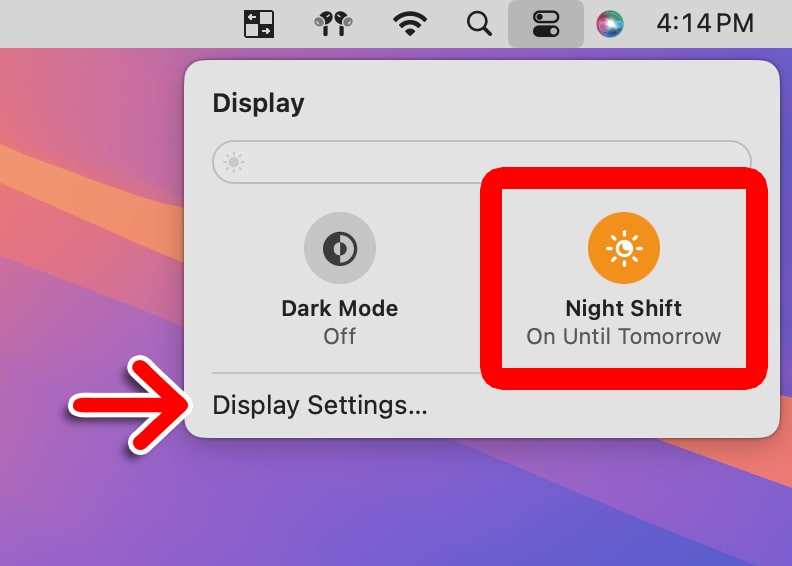
To quickly enable or disable Night Shift on a Mac, click the Control Center icon in the top-right corner of your screen. Then select “Display” and click “Night Shift” to turn it on or off. You can also change more options by clicking “Display Settings.”
- Click the Control Center icon. You will see this in the top-right corner of your screen. It is an icon that looks like two toggle buttons.
- Then click “Display.”

- Finally, click “Night Shift.” This will turn on Night Shift temporarily. You can also click “Display Settings” to set a Night Shift schedule and change other settings.
How to Turn On Night Shift on a Mac
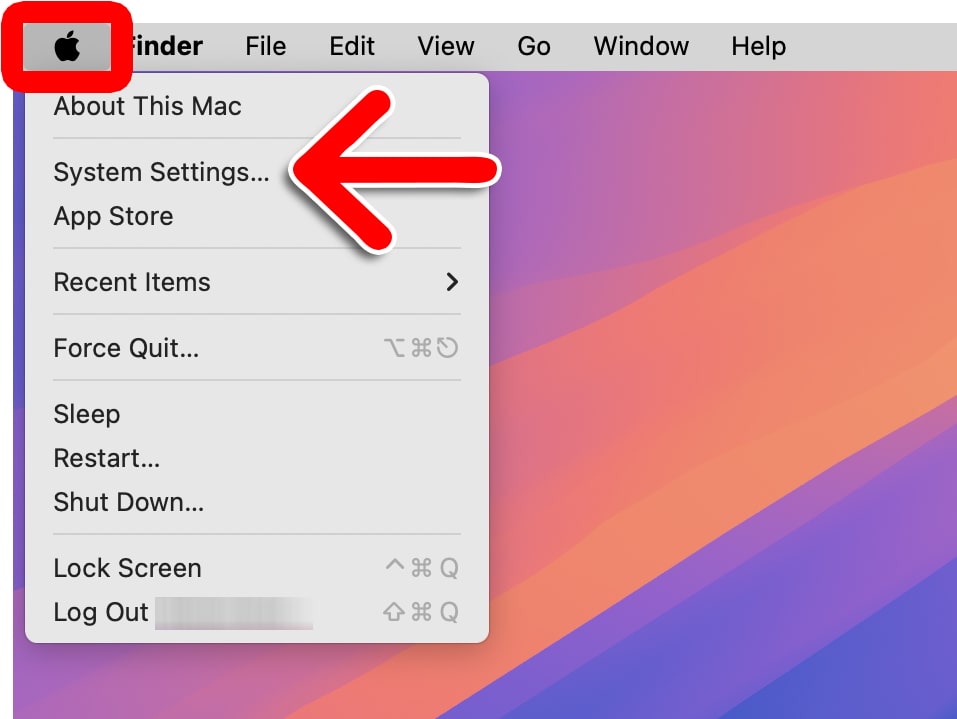
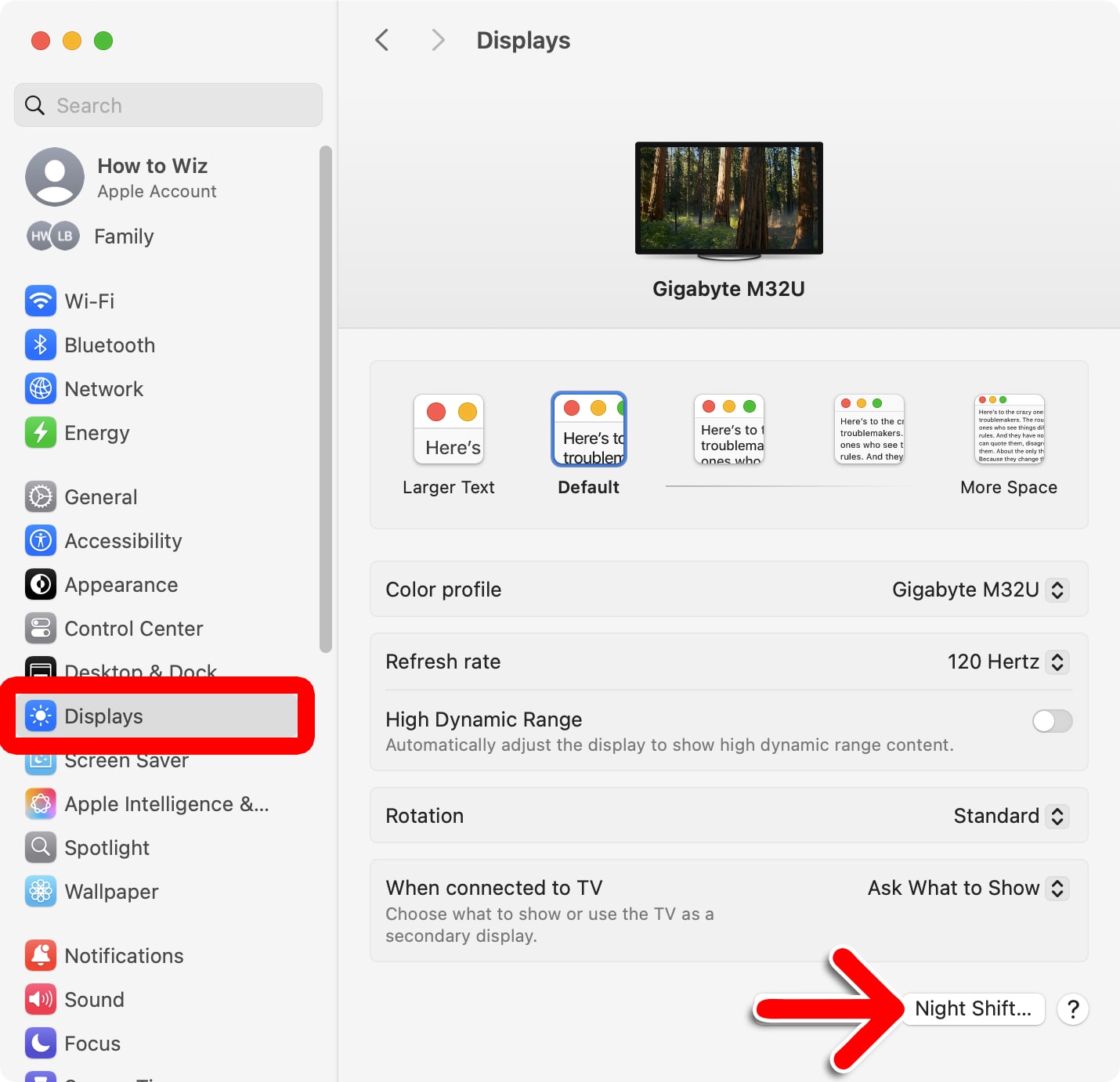
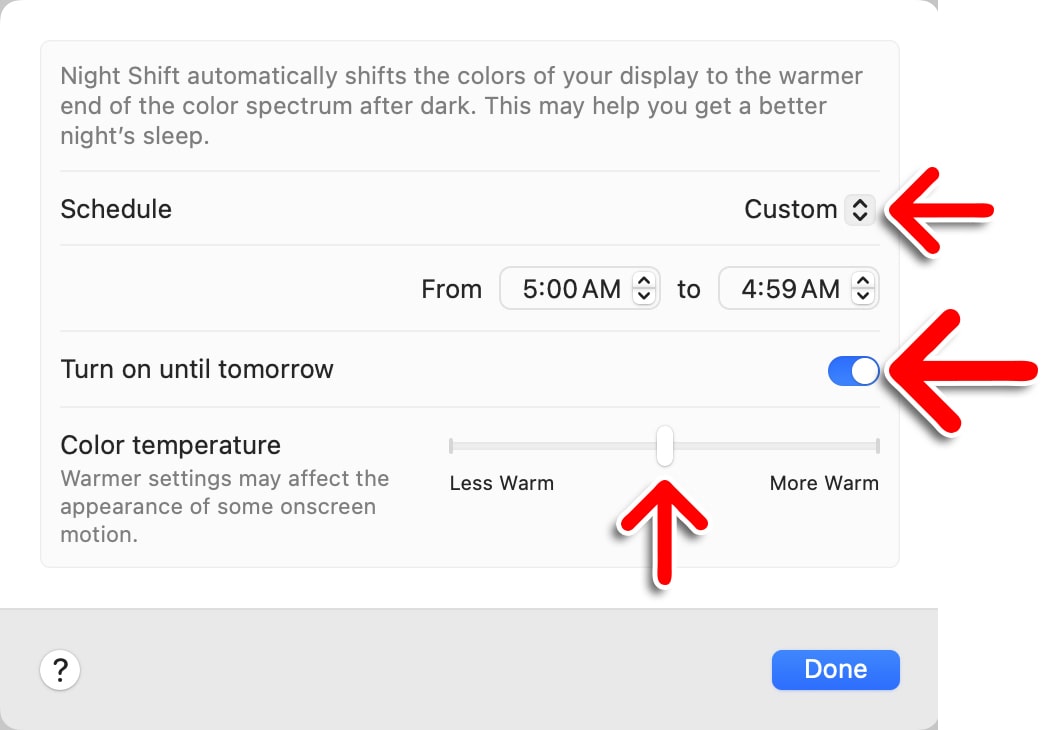
To turn on Night Shift on a Mac, click the Apple icon in the top-left corner of your screen and select “System Settings.” Then select “Displays” in the left sidebar and click “Night Shift” in the bottom-right corner of the window. Finally, check the slider next to “Turn on until tomorrow.”
- Click the Apple icon in the top-left corner of your screen.
- Select “System Settings.”

- Click “Displays.” You will see this in the left sidebar of the System Settings window.
- Select “Night Shift.” You will see this in the bottom-right corner of the window. You might need to scroll down to find it.

- Finally, turn on the slider next to “Turn on until tomorrow.” From here, you can also set a Night Shift “Schedule” and change the “Color temperature” by moving the slider to the left or right.
Read More: How to Cast Your iPhone to Fire TV