Having trouble falling asleep? The harsh blue light from your iPhone could be to blame. Night Shift is a display mode that dims your screen with a soft yellow tone that’s easier on your eyes. Here’s everything you need to know about how to turn on Night Shift on your iPhone and how to keep the mode enabled permanently.
Read More: How to Turn On Night Shift on a Mac
How to Quickly Turn On Night Shift on an iPhone
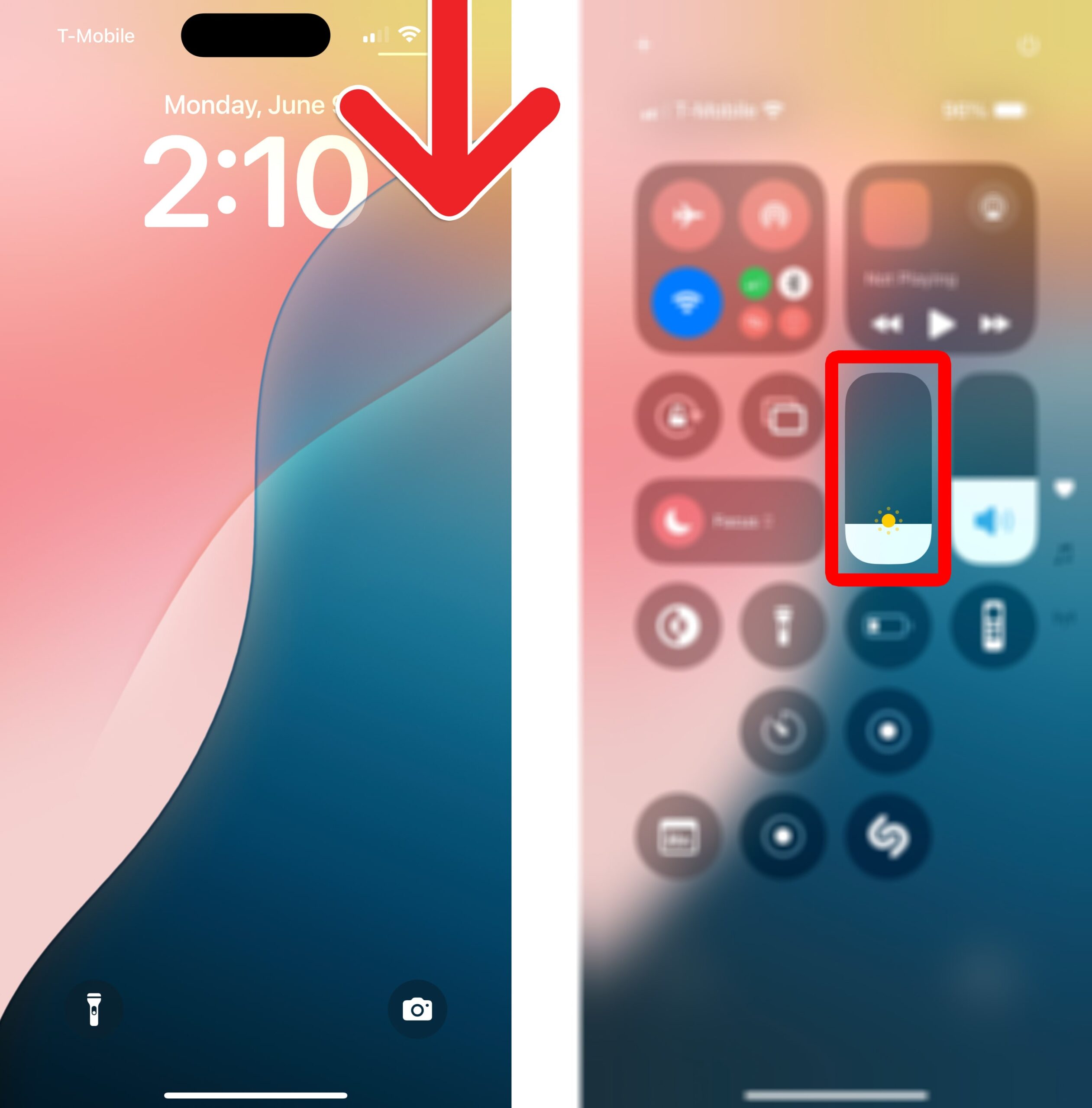
To quickly turn on Night Shift on an iPhone, swipe down from the top-right corner of your screen to open the Control Center. Then tap and hold the brightness slider with a sun icon. Finally, tap “Night Shift” at the bottom of your screen to turn it on until tomorrow.
- Swipe down from the top-right corner of your iPhone screen. This will open the Control Center on your iPhone.
- Tap and hold the brightness icon. When you tap and hold this slider for a few seconds, a brightness menu will open.

- Finally, tap “Night Shift” at the bottom of your screen. From here, you can also turn Dark Mode and True Tone on or off.
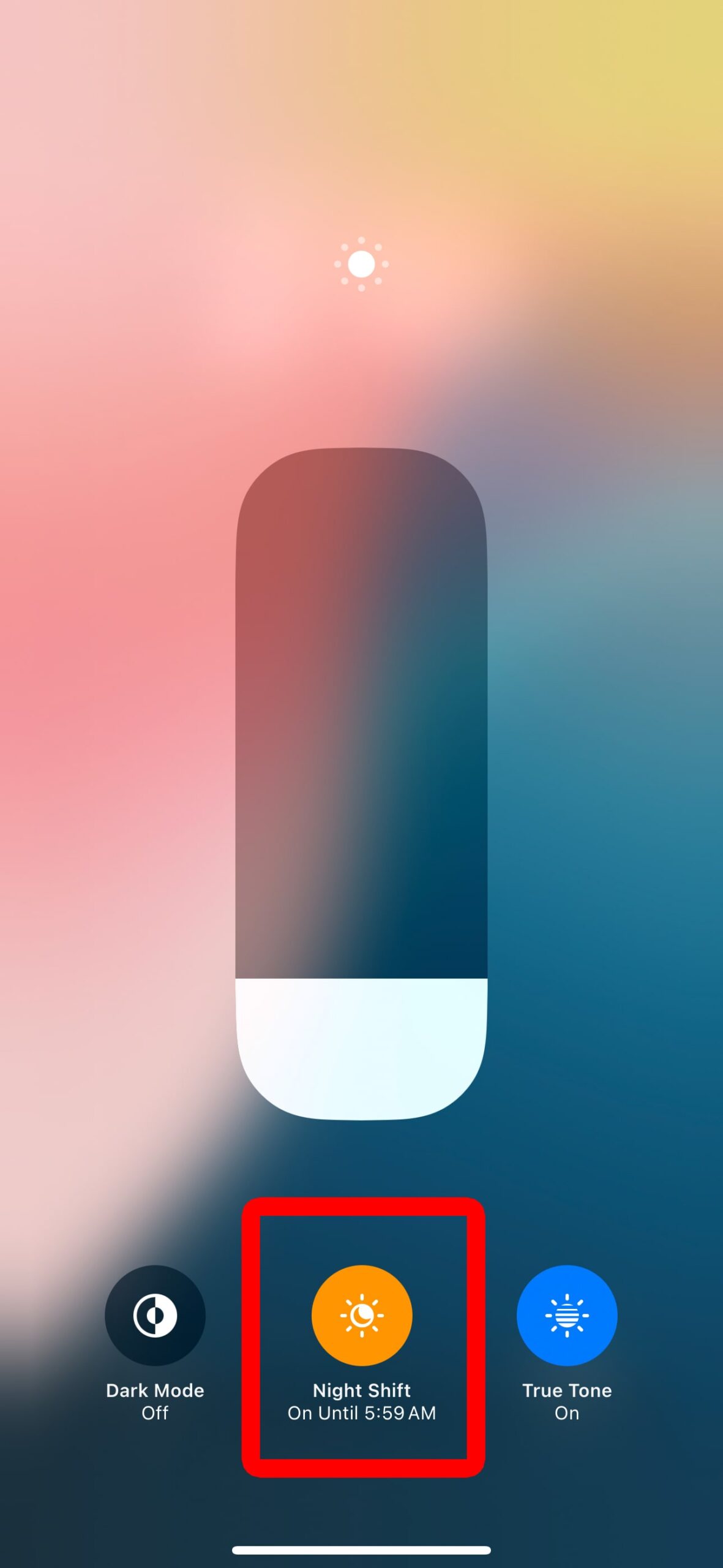
When you turn on Night Shift, it will only be enabled on your iPhone until tomorrow. You will see the time it is scheduled to turn off below the button. However, you can also keep Night Shift enabled (almost) permanently.
How to Turn On Night Shift Permanently
To turn on Night Shift permanently, open the Settings app on your iPhone and go to “Display & Brightness > Night Shift.” Then turn on the toggle next to “Manually Enable Until Tomorrow.” Next, select “Schedule > Custom Schedule.” Finally, set the time range to one minute apart.
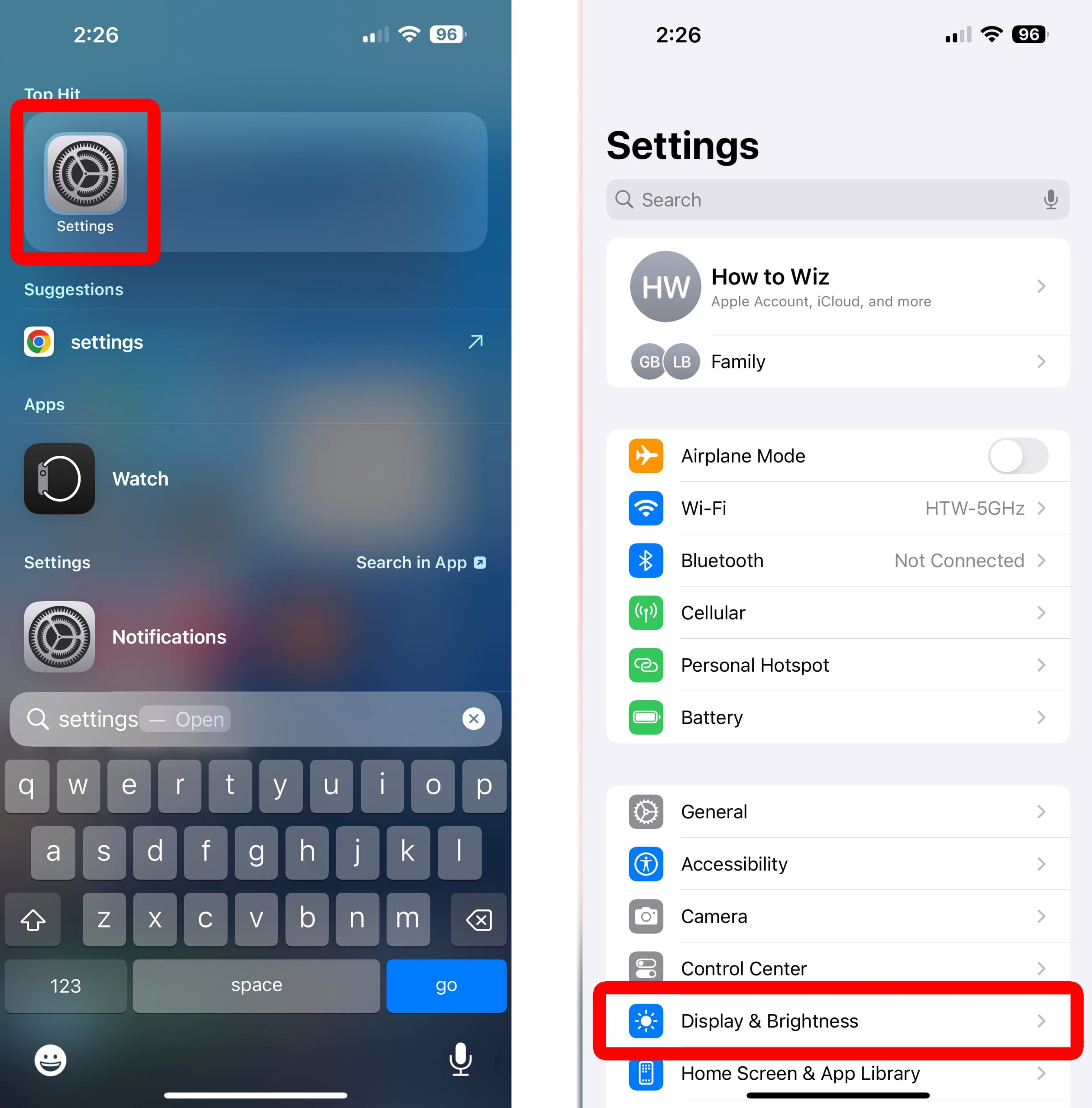
- Open the Settings app on your iPhone. If you don’t know how to find this app, swipe down from the top of your screen and type Settings into the search bar. You should see the app at the top of your screen.
- Go to “Display & Brightness.”
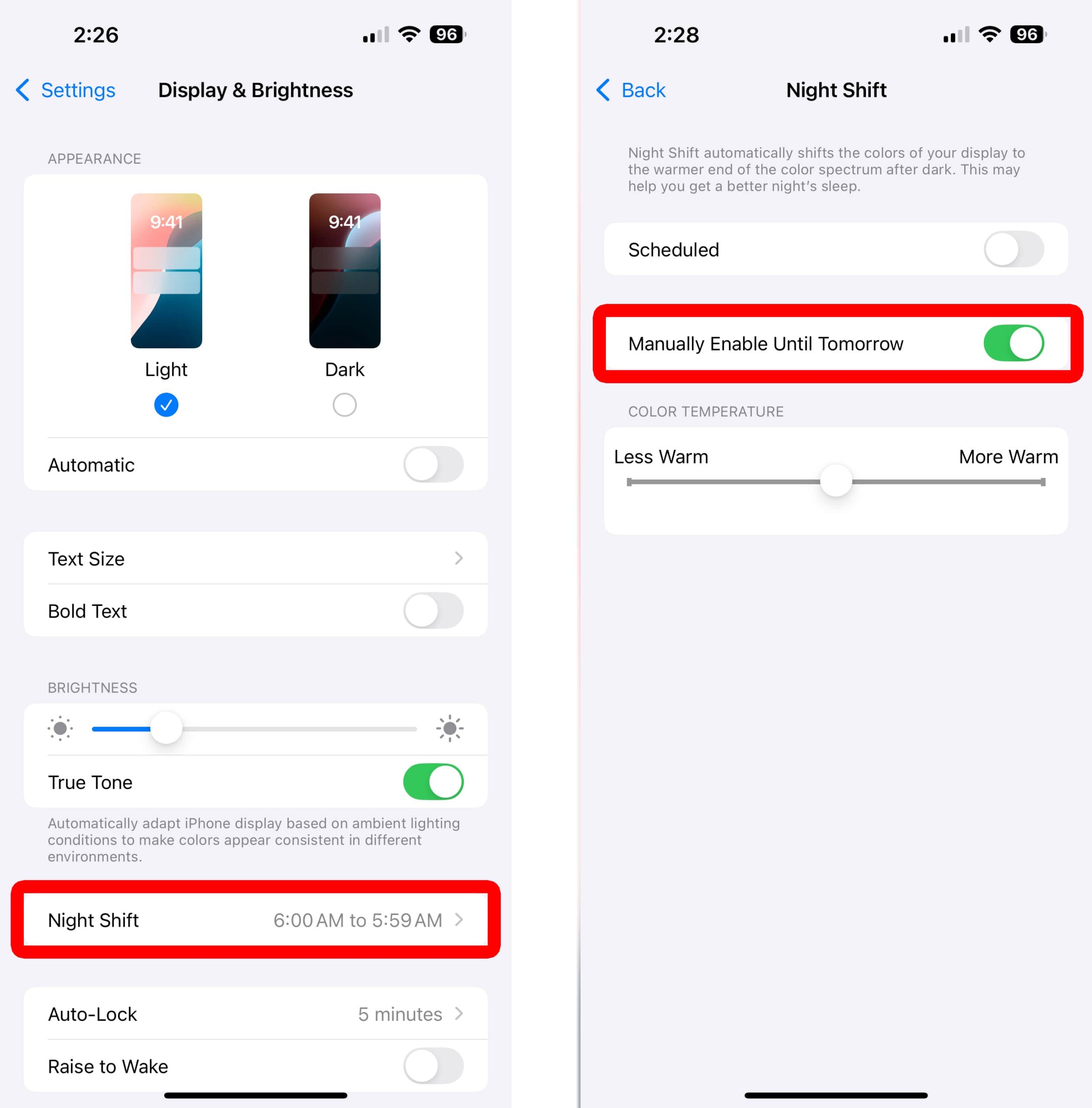
- Tap “Night Shift.”
- Select the toggle next to “Manually Enable Until Tomorrow.” This will turn on Night Shift, but only temporarily.
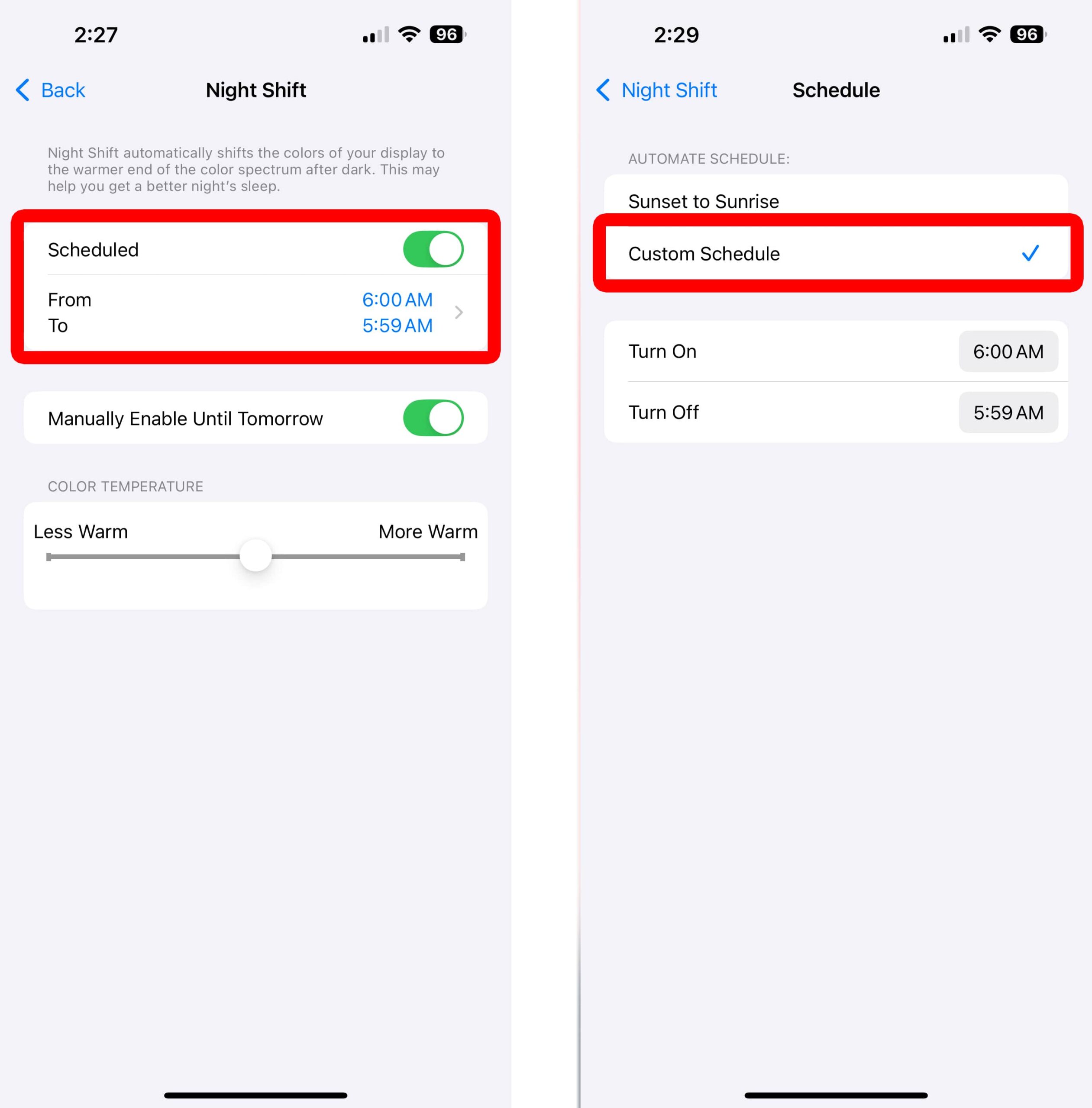
- Tap the toggle next to Schedule and select the time range.
- Finally, select “Custom Schedule” and set the times one minute apart. For example, set Turn on to 6:00 AM and set Turn Off to 5:59 AM. This way, Night Shift mode will be turned on all day, except one minute.