Your iPhone should automatically update apps on its own–but it can take weeks or even years for certain apps. If you want the latest features, security patches, and performance improvements, you can always update your apps manually. Here’s everything you need to know about how to update all the apps on your iPhone at once, and how to turn automatic app updates on or off.
Read More: How to Permanently Turn On Night Shift on an iPhone
How to Manually Update Apps on an iPhone
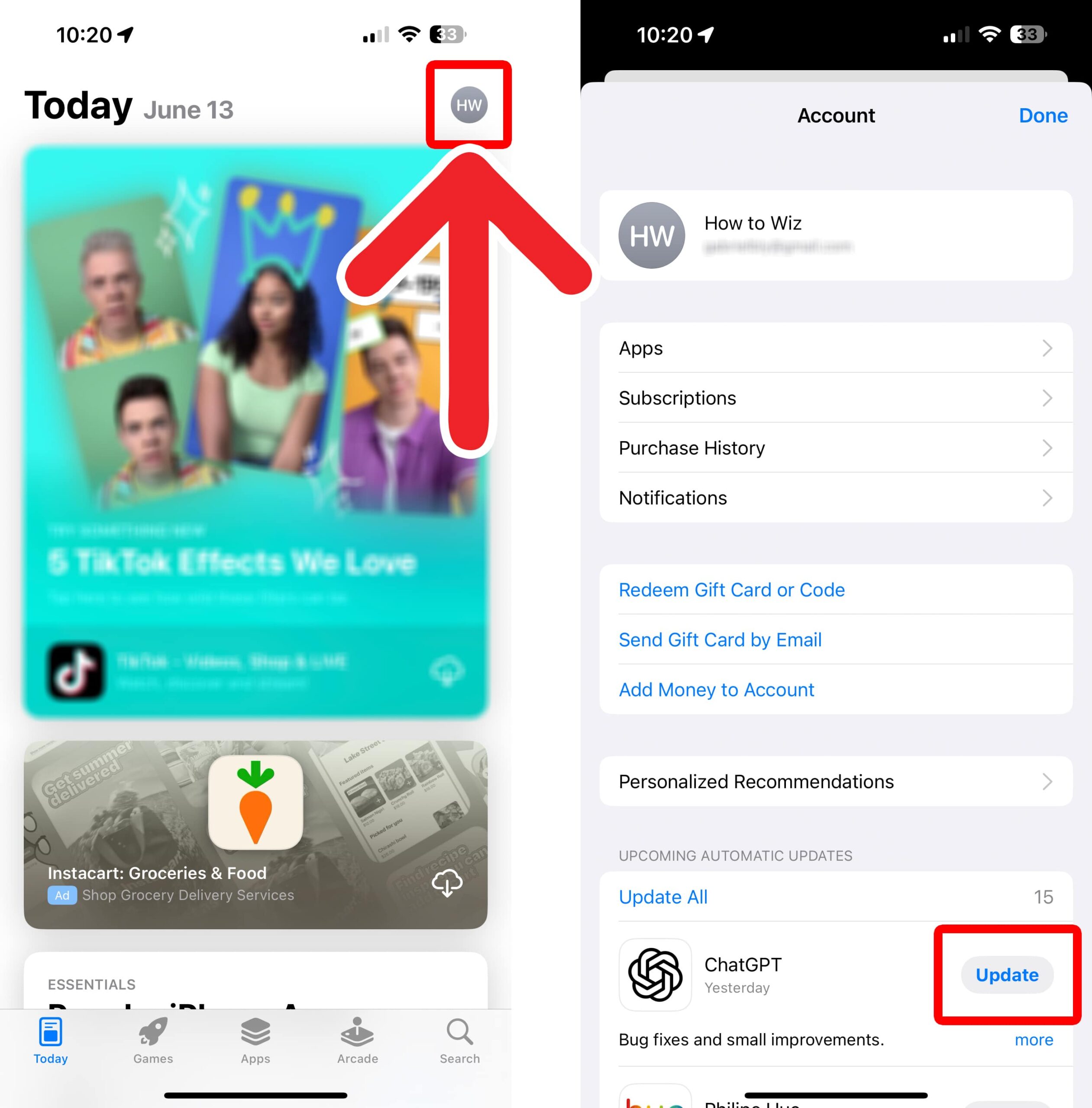
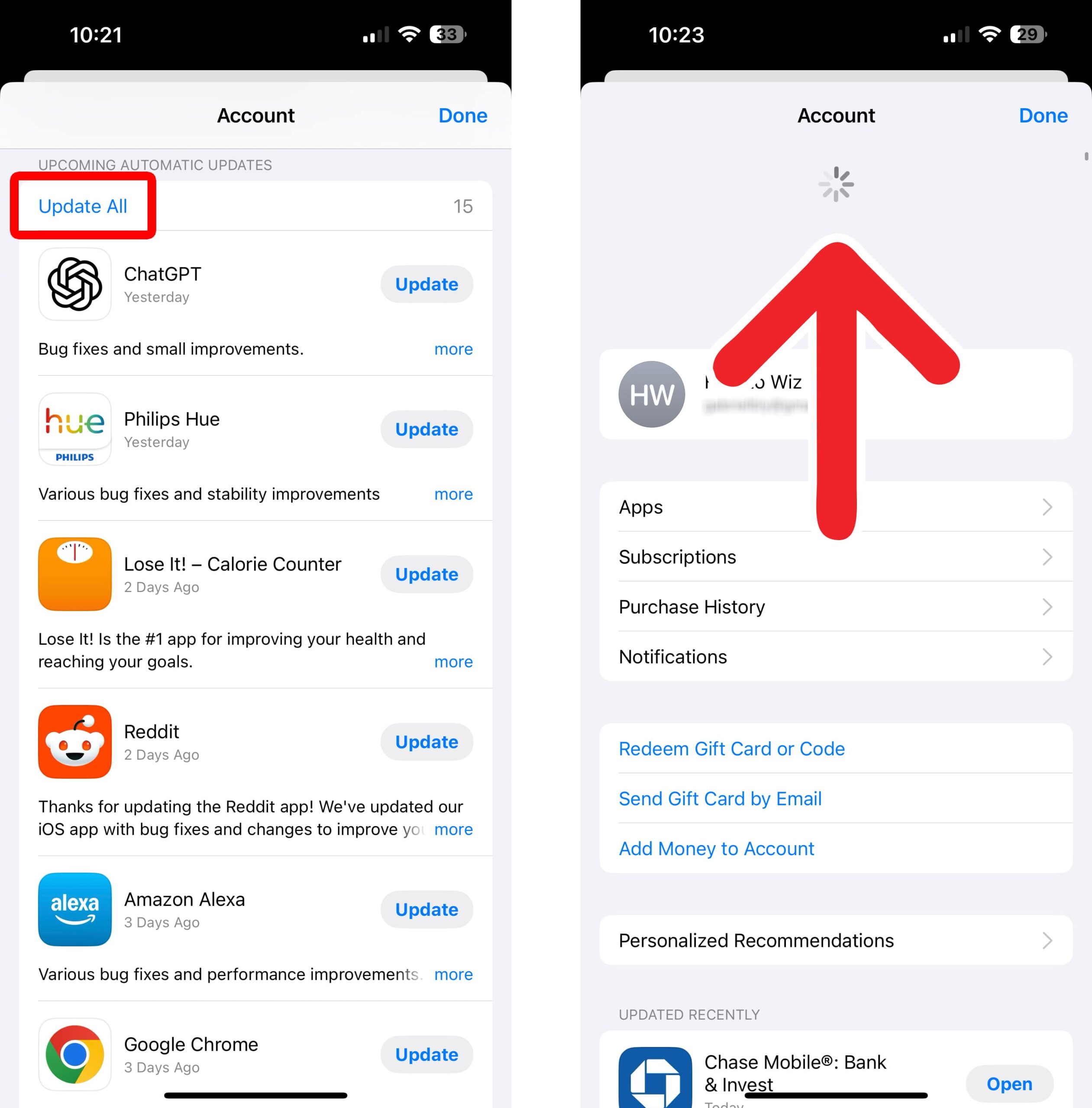
To update any apps on your iPhone, open the App Store app and tap your profile icon in the top-right corner. Then, scroll down and tap “Update” next to any app to update it manually. Alternatively, you can also tap “Update All” at the top of the “Upcoming Automatic Updates list.”
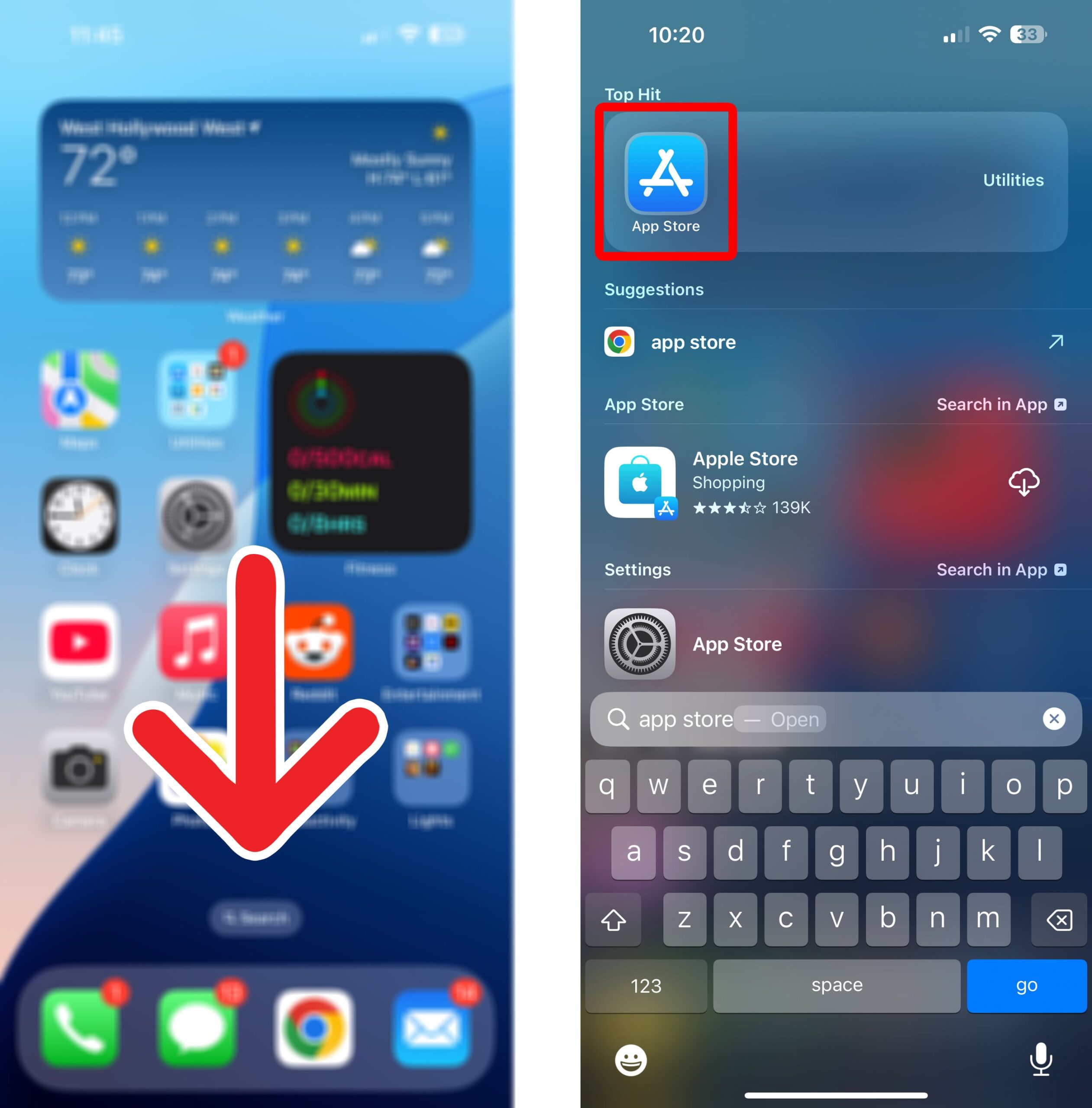
- Open the App Store app. This app comes pre-installed on every iPhone. If you can’t find it, swipe down from the middle of the home screen and type “app store” in the search bar. Then the app should appear at the top of your screen.

- Tap your profile icon. You will see this in the top-right corner of the screen. In most cases, it will contain your initials.
- Select “Update” next to an app.
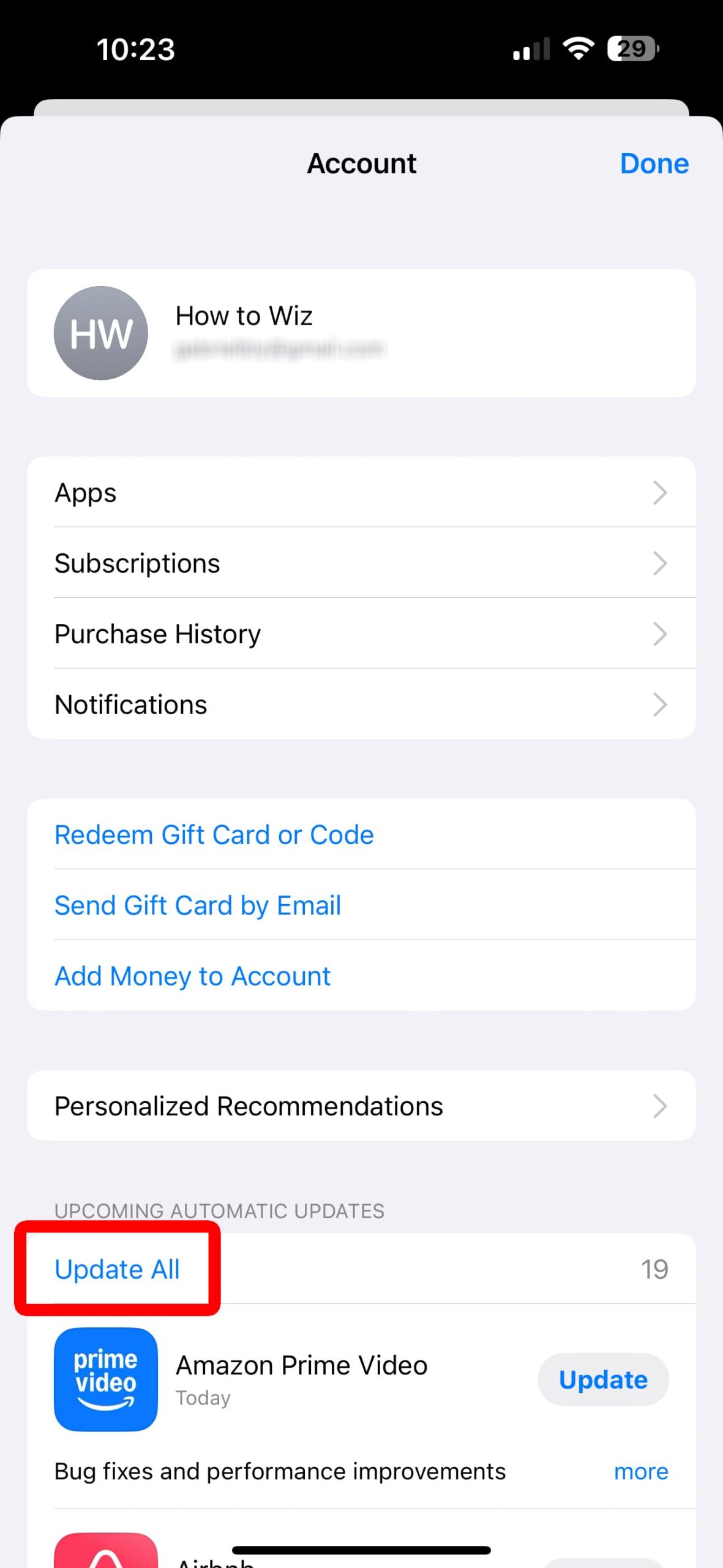
- To update all your iPhone apps at once, tap “Update All.” You will see this option at the top of your Upcoming Automatic Updates list.
- Swipe down from the top of the page to refresh the list. This will force the App Store to check for any new app updates that are available. For example, when I went to update all my apps, there were only 15 initially. But after I refreshed the page, there were 19 additional apps that could be updated.
- Finally, tap “Update All” again. This will ensure that all your apps are up to date.
If you don’t want to manually update your apps every day, make sure that automatic app updates are turned on. Here’s how:
How to Turn Automatic App Updates On or Off
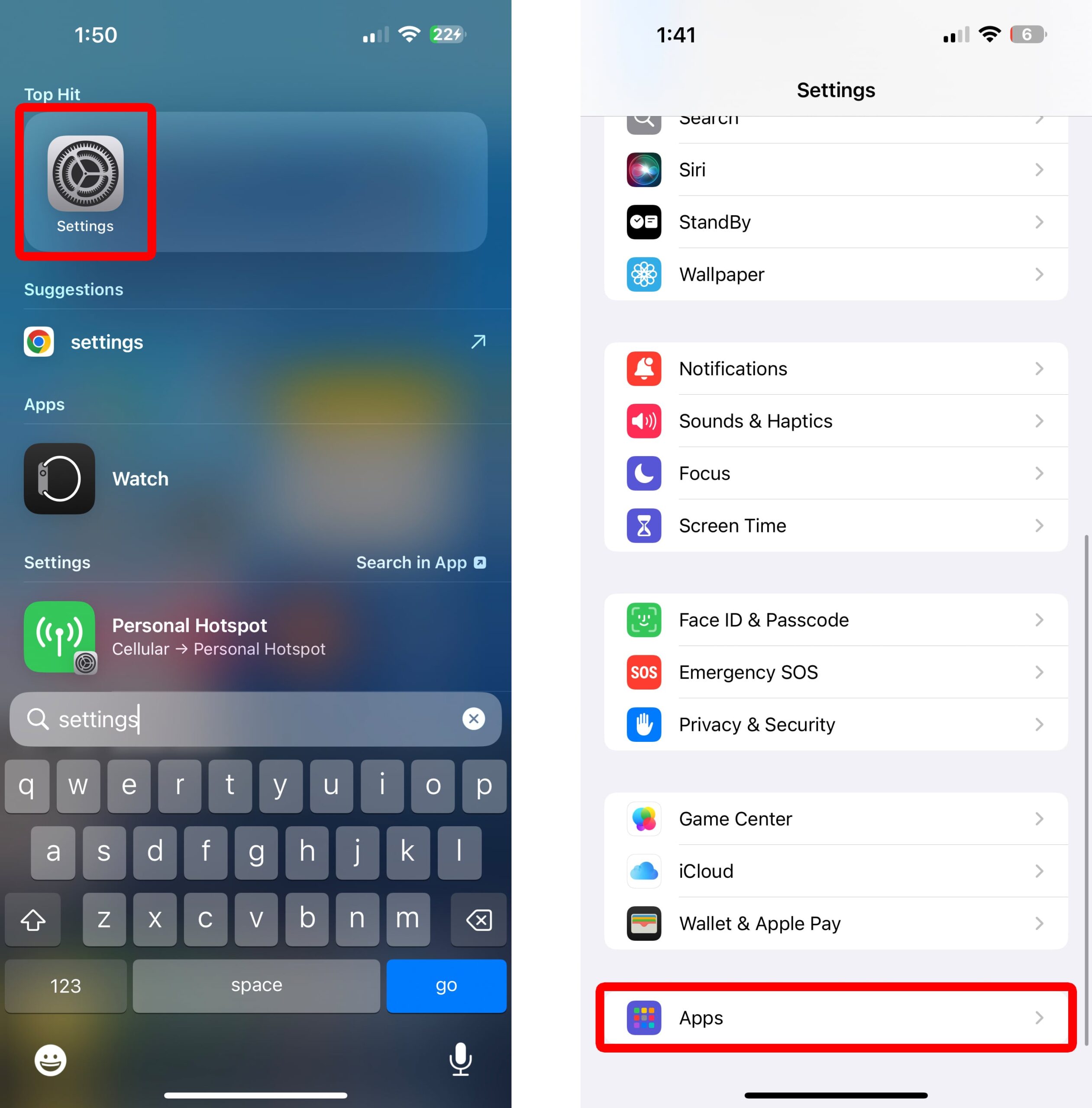
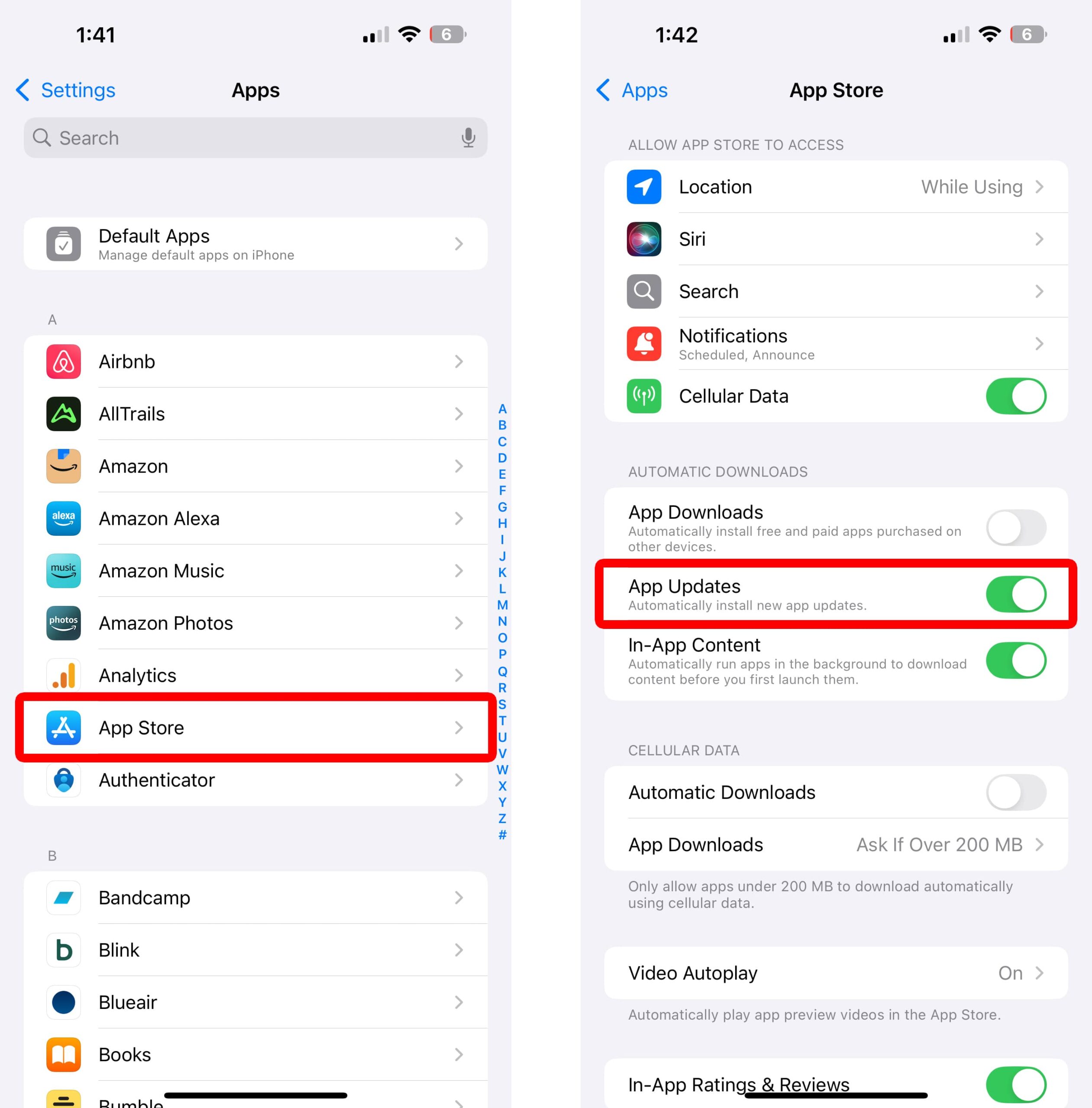
To enable automatic app updates on your iPhone, open the Settings app and select “Apps” at the bottom of the page. Then, select “App Store” and toggle the switch next to “App Updates” to turn automatic updates on or off.
- Open the Settings app.
- Go to “Apps.” You will need to scroll down to the bottom of the Settings page to select this option.
- Select the “App Store” app. This will let you change settings for this app specifically.
- Finally, toggle the switch next to “App Updates” to turn them on or off. Automatic app updates will be enabled if the switch is green.