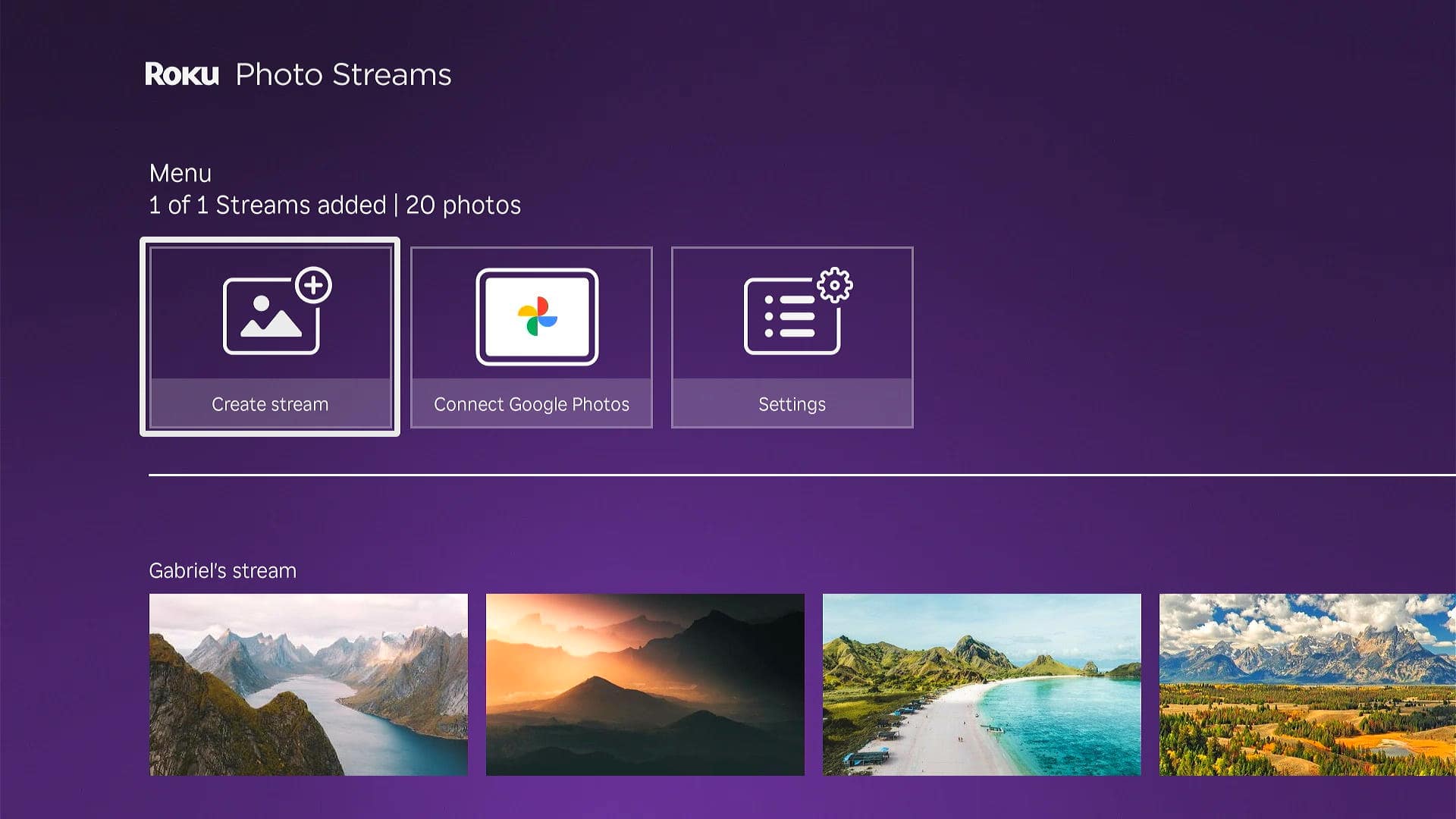
The default Roku screensaver gets old fast. Whether you’re trying to prevent burn-in on your OLED TV or just want something more personal, it’s easy to switch things up. Here’s everything you need to know about how to change the default Roku screensaver—or even create your own with your favorite photos.
Read More: How to Control Your TV with Alexa
How to Change Your Roku Screensaver
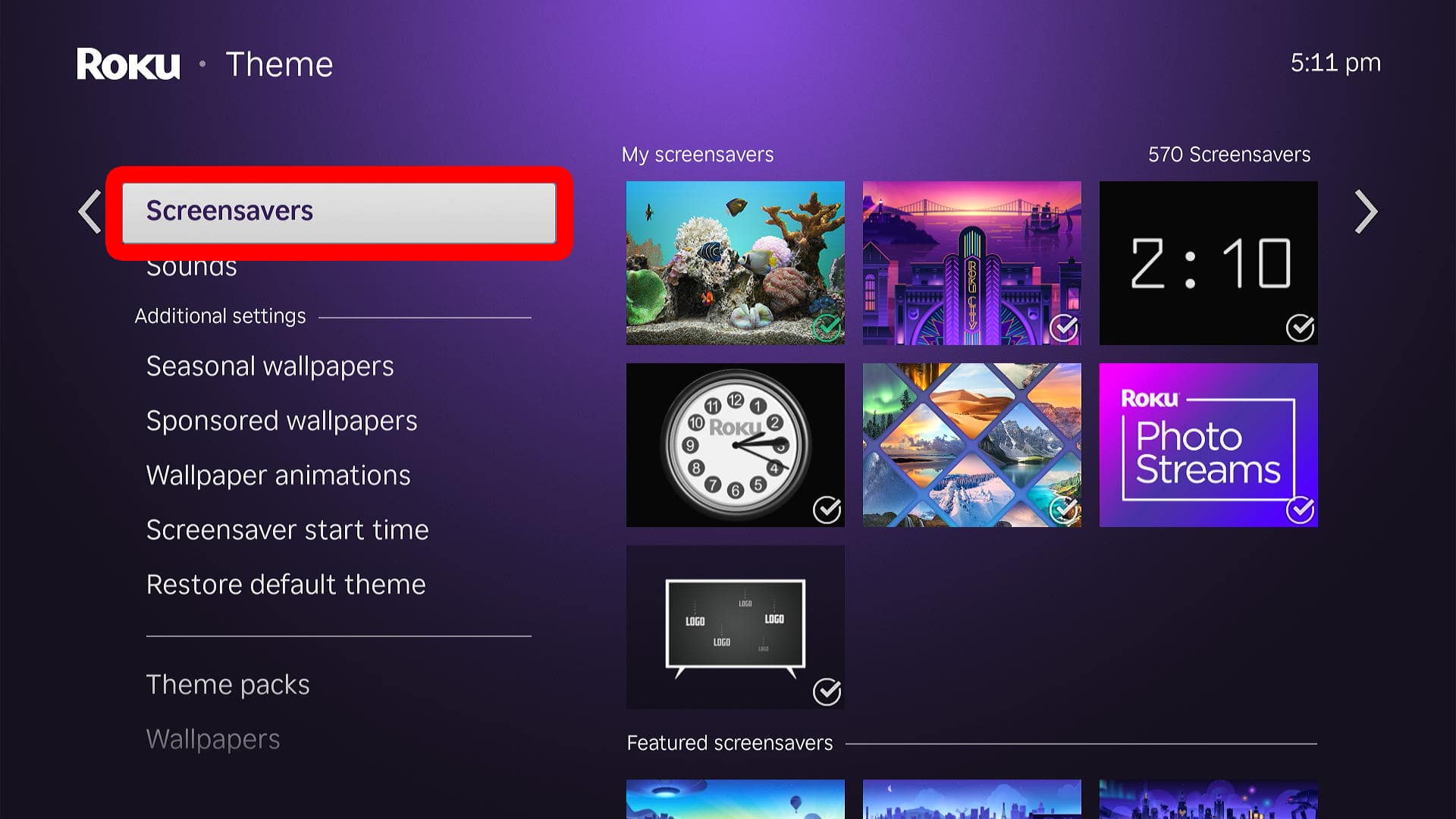
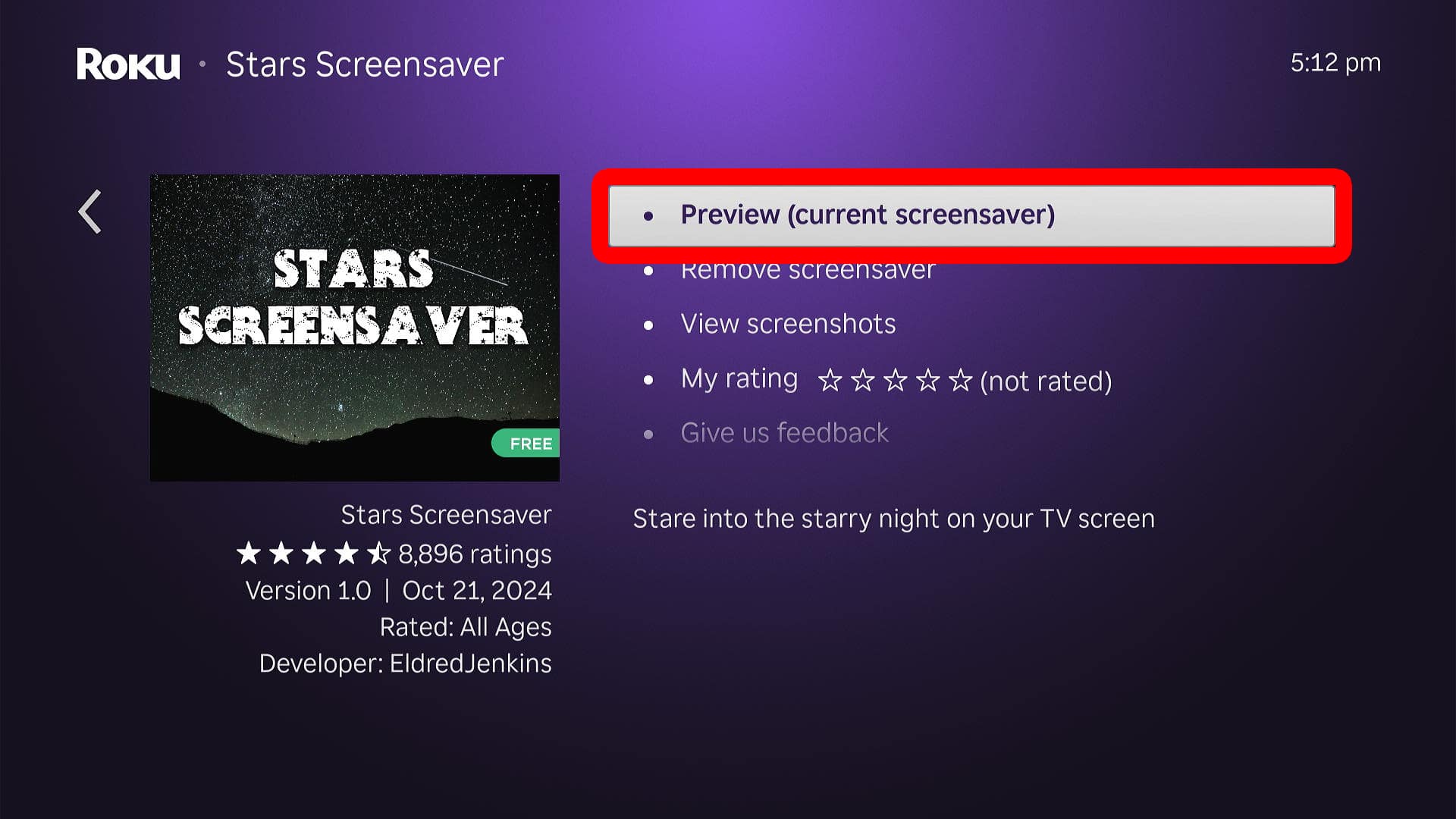
To change your Roku screensaver, navigate to the home screen and go to “Settings > Theme > Screensavers.” Then choose a screensaver and select “Get Screensaver > Set as Screensaver.” Finally, select “Preview (current screensaver)” to see what it looks like.
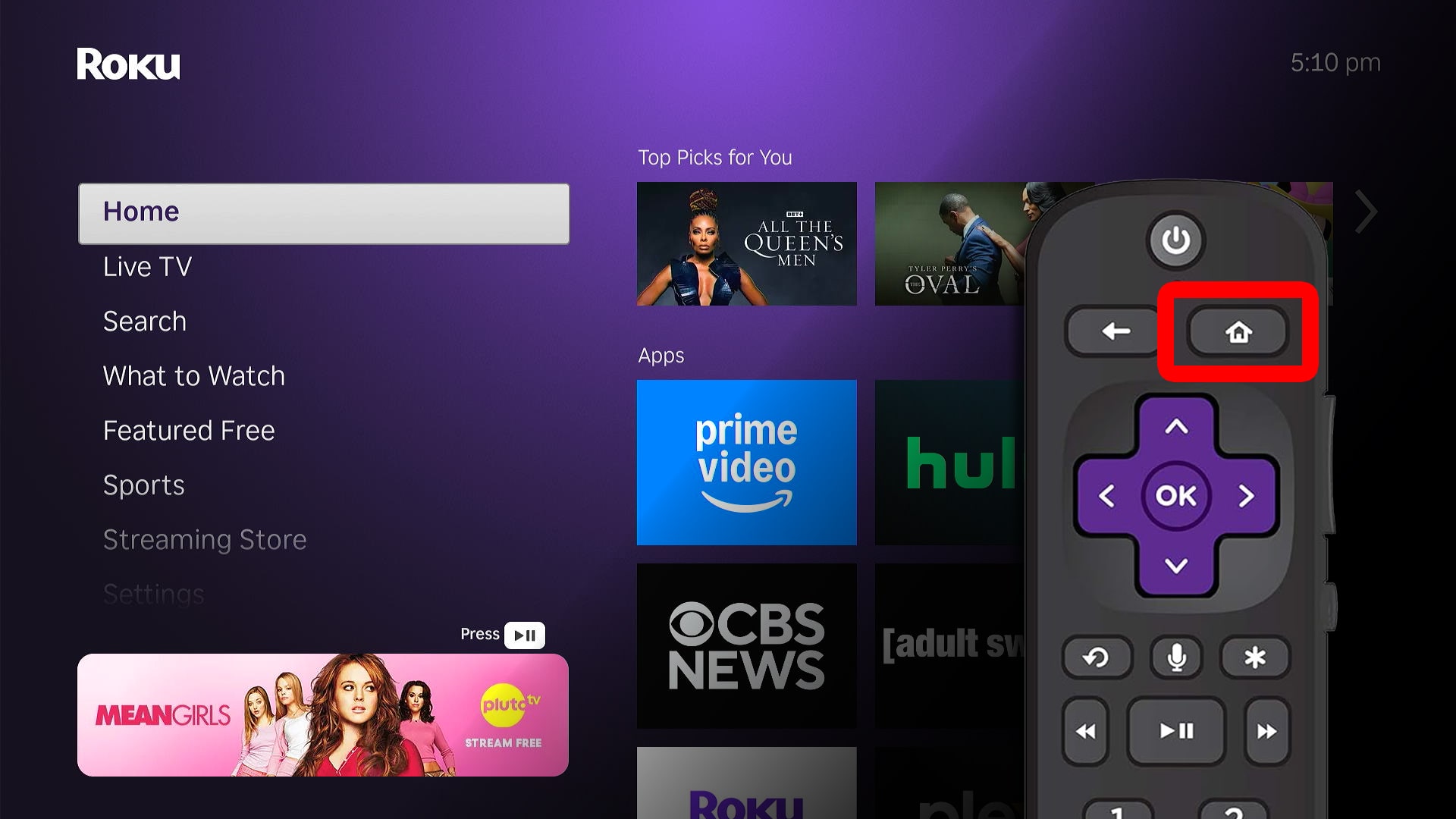
- Go to the Roku home screen. To do this, press the Home button on your remote.

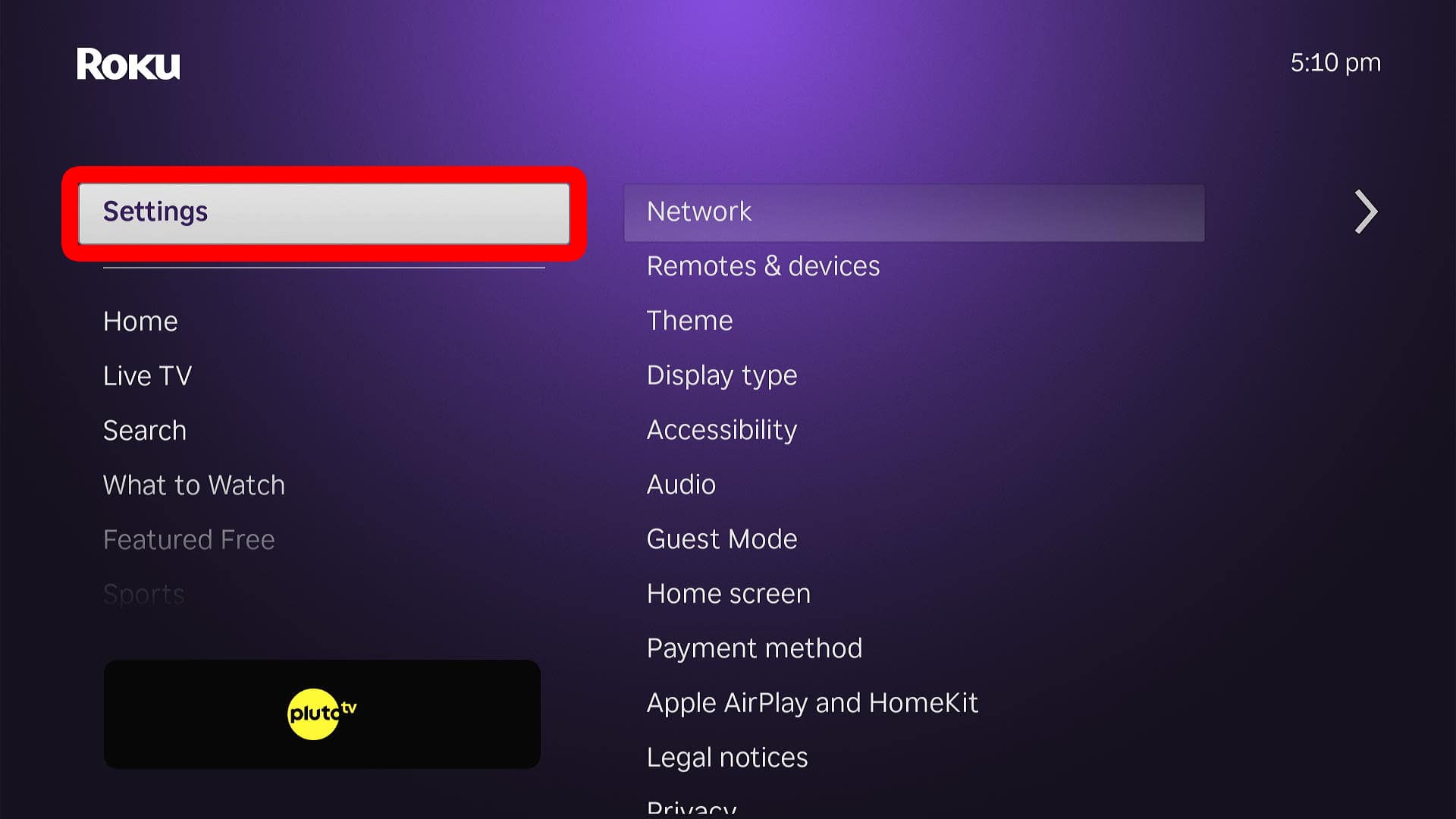
- Go to “Settings.” To do this, press the up-arrow button on your Roku remote once.
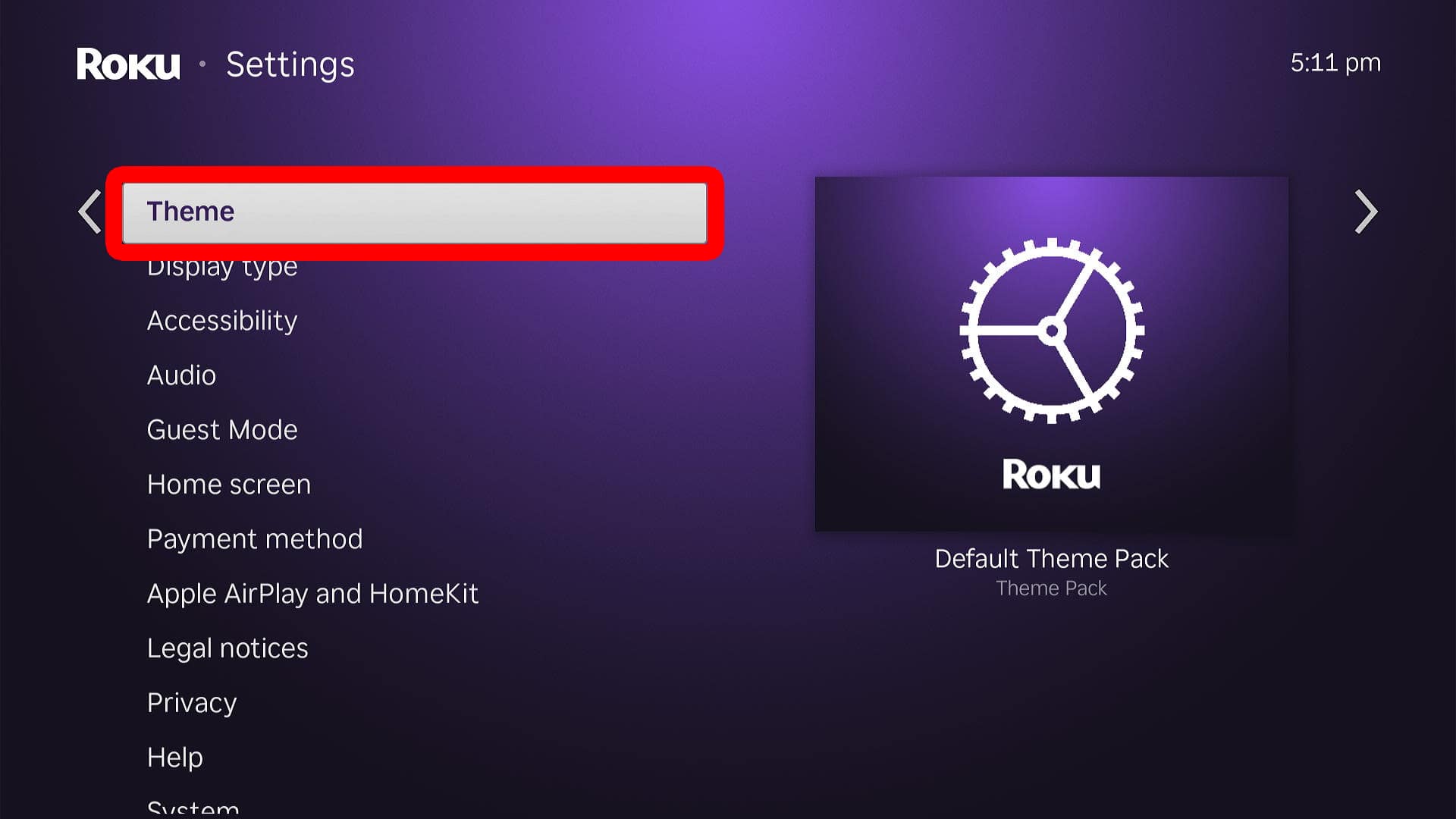
- Select “Theme.” To do this, press the right-arrow button on your Roku remote and then press the down-arrow button twice.
- Choose “Screensavers.”
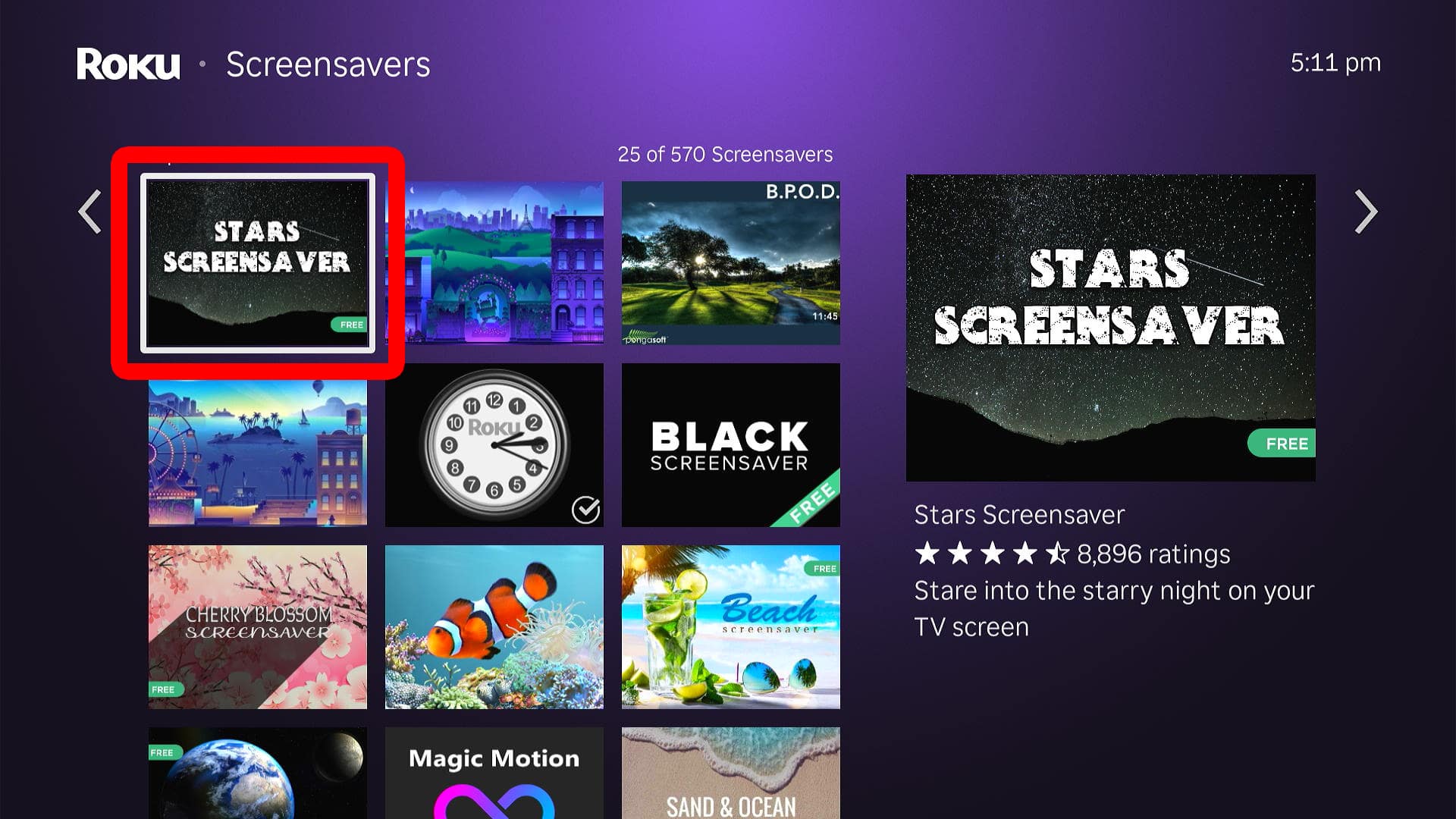
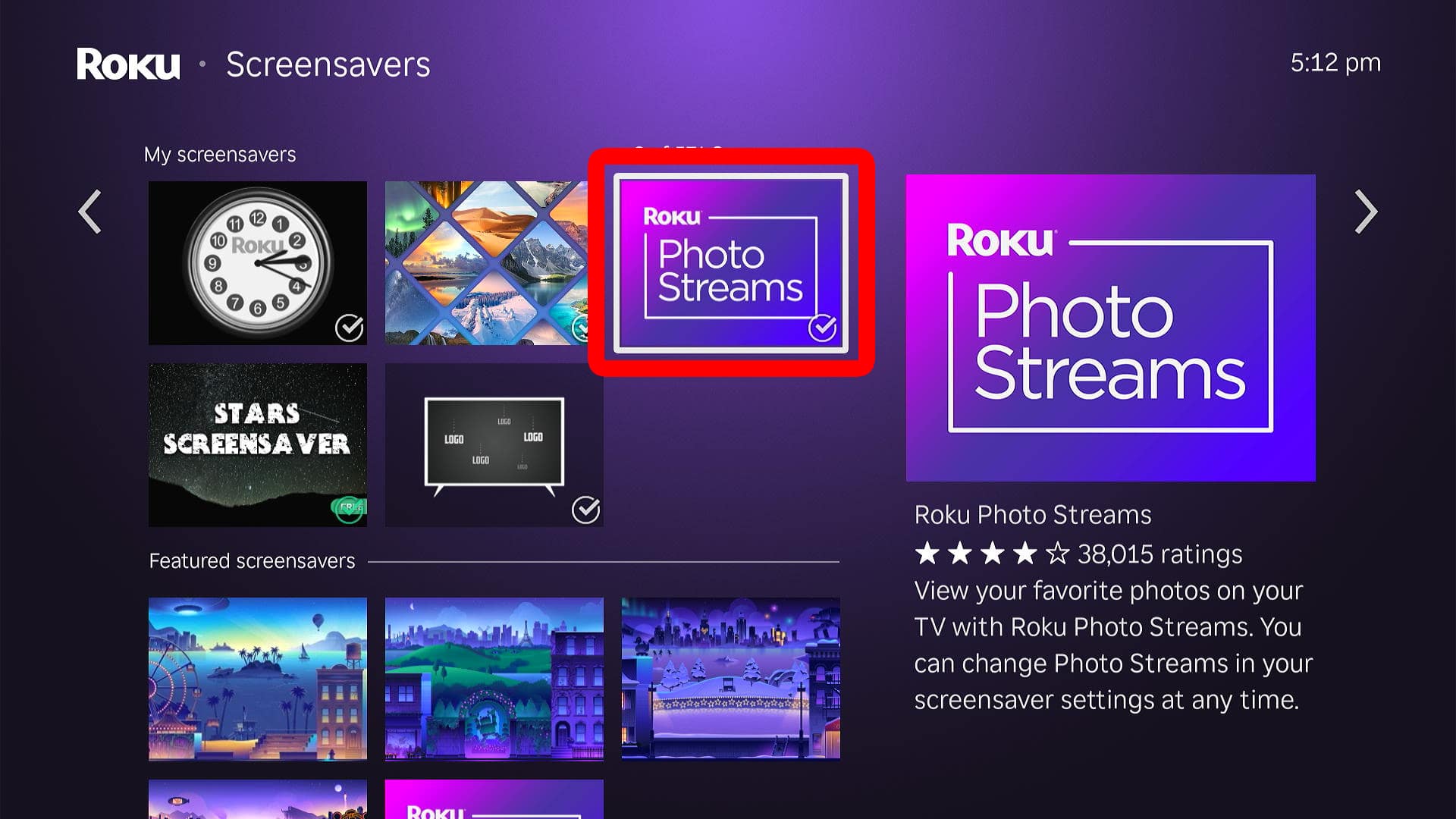
- Select a new screensaver. Scroll down to choose an option from “My Screensavers” (already downloaded to your Roku device), “Featured Screensavers” (offered by Roku), or “Popular Screensavers” (third-party screensavers you can download).
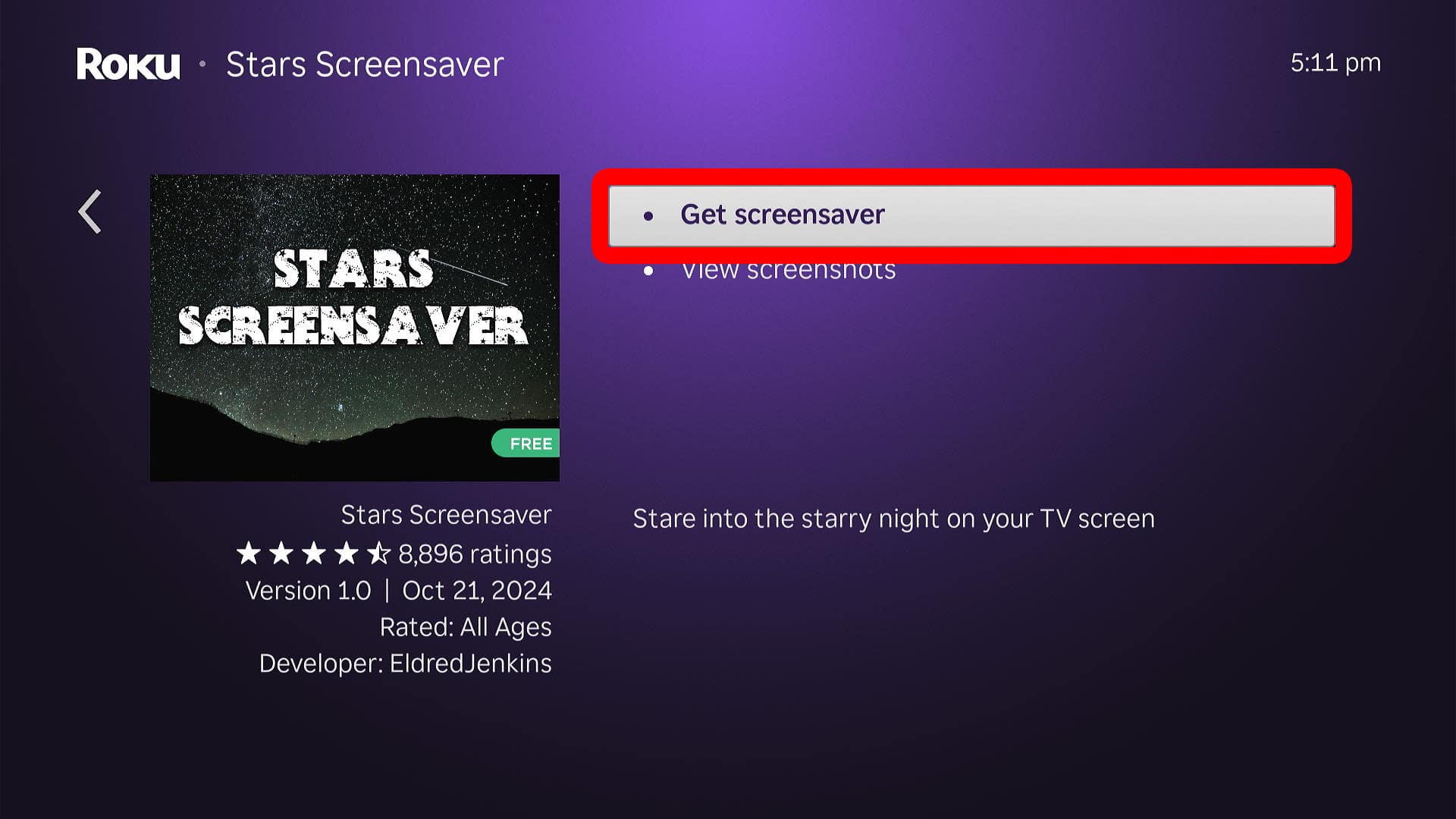
- Choose “Get Screensaver.” If you don’t see this option, it means the screensaver has already been downloaded to your device, and you can skip to the next step.
- Finally, select “Set as Screensaver.”
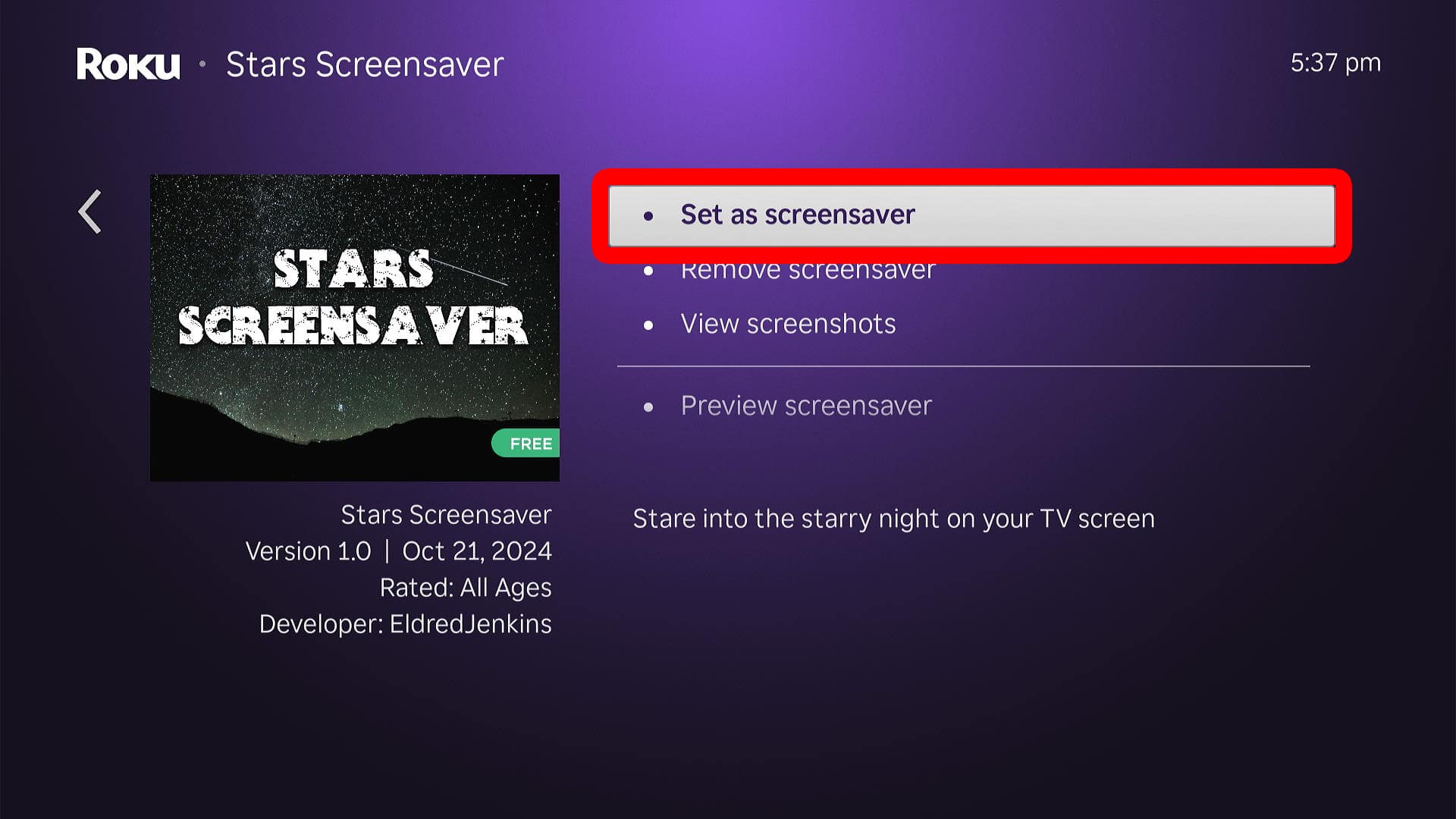
Once you have changed your screensaver, select “Preview (current screensaver)” to see what it will look like.
If you don’t like any of the included screensavers, or you just want to personalize your TV with family photos, famous paintings, or beautiful landscapes, you can always create your own using Roku’s Backdrops feature.
How to Create Your Own Roku Screensaver
To create a screensaver on Roku, go to “Settings > Theme > Screensaver > Photo Streams.” Then, scan the QR code using a smartphone, sign in to your Roku account, and tap “Create Stream.” Finally, choose your photos and select “Set as screensaver” on your Roku TV.
- Go to the Roku home screen.
- Go to “Settings.”
- Select “Theme.”
- Choose “Screensaver.”
- Select “Photo Streams.” This is an app that comes with your Roku device. If you don’t see it, try updating your Roku device by going to “Settings > System > System update.”
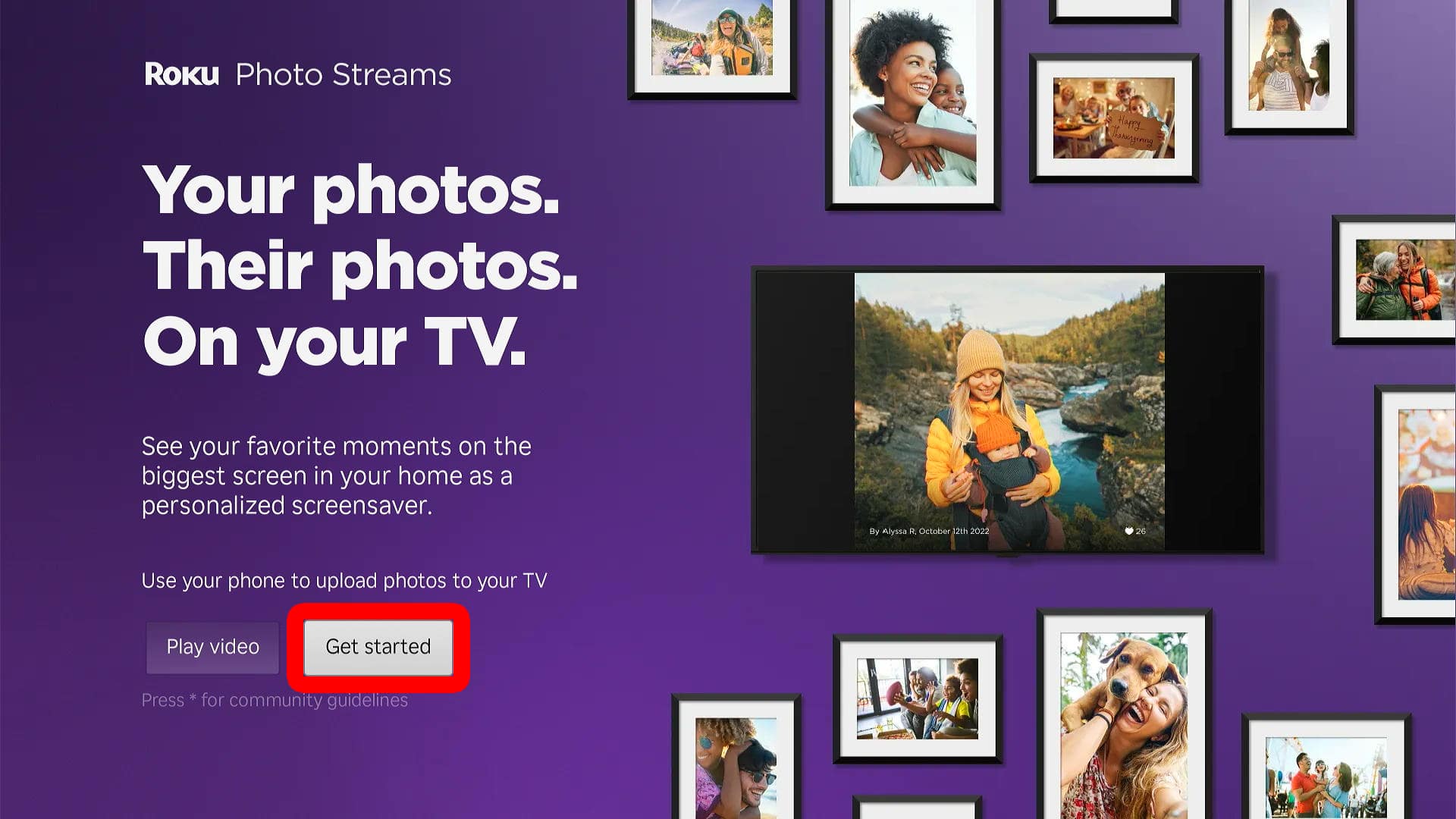
- Select “Get Started.”
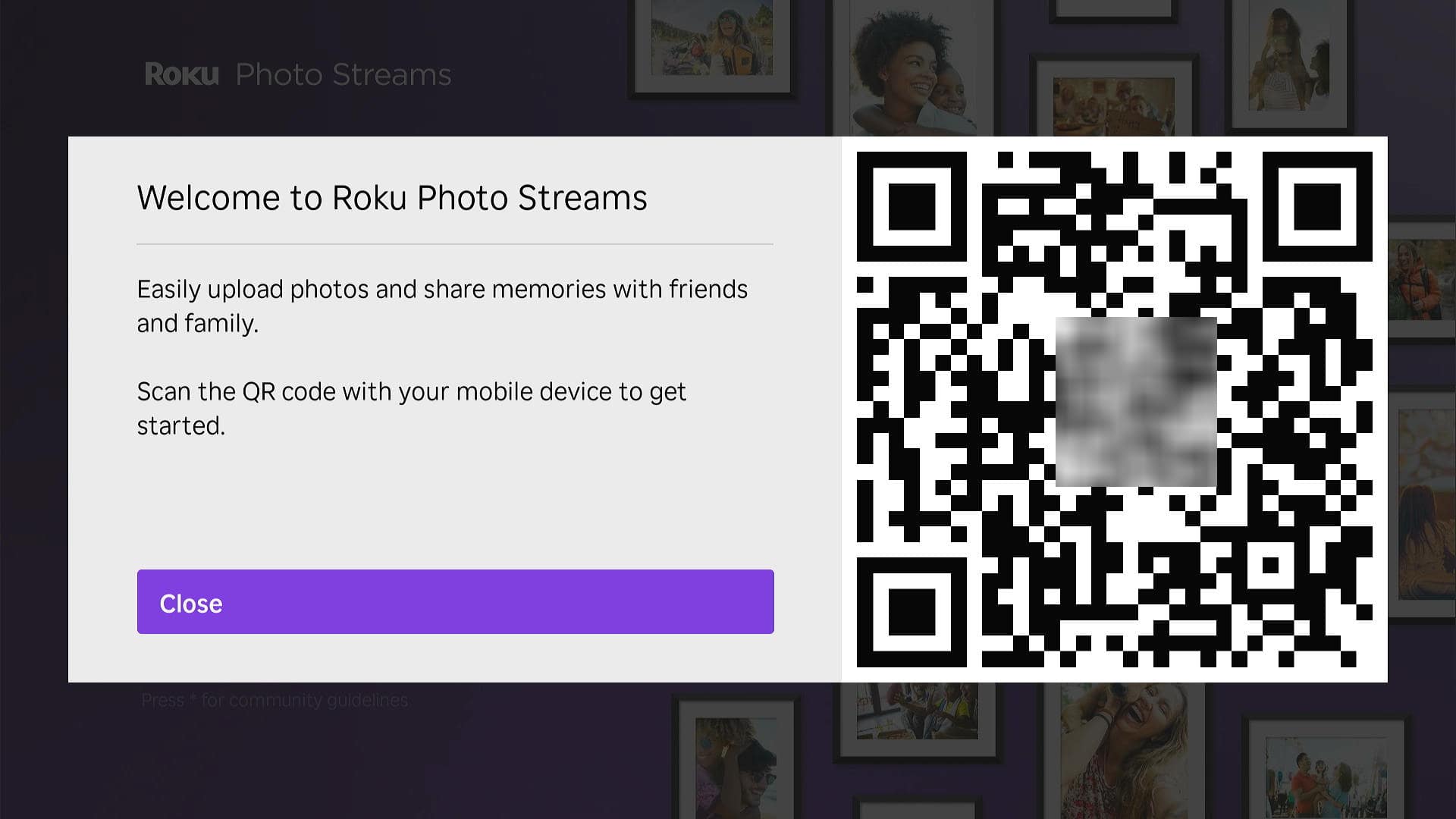
- Scan the QR code. Point your smartphone camera at your TV and select the link that appears on your screen to add photos from your smartphone.

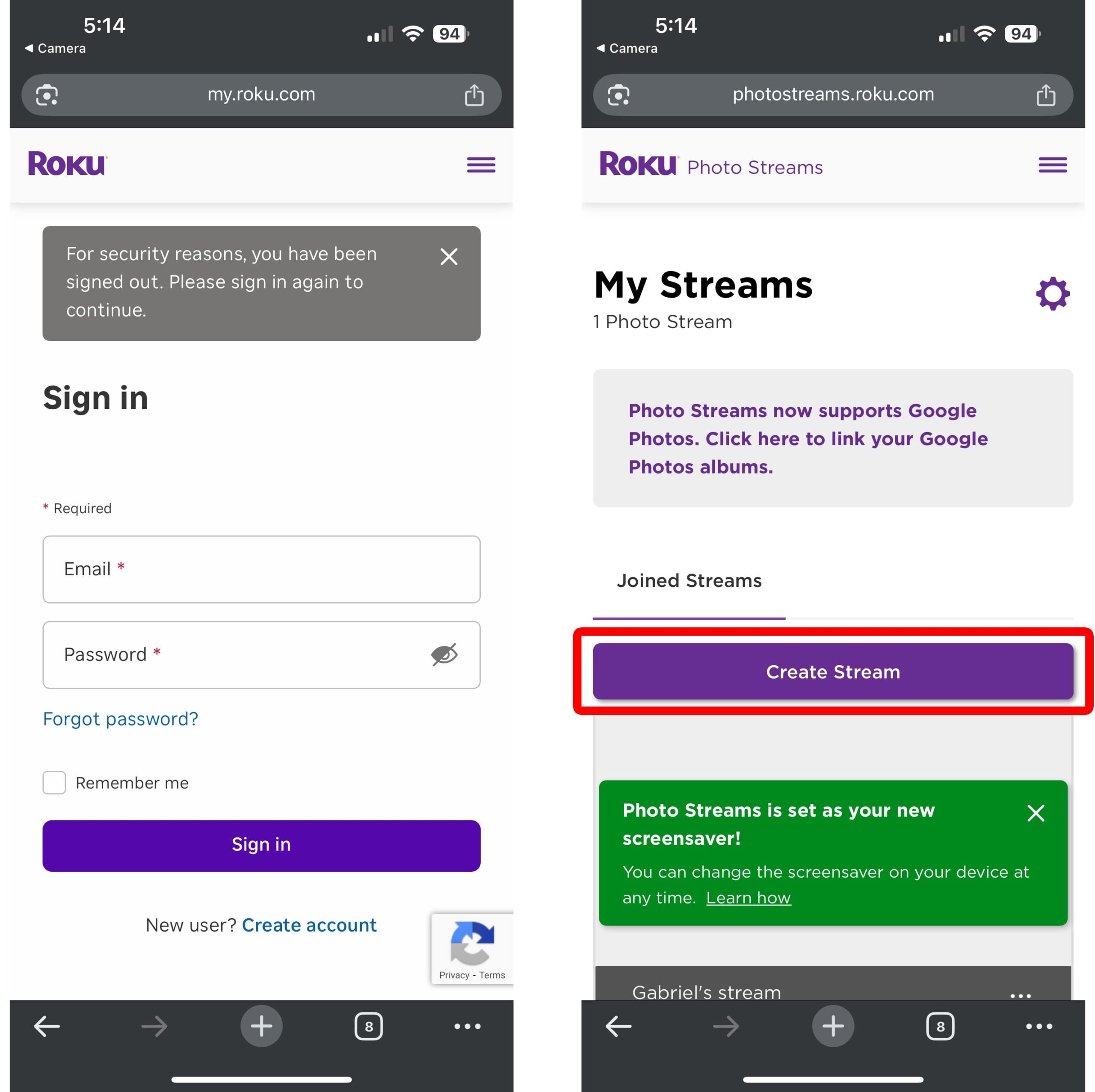
- Sign in to your Roku account.
- Tap “Create Stream.”
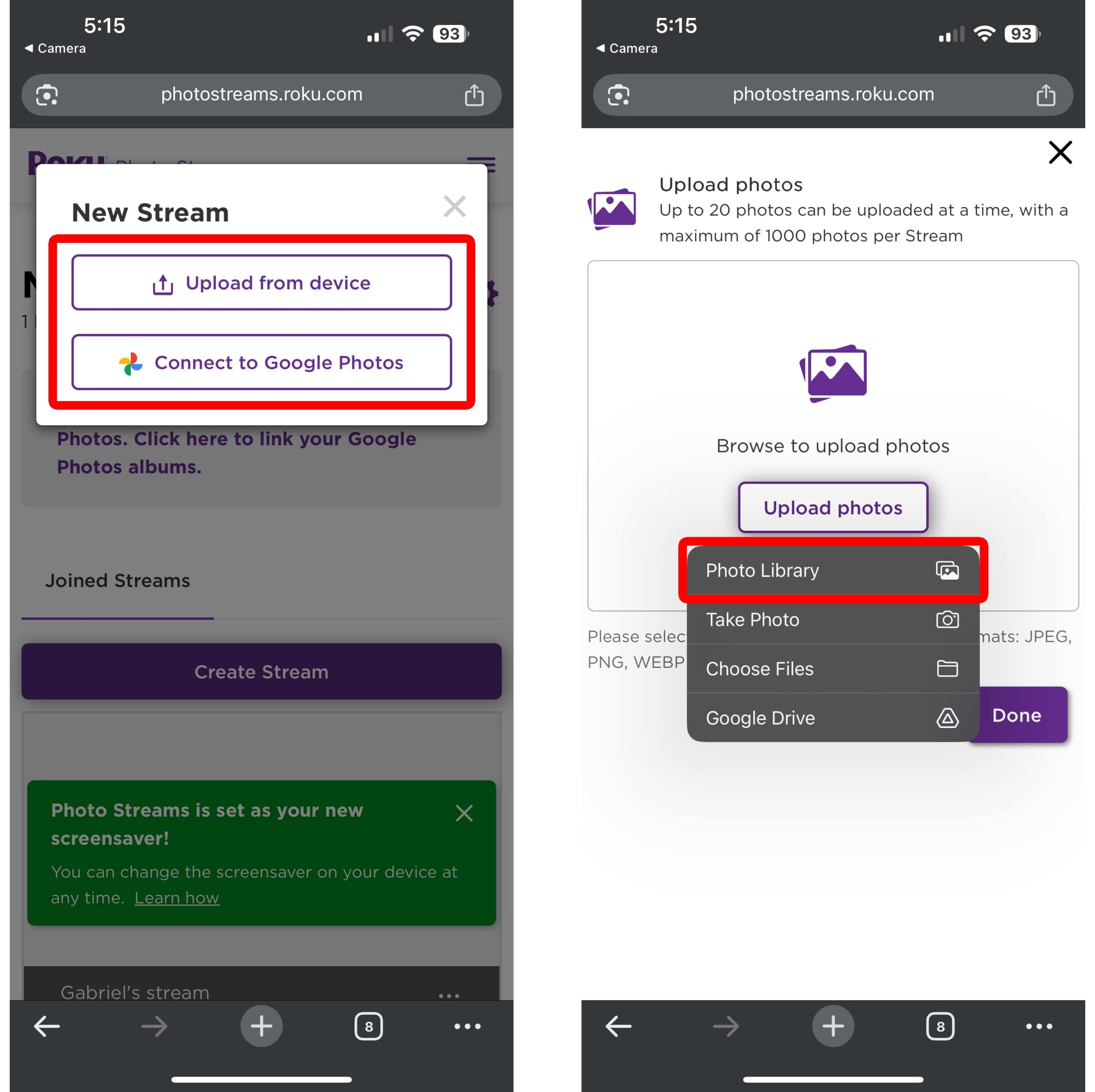
- Select “Upload from device.” This allows you to manually add photos from your smartphone or computer.
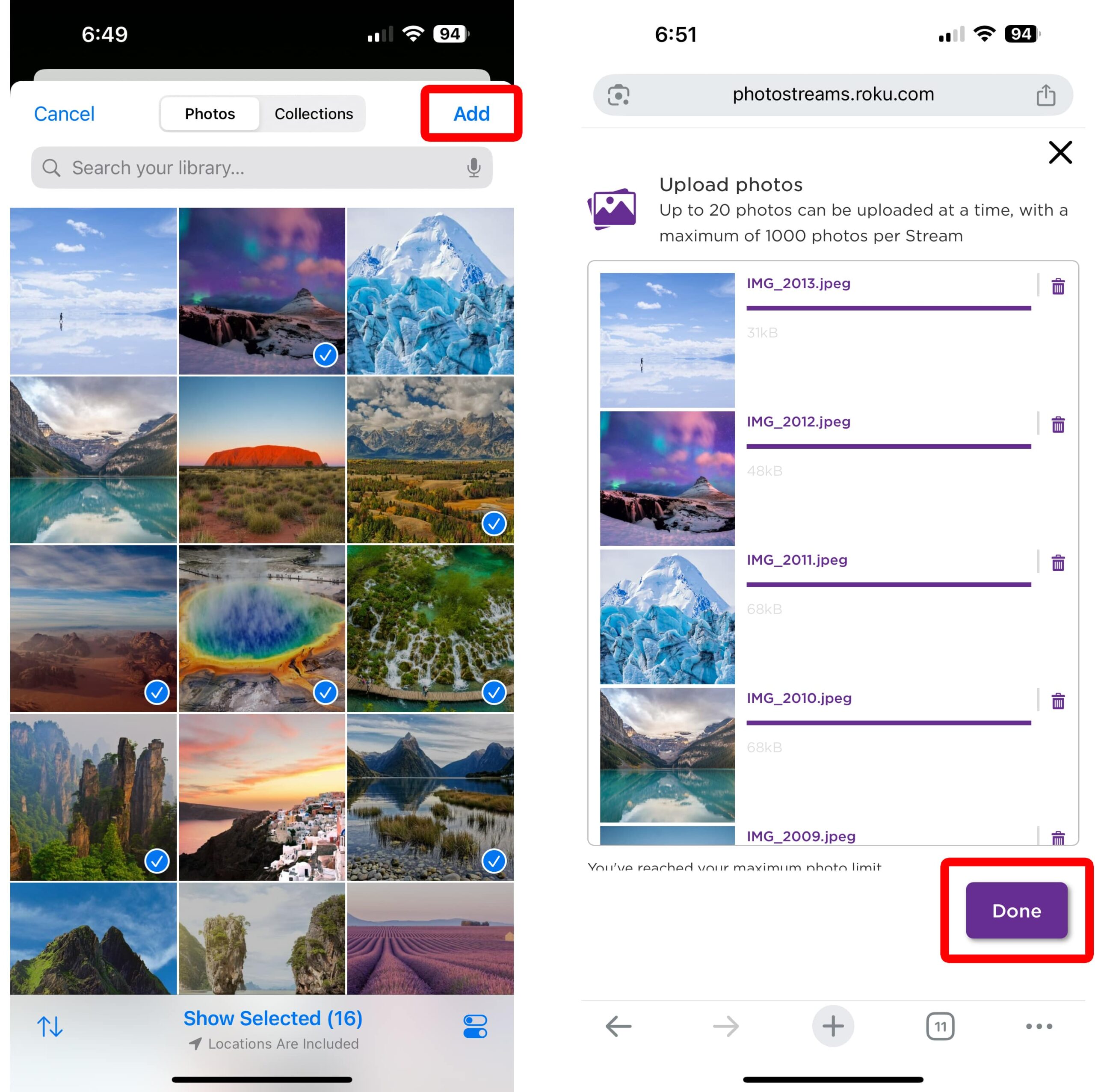
- Select your photos and tap “Add.” You will see this option in the top-right corner.
- Tap “Done.”
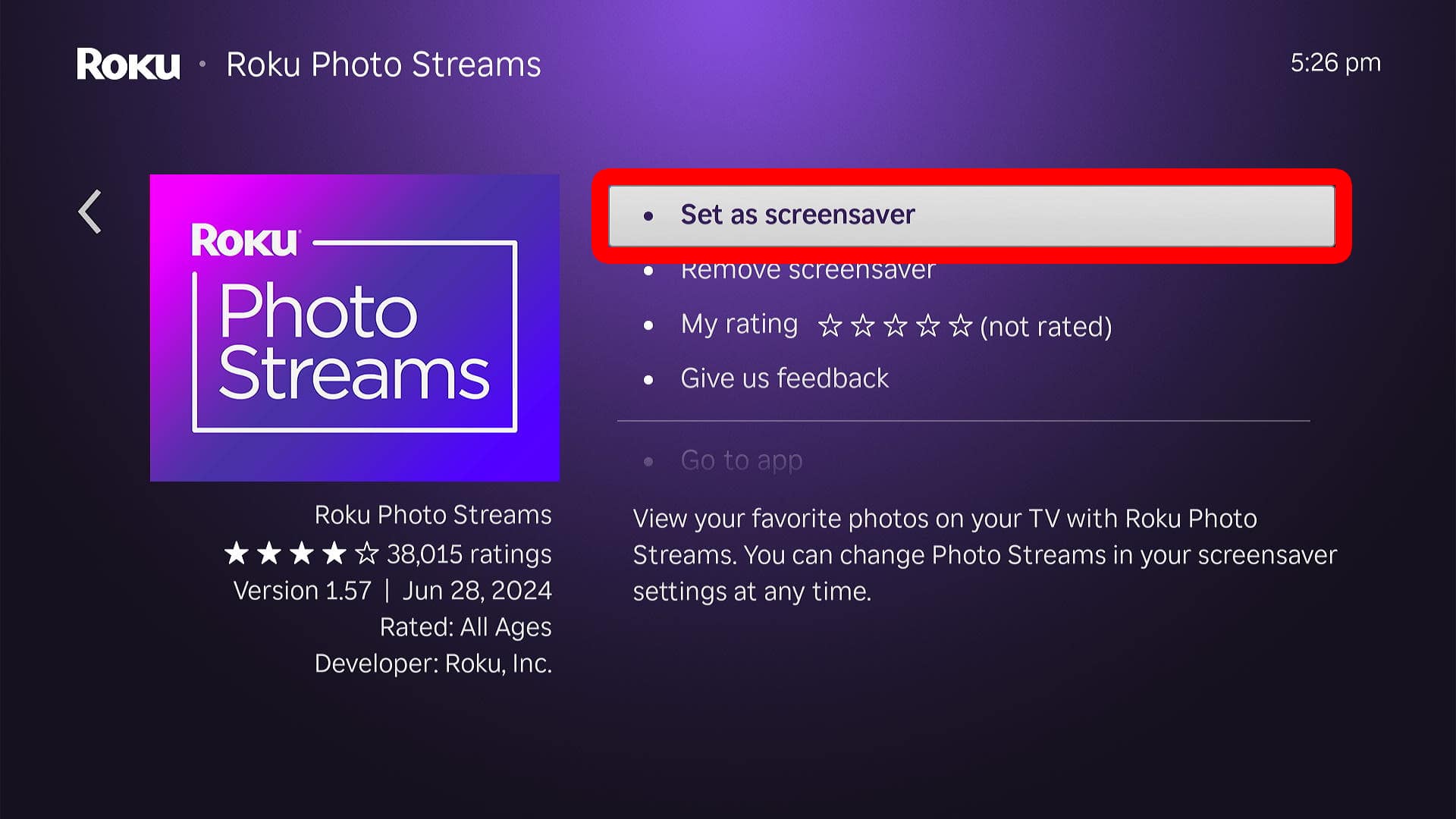
- On your Roku, select “Set as screensaver.”
Once you have set Photo Streams as your screensaver, select “Go to app” to change your screensaver settings from your Roku TV.
From here, you can add or remove “streams” (screensavers), link your Google Photos account, and more.