Is your Roku acting up or slowing down? A factory reset can fix software glitches, boost performance, and wipe your personal data—perfect if you’re planning to sell or give it away. Here’s everything you need to know about how to factory reset your Roku device or smart TV using your remote or the physical reset buttons.
Read More: How to Update Your Roku Device and Apps
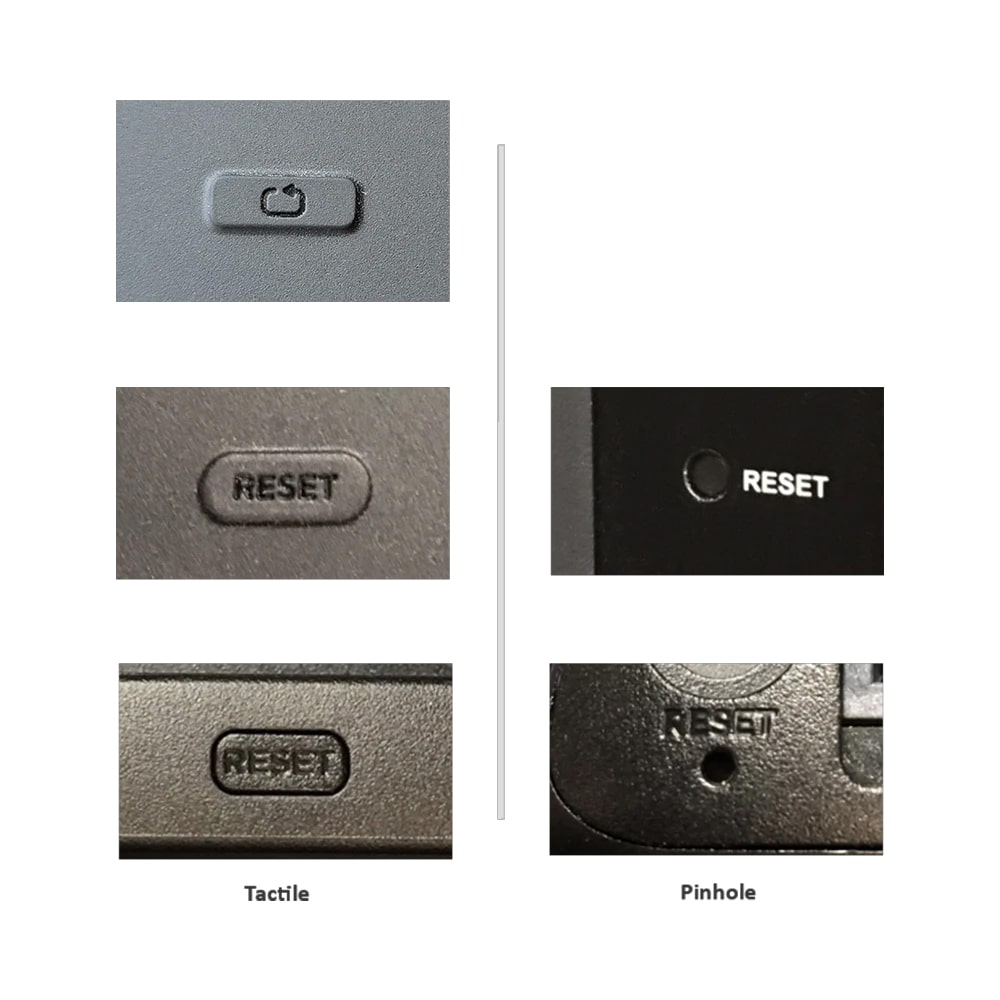
How to Reset a Roku Using the Physical Button
Certain Roku devices have a Reset button located on the back or bottom. This is either a tactile button or a small pinhole button that requires a paperclip or similar tool. To reset your device, press and hold this button for 10 seconds or until you see a flashing light.
How to Factory Reset Your Roku Device
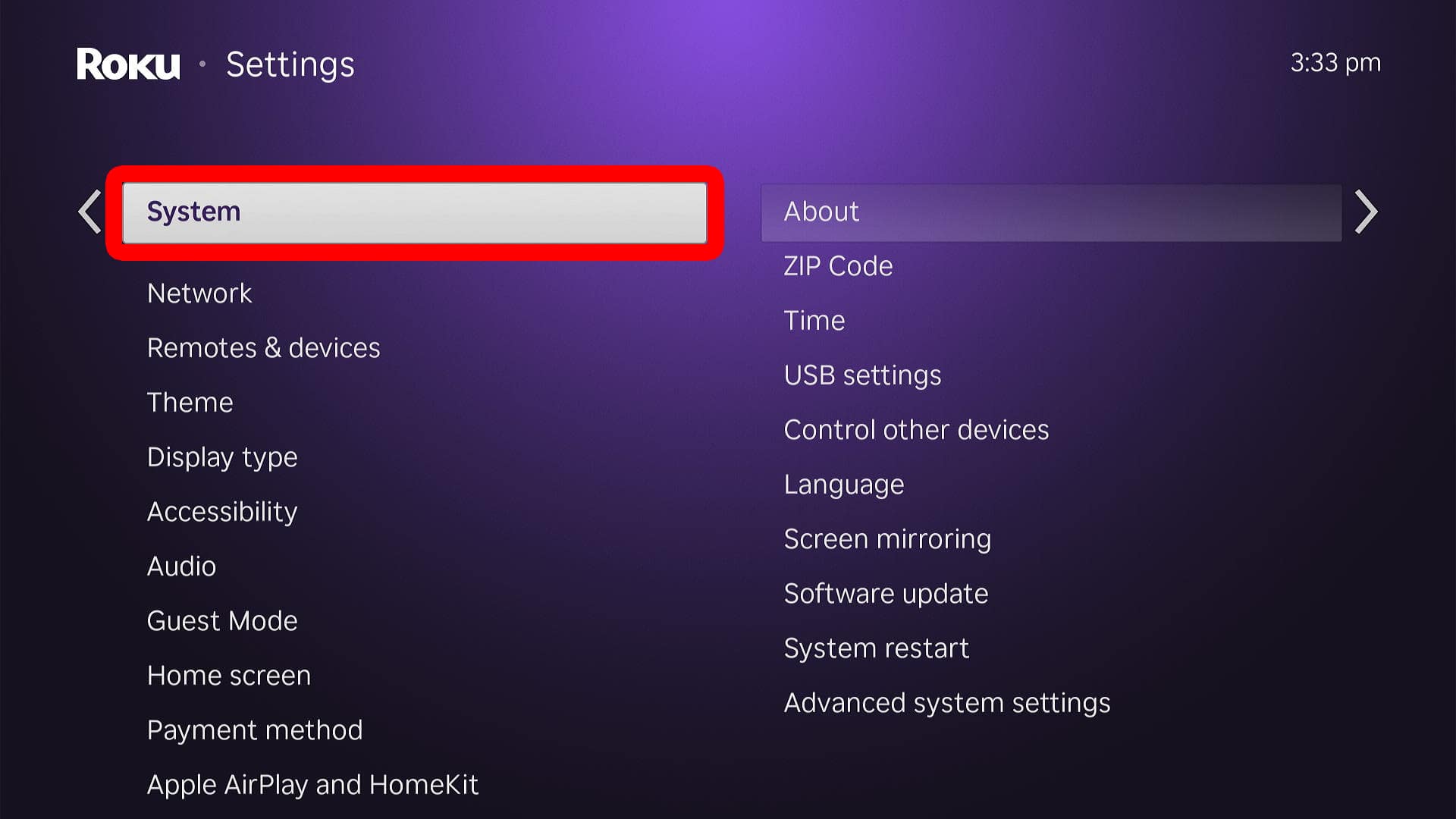
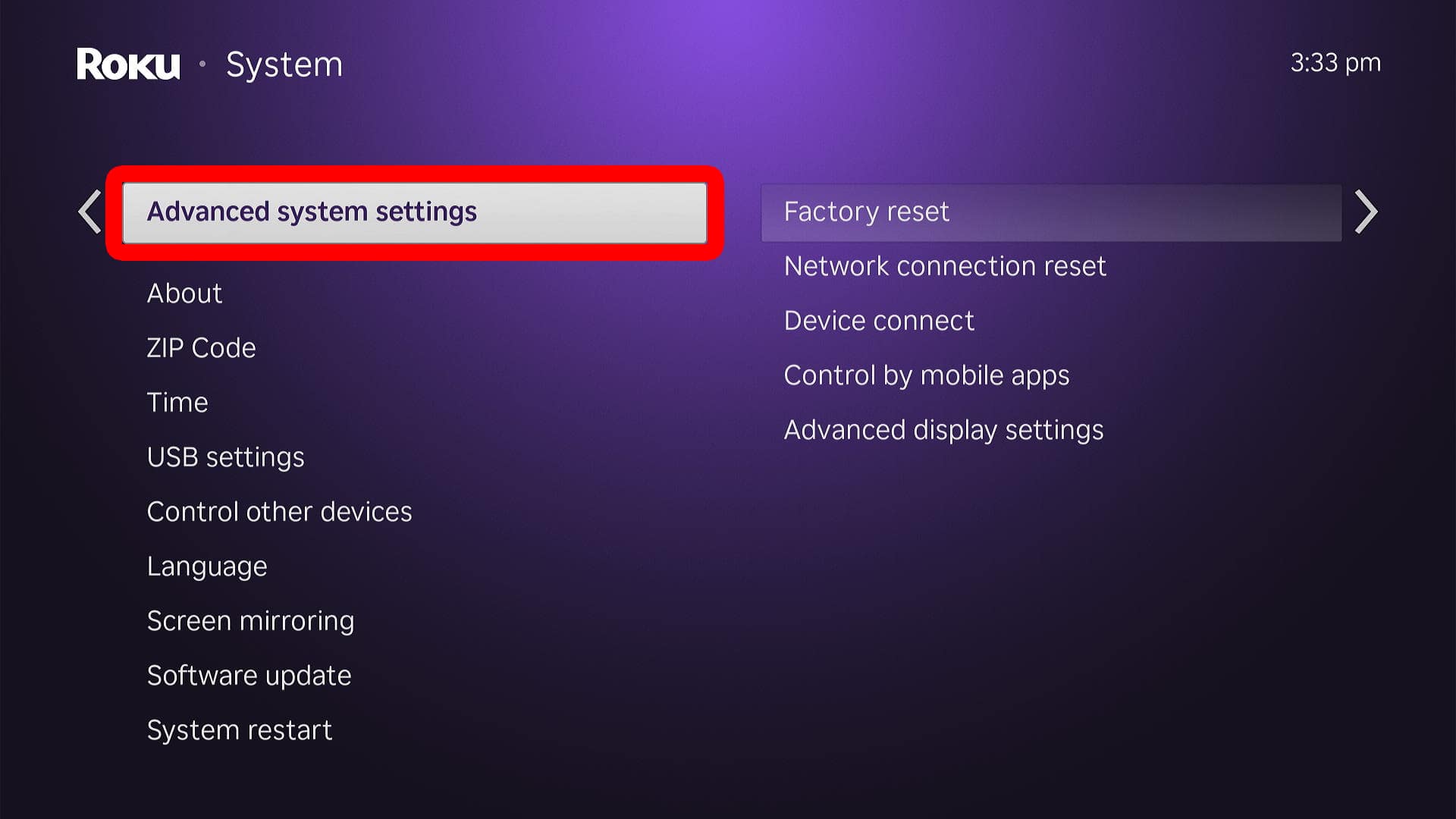
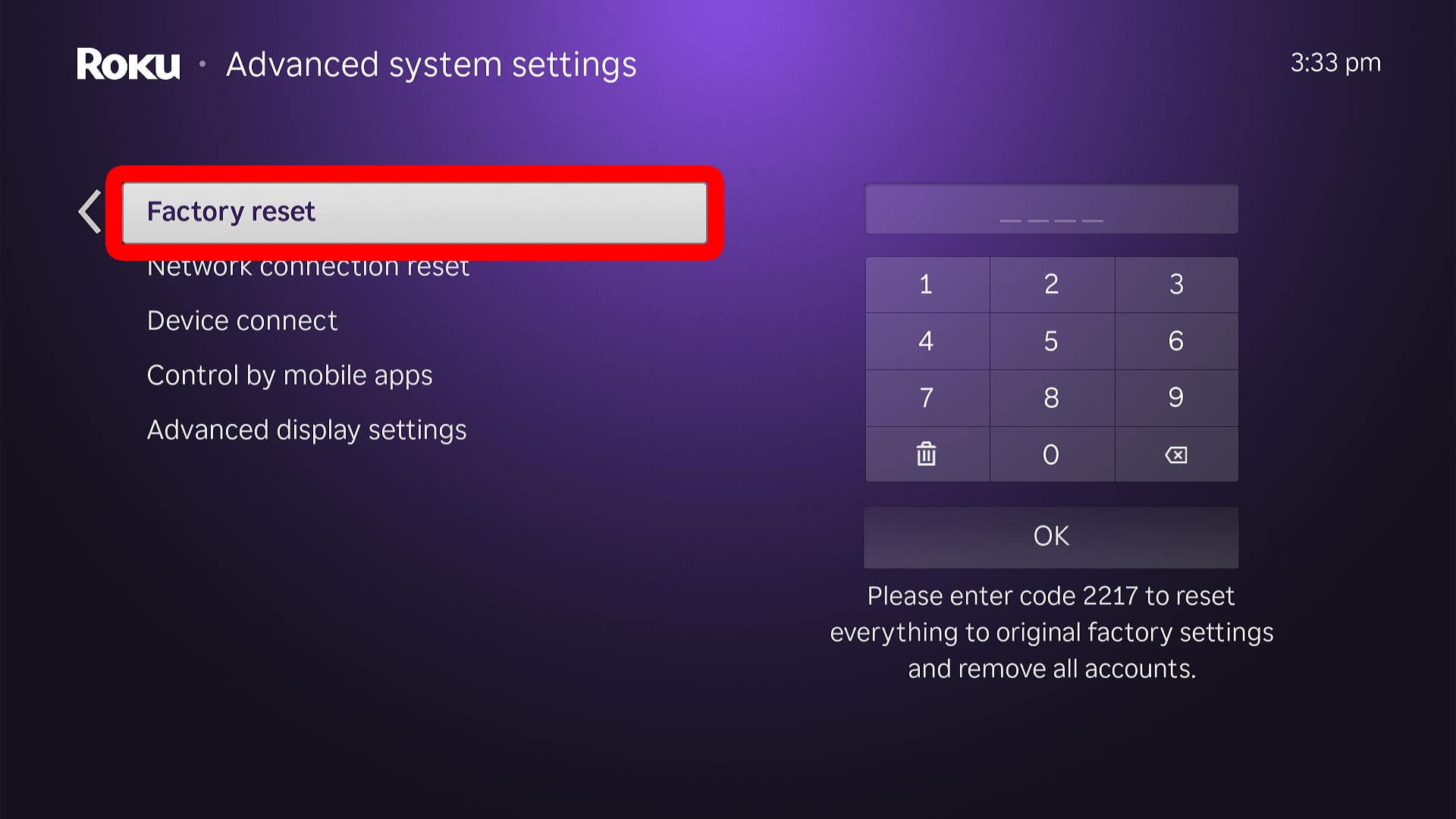
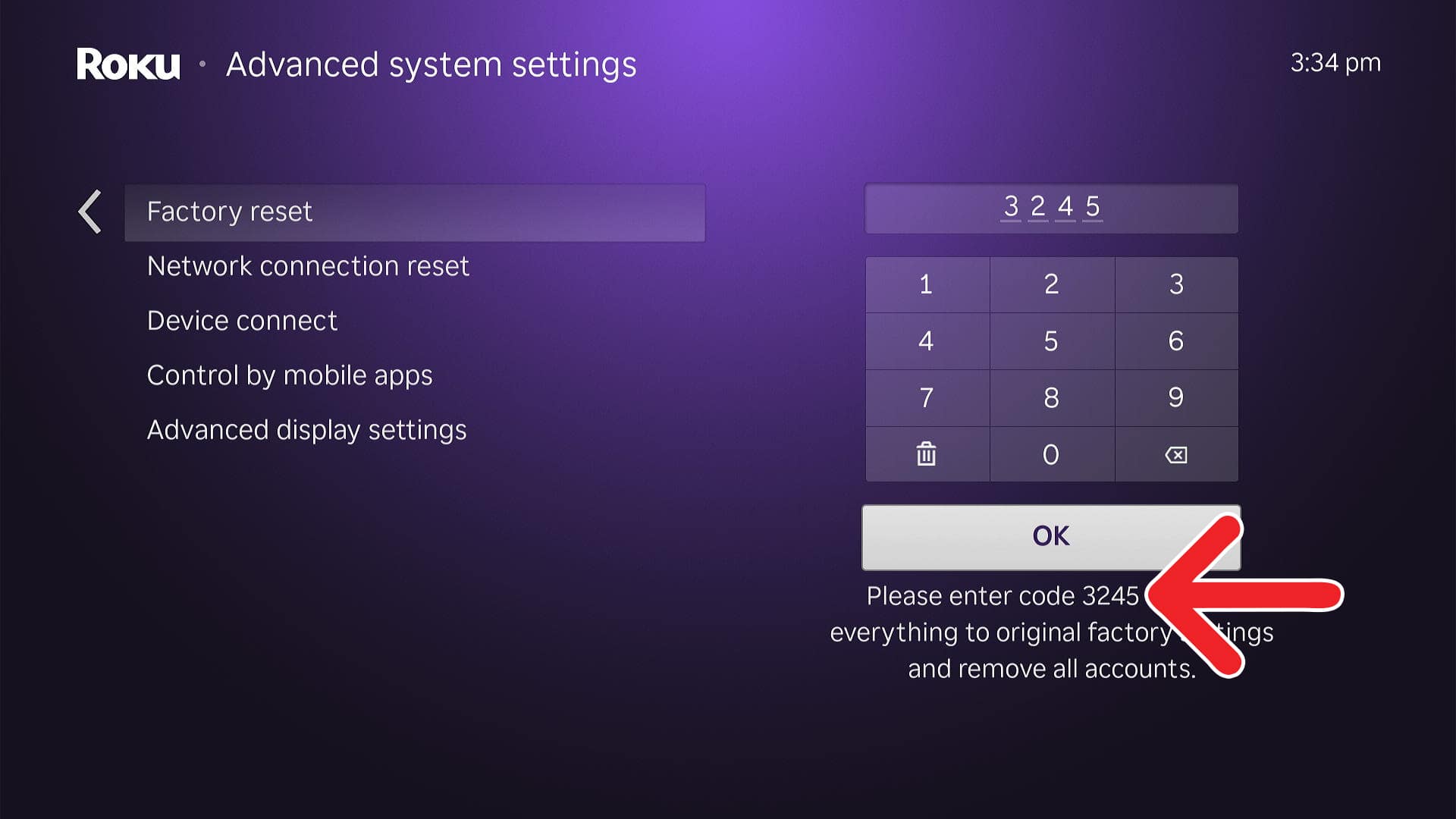
To reset a Roku device, go to the home screen and select “Settings > System > Advanced System Settings > Factory Reset.” Then, enter the code shown in the bottom-right corner of your screen and select “OK.” Finally, select “Start factory reset” and wait for your device to restart.
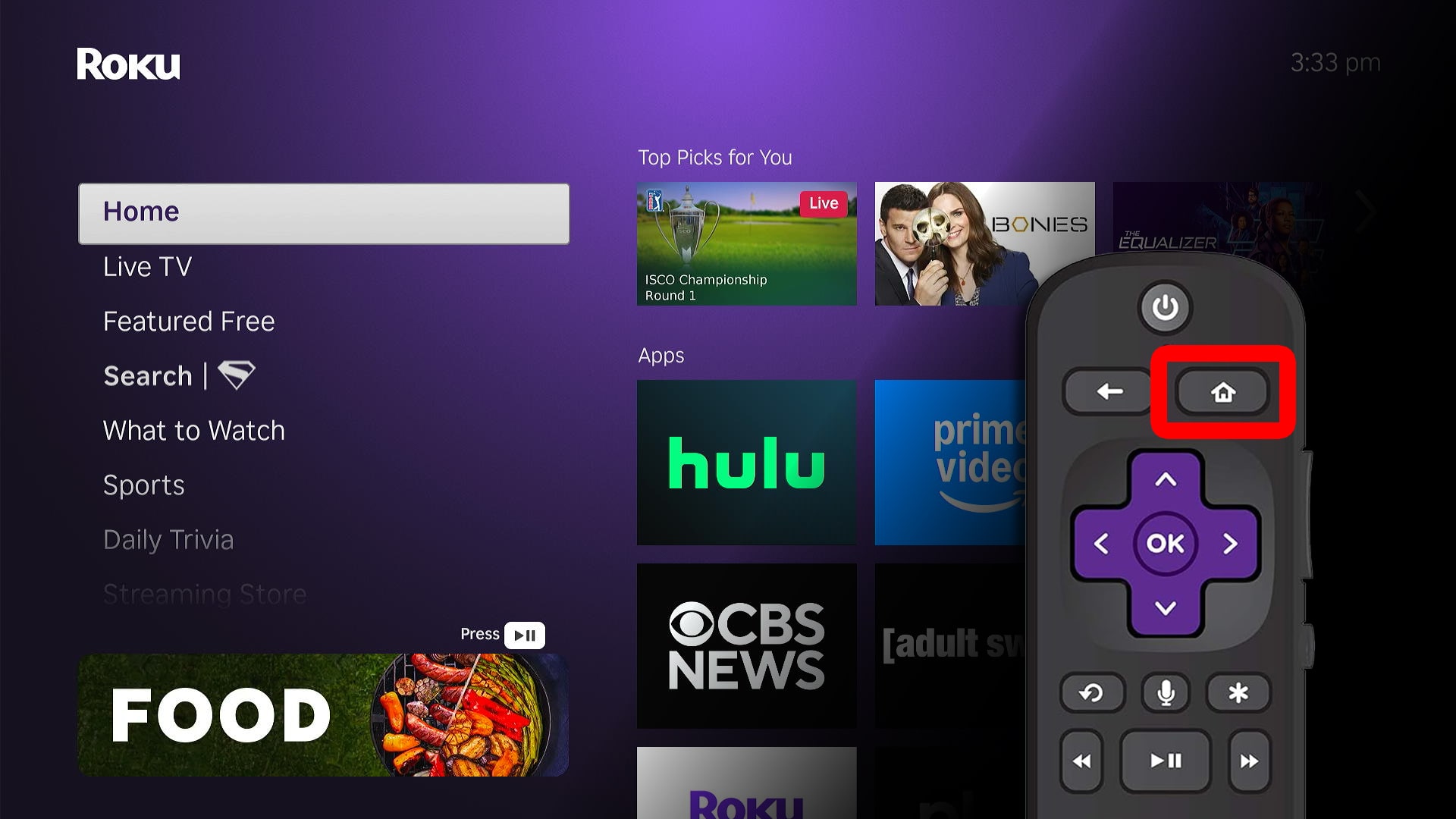
- Go to the Roku home screen. To do this, press the Home button on your Roku remote.

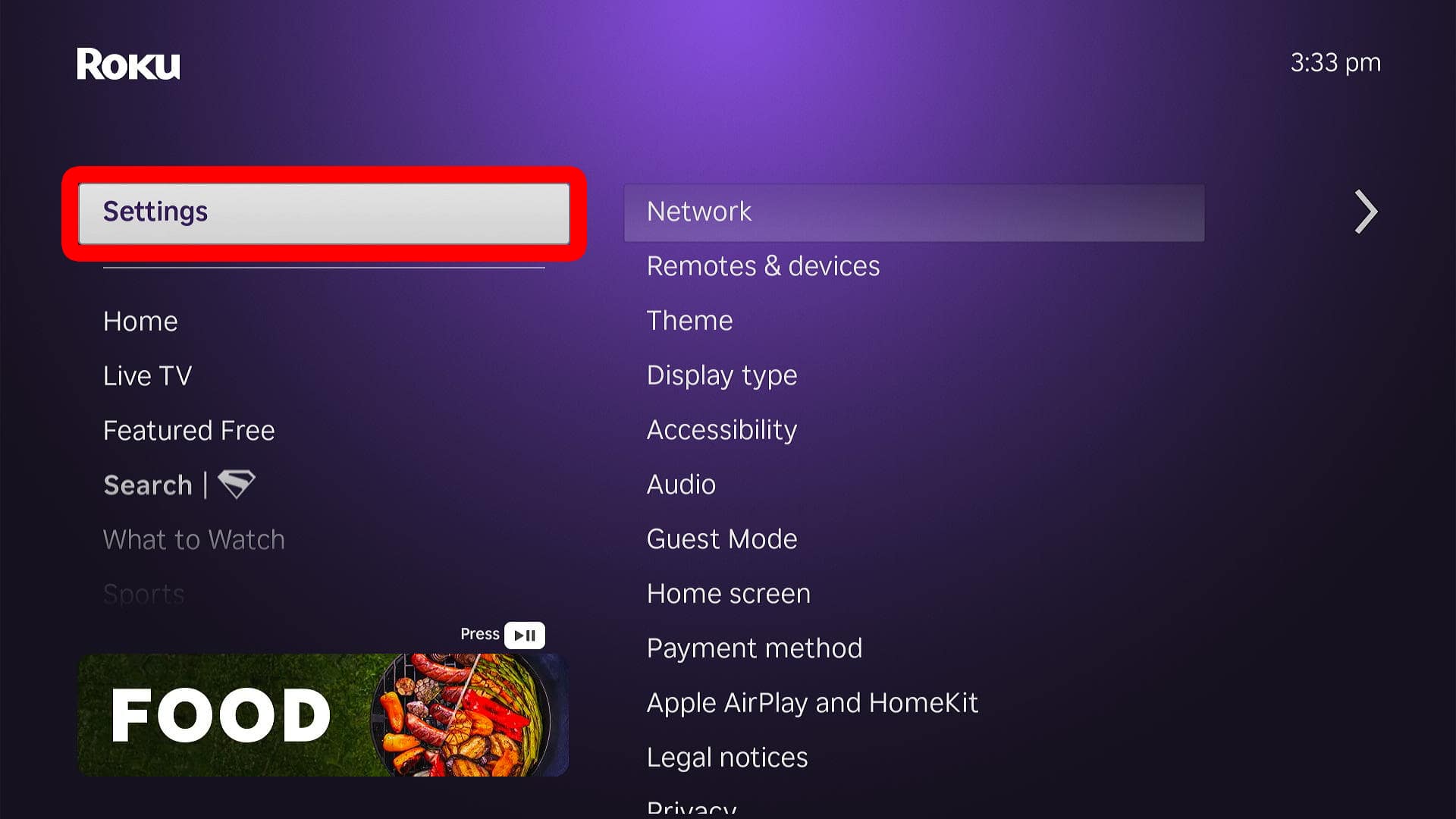
- Select “Settings.” You will see this in the left sidebar menu. You can access this menu by pressing the left arrow button on your remote. Then use the up and down arrow buttons to navigate the menu.
- Choose “System.”
- Select “Advanced System Settings.”
- Select “Factory reset.”
- Enter the code. You will see this code in the bottom-right corner of your screen. This code is there to prevent you from accidently resetting your Roku device.
- Select “OK.”
- Finally, choose “Start factory reset.”
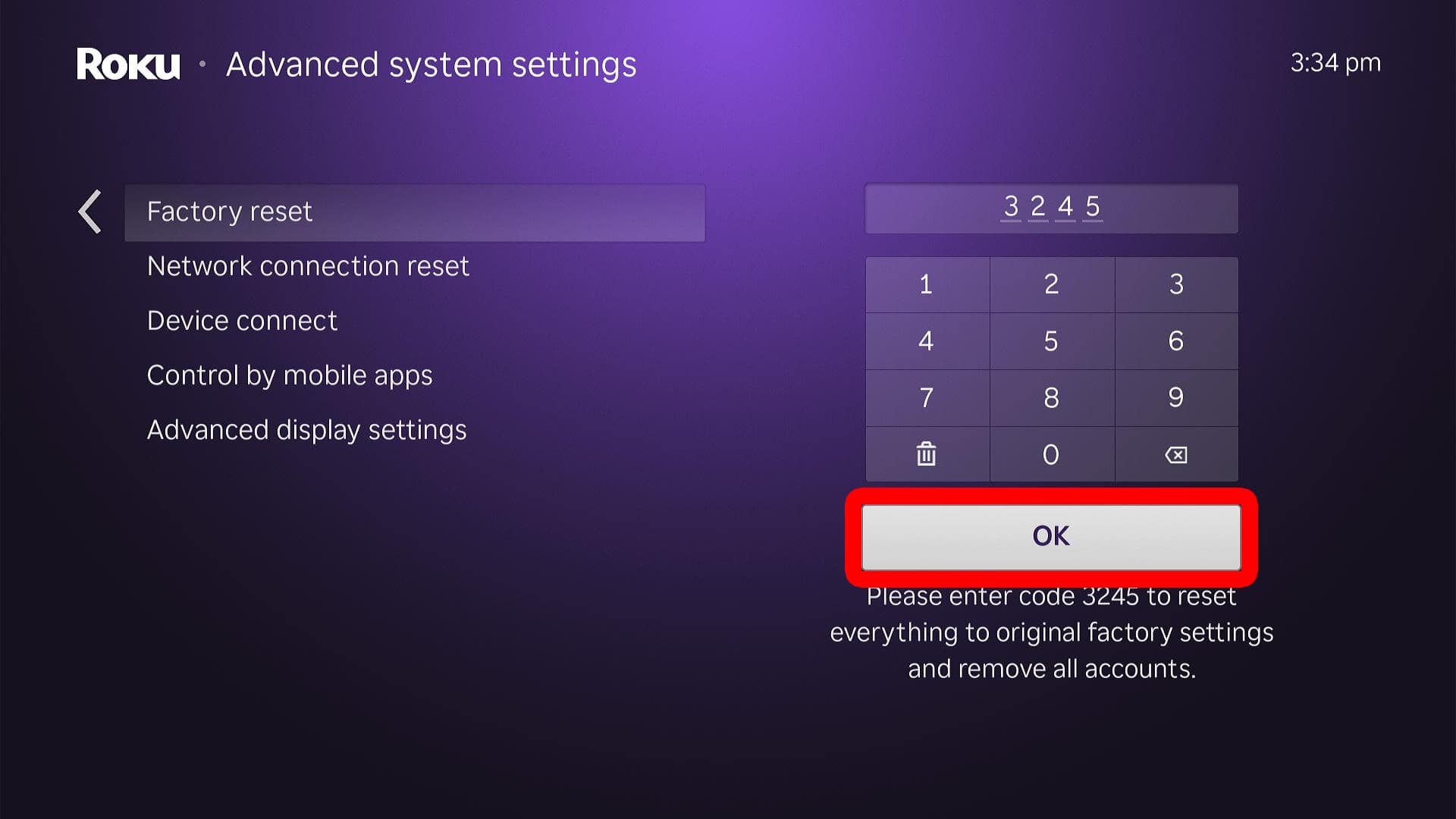
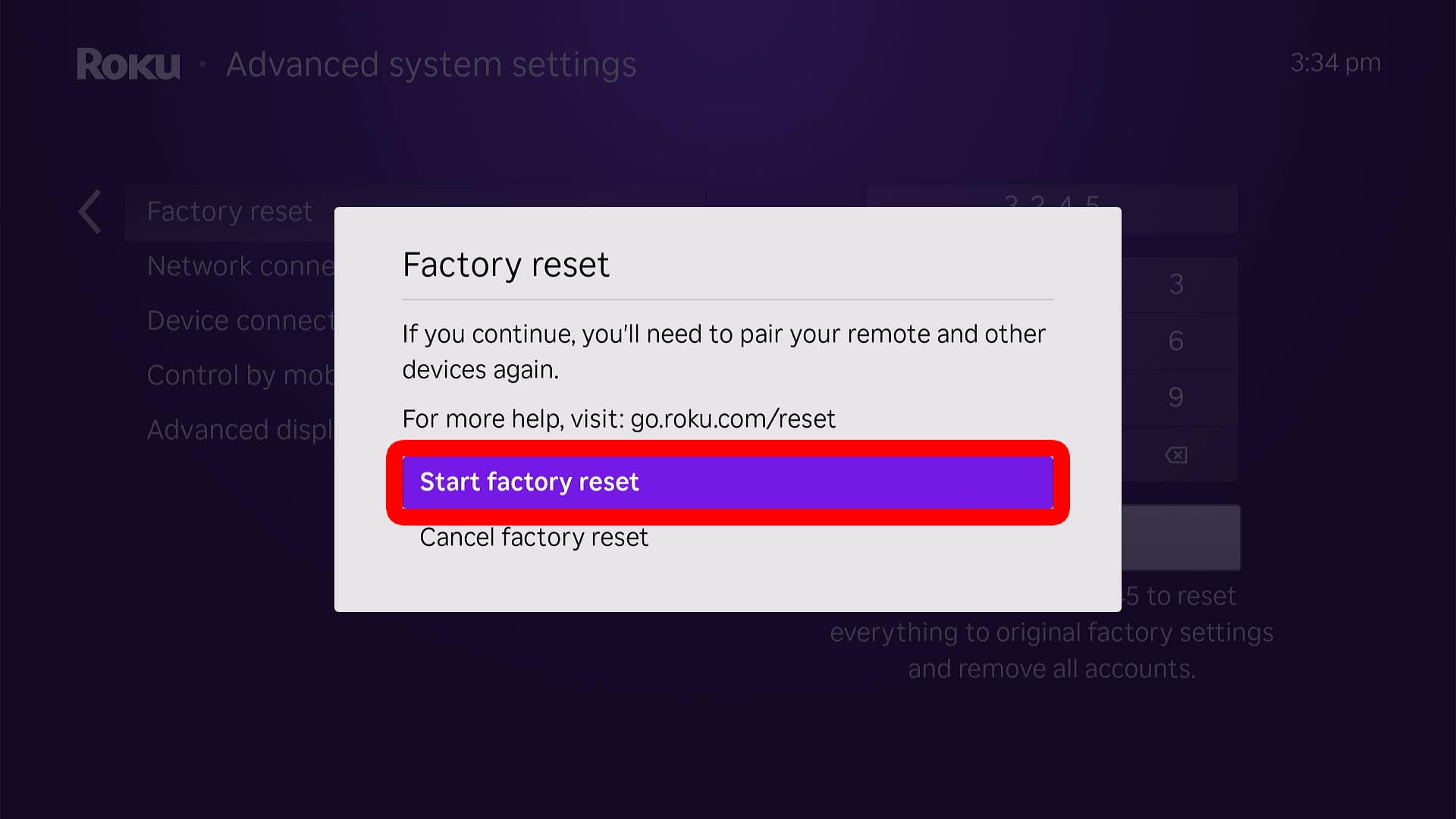
Once your device restarts, you’ll need to set it up from scratch. If you’re planning to sell or give away your Roku, you can simply unplug it once the reset is complete.
Not near your Roku device? You can still deregister it remotely. This will sign you out of the device, so no one else can use your apps or make charges to your account.
How to Deregister a Roku Device
- Go to My.Roku.com. You can use a computer or smartphone for these steps.
- Sign in to your Roku account. This needs to be the same account you used to set up your Roku device.
- Select a Roku device. You will see all your connected devices by scrolling down under “My devices.” If you don’t see your device listed, select “Show more.”

- Scroll down and select “Remove device from account.”
- Finally, select, “Yes, remove device.”
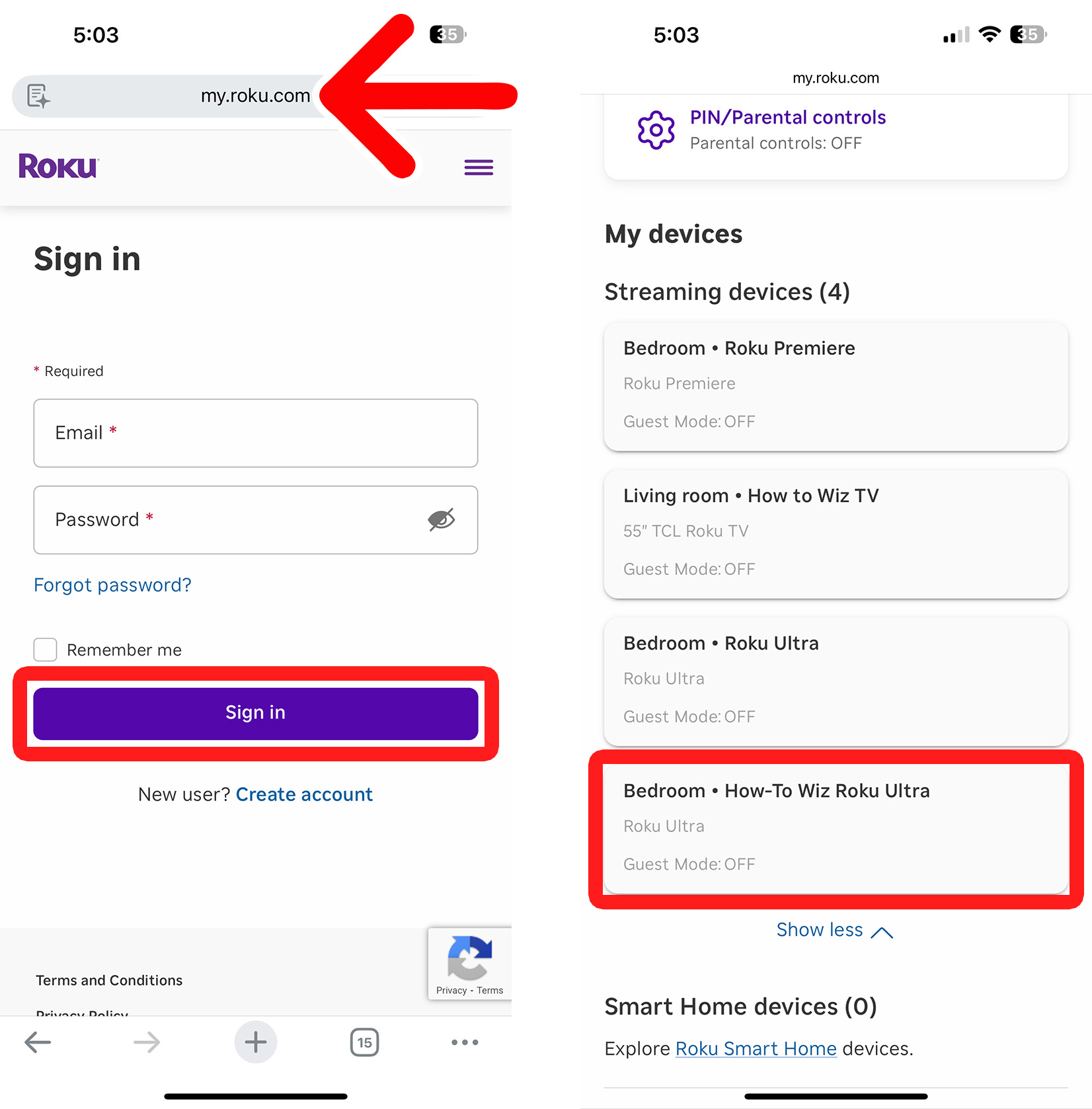
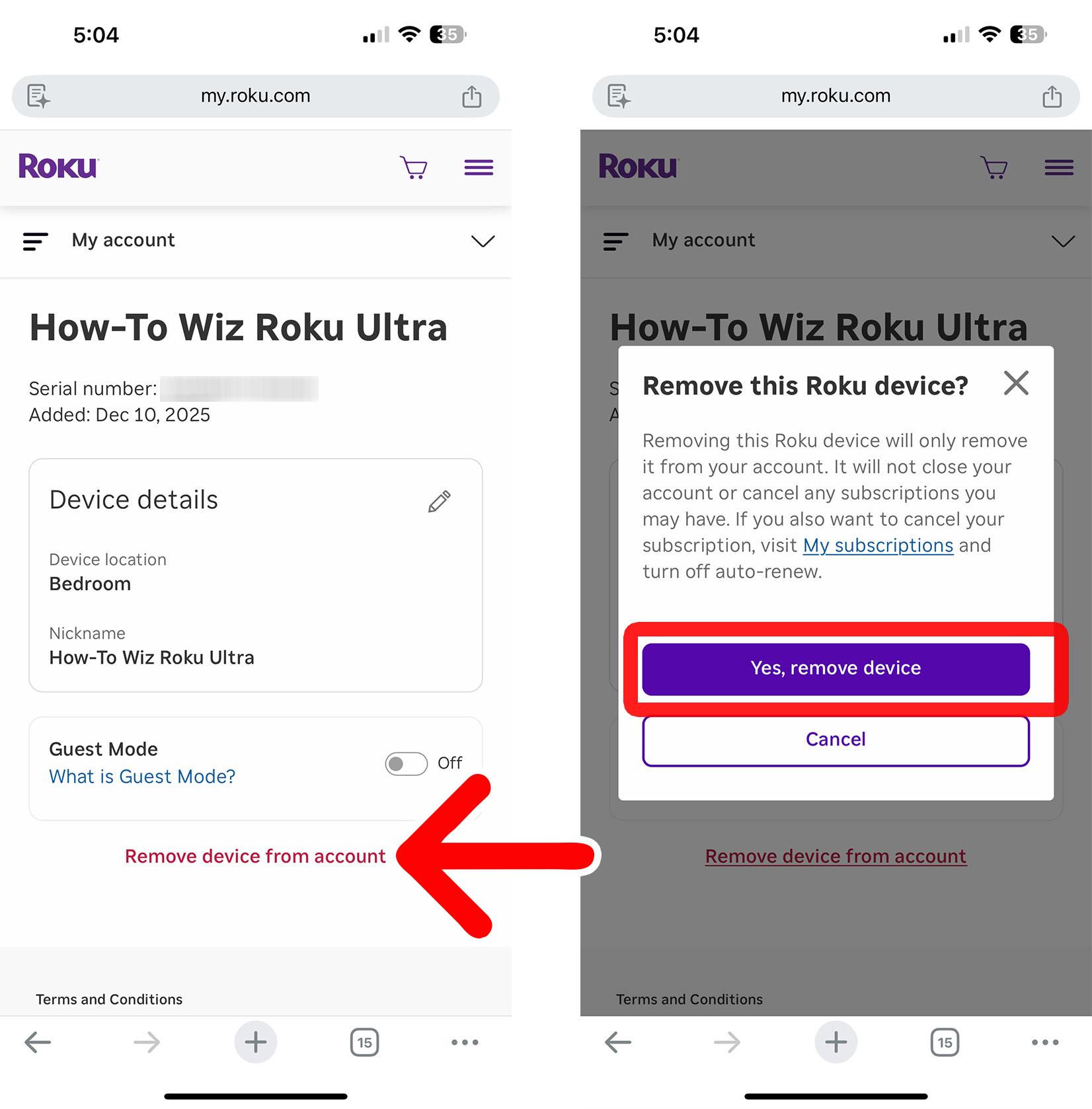
Once you deregister your Roku device, you’ll need to sign in again to open apps and stream content.