Is your Roku device running slow? A quick update might fix the problem. Roku is supposed to update itself automatically, but you can also check for updates manually. Here’s everything you need to know about how to update your Roku device and apps to make sure everything runs smoothly.
Read More: How to Change Your Roku Screensaver or Create Your Own
How to Update Your Roku Device or TV
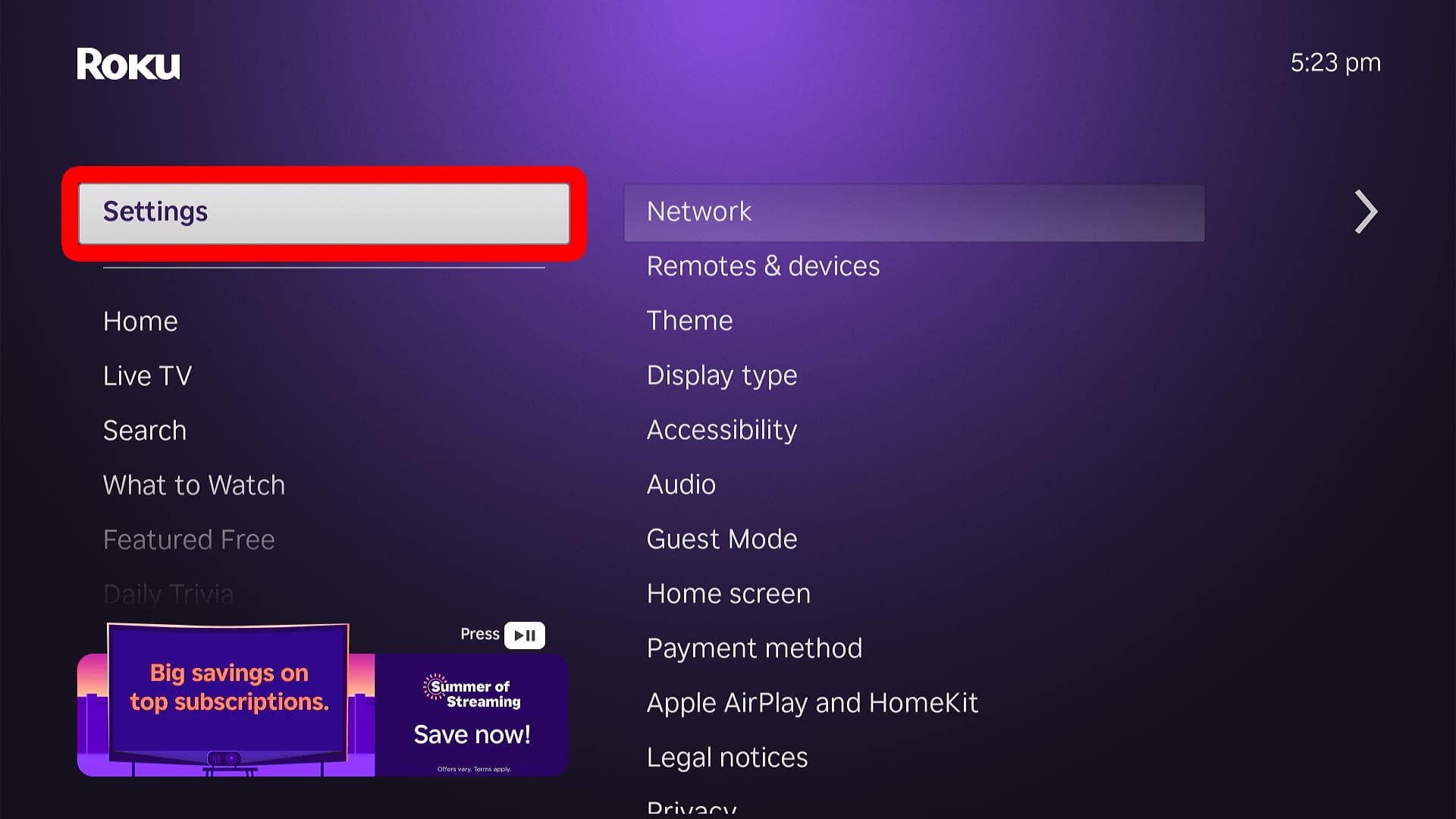
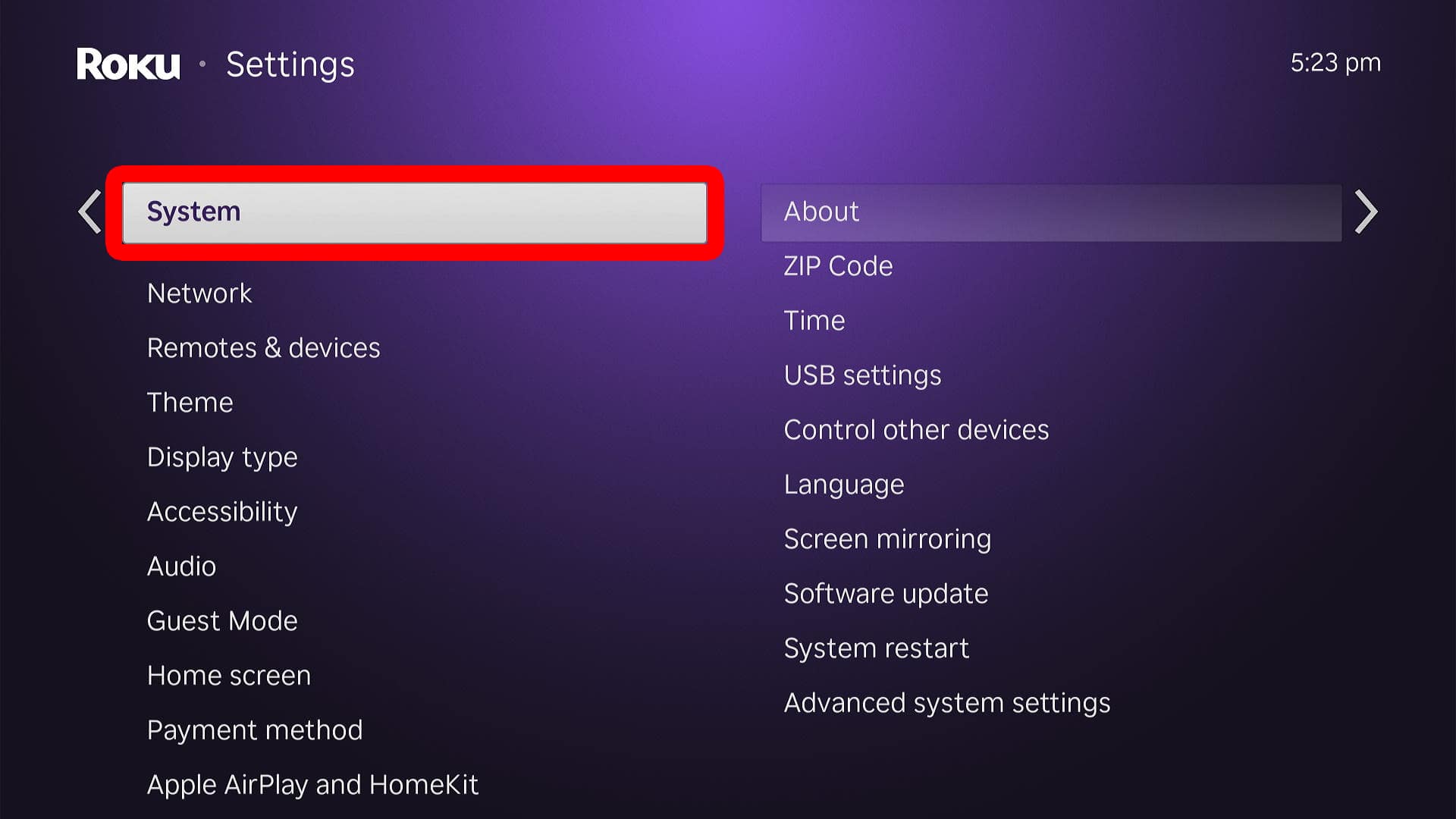
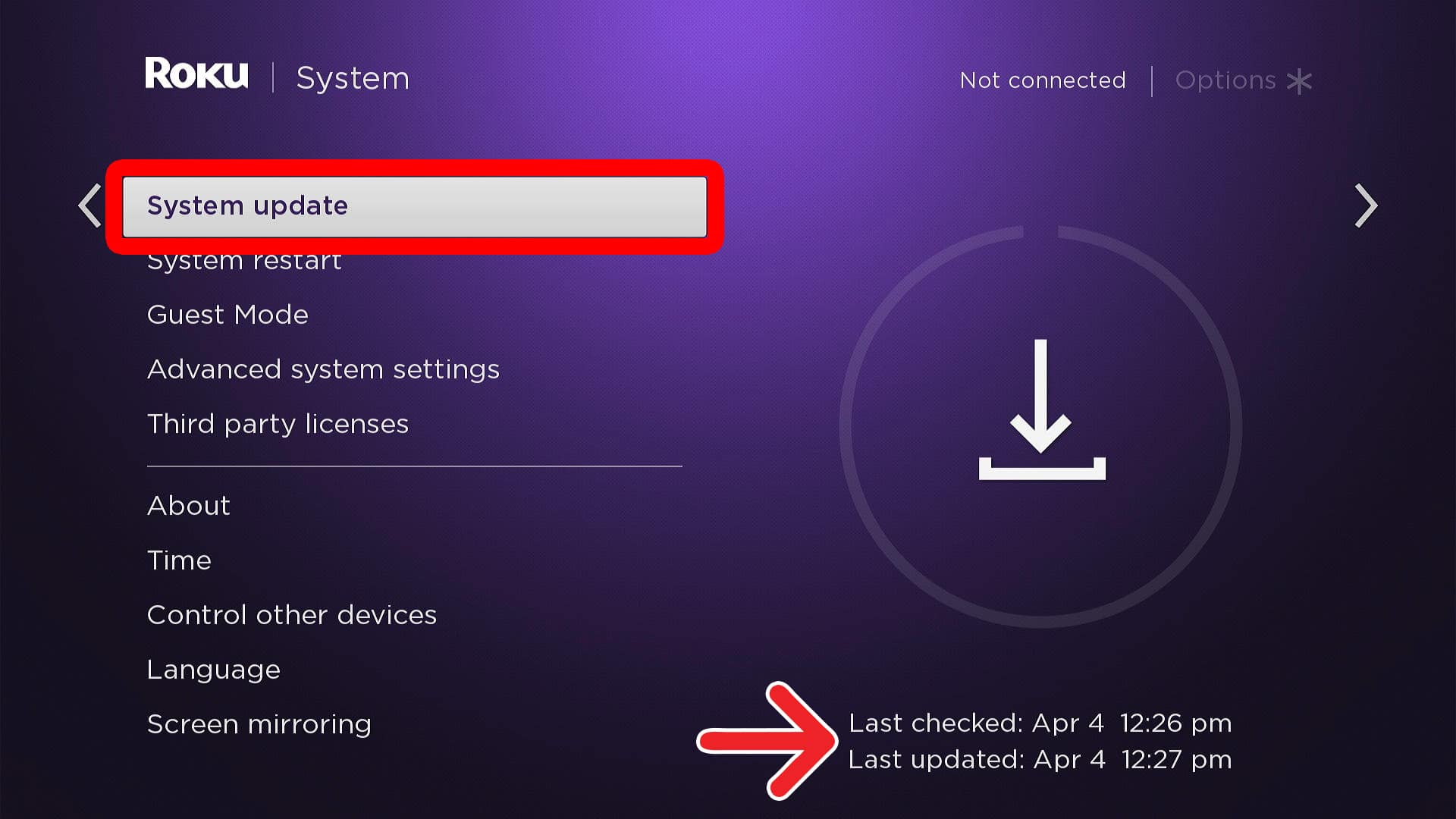
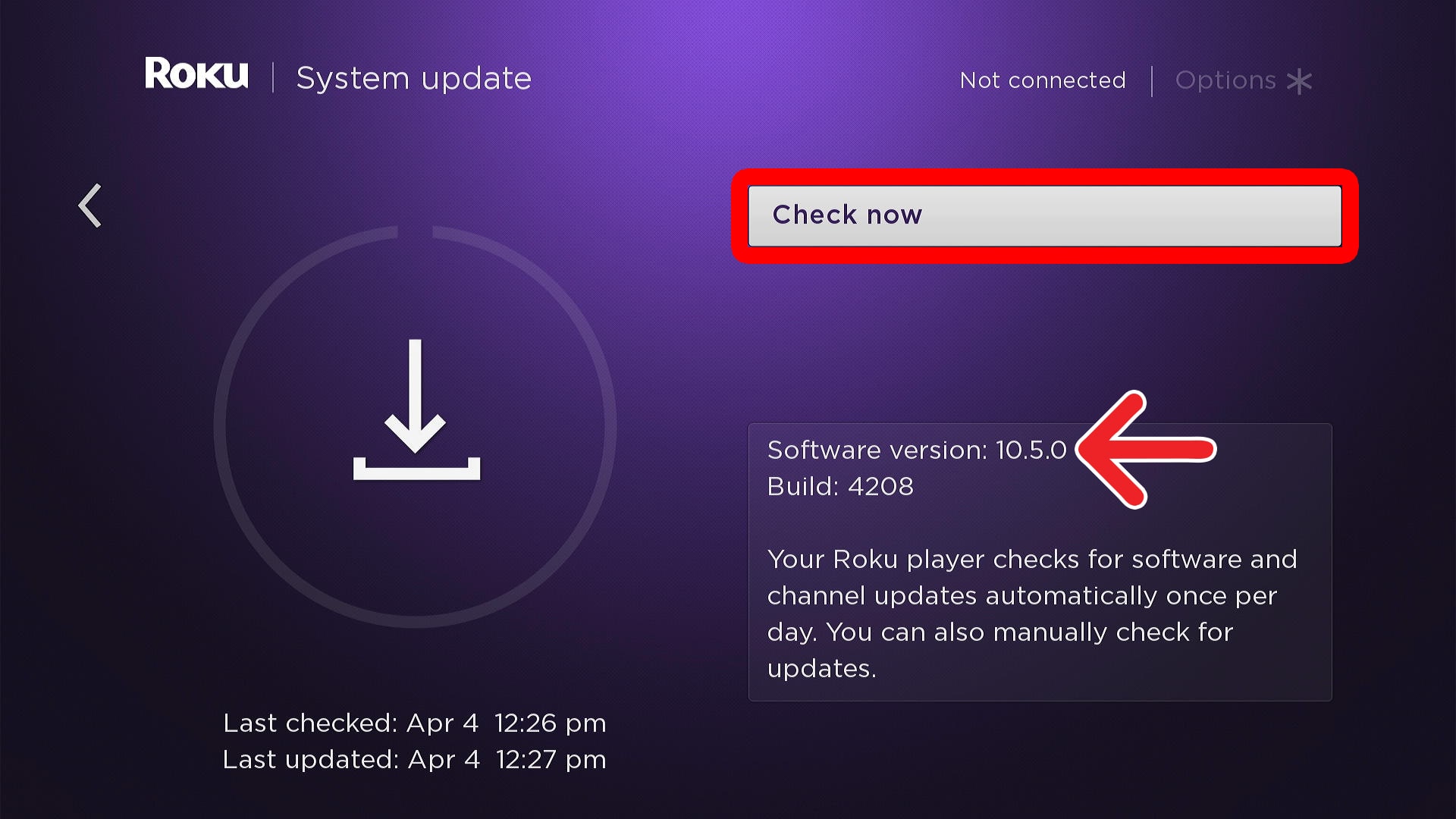
To update your Roku device, navigate to the home screen and go to “Settings > System > System Update > Check for Updates.” If an update is available, select “Update now.” It can take a few minutes for your device to update and restart.
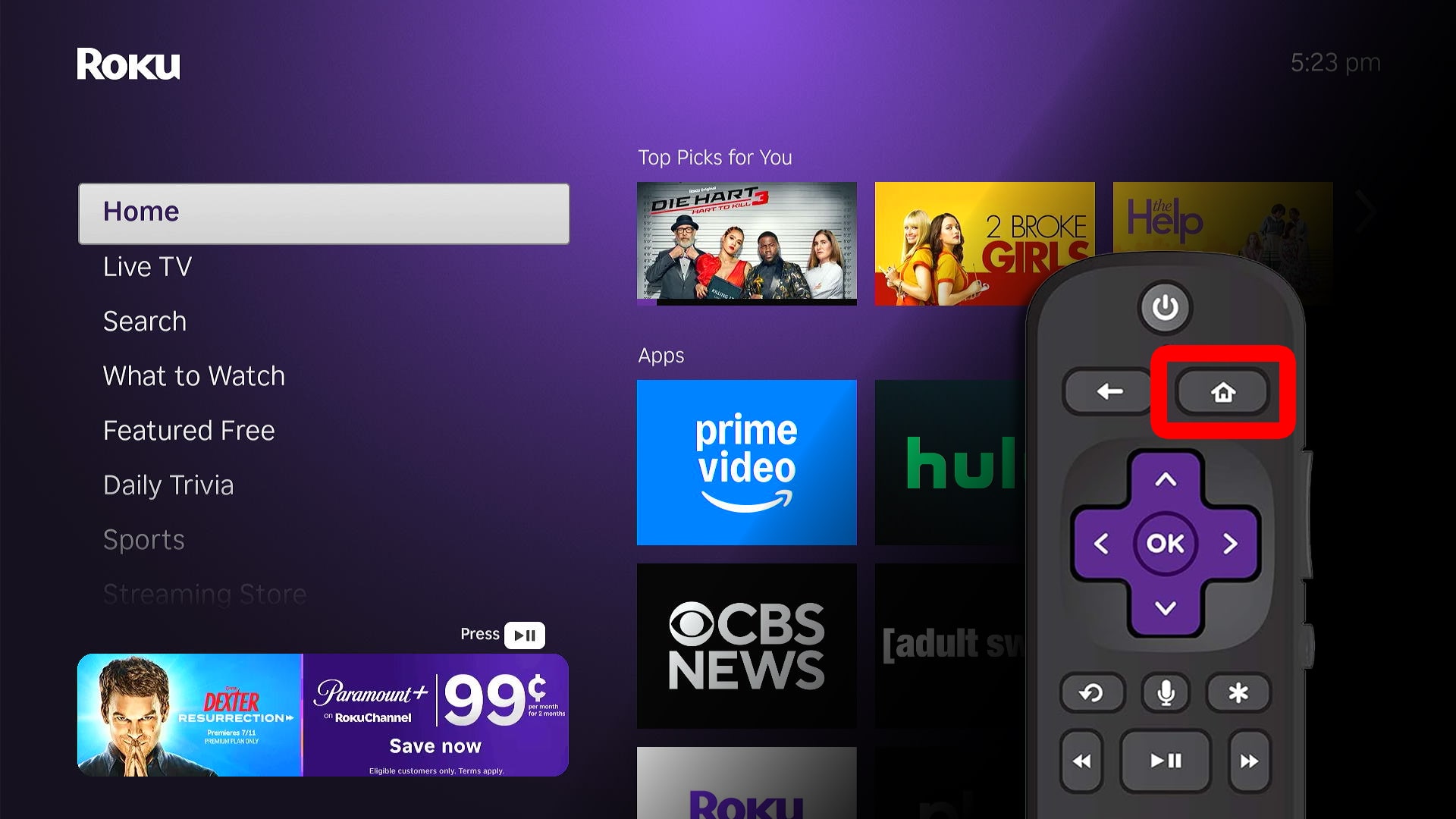
- Go to the Roku home screen. To do this, press the Home button on your Roku remote.

- Select “Settings.” You can access this menu by pressing the left arrow button on your remote. Then you can navigate the menu by pressing the up and down arrow buttons.
- Go to “System.”
- Choose “System Update.” In the bottom-right corner of this screen, you will see the last time your Roku device was updated.
- Select “Check Now.” In the bottom-right corner, you will see the current version of Roku OS (operating system) your device is running. To find out what the latest version of Roku OS is, visit Roku’s developer page.
- Select “Update Now.”

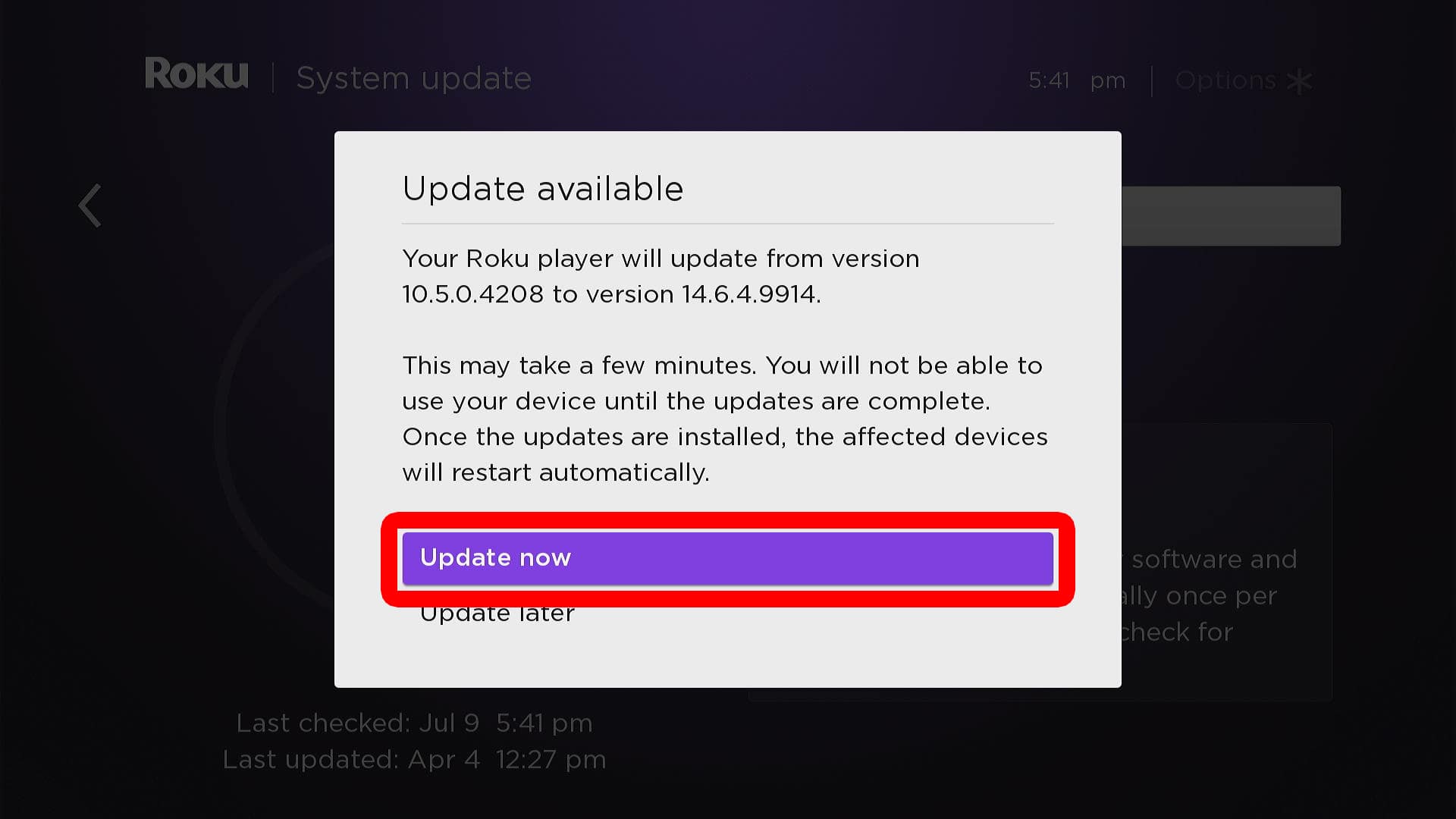
Once you update your device, it will restart. You can start using it again after you see the Roku logo appear on your screen.
How to Update Roku Apps
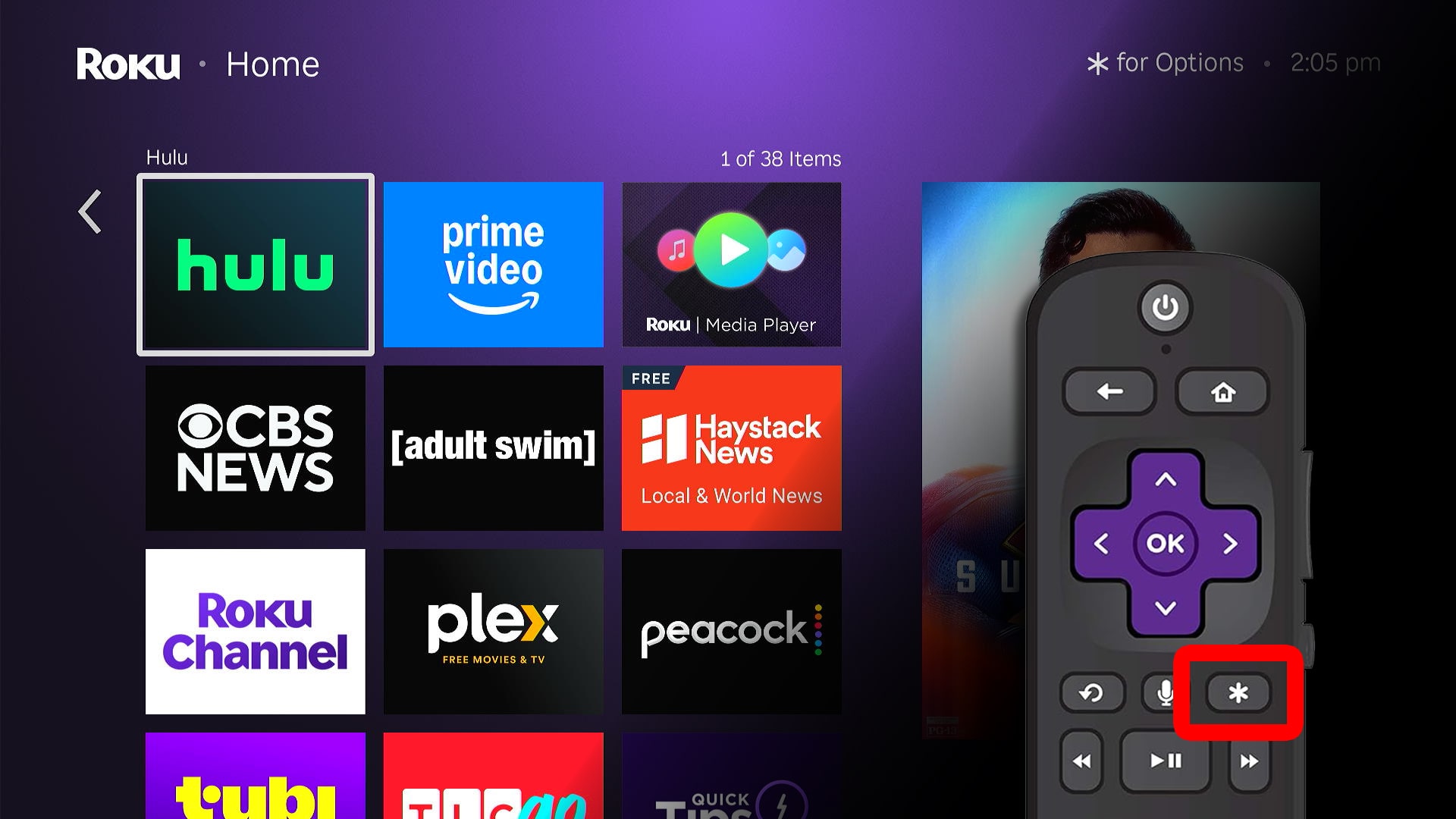
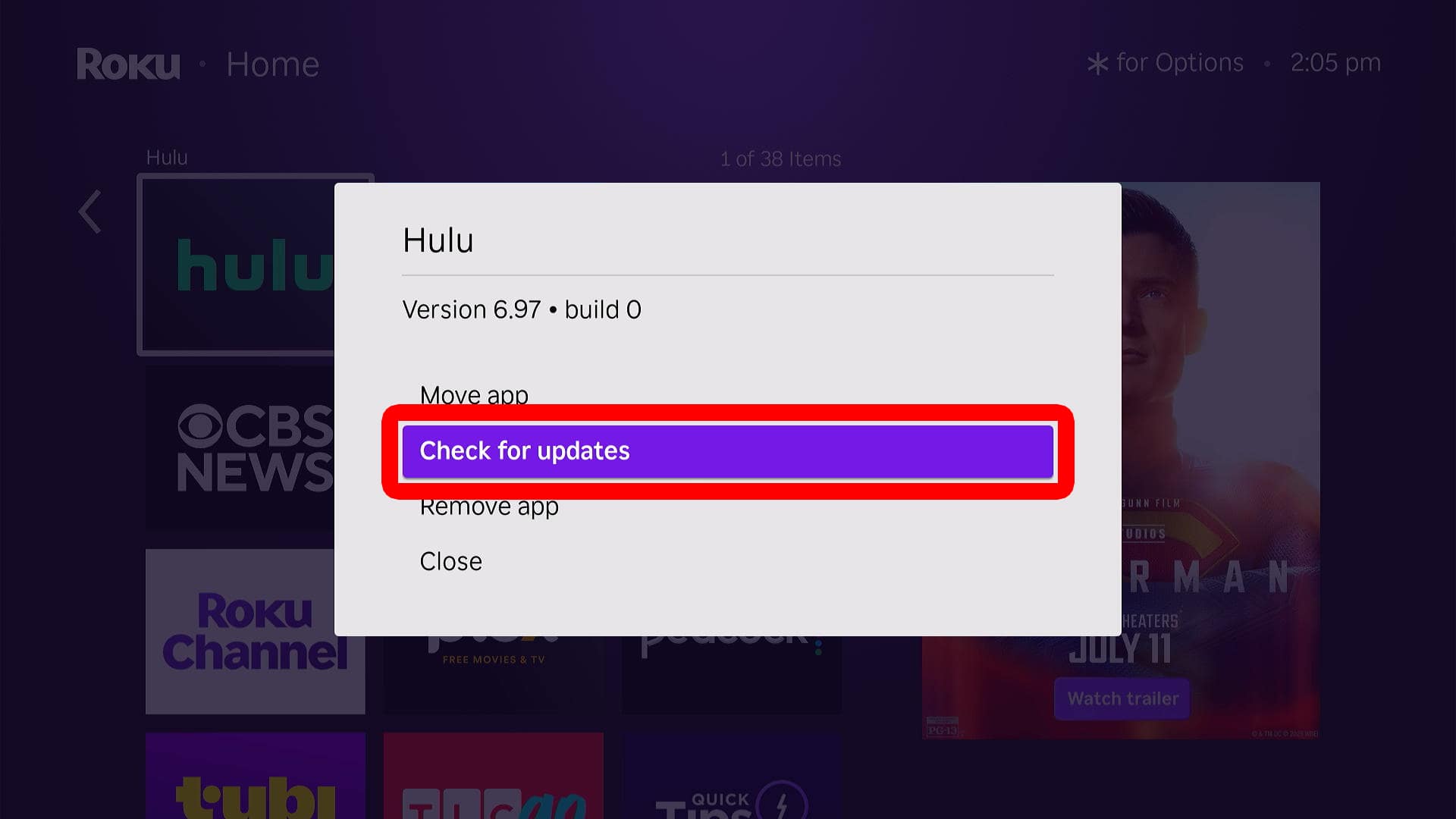
To update an app, go to the Roku home screen and highlight the app you want to update. Then, press the Star (*) button on your Roku remote to open the app settings. Finally, select “Check for updates” to automatically update that individual app manually.
- Go to the Roku home screen.
- Highlight an app. Use the arrow buttons on your remote to navigate to the app on your home screen.
- Press the Star (*) button on your remote. This will open the app settings menu.
- Select “Check for updates.” From here, you can also move the app on your home screen or uninstall it entirely.
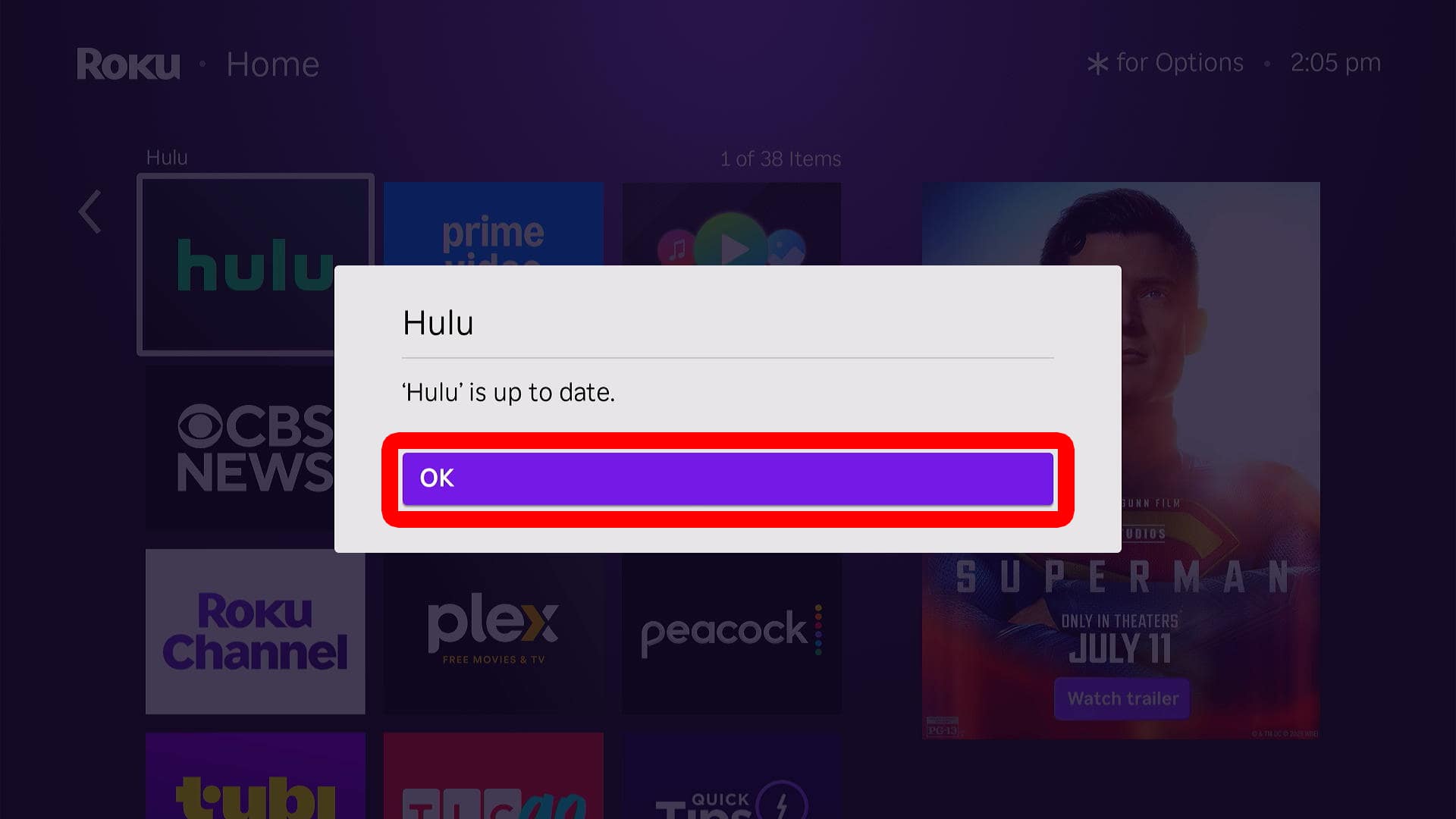
- Finally, select “OK” to confirm.