
Microsoft really wants you to use Edge as your default browser. But if you’re tired of Edge opening every time you click a link or PDF, switching to Chrome, Firefox, or your favorite browser is quick and easy. Here’s everything you need to know to change your default web browser on a Windows 11 PC.
How to Change Your Default Browser on a Windows 11 PC
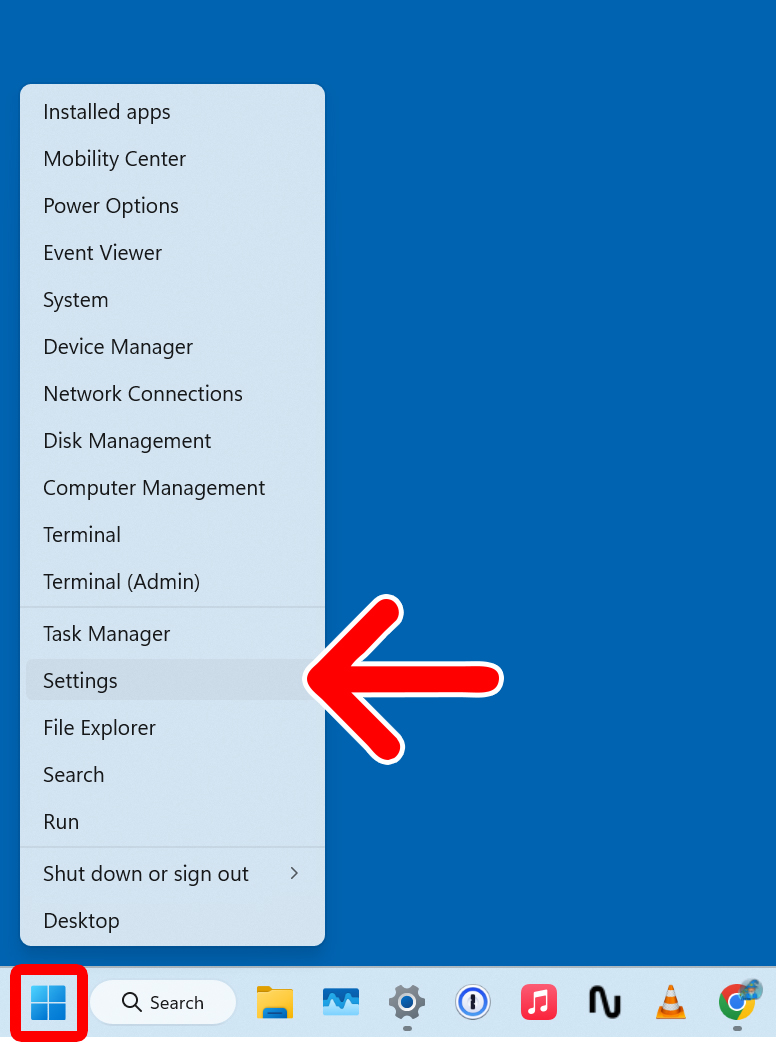
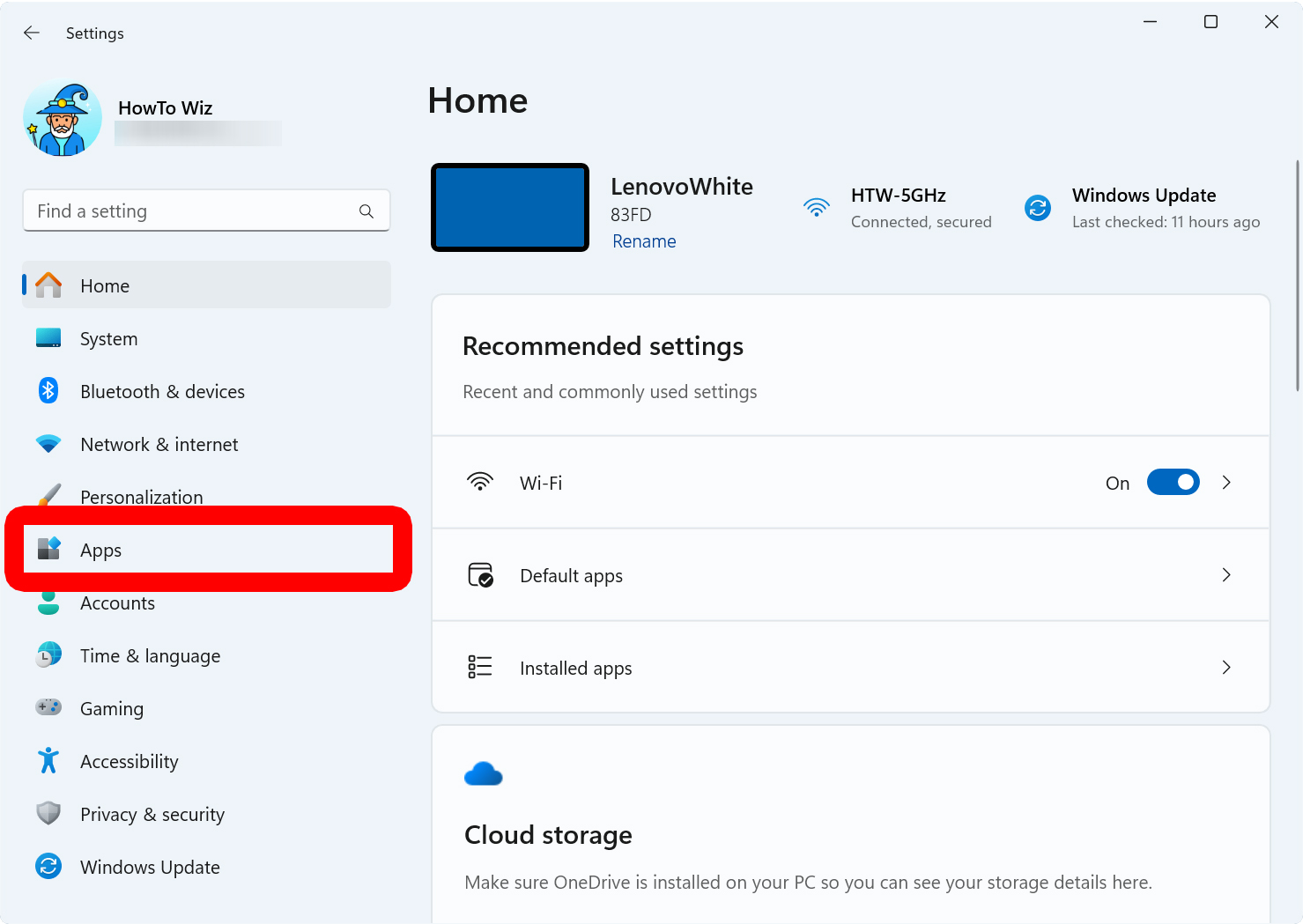
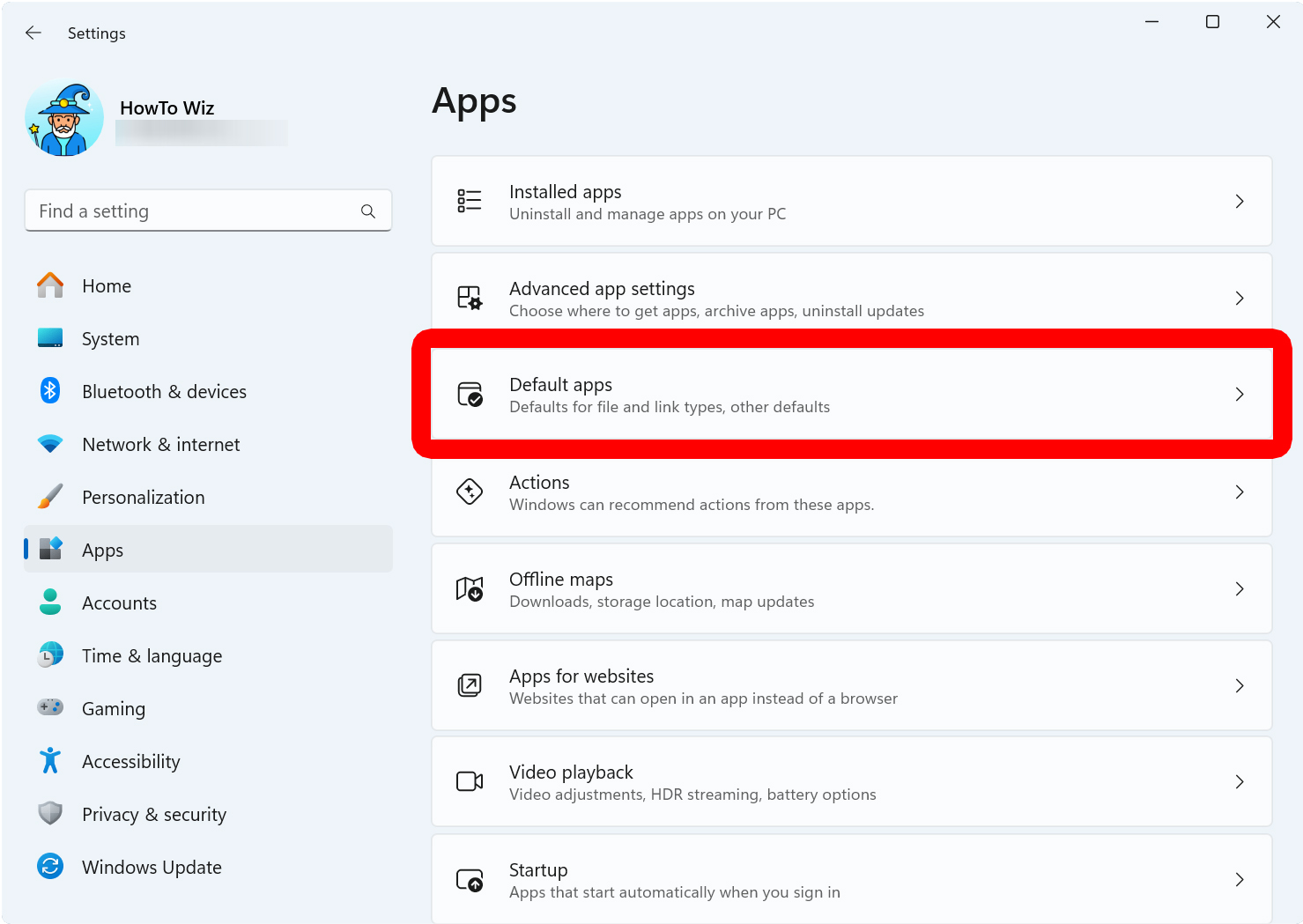
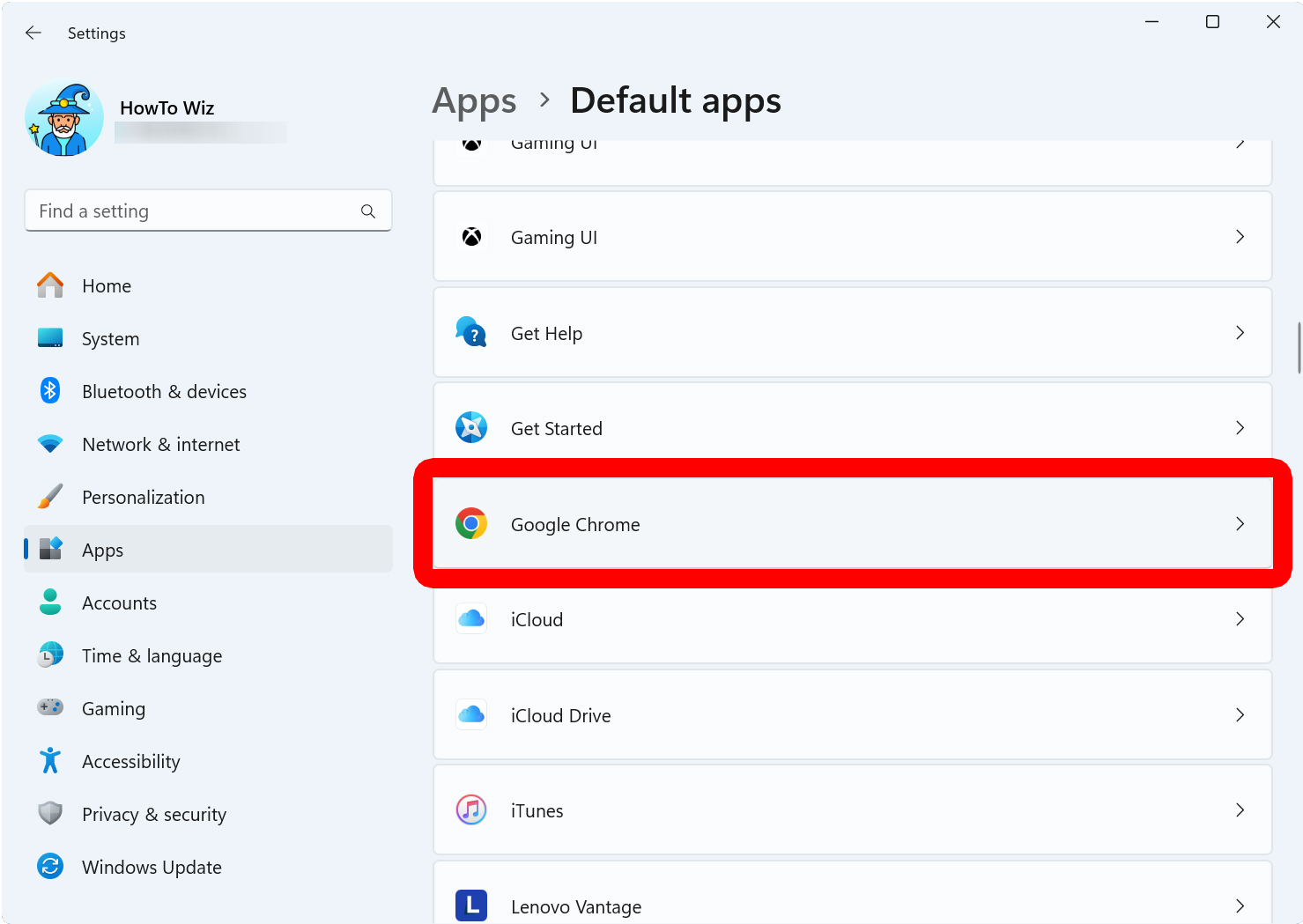
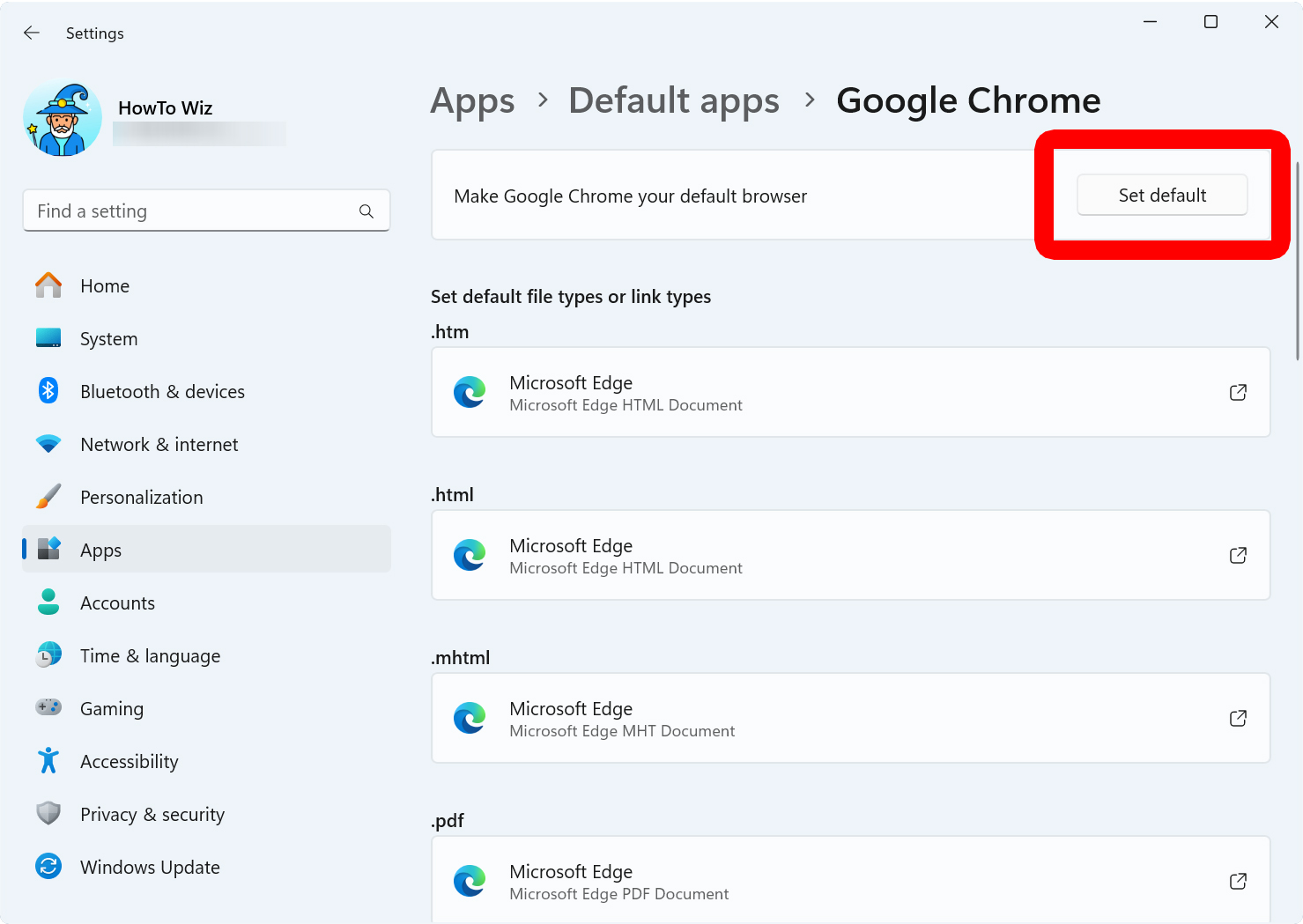
To change your default browser on a Windows 11 PC, right-click the Windows icon at the bottom of your screen and click “Settings.” Then select “Apps” from the left side menu and click “Default apps.” Finally, choose your preferred browser and click “Set default.”
- Right-click the Windows logo at the bottom of your screen.
- Select “Settings” from the pop-up window.

- Select “Apps.” You will see this in the left sidebar of the Settings window.

- Choose “Default apps.”
- Select the browser you want to set as your default. You will need to have the web browser of your choice already installed on your Windows 11 PC.
- Finally, click “Set Default.” You will see this at the top of the window.
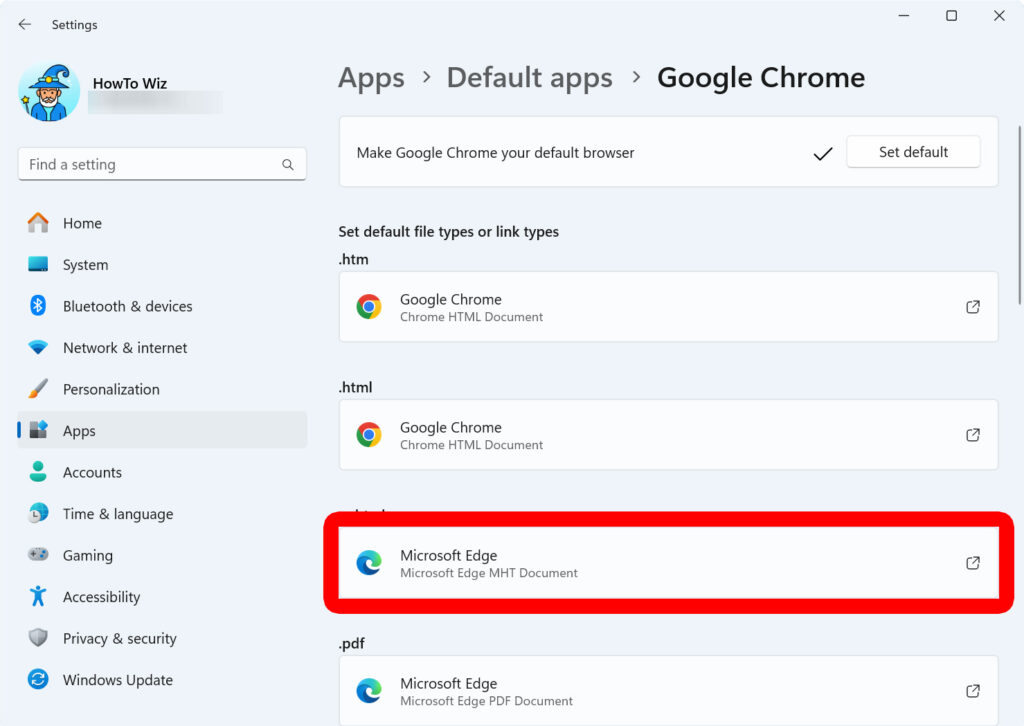
Finally, select your browser and click “Set default” in the pop-up window.
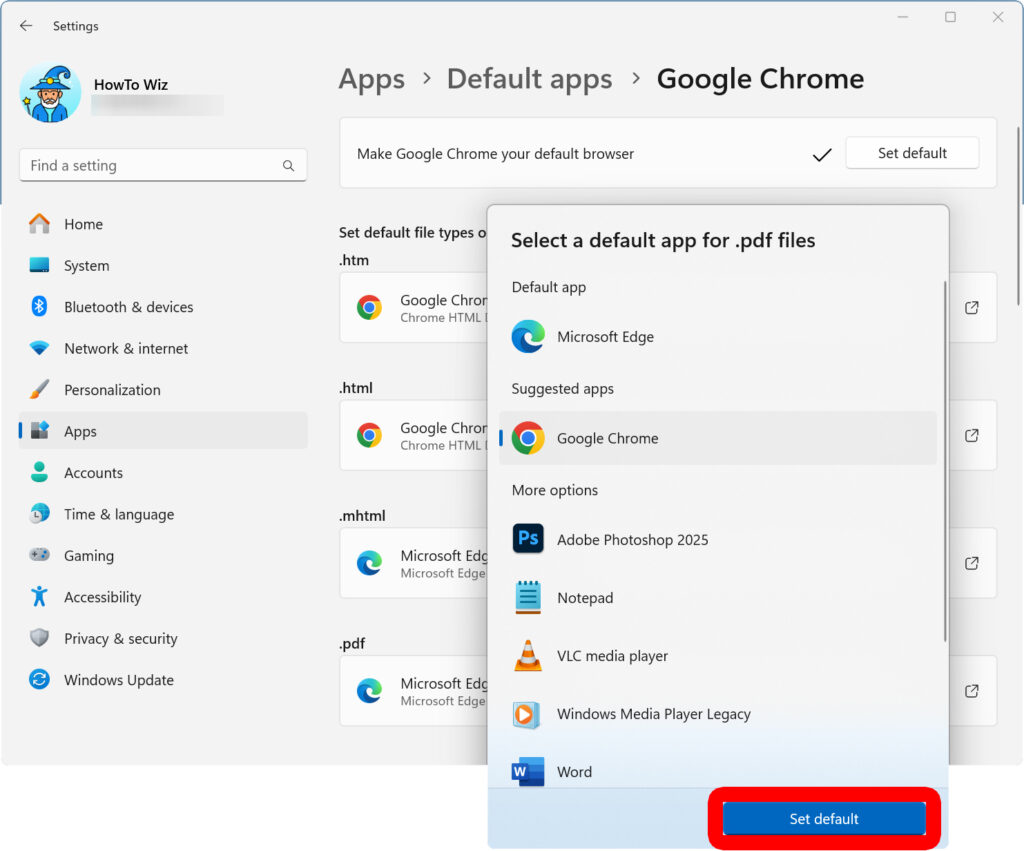
Repeat these steps for each file type or link you want to open in your new default browser.
How to Make Chrome Your Default Browser
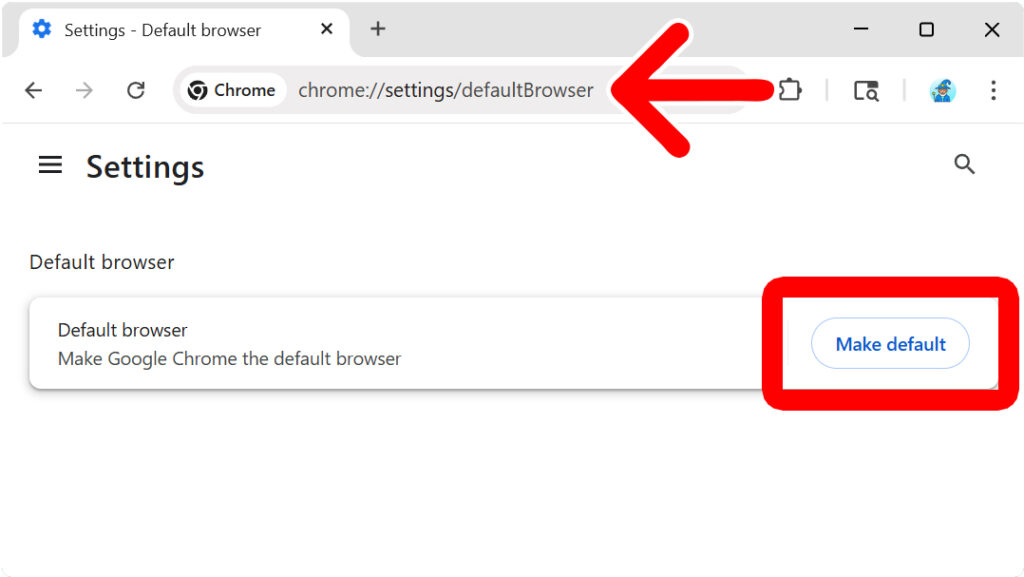
To quickly make Google Chrome your default web browser, open a Chrome window and enter chrome://settings/defaultBrowser into the address bar. Then select “Make default” at the top of the window. Finally, select “Set default” at the top of the Settings window.
How to Make Edge Your Default Browser
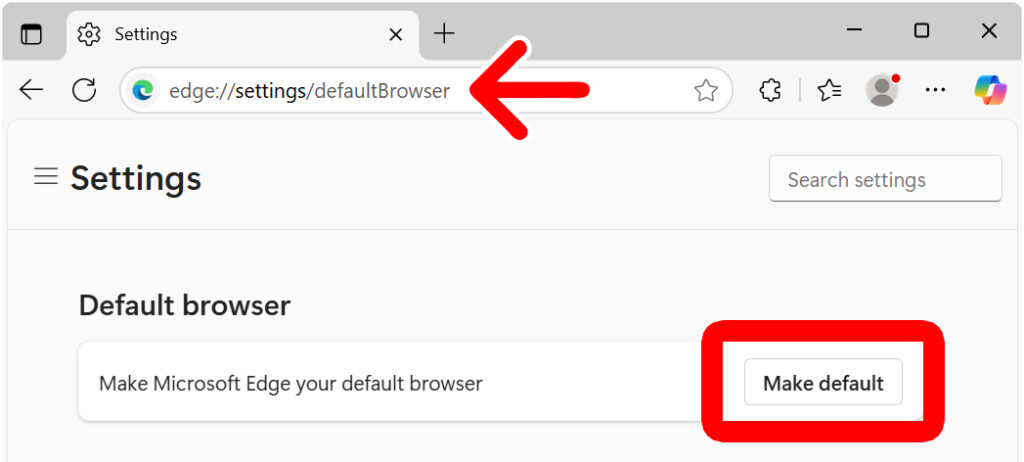
To quickly make Microsoft Edge your default web browser, open an Edge window and enter edge://settings/defaultBrowser into the address bar. Then select “Make default” at the top of the window. Finally, select “Set default” at the top of the Settings window.
How to Make Firefox Your Default Browser
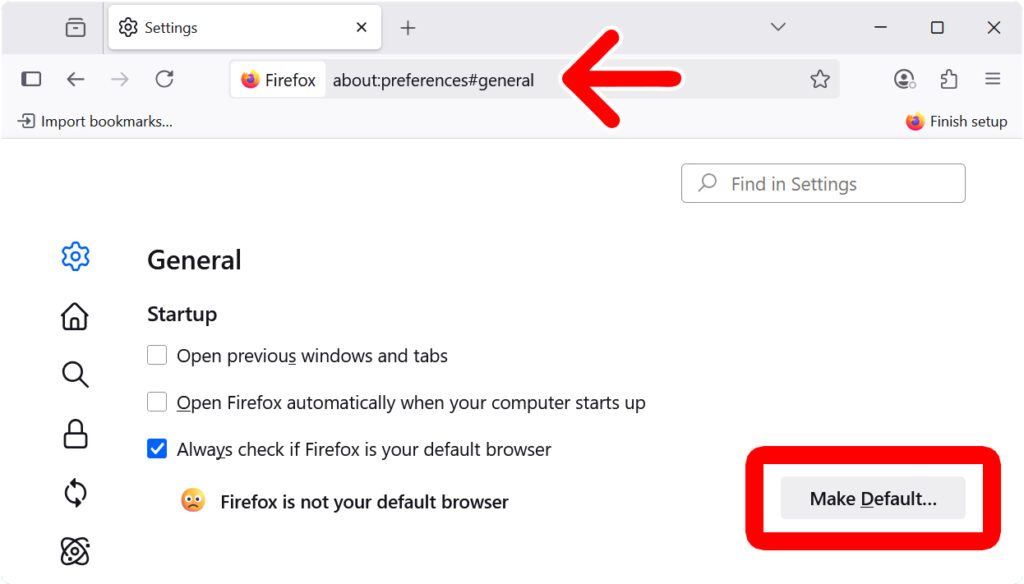
To quickly make Mozilla Firefox your default web browser, open a Firefox window and enter about:preferences#general into the address bar. Then select “Make Default” near the top of the window. Finally, select “Set default” at the top of the Settings window.
Read More: How to Import Photos from an iPhone to a Windows PC