Tired of pop-ups taking over your screen? Whether it’s email alerts, meeting reminders, or app updates, Windows 11 notifications can be useful—but too many can be distracting. Here’s everything you need to know about how to turn off all notifications or disable them for certain apps on a Windows 11 PC.
Read More: How to Turn Off Chrome Notifications
How to Disable Notifications from a Pop-Up
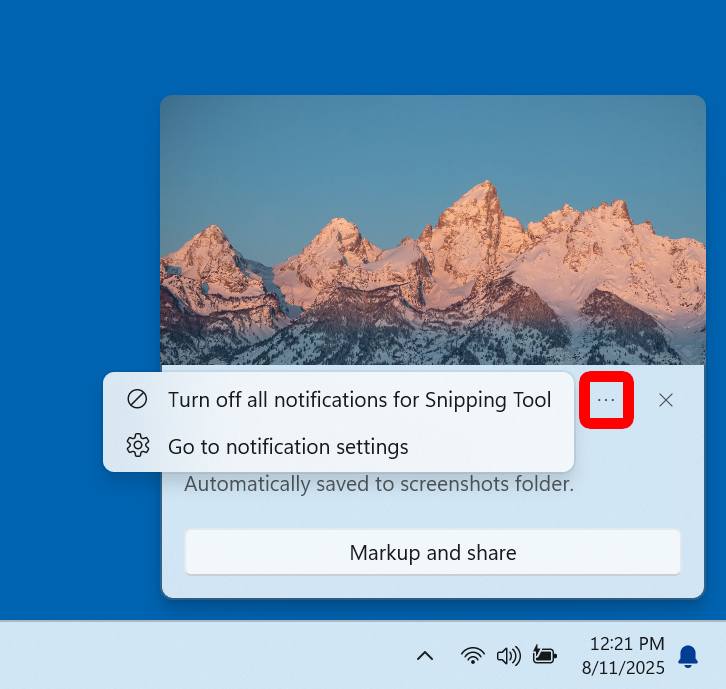
When a notification pops up on your Windows 11 PC, you can quickly disable all notifications from that app. Simply click the three-dot icon in the notification and select “Turn off all notifications for [app name].”
If the pop-up disappears, you can still disable notifications from the Windows 11 notification center, where all your recent notifications are stored.
How to Disable Notifications from the Notification Center
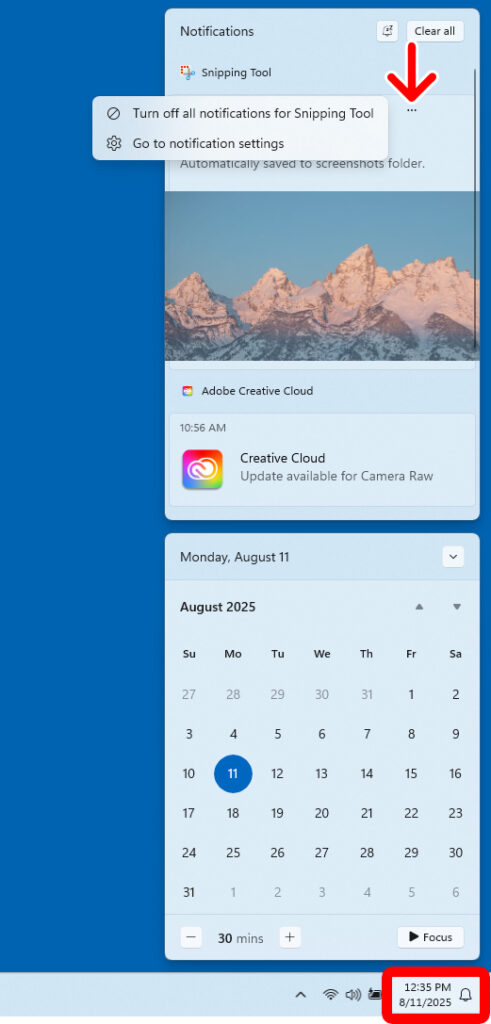
To disable notifications, left-click the clock in the bottom-right corner of your screen to open the Windows 11 notification center. Then select the three-dot icon in a notification and click “Turn off all notifications for [app name].”
How to Turn Off All Notifications in Windows 11
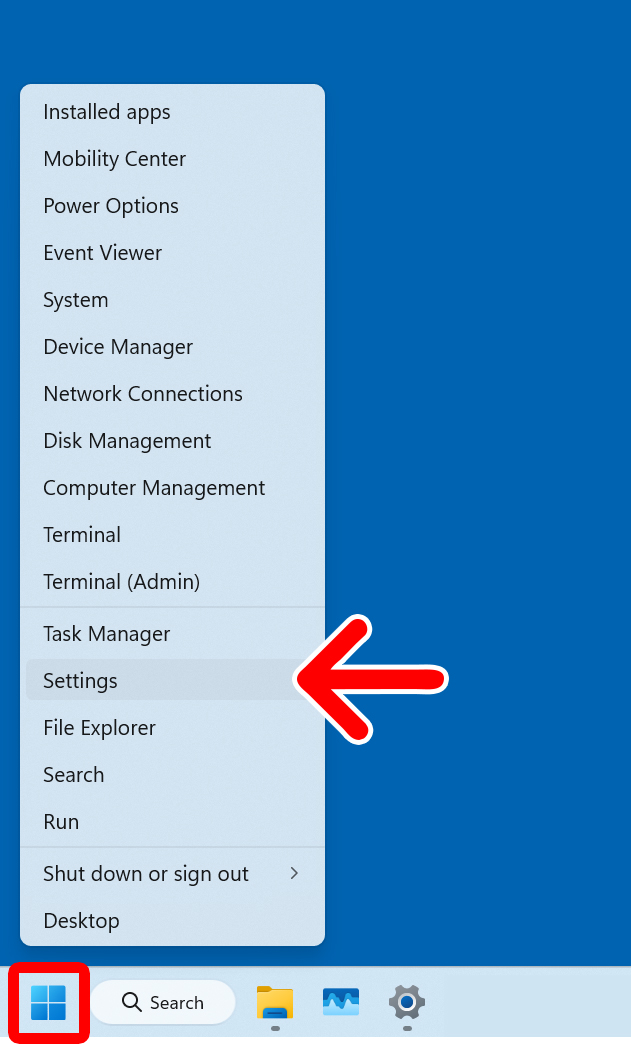
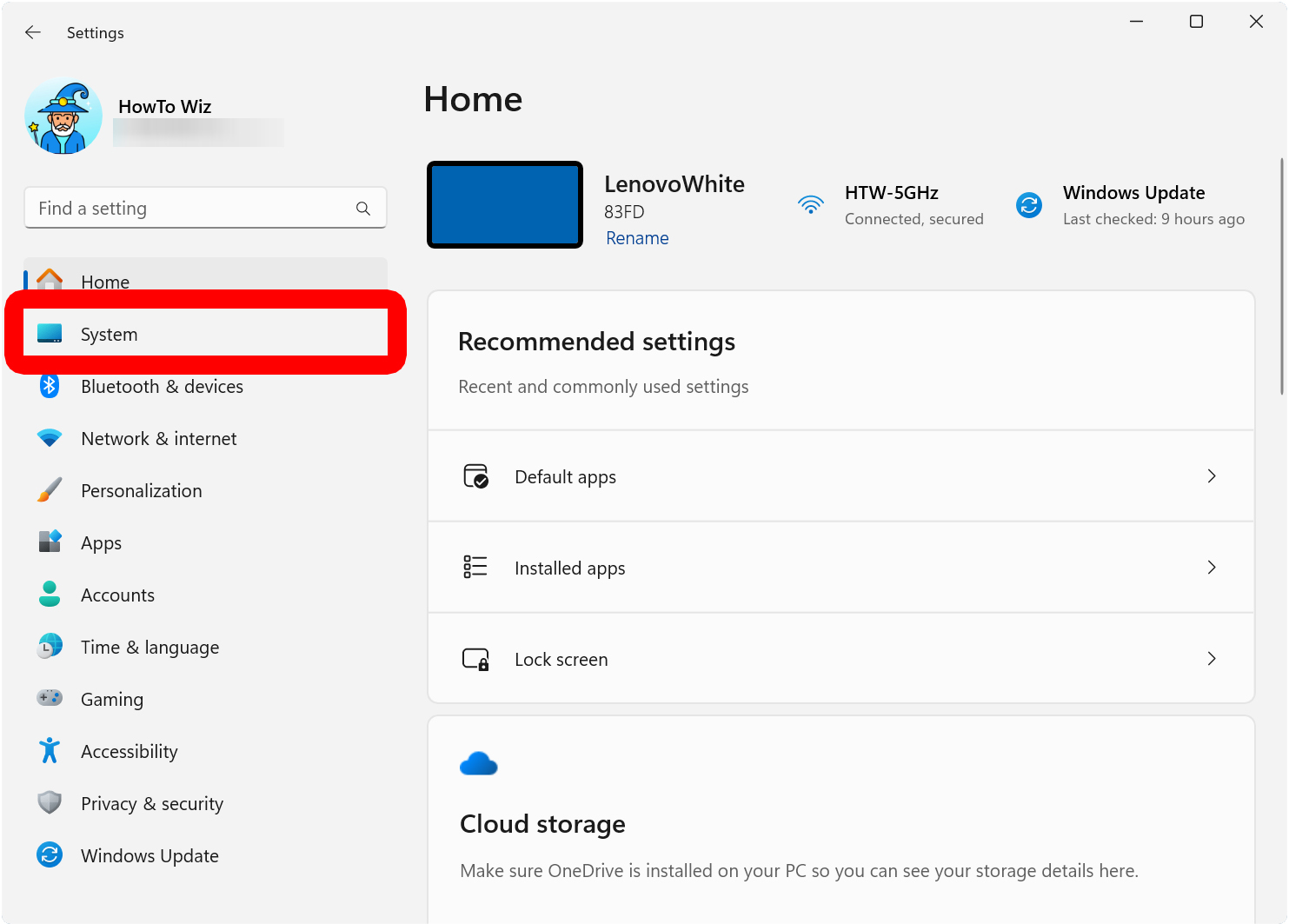
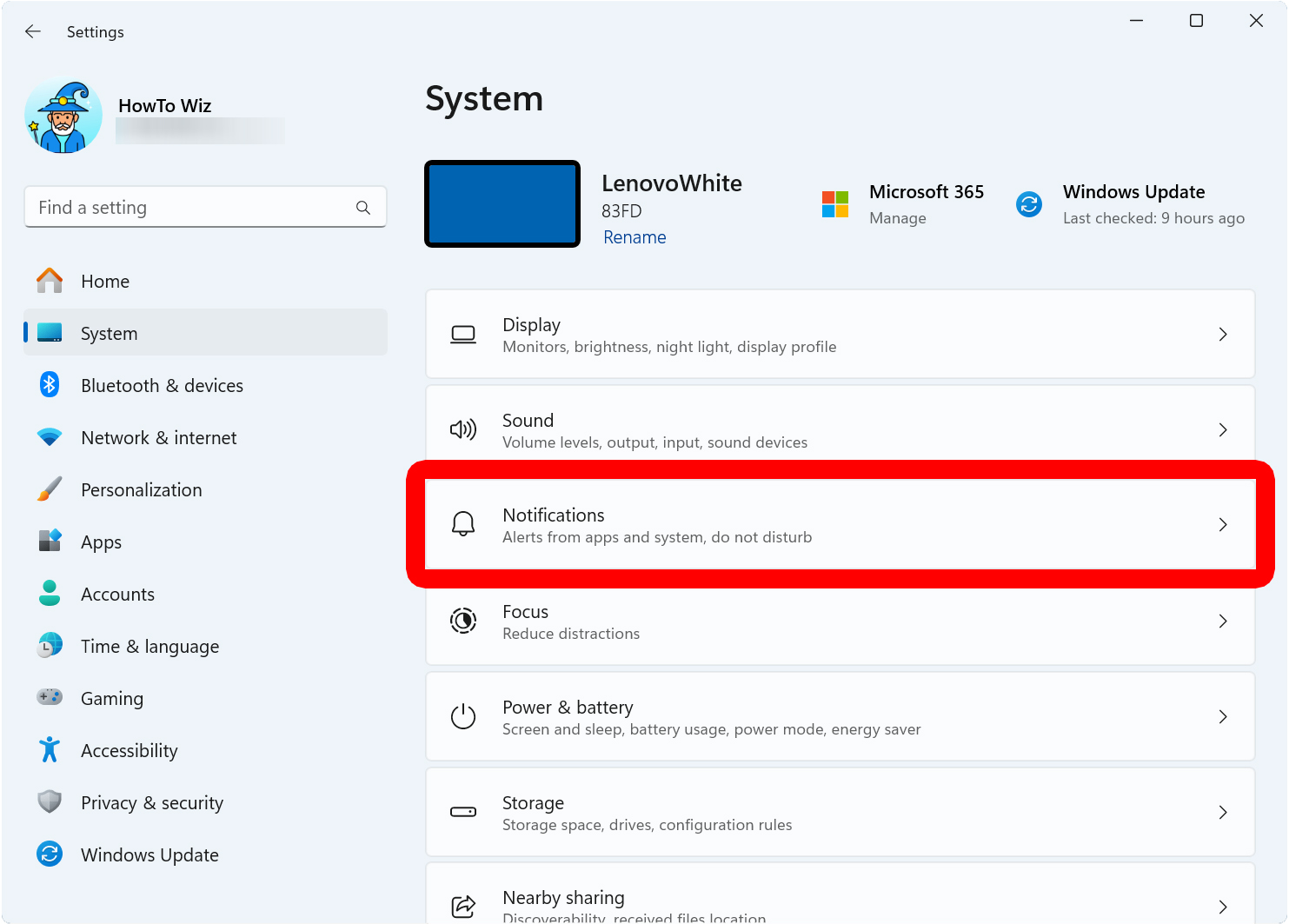
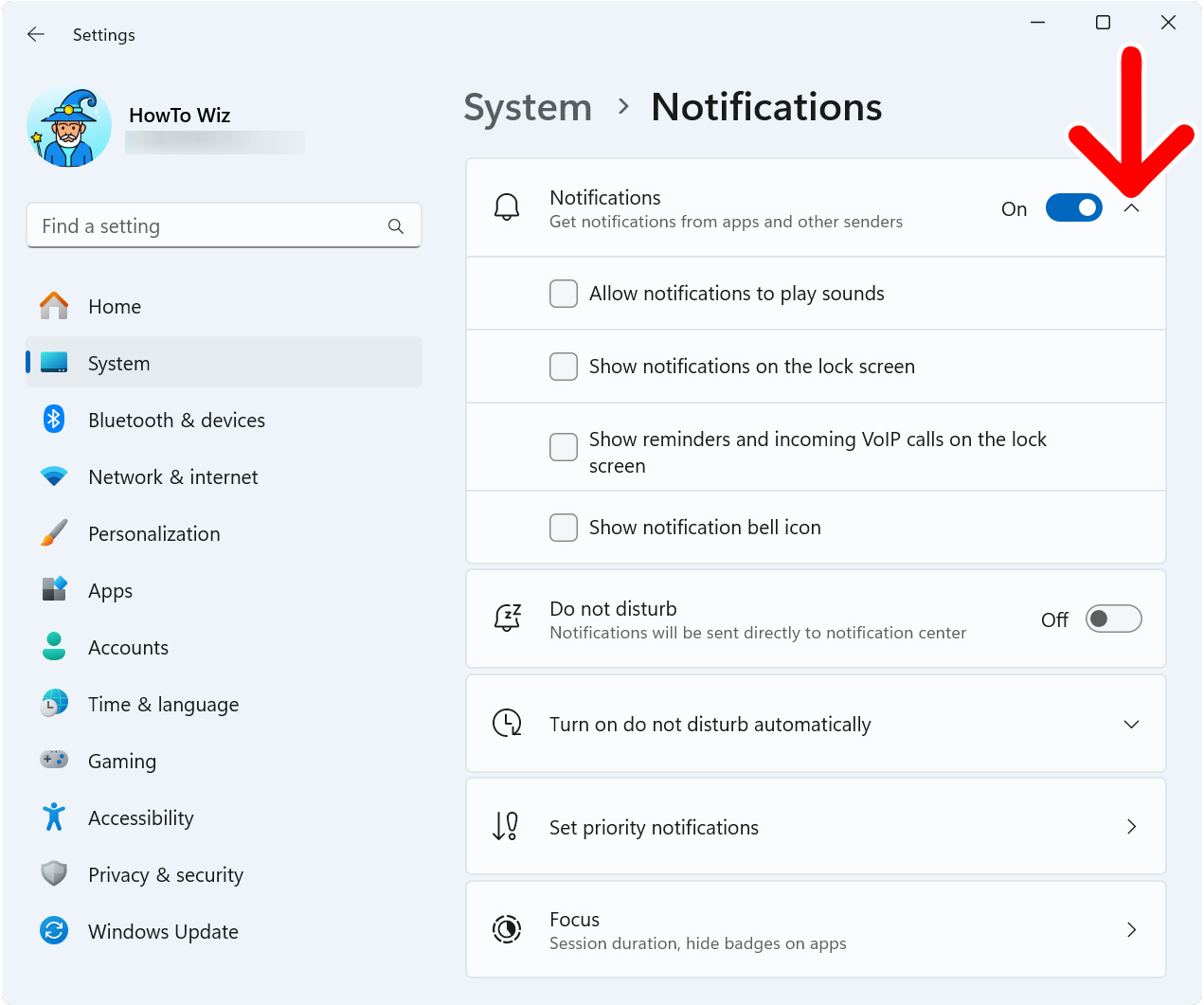
To disable notifications in Windows 11, right-click the Windows logo at the bottom of your screen and select “Settings.” Then select “System” from the left side menu and go to “Notifications.” Finally, toggle the switch next to “Notifications.”
- Right-click the Windows logo at the bottom of your screen. The Start Menu button might be in the bottom-left corner or near the center of your Taskbar, depending on your settings.
- Select “Settings” from the pop-up menu.

- Select “System.” You will see this in the left side menu. If you don’t see this menu, expand the Settings window.

- Click “Notifications.” You will see this on the right side of the window.
- Finally, toggle the switch next to “Notifications” to turn them off. When the switch turns gray, all new notifications are turned off in Windows 11.

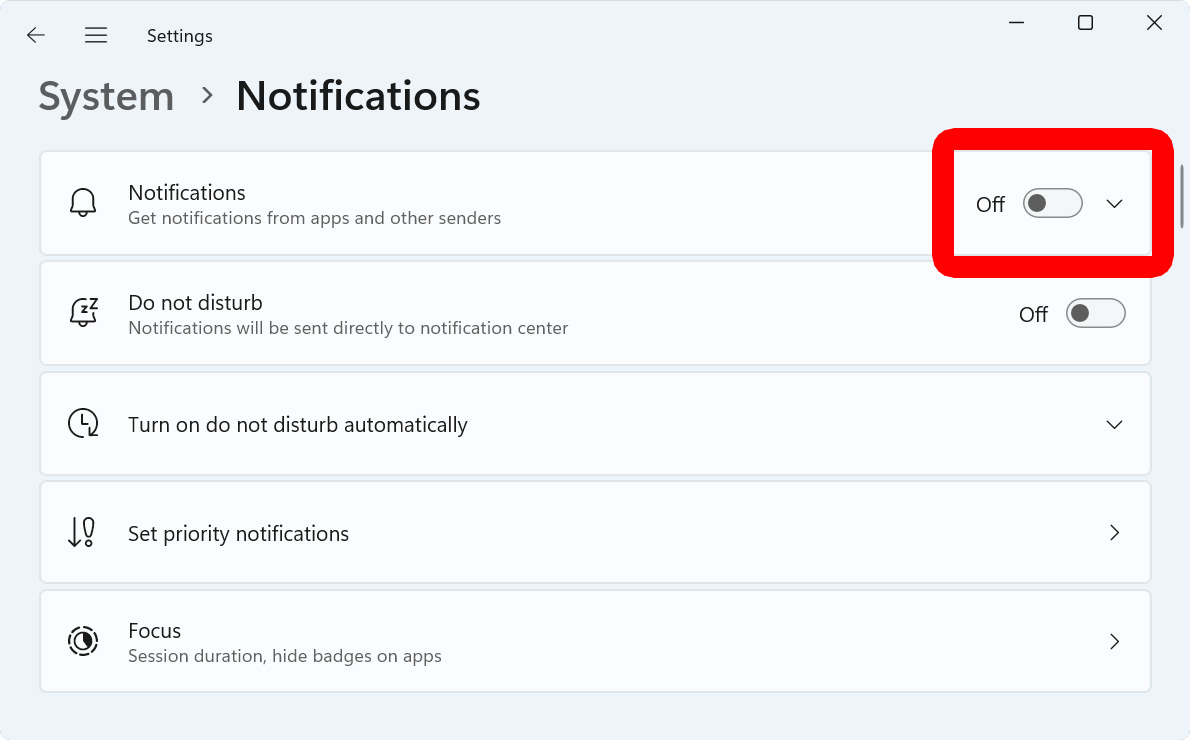
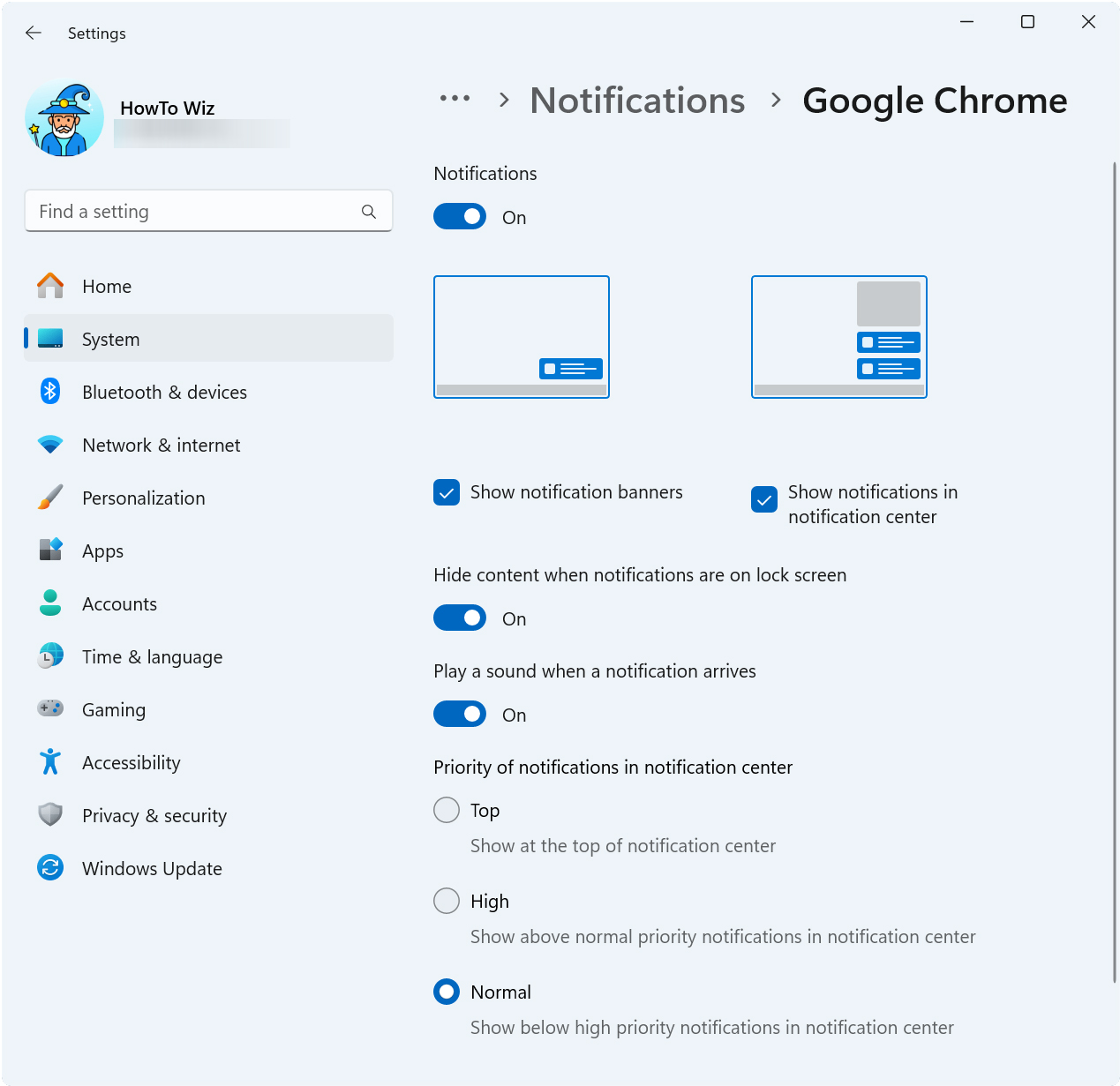
If you don’t want to disable notifications entirely, you can select the arrow (v) next to “Notifications” to see additional options.
To disable notifications for specific apps, scroll down and toggle the switch next to the app.
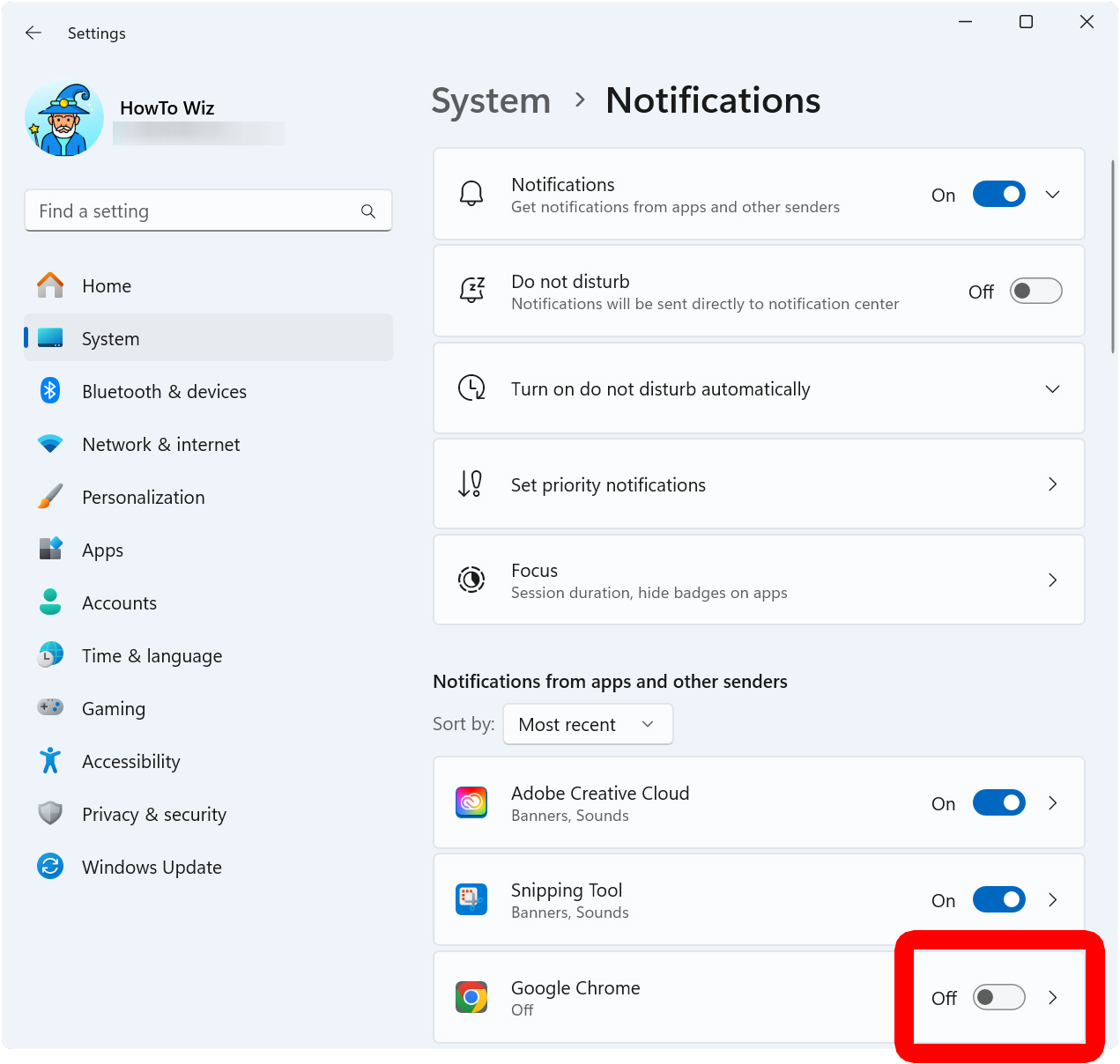
If you don’t want to completely disable notifications for an app, you can also select the arrow icon (>) next to an app for additional settings.