
Tired of those annoying “Allow notifications?” pop-ups in Chrome? You can always stop them—and turn off notifications you’ve already allowed. Here’s everything you need to know about how to disable notifications for a single site or turn off all notifications in Chrome.
Read More: How to Turn off Notifications in Windows 11
How to Disable Chrome Notifications for a Site
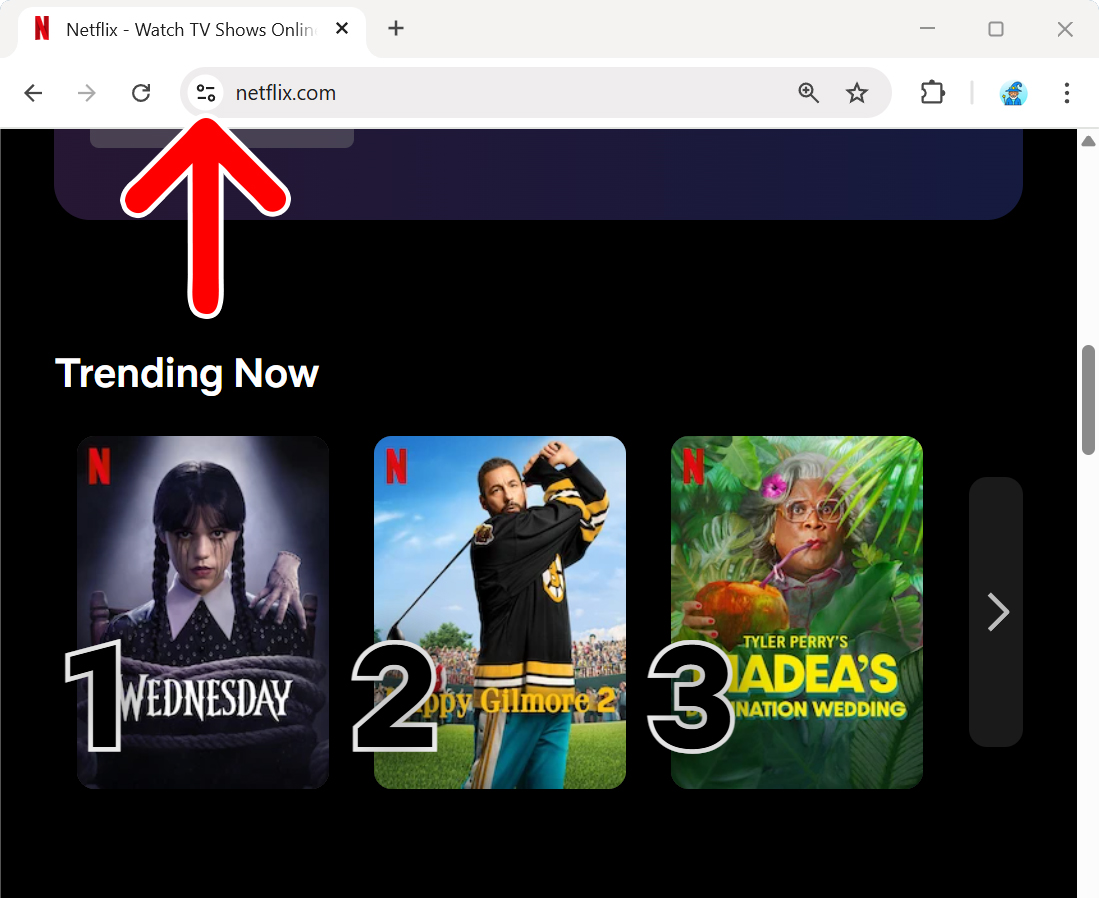
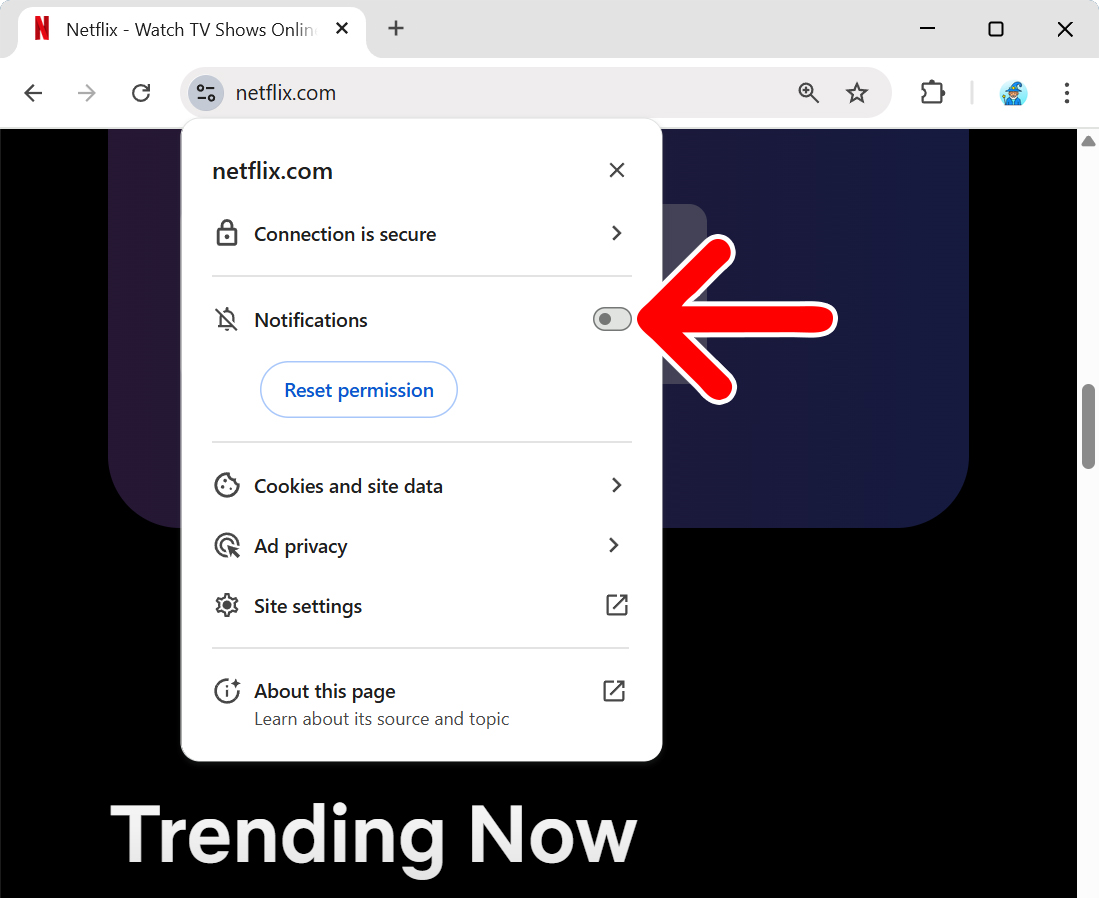
To quickly turn off notifications for a specific website, open a Chrome window and navigate to the site you want to block. Then select the “Site information” button on the left side of the address bar. Finally, turn off the slider next to “Notifications.”
- Open a website on Chrome. Go to a website that you want to disable notifications for.
- Click the “Site information” button (on the left side of the address bar). The address bar is where you enter a website URL at the top of the window.

- Finally, turn off the slider next to “Notifications.”
This method will only block notifications for a specific site. If you want to block all notifications in Chrome, use the steps below:
How to Turn Off All Chrome Notifications
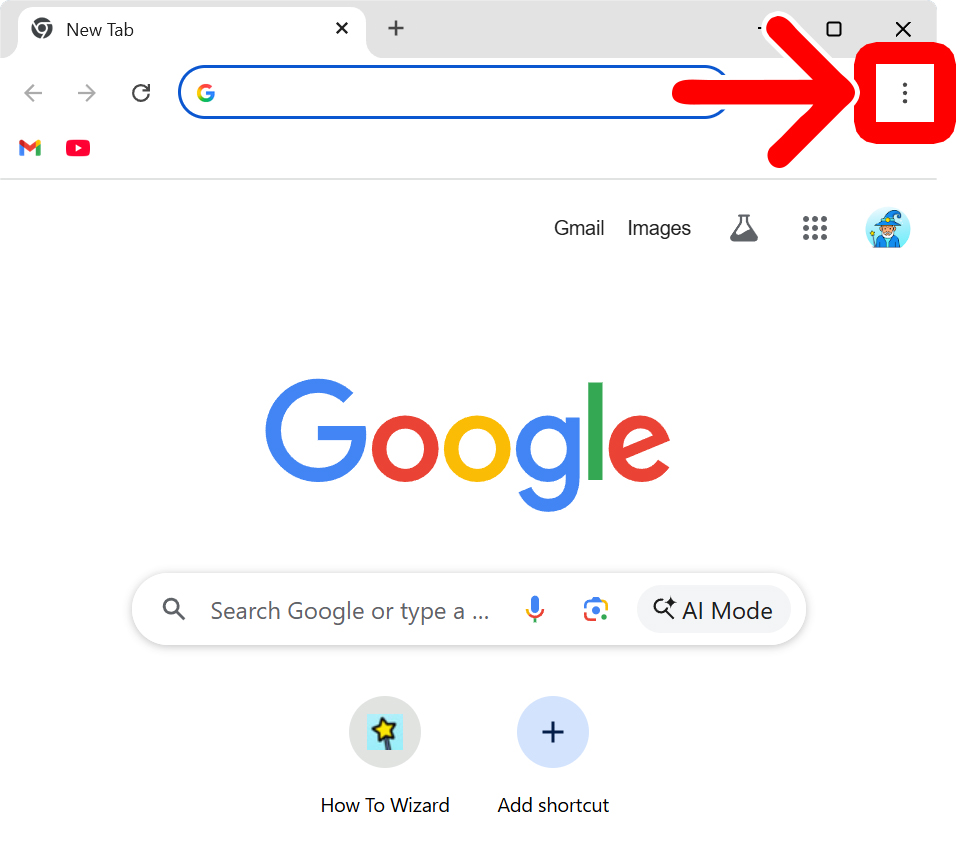
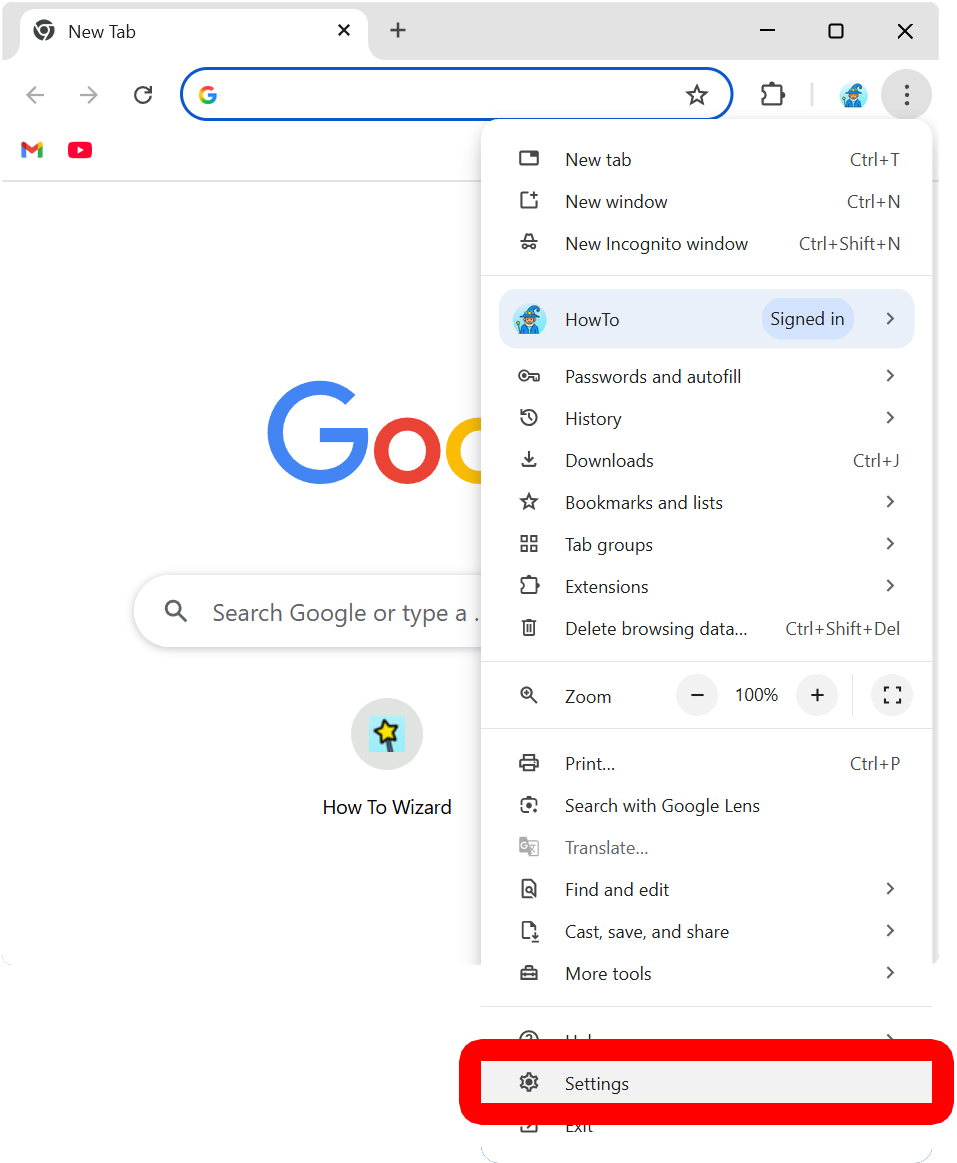
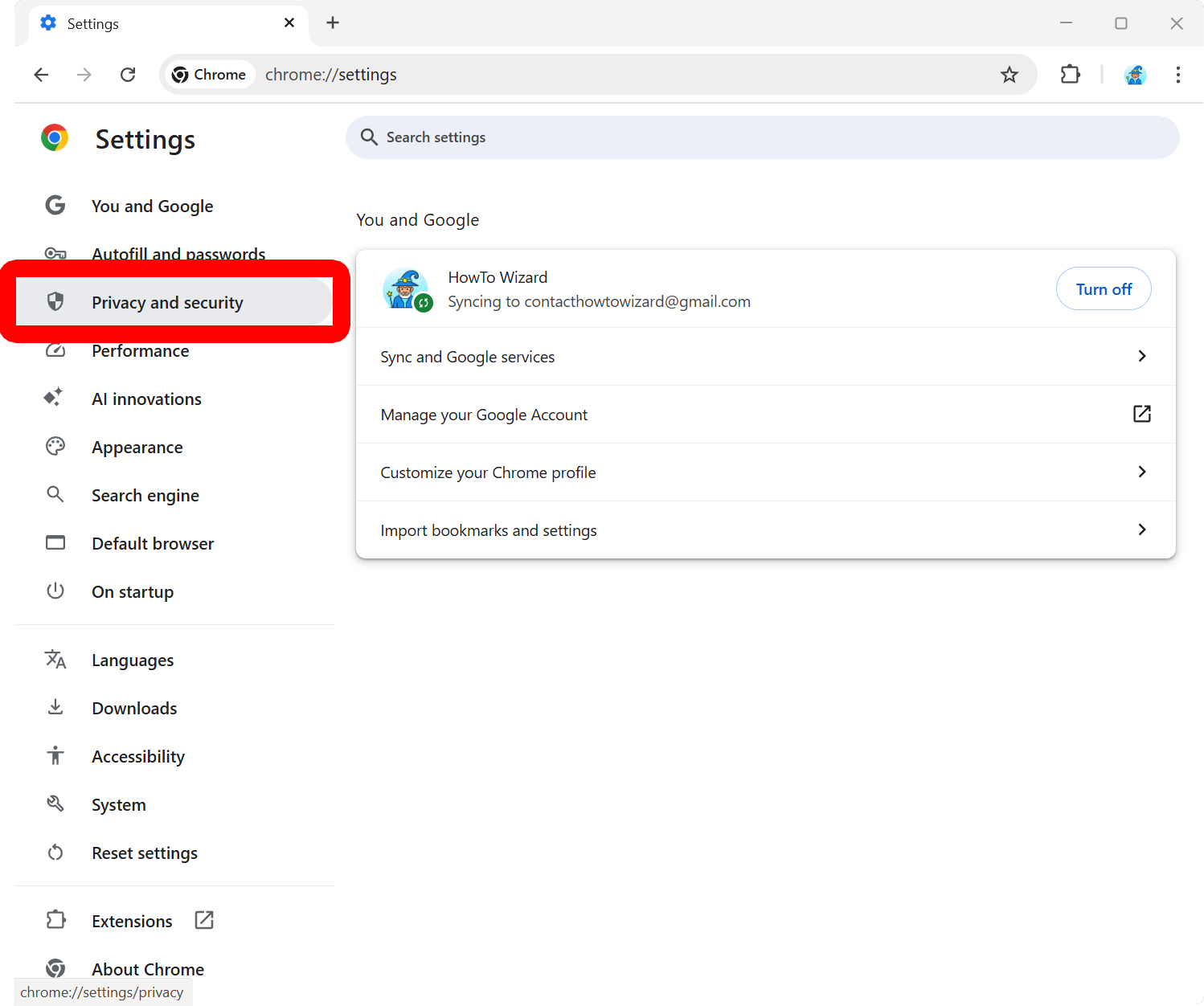
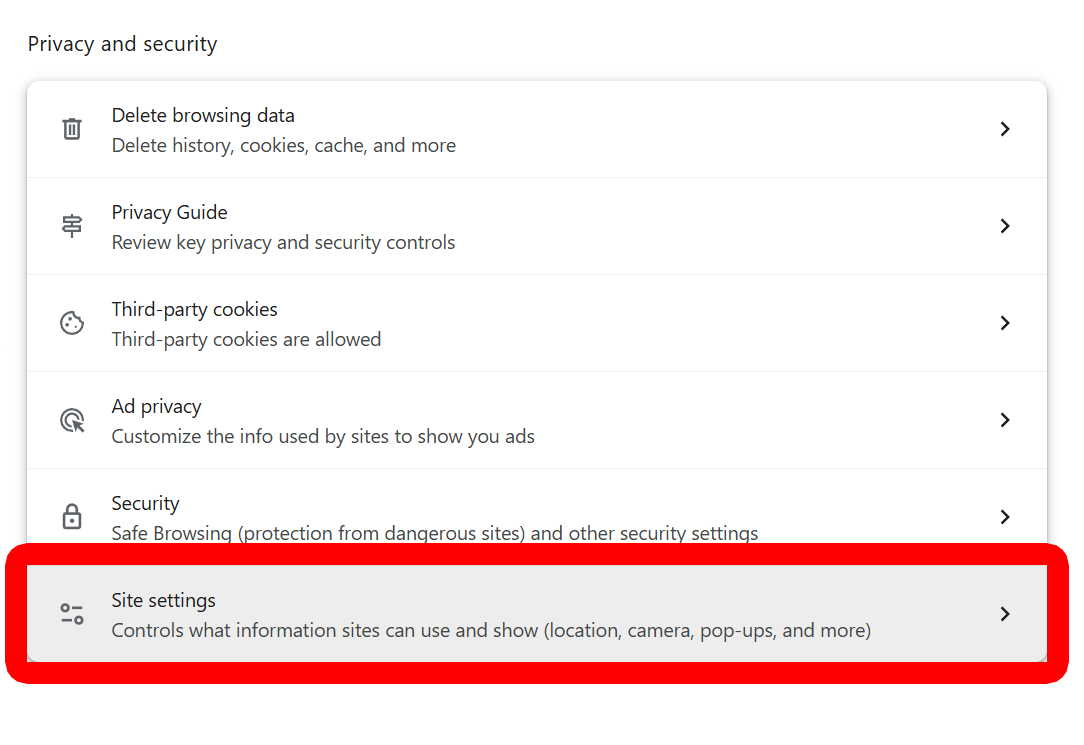
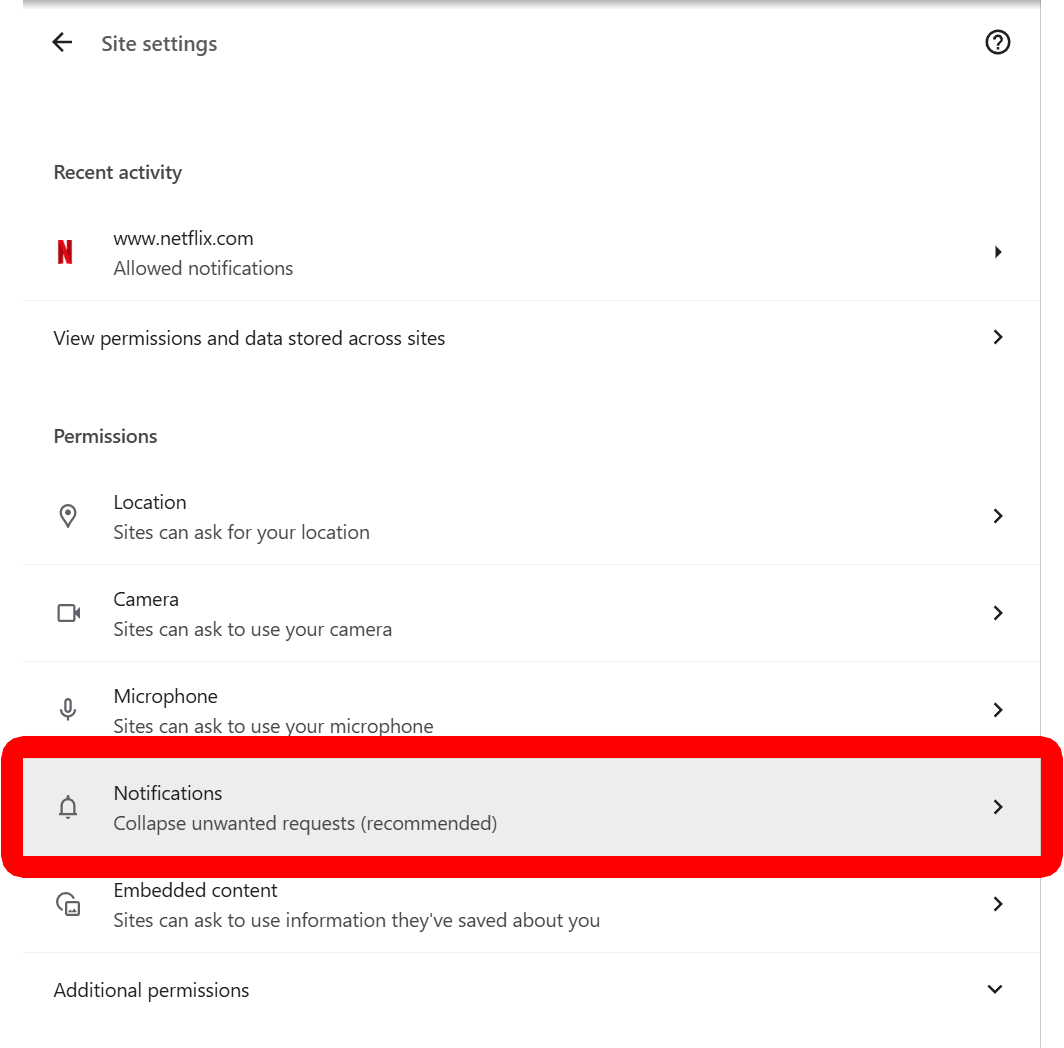
To turn off all your browser notifications, click the three-dot icon in the top-right corner of a Chrome window. Then select “Settings > Privacy and security > Site settings > Notifications.” Finally, select the option to “Don’t allow sites to send notifications.”
- Open Chrome and click the three-dot icon. You will see this in the top-right corner of the Chrome window.

- Select “Settings.” You will see this near the bottom of the expanded menu.

- Go to “Privacy and security.” You will see this in the left sidebar menu. If you don’t see this option, expand your Chrome window.

- Select “Site settings.”

- Scroll down and choose “Notifications.”

- Finally, check the option to “Don’t allow sites to send notifications.”
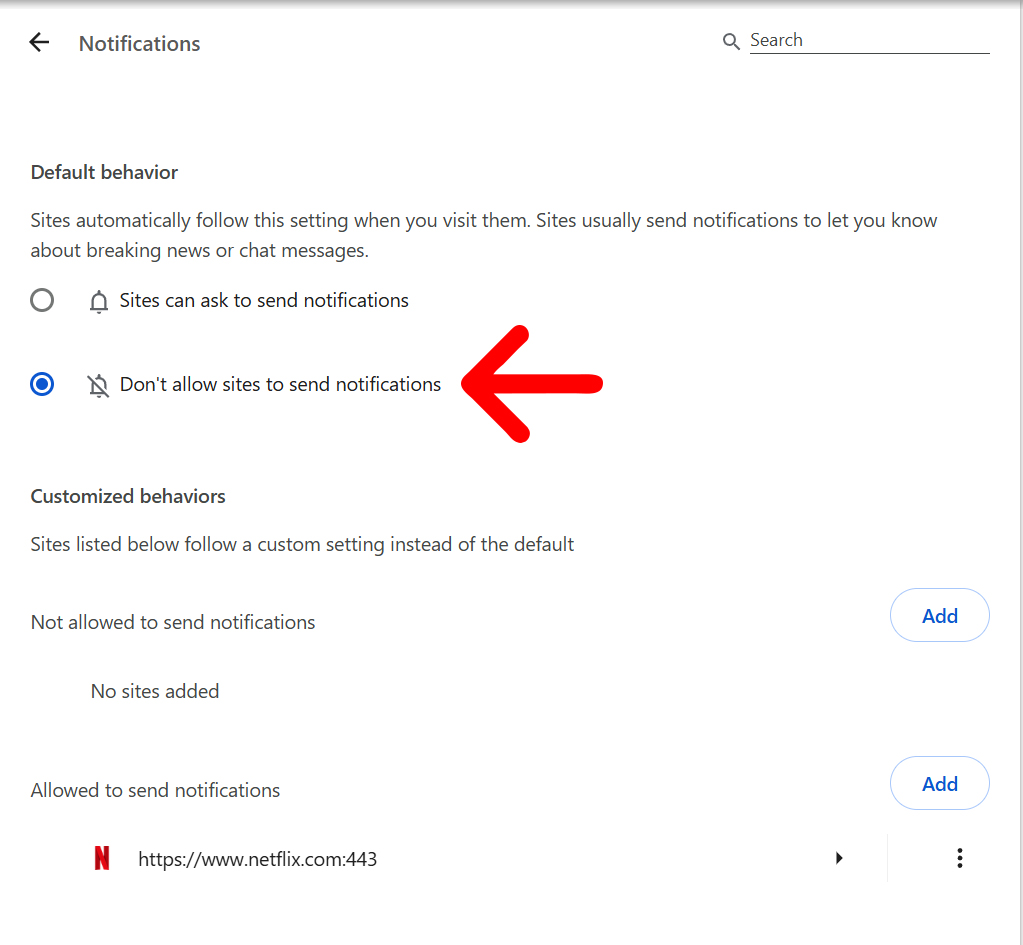
From here, you can also choose “Sites can ask to send notifications.” This will provide you with three options to choose from:
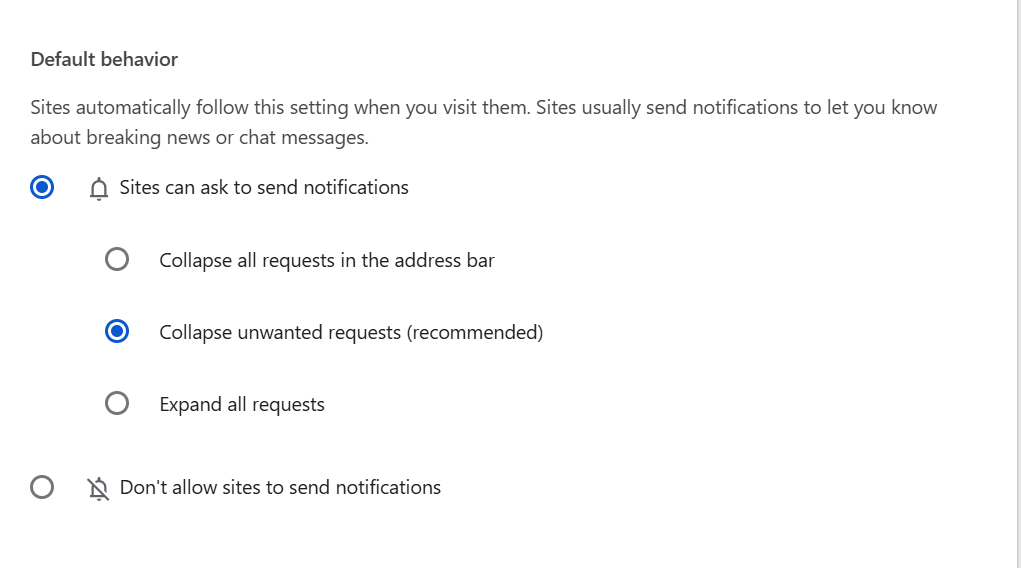
- Collapse all requests in the address bar: This will collapse all your notification requests into the “Site information” button in the address bar.
- Collapse unwanted requests (recommended): This will collapse some of the notification requests into the “Site information” button in your address bar. Chrome recommends this option in case you want notifications from certain sites.
- Expand all requests: This will enable notification requests from all sites.
At the bottom of the screen, you can also block notifications for specific sites by clicking “Add” under “Not allowed to send notifications,” or allow notifications by clicking “Add” under “Allowed to send notifications.”
Then enter the website URL to enable or disable notifications in Chrome.
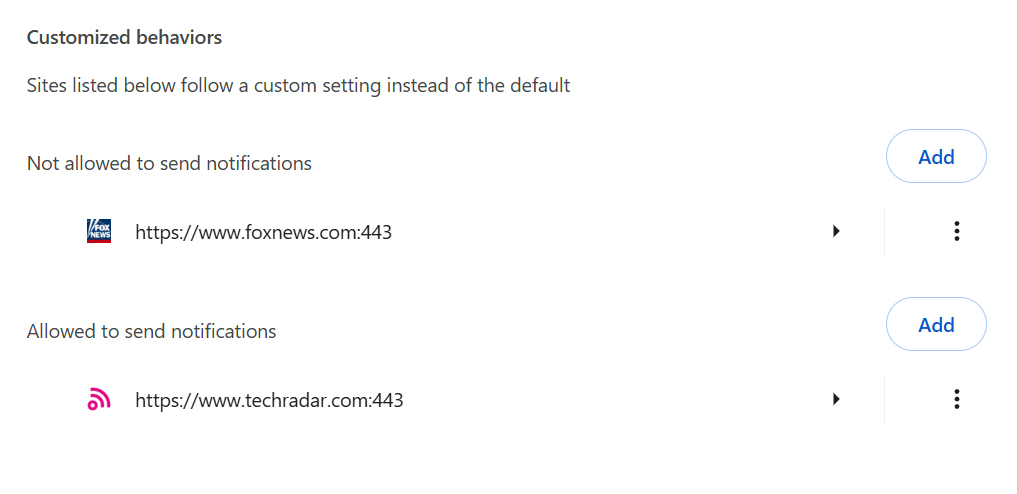
If you click the arrow next to a site, you can change more notification and permission settings for that site.
Read More: How to Clear Your Chrome Browsing History