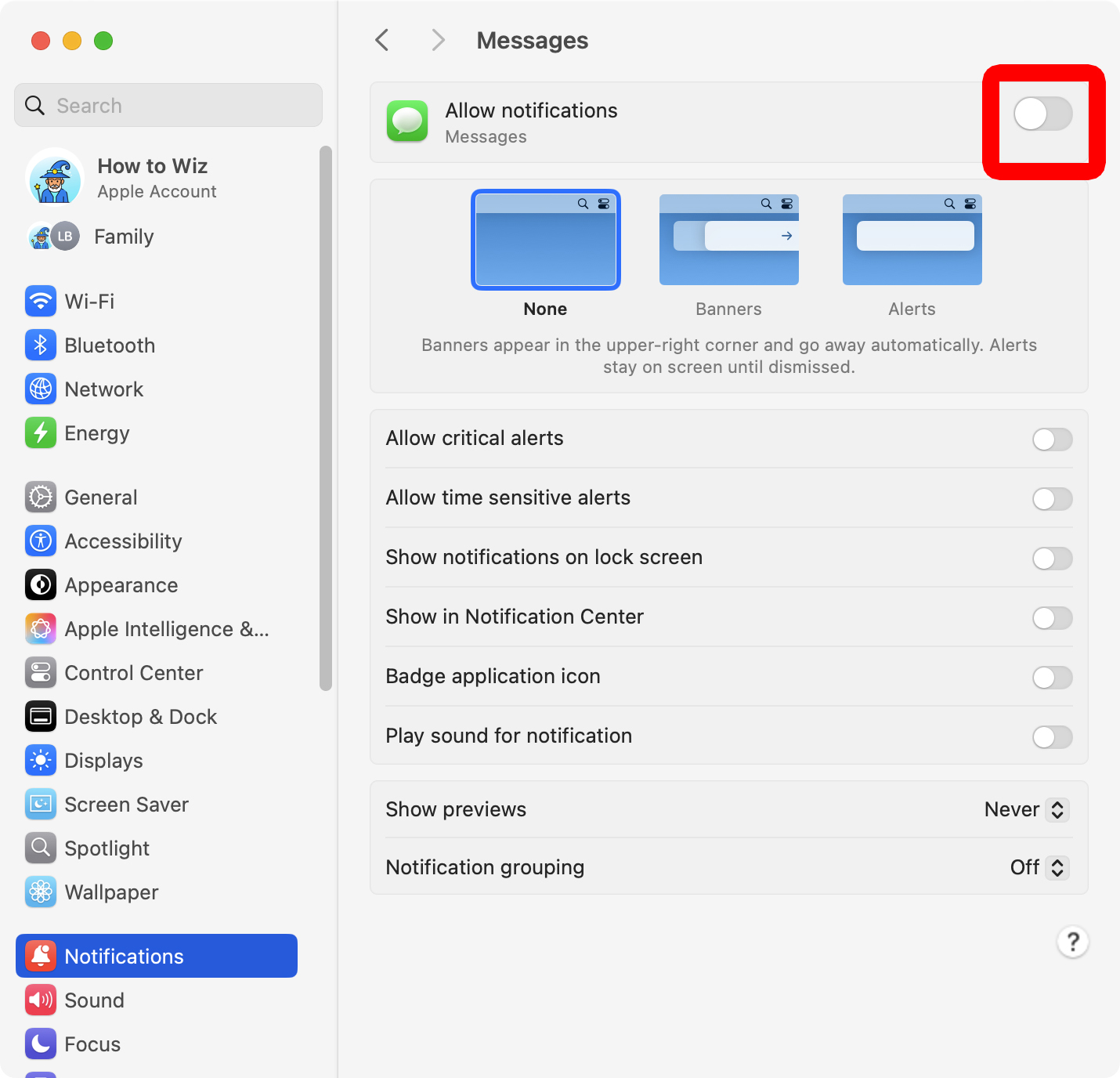
Tired of notifications taking over your screen? While they can be helpful for reminders, messages, and updates, too many can be distracting. Here’s everything you need to know about how to disable Mac notifications for specific apps or turn them off entirely.
Read More: How to Turn Off Chrome Notifications
How to Disable Notifications in the Notification Center
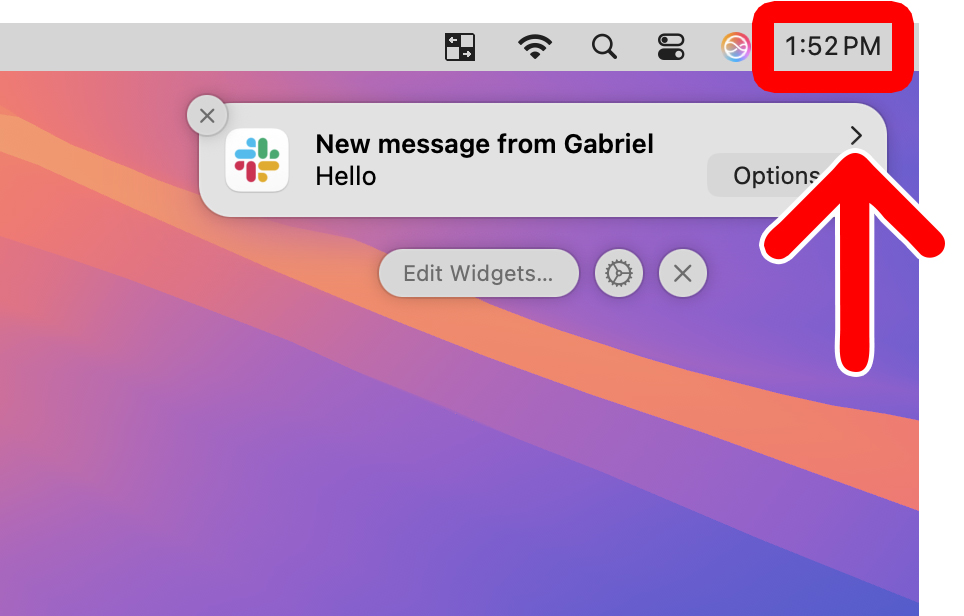
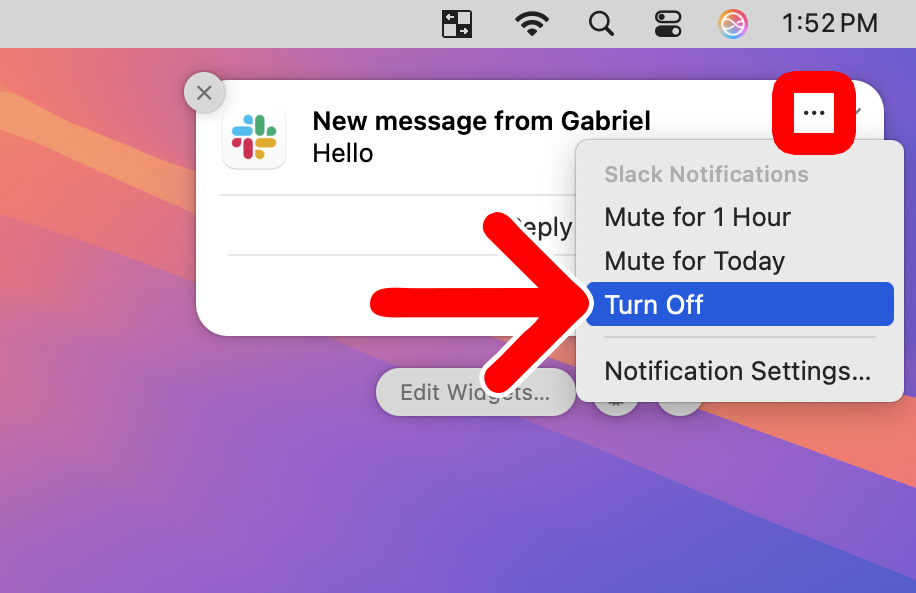
To disable notifications on a Mac, click the clock in the top-right corner of your screen. Then, select a recent notification and click the arrow (>) in the top-right corner. Finally, click the three-dot icon and select “Turn Off” from the pop-up menu.
- Click the clock in the top-right corner of your screen.
- Select the arrow (>) in the top-right corner of a notification.

- Click the three-dot icon.
- Finally, select “Turn Off.”

How to Turn Off All Notifications on a Mac
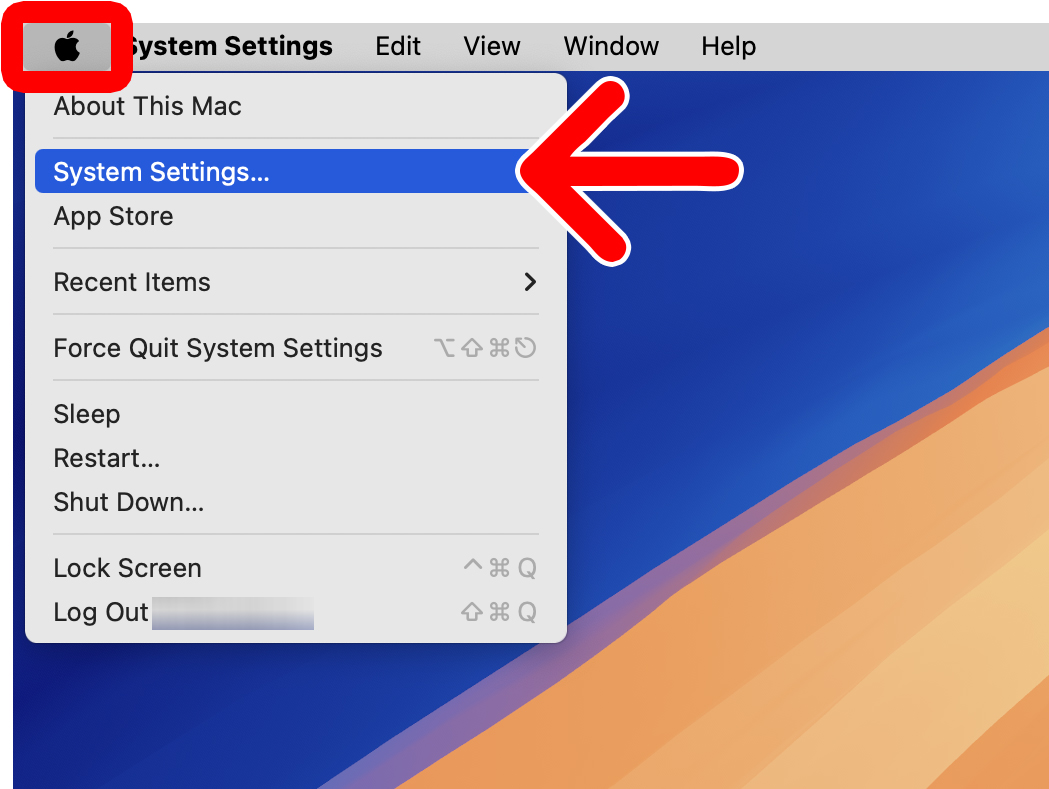
To turn off notifications on a Mac, click the Apple logo in the top-left corner of your screen and select “System Settings.” Then, select “Notifications” from the left sidebar menu and set “Show previews” to “Never.” Finally, deselect all options under “Notification Center.”
- Click the Apple logo in the top-left corner of your screen.
- Select “System Settings.”

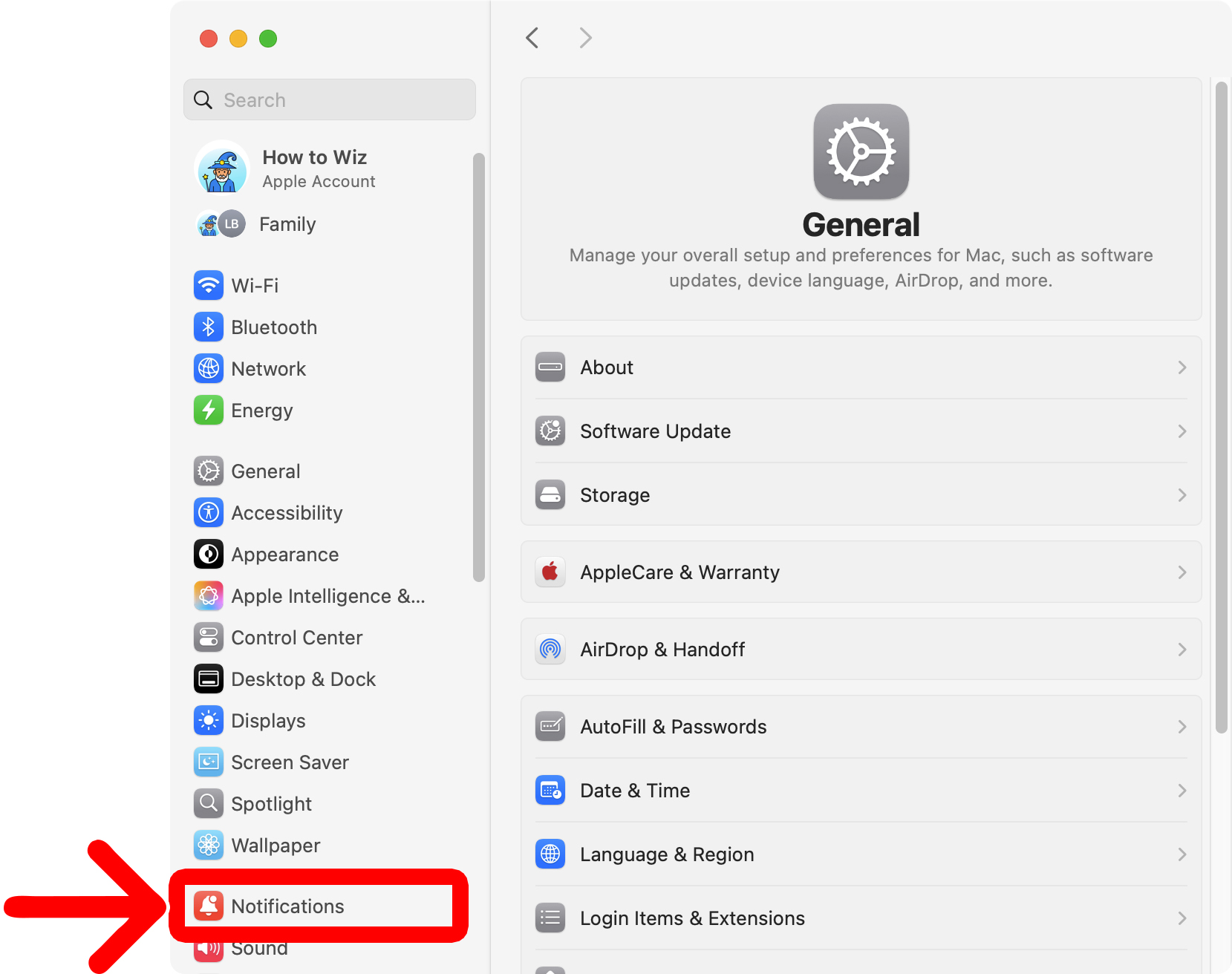
- Go to “Notifications.” You will see this in the left sidebar menu.

- Set “Show previews” to “Never.” This will turn off all notification previews, but you will still be able to see them in your Notification Center.

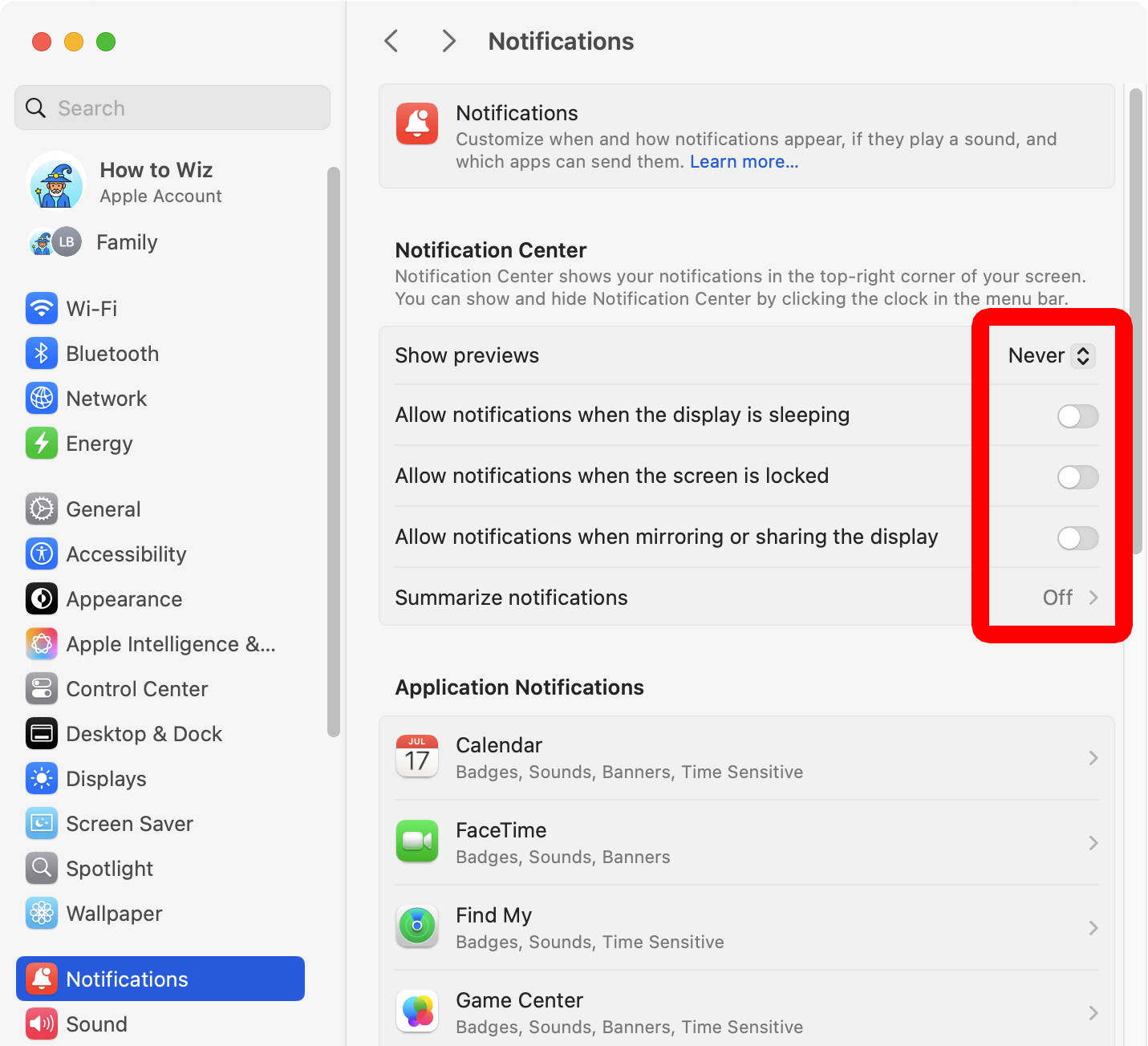
From here, you can also turn off the following options:
- Allow notifications when the display is sleeping: This will let you disable notifications from popping up when your Mac display is asleep.
- Allow notifications when the screen is locked: This allows you to disable notifications when your Mac is locked.
- Allow notifications when mirroring or sharing the display: This allows you to disable notifications from popping up when you are sharing your Mac with another screen.
- Summarize notifications: Uses Apple Intelligence to condense information from certain app notifications.
If you want to stop apps from showing up in your Notification Center, you’ll need to turn them off individually. Scroll down to the “Application Notifications” section and select an app to change its notification settings.
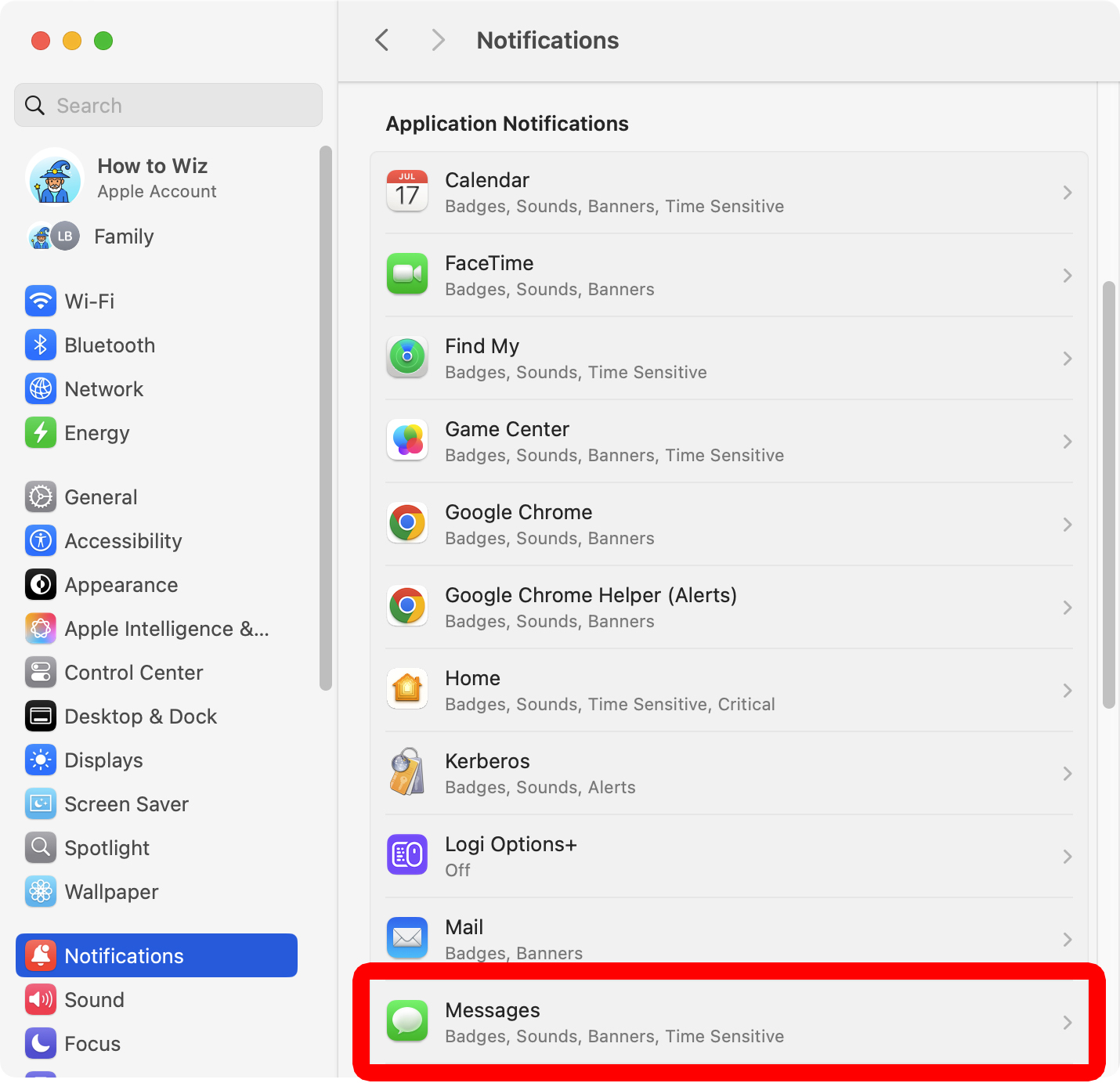
Then switch the toggle next to “Allow notifications” to turn them off. From here, you can also change other notification settings for an app. For example, if you keep notifications enabled for an app, you can still turn off the notification sounds, badge app icons, and more.