Every time you visit a website, it will save a small piece of information on your computer to speed things up. Clearing cookies can improve privacy and force your browser to load pages with the latest data. Here’s everything you need to know about how to clear cookies from Google Chrome, Safari, and Microsoft Edge.
How to Clear Cookies on Google Chrome
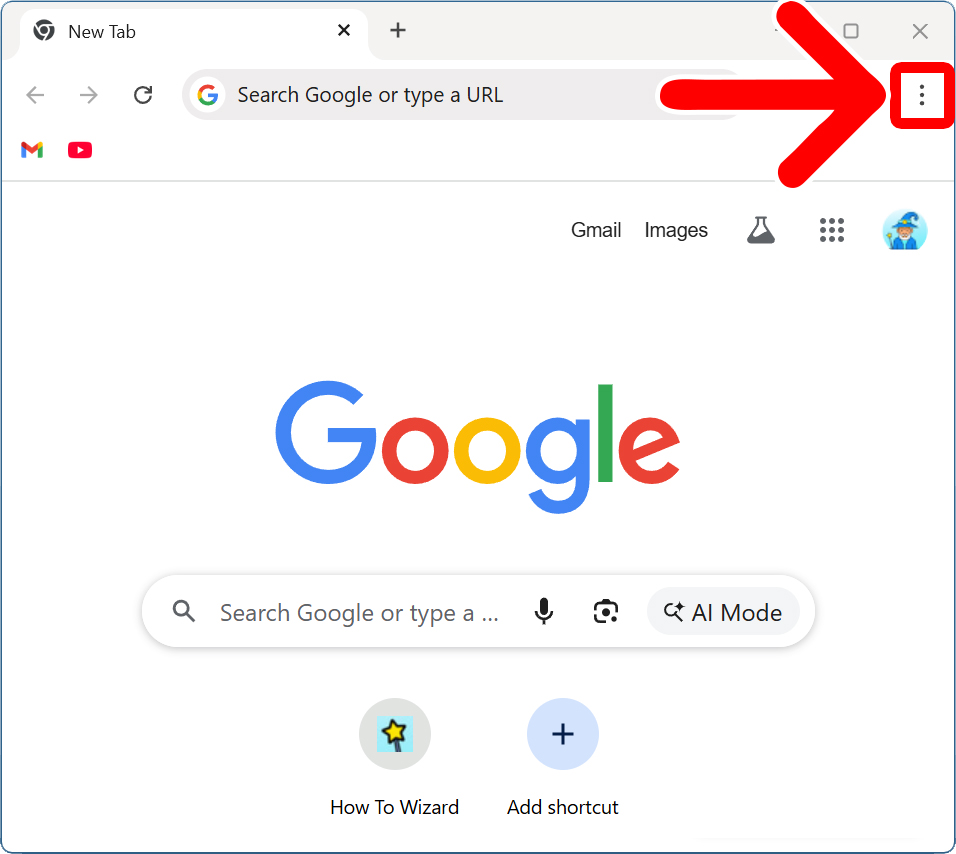
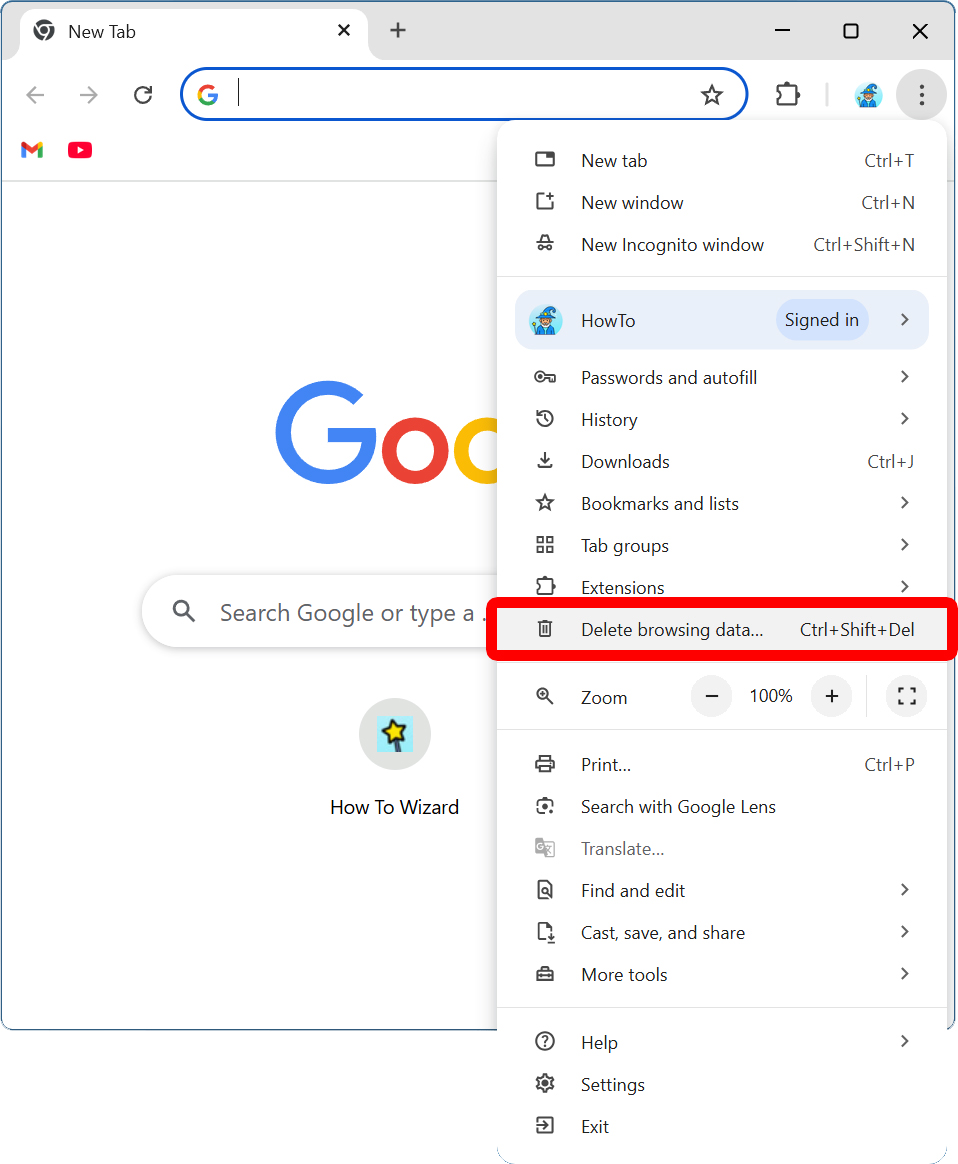
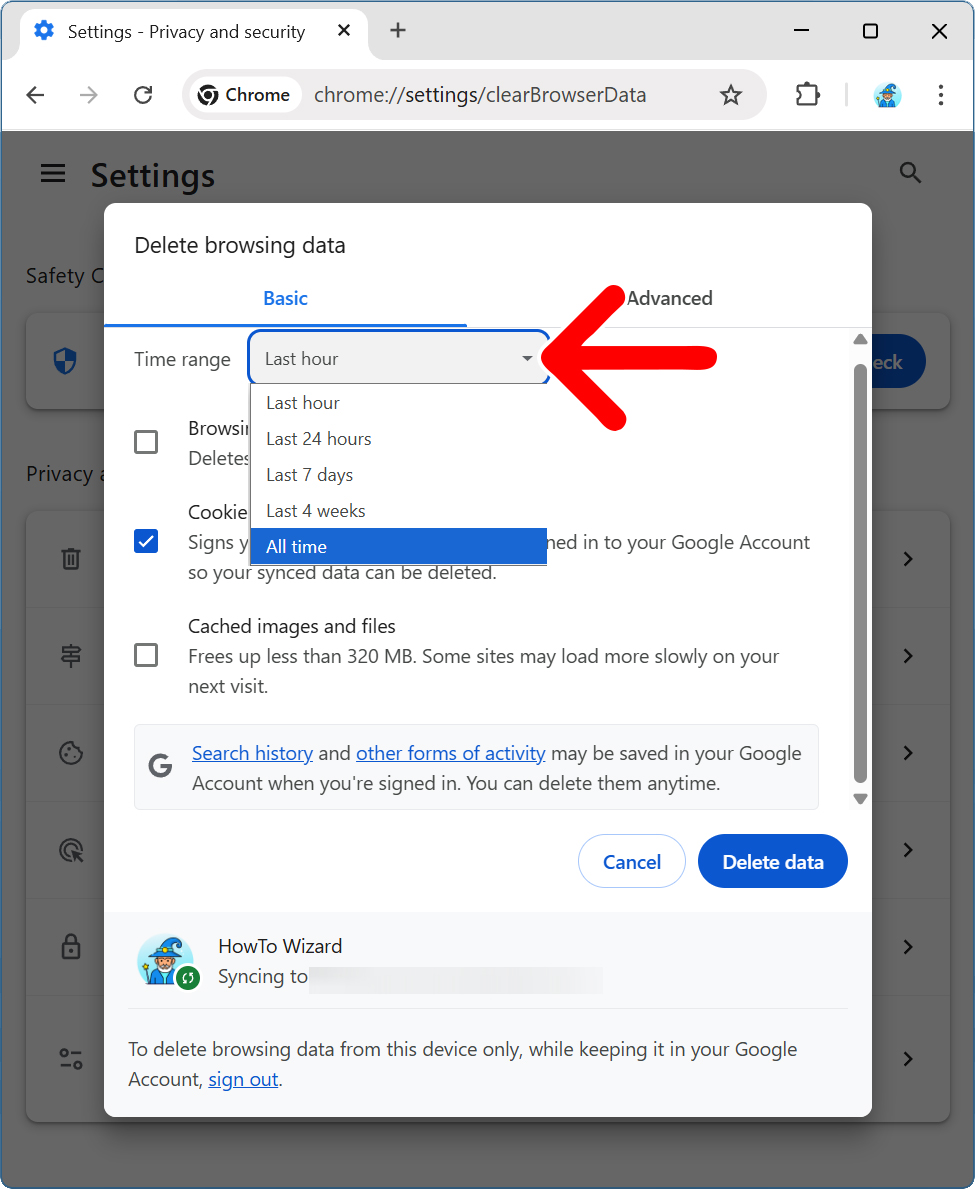
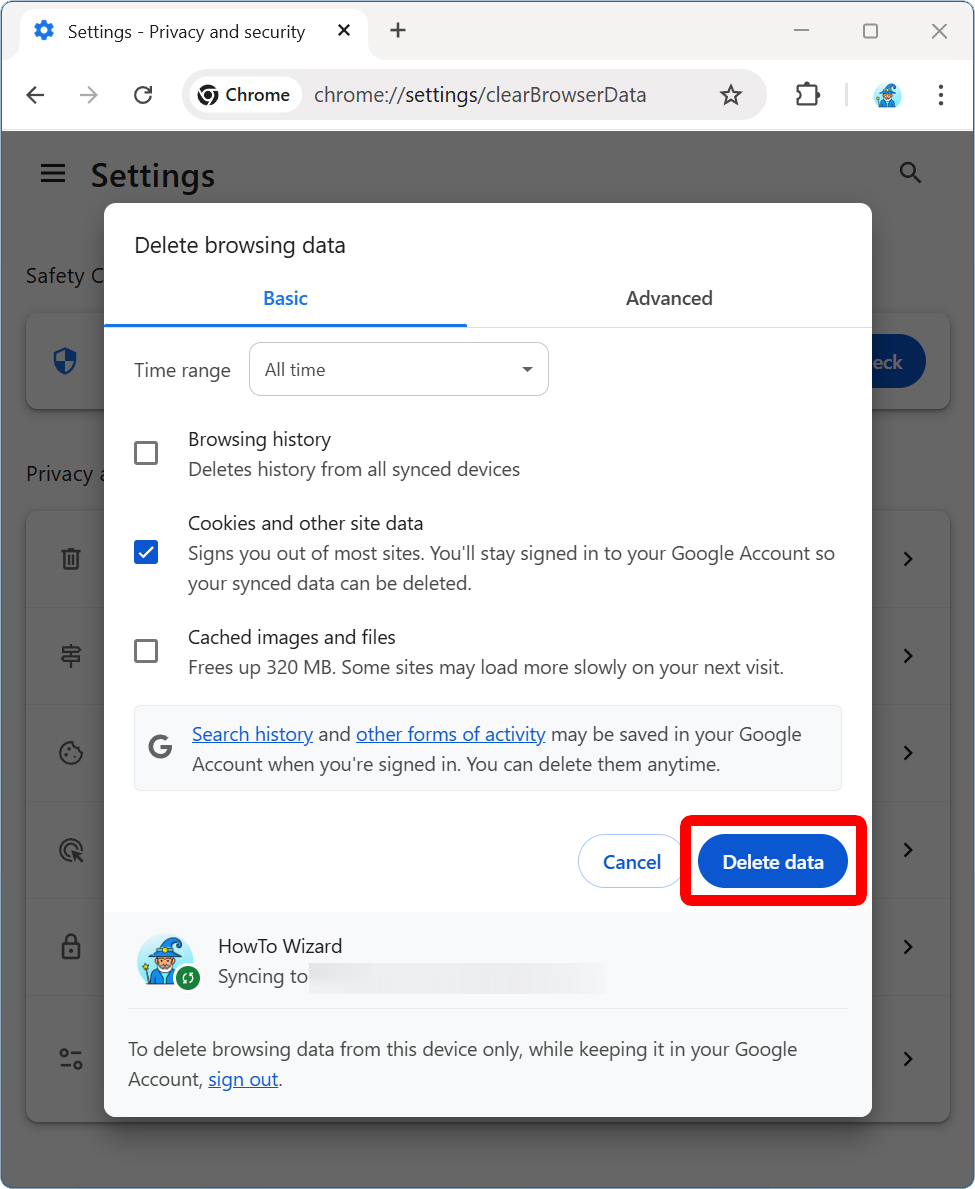
To clear cookies on Google Chrome, open the browser and click the three-dot icon (⋮) in the top-right corner of the window. Then select “Delete browsing data” and check the box next to “Cookies and other site data.” Finally, select a time range and click “Delete data.”
- Open Chrome and click the three-dot icon in the top-right corner.

- Select “Delete browsing data.”

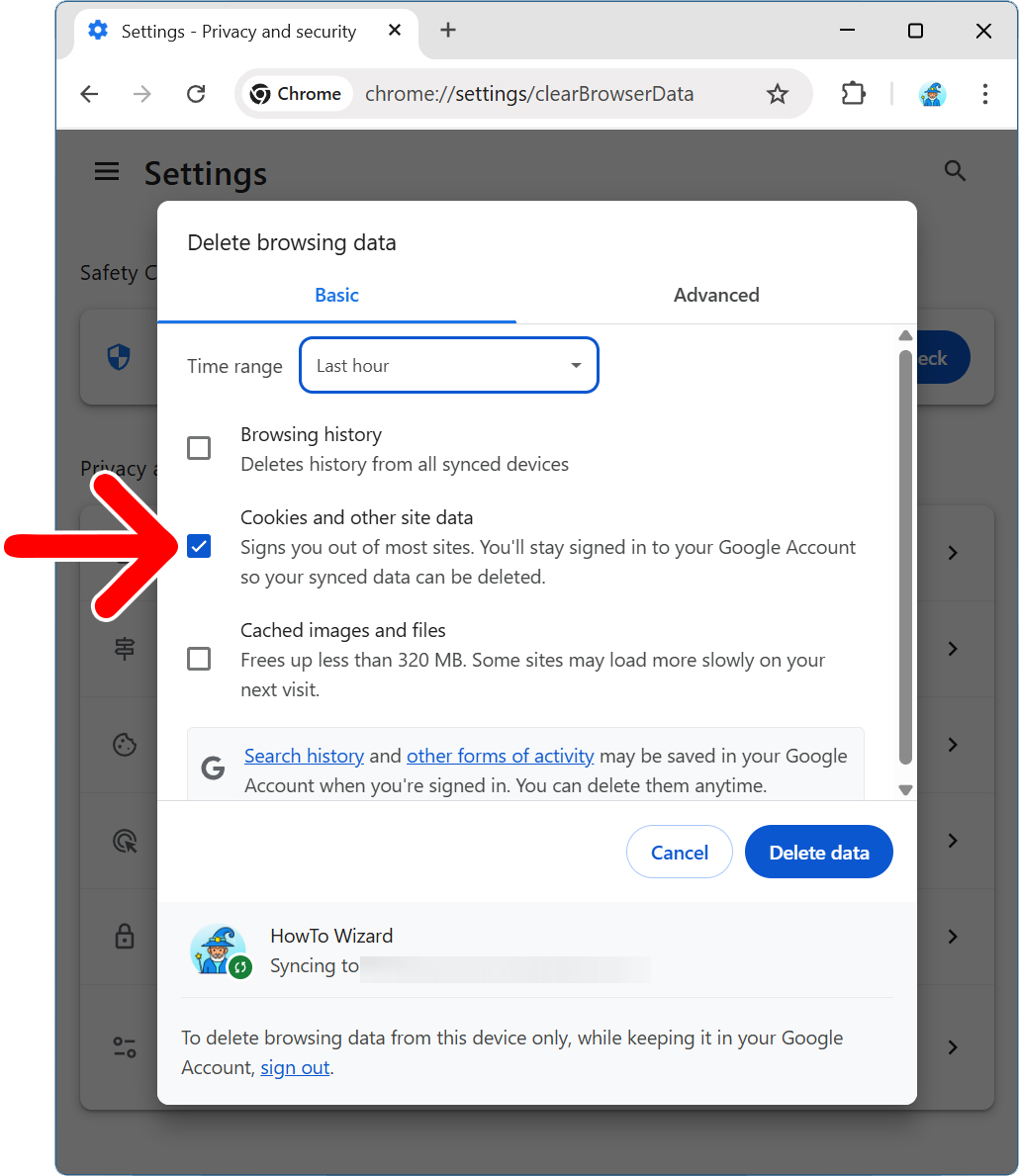
- Check the box next to “Cookies and other site data.”

- Choose a time range. Use the drop-down menu next to “Time range” to choose how long you want to delete cookies. If you want to clear all cookies from Chrome, select “All time.”
- Finally, click “Delete data.”
Read More: How to Restore Chrome Tabs
How to Clear Cookies on Safari
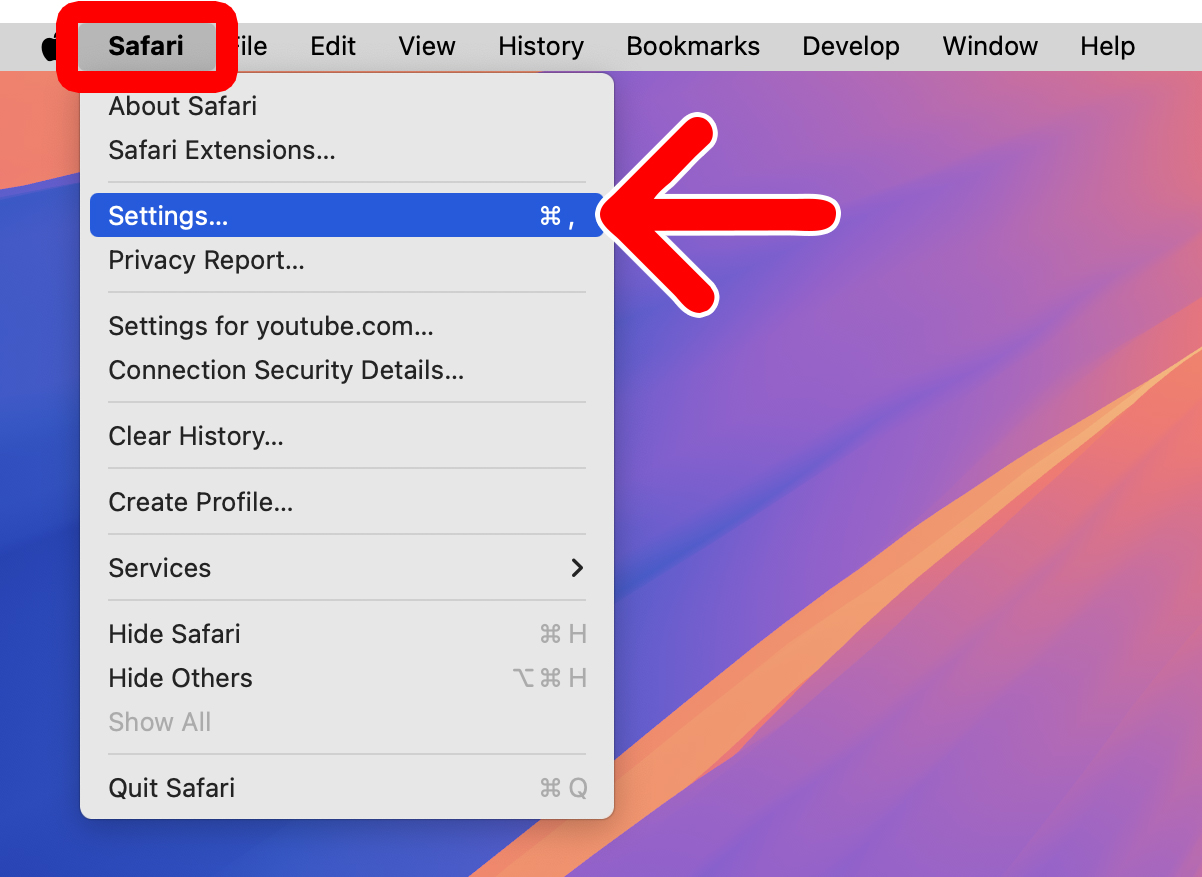
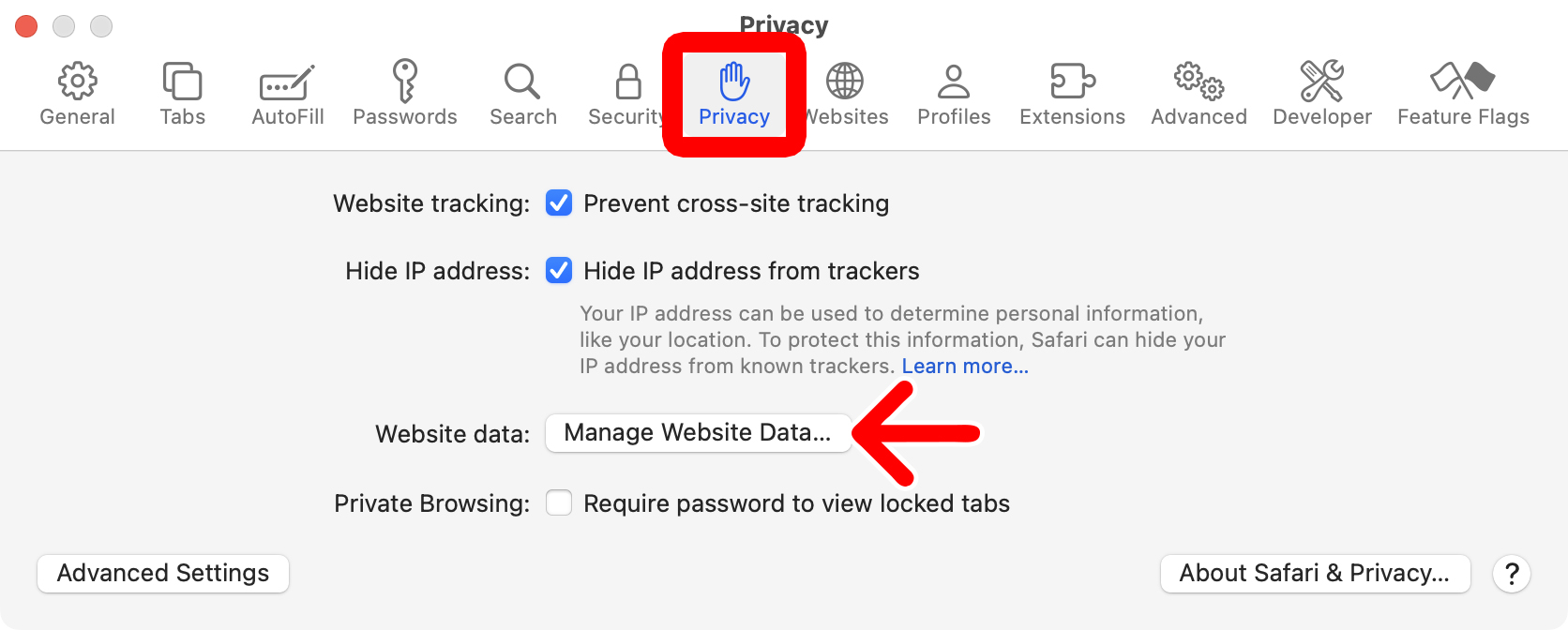
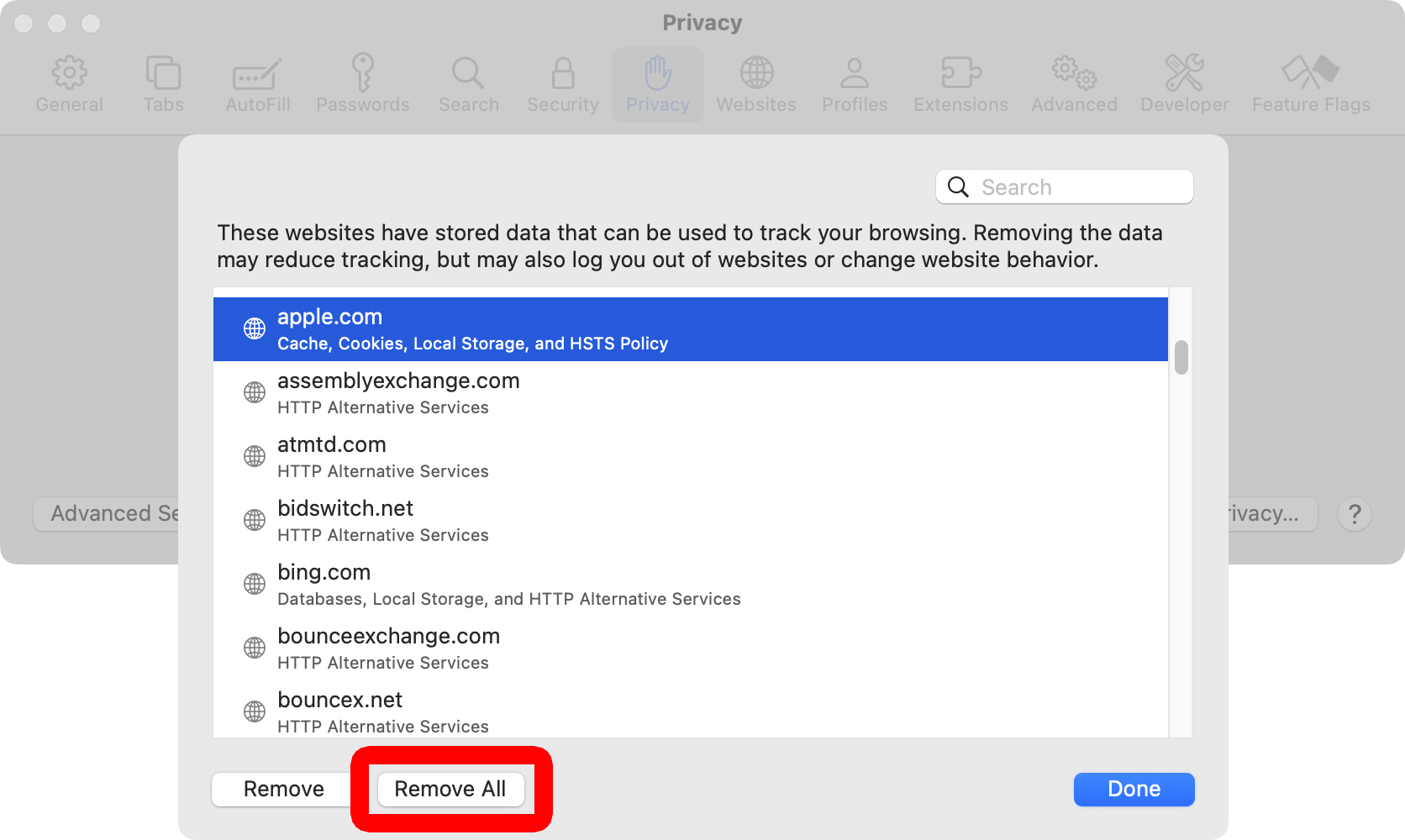
To clear cookies on Safari, open the browser and click “Safari” in the top-left corner of your screen. Then select “Settings” and click the “Privacy” tab at the top of the window. Finally, select “Manage Website Data” and click “Remove All.”
- Open Safari and click “Safari” at the top of your screen. You will only see this in the top-left corner of your screen when you have a Safari window selected.
- Click “Settings.”
- Select the “Privacy” tab. You will see this at the top of the Settings window.
- Click “Manage Website Data.”
- Click “Remove All.” This will delete all the cookies, cache, and local storage in Safari.
- Finally, click “Remove Now” to confirm.
How to Clear Cookies on Microsoft Edge
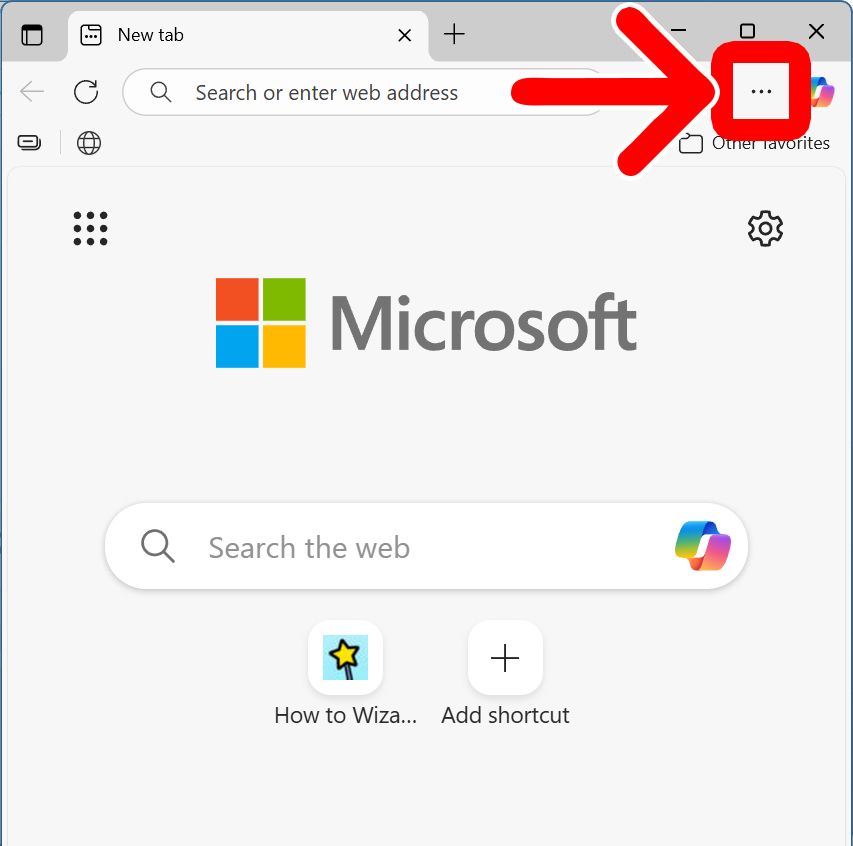
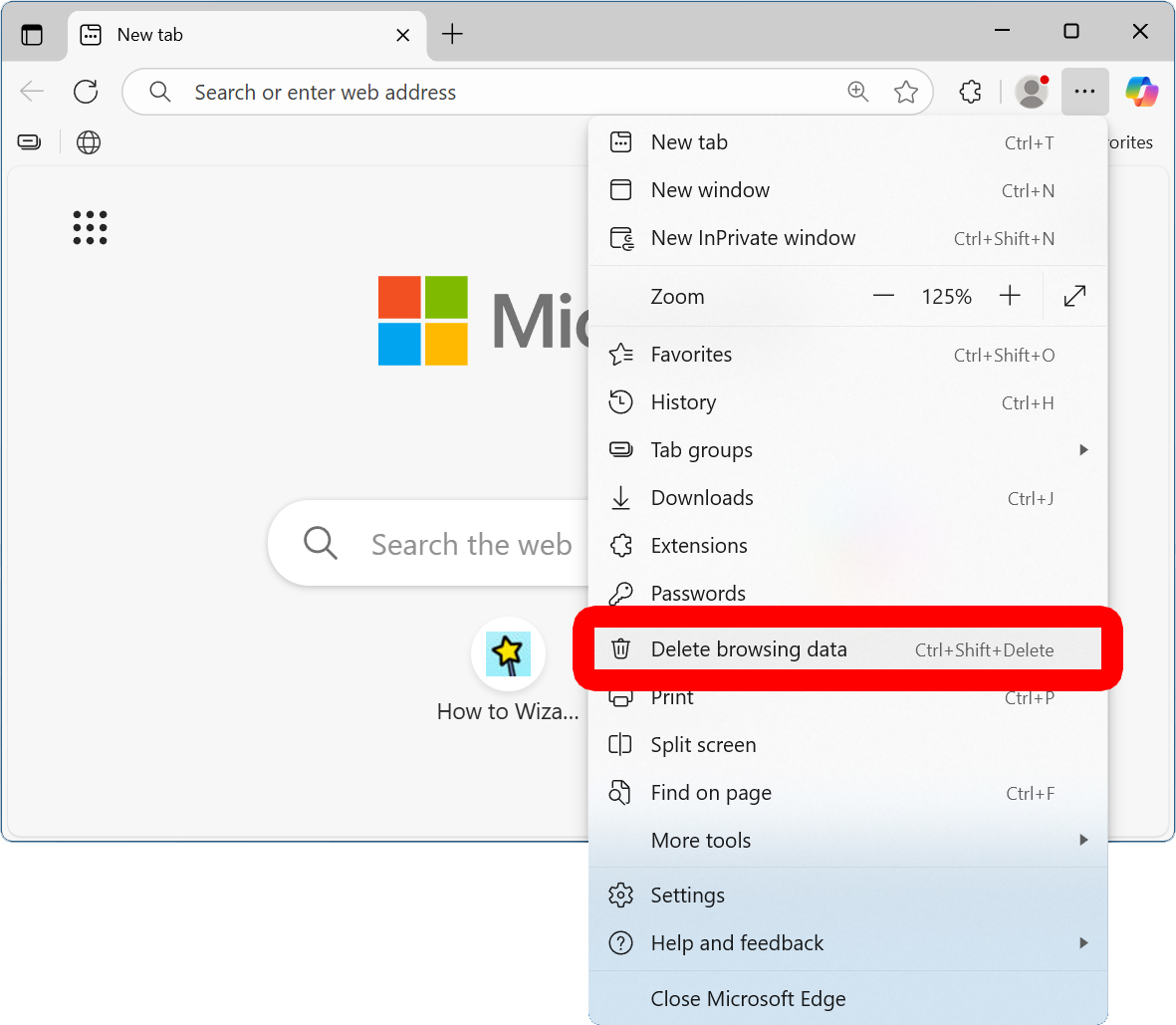
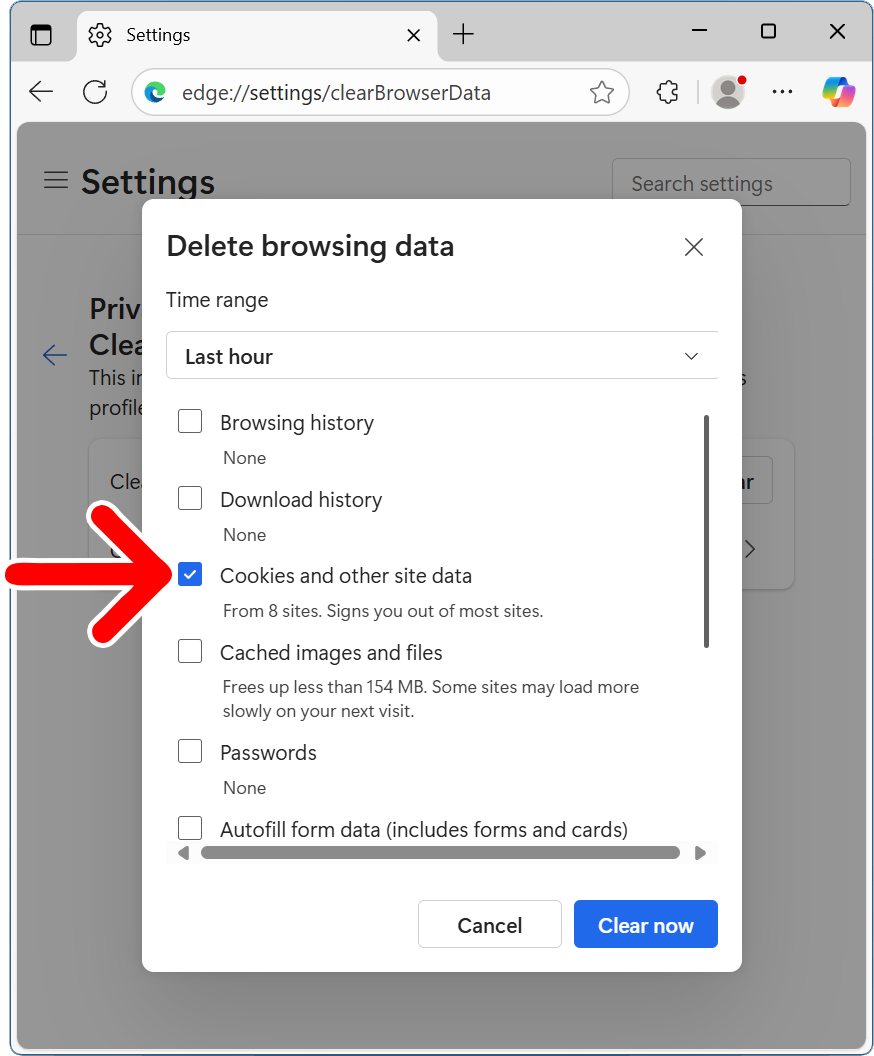
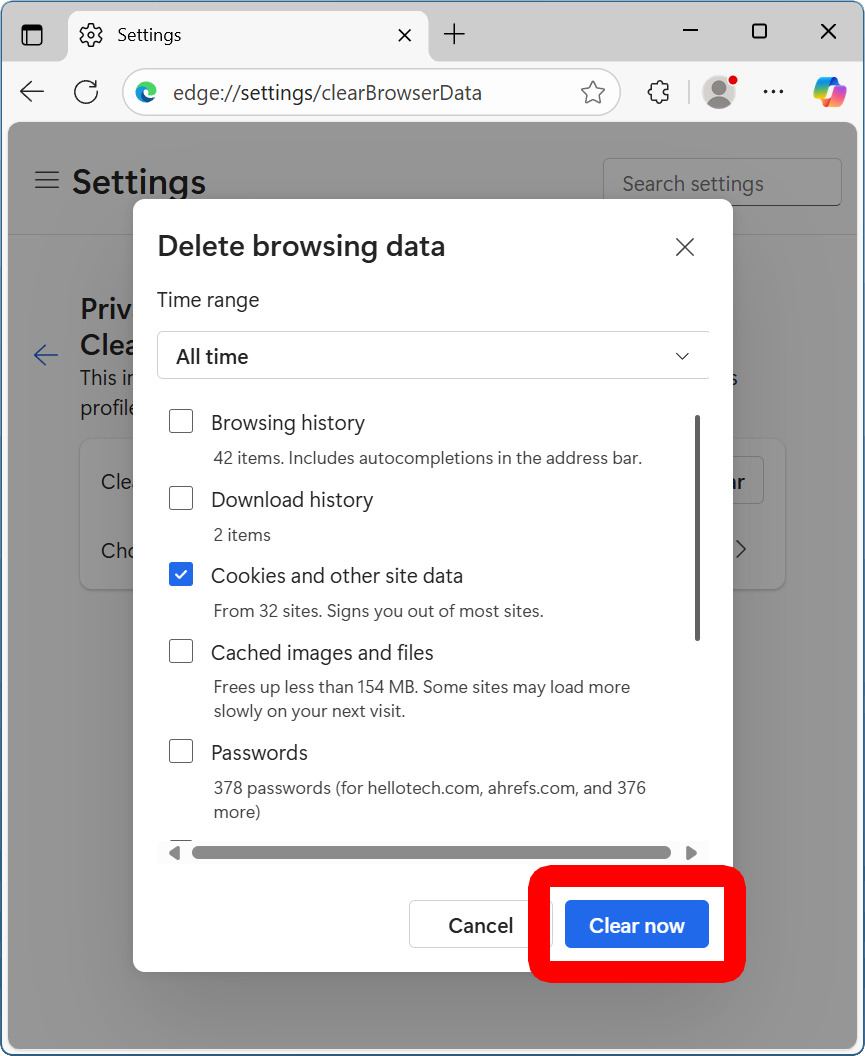
To clear cookies on Microsoft Edge, open the browser and click the three-dot icon (⋮) in the top-right corner of the window. Then select “Delete browsing data” and check the box next to “Cookies and other site data.” Finally, select a time range and click “Clear now.”
- Open Edge and click the three-dot icon in the top-right corner.
- Select “Delete browsing data.”
- Check the box next to “Cookies and other site data.”
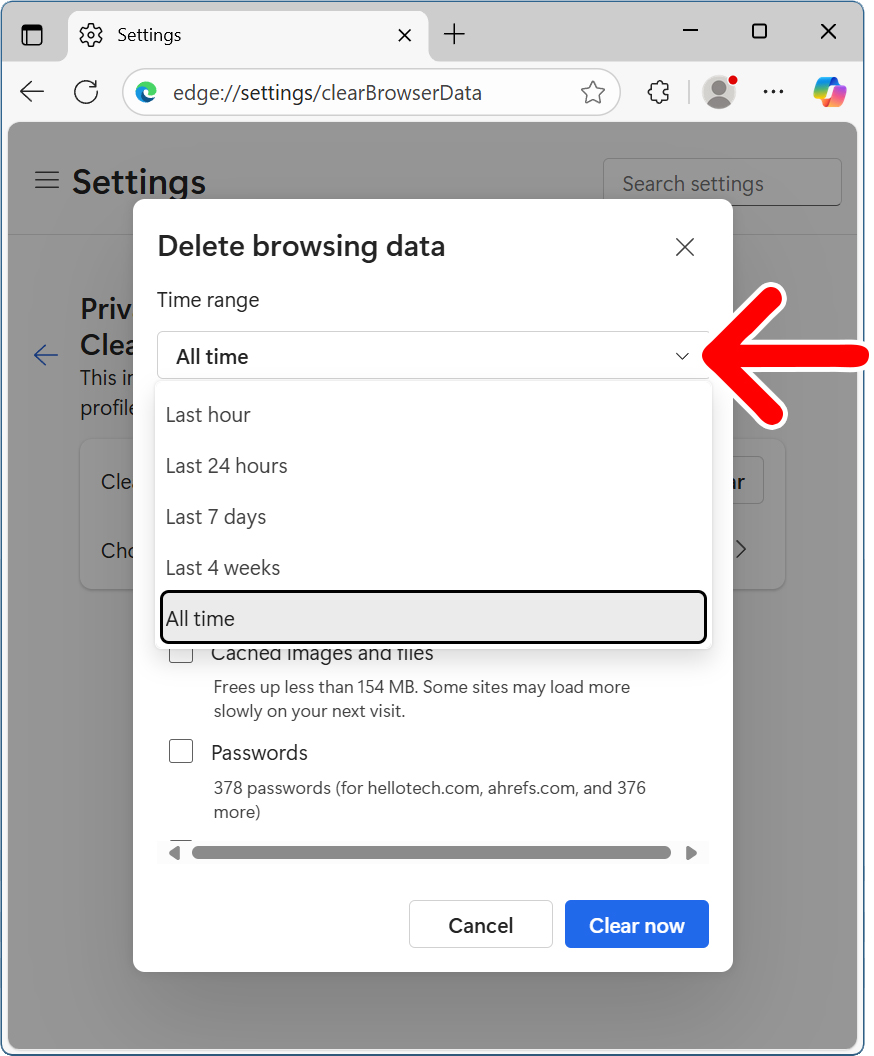
- Select a time range. Use the drop-down menu next to “Time range” to choose how long you want to delete cookies. If you want to clear all cookies from Edge, select “All time.”
- Finally, click “Clear now.”