
Can’t get your Roku remote to work? Don’t worry—you’re not stuck staring at a blank screen. Here’s everything you need to know about how to pair or reset any type of Roku remote or connect a new remote.
Before You Begin:
To pair a Roku remote, you first need to identify the type of remote you have. If your remote has a microphone or magnifying glass button, that means it’s a “voice” or “RF” remote. If your remote doesn’t have this button, that means it’s a “simple” or “IR” Roku remote.
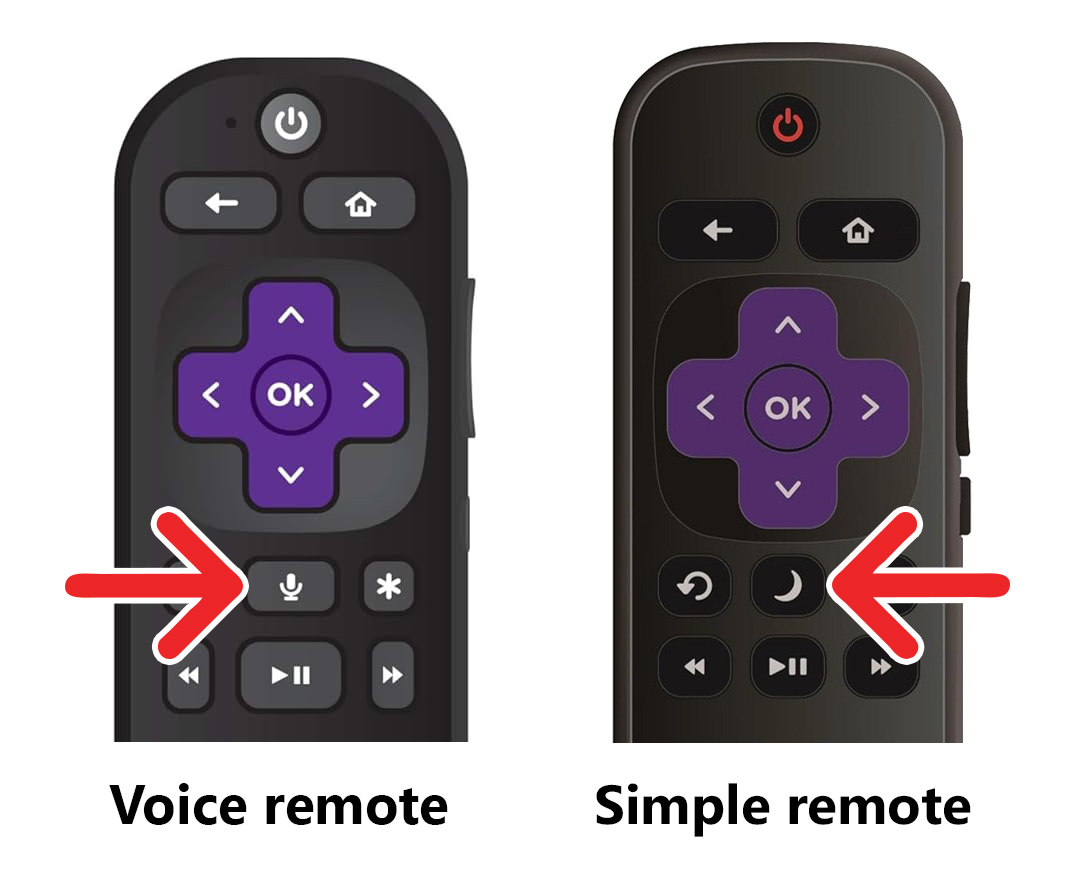
A simple Roku remote uses infrared (IR) light to connect to your Roku device, so as long as you have a direct line of sight, it should work. If it still doesn’t work, you can always reset your Roku device.
How to Reset a “Simple” Roku Remote
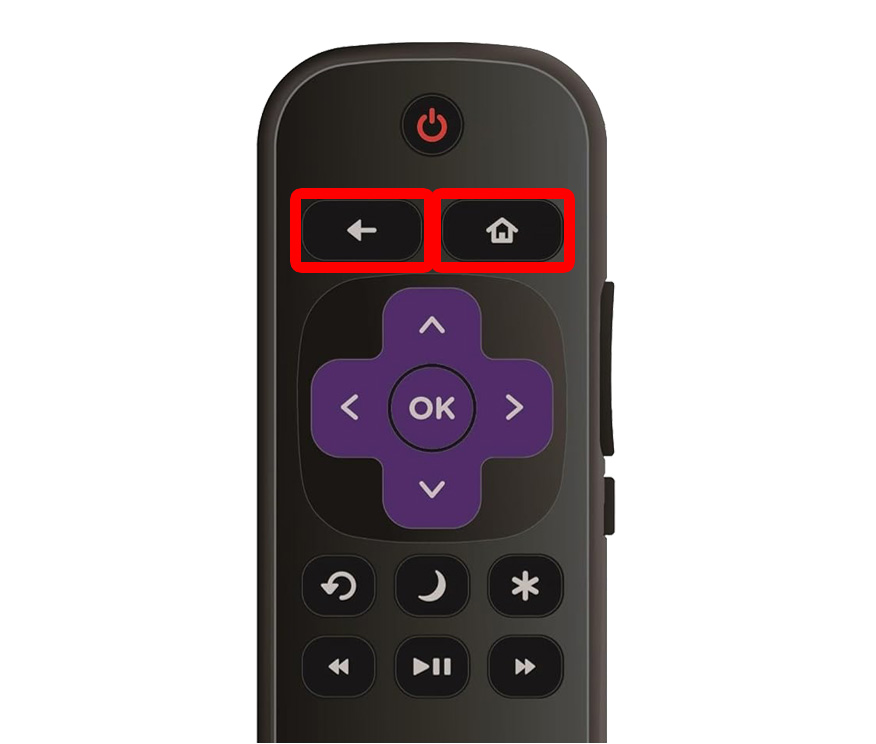
To reset a simple Roku remote, unplug the device from power and remove the batteries from your remote. Then press any two buttons to clear the remote’s internal power. Next, plug your Roku device back in and insert the batteries. Finally, press the Home and Back buttons for 5 seconds.
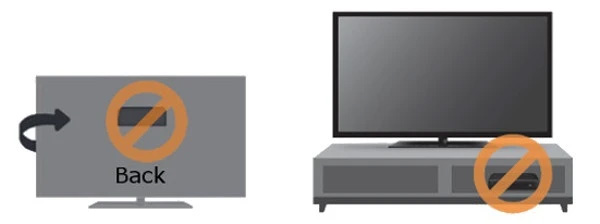
If your remote still isn’t working, remove any obstructions between the remote and your Roku—even a glass TV cabinet can block the signal. Make sure there’s a clear line of sight between your simple remote and the Roku device.
Unlike a “simple” remote, the latest Roku remotes use radio frequency (RF) to connect to your Roku device, which means you can quickly pair these remotes by pressing the “Pairing” button(s).
How to Pair a Roku “Voice” Remote (with a Pairing Button)
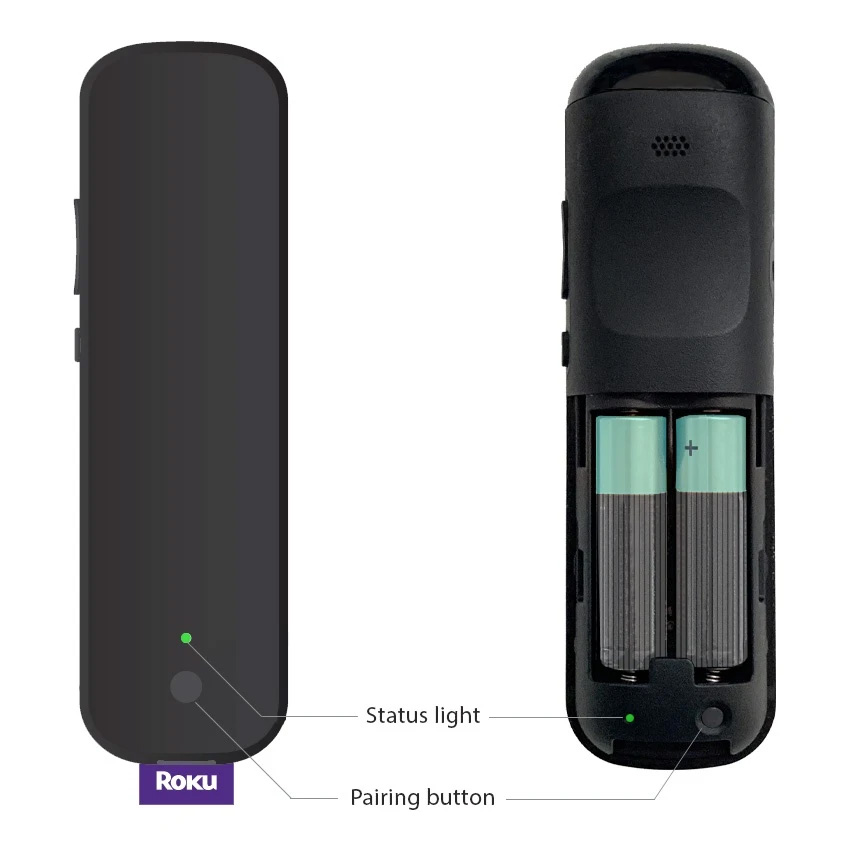
To pair a Roku voice remote, look for a pairing button on the back of your remote or inside the battery compartment. Then press and hold this button until you see the status light start flashing. Once the light stops flashing, check that your remote has been paired.
How to Pair a Roku “Voice” Remote (without a Pairing Button)
If your remote doesn’t have a pairing button, you can also pair it by pressing and holding the Home and Back buttons at the top of the remote until you see a flashing light. When the light stops flashing, check that your remote has been paired.
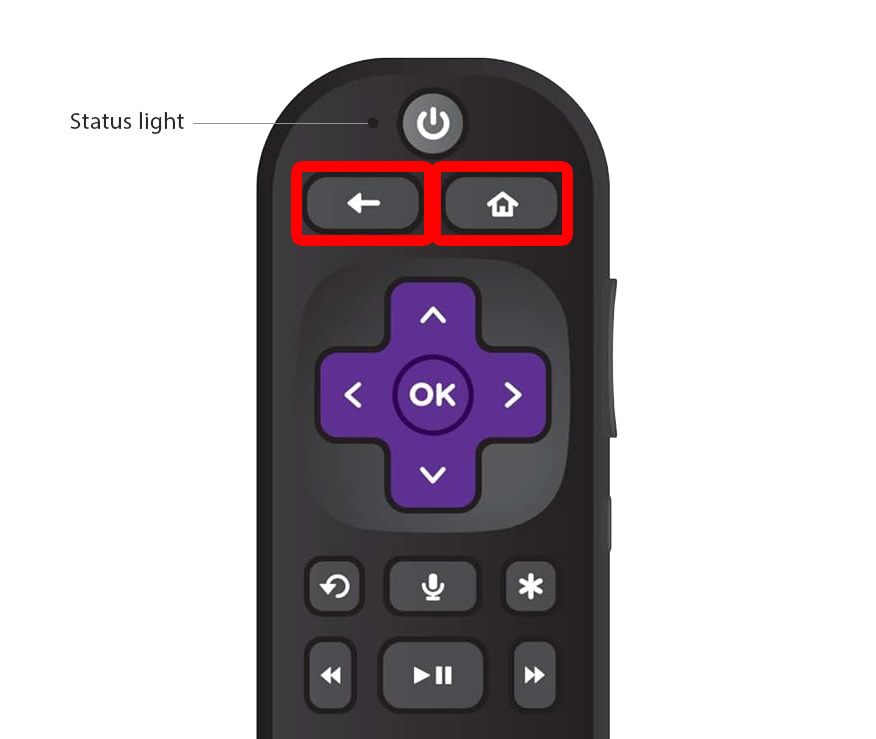
If you aren’t able to pair your remote with the pairing button or the Home and Back buttons, you can try to reset your remote by power cycling your Roku device.
How to Reset a Roku “Voice” Remote
To reset a Roku voice remote, unplug your Roku device from power, remove the batteries, press any two buttons, and wait 10 seconds. Then plug your Roku back in and wait until you see the home screen, then insert your batteries. Finally, press and hold the pairing button until the status light starts flashing.
- Unplug your Roku device from power.
- Remove the batteries from your Roku remote.
- Press any two buttons on your remote.
- Wait 10 seconds.
- Plug your Roku device back in.
- When you see the Roku home screen, re-insert your batteries.
- Press and hold the pairing button on your Roku remote. You might find this button on the back of your remote or inside the battery compartment. Keep pressing this button until you see a flashing light.
- Once the status light starts flashing, your remote will start pairing.
How to Use the Roku App to Pair a Remote
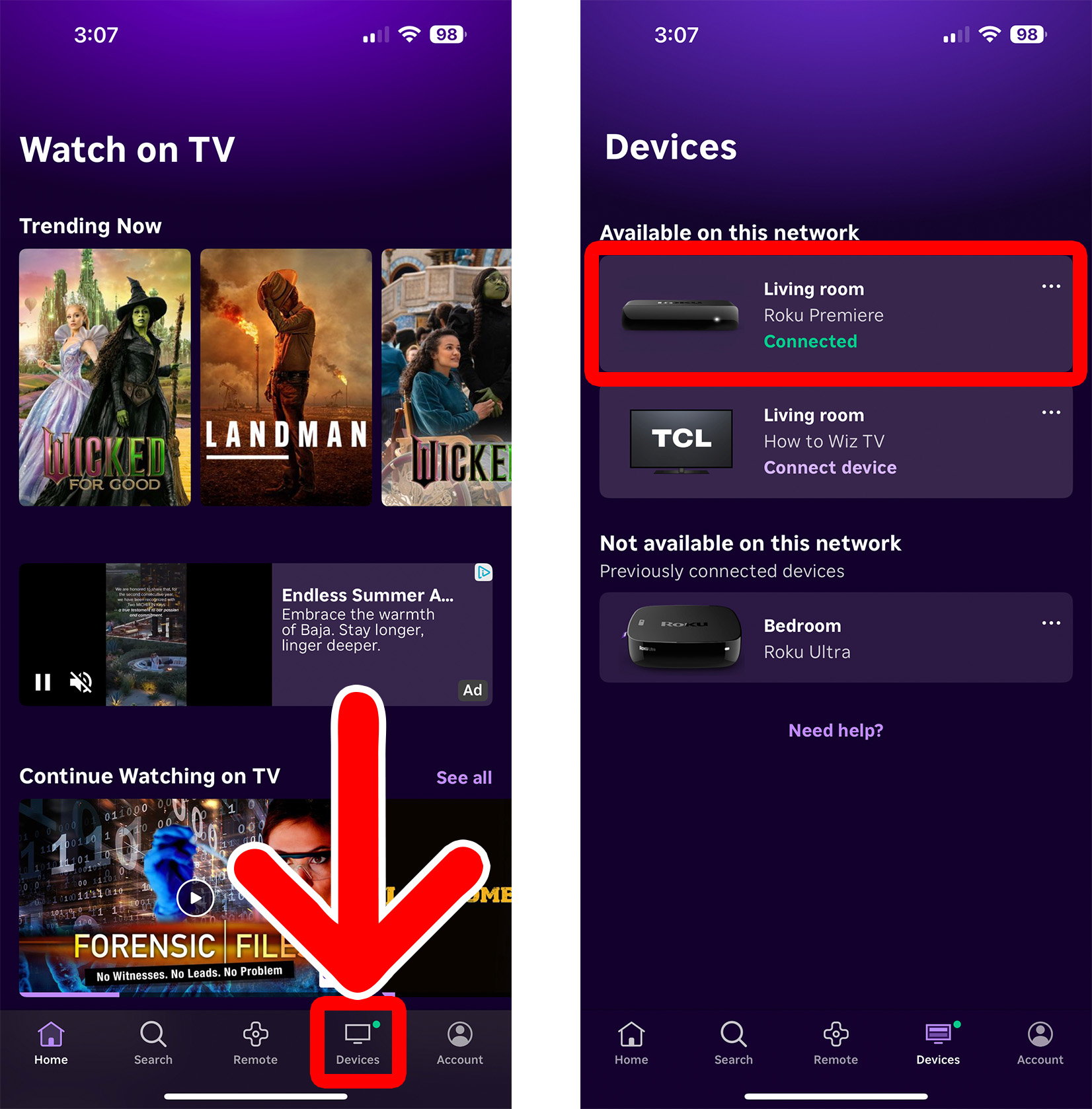
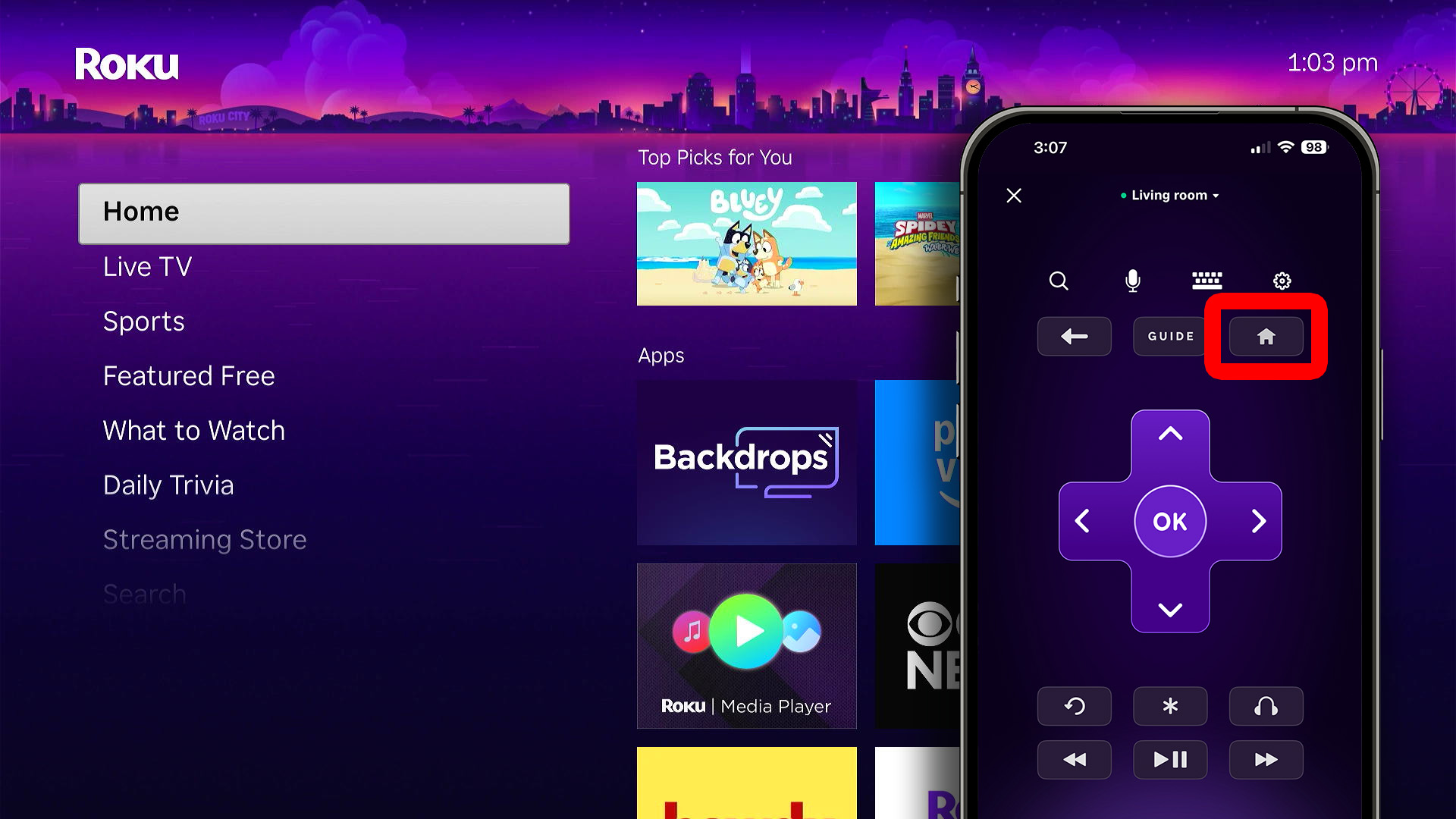
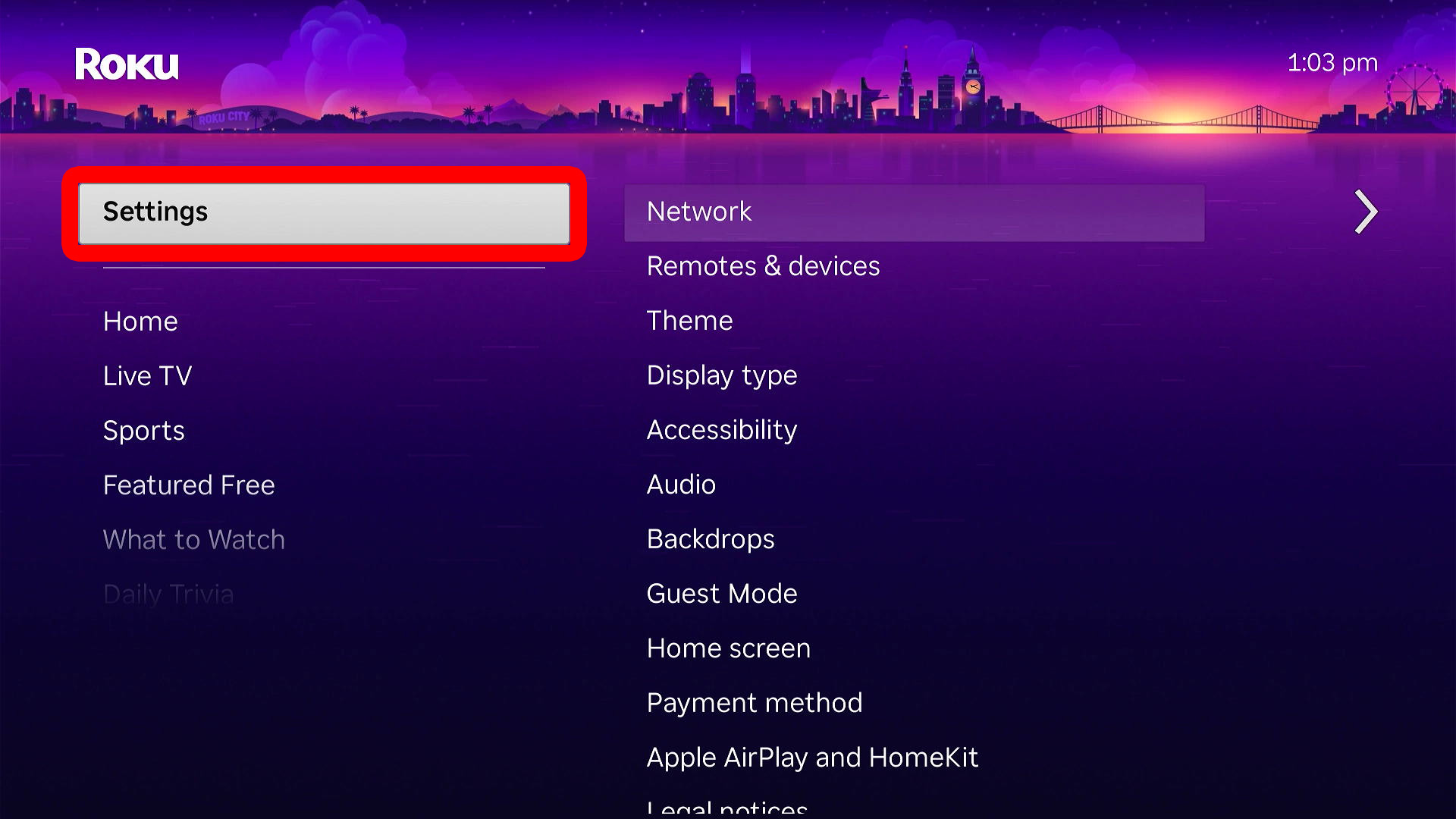
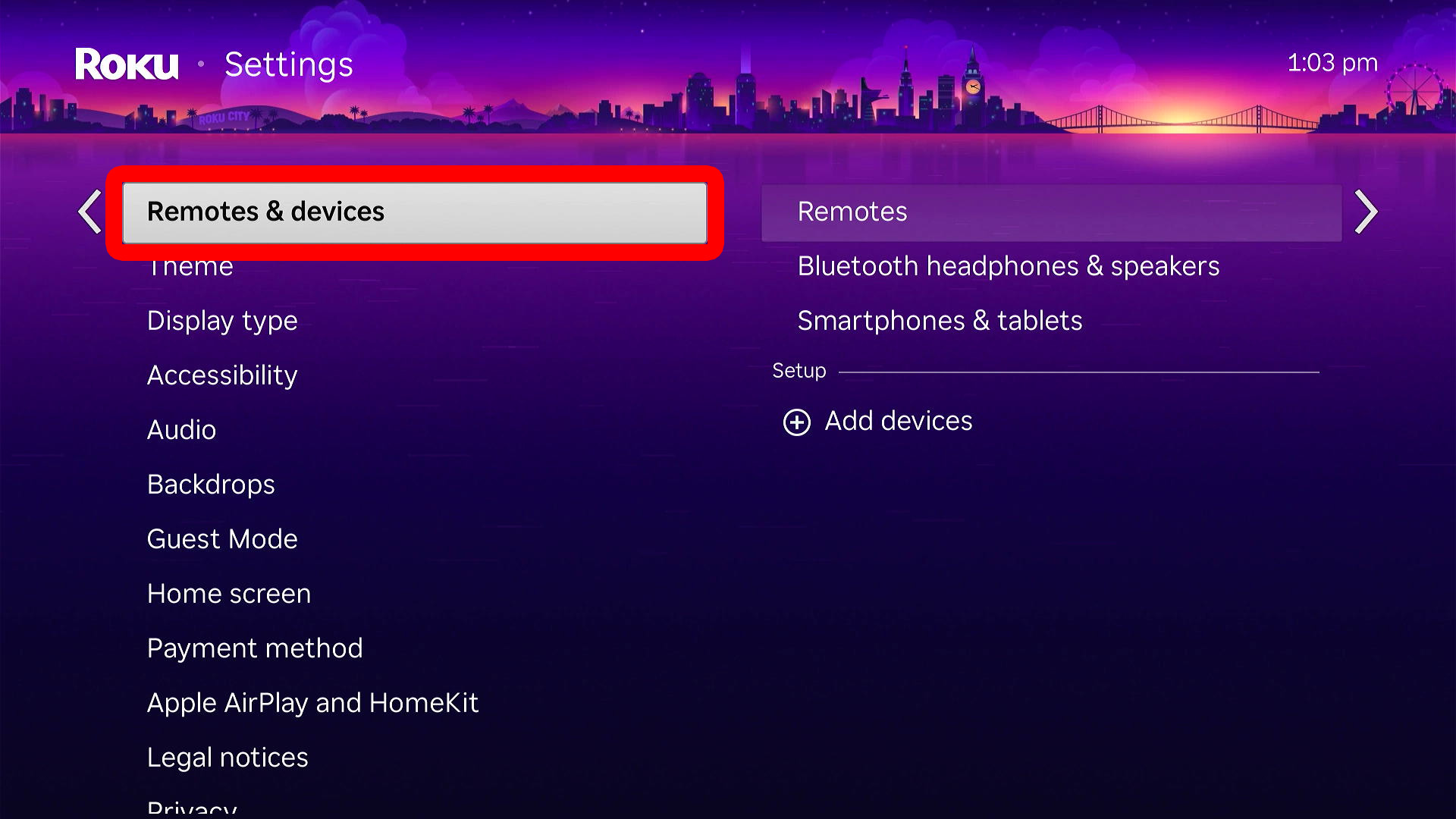
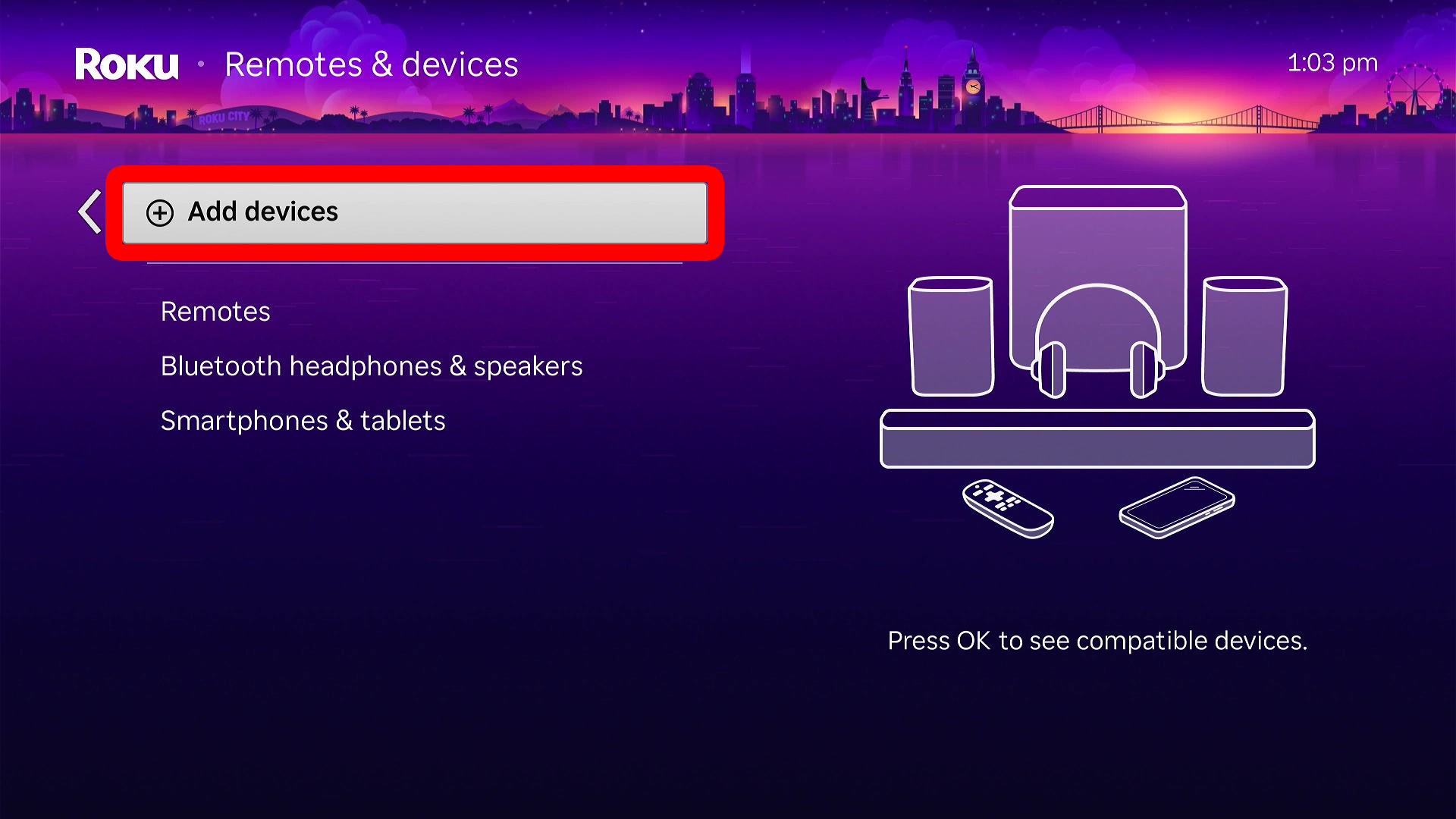
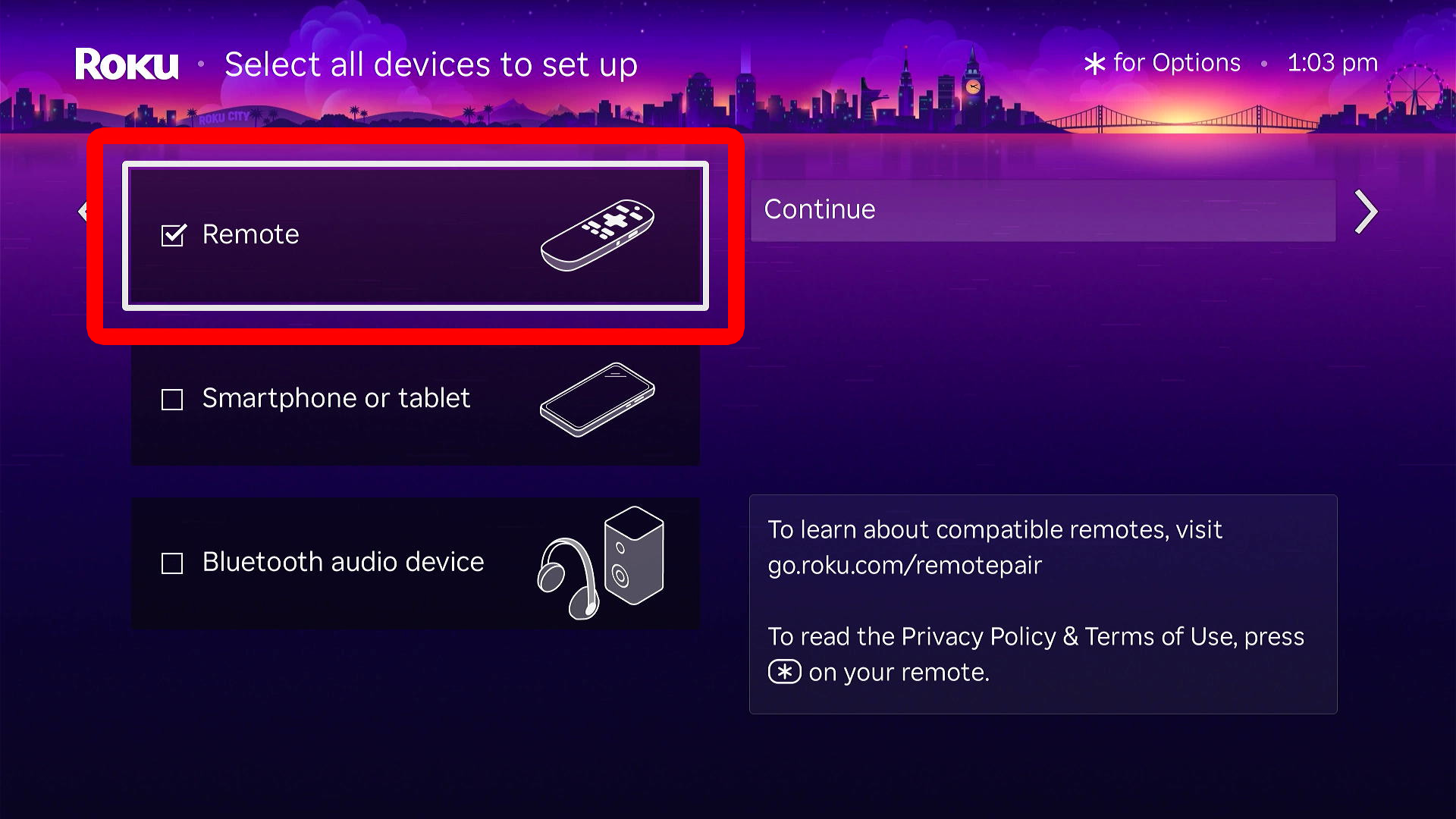
If you lost your Roku remote, or you want to add a new remote, download the Roku app and go to “Devices.” Then select your Roku device and use the app remote to go to “Settings > Remotes & devices > Remotes > Add a new remote.” Finally, follow the on-screen instructions to set up your remote.
- Open the Roku app. If you don’t already have it, you can download it from the Apple App Store or the Google Play Store.
- Tap “Devices.” You will see this at the bottom of your screen.
- Select your Roku device.

- Tap the “Home” button on your app remote. If your Roku connects to the app, you can continue to use your smartphone as a remote. If you want to connect to a physical remote, follow the steps below.
- Go to “Settings.” To do this, tap the up-arrow button on the app remote.
- Select “Remotes & devices.” To do this, tap the right-arrow button and then the down-arrow button.
- Go to “Add devices.”
- Select “Remote.”
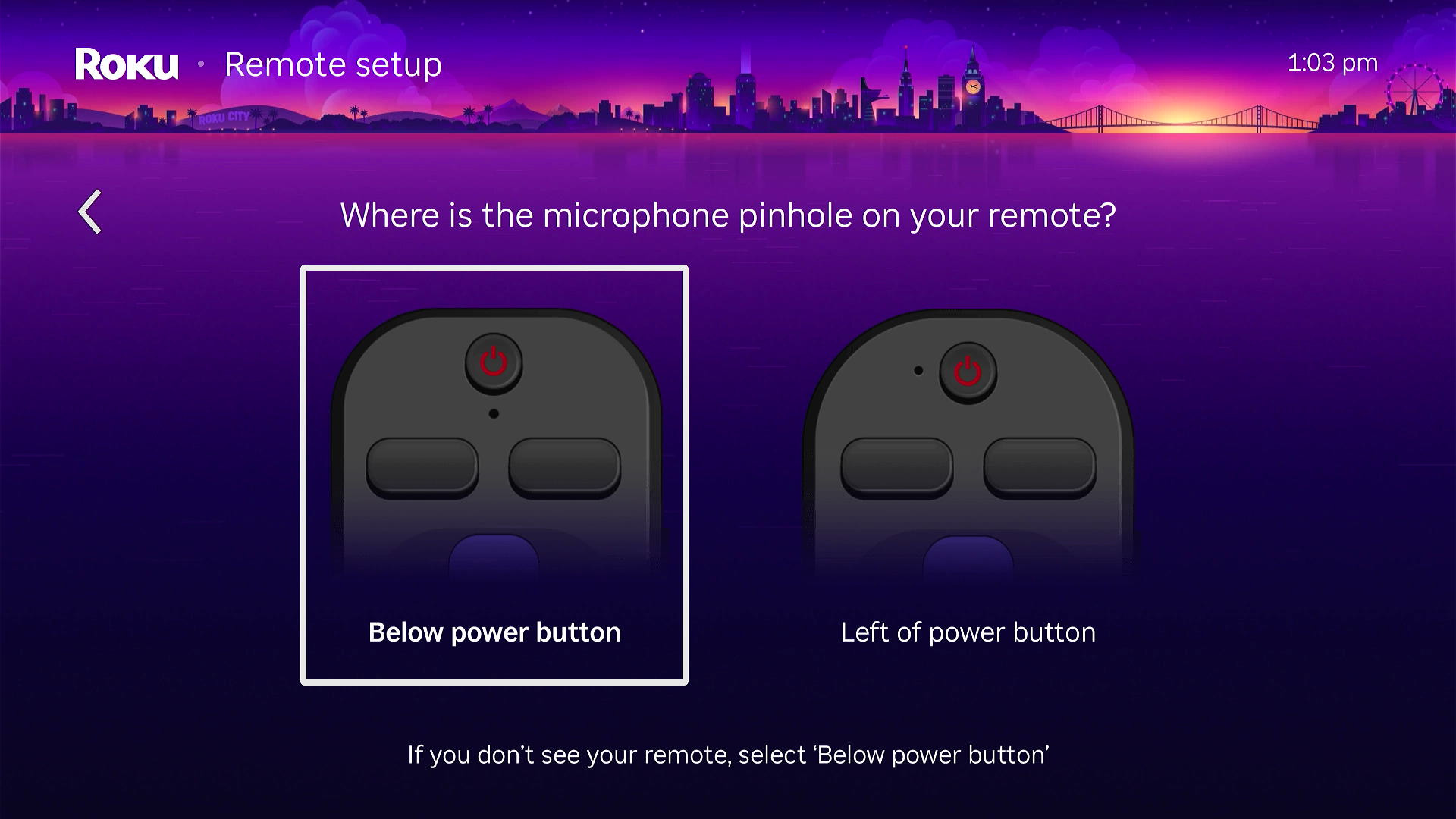
- Finally, follow the on-screen instructions to pair your physical Roku remote. If you have a simple Roku remote, make sure to select “Below power button” when Roku asks you which type of remote you have.
If none of these steps work, reset your Roku device to factory settings and try connecting your remote during setup.
Read More: How to Reset Your Roku Device or TV