Lost your Roku remote? Don’t worry—you can still connect your Roku to WiFi and start streaming again. All you need is the Roku mobile app on your phone and, in some cases, a mobile hotspot. Here’s everything you need to know about connecting your Roku to WiFi and changing the network without a remote.
Read More: How to Mirror Your iPhone to Roku
How to Connect to Roku Without a Remote
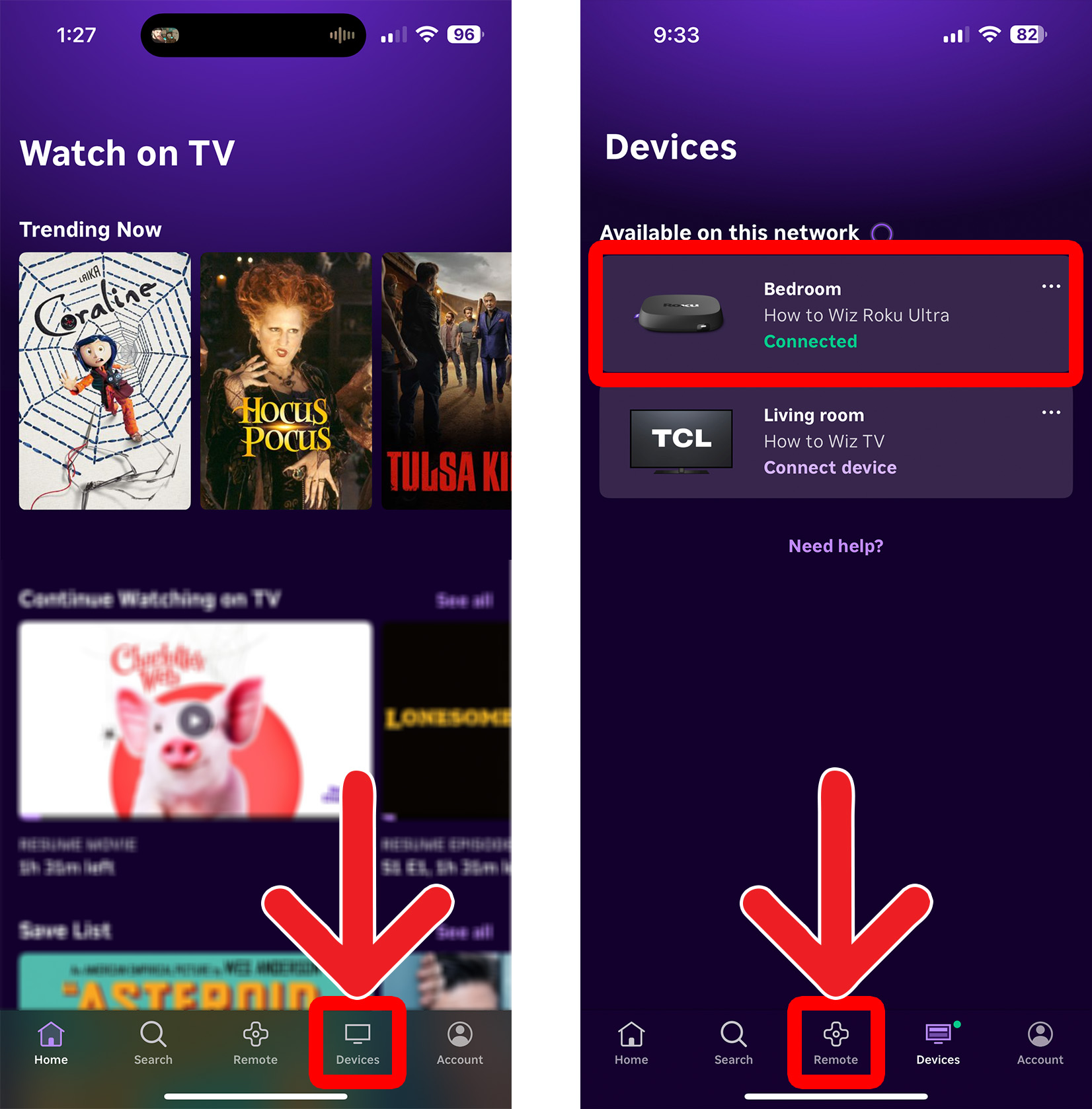
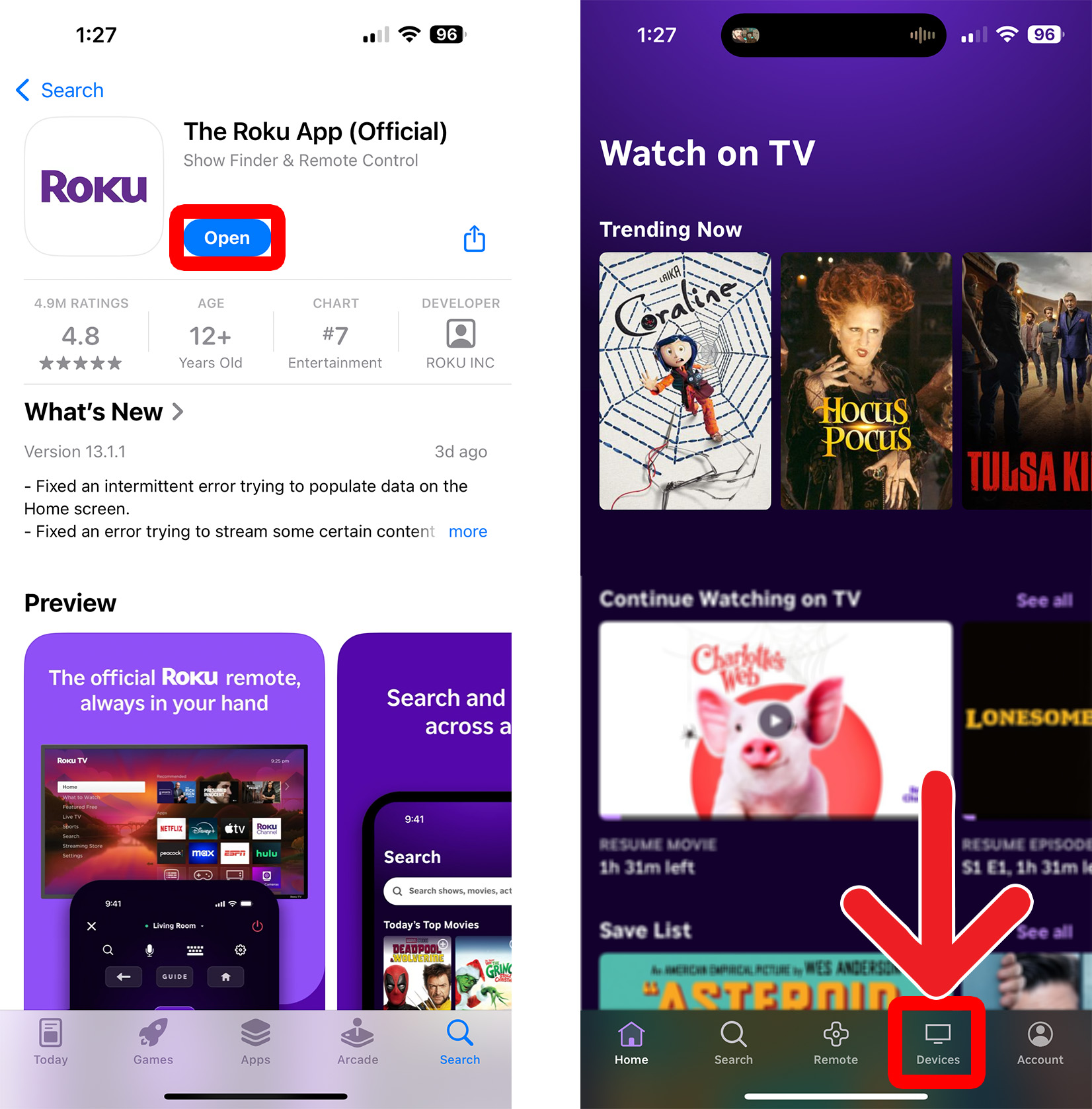
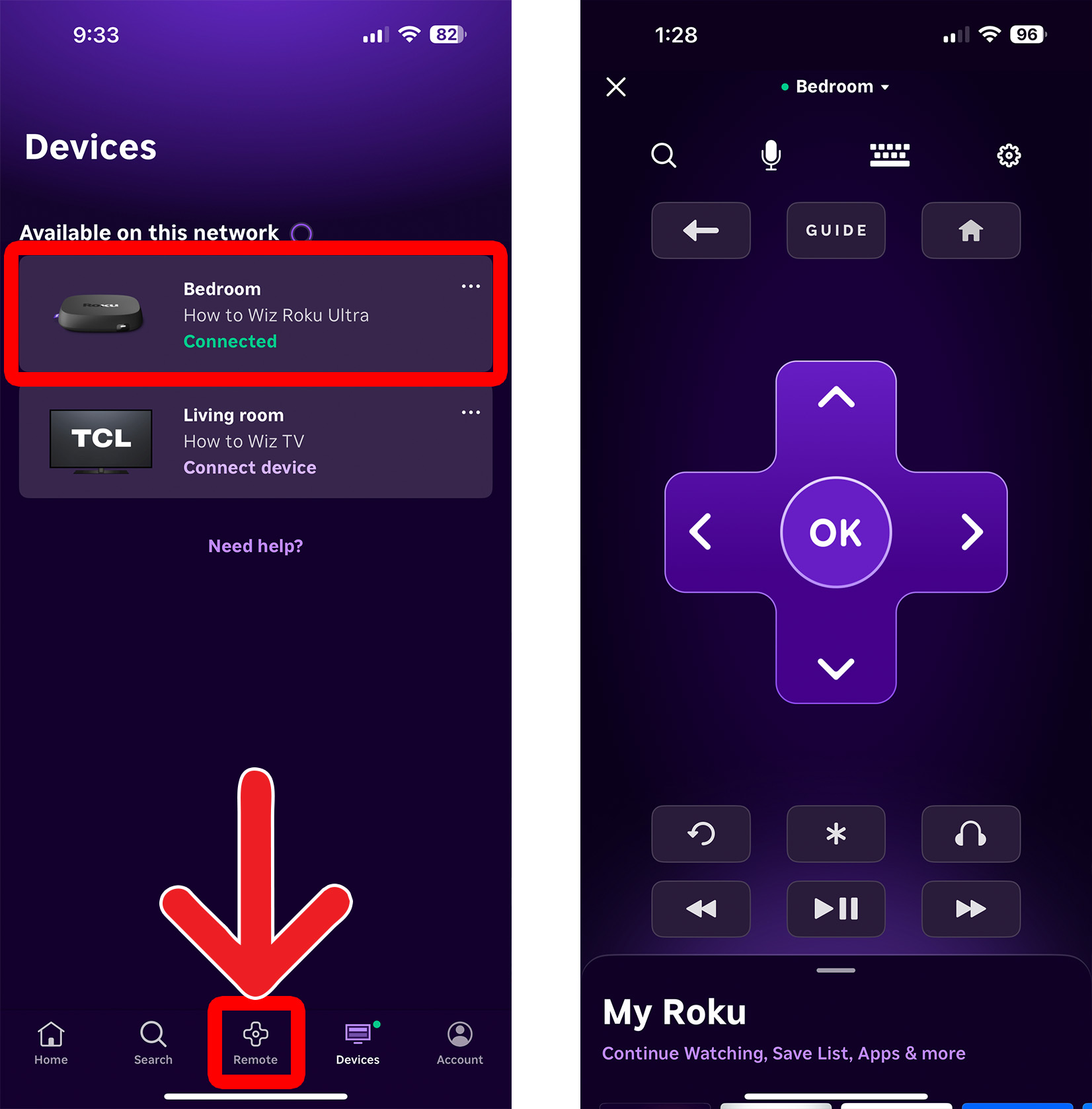
To connect to Roku without a remote, download the official Roku app to your smartphone. Then open the app and sign in to your Roku account. Next, tap “Remote” at the bottom of the app and choose your Roku device. Then you can use the smartphone app as your Roku remote.
- Open the Roku app. If you don’t already have the official Roku app installed on your smartphone or tablet, you can download it from the Apple App Store or the Google Play Store.
- Tap “Devices.” You will see this at the bottom of your screen.

- Select your Roku device. If you don’t see your Roku device listed, make sure your device is plugged in and connected to the same WiFi network.
- Finally, tap “Remote.” You will see this at the bottom of your screen.
How to Change Your Roku WiFi Without a Remote
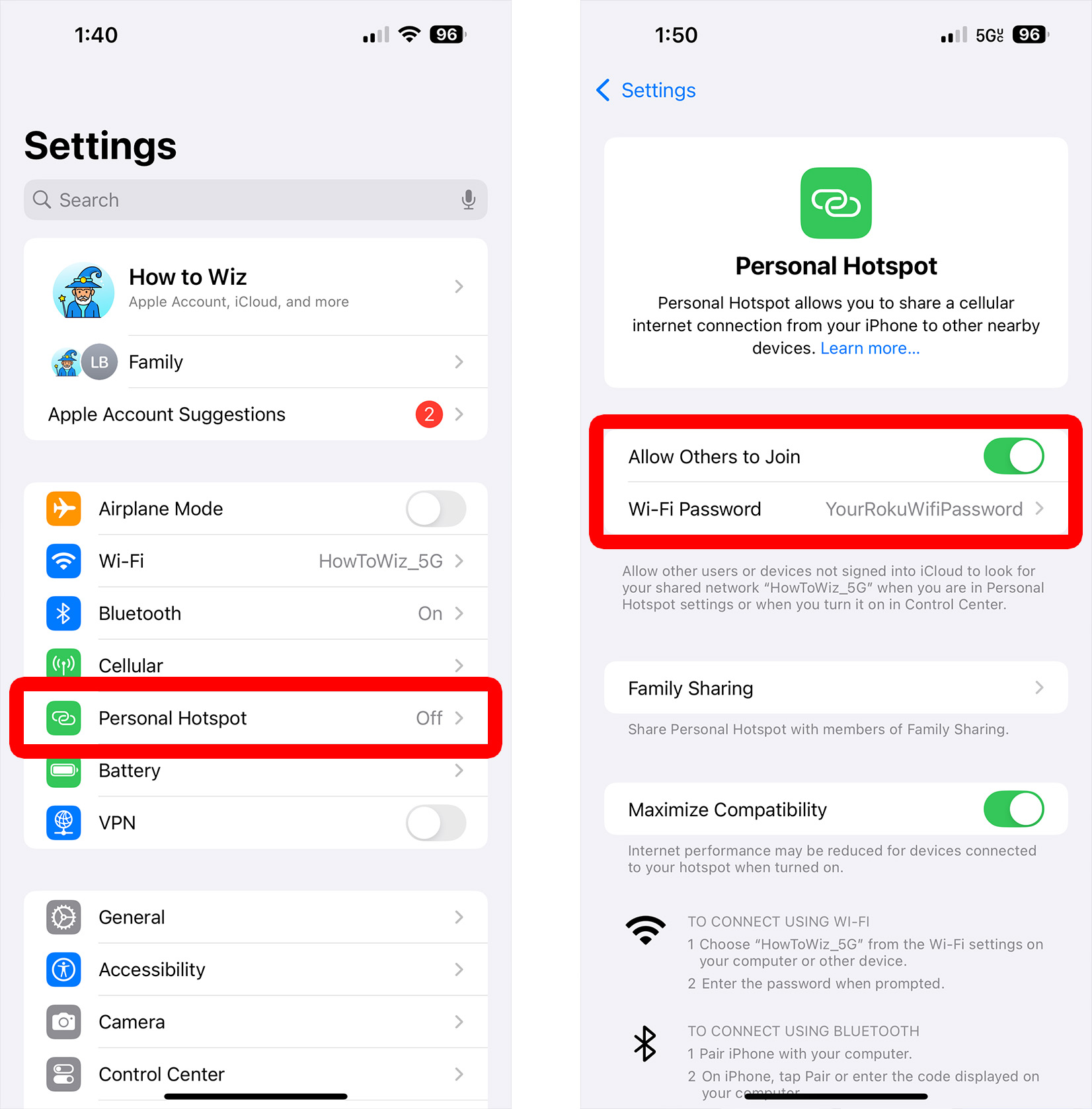
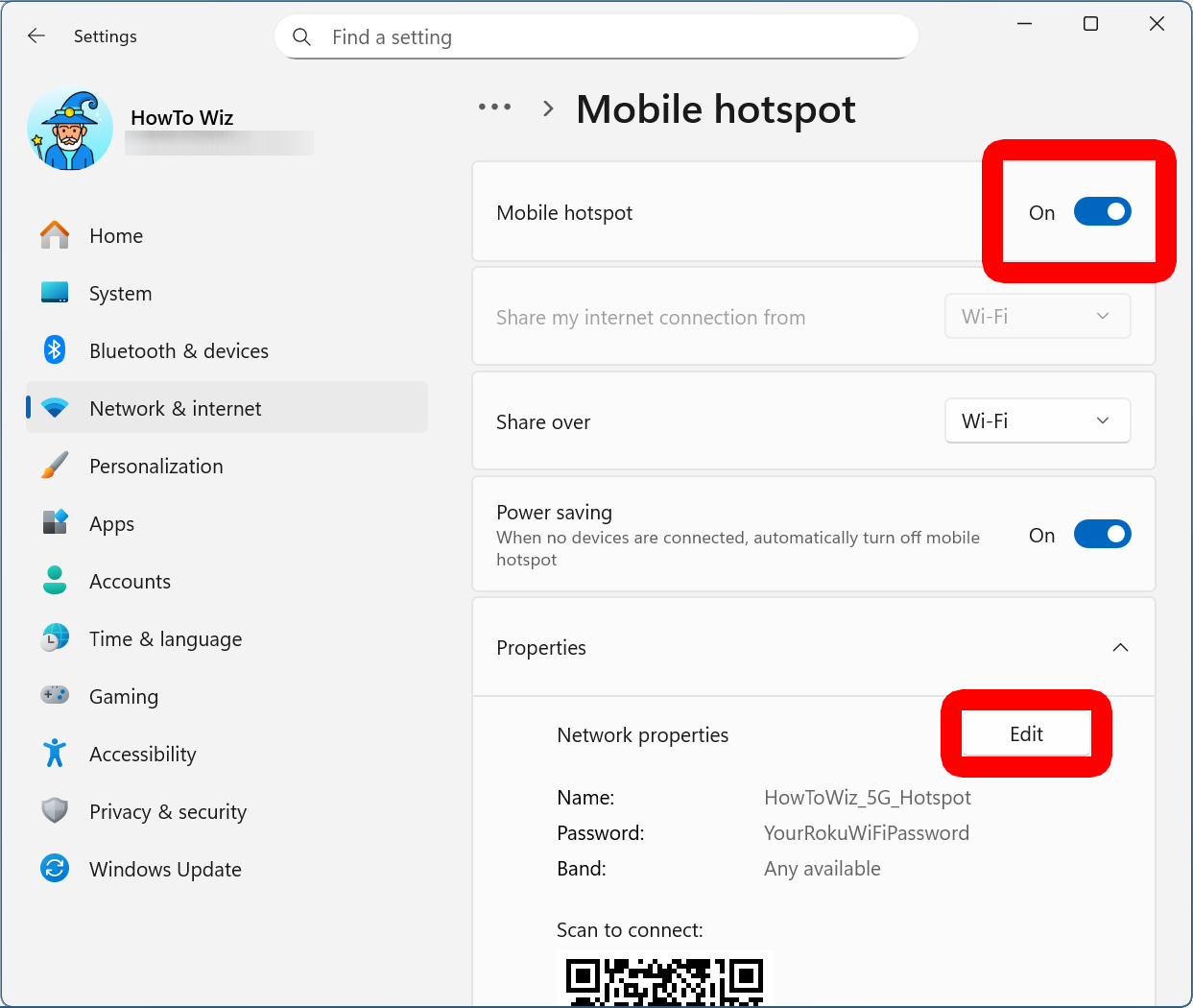
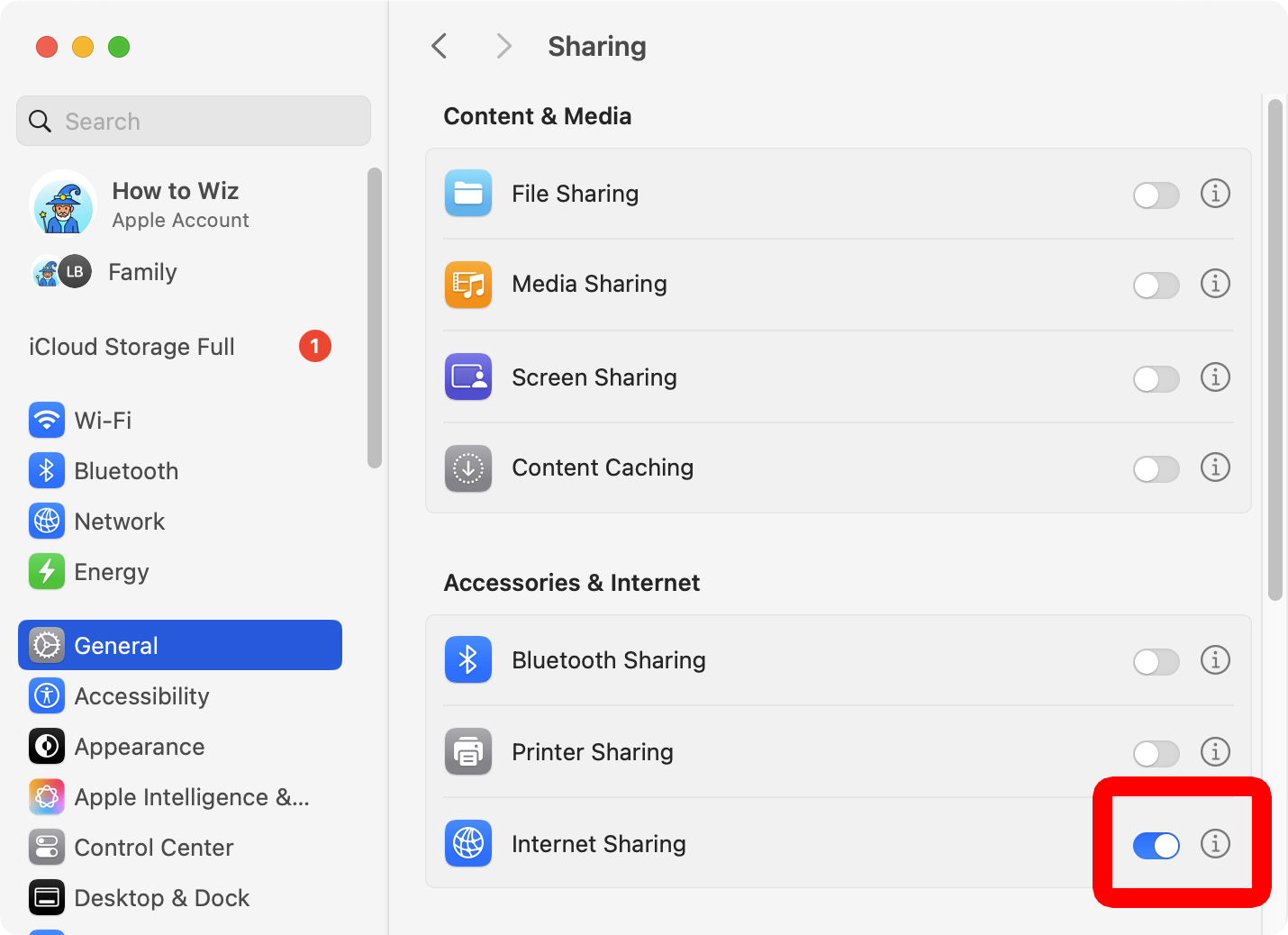
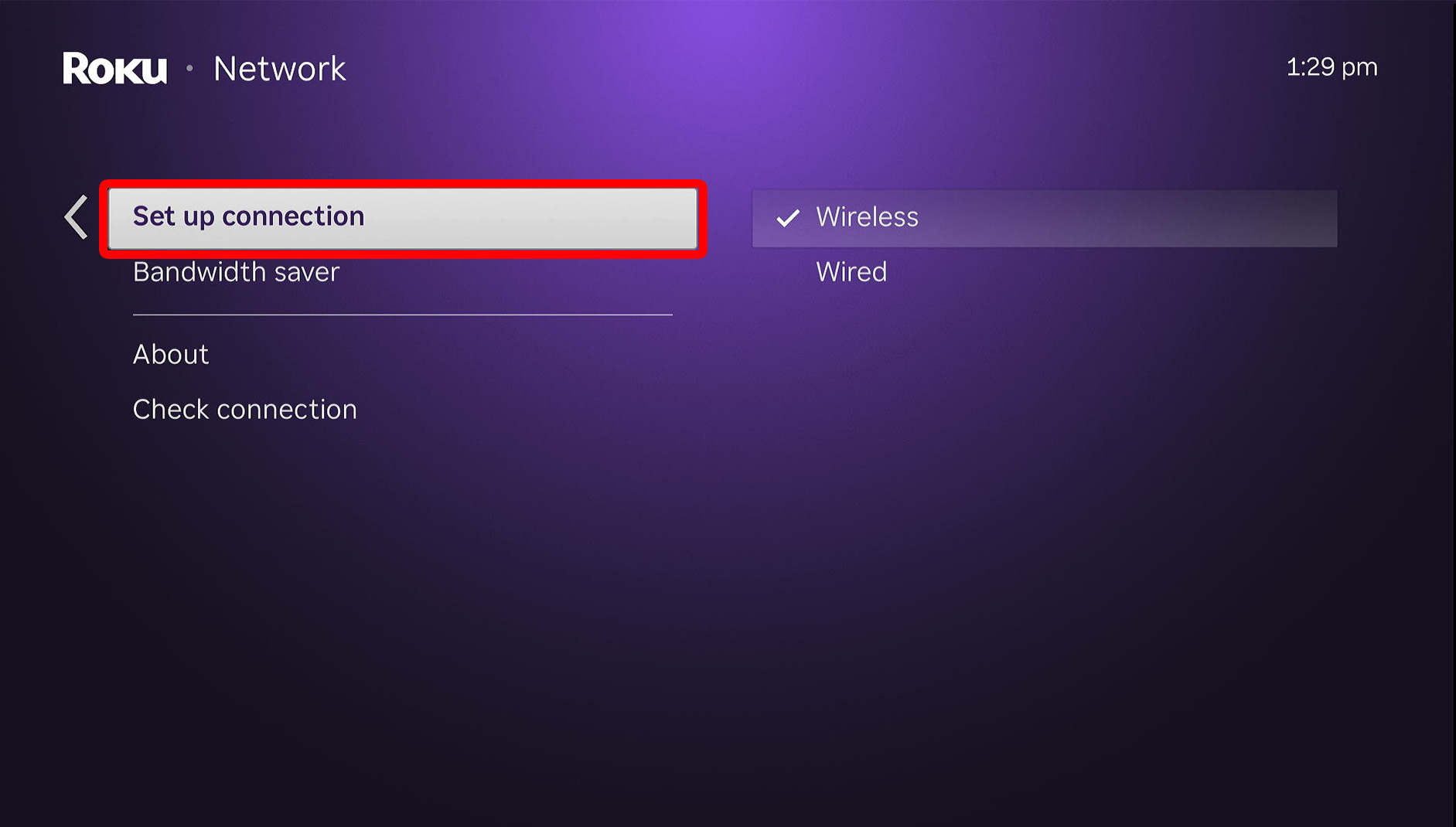
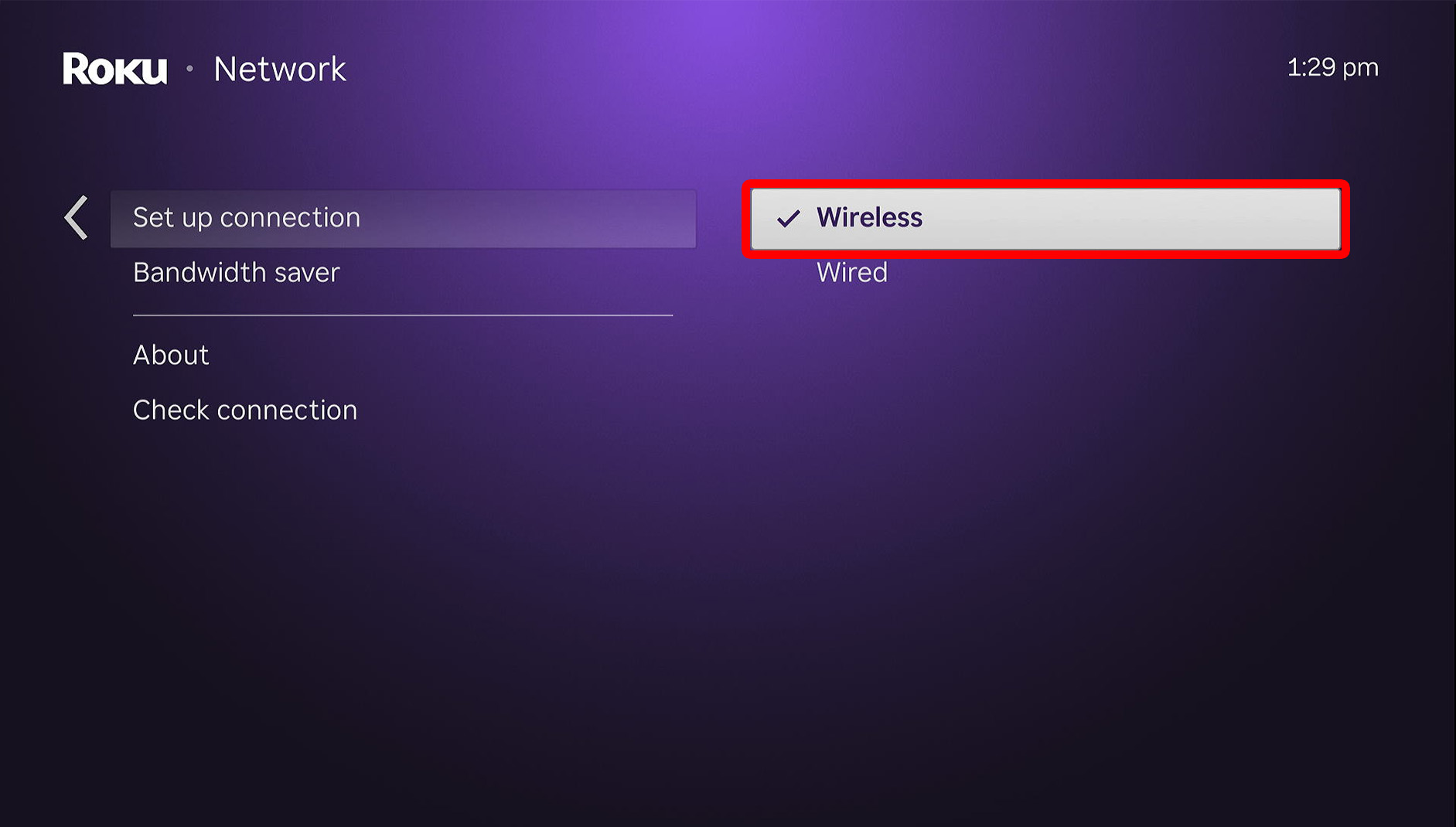
To connect your Roku to WiFi without a remote, you’ll need to set up a hotspot. Then use another device to open the Roku app. Next tap “Remote,” and select your Roku device. Finally, change your Roku WiFi network by going to “Settings > Network > Set up connection > Wireless.”
- Use one device to set up a hotspot. Your Roku device will try to connect to the last WiFi network it was connected to. So, you’ll need to create a hotspot with the same network name and password as the last WiFi network your Roku was connected to.


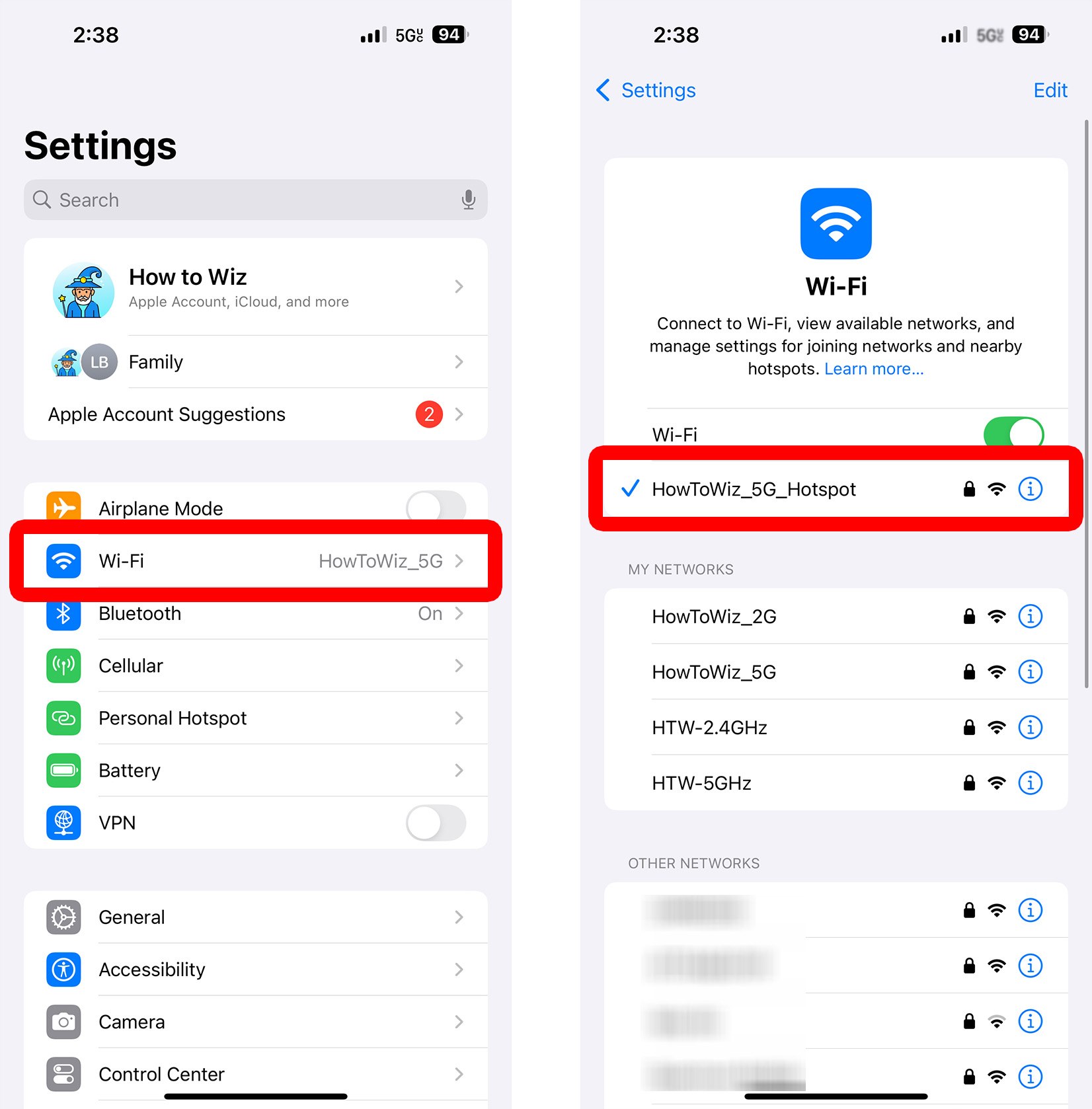
- Connect your smartphone to the hotspot. You should see the hotspot you set up in the list of WiFi networks you can connect to in your smartphone settings.
- Open the Roku app and tap “Devices.” You will see this at the bottom of your screen.
- Choose your Roku device.
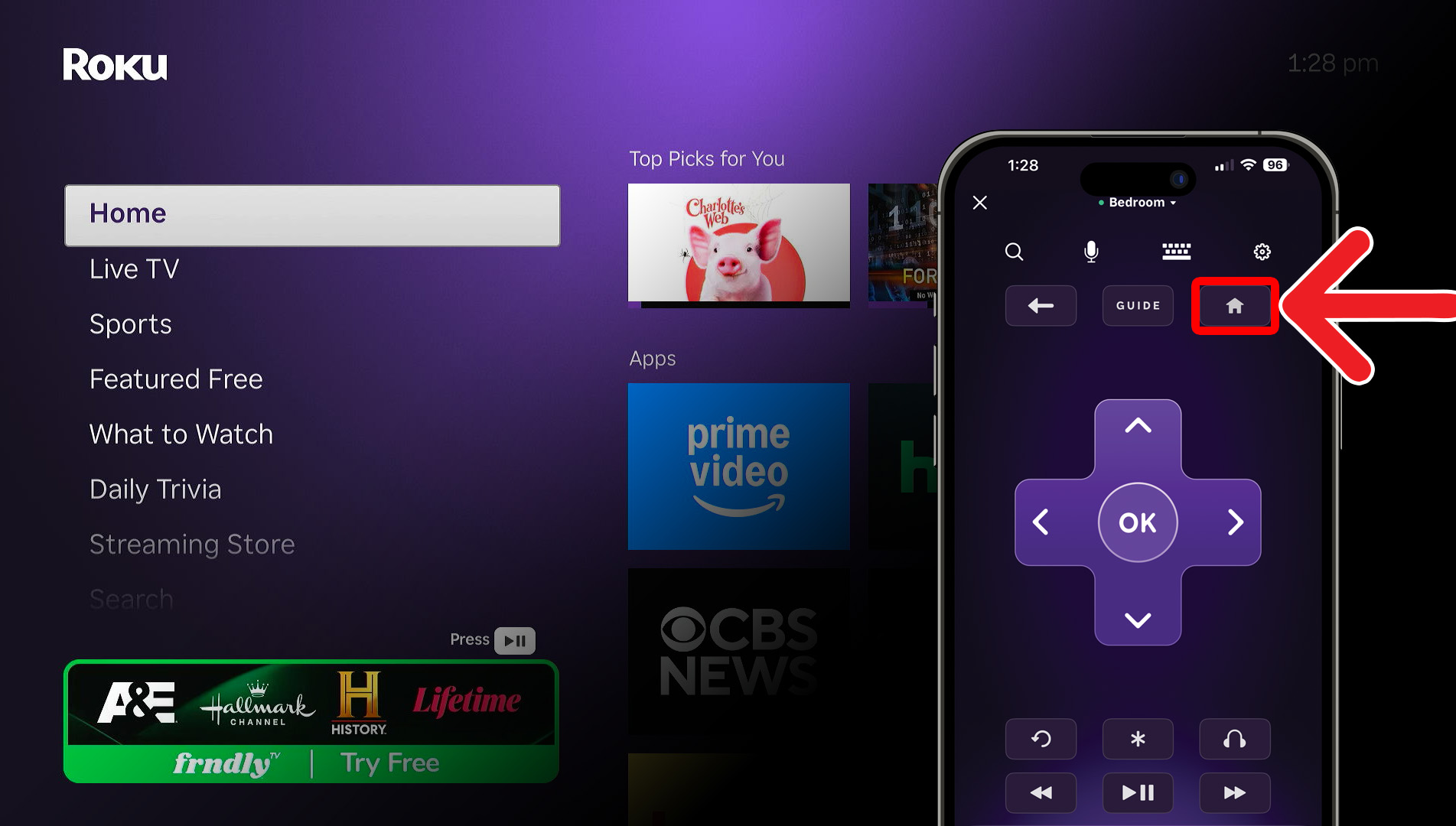
- Tap the “Home” button. This will bring you to the Roku home screen.

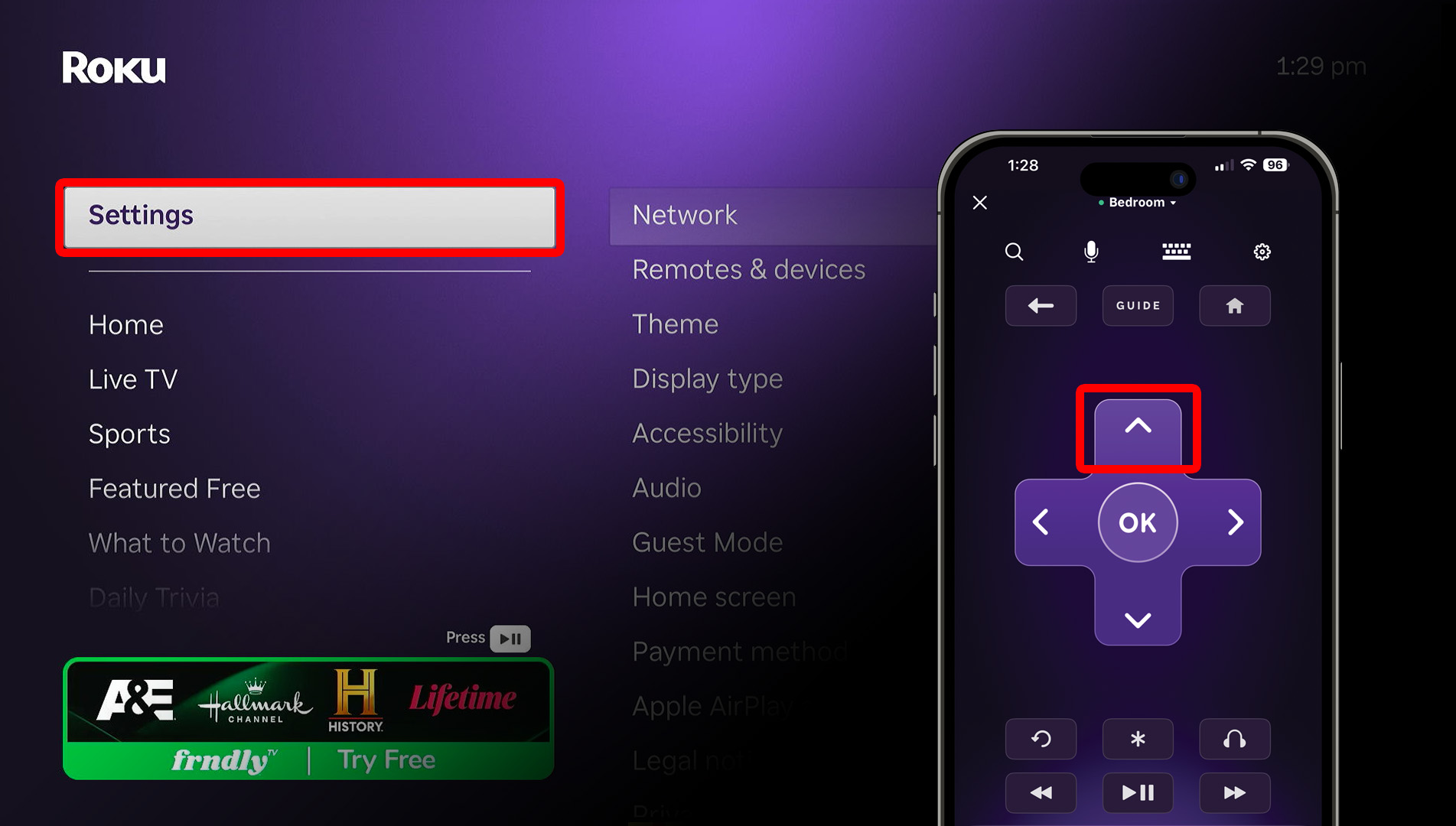
- Go to “Settings” on your Roku TV. To do this, tap the Up-directional button on the app remote.

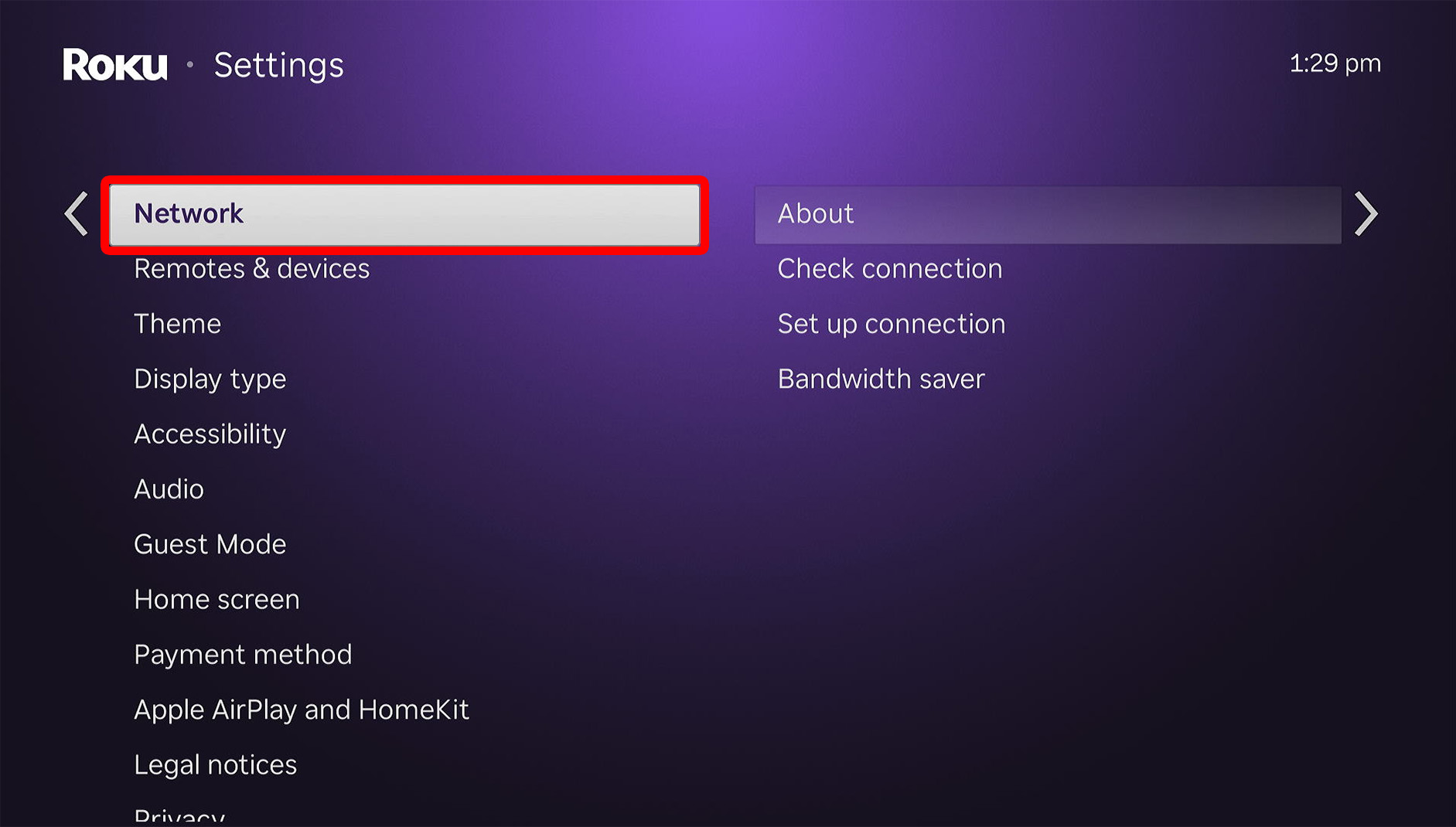
- Select “Network.”
- Go to “Set up connection.”
- Select “Wireless.”
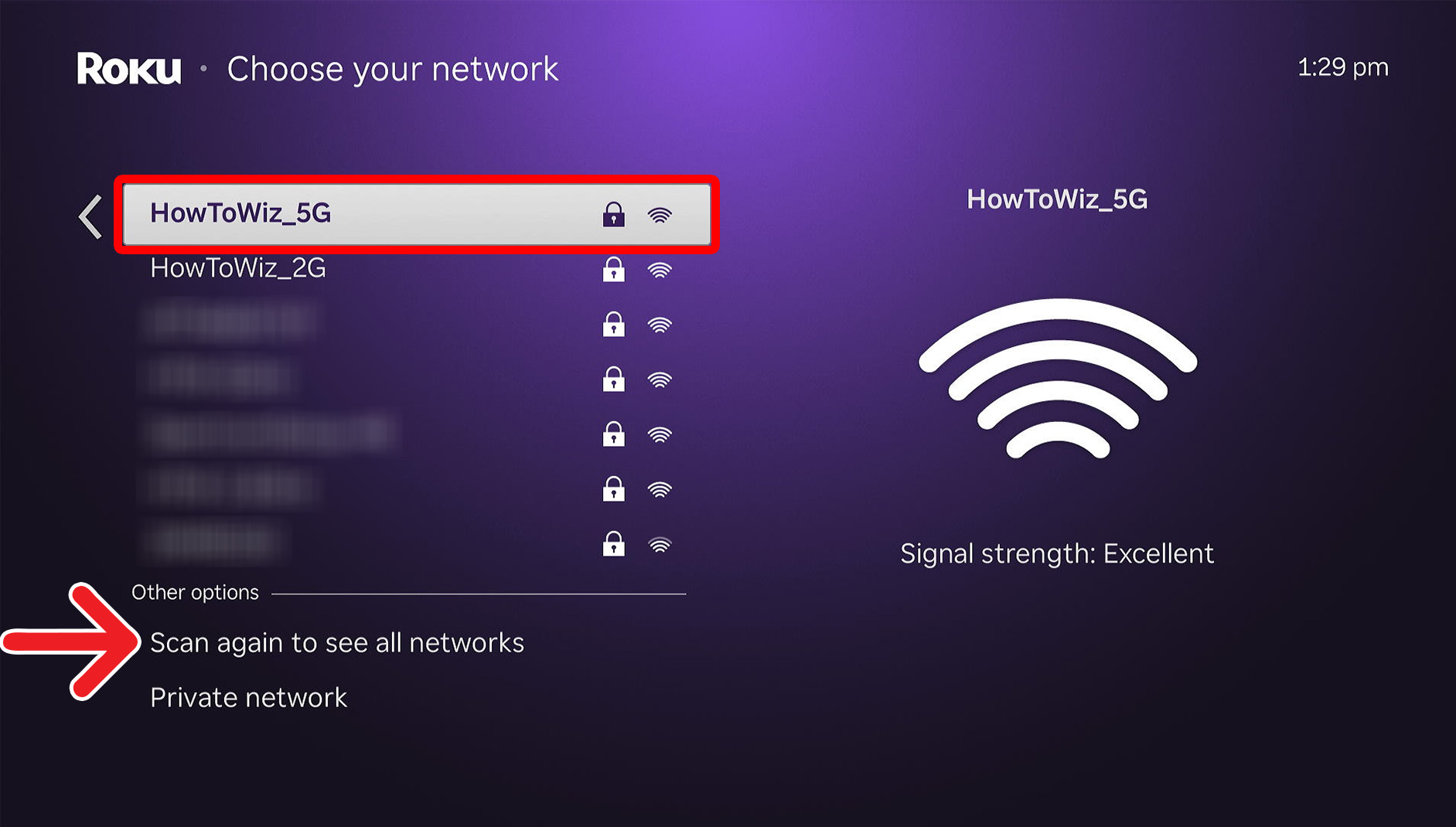
- Choose a WiFi network. If you don’t see your WiFi network listed, select “Scan again to see all networks.”
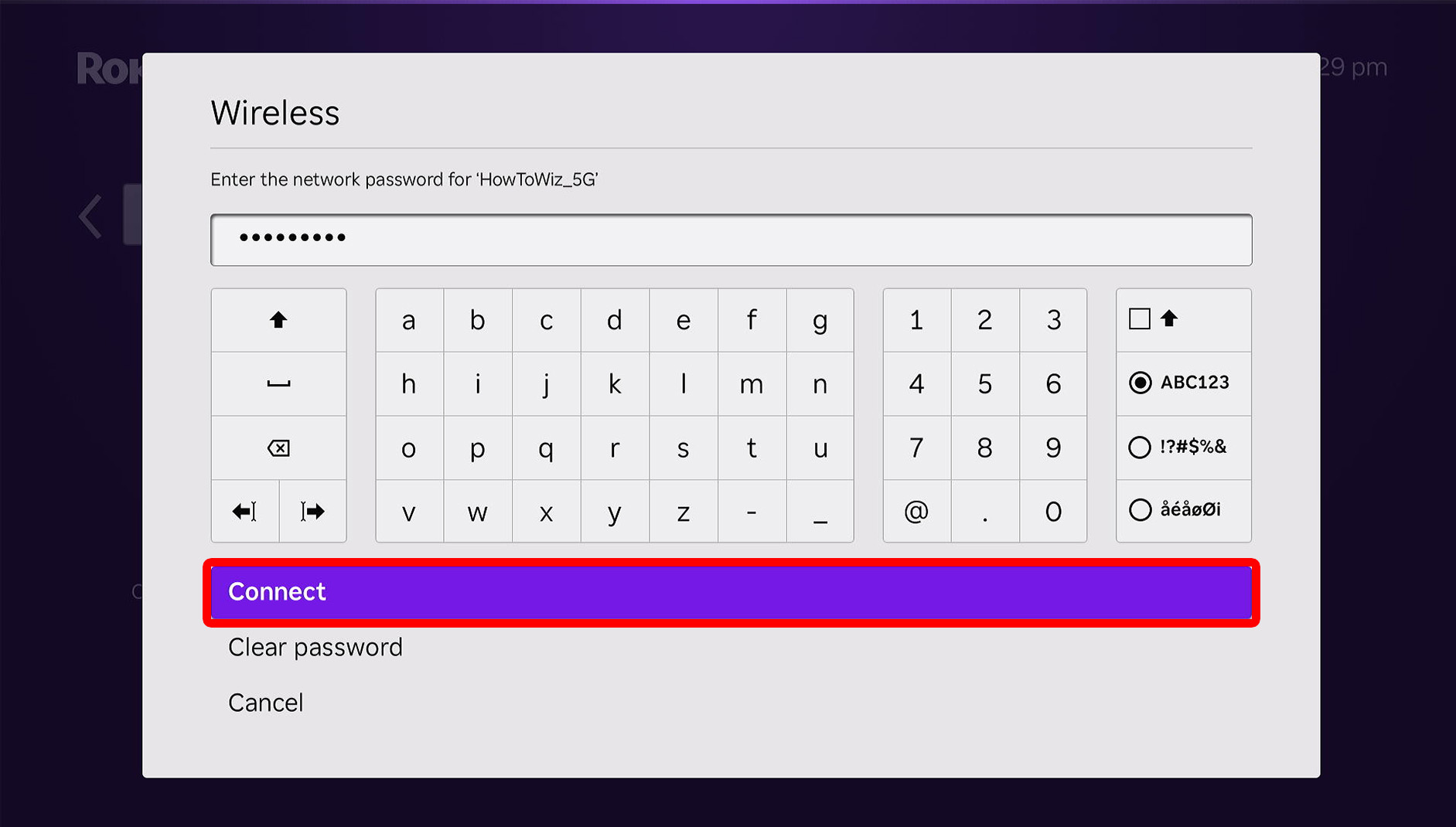
- Finally, enter the WiFi password and select “Connect.” Once you connect your Roku to a new WiFi network, you can disconnect from your hotspot.