
Tired of crowding around your iPhone to share photos or videos? With Roku, you can mirror your iPhone and bring them to life on your TV. Here’s everything you need to know about how to mirror your iPhone to a Roku device or TV, and what to do when your devices won’t connect.
How to Mirror Your iPhone to Roku
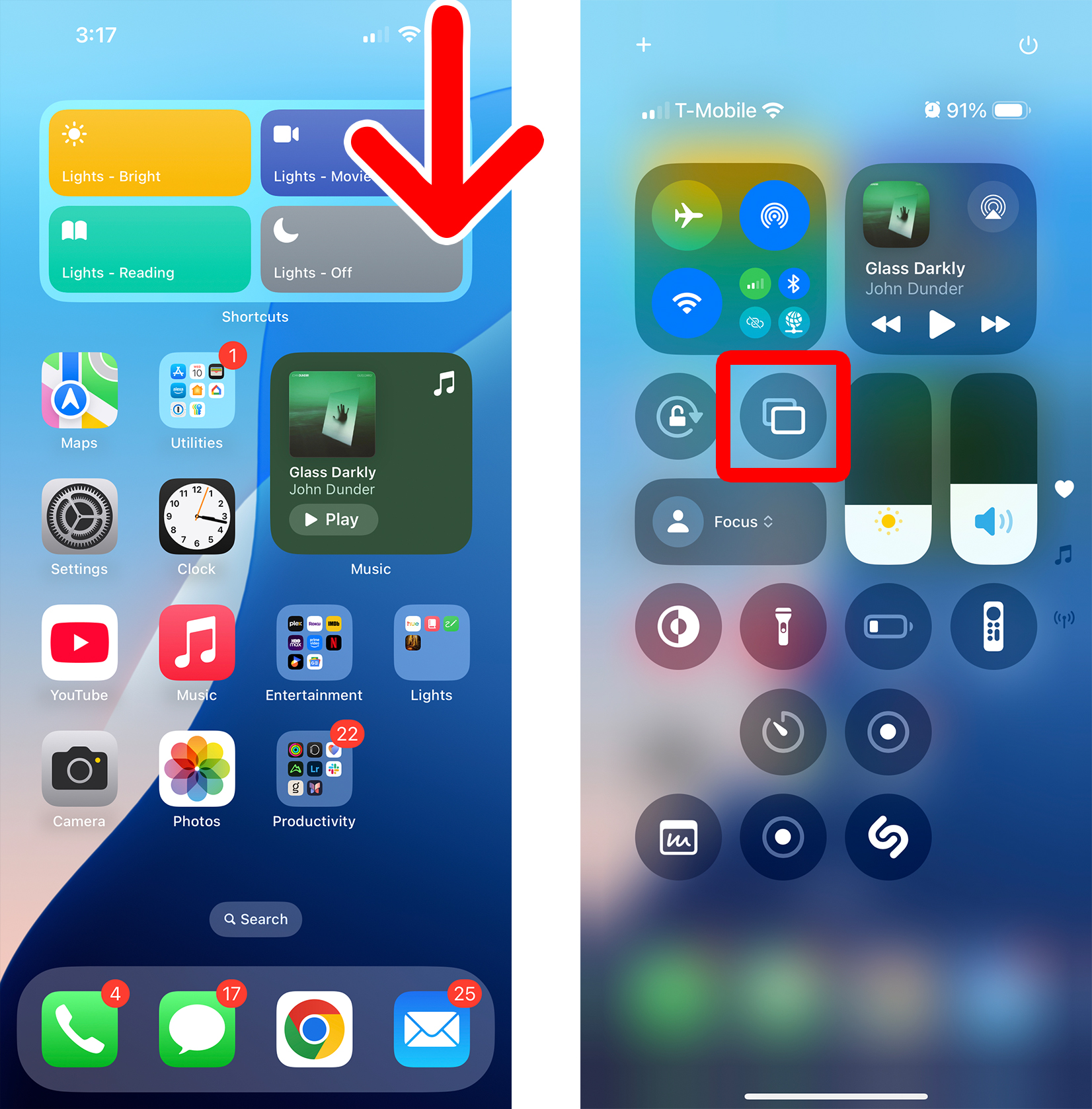
To mirror your iPhone to a Roku device or TV, swipe down from the top-right corner of your iPhone screen and tap the “Screen Mirroring” button that looks like two rectangles on top of each other. Then select your Roku device and enter the four-digit code from your TV to start mirroring.
- Swipe down from the top-right corner of your iPhone screen. This will open the Control Center.
- Tap the “Screen Mirroring” button. This is the button that looks like two overlapping rectangles.

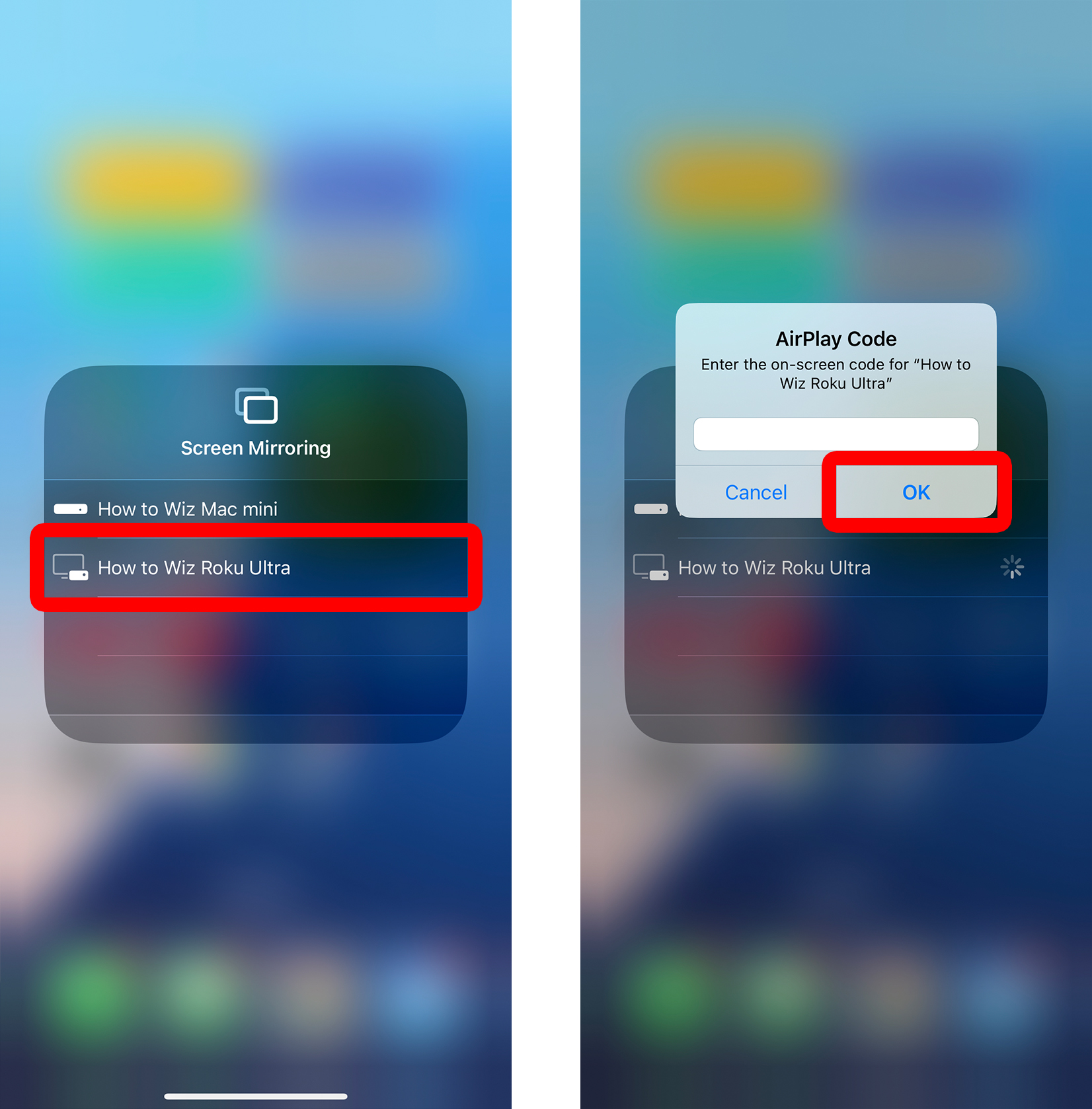
- Select your Roku device. If your Roku device doesn’t appear, make sure both devices are connected to the same WiFi network. If you still don’t see it, make sure AirPlay is enabled on your Roku device.

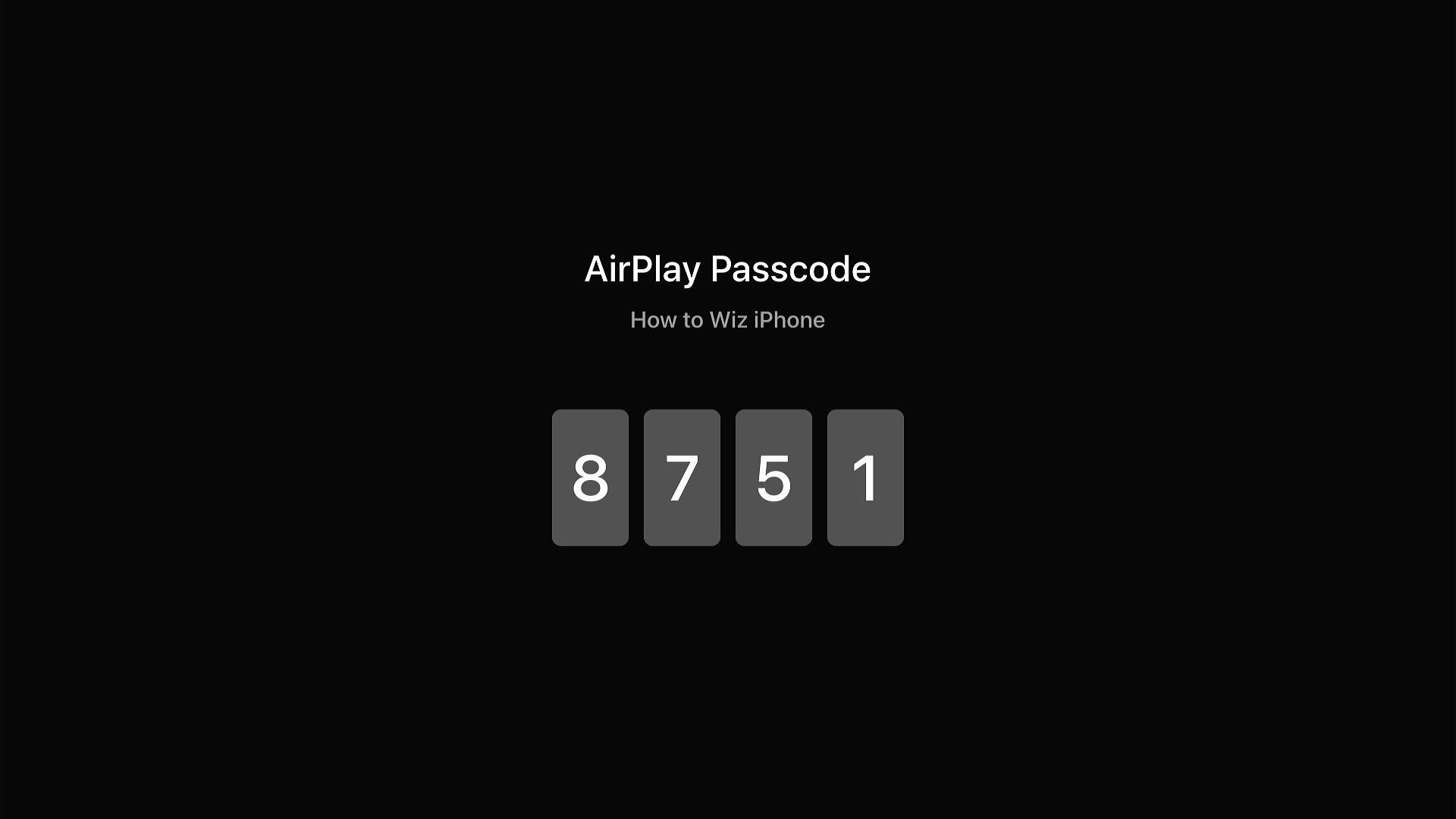
- Finally, enter the four-digit code from your Roku screen and tap “OK.” After you enter the four-digit code, you should see your iPhone screen start mirroring on your Roku device.
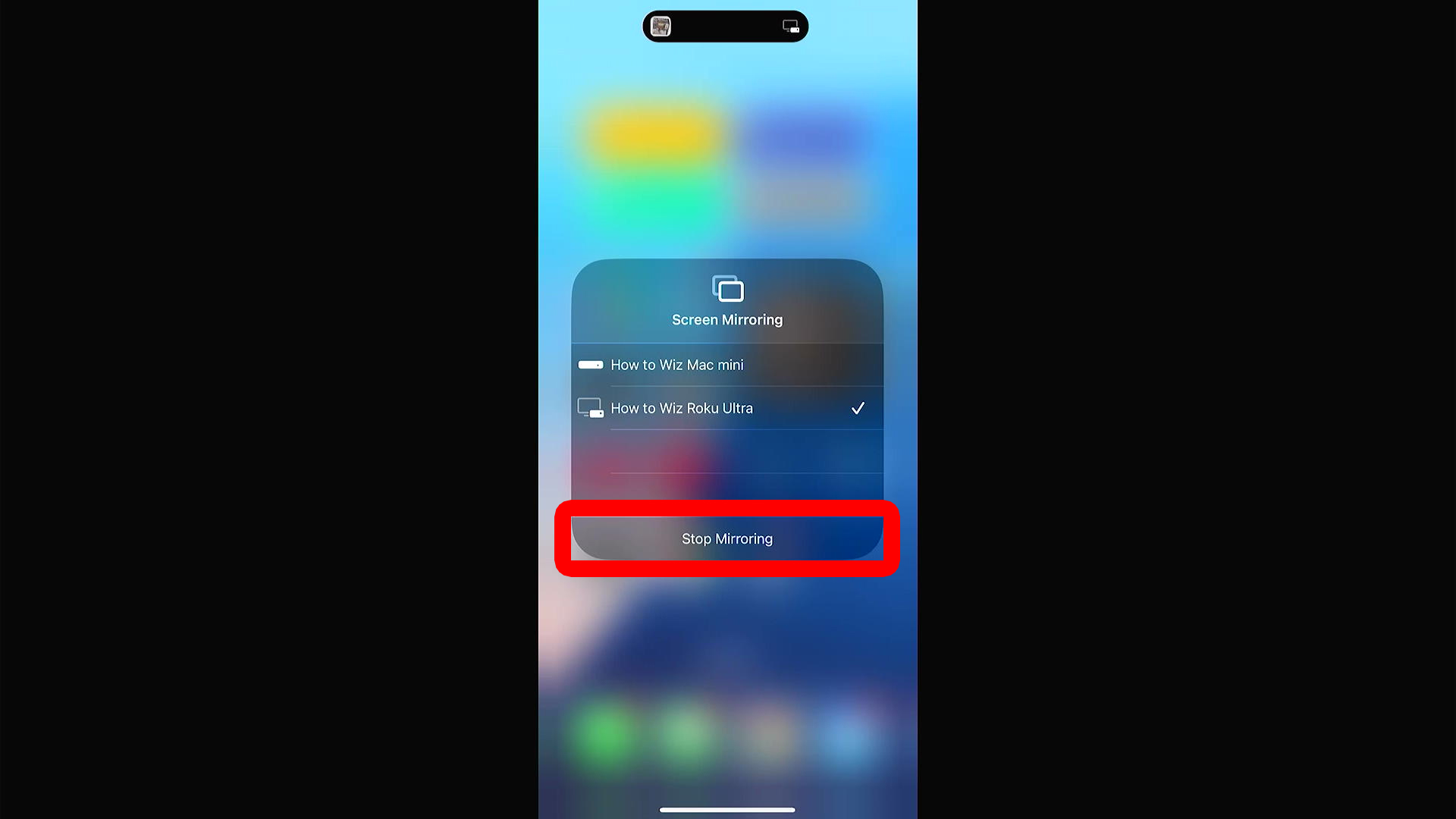
When you are done, go back to the iPhone Control Center and tap the Screen Mirroring button again. Then select “Stop Mirroring” to disconnect from your Roku device or TV.
How to Check Your Roku WiFi Network
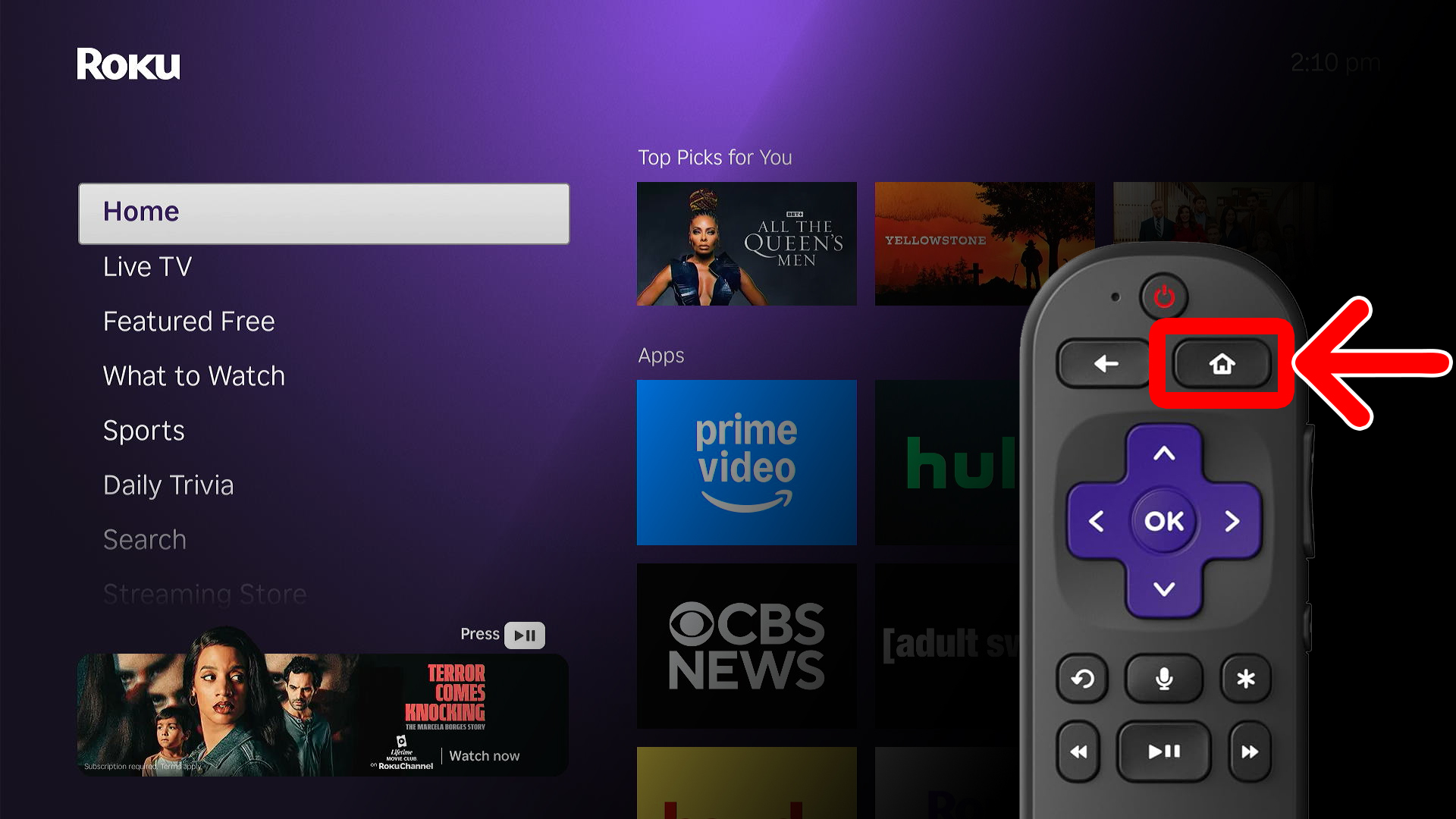
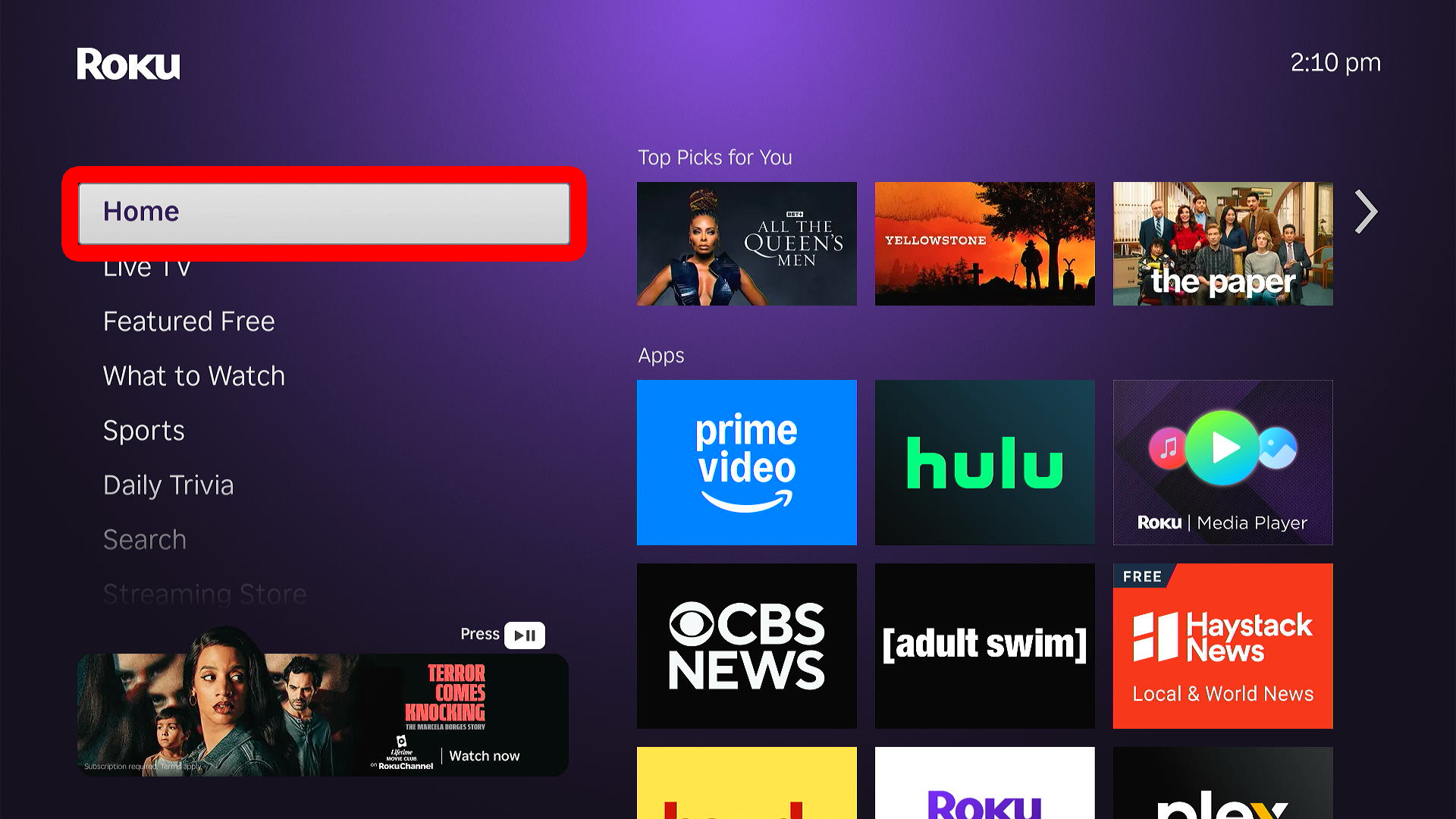
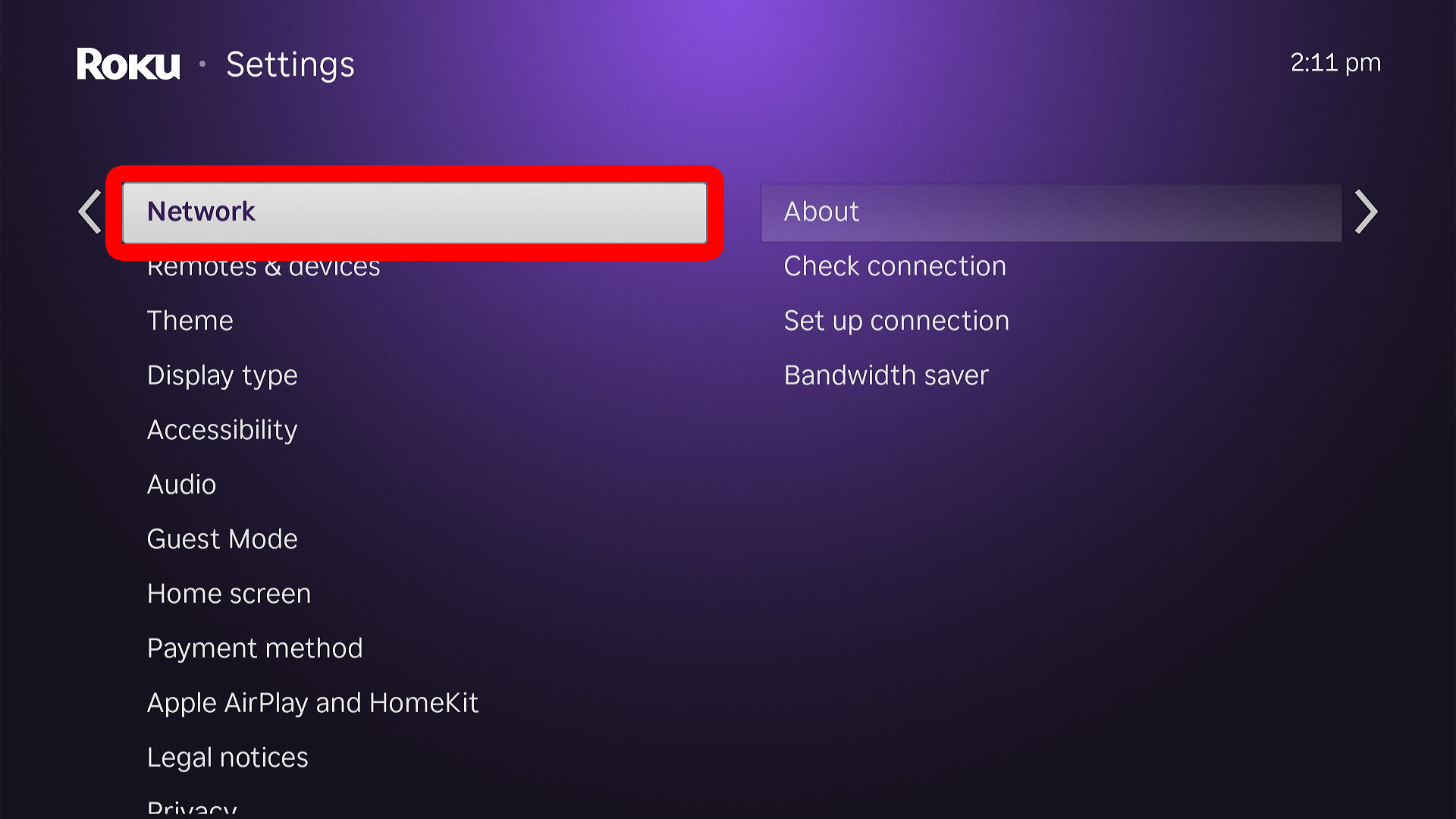
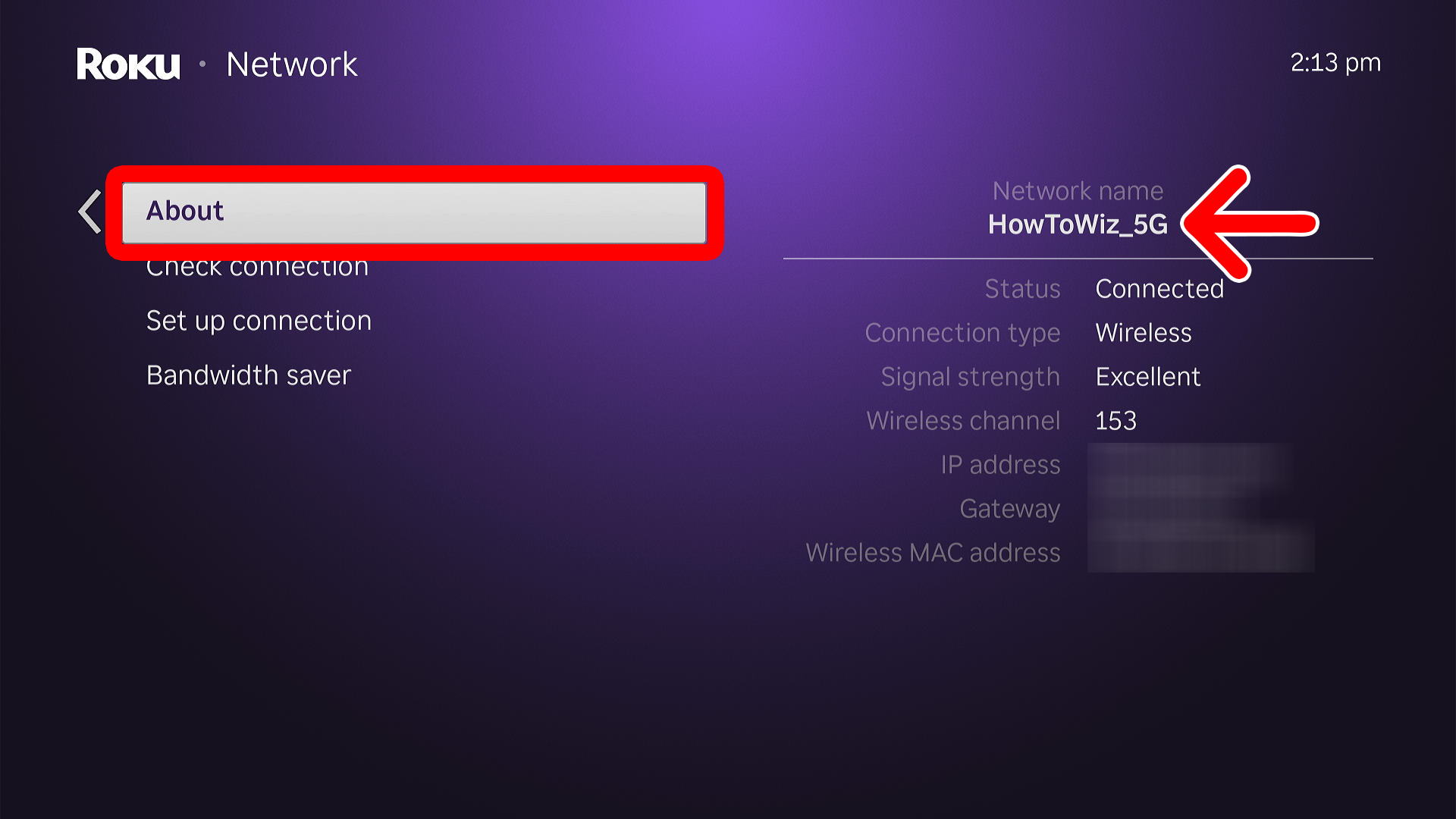
To check which WiFi network your Roku is currently connected to, press the Home button on your Roku remote and select “Settings” from the left sidebar menu. Then go to “Network > About” to see your WiFi network in the top-right corner of your screen.
- Press the Home button on your Roku remote.
- Select “Settings.” You will see this in the left side menu, which you can access by pressing the left directional button on your remote.
- Go to “Network.”

- Finally, select “About” to see your Roku’s WiFi network. You will see this under “Network name” in the top-right corner of the screen.
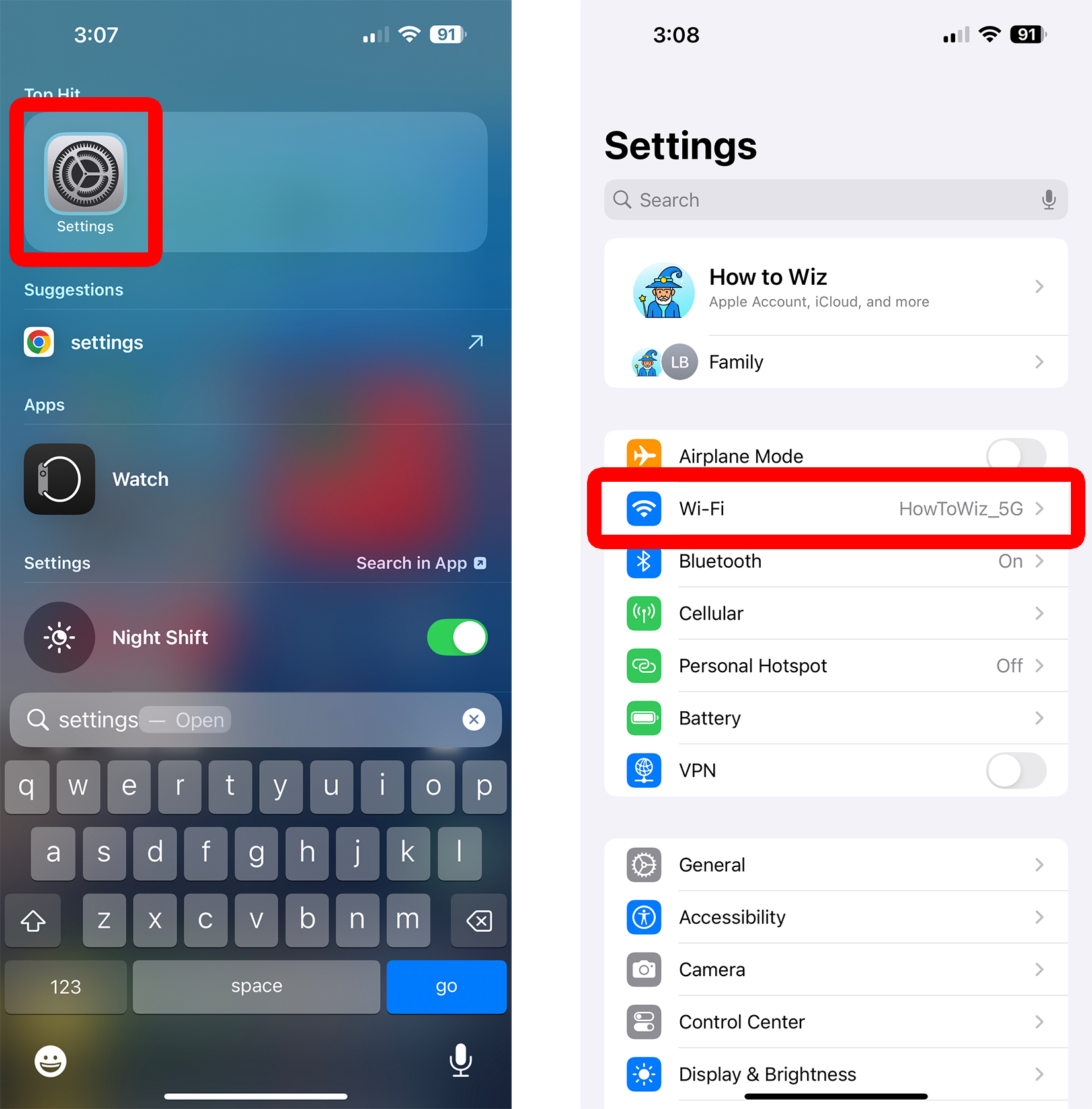
To see your WiFi network on an iPhone, swipe down from the center of your home screen and type “Settings” into the search bar. Select the Settings app at the top of your screen, and you will see your current network next to “Wi-Fi.”
To change your WiFi network on Roku, go to “Settings > Network > Set up connection.” Then select “Wireless,” choose a WiFi network, and enter the password.
How to Enable AirPlay on Roku
- Press the Home button on your Roku remote.
- Go to “Settings.”
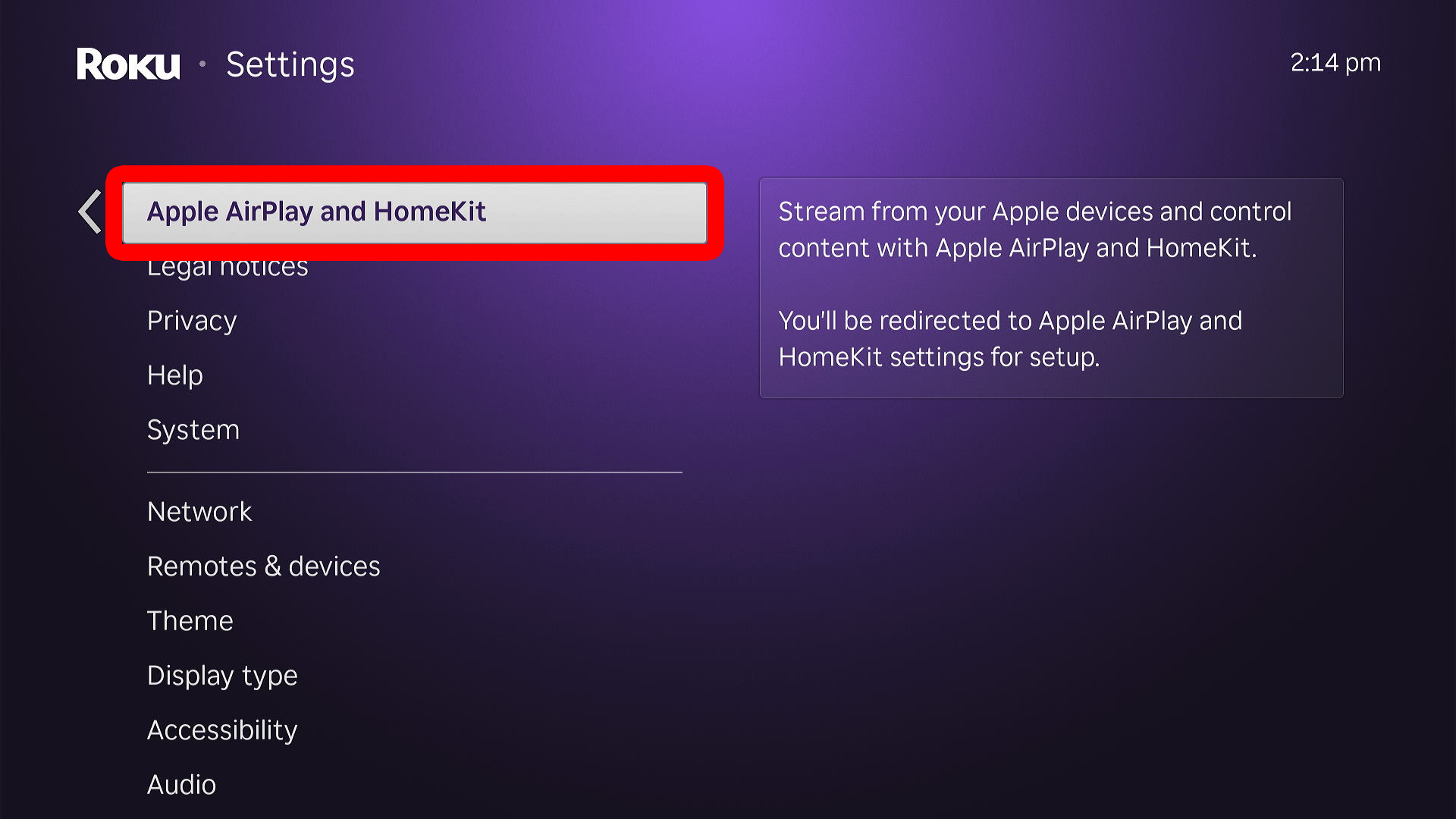
- Select “Apple AirPlay and HomeKit.”
- Finally, make sure “AirPlay” is turned “On.” AirPlay must be turned on to mirror your iPhone to Roku.
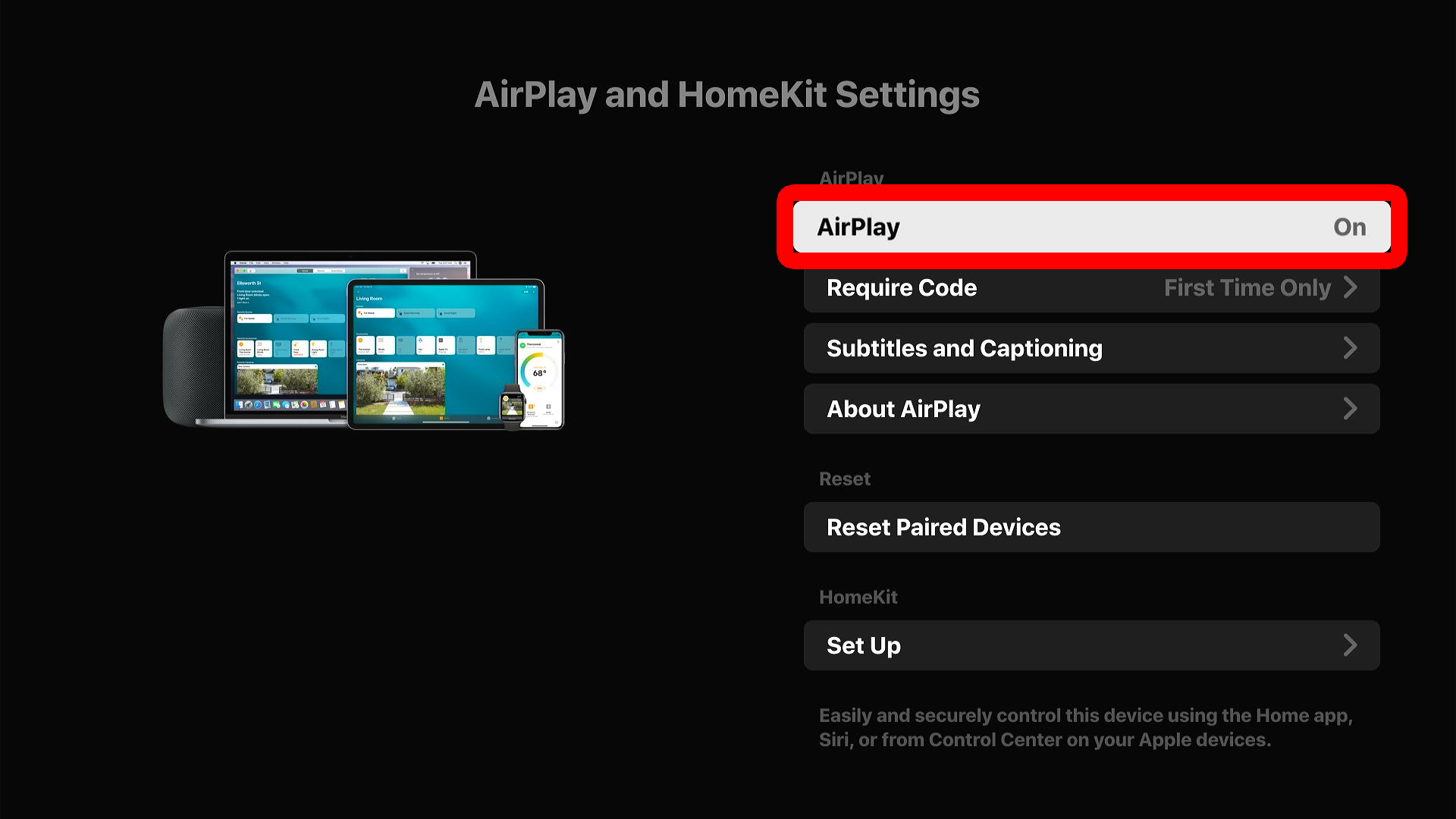
From here, you can also select “Require Code” to choose whether your Roku device will ask for a four-digit code from your iPhone “Every Time,” the “First Time Only,” or if you want to “Use Password Instead.”
If none of these steps worked, you can always reset your Roku device to factory settings and try again.