
Need a quieter way to watch your shows? With Roku, you can plug headphones into your remote, connect them through the mobile app, or pair them directly with certain Roku devices. Here’s everything you need to know about how to connect your wired or wireless headphones to a Roku TV.
How to Connect Wired Headphones to Roku Remote
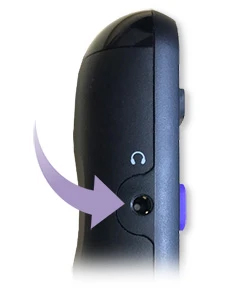
If your remote has a headphone jack on the side, you can use it to connect a pair of wired headphones. Simply plug your headphones into the 3.5mm jack, and then you should see a headphone icon appear in the top right corner of your screen.
Read More: How to Mirror Your iPhone to Roku
How to Connect Wireless Headphones with the Roku App
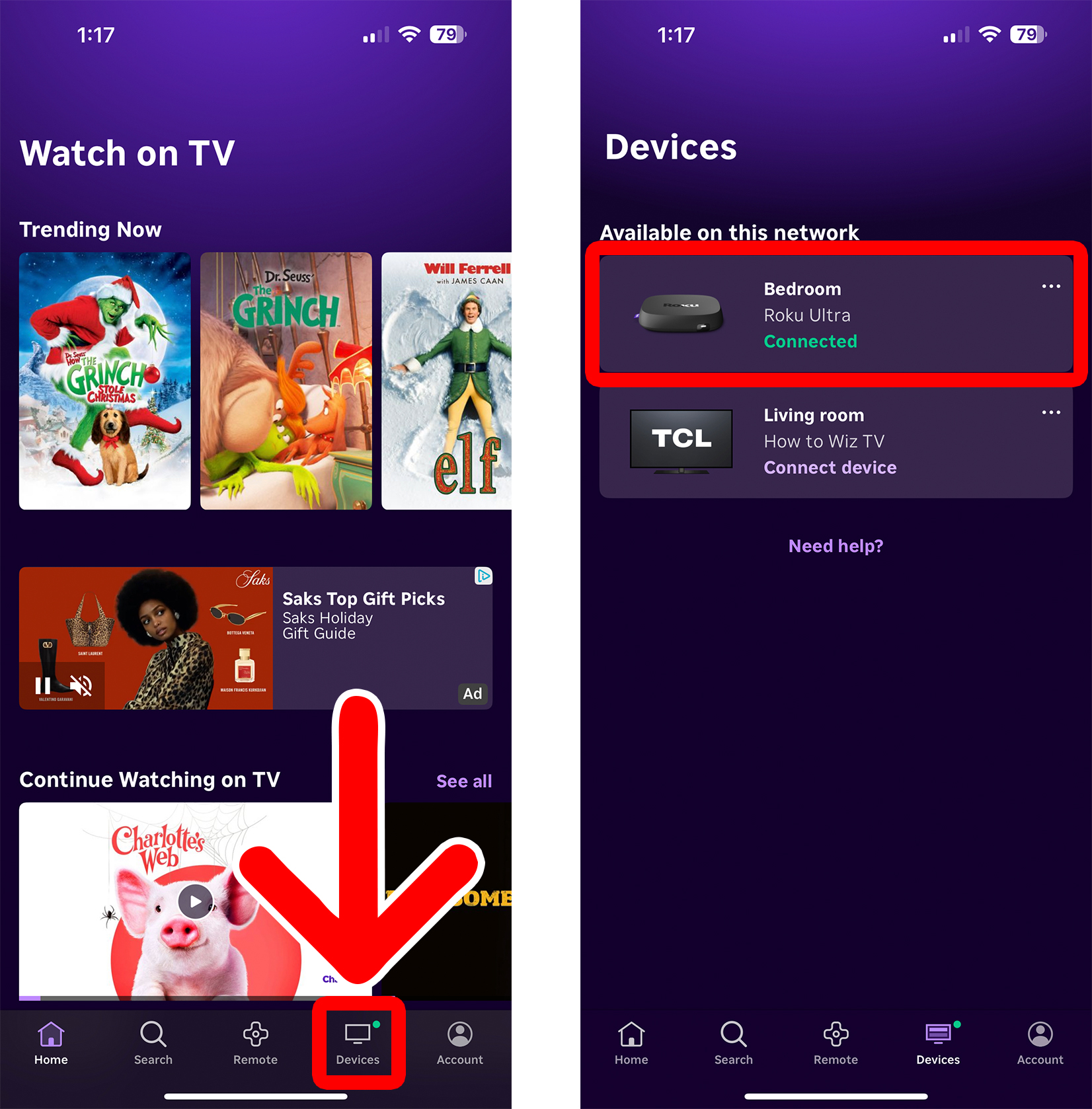
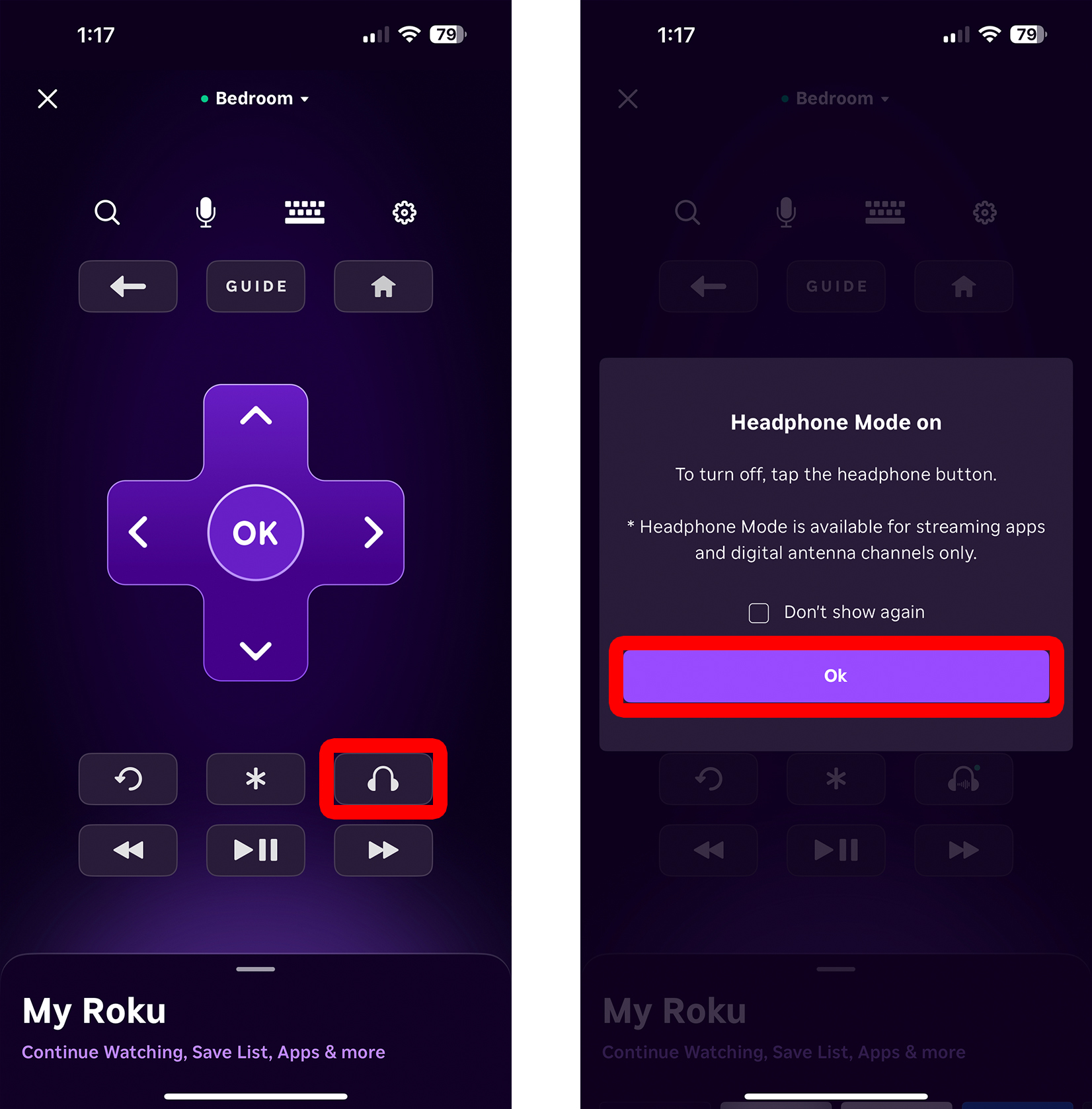
To connect your Roku device to Bluetooth headphones, open the Roku app on your smartphone and select “Devices” at the bottom of your screen. Then select your Roku device and tap the headphone icon. Finally, tap “OK” to confirm.
- Open the Roku app. If you don’t already have it on your smartphone, you can download it from the Apple App Store or the Google Play Store.
- Select “Devices.” You will see this at the bottom of the screen.
- Select your Roku device. This will open a virtual Roku remote on your screen.

- Tap the headphone icon. You will see this near the bottom of the screen, next to the Star icon.
- Finally, tap “OK.” Make sure to turn down the volume before you start playing any audio through your headphones.
Read More: How to Turn Off the Roku “Screen Reader” Voice
How to Connect Wireless Headphones Directly to a Roku TV
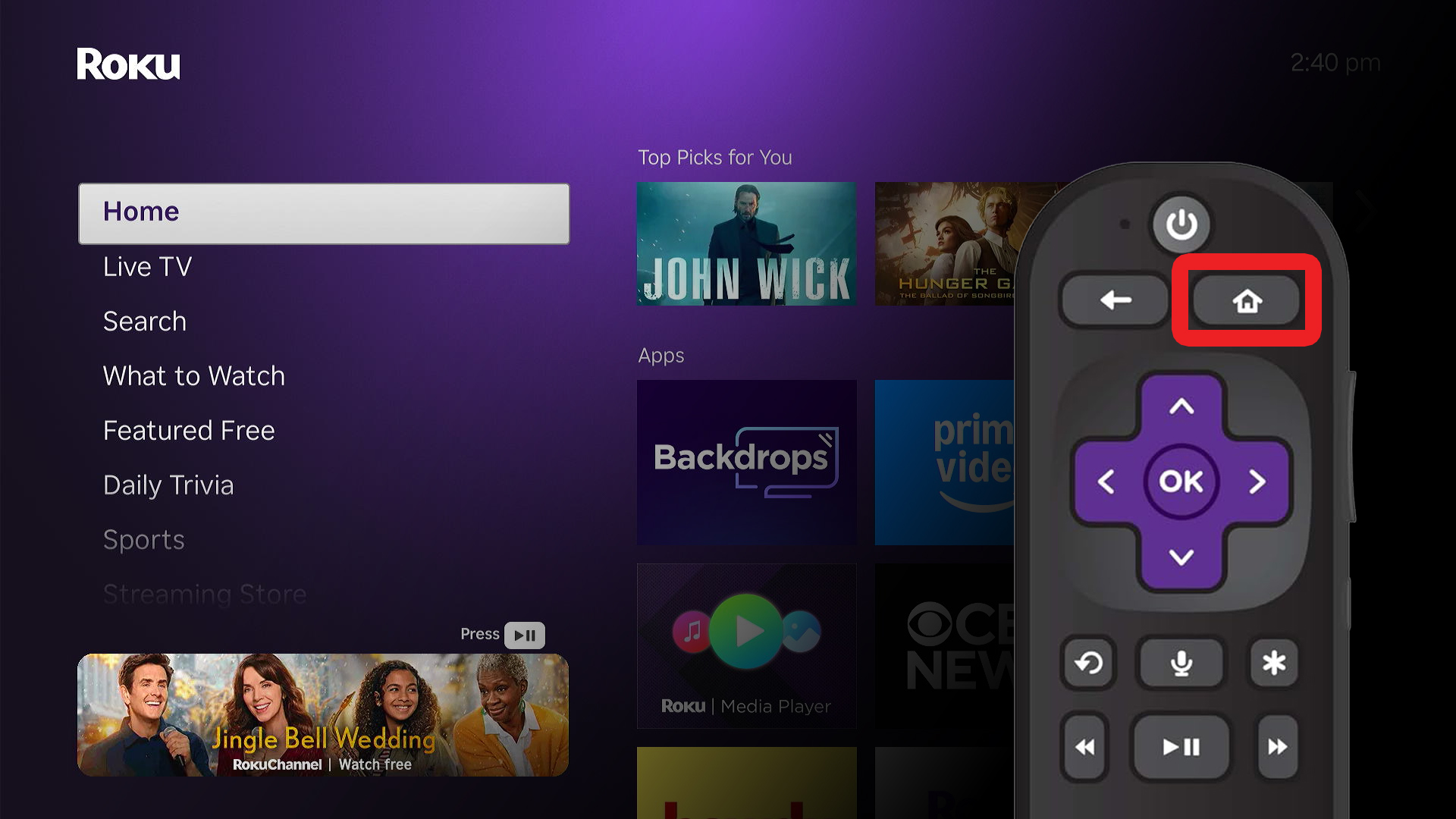
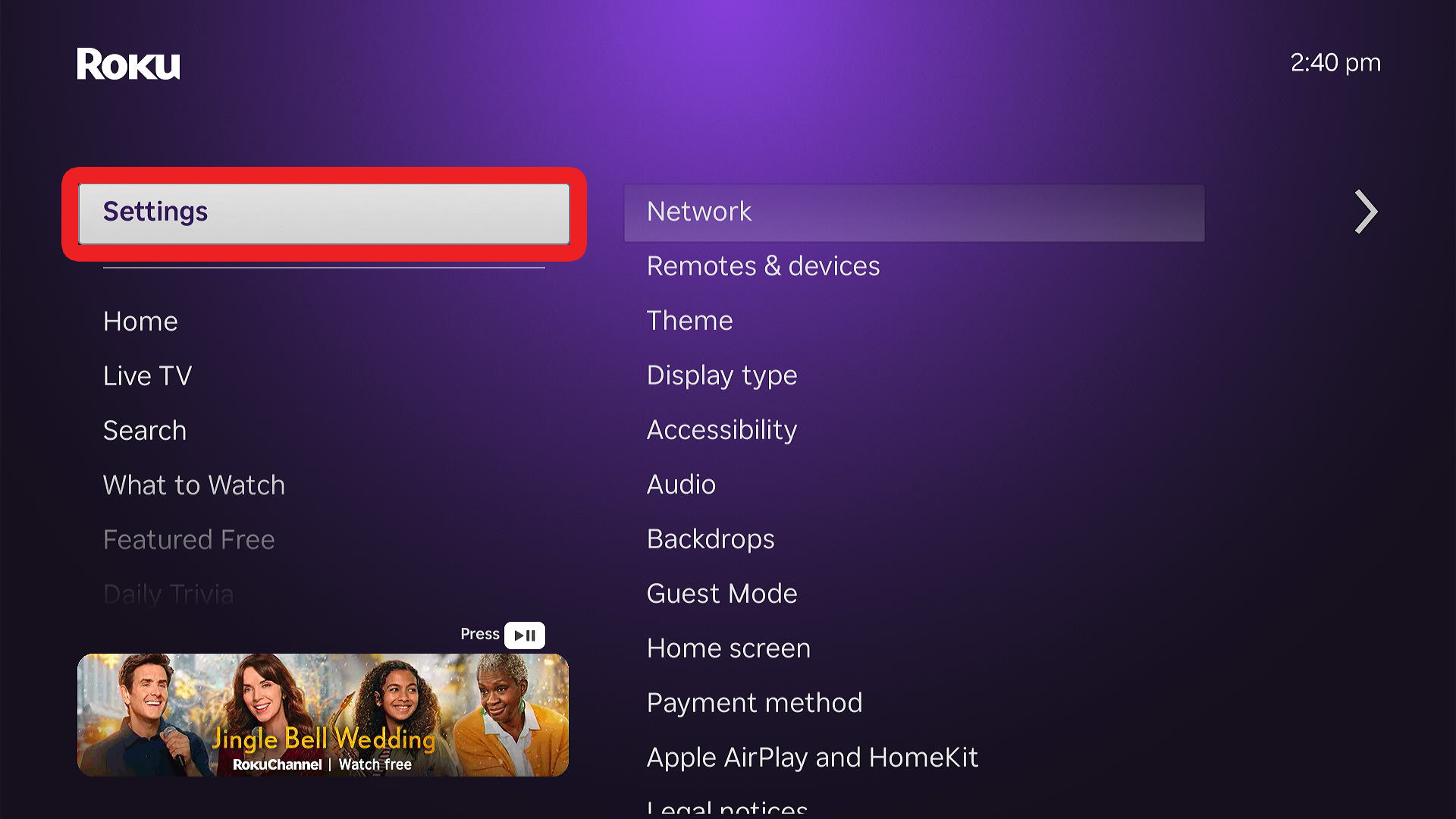
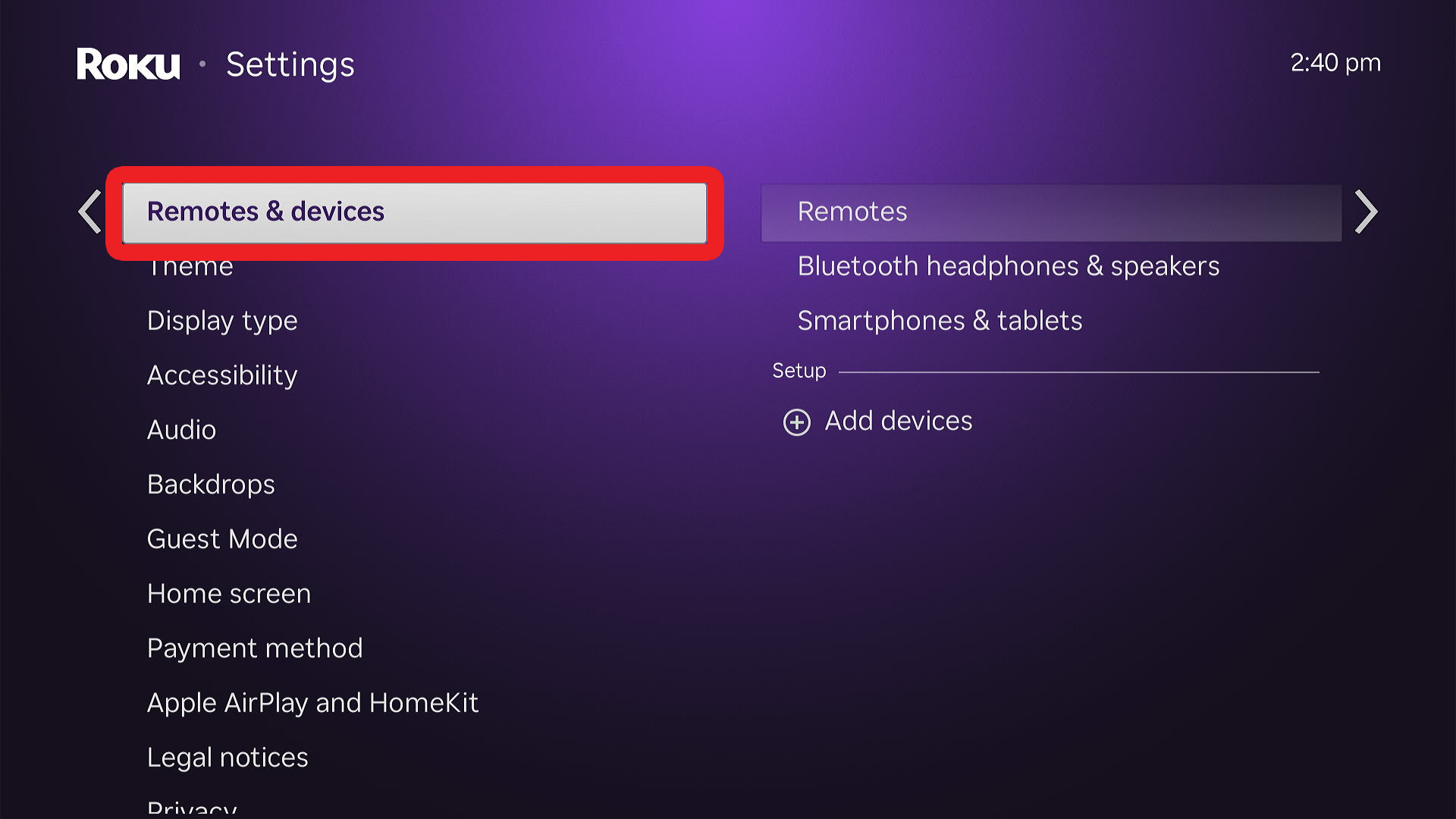
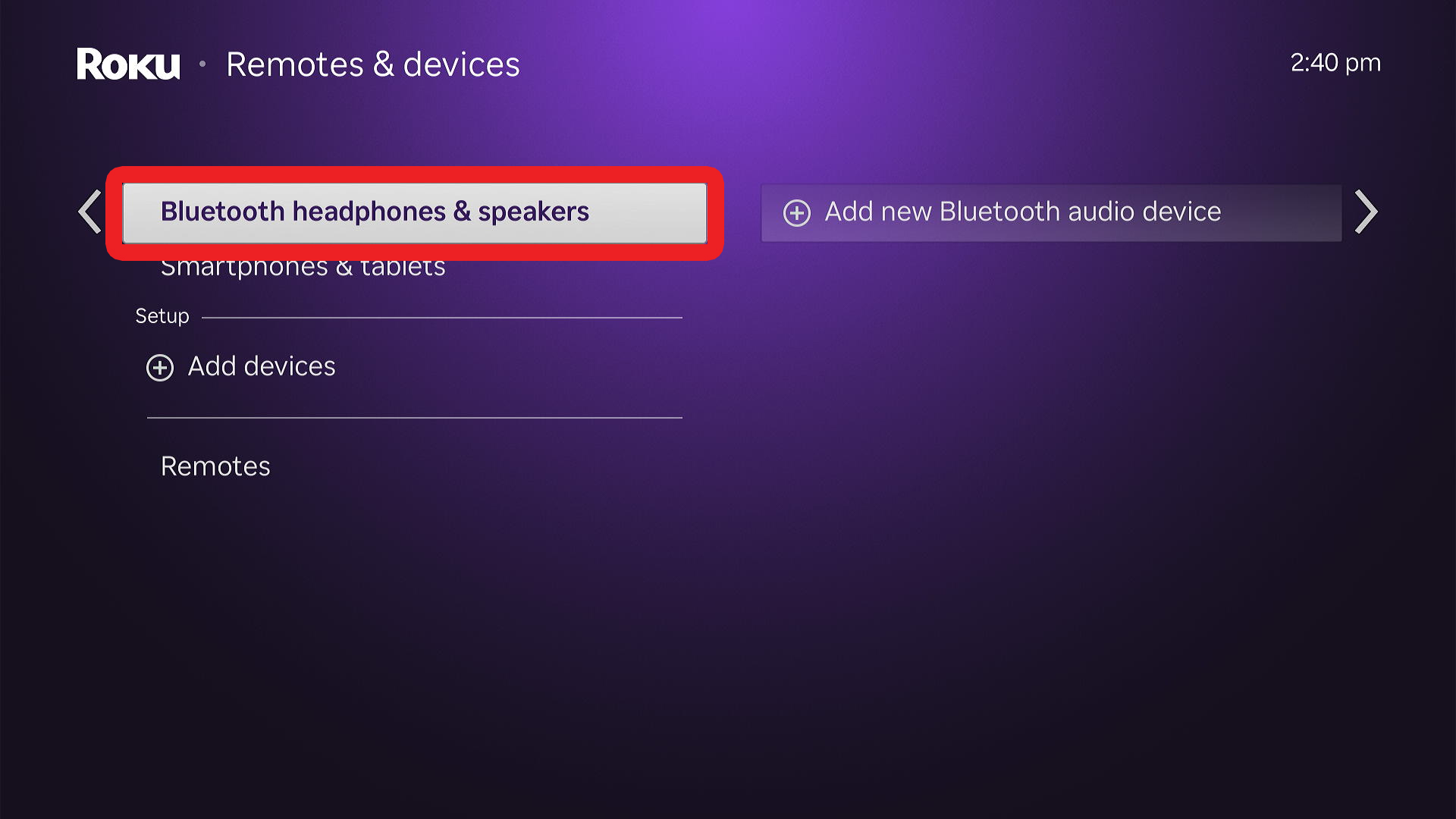
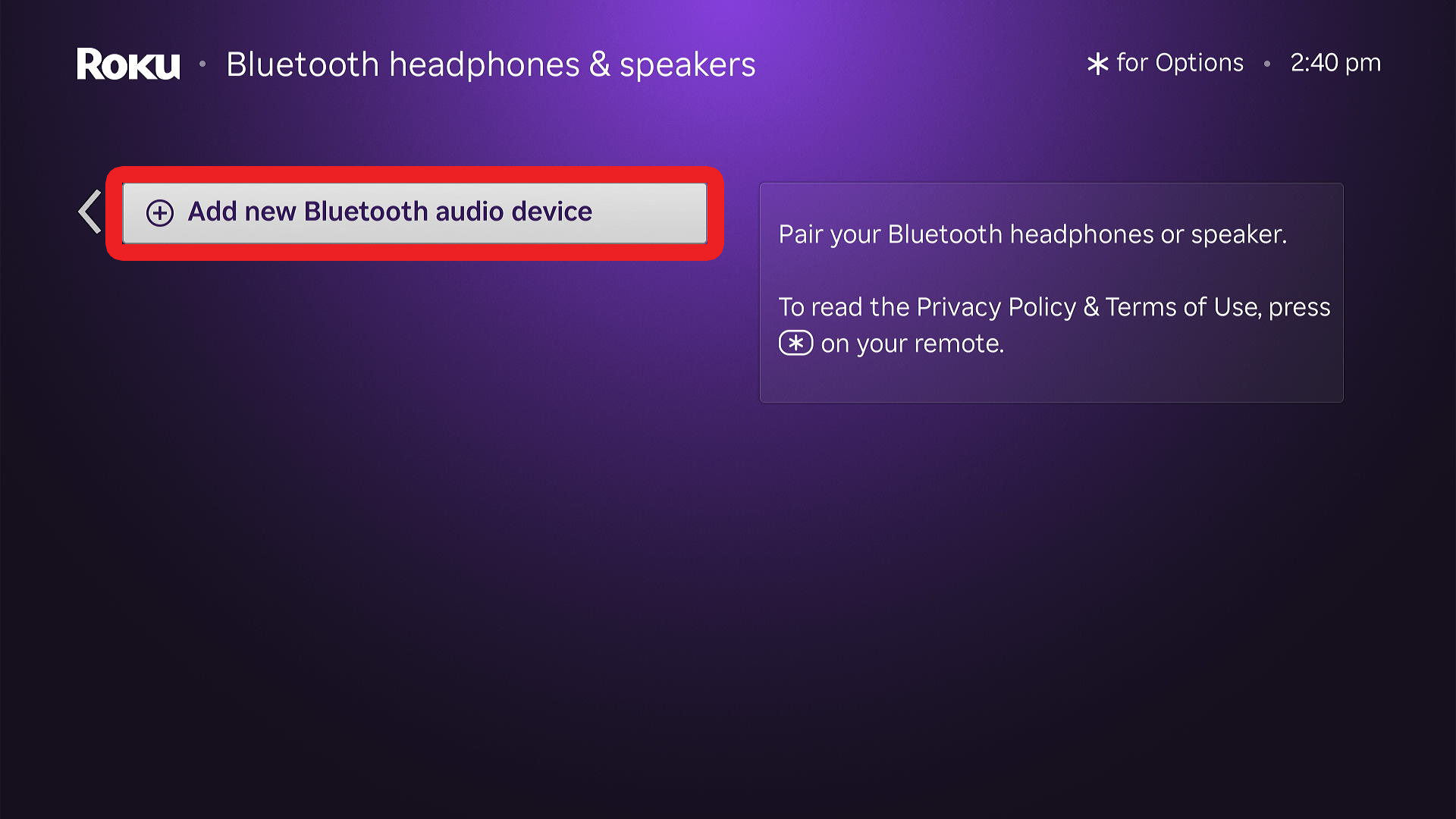
To connect a pair of Bluetooth headphones directly to a Roku TV, press the Home button on your remote and go to “Settings > Remotes & Devices > Wireless headphones.” Then put your headphones in pairing mode and select them when they appear on your TV.
- Press the Home button on your Roku remote. This will take you to the Roku home screen.

- Go to “Settings.” You can access Settings from the menu on the left side of the screen.
- Select “Remotes & Devices.”
- Go to “Wireless headphones.”
- Go to “Add new wireless headphones.”
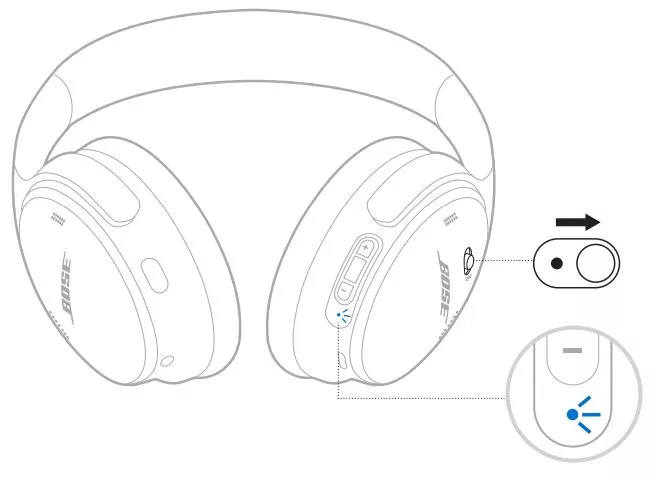
- Put your headphones in pairing mode. There is usually a button on your headphones that you need to press and hold. You will usually know they are in pairing mode when the indicator light starts flashing.

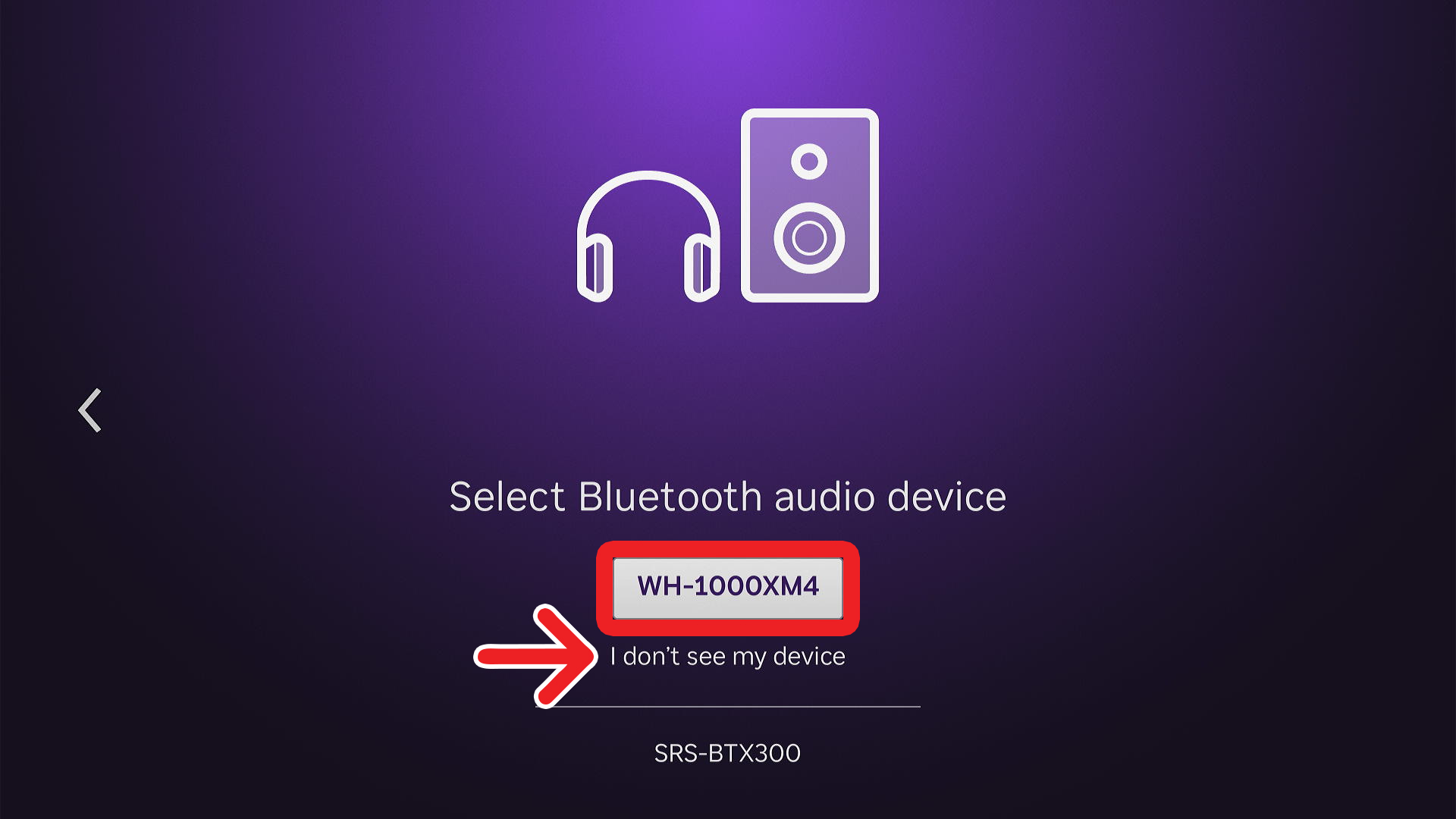
- Finally, select your Bluetooth headphones from the list of available devices. If you don’t see your headphones listed, select “I don’t see my device.”
Which Roku Devices Support Bluetooth?
- Roku Streambar SE
- Roku Streambar
- Roku Streambar Pro
- Roku Smart Soundbar
- Roku Ultra (only models 4800, 4802, and 4850)
- Roku Ultra LT (only model 4801)
- Roku Select Series 4K (2025)
- Roku Plus Series TV
- Roku Pro Series TV
- Roku TV system with Roku wireless speakers, Roku TV Wireless Soundbar, or TCL Roku TV Wireless Soundbar
How to Check Your Roku Model
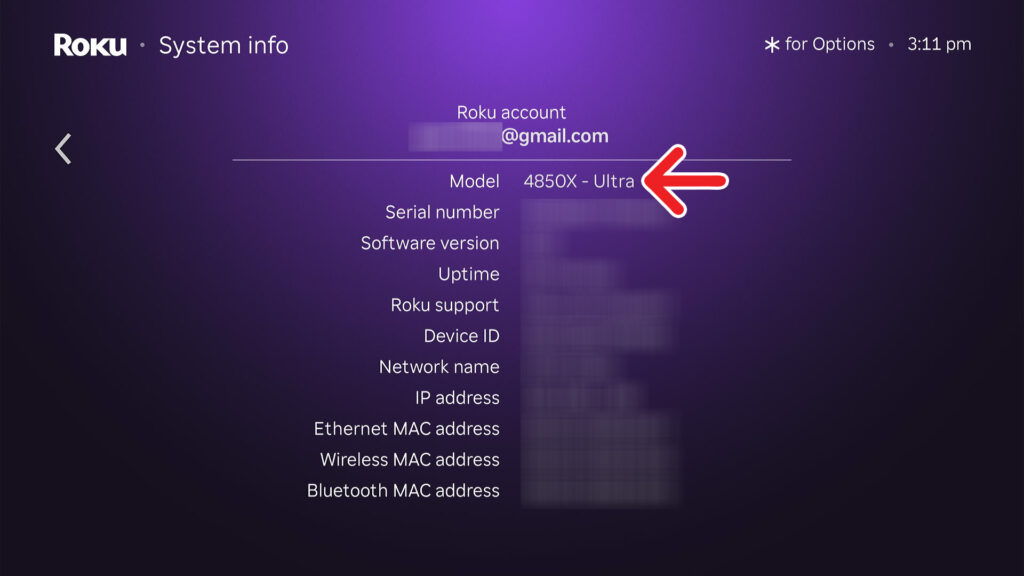
To check the model number of your Roku device, press the Home button on your Roku remote and go to “Settings > System > About.” Then you will see the model number for your Roku device near the top of the screen.
Read More: How to Reset Your Roku Device or TV