
Roku doesn’t come with all your favorite apps pre-installed—but it’s easy to add them once you know where to look. Here’s everything you need to know about how to find and add apps to your Roku device or TV, with or without a voice remote.
Read More: How to Change the Account on a Roku TV
How to Add Roku Apps with Voice Commands
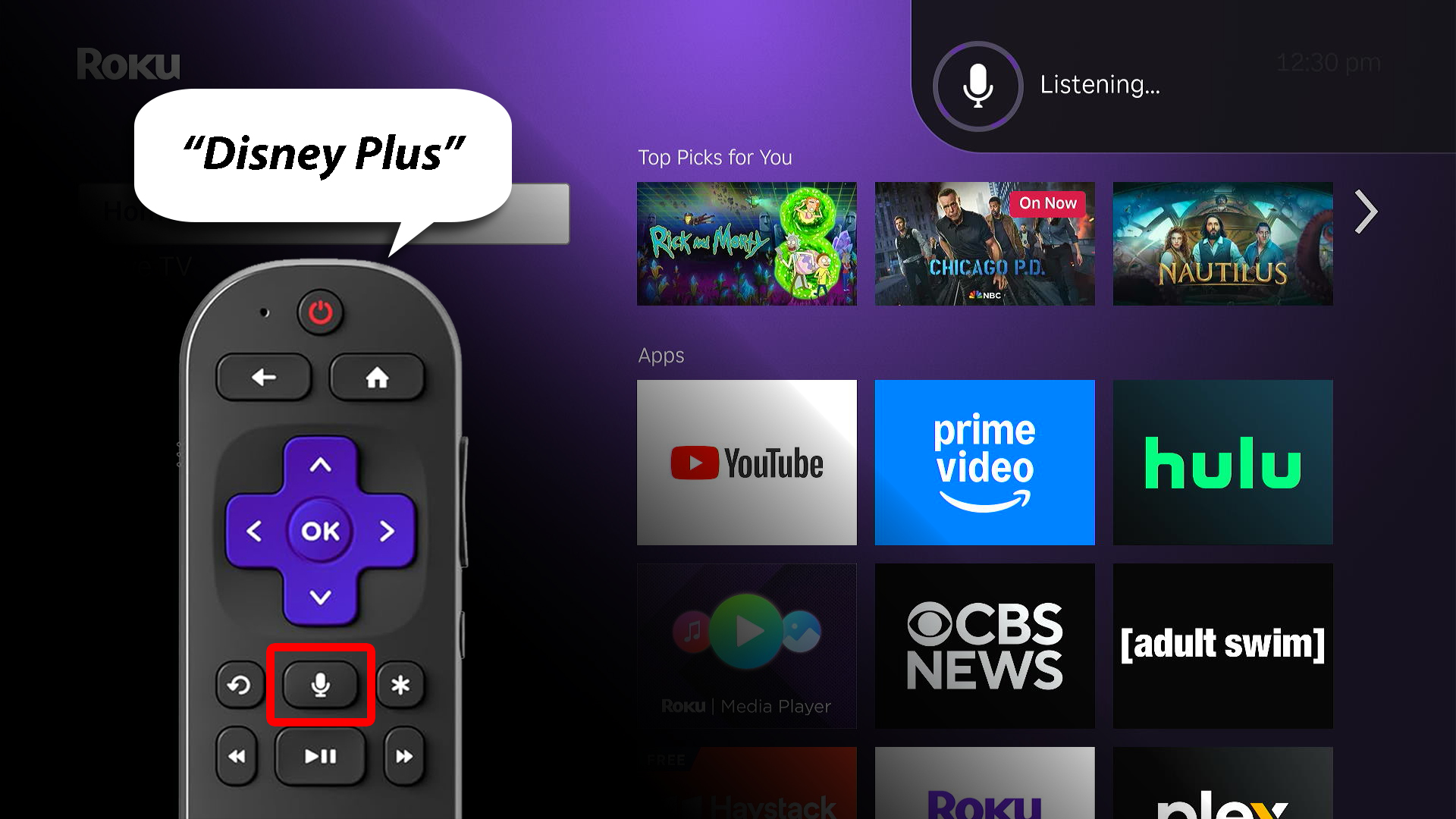
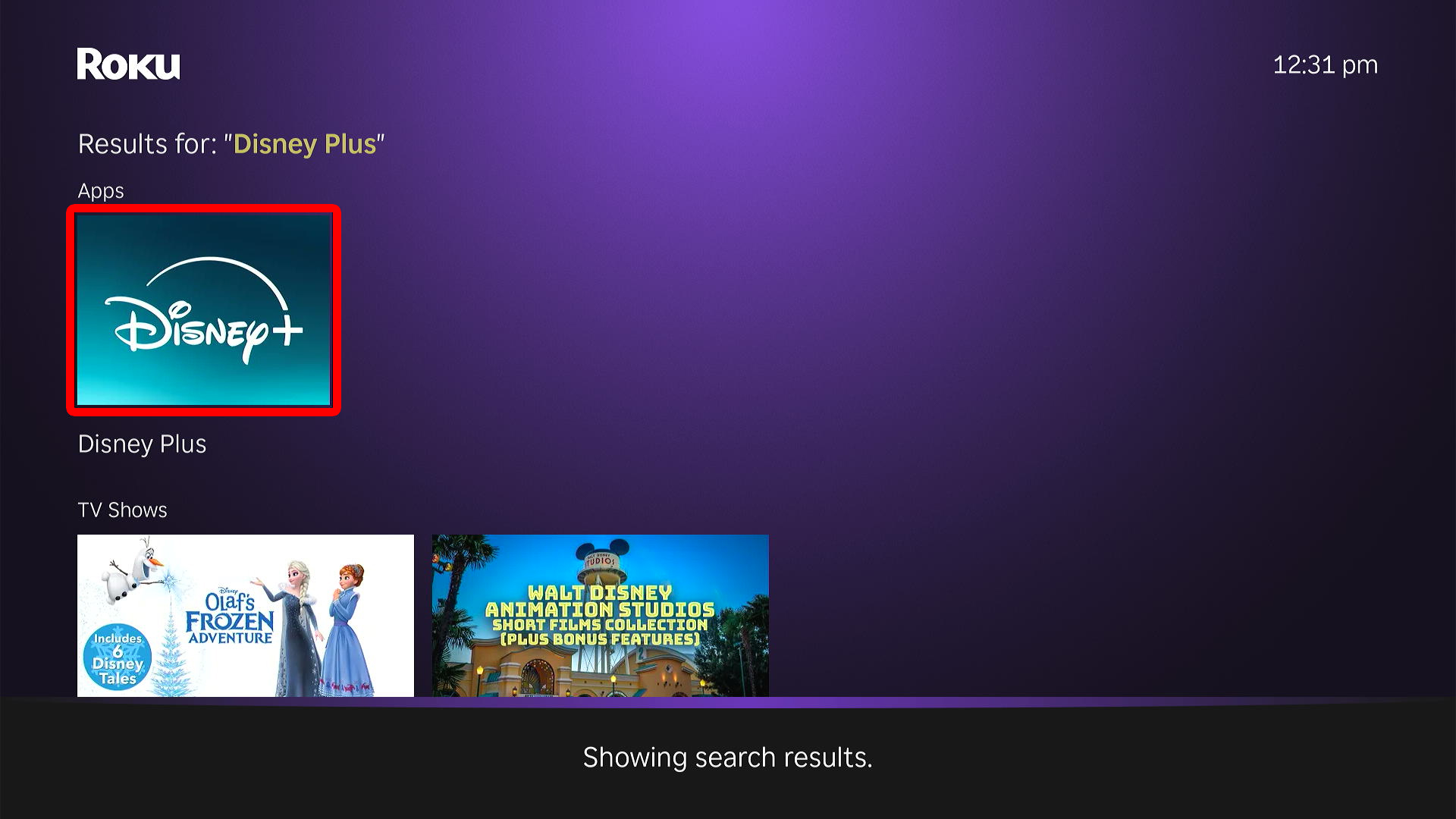
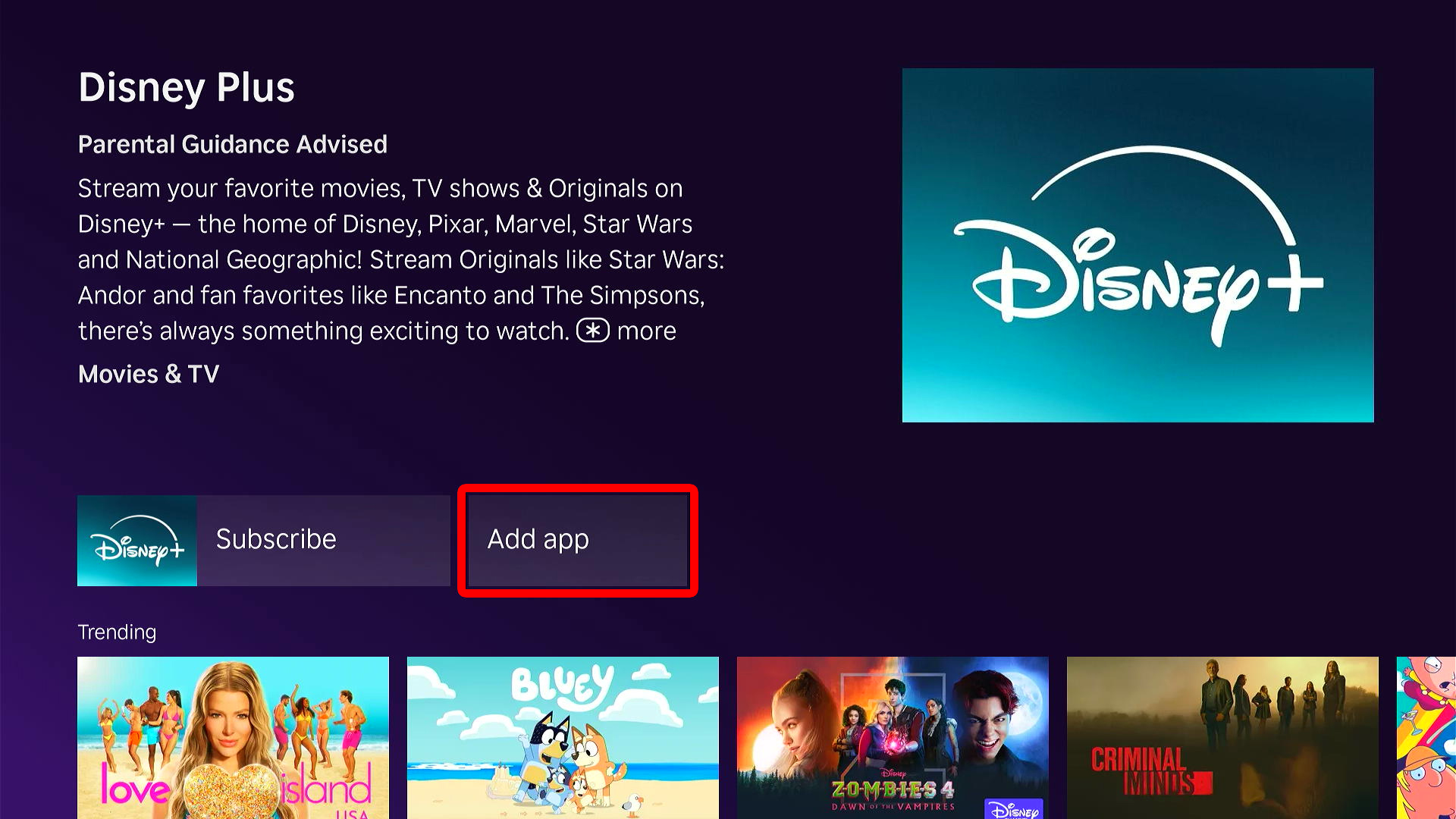
If your Roku remote has a microphone button, you can use it to quickly search for apps and add them. Simply press and hold the microphone button while saying the name of an app. Then, select “Add app” to add it to your Roku home screen.
- Press and hold the microphone button on your Roku remote.
- Speak the name of an app into your remote. Do not release the microphone button until you are finished saying the name of the app. Make sure to enunciate the app name clearly.

- Select the app.
- Choose “Add app.” This will add the app to your Roku home screen.
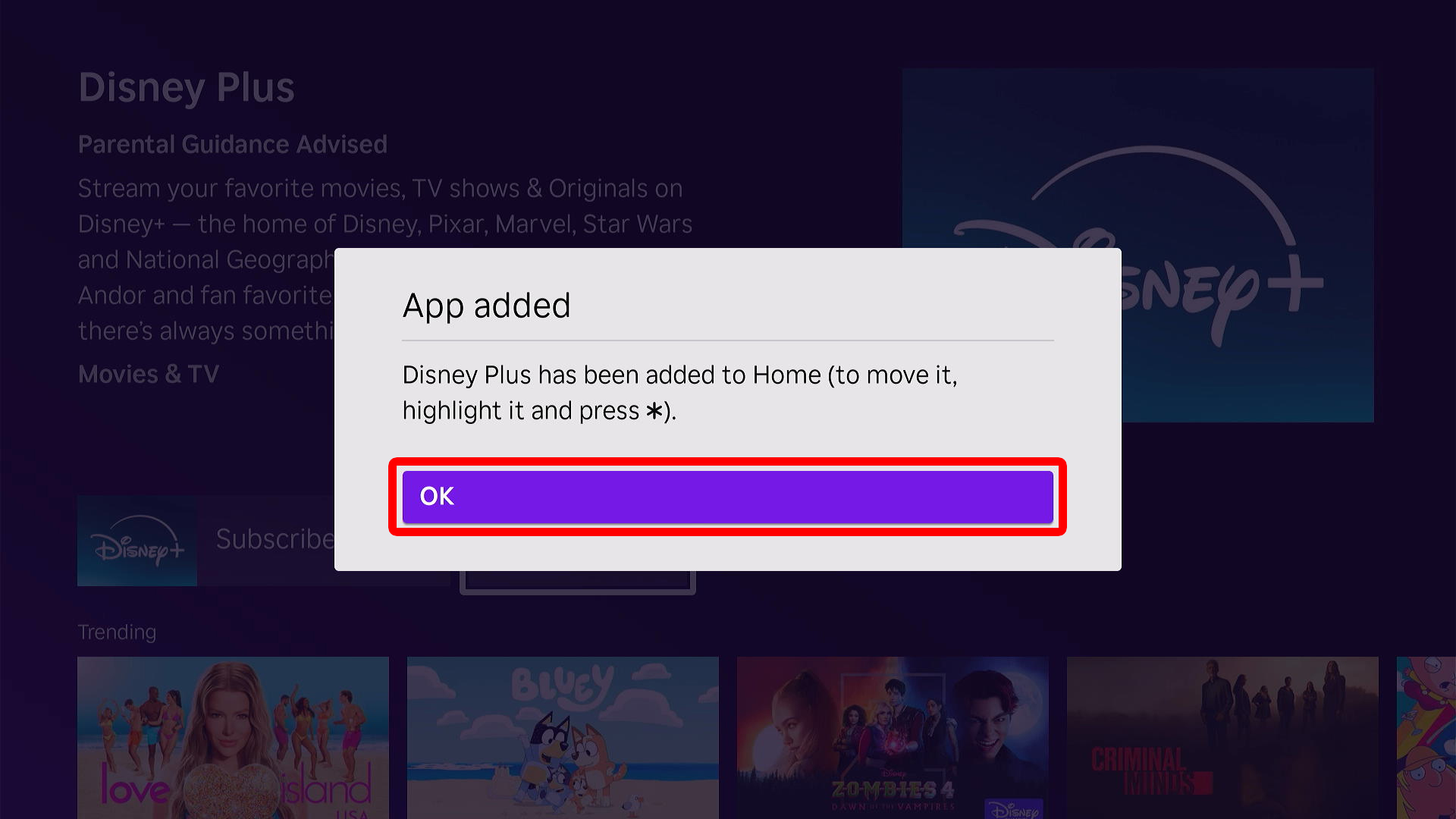
- Finally, select “OK.”
How to Add Roku Apps Without Voice Commands
If your Roku remote doesn’t have a microphone button, you can find and add apps by going to the home screen and selecting “Search” from the left-side menu. Then enter the name of an app using the on-screen keyboard, select the app, and choose “Add app.”
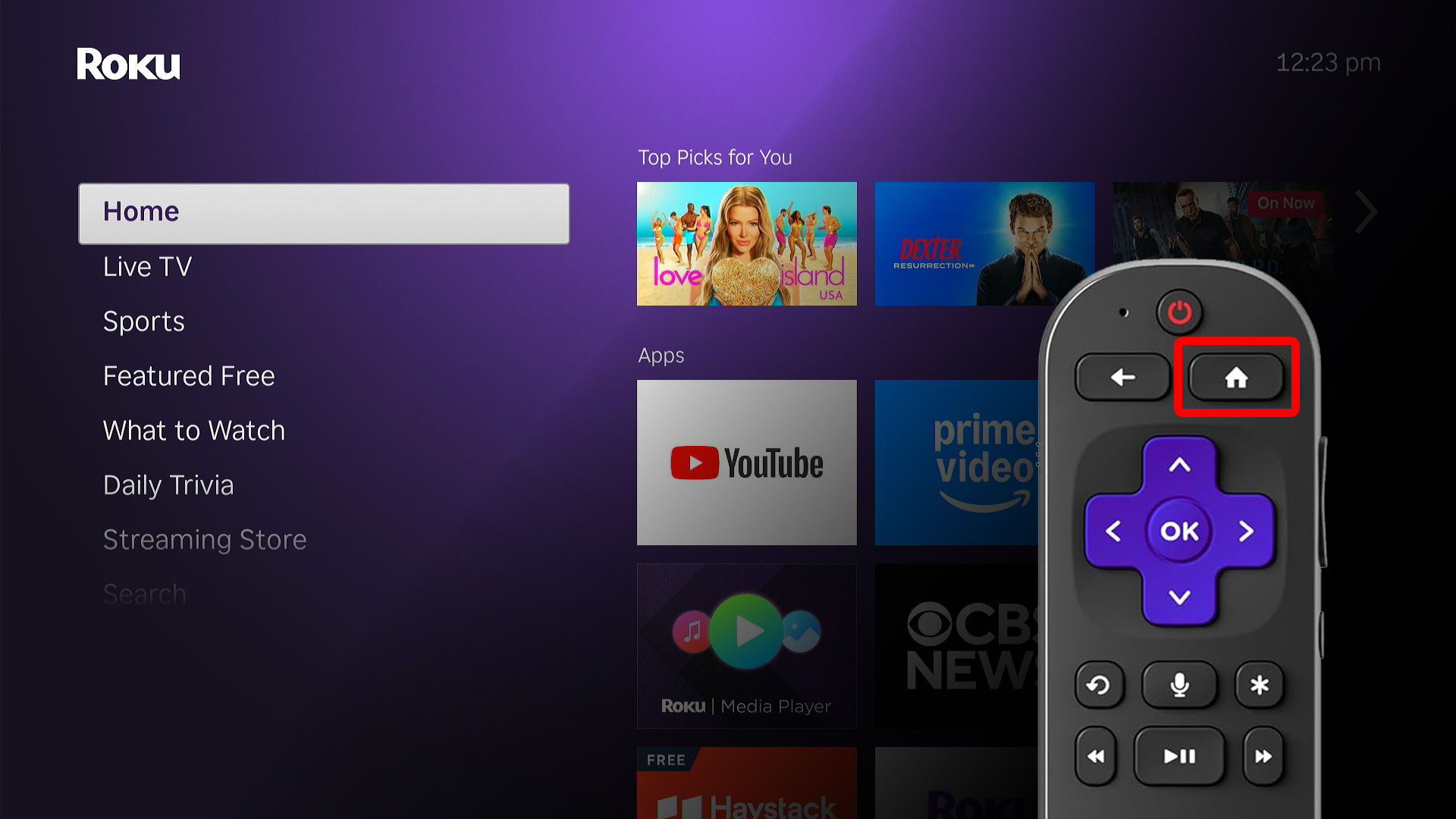
- Go to the Roku home screen. To do this, press the Home button on your Roku remote.
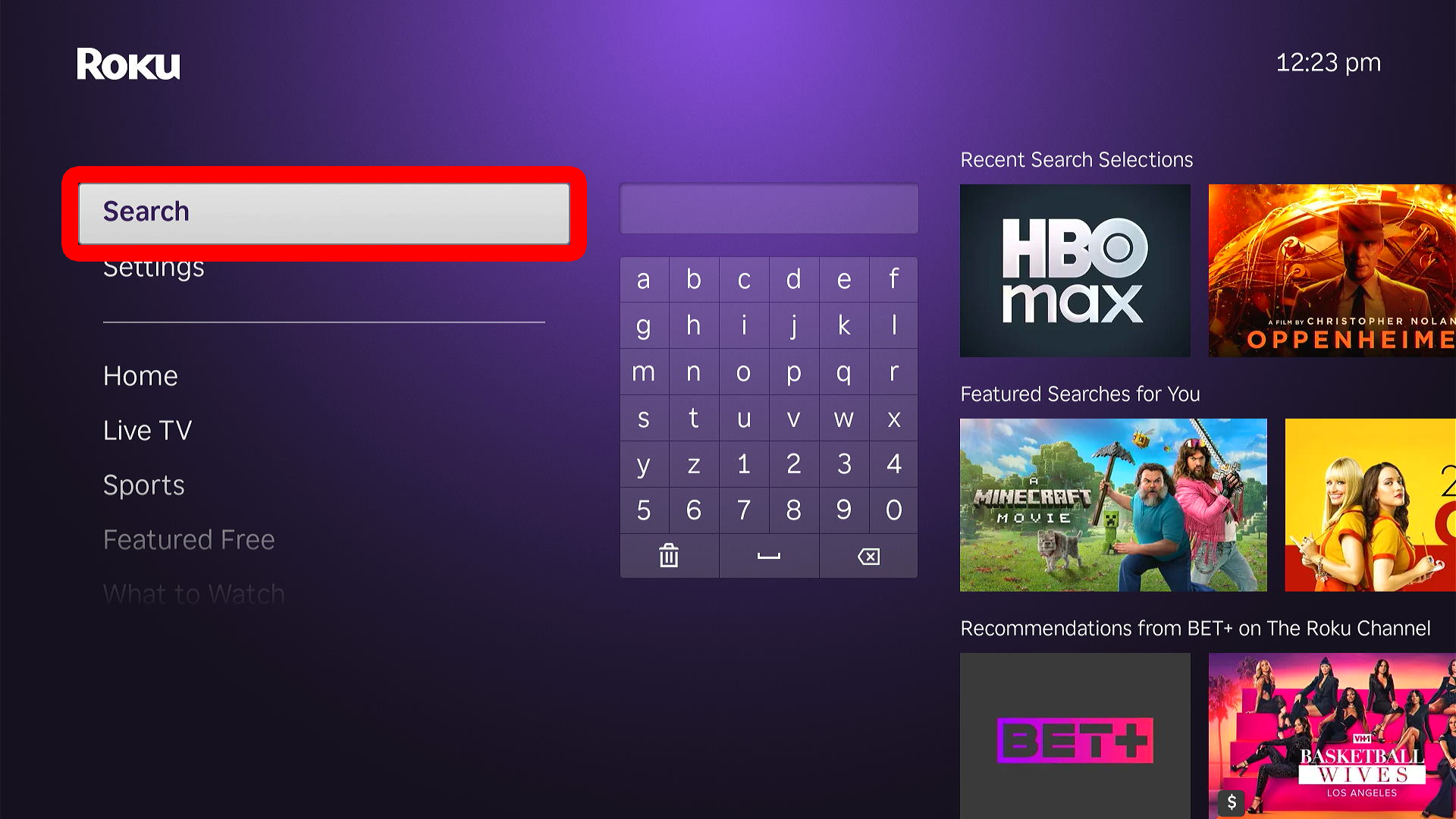
- Select “Search.” You will see this in the left-side menu, which you can access by pressing the left arrow button on the home screen. Then use the up and down arrow keys to navigate the menu.
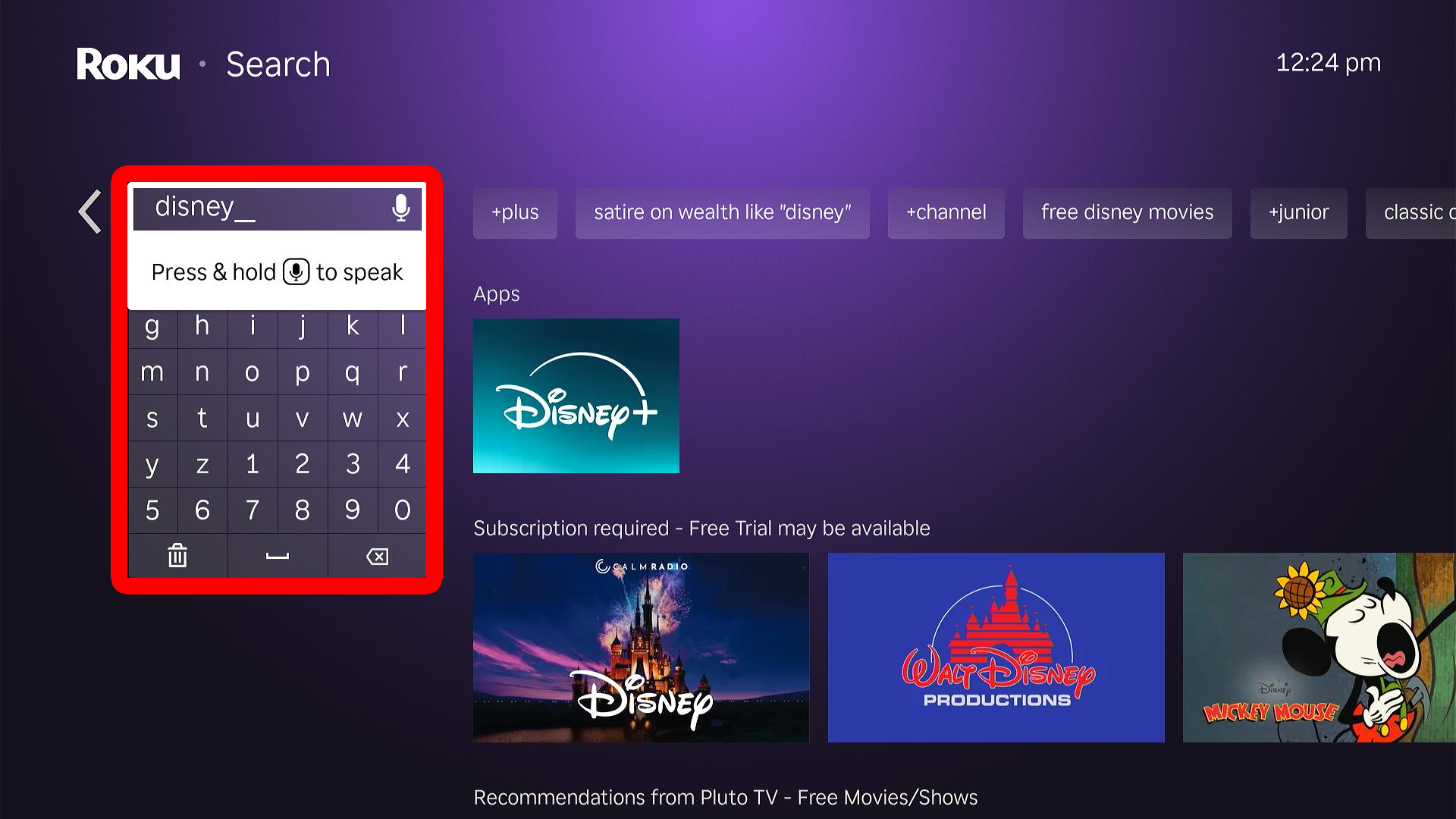
- Enter the name of an app. Use the on-screen keyboard to type the name of an app letter-by-letter.
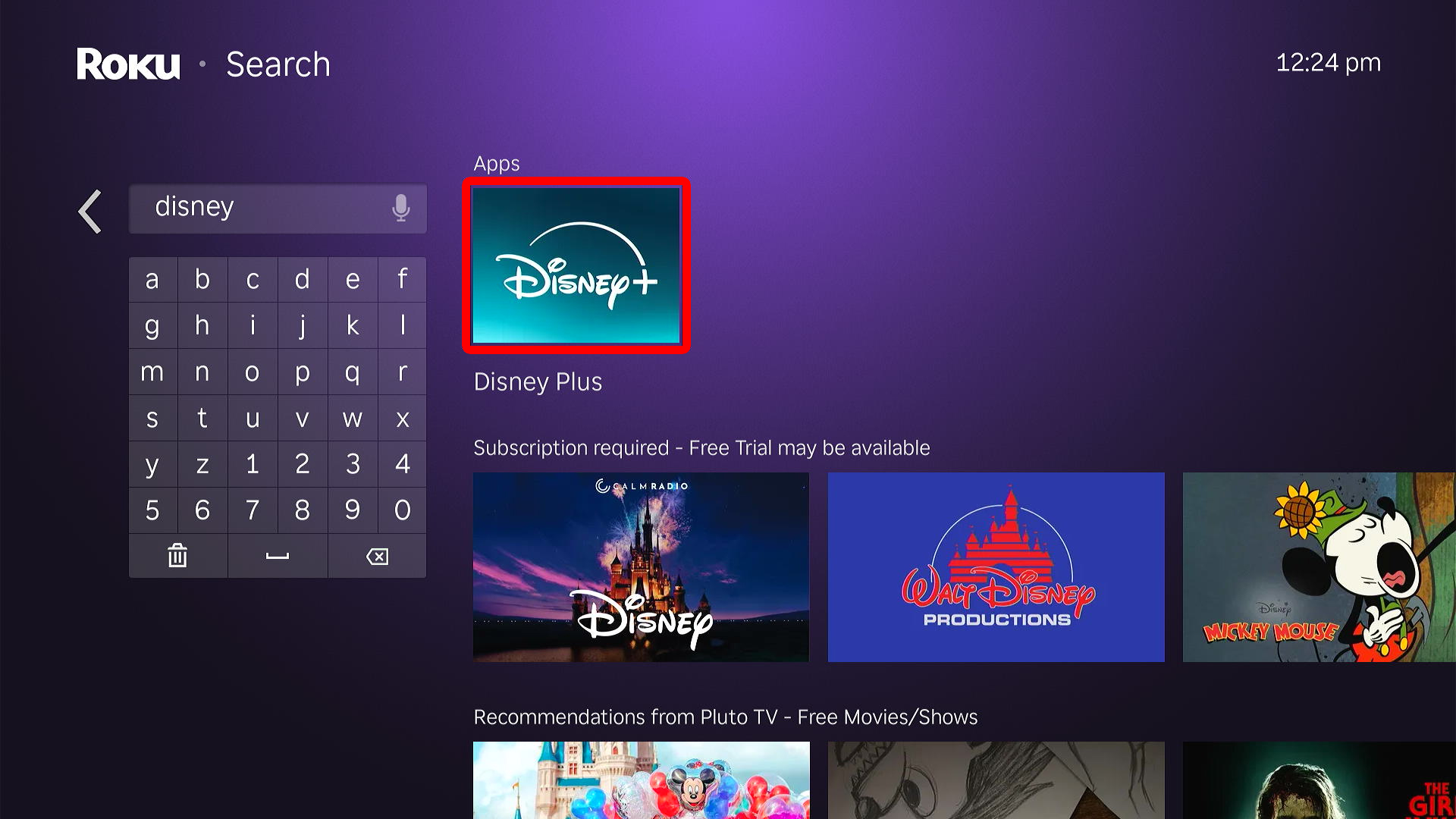
- Select the app.
- Finally, choose “Add app” and select “OK.”
How to Search for Roku Apps
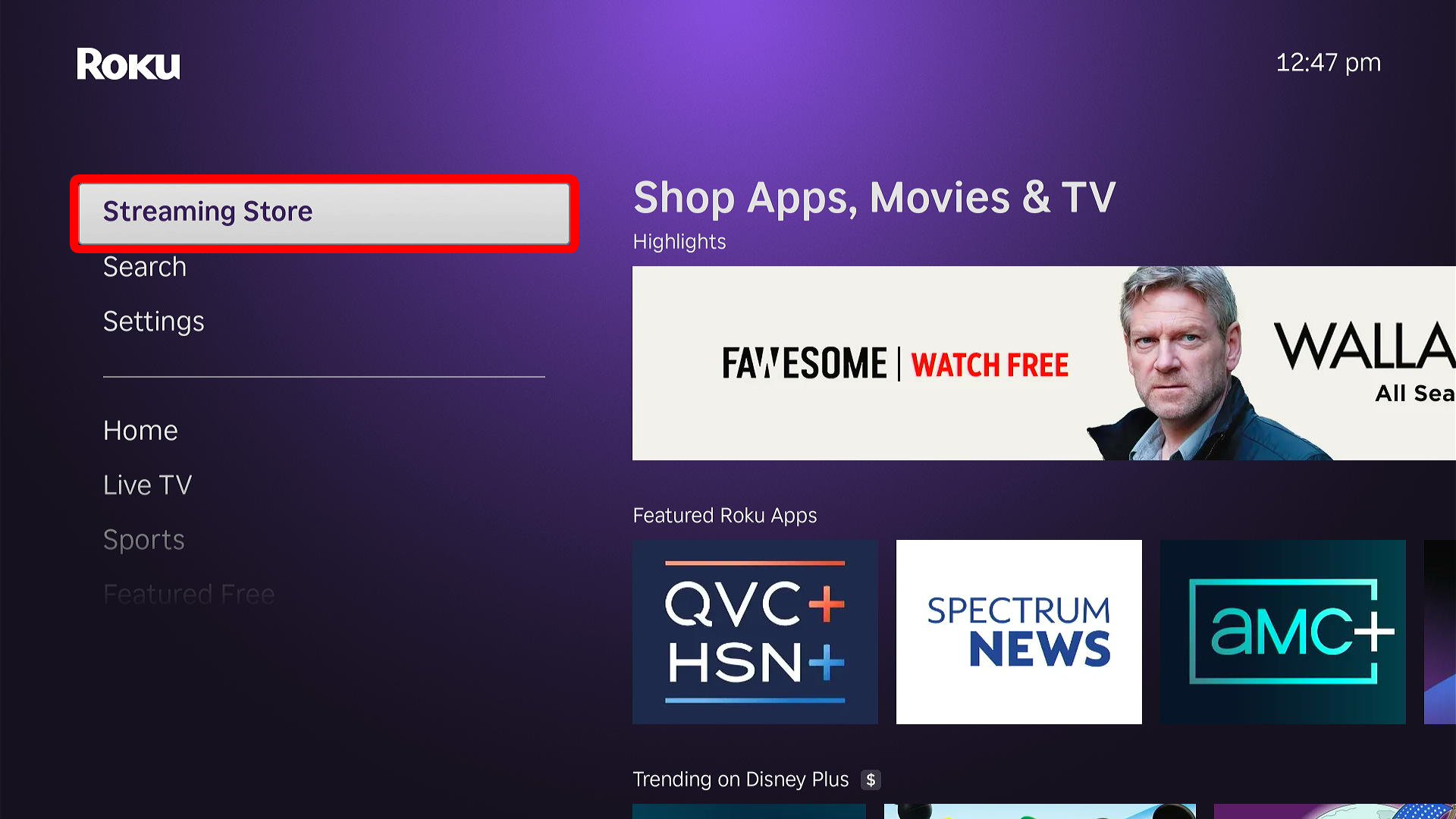
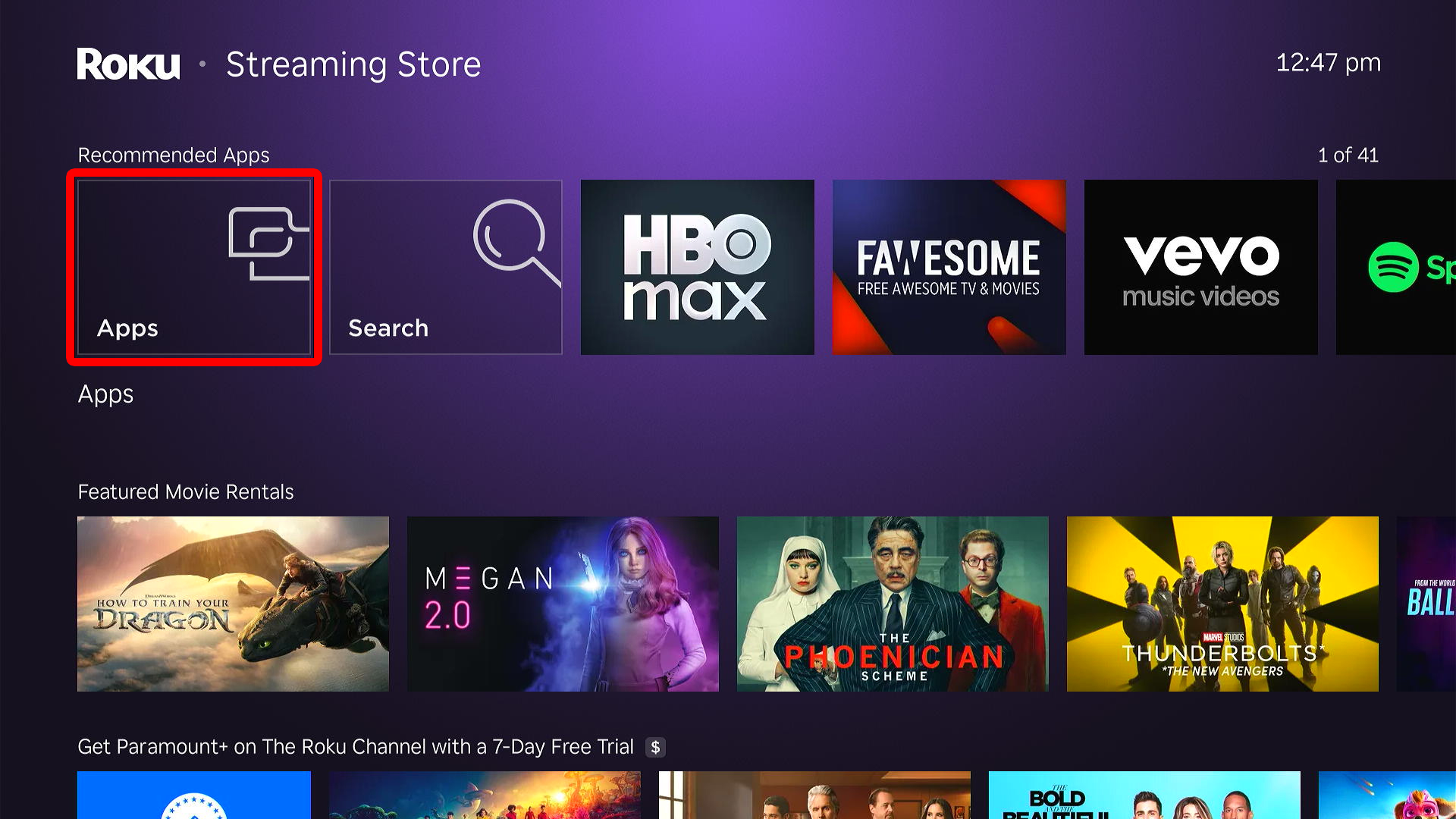
If you don’t know which app you want to add, you can search by category or browse recommended apps. Simply go to the Roku home screen and select “Streaming Store” from the left-side menu. Then, select “Apps,” search for an app, and choose “Add app.”
- Go to the Roku home screen. To do this, press the Home button on your Roku remote.
- Select “Streaming Store“. You will see this in the left-side menu. You can access this menu by pressing the left arrow button on your Roku remote. Then use the up and down arrow buttons to navigate the menu.
- Choose “Apps.”
- Finally, select an app and choose “Add app.”
Read More: How to Cast from a Windows PC to Roku