
Before you can watch movies and shows on Fire TV, you’ll need to download apps like Netflix, Amazon Prime Video, Disney+, and more. Here’s everything you need to know about how to download apps on Fire TV and add them to your home screen.
How to Add Fire TV Apps with Voice Commands
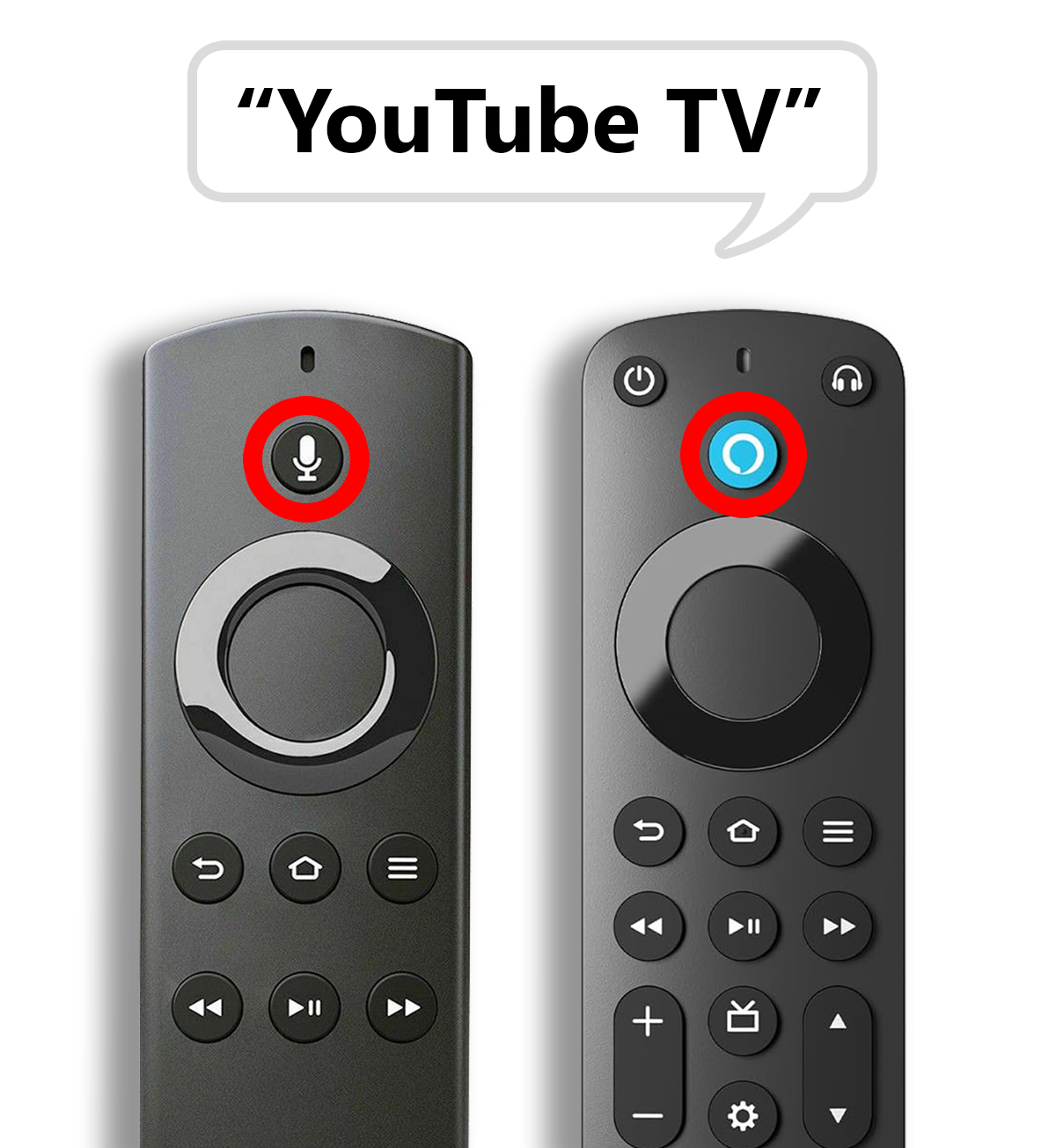
If your Fire TV remote has a microphone or Alexa button, you can add a new app using voice commands. Simply press and hold the button while you say the name of an app. Then choose the app and select “Get” or “Download” to add the app.
- Press and hold the voice button on your Fire TV remote.
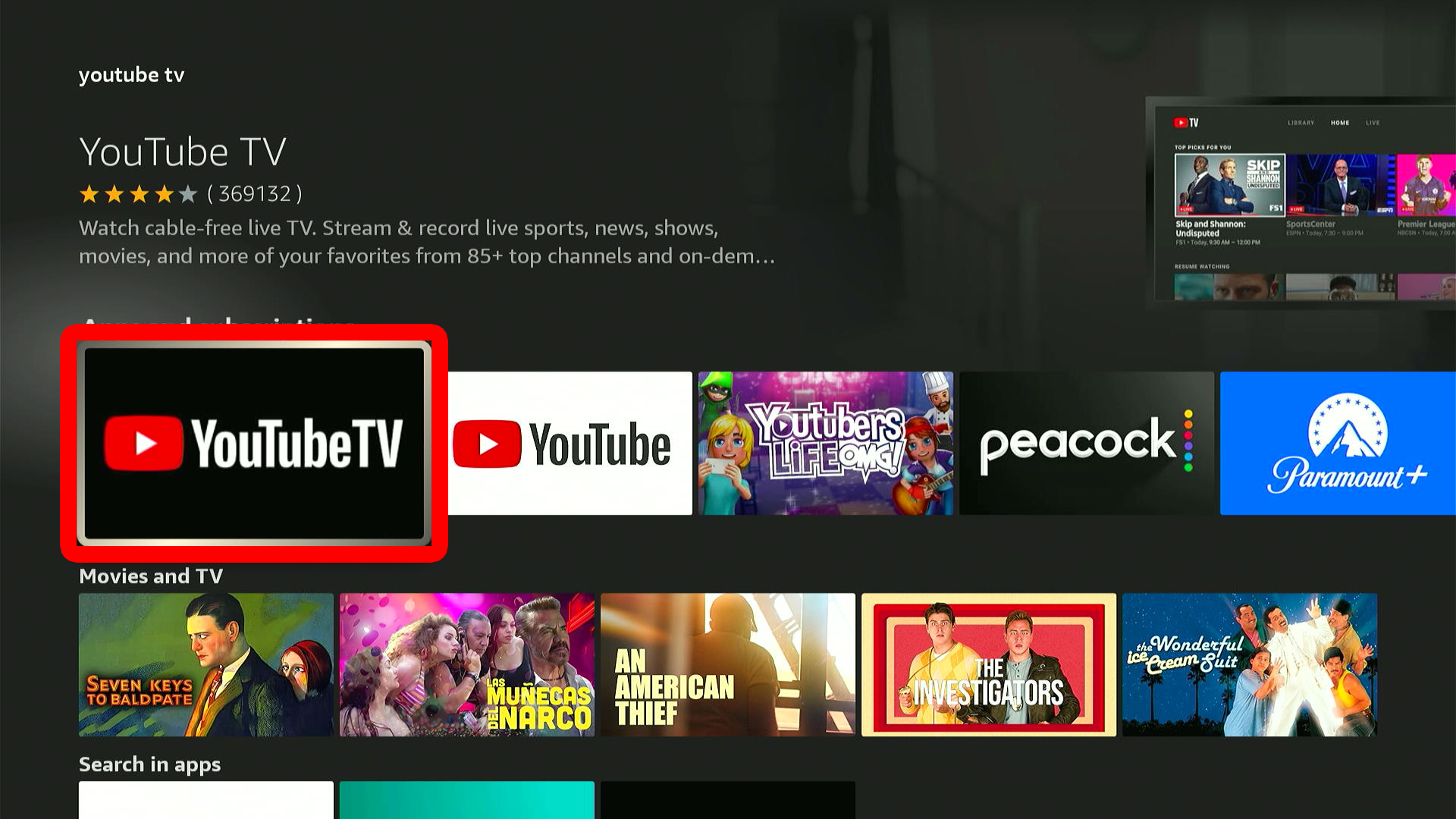
- Say the name of the app you want to download.

- Choose the app.

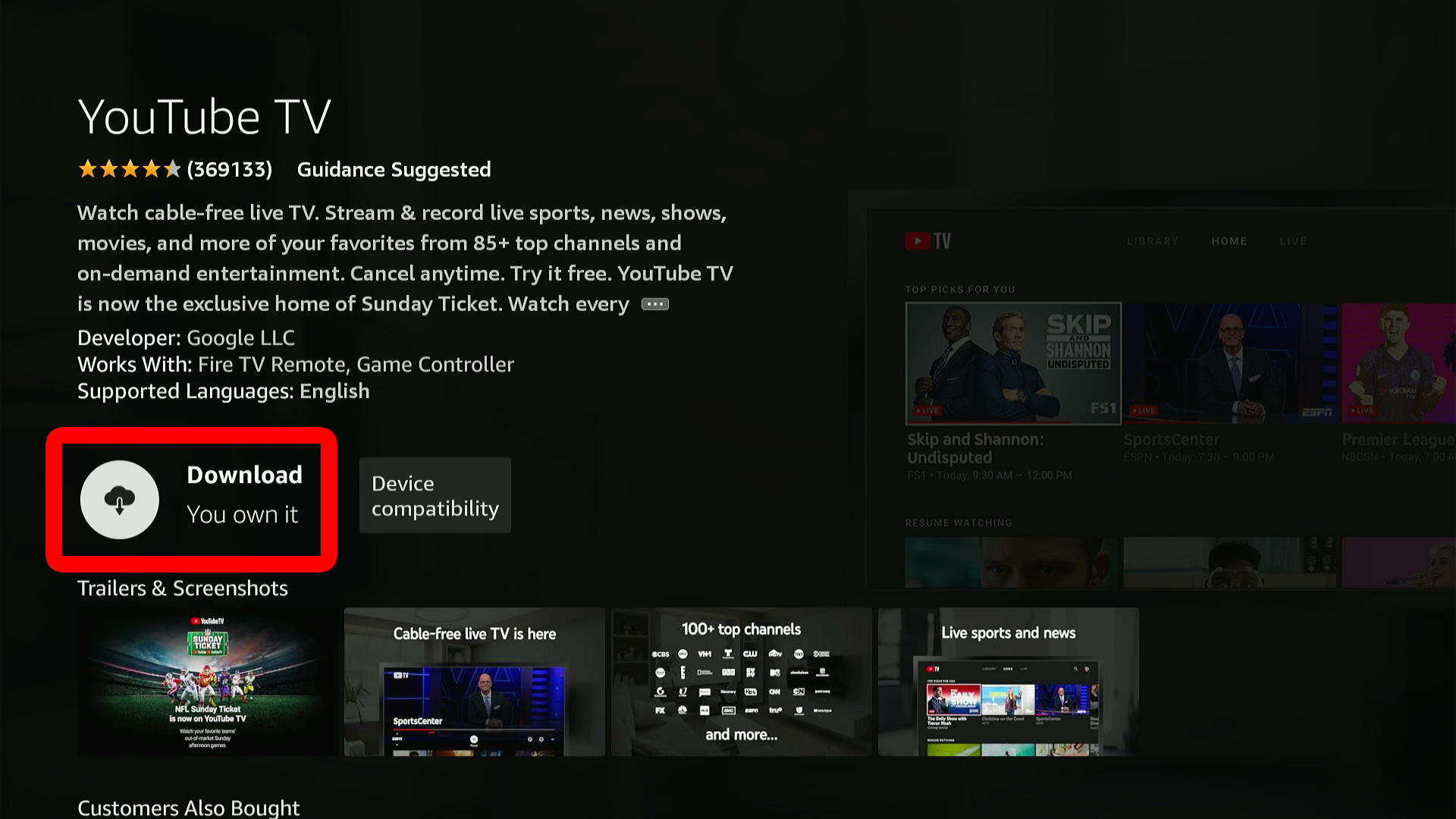
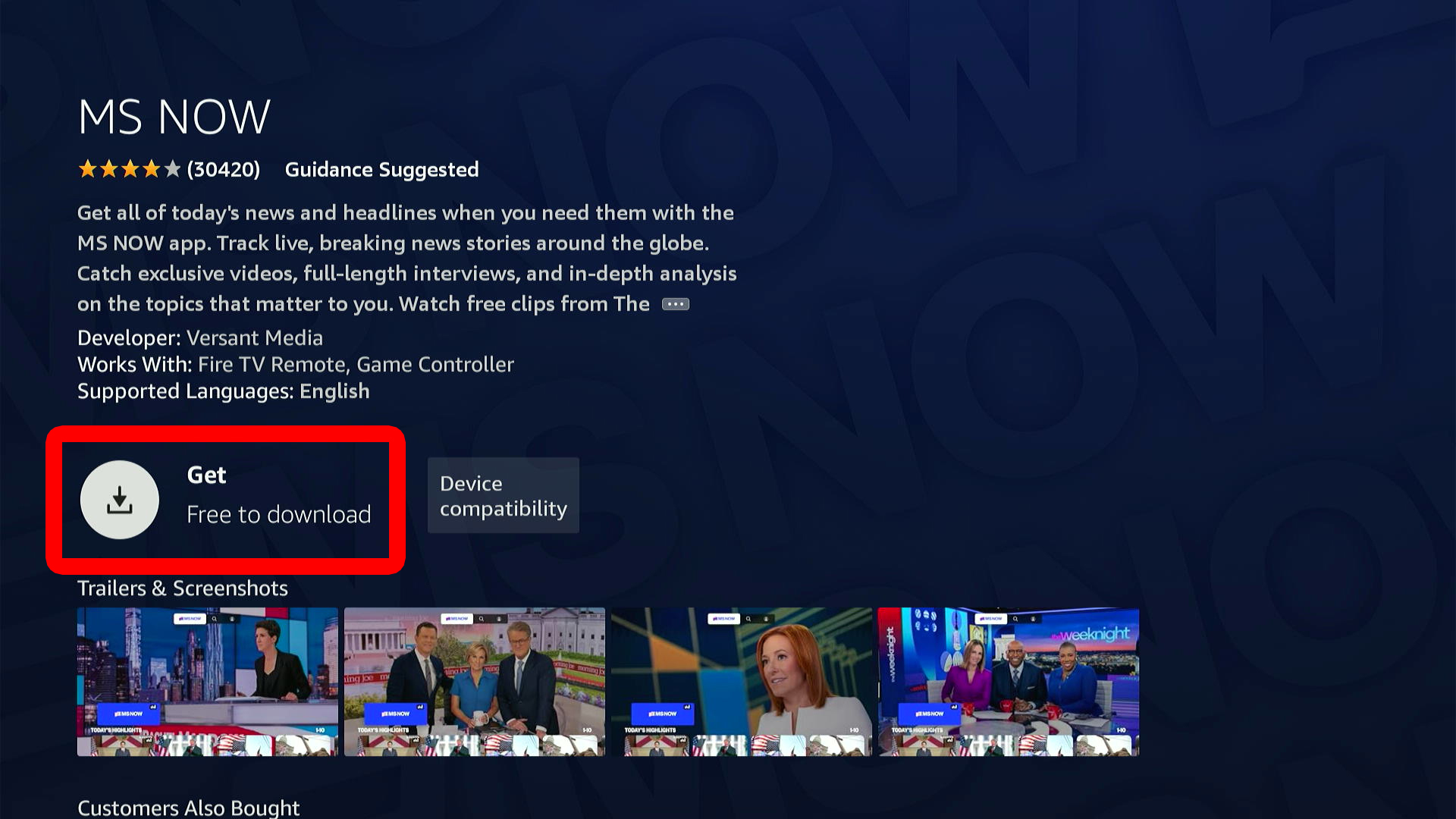
- Finally, select “Get” or “Download” to add the app to Fire TV.
If your remote doesn’t have a voice button, you can also search for apps from the home screen.
Read More: How to Use Fire TV Without a Remote
How to Search for Apps on Fire TV
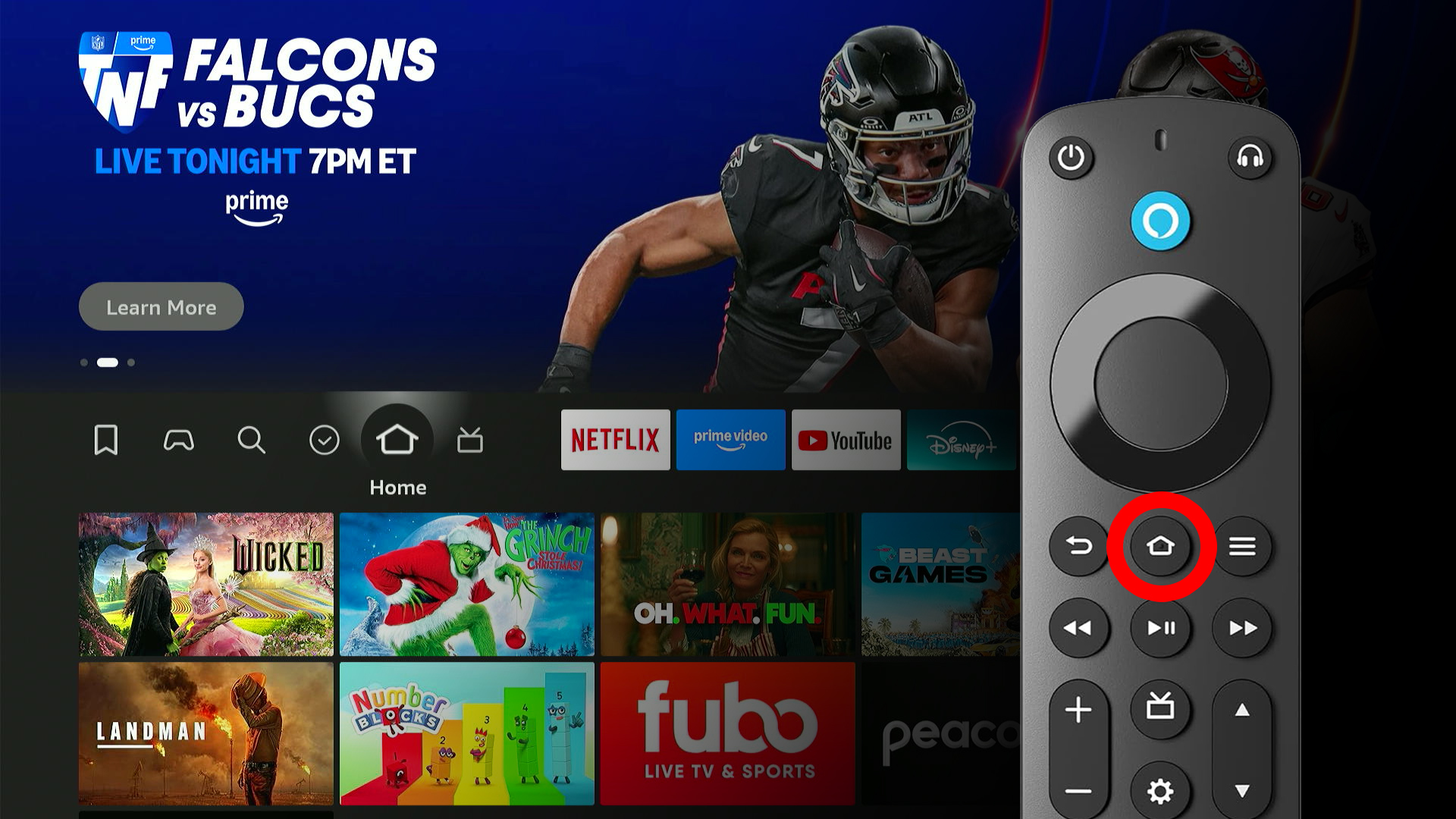
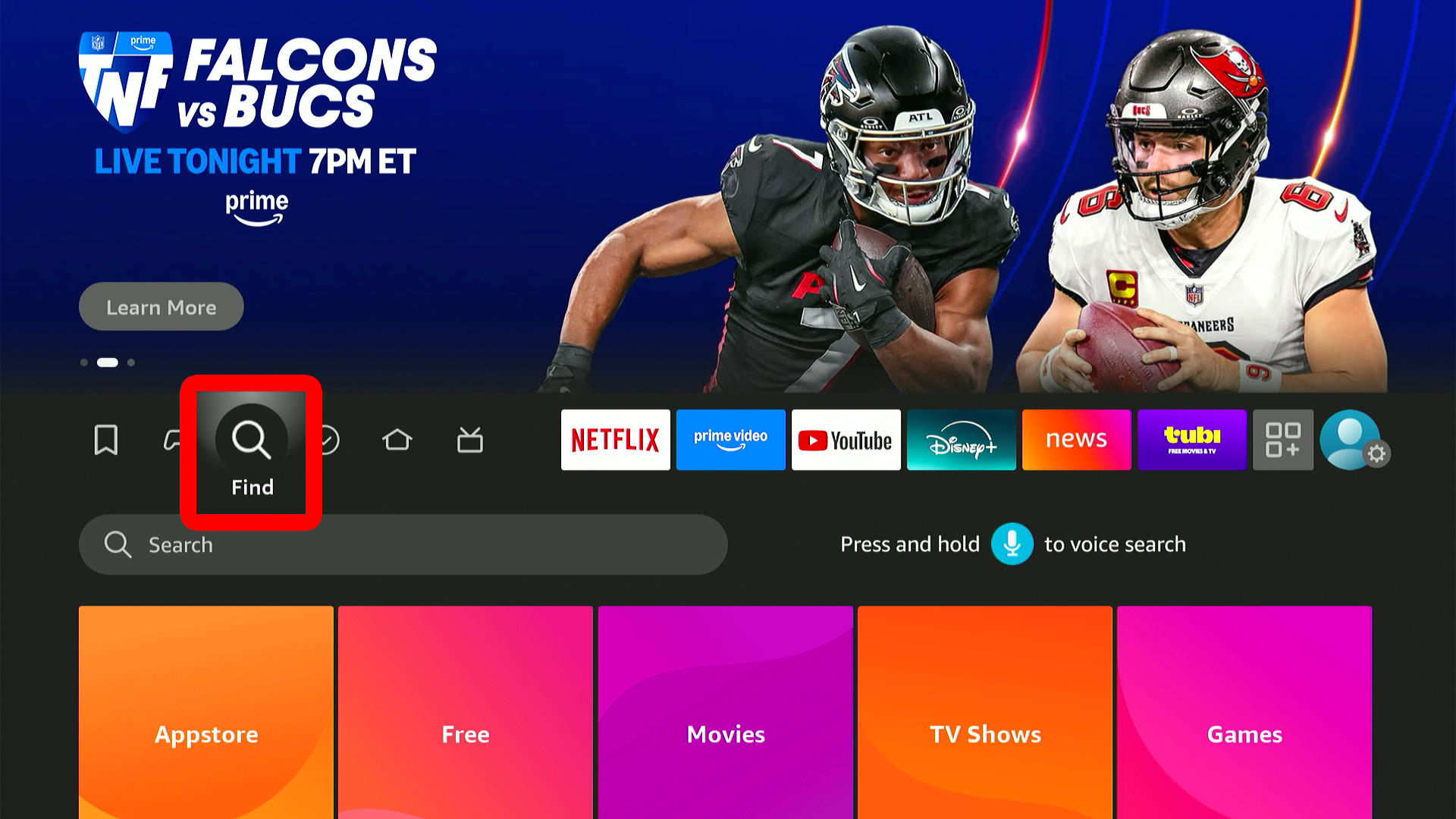
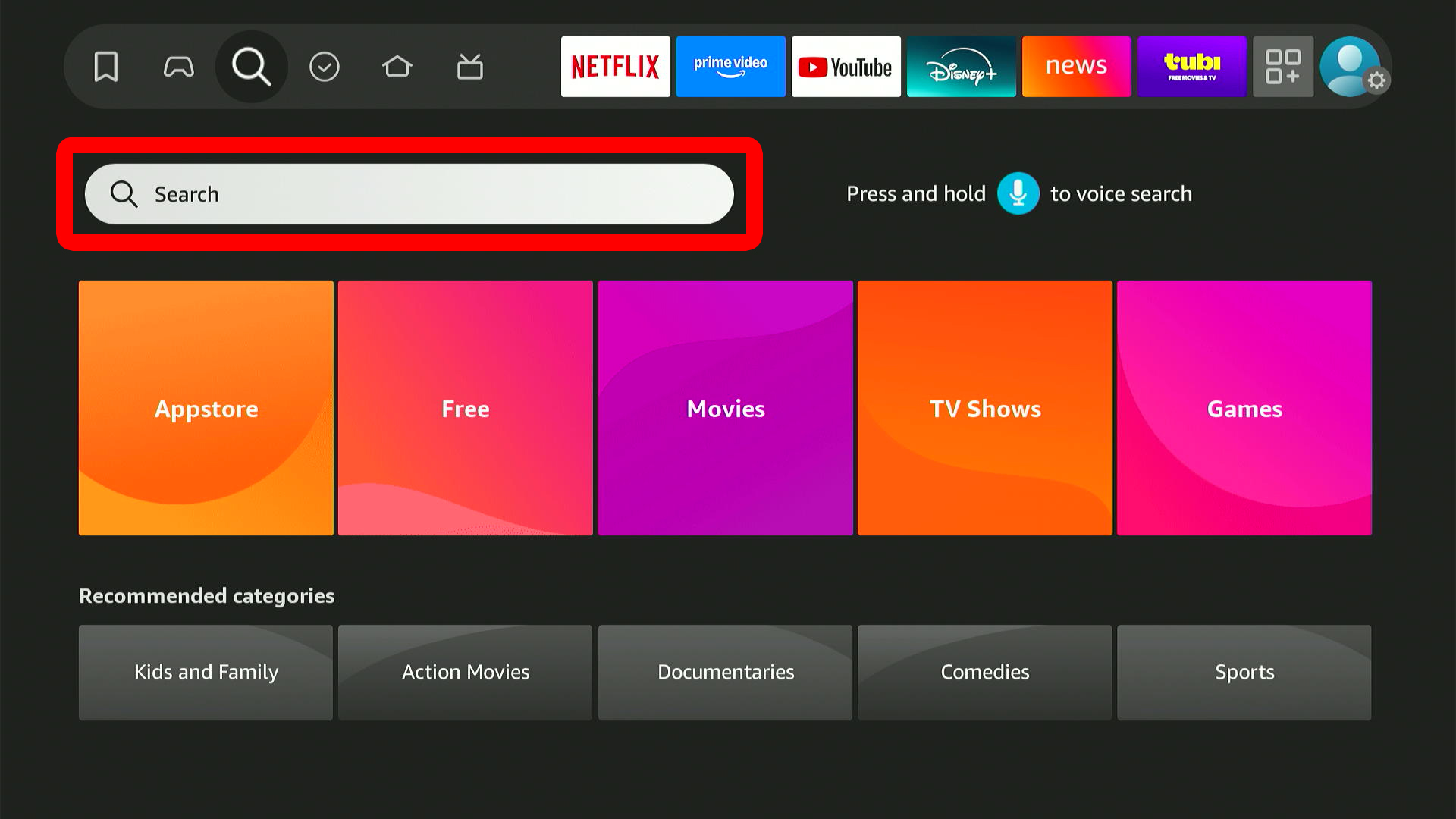
To search for apps on a Fire TV, press the Home button on your remote and select the magnifying glass icon in the home screen menu bar. Then select the search bar and enter an app name. Finally, choose the app and select “Get” or “Download.”
- Press the Home button on your Fire TV remote.
- Select the magnifying glass icon. You will see this to the left of the Home icon in the menu bar.
- Select the search bar.
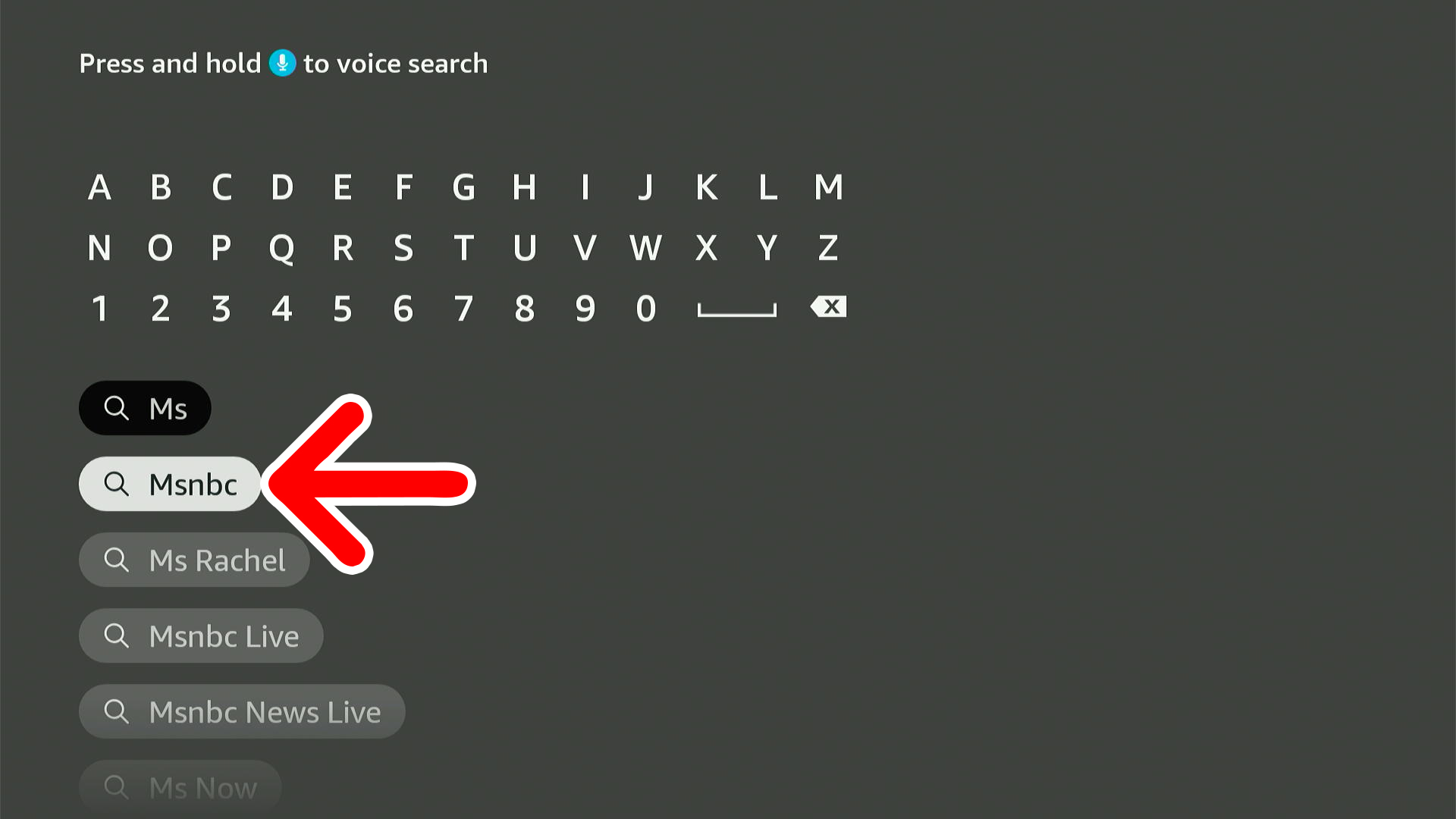
- Enter the name of the app you want to download. Use your remote to enter the name of an app letter by letter. Then select the app name when it appears in the list below.
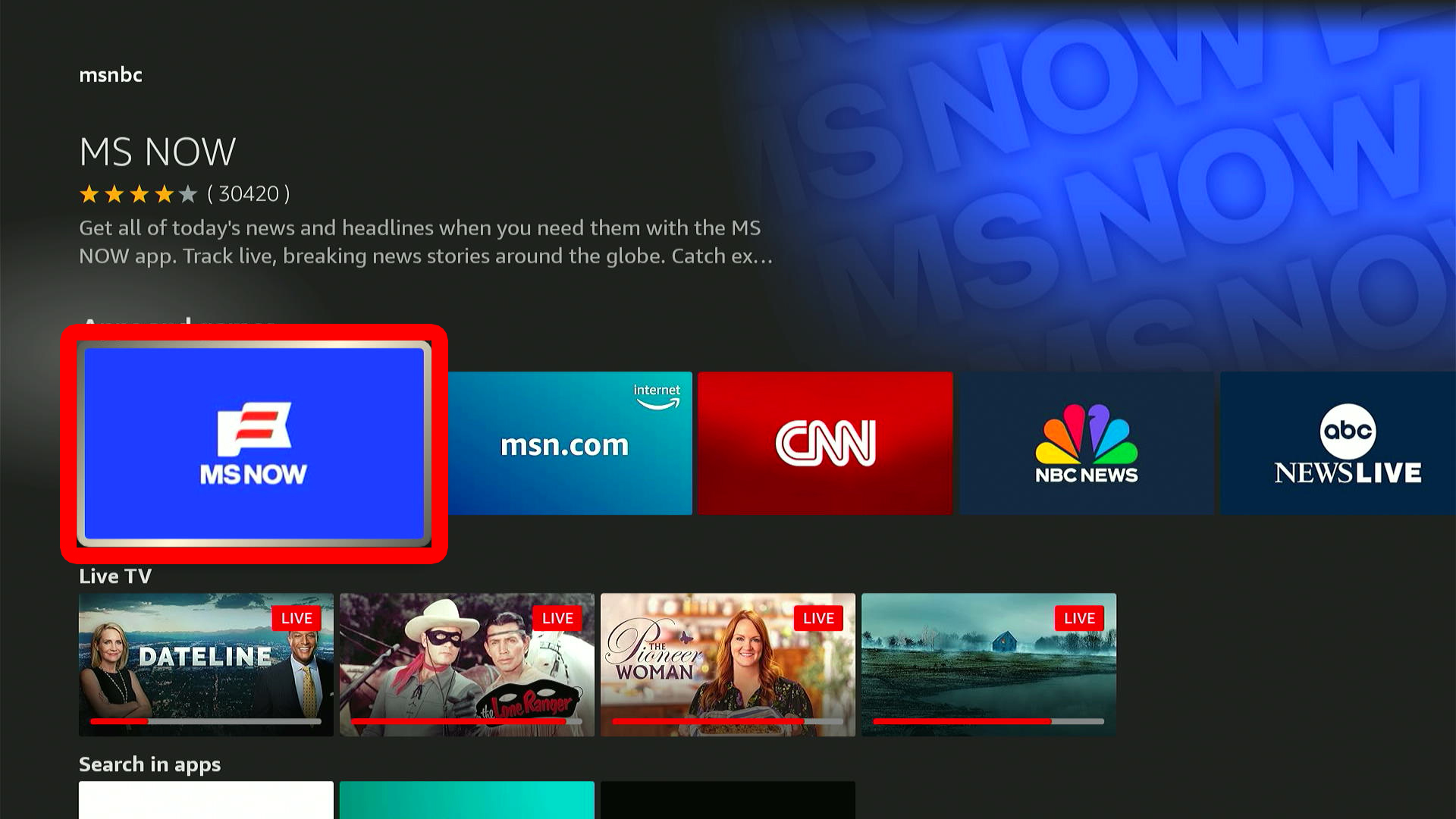
- Choose the app.
- Finally, select “Get” or “Download” to add the app to Fire TV.
Read More: Best Free Apps for Fire TV
How to Add Apps to the Fire TV Home Screen
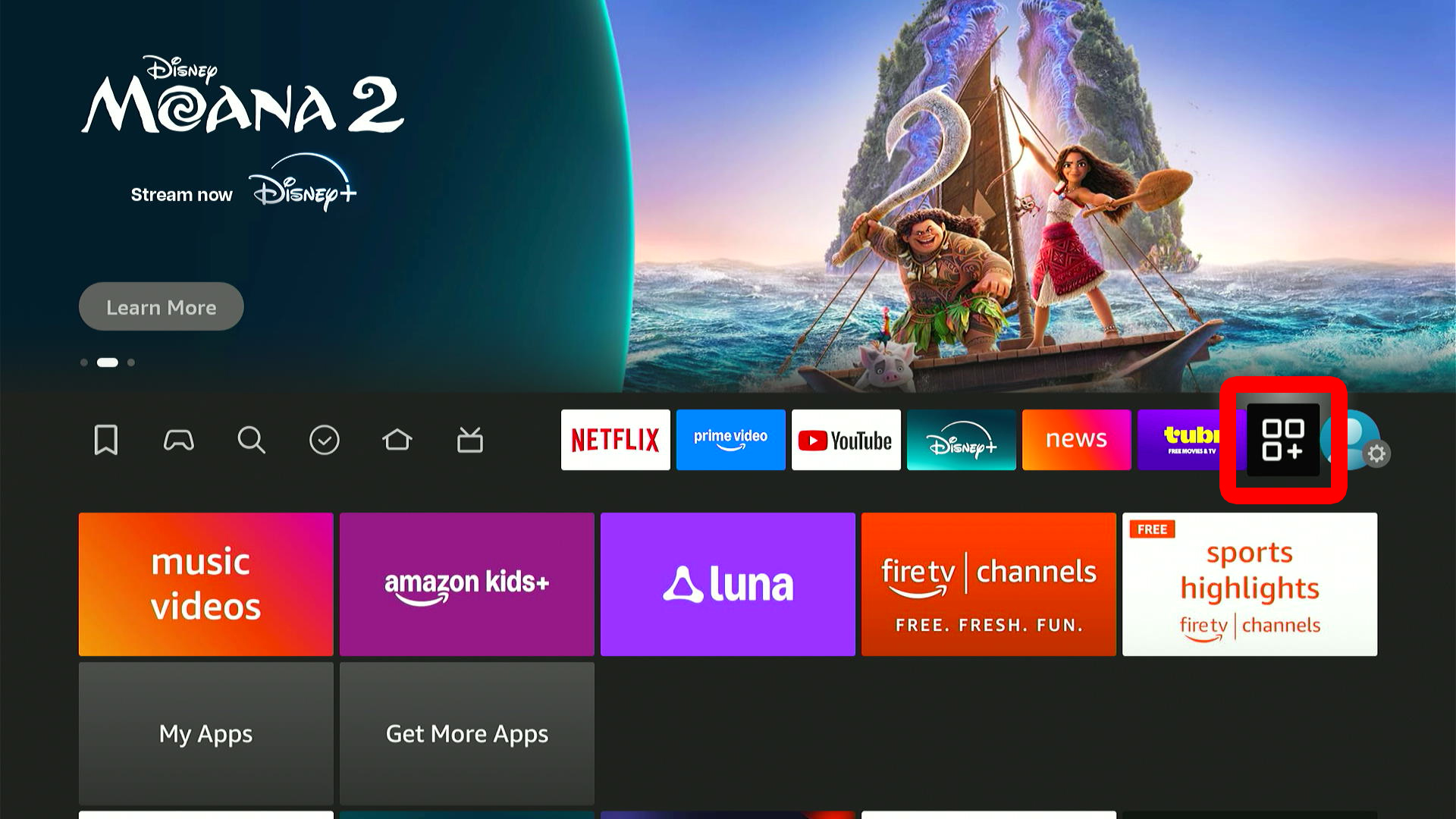
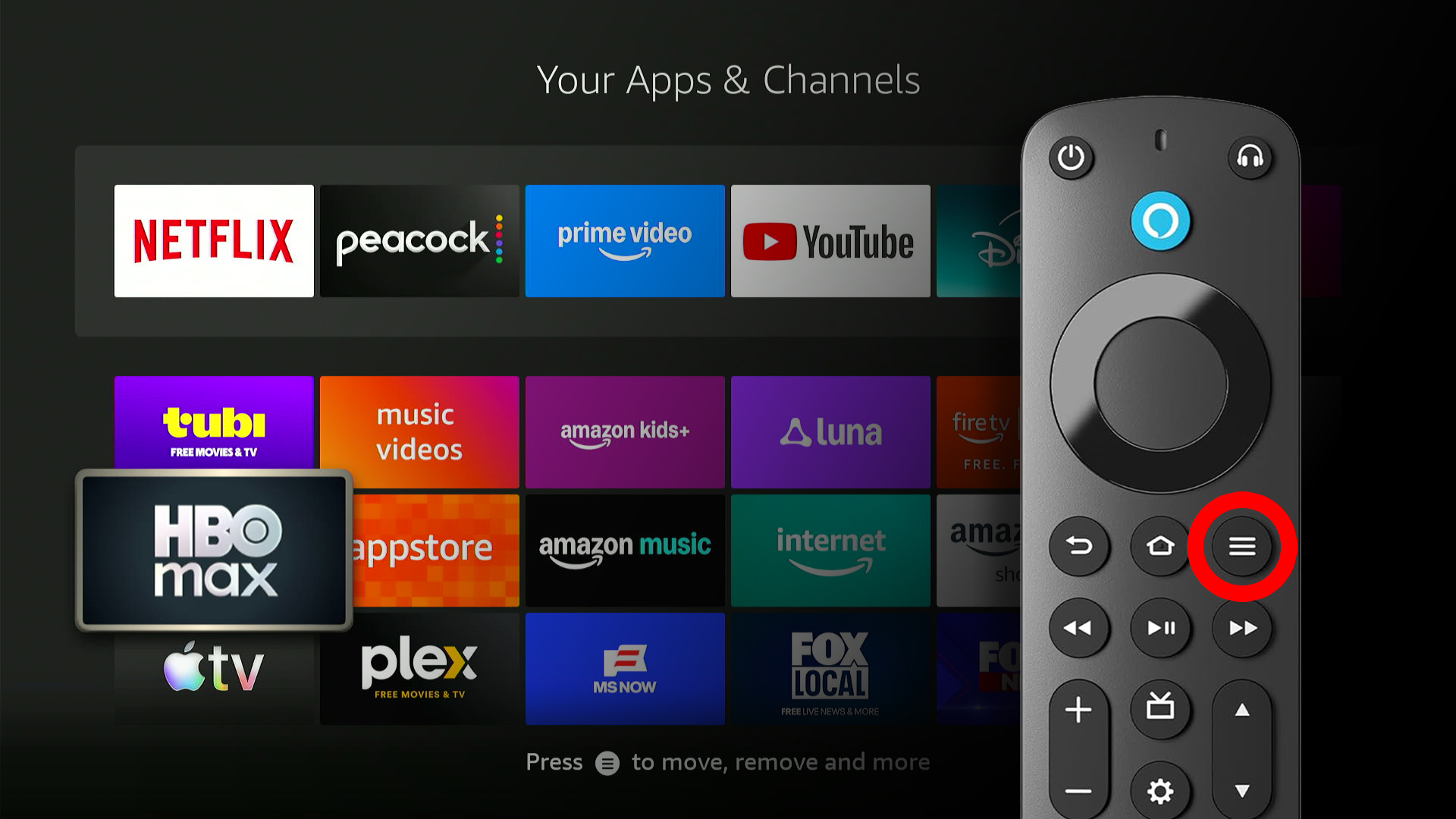
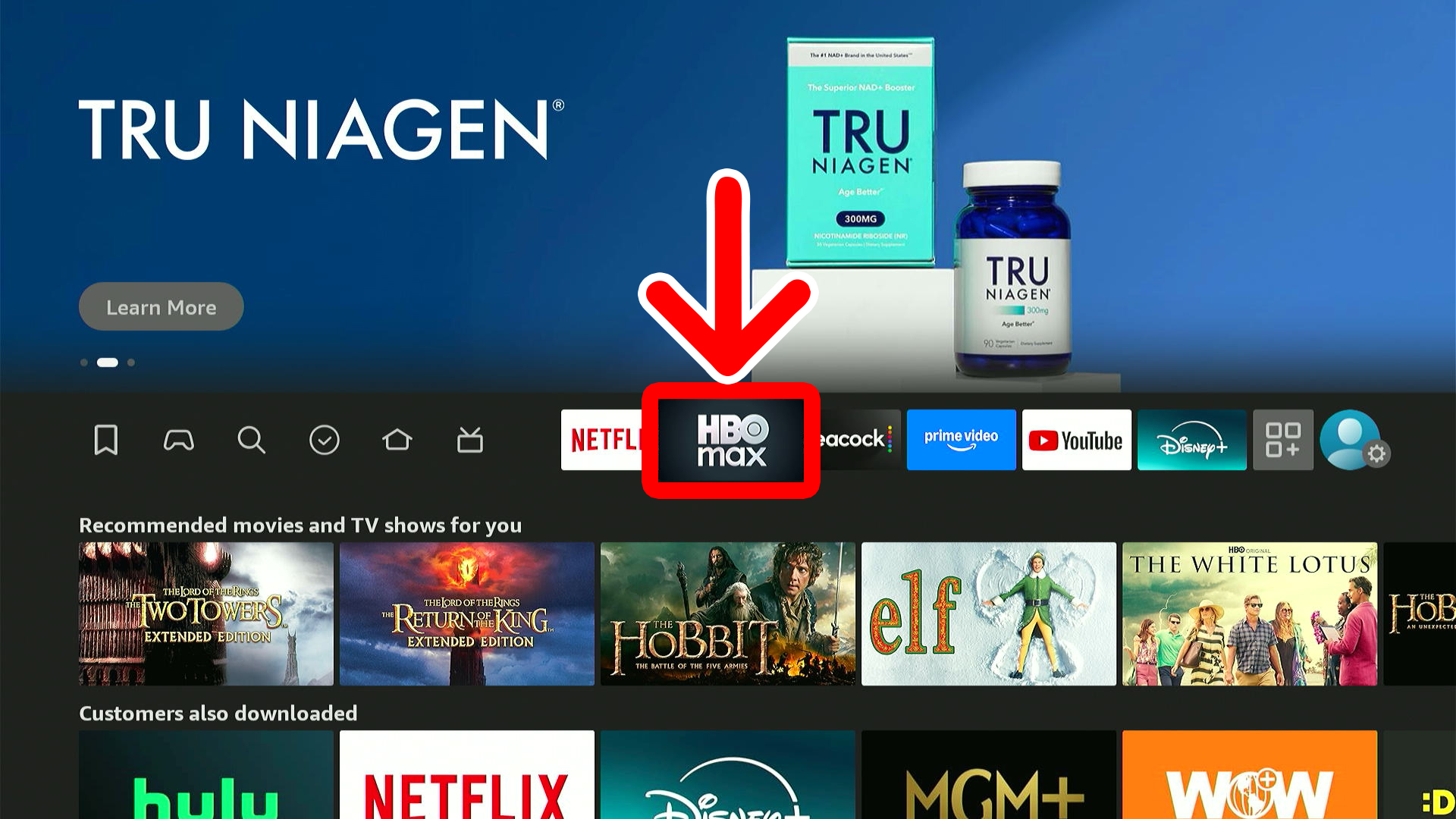
To add an app to the Fire TV home screen, press the Home button on your remote and select the Apps icon with three squares and a plus sign. Then highlight an app and press the three-line button on your remote. Finally, select “Move” and move it to the bar at the top of the screen.
- Press the Home button on your Fire TV remote.
- Select the “Apps” icon. This is the button with an icon of three squares and a plus sign. You can find it just to the left of the Settings icon in the menu bar.

- Highlight an app and press the three-line “Menu” button on your remote.
- Select “Move.”
- Finally, move the app to the “favorite bar” at the top of your screen.
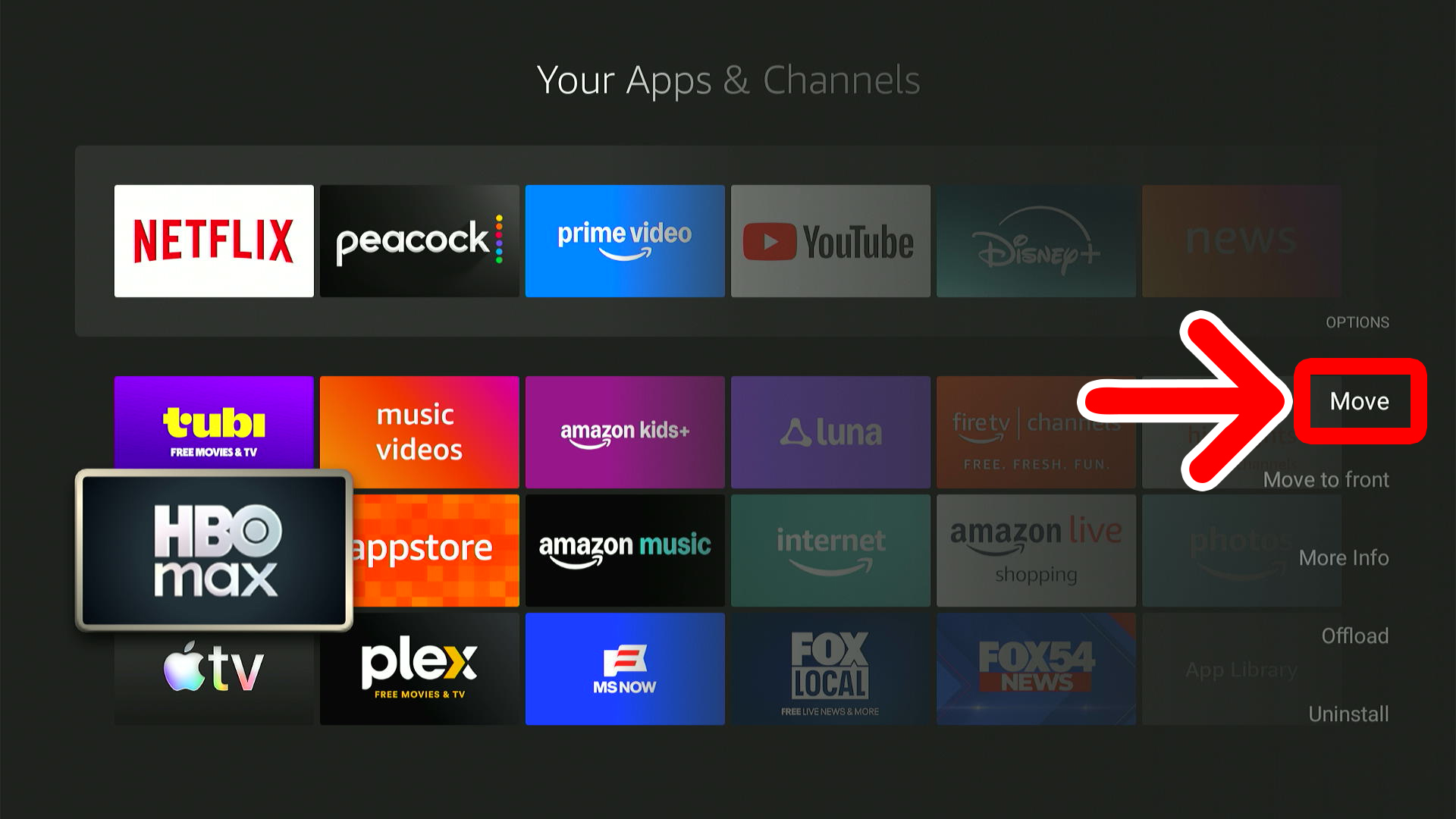
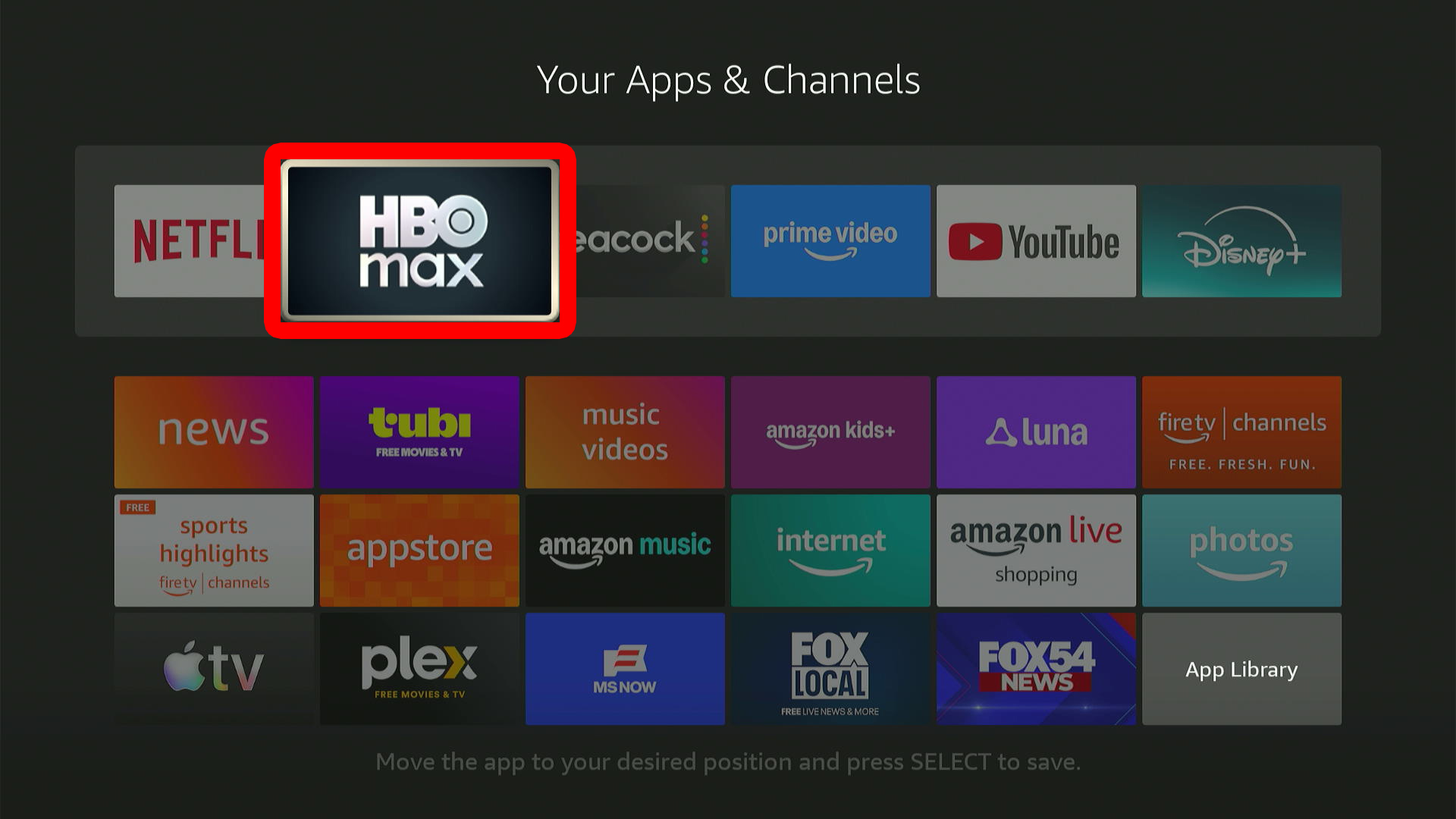
Once you move an app to the favorite bar, you will see it on the home screen menu bar.
Read More: How to Factory Reset Fire TV