Hate your alarm? You don’t have to start every morning with a jump scare. Here’s everything you need to know about how to change the alarm sound on your iPhone or wake up to a song from your music library.
Read More: How to Turn On Night Shift on a Mac
How to Change the Alarm Sound on an iPhone
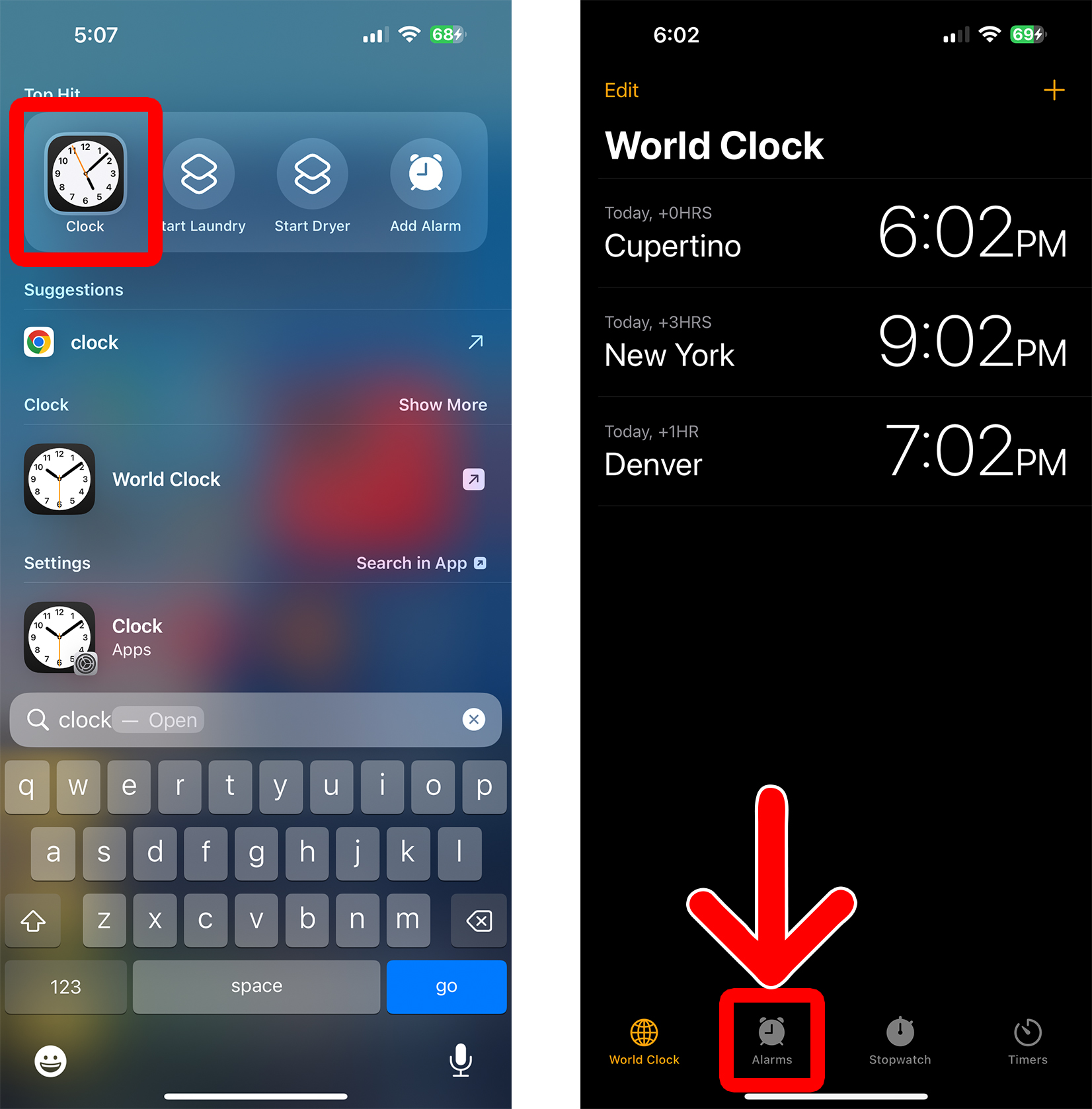
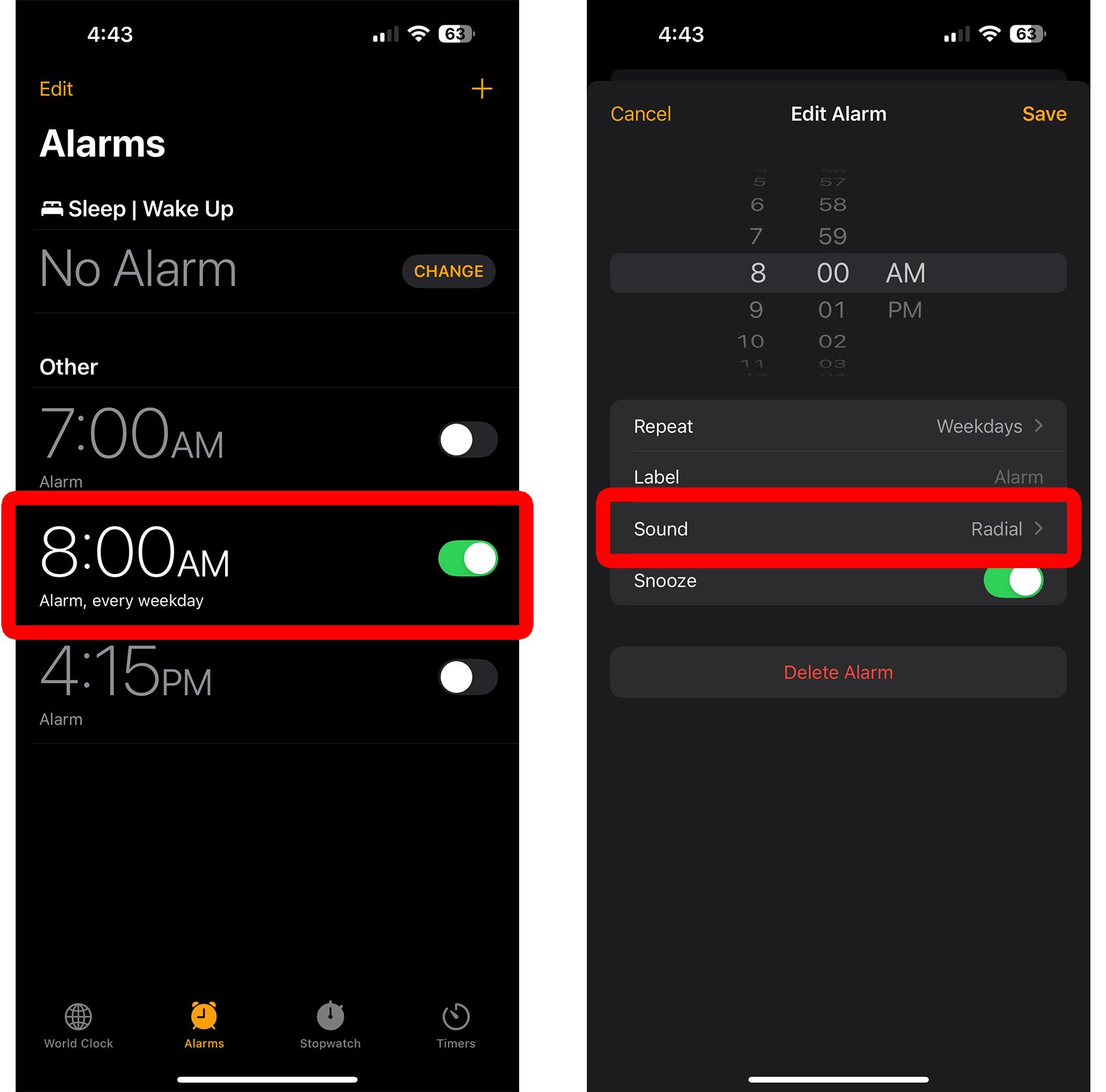
To change the alarm sound on an iPhone, open the Clock app and tap the “Alarms” tab at the bottom of the screen. Then, select an alarm and tap “Sound.” Finally, select a new alarm sound under “Store,” “Songs,” or “Ringtones.” You can also change the alarm vibration under “Haptics.”
- Open the Clock app on your iPhone. This app is pre-installed on your iPhone. If you can’t find it, swipe down from the middle of the home screen. Then enter “clock” in the search bar and tap it when it appears at the top of your screen.
- Go to “Alarms.” You will see this tab at the bottom of your screen.

- Select the alarm you want to change. You can only change the sound for one alarm at a time.
- Tap “Sound.”

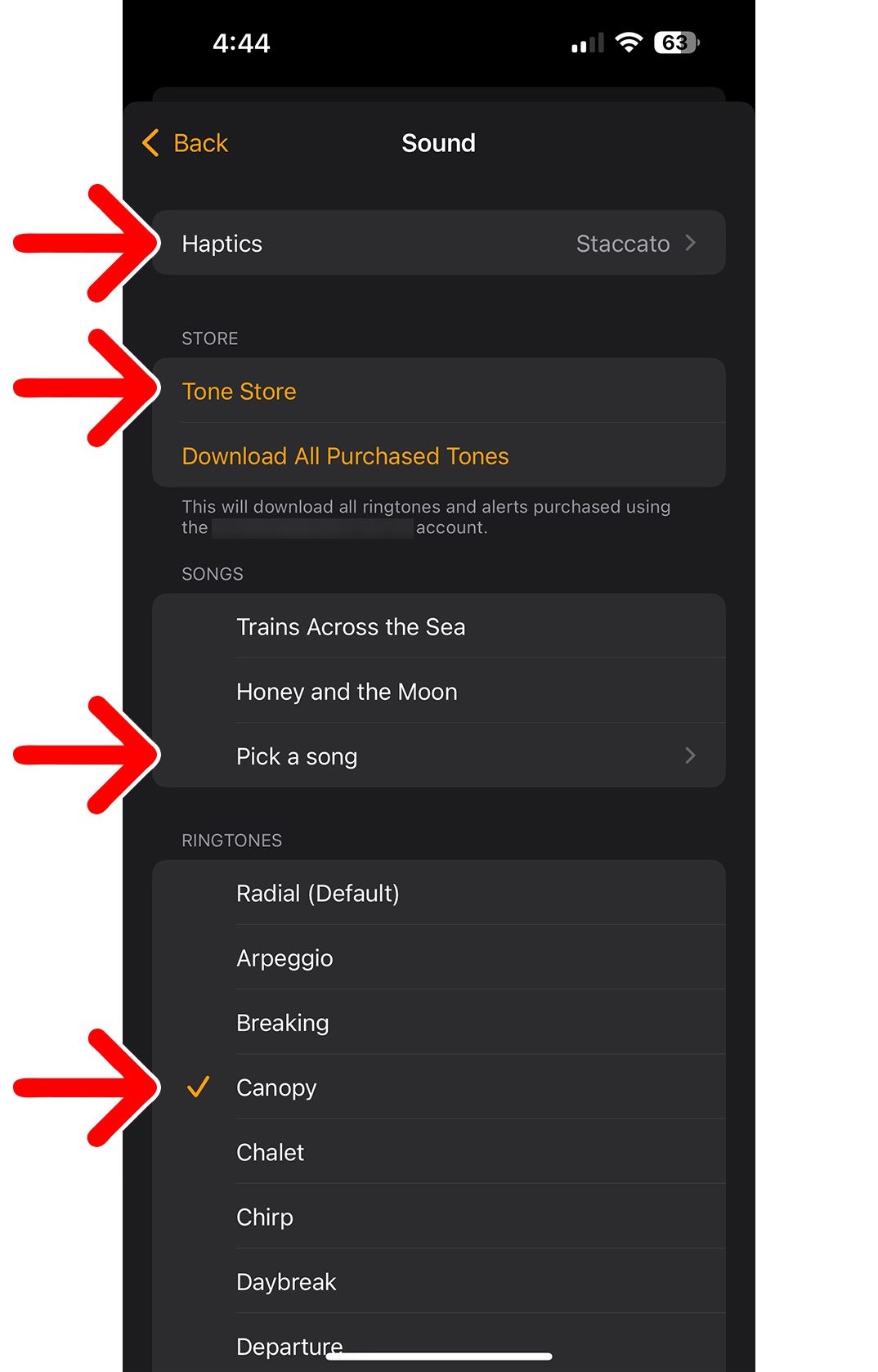
- Choose a new alarm sound. You can choose from the default ringtones, pick a song from your Apple Music library, or purchase a ringtone from the Tone Store.

- Haptics: This will let you change the vibration of your iPhone alarm. At the bottom of the Haptics page, you can choose “None” to turn off alarm vibration or tap “Custom” to create your own.
- Store: Tap “Tone Store” to purchase a new ringtone, which usually costs around $1. You will see your purchased ringtones once you tap Download All Purchased Tones.
- Songs: Tap “Pick a song” to change your alarm sound to any song in your Apple Music library. Then tap the song to set it as your alarm sound. To make sure your alarm works, it’s best to choose from songs you have downloaded to your iPhone.
- Ringtones: Choose from the default ringtones or scroll to the bottom of the list to see “Classic” ringtones. Below that, you can also choose “None” to remove the alarm sound and just use the Haptics instead.
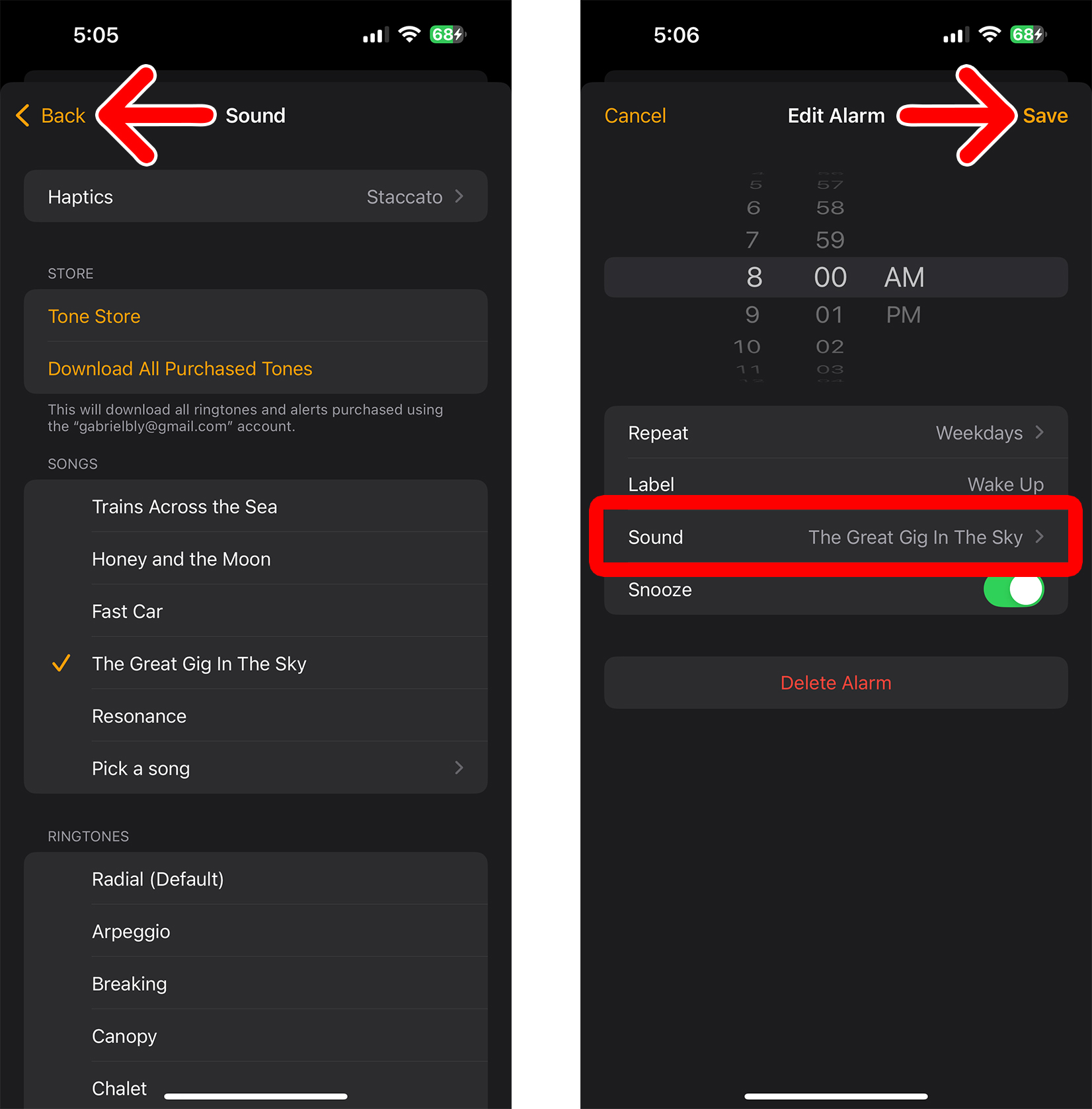
- Tap Back. You will see this in the top-left corner of your screen.
- Finally, tap Save. You will see this in the top-right corner of the screen.