Bored with the default wallpaper? Swap it for a dynamic background that changes with the time of day or a slideshow of family photos, favorite memories, or images that inspire you. Here’s everything you need to know about how to change your Mac wallpaper and add your own photos to your desktop.
How to Change Your Wallpaper in System Settings
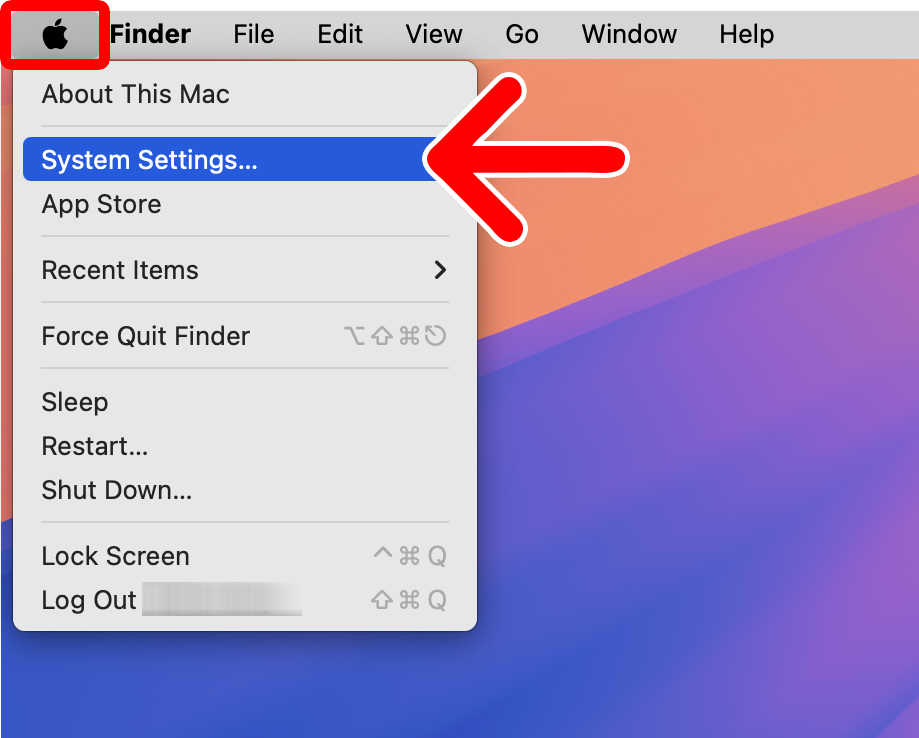
To change your Mac wallpaper, click the Apple icon in the top-left corner of your screen and select “System Settings.” Then go to “Wallpaper” in the left sidebar and choose a photo or color. You can also use your own photos by clicking “Add Photo” or “Add Folder or Album.”
- Click the Apple icon in the top-left corner of your screen.
- Select “System Settings.”

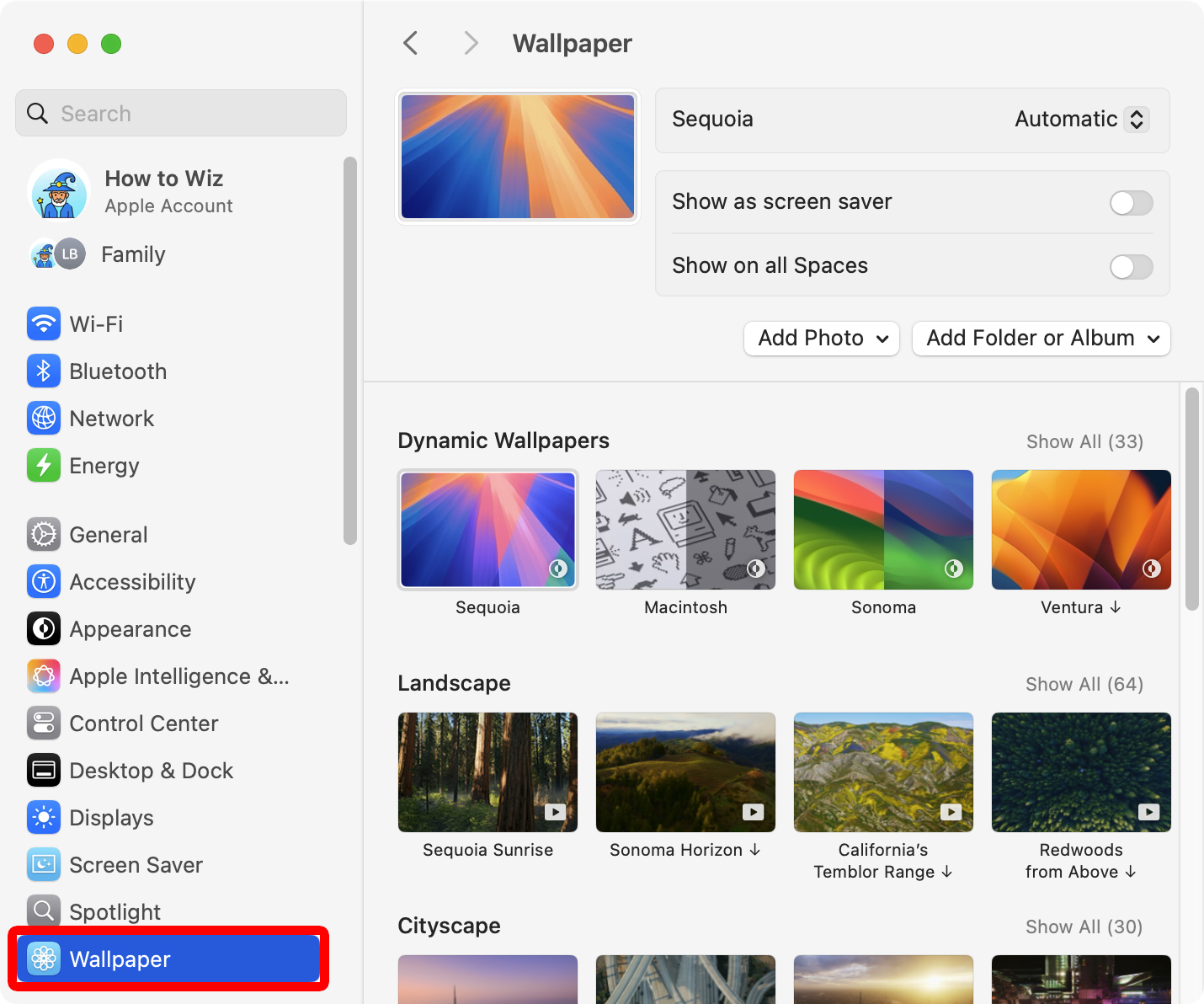
- Go to “Wallpaper.” You will see this in the left sidebar of the System Settings window.

- Finally, select a wallpaper to change it. You will see a preview of your current wallpaper in the top-left corner of the System Settings window.
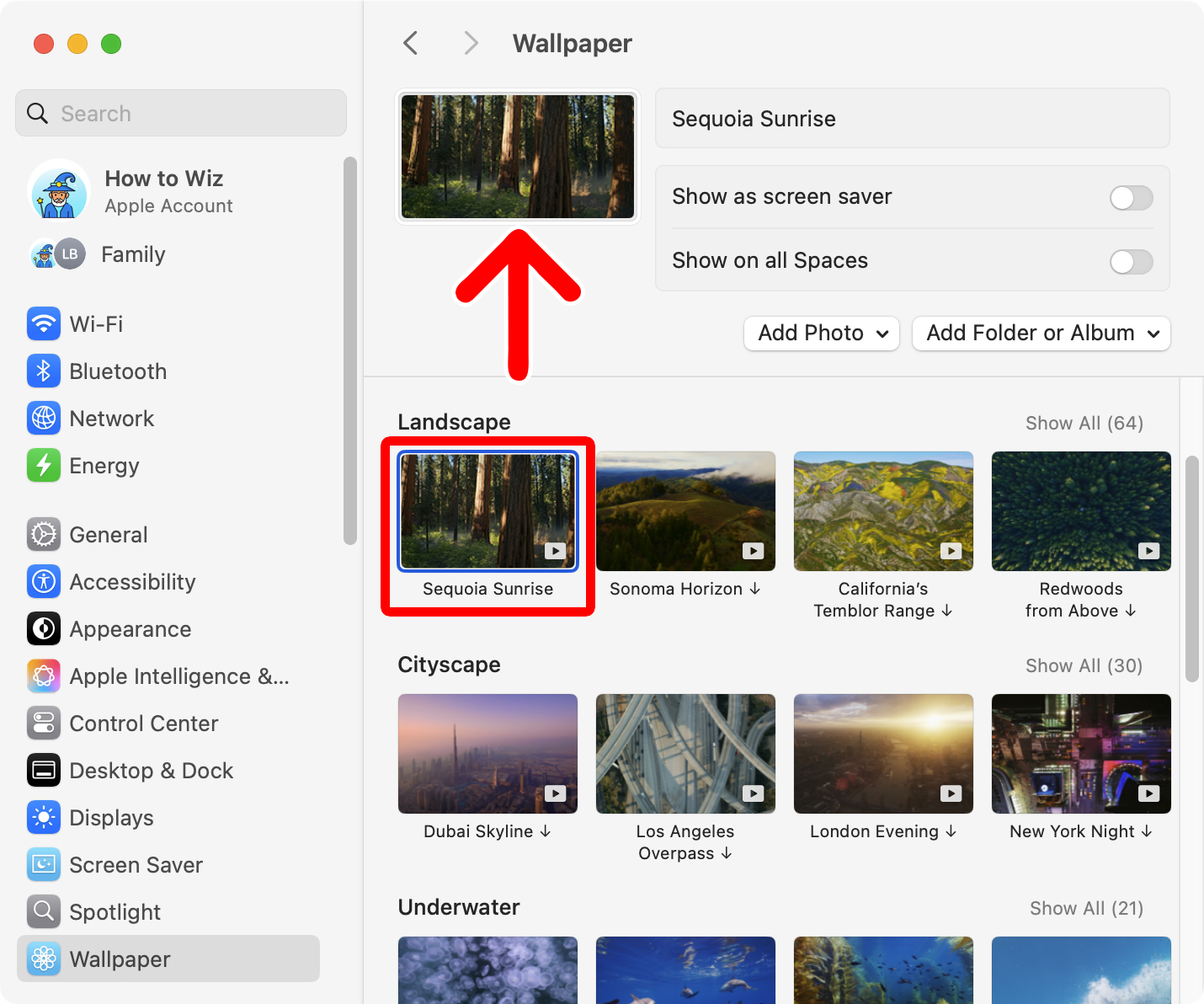
The wallpapers under “Landscape, Cityscape, Underwater, and Earth aerials” have a play icon in the bottom-right corner, which means they will animate when you lock or unlock your Mac. These wallpapers will also be used as your screen saver if you enable “Show as screen saver” option.
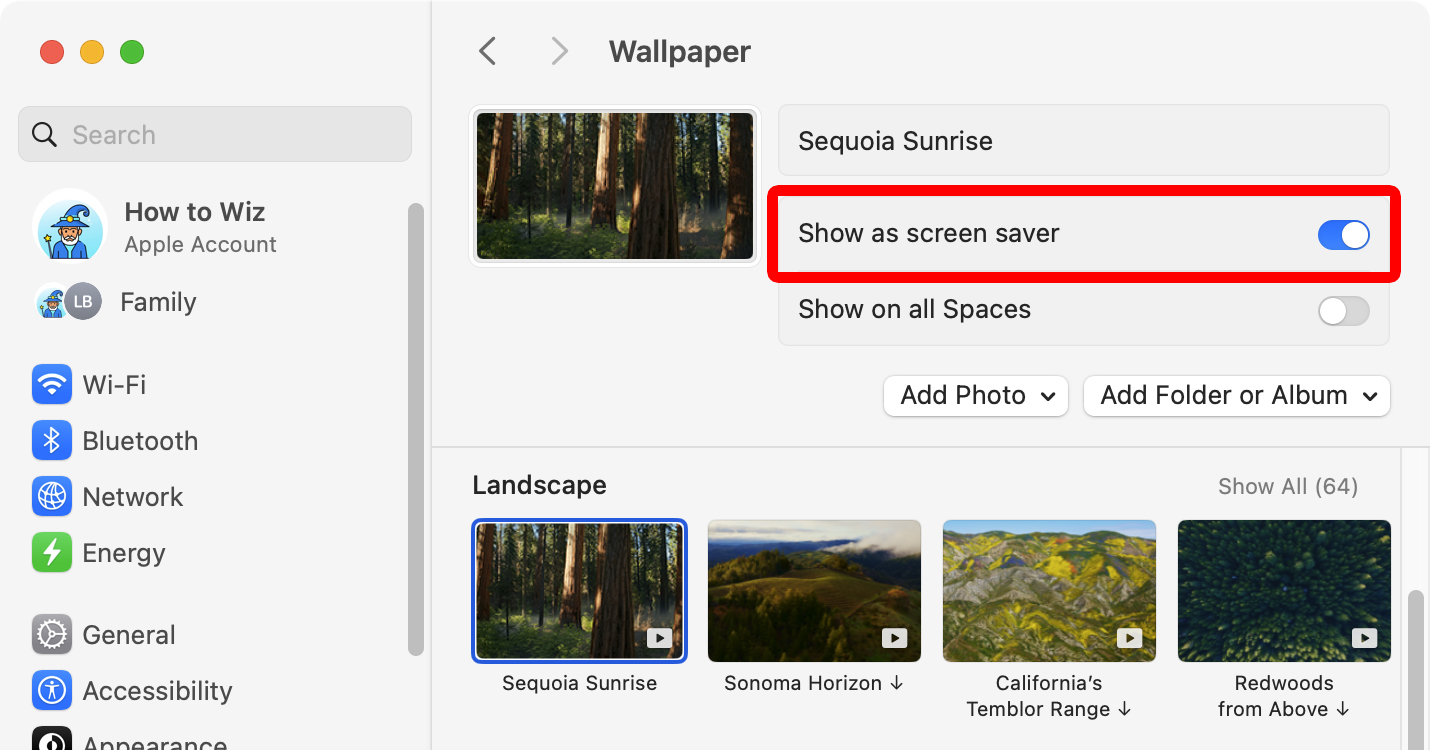
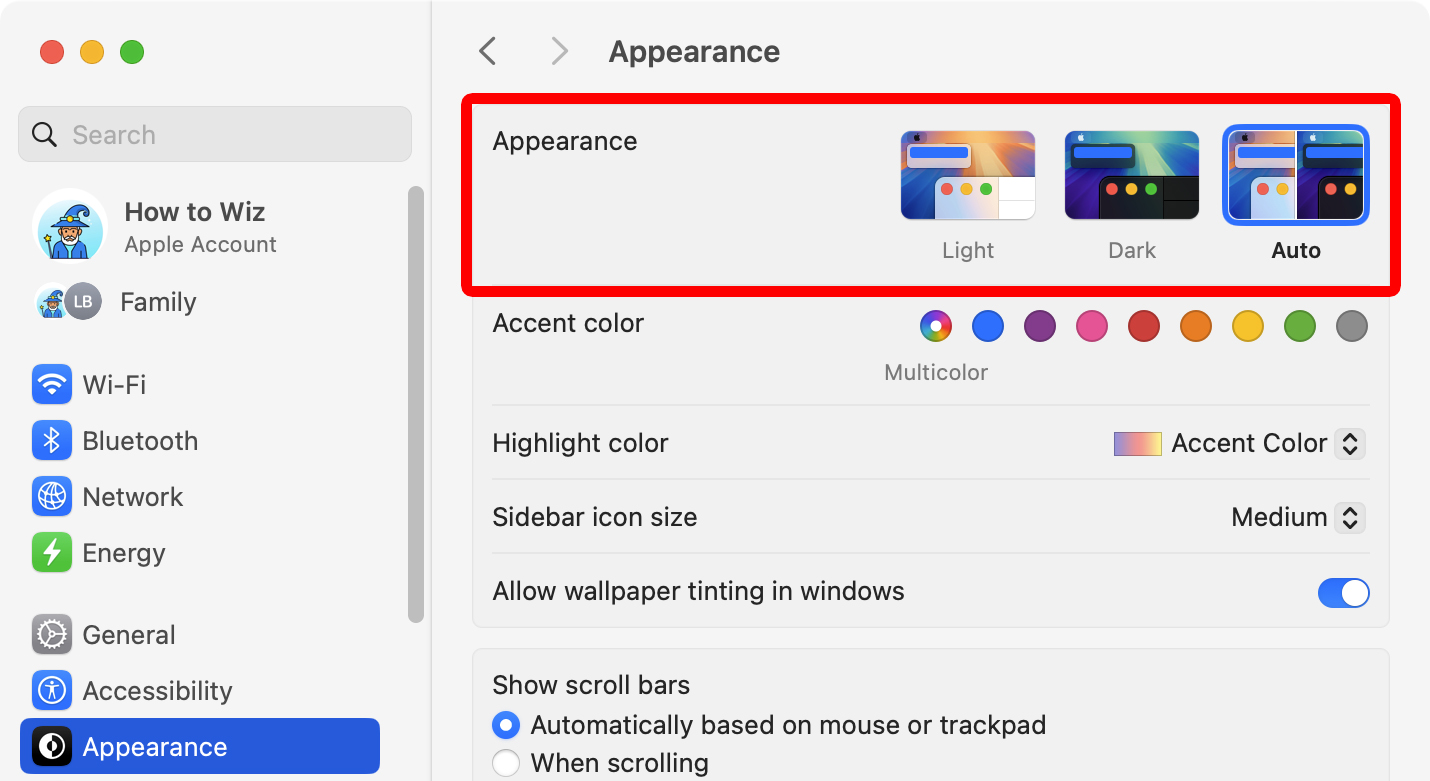
The images under “Dynamic Wallpapers” change from dark to light, depending on your Mac’s appearance settings. To change these settings, go to “System Settings > Appearance.” If you select “Auto” your wallpaper will automatically change from light in the day to dark at night.
Read More: How to Turn On Night Shift on a Mac
How to Use Your Own Photos for a Mac Wallpaper
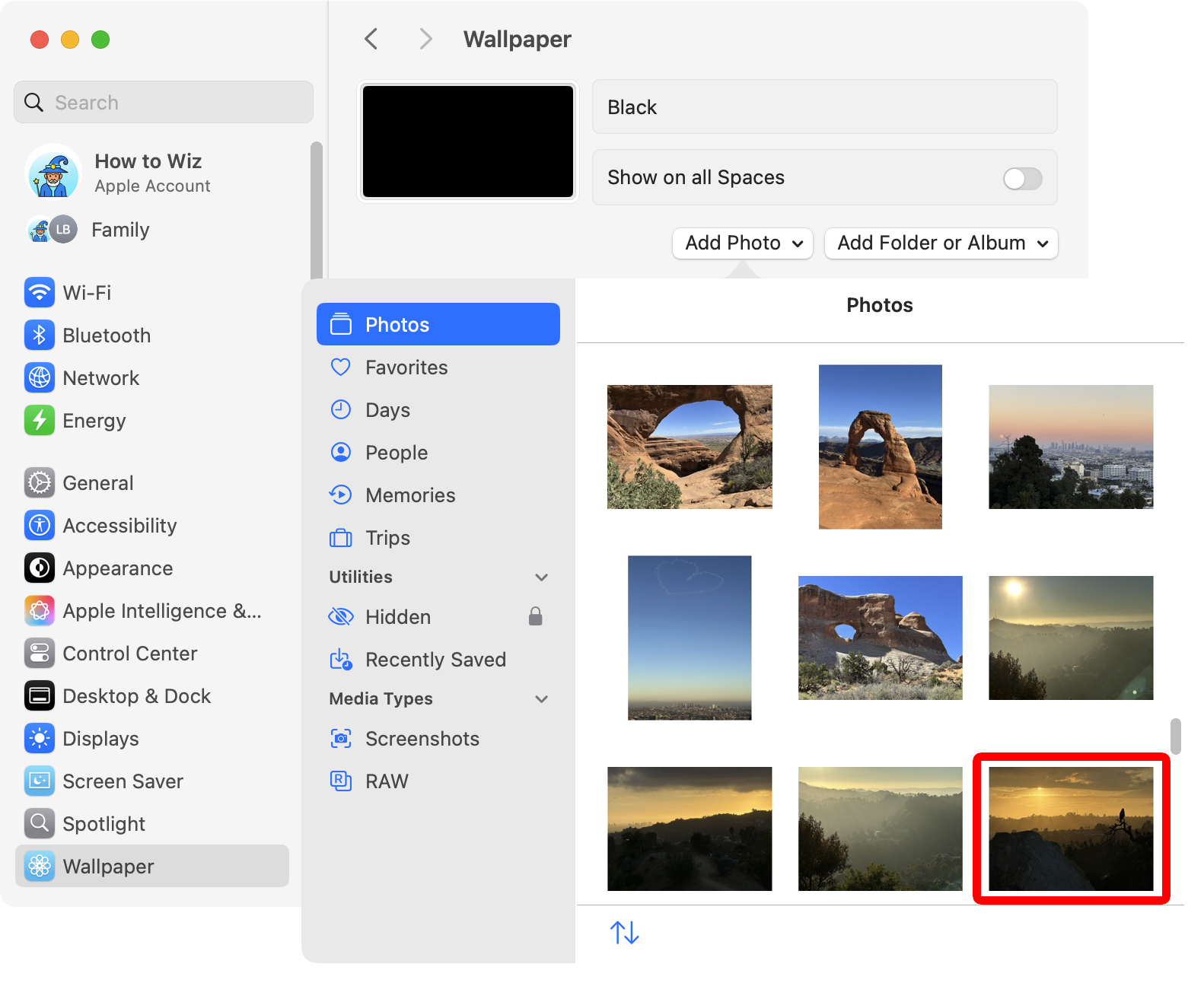
To change your Mac wallpaper to your own personal photos, click the Apple icon in the top-left corner of your screen and select “System Settings.” Then, go to “Wallpaper” in the left sidebar and select “Add Photo.” Finally, select “From Photos” or “Choose” and select the photo you want to use.
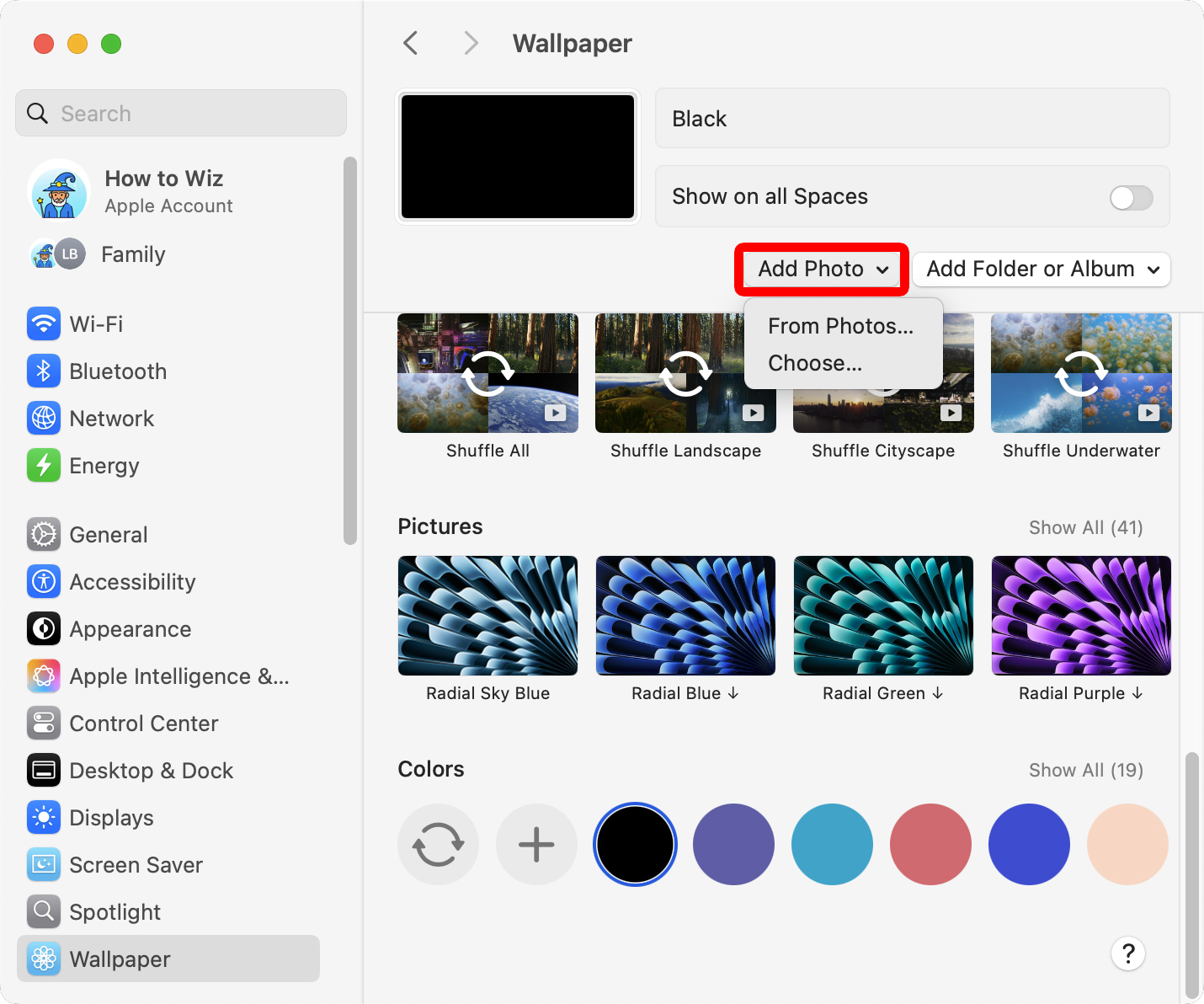
If you select “From Photos,” you can select a wallpaper from your Photos app. If you select “Choose,” you can select any photo on your Mac.
Once you select a photo, click the drop-down menu next to “Picture” at the top of the System Settings window. This will let you change how your wallpaper image appears on your Mac.
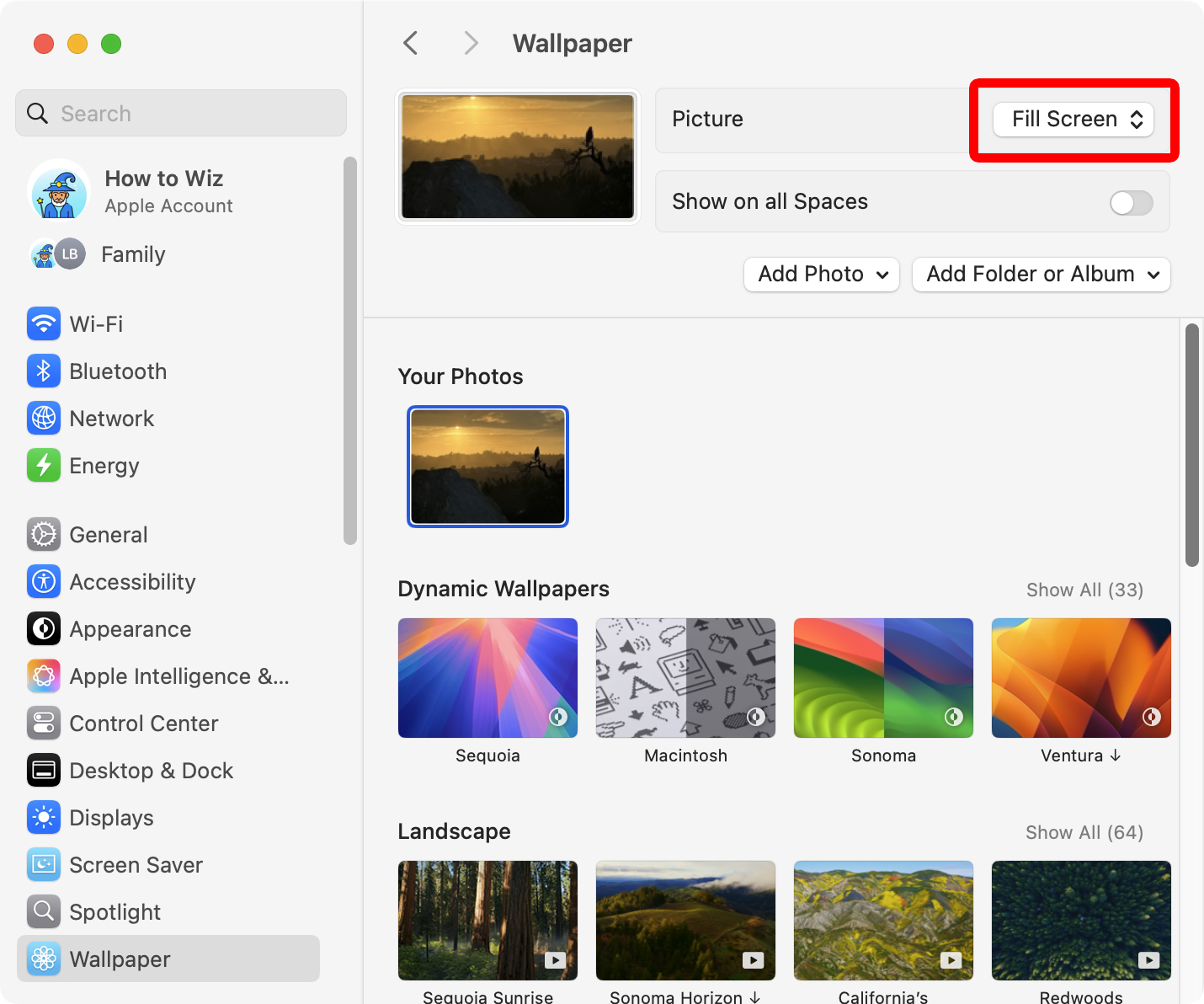
- Fill Screen: Fills your entire screen with your wallpaper image.
- Fit to Screen: Fits the entire wallpaper image in your screen (this leaves blank sides around the image if it isn’t the same size as your desktop).
- Stretch to Fill Screen: Distorts your wallpaper image to fit the screen.
- Center: Centers the image (large images will fill the screen, while smaller images will be surrounded by blank space).
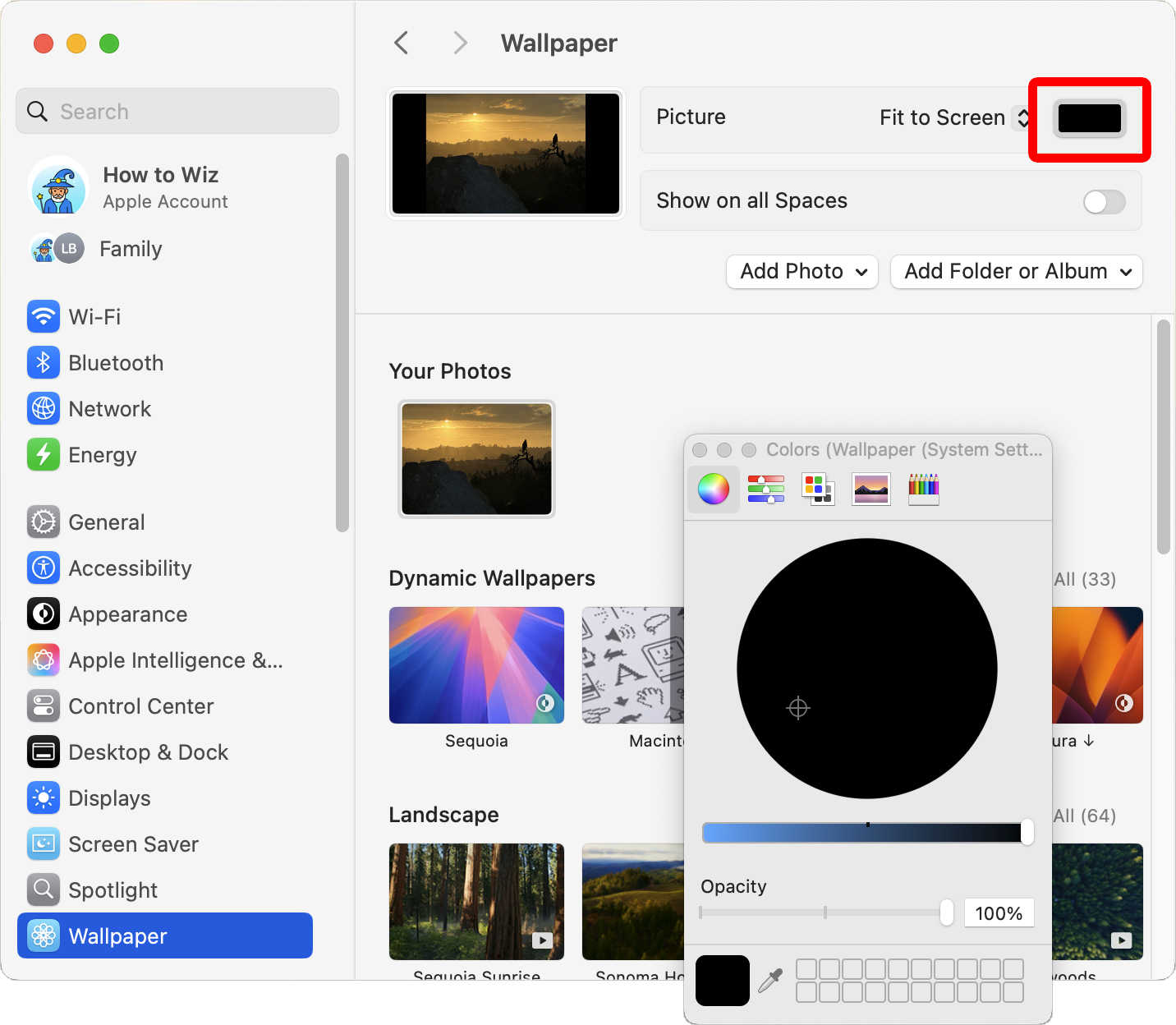
If your image is surrounded by blank space, you can click the colored box next to “Picture” to change the background color.
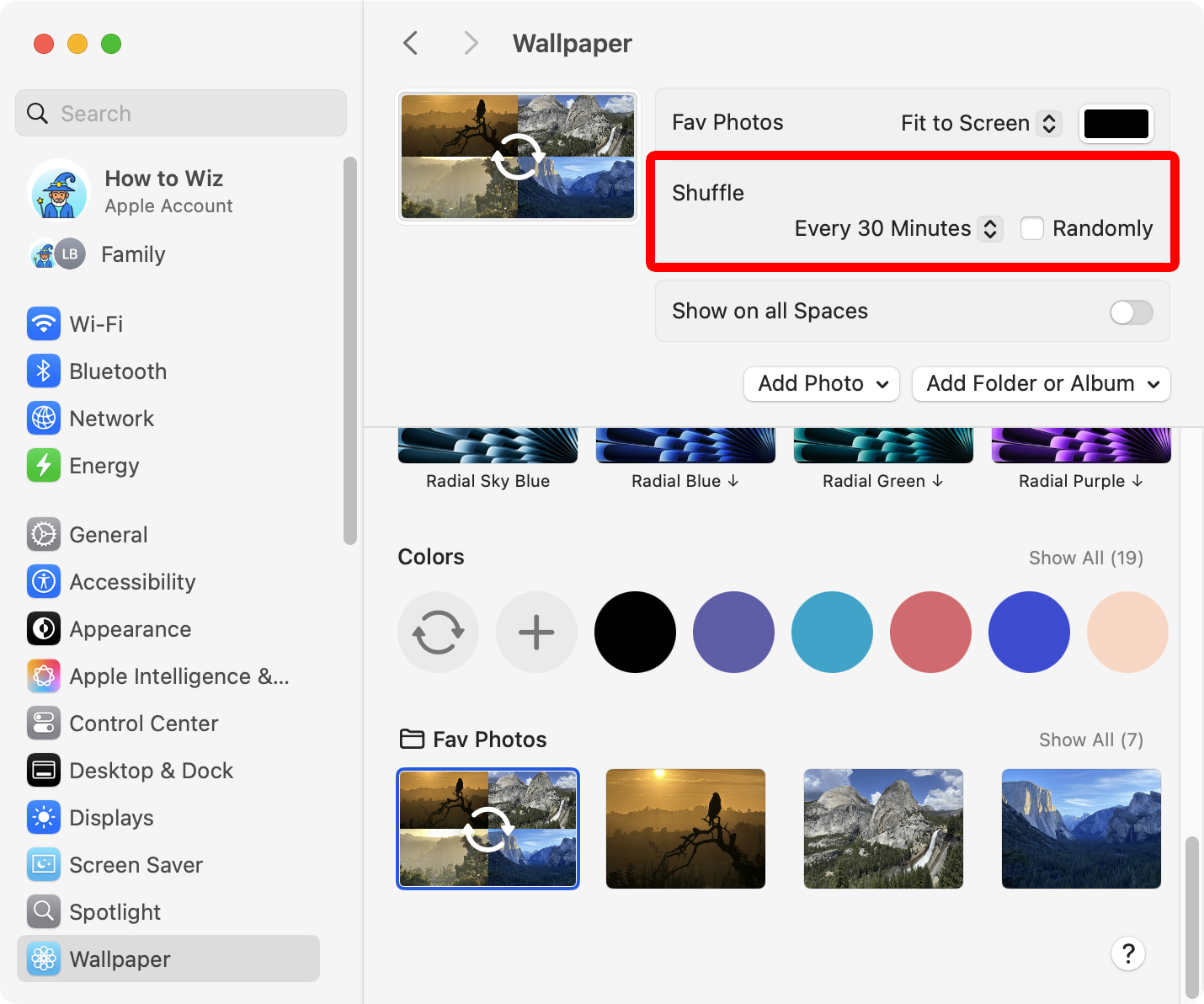
You can also create a desktop slideshow using multiple photos from your Mac by clicking “Add Folder or Album.” Then you can choose a folder from your Mac or use an album from your Photos library.
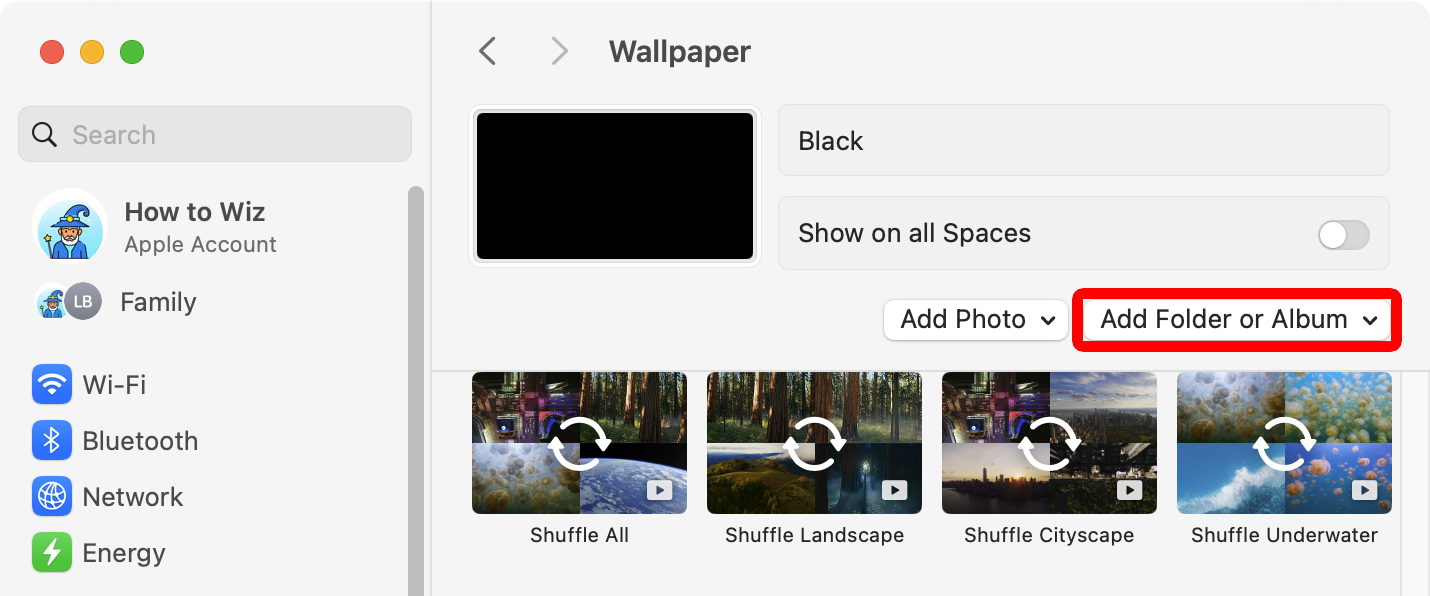
Once you select a folder or album, you’ll see new options at the top of the System Settings window. You can select how often you want your wallpaper to change and check the box next to “Randomly” to shuffle the order.