
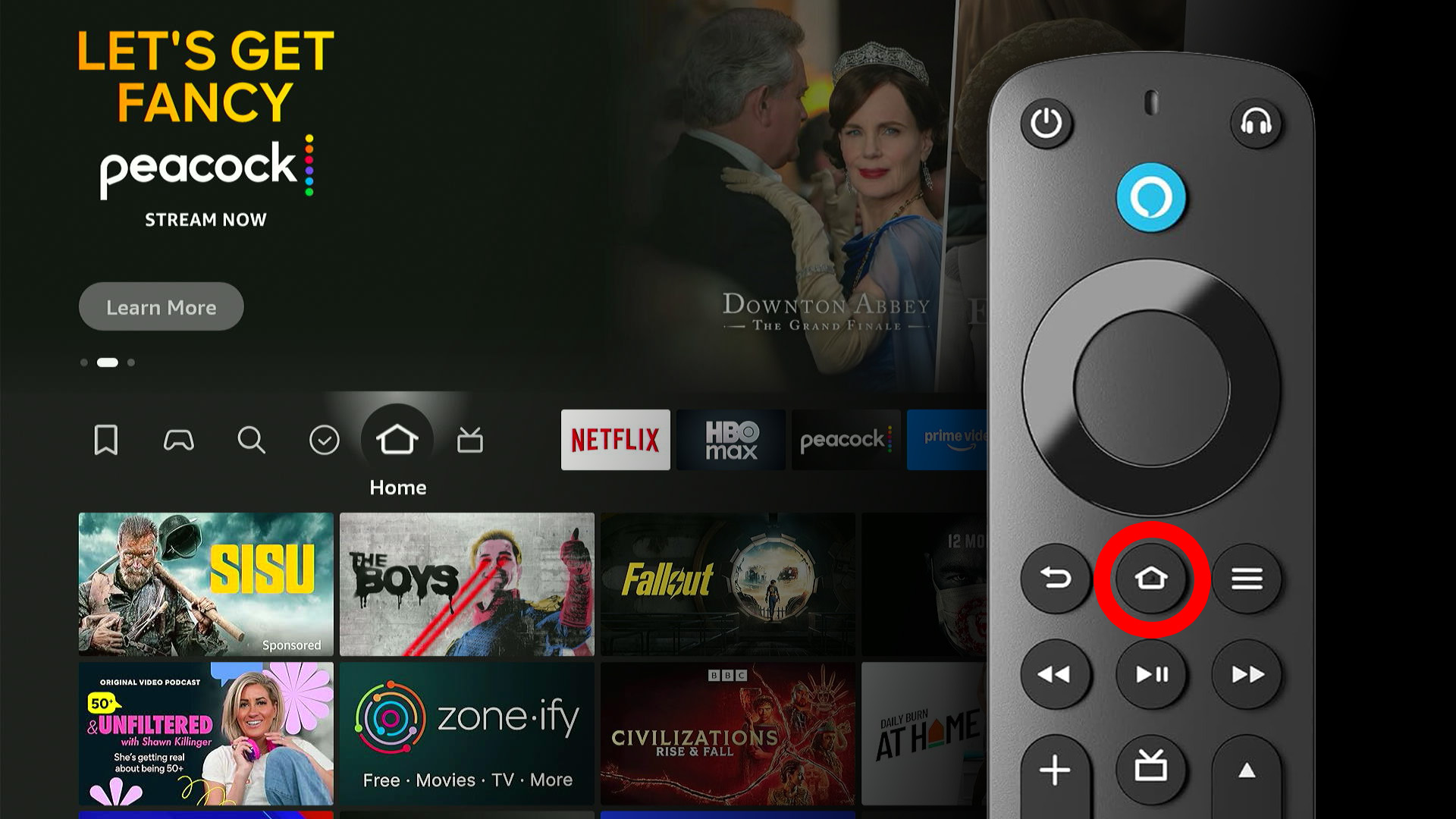
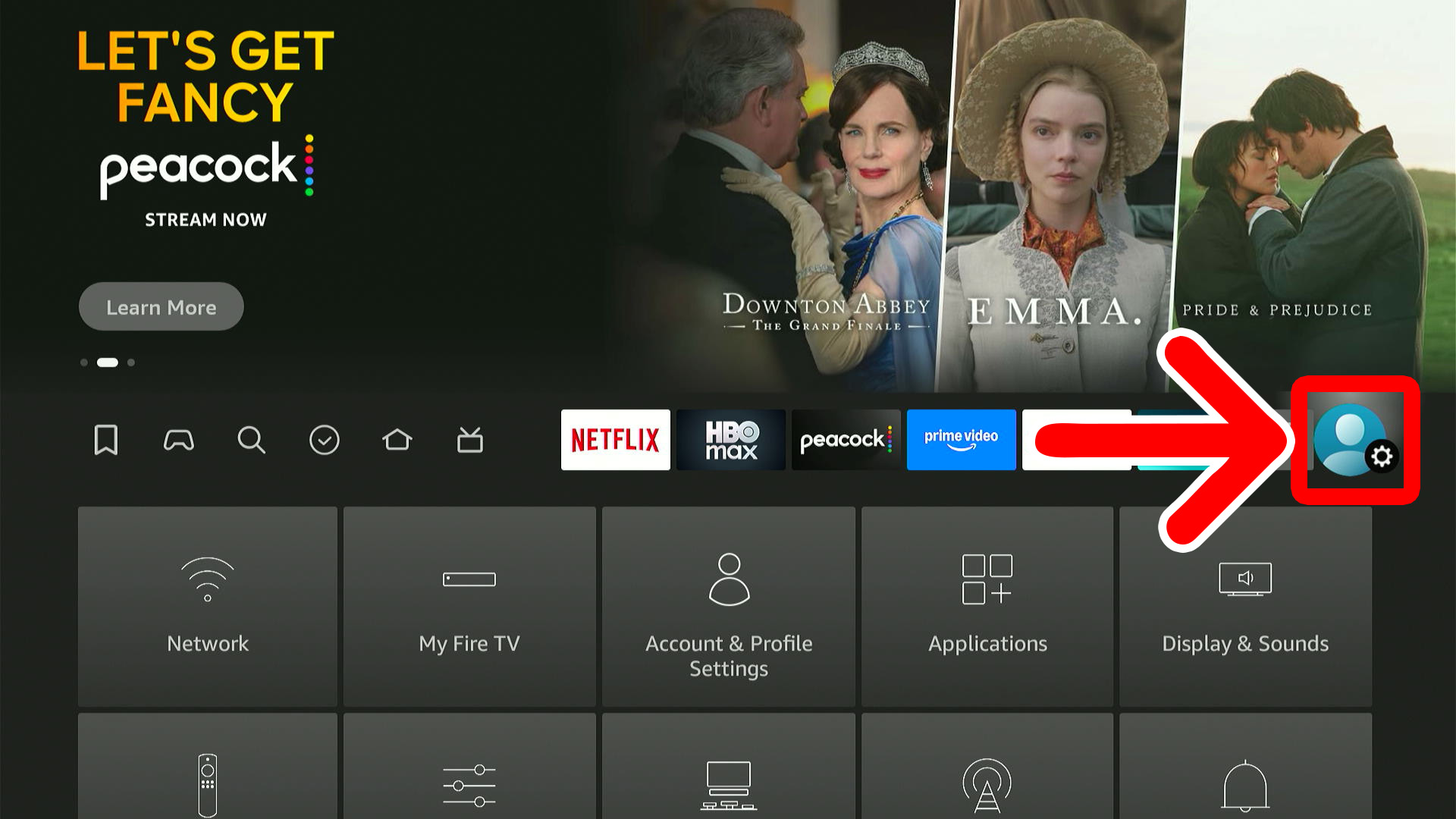
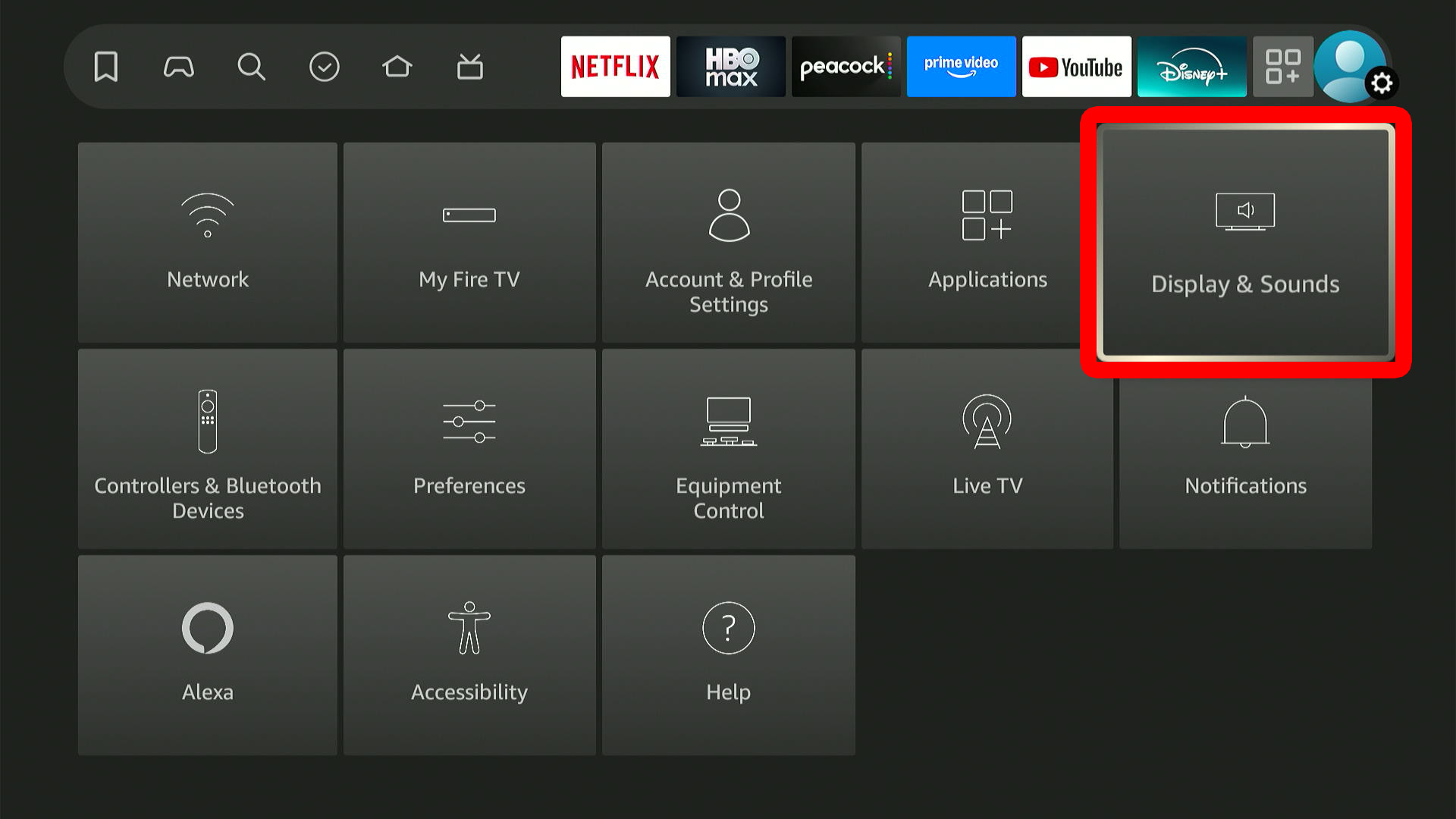
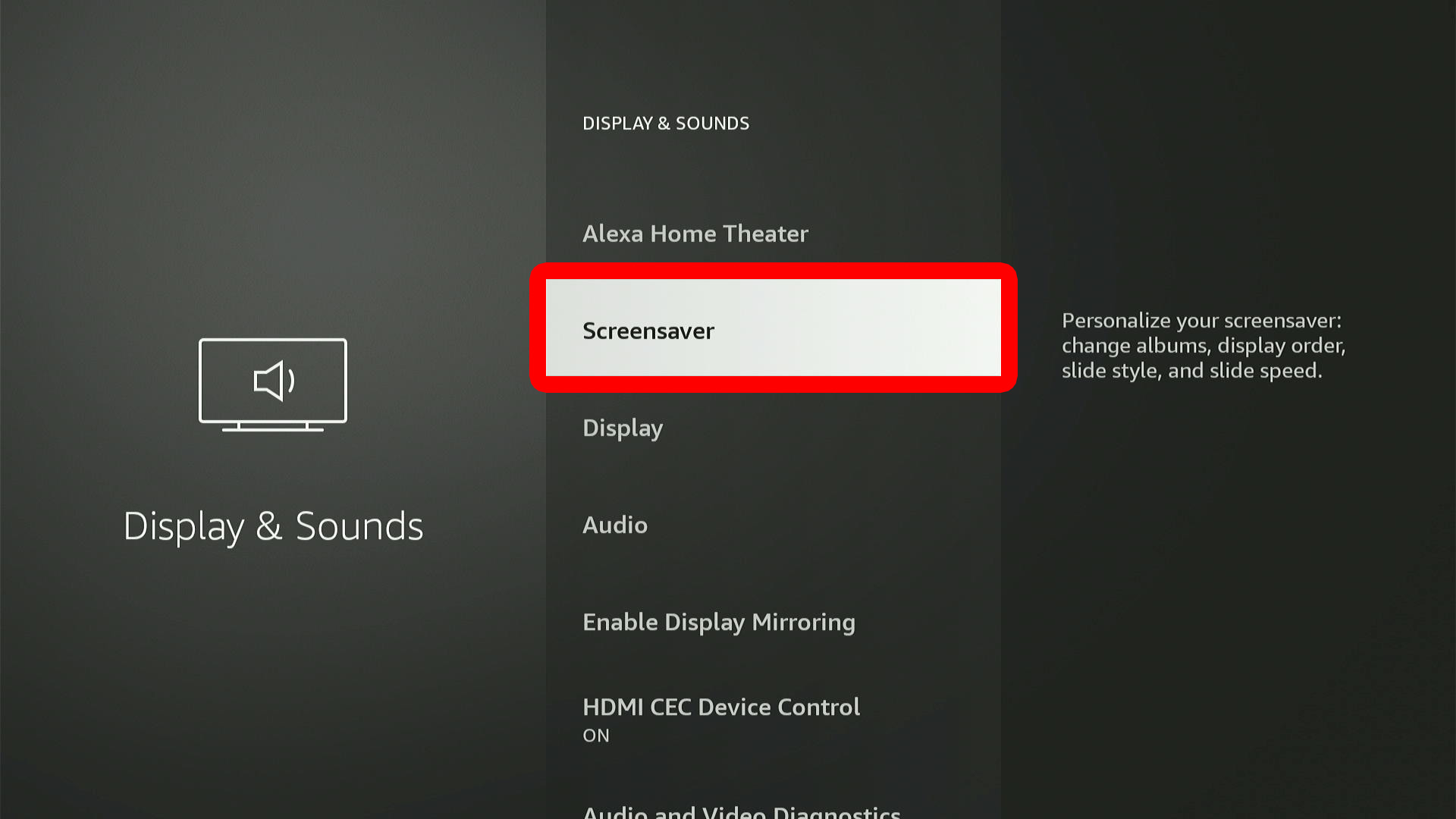
To change the screensaver on your Fire TV, press the Home button on your remote and go to “Settings > Display & Sounds > Screensaver.” Then select “Current Screensaver” and scroll down to change other settings.
- Press the Home button on your Fire TV remote.

- Go to “Settings.” You will see this on the far right side of the home screen menu bar.
- Select “Display & Sounds.” To access your Settings, press the down-directional button on your remote.
- Go to “Screensaver.”
- Finally, select “Current Screensaver” and scroll down to change other settings.
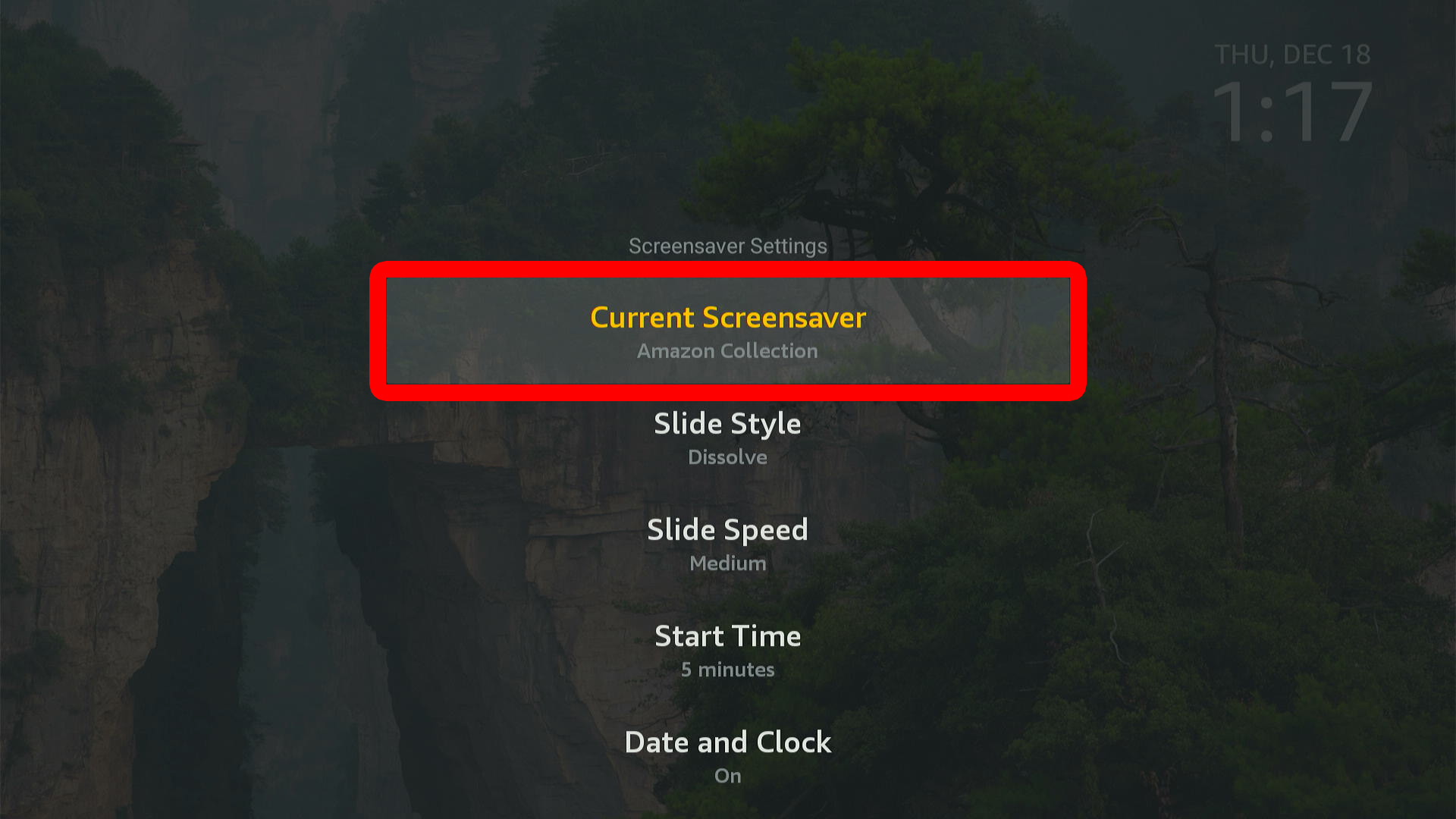
By default, your screensaver will be set to “Amazon Collection,” but you can add your own pictures and albums by using Amazon Photos.
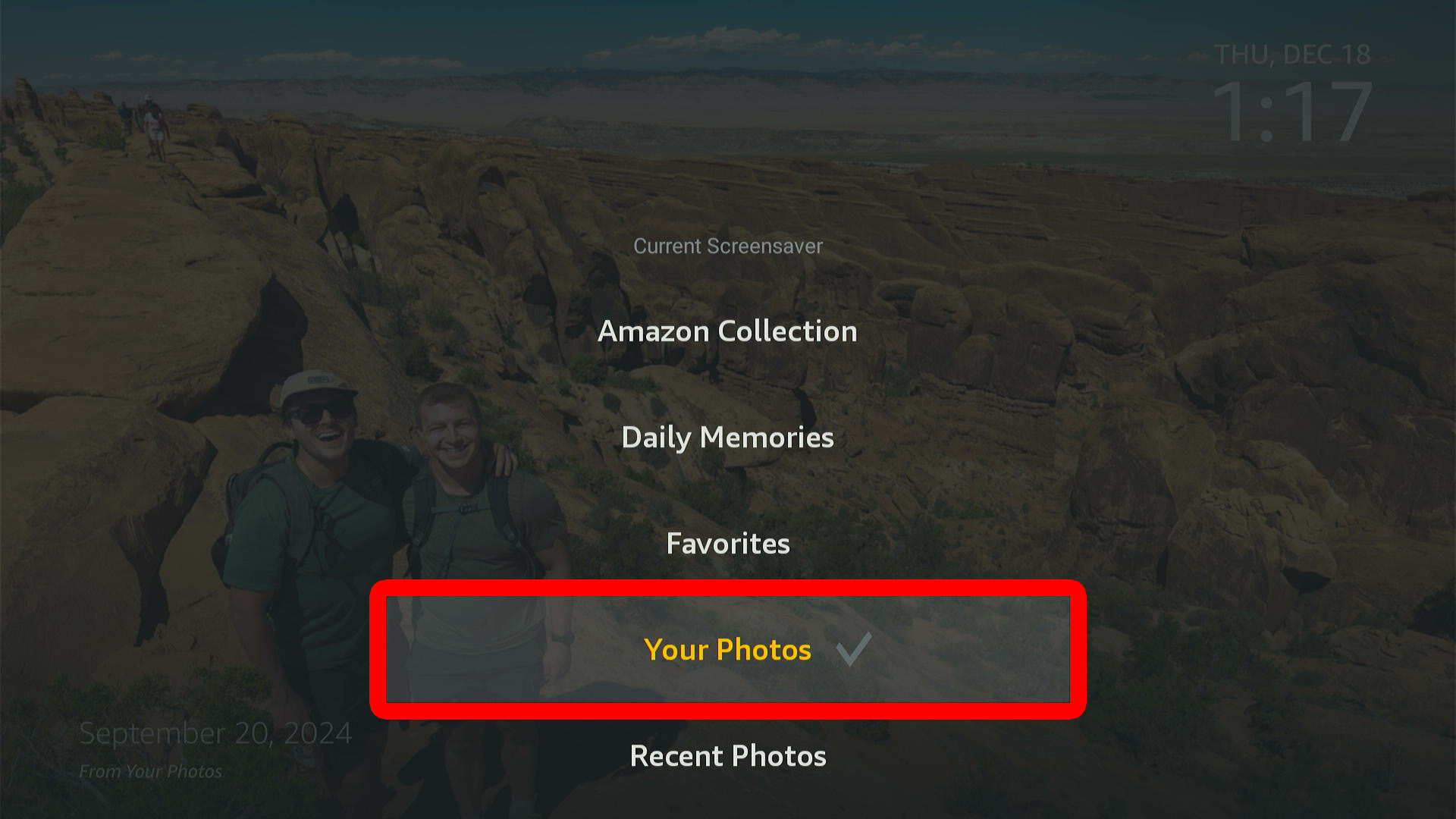
How to Upload Your Own Pictures to Amazon Photos
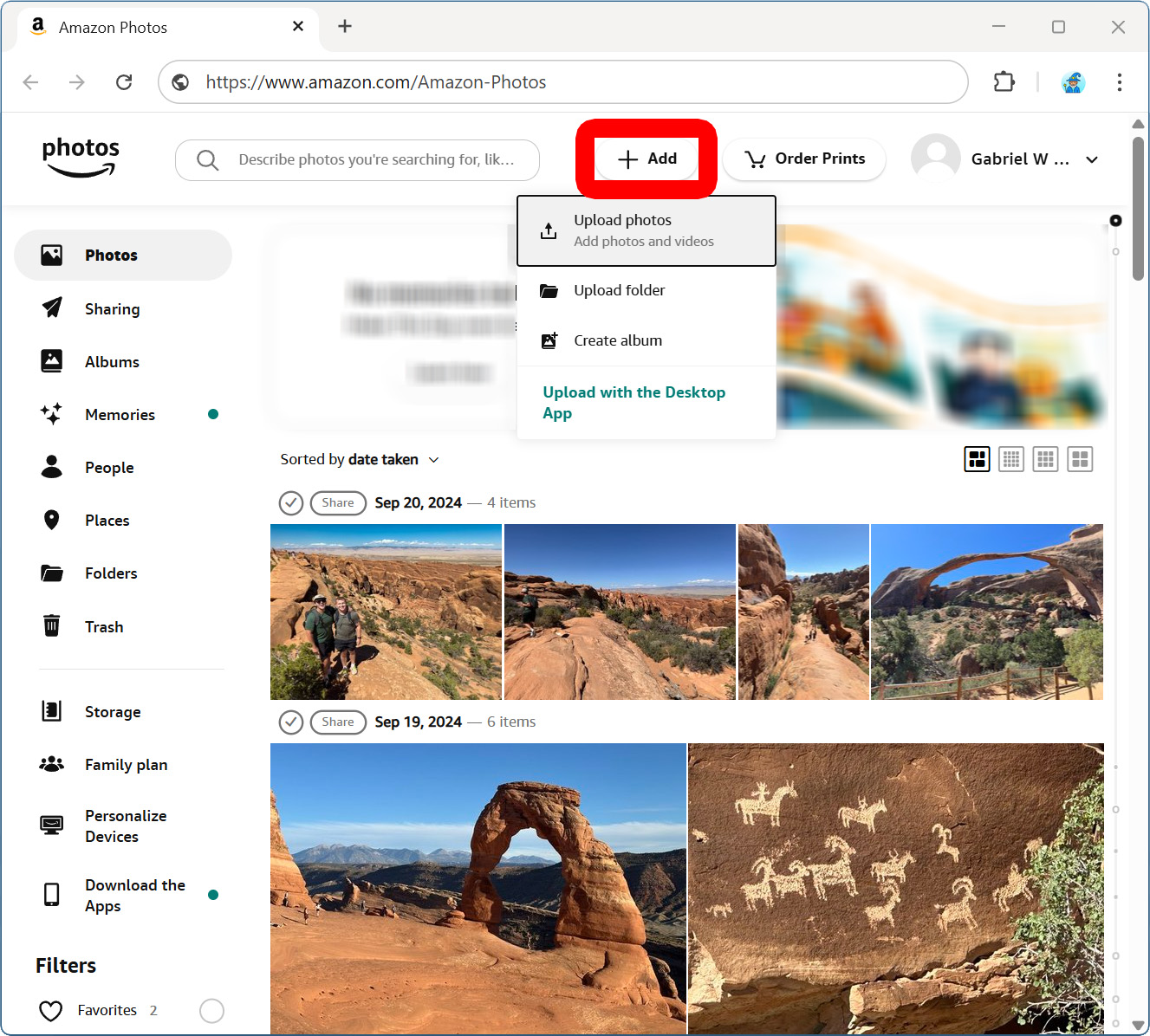
Go to Amazon.com/Amazon-Photos and sign into your Amazon account. Then select “Add” at the top of the window and choose “Upload photos,” or “Upload folder.” You can also choose to group your screensaver images by selecting “Create album.”
Note: You can also add pictures using the Amazon Photos app from the Apple App Store or the Google Play Store.
Note: If you have an Amazon Prime account, you’ll get unlimited photo storage and up to 5GB of video storage. But you can still add photos even if you aren’t a Prime member.
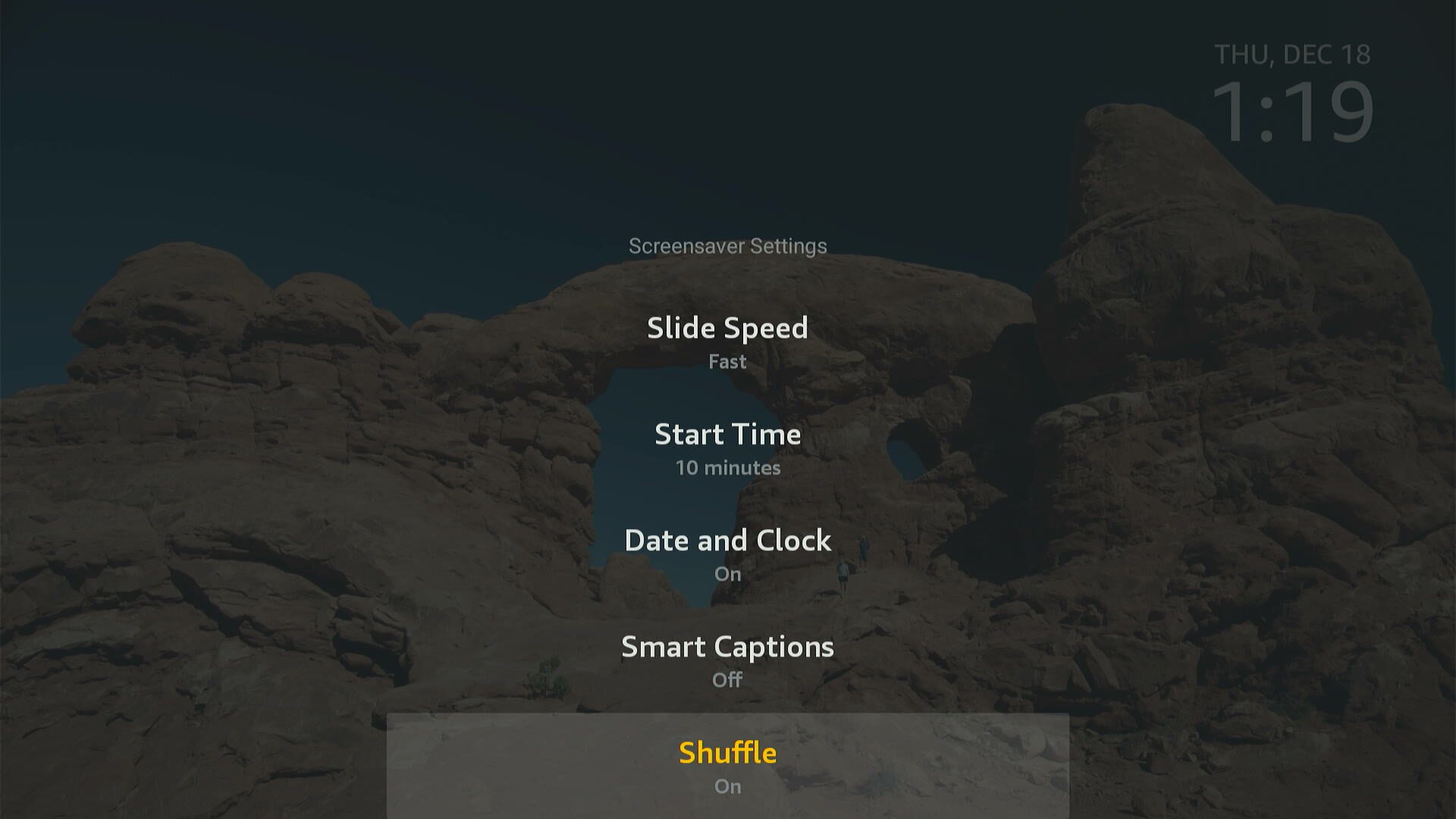
How to Change Your Fire TV Screensaver Settings
Slide Style
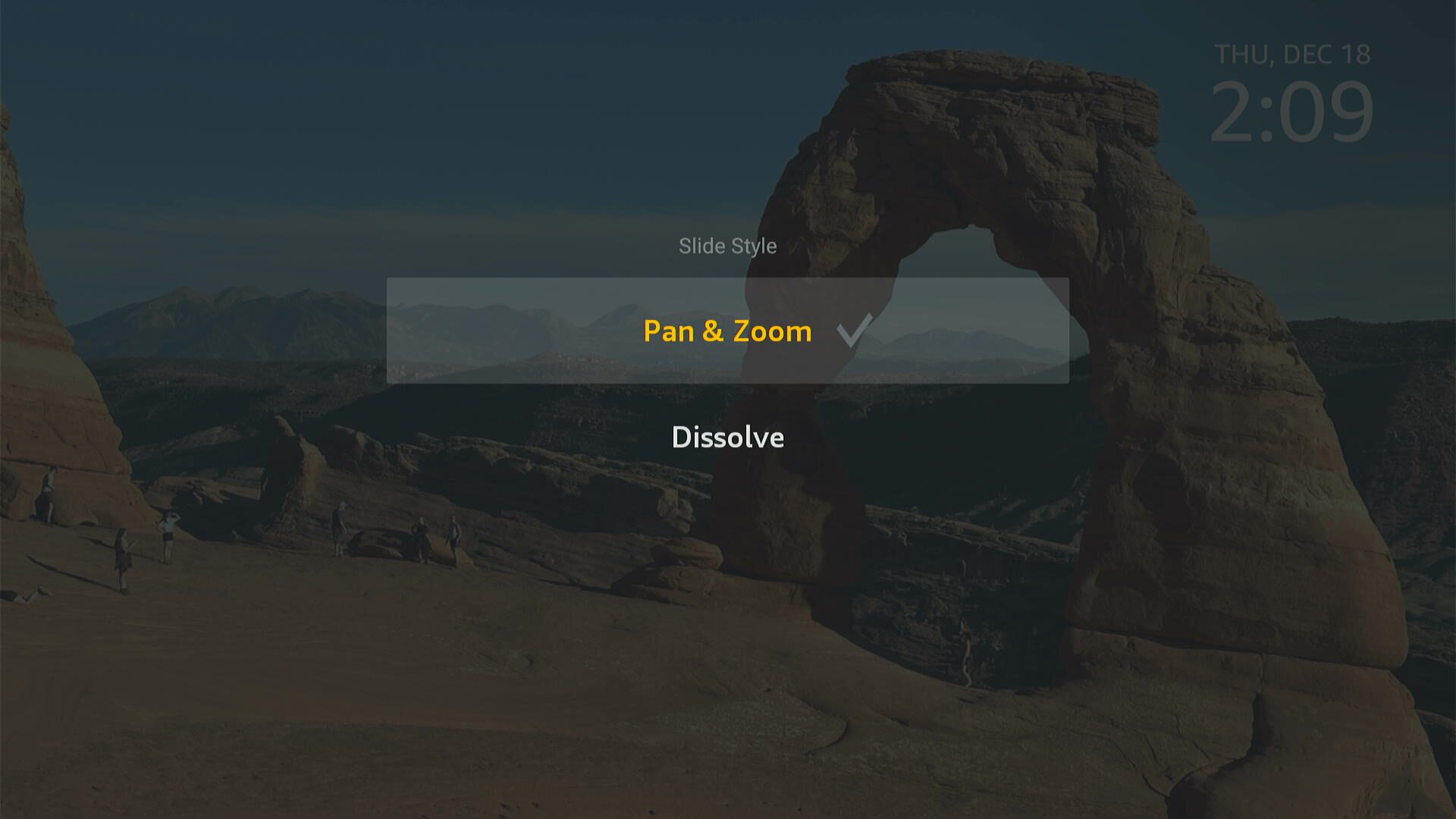
This will change how your screensaver transitions from photo to photo. You can either choose to have your photos “Pan & Zoom” or “Dissolve” between shots.
Slide Speed
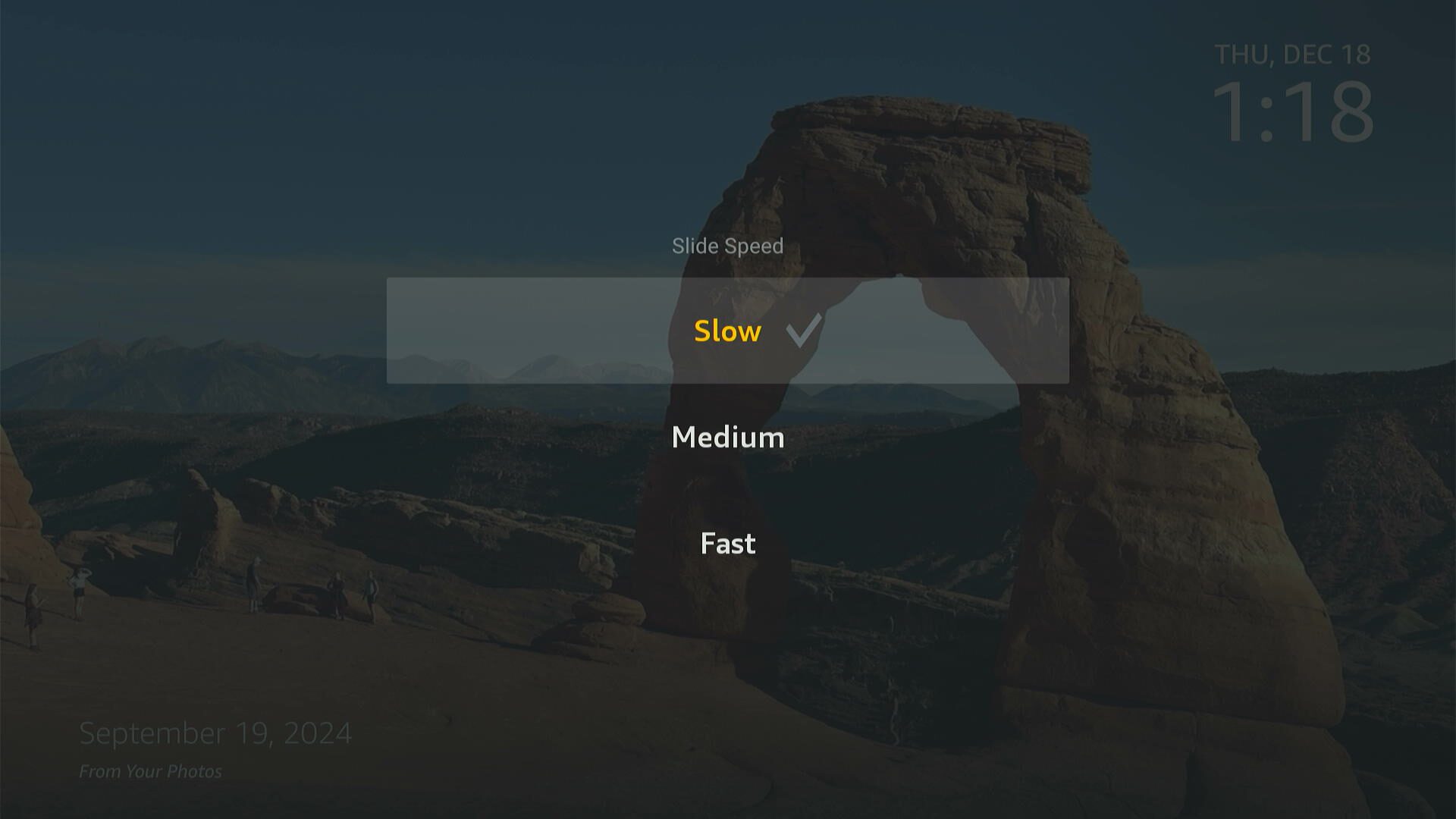
This lets you choose how quickly your screensaver will change between images: from “Slow” to “Medium” to “Fast.”
Start Time
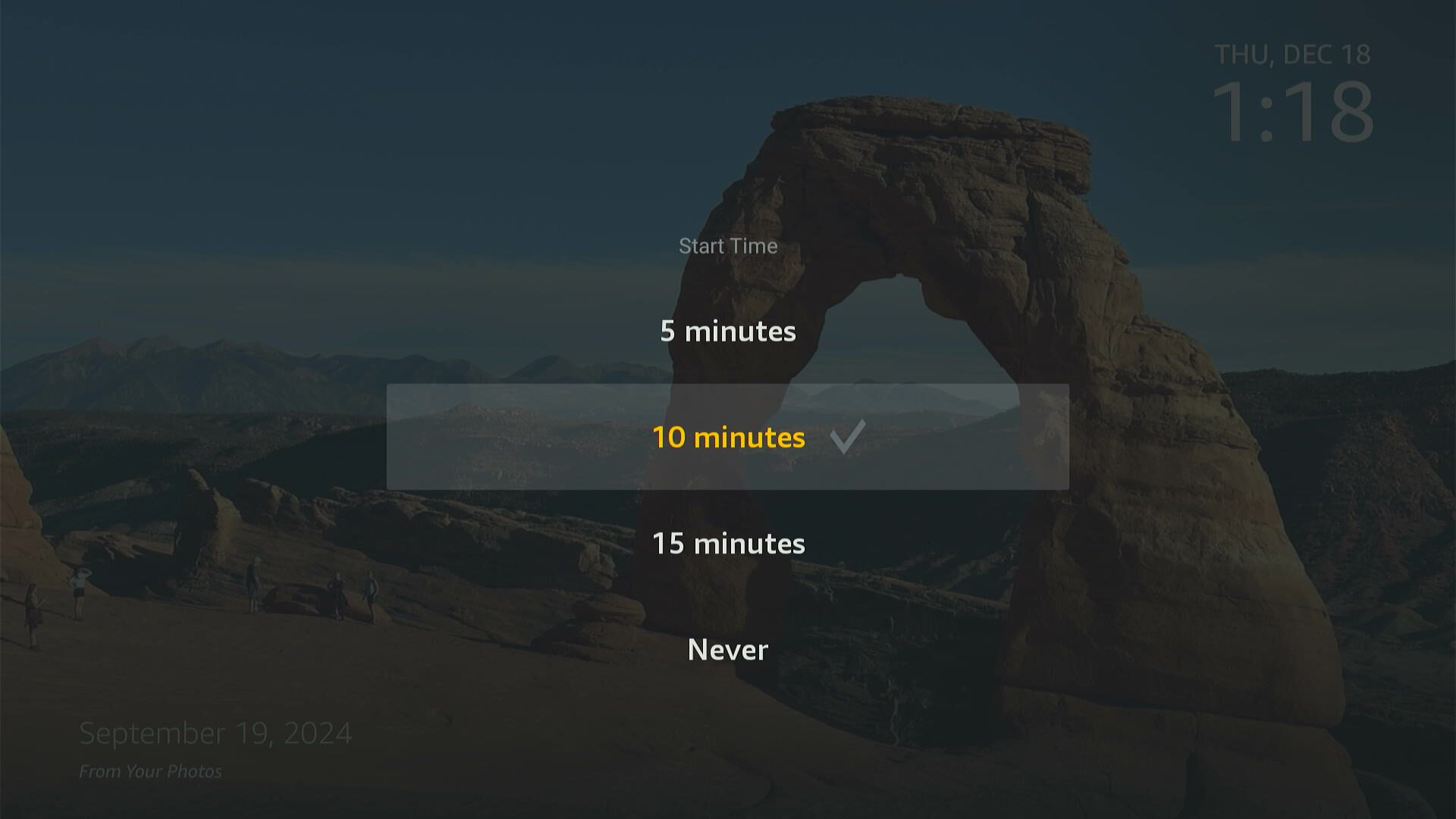
This lets you choose how long it takes for your screensaver to start after your Fire TV device has been inactive. If you want to turn your screensaver off, choose “Never.”
Date and Clock
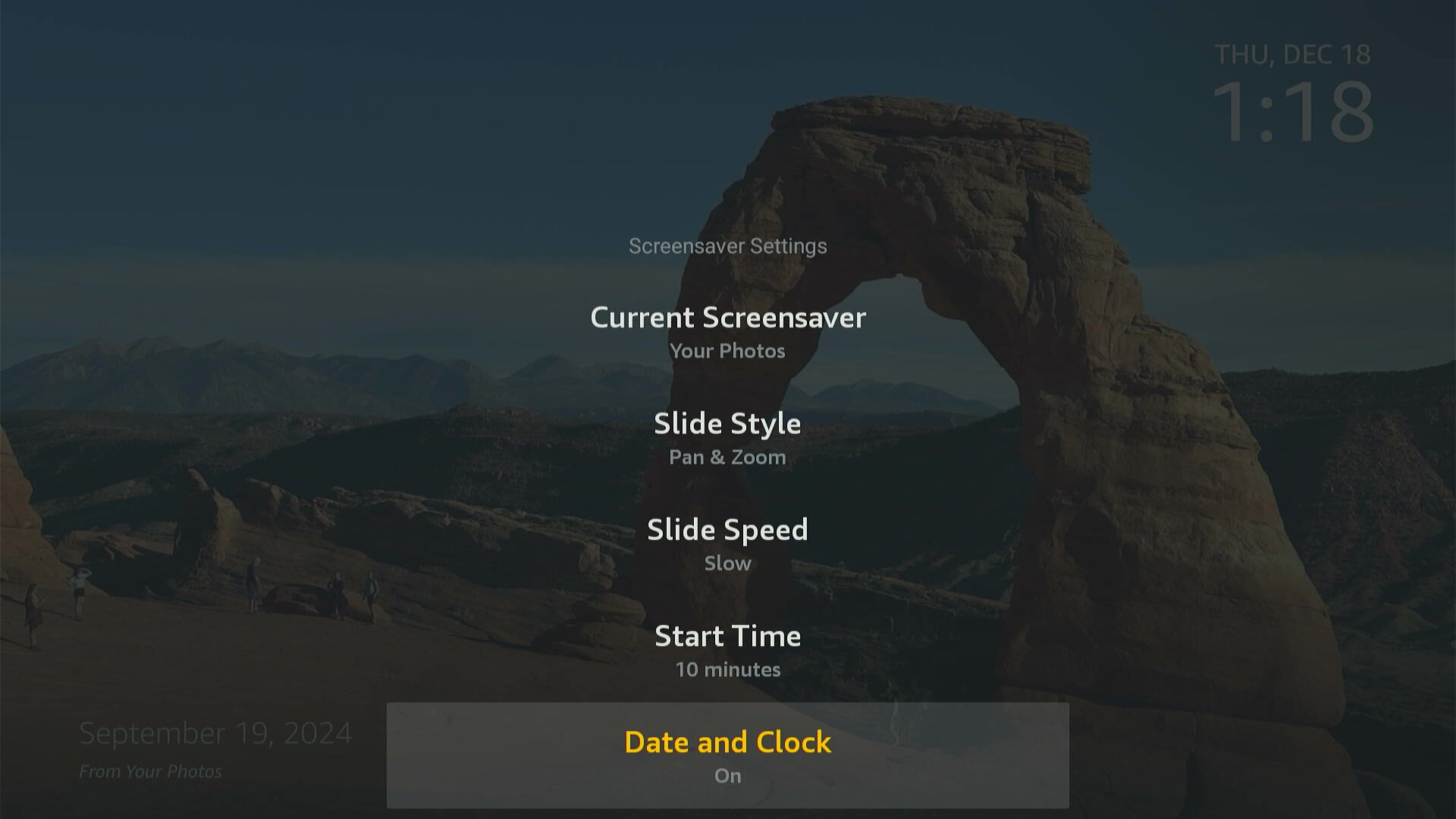
This lets you choose whether you want to display a clock in the top-right corner of the screensaver.
Smart Captions
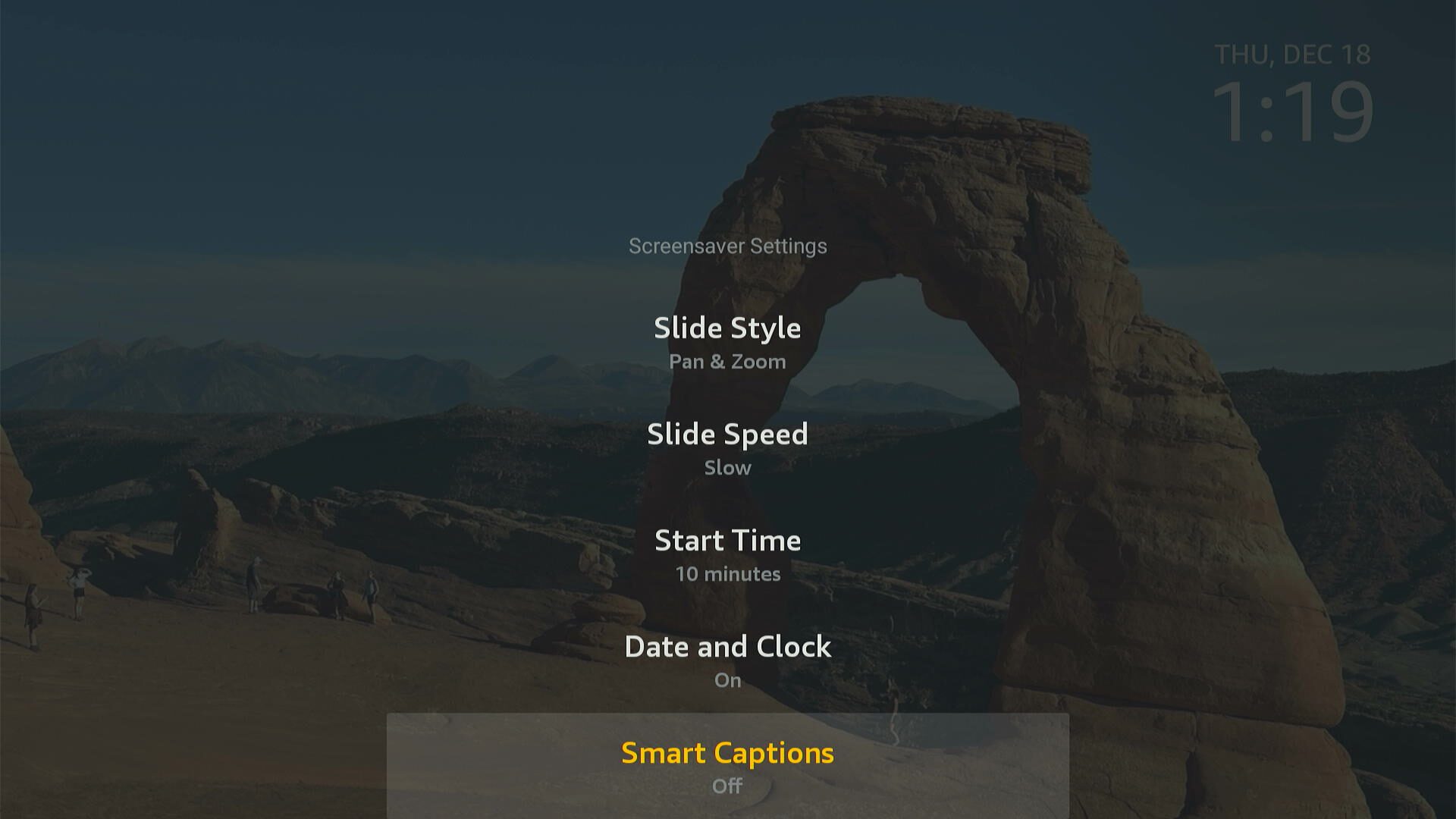
This lets you choose whether you want to have information about your images in the bottom-left corner of the screen.
Shuffle
This lets you choose whether you want your screensaver images to be displayed in order or if they are randomly shuffled.
Read More: How to Cast Your iPhone to Fire TV