Your wallpaper says a lot about you. Not only do you have to look at it every time you use your iPhone, but other people will also judge you for it. Here’s everything you need to know about how to change your iPhone wallpaper, customize it, and delete your old ones.
Read More: How to Back Up Your iPhone to Any Device
How to Change Your iPhone Wallpaper
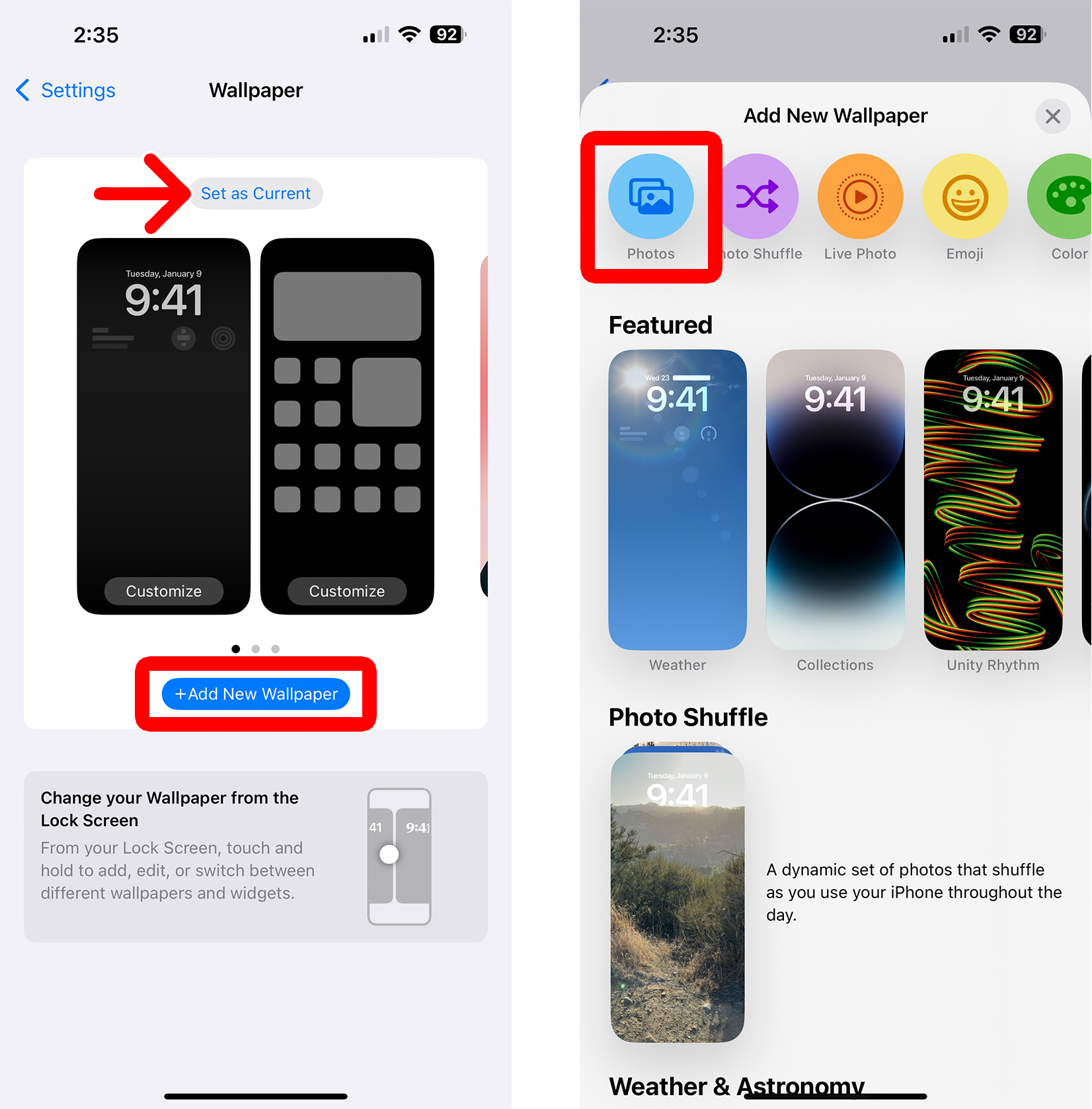
To change the wallpaper on your iPhone, open the Settings app and go to “Wallpaper > Add New Wallpaper.” Then choose a new wallpaper and change its settings. Finally, tap “Add” in the top-right corner of your screen and select “Set as Wallpaper Pair.”
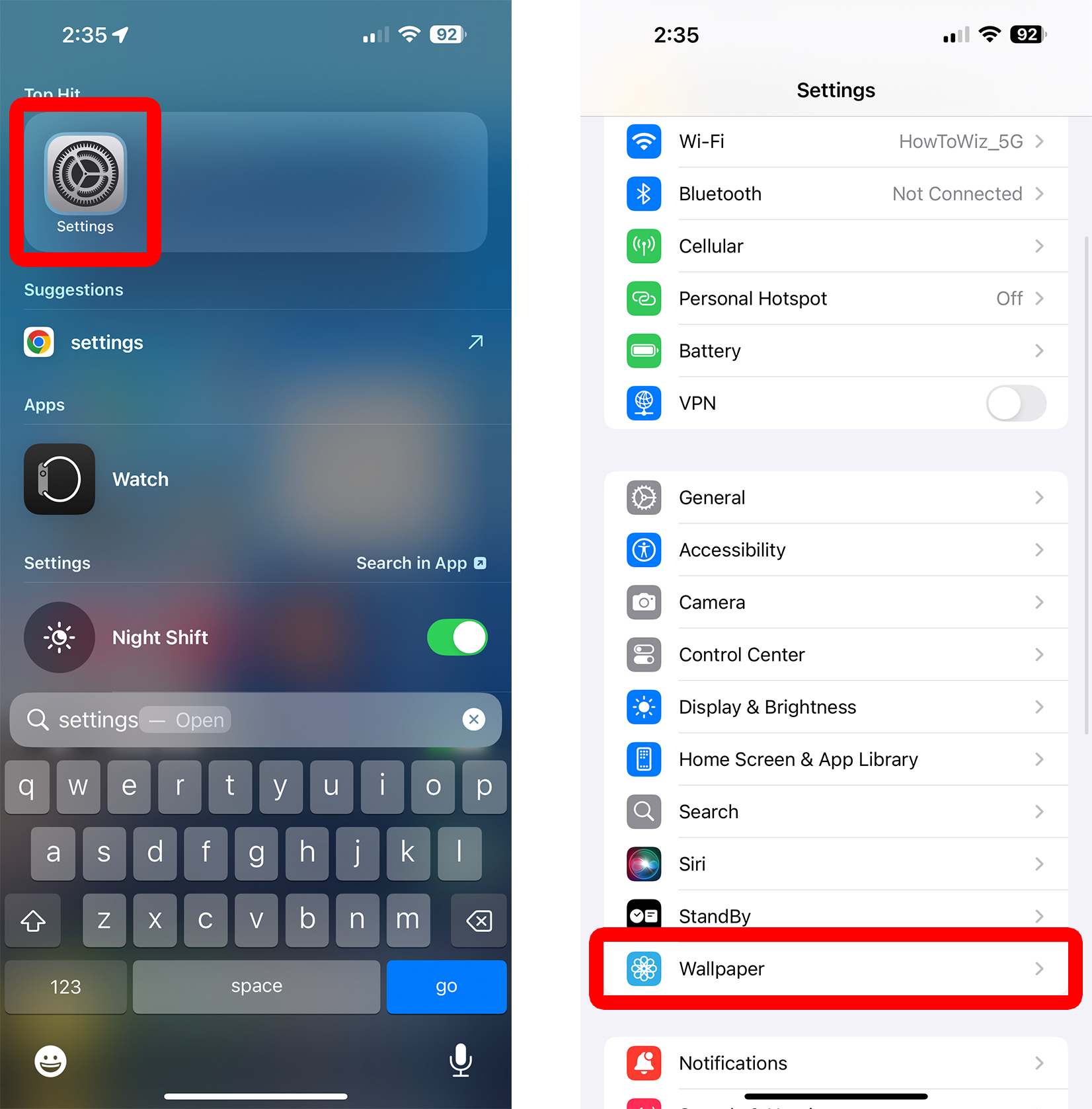
- Open the Settings app on your iPhone. It comes pre-installed, but if you can’t find it, go to the home screen and swipe down from the middle of the screen. Then type “Settings” in the search bar to reveal it at the top of your screen.
- Select “Wallpaper.” You only need to scroll down a little to see this setting.

- Tap “Add New Wallpaper.” You will see this button below your current wallpaper.
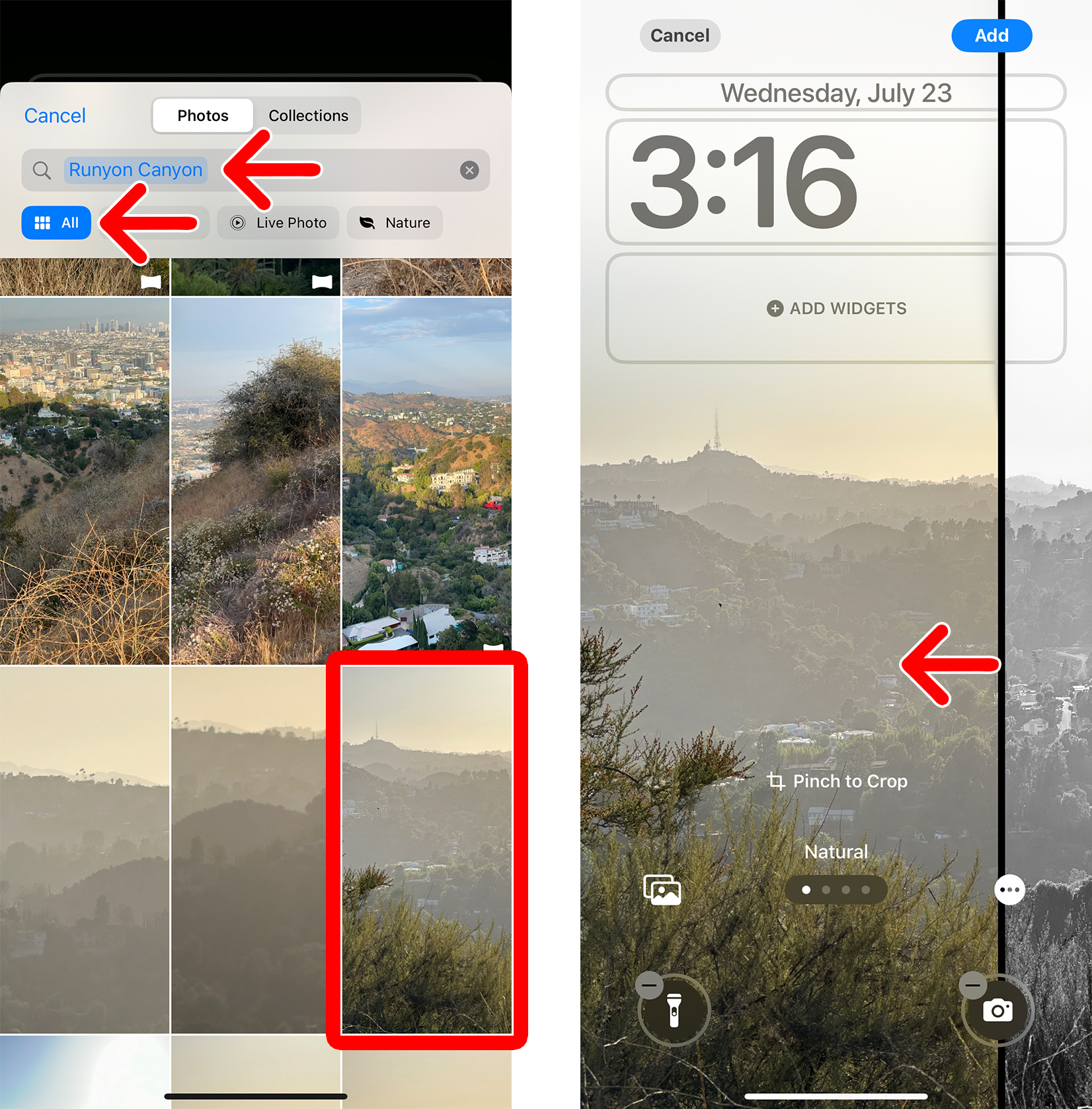
- Select a type of wallpaper. You can scroll down to select a pre-made wallpaper, like “Weather & Astronomy,” or create one using your own personal photos.
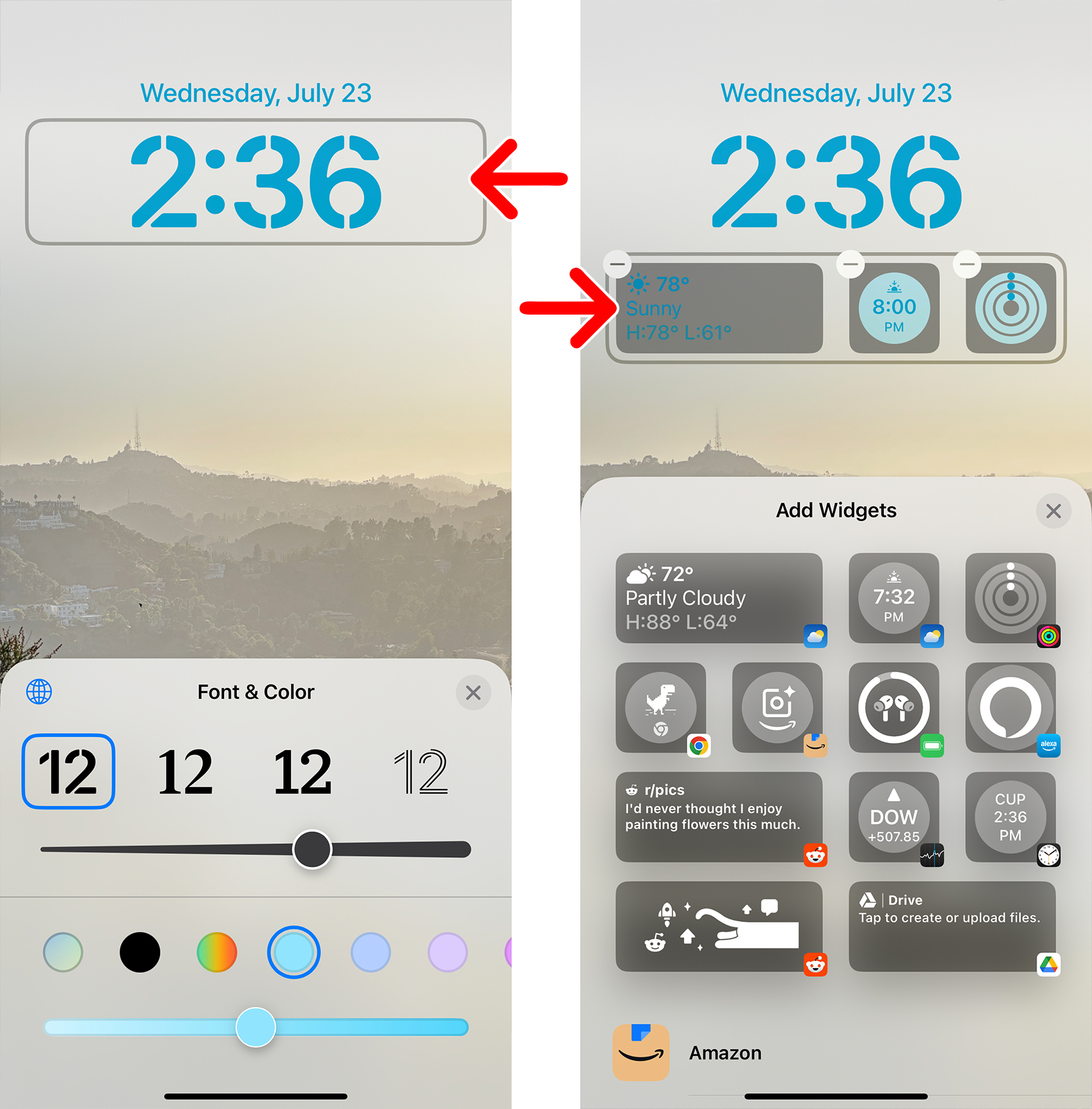
- Choose a wallpaper and change its settings. Swipe left or right to preview the different styles or use two fingers to zoom and reposition the image.
- Tap “Add.” You will see this in the top-right corner of the screen.
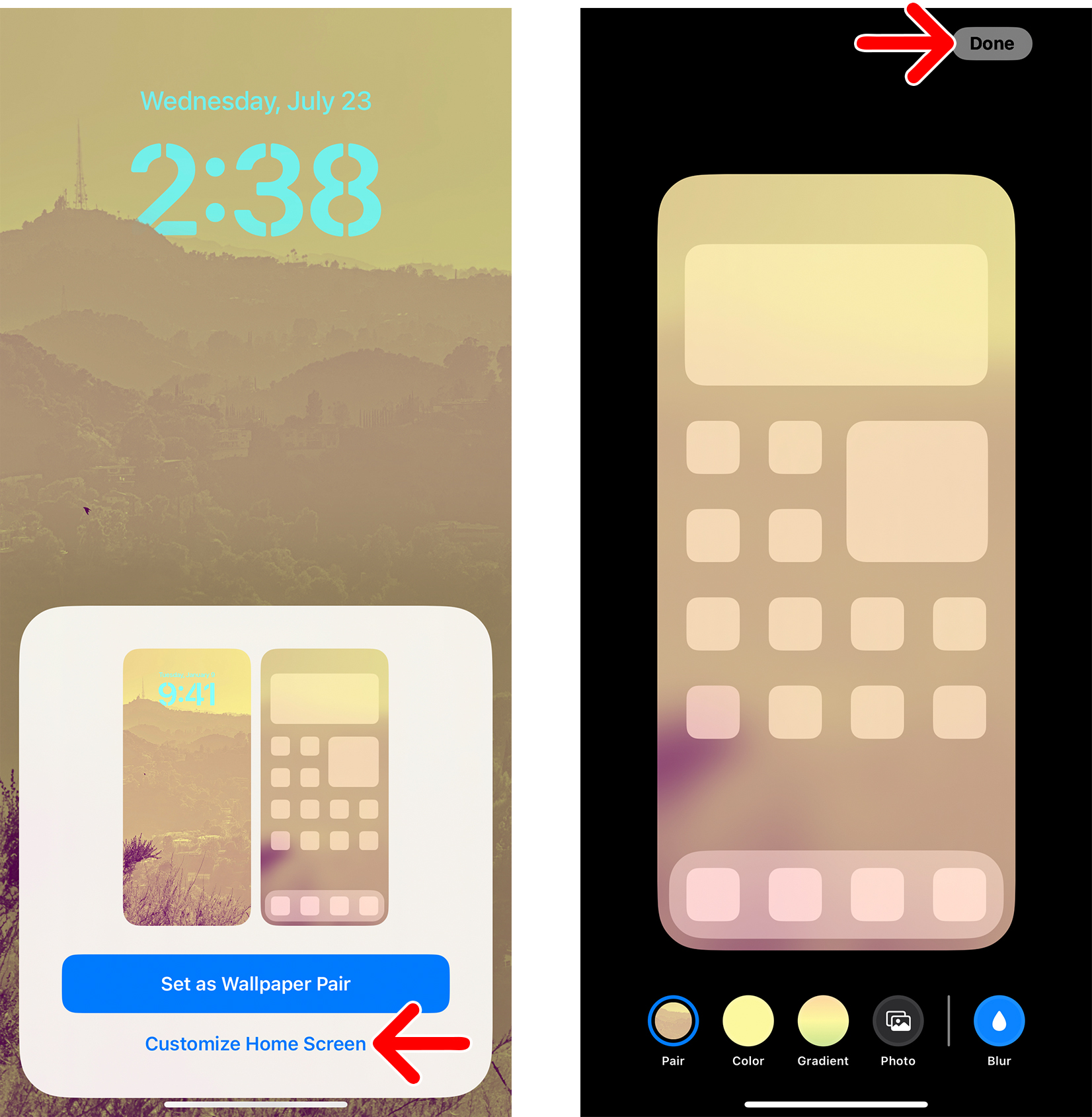
- Finally, tap “Set as Wallpaper Pair.” This will instantly change the wallpaper for your iPhone lock screen and home screen.

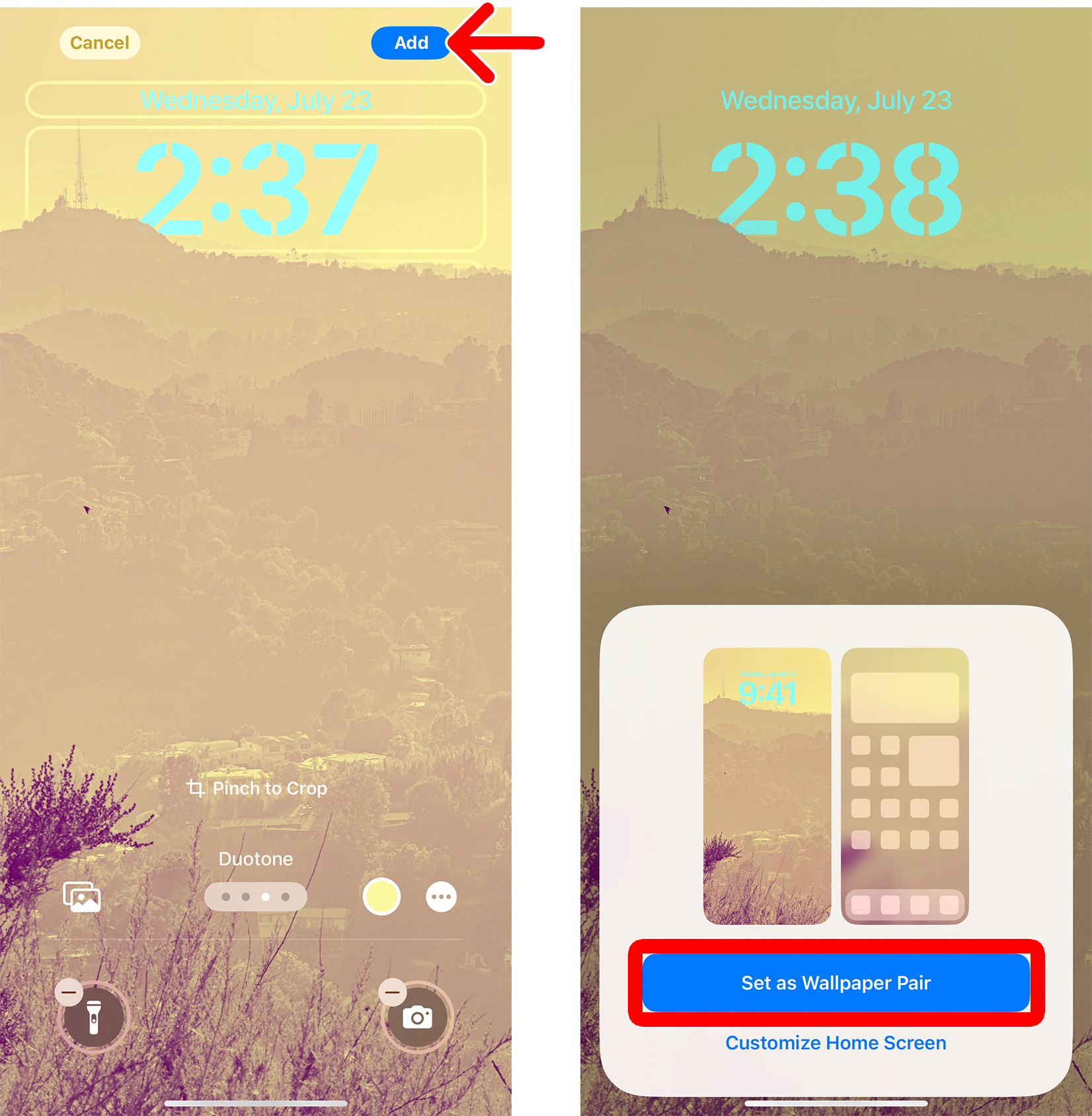
You can also tap “Customize Home Screen” to change the settings for your iPhone’s home screen wallpaper.
How to Delete a Wallpaper from Your iPhone
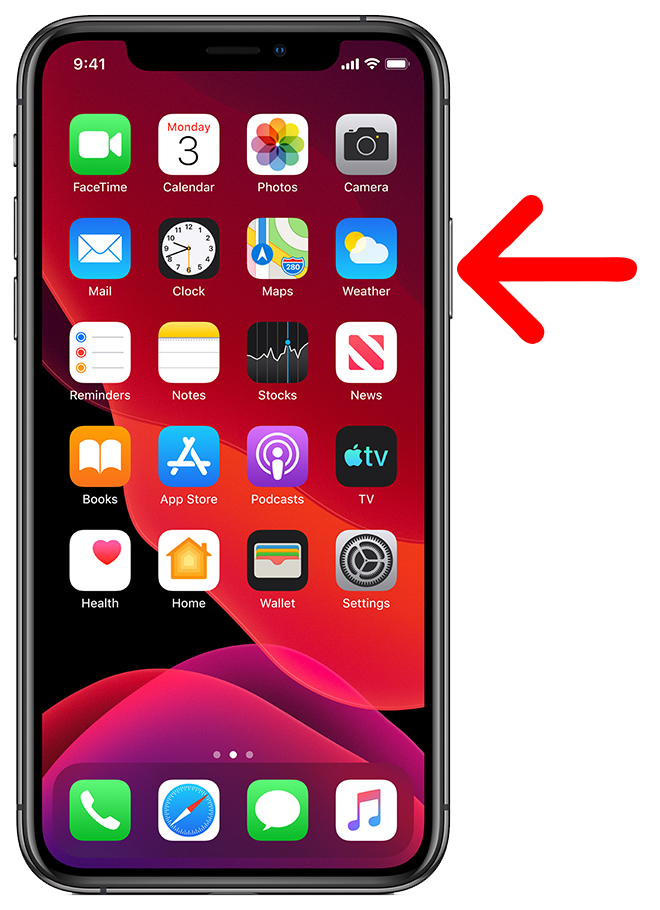
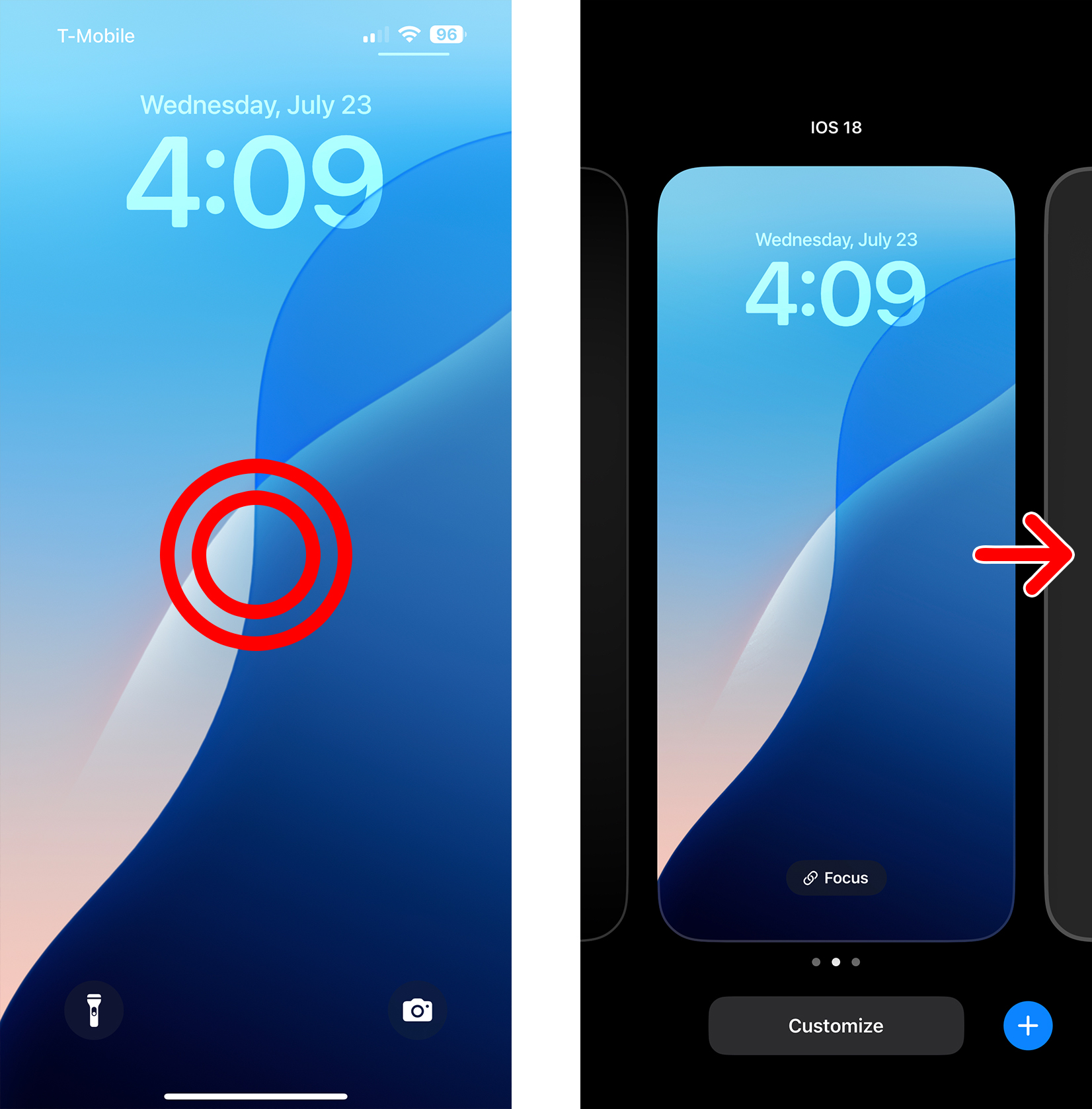
- Go to the iPhone lock screen. You can do this by pressing the Side button (on the top-right side of your iPhone).

- Tap and hold an empty space. This opens the wallpaper editing view.
- Swipe to the wallpaper you want to delete. Swipe left and right to find it.
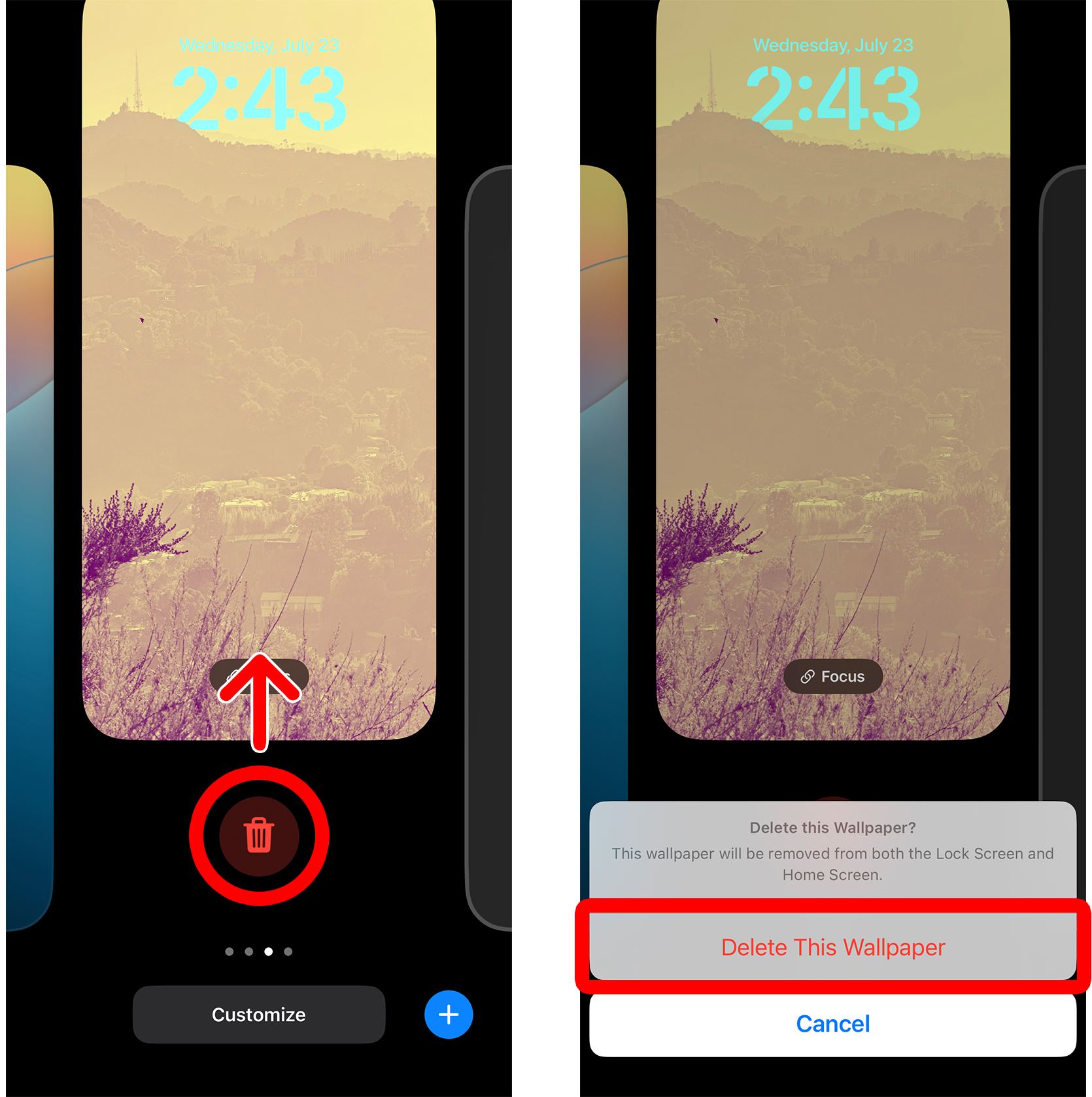
- Swipe up and tap the trash can icon.
- Finally, select “Delete This Wallpaper.” Your iPhone will immediately delete the wallpaper.