
AirPods were designed to pair with your iPhone instantly, but pairing them to your Mac isn’t as obvious. Here’s everything you need to know about how to connect, disconnect, and customize your AirPods settings on a Mac.
How to Pair AirPods to a Mac
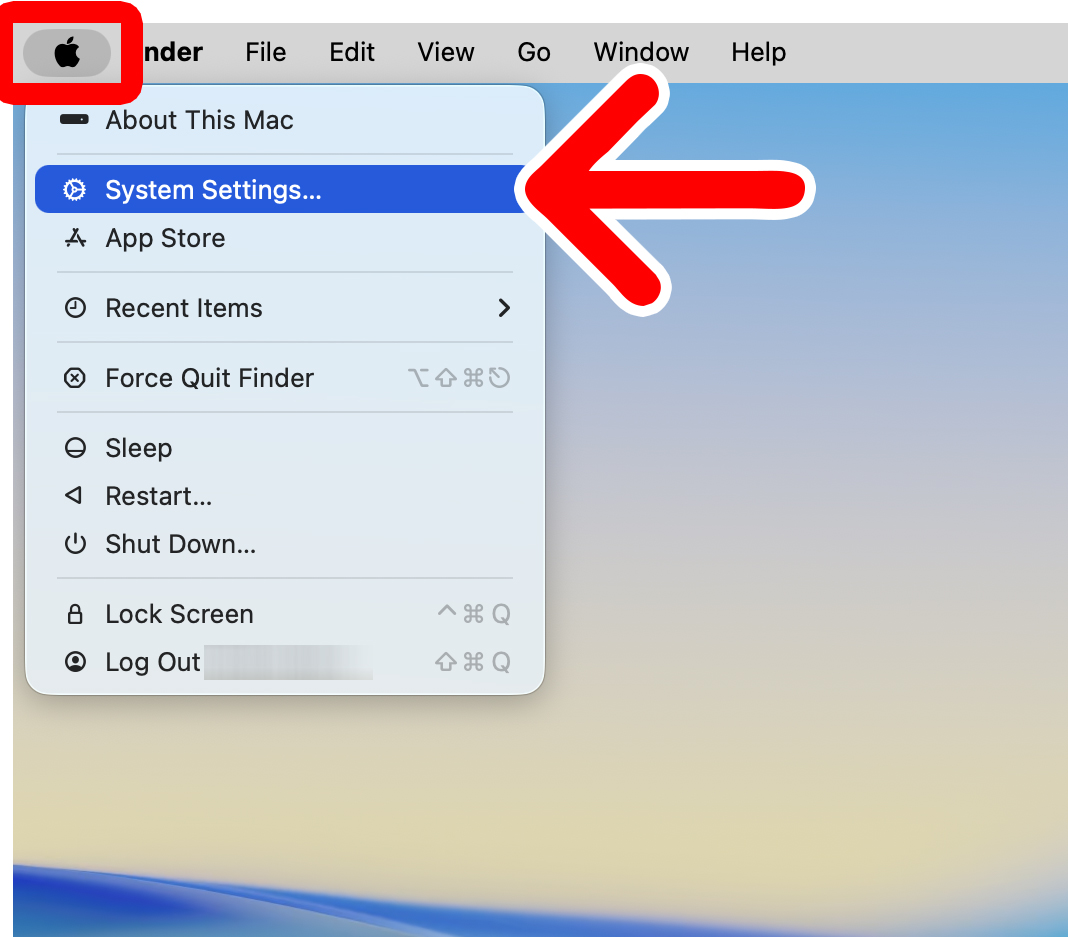
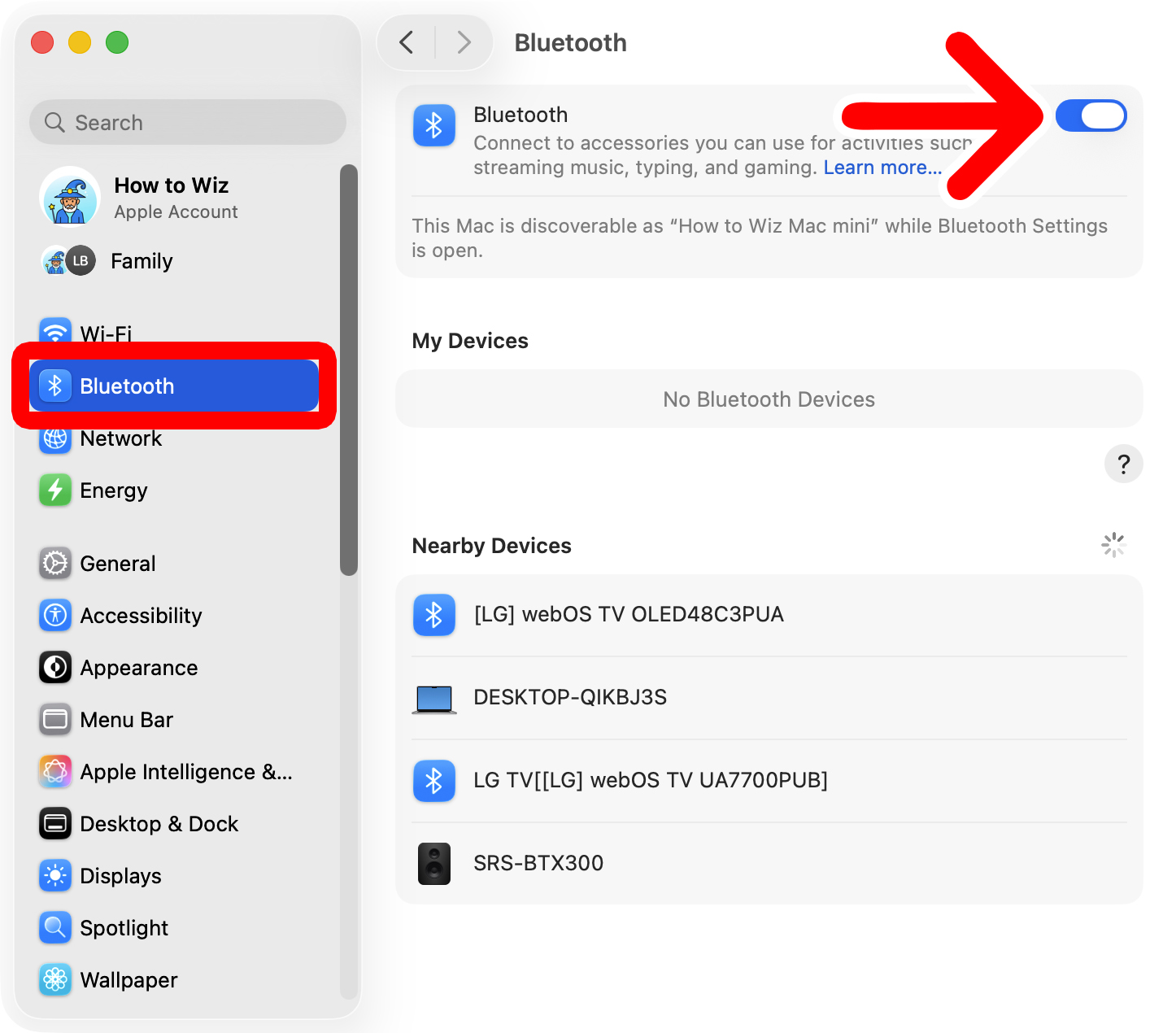
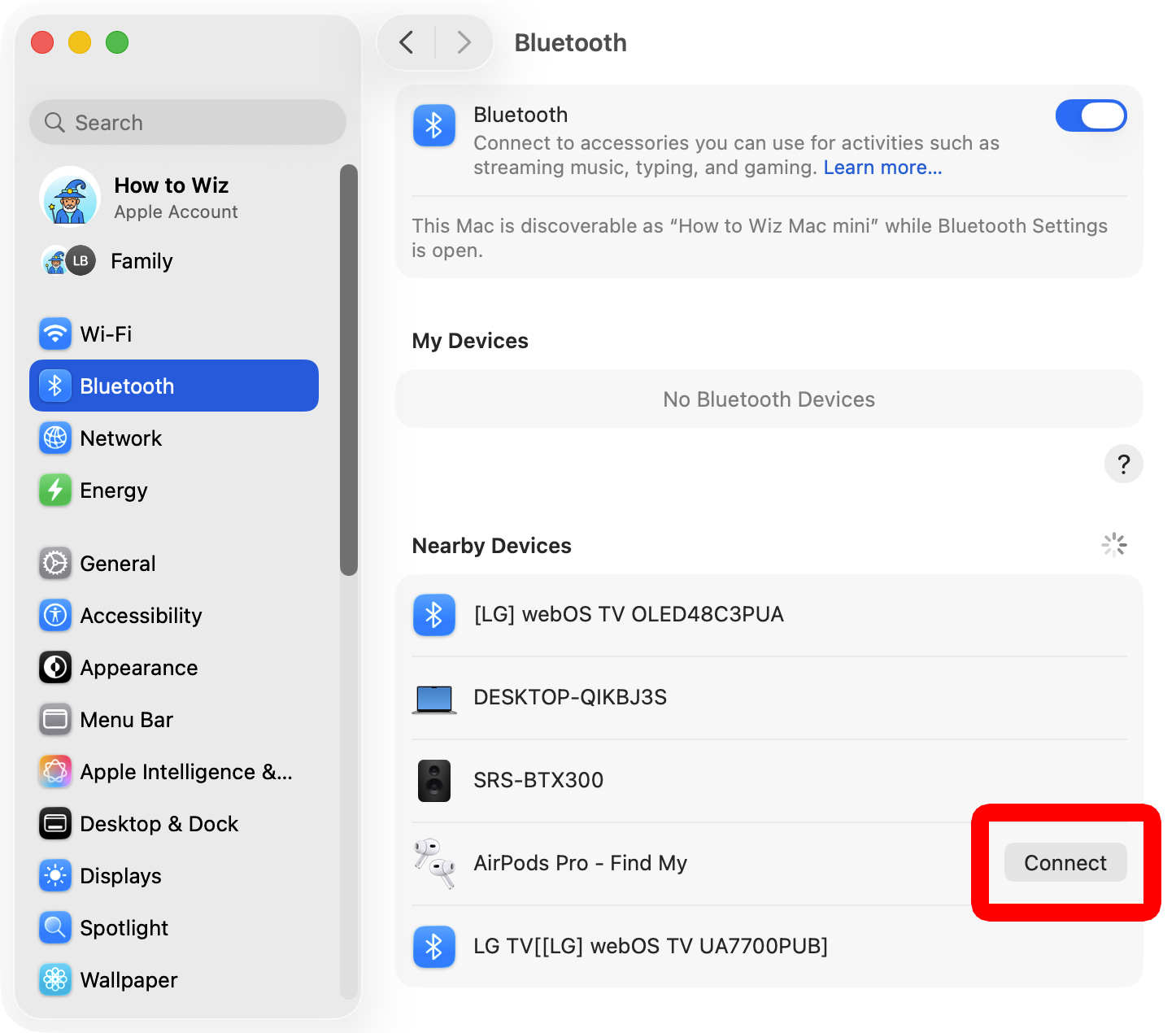
To pair AirPods to a Mac, click the Apple icon in the top-left corner of your screen and select “System Settings > Bluetooth.” Then place your AirPods in the case, close it, and open it. Finally, press and hold the pairing button on the case and select “Connect” on your Mac.
- Click the Apple icon in the top-left corner of your screen.
- Select “System Settings.”

- Go to “Bluetooth.” You will see this near the top of the left sidebar.
- Make sure Bluetooth is enabled. You will seean on/off slider in the top-right corner of the window.

- Place both AirPods in the case, close it for 15 seconds, and open it again. For AirPods Max, simply put them on your ears.
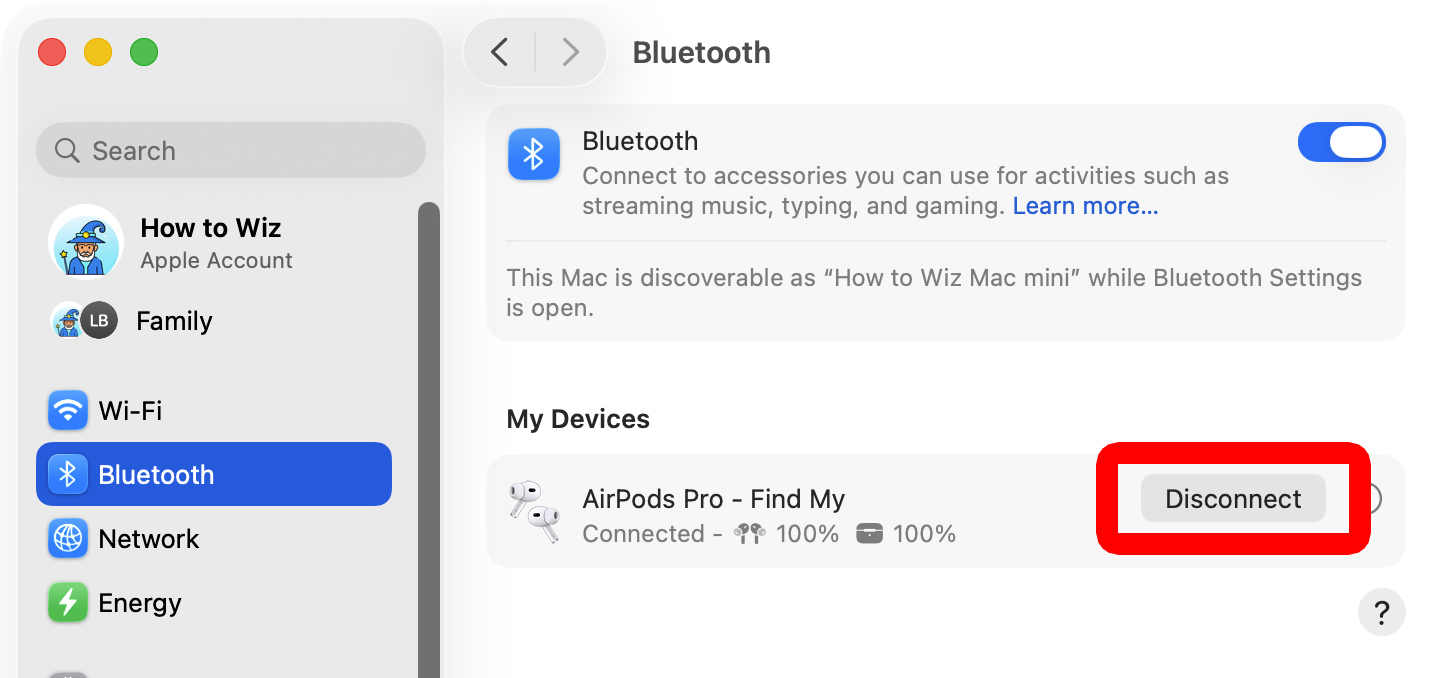
- Finally, click “Connect.” If you see your AirPods appear under “Nearby Devices,” hover your mouse over them, and you should see a “Connect” button appear.
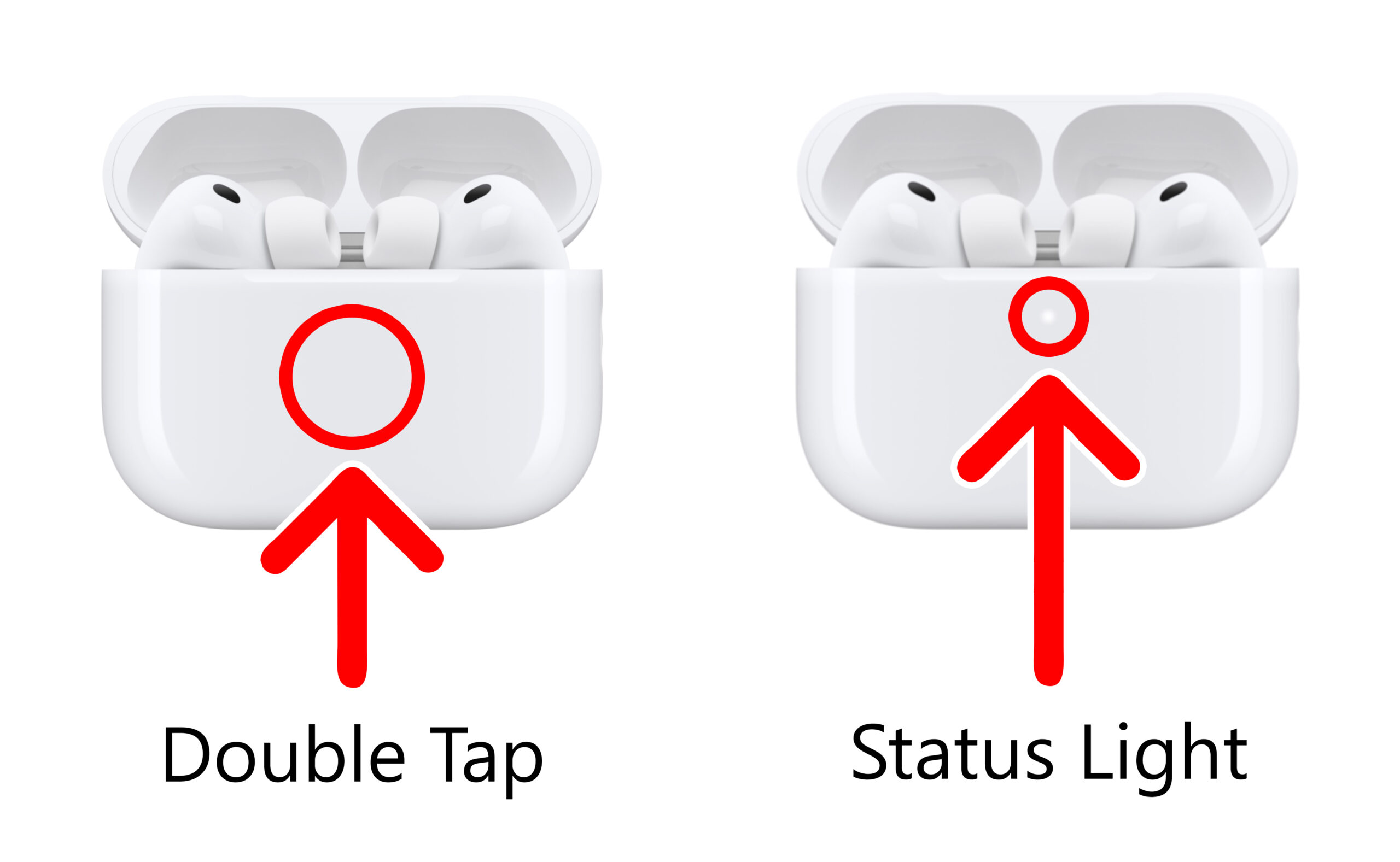
If you don’t see your AirPods appear in the list, press and hold the pairing button (the small round button on the back of the case) until the status light flashes white.
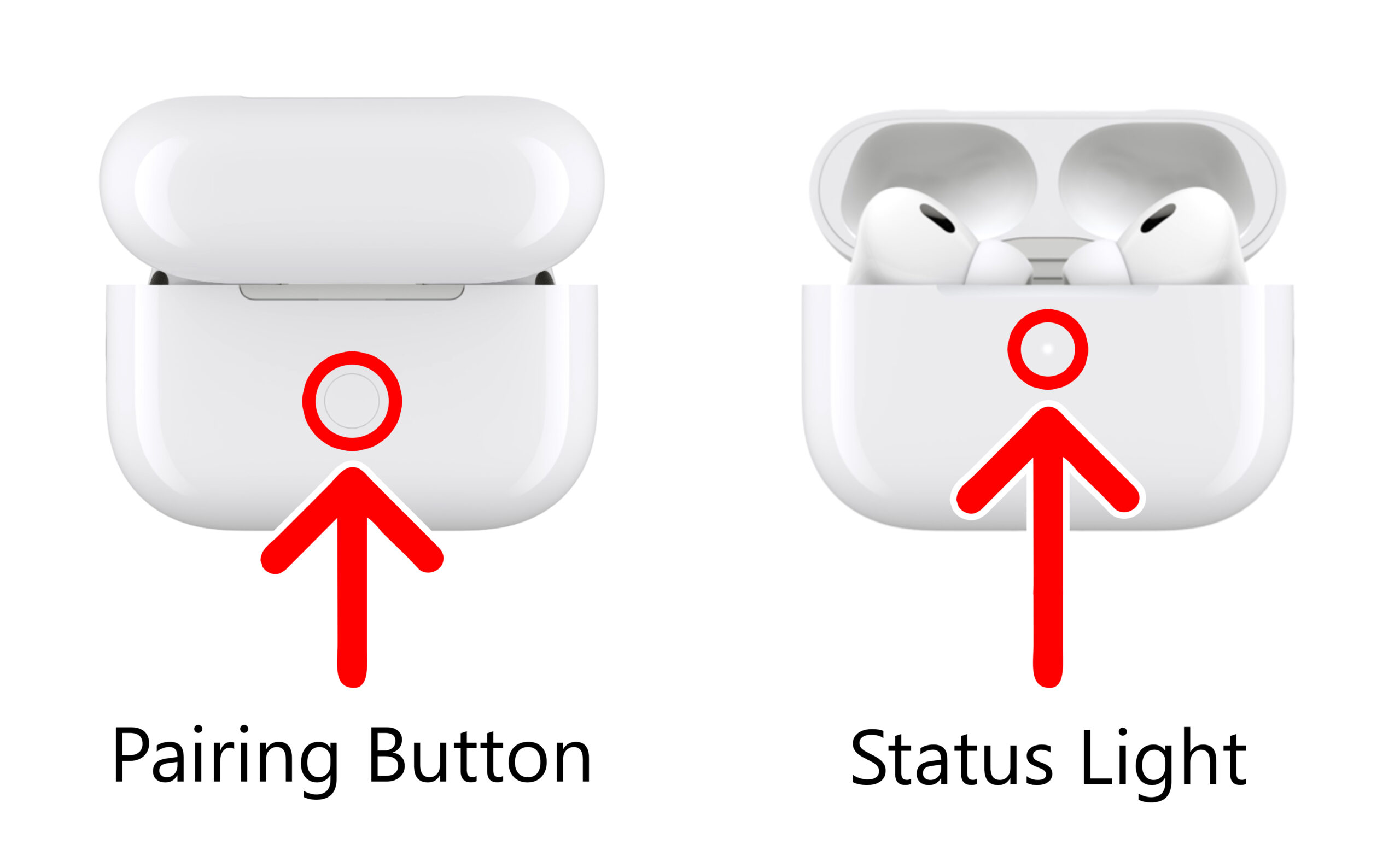
For AirPods Pro 3 and AirPods 4 models, double-tap the front of the case until you see the status light start flashing white.
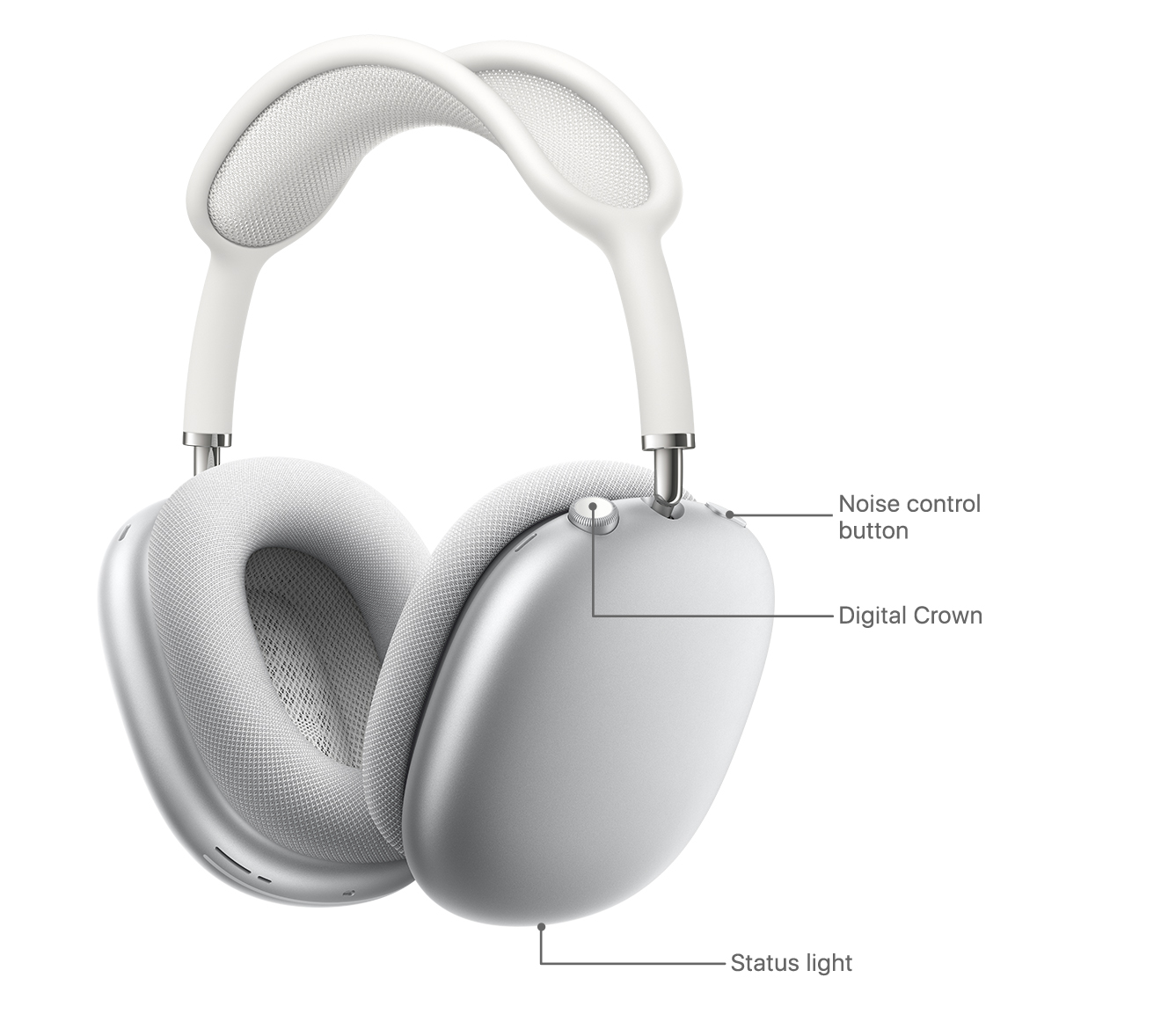
For AirPods Max, press and hold the noise control button until the status light flashes white.
How to Quickly Connect AirPods to a Mac
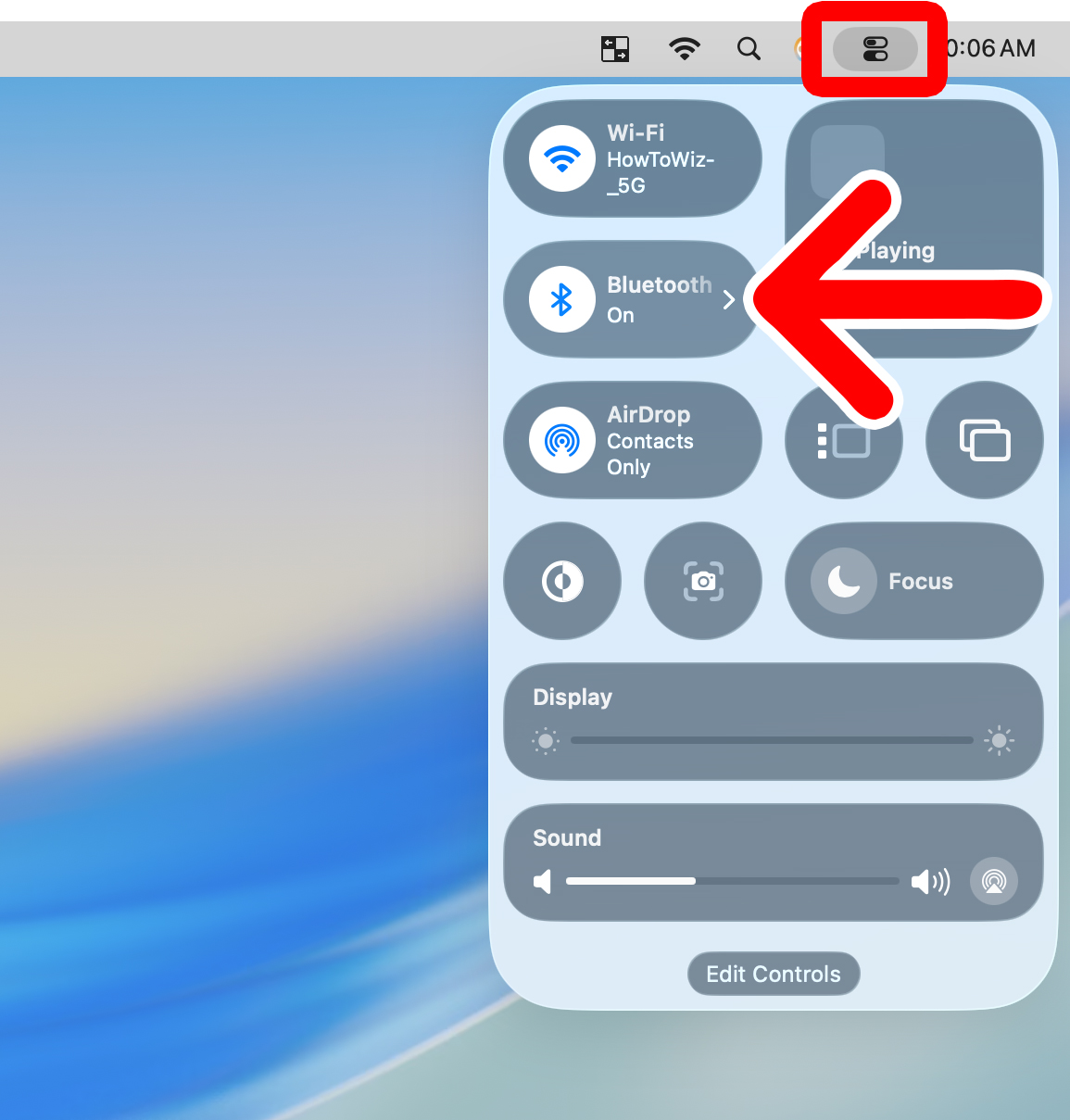
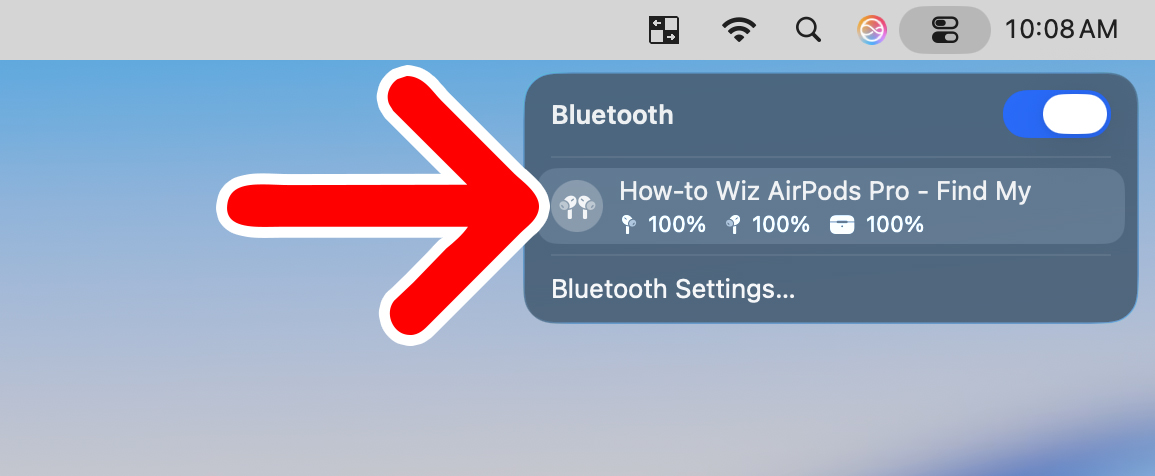
Once you have connected your AirPods to a Mac for the first time, you can quickly reconnect them by clicking the Control Center icon in the top-right corner of your screen. Then select “Bluetooth” and click the AirPods icon to connect them.
- Click the Control Center icon. This is an icon with two toggles on top of each other. You will see it in the top-right corner of your Mac screen.
- Select “Bluetooth.” You want to click the “>” icon to the right. If you click the big blue circle, it will turn Bluetooth on/off.

- Place both AirPods in the case, close it for 15 seconds, and open it again.
- Click the AirPods icon. If you don’t see the AirPods icon, close the case for 30 seconds, open it, and press and hold the pairing button until the status light flashes white.

How to Change Your AirPods Settings on a Mac
- Click the Apple icon in the top-left corner of your screen.
- Go to “System Settings.”
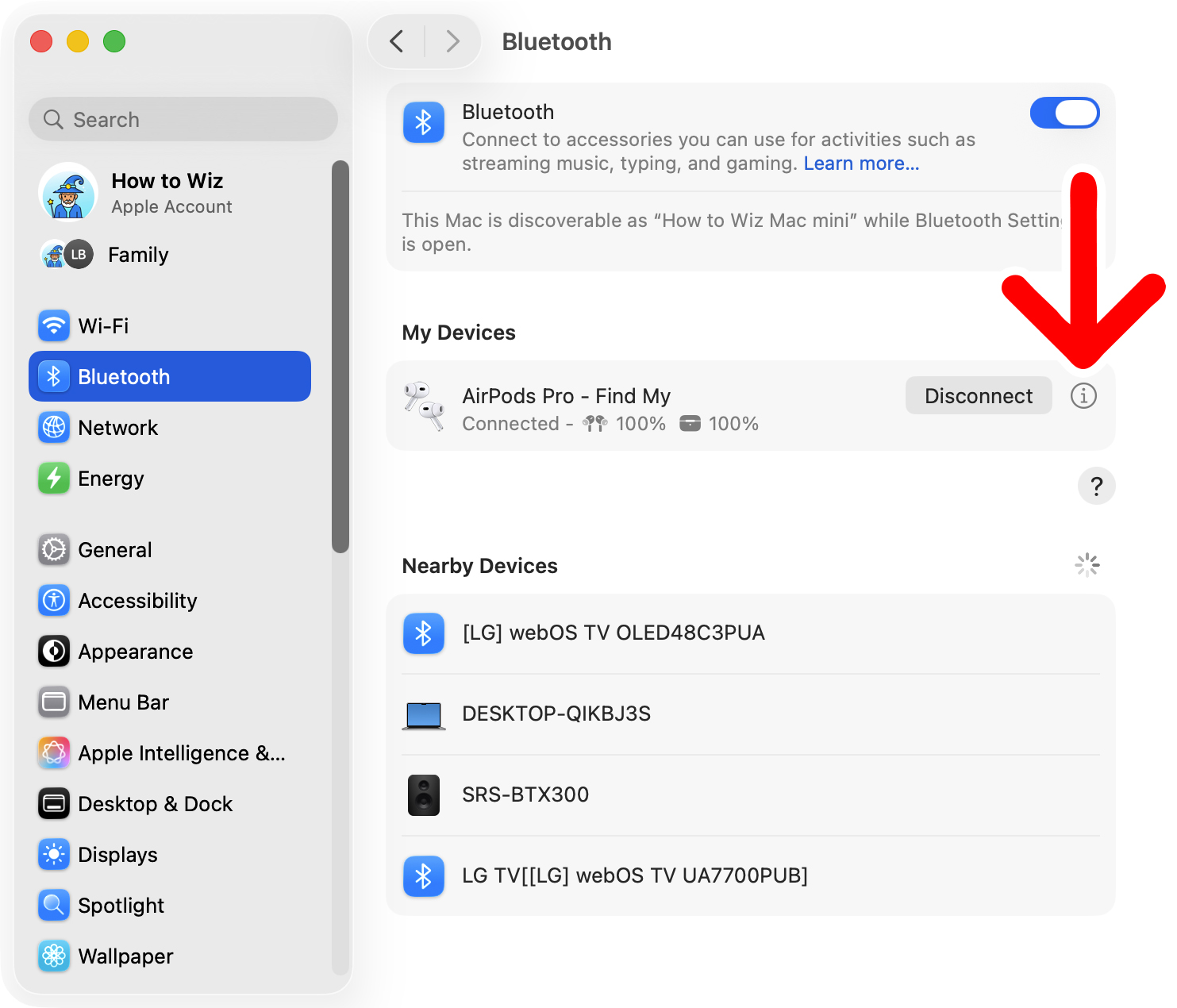
- Select “Bluetooth.”
- Click the “i” icon next to your AirPods.
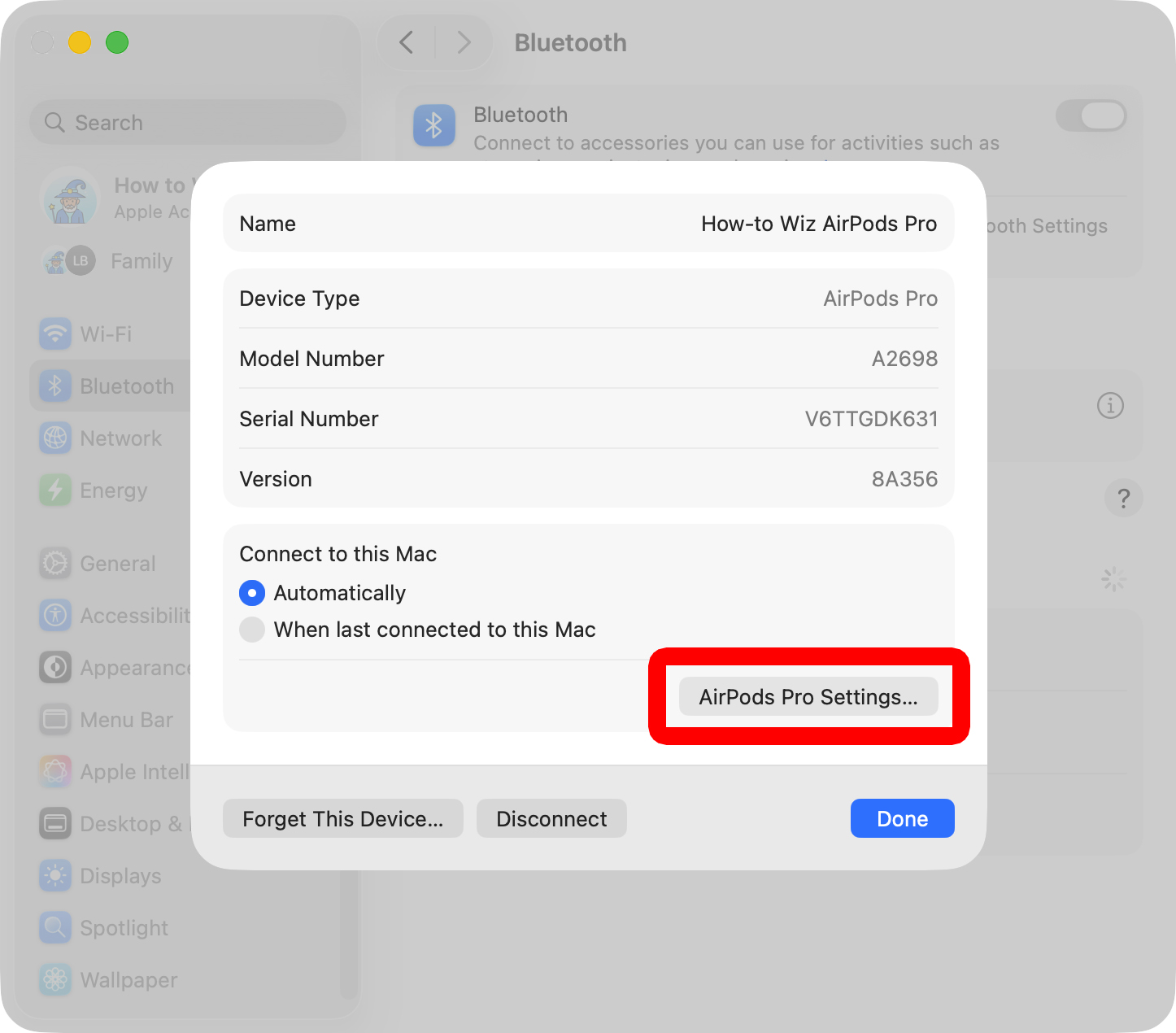
- Select “[Your AirPods Model] Settings.”
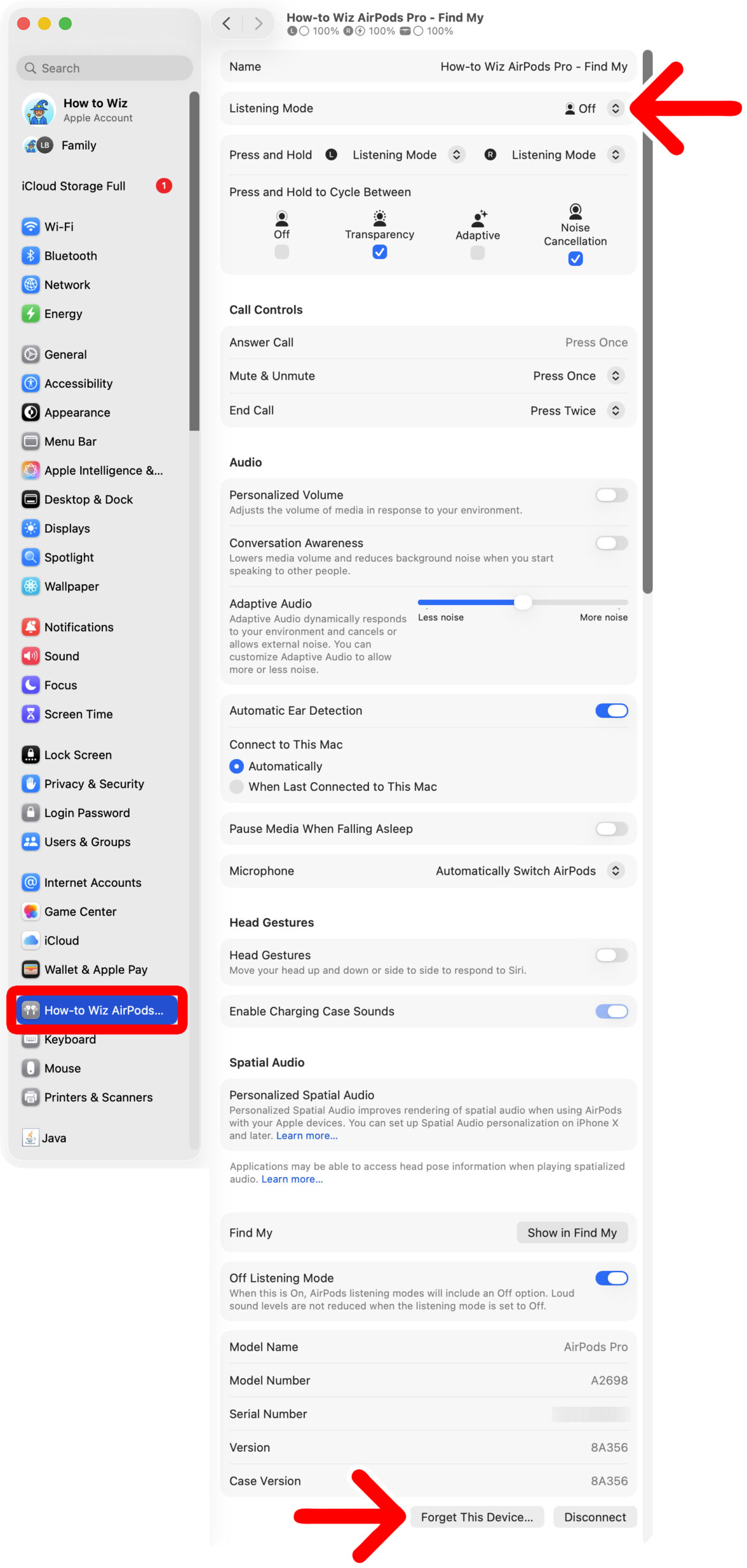
- Finally, change your AirPods settings. At the top of the window, you can select the drop-down next to “Listening Mode” to change between Transparency mode, Adaptive mode, and Noise Cancellation mode. At the bottom of the window, you can click “Forget This Device” to unpair your AirPods from the Mac.
How to Quickly Change AirPods Settings
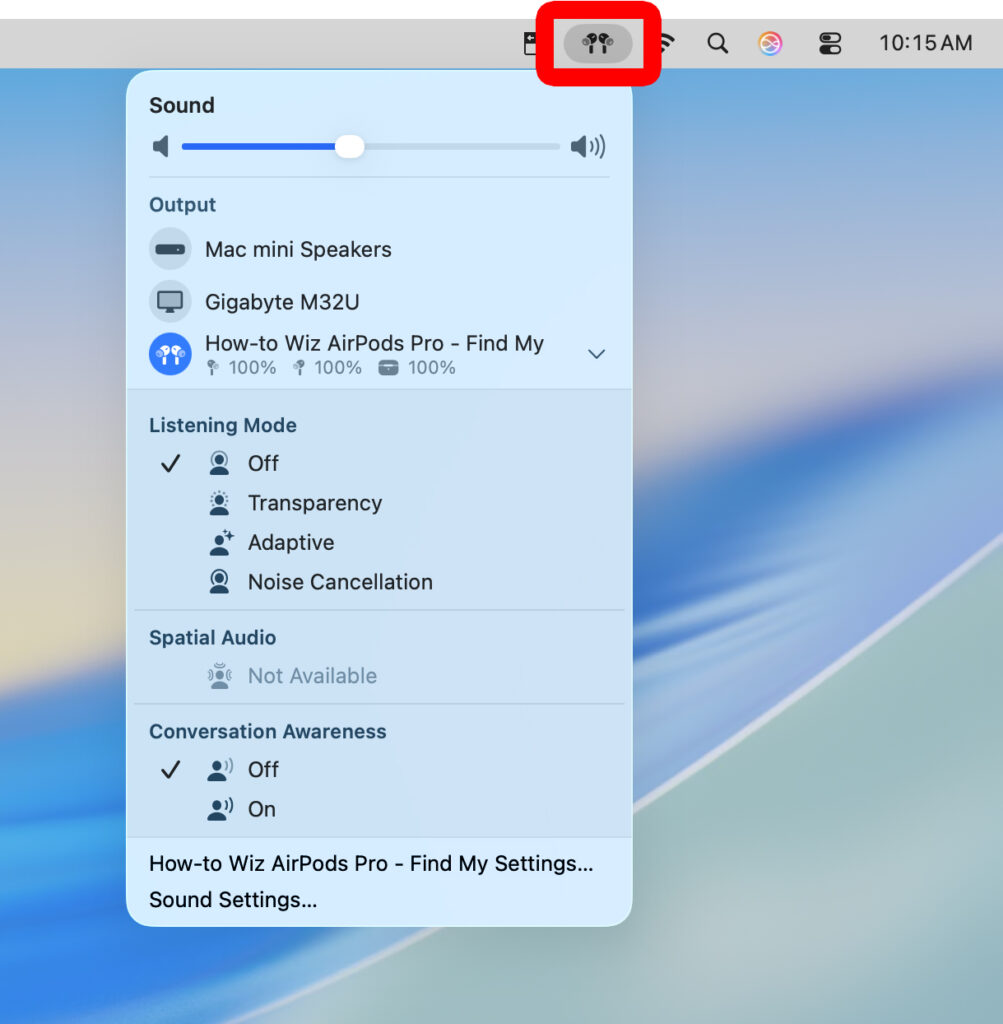
Once you connect your AirPods, you can quickly change between Transparency mode, Adaptive mode, and Noise Cancellation mode by clicking the AirPods icon in the top-right corner of your screen.
Read More: How to Turn Off Notifications on a Mac