
Whether your home screen is cluttered with apps or your device is slowing down, deleting apps can clear things up. Here’s everything you need to know about how to delete apps from your Apple TV home screen or through Settings.
How to Quickly Delete Apps on Apple TV
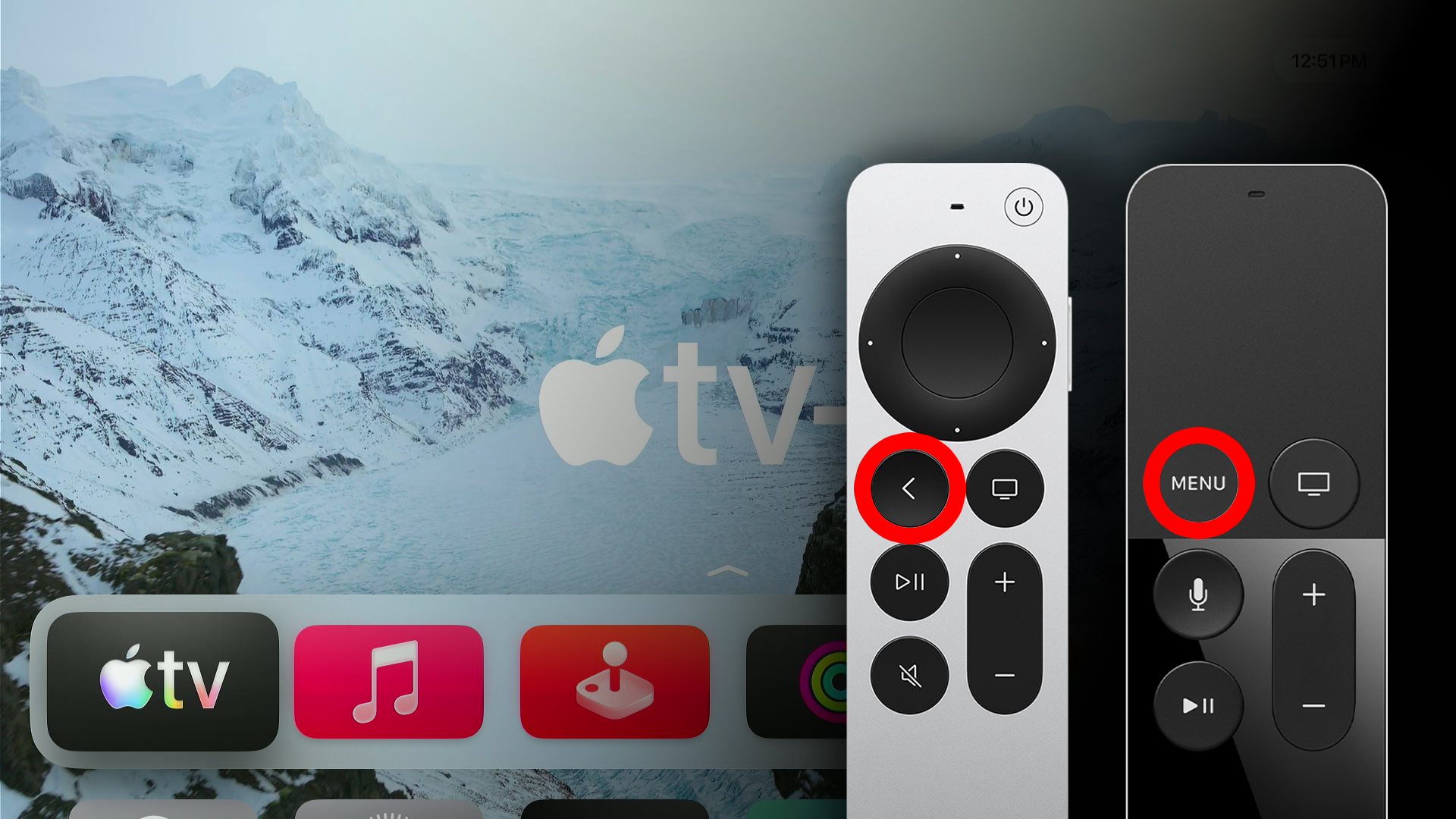
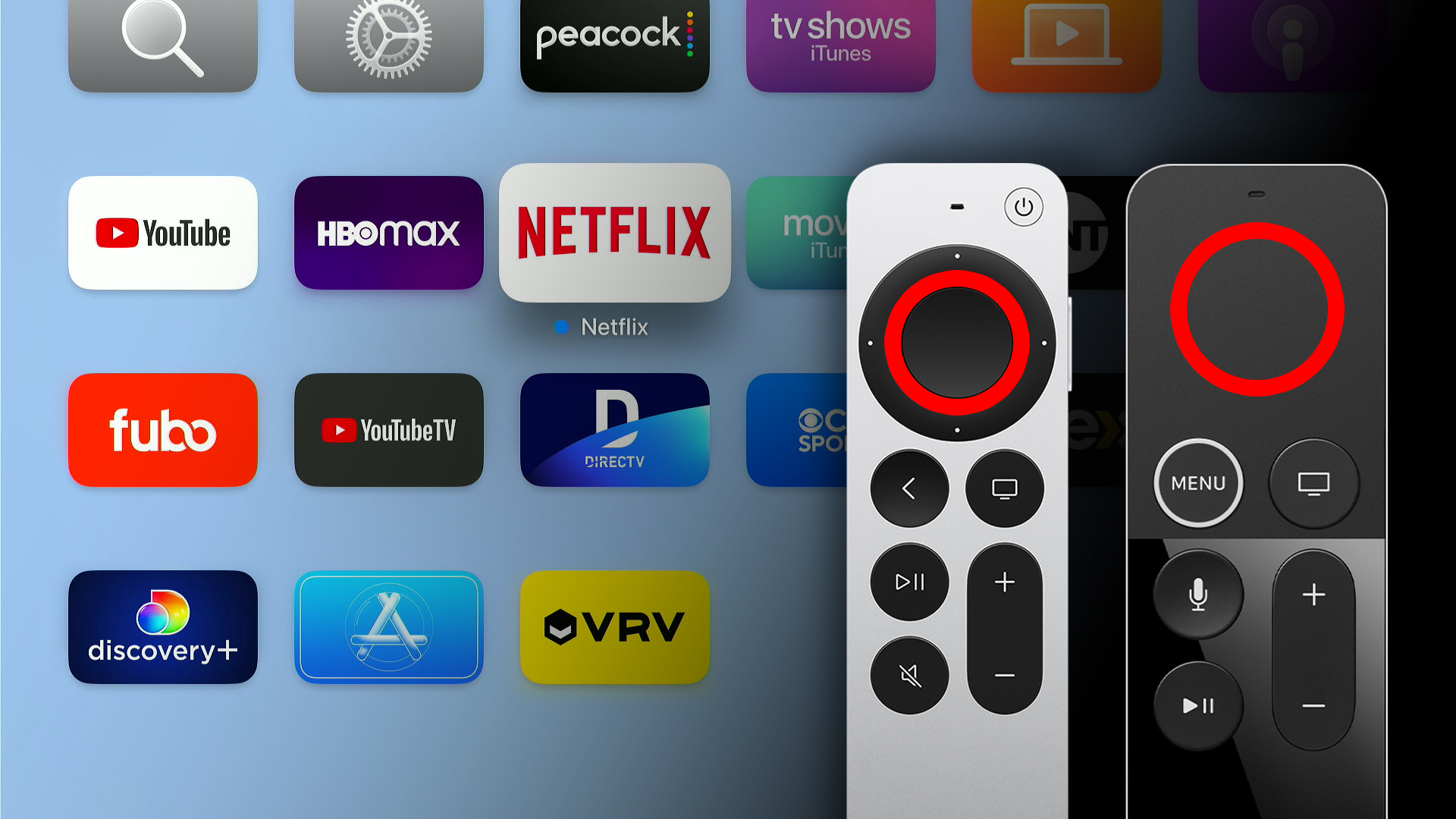
To quickly delete apps from Apple TV, press the “<” or “Menu” button on your remote and scroll down to see all your apps. Then press and hold the clickpad or touch surface on your remote. Finally, select “Delete App” and “Delete” to confirm.
- Press the “<” or “Menu” button on your Apple TV remote. Press this button until you see the Apple TV home screen.

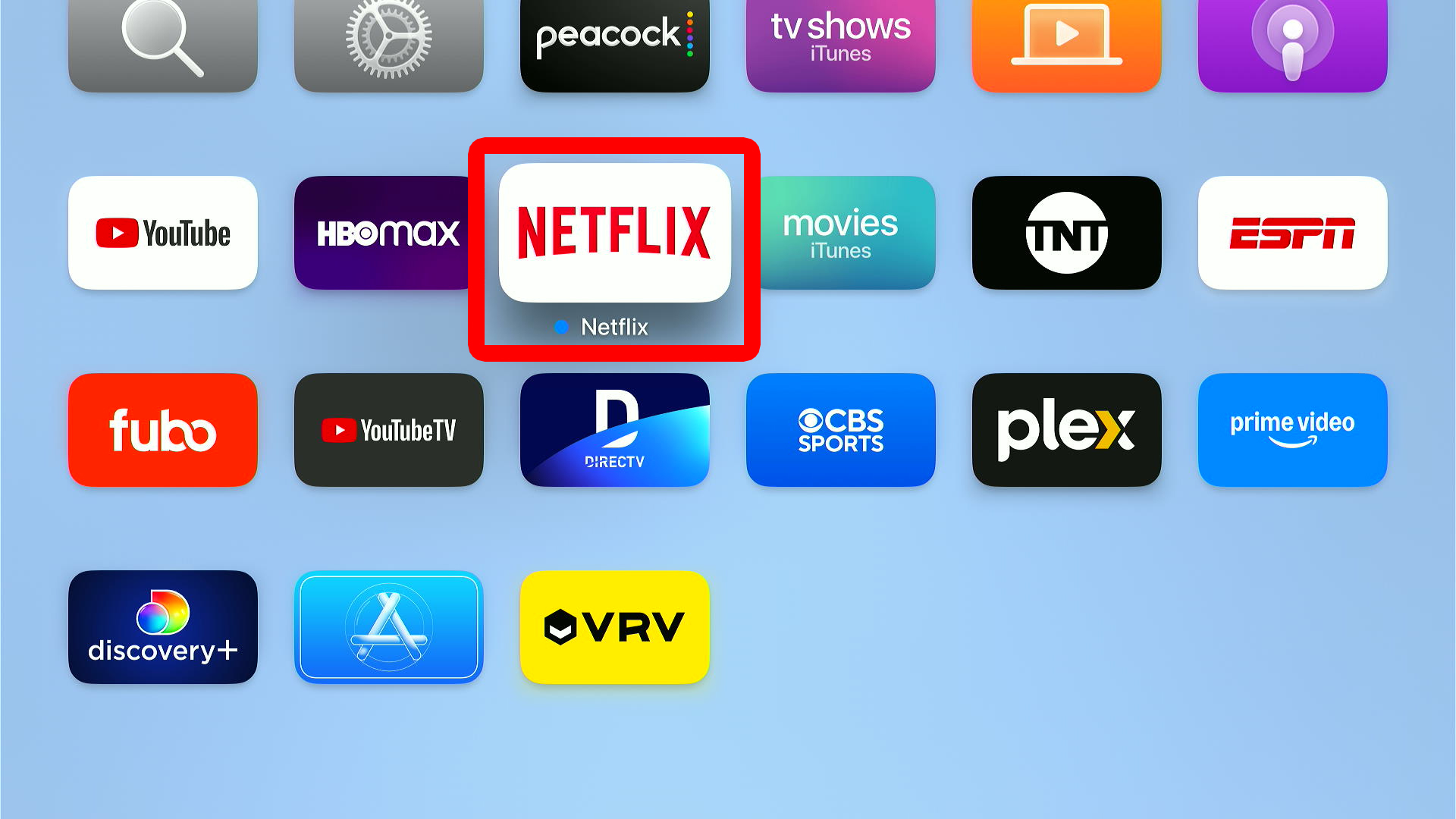
- Scroll down and highlight an app.
- Press and hold the clickpad or touch surface on your remote. This is in the center of the top half of your remote.
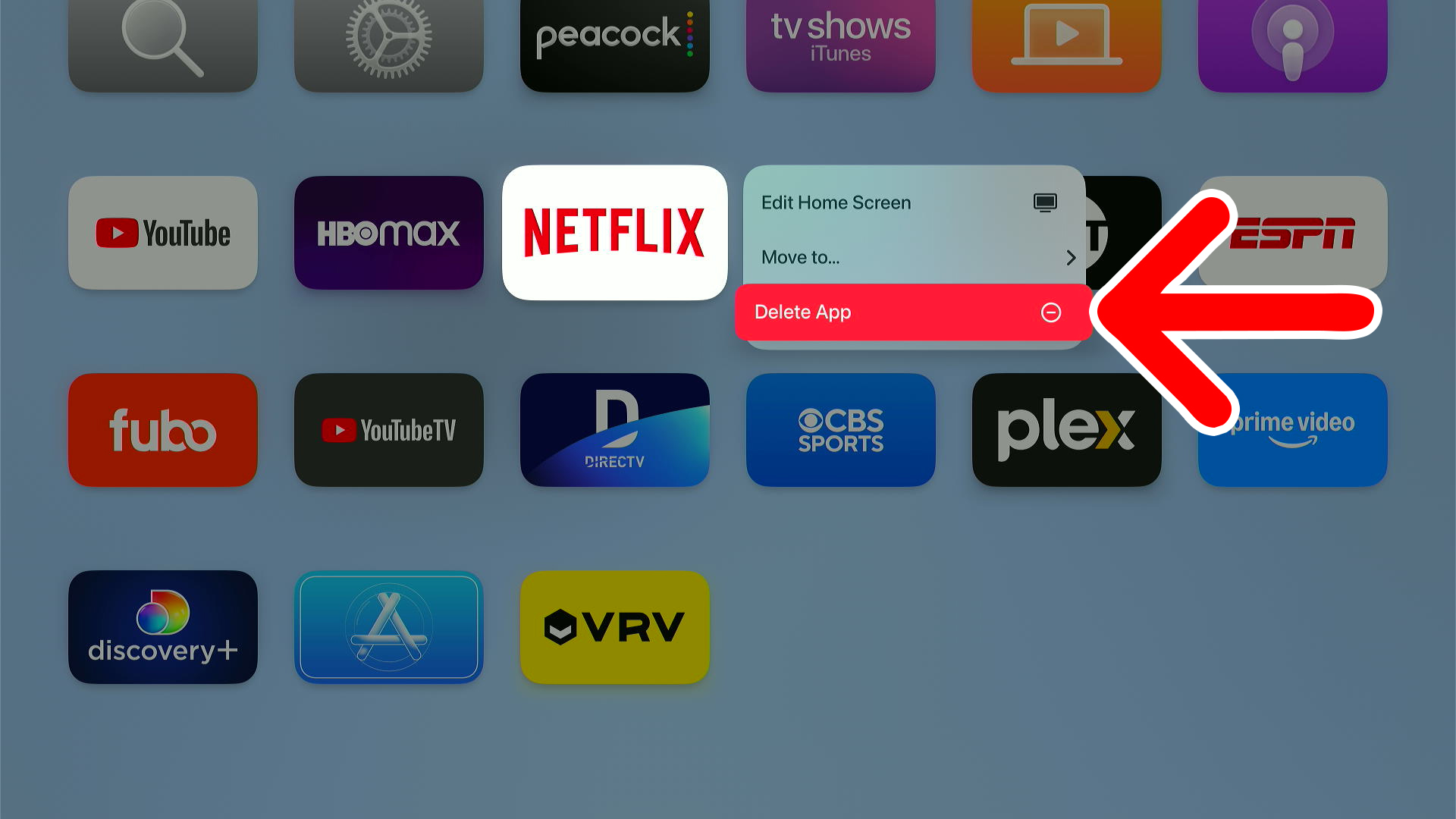
- Select “Delete App.”
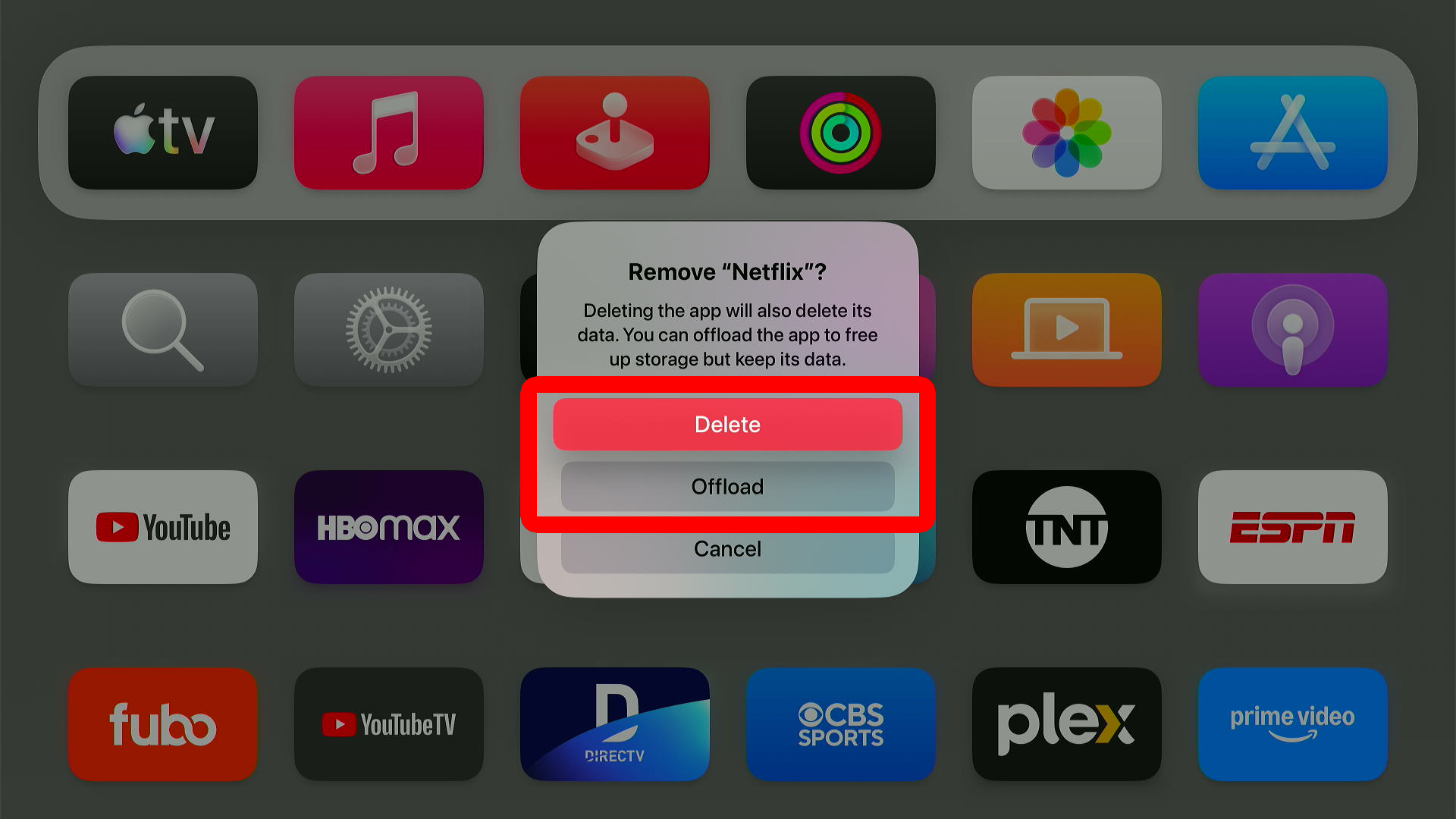
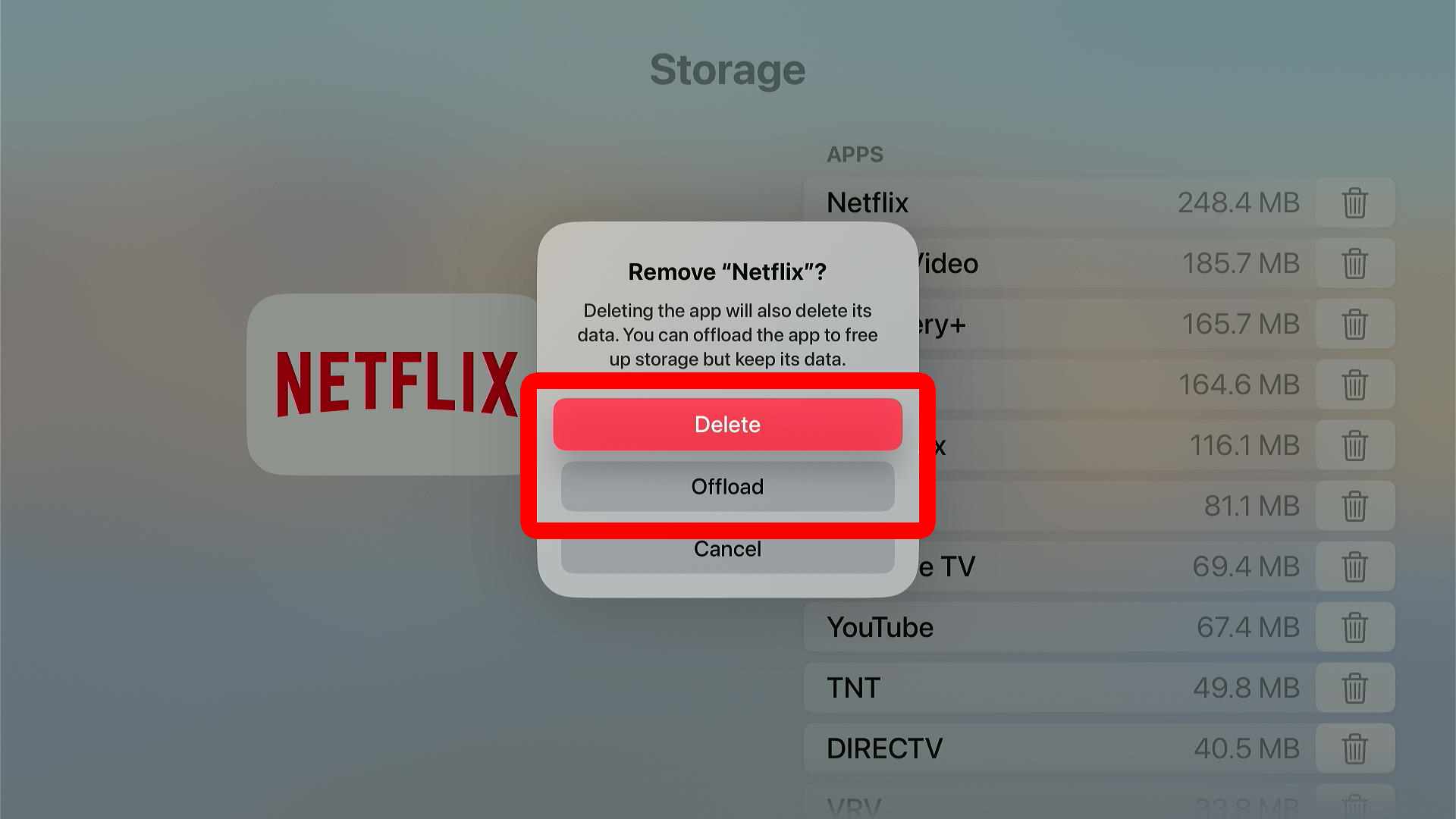
- Finally, select “Delete” to confirm. From here, you can also choose “Offload” to remove the app without deleting the data. This will free up space on your Apple TV device, but your passwords and settings will be saved in case you want to download the app again.
How to Delete Apps from Apple TV Settings
To quickly delete apps from Apple TV, press the “<” or “Menu” button on your remote and scroll down to select “Settings.” Then go to “General > Manage Storage.” Finally, select the trash can icon next to the app you want to delete and select “Delete” to confirm.
- Press the “<” or “Menu” button on your Apple TV remote. Press this button until you see the Apple TV home screen.
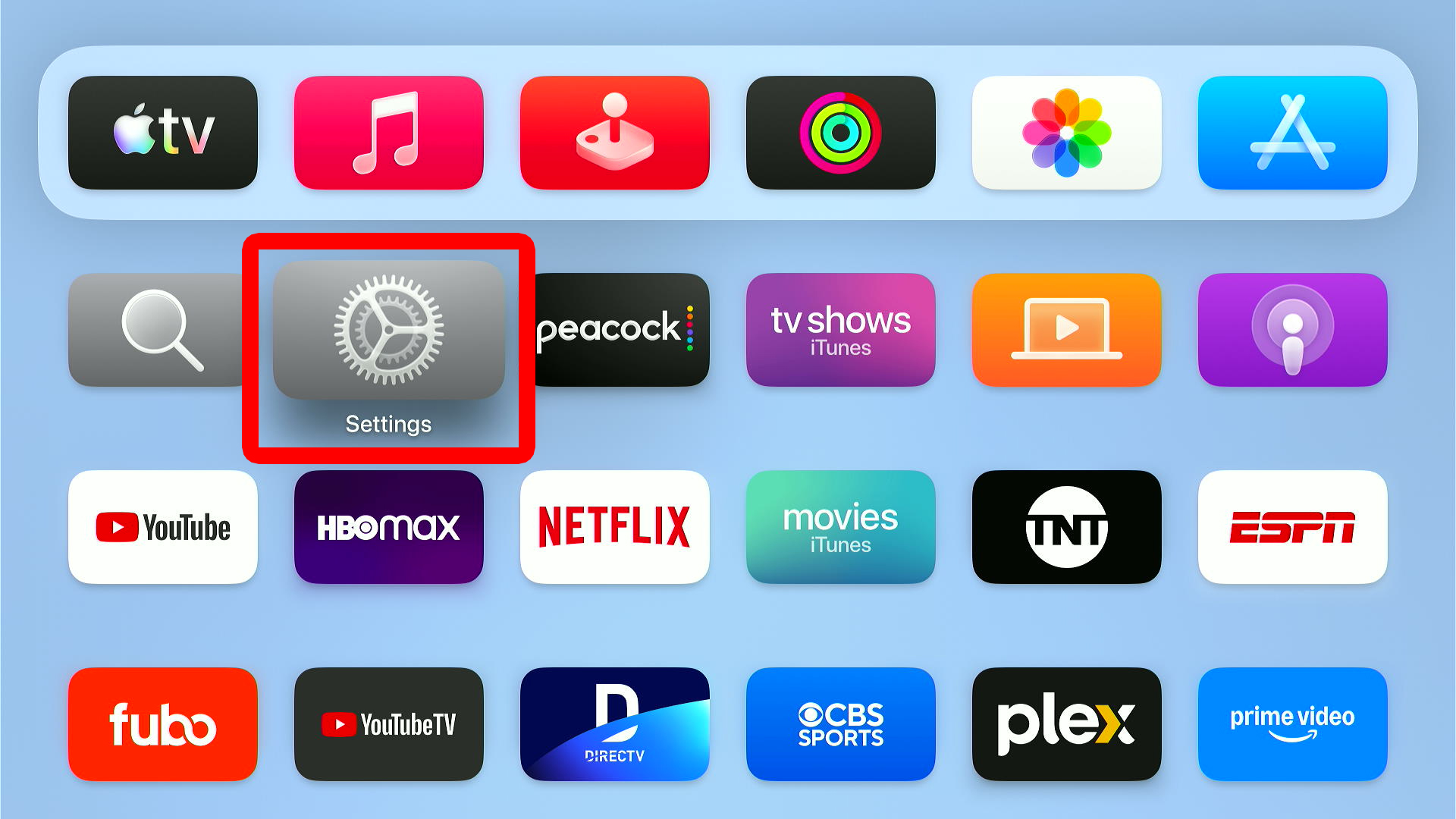
- Scroll down and select “Settings.”
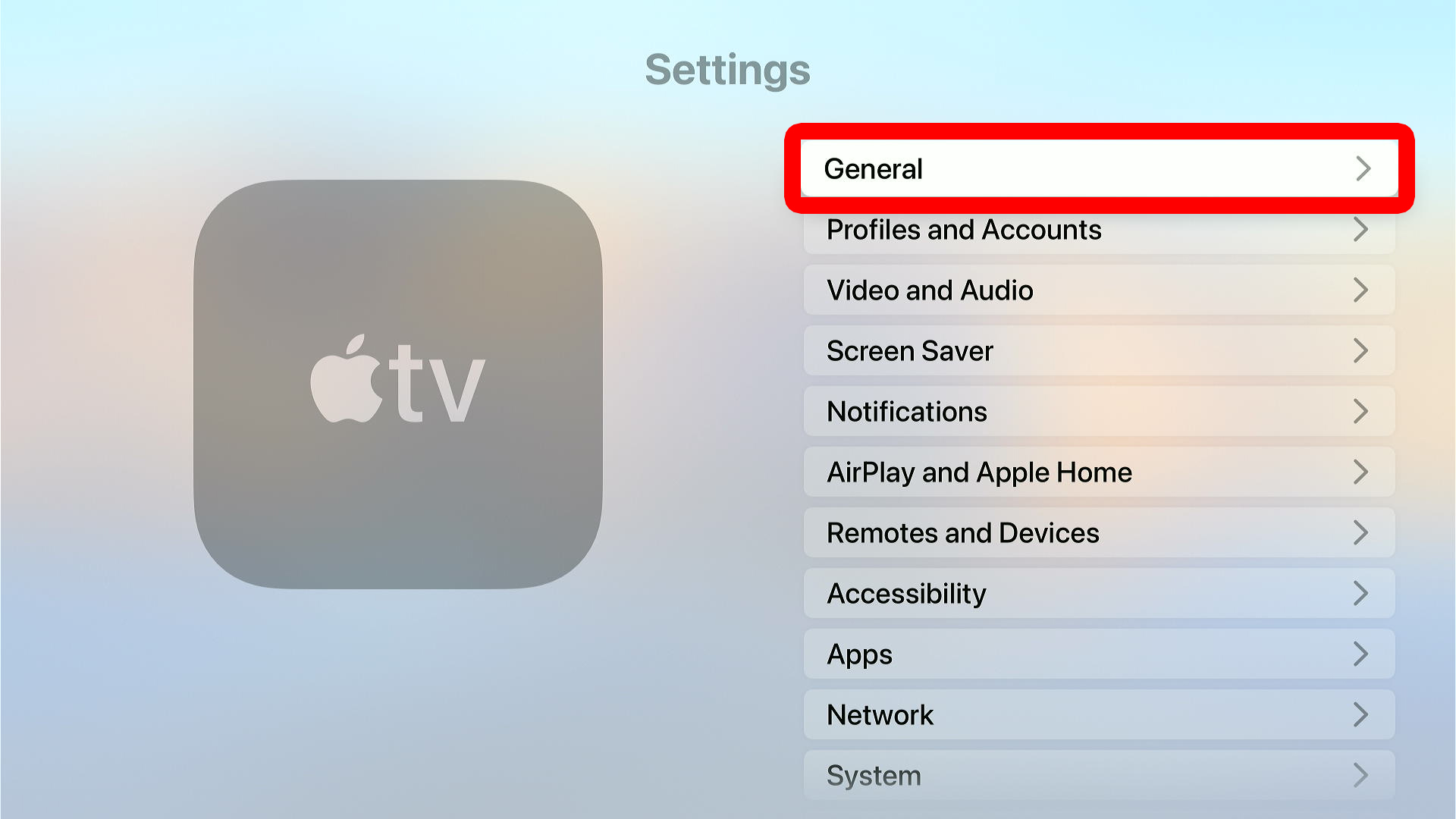
- Go to “General.”
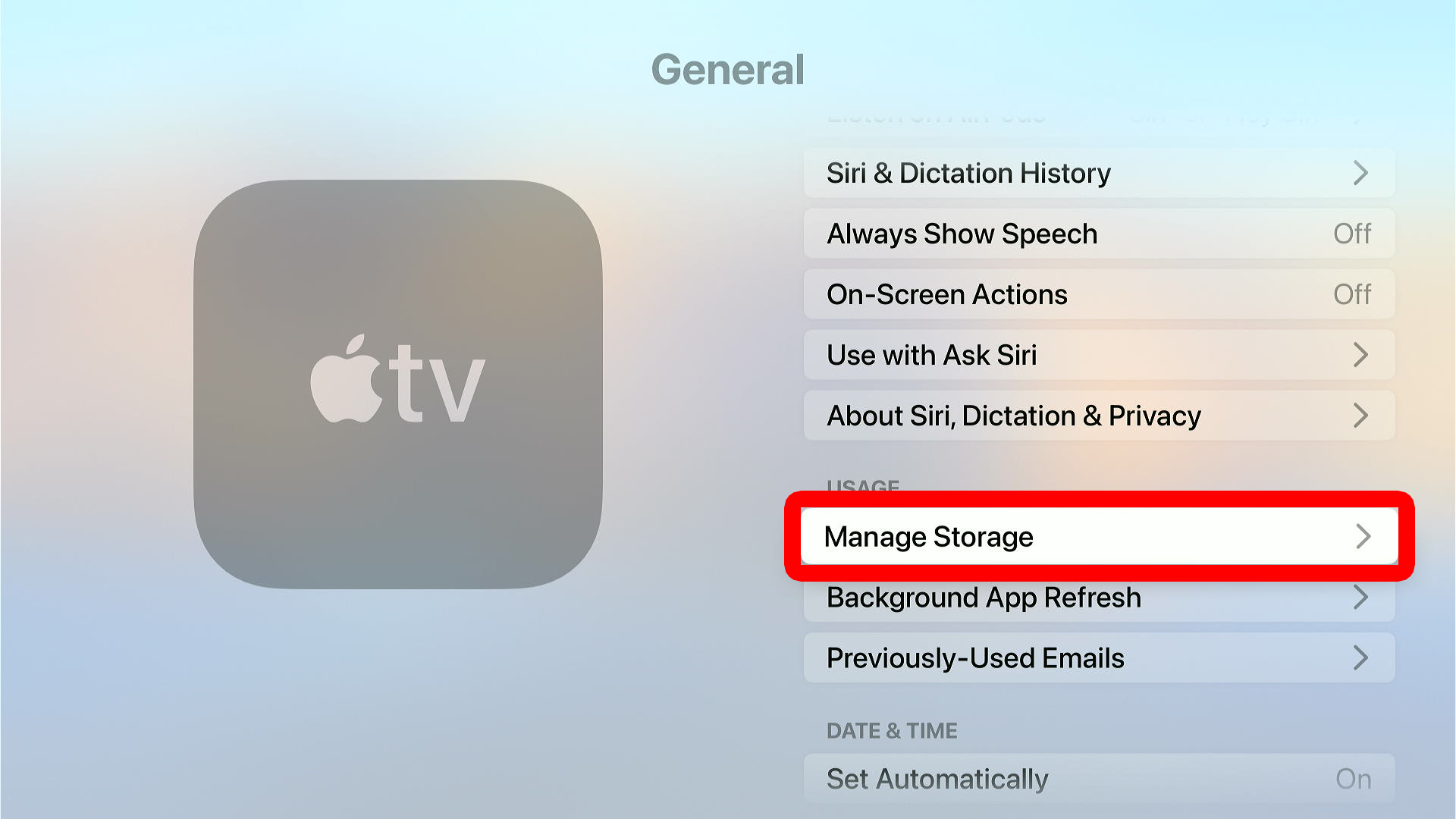
- Scroll down and select “Manage Storage.”
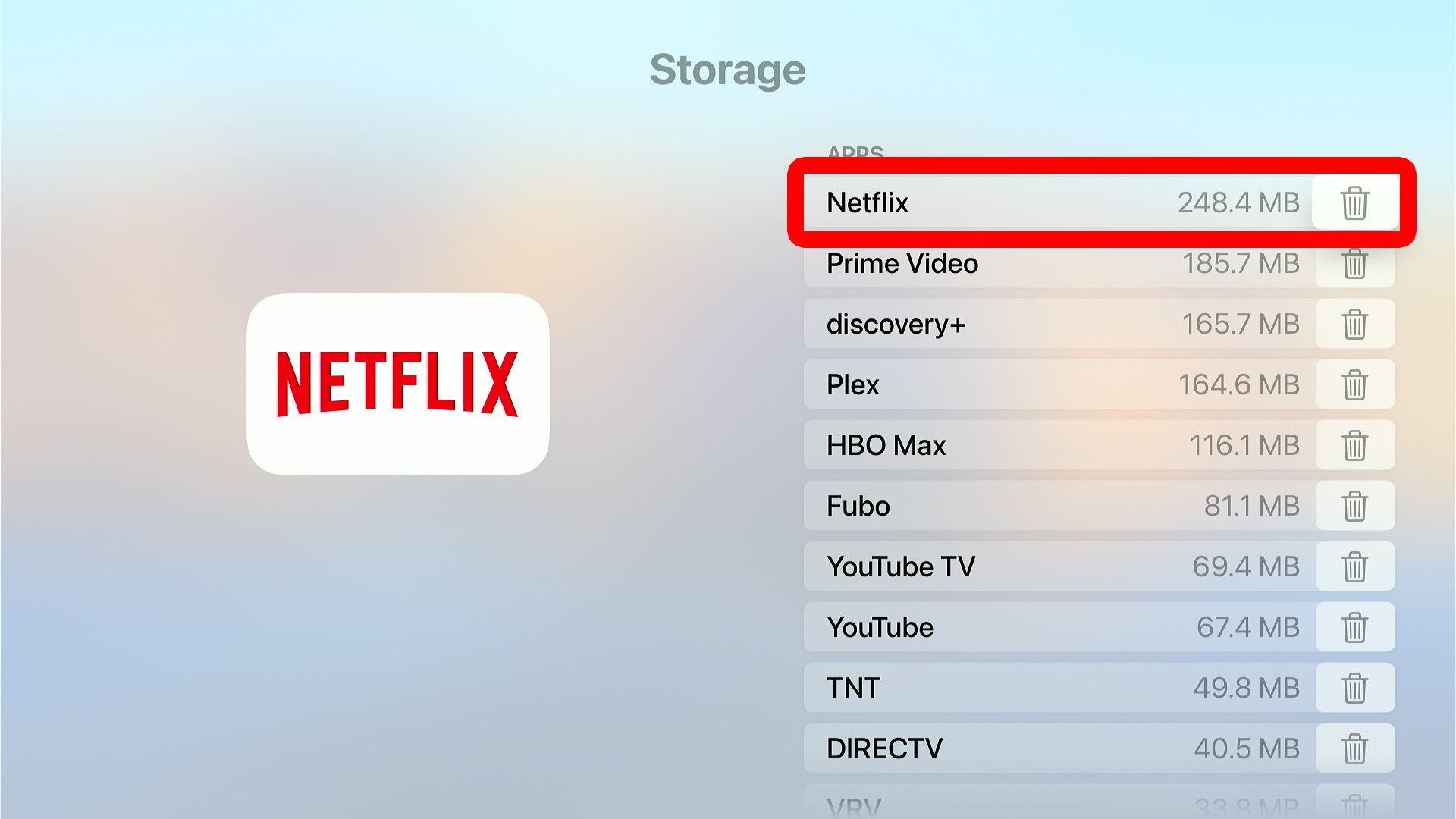
- Select the trash can icon next to the app you want to delete. From here, you will see how much space you can free up by deleting each app.
- Finally, select “Delete.”

If you want to remove all your apps and data at once, you can also reset your Apple TV device to factory settings.
Read More: How to Reset Your Apple TV and Remote