Is your Roku home screen starting to feel cluttered? Whether you want to delete unused apps or remove shows you’re not interested in, Roku makes it easy. Here’s everything you need to know about how to delete Roku apps and remove recommendations from your home screen.
How to Delete Apps from Roku
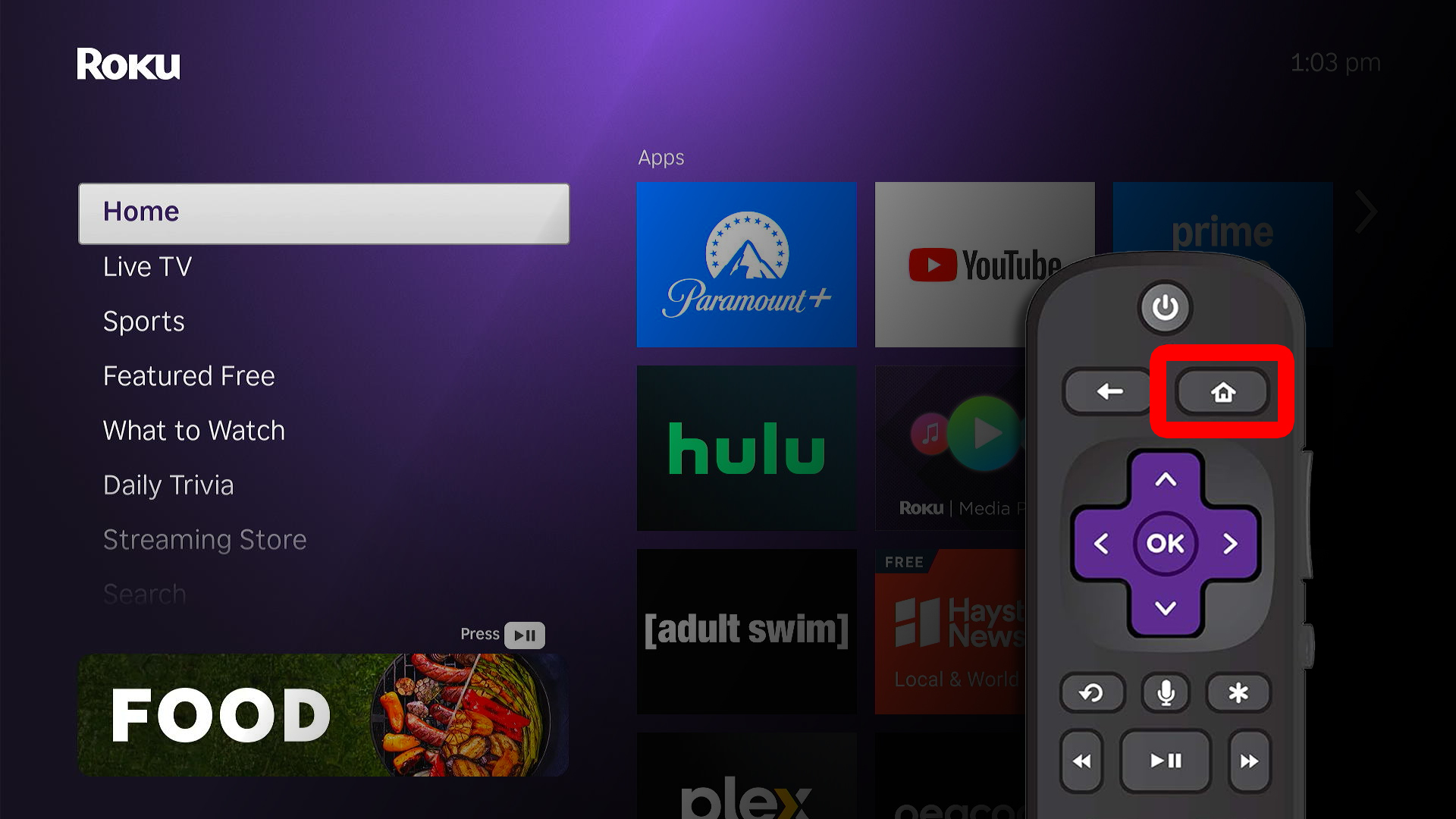
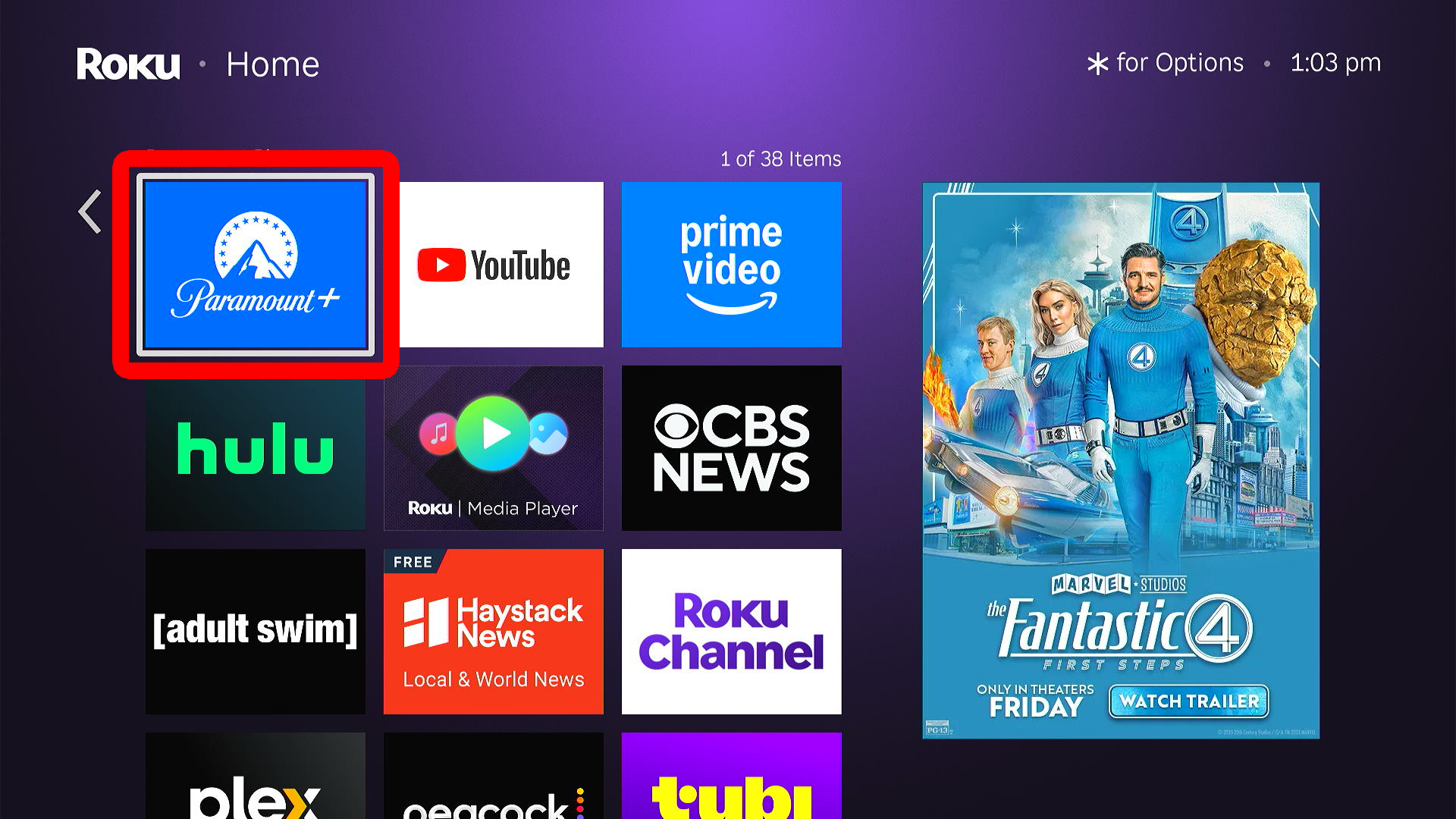
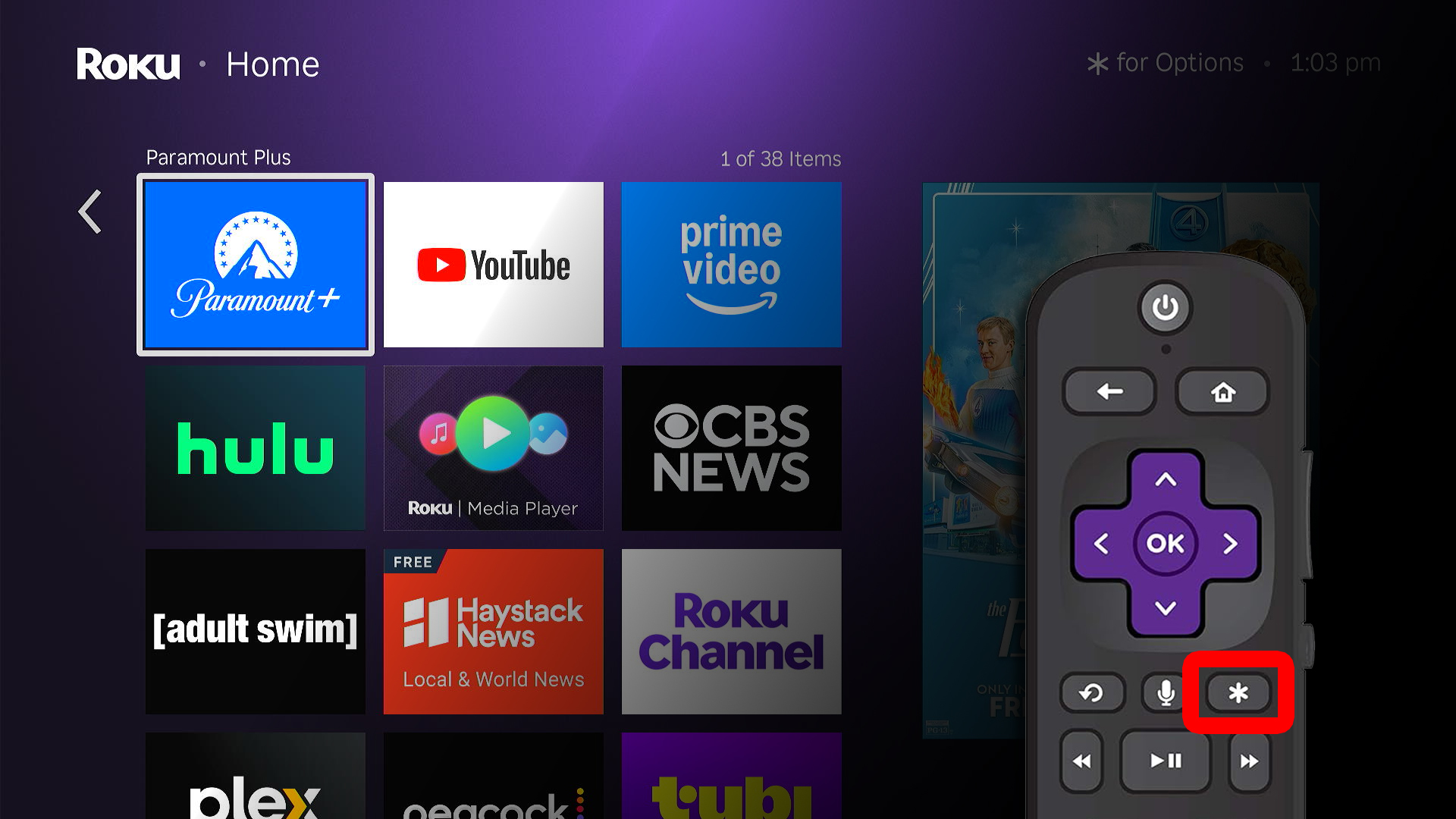
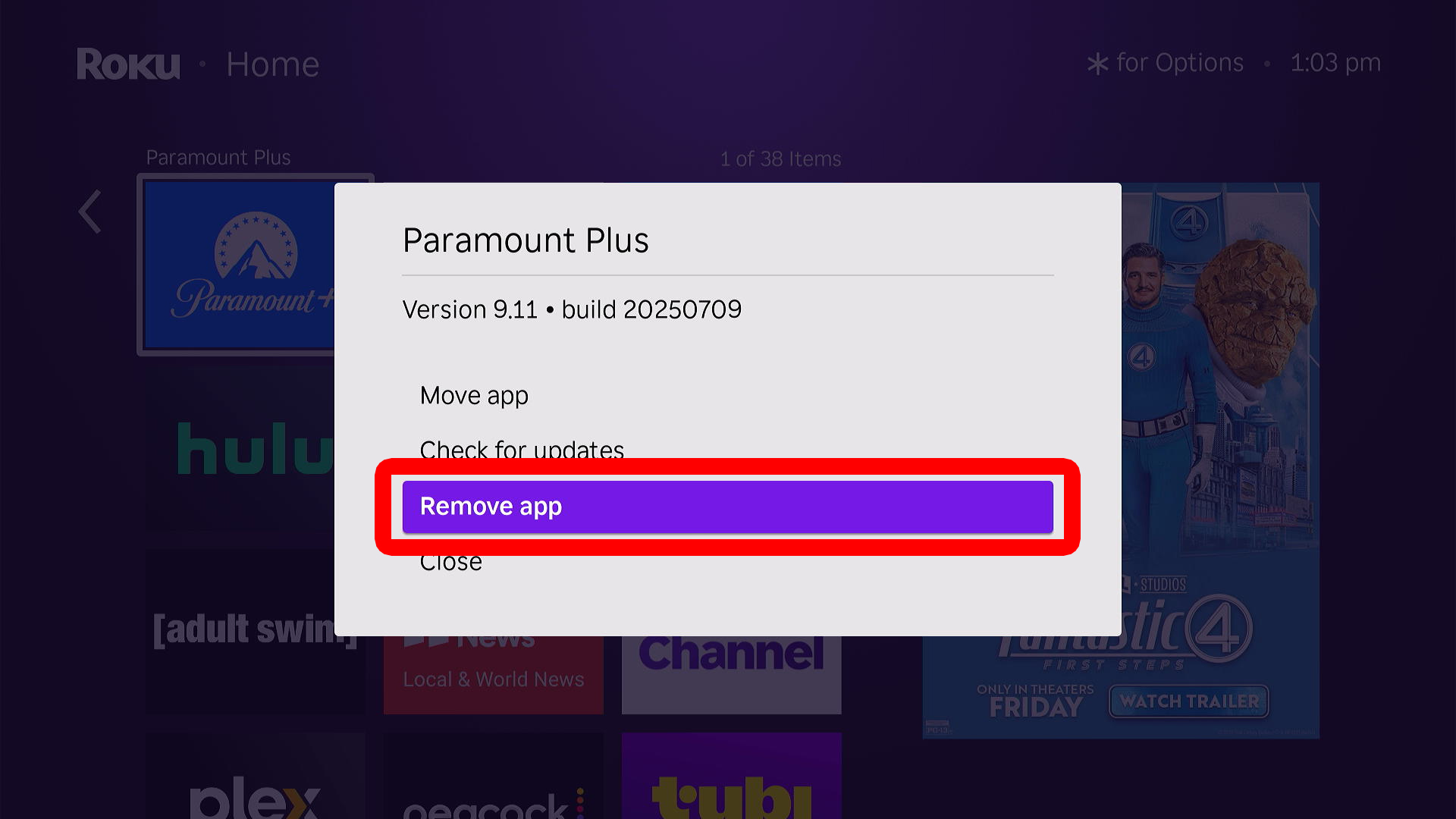
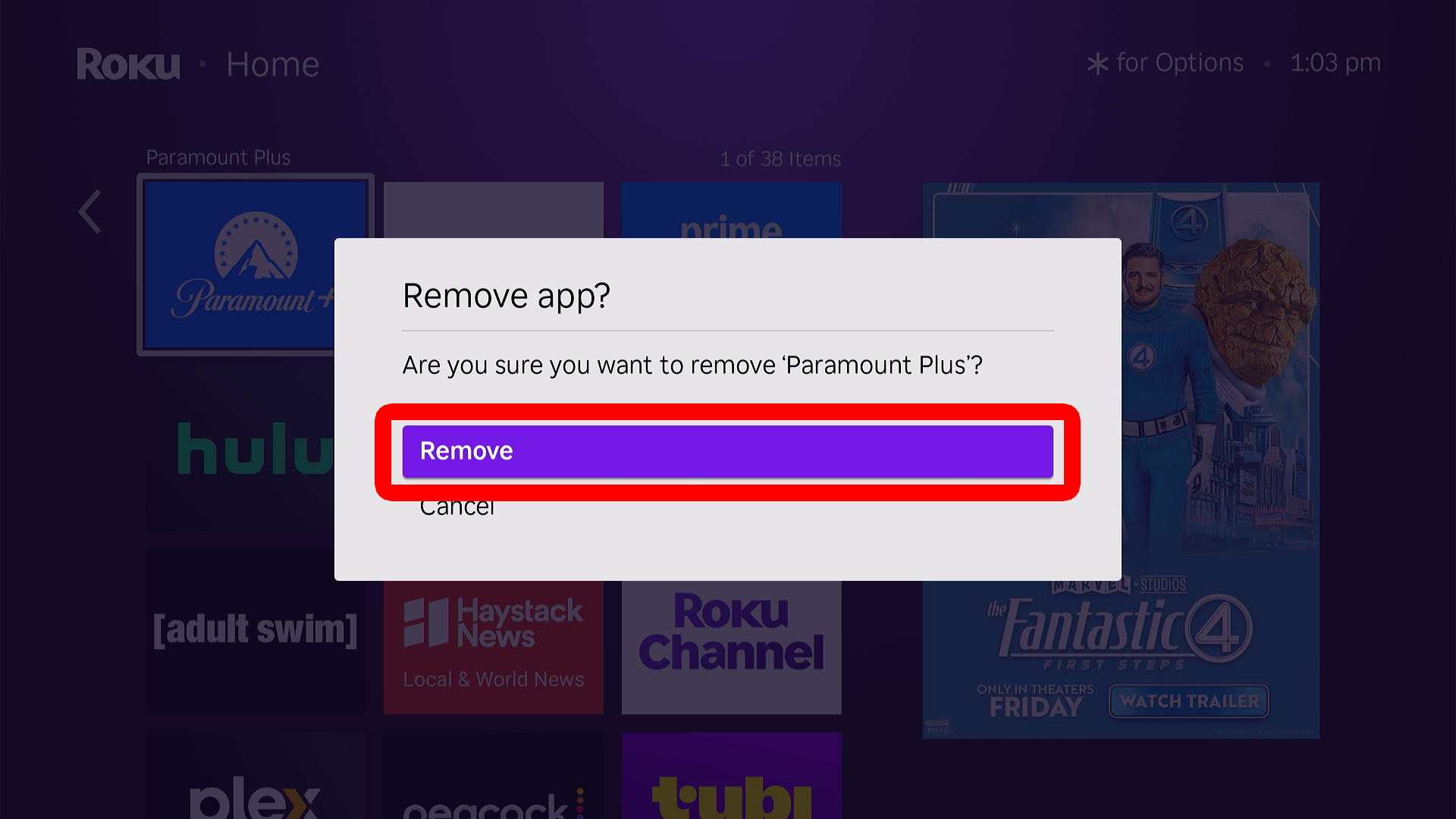
To delete apps on your Roku device, press the Home button on your Roku remote and highlight an app on your home screen. Then press the Star (*) button on your Roku remote and select “Remove app > Remove.”
- Go to the Roku home screen. You can do this by pressing the Home button on your Roku remote.

- Highlight the app you want to delete. Use the arrow buttons on your remote to navigate to the app on your home screen. Don’t open it.
- Press the Star (*) button on your Roku remote. This will open the app menu.
- Select “Remove app.”
- Finally, select “Remove.” This deletes the app from your Roku, but it won’t cancel any active subscriptions you’ve signed up for through Roku.
Read More: How to Cancel a Subscription on Roku
How to Remove Recommended Movies & Shows from Roku
To remove recommended movies and TV shows from your Roku home screen, press the Home button on your Roku remote and highlight the show or movie you want to delete. Then press the star button on your Roku remote and select “I don’t like this show/movie.”
- Go to the Roku home screen.
- Highlight a recommendation.
- Press the Star (*) button on your Roku remote.

- Select “I don’t like this show/movie.”
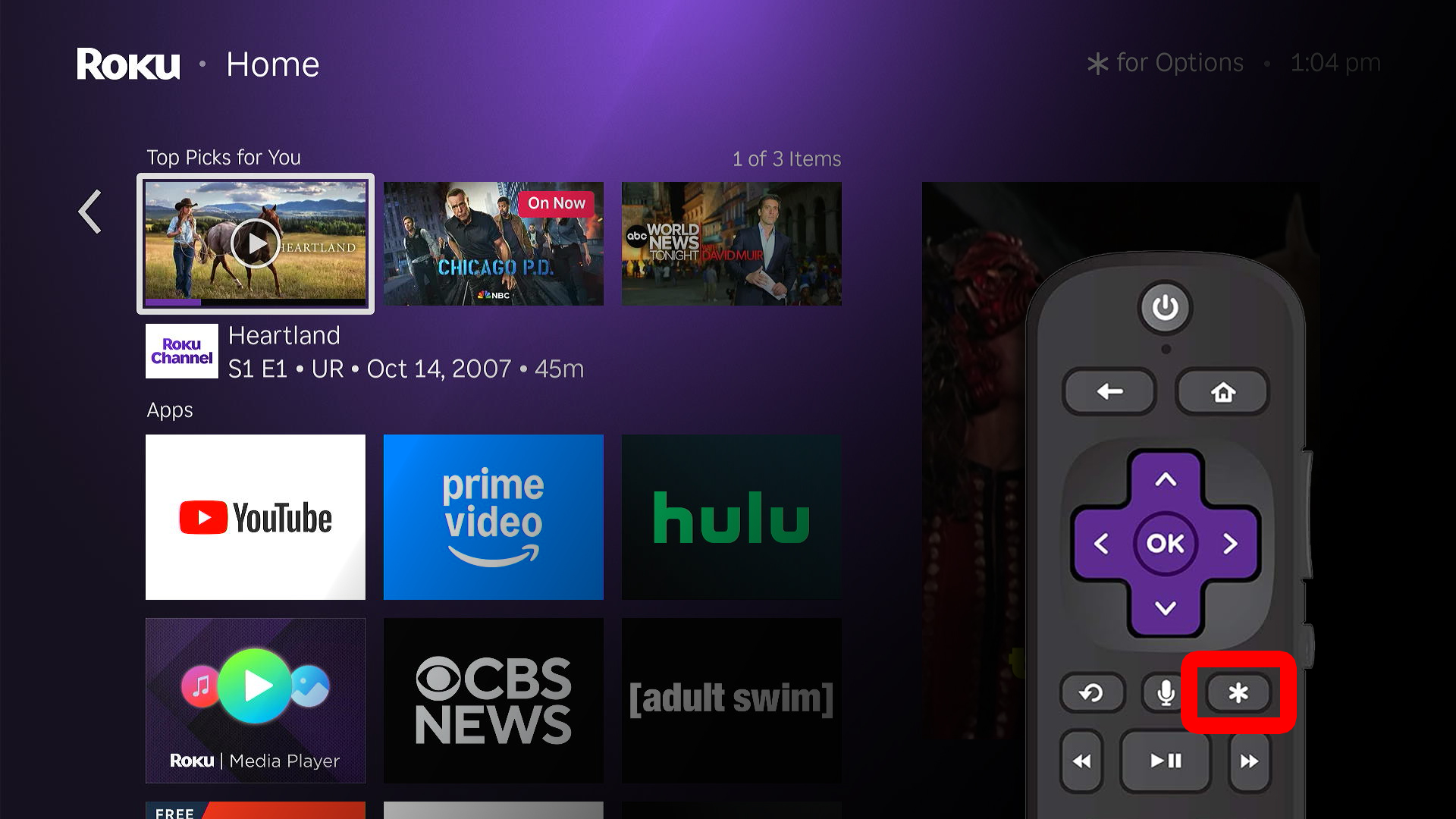
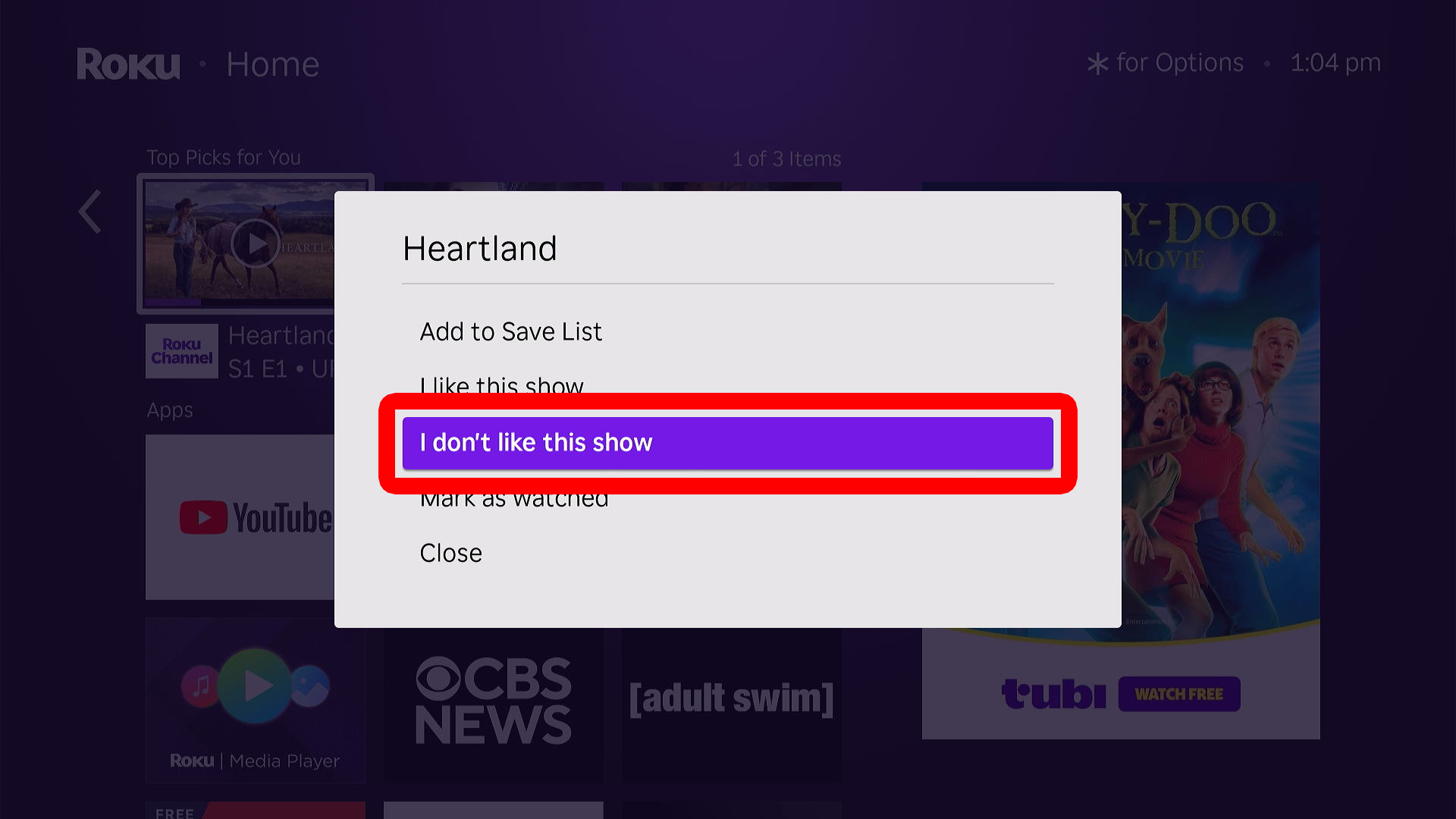
Roku uses your input to improve future recommendations, but the title may still appear until you restart your device. To restart your Roku device, go to “Settings > System > System Restart > Restart.”
You can also restart your Roku by unplugging it for about 20 seconds and plugging it back in.
How to Remove Recommendations Row from Roku
- Go to the Roku home screen. To do this, press the Home button on your Roku remote.
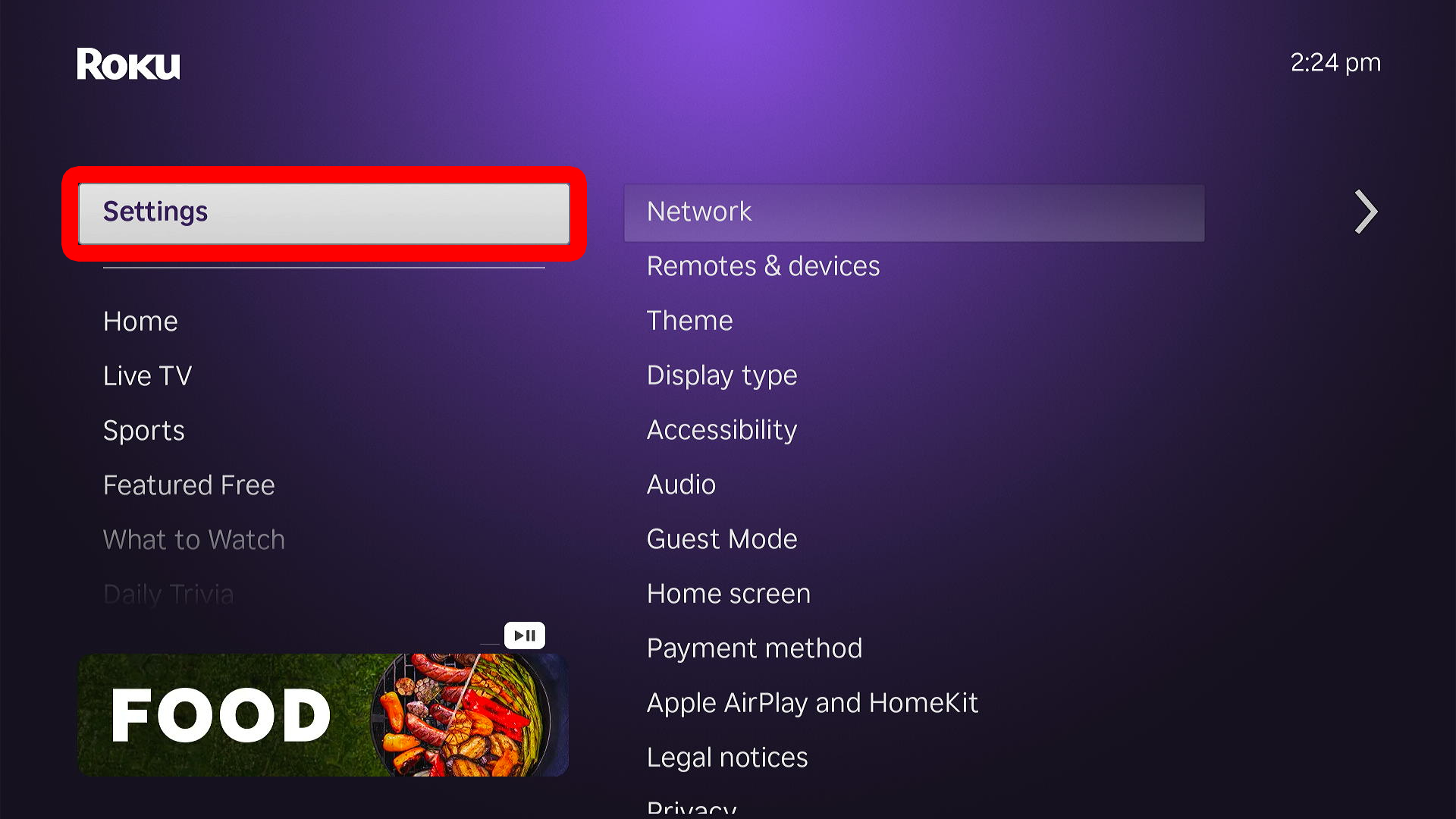
- Select “Settings.” You will see this in the left sidebar menu. You can access it from the home screen by pressing the left arrow button on your Roku remote. Then use the up and down arrow buttons to navigate the menu.
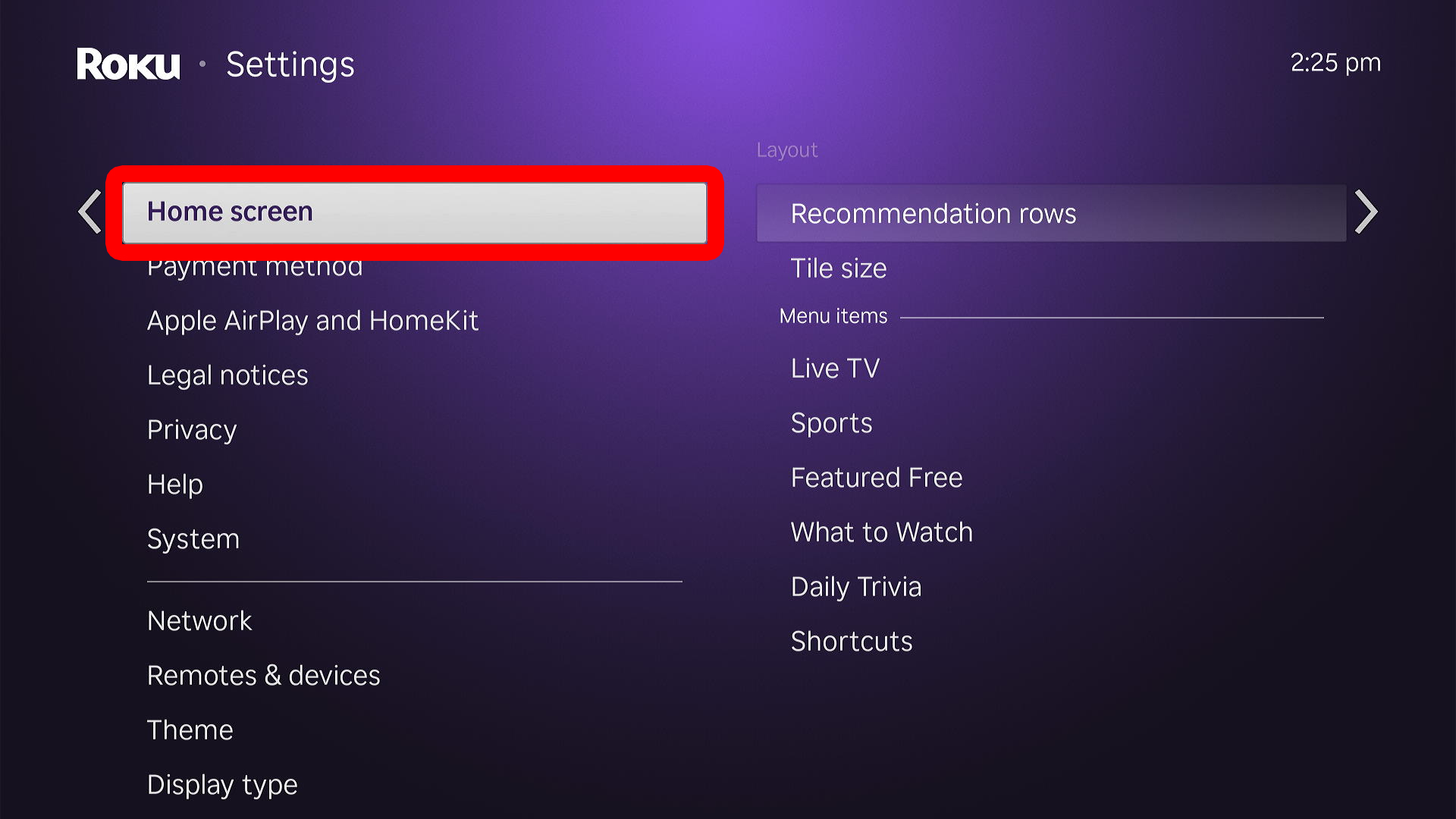
- Choose “Home Screen.”
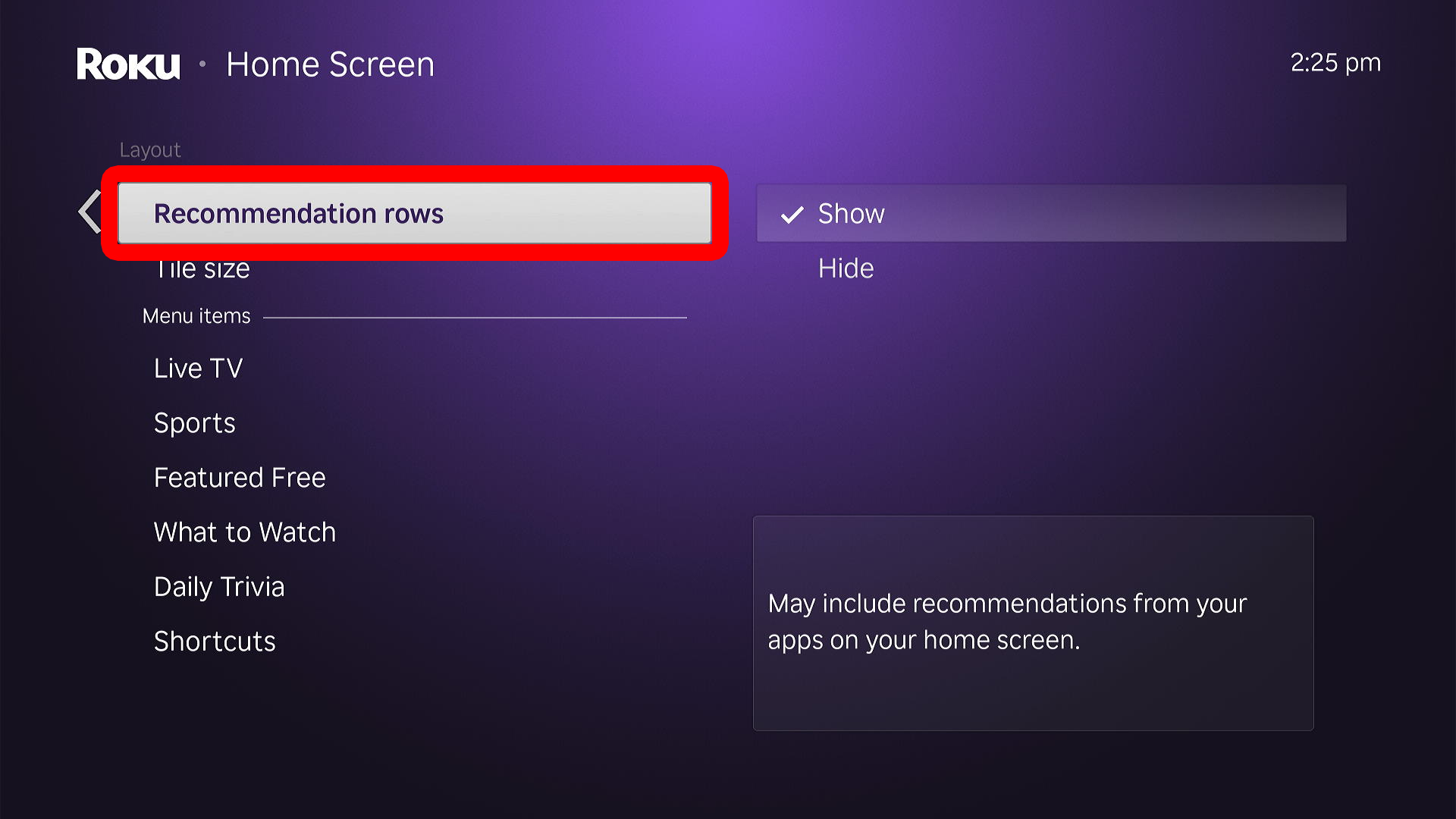
- Select “Recommendations Row.”
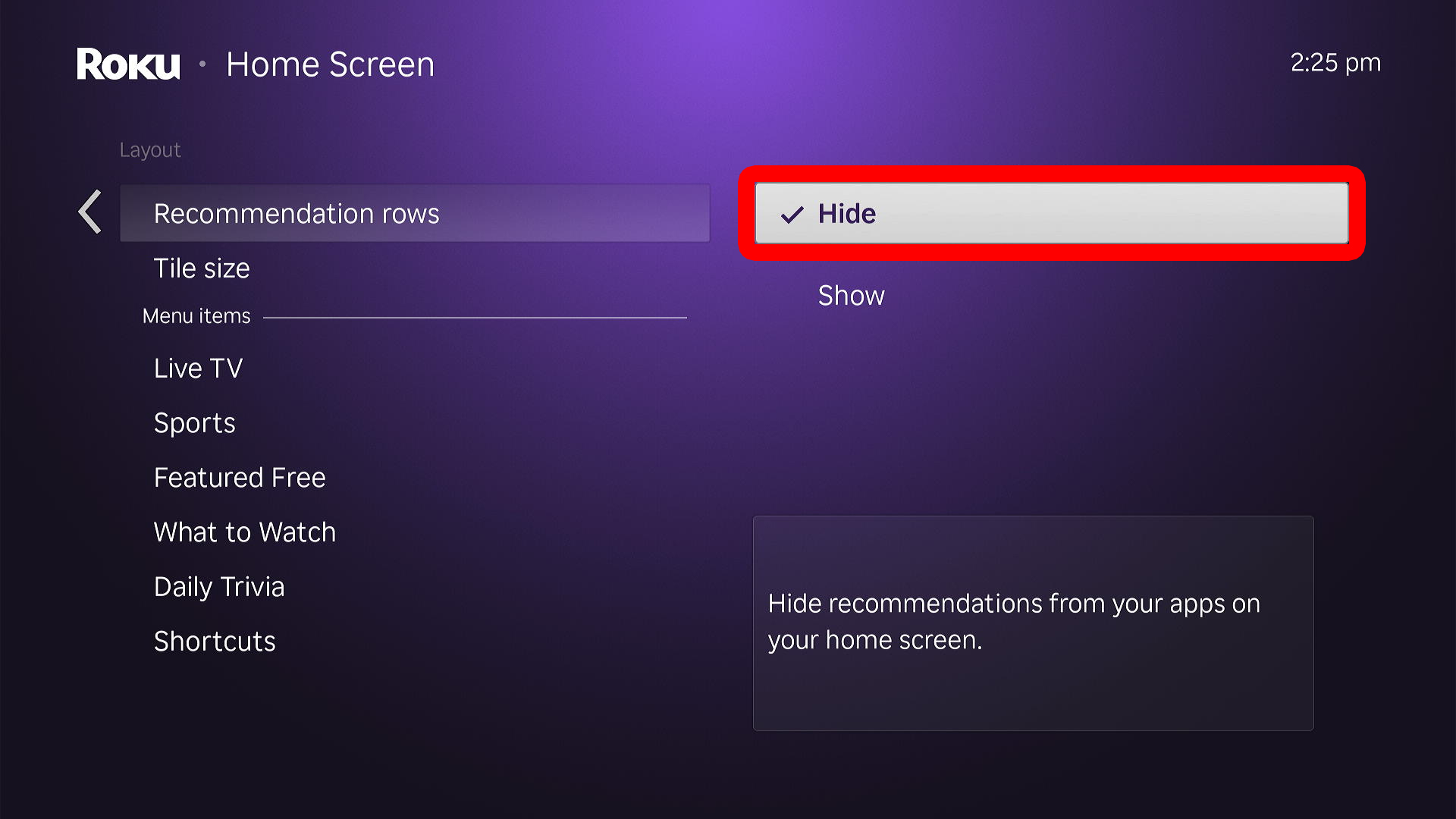
- Finally, select “Hide” to remove the entire Recommendations Row from your home screen.