Want to show off your photos on the big screen, listen to music through your surround sound, or quickly cast your YouTube videos to your TV? Here’s everything you need to know about how to mirror your screen from an iPhone to Apple TV and personalize your AirPlay settings.
How to Mirror Your iPhone to Apple TV
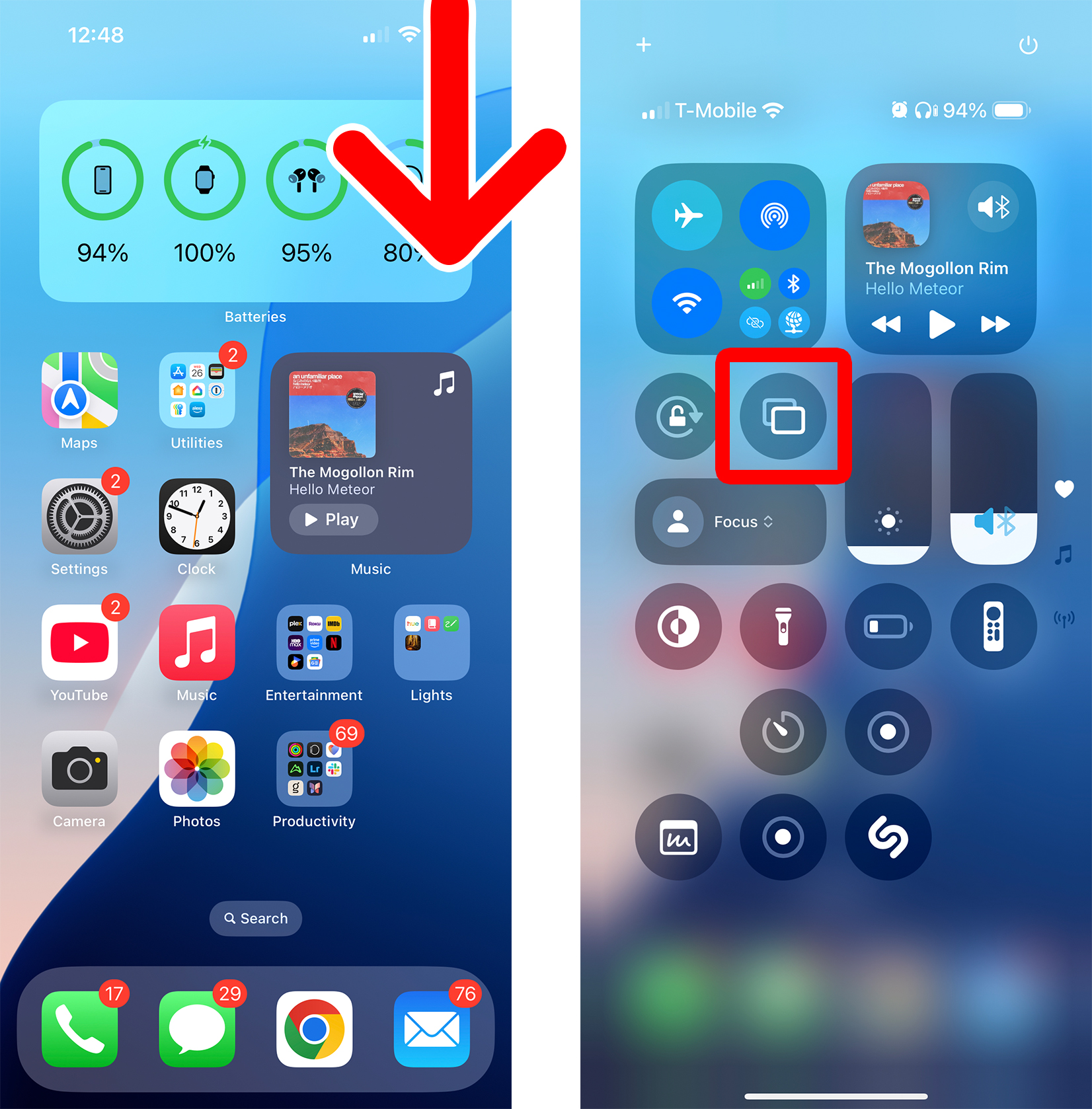
To mirror an iPhone to Apple TV, swipe down from the top-right corner of your iPhone screen and select the mirror icon with two overlapping rectangles. Then select your Apple TV and enter the code that appears on your TV or your device’s password.
- Swipe down from the top-right corner of your iPhone screen. This will open the Control Center.
- Tap the screen mirroring icon. This is the button that looks like two rectangles on top of each other.

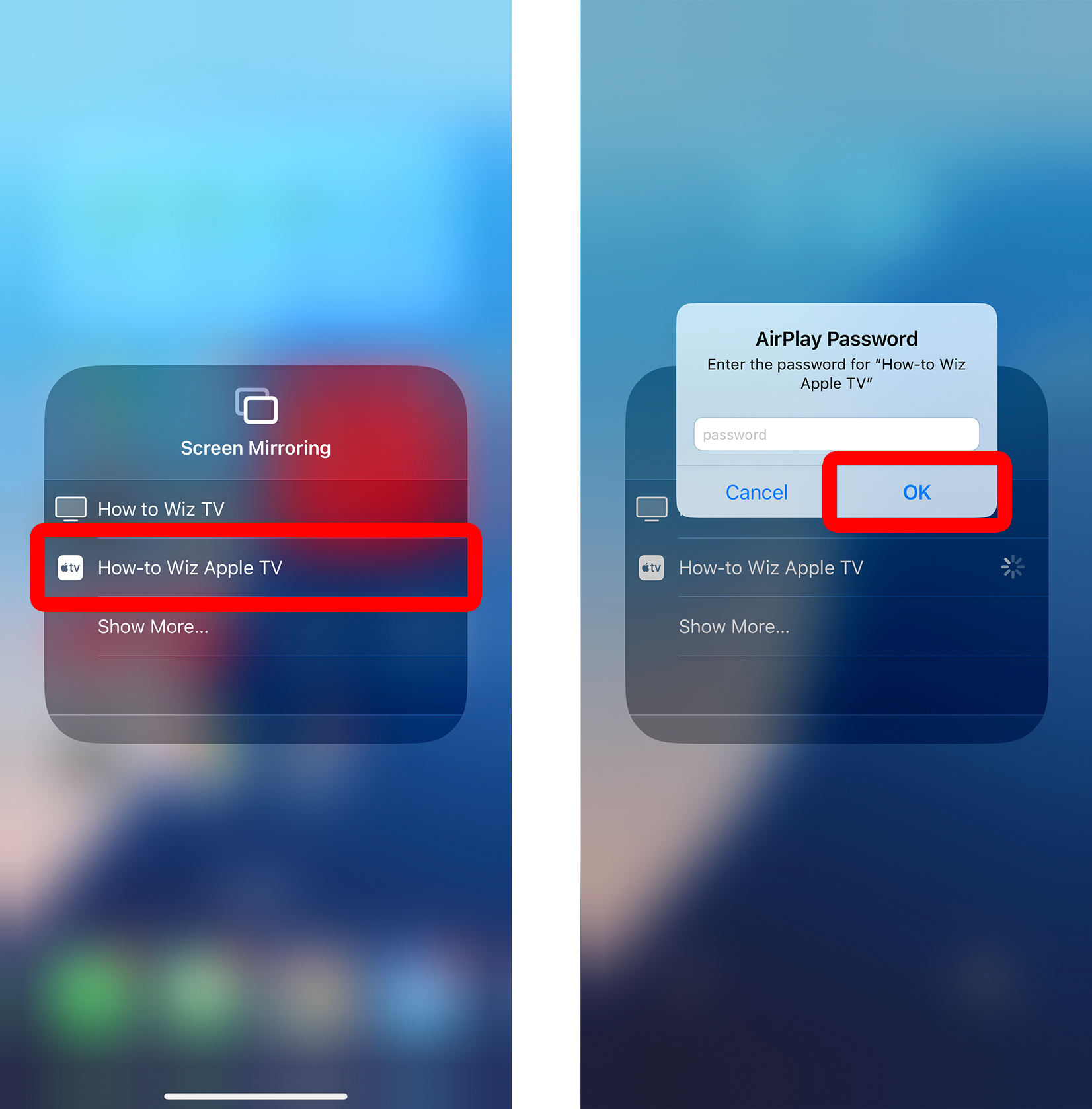
- Select your Apple TV. If you don’t see it listed, tap “Show More.”
- If required, enter the code or password and tap “OK”. If you see a four-digit code on your TV, enter it on your iPhone.
How to Set Up AirPlay on Apple TV
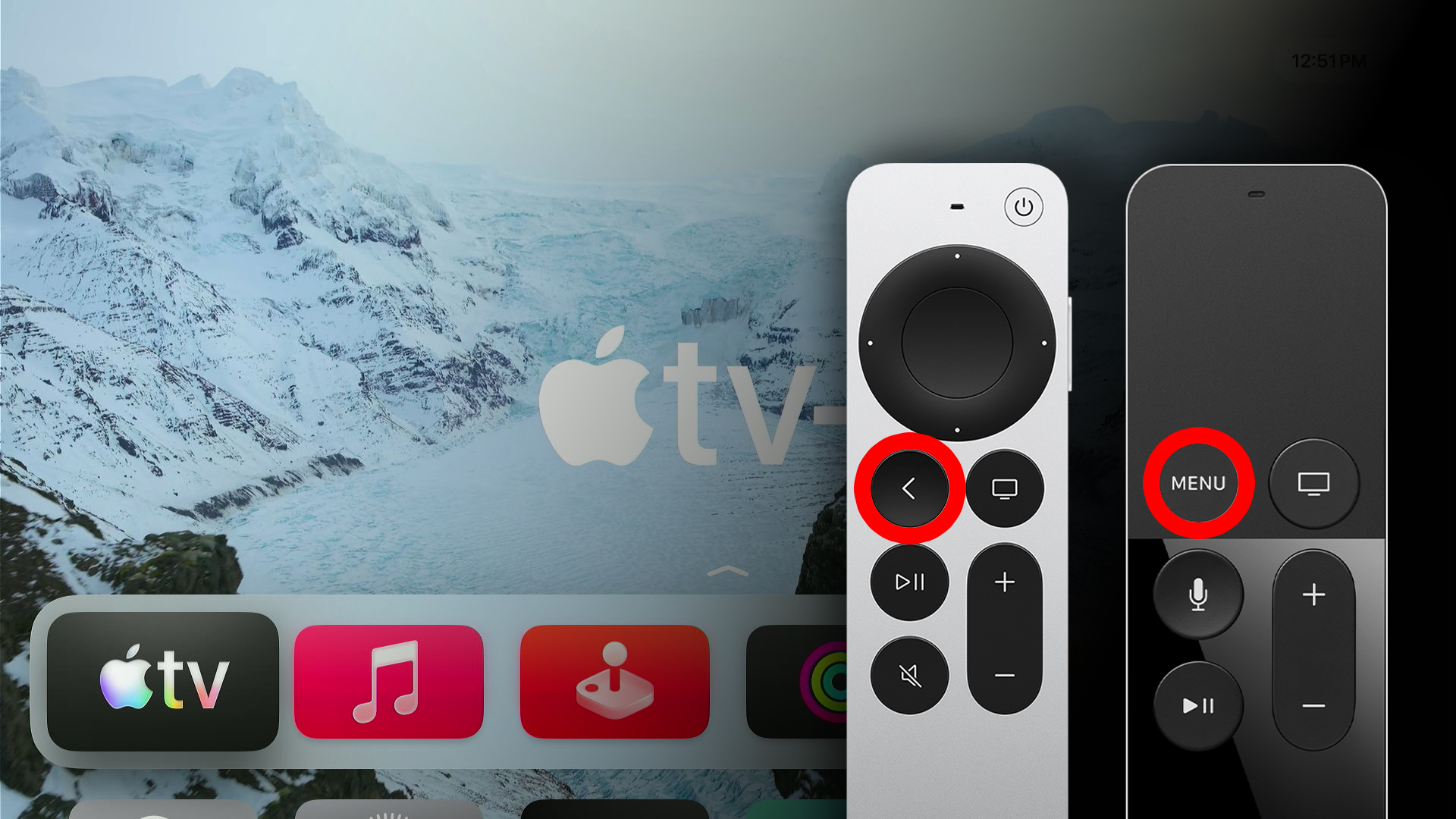
- Press the “<” or “Menu” button on your Apple TV remote. Press this button until you reach the Apple TV home screen.

- Go to “Settings.” You can access Settings and all your other apps by swiping down on your remote.
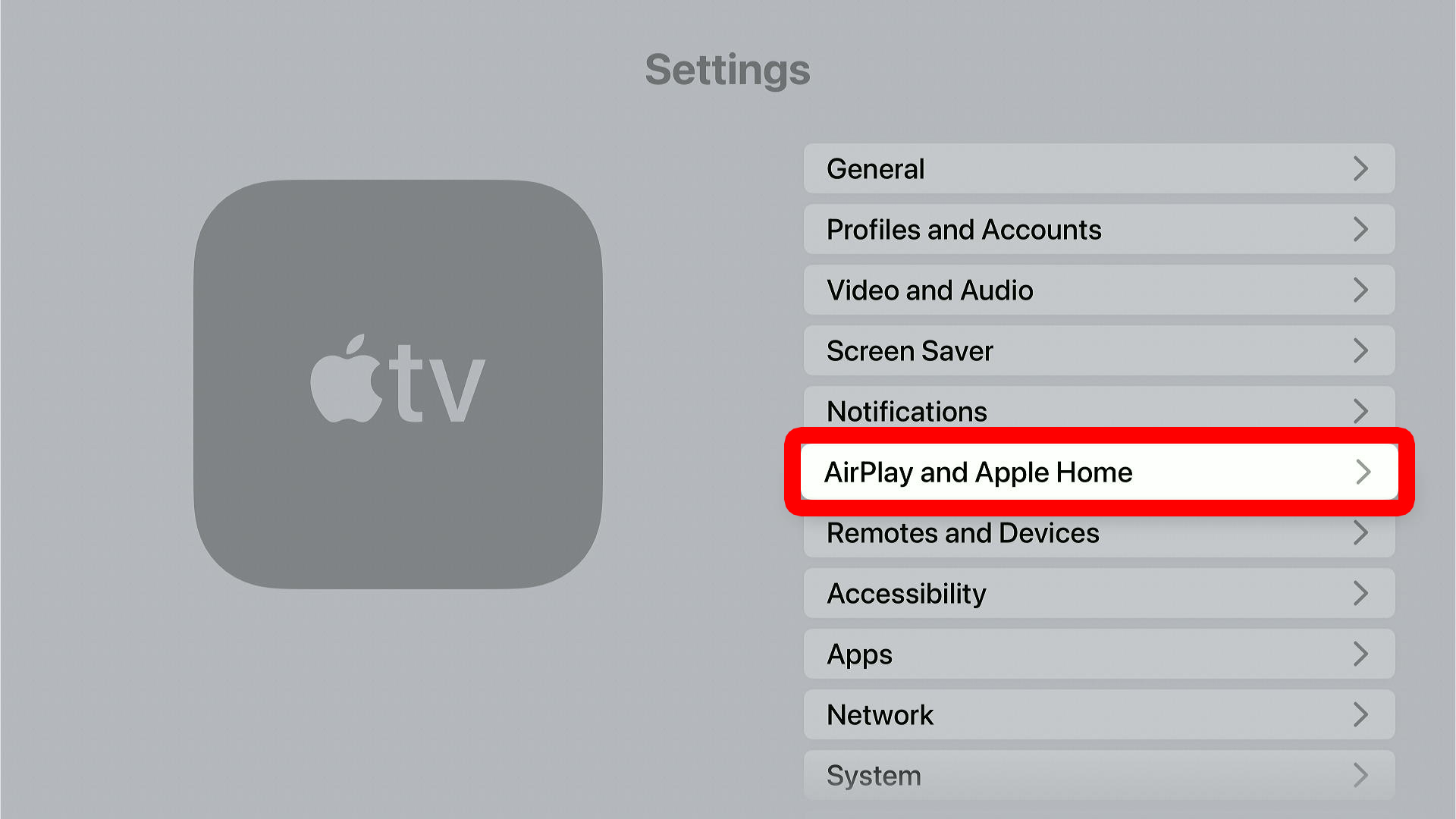
- Go to “AirPlay and Apple Home.”

- Turn AirPlay “On” and select an option under “Allow Access.”
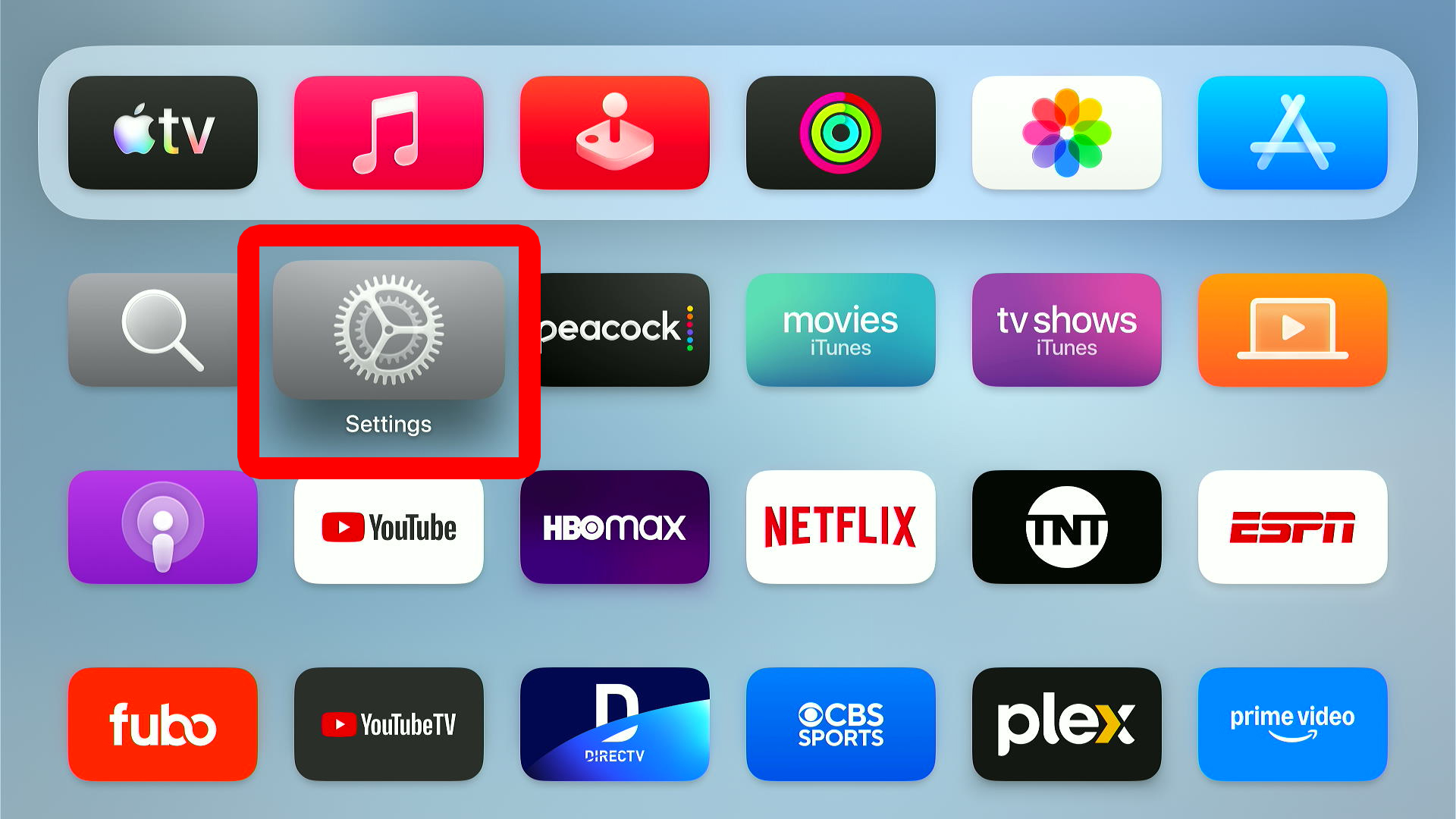
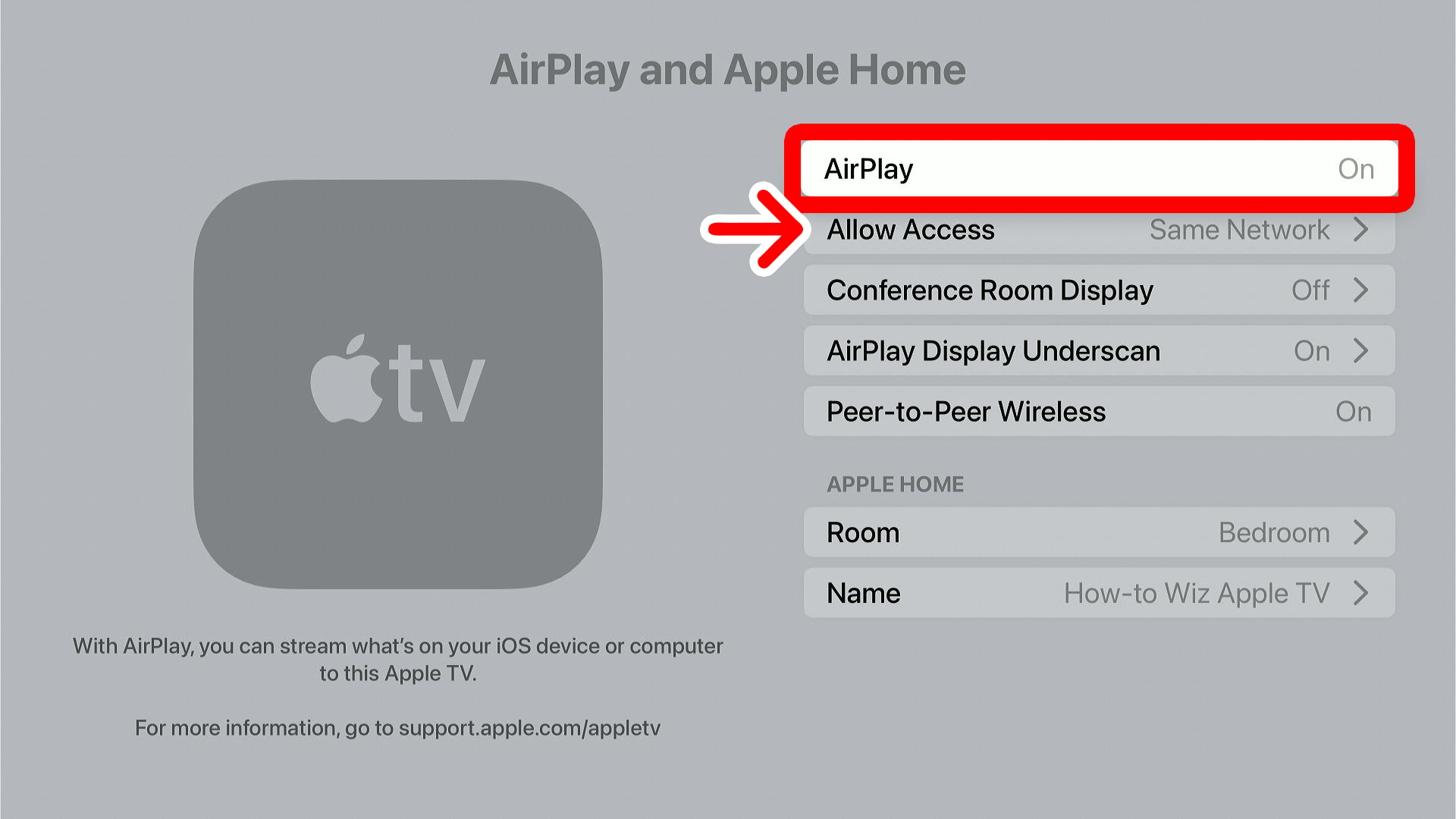
From here, you can choose which types of users can mirror to your Apple TV. Depending on your settings, you can also choose to turn “Require Password” on or off, or change it to something else.
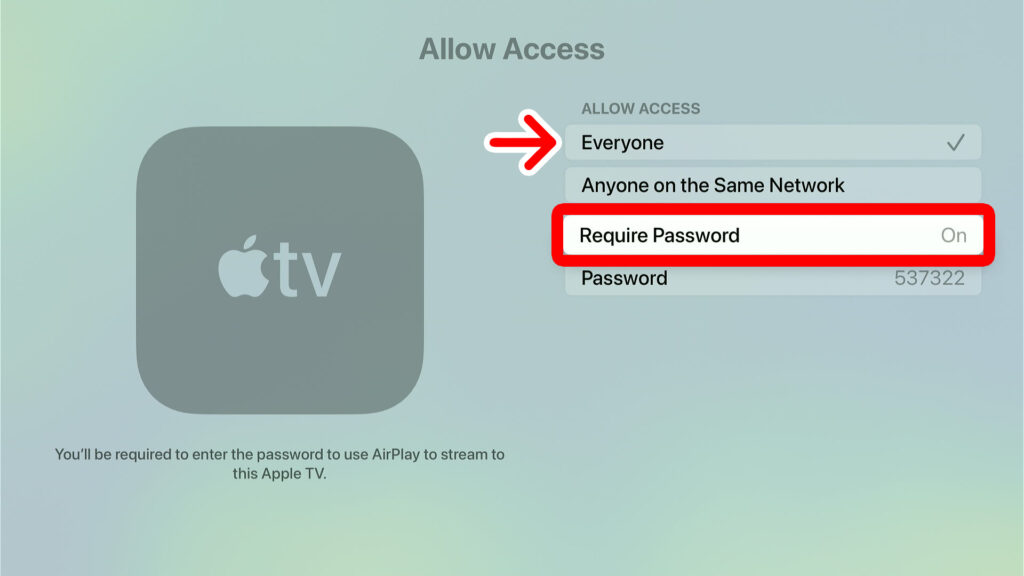
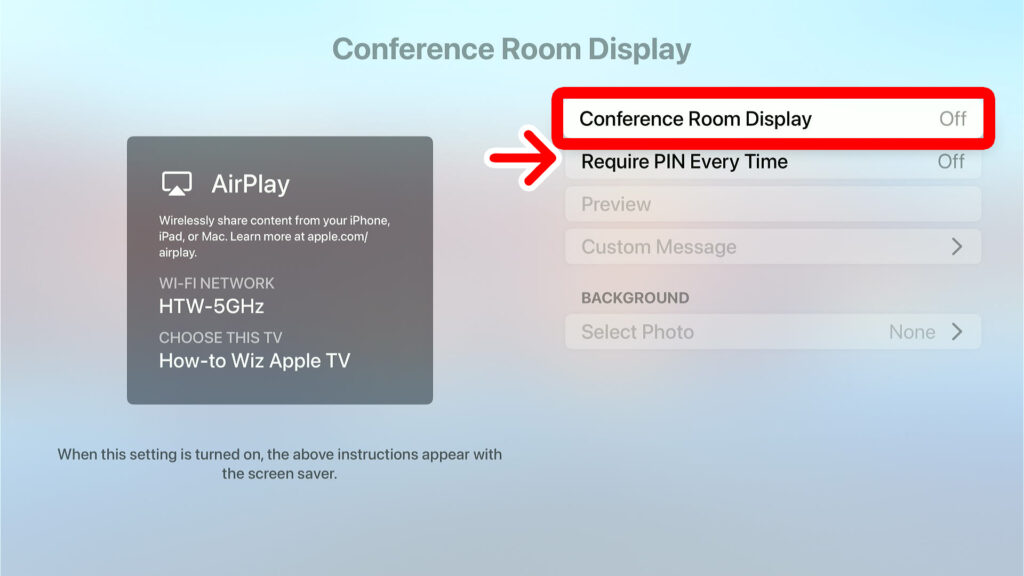
If you don’t want to ever enter a password from your personal device, go back to the “AirPlay and Apple Home” page and turn off “Conference Room Display.”
How to AirPlay Photos from an iPhone
To AirPlay photos from an iPhone to Apple TV, open the Photos app and select a picture from your library. Then tap the “Share” icon in the bottom-left corner of your screen. Finally, scroll down, tap “AirPlay,” and select your Apple TV device to start mirroring.
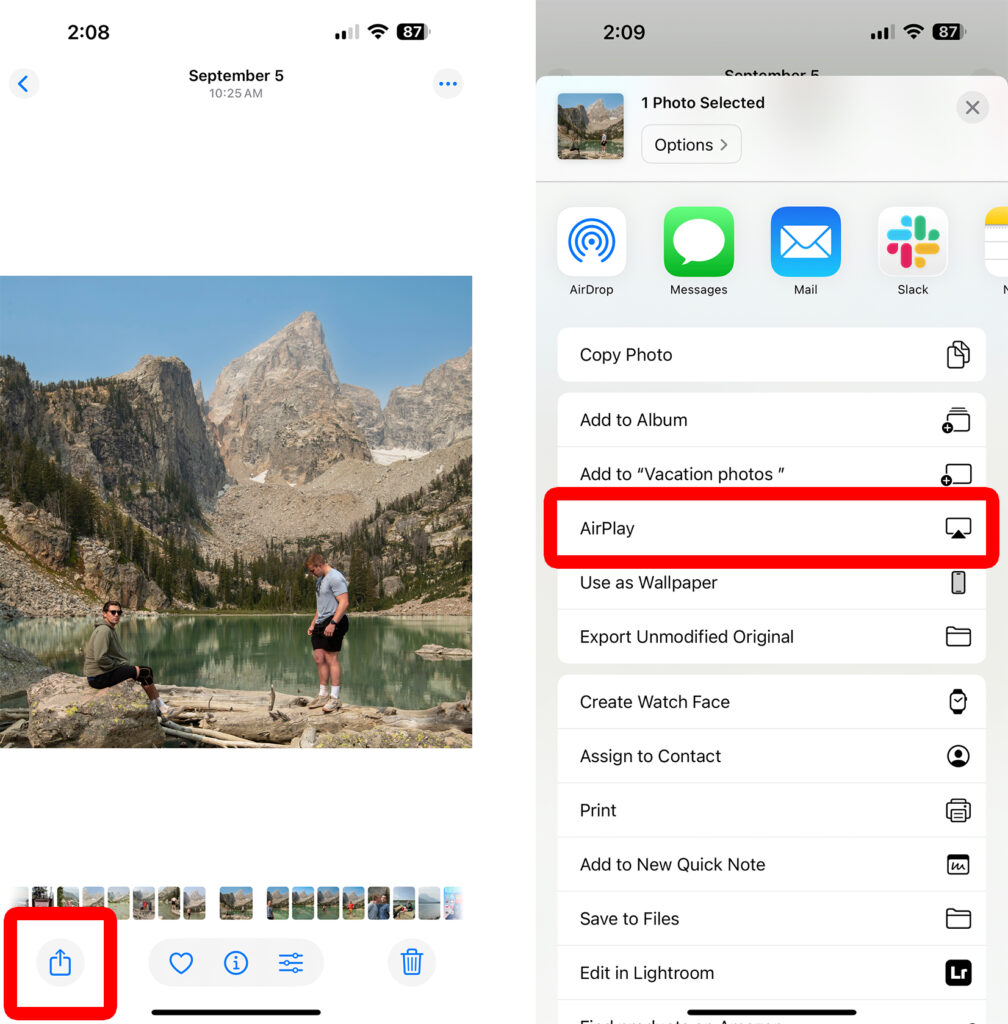
Once you start mirroring your photos, you can swipe through them on your iPhone to play a slideshow on your TV.
How to AirPlay Music from an iPhone
To AirPlay music from your iPhone to Apple TV, open the Music app and tap the AirPlay icon at the bottom of your screen that looks like a triangle over three semicircles. Finally, select your Apple TV device to start mirroring the audio.
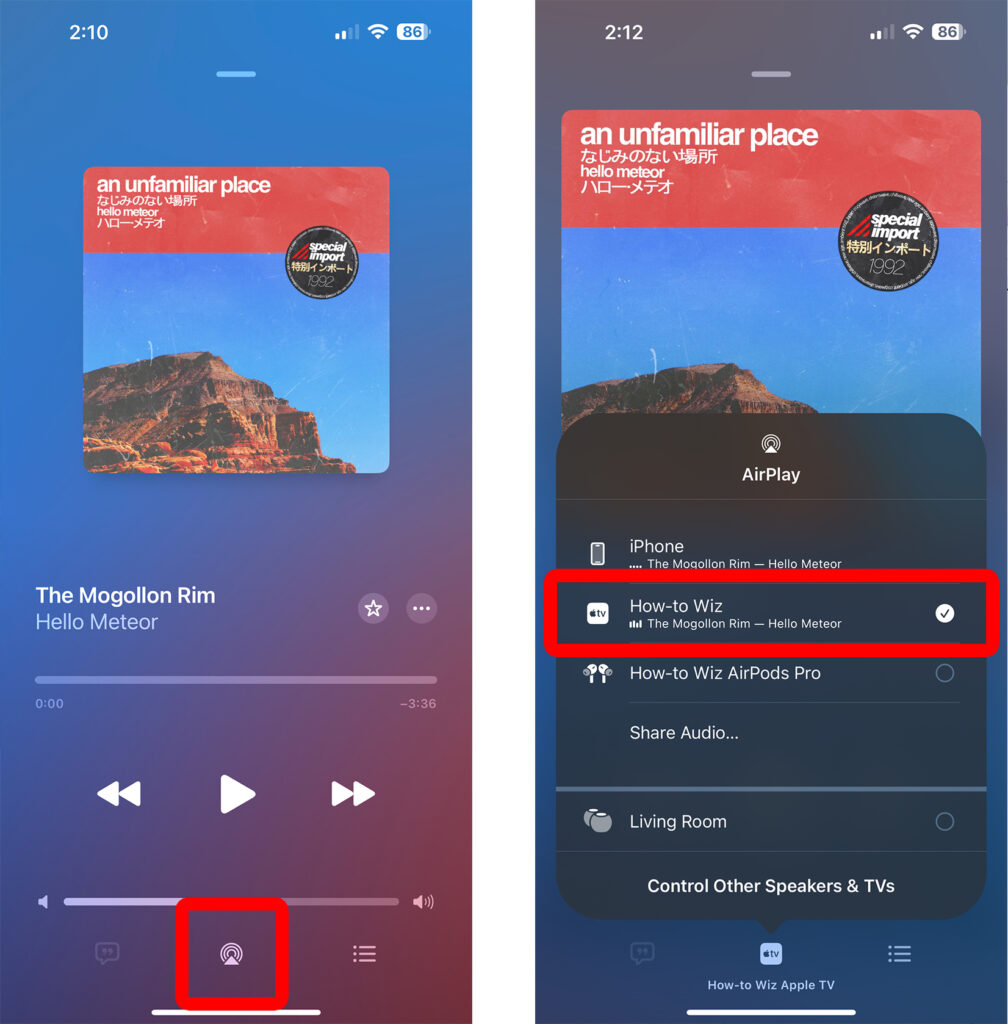
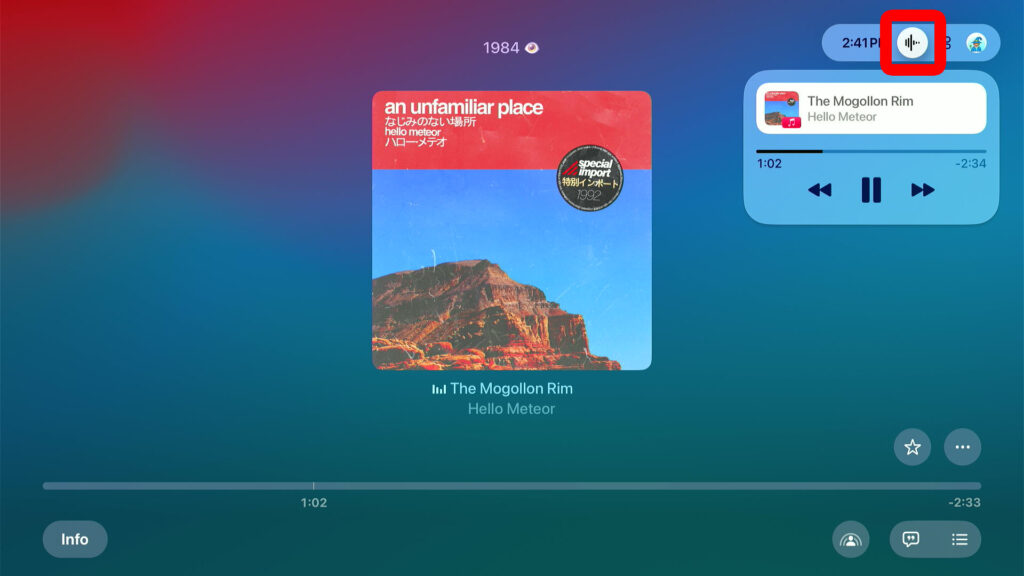
Once you start streaming audio, you can use the controls on your iPhone to play, pause, skip, and more. To see your album artwork on Apple TV, press and hold the “TV” button on your remote and navigate to the audio waveform button.
Read More: How to Connect AirPods to Apple TV
How to AirPlay YouTube from an iPhone
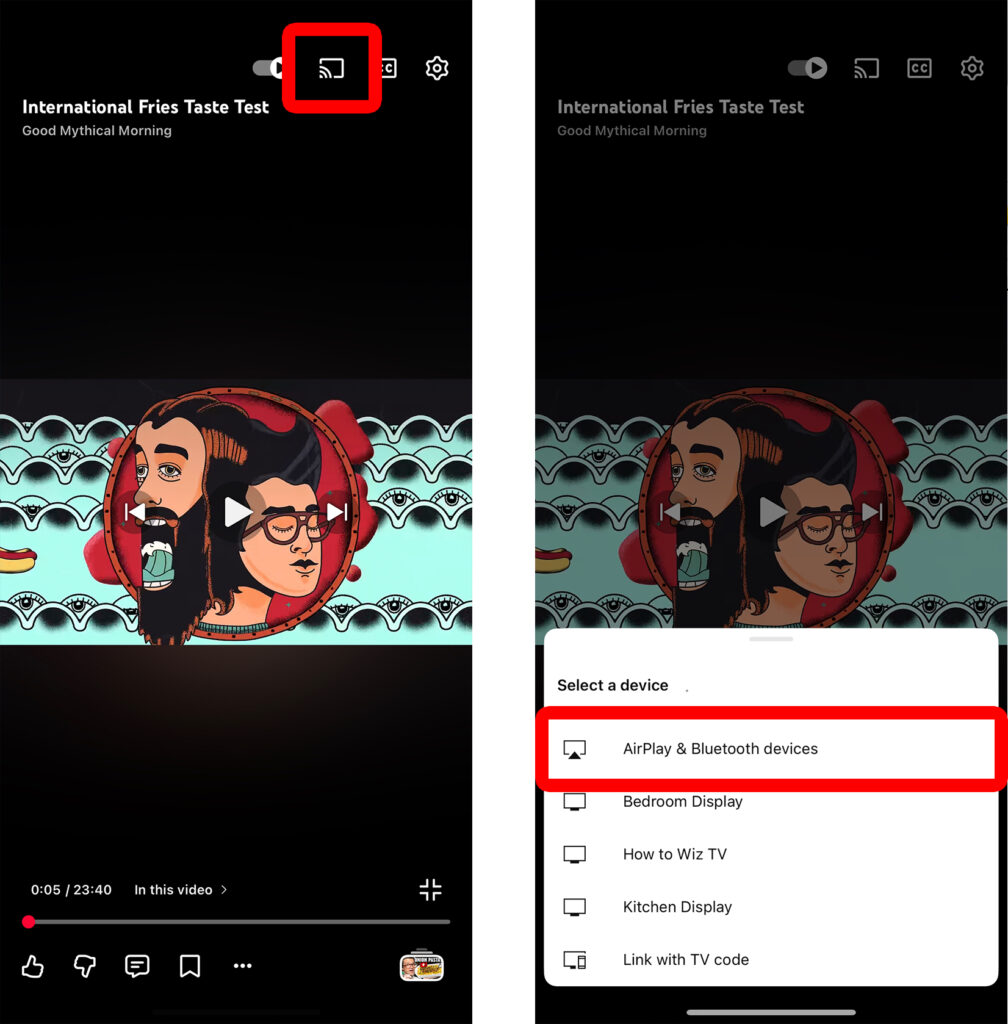
To AirPlay YouTube from an iPhone to Apple TV, open the YouTube app and start playing a video. Then tap the “Cast” icon in the top-right corner that looks like a rectangle with a WiFi symbol in the bottom-left corner. Finally, select your Apple TV to start mirroring the video.
If you don’t see your Apple TV device listed, select “AirPlay & Bluetooth devices.”