
Your Apple TV remote can stop working for all kinds of reasons—but fixing it is usually easy. Here’s everything you need to know about how to pair or reset your Apple TV remote to get it working like new.
How to Pair an Apple TV Remote
To pair a new or unresponsive Apple TV remote, press and hold the “Volume Up” and “<” buttons (or the “Volume Up” and “Menu” buttons on older remotes) at the same time for five seconds. Then place your remote on top of your Apple TV device and press any button to reconnect your remote.
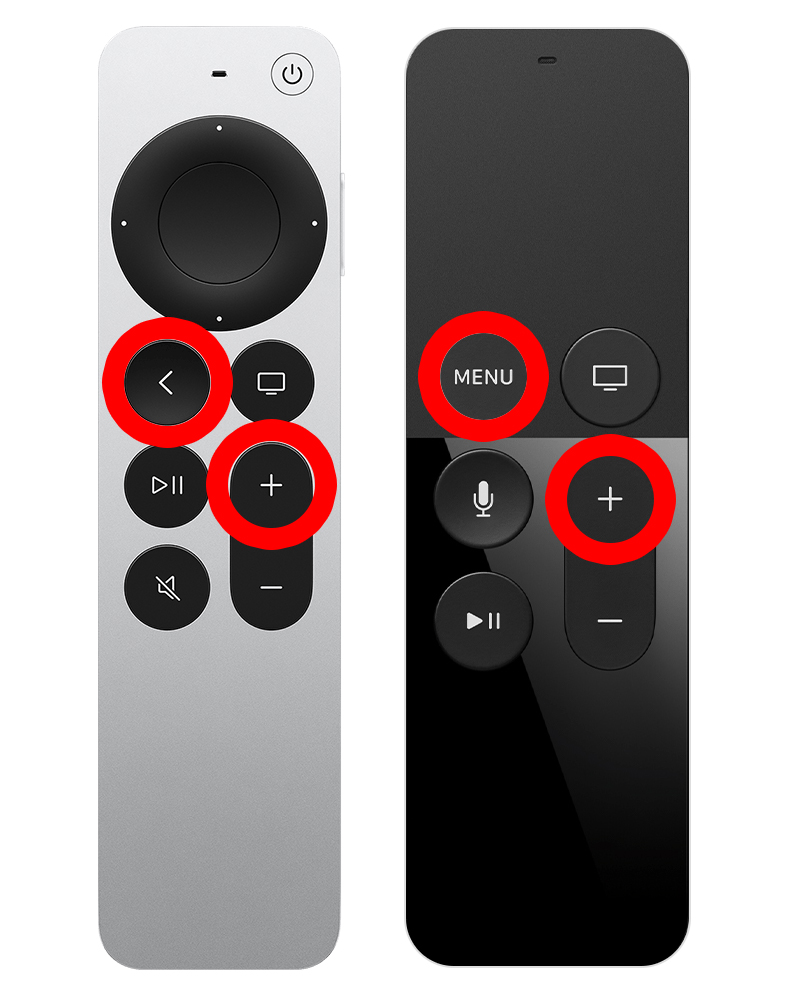
If your remote still isn’t working, you can always reset it. Here’s how:
How to Reset an Apple TV Remote
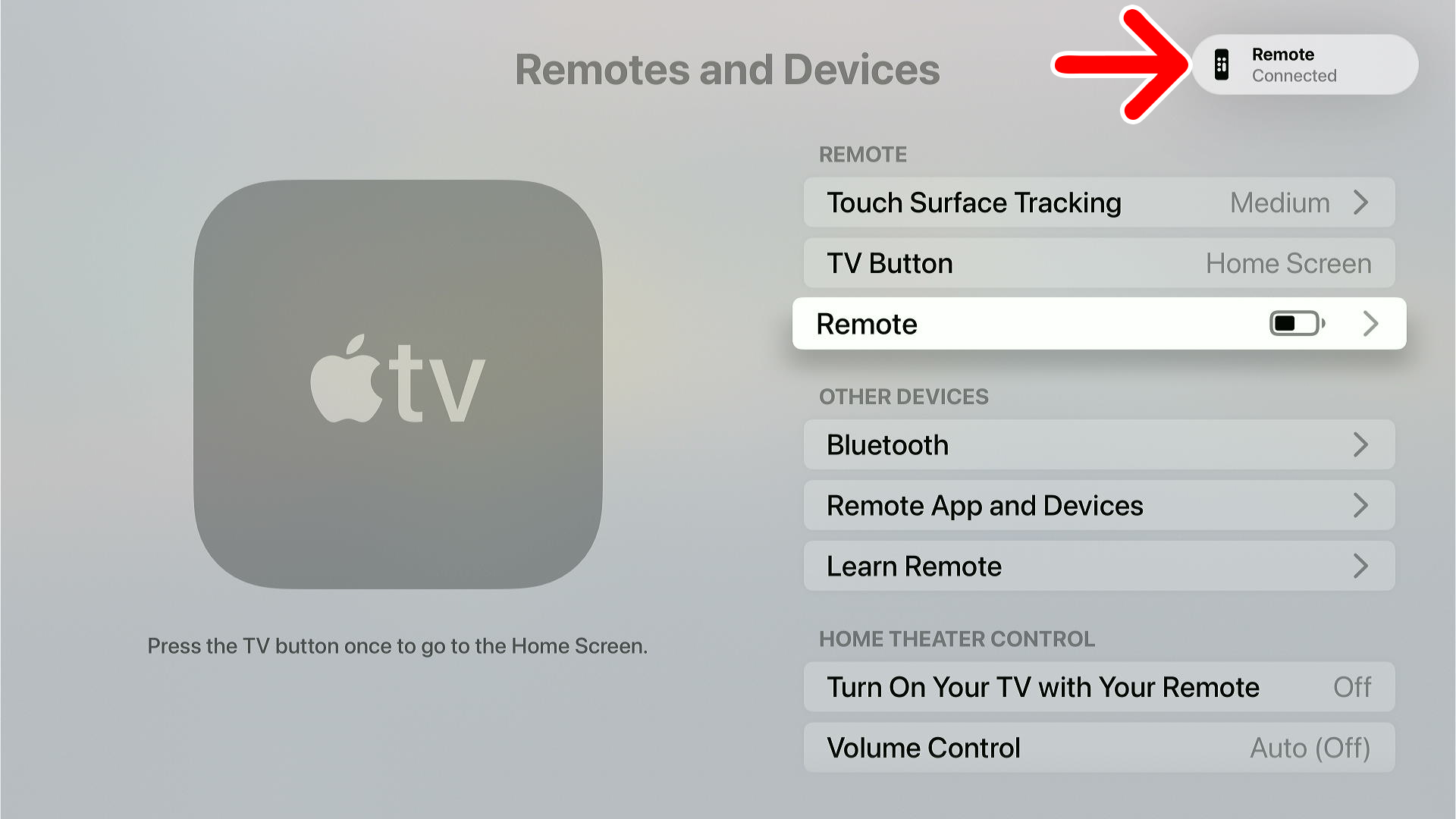
To reset an Apple TV remote, press and hold the “TV” and “Volume Down” buttons at the same time for 10 seconds. When you see a notification that says “Disconnected,” press any button to reconnect. When you see a notification that says, “Connected,” you can start using your remote again.
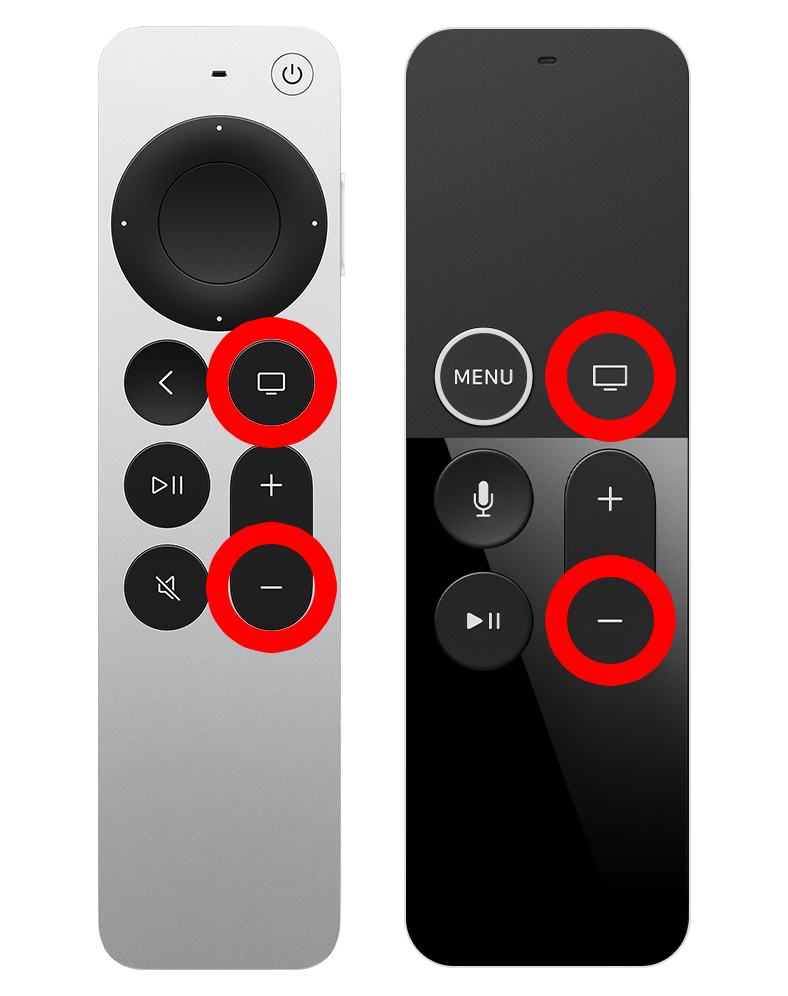
If you still can’t connect your remote, you can disconnect it using your iPhone and then try to pair it again.
How to Forget and Connect an Apple TV Remote
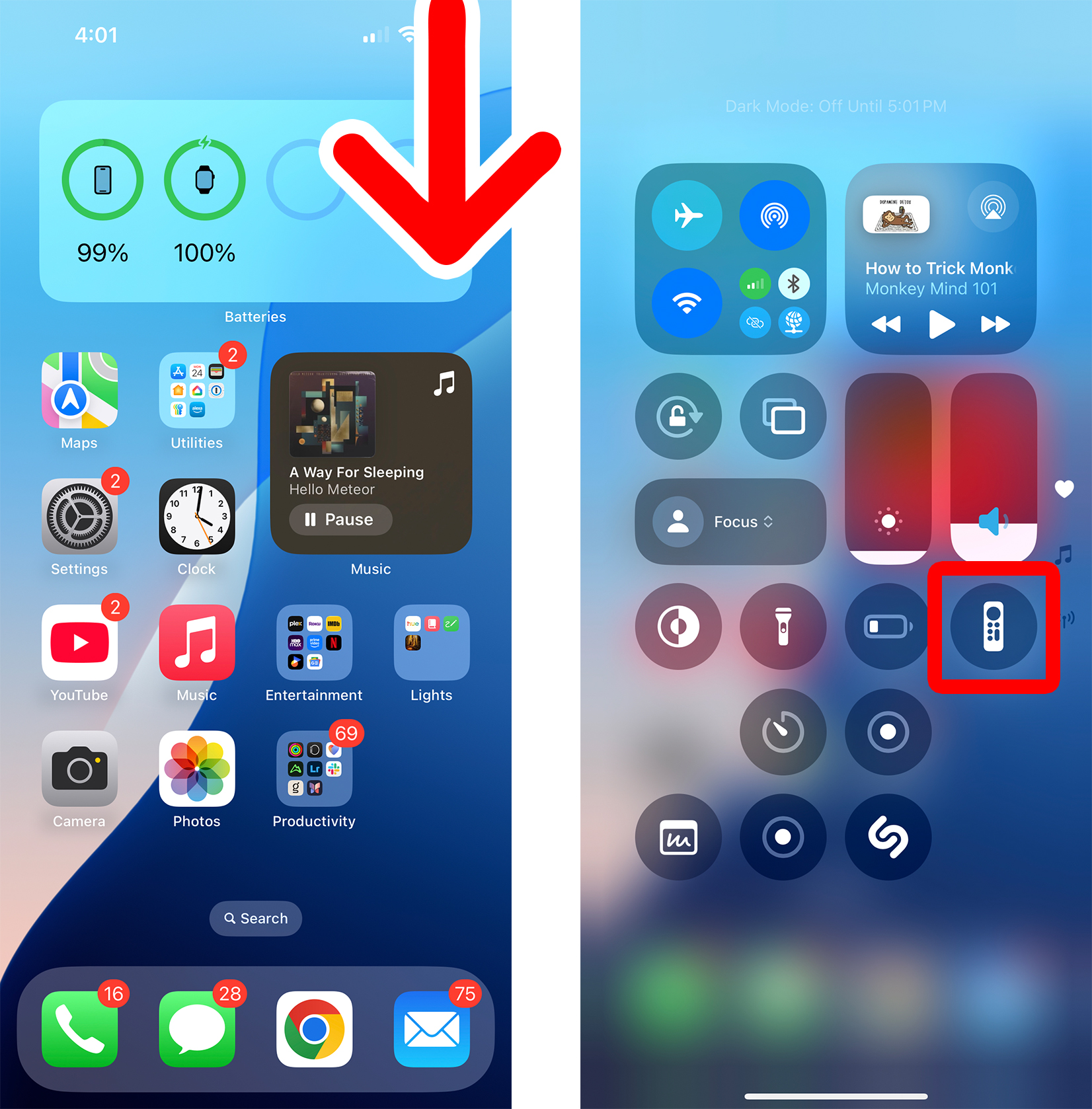
- Swipe down from the top-right corner of your iPhone screen. This will open the Control Center.
- Tap the remote icon. If you don’t see this icon, tap and hold an empty area of the Control Center and select “Add a Control.” Then scroll down and select “Remote.”

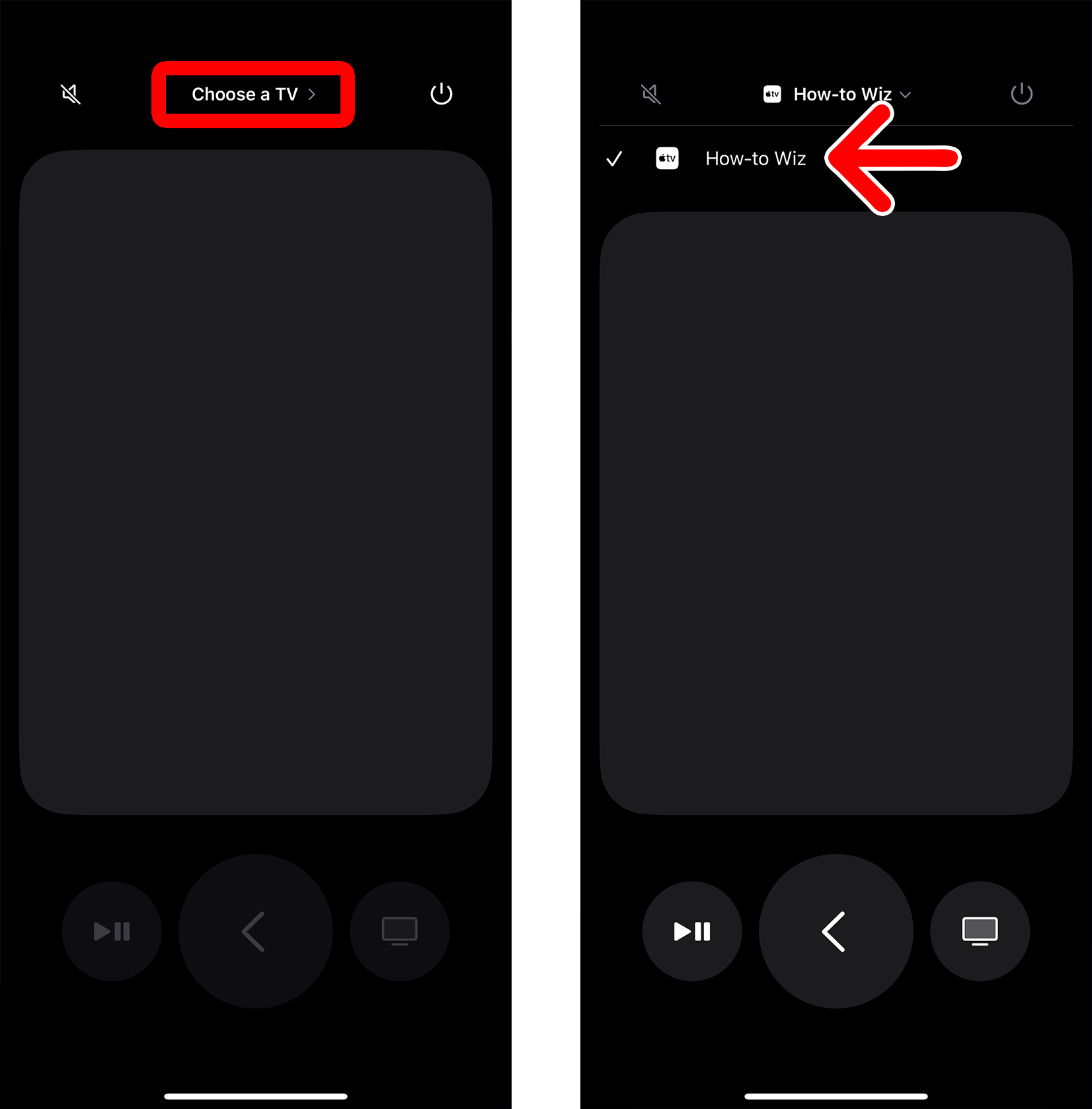
- Choose your Apple TV device. If the remote app doesn’t connect automatically, tap “Choose a TV” at the top of your screen and select your Apple TV device.
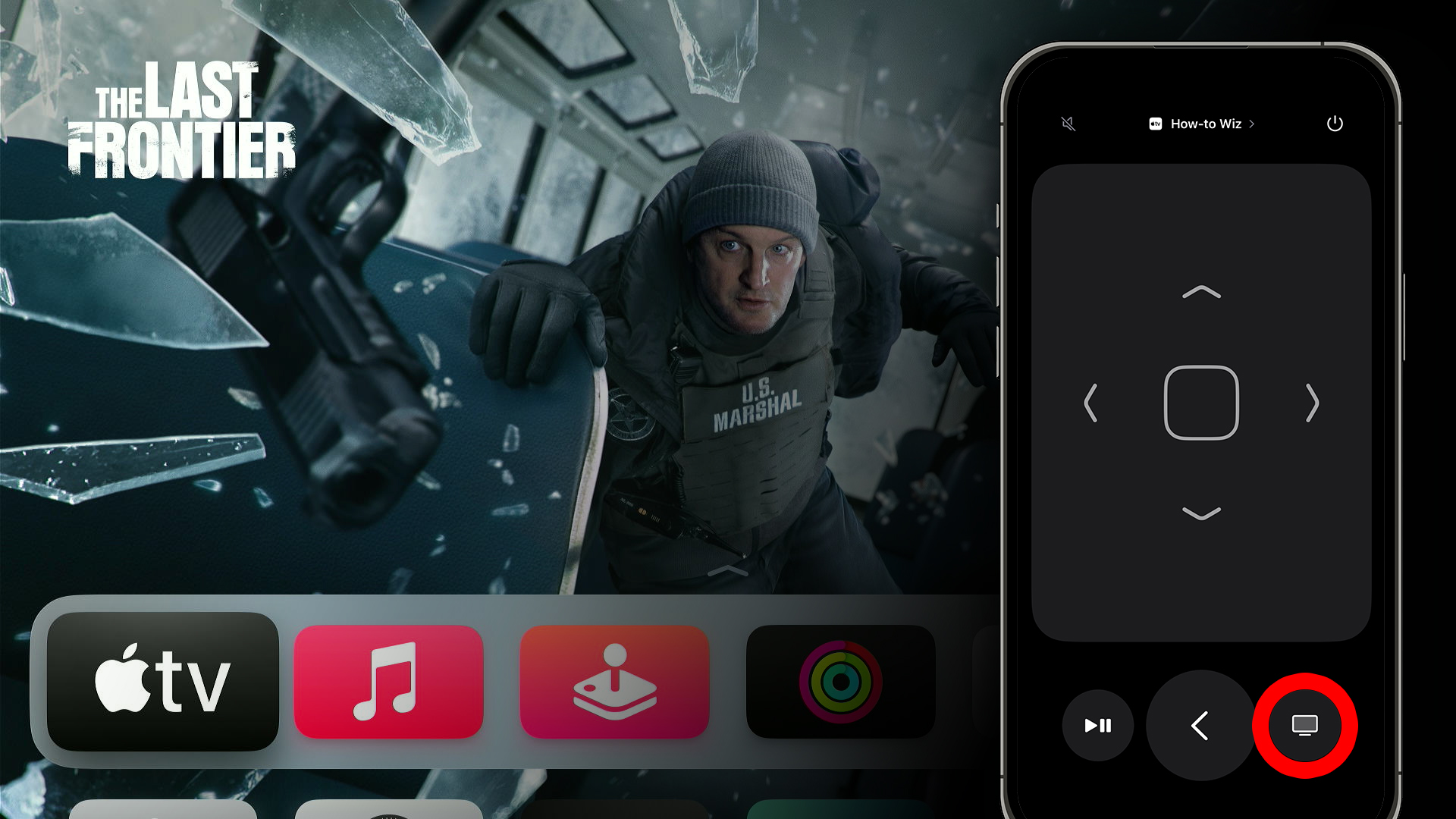
- Tap the “TV” button. This should take you to the Apple TV home screen.
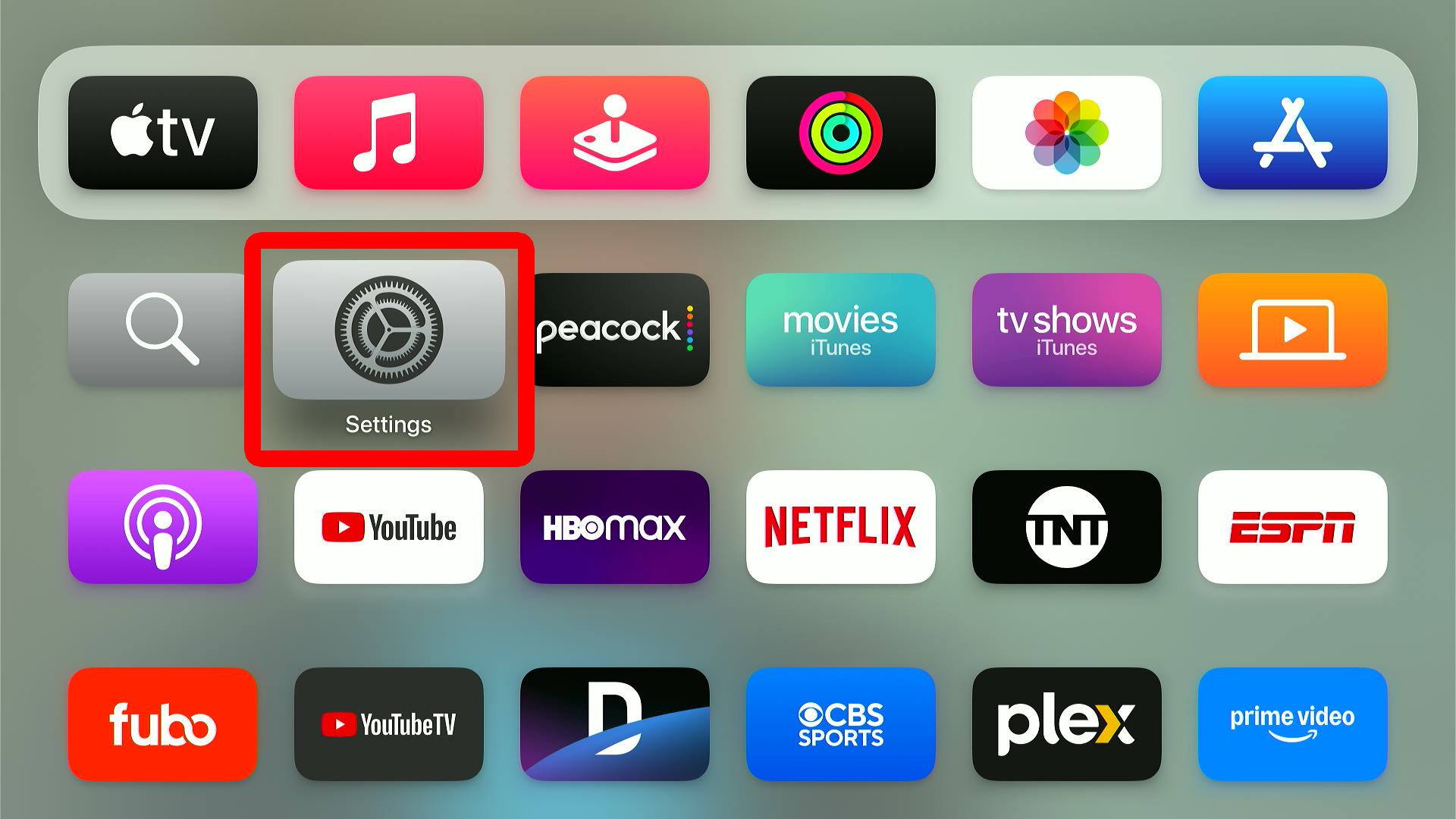
- Scroll down and select “Settings.”
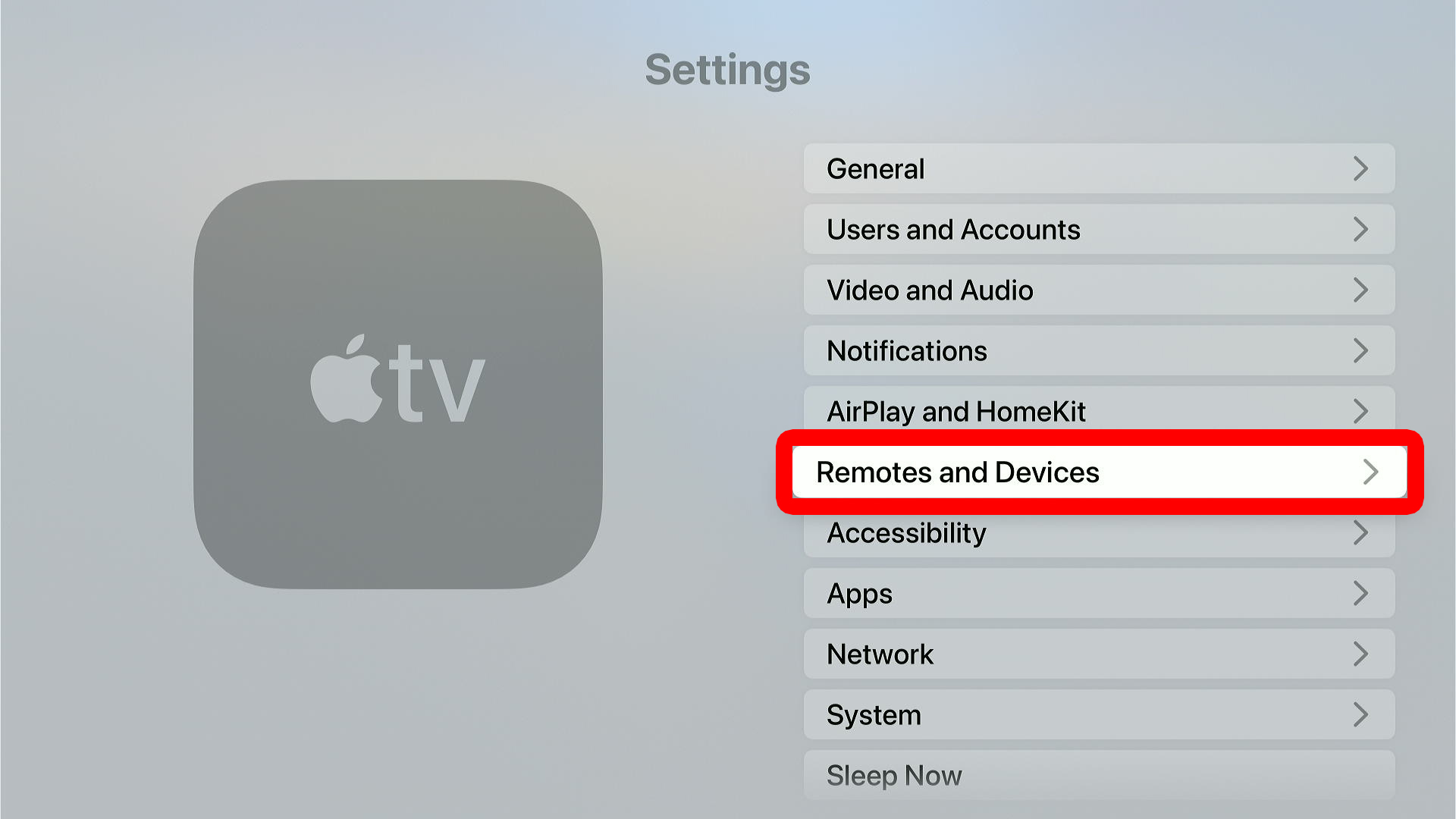
- Go to “Remotes and Devices.”
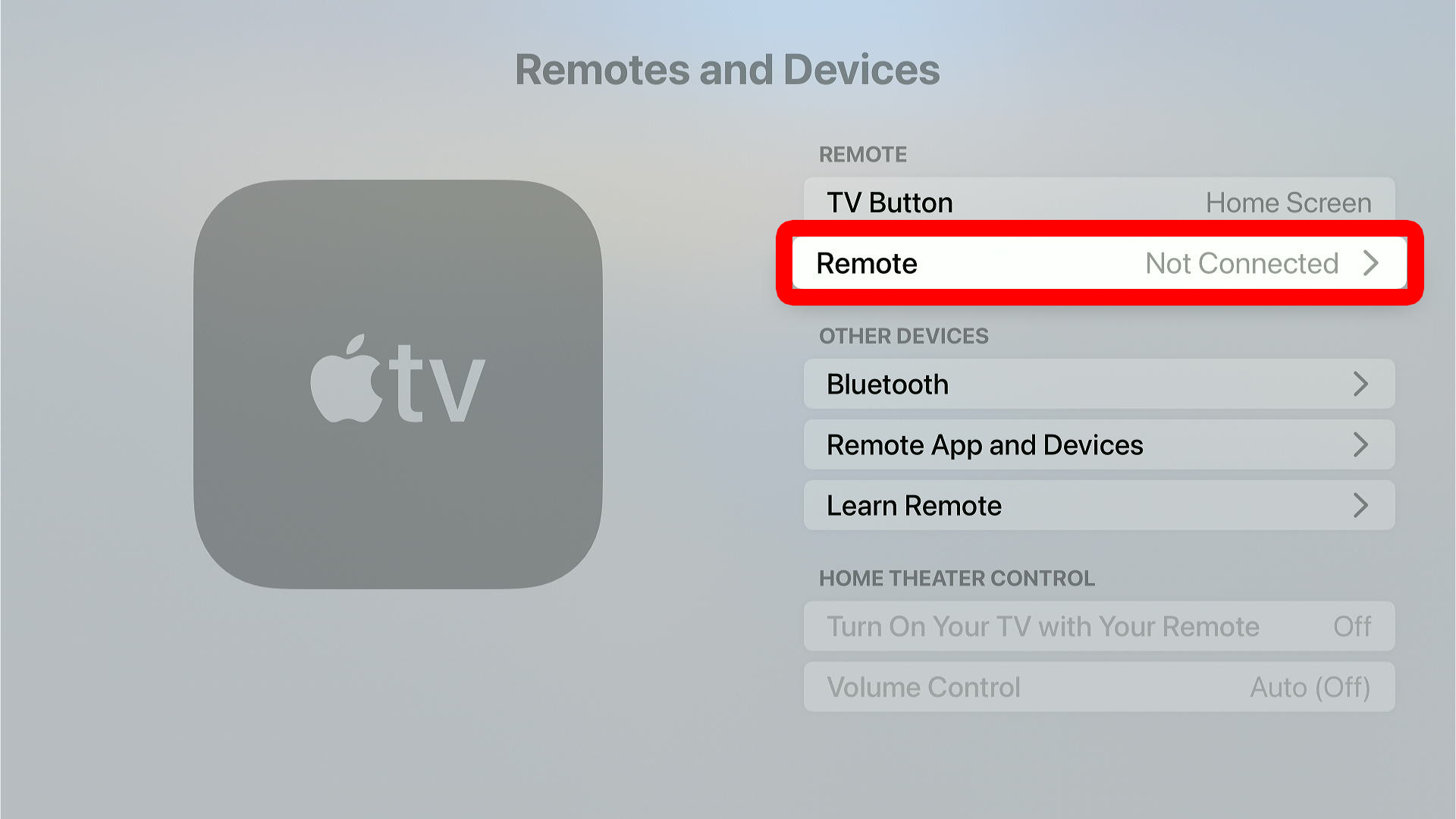
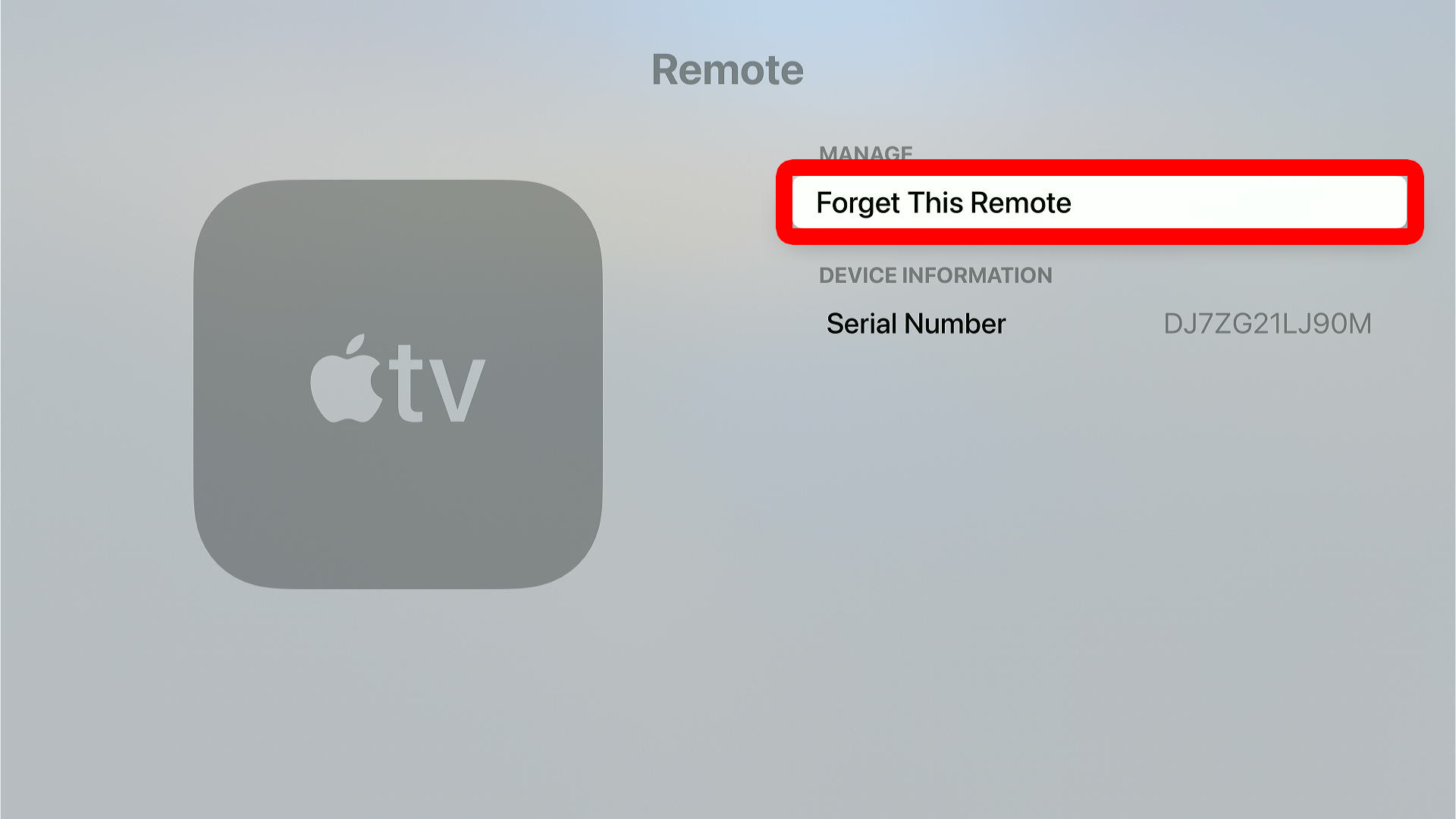
- Select “Remote.”
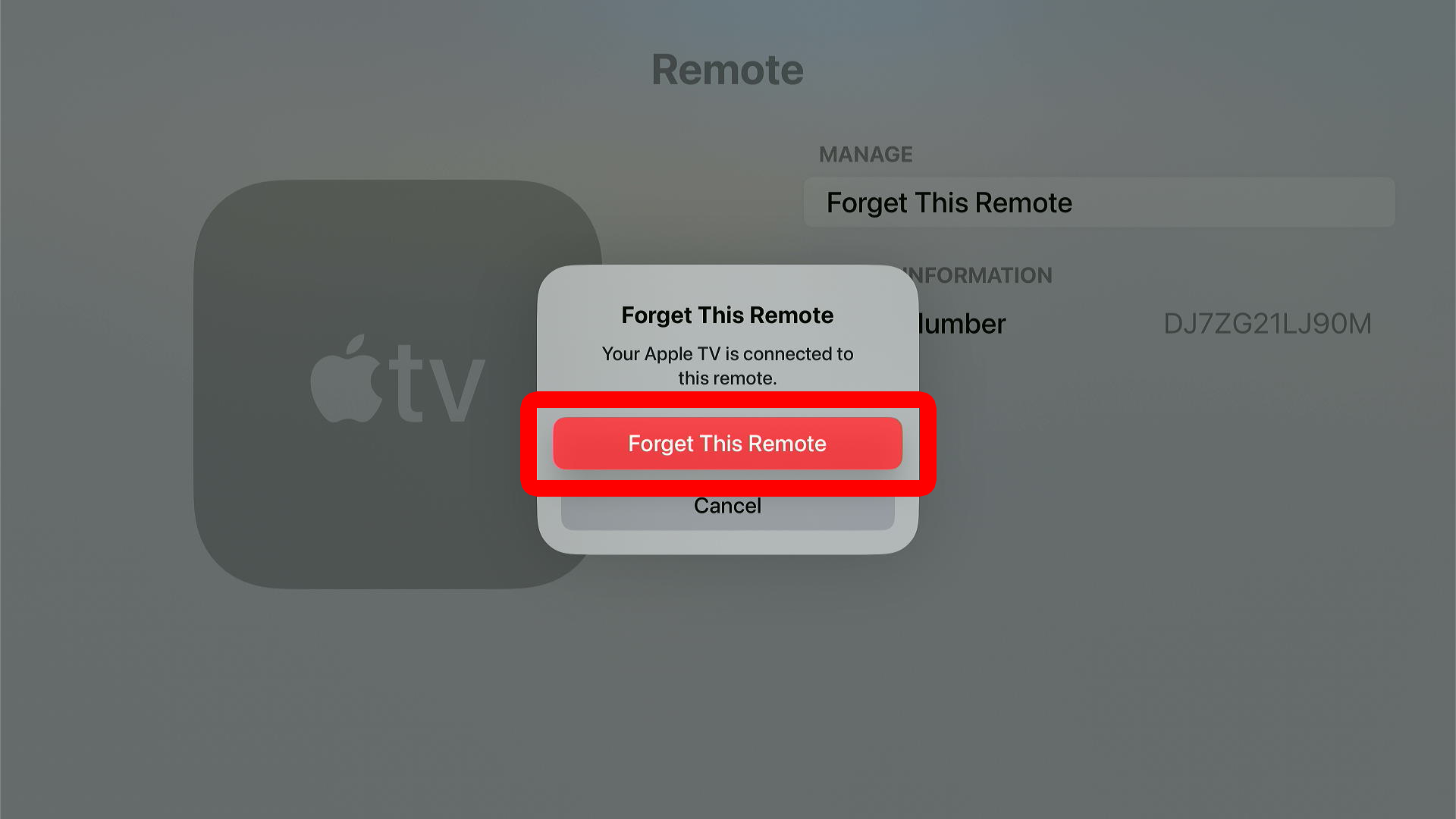
- Select “Forget This Remote.” If your remote is already connected, you won’t see this option. To disconnect a remote, reset it using the steps in the previous section.
- Finally, select “Forget This Remote” to confirm.
Once your remote has been disconnected, follow the steps in the first section to pair your remote again.
If all else fails, you can always reset your Apple TV and set it up like new to pair your remote.
Read More: How to Reset Your Apple TV