
Fire TV remote not working? Don’t rush to buy a new one — you can usually fix it in just a few minutes. Here’s how to quickly pair or reset your Fire TV remote, or use your smartphone as a backup remote if nothing else works.
How to Quickly Pair a Fire TV Remote
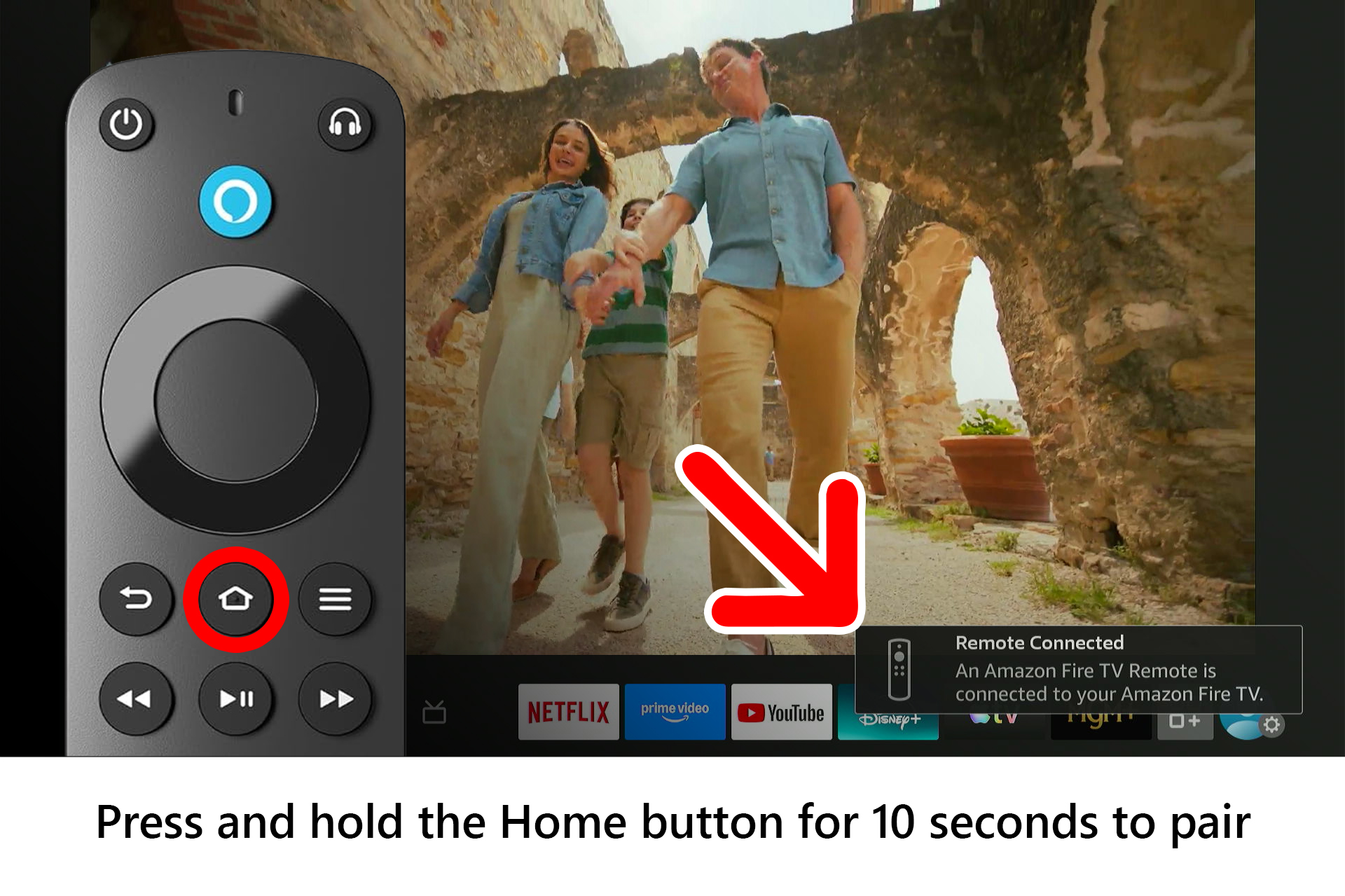
To quickly pair a Fire TV remote, press and hold the Home button on your remote for 10 seconds. The status light at the top of the remote will start blinking yellow rapidly, which means the remote is in pairing mode. When you see the status light flash blue, it means the remote is paired.
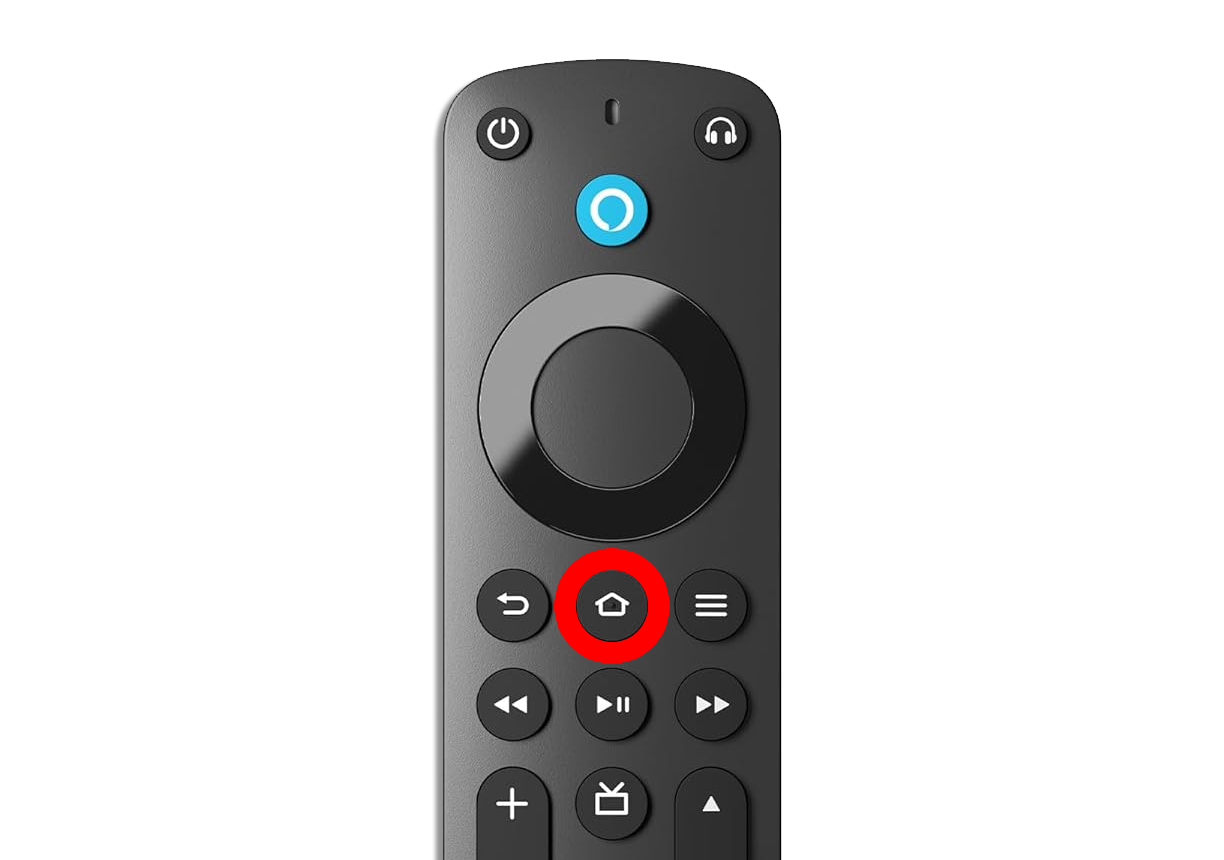
If pairing your remote didn’t work, you might need to reset it instead:
How to Reset a Fire TV Remote
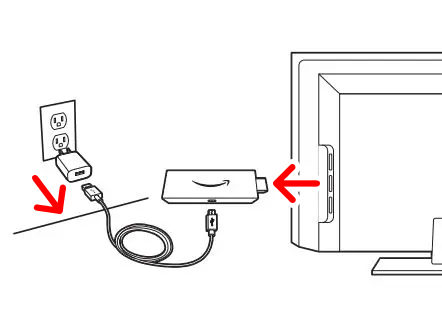
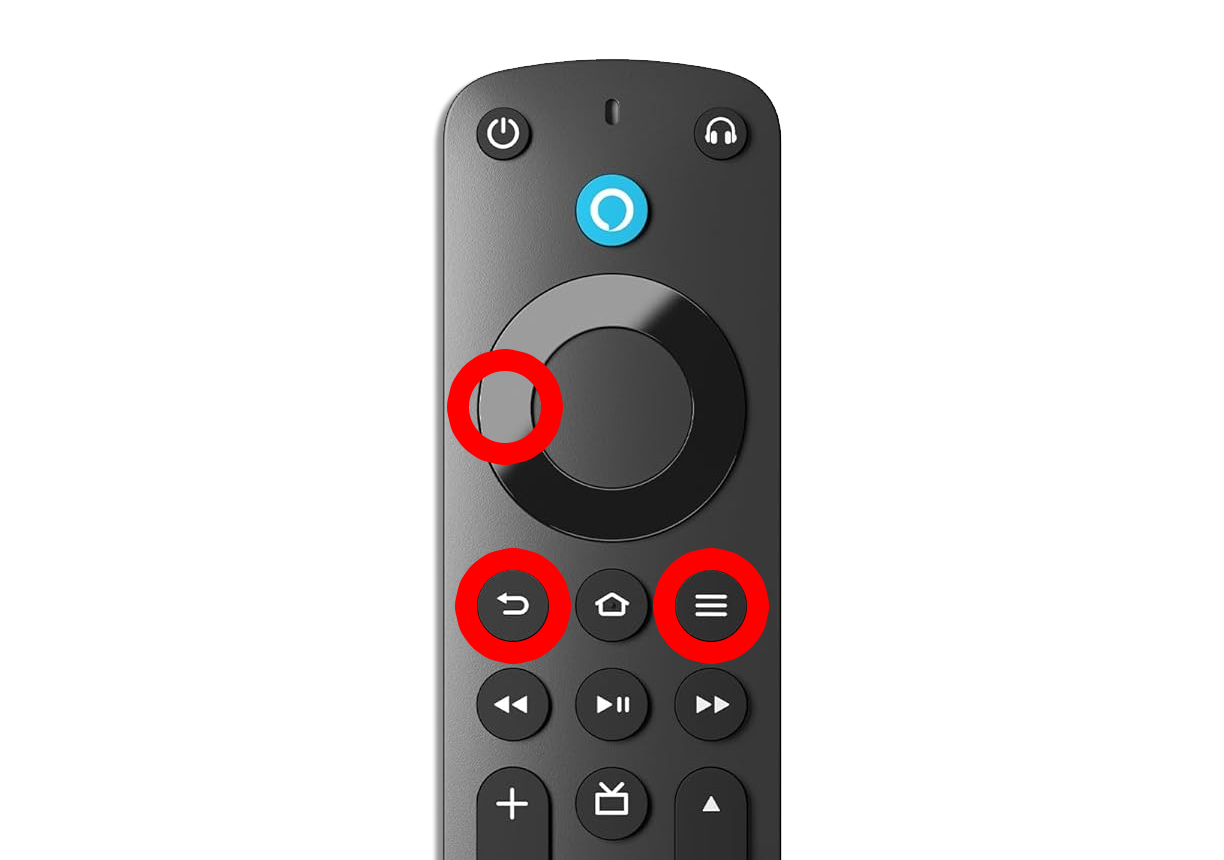
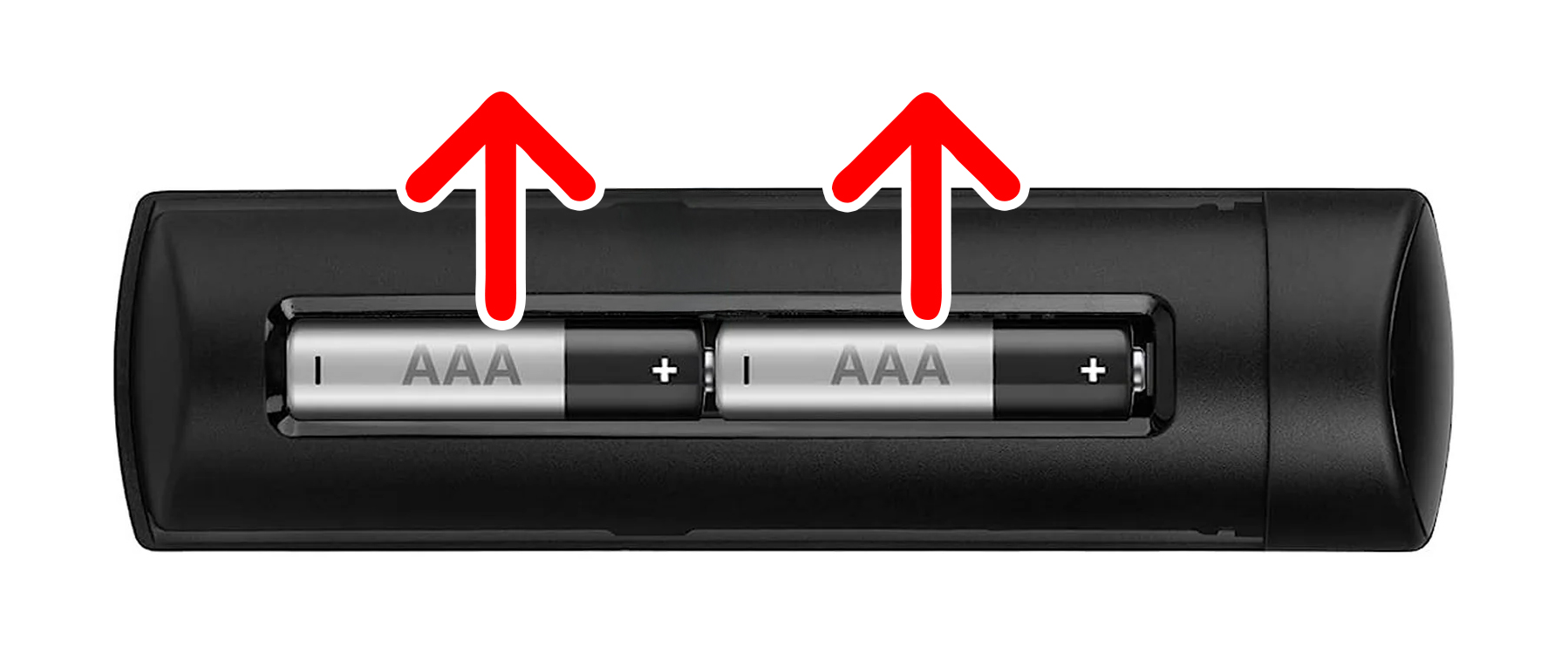
To reset a Fire TV remote, unplug your device from power and HDMI. Then press and hold the Left, Menu, and Back buttons on your remote. Next, remove the batteries from your remote and plug your Fire TV device back in. Finally, insert the batteries and press the Home button on your remote.
- Unplug your Fire TV device from power and HDMI. Keep your device unplugged for 60 seconds.

- Press and hold the “Left” (left side of ring), “Menu” (three-line icon), and “Back” (curved arrow) buttons on your Fire TV remote. Keep them all pressed for 12 seconds.

- Release the buttons and wait 5 seconds.
- Remove the batteries from your remote.

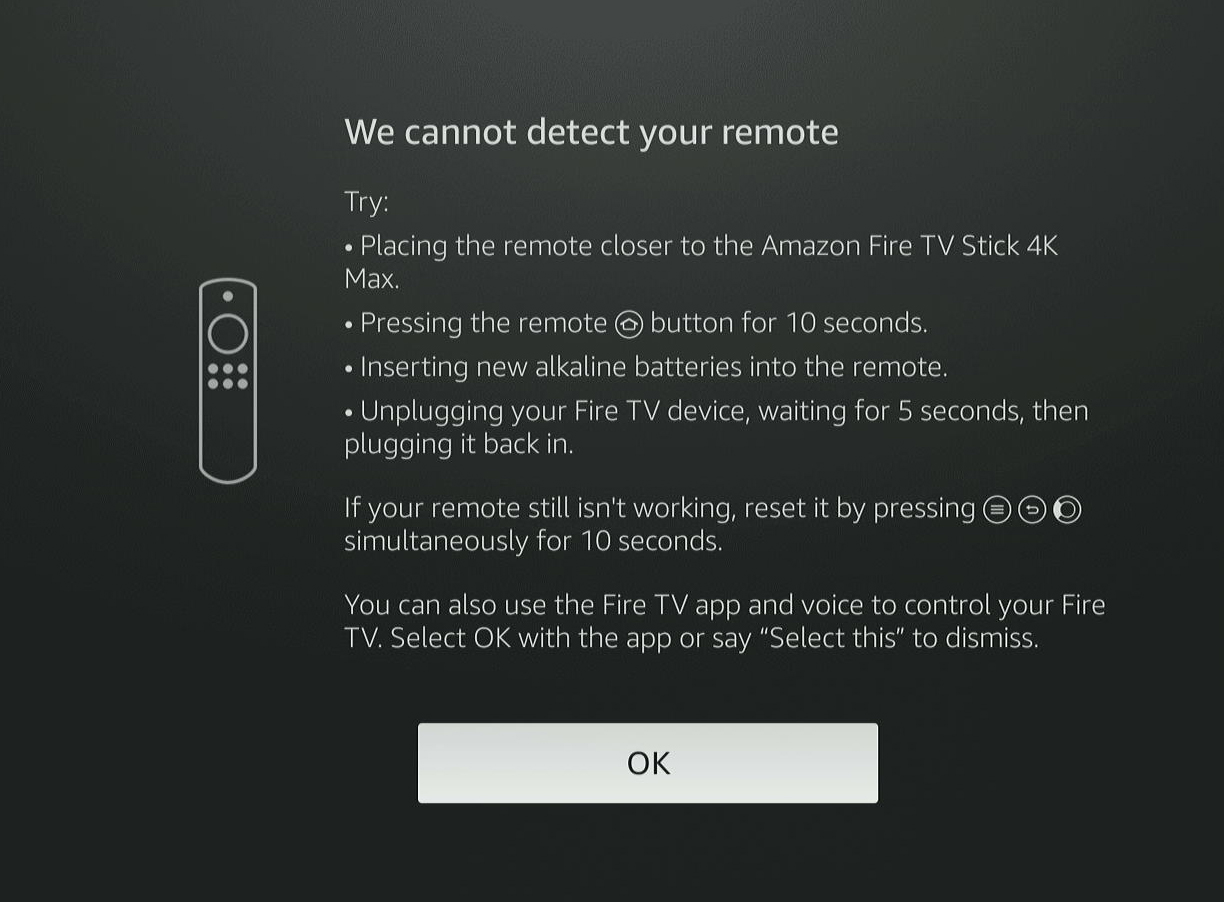
- Plug your Fire TV device back in. Wait until you see a message that says, “We cannot detect your remote.”

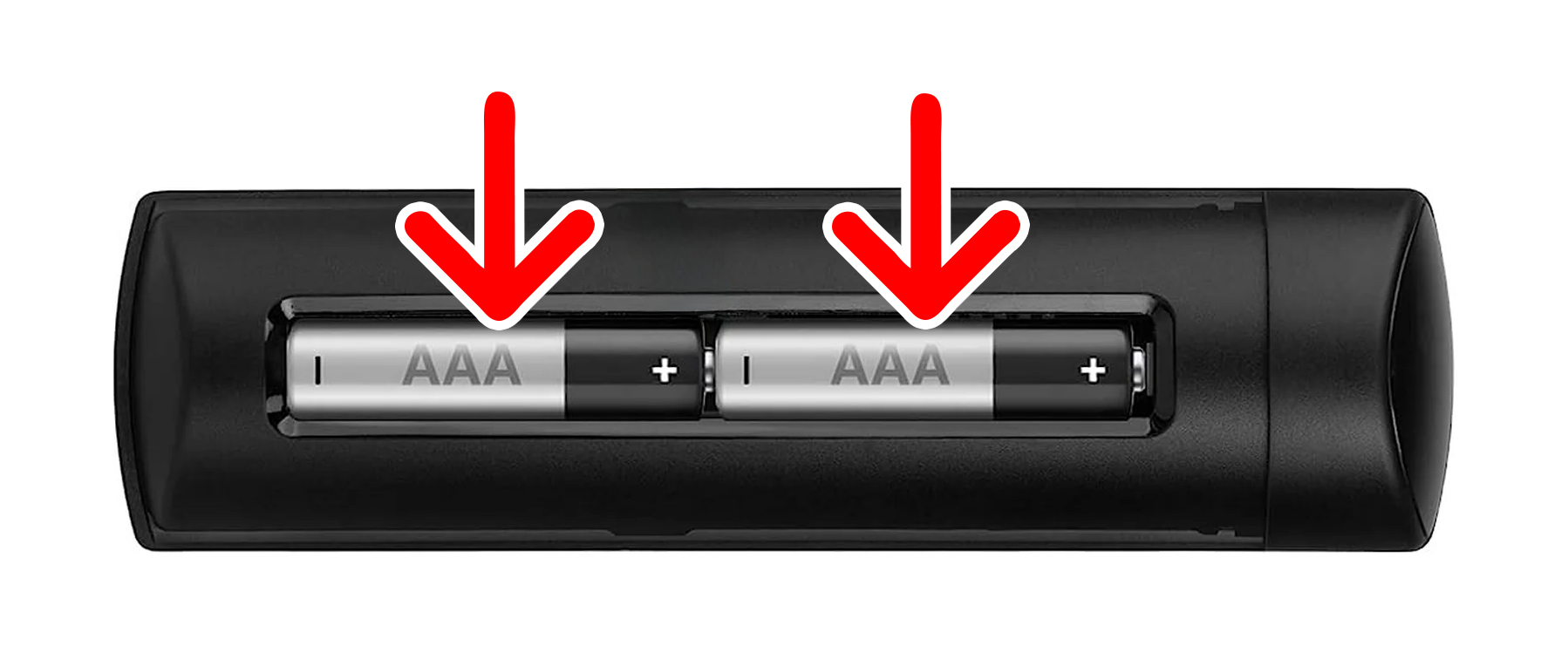
- Insert the batteries back in your Fire TV remote.

- Finally, press and hold the Home button on your remote for 10 seconds. Once your remote pairs, a pop-up notification appears in the bottom-right corner of your screen.
Read More: How to Factory Reset a Fire TV Device
If your remote still isn’t working, you can always use the Fire TV app to control your device or add a new remote. Here’s how:
How to Use the Fire TV App to Connect a Remote
- Open the Amazon Fire TV app on your smartphone. You can download the free app from the Apple App Store or the Google Play Store. Make sure you are downloading the official version from Amazon LLC.
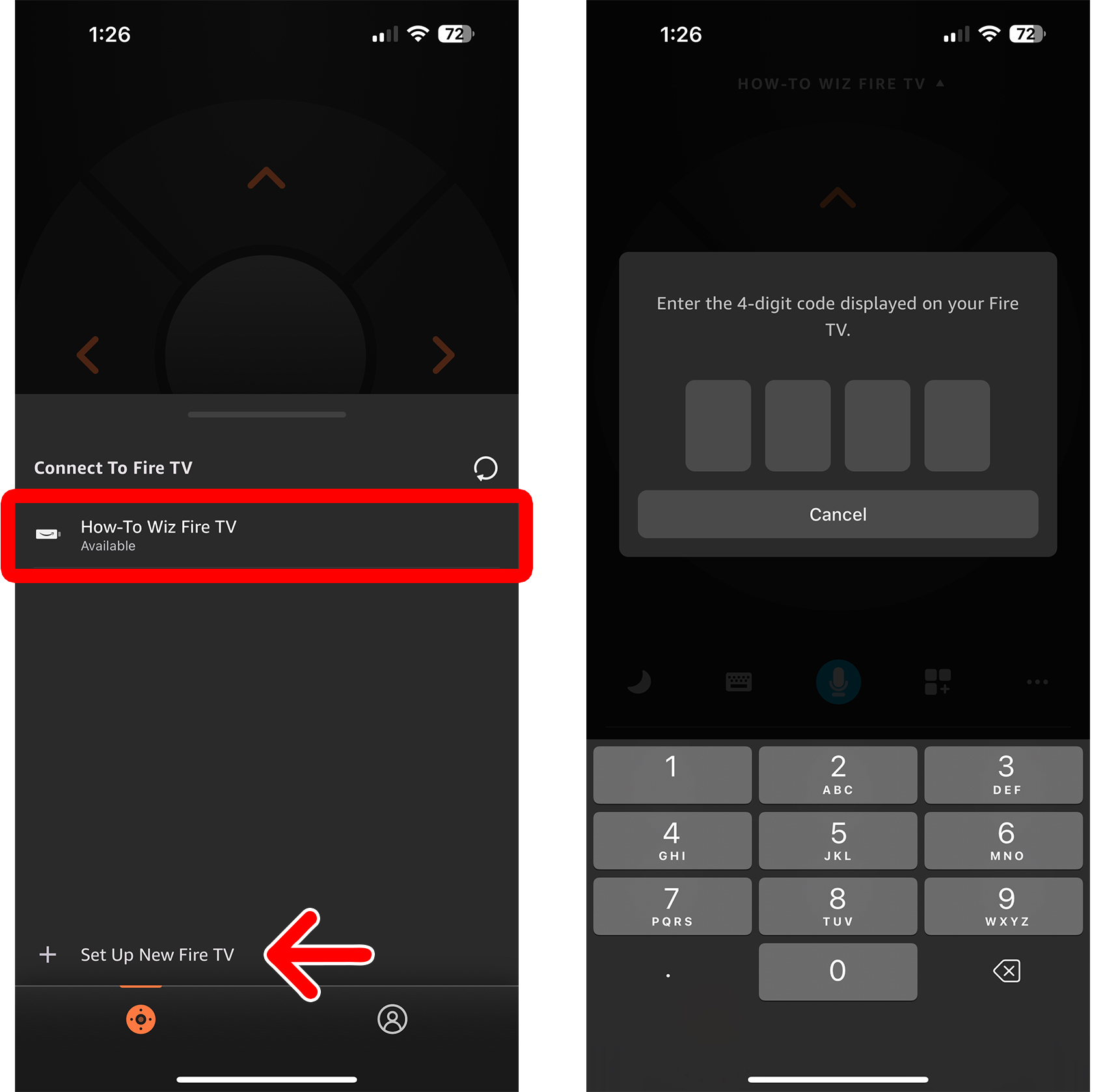
- Select your Fire TV device. If you don’t see your device listed, tap “Set Up New Fire TV.”
- Enter the four-digit code that appears on your TV.
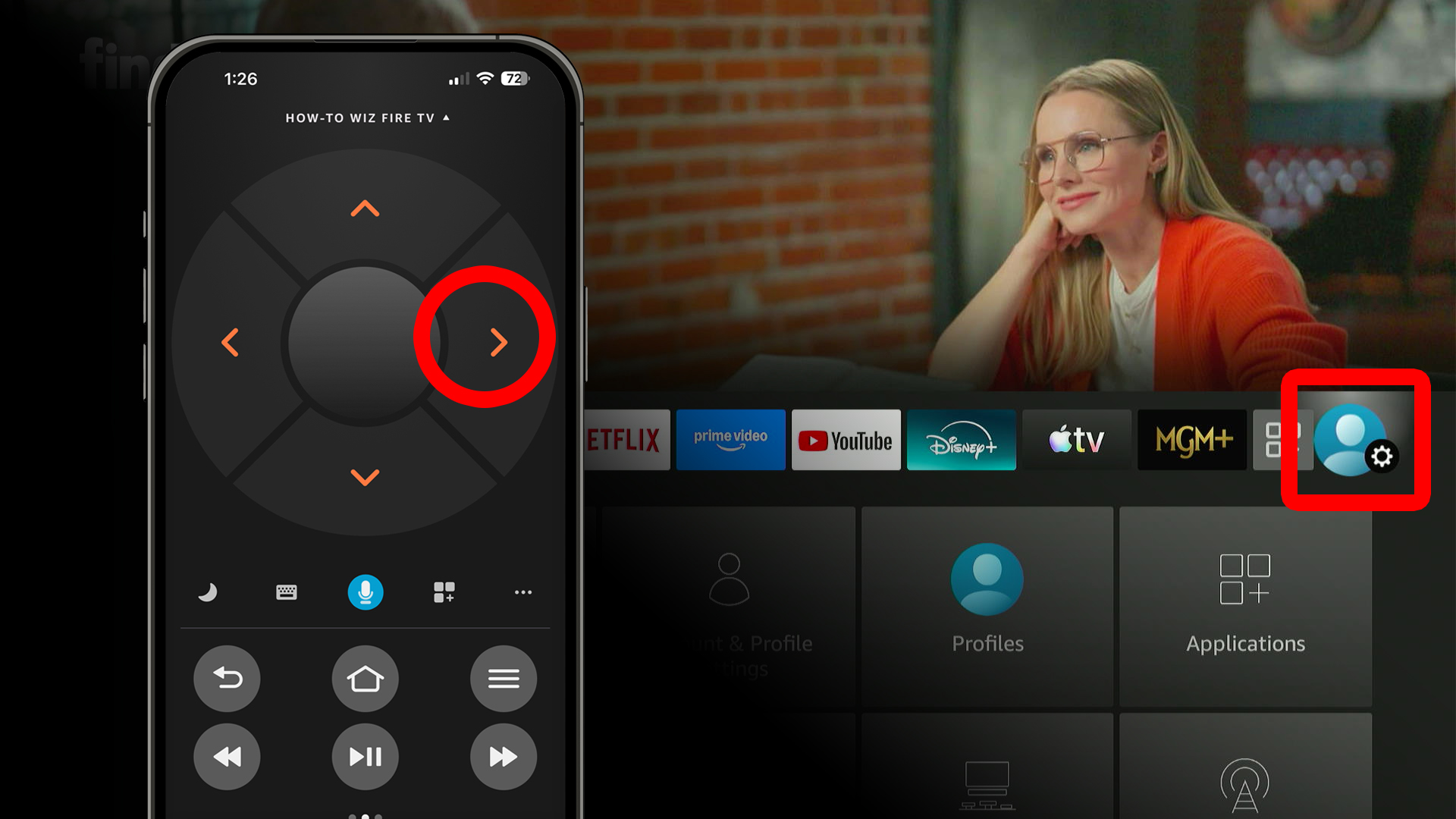
- Use the app to navigate to “Settings” on your Fire TV. You will see this on the far-right side of the menu bar. You can access it by tapping the right-directional button on the app remote.
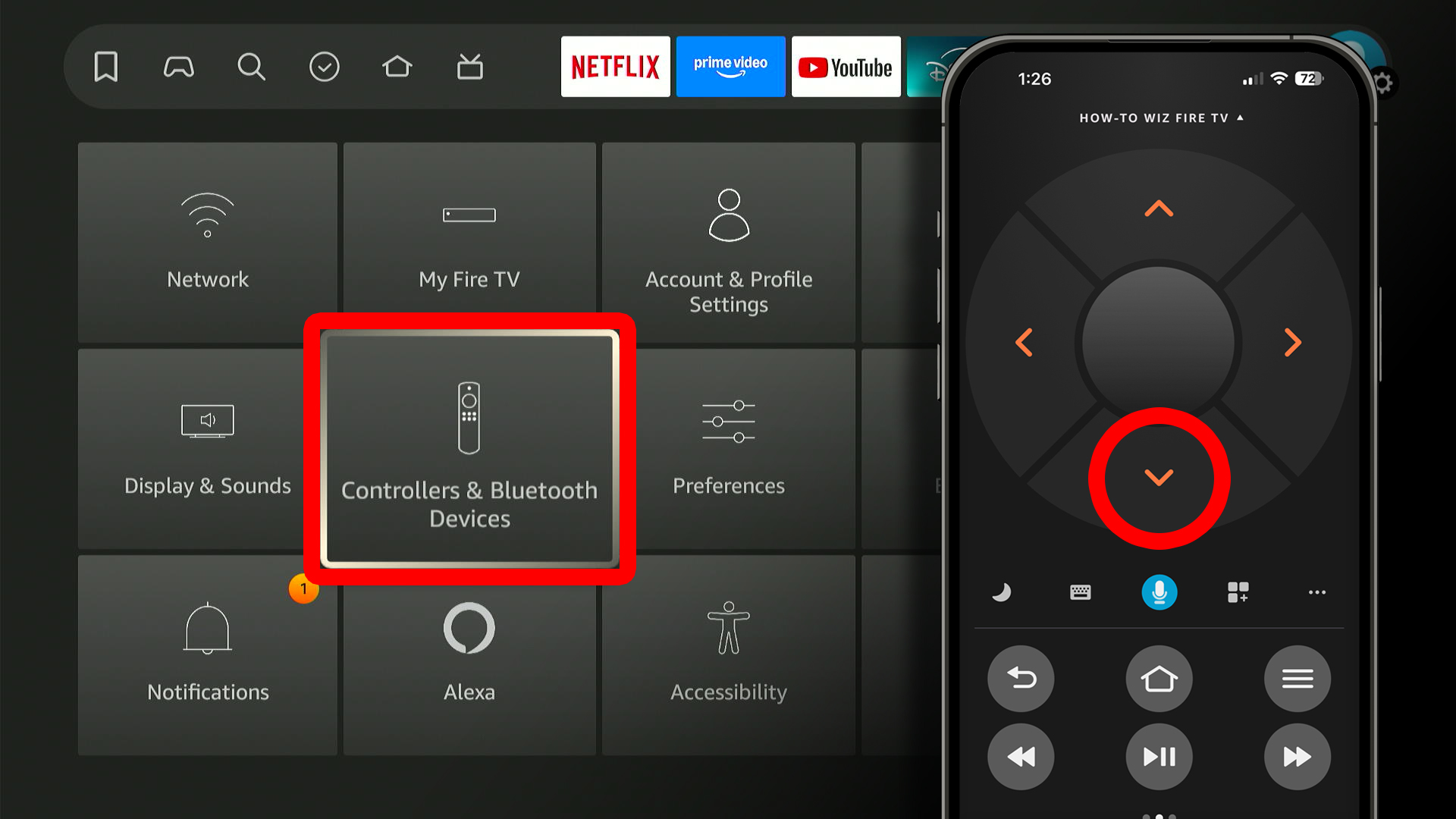
- Select “Controllers & Bluetooth Devices.” You can access the settings by tapping the down-directional button on the app remote.
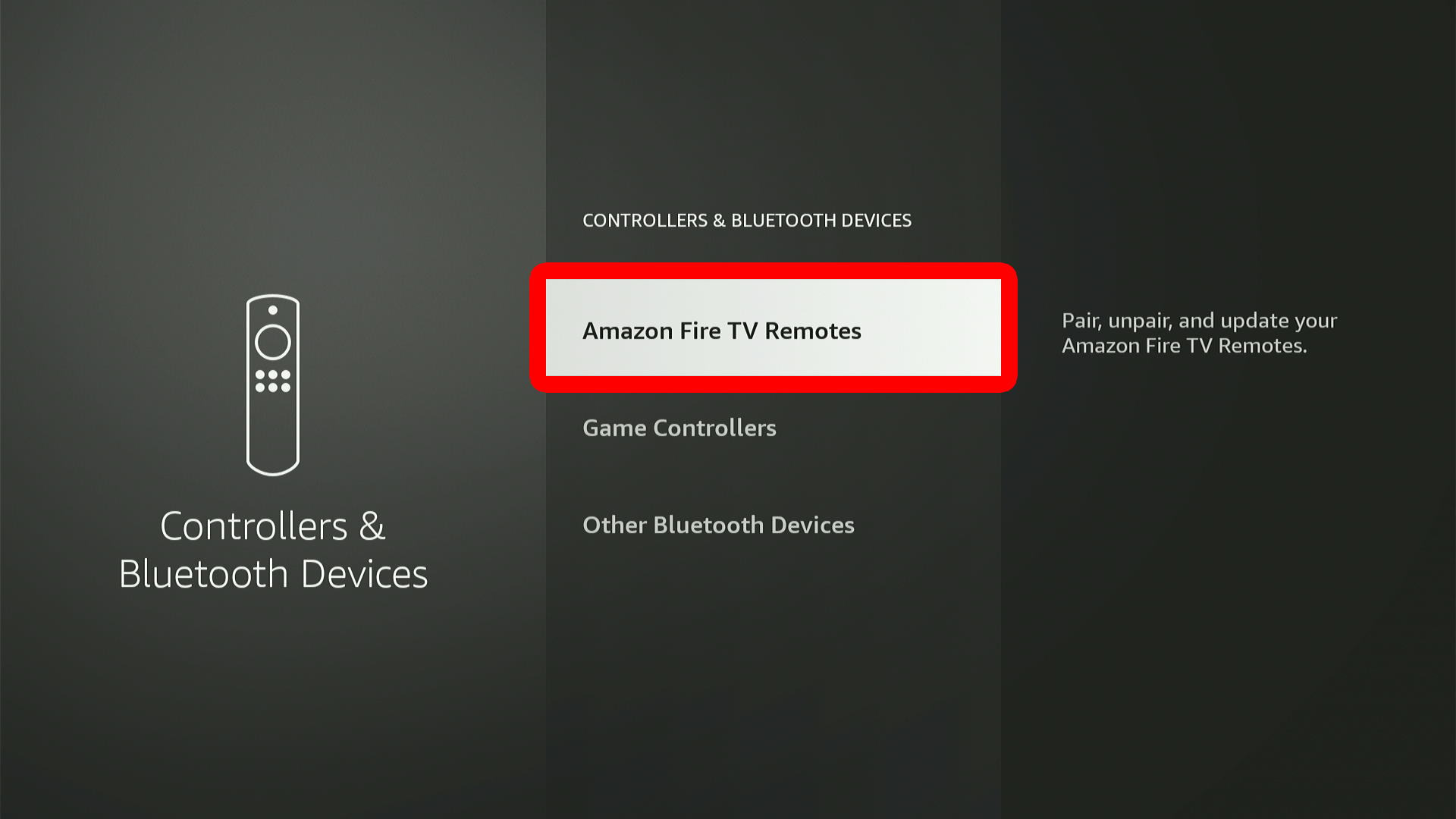
- Go to “Amazon Fire TV Remotes.” You can also select “Game Controllers” to use a game controller as your remote instead.
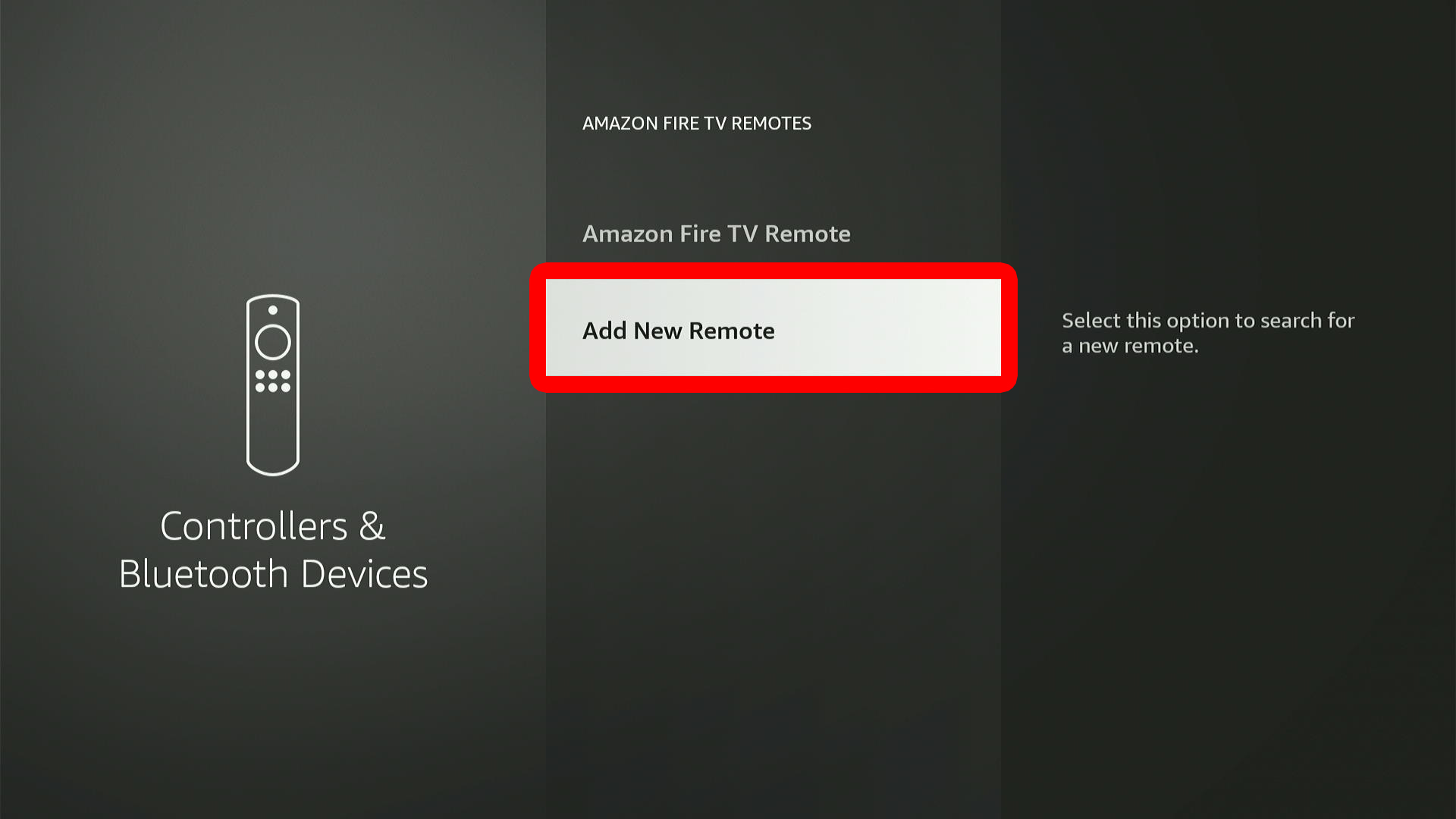
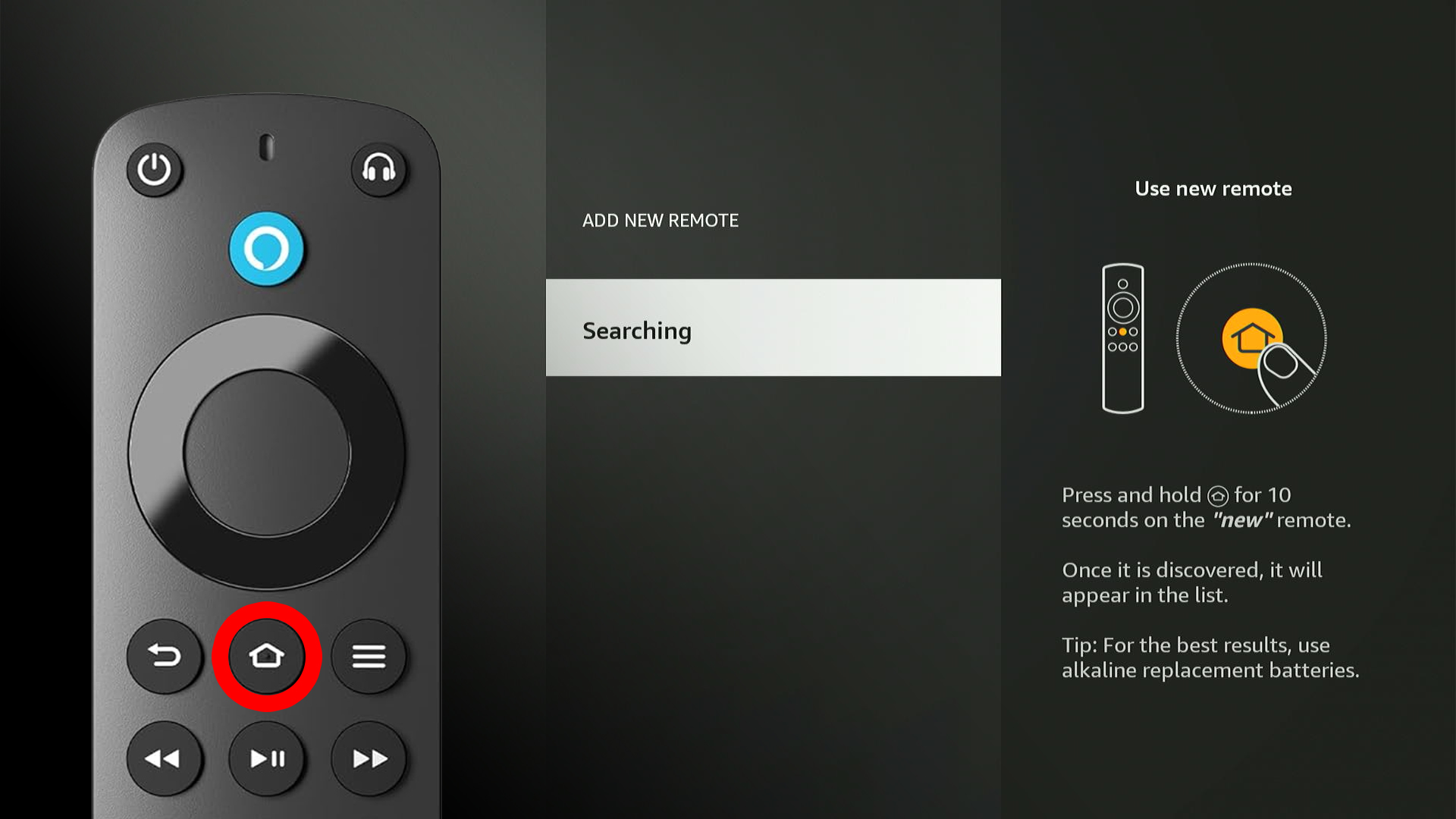
- Select “Add New Remote.”
- Press and hold the Home button on your “new” Fire TV remote for 10 seconds.
- Finally, tap the “Select” button on the app remote. This is the button in the middle of the ring at the top of the remote.
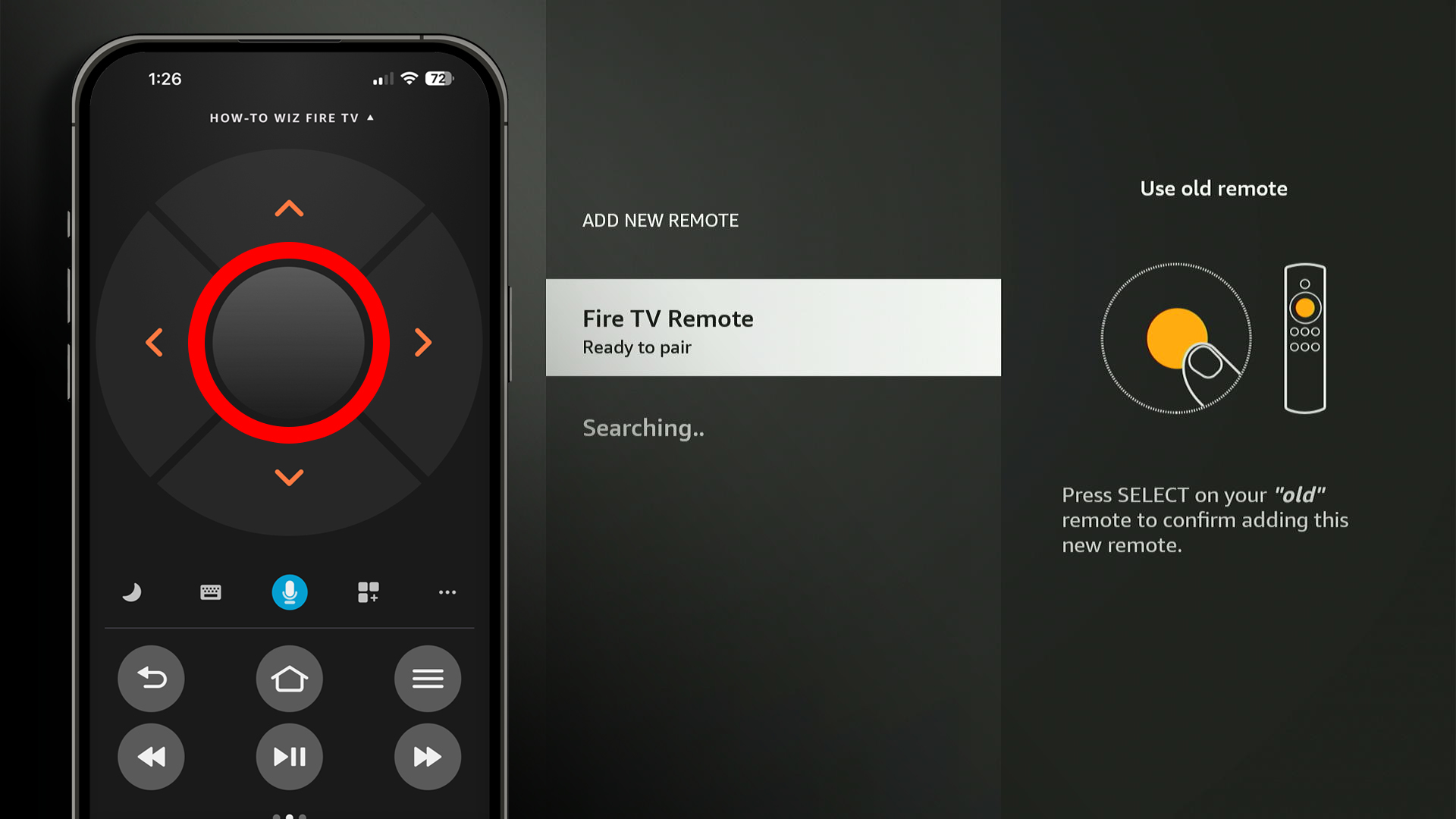
When you’re done, you should be able to use both the remote and the app to control your Fire TV.
Read More: How to Use Fire TV Without a Remote