
Have you ever tried running away in a video game—only to get this annoying pop-up: “Do you want to turn on Sticky Keys?” Here’s everything you need to know about how to turn off Sticky Keys on a Windows 10 or Windows 11 PC, and how to keep it disabled forever.
How to Turn Off Sticky Keys in Windows 11
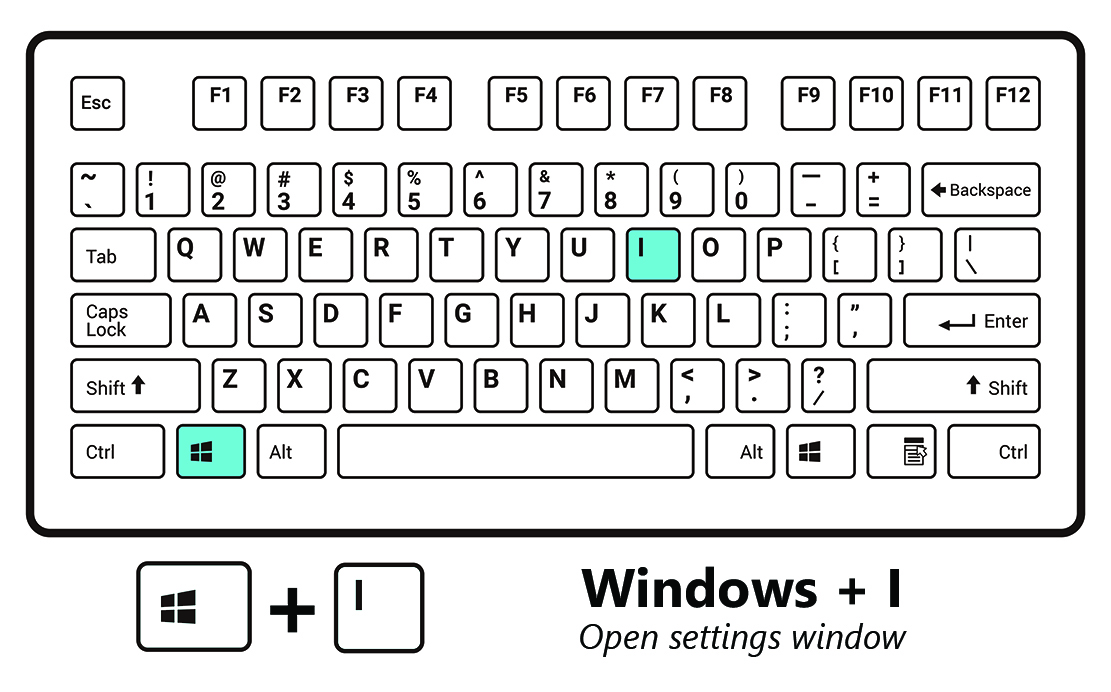
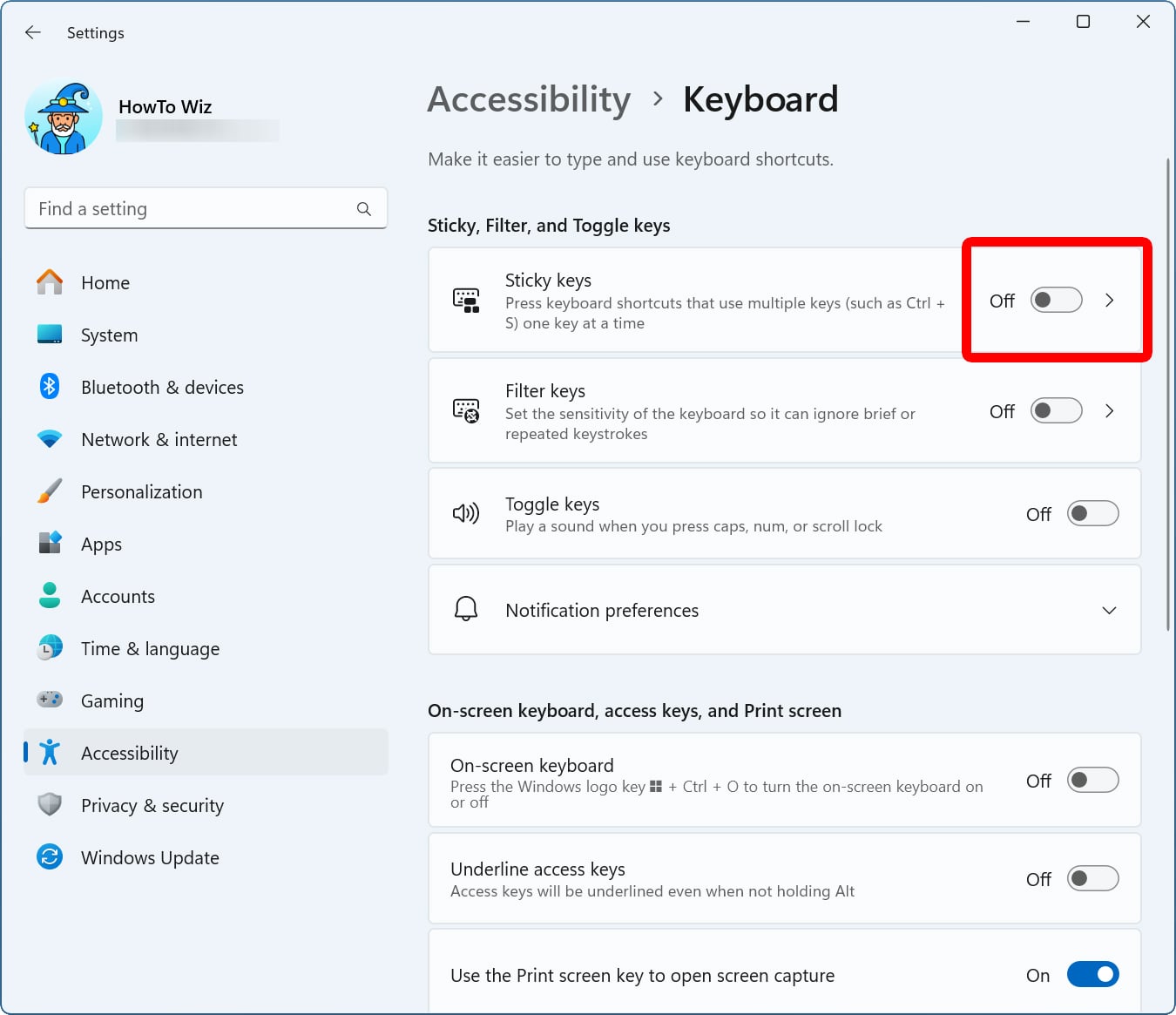
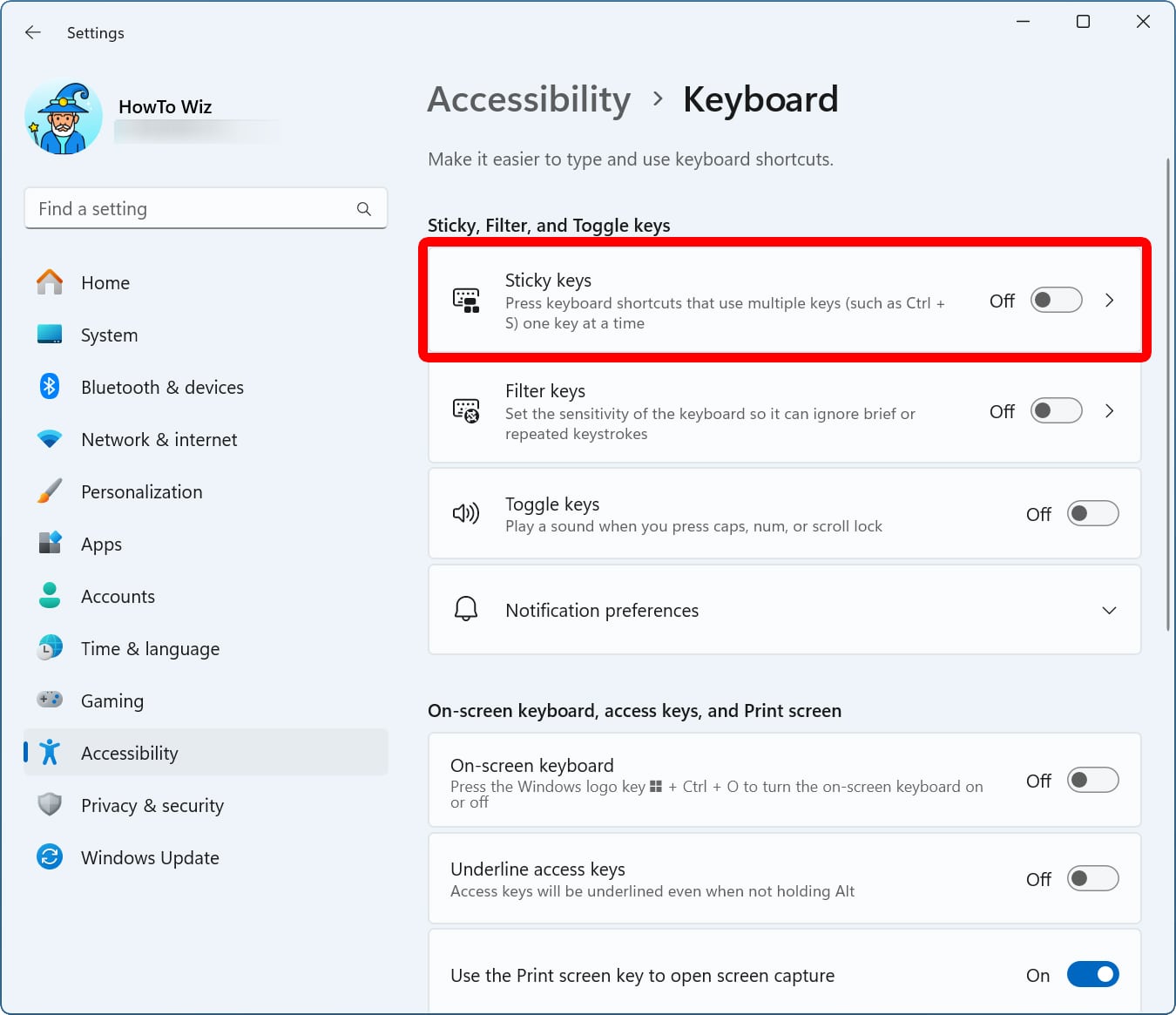
To disable Sticky Keys in Windows 11, press the Windows + i keys on your keyboard at the same time. Then go to “Accessibility > Keyboard.” Next, click the slider next to “Sticky Keys” to turn it “Off.” Finally, click “Sticky Keys” and disable “Keyboard shortcut for Sticky Keys.”
- Press the Windows + i keys on your keyboard. When you press these keys at the same time, it will open a Settings window.

- Go to “Accessibility.” You will see this in the left sidebar of the Settings window.
- Select “Keyboard.” You’ll need to scroll down to the bottom of the right side of the window to see this option.

- Click the slider next to “Sticky Keys” to turn it “Off.” You will know this feature is off when it turns gray.
- Click “Sticky Keys.” This will reveal additional keyboard settings.
- Finally, turn off “Keyboard shortcut for Sticky Keys.” This will prevent the feature from turning back on when you press the Shift key 5 times.
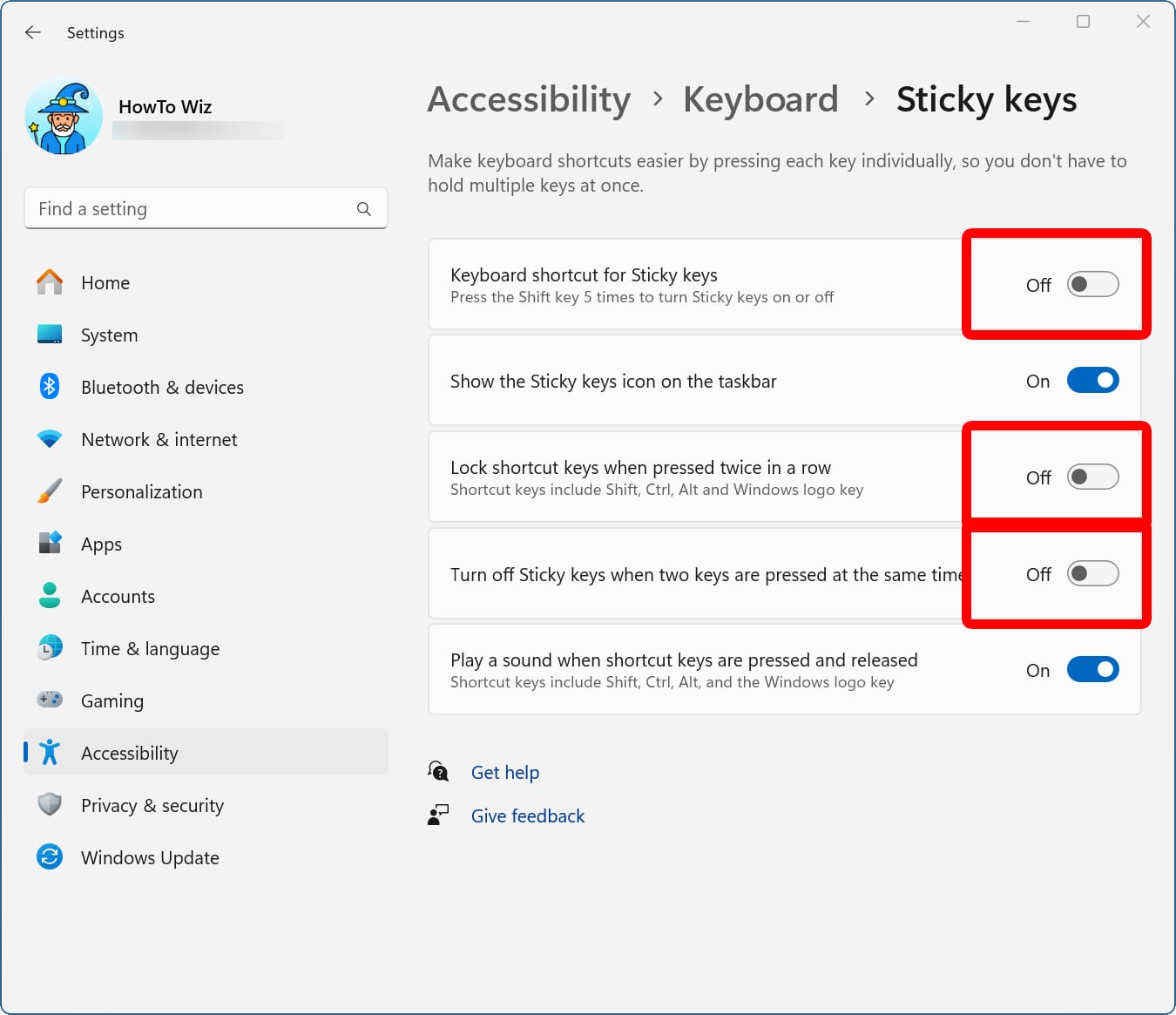
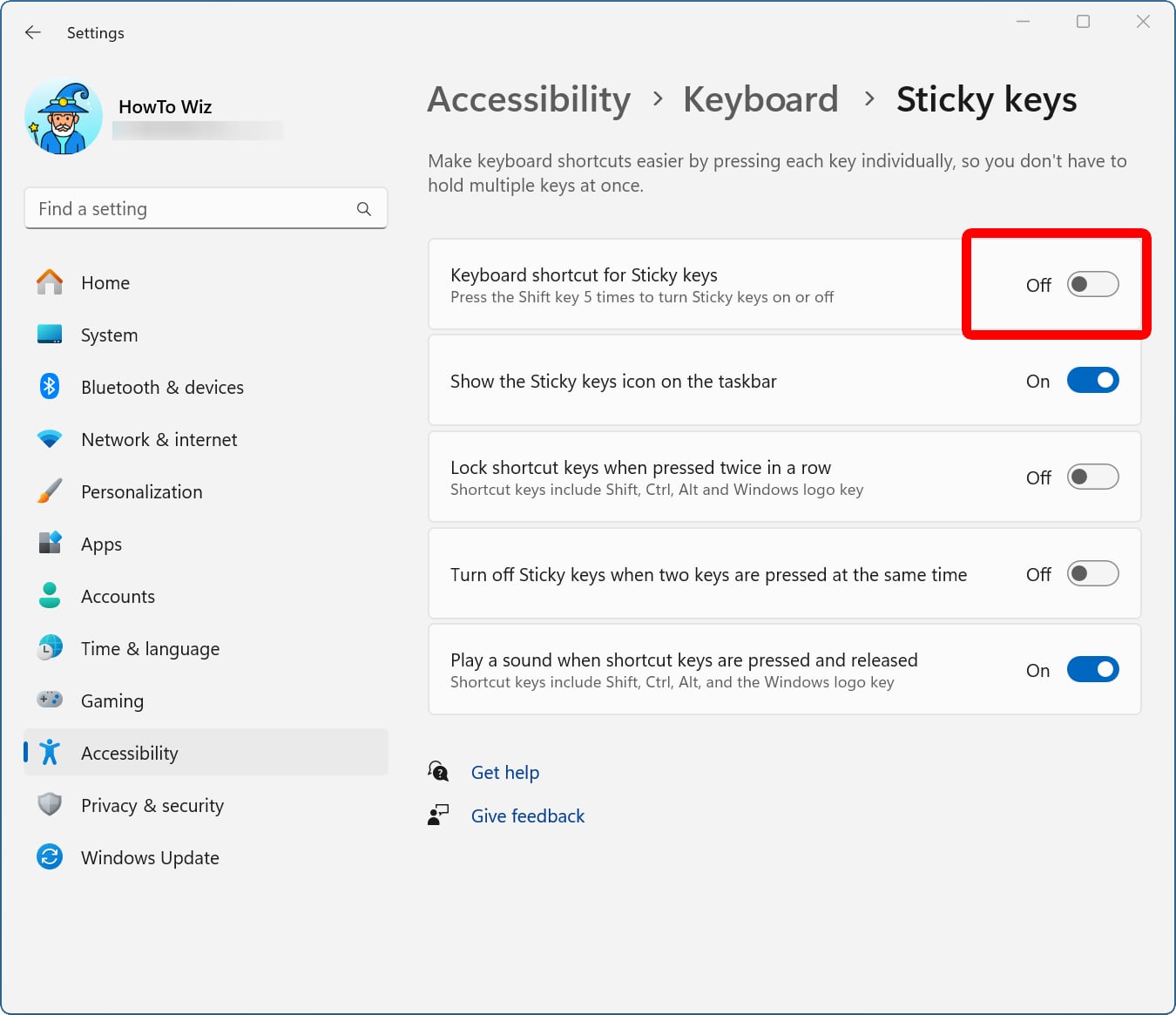
To make sure Sticky Keys are totally disabled, you should also turn off “Lock shortcut keys when two keys are pressed at the same time” and “Turn off Sticky keys when two keys are pressed at the same time.”
Read More: What is VSync
How to Turn off Sticky Keys in Windows 10
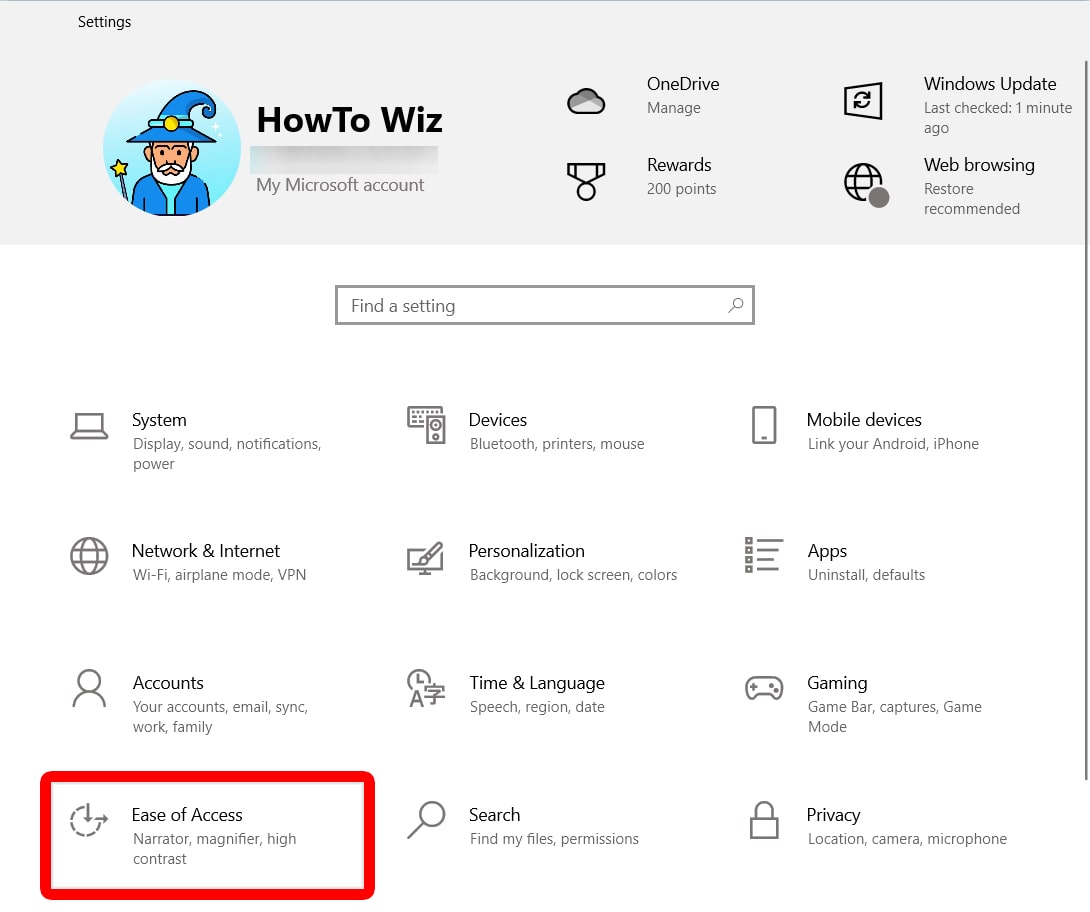
To turn off Sticky Keys on a Windows 10 PC, press the Windows + i keys on your keyboard at the same time. Then select Ease of Access from the left sidebar of the Settings window. Finally, uncheck the options under Sticky Keys and “Allow the shortcut key to start Sticky Keys.”
- Press the Windows + i keys on your keyboard. When you press these keys at the same time, it will open a Settings window.
- Go to “Ease of Access.”

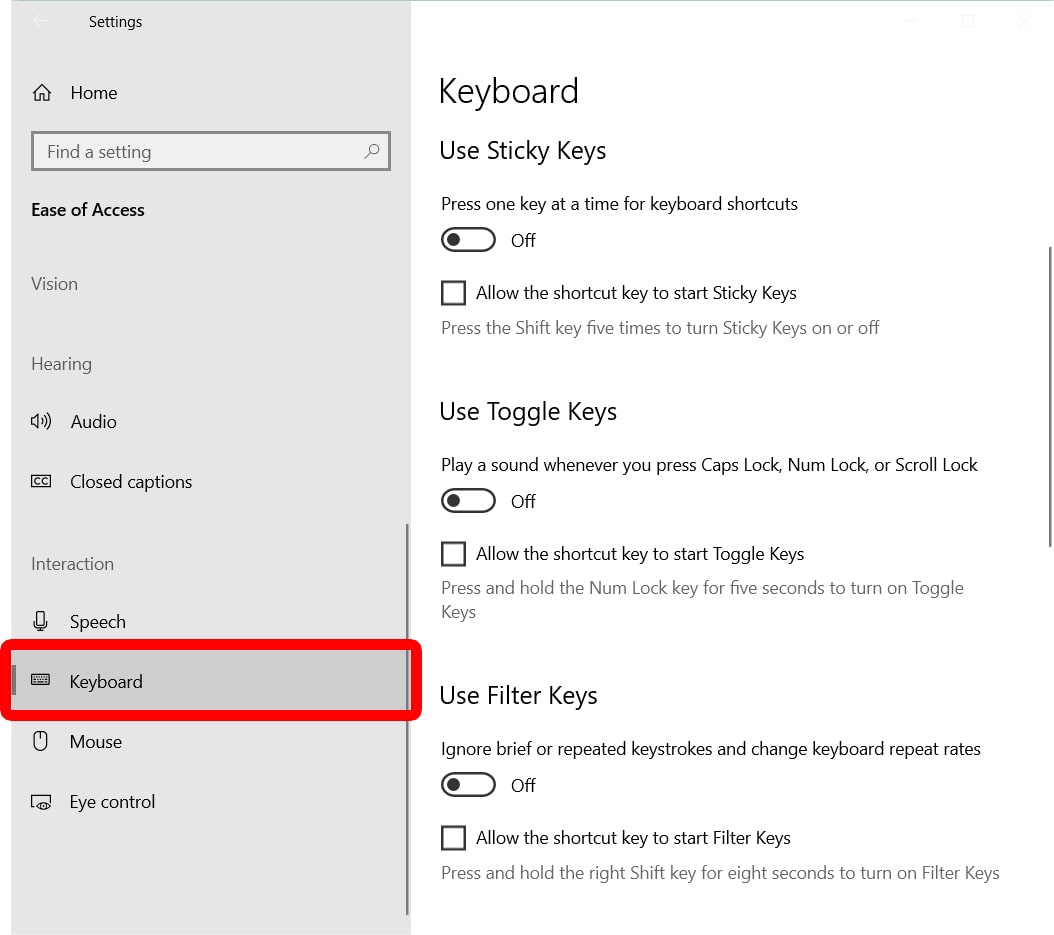
- Select “Keyboard.” You will see this in the left sidebar near the bottom.

- Finally, click the slider under “Sticky Keys” to turn it “Off.”
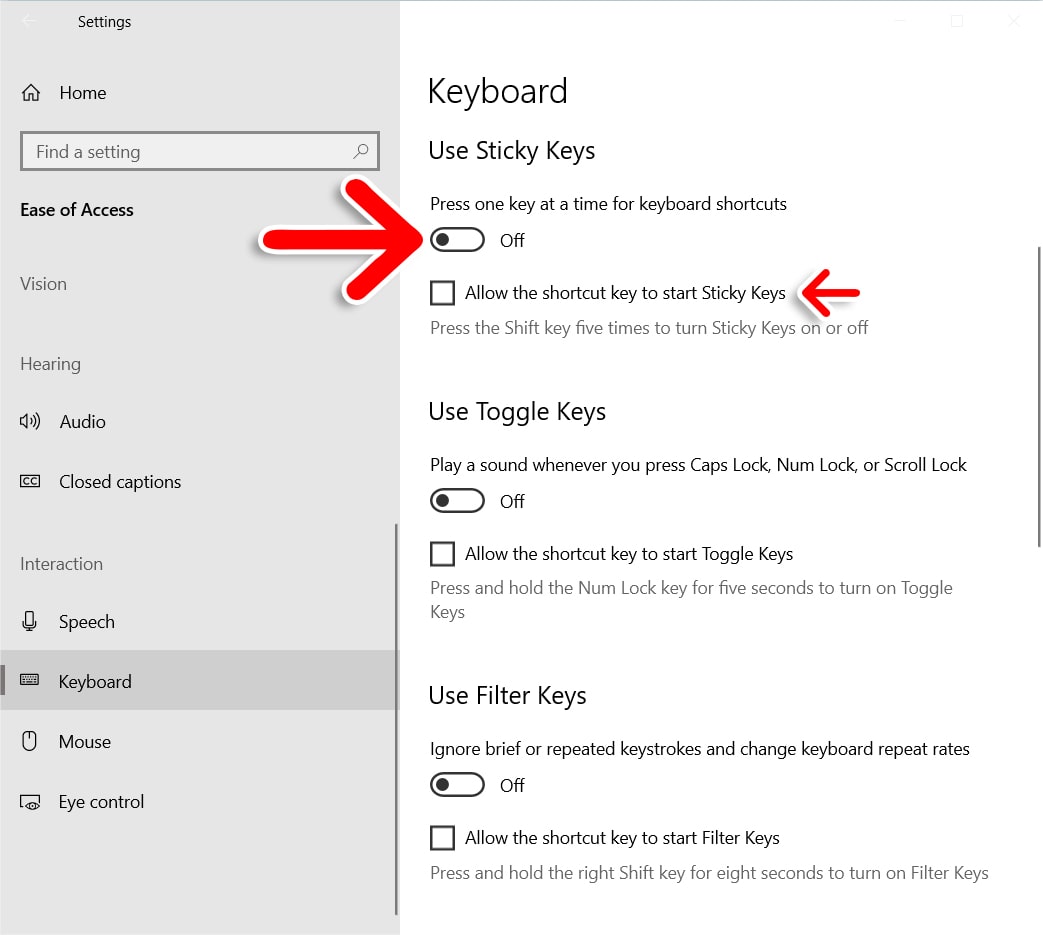
To make sure you aren’t interrupted by other keyboard shortcuts, you can turn off “Toggle Keys, Filter Keys,” and other keyboard settings.