
Is your Windows 11 PC running slower than usual? Uninstalling apps can free up storage space and even remove malware. Here’s how to uninstall apps on a Windows 11 computer using Settings, the Control Panel, or File Explorer.
Read More: How to Turn Off Notifications in Windows 11
How to Uninstall Apps from Windows Settings
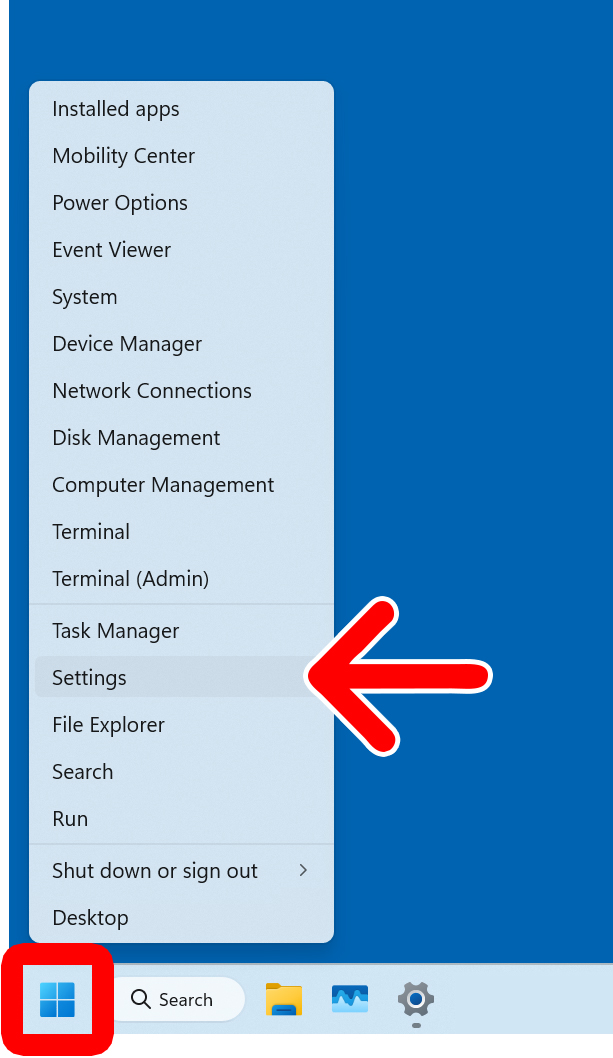
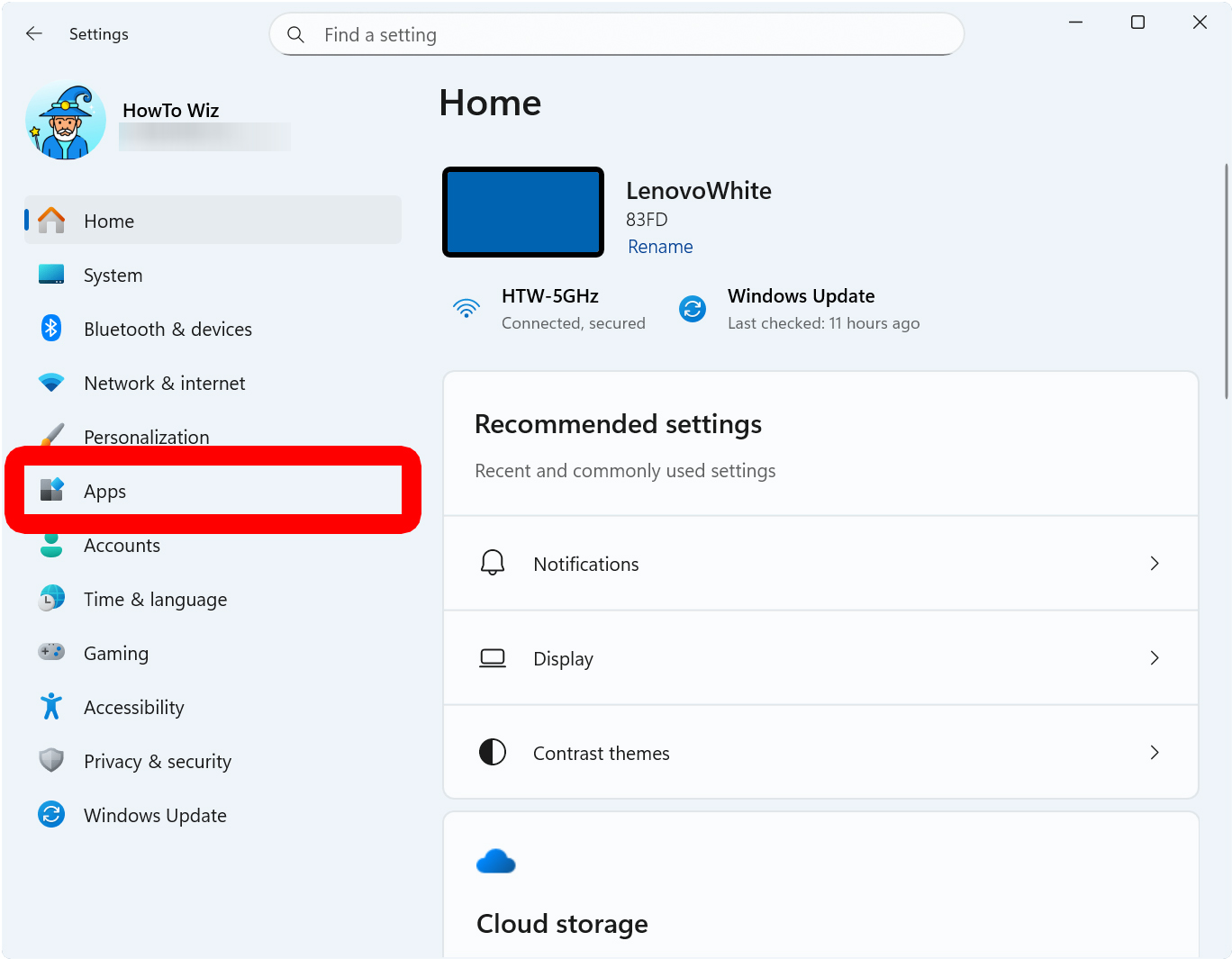
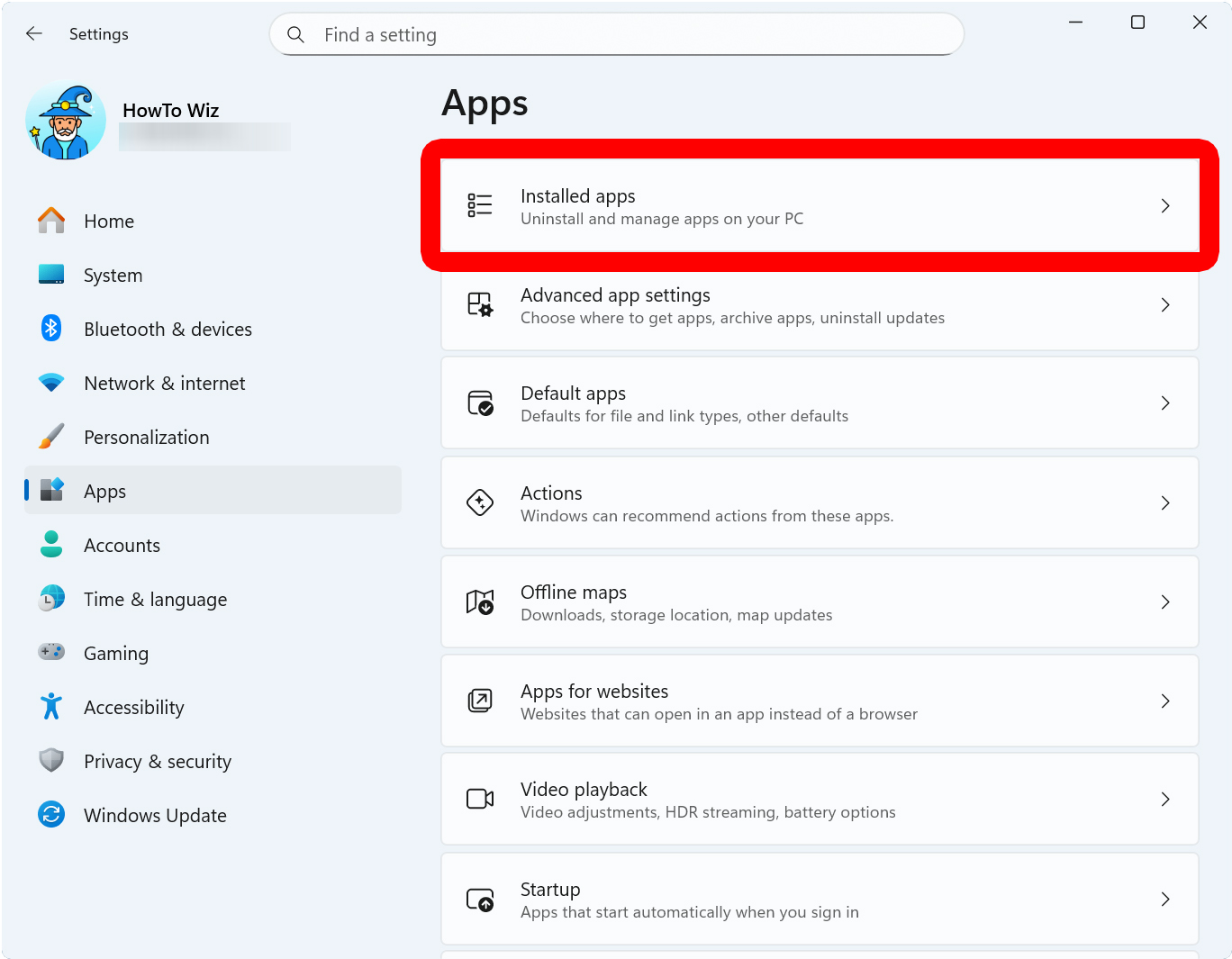
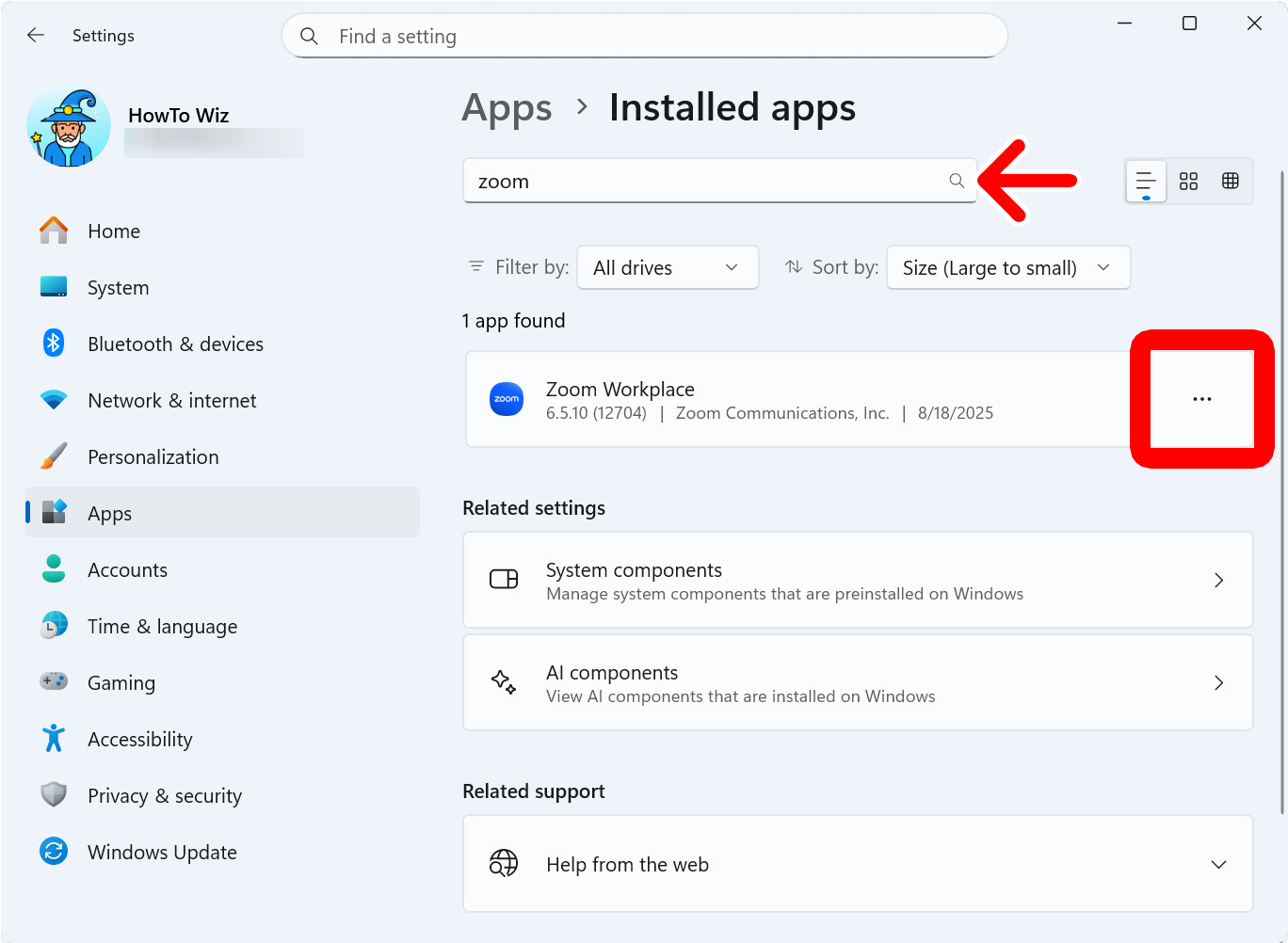
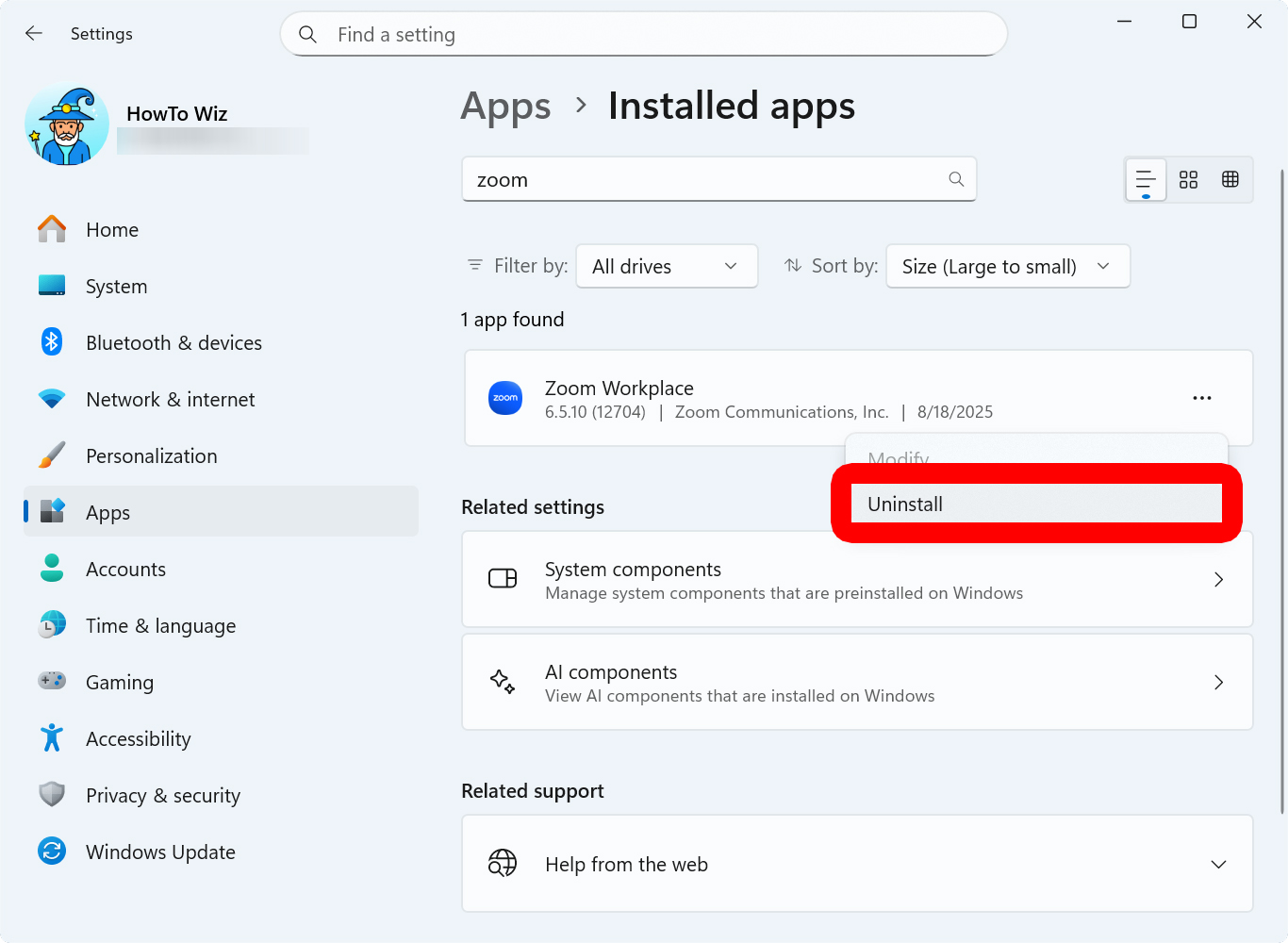
To uninstall apps from Windows 11, right-click the Windows logo at the bottom of your screen and select “Settings.” Then click “Apps” in the left sidebar, and select “Installed apps.” Finally, click the three-dot icon to the right of an app and select “Uninstall.”
- Right-click the Windows logo at the bottom of your screen.
- Select “Settings.”

- Click “Apps.” You will see this in the left sidebar. If you don’t see this option, try expanding the Settings window.

- Go to “Installed apps.” You will see this on the right side of the window.

- Click the three-dot icon next to an app. You can either scroll down to find an app or enter the app name into the search bar at the top of the window.
- Select “Uninstall.”
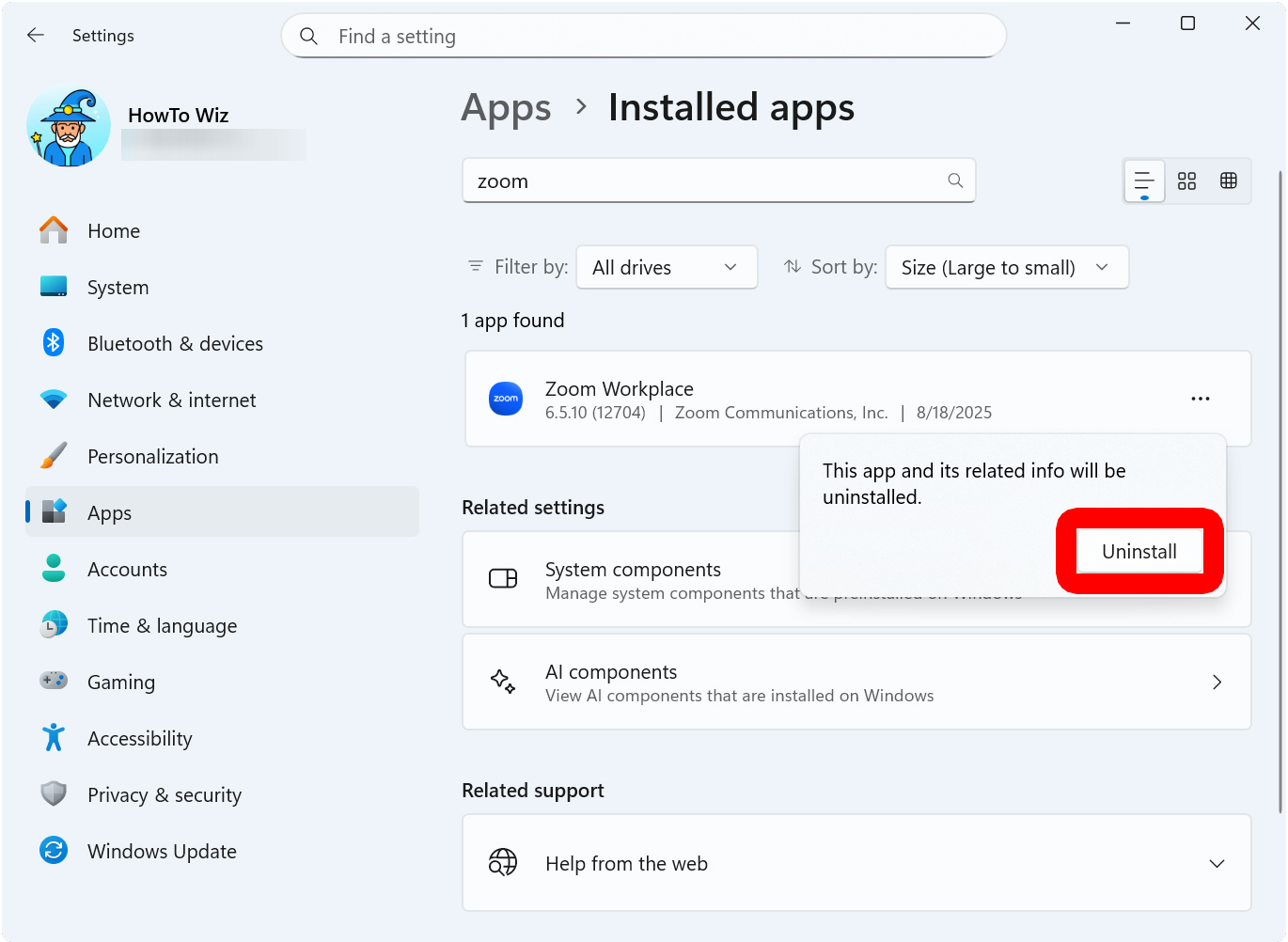
- Finally, click “Uninstall” to confirm.
Some apps cannot be uninstalled from Windows Settings, and you can only remove them from the Control Panel.
How to Uninstall Apps from the Control Panel
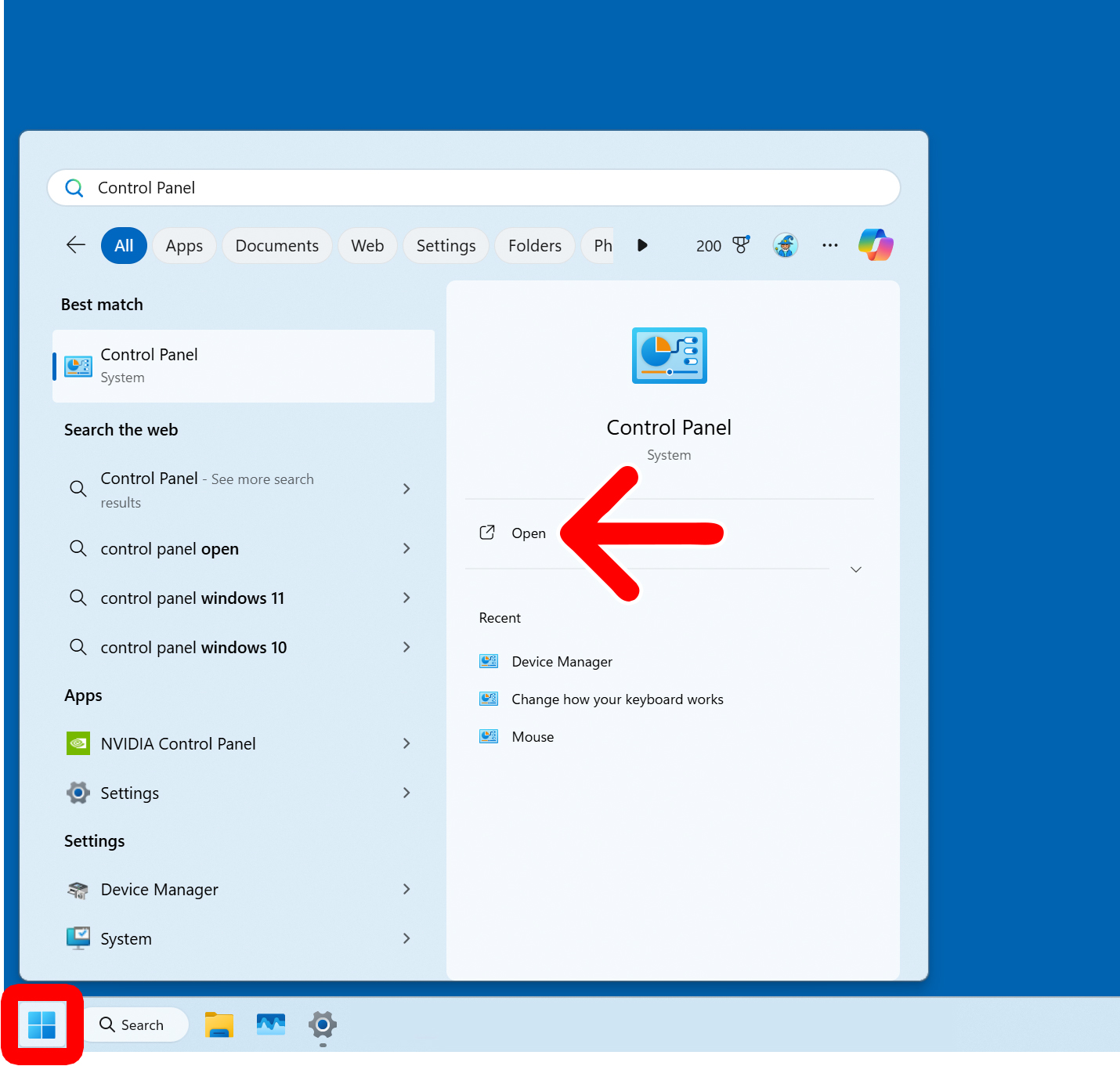
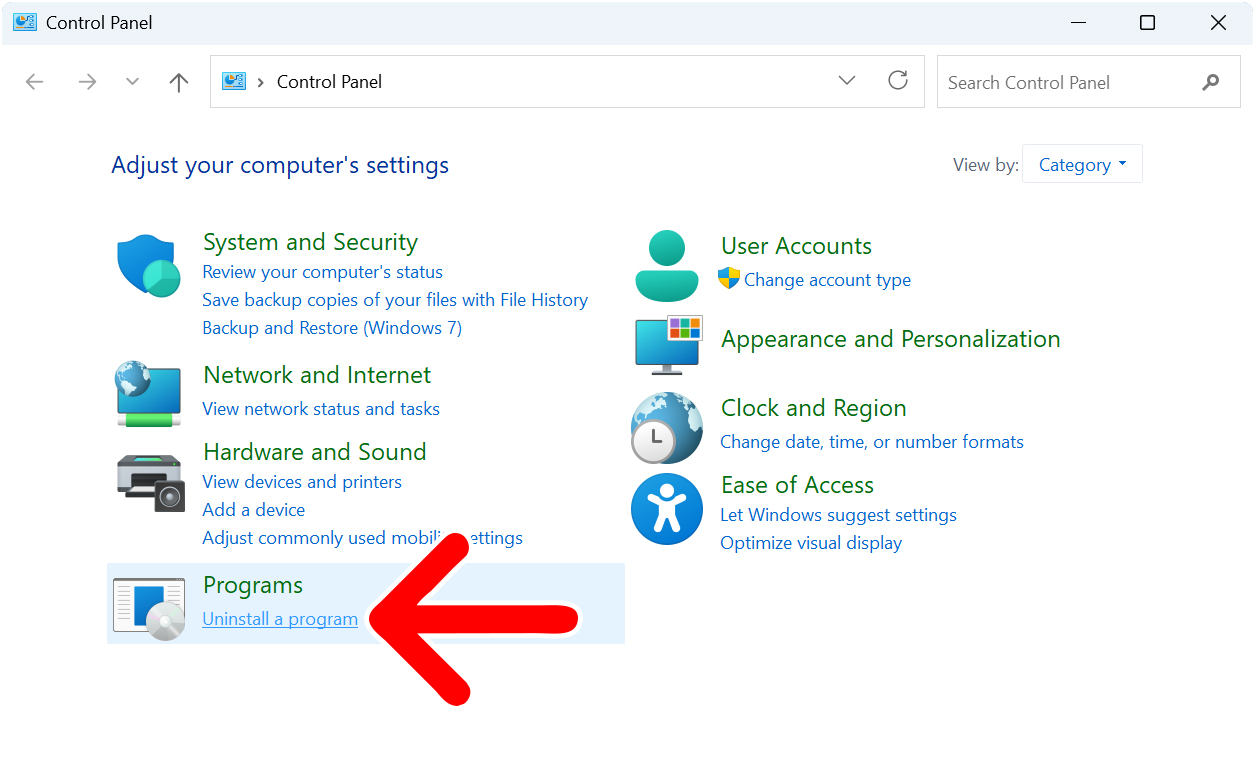
To uninstall apps in Windows 11, left-click the Windows logo at the bottom of your screen and type “Control Panel” into the search bar. Then select “Open.” Next, select “Uninstall a program.” Finally, select an app and click “Uninstall.”
- Left-click the Windows logo at the bottom of your screen. This will open the Windows 11 Start Menu.
- Type “Control Panel” into the search bar.
- Click “Open.”
- Select “Uninstall a program.” You will see this under “Programs.”
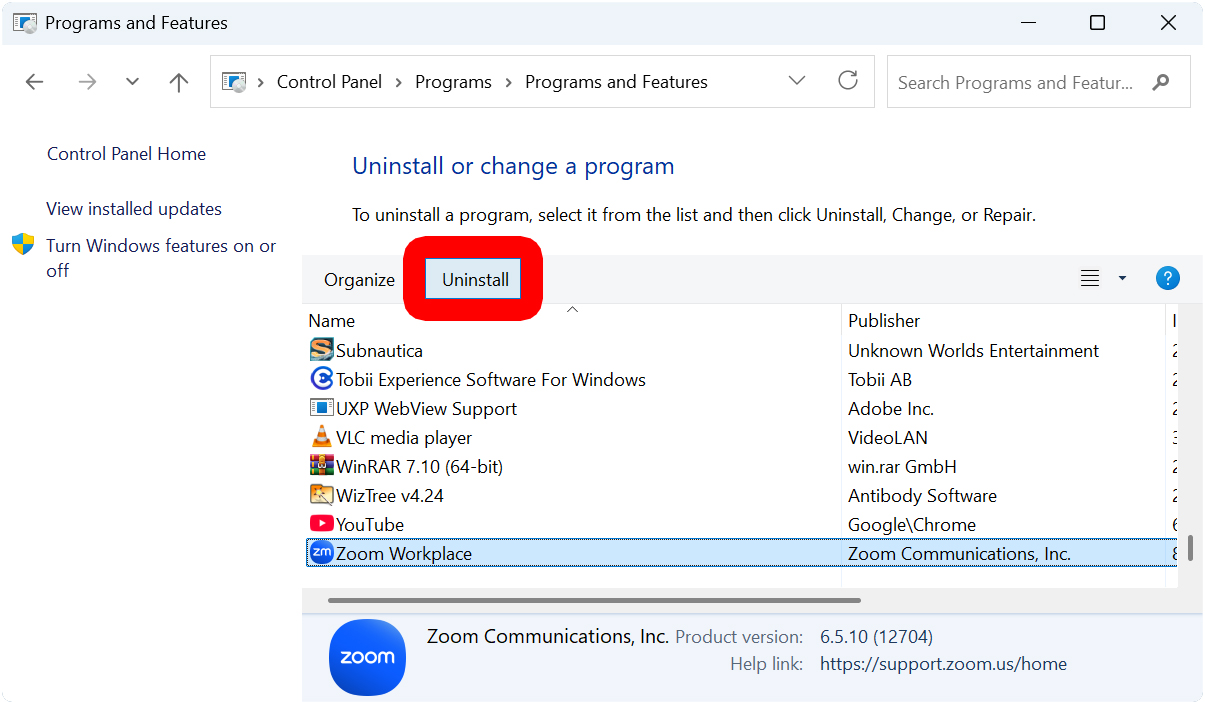
- Select an app and click “Uninstall.”
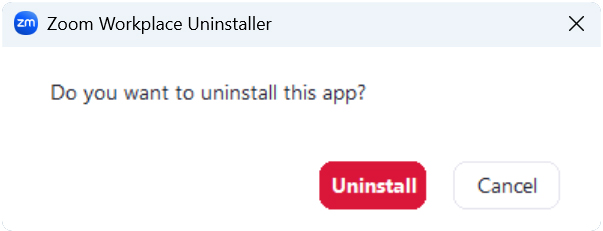
- Finally, click “Uninstall” to confirm.
How to Uninstall Apps from Windows 11 File Explorer
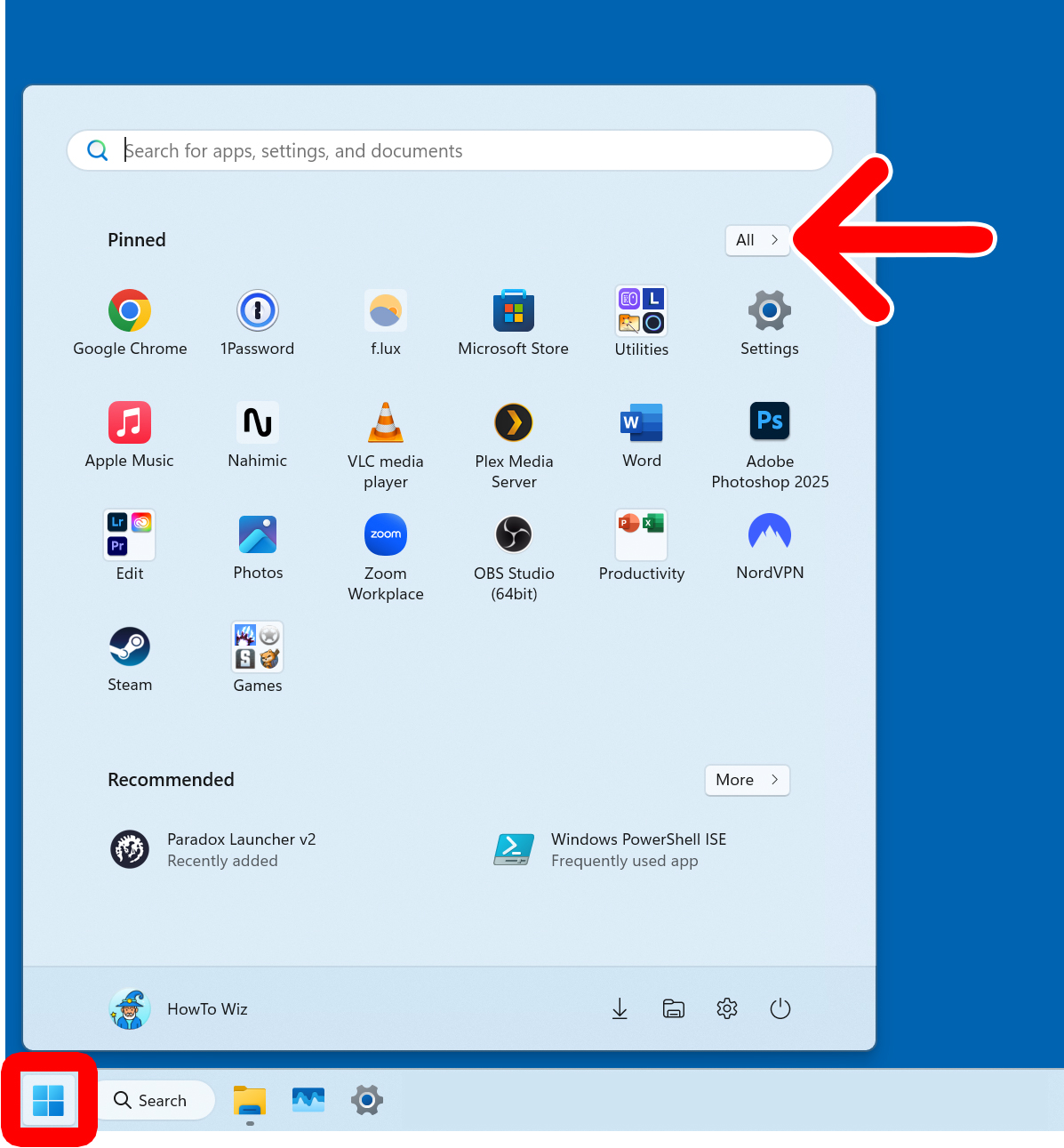
- Click the Windows logo at the bottom of your screen.
- Click “All.” You will see this in the top-right corner of the Start Menu.
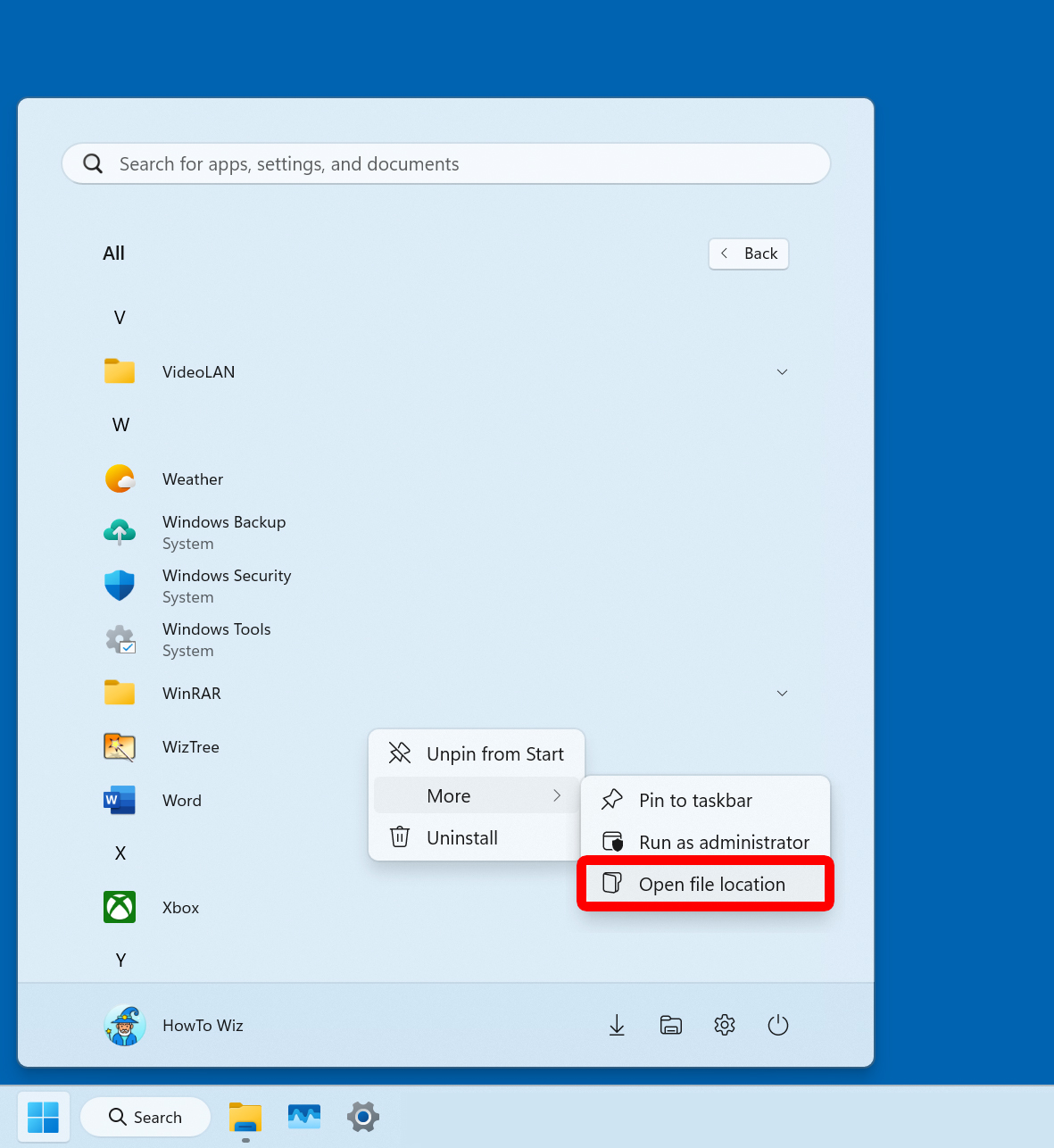
- Right-click an app.
- Select “More > Open file location.”
- Finally, double-click the uninstaller file and follow the instructions. This file is usually named something like Uninstall.exe.
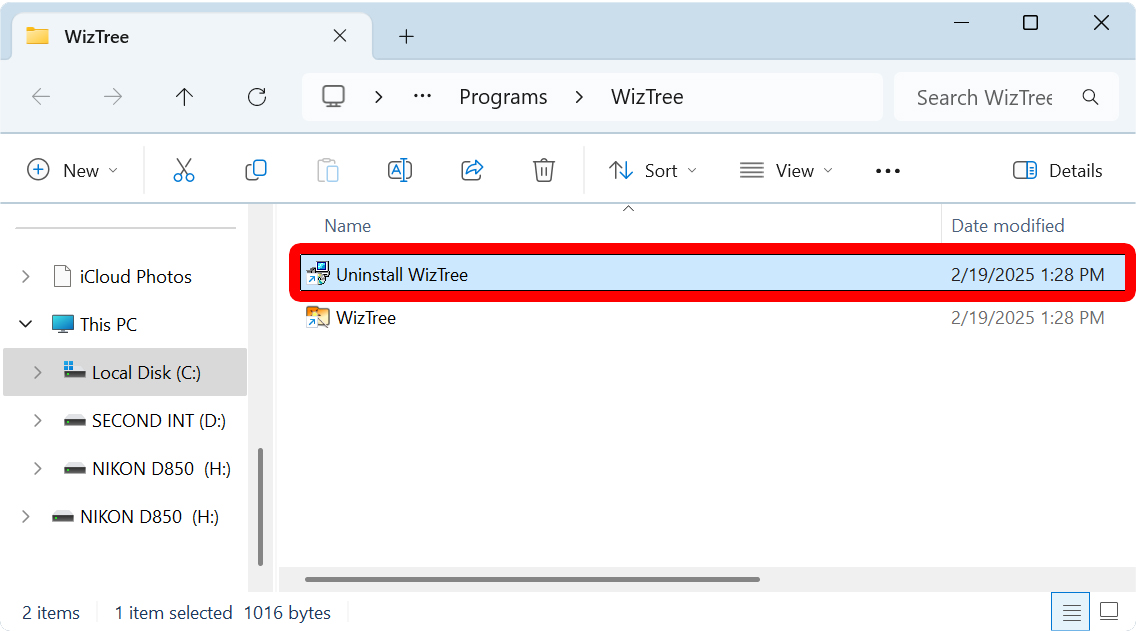
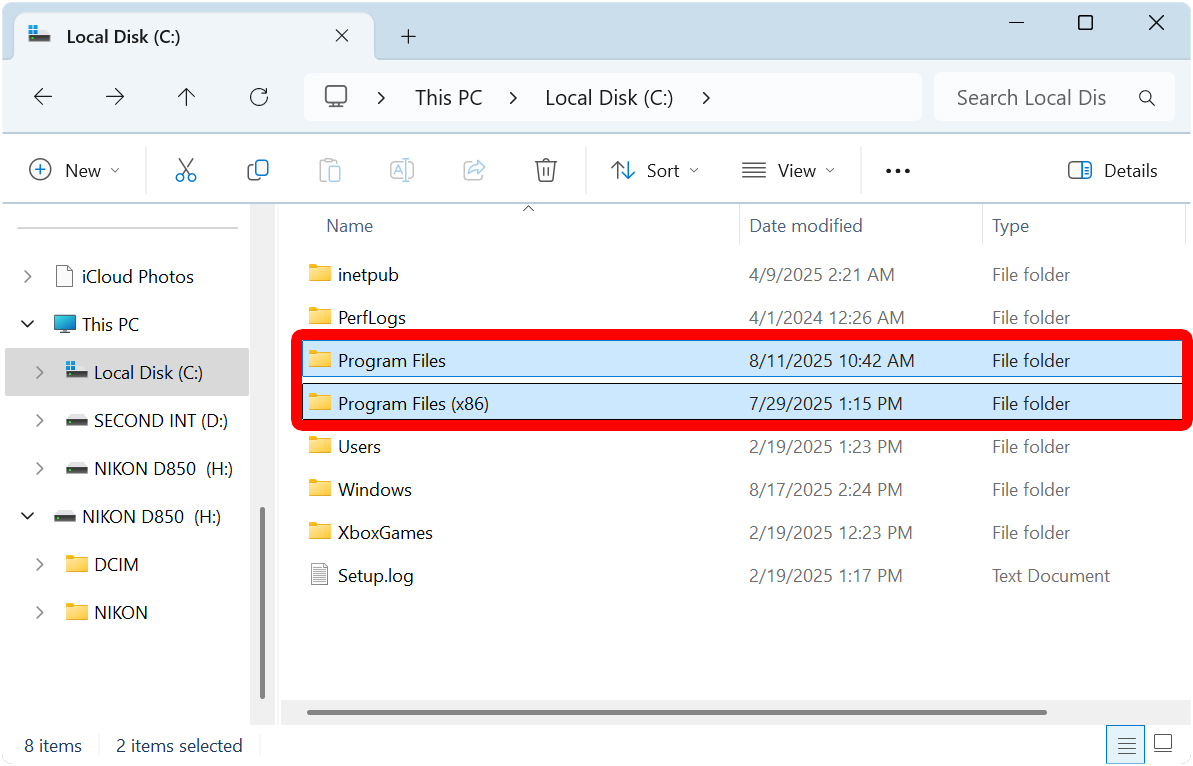
You can also press the Windows + e keys to open a File Explorer window. Then you can try to find uninstaller apps by navigating to the following locations:
C:\Program Files
C:\Program Files (x86)
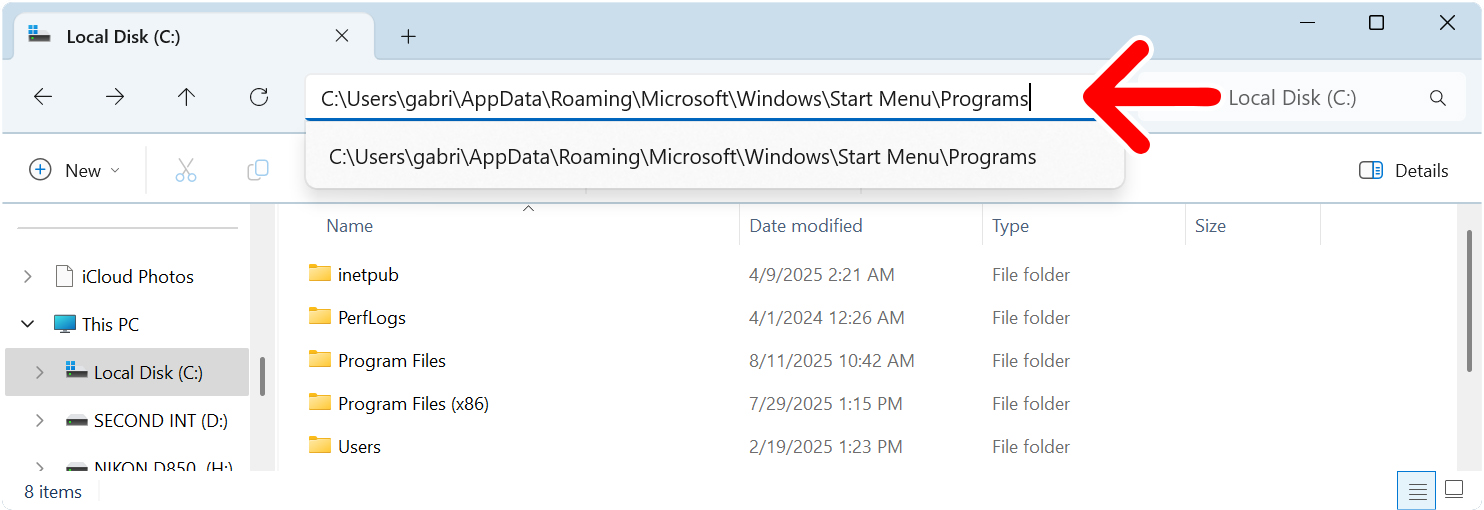
C:\ProgramData\Microsoft\Windows\Start Menu\Programs
C:\Users\USERNAME\AppData\Roaming\Microsoft\Windows\Start Menu\Programs
If none of the above options worked, you can also try using a third-party uninstaller, like IObit Uninstaller or Geek Uninstaller.