Google Chrome usually updates itself in the background, but that doesn’t always happen. If your browser feels sluggish or buggy, a quick manual update might solve the problem. Here’s everything you need to know about how to update Chrome on a Windows or Mac computer, an iPhone, or an Android device.
Read More: How to Make Chrome Your Default Browser in Windows 11
How to Update Chrome on Windows or Mac
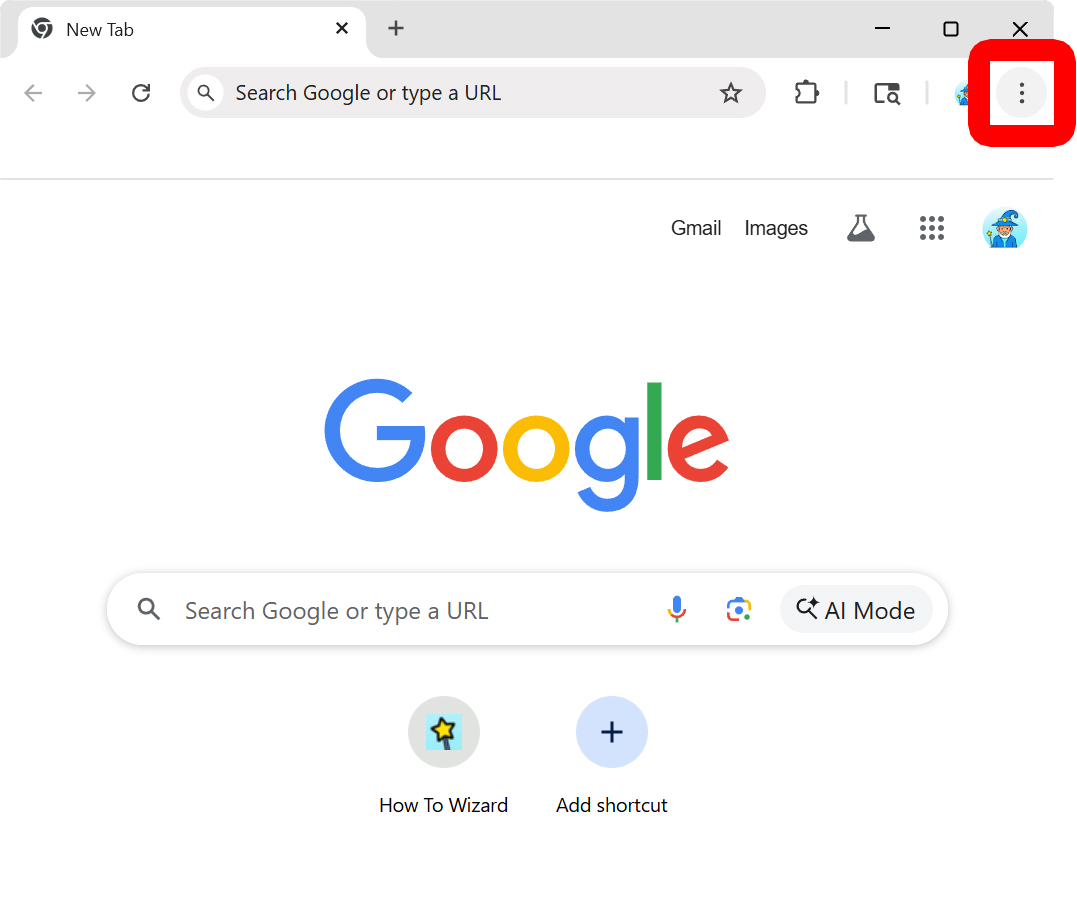
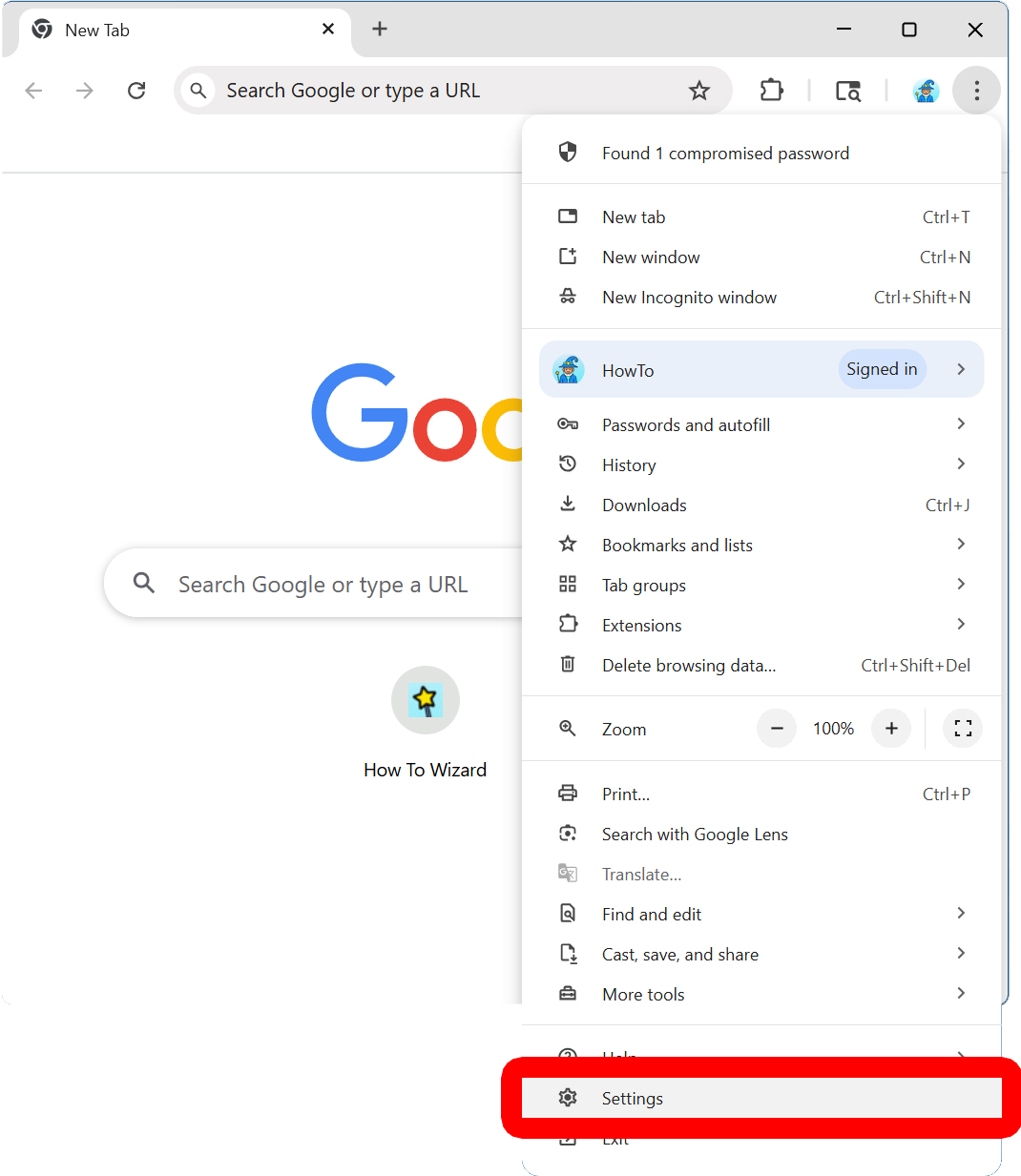
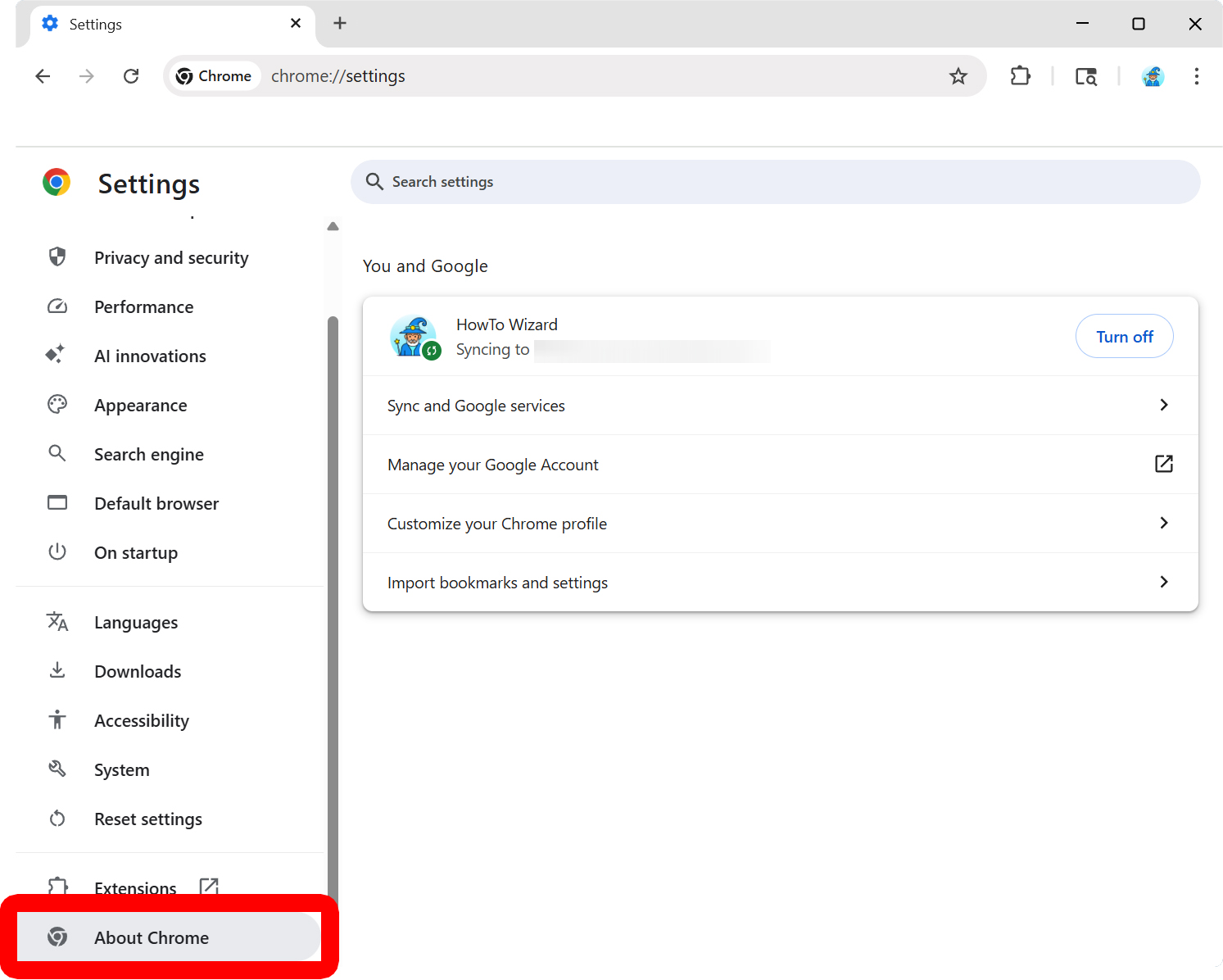
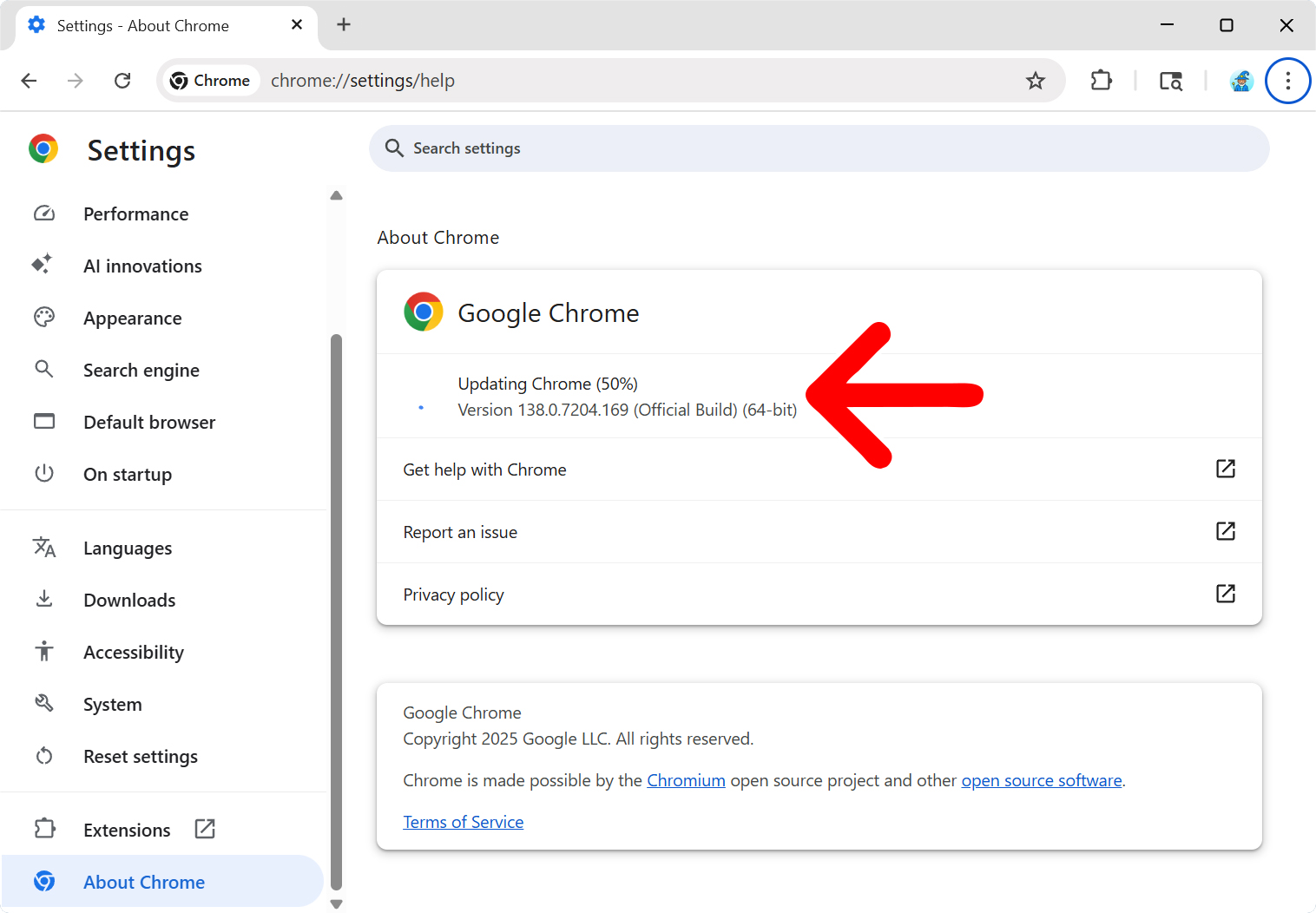
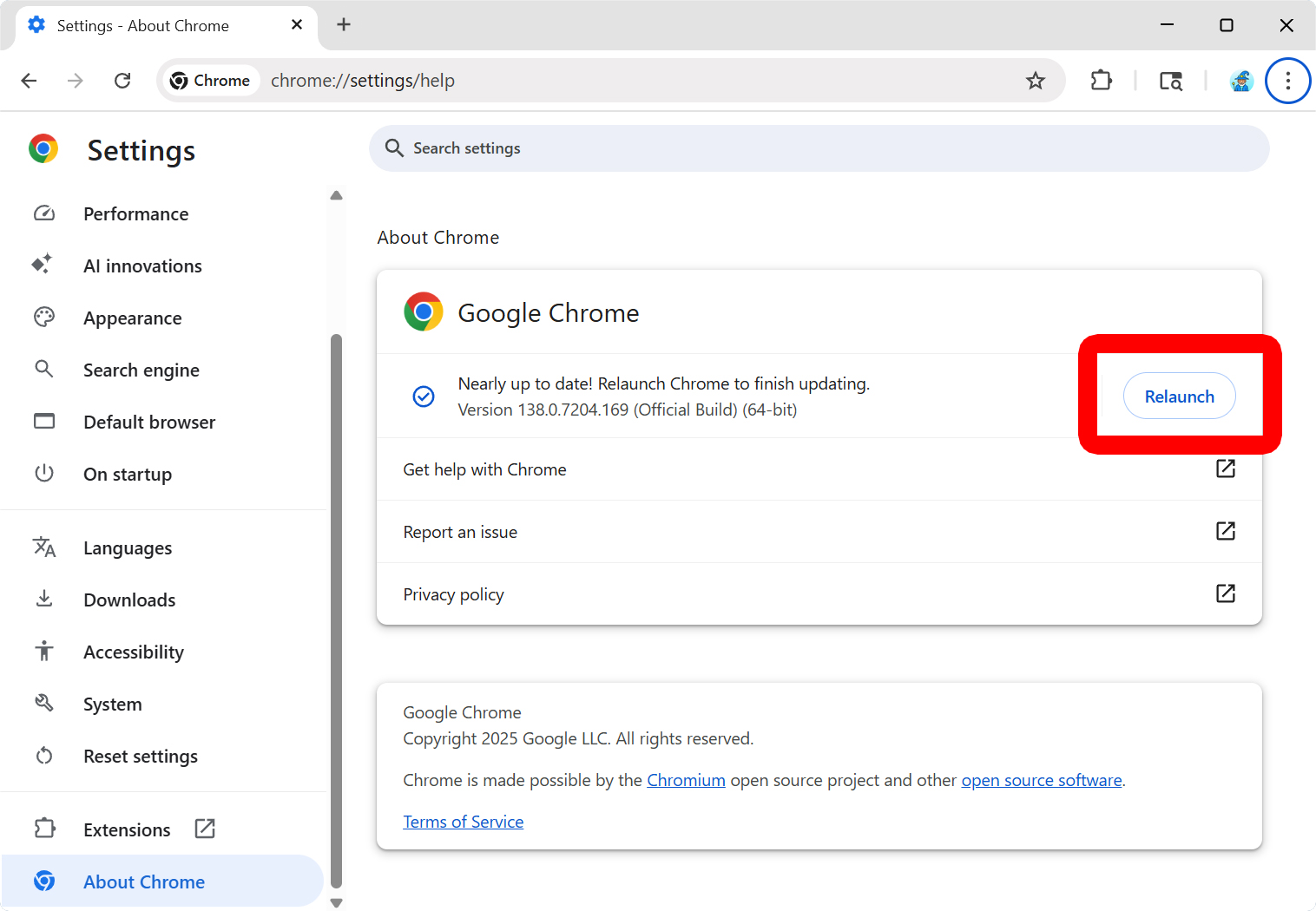
To update Google Chrome on a Windows or Mac computer, open a browser window and click the three-dot icon in the top-right corner of the window. Then select “Settings” and click “About Chrome” in the left sidebar menu. Finally, wait for Chrome to update and select “Relaunch.”
- Open Chrome and click the three-dot icon. You will see this in the top-right corner of the Chrome window.

- Click “Settings.” You will see this at the bottom of the drop-down menu.

- Select “About Chrome.” You will see this at the bottom of the left sidebar menu. If you don’t see the left sidebar, enlarge your Chrome window.

- Wait for the update to download. Once you open this page, Chrome will immediately start downloading and installing the latest version automatically.

- Finally, click “Relaunch.”
How to Update Chrome on an iPhone or iPad
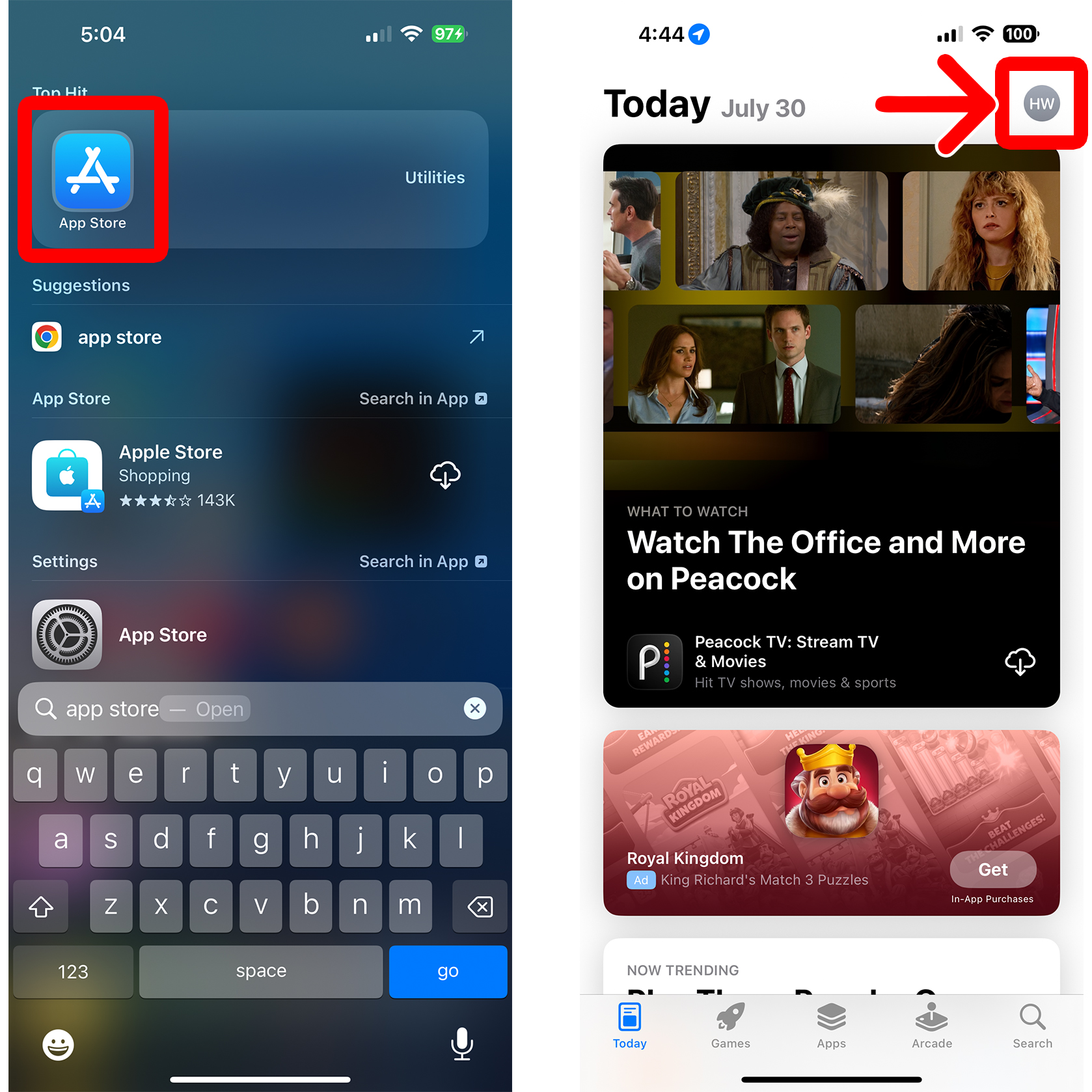
- Open the App Store on your iPhone. This app comes pre-installed on all iPhones and iPads.
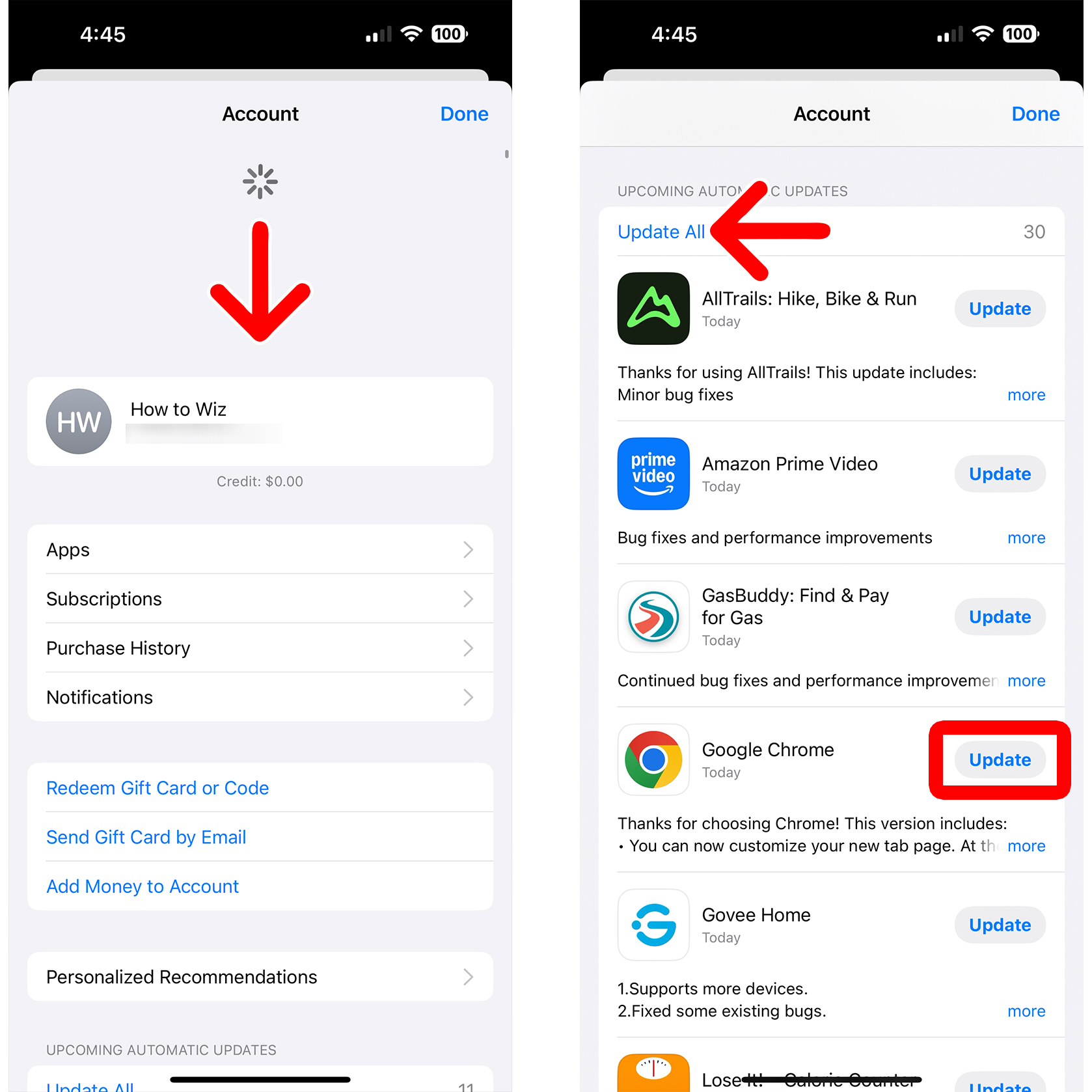
- Tap your profile icon. You will see this in the top-right corner of the screen. If you haven’t customized your profile icon, it should just be a circle with your initials.
- Swipe down from the top of your screen. This will refresh all the apps that need to be updated.
- Finally, tap “Update” next to Google Chrome.
How to Update Chrome on Android
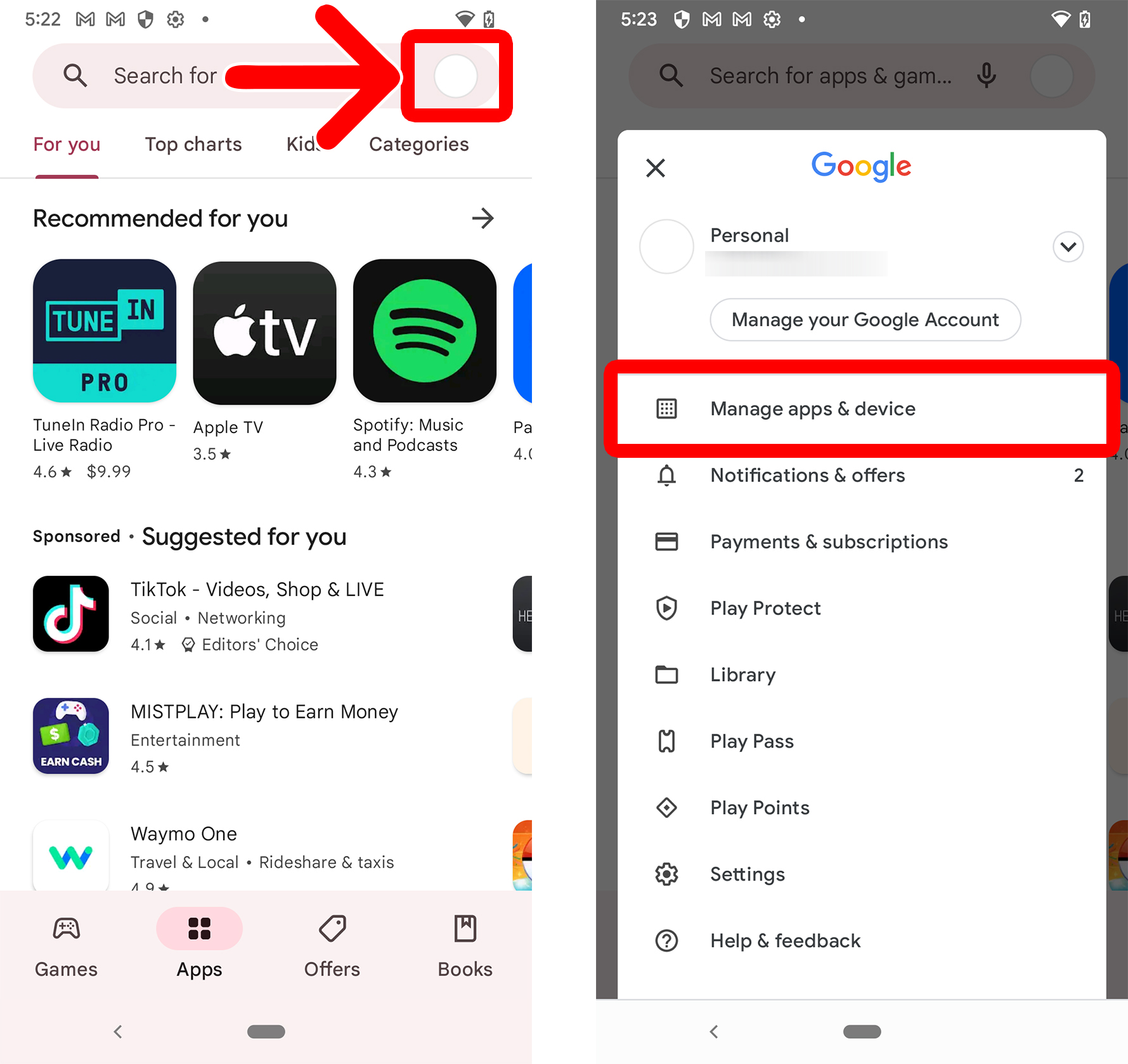
- Open the Google Play Store app on your Android device.
- Tap your profile icon. You will see this in the top-right corner of the screen. It will be the same as your Google account profile icon.
- Select “Manage apps & device.”
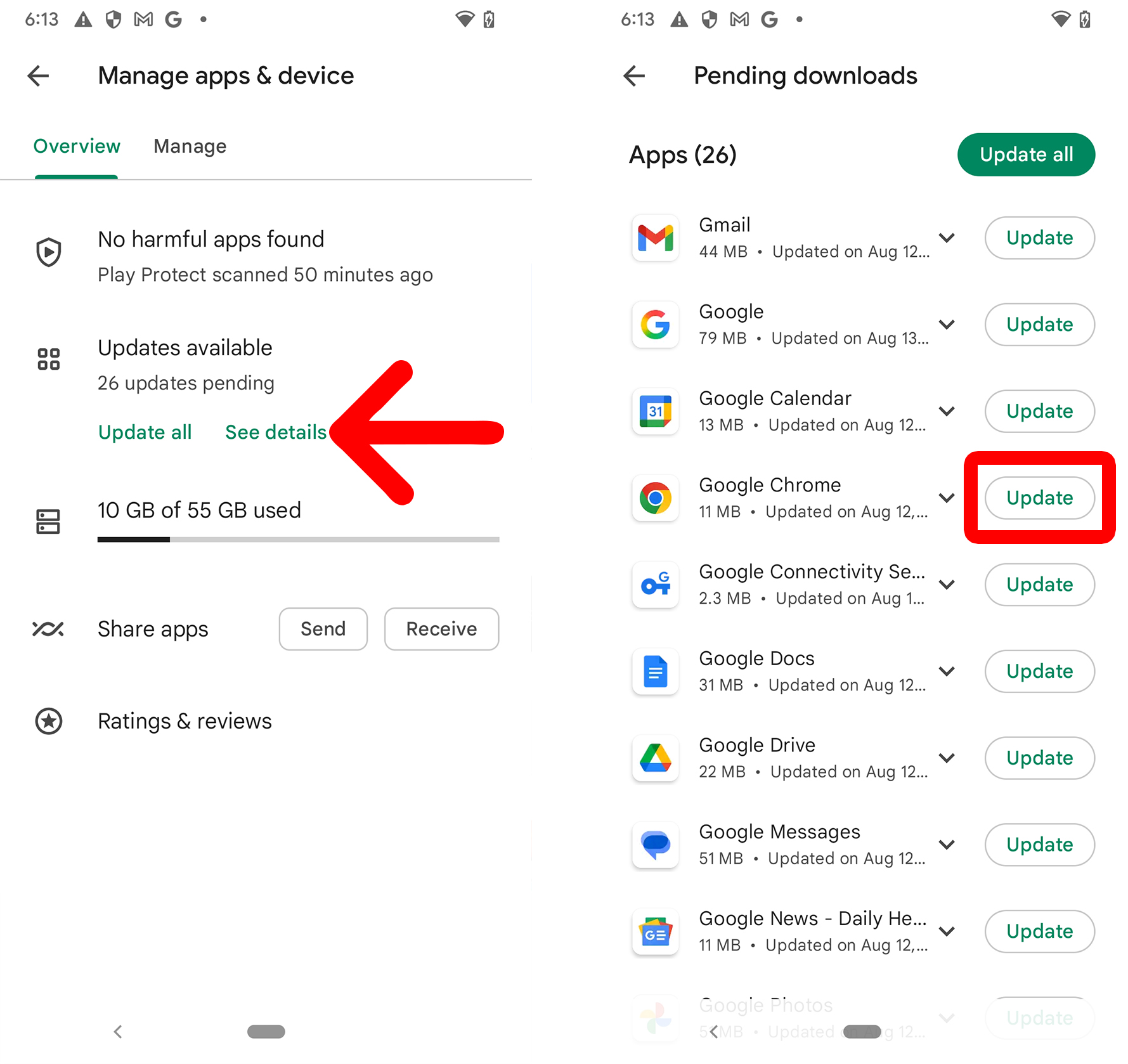
- Under “Updates Available,” tap “See Details.”
- Finally, tap “Update” next to Google Chrome. You can also tap “Update all” at the top of the list.