Accidentally closed the wrong tab? Get it back in seconds! Here’s how to quickly restore Chrome tabs and windows—or save them in tab groups so you never lose them again.
Read More: How to Update Google Chrome
How to Restore Recently Closed Chrome Tabs
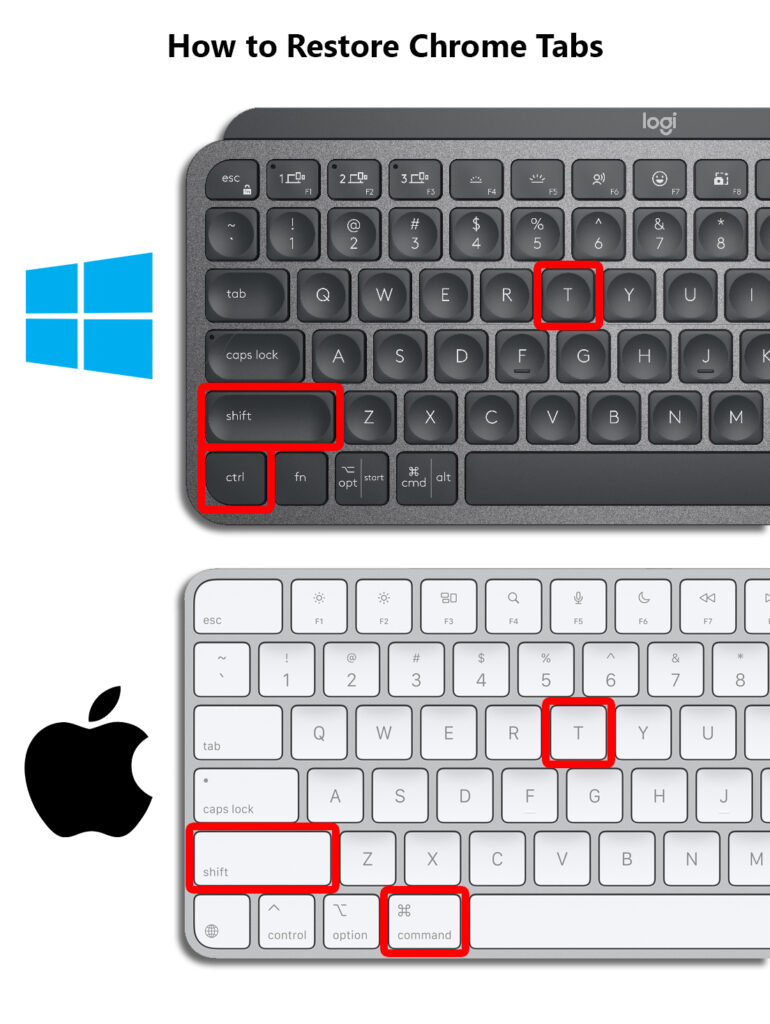
To restore the last tab that was closed in Chrome, press Control (Ctrl) + Shift + T (on a Windows computer) or Command (⌘) + Shift + T (on a Mac). You can press these keys multiple times to restore additional tabs in the order they were closed.
How to Restore Old Chrome Tabs
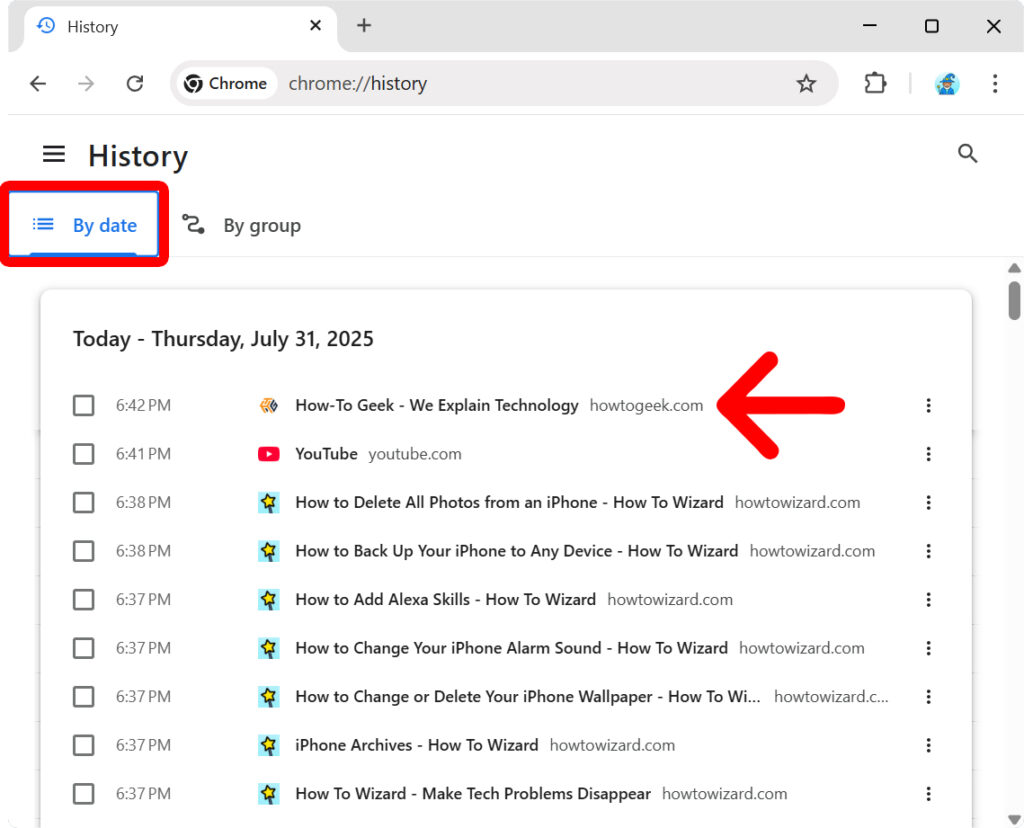
To restore Chrome tabs that you didn’t close recently, press Control (Ctrl) + H (on a Windows computer) or Command (⌘) + Y (on a Mac). Then, click “By date” at the top of the window and select the webpage you want to restore.
How to Restore Chrome Windows
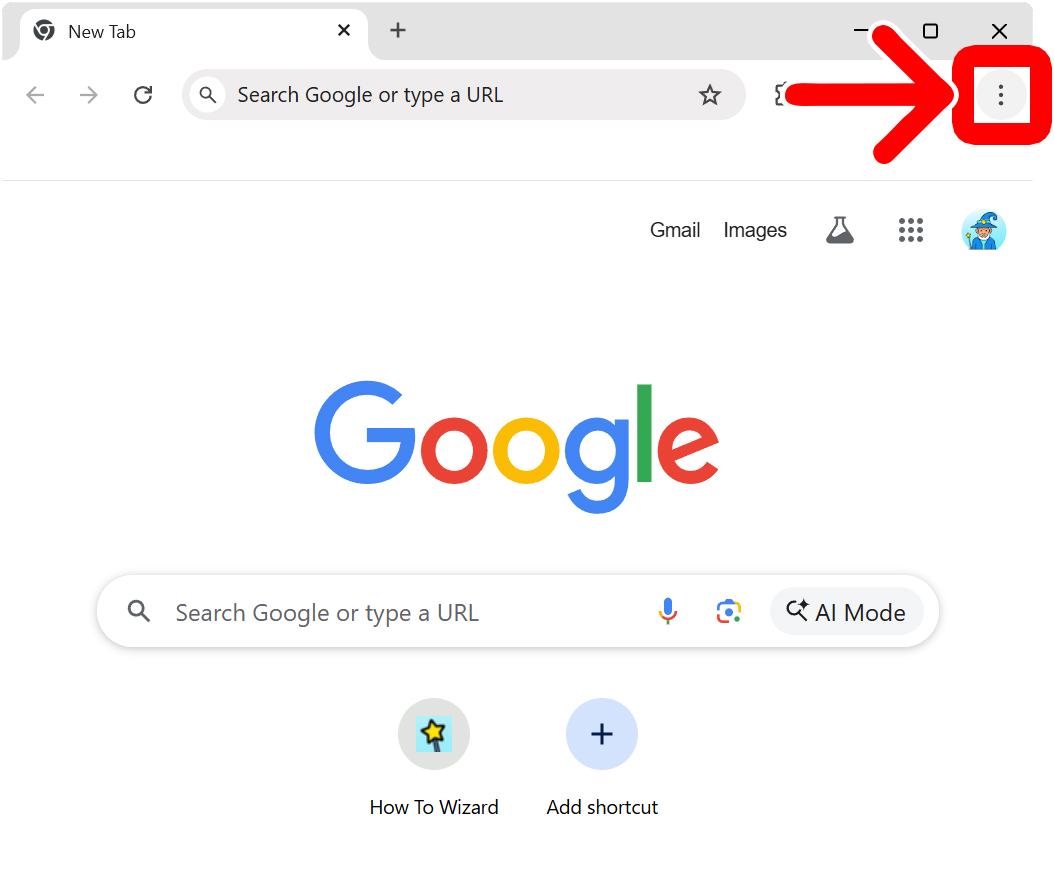
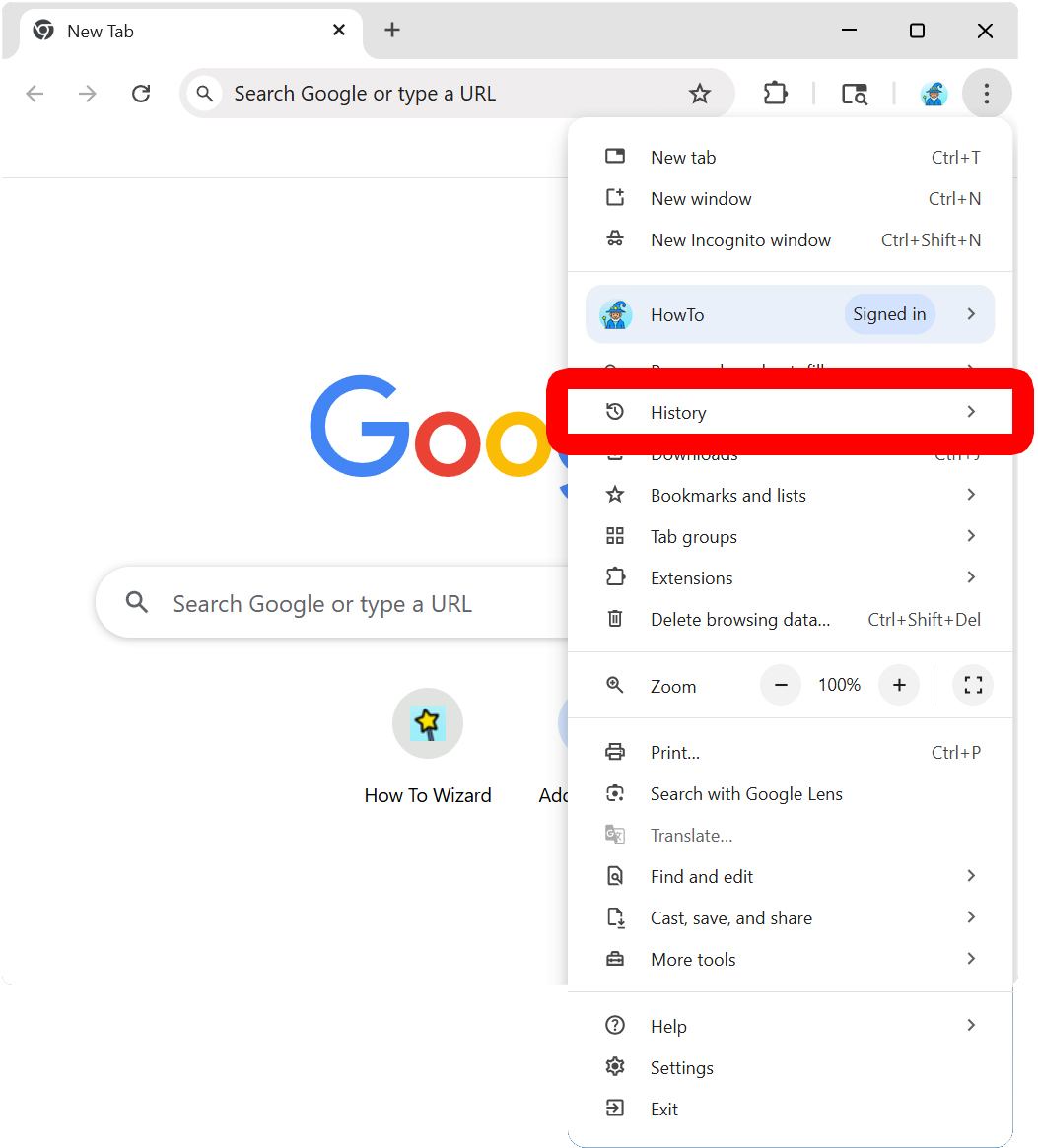
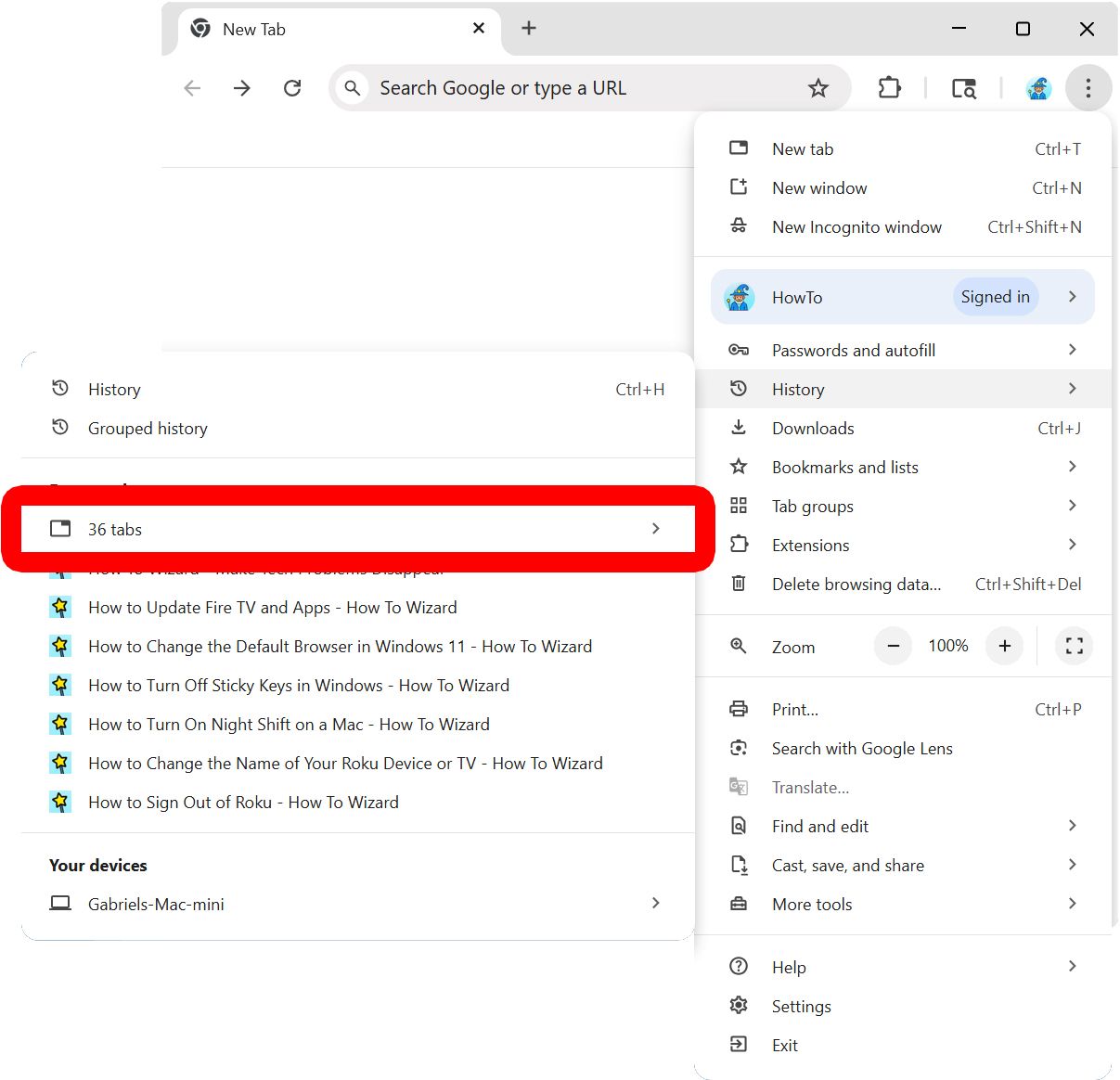
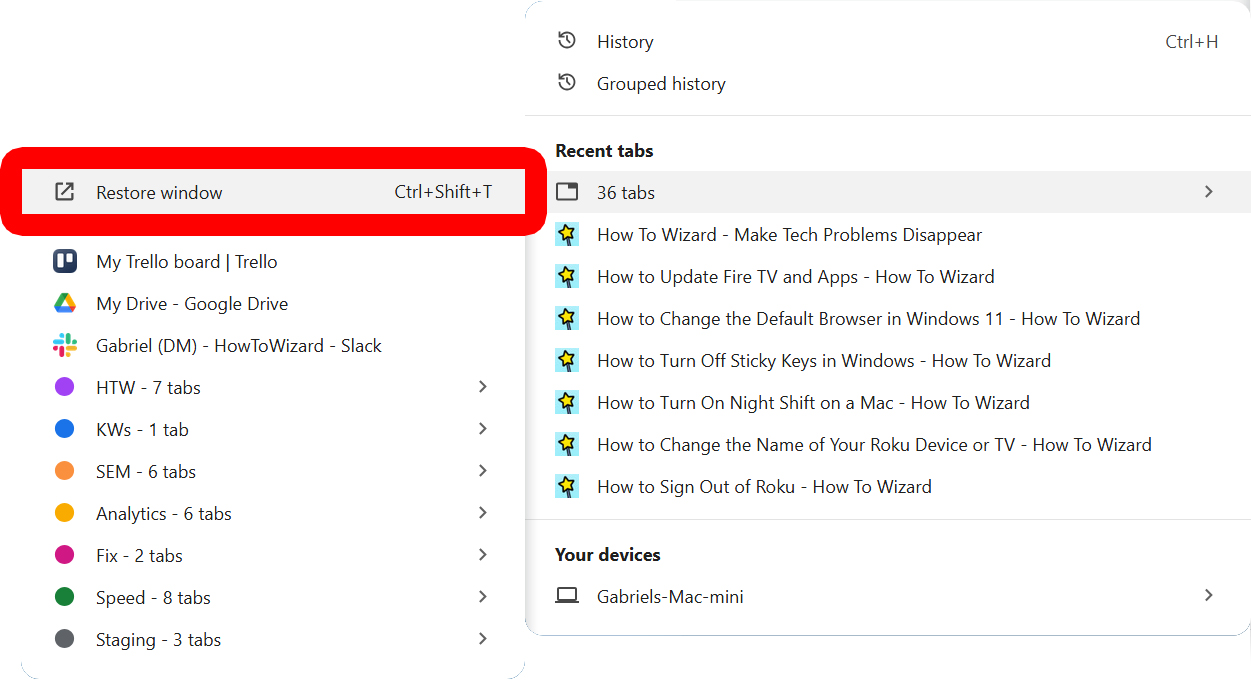
To restore a recently closed window, open Chrome and click the three-dot icon in the top-right corner. Then, click “History” and select “[number] tabs.” Finally, click “Restore window” to open all the tabs from the window at once.
- Open a Chrome window and click the three-dot icon. You will see this in the top-right corner of your screen.

- Click “History.” This will show you the past eight tabs and windows that were closed.

- Select a recently closed window from the list. Chrome will show your recently closed windows by how many tabs they contained (for example, “36 tabs”).

- Finally, select “Restore window.”

How to Save Your Chrome Tabs Forever
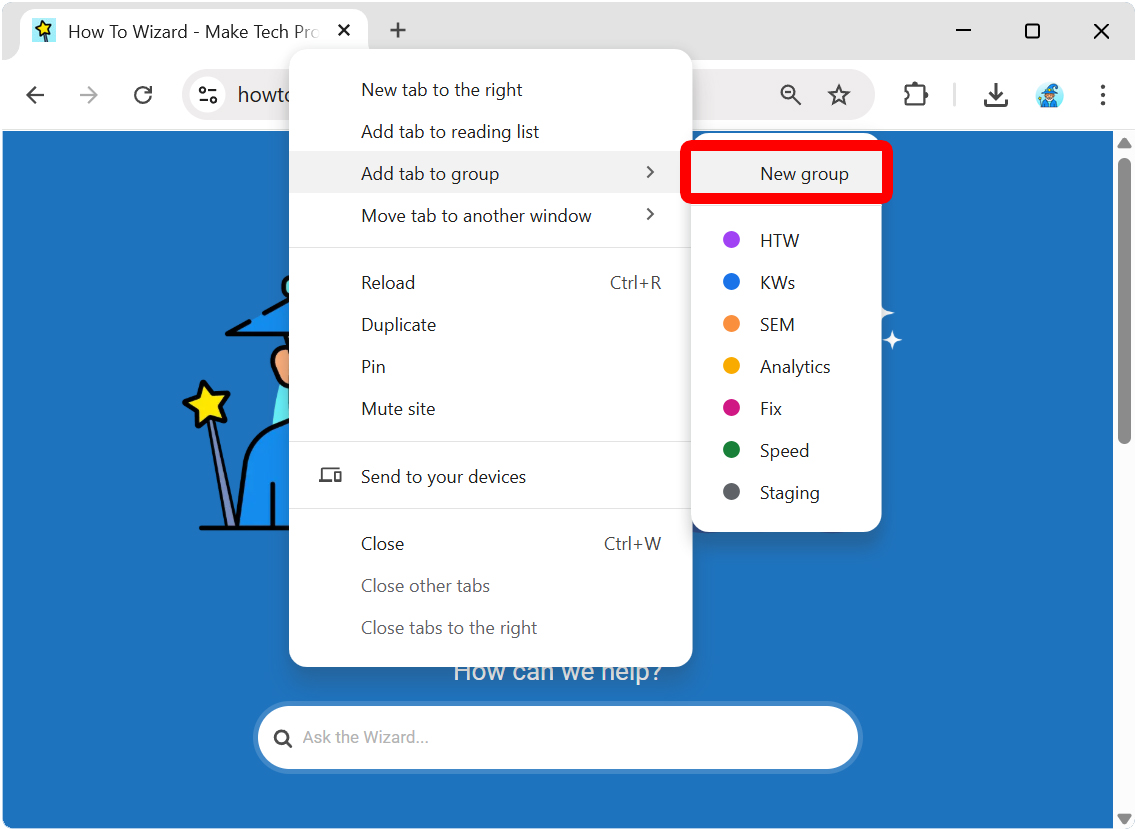
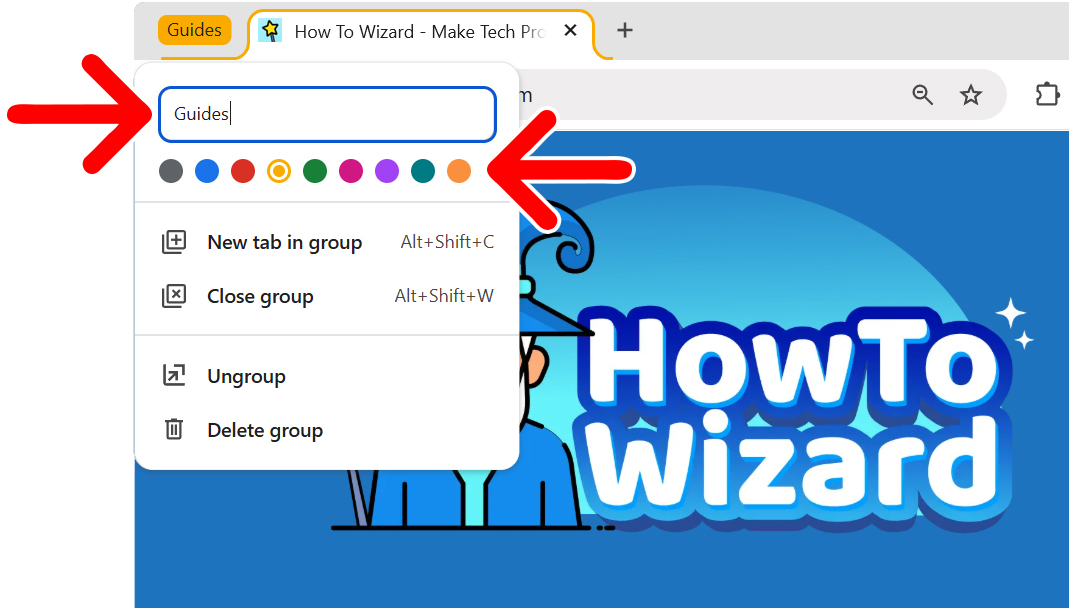
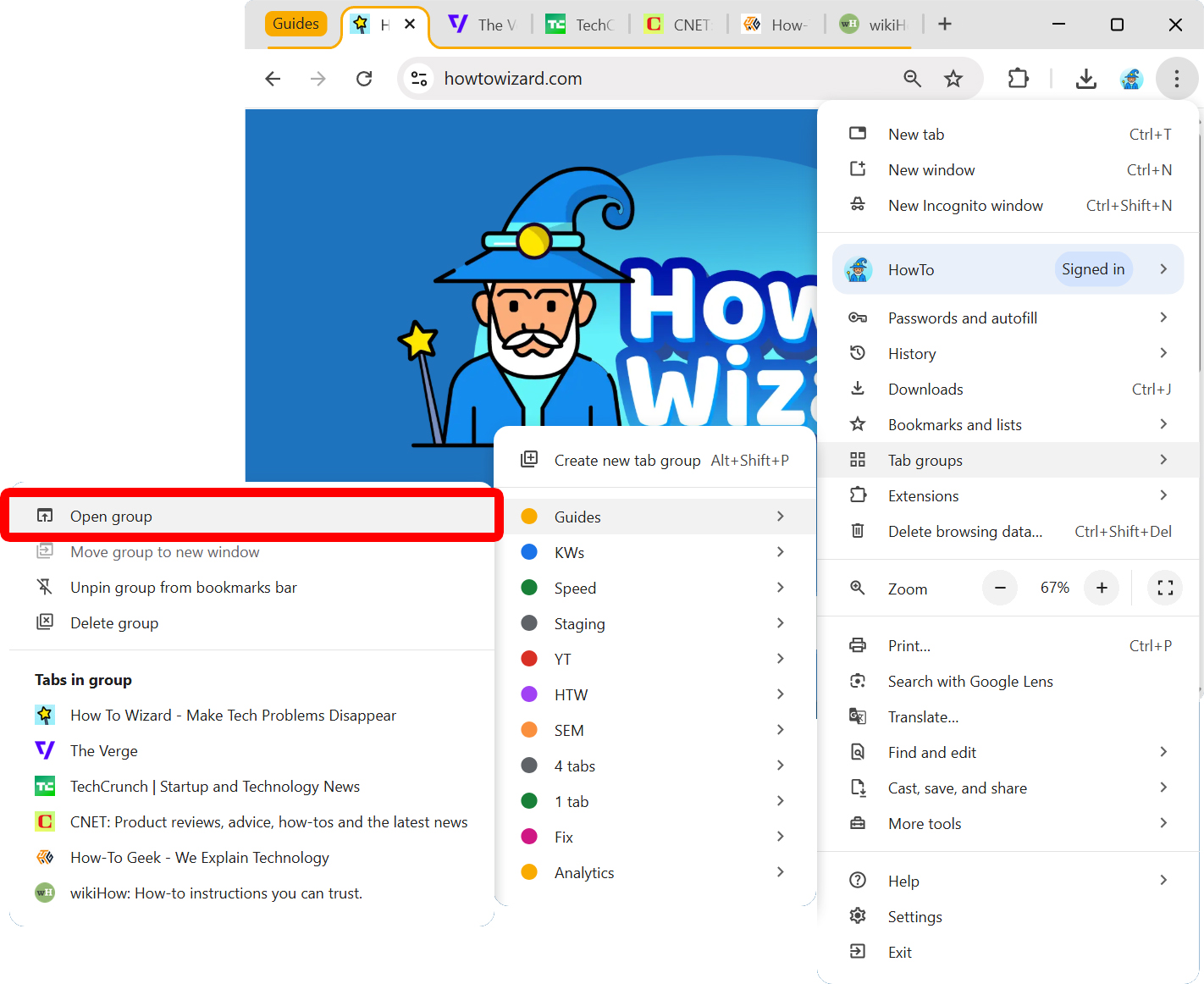
To save your Chrome tabs, right-click a tab and select “Add tab to group > New group.” Then, enter a name and color for the group. Finally, click the three-dot icon in the top-right corner of a Chrome window and select “Tab groups > Open group” to restore your tabs.
Read More: Keep tabs on your tabs in Google Chrome
- Right-click a tab in your Chrome browser.
- Select “Add tab to group.”
- Click “New group.” From here, you can also add tabs to existing groups.

- Name the tab group. Enter a group name into the text field (or leave it blank). From here, you can also change the color of your tab group.

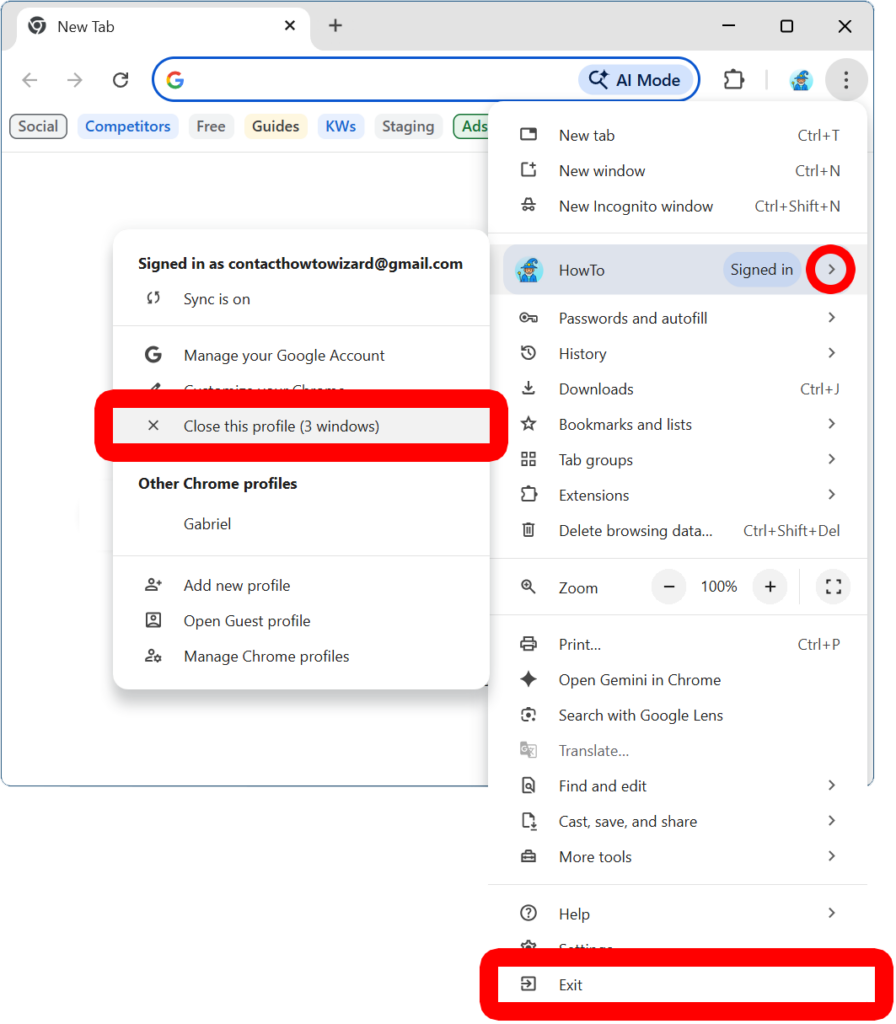
- Click the three-dot icon in the top-right corner of a Chrome window.
- Select “Tab groups” and choose your group.
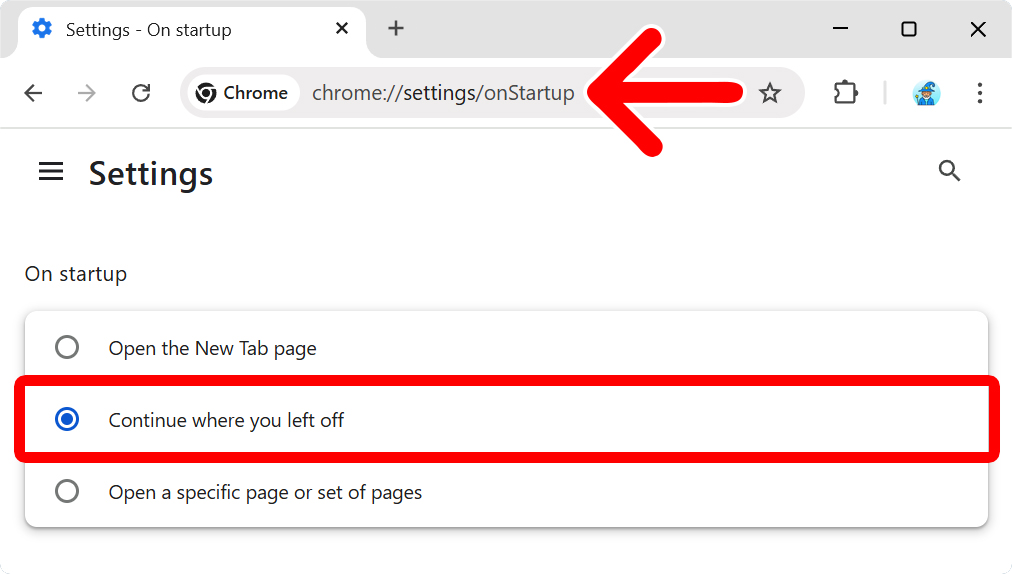
- Finally, select “Open group.” All the tabs in your group will be restored the way they were the last time you closed Chrome.