Does your Roku feel fine until you open Netflix? Streaming apps can slow down for different reasons, including network congestion, app bugs, or limited hardware on older Roku devices. Here’s everything you need to know about how to speed up your Roku device and apps when they start to slow down.
Restart Your Roku
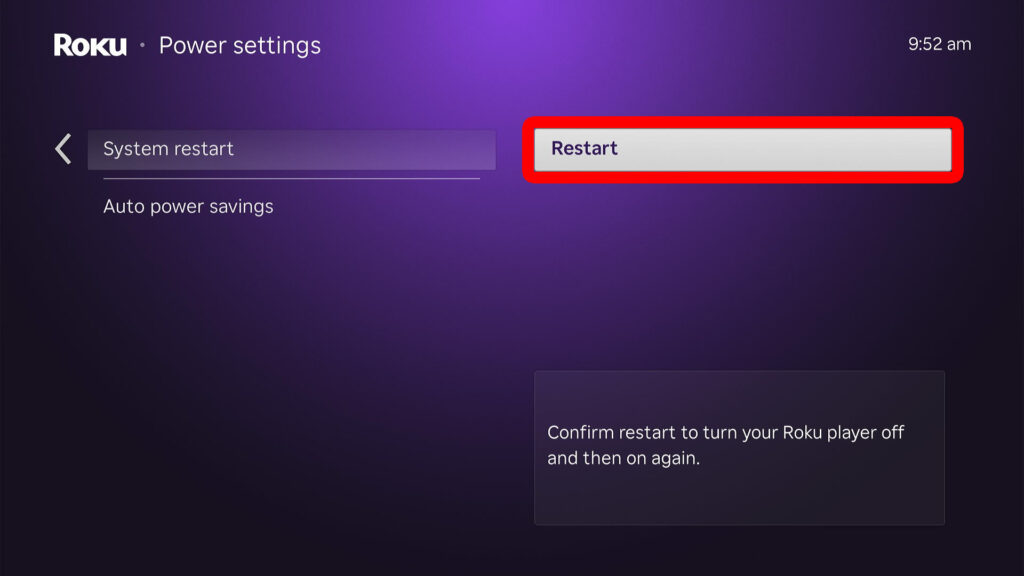
The easiest way to speed up your Roku when it gets slow is to restart it. To do this, simply unplug your Roku device from power for at least 30 seconds. Then plug your device back in and wait for it to restart.
You can also restart your Roku device through the settings by pressing the “Home” button on your Roku remote and going to “Settings > System > [Power] > System restart.”
How to Boost Your Roku’s WiFi Signal
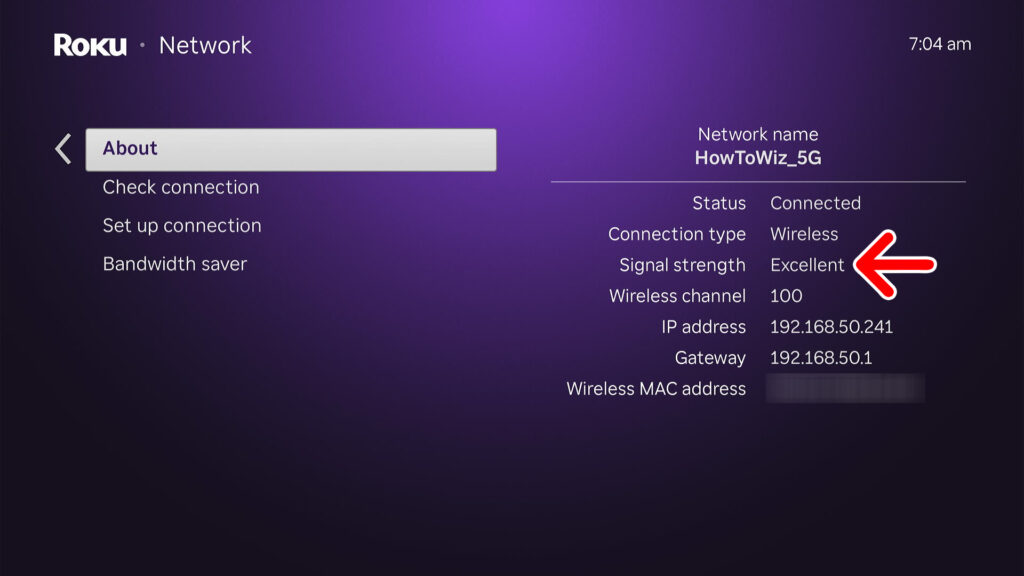
Check Your Signal Strength
To check how strong your internet signal is on Roku, press the “Home” button on your Roku remote and go to “Settings > Network > About.” Then you will see how strong your connection is next to “Signal strength.”
If you want to see exactly how strong your WiFi signal is, scroll down and select “Check connection.” This will tell you your Roku device’s download speed, measured in Mbps (Megabits per second), near the bottom of the “Network > About” page.
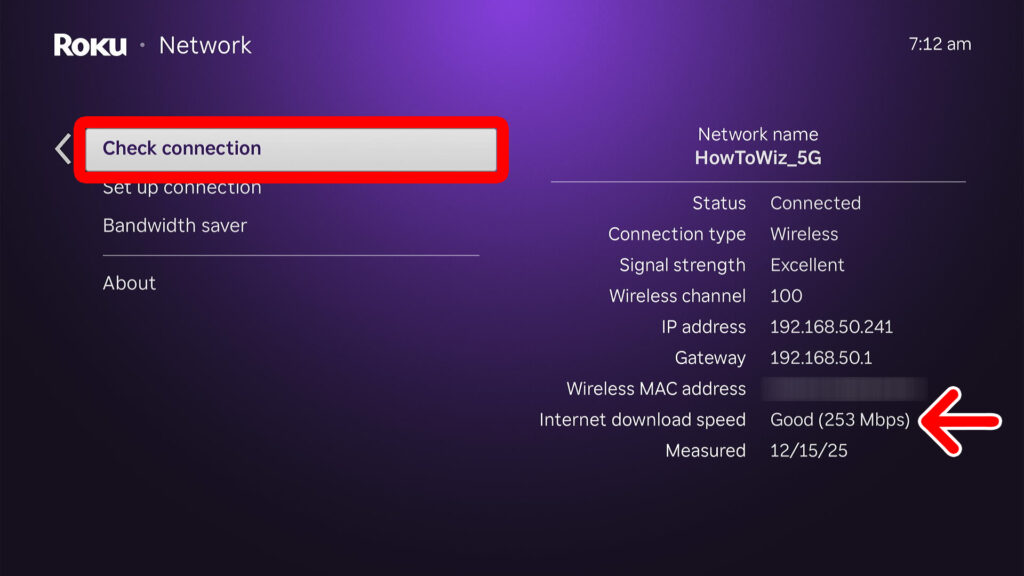
To stream 4K movies and shows, you should have at least 15 Mbps, according to Netflix. However, even if your WiFi is fast enough, other devices connected to your network could be slowing your Roku device down. So, you might want to disconnect other devices from your network to speed up your streaming.
Restart Your WiFi Router
Restarting your WiFi router can reset the connection to your devices, which can fix common glitches. To restart your WiFi router, unplug your modem and router for at least 30 seconds. Then plug your modem back in and wait another 30 seconds before plugging your router back in.
Connect to the Fastest WiFi Band & Channel
If you have a dual-band or tri-band router, you will get a better connection when connecting to the 5 GHz or 6 GHz bands. To do this, go to “Settings > Network > Set up connection” and choose “Wireless.” Usually, you’ll want to connect to a network that ends in “5G” or “6G” or something similar.
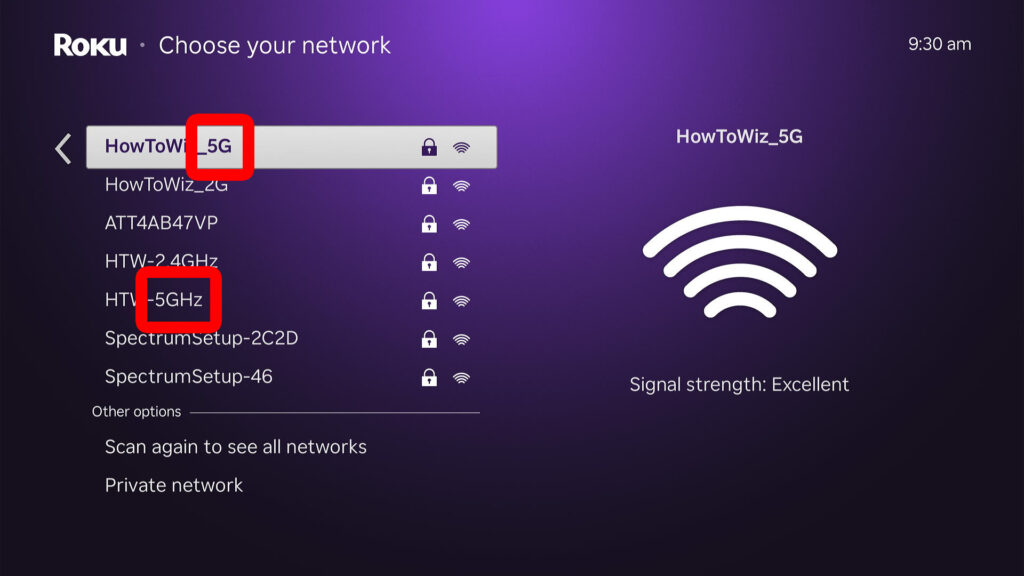
It can also help to change your router to a less crowded WiFi channel with more bandwidth.
Read More: How to Change Your WiFi Channel
Reset Your Roku Network Connection
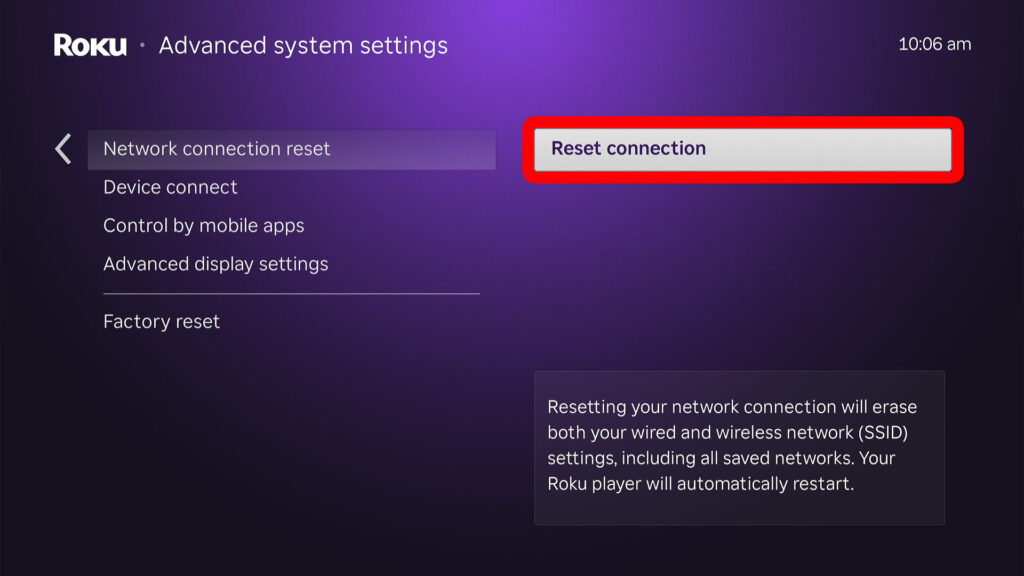
To reset your network connection on Roku, press the “Home” button on your Roku remote and go to “Settings > Advanced system settings > Network connection reset > Reset connection.” When your Roku device restarts, you will need to connect to a WiFi network manually.
Move Your Roku Device Closer
If your Roku device still doesn’t have a solid WiFi signal, you might need to move it closer to your WiFi router. You should also avoid putting your Roku device inside a cabinet, behind thick walls, or near metal, water, or microwaves, as all of these can disrupt the WiFi signal.
Use an Ethernet Cable
If your Roku device or TV has an Ethernet port, you can use it to connect directly to your WiFi router for the most reliable connection. Simply plug one end of the Ethernet cable into your Roku device, and the other into an available port in your WiFi router.
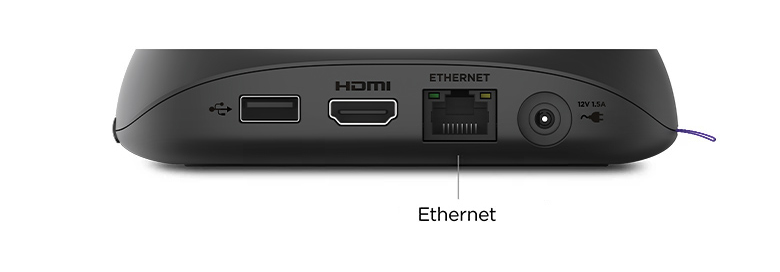
Then press the “Home” button on your Roku remote and go to “Settings > Network > Set up connection.” Finally, choose “Wired” and your Roku device should automatically connect.
How to Free Up Space on Roku
Clear the Cache on Roku
Your Roku stores temporary data (cache) to help apps load faster, but these files can build up over time and slow things down. To clear the cache on Roku, press the “Home” button 5 times, the “Up” button 1 time, the “Rewind” button 2 times, and the “Fast-Forward” button 2 times.
- Press the “Home” button on your Roku remote 5 times.
- Press the “Up” button 1 time.
- Press the “Rewind” button 2 times.
- Press the “Fast-Forward” button 2 times.
- Wait for your Roku device to restart. Your Roku device might freeze for a minute before restarting, so be patient.

Uninstall Roku Apps
If a specific Roku app is acting slow, try uninstalling it and then reinstalling it to make it run faster. To uninstall an app on Roku, go to the home screen and highlight the app. Then press the Star (*) button on your Roku remote and select “Remove app.”
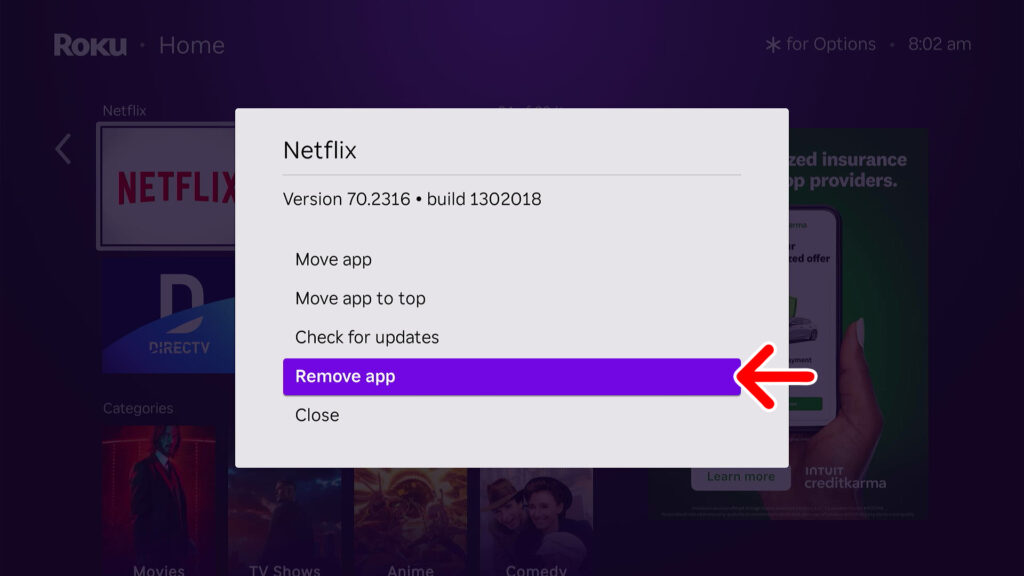
Once you uninstall an app, you can then reinstall it to see if it runs any faster.
Read More: How to Install Roku Apps
Read More: How to Turn Off Previews on Netflix
How to Factory Reset Roku
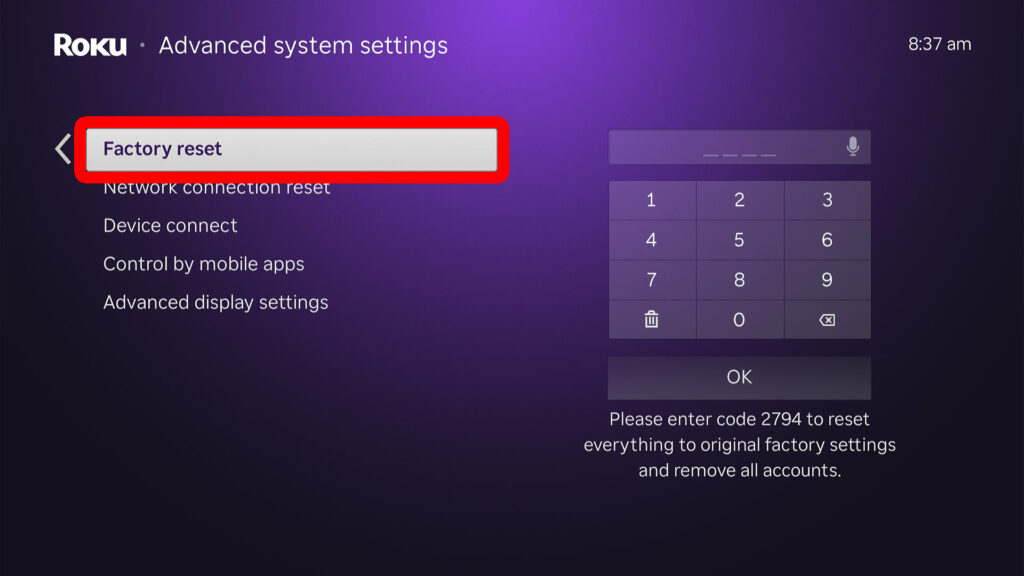
Over time, your Roku device will get filled up with apps, downloads, and settings, which can slow down your streaming. As a last resort, try resetting your Roku device to factory settings by going to “Settings > System > Advanced system settings > Factory reset.”
Read More: How to Reset Your Roku Device or TV
How to Upgrade a Slow Roku
If your Roku device is still running slow, it might be time to upgrade to a new one. Even if you have a Roku TV, you can buy a new Roku Streaming Stick or Roku Ultra device and plug it into your TV to speed up your streaming.
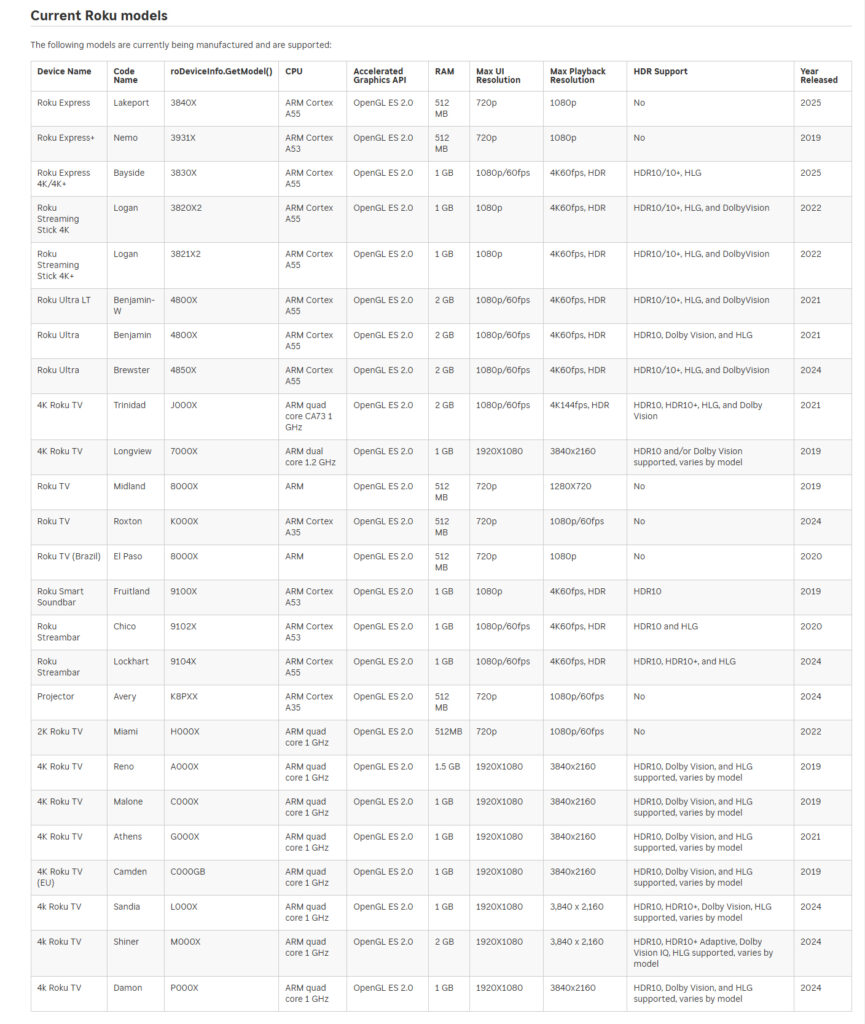
The latest Roku models have faster CPUs, more RAM, and better overall performance. To check your Roku model’s hardware specifications, check out this list from Roku.