Most people don’t think about backups—until it’s too late. What would happen to all your photos, messages, and saved passwords? It only takes a few minutes to back up your data, but if disaster strikes, you’ll be glad you did. Here’s how to back up your iPhone to iCloud, a Mac, or a Windows computer, and what to do when a backup fails.
How to Back Up an iPhone to iCloud
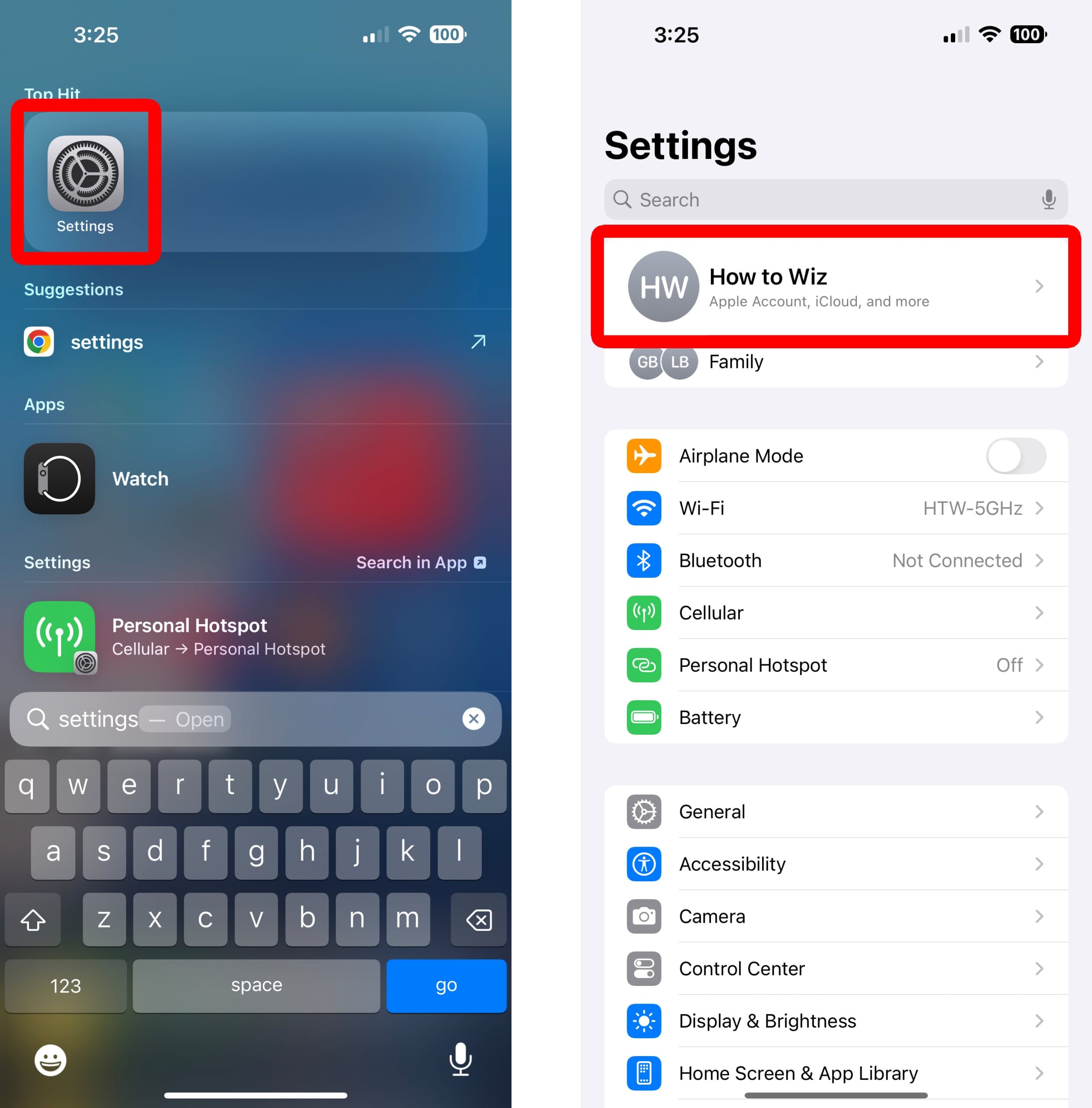
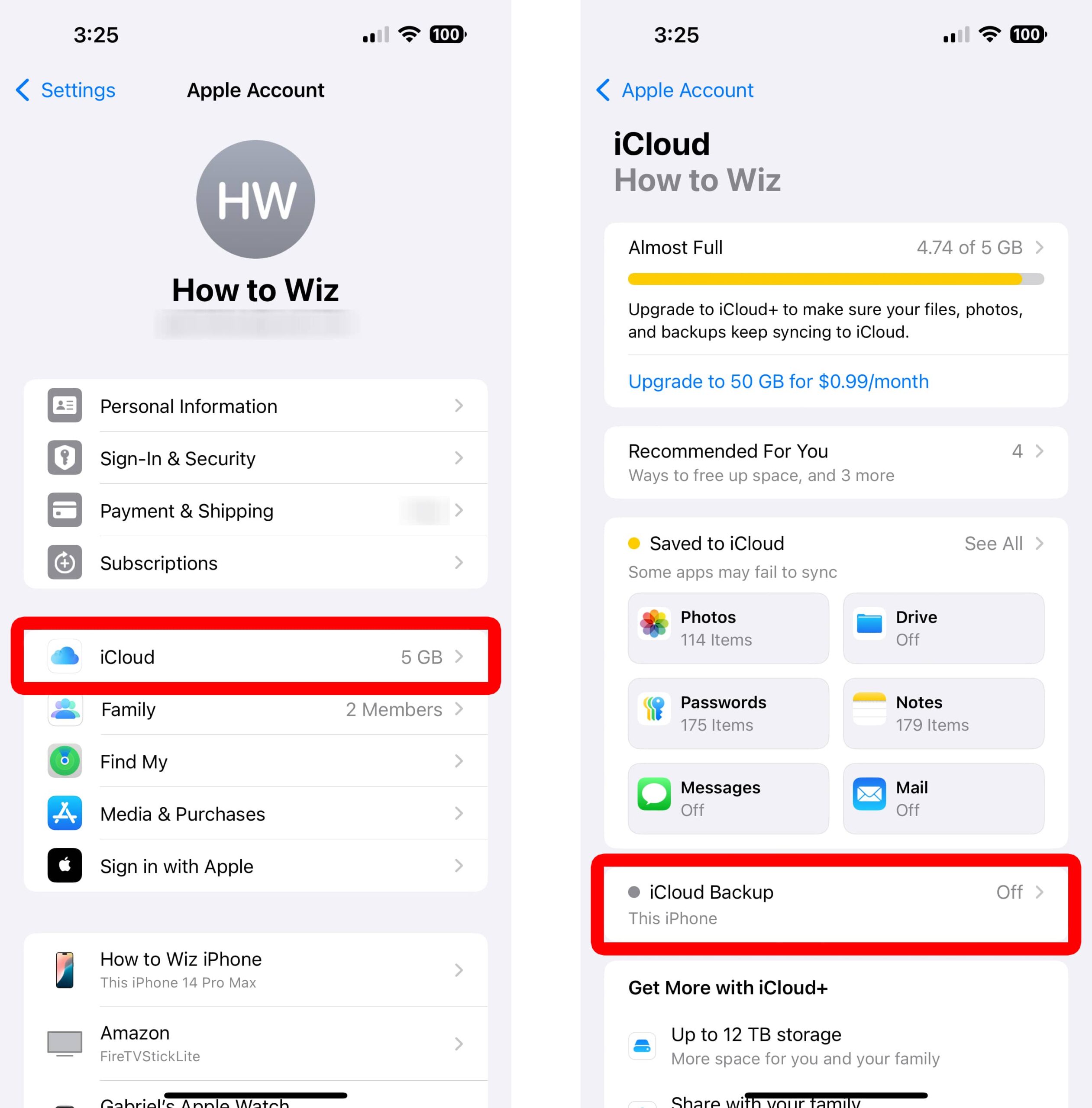
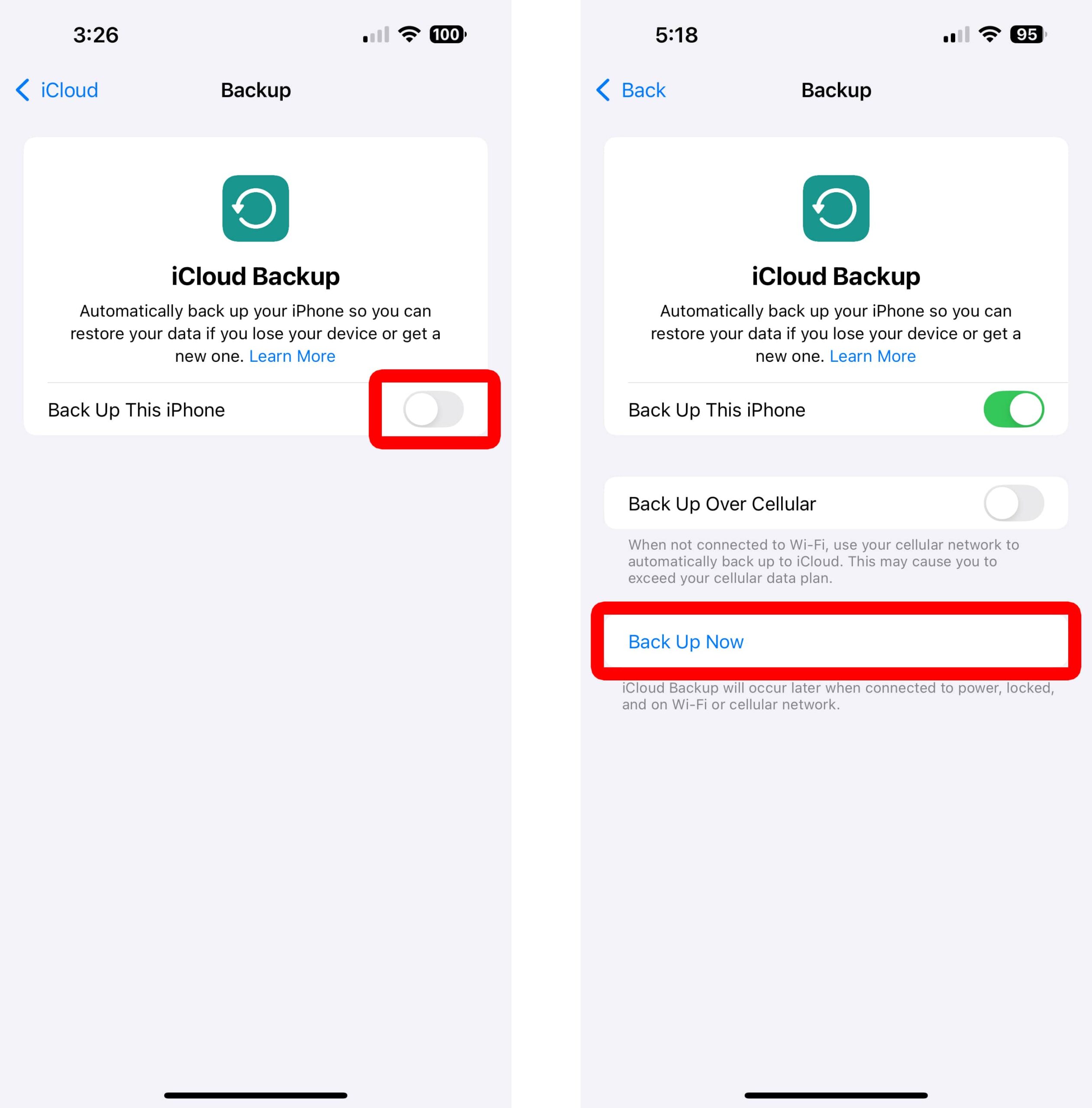
To back up your iPhone to iCloud, open the Settings app and tap your Apple Account at the top of the screen. Then go to “iCloud > iCloud Backup” and tap the switch next to “Back Up This iPhone.” Finally, tap “Back Up Now” to create a manual backup.
- Open the Settings app on your iPhone. If you cannot find this app, go to your iPhone home screen, swipe down from the middle of the screen, and type “Settings” into the search bar. Then you will see the Settings app at the top of your screen.
- Select your Apple Account. This will be at the top of the Settings page with your name and profile icon.

- Tap “iCloud.”
- Select “iCloud Backup.”
- Tap the switch next to “Back Up This iPhone.” This will automatically back up your data once a day—whenever it is plugged in, connected to WiFi, and locked.
- Finally, tap “Back Up Now.” This allows you to back up your data manually.
You will know your data was successfully backed up if you see an iPhone icon at the bottom of this screen. You can tap this icon to see the date of your last backup and when your next automatic update will take place. You can also scroll down to select or unselect which apps you want to keep in your next backup.
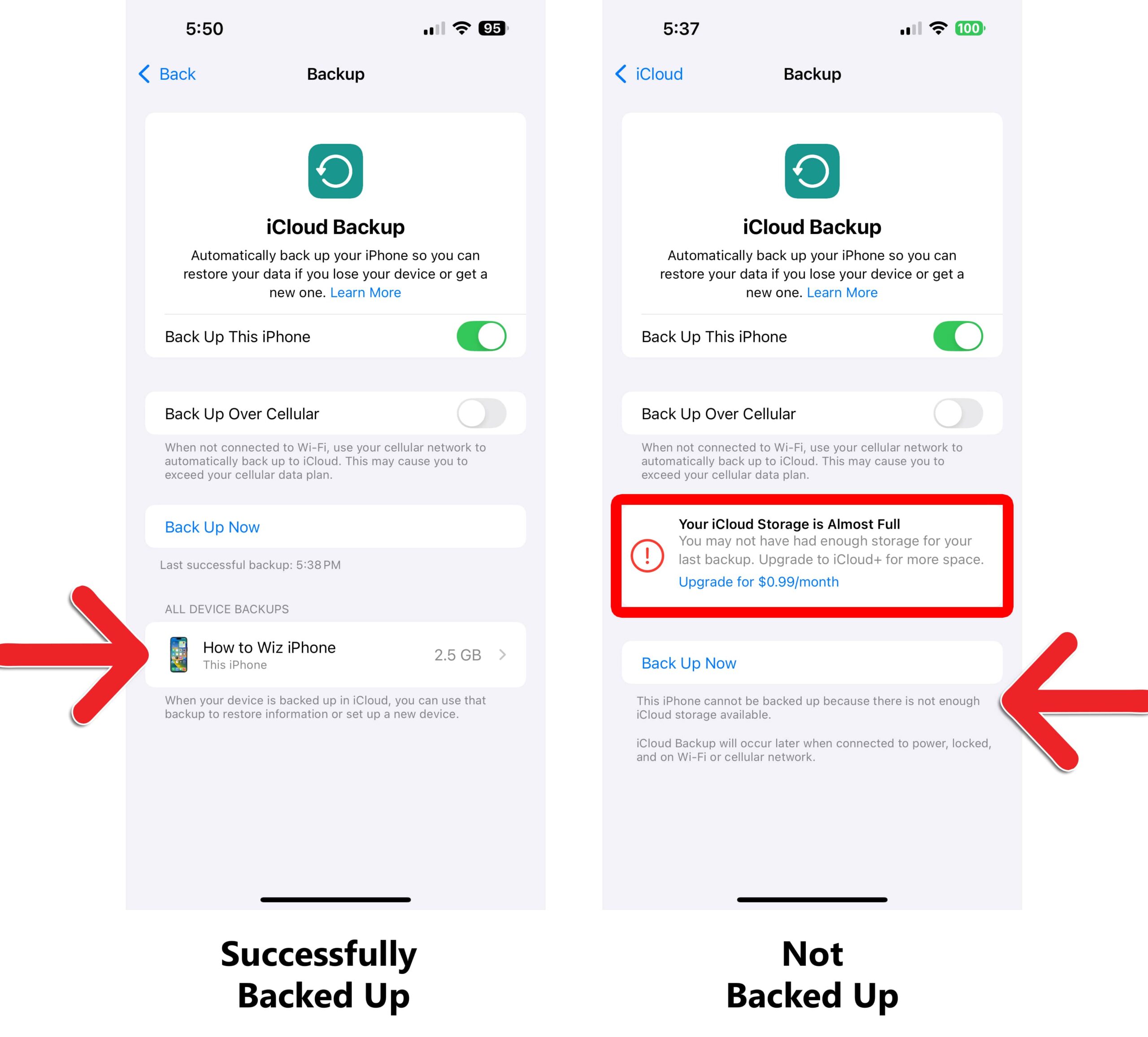
You will know your data was not backed up properly if you see text at the bottom of your screen that says, “This iPhone cannot be backed up…” In that case, you can delete data from your iCloud account and/or remove apps from your iCloud backups.
How to Delete Data from iCloud Storage
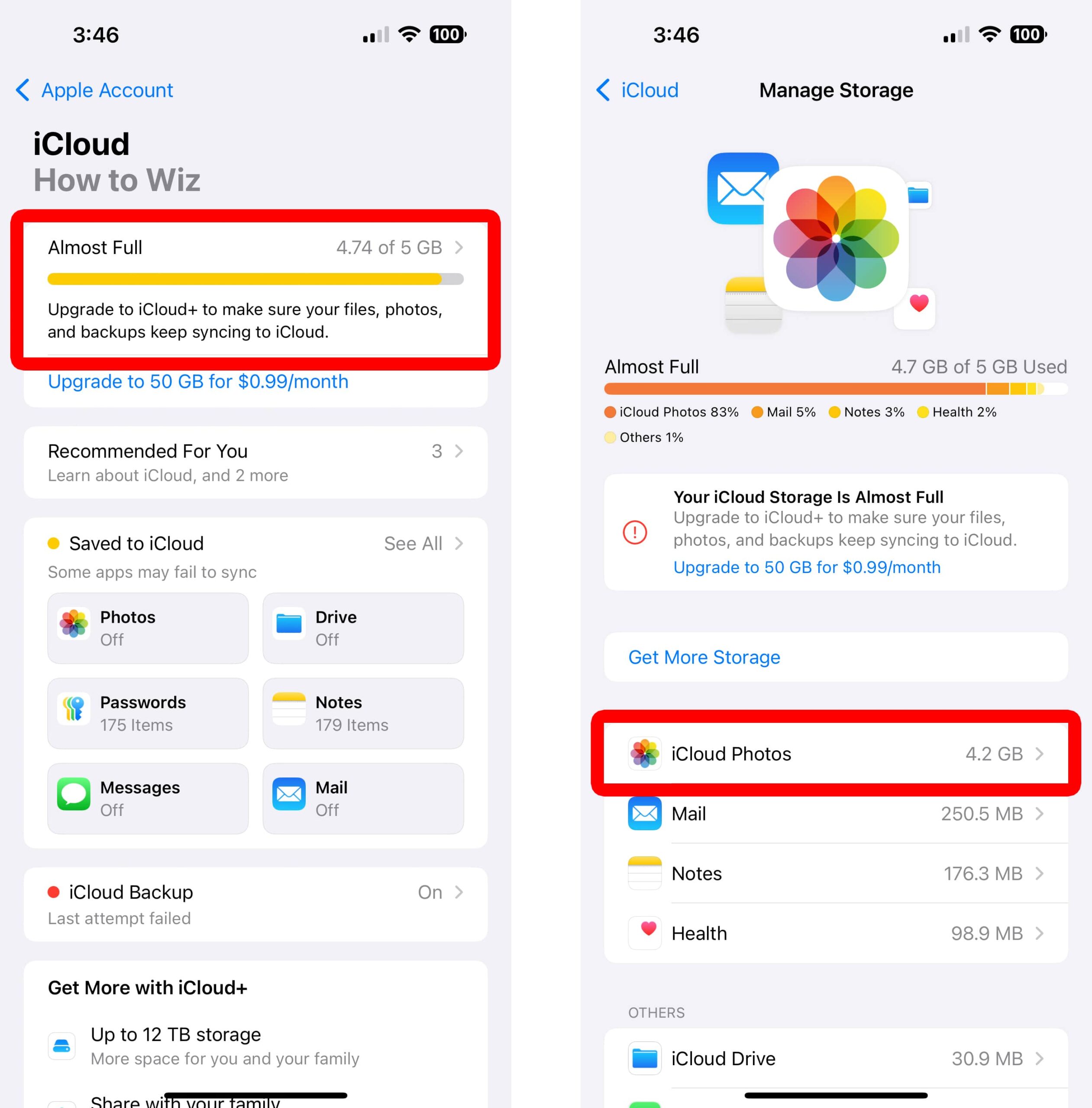
If you don’t have enough iCloud storage to back up your iPhone, go to “Settings > [your name] > iCloud.” At the top of this screen, you will see how much iCloud storage you have remaining. Tap this storage bar and select an app to “Delete Data from iCloud.”
How to Remove Apps from iCloud Backups
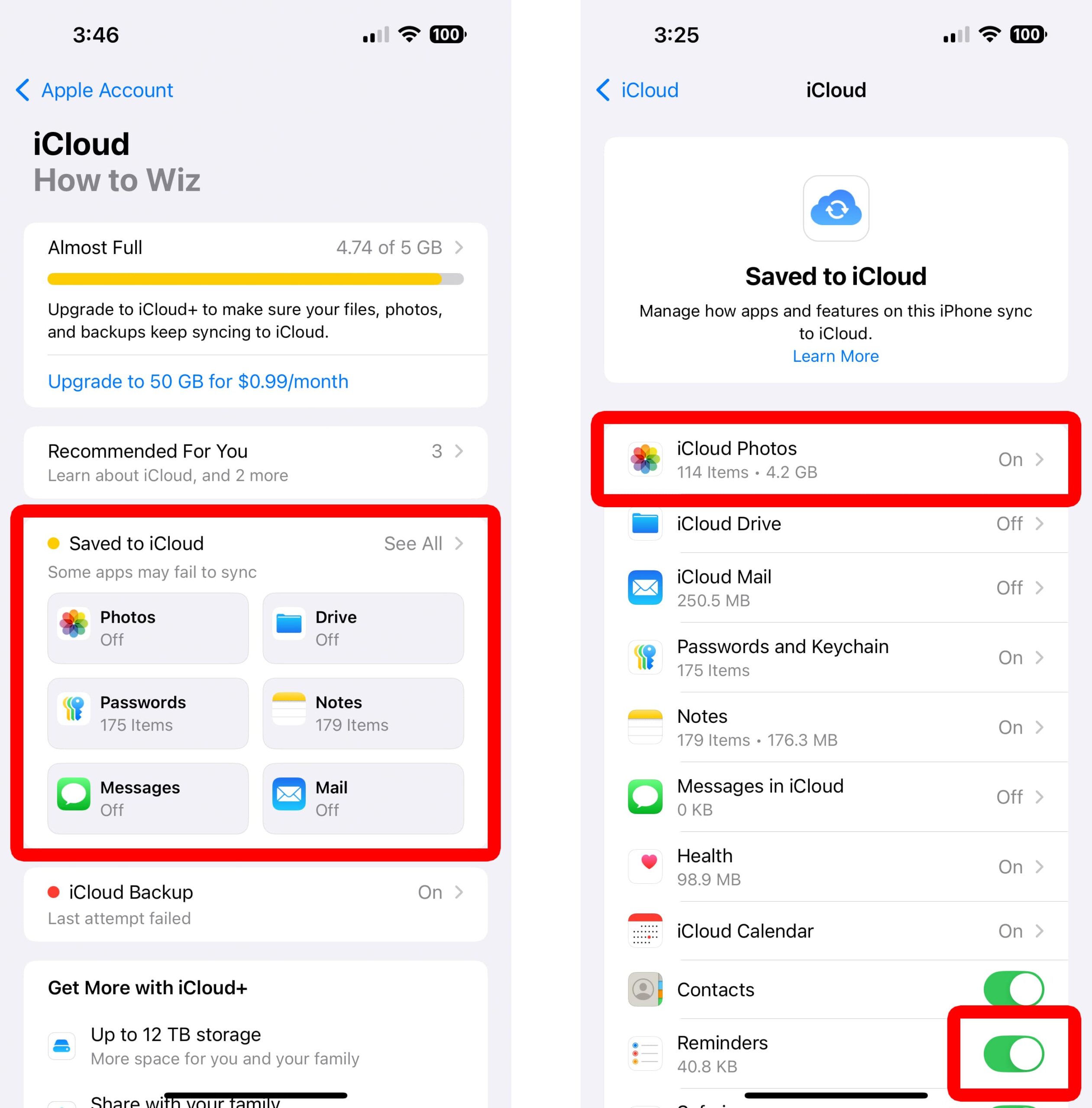
If you can’t backup your iPhone to iCloud, go to “Settings > [your name] > iCloud > Saved to iCloud.” Then, turn off the switch next to an app or select an app and turn off the switch next to “Sync this iPhone.” This will stop iCloud from saving data from that app during your next backup.
If you are still not able to back up your data, go to iCloud.com and sign in. This will allow you to clear your iCloud storage manually. You should also try restarting your iPhone and try to back it up to iCloud again.
How to Back Up an iPhone to a Mac
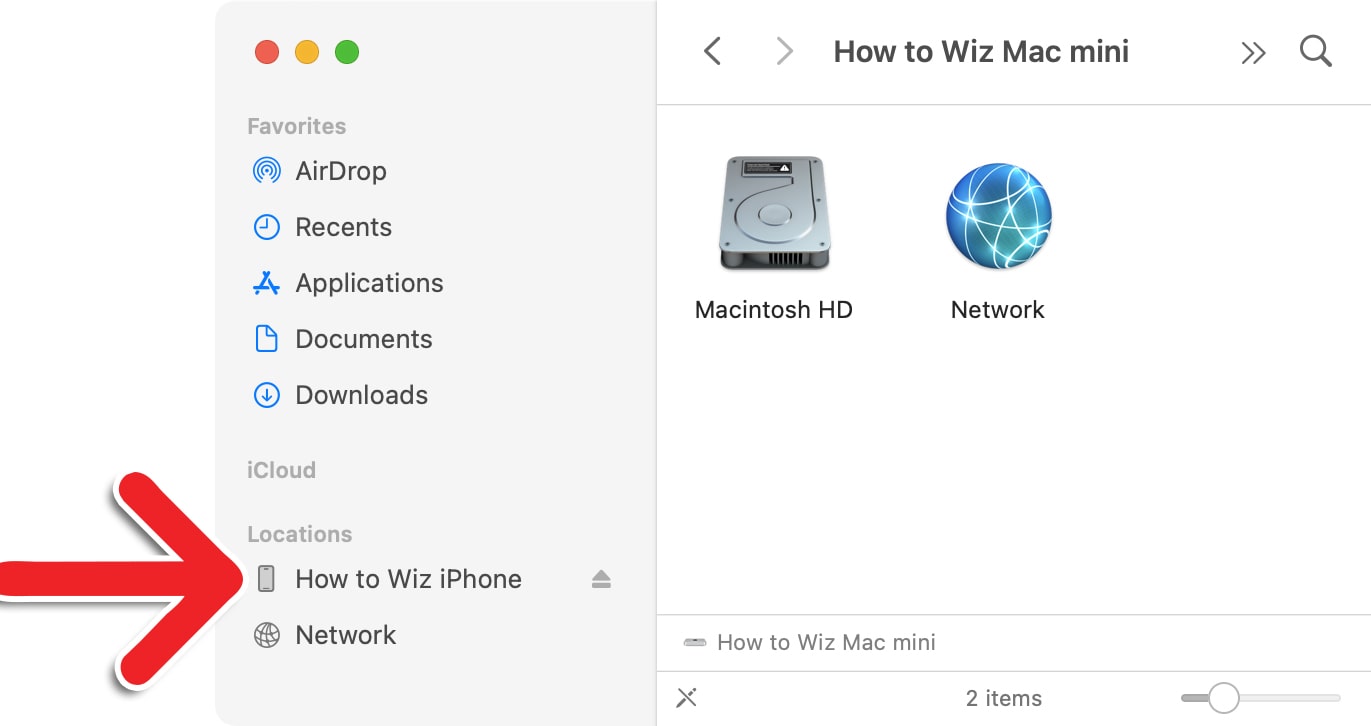
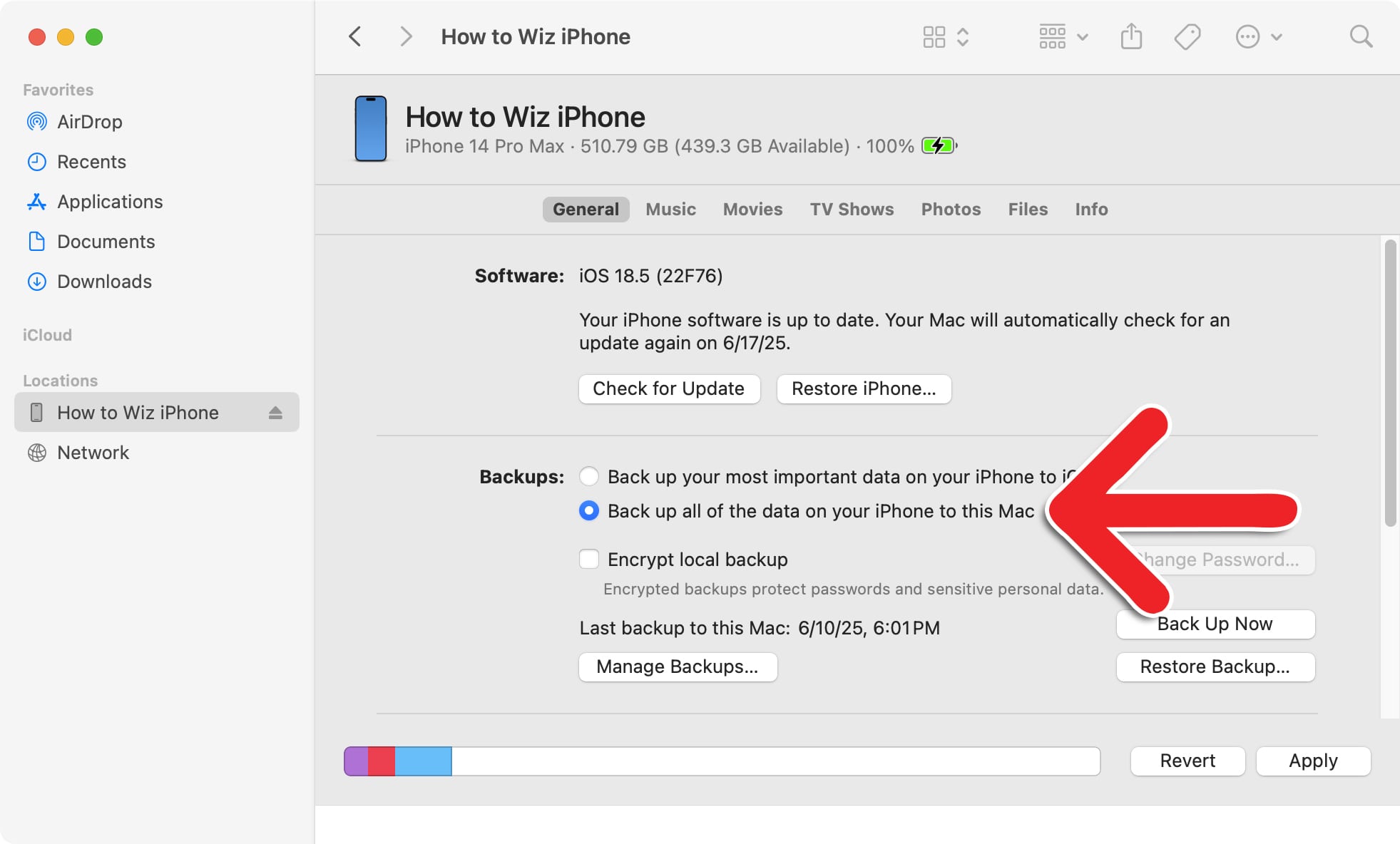
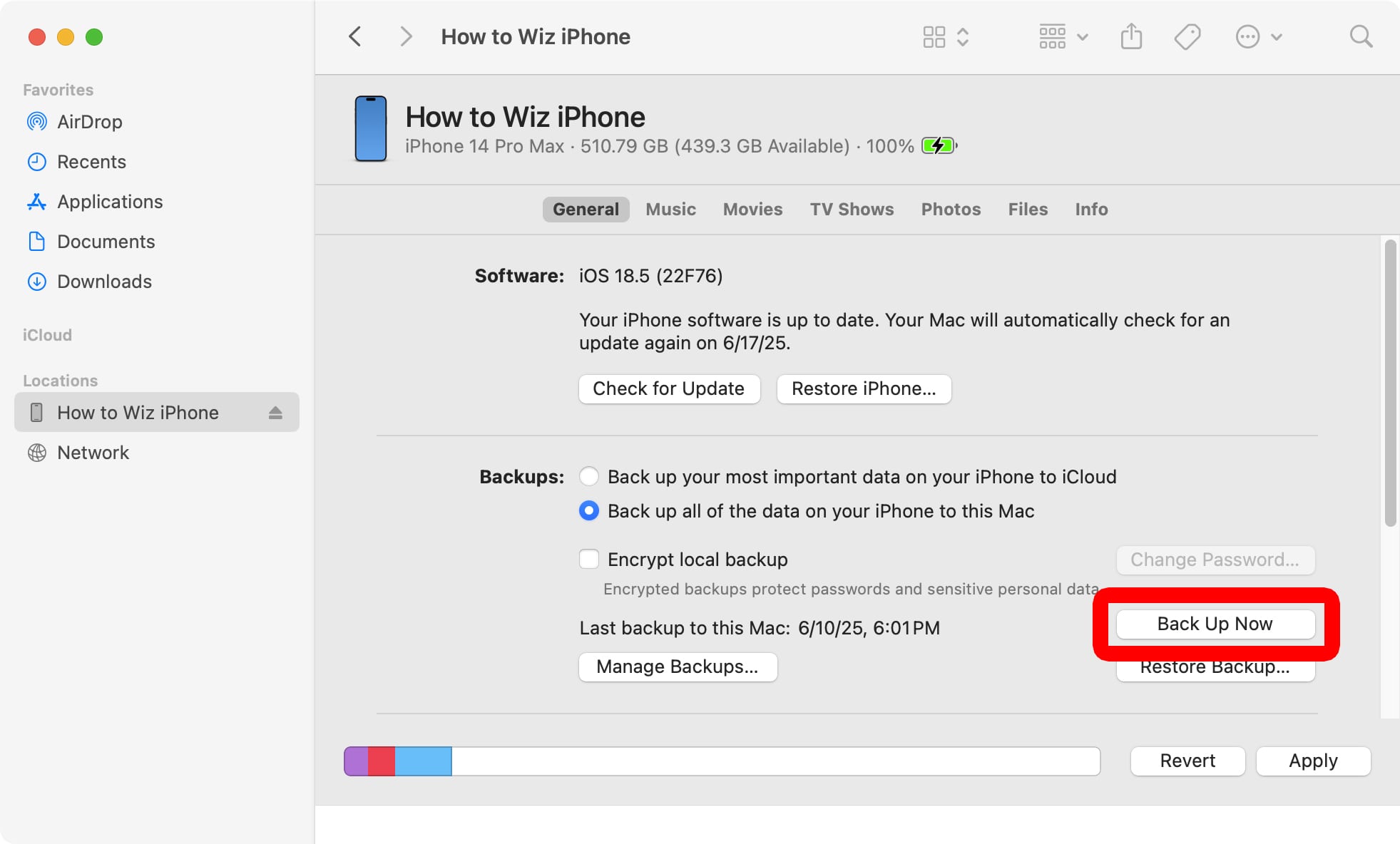
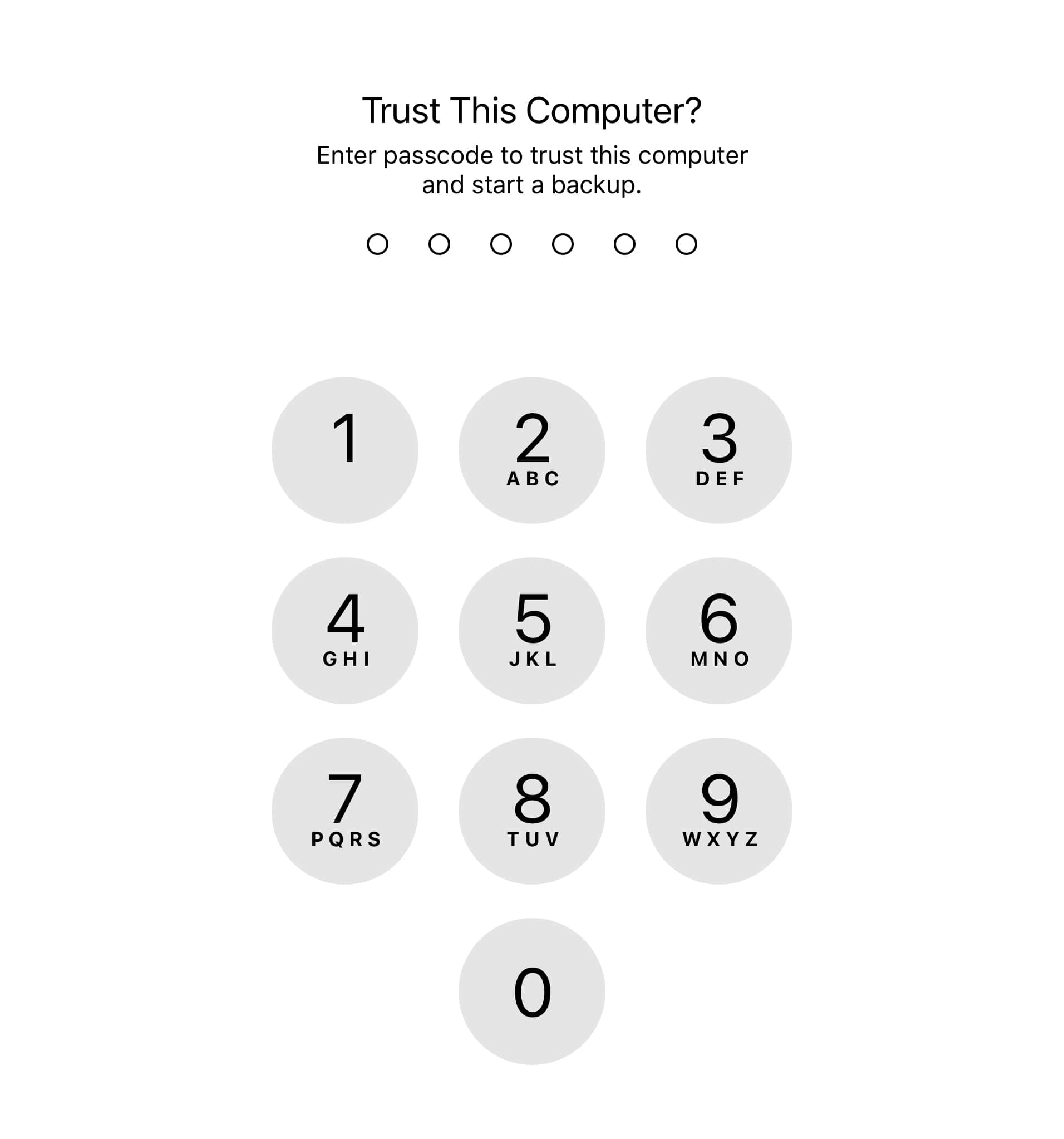
To back up your iPhone, plug it into a Mac computer and open a Finder window. Then, select your iPhone from the left sidebar and check the circle next to “Back up all of the data on your iPhone to this Mac.” Finally, click “Back Up Now” and enter the passcode on your iPhone.
- Plug your iPhone into a Mac. To make the backup process as quick as possible, make sure to use a USB-C cable.
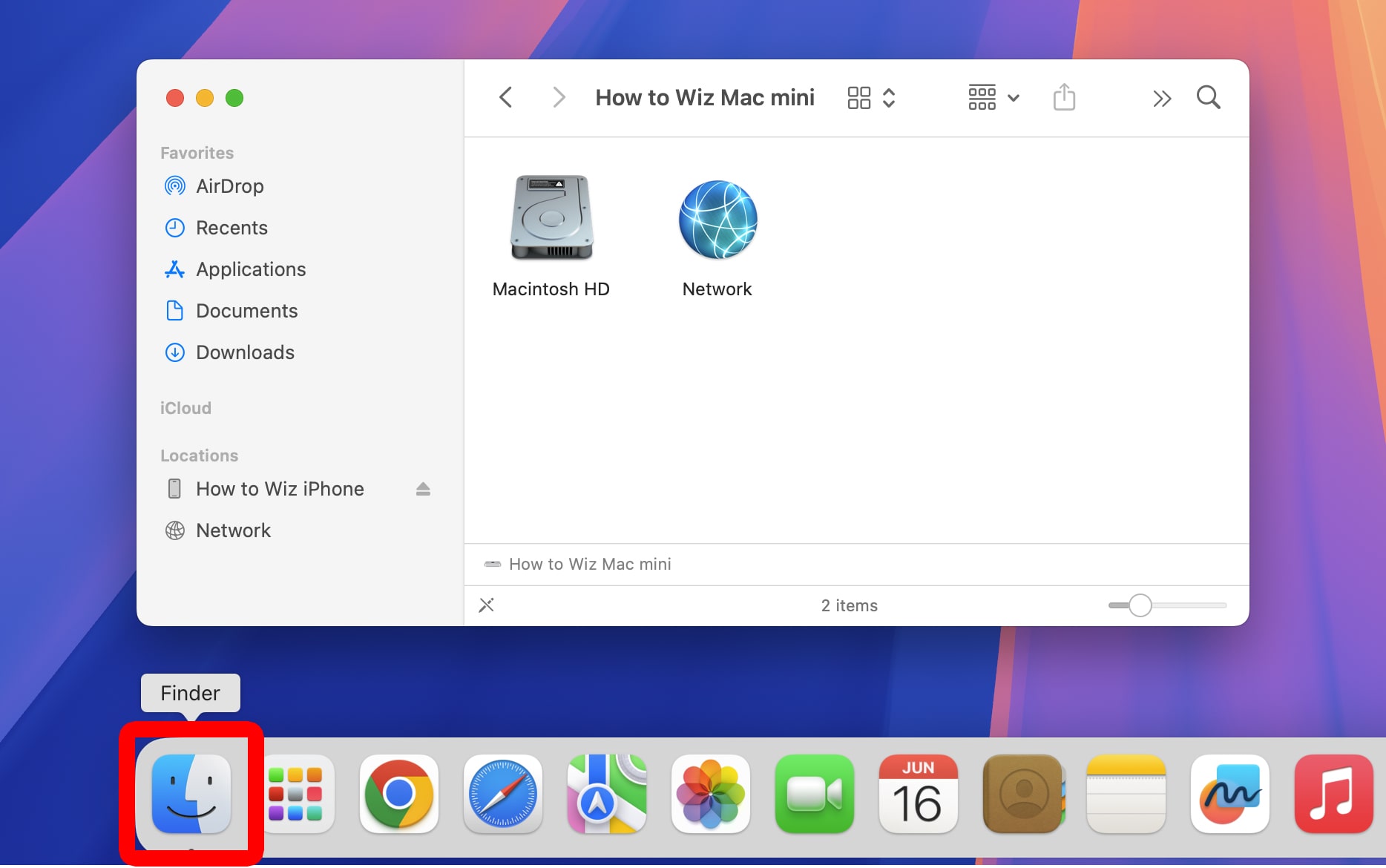
- Open a Finder window. You can do this by clicking the half-gray, half-blue face icon in your Dock.

- Select your iPhone. You will see this in the left sidebar of the Finder window.

- Check the circle next to “Back up all of the data on your iPhone to this Mac.”

- Click “Back Up Now.”
- Finally, unlock your iPhone. You will need to enter your passcode on your iPhone. Otherwise, your data will not back up to your Mac.
If you don’t have enough space on your Mac, you can delete photos and videos from your iPhone, remove YouTube downloads, or delete previous backups.
Read More: How to Delete All Photos from an iPhone
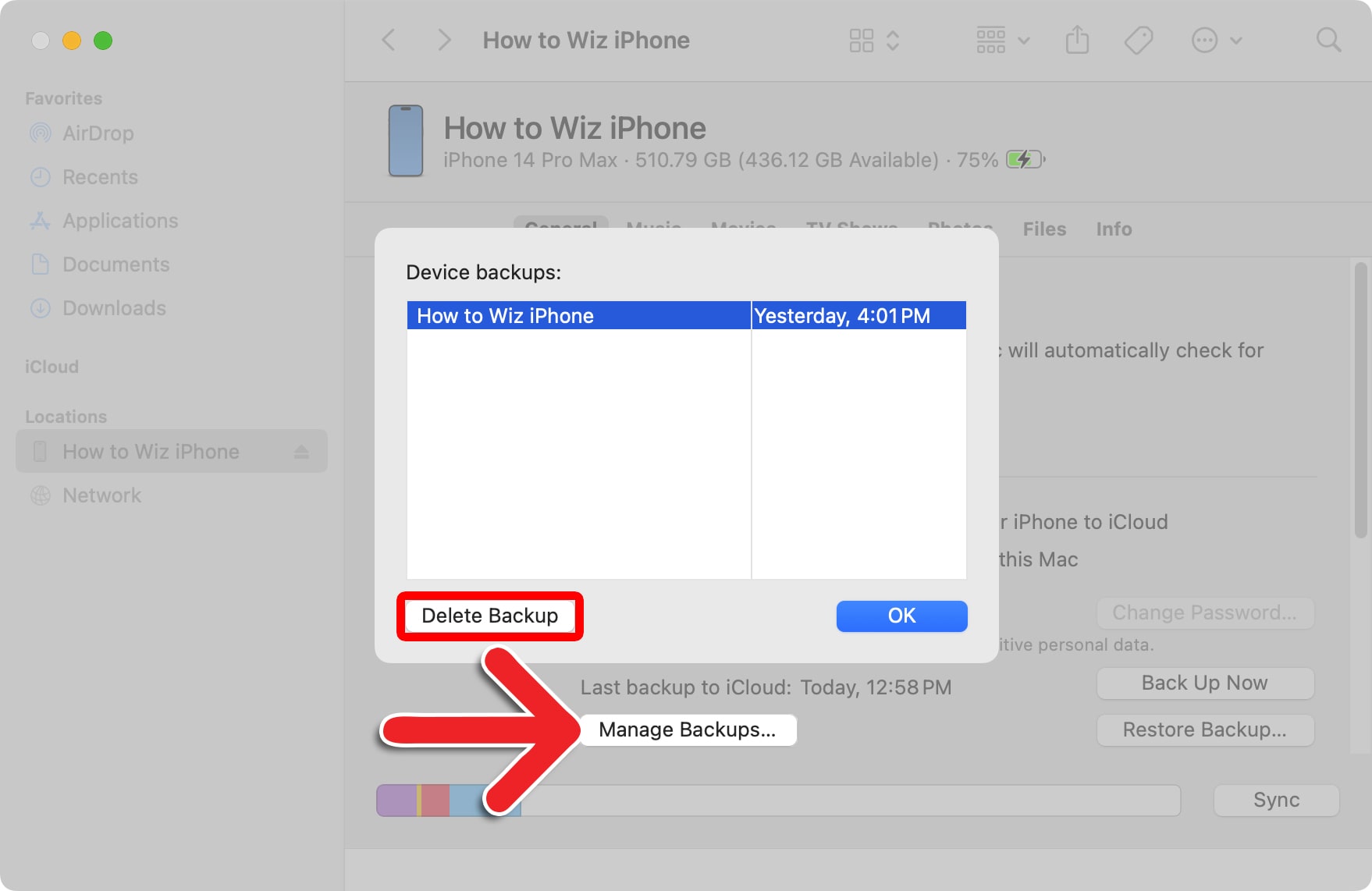
To remove previous backups on your Mac, click the “Manage Backups” button, then select a previous backup, and click “Delete Backup.”
How to Back Up an iPhone to a Windows PC
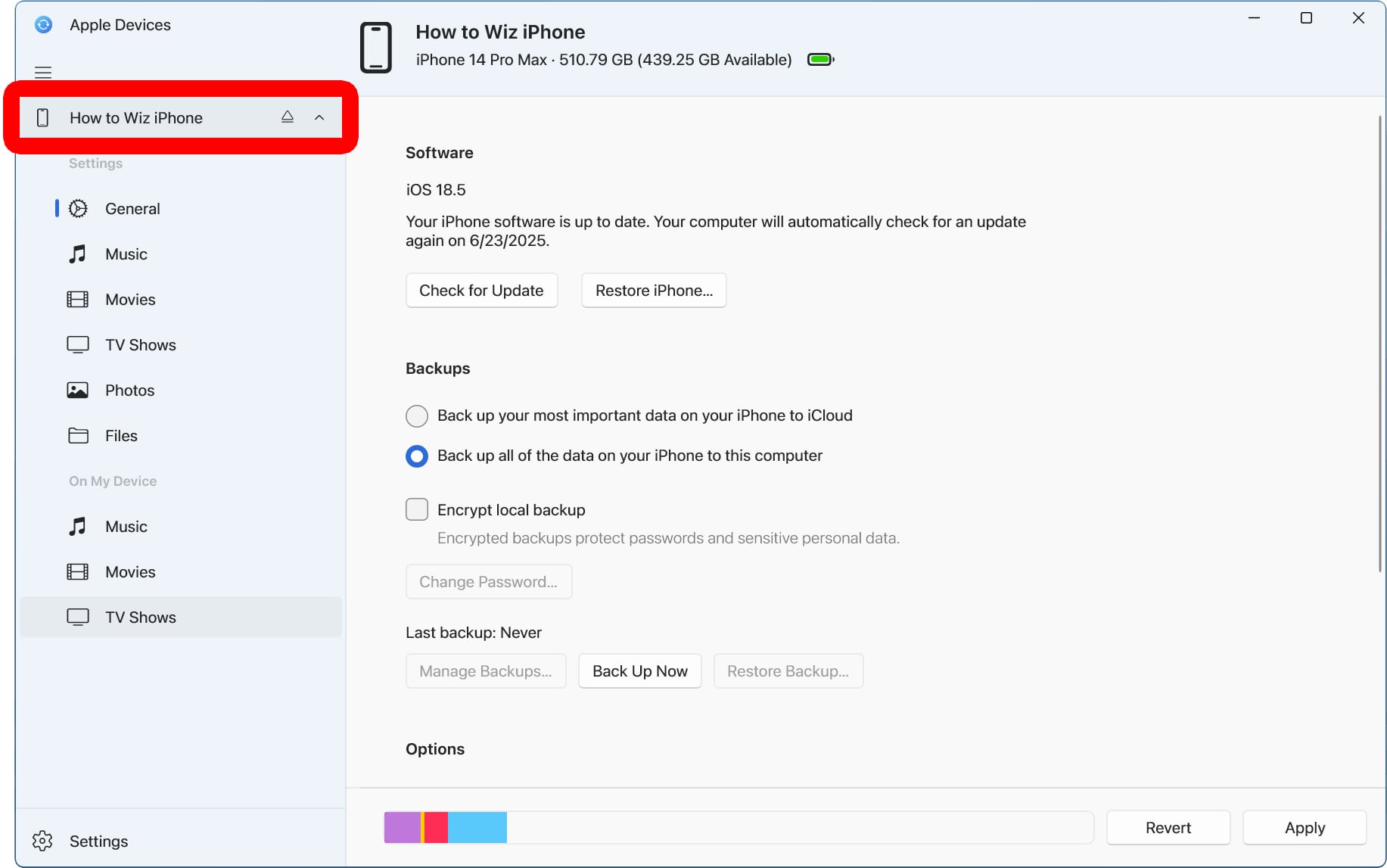
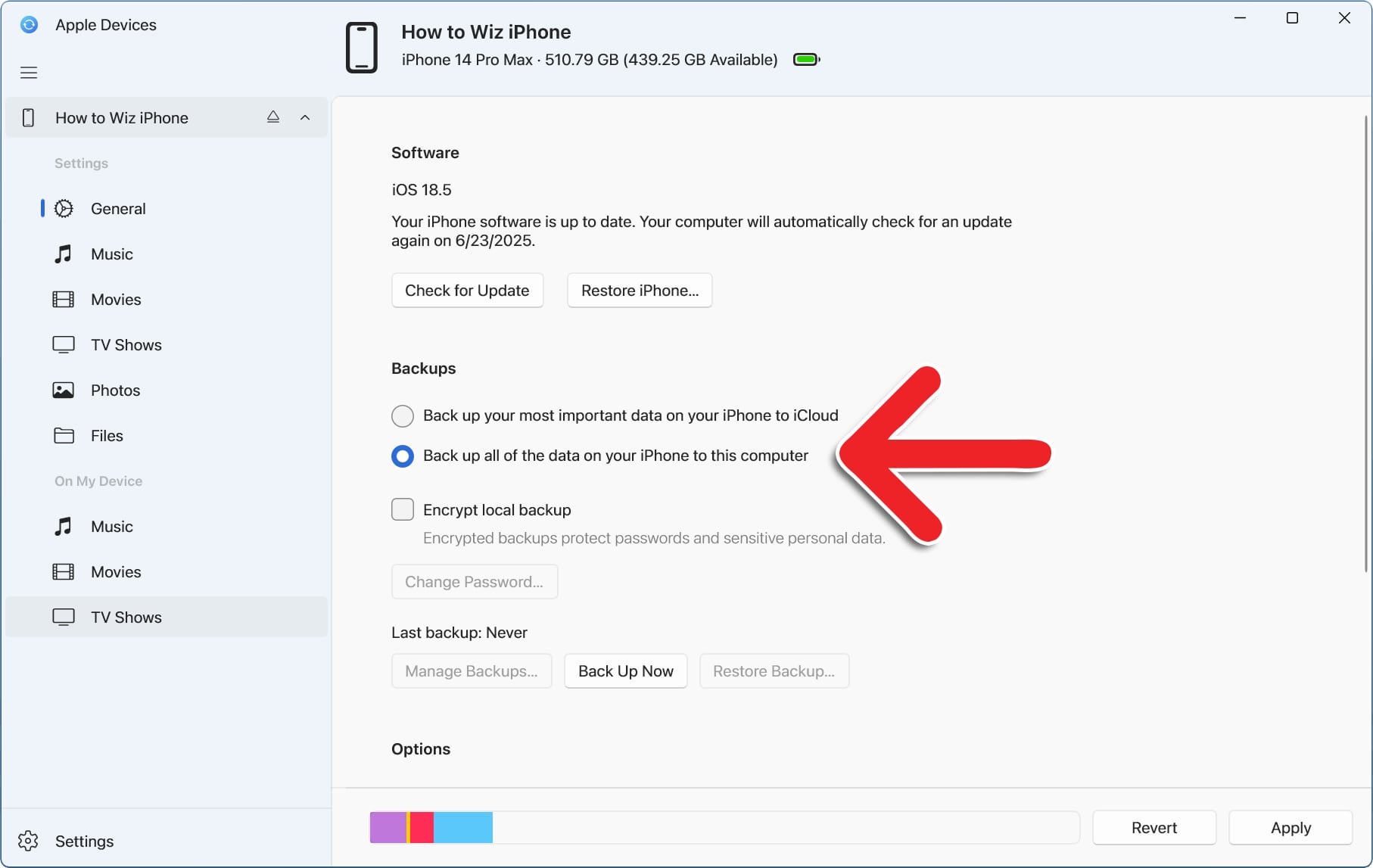
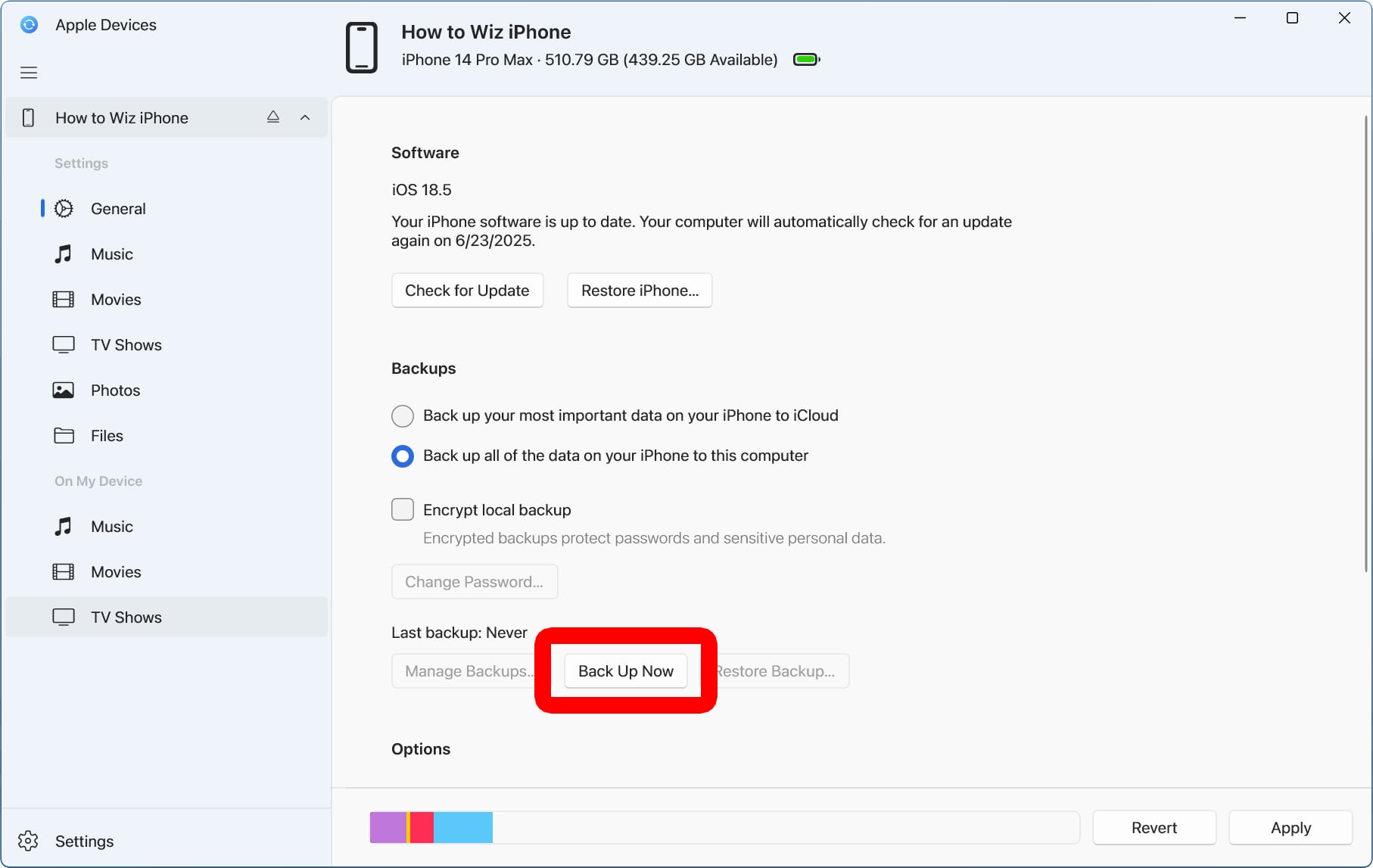
To back up your iPhone to a Windows PC, open the Apple Devices app and plug your phone into the computer. Then, select your iPhone from the left sidebar and check the circle next to “Back up all of the data on your iPhone to this computer.” Finally, click “Back Up Now.”
Read More: How to Import Photos from an iPhone to Windows
- Open the Apple Devices app on your Windows PC. If you don’t already have this app on your Windows computer, you can download it from the Microsoft Store for free.
- Plug your iPhone into a Windows PC. To back up your data quickly, use a USB-C cable.
- Select your iPhone in the left sidebar. You will see this in the top-left corner of the app window.
- Check the circle next to “Back up all of the data on your iPhone to this computer.”
- Finally, select “Back Up Now.”
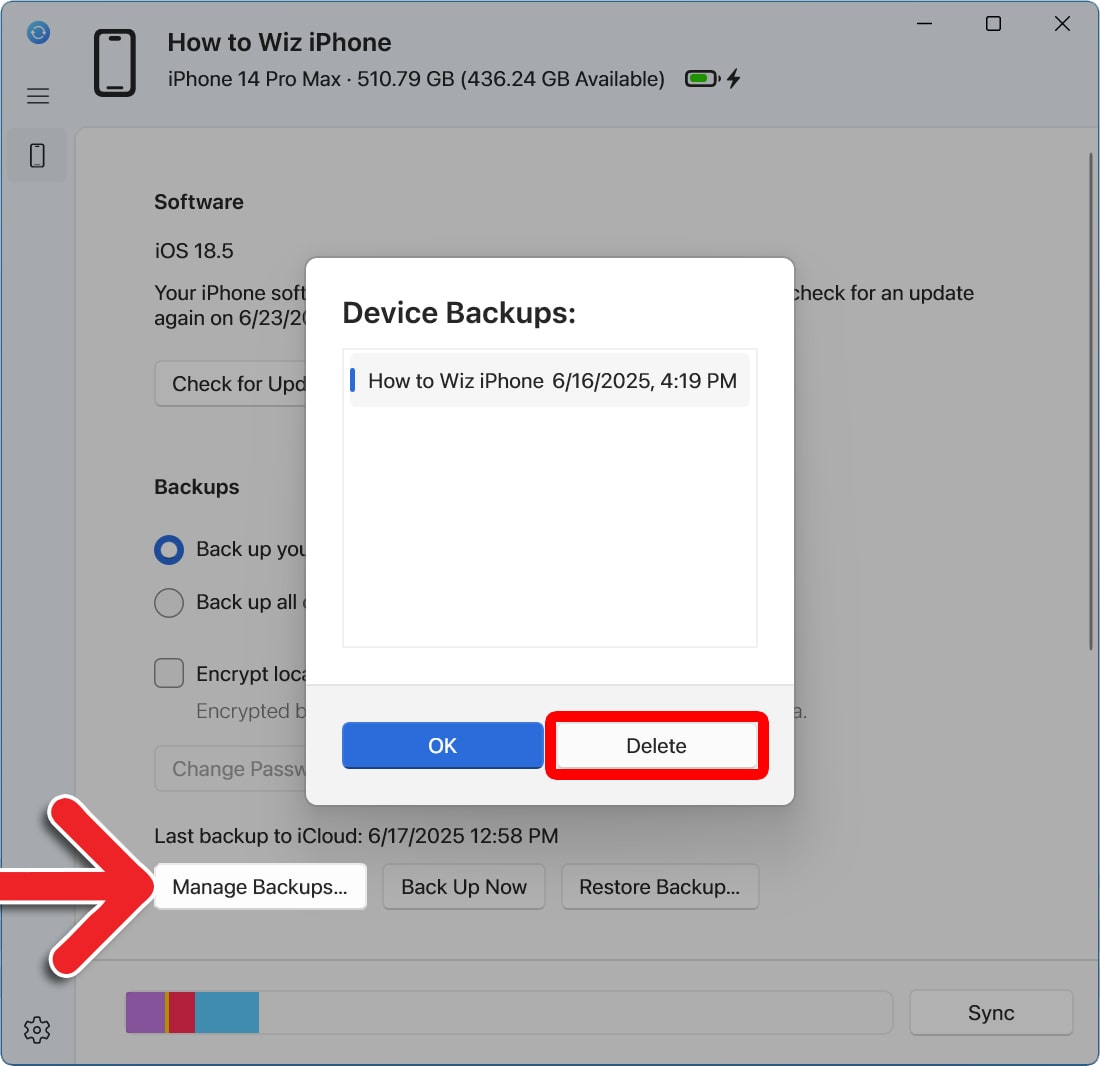
If you don’t have enough space on your Windows PC, try deleting photos and other large files from your phone. You can also free up space on your Windows PC by removing previous backups. To do this, click the “Manage Backups” button in the Apple Devices app, select a previous backup, and select “Delete Backup.”