
The average American takes about 20 photos on their smartphone every day, according to Photutorial. Over time, all those photos can take up a lot of space, which can slow your iPhone down and make it difficult to back up your data. Here’s how to delete all the photos and videos from your iPhone at once and how to permanently remove your recently deleted files.
How to Delete All Photos from an iPhone at Once
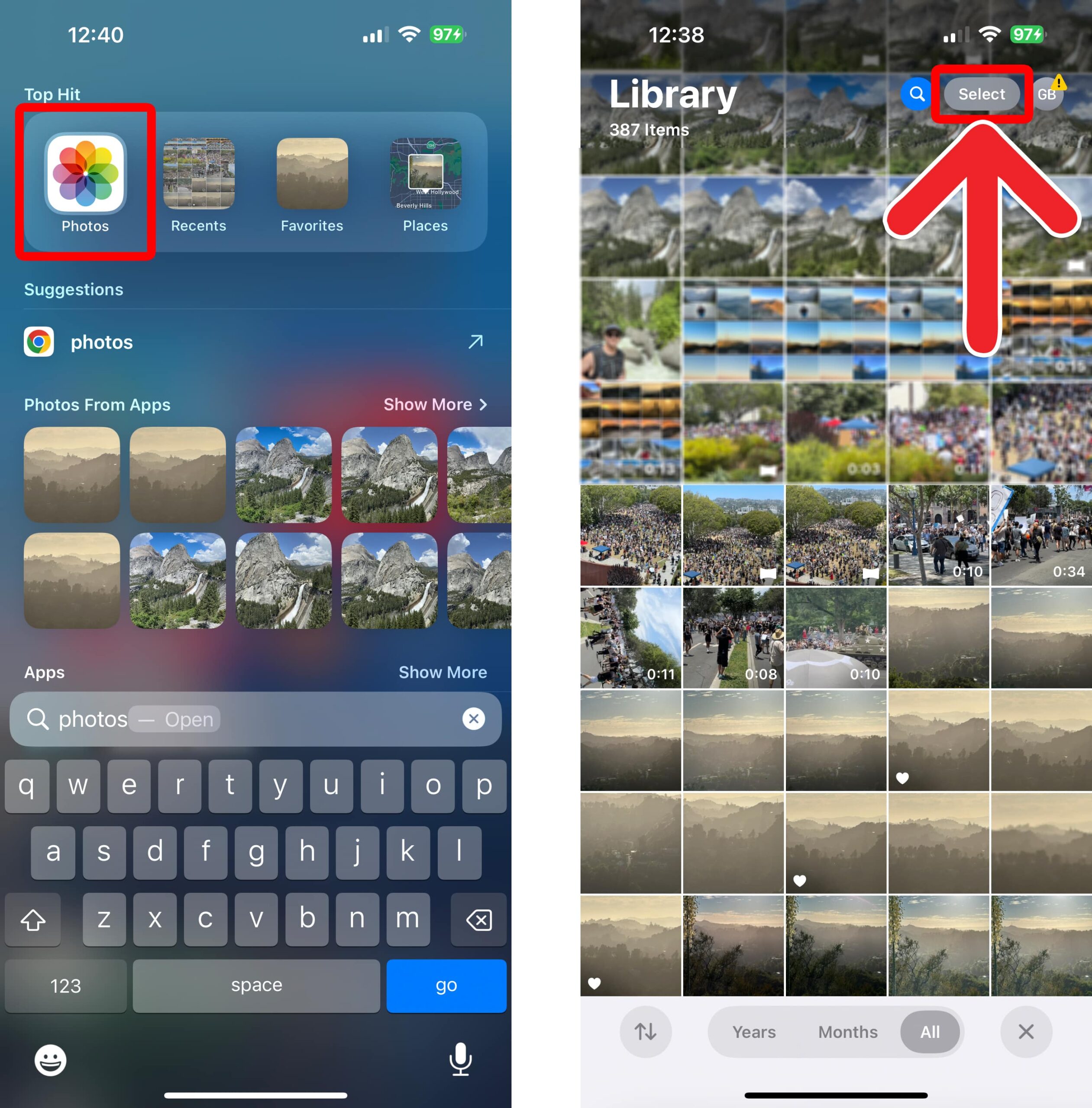
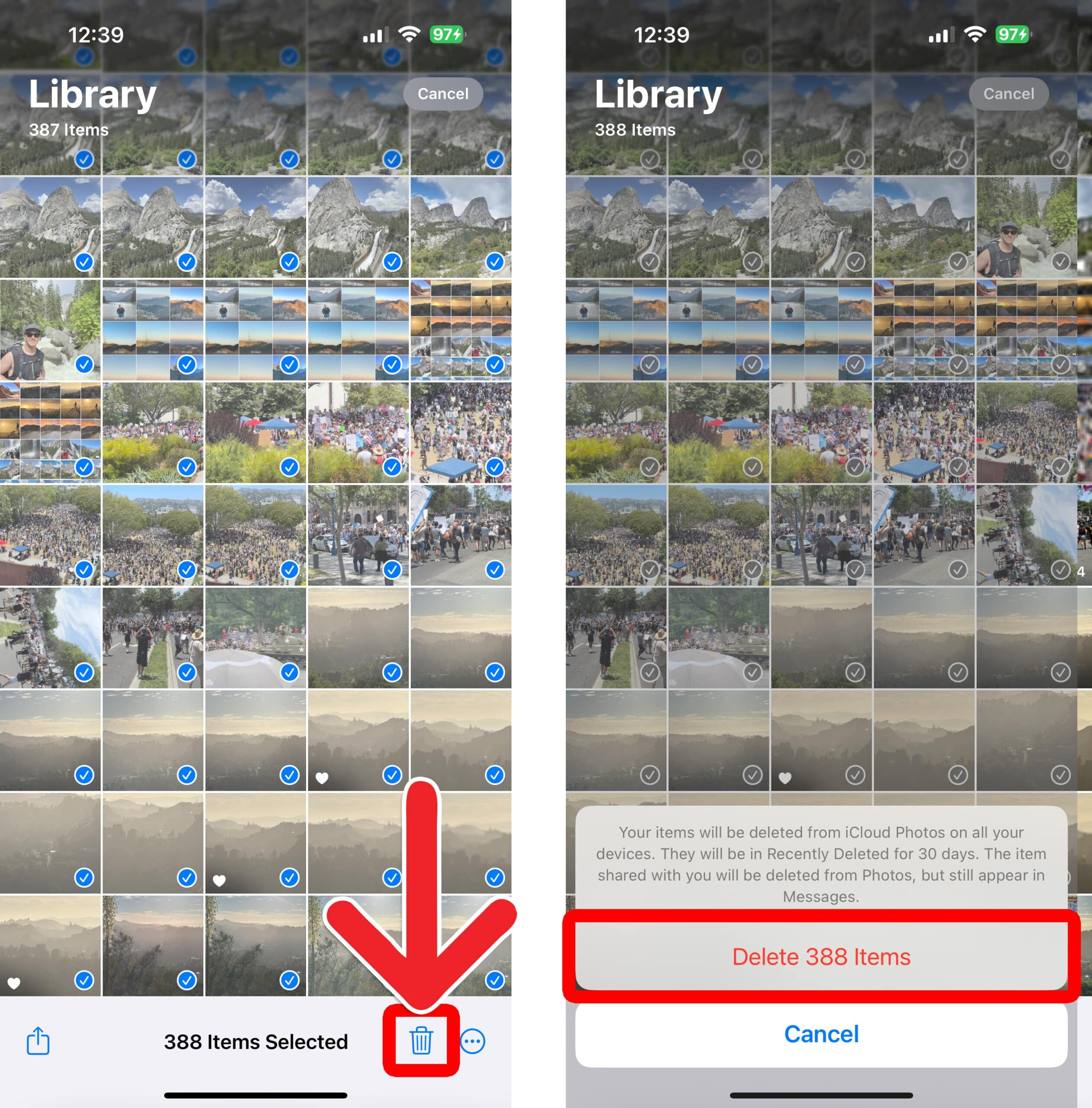
To delete all the photos and videos from your iPhone at once, open the Photos app and tap “Select” in the top-right corner of the screen. Then, tap the bottom photo and quickly drag your finger to the top of your screen. Keep holding your finger on the screen until all your photos are selected. Finally, tap the trash can icon at the bottom of your screen.
- Open the Photos app on your iPhone. This is an app that comes pre-installed on all iPhones. If you can’t find it, go to your home screen and swipe down from the middle of the screen. Then type “photos” into the search bar, and you will see the app at the top of your screen.
- Tap “Select.” You will see this in the top-right corner of the Photos home screen.

- Tap and hold a photo while dragging your finger up. It can be difficult to get this motion down. You want to tap the last photo and hold it for a second. Then, quickly drag your finger up to the top of the screen and hold it there until all your photos are selected. It can take a while if you have a lot of photos, but this is the quickest way to delete all your photos at once.

- Tap the trash can icon. You will see this at the bottom of your screen.
- Finally, select “Delete [number] Items.”
Videos typically take up more space than photos, so deleting them can free up lots of storage on your iPhone quickly.
How to Delete All Videos on an iPhone
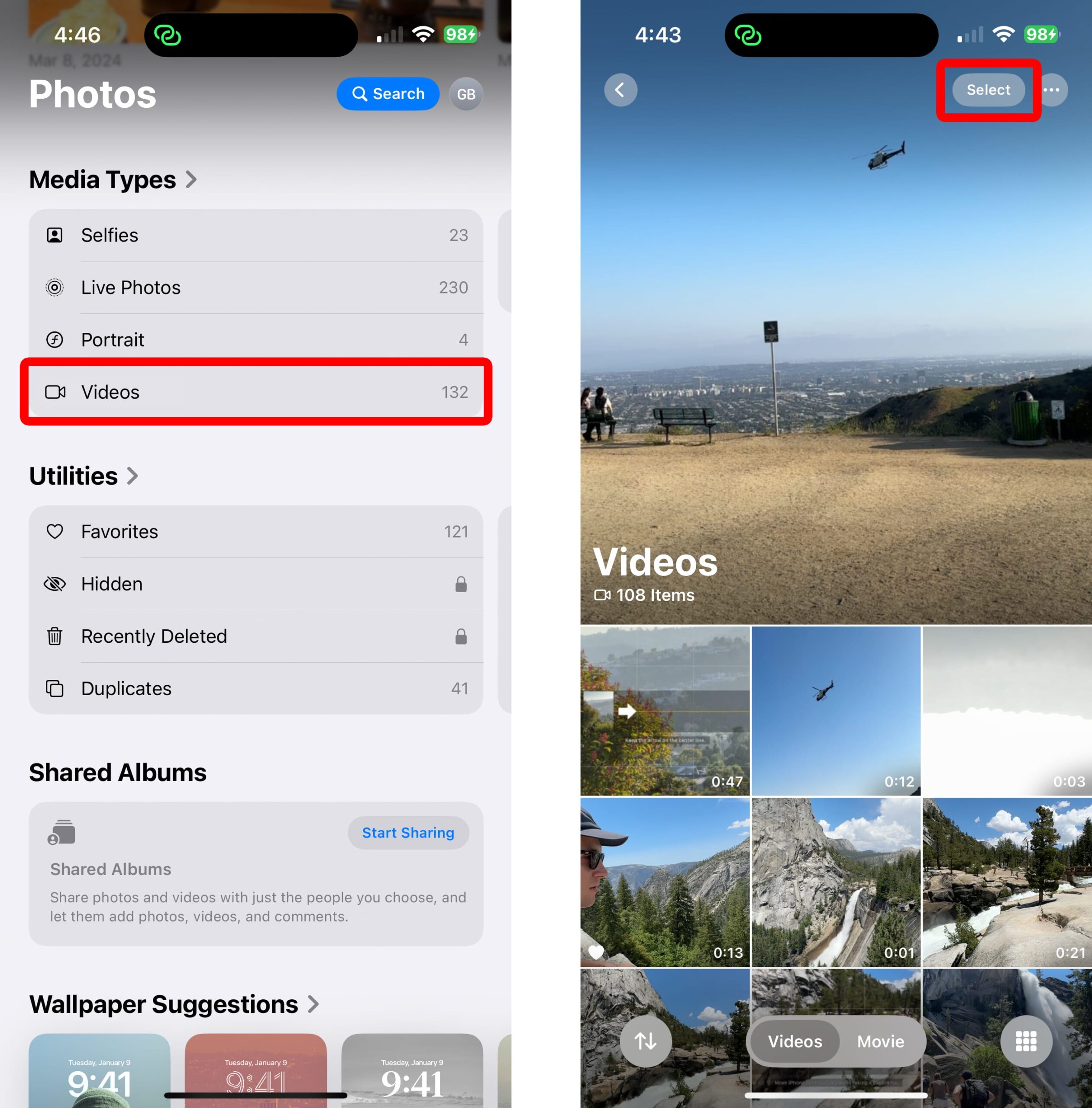
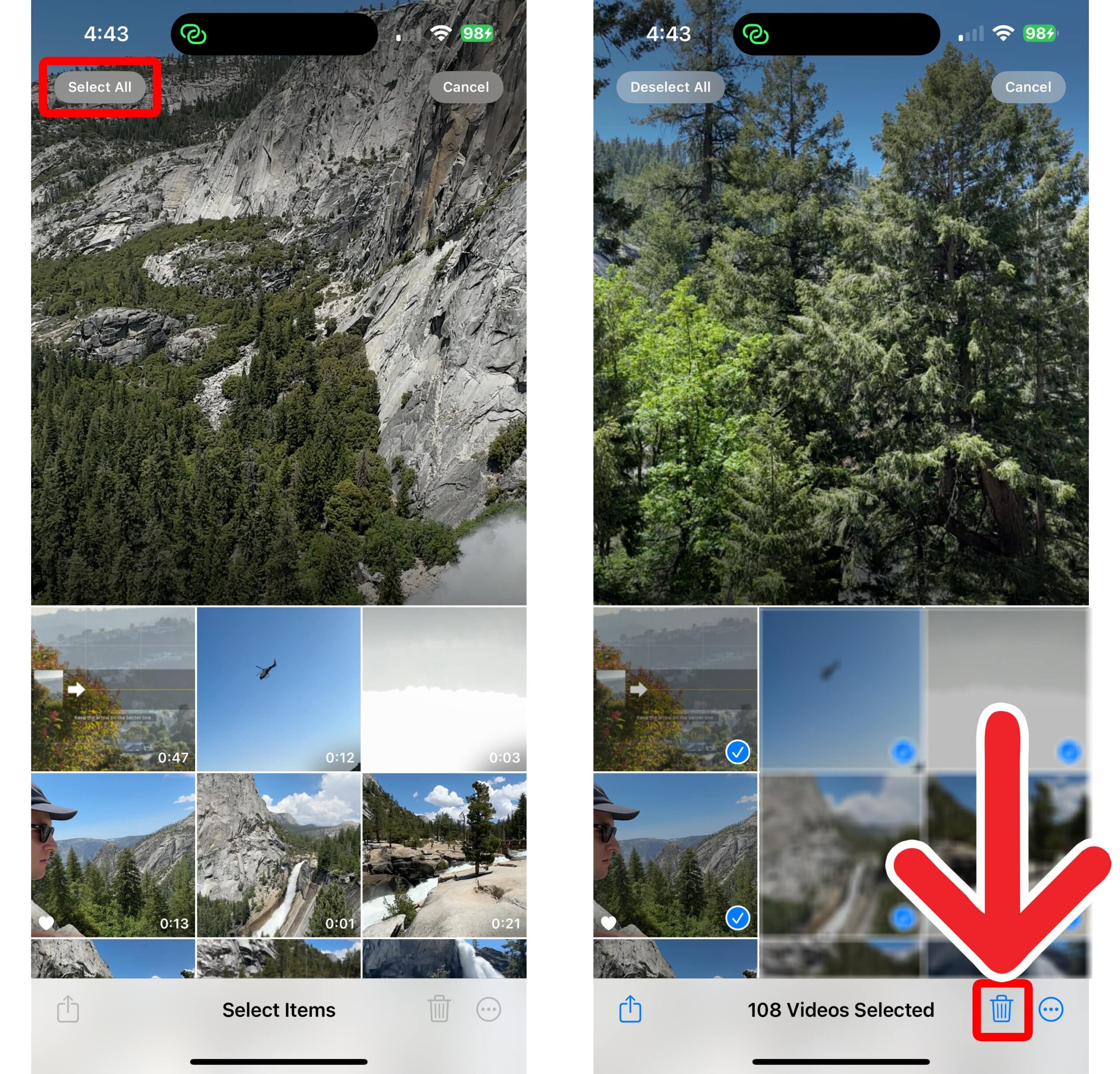
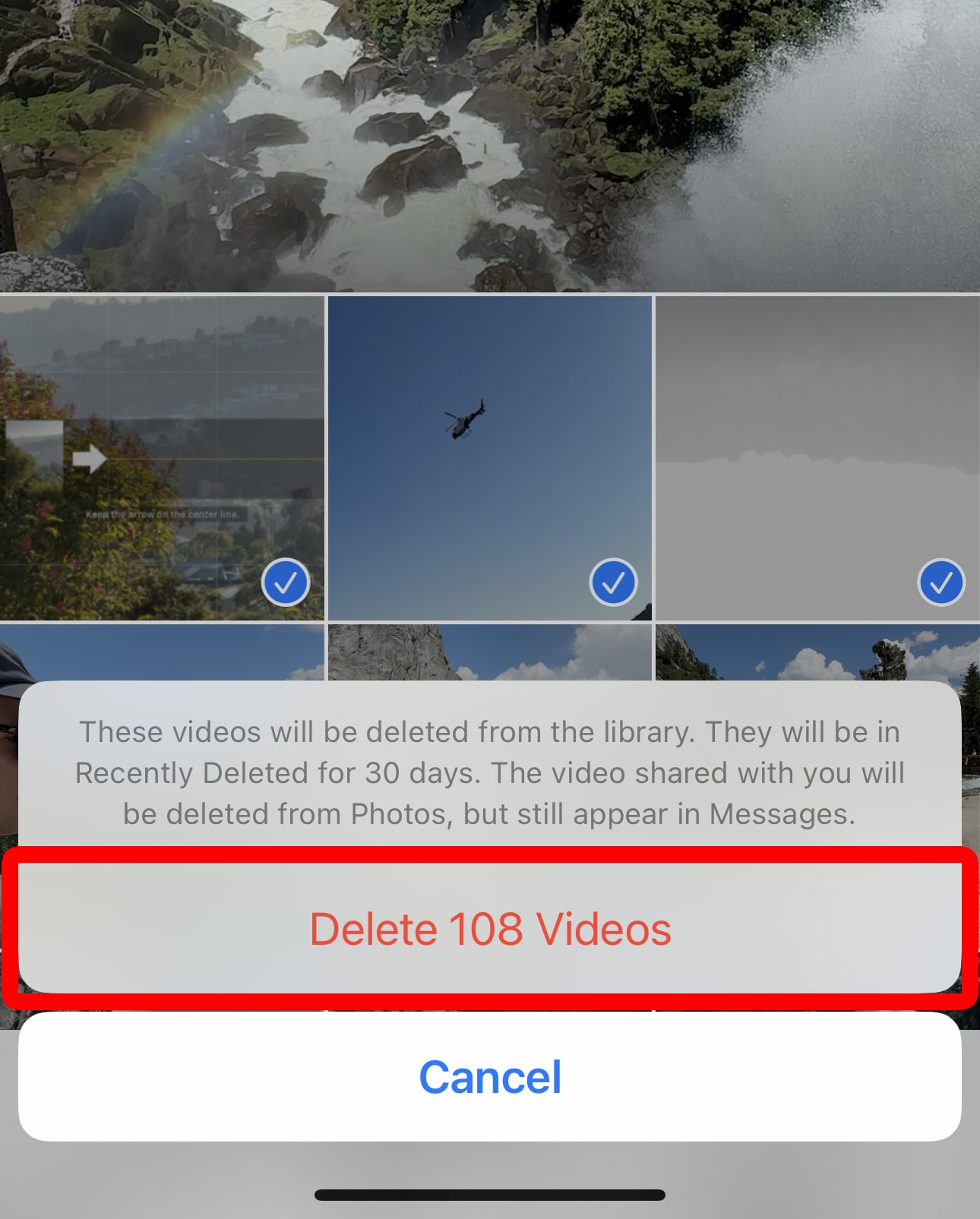
To delete all the videos from your iPhone at once, open the Photos app and scroll down to “Media Types > Videos.” Then, tap “Select” in the top-right corner and “Select All” in the top-left corner. Finally, tap the trash can icon at the bottom of your screen and select “Delete [number] Videos.”
- Open the Photos app on your iPhone.
- Scroll down to “Media Types.” You will see this near the bottom of the Photos home screen.
- Select “Videos.” You might need to swipe to the left to see this option. Alternatively, you can tap Media Types to see any hidden categories.
- Tap “Select.” You will see this in the top-right corner of your screen.
- Tap “Select All.” You will see this in the top-left corner of your screen after you tap Select.
- Select the trash icon. You will see this at the bottom of your screen.

- Finally, tap “Delete [number] Videos.”

After you delete all your photos and videos, they will still take up space on your iPhone for another 30 days. To permanently remove your photos and videos, you will need to clear your Recently Deleted album.
How to Clear Your Recently Deleted Photos
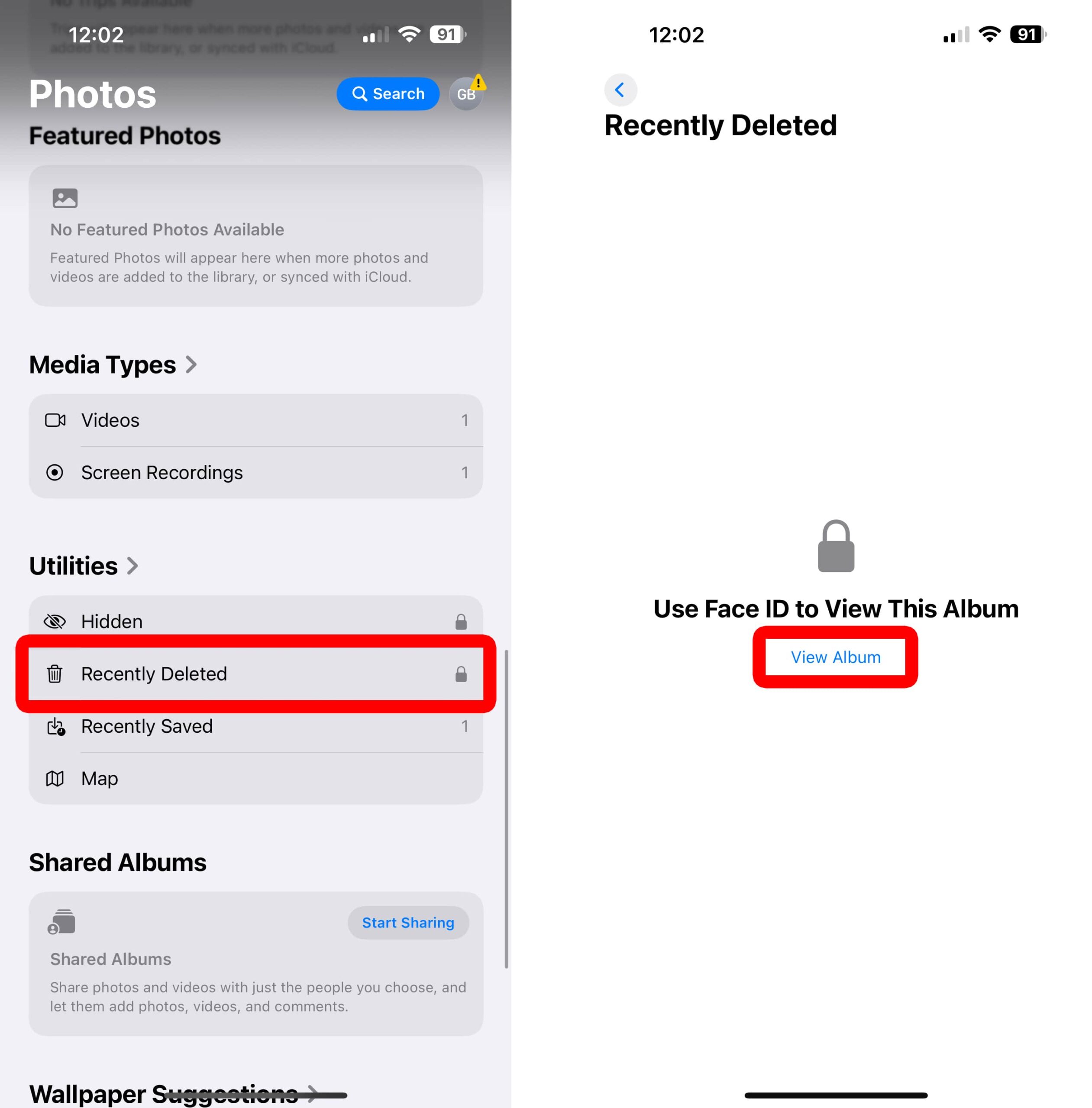
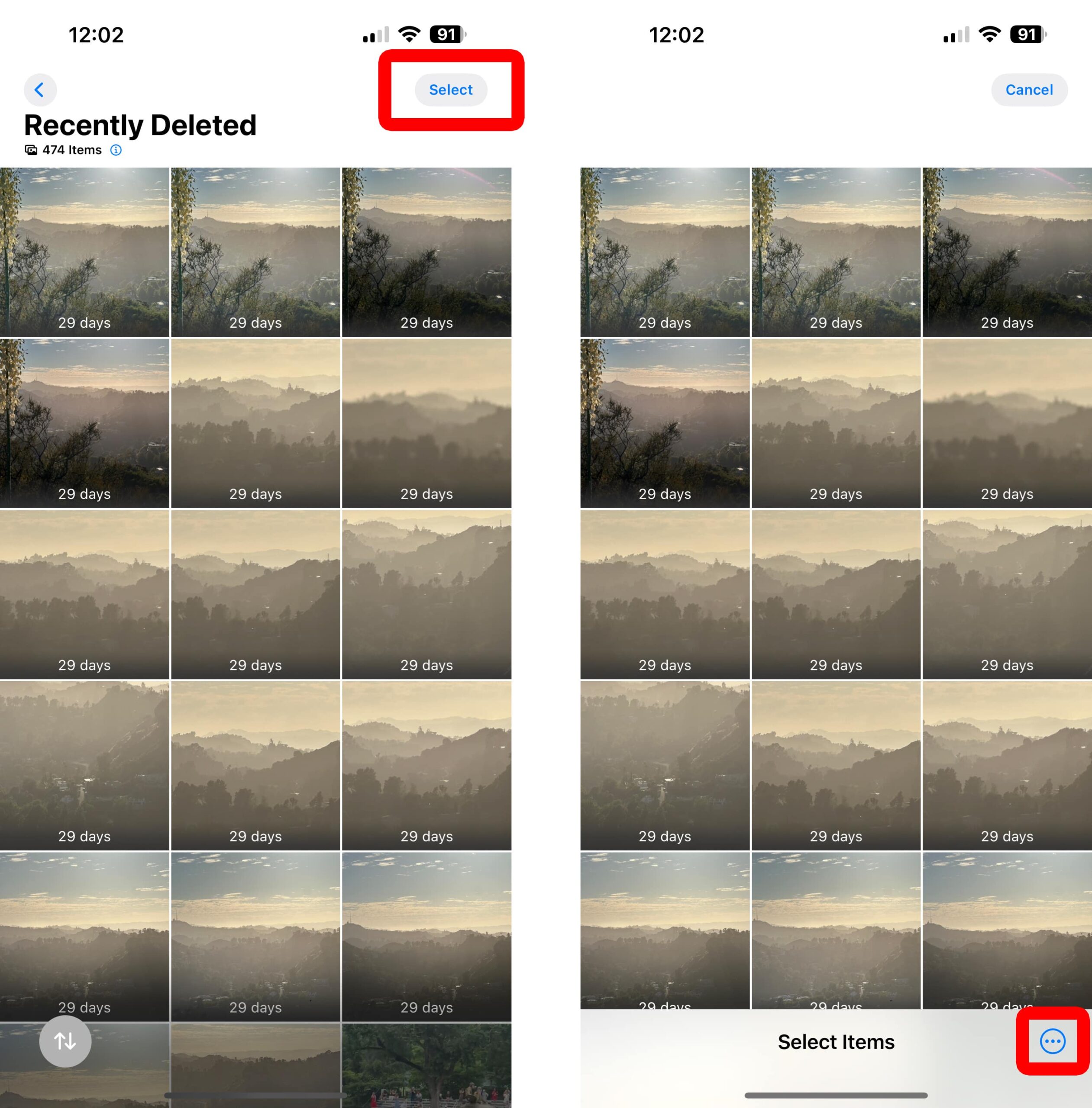
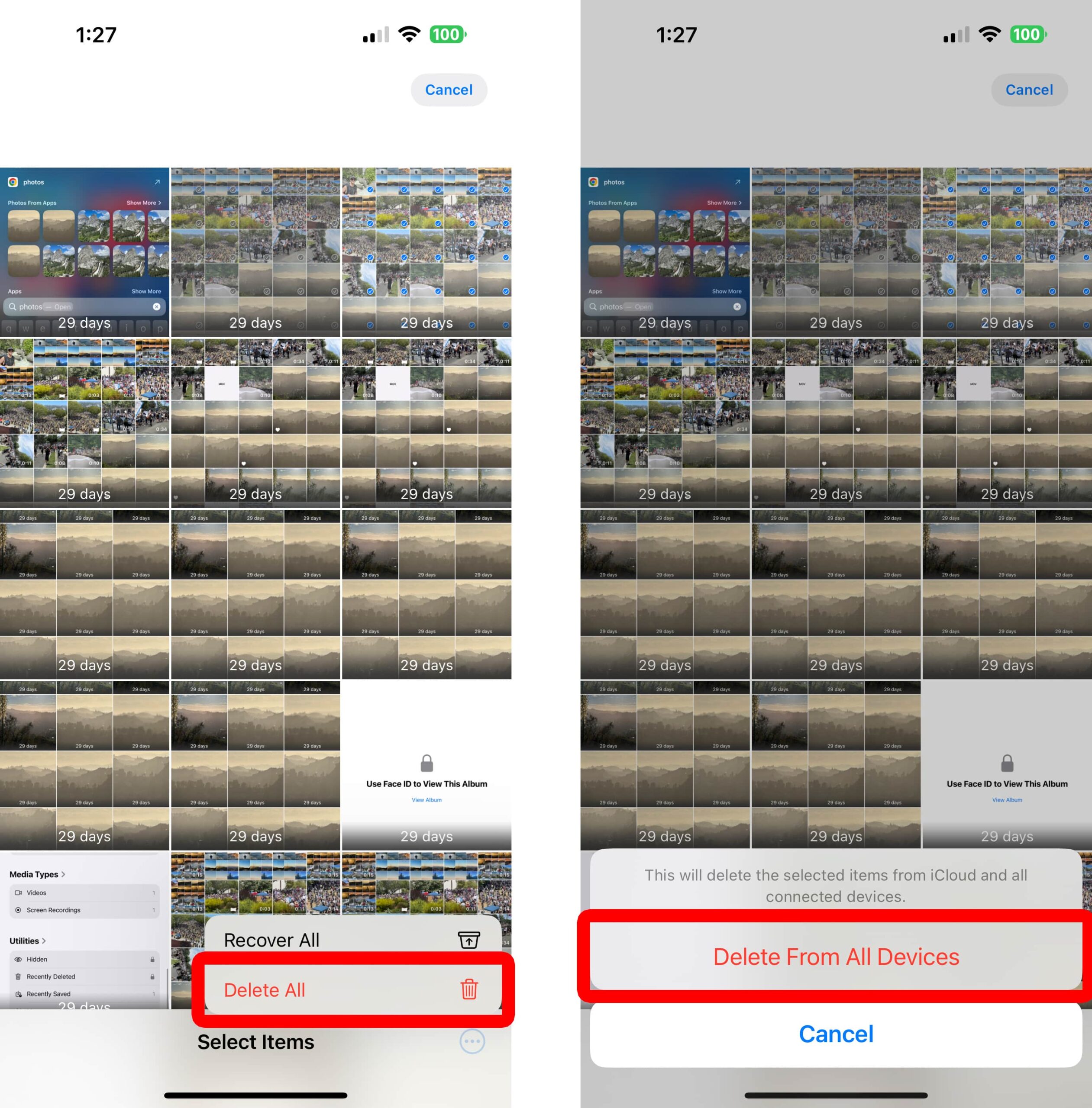
To clear your recently deleted photos and videos, open the Photos app on your iPhone and scroll down to the “Recently Deleted” album. Then, use Face ID to access the album and tap “Select” in the top-right corner. Finally, tap the three-dot icon and select “Delete All.”
- Open the Photos app on your iPhone.
- Scroll down to “Recently Deleted.”
- Select “View Album.” This will require you to use Face ID or Touch ID.
- Tap “Select.” You will see this in the top-right corner of your screen.
- Tap the three-dot icon. You will see this in the bottom-right corner of your screen.

- Select “Delete All.” From here, you can also select Recover All to move your photos out of the Recently Deleted album and back into your photo library.
- Finally, select “Delete From All Devices.”
Read More: How to Import Photos from an iPhone to Windows
Once you’ve cleared the Recently Deleted album, your iPhone should free up space immediately.