Every time you sign in, your Windows lock screen greets you. Make it personal with a favorite photo, a cherished memory, or a scene that inspires you. Here’s how to change your lock screen on a Windows 11 PC, add widgets, or even create a desktop slideshow.
Read More: How to Change Your Wallpaper on Windows 11
How to Change the Lock Screen in Windows 11 Settings
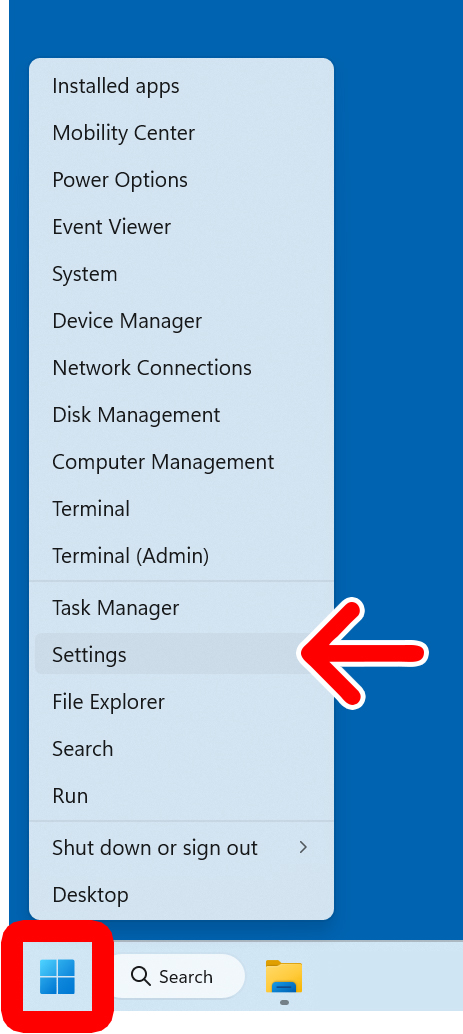
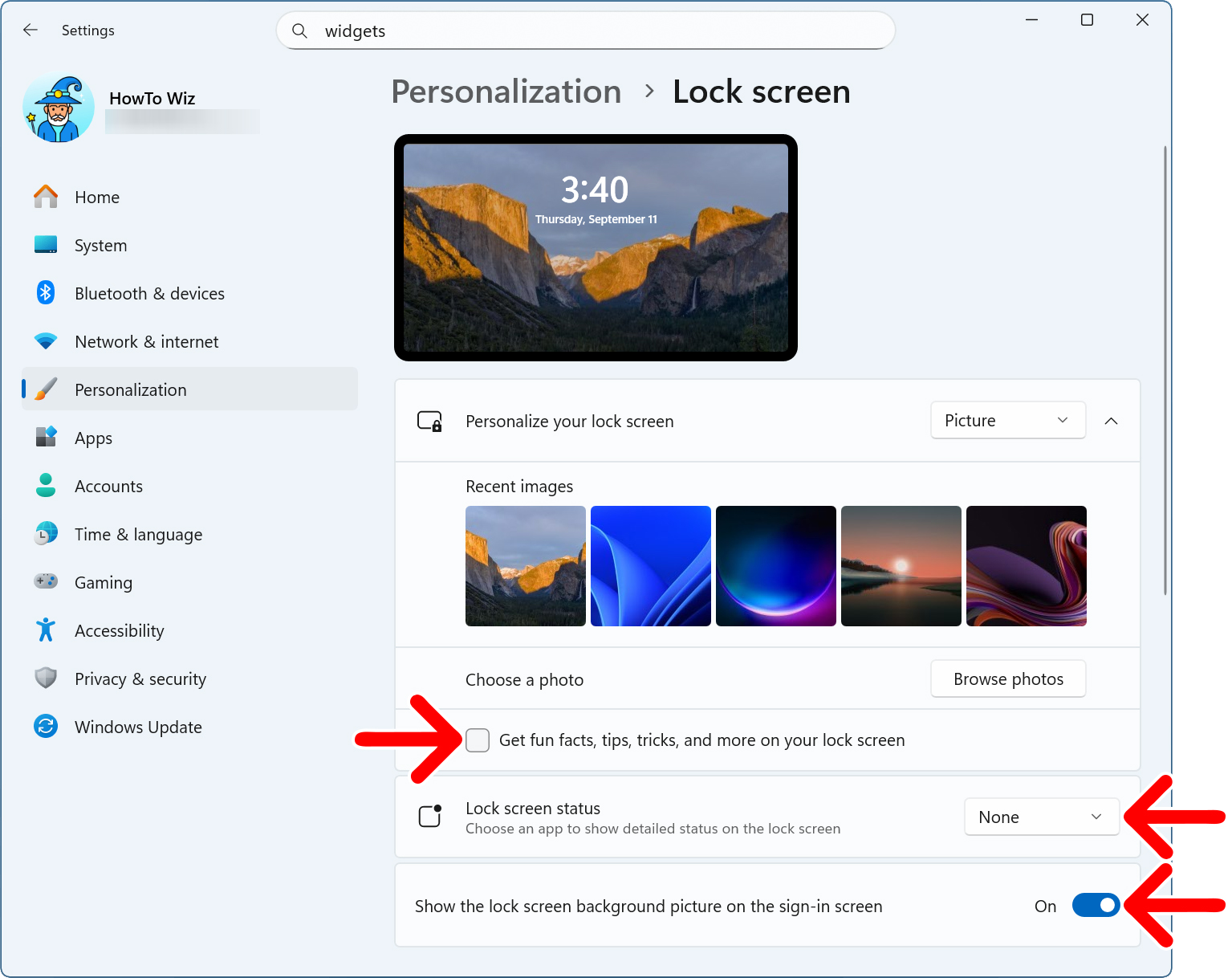
To change the lock screen on a Windows 11 PC, right-click the Windows logo at the bottom of your screen and select “Settings.” Then go to “Personalization > Lock Screen” on the right. Finally, choose an option from the drop-down menu next to “Personalize your lock screen.”
- Right-click the Windows logo at the bottom of your screen. This is the icon with four squares on the far-left or center-left of the taskbar.
- Select “Settings.”

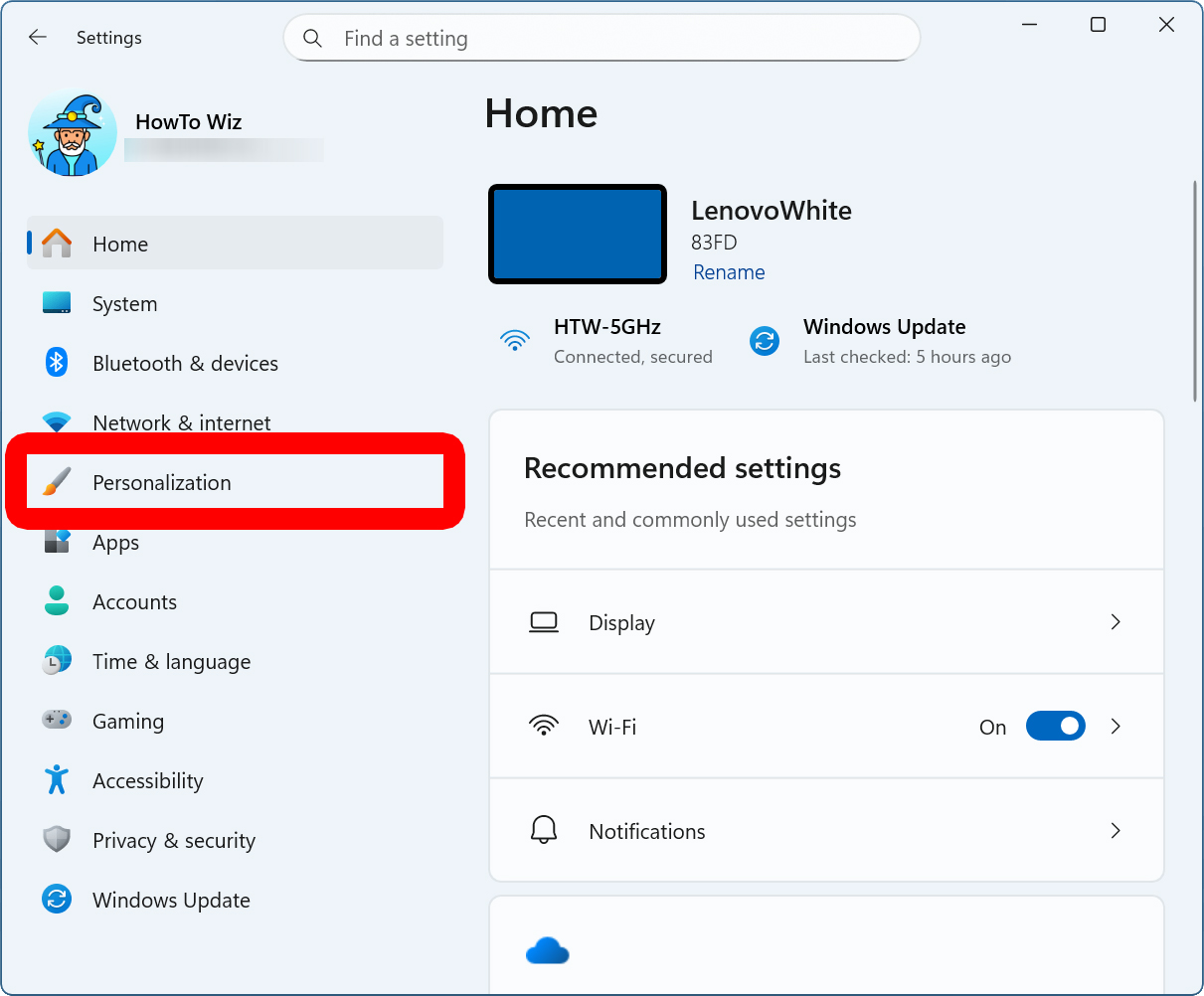
- Click “Personalization.” You will see this in the left sidebar menu. If you don’t see the menu options, click the square “maximize” icon in the top-right corner of the window.

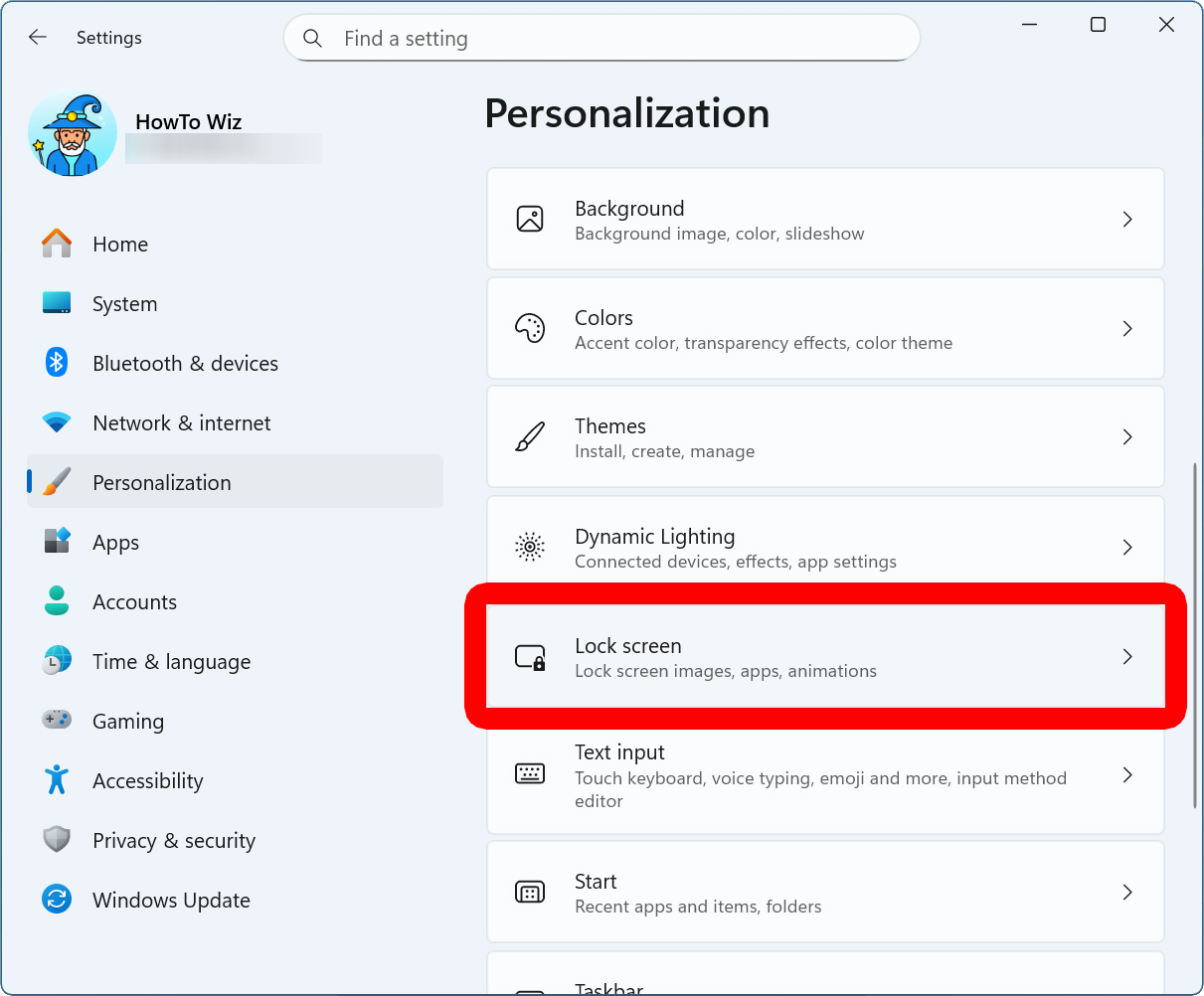
- Scroll down and select “Lock Screen.” You will see this on the right side of the Settings window.
- Finally, choose an option next to “Personalize your lock screen.” This drop-down menu allows you to change your lock screen to “Windows spotlight,” “Picture,” and “Slideshow.”
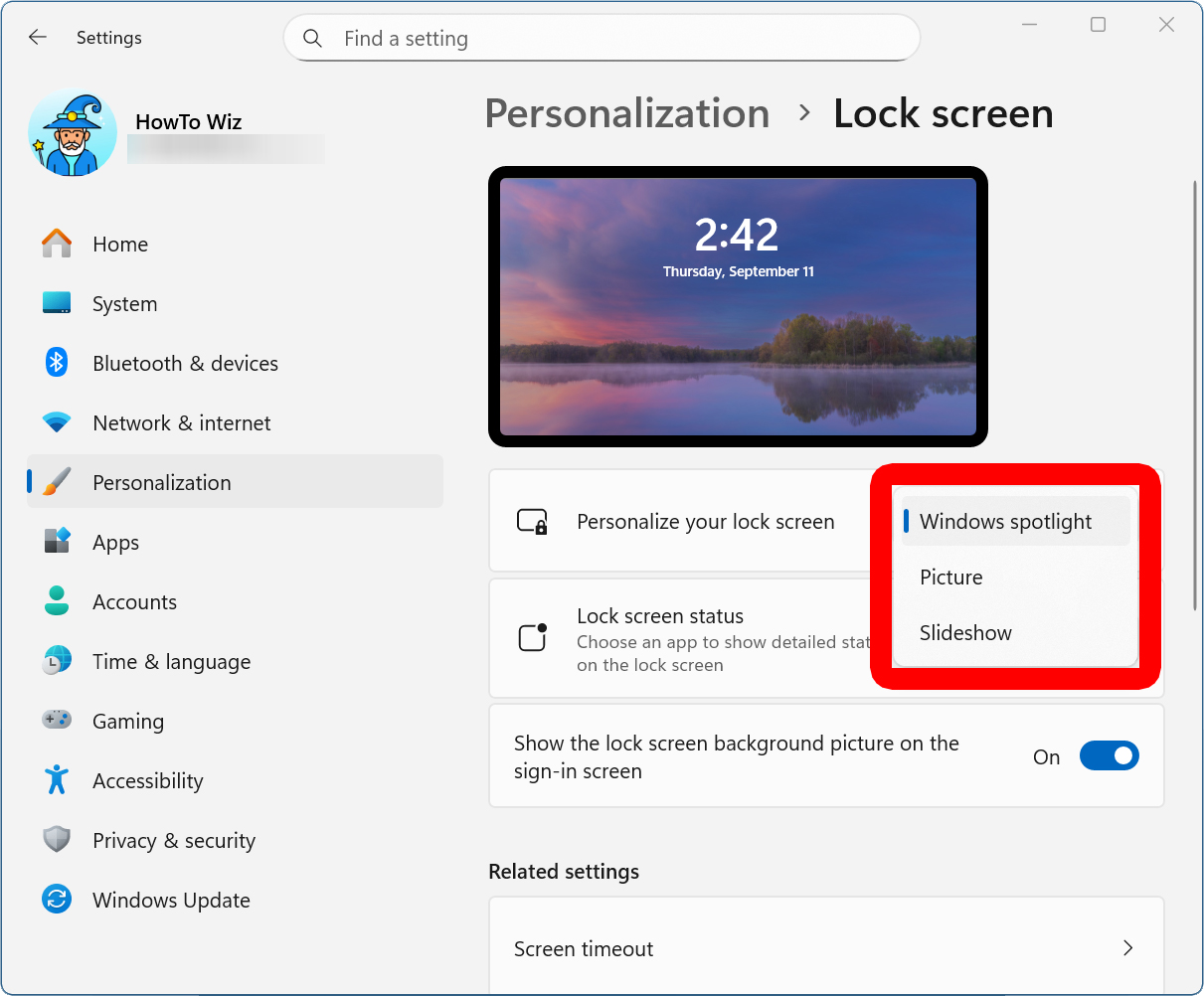
Windows Spotlight
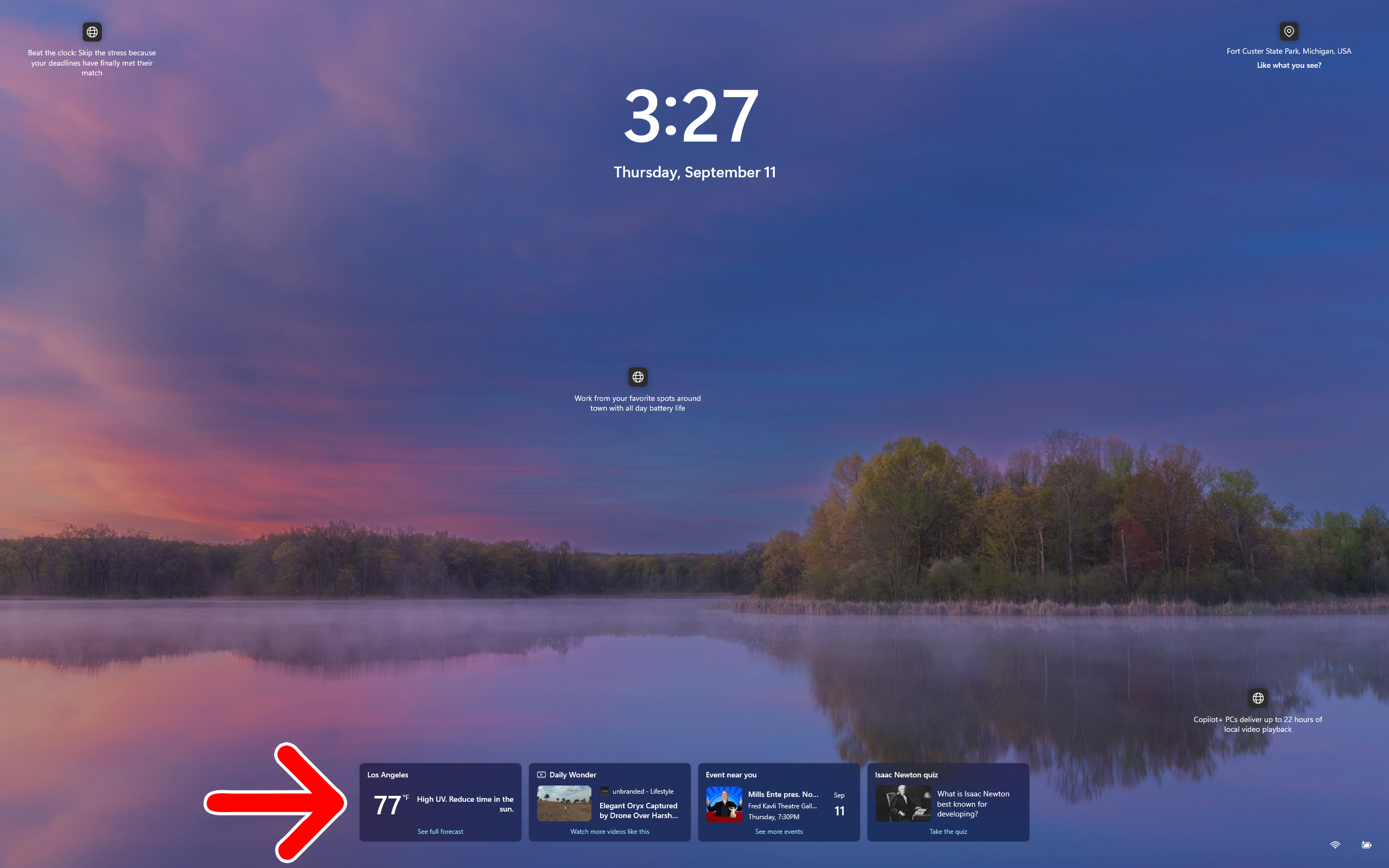
Windows Spotlight will automatically change your lock screen wallpaper image every day. This setting will also display fun facts, tricks, and tips on your lock screen. You can also add widgets to your lock screen by selecting an option from the drop-down menu next to “Lock screen status.”
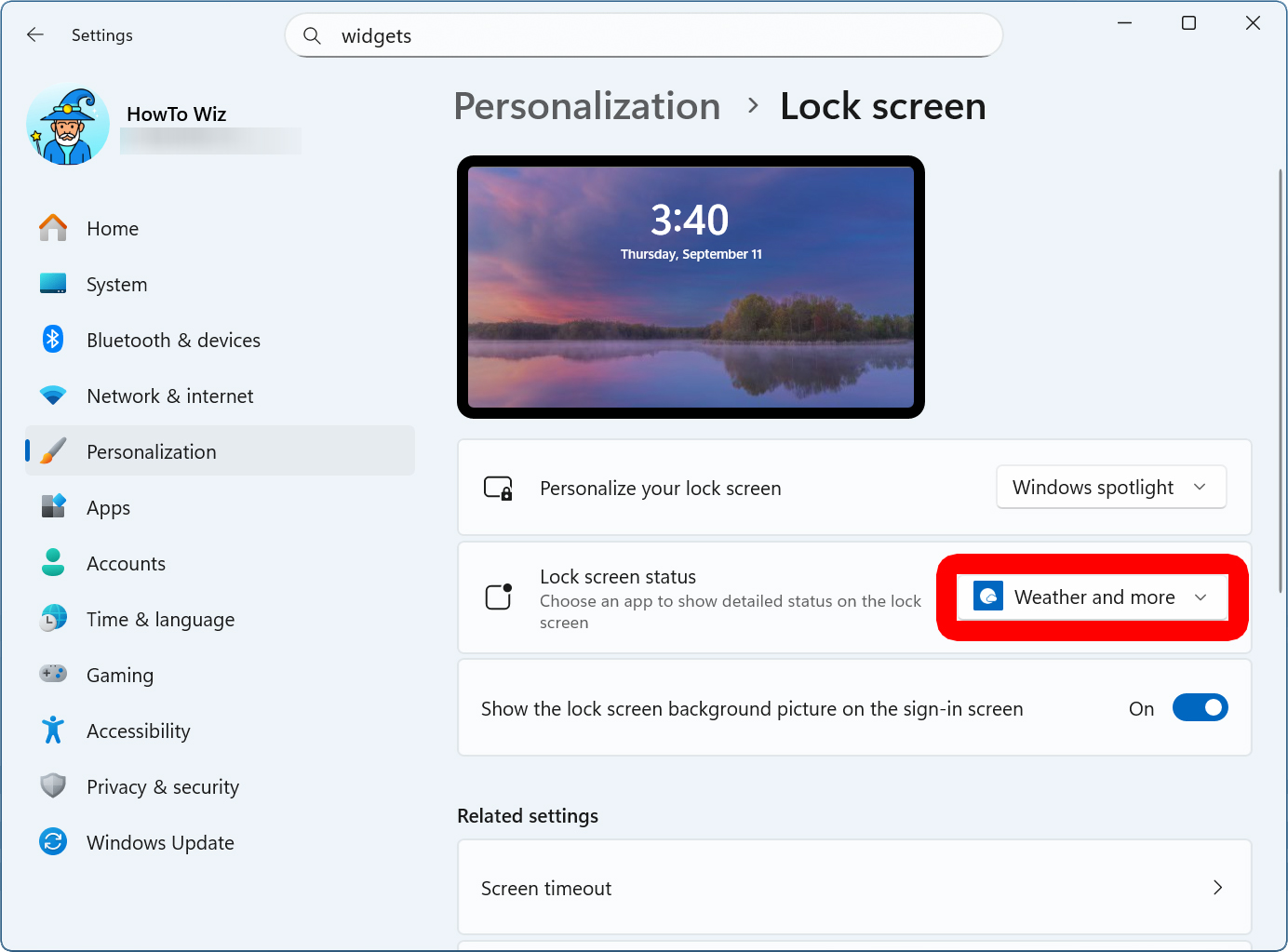
Widgets add a row of live information—like weather, news, and sports—at the bottom of your lock screen. However, you cannot currently customize which widgets appear on your lock screen from the “Weather and More” app.
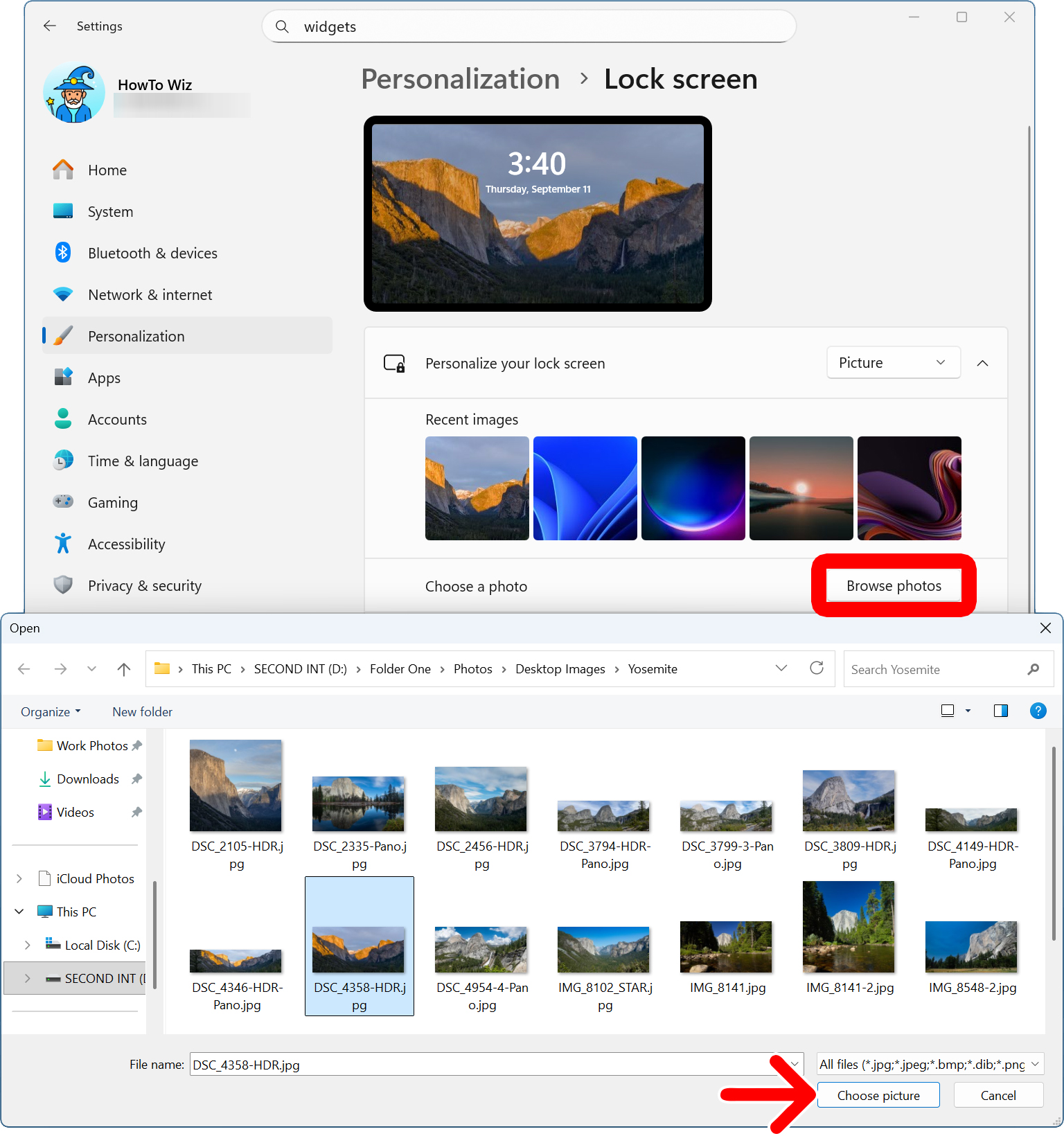
Picture
If you change your lock screen to a “Picture,” you’ll be able to choose a personal photo from your computer. To do this, click the “Browse photos” button and navigate to a folder with the photo you want to use. Finally, click “Choose picture” to change your Windows lock screen image.
If you want a clean lock screen, uncheck the box next to “Get fun facts, tips, tricks, and more on your lock screen.” You can also remove widgets from your lock screen by selecting “None” from the drop-down menu next to “Lock screen status.” Finally, you can turn off “Show the lock screen background picture on the sign-in screen” to display a plain black background when you enter your password.
Slideshow
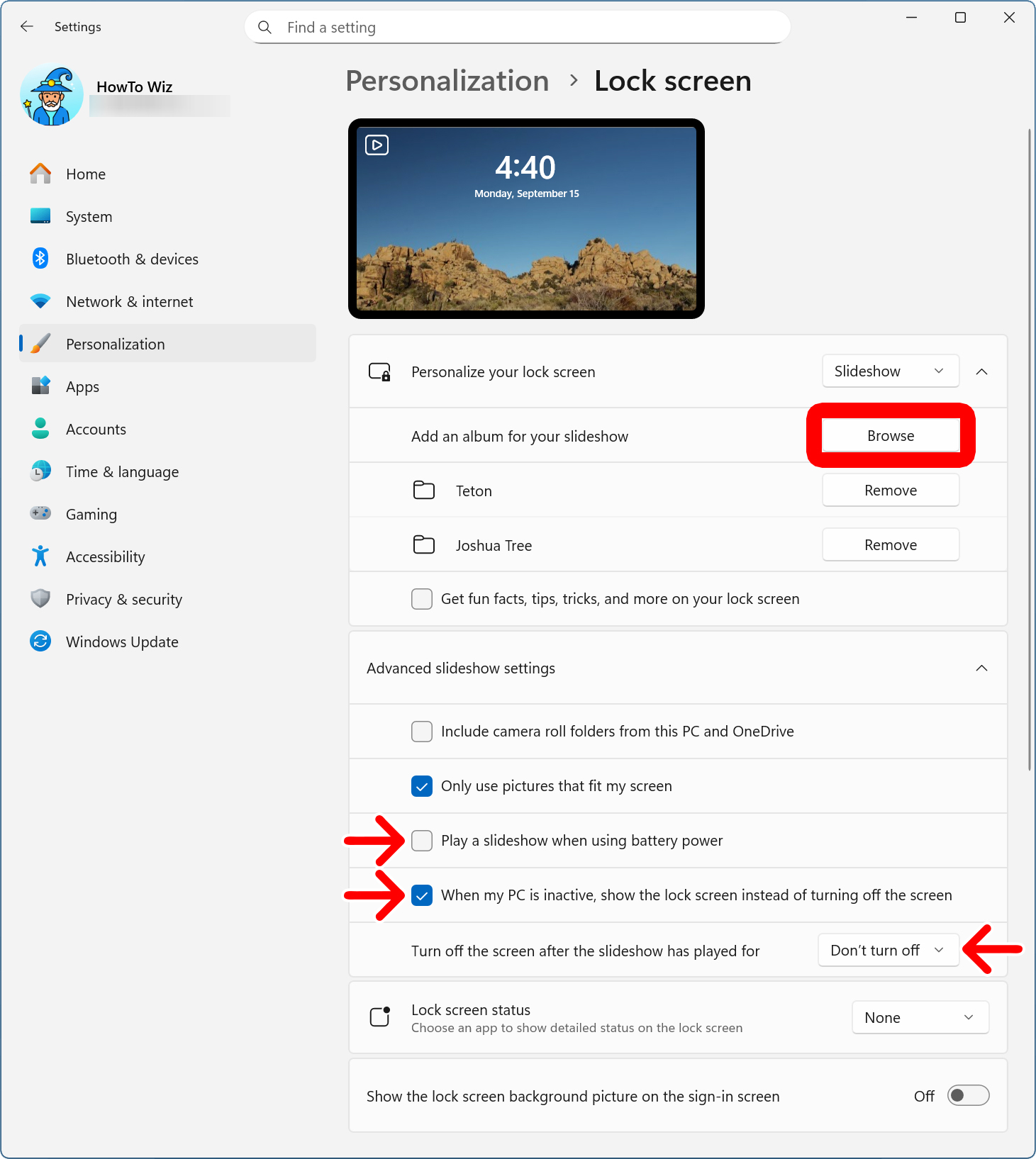
If you choose “Slideshow,” your lock screen will turn into a sort of screensaver. Click “Browse” next to “Add an album for your slideshow” and choose a folder with multiple photos on your computer. Then you can click “Browse” again to add multiple folders.
You can also scroll down to keep playing the slideshow when your computer goes to sleep, or keep it playing continuously, like a screensaver. This is a good option to choose if you want to sign in to your computer more quickly.