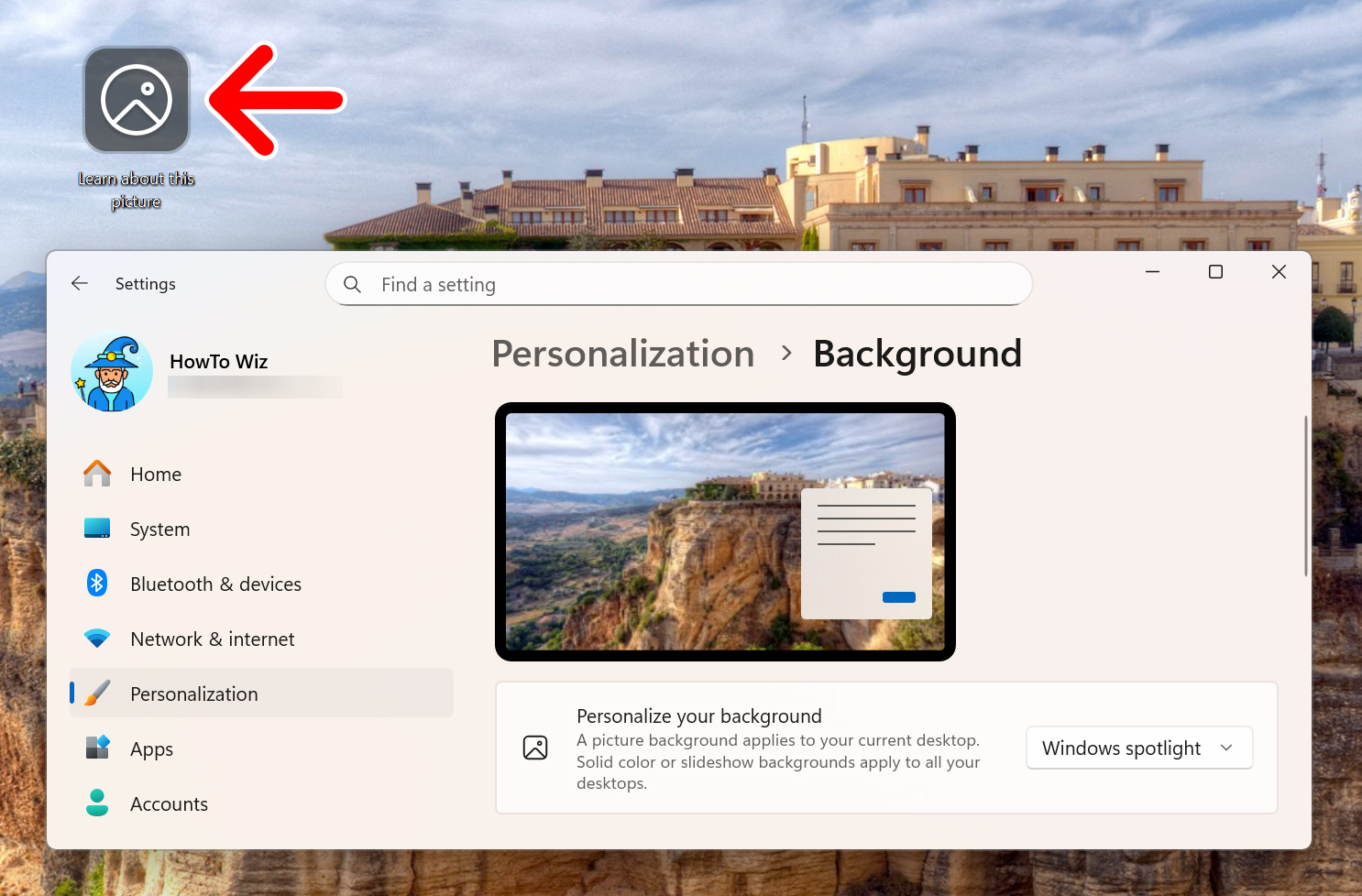
Boring desktop? Brighten it with family photos, soothing colors, or a slideshow that keeps things fresh. Here’s how to change your wallpaper on a Windows 11 PC and customize how it looks across multiple monitors.
How to Quickly Set Your Wallpaper in Windows 11
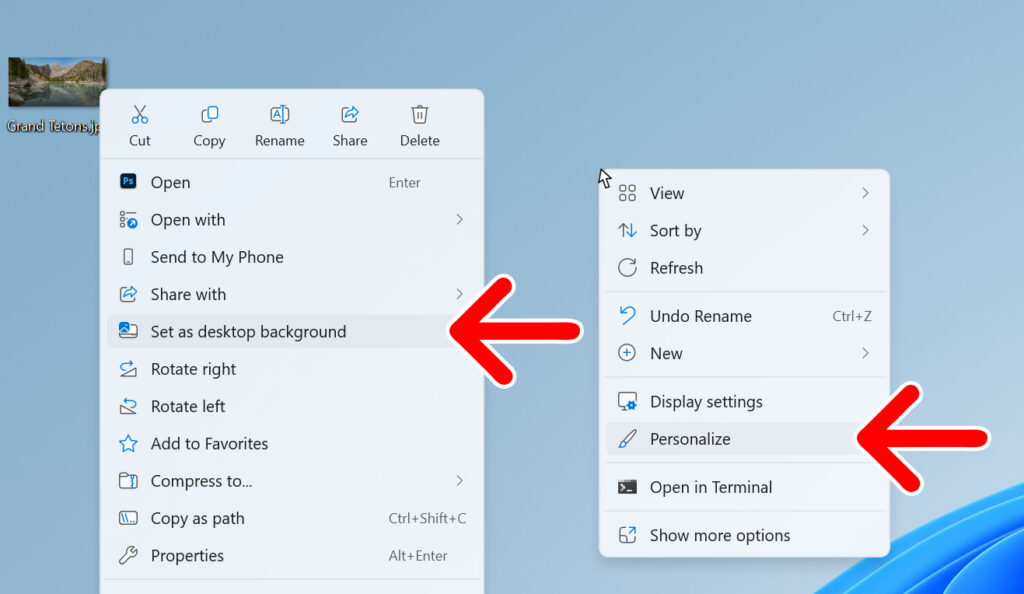
To quickly change your wallpaper in Windows 11, right-click an image and select “Set as desktop background” from the pop-up menu. To make further changes to your wallpaper, right-click an empty area on your desktop and select “Personalize.”
How to Change Your Wallpaper in Windows 11
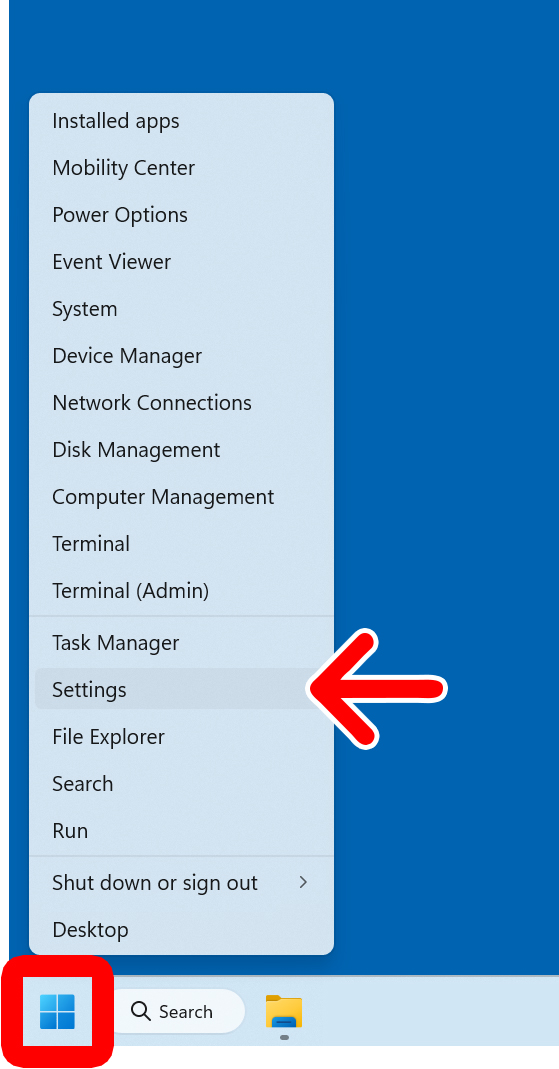
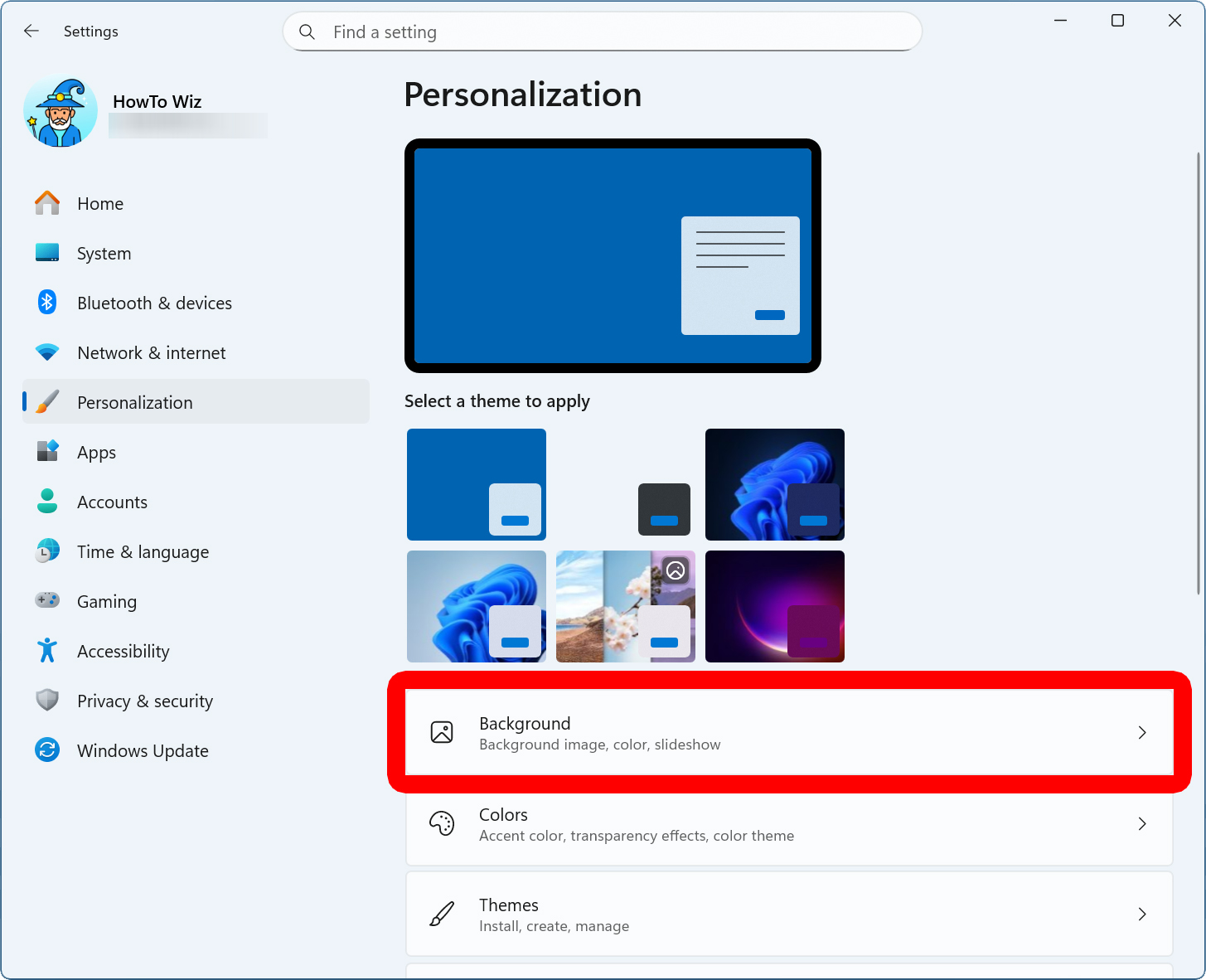
To change your wallpaper in Windows 11, right-click the Windows logo at the bottom of your screen and select “Settings.” Then go to “Personalization > Background.” Finally, click the drop-down menu next to “Personalize your background” and choose a new type of wallpaper.
- Right-click the Windows logo at the bottom of your screen.
- Click “Settings.”

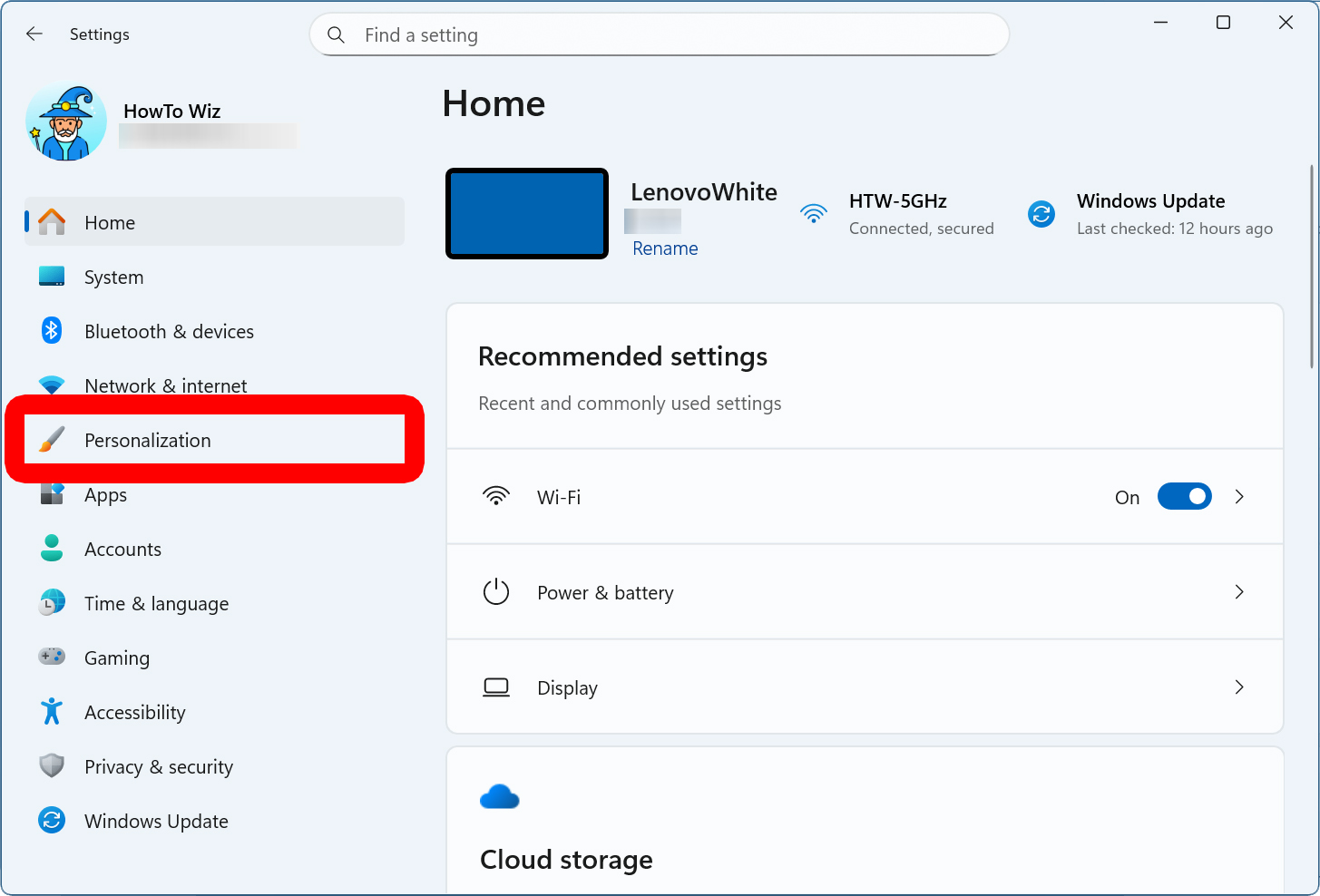
- Select “Personalization.” You will see this in the left sidebar. If you don’t see this option, click the square “maximize” button in the top-right corner of the window.

- Go to “Background.” You will see this on the right side of the window.

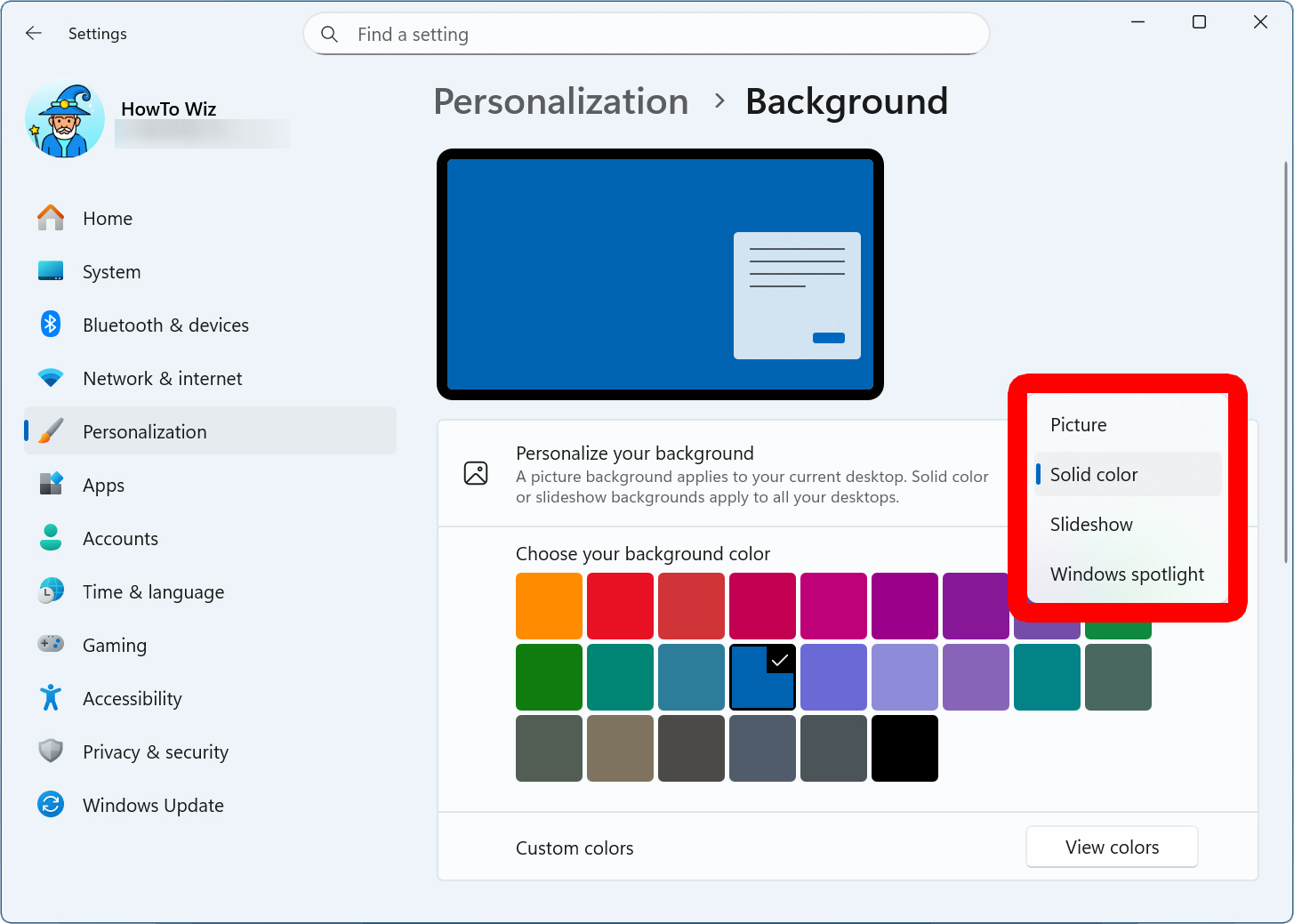
- Finally, click the drop-down menu next to “Personalize your background.” This lets you change your desktop wallpaper to a “Picture,” “Solid color,” “Slideshow,” or “Windows spotlight.”

Picture
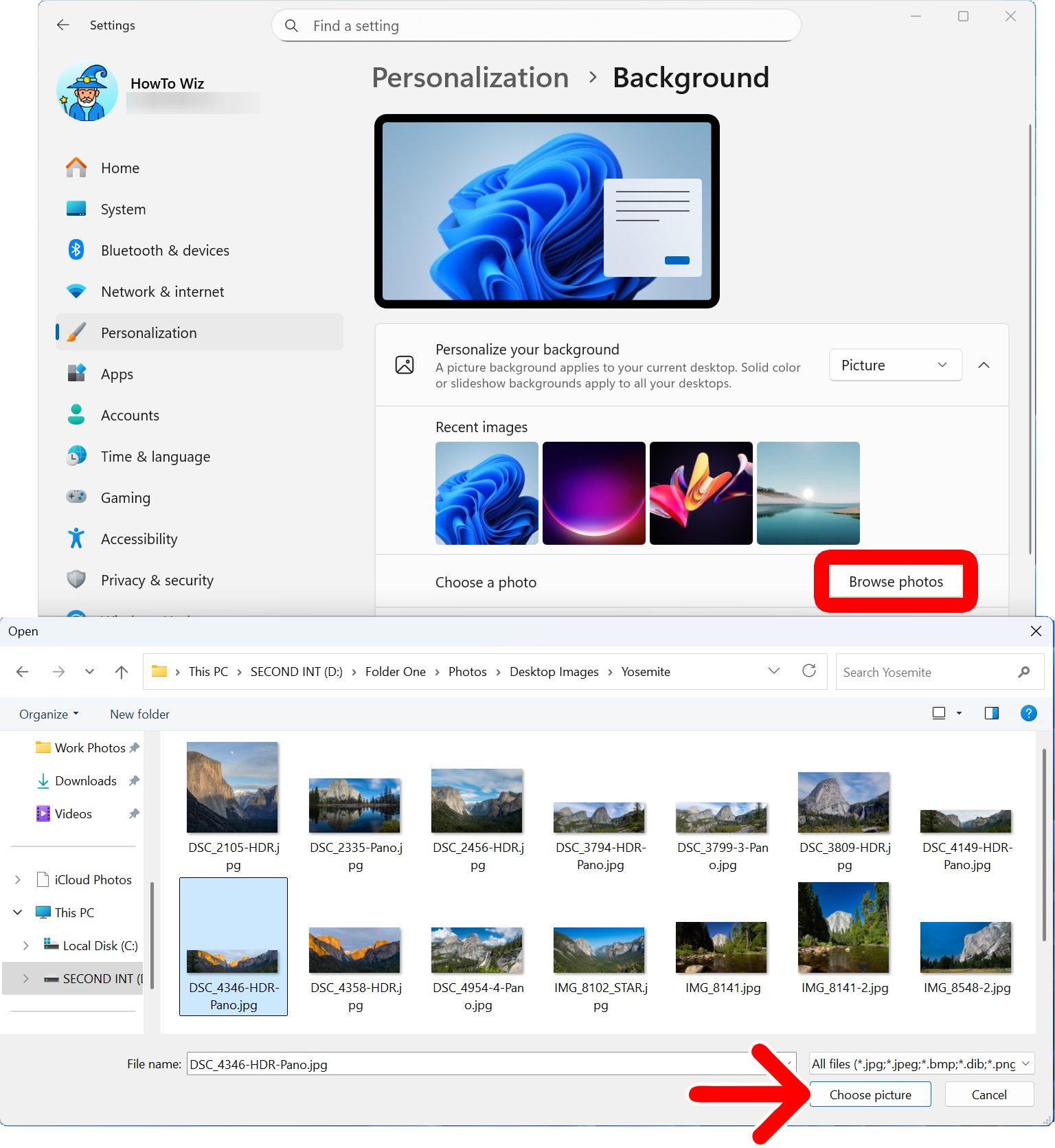
If you select “Picture,” you can choose from the “Recent images” or click “Browse photos.” This opens a window where you can navigate to a folder on your Windows 11 PC. When you select an image, click “Choose picture” to change your wallpaper.
Read More: How to Import Photos from an iPhone to a Windows PC
Finally, you can change how the image looks by clicking the drop-down menu next to “Choose a fit for your desktop image.”
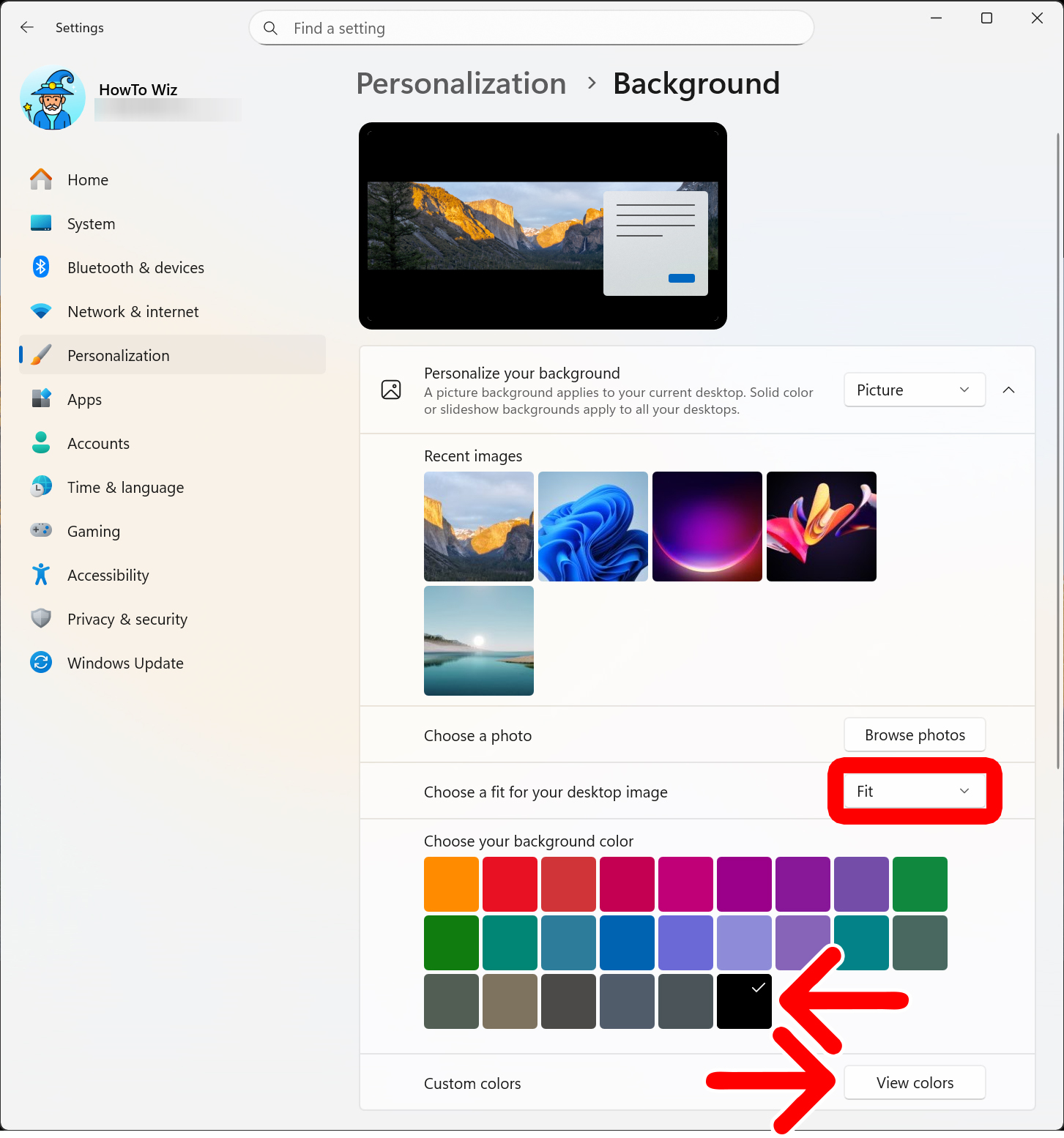
Here’s what each option does under “Choose a fit for your desktop image”:
- Fill: Enlarges the image to cover the entire screen. The shortest side touches the edges.
- Fit: Resizes the image to fit the screen. Extra space is filled with your background color.
- Stretch: Stretches the image to fill the screen, which can distort it.
- Tile: Repeats the image in a grid starting from the top-left corner.
- Center: Places the image in the center. If it’s too large, it zooms in; if too small, the background color fills the space around it.
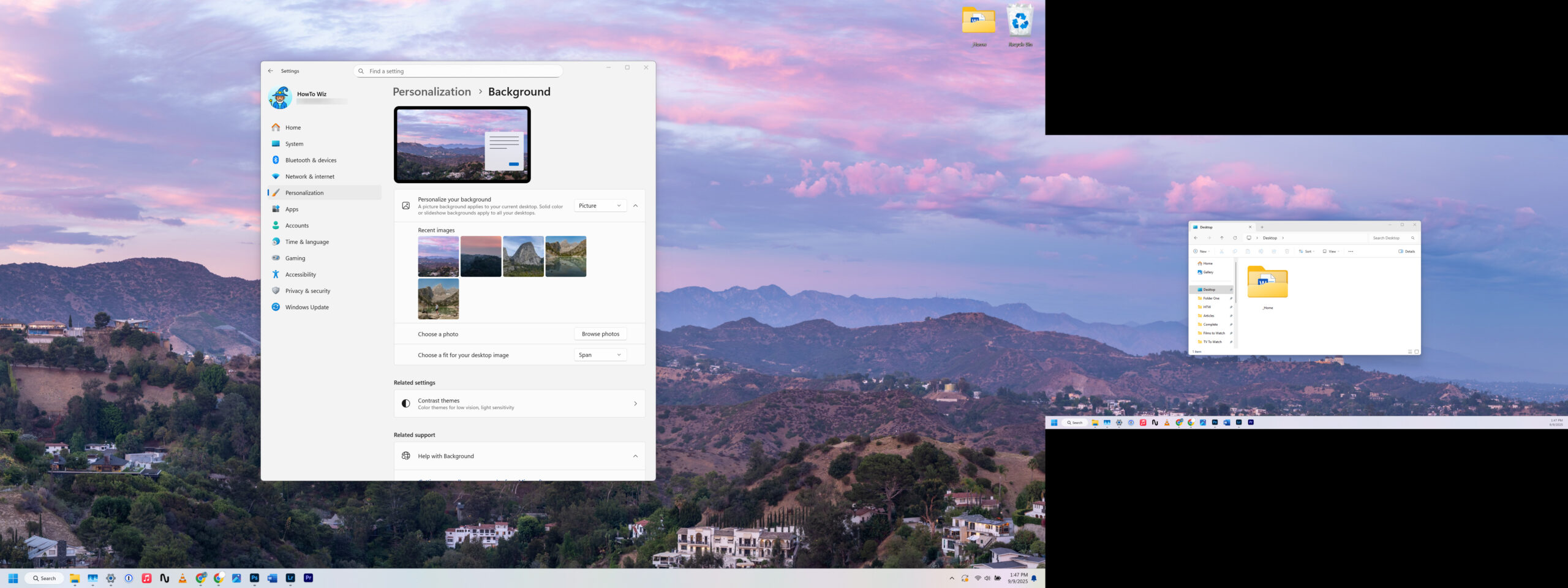
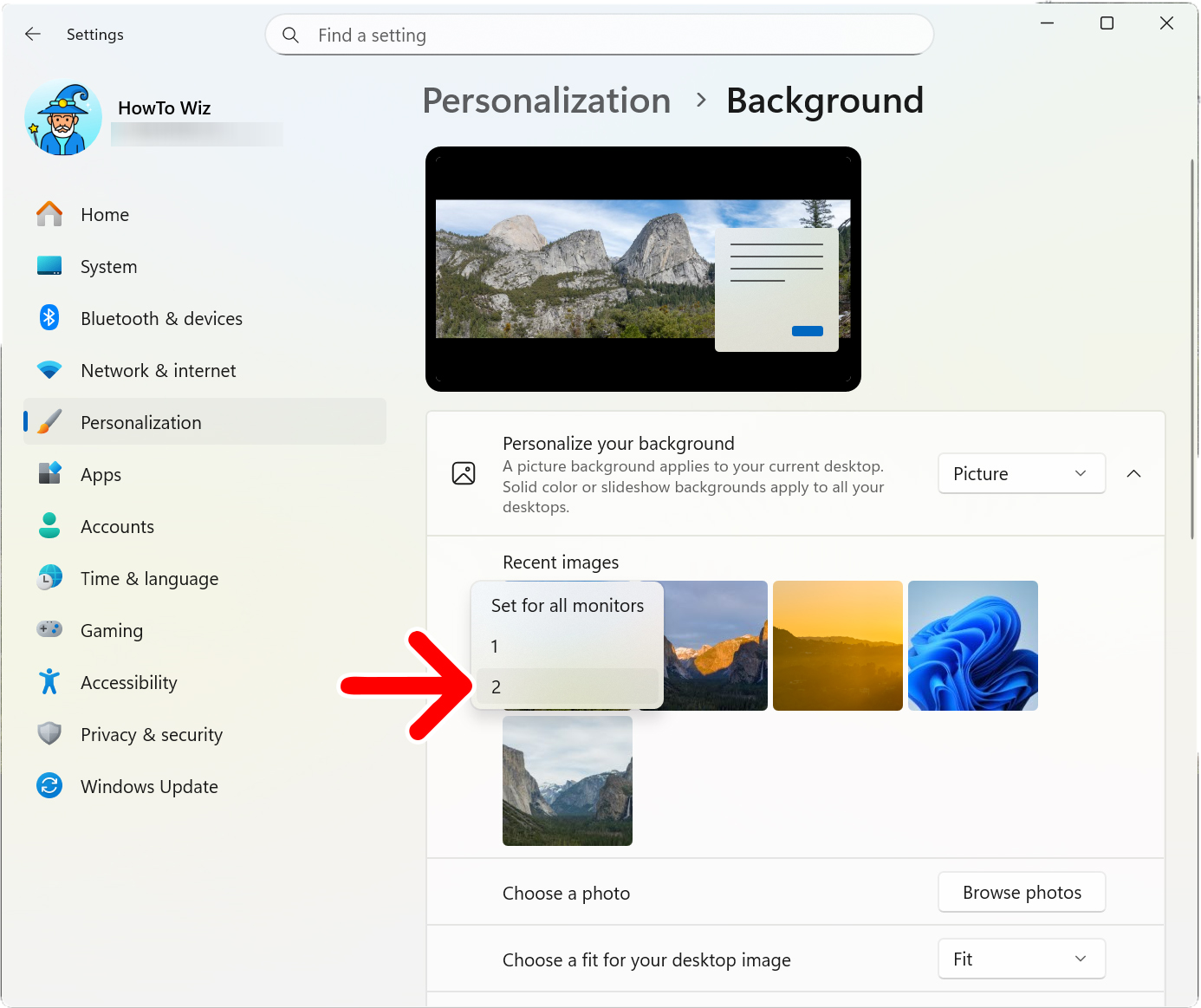
- Span: Extends one image across multiple monitors.
Solid Color
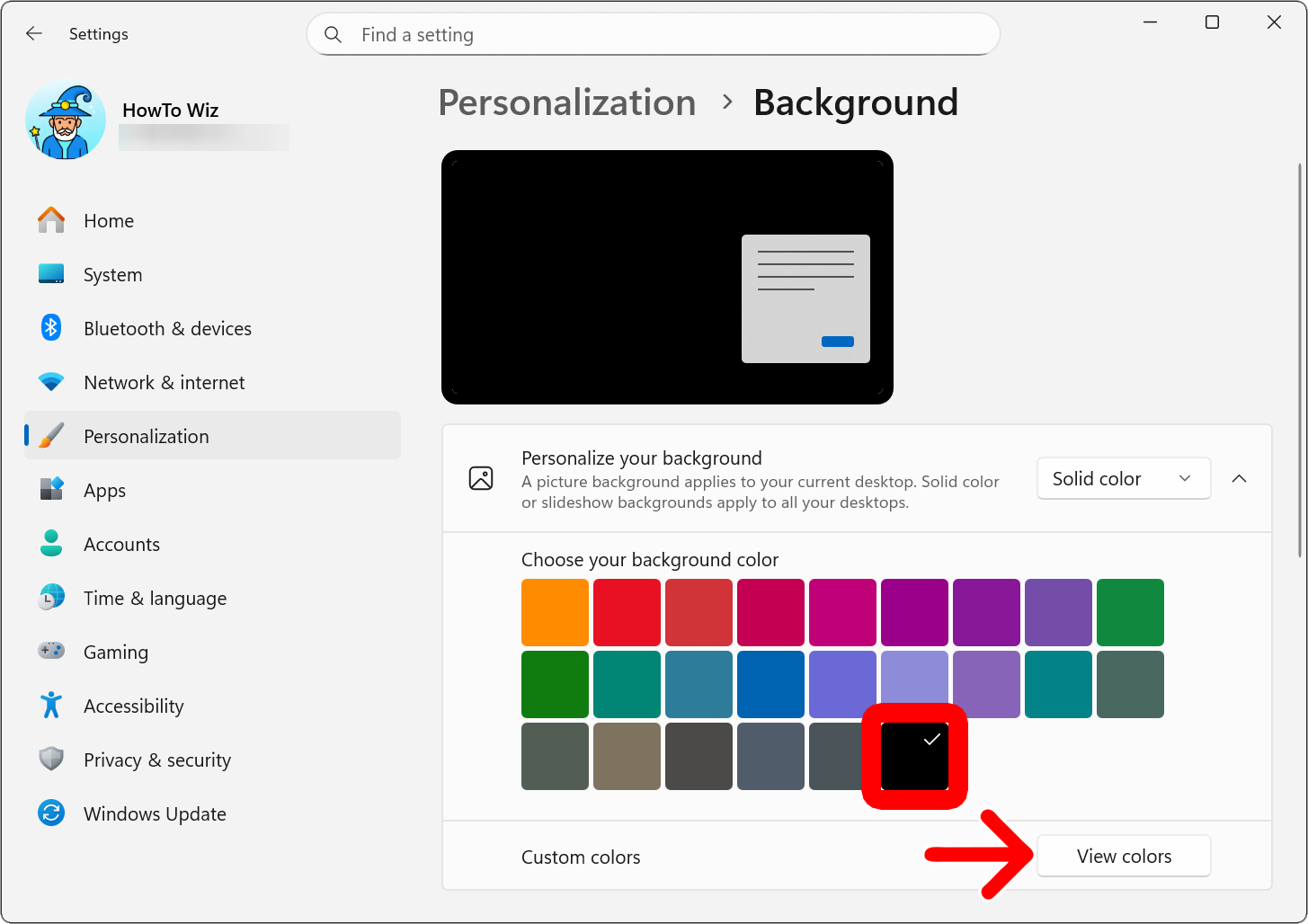
If you change your Windows 11 wallpaper to a “Solid color,” you can choose a color from the “Choose your background color” section or click “View colors” next to “Custom colors” to pick from a wider range of shades and create a look that suits your style.
Slideshow
If you choose “Slideshow,” you’ll need to click “Browse” under “Choose a picture album for a slideshow” and select a folder with at least two photos. Finally, select the drop-down menu next to “Change picture every” to set how often your wallpaper changes.
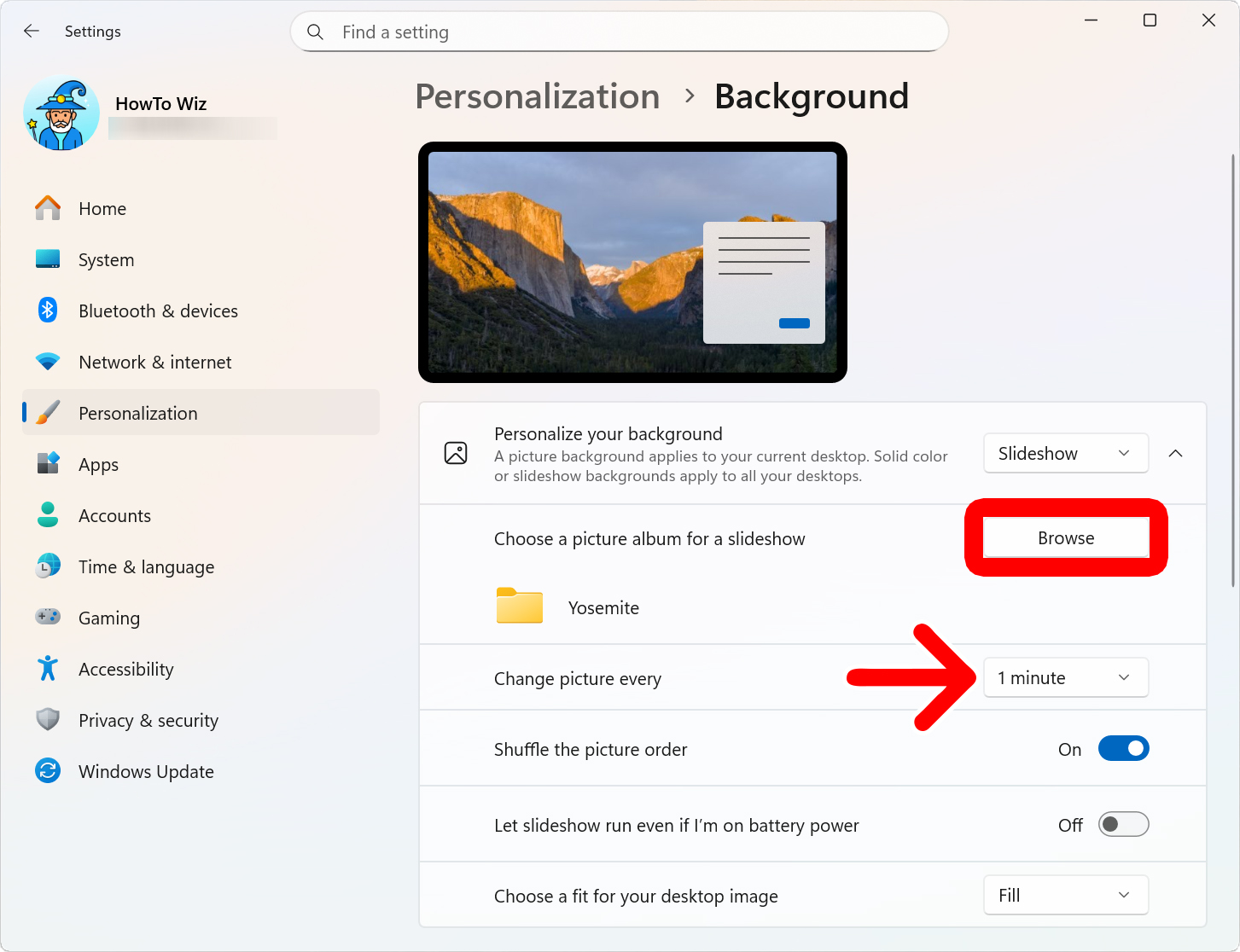
Below this, you can also click the sliders next to “Shuffle the picture order” and “Let slideshow run even if I’m on battery power” to turn these features on or off.
To change how your wallpapers are displayed, select the drop-down menu next to “Choose a fit for your desktop image.” If you choose “Fit” or “Center,” you’ll also need to select a color under “Choose a background color.”
Windows Spotlight
If you choose “Windows Spotlight,” your wallpaper image will automatically change every day. However, you will also get extra icons on your screen that will display suggestions, fun facts, tips, and information about the wallpaper image from Microsoft.