Can’t remember your Windows 11 password? Or maybe you just want to update it to something more secure. Here’s everything you need to know about how to change your Windows 11 password online, from the lock screen, or through Settings.
How to Change Your Windows 11 Password Online
To reset your Windows 11 password, open a browser and go to account.live.com/ResetPassword.aspx. Then enter your Microsoft account email, phone number, or Skype name. Finally, enter the code from the Microsoft Authenticator app to change your password.
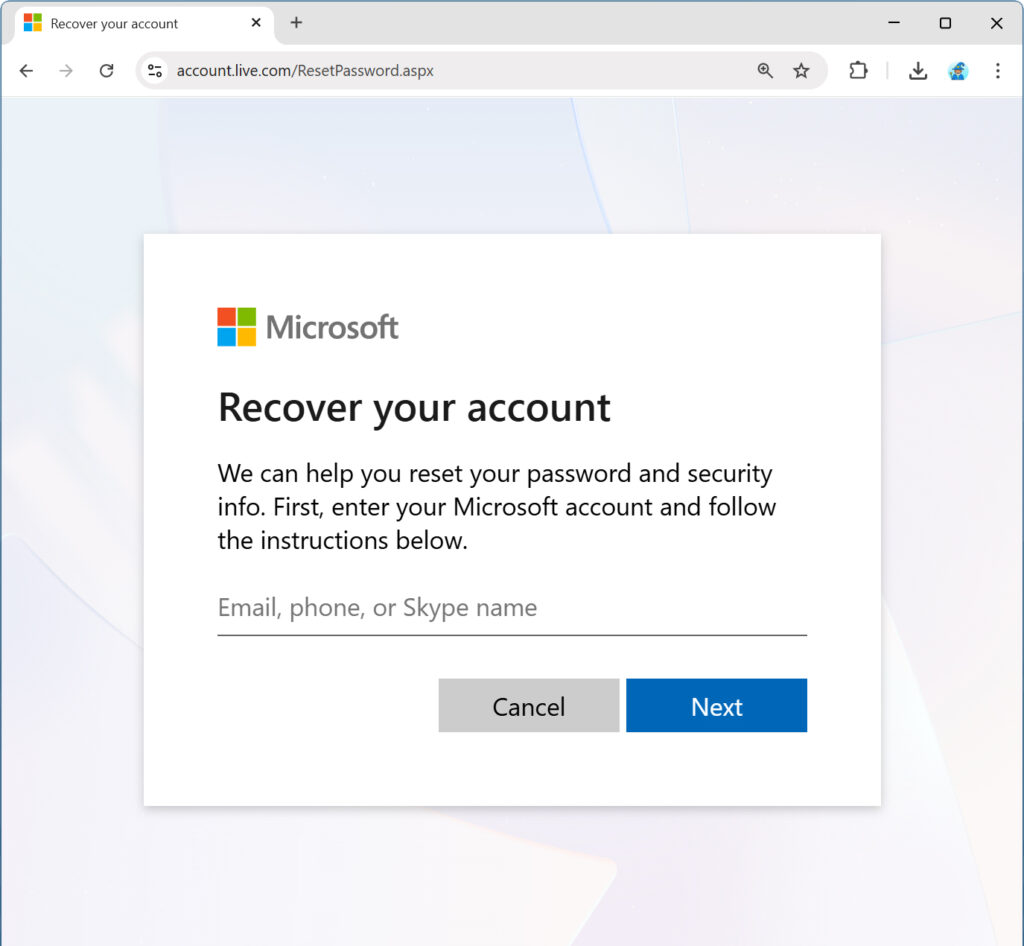
If you sign in with a Microsoft account, changing your Microsoft password will also update your Windows 11 password. Local accounts are separate and can only be reset from Settings or with recovery tools.
How to Change Your Windows 11 Password from the Lock Screen
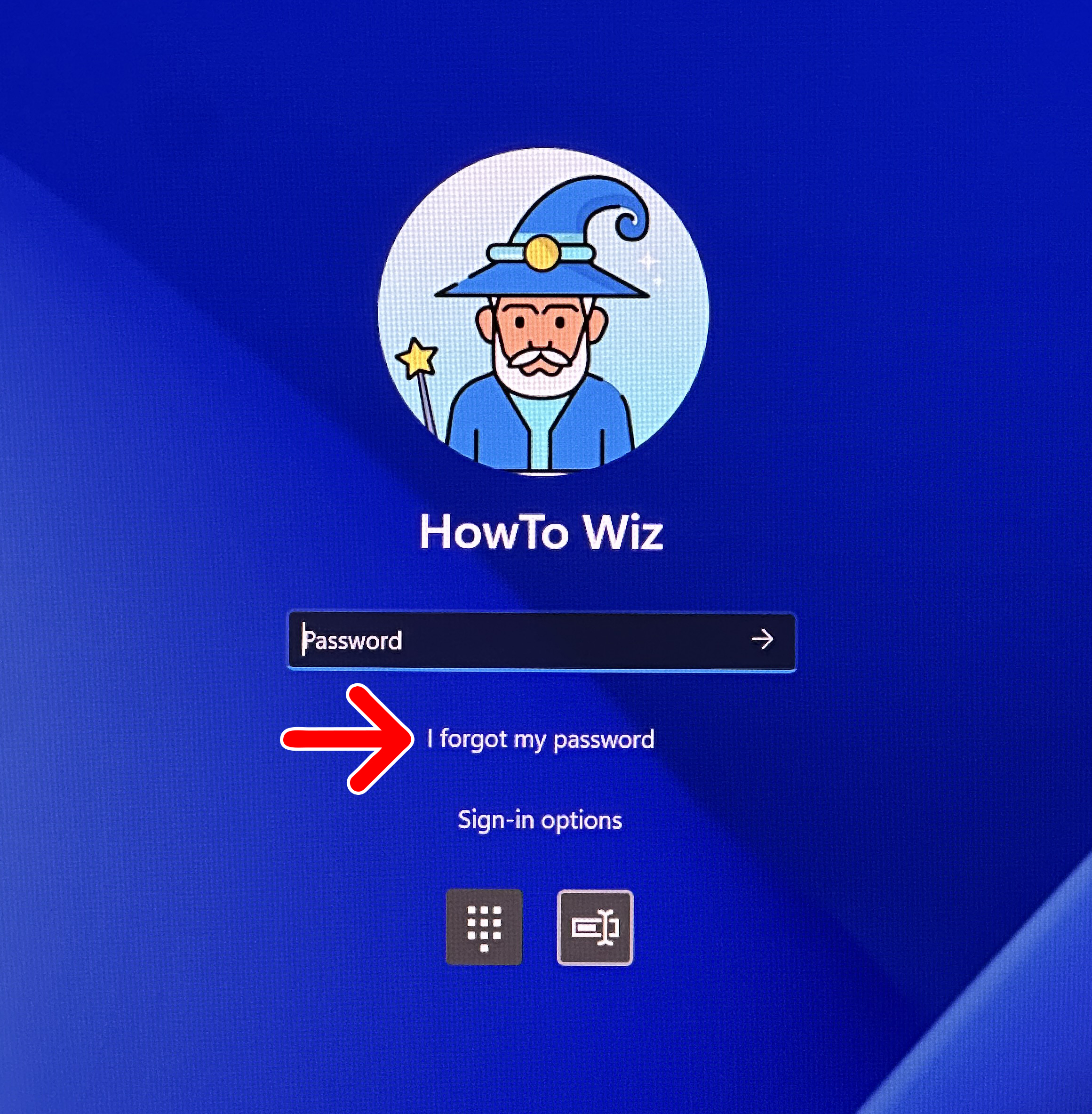
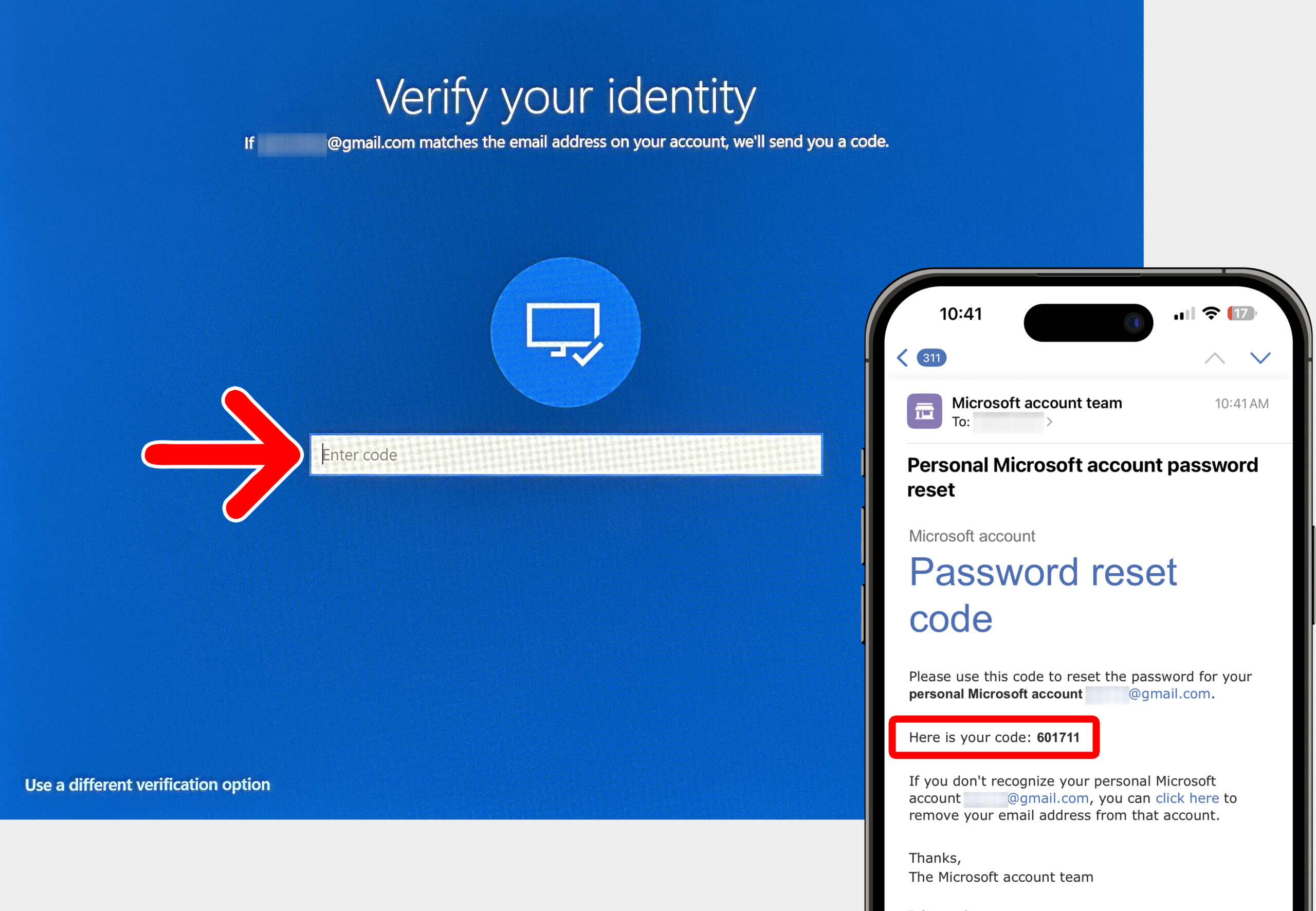
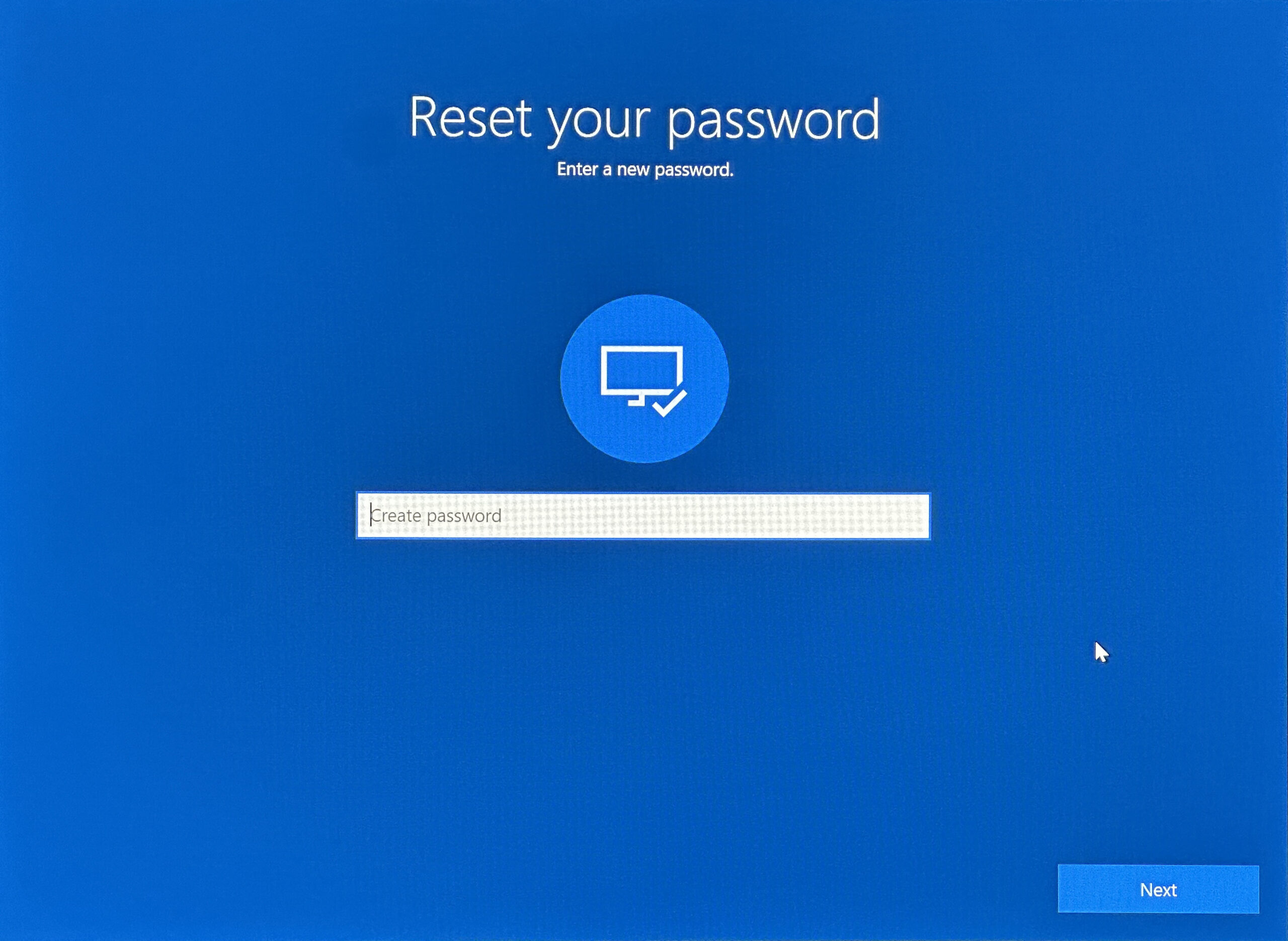
To change your Windows 11 password, turn on your computer and click anywhere to open the Windows sign-in screen. Then click “I forgot my password” to receive a security code. Once you enter the code in your computer, you will be prompted to reset your password.
Read More: How to Change the Lock Screen in Windows 11
- Turn on your computer. You can restart, sign out, or lock your computer.
- Click anywhere to open the Windows sign-in screen.
- Select “I forgot my password.” You will see this below the password field. If you can’t remember your password, click “Sign-in options” to see other options to sign in with PIN, facial recognition, fingerprint reader, and more.

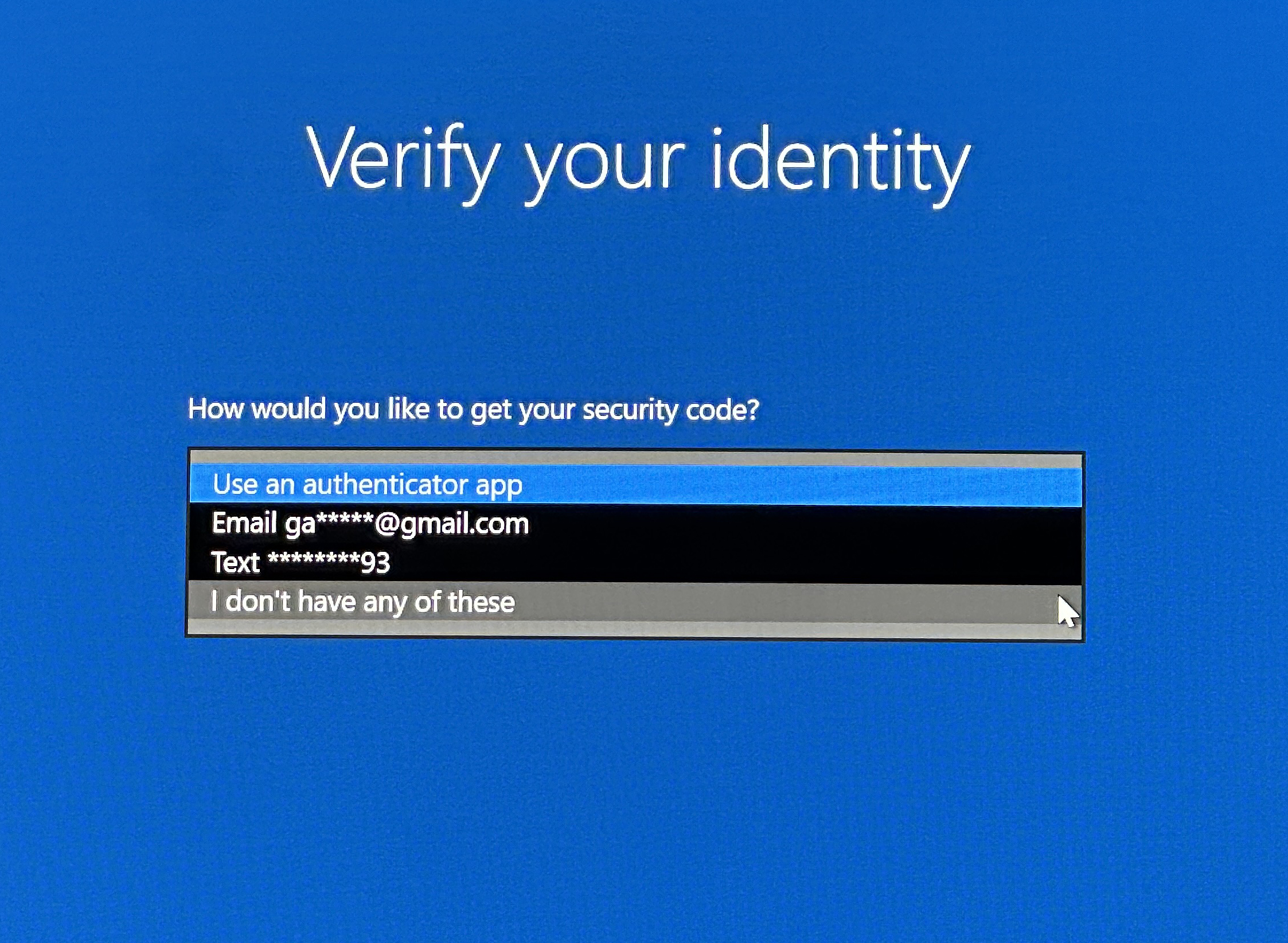
- Choose how you want to receive your security code. You can choose to receive a security code via the Microsoft Authenticator app, email, or text message.

- Enter your security code. Check your email inbox or text messages for a 6-digit code. If you’re using the Authenticator app, open it and approve the sign-in request.

- Finally, enter a new password.

How to Change Your Windows 11 Password from Settings
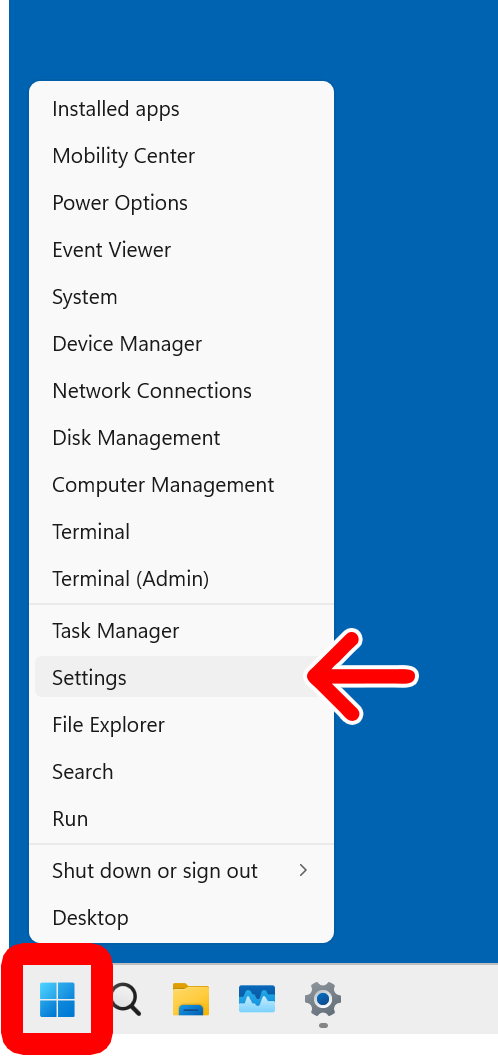
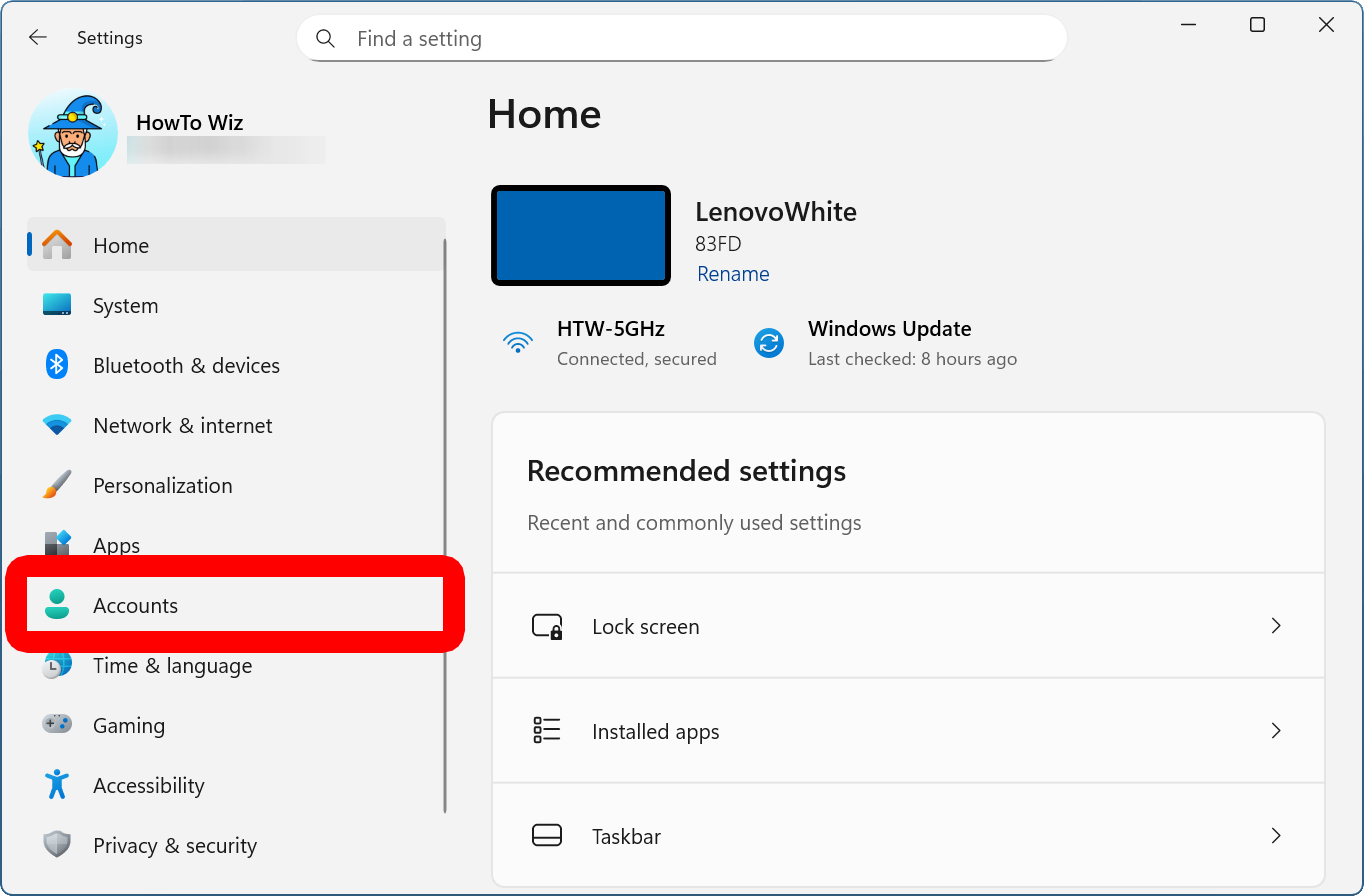
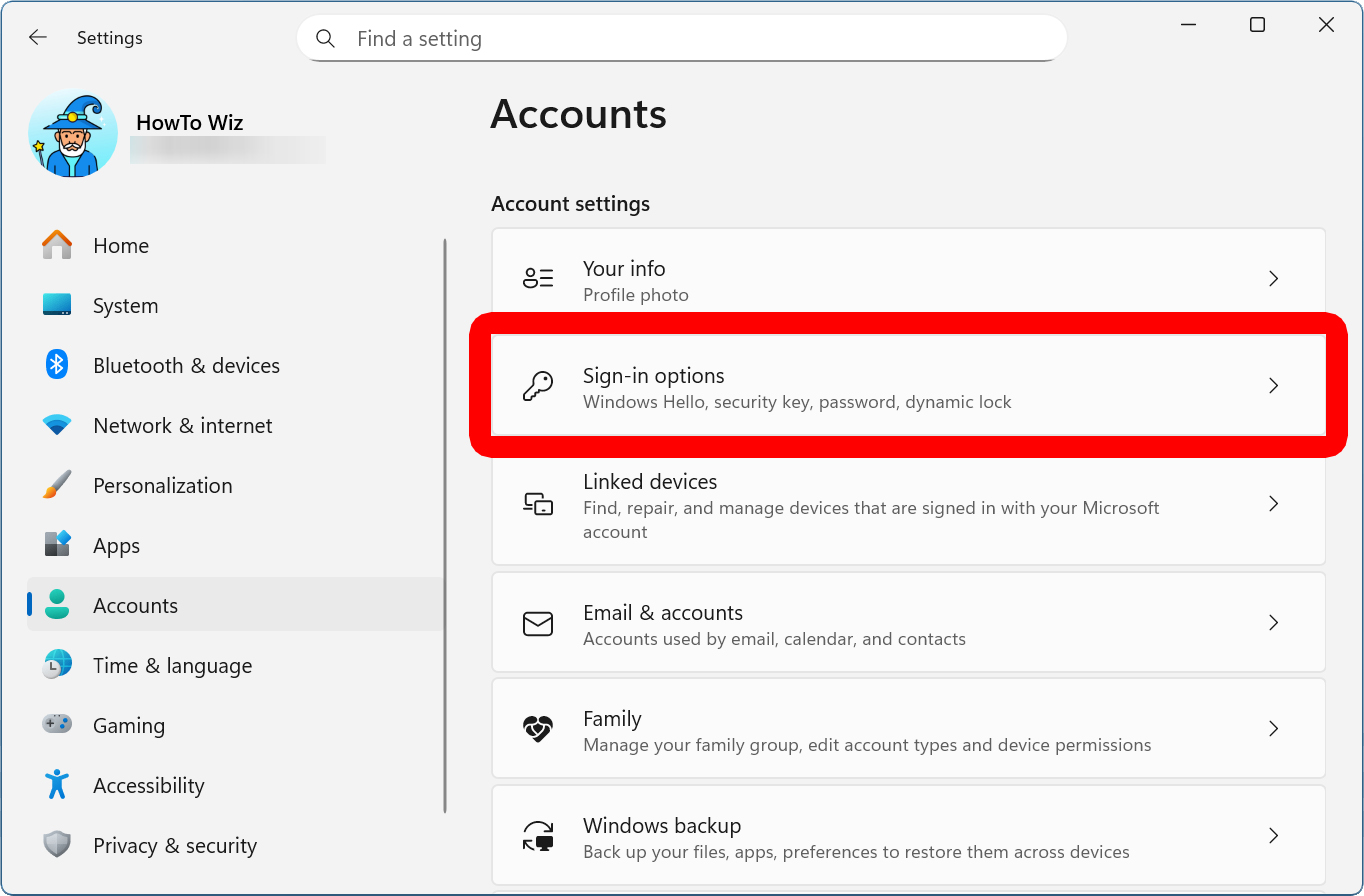
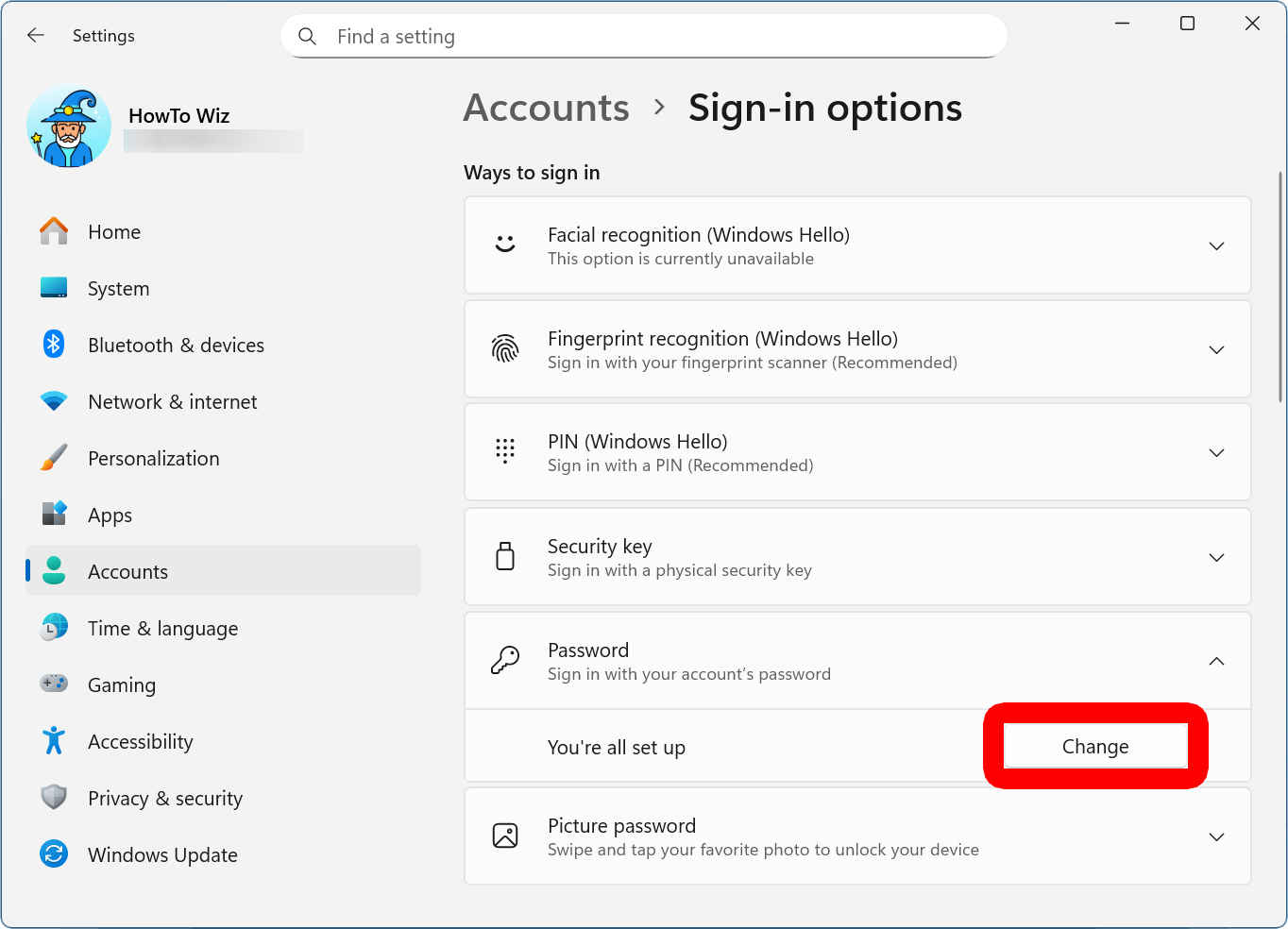
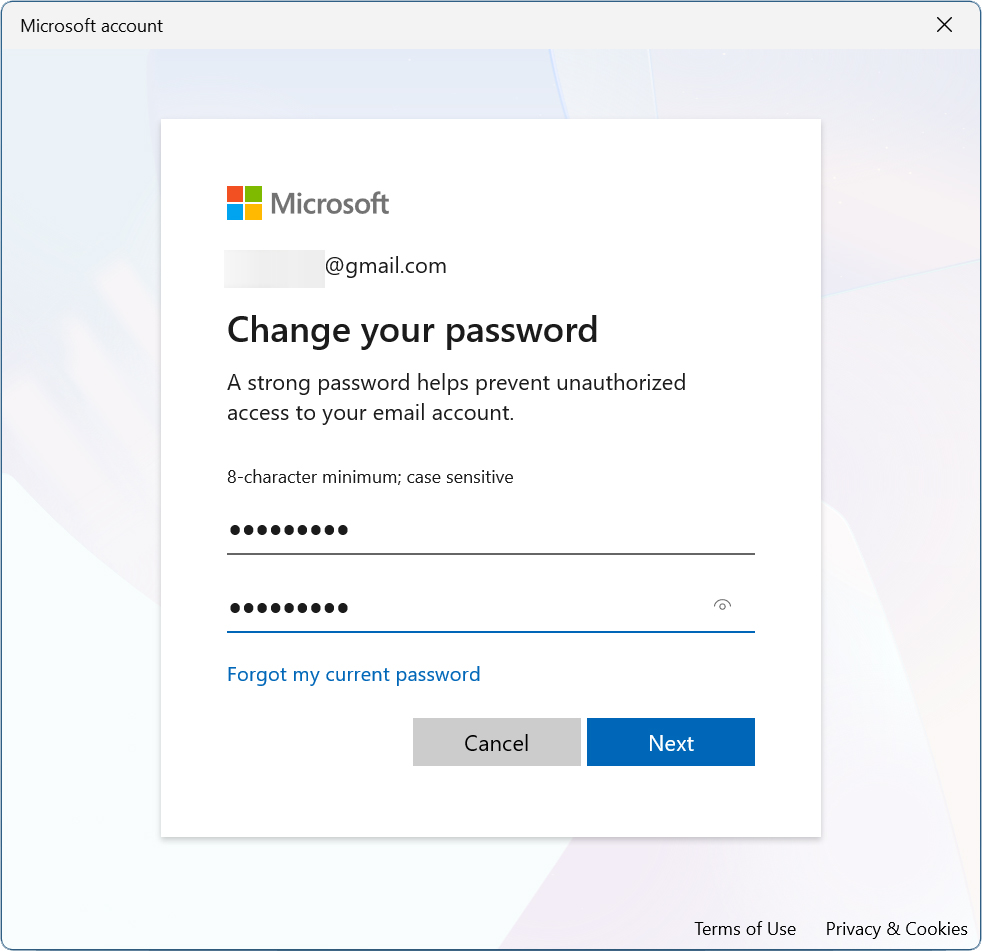
To change your password, right-click the Windows logo at the bottom of your screen and select “Settings.” Then go to “Accounts > Sign-in options,” choose your sign-in method, and select “Change.” Finally, enter your old password, a new password, and click “Next.”
- Right-click the Windows logo at the bottom of your screen.
- Select “Settings.”
- Go to “Accounts.” If you don’t see this option in the left sidebar, click the square “maximize” button in the top-right corner of the window.
- Select “Sign-in options.” You will need to scroll down to see this option under “Account settings.”
- Choose your password method and select “Change.” Windows gives you several ways to sign in to your computer, including: “Facial recognition,” “Fingerprint recognition,” “PIN,” “Security key,” “Password,” or “Picture password.”
- Finally, enter your old password, a new password, and click “Next.” If you don’t remember your password, click “Forgot my current password.”
Additional Settings to Change
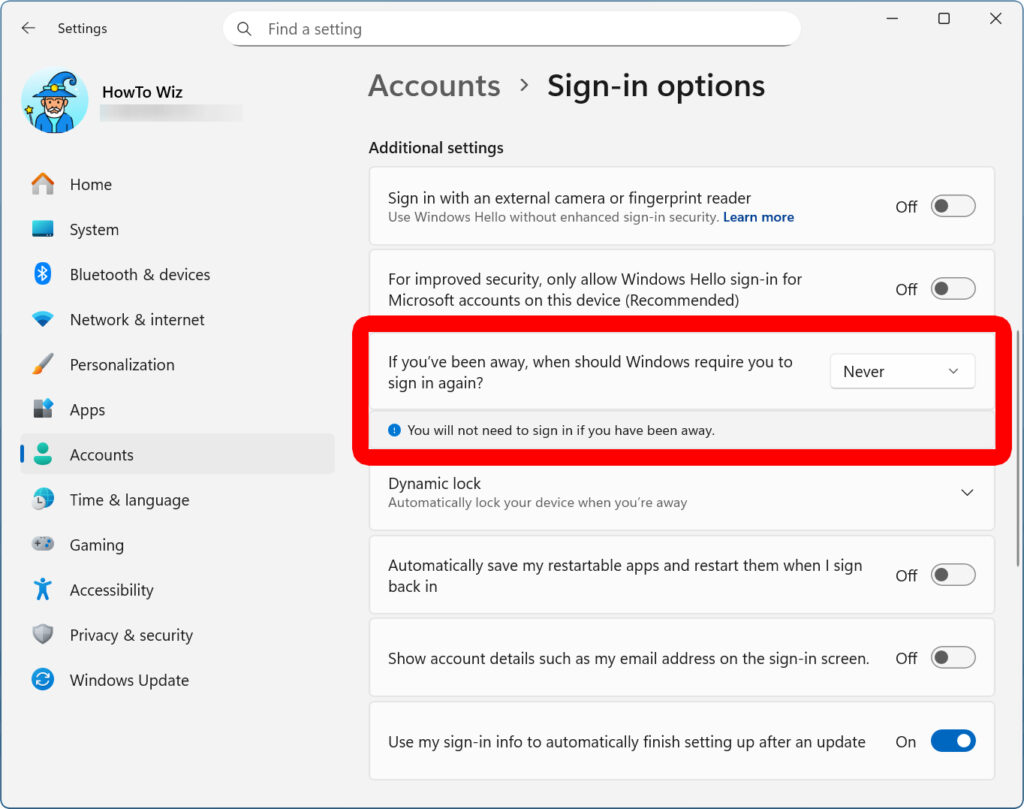
After you change your Windows 11 password, scroll down to see other options. For example, you can choose to disable the sign-in screen by selecting the drop-down menu under “If you’ve been away, when should Windows require you to sign in again?” and select “Never.”