Your browsing history says a lot about you—but you don’t need to keep a record of every site you visit. Here’s how to clear all your Chrome history at once or delete individual webpages on your computer, smartphone, or tablet.
Read More: How to Restore & Save Chrome Tabs
How to Clear All Your Chrome History
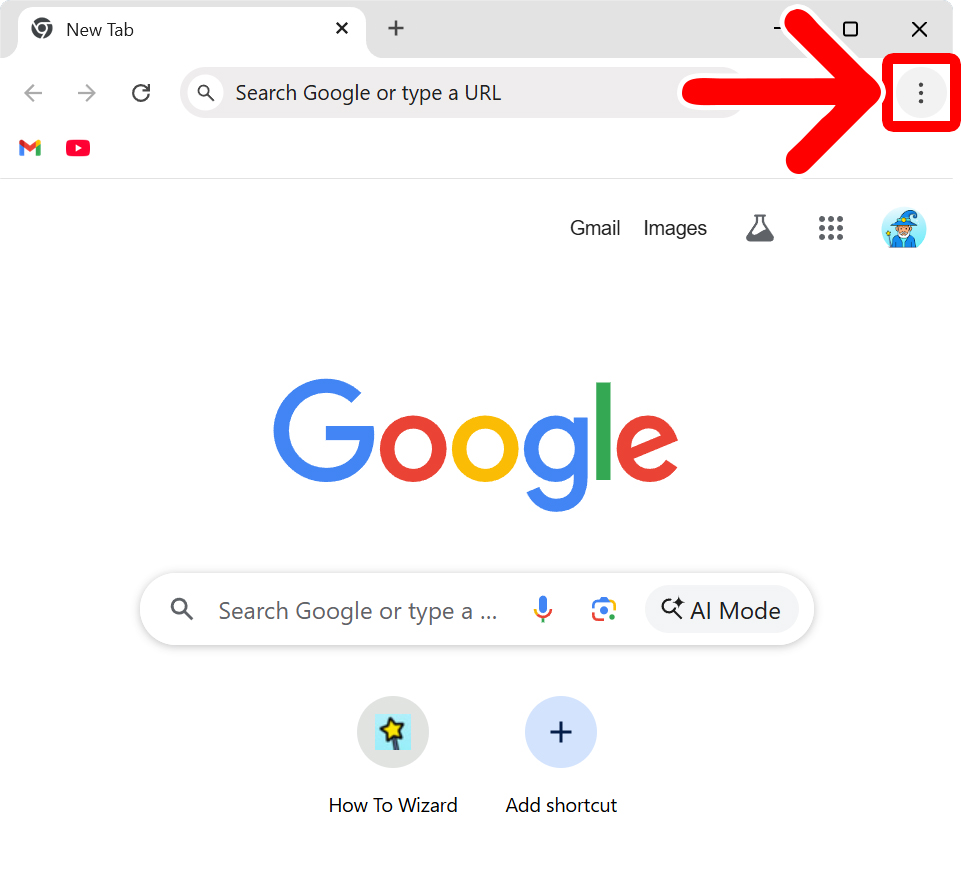
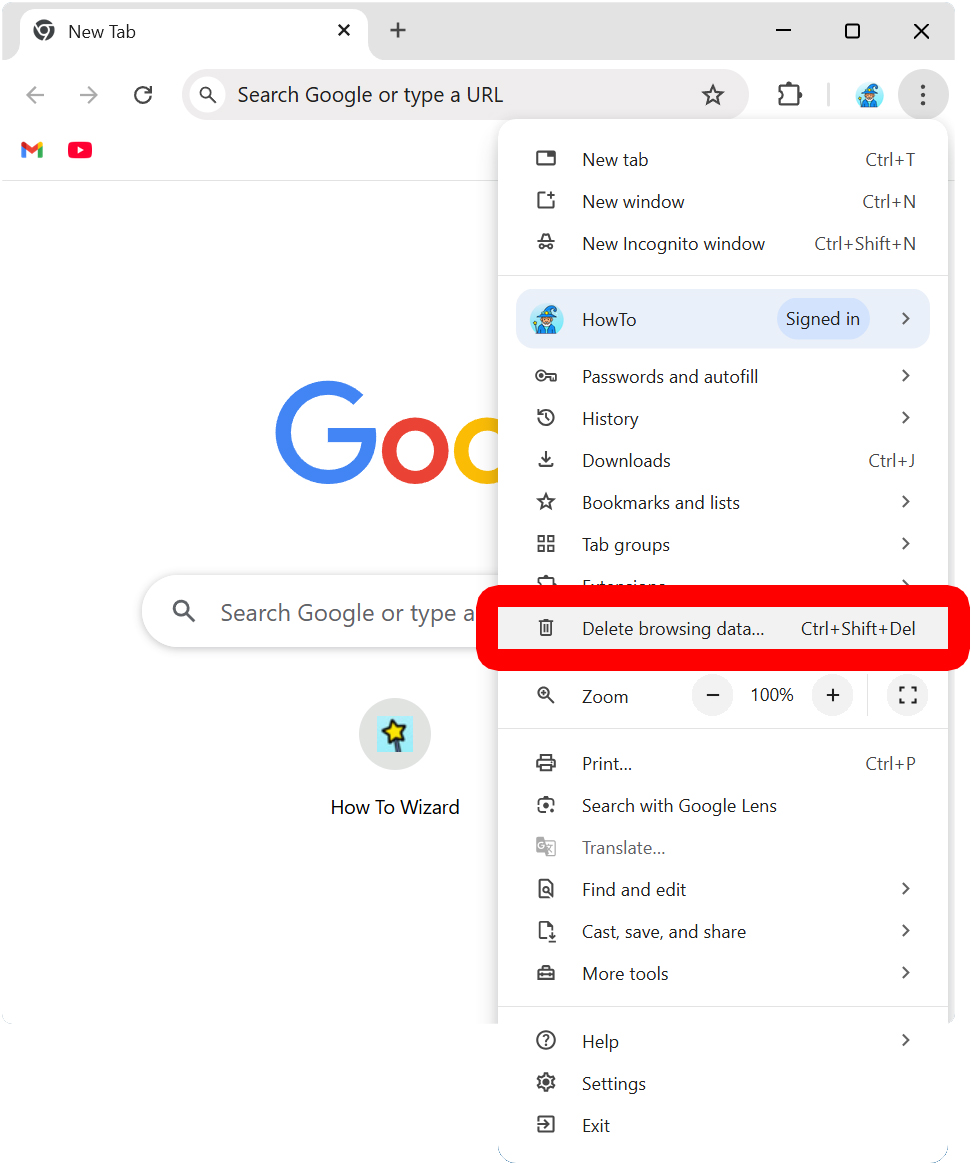
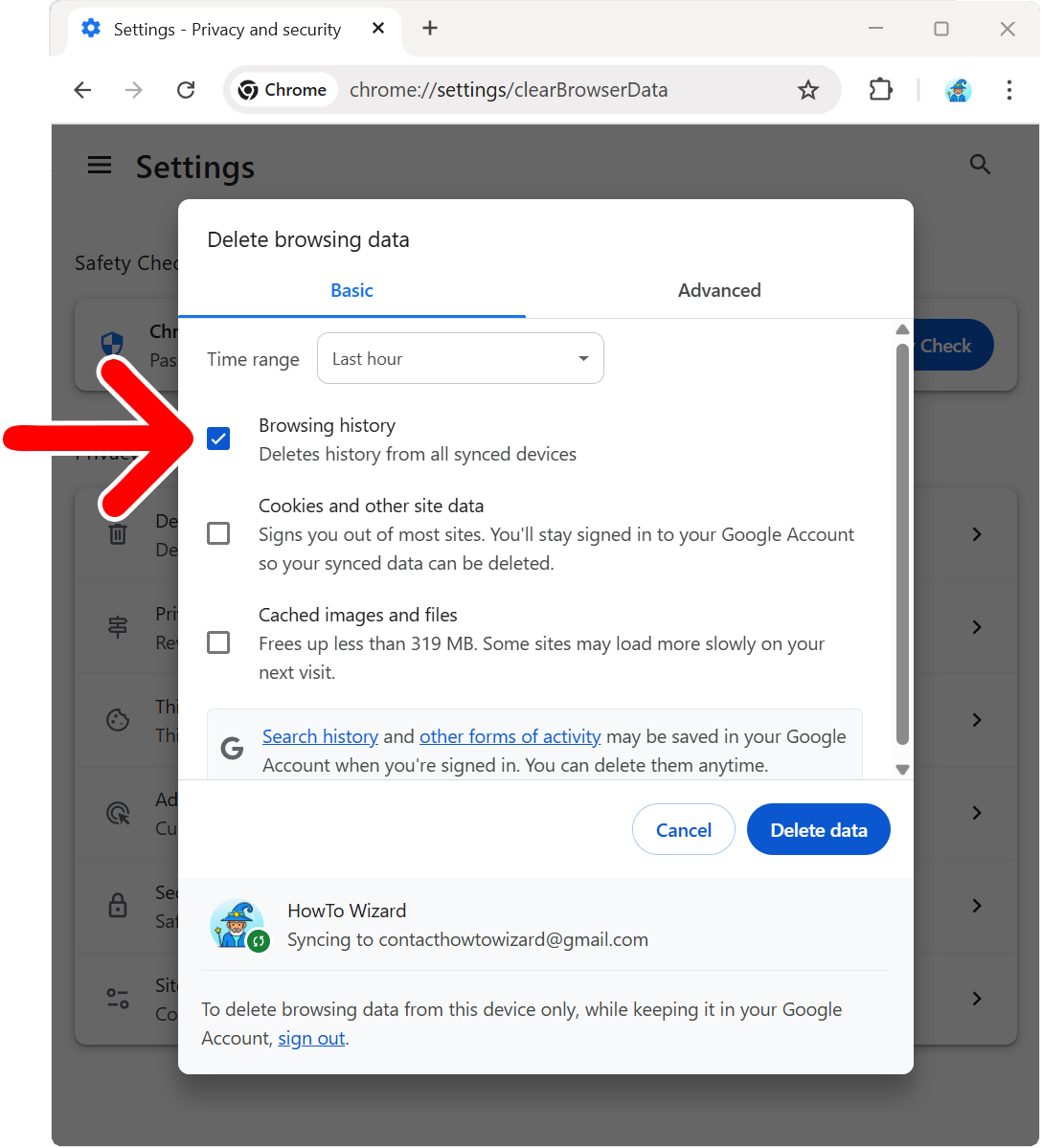
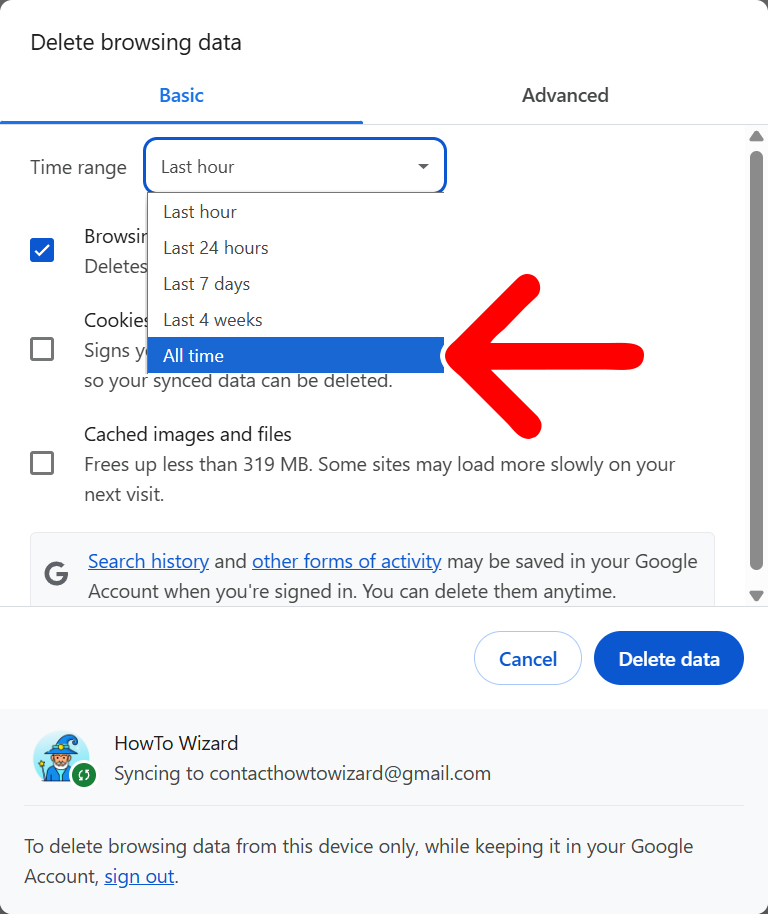
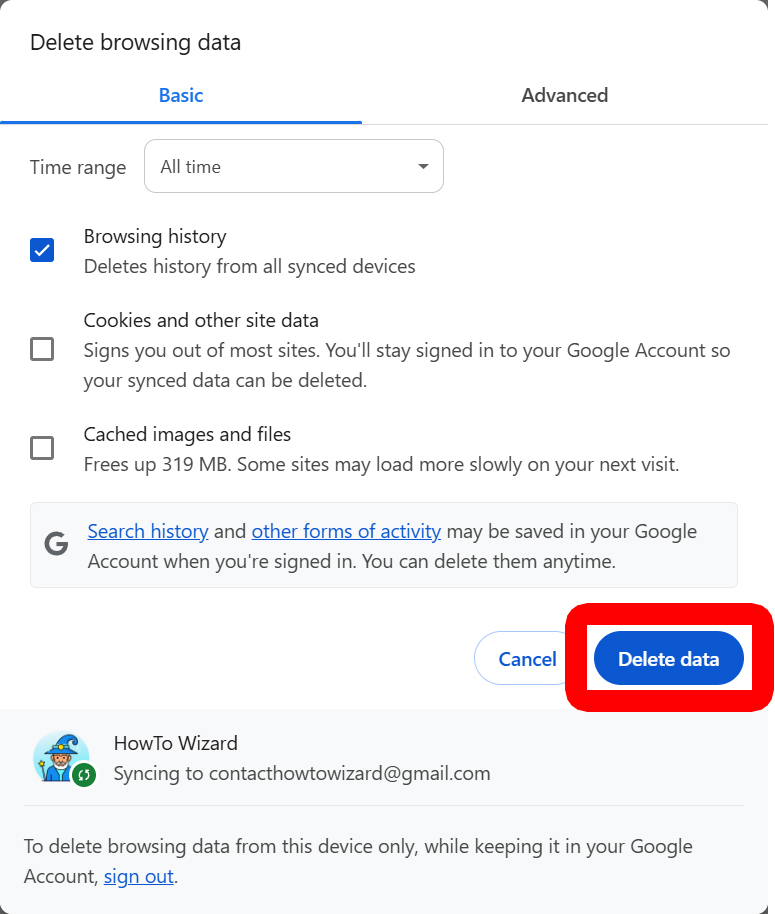
To clear all your browsing history, open a Chrome window and click the three-dot icon in the top-right corner. Then select “Delete browsing data” and check the box next to “Browsing history.” Finally, change the time range to “All time” and select “Delete data.”
- Open Chrome and click the three-dot icon. You will see this in the top-right corner of the window.

- Select “Delete browsing data.” You can also access this page by pasting chrome://settings/clearBrowserData into the address bar at the top of a Chrome window. Or you can press Control (Ctrl) + Shift + Del (on Windows) or Command (⌘) + Shift + Delete (on Mac).

- Check the box next to “Browsing history.” If you want to sign out of most sites and remove your saved preferences, check the box next to “Cookies and other site data.” To delete temporary files that help pages load faster, check the box next to “Cached images and files.” You can also click the “Advanced” tab at the top of the pop-up window for even more options, like clearing saved passwords or autofill data.

- Change the time range to “All time.” You will see a drop-down menu that lets you choose how much of your history you want to clear.

- Finally, click “Delete data.”

How to Delete a Site from Your Chrome History
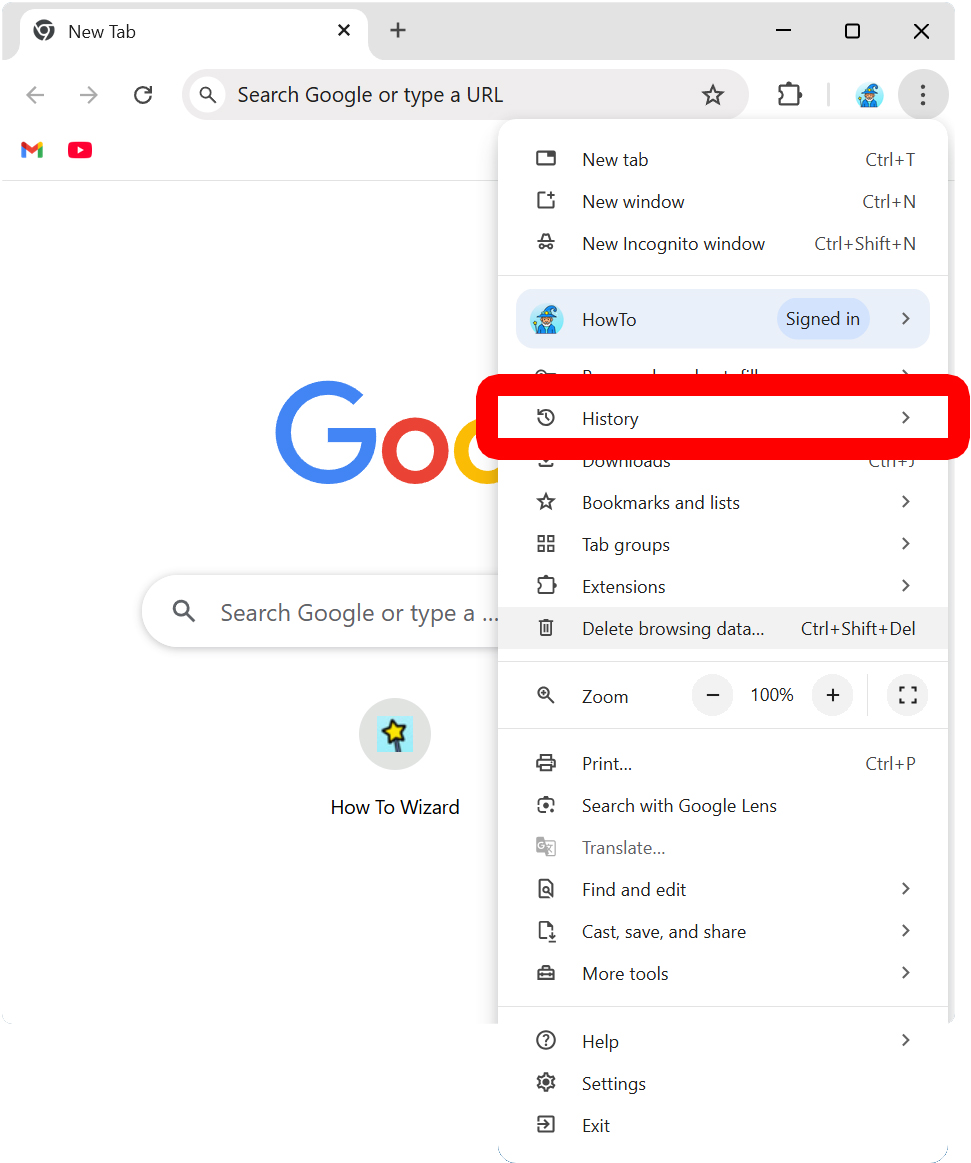
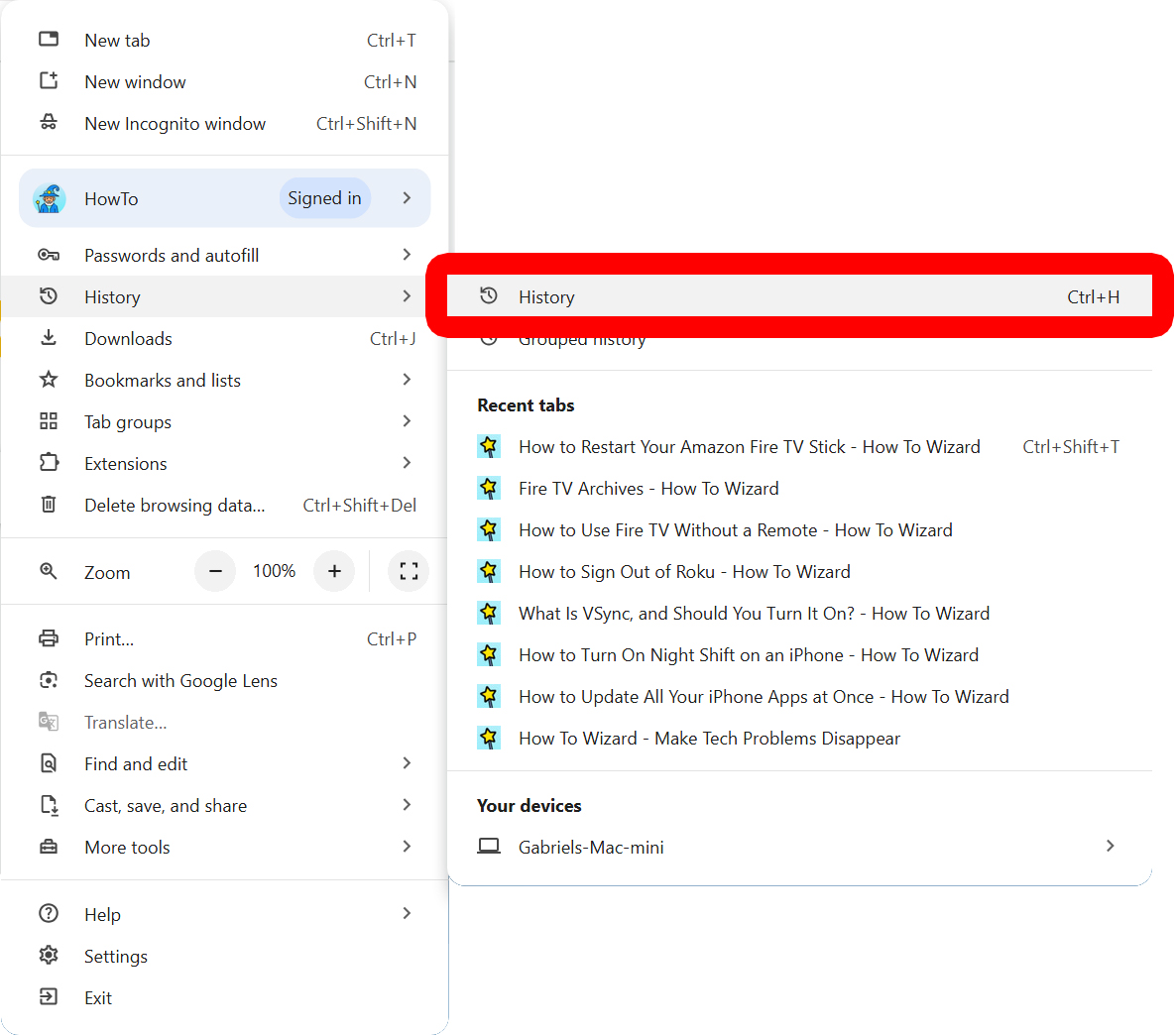
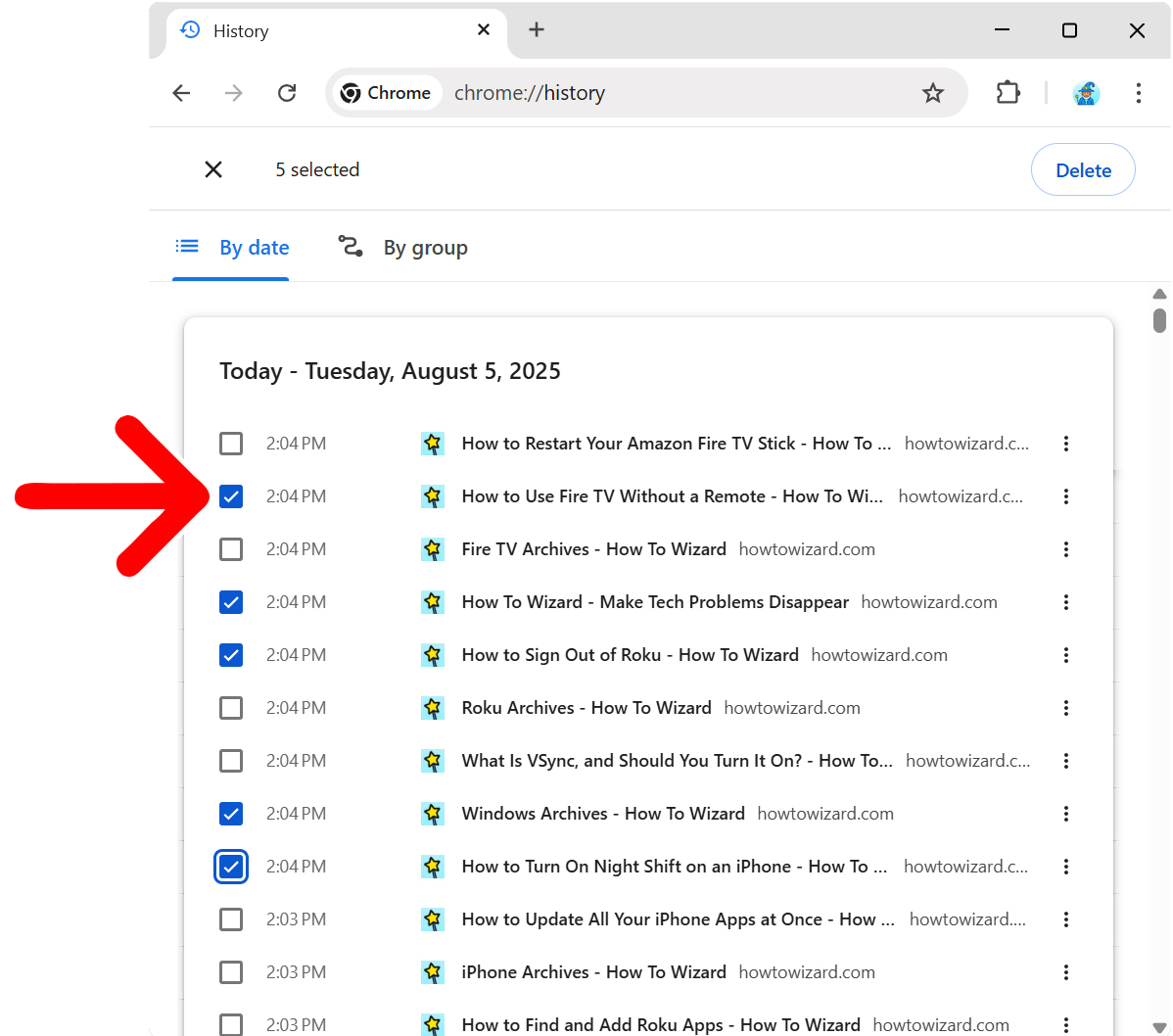
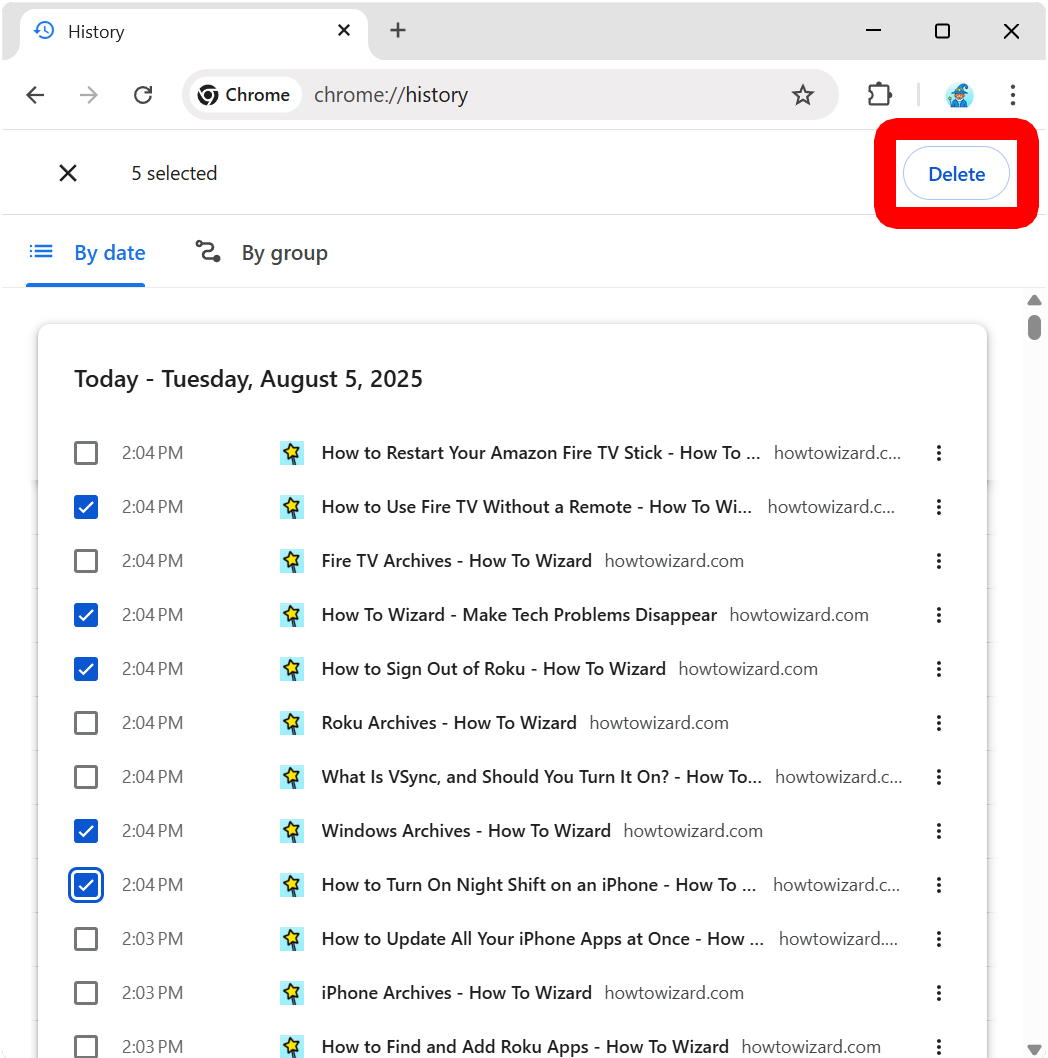
To clear individual sites from your history, open a Chrome window and click the three-dot icon in the top-right corner. Then select “History > History” and check the box next to the sites you want to delete. Finally, click “Delete” in the top-right corner and select “Remove.”
- Open Chrome and click the three-dot icon. You will see this in the top-right corner of your screen.
- Select “History.”
- Then click “History.” You can also access this screen by pasting chrome://history/ into the address bar at the top of a Chrome window. Or you can press Control (Ctrl) + H (on Windows) or Command (⌘) + Y (on Mac).

- Choose the sites you want to delete from your history. Check the box to the left of the sites you want to delete.
- Click “Delete.” You will see this in the top-right corner of your screen.
- Finally, select “Remove” to confirm.

How to Clear Your History in the Chrome App
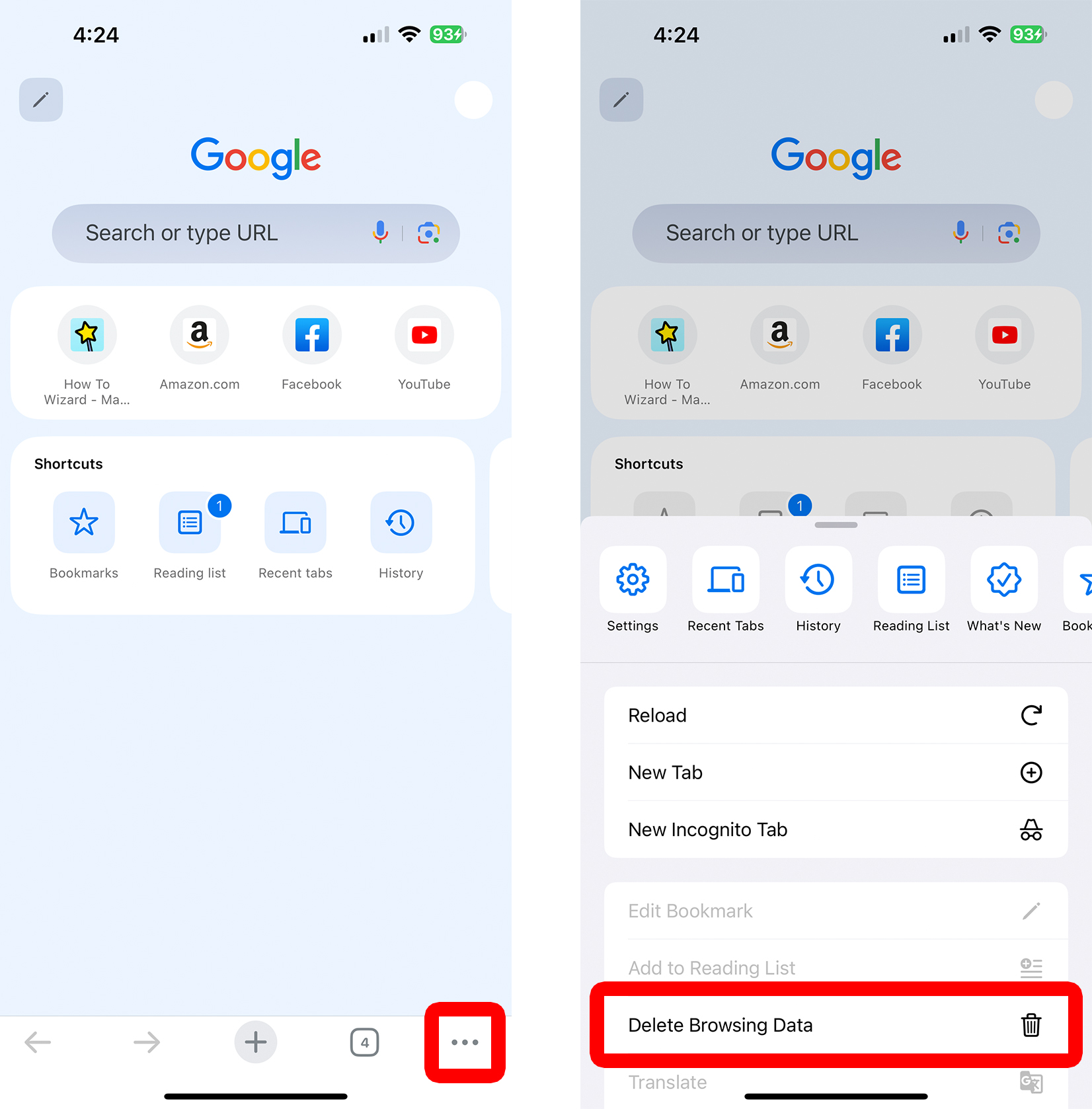
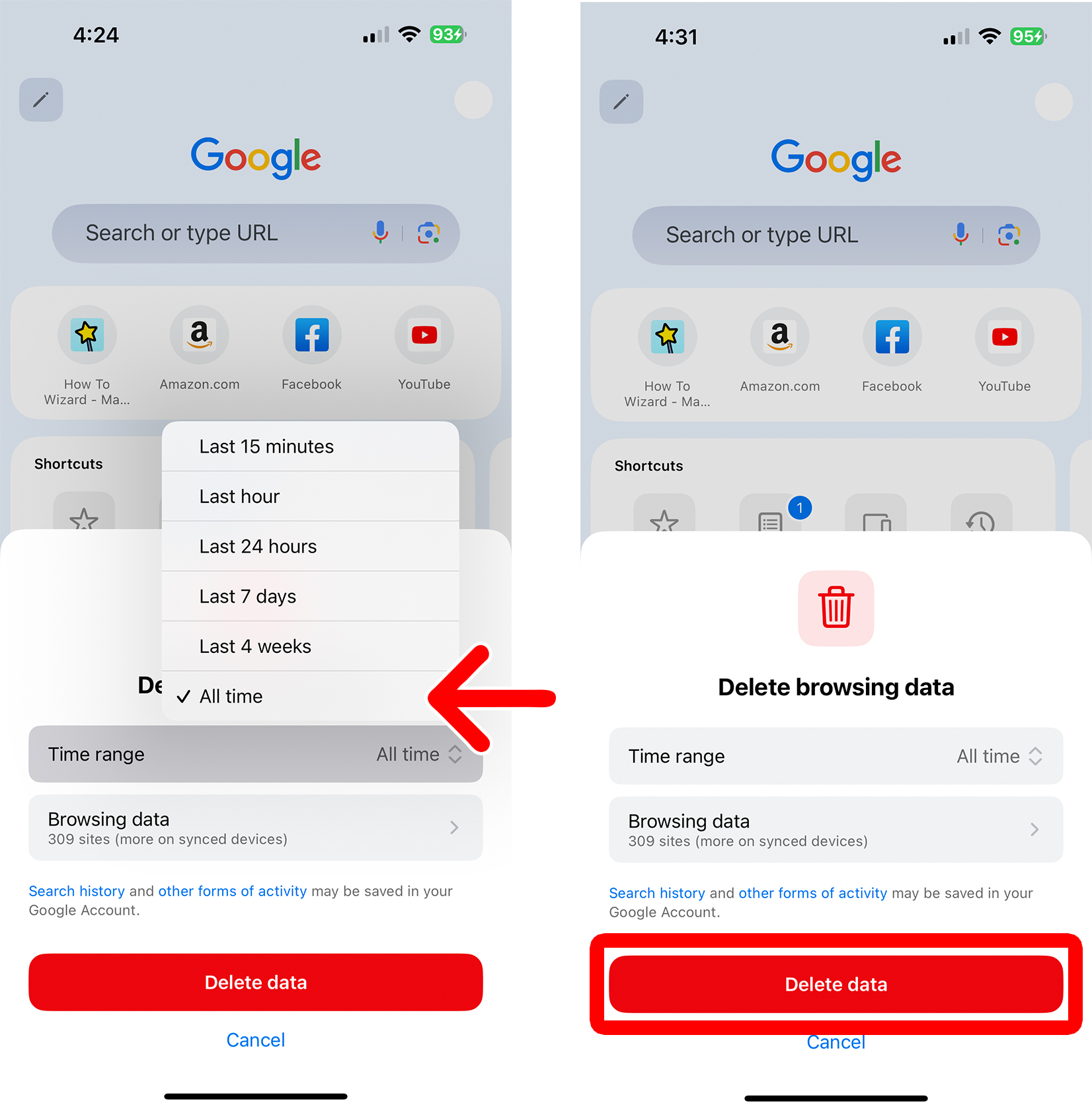
To delete all your browsing history at once, open the Chrome app on your smartphone and tap the three-dot icon. Then select “Delete Browser Data.” Finally, change the time range to “All time” and tap “Delete data.”
- Open the Chrome app and tap the three-dot icon. This will either be in the bottom-right corner (iPhone) or top-right corner (Android).
- Select “Delete Browser Data.”
- Change the time range to “All time.”
- Finally, tap “Delete data.”
How to Delete a Site in the Chrome App
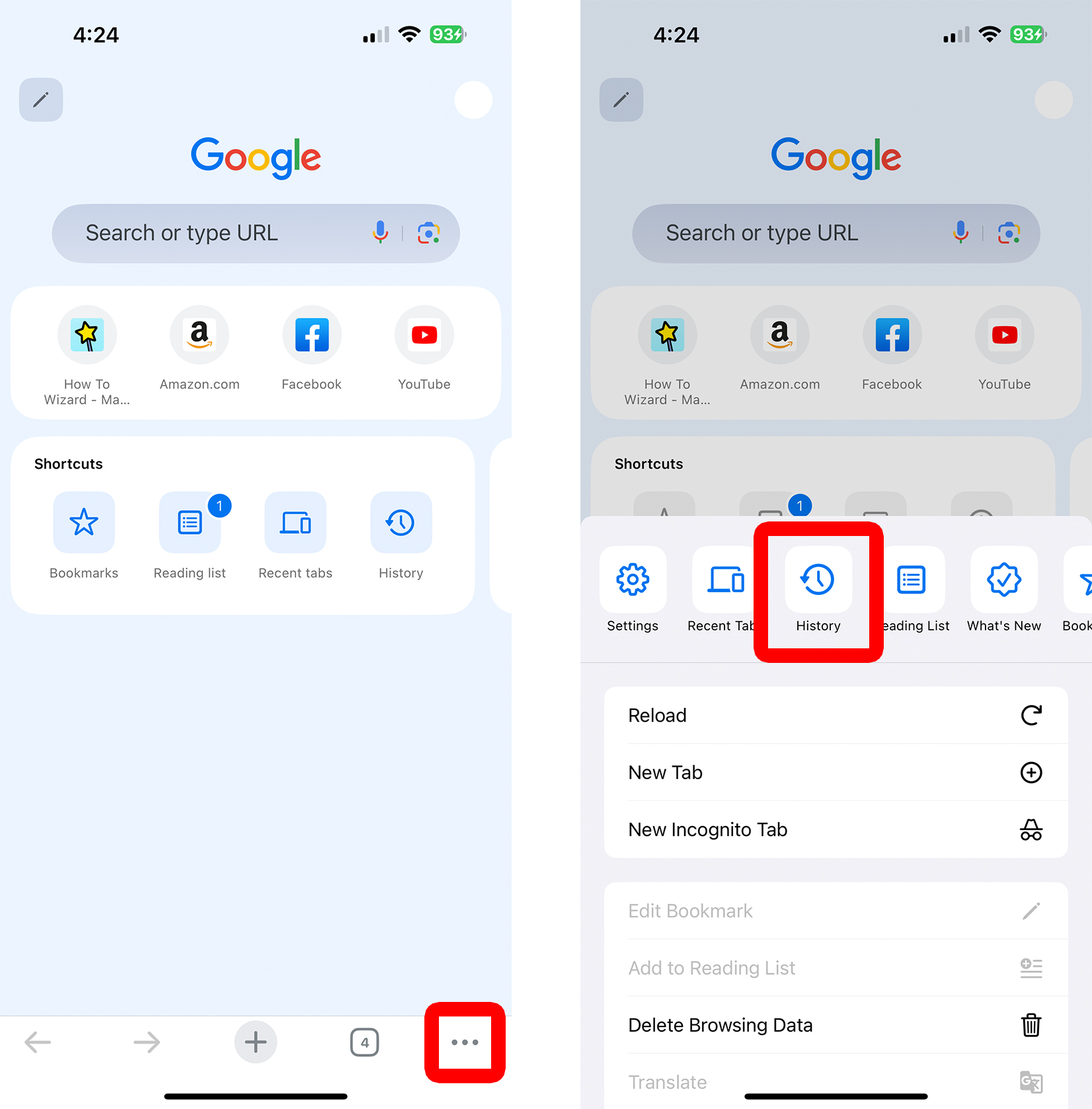
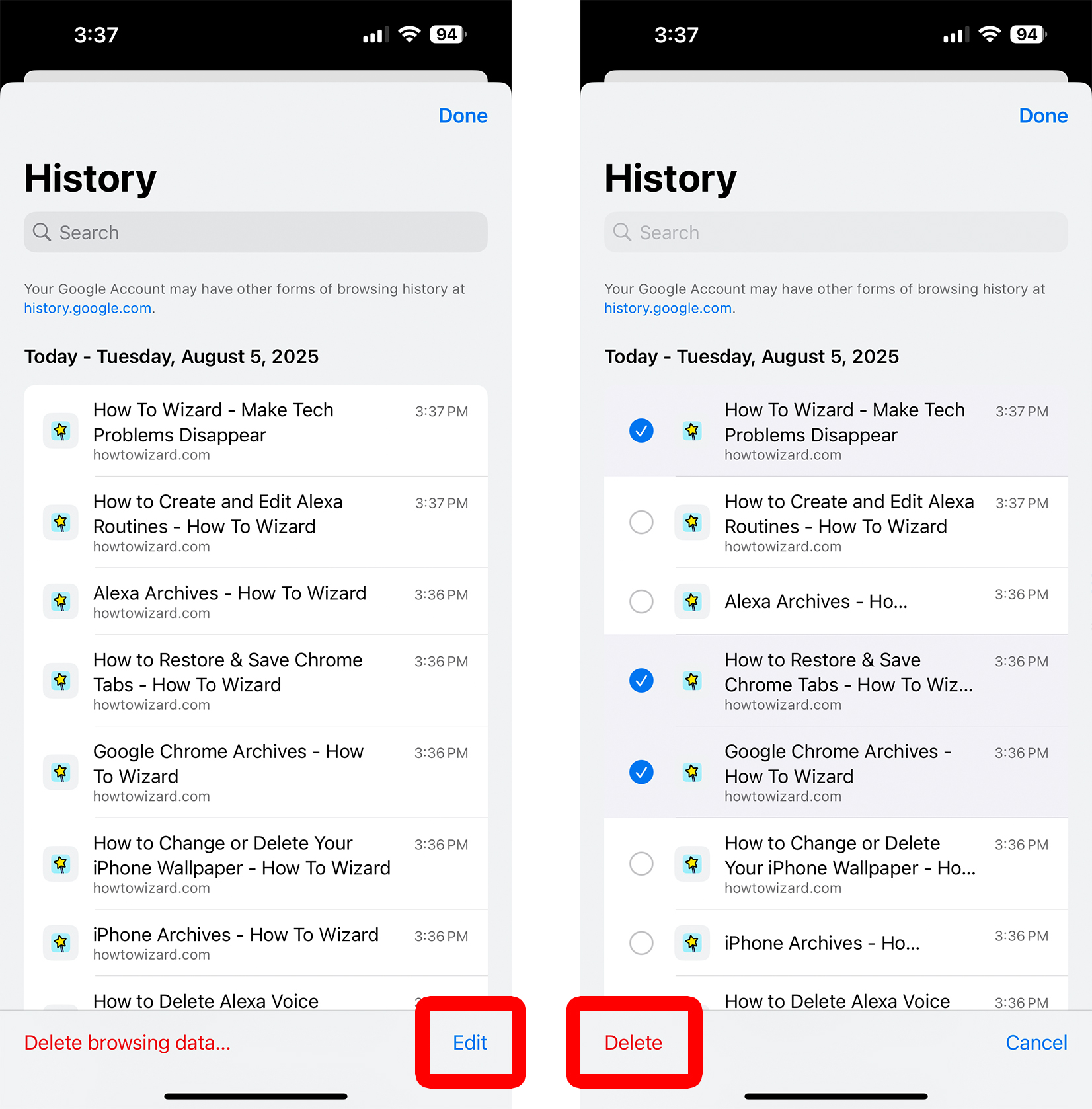
To delete a site from your history, open the Chrome app on your smartphone. Then tap the three-dot icon and select “History.” Next, tap “Edit” and select the sites you want to delete. Finally, tap “Delete.”
- Open the Chrome app.
- Tap the three-dot icon.
- Select “History.”
- Tap “Edit.”
- Select the sites you want to delete from your history.
- Finally, tap “Delete.”