There are over 600 million smart devices that work with Alexa, according to Amazon. So, there’s a good chance you can control all your smart plugs through the Alexa app, with voice commands, or by setting up routines. Here’s everything you need to know about how to connect a third-party smart plug to Alexa, and how to change its settings in the Alexa app.
Before You Begin:
Make sure Bluetooth is enabled on your smartphone and switch to the WiFi network you want your smart plugs to use. In most cases, you’ll need to connect your smartphone to a 2.4GHz WiFi network in order to set up a smart plug.
How to Connect a Third-Party Smart Plug to Alexa
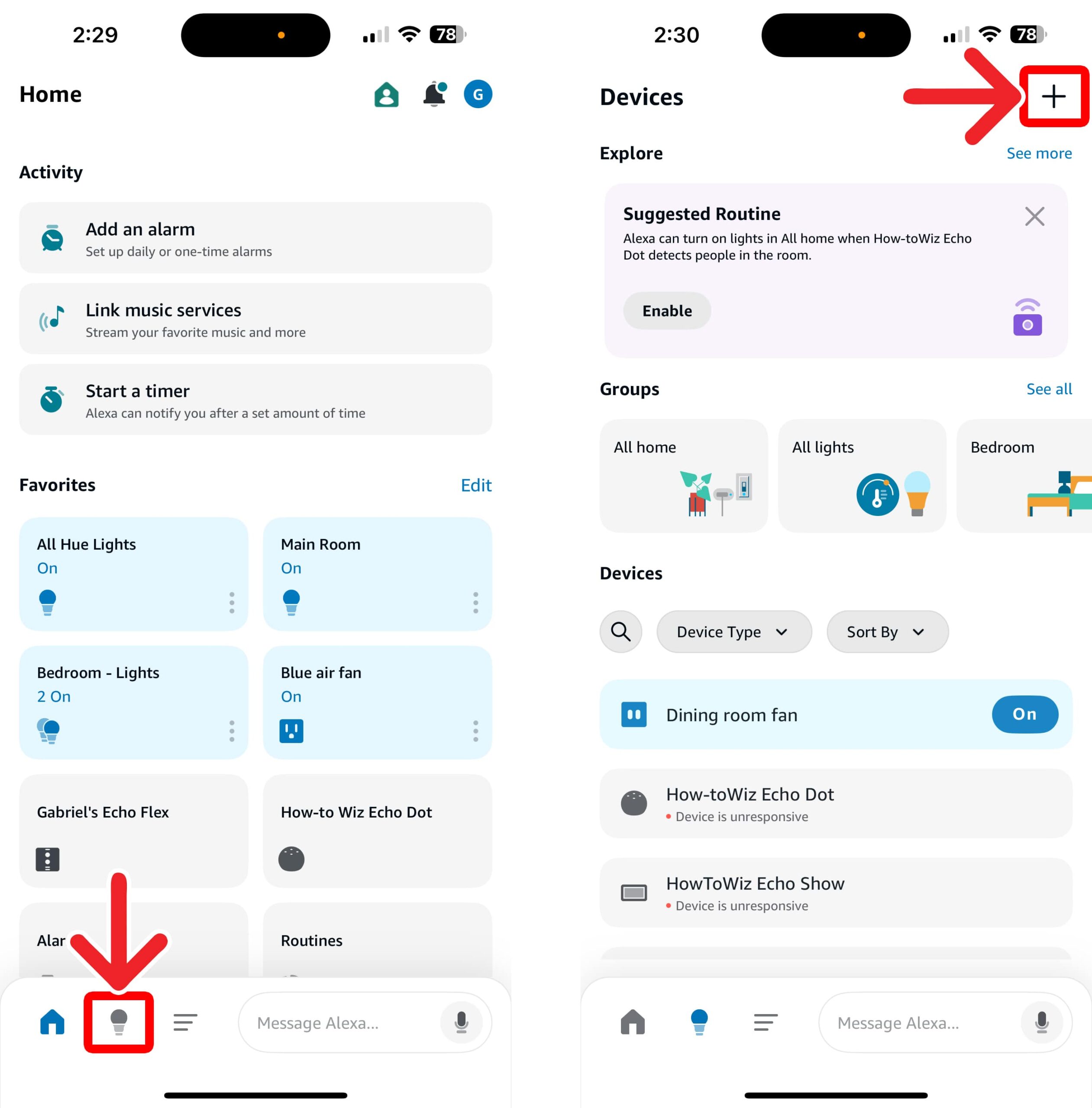
To connect a smart plug to Alexa, download the smart plug’s app. Then, tap “Add Device” and follow the instructions to set it up. Next, open the Alexa app, go to “Devices > plus sign (+) > Add Device,” and follow the instructions to connect your smart plug to Alexa.
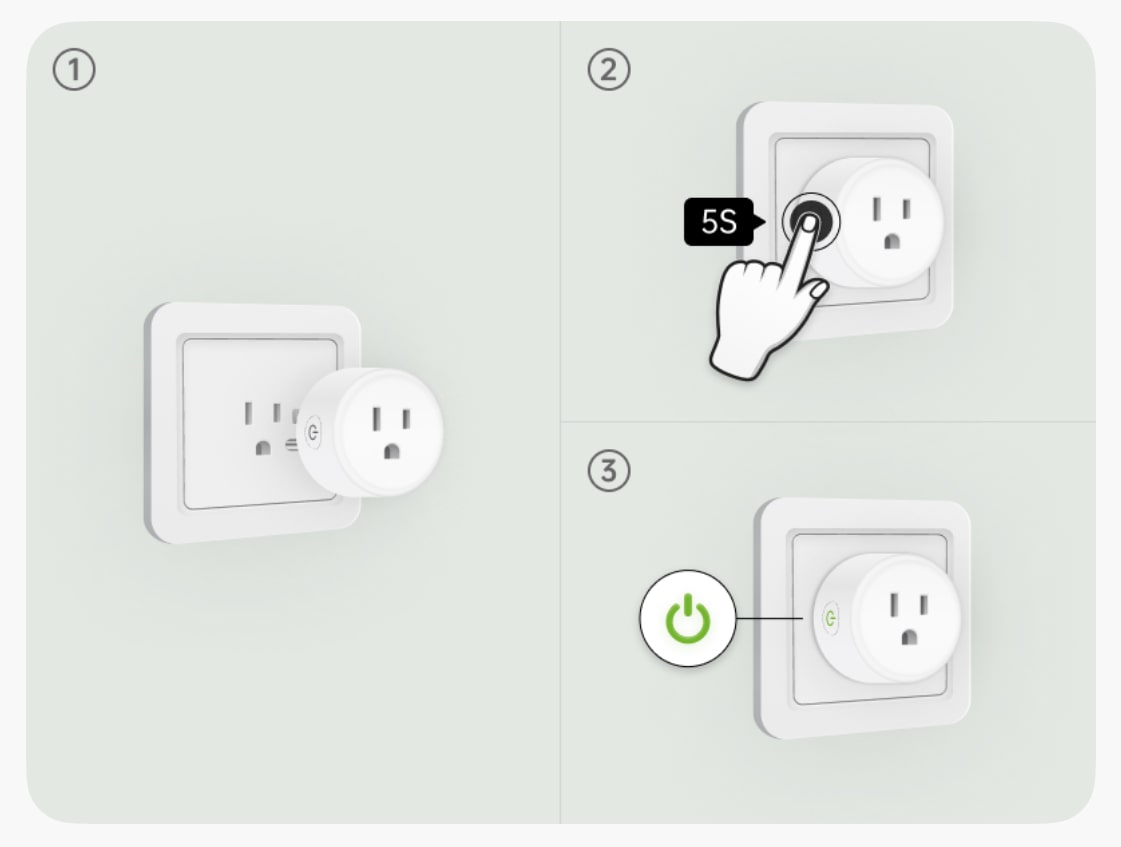
- Plug your smart plug into a power outlet. In most cases, your smart plug will light up when you plug it in the first time. If the light starts blinking, your smart plug might enter “pairing mode” immediately, and you can skip the next step.
- Press and hold the pairing button. In most cases, you will need to press a button on the side of your smart plug for a few seconds—until you see a flashing light. This will put your smart plug in “pairing mode.”

- Download your smart plug setup app. Before you can connect a smart plug to Alexa, you need to set it up through its own app. For example, if you have a smart plug from “Gosund,” you will need to download the Gosund app. If you don’t know which app to download, check the included instructions. Sometimes you will find a QR code that takes you directly to the setup app page.
- Tap “Add New Device.” Many smart plug apps will have a plus-sign icon somewhere on the homepage.

- Select your smart plug. Companies will often release more than one smart plug, so check the back of your smart plug to find its model number. In some cases, you can also scan a QR code on the back of your smart plug. In other cases, the app may automatically detect nearby devices in pairing mode.
- Enter your WiFi password. In most cases, the app will ask you to enter your WiFi network and password.
- Follow the on-screen instructions to connect your smart plug. Make sure to follow the setup process until your smart plug is connected to its companion app.

- Open the Alexa app. If you don’t already have this app installed on your smartphone, you can download it from the Apple App Store or the Google Play Store.
- Go to “Devices.” This is the light bulb icon at the bottom of your screen.
- Tap the plus sign icon. You will see this in the top-right corner of the Devices screen.
- Select “Add Device.”
- Tap “Plug.”
- Select your smart plug brand.
- Tap “Yes.” This will confirm that your smart plug is currently connected to power.
- Tap “Yes.” This will confirm that you already set up your smart plug through the third-party app. If you select No, Alexa will provide a link to your smart plug’s setup app.
- Select “Yes.” In order to connect your smart plug to Alexa, you need to be able to control it through its own app.
- Add the smart plug skill. If you have already added the skill, you can skip to the next step.
- Wait for Alexa to connect to your smart plug, then tap “Next.” Make sure your smart plug is in pairing mode and within 10 feet of your smartphone.
- Set your smart plug name. You can also tap Skip to bypass the following steps and change these settings in the Alexa app at a later time.
- Choose a location. Your smart plug name and location will determine how you control it with voice commands. For example, if you name your smart plug “Hallway Fan,” you can say, “Alexa, turn on Hallway Fan,” or “Alexa, turn on all my devices in the hallway.”
- Finally, tap Continue to connect your smart plug to Alexa.