
WiFi slowing you down? Forgot your WiFi password? Resetting your router is often the quickest fix. Here’s how to reset your WiFi router to factory settings and restore your network’s old name and password.
Read More: How to Change Your WiFi Channel
How to Reset a Router with the Physical Button
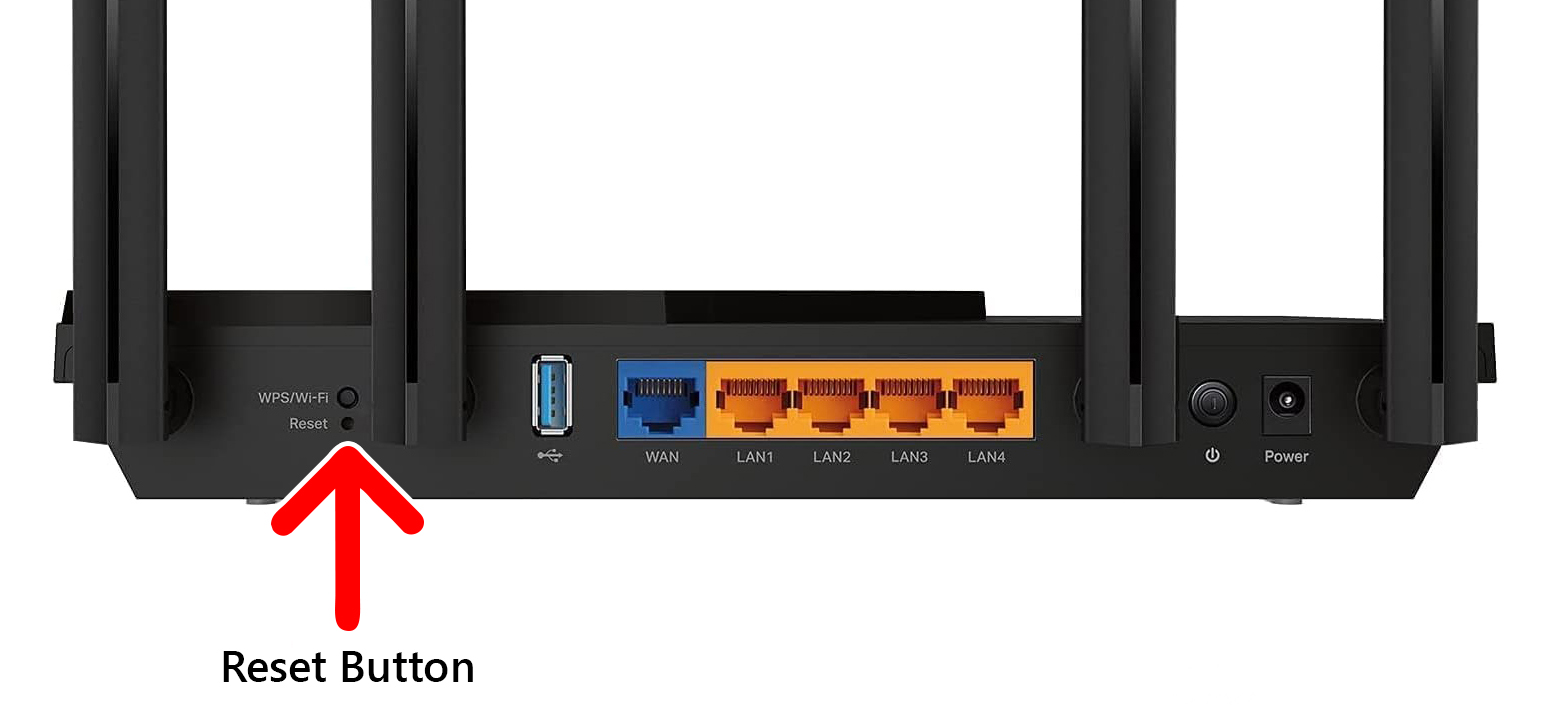
To reset a WiFi router, locate the “Reset” button on the back of the device and use a paperclip to press and hold it for 30 seconds. Release the button when you see the lights on the front of the device start blinking or change color. Then wait for your router to restart.
- Check that your router’s power light is on. You’ll want to keep your router plugged in and turned on while you reset it.
- Find the reset button on the back or bottom of your router. This is usually located on the back or bottom of the router, sometimes opposite the power port.

- Use a long, thin tool to press and hold the reset button for 30 seconds. You should notice some lights on the front of the device start blinking or changing colors.
- Release the button and wait for your router to turn on again.
How to Reset a Router Through its Settings
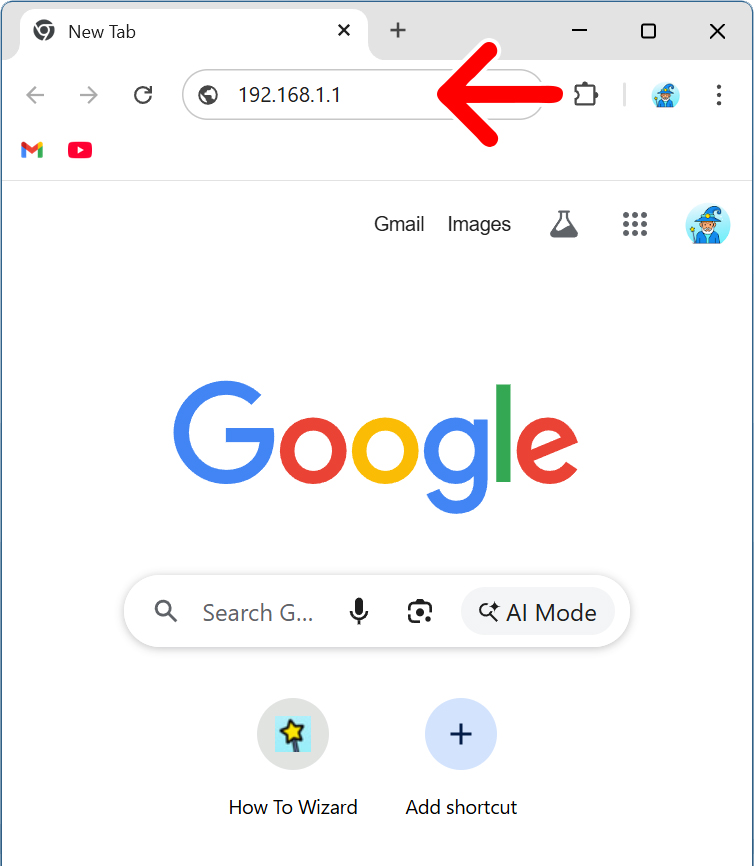
- Open a web browser. You can use any web browser for these steps.
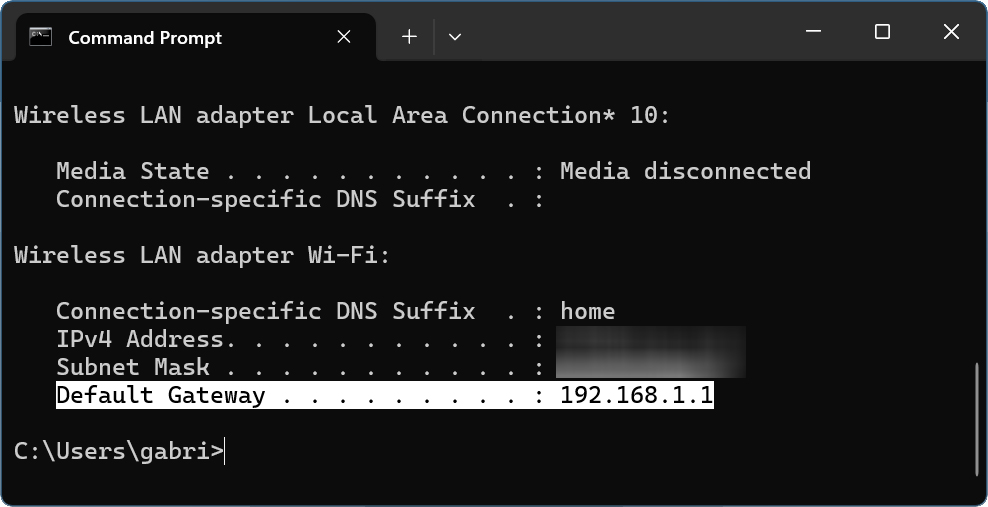
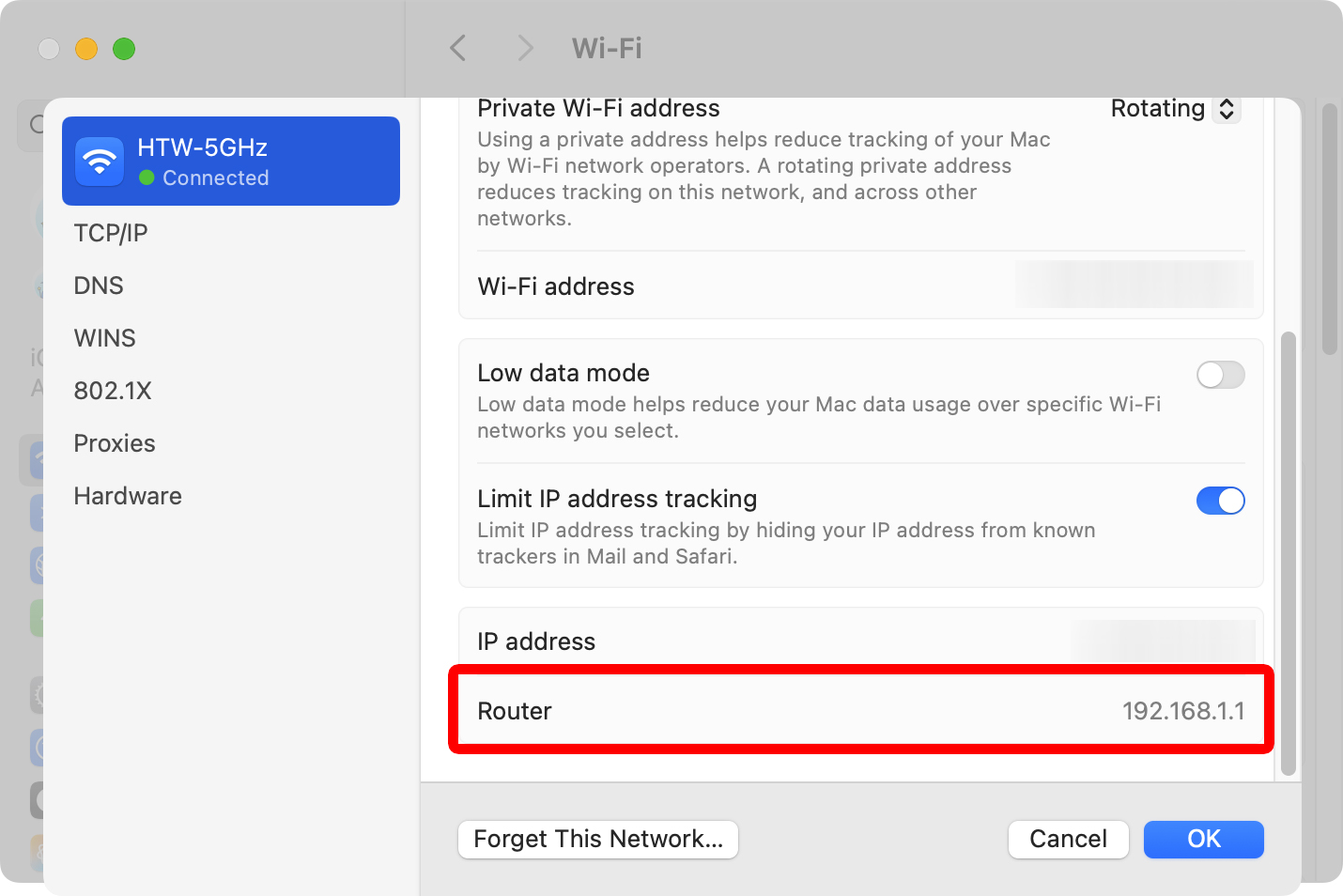
- Enter your router’s IP address into the browser address bar. The address bar is where you normally enter a website’s URL. The most common router IP addresses are: 192.168.0.1, 192.168.1.1, and 10.0.0.1. If none of these work, you’ll need to find your router’s IP address manually on your computer.


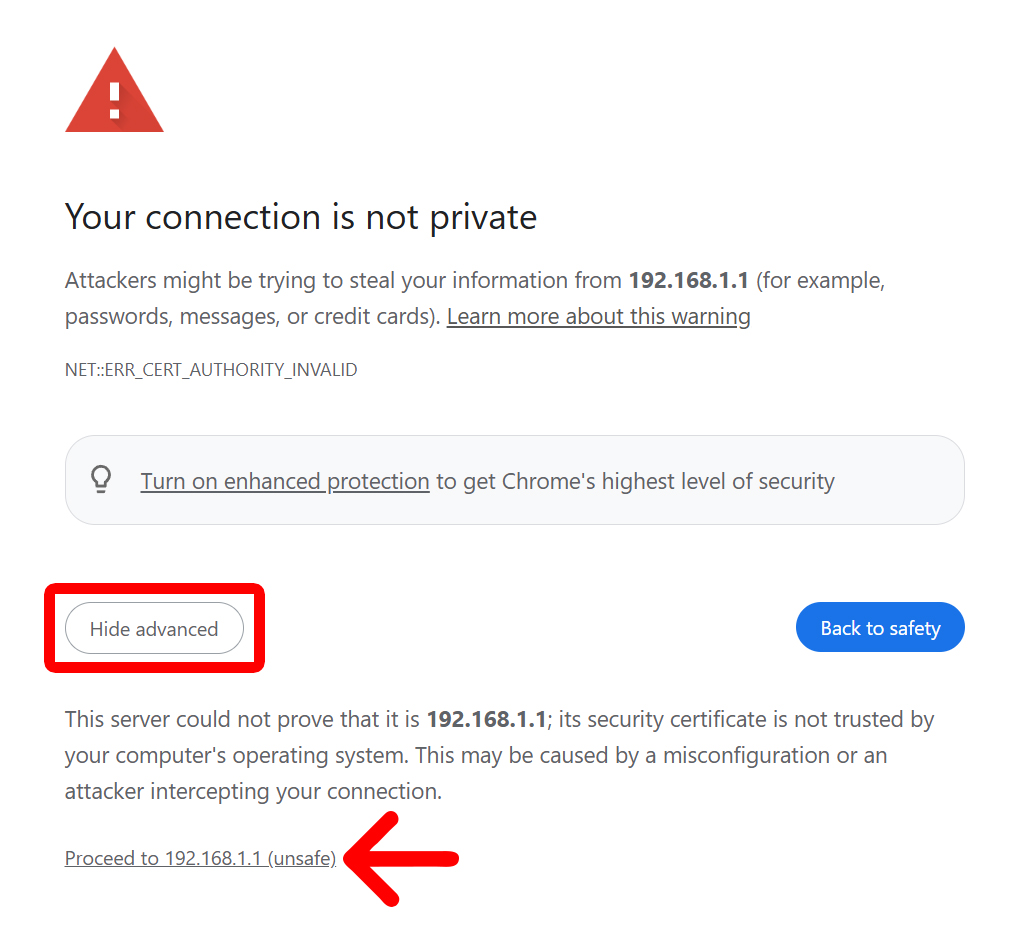
- If you see a security warning, click “Advanced > Proceed.” On Safari, click “Show Details > Visit this website.”

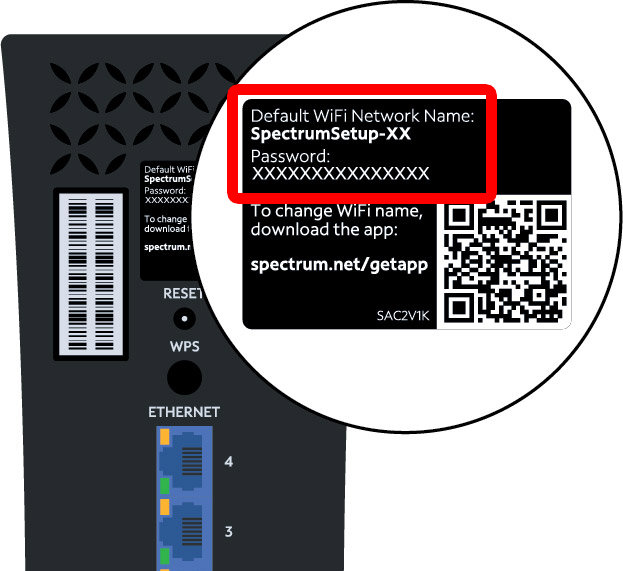
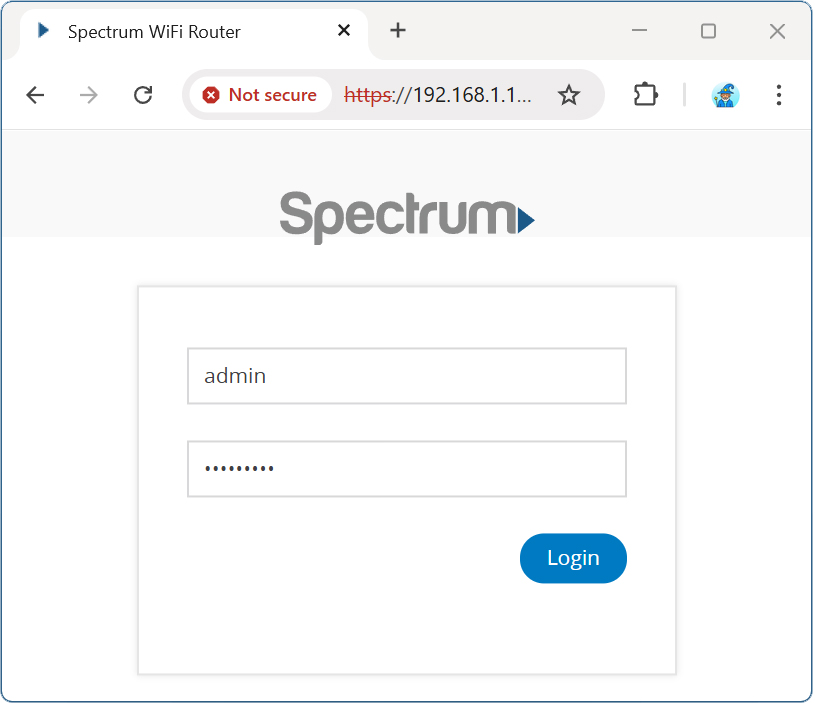
- Enter your router’s username and password. If you can’t remember your password, you’ll need to manually reset your router with the physical button on the back of the device. Then you can use your default username and password to check your router’s settings.

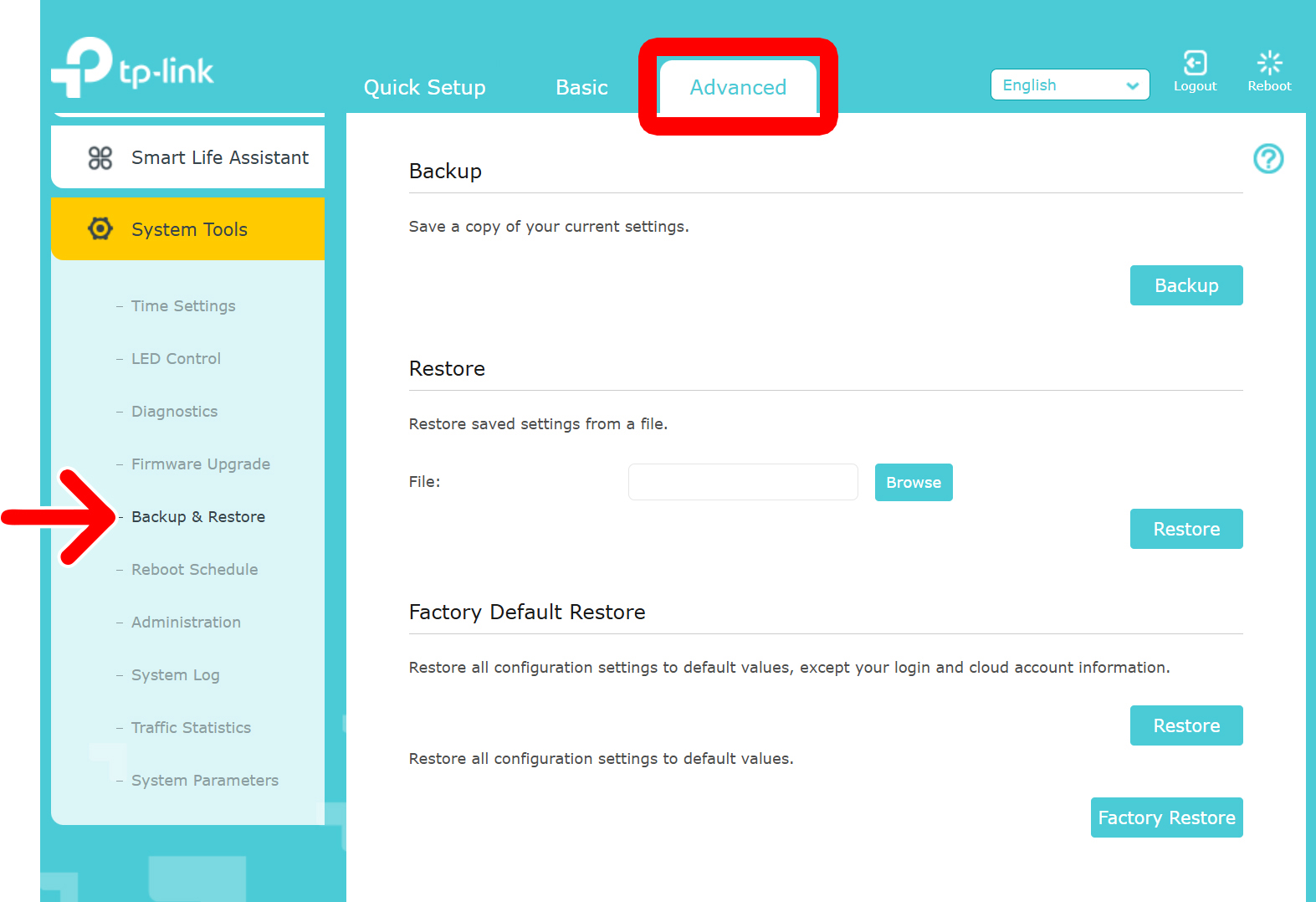
- Go to “Advanced” settings.
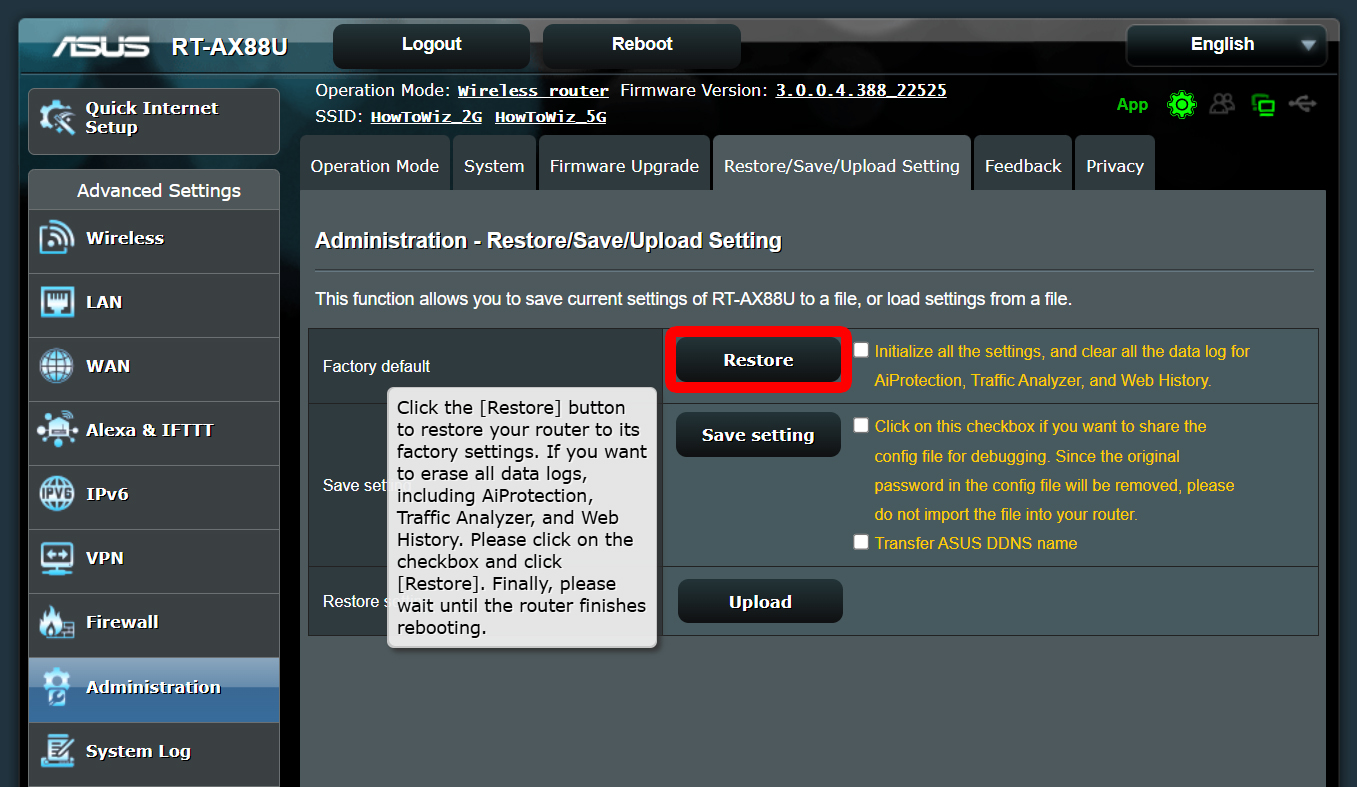
- Go to the “Reset” or “Restore” settings.

- Finally, click “Reset” or “Restore.”
Default Router Passwords
- Netgear:
- Username: admin
- Password: password
- TP-Link:
- Username: admin
- Password: admin
- Asus:
- Username: admin
- Password: admin
- Spectrum:
- Username: admin
- Password: admin
- Linksys:
- Username: [leave blank]
- Password: admin
- Xfinity:
- Username: admin
- Password: password