
When your Roku starts acting up, a simple restart can solve most issues. It’s quick, safe, and won’t delete your apps, passwords, or settings. Here’s everything you need to know about how to restart a Roku device or TV—either by power cycling or using the settings menu.
How to Power Cycle Roku
To restart any Roku device or TV, unplug the power cable and wait at least 10 seconds so it can fully power off. Then simply plug it back in and wait for it to reboot.
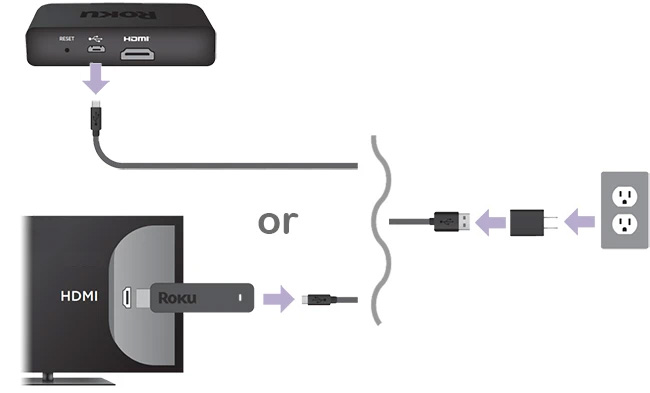
Note: If your remote isn’t working, remove the batteries before unplugging your device. Once your Roku reboots to the home screen, reinsert the batteries. Your remote should automatically pair.
If your Roku is plugged in somewhere hard to reach, follow these steps to restart it through the Settings menu instead.
How to Restart Roku in the Settings Menu
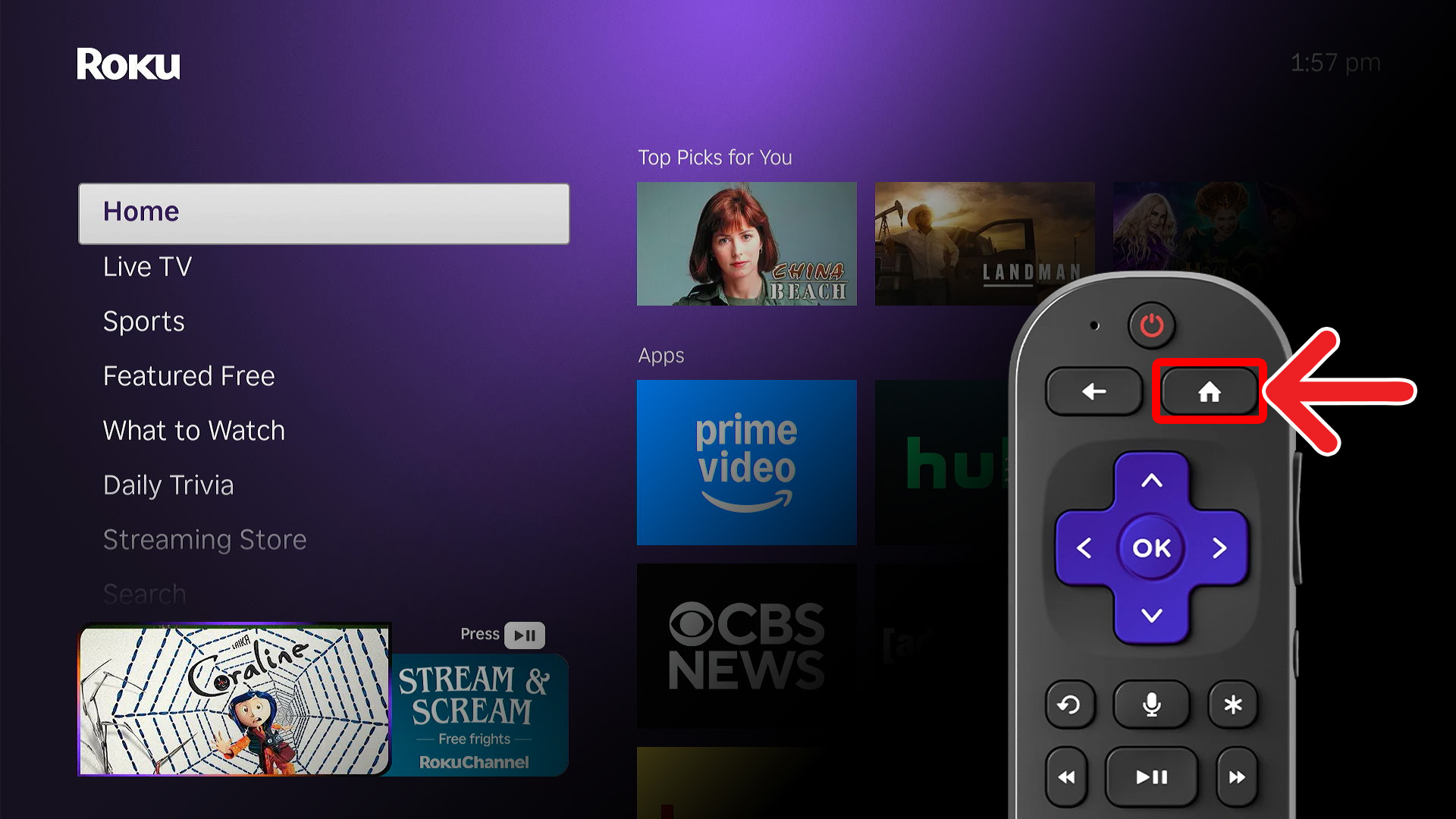
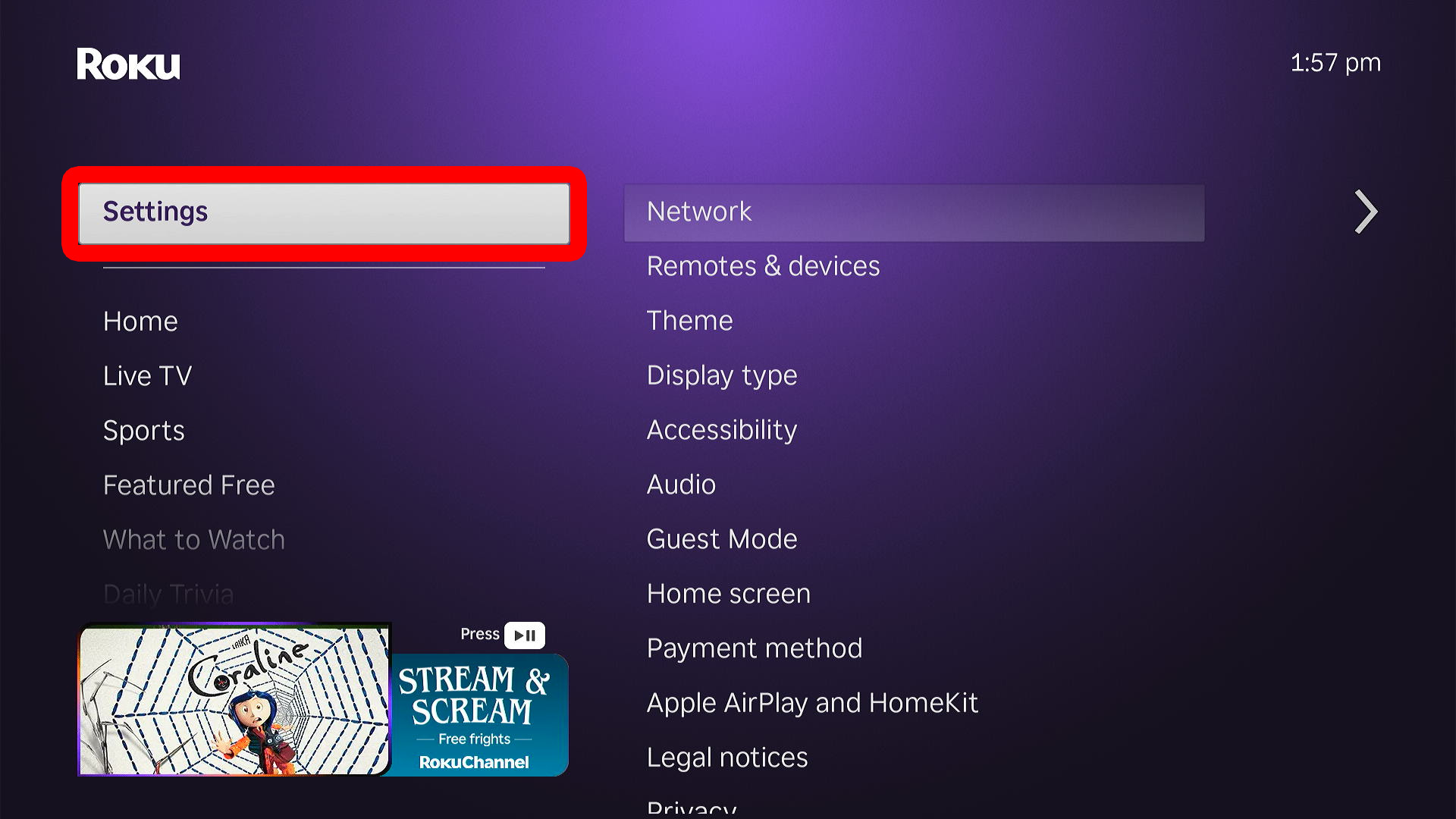
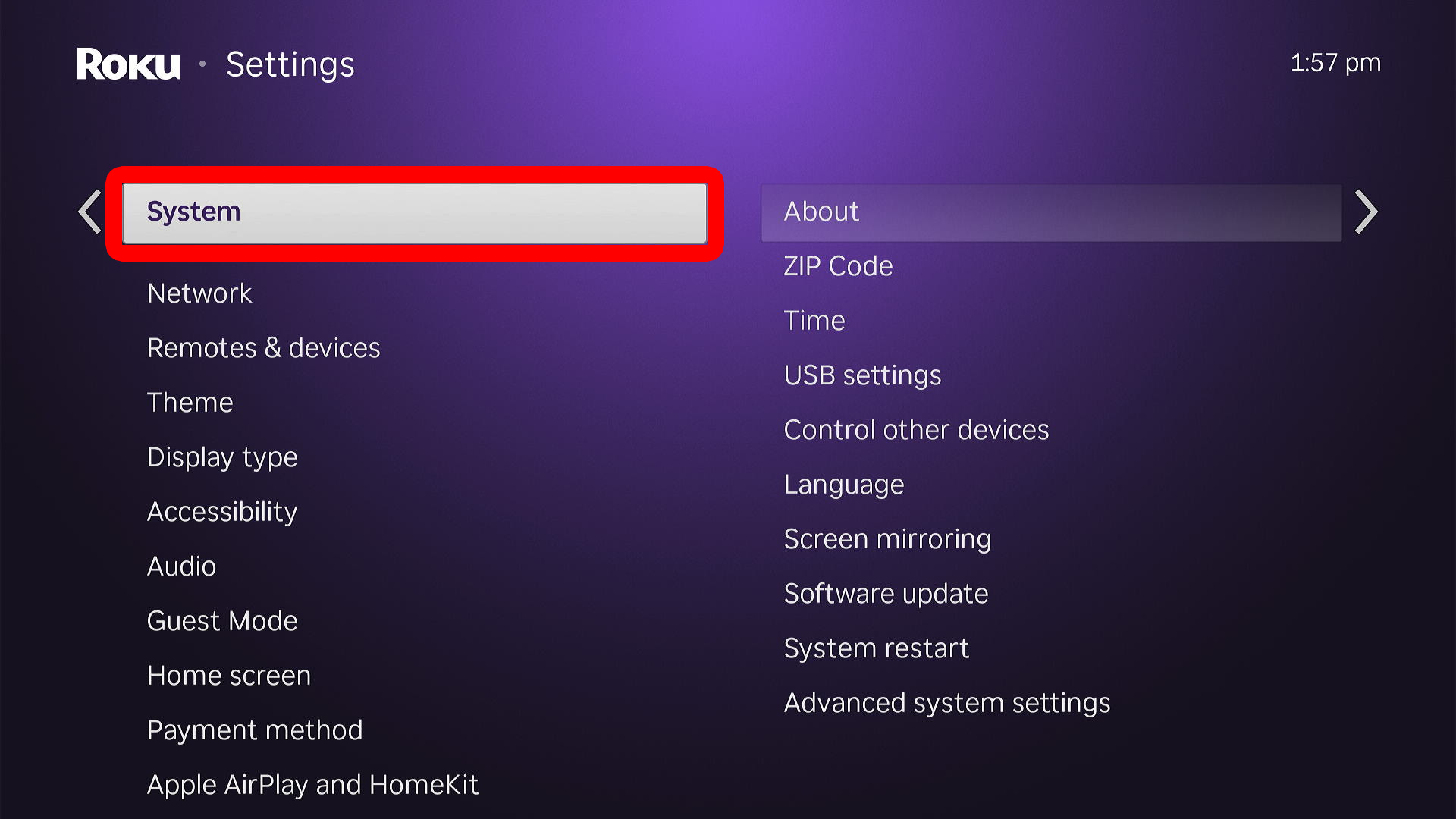
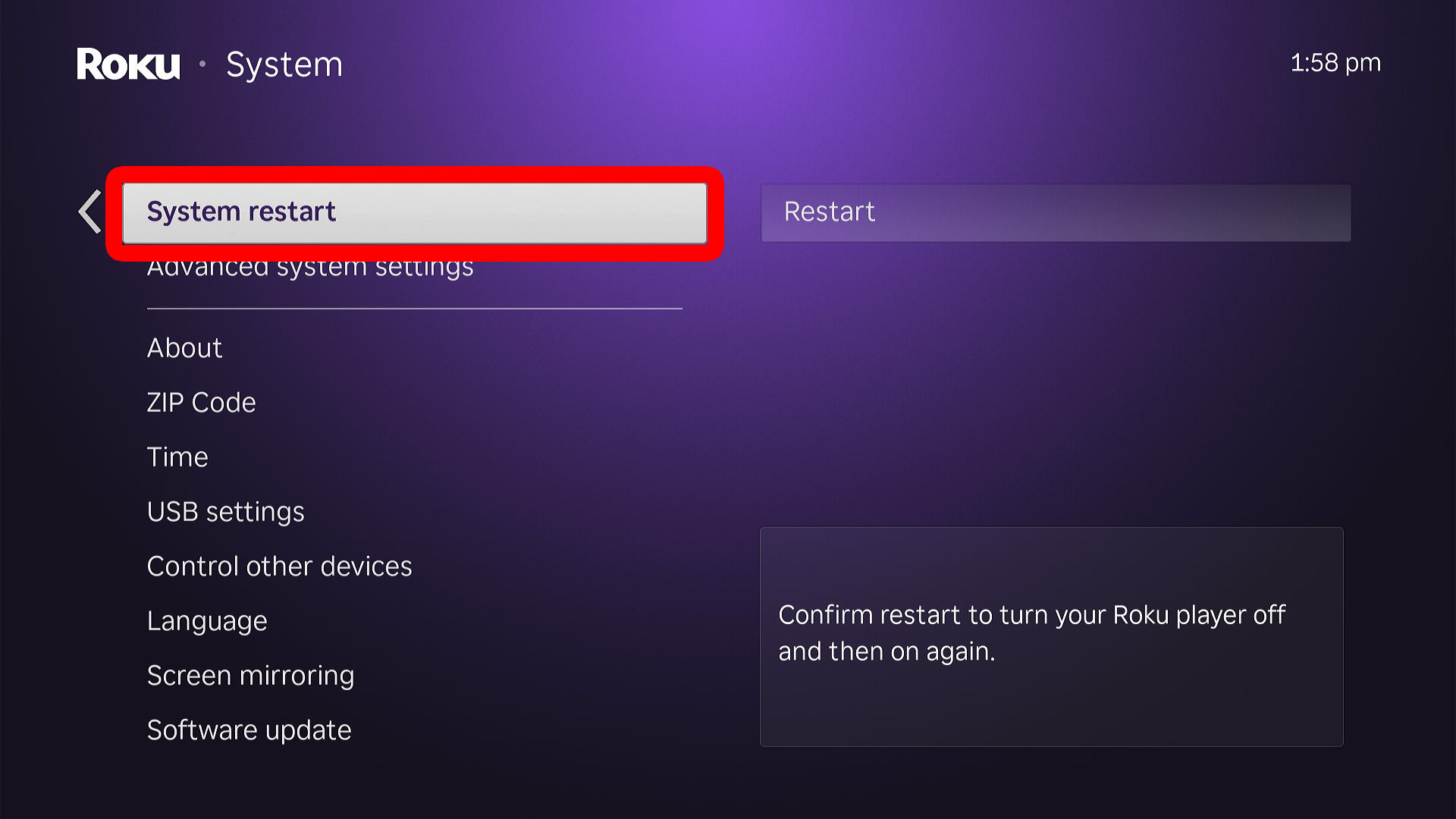
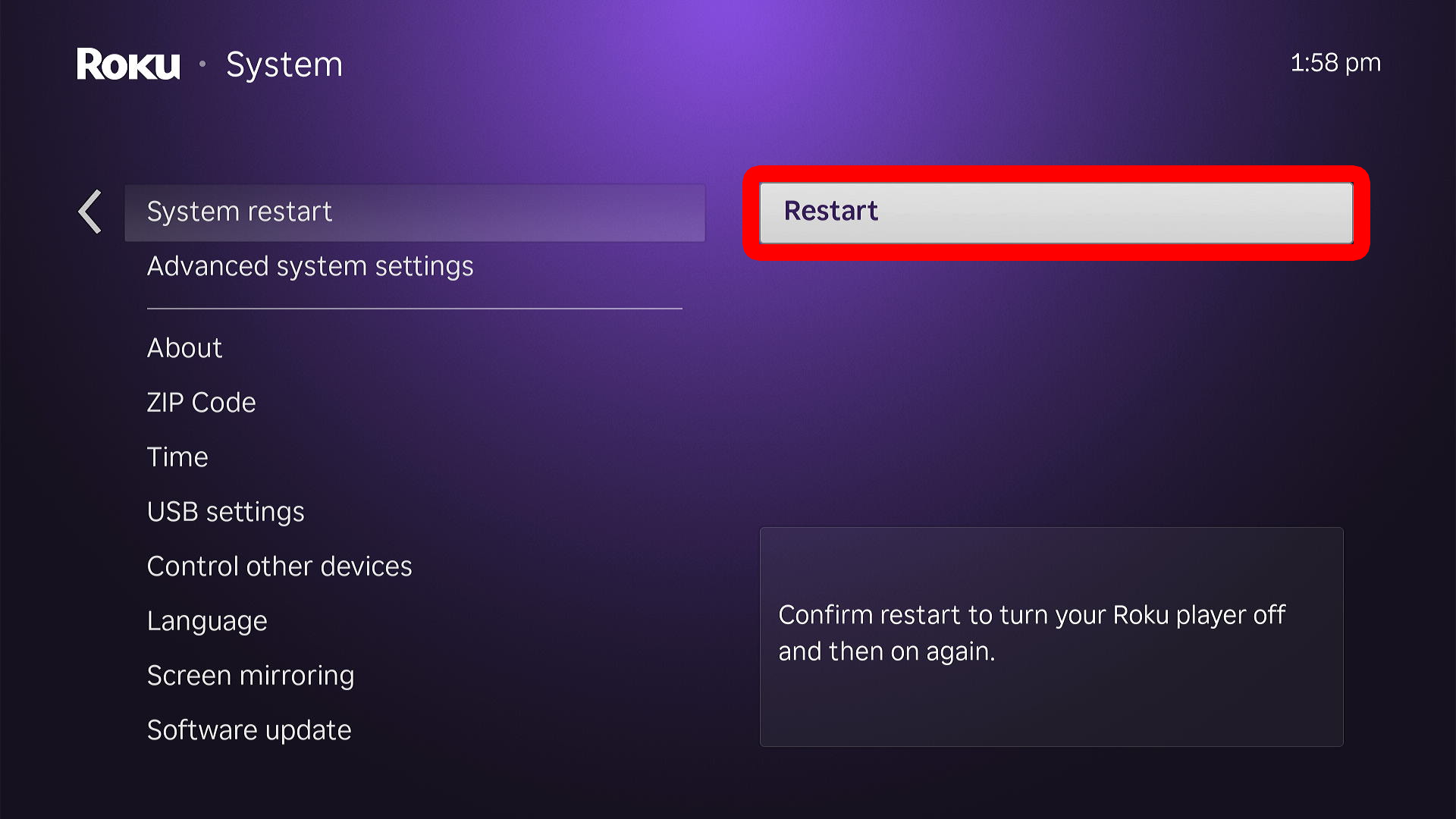
To restart a Roku device or TV through the Settings, press the home button on your Roku remote and go to “Settings.” Then select “System” and go to “Power” (only on certain Roku devices and TVs). Finally, go to “System restart” and select “Restart.”
- Press the “Home” button on your Roku remote. This will take you to the Roku home screen.

- Select “Settings.” To do this, press the Up- or Down-directional buttons to navigate the left sidebar menu. When “Settings” is highlighted, press the “OK” button on your Roku remote.
- Go to “System.”
- Select “Power.”
- Go to “System restart.”
- Finally, select “Restart.” Once it restarts, your Roku will return to the home screen, and you can start streaming again.
If restarting doesn’t solve the issue, check for system updates or reset the device to factory settings.
Read More: How to Update Your Roku Device and Apps
Read More: How to Factory Reset a Roku Device or TV
Note: You should only reset your device if restarting doesn’t fix the problem—it will erase all your settings.